Angular
Neil Haddley • September 20, 2025
A platform for building mobile and desktop web applications
Getting started
I installed the Angular command line interface using npm
BASH
1% npm i -g @angular/cli
I created a new Angular project using "ng new"
BASH
1% ng new haddley-angular
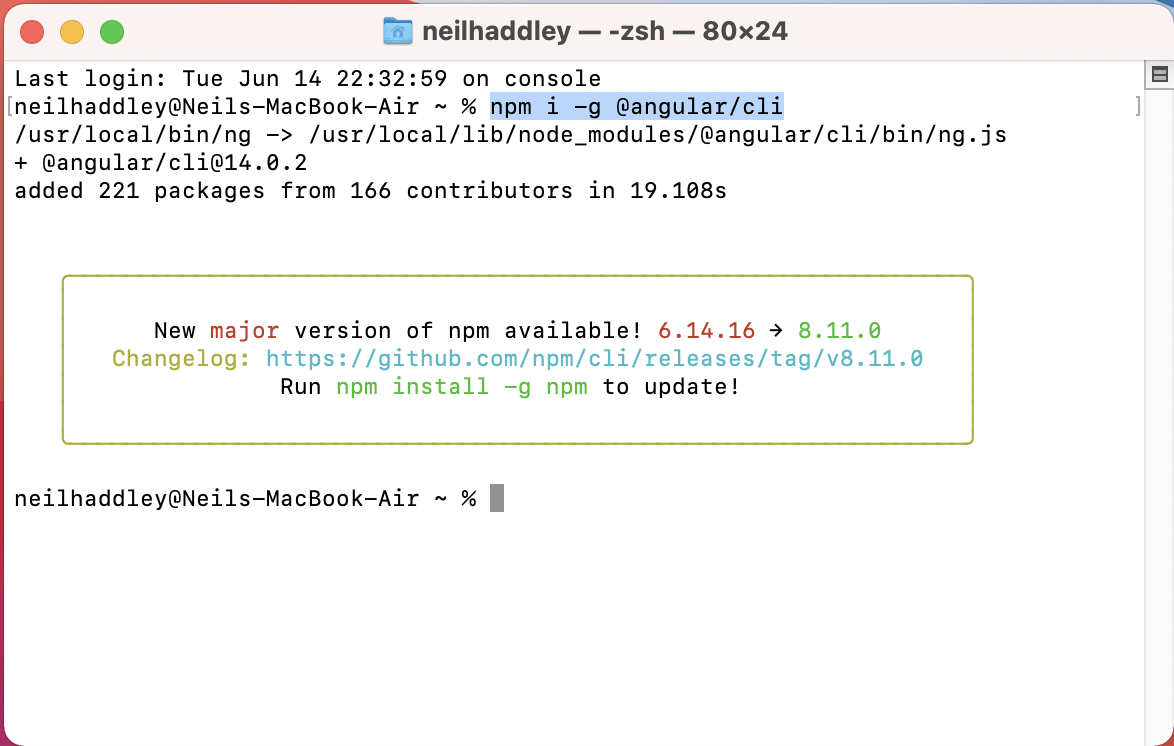
I installed the Angular CLI with npm
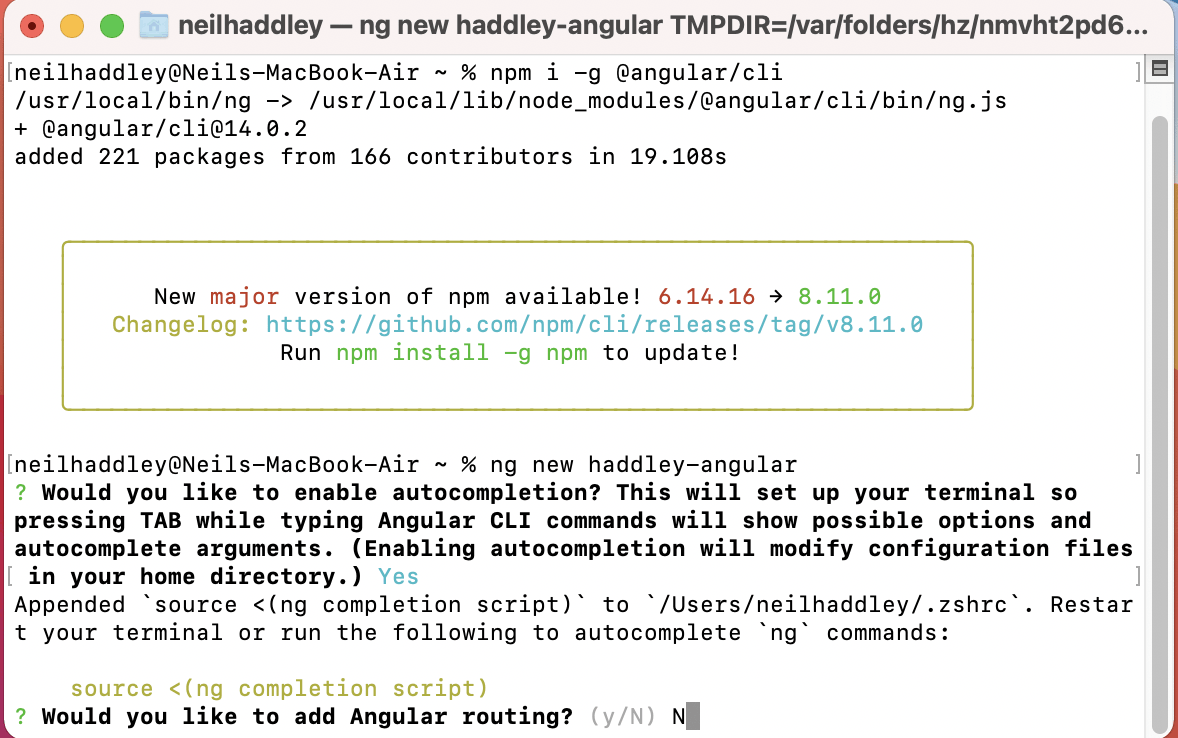
I skipped Angular routing (I can add that later)
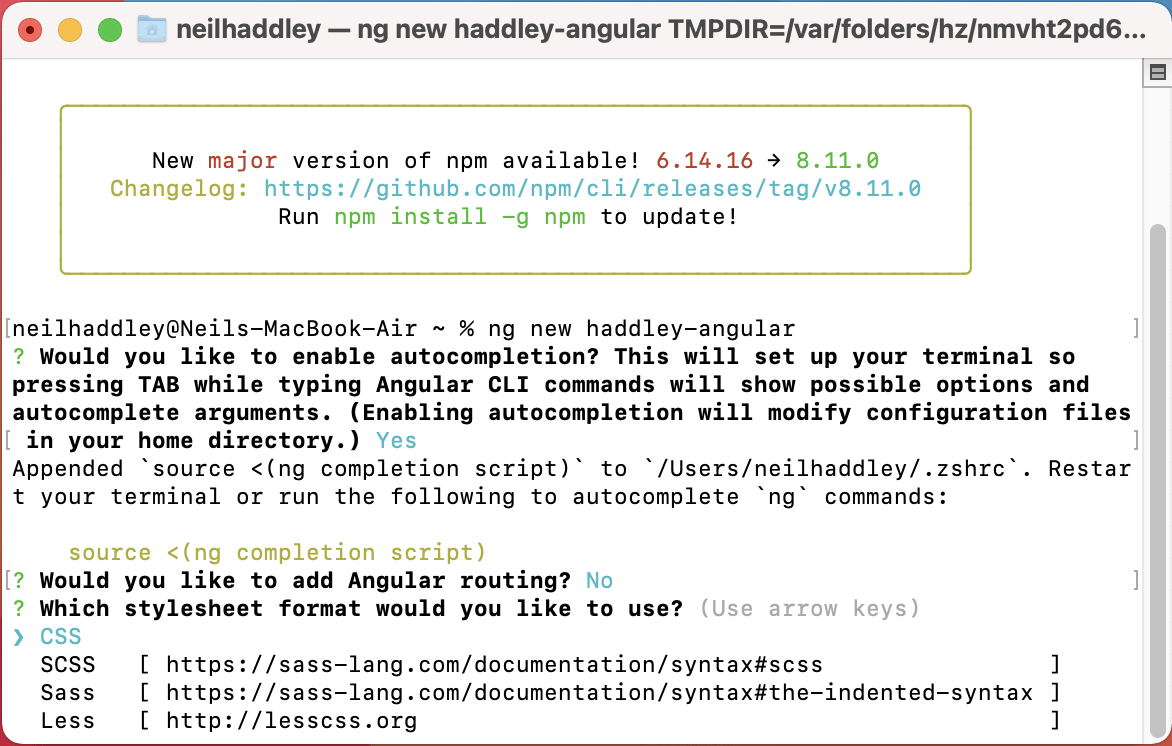
I selected CSS (no preprocessor required)
Running the application locally
I started running the new Angular project by changing to the project directory and using "ng serve"
BASH
1% cd haddley-angular
2% ng serve
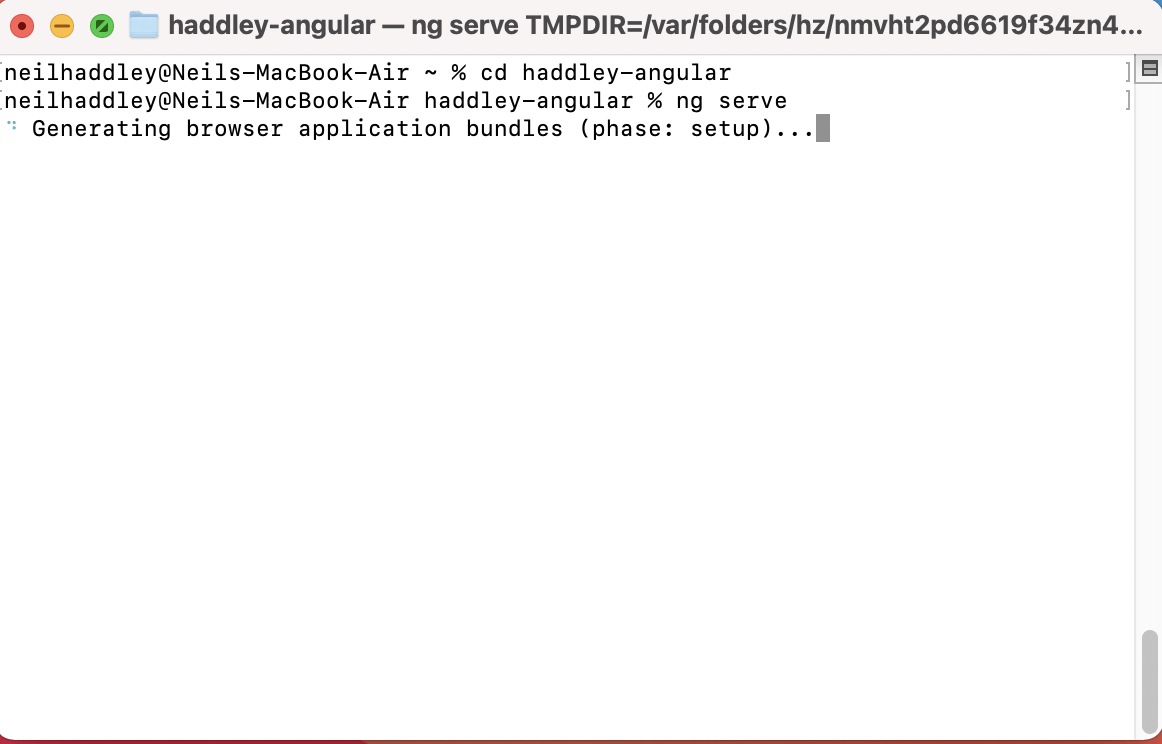
I changed to the new project folder and ran "ng serve"
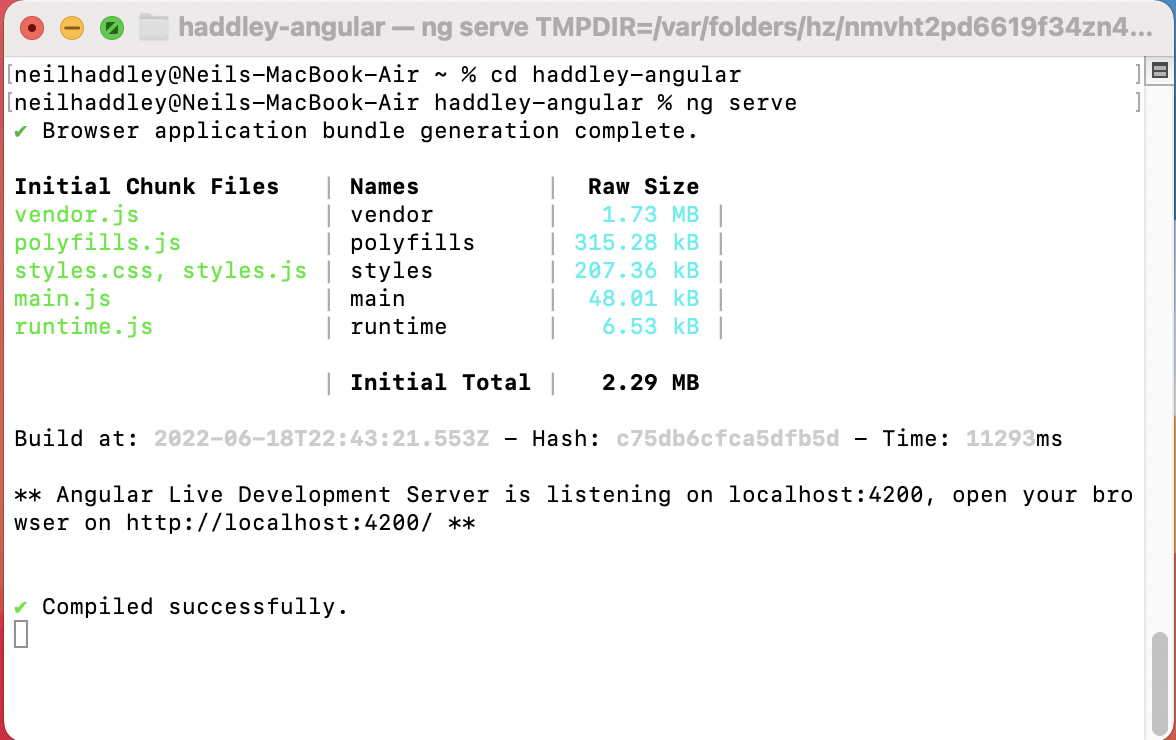
The app was running on localhost:4200
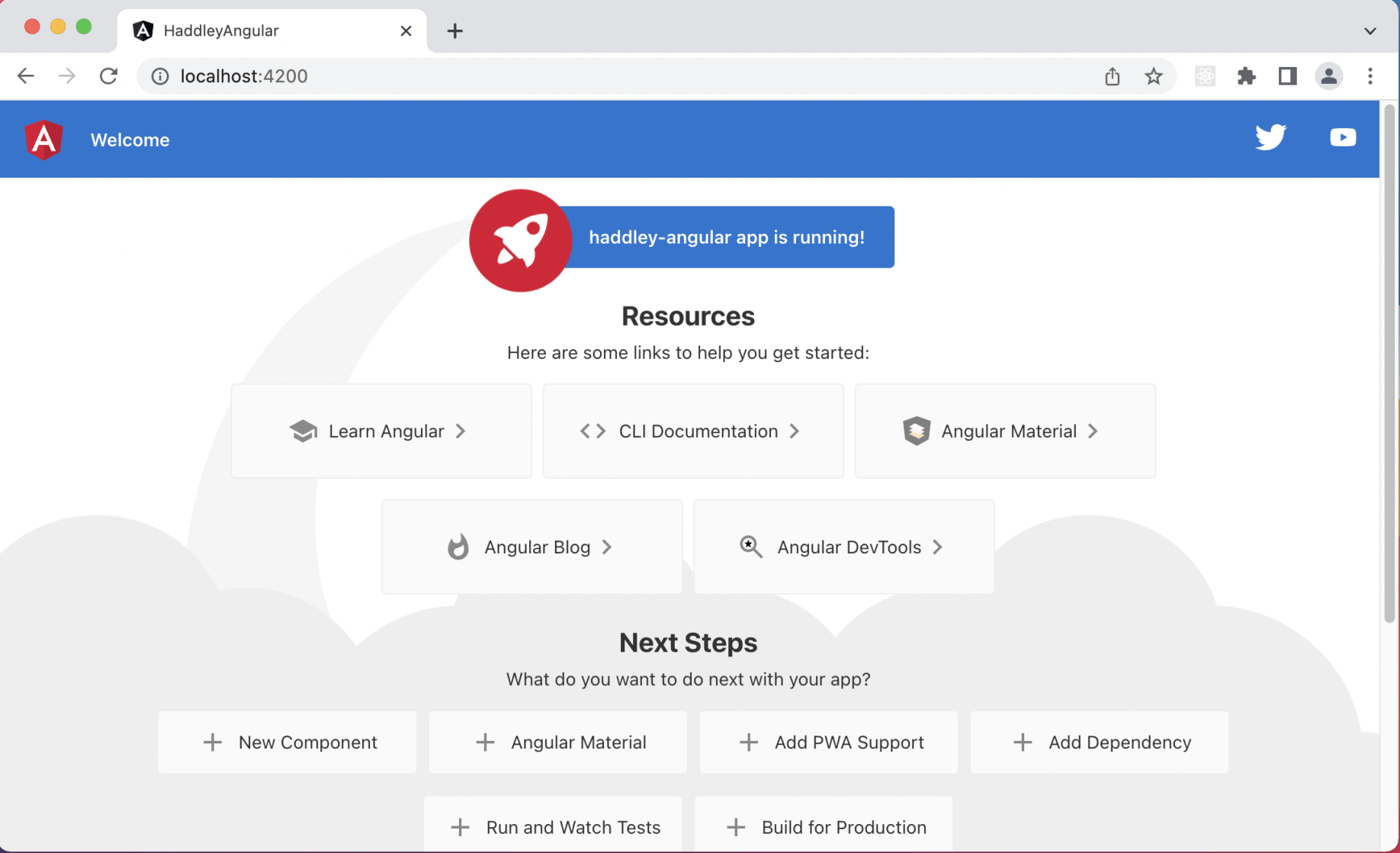
The out-of-the-box home page
App Component
ng new creates a single app component.
The app component is defined using four files:
The app.component.css file is the component's cascading style sheet.
The app.component.html file is the component's html template.
The app.component.spec.ts file is used for testing.
The app.component.ts file is the component's TypeScript code.
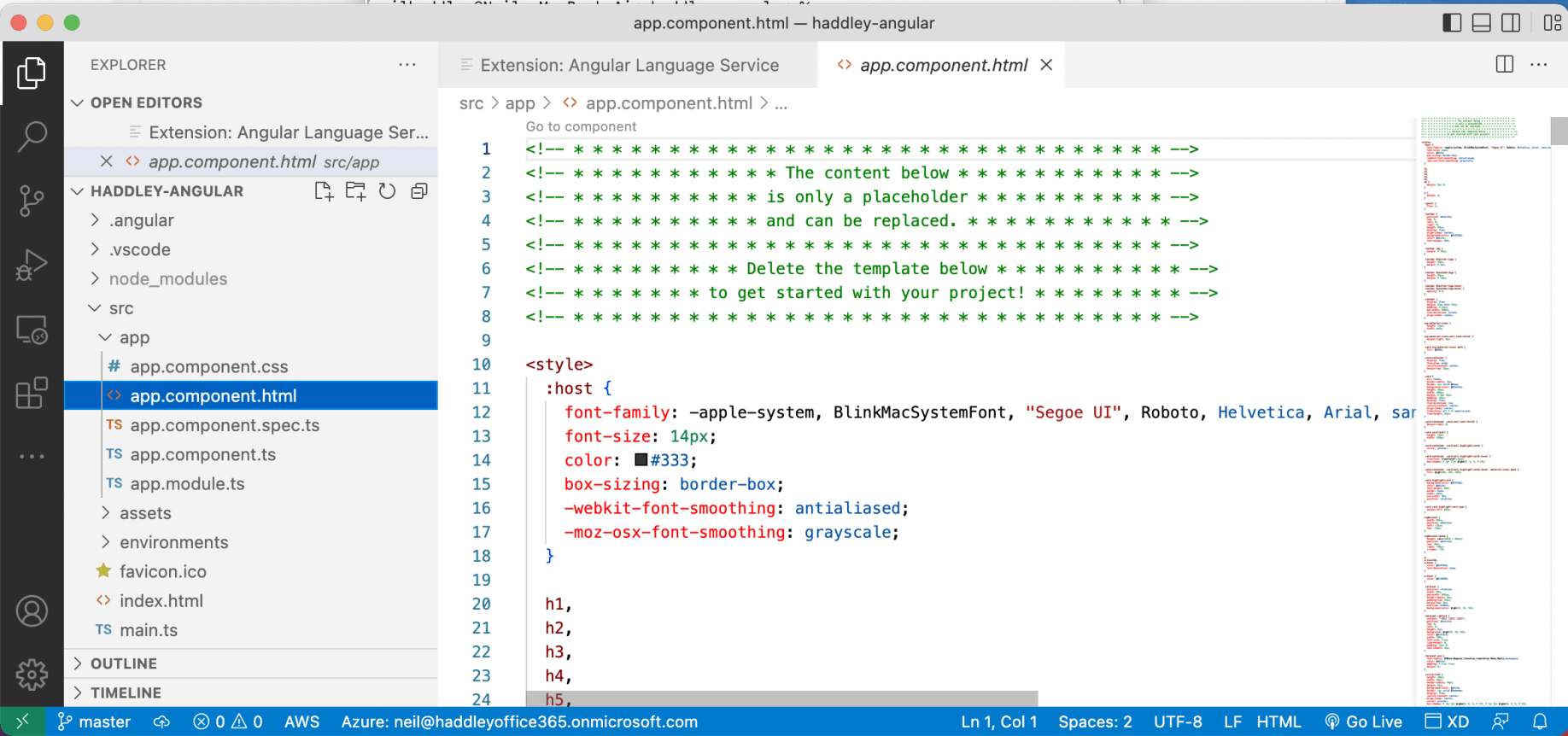
app.component.html is the home page component's template
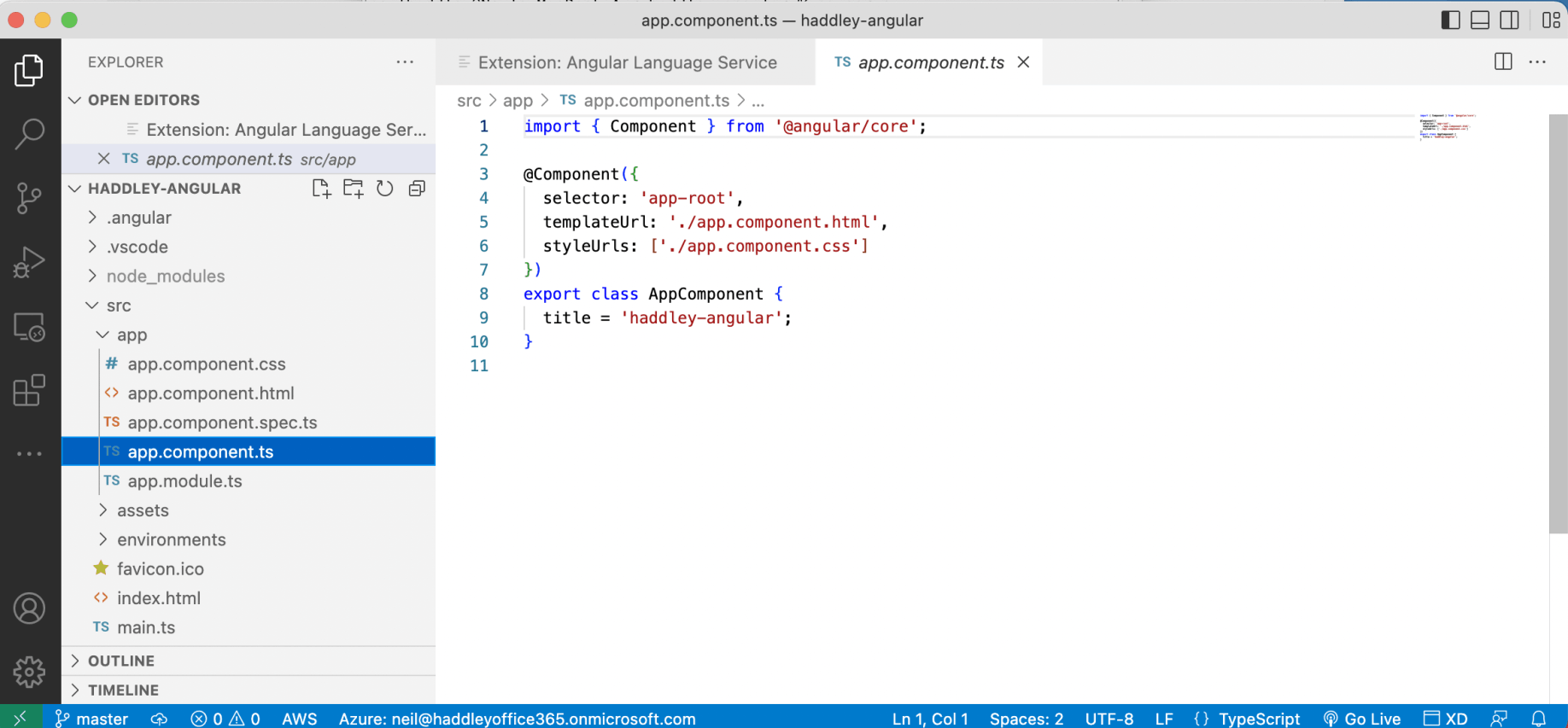
app.component.ts contains the home page component's class
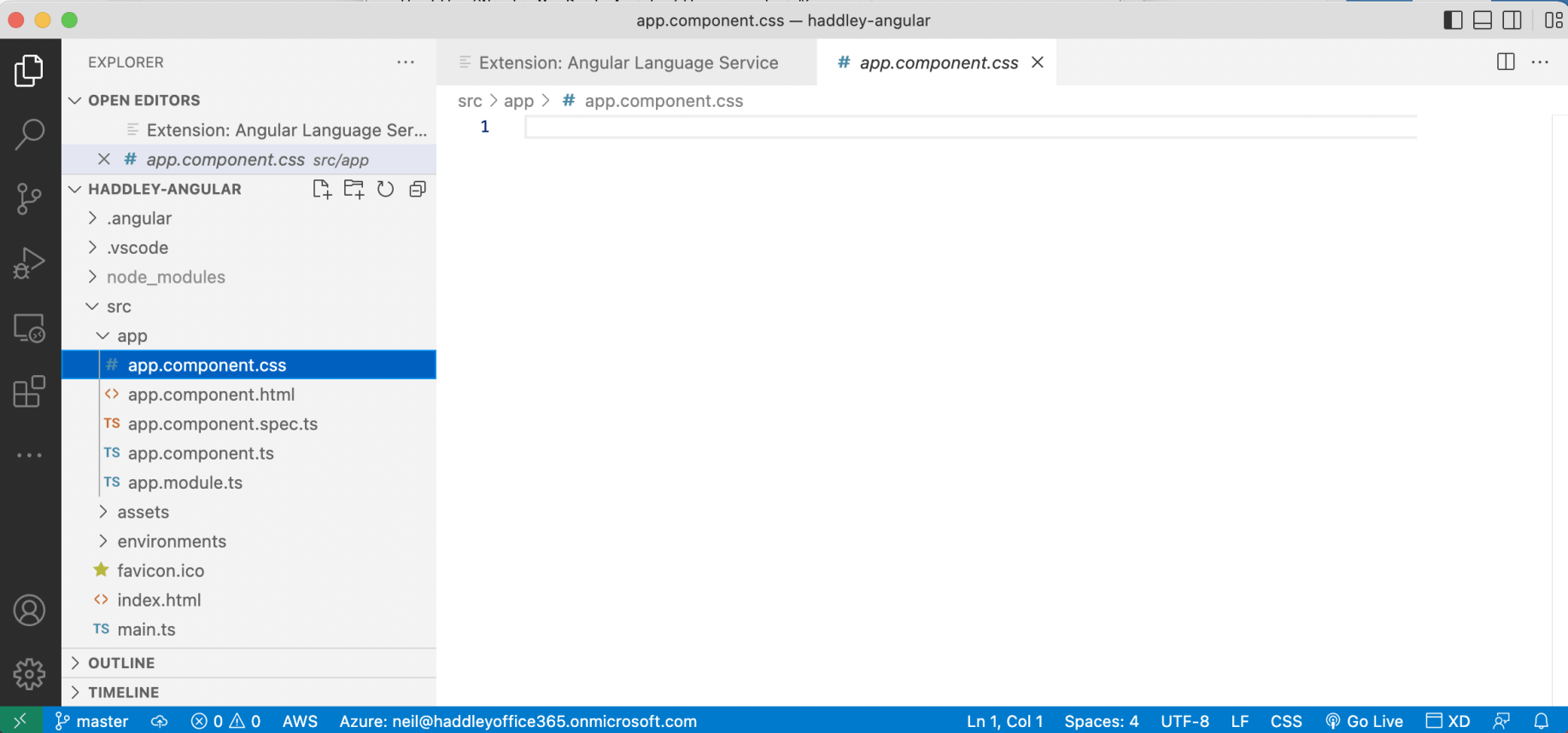
app.component.css contains the home page component's styling (initially empty)
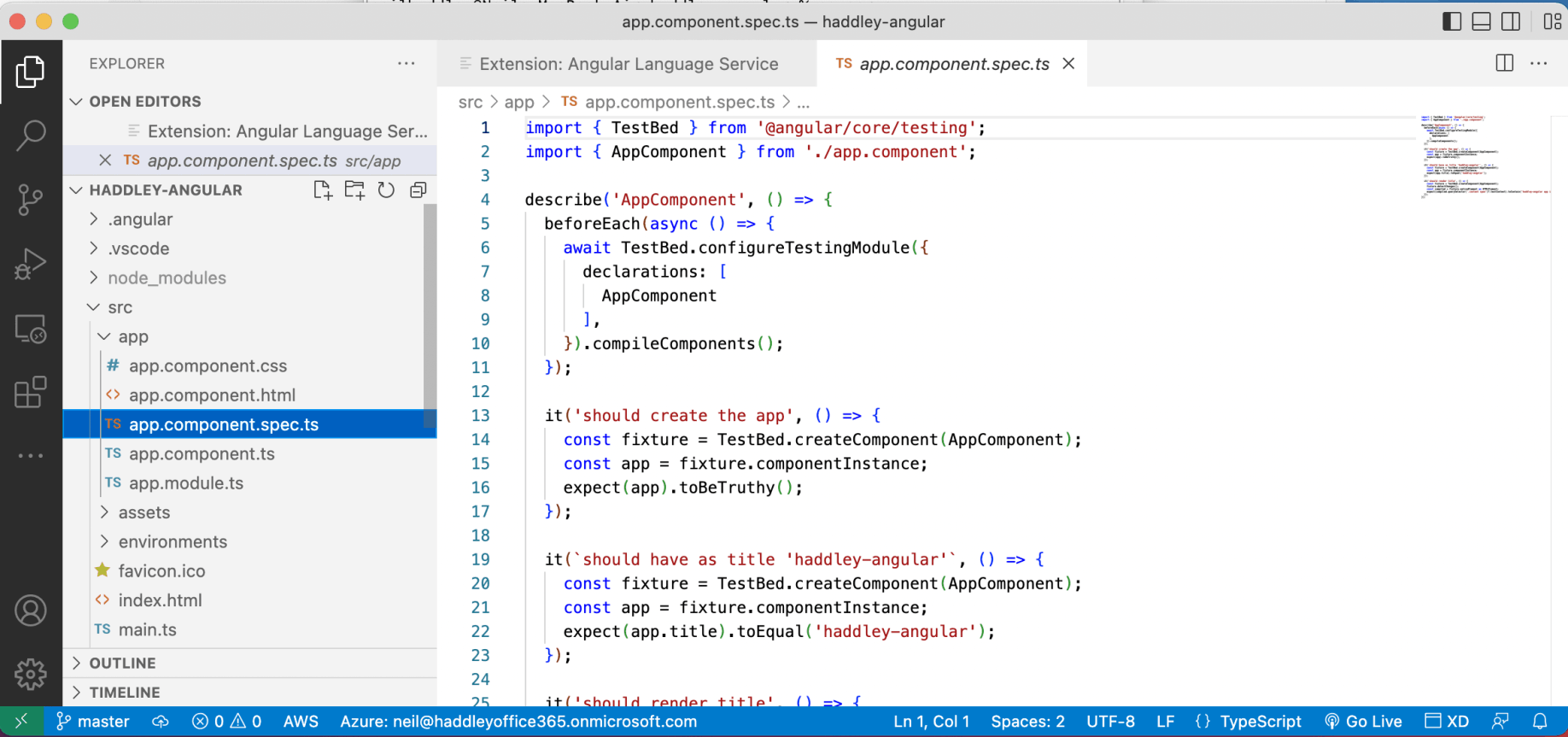
The app.component.spec.ts file provides unit tests that can be run using "ng test"
App Module
ng new creates a single module.
The app module includes a reference to the App Component.
main.ts
The app module is referenced in the project's main.ts file.
Updating the app.component
I updated app.component.html to:
HTML
1<h1>{{title}}</h1>
At runtime the {{title}} Angular expression is replaced with the value of the app component's title property.
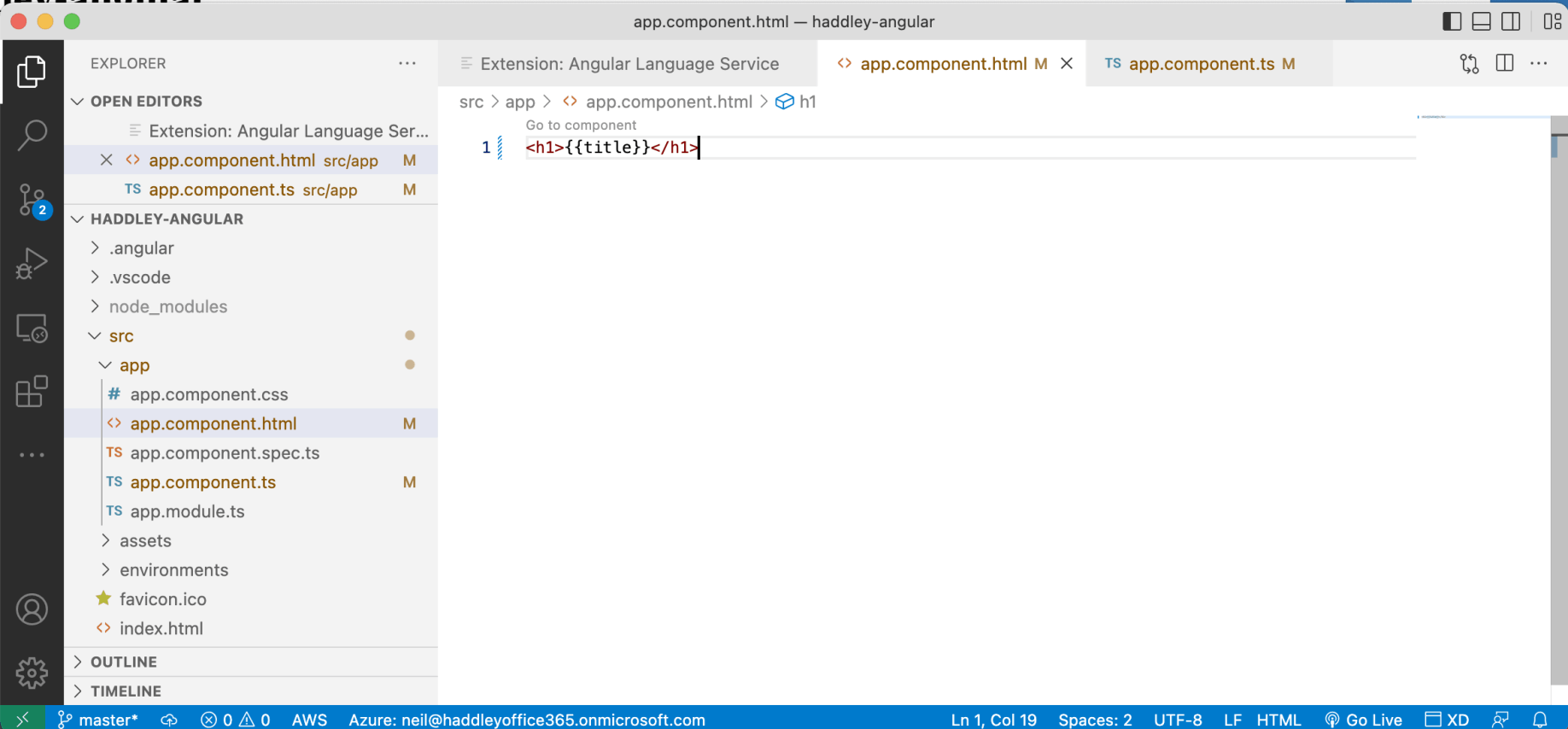
I updated the app.component.html template
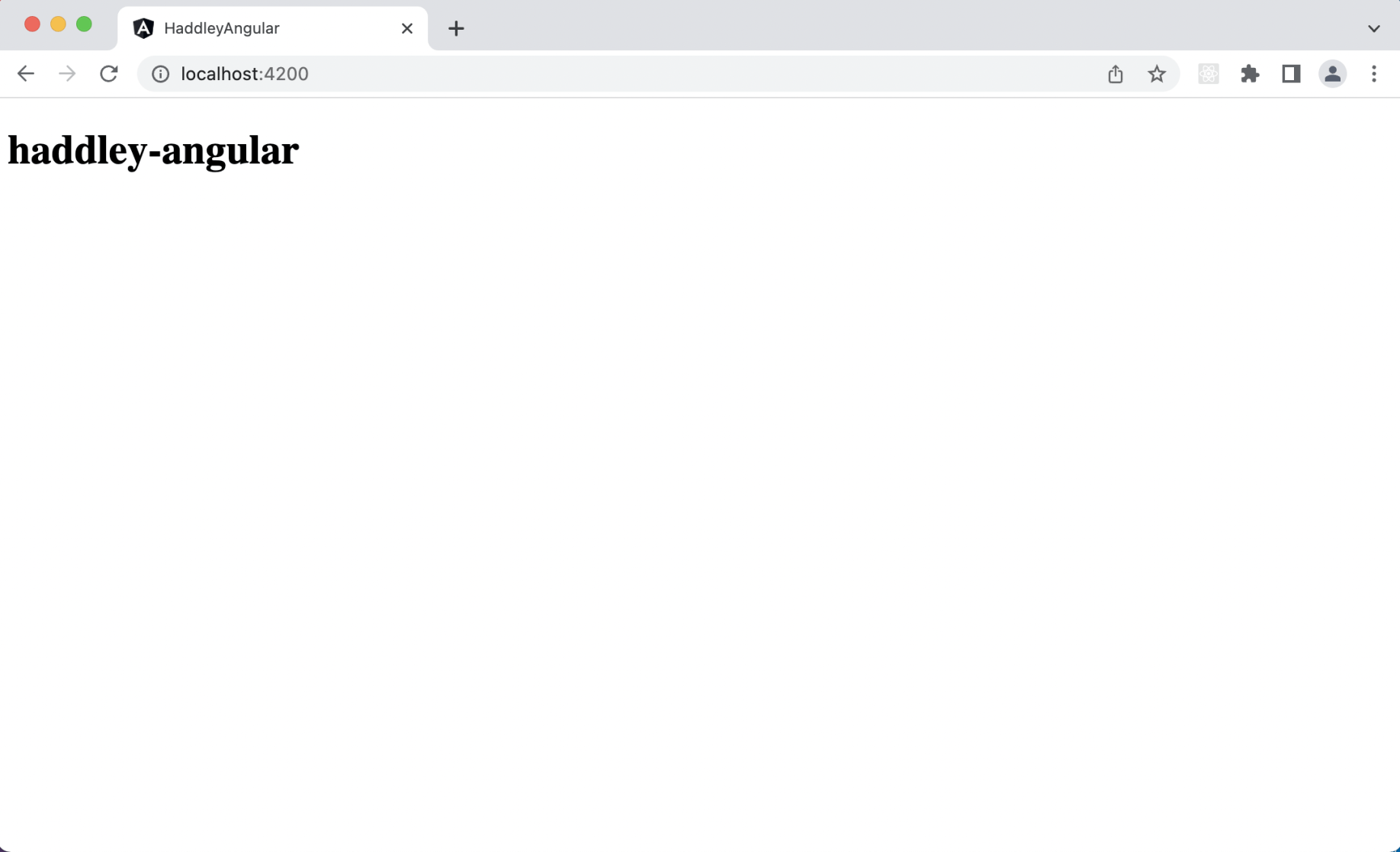
The web page updated
Adding a component
I used "ng generate" component to add a header component (in a "components" folder)
BASH
1% ng generate component components/header
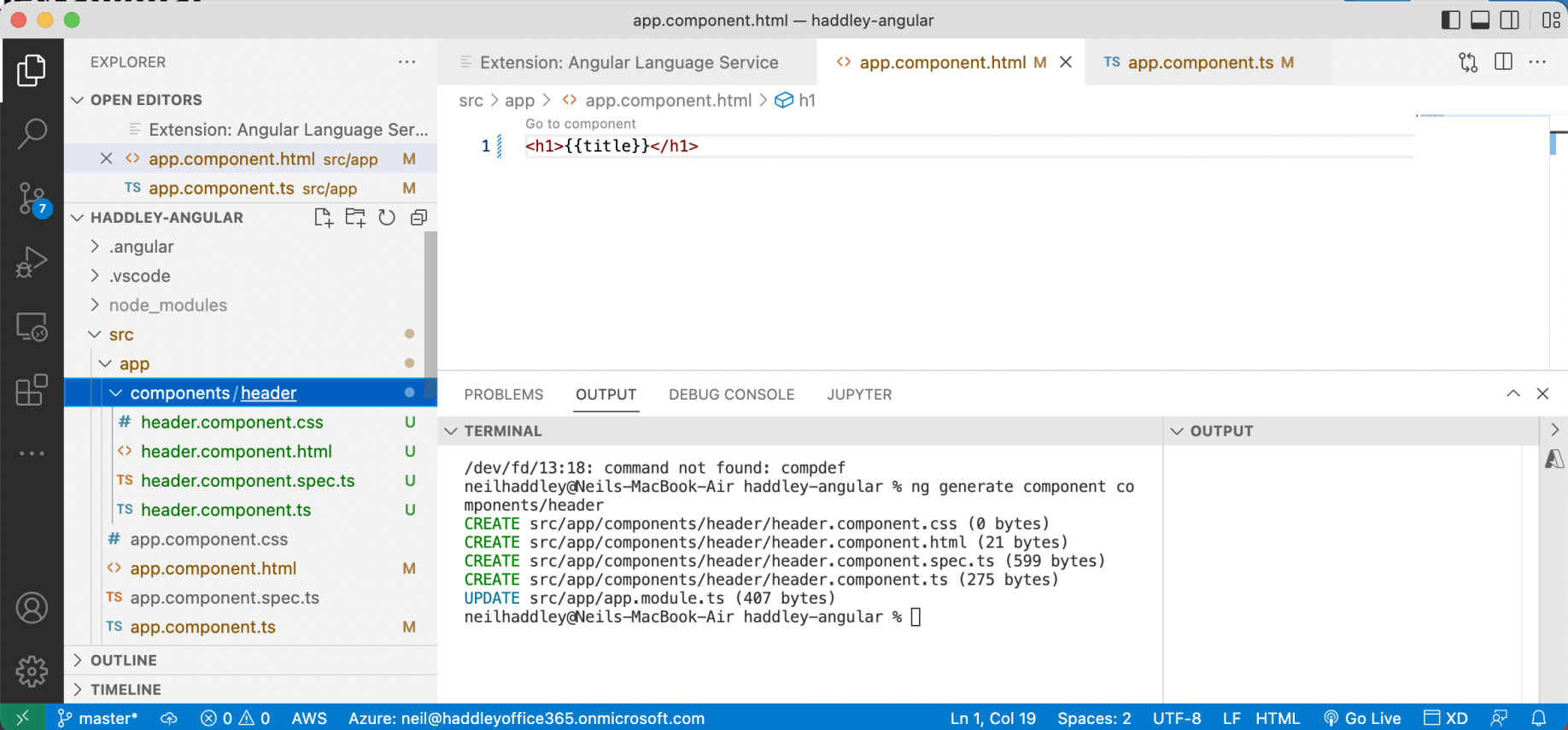
I ran ng generate
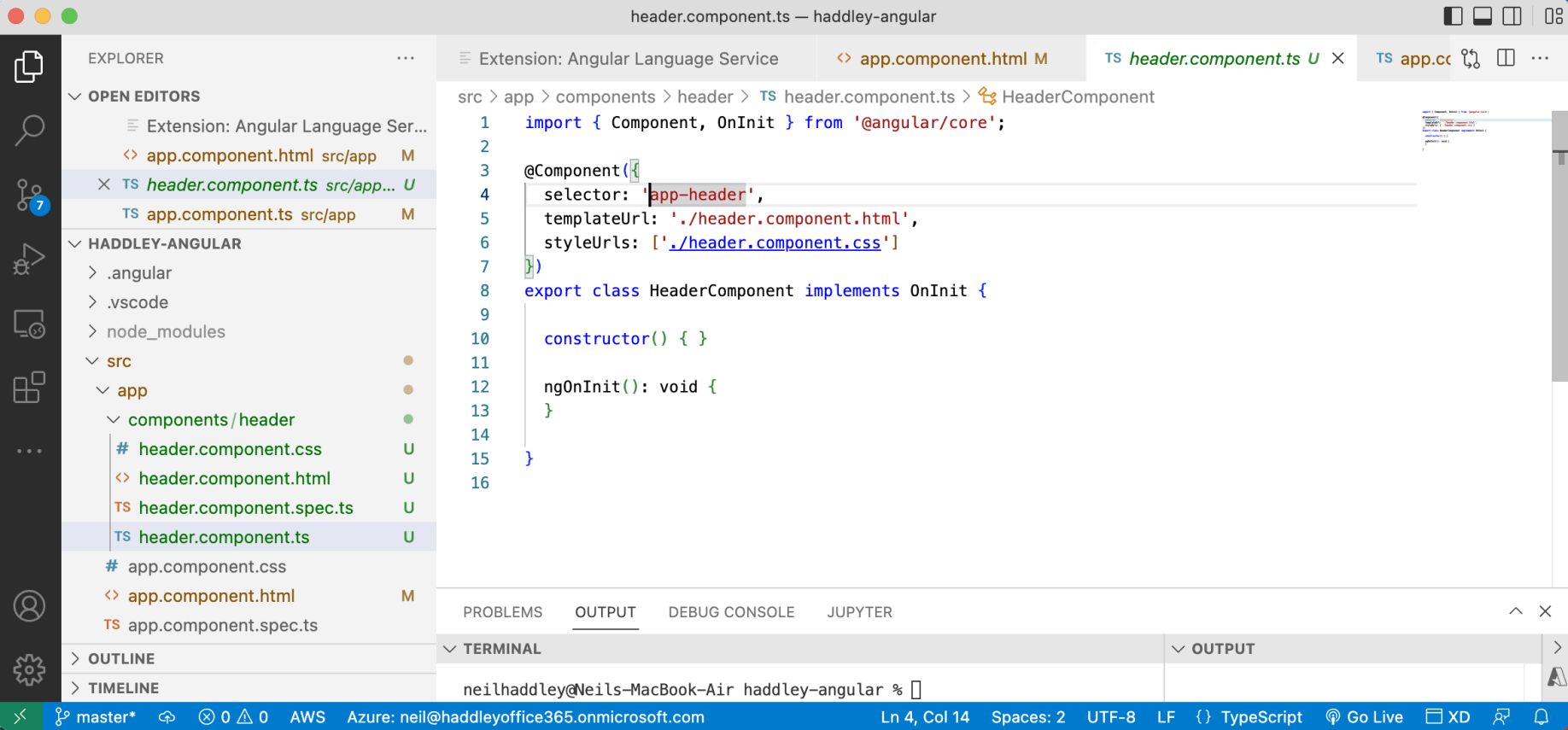
The new component's selector was "app-header"
Selector prefix
The angular.json file contains project-specific settings.
The prefix value ("app" in this case) is added to the component name to create the selector.
Updating the app.component (again)
I updated the app component's html template to make use of the header component.
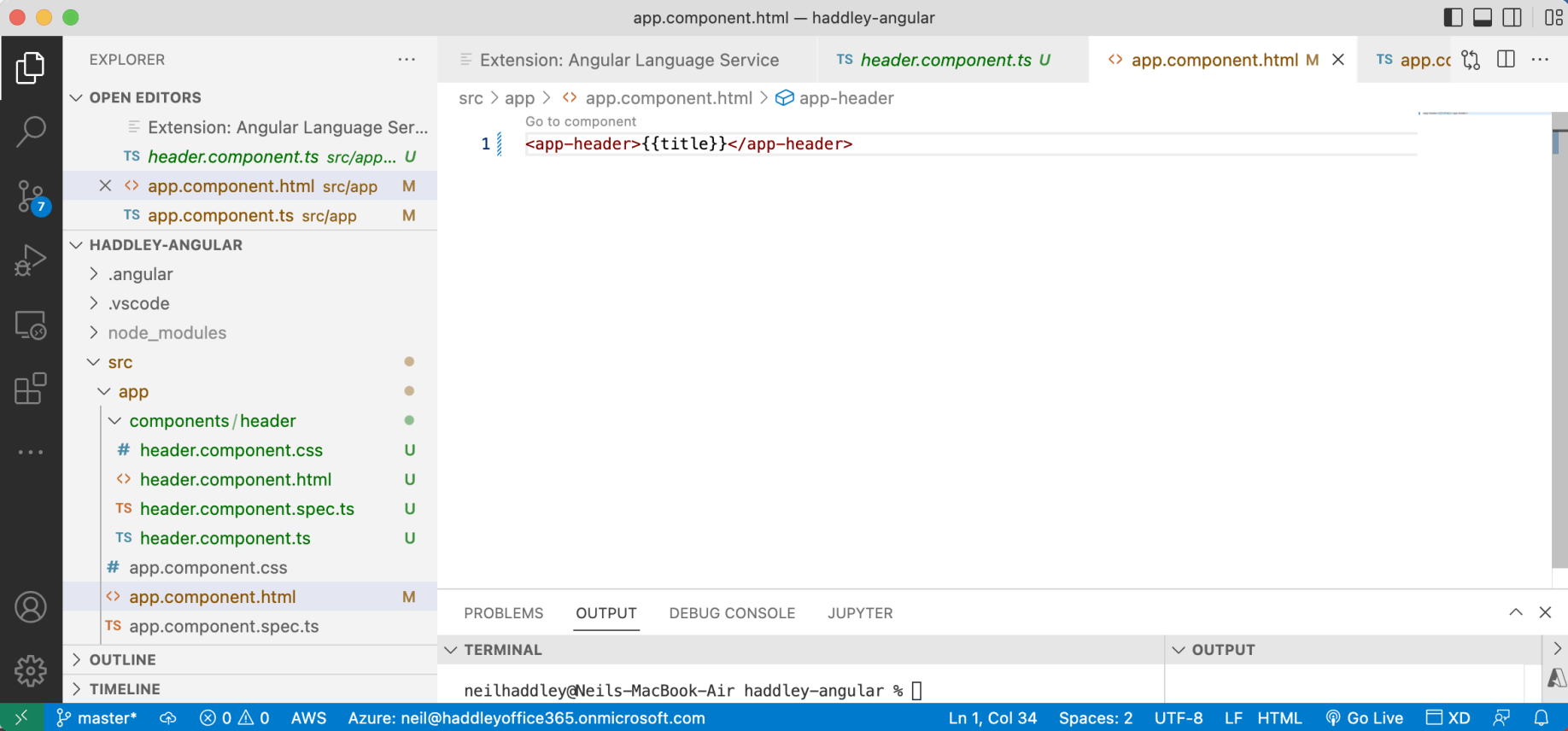
I updated the app.component's template to use the new component/selector
Passing content to a component
Replacing the <h1> tags with the <app-header> tags resulted in the {{title}} value being lost.
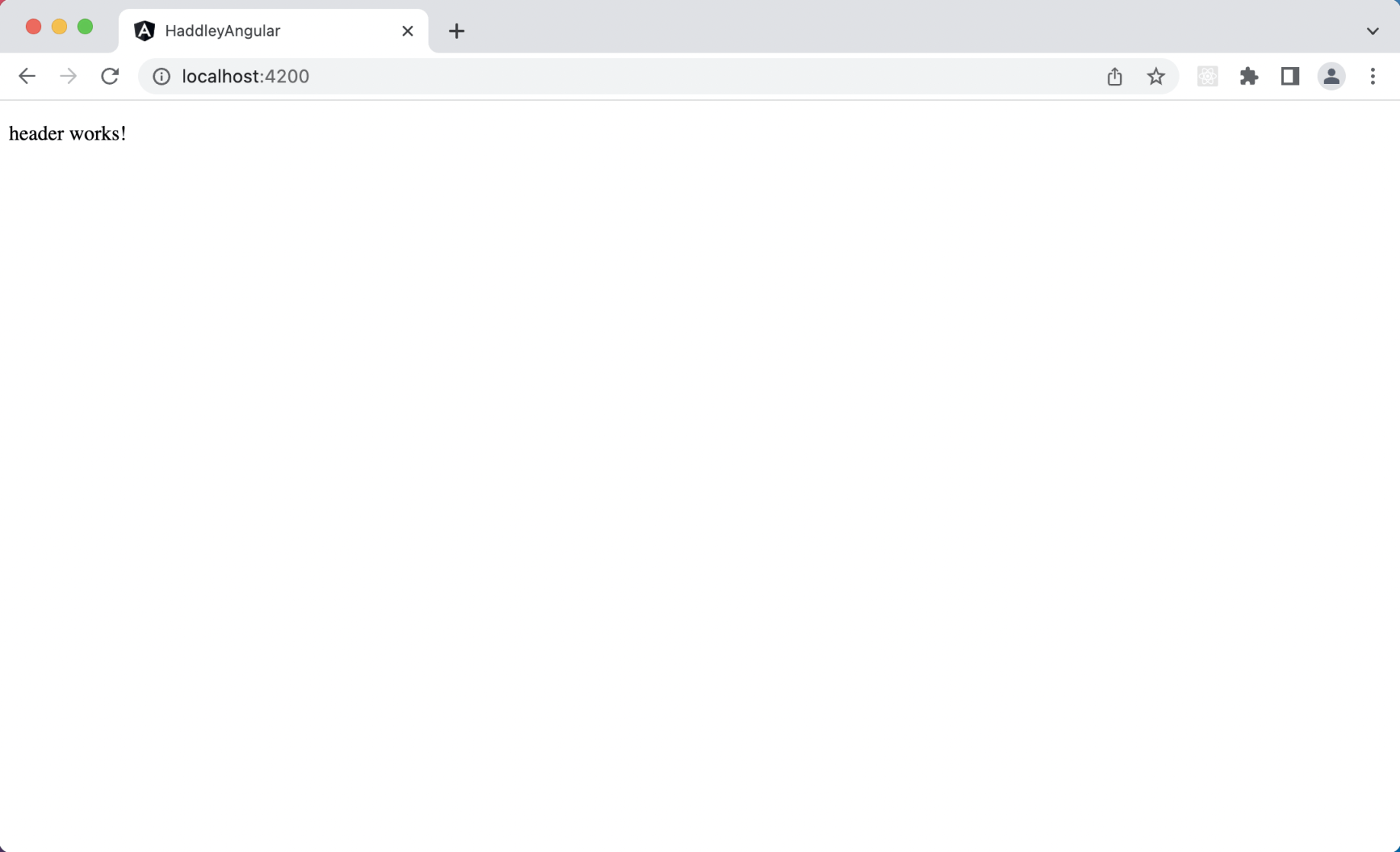
The header component was rendered and the title text was discarded
ng-content can be used to access the missing content
I updated the header component's html template and used <ng-content> to return the parent component's content.
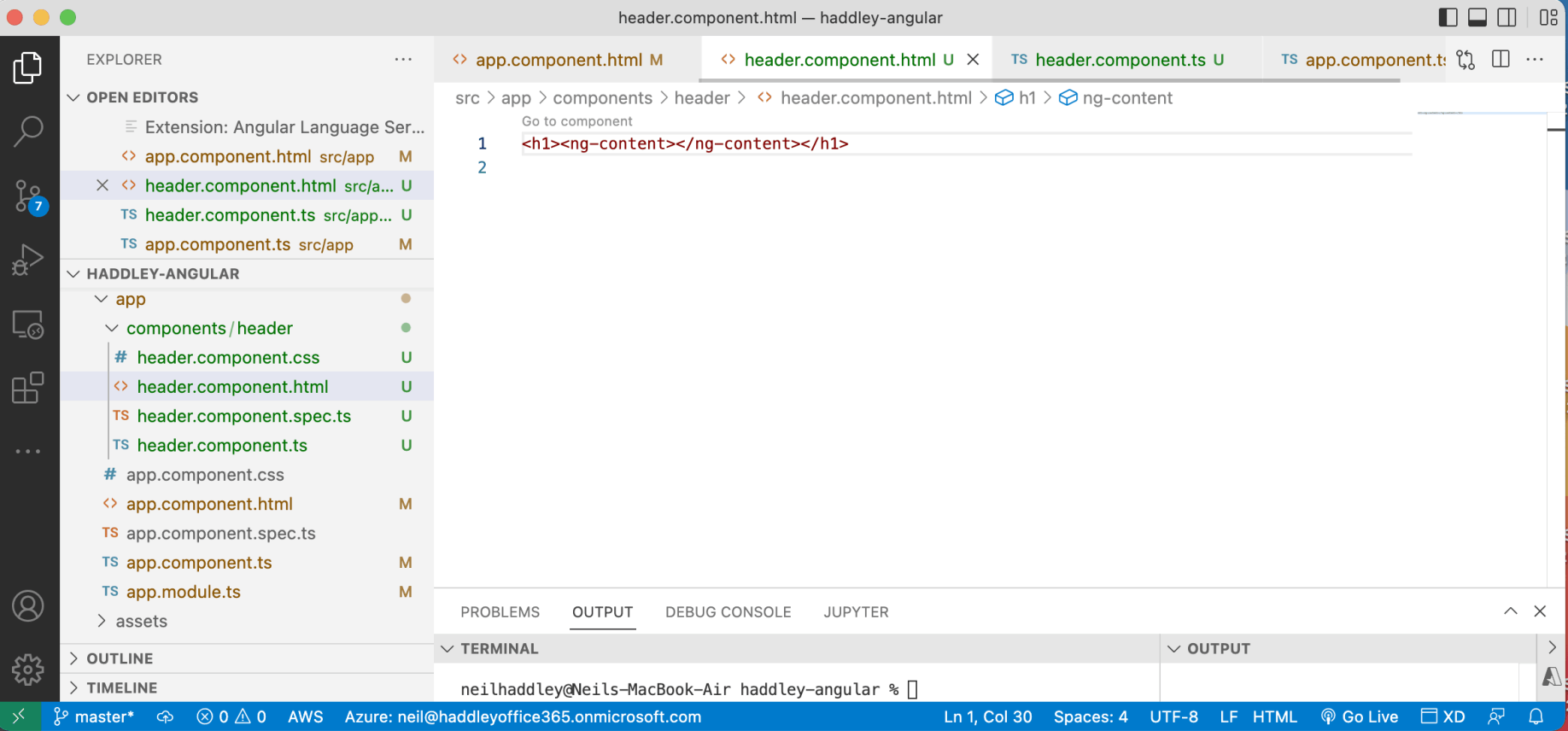
ng-content rendered the "contents" provided by the parent
Passing properties
I updated the <app-header> tag to pass the {{title}} value as a component attribute.
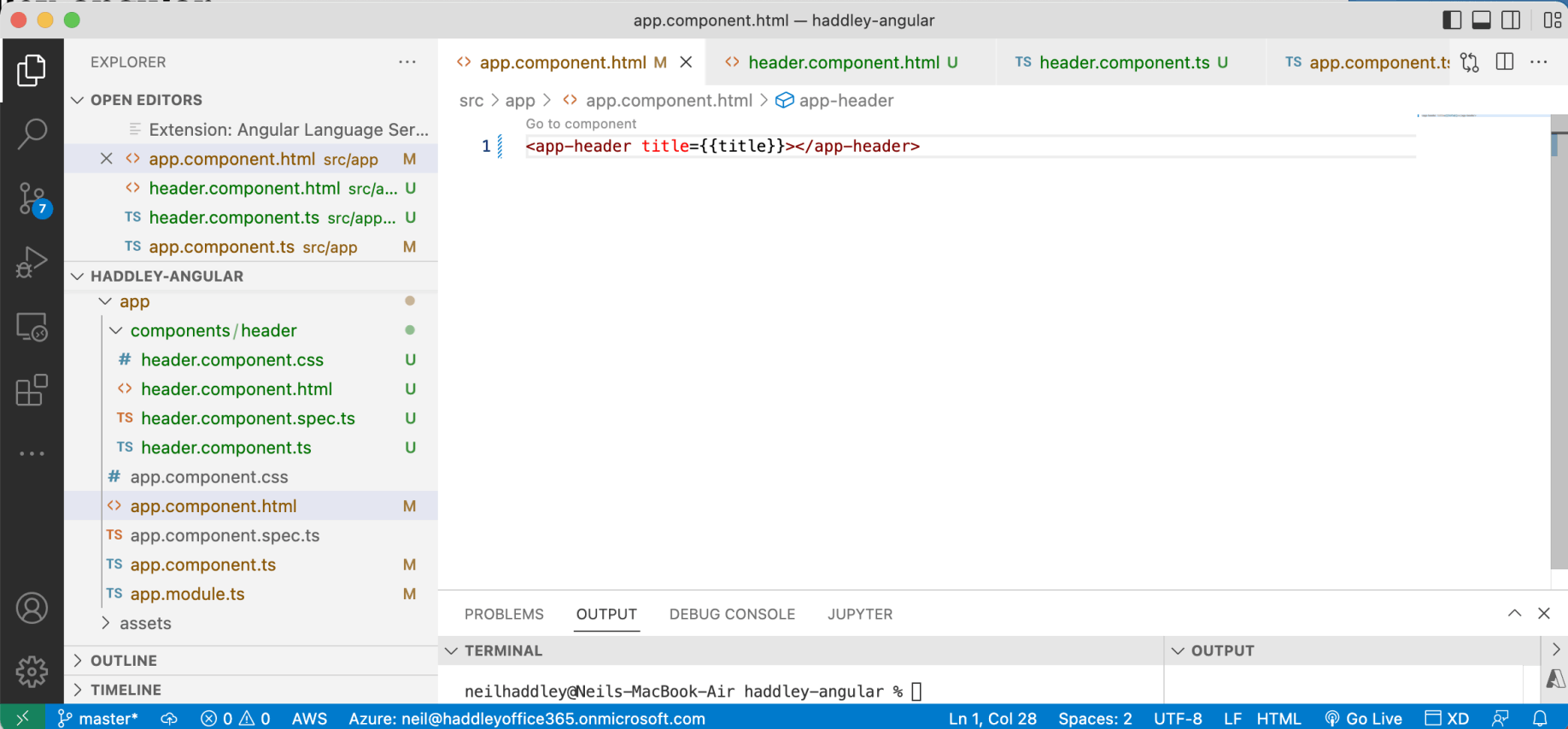
I updated the example to provide the title value to the child component as an attribute
@Input
I made a corresponding update to the header component.
I added the @Input() title: string; property (and the import { Input } from '@angular/core'; import)
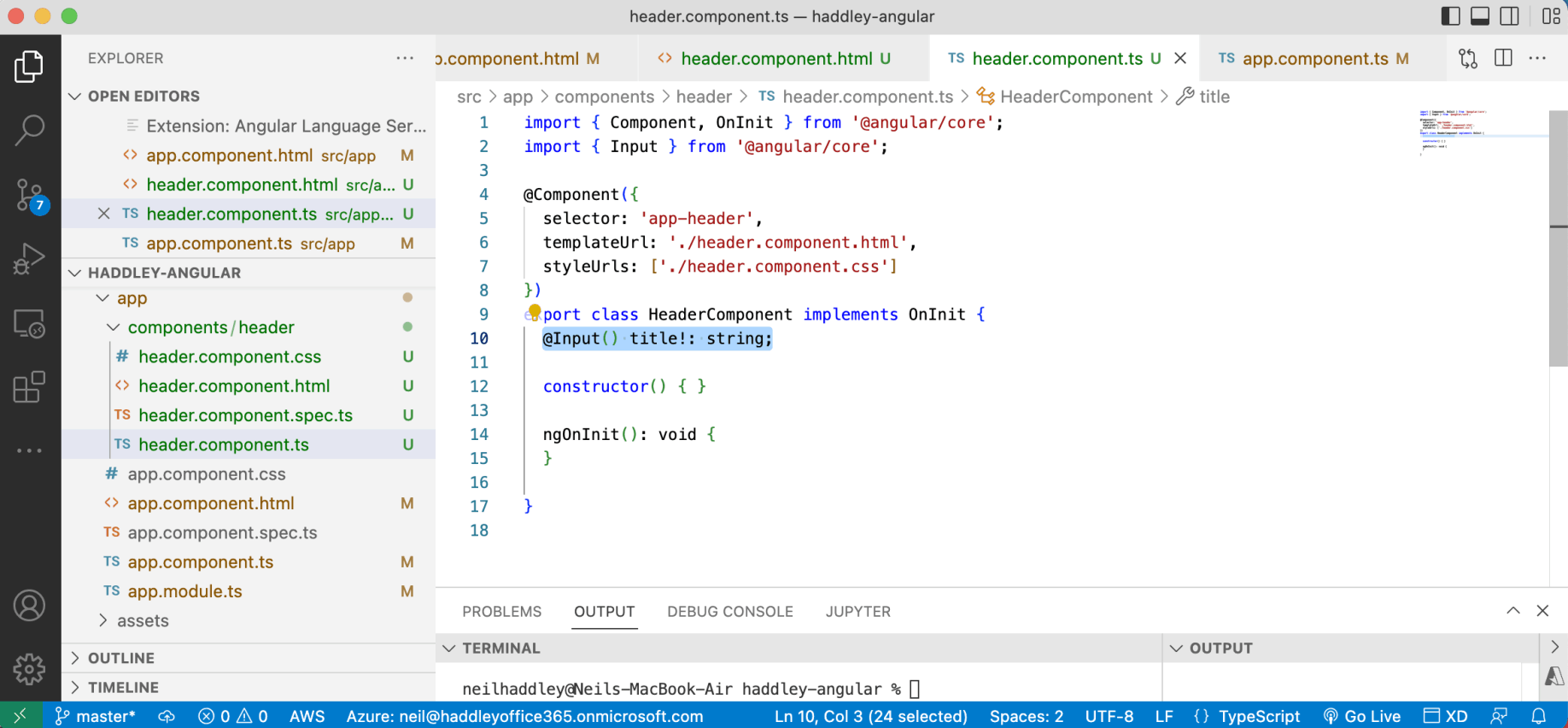
I added @Input() title: string to the header component allowing it to accept the "title" attribute
Updating the tests
I updated the app component and header component tests (in line with the changes made above).
The app component and header component are shown in the test results.
ng build
I used ng build to build the dist folder that I uploaded to the web server.