Apple MacBook

Neil Haddley • July 25, 2023

Setting up Anaconda on a MacBook for data science and machine learning — installs Python, the Conda package manager, and Jupyter Notebook

PythonmacOSanacondapython-environmentsetuppackage-manager

I used Anaconda, a popular open-source distribution of Python tailored for data science, machine learning, and scientific computing.

Anaconda incorporates a package manager (Conda) and the Jupyter Notebook/Jupyter Lab development environments.

Apple MacBook Reset

I reset my Apple MacBook laptop and installed Anaconda.
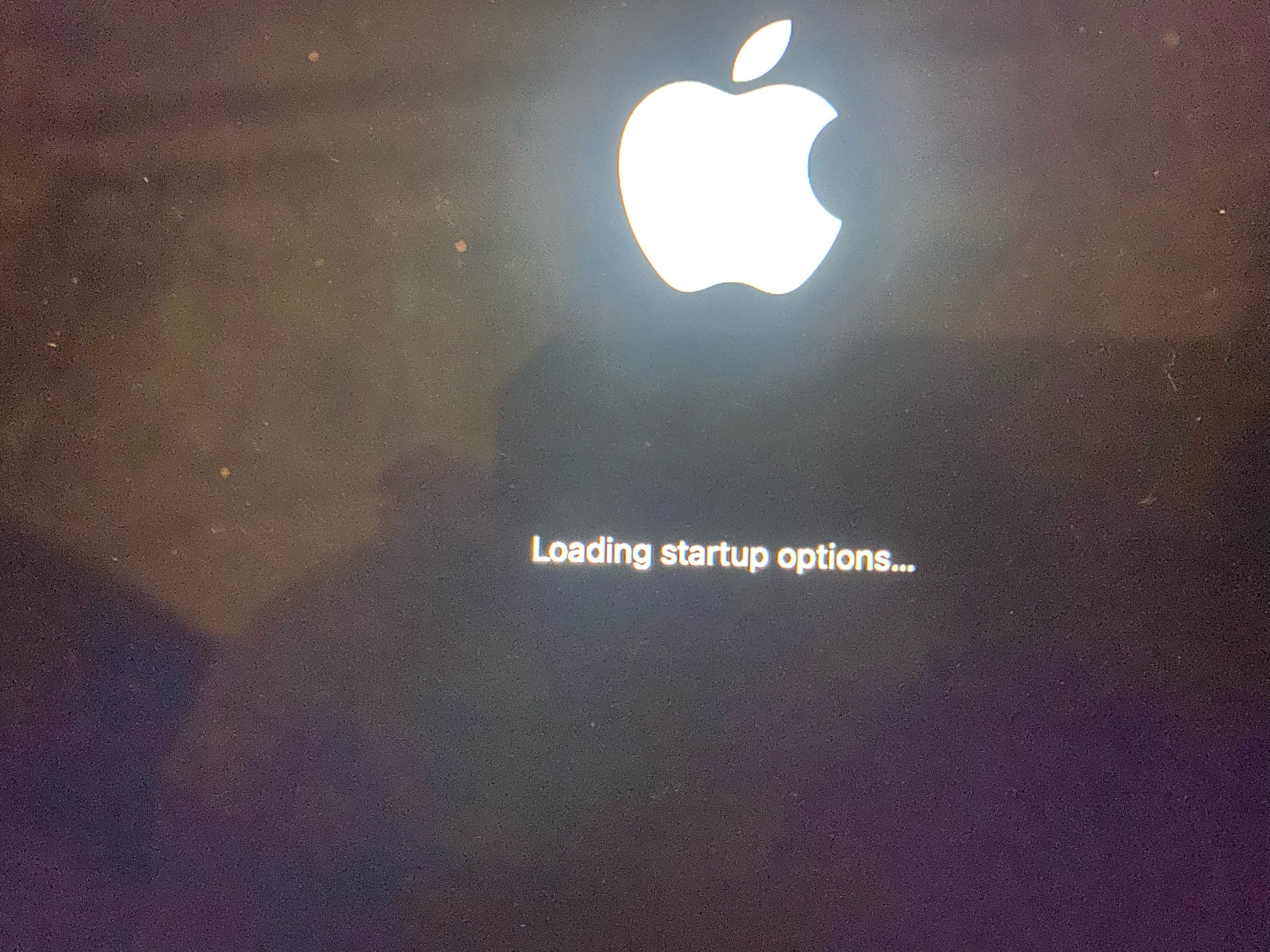
I restarted my laptop and held down the power button until I could access the recovery assistant menuTap the image to open it full size

I restarted my laptop and held down the power button until I could access the recovery assistant menu
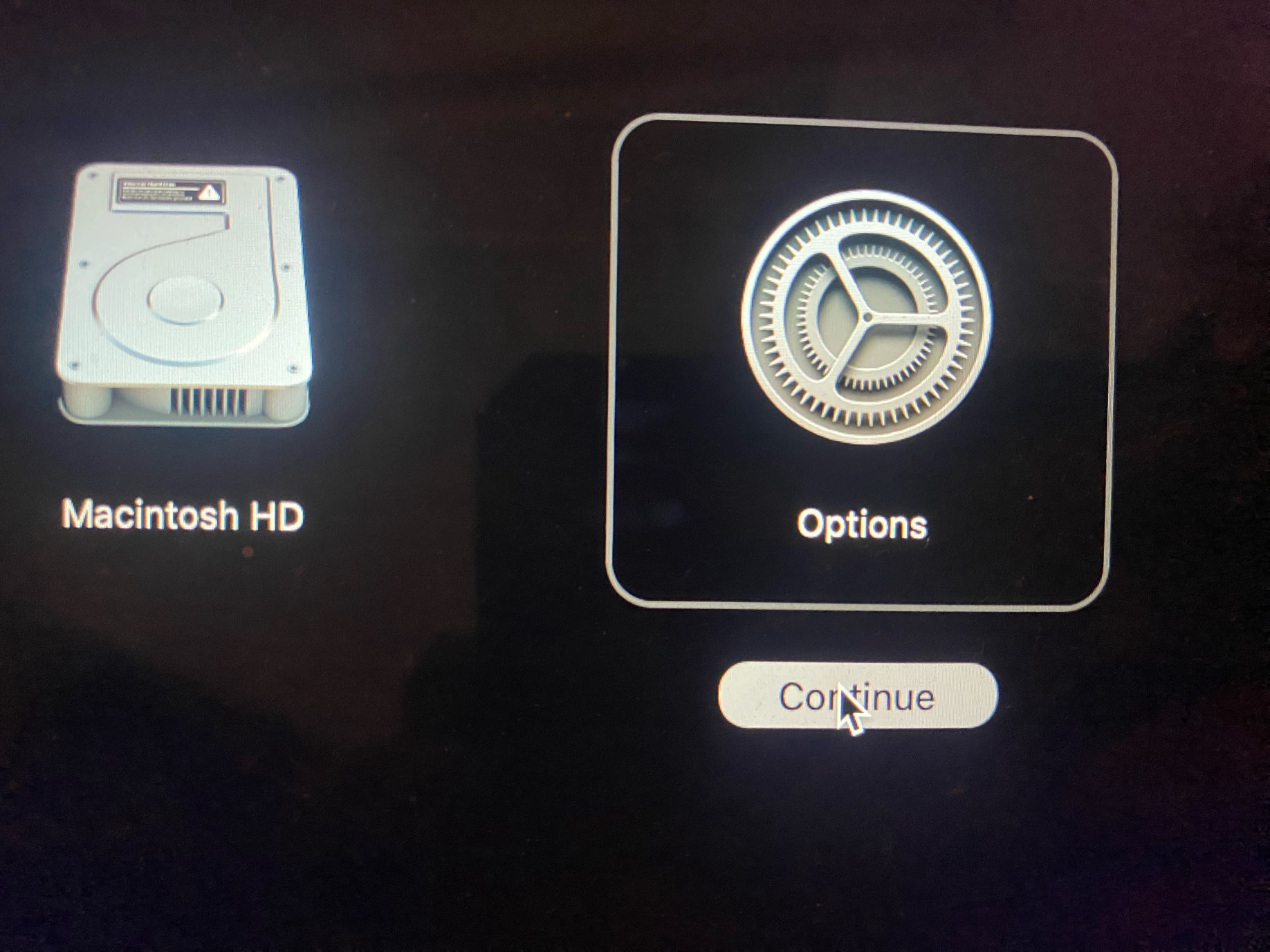
I selected OptionsTap the image to open it full size

I selected Options

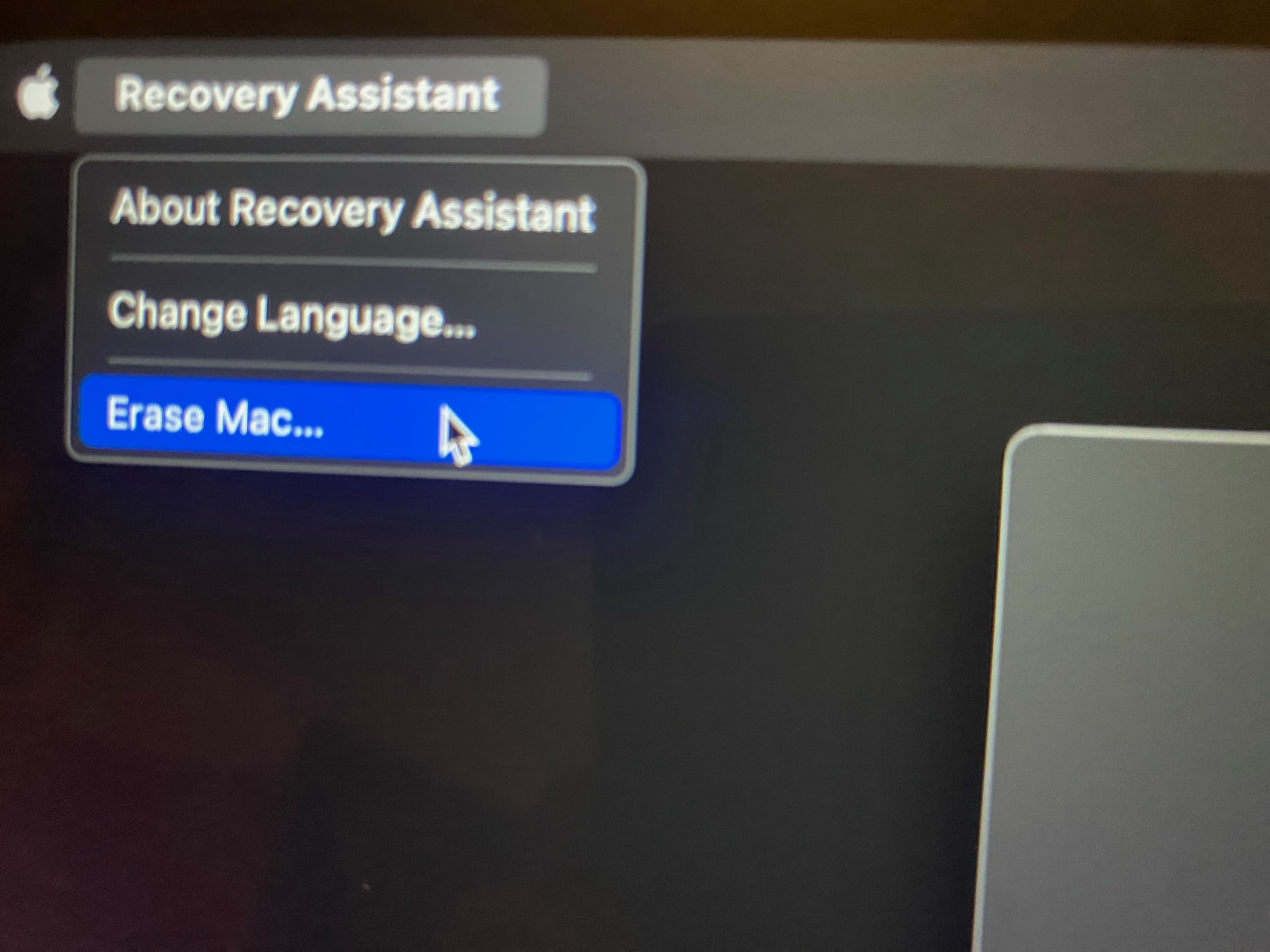
I clicked Erase Mac...Tap the image to open it full size

I clicked Erase Mac...

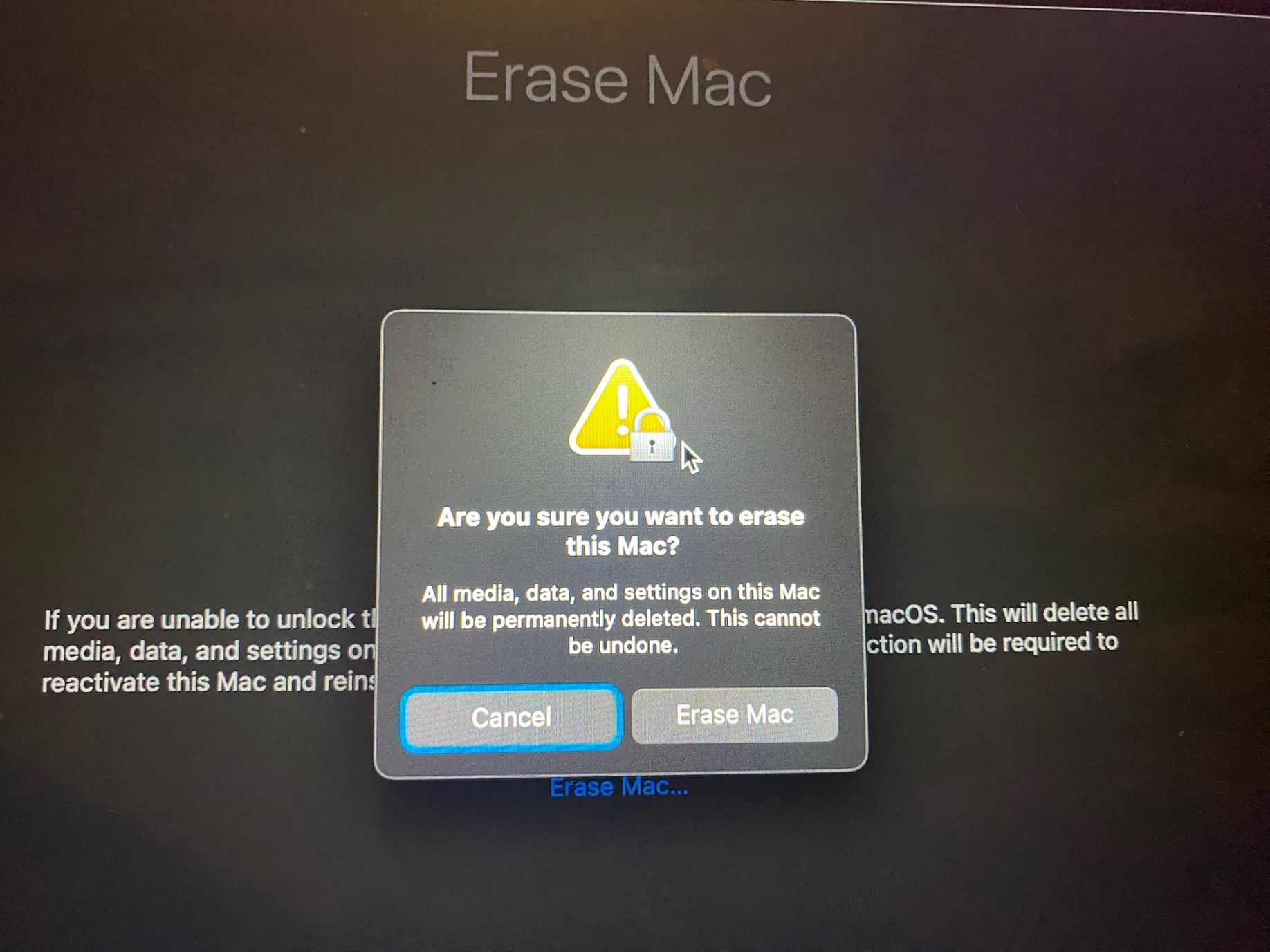
I clicked Erase MacTap the image to open it full size

I clicked Erase Mac

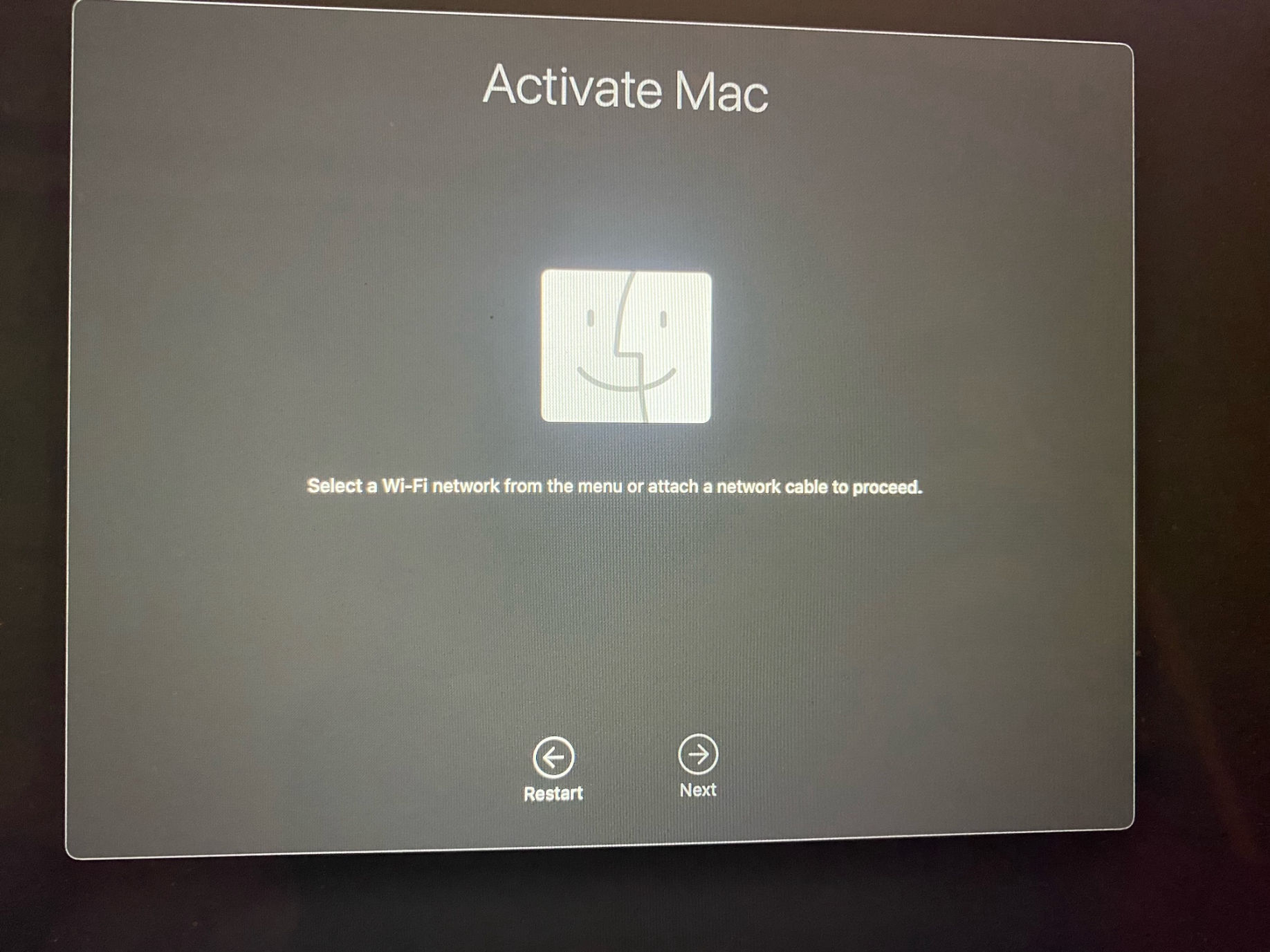
I selected a wifi networkTap the image to open it full size

I selected a wifi network

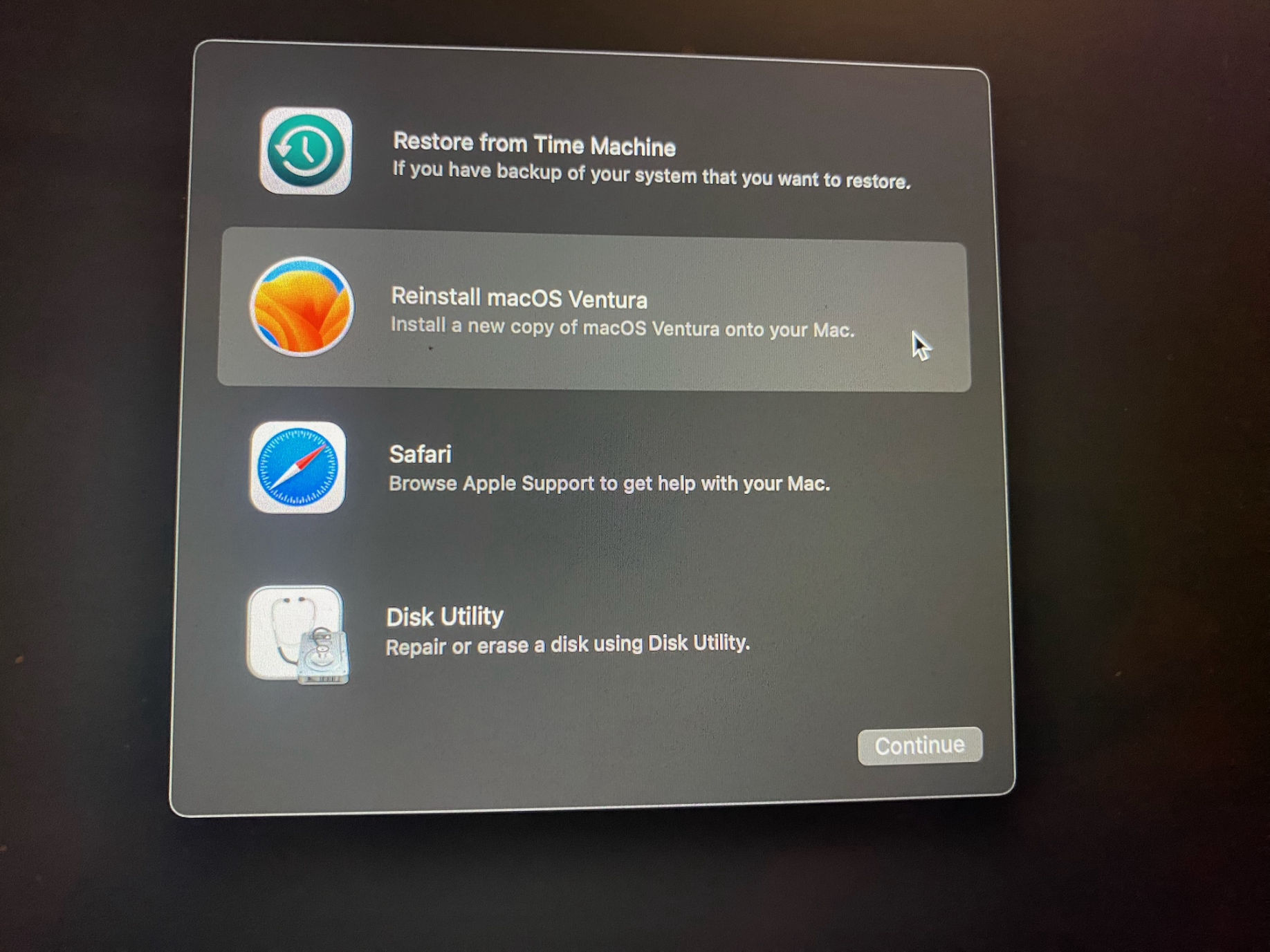
I reinstalled macOS VenturaTap the image to open it full size

I reinstalled macOS Ventura

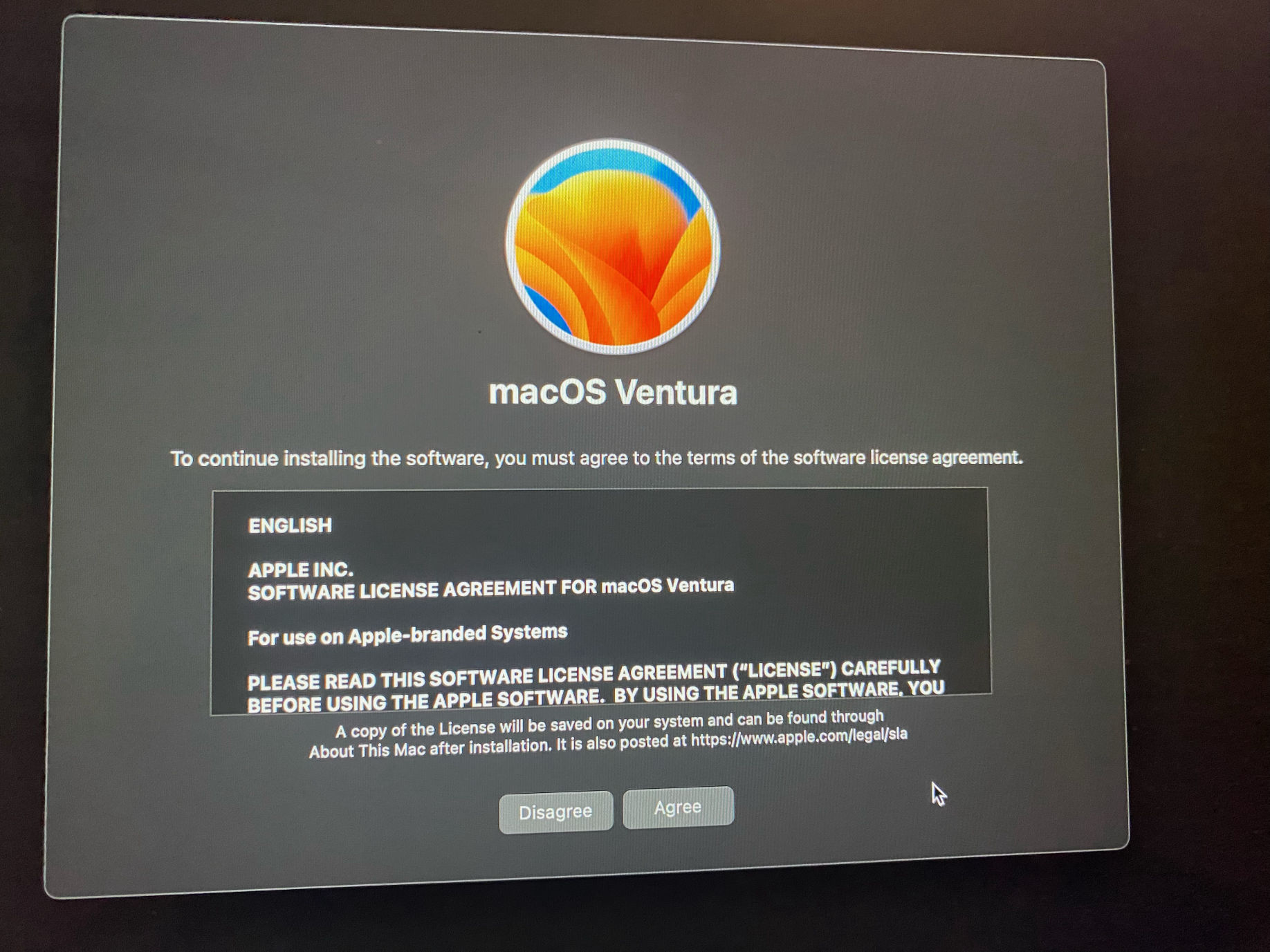
I clicked AgreeTap the image to open it full size

I clicked Agree

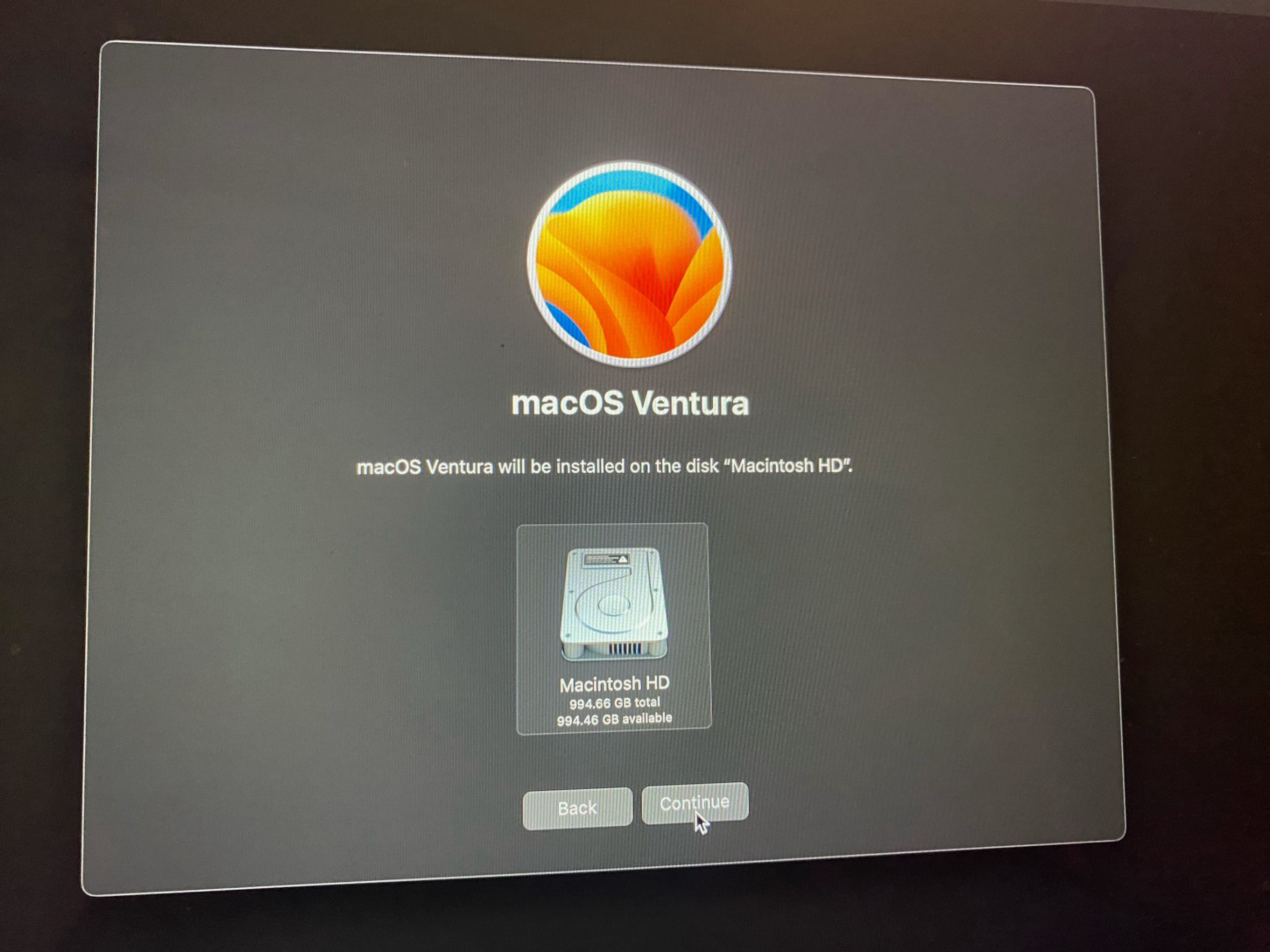
I selected the diskTap the image to open it full size

I selected the disk

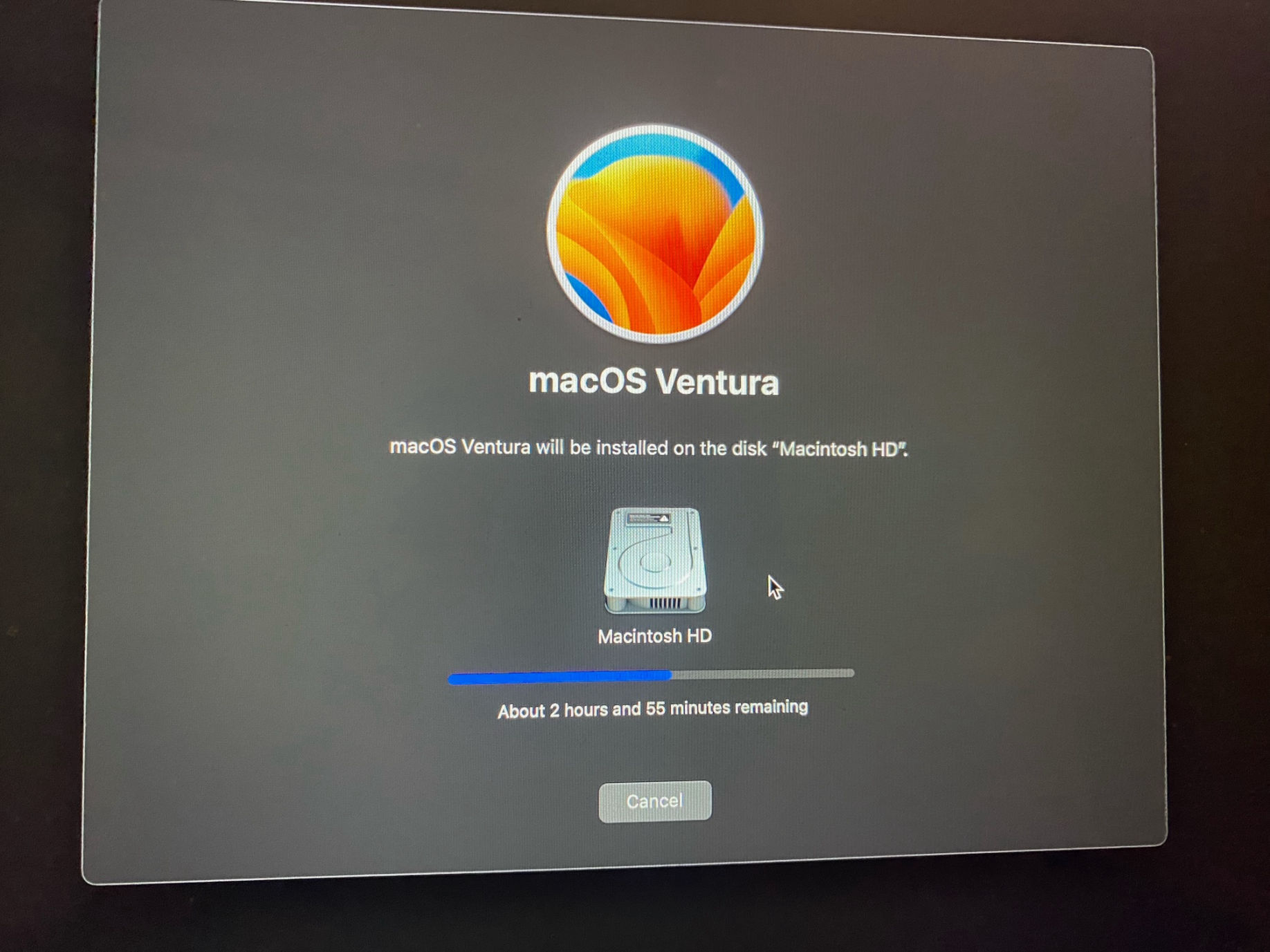
The installation took approximately 3 hoursTap the image to open it full size

The installation took approximately 3 hours

Anaconda install

I ran into a documented issue when I tried to install Anaconda on my Apple MacBook.

These install steps worked for me:

  1. I ran the Xcode setup: xcode-select --install
  2. I downloaded the Anaconda command line installer
  3. I opened a Terminal and navigated to ~/Downloads
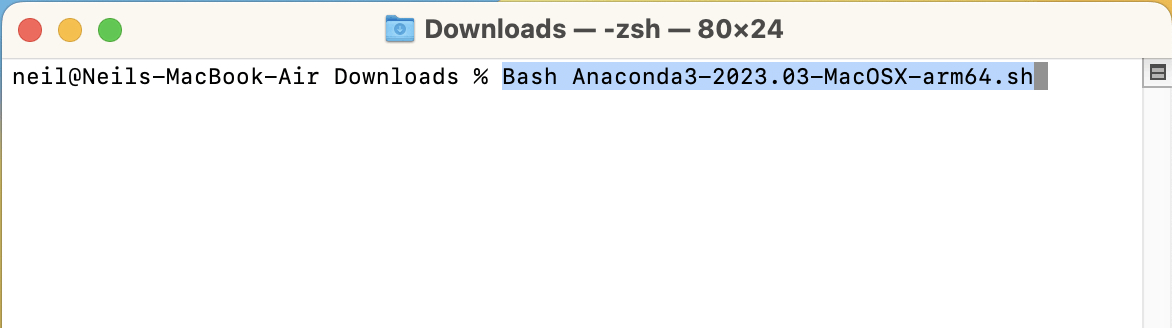
  4. I ran the downloaded script: bash Anaconda3-2023.03-MacOSX-arm64.sh
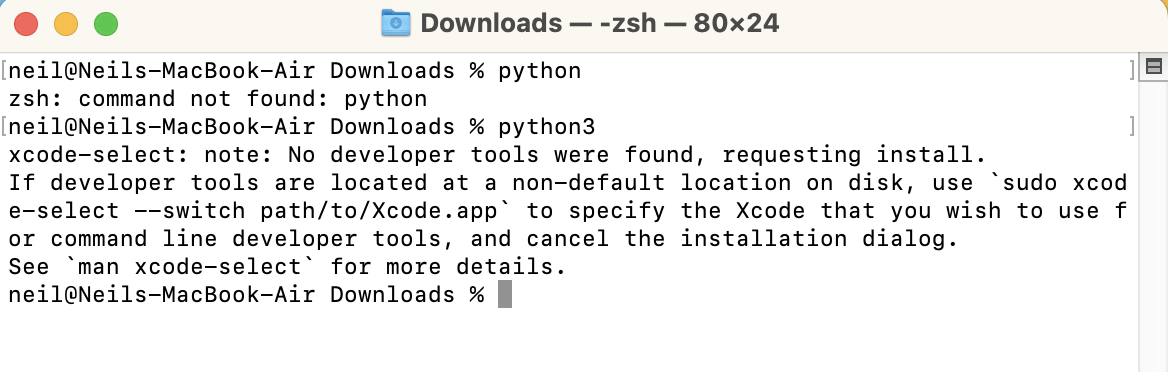
Python was not presentTap the image to open it full size

Python was not present

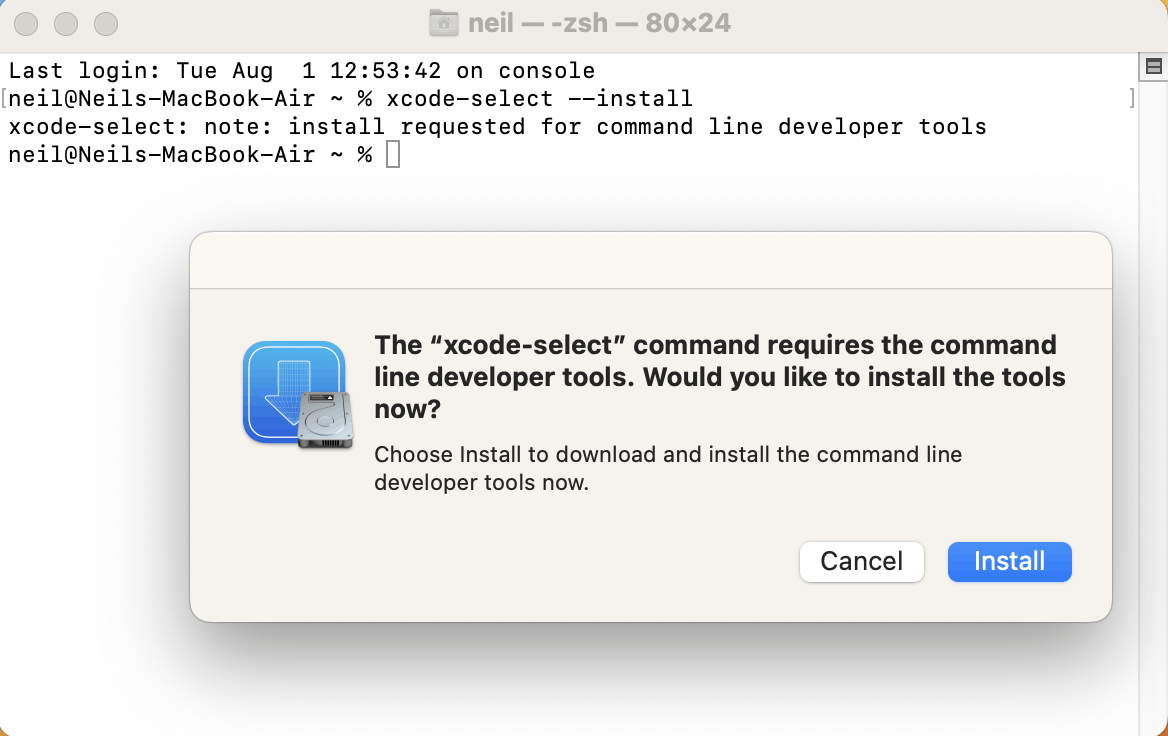
I installed Xcode with xcode-select --installTap the image to open it full size

I installed Xcode with xcode-select --install
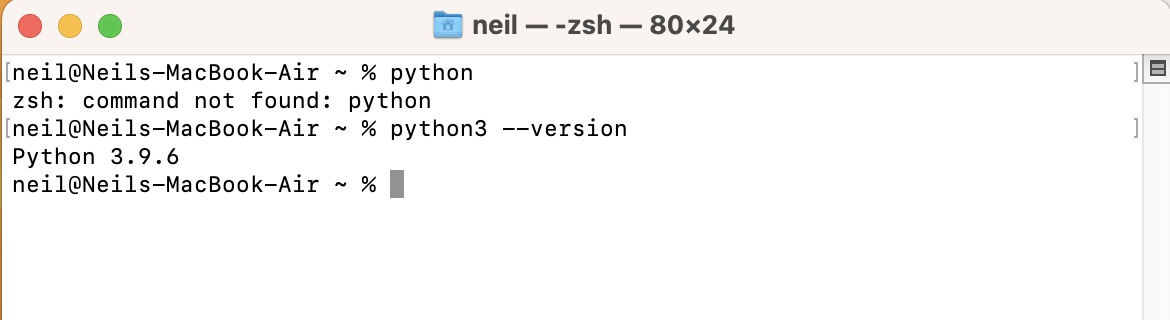
I had installed Python version 3.9.6Tap the image to open it full size

I had installed Python version 3.9.6

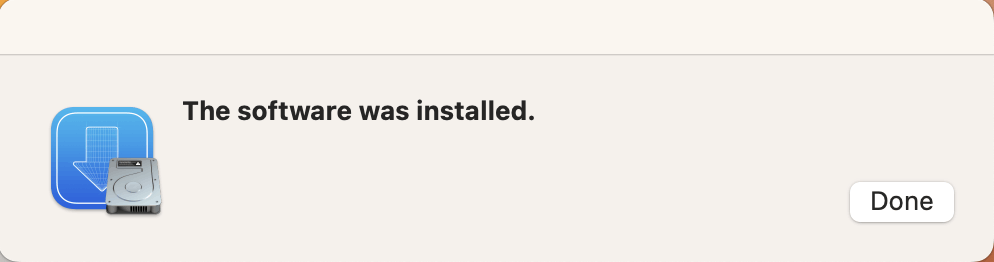
The Xcode installation completedTap the image to open it full size

The Xcode installation completed

I installed Anaconda with bash Anaconda3-2023.03-MacOSX-arm64.shTap the image to open it full size

I installed Anaconda with bash Anaconda3-2023.03-MacOSX-arm64.sh
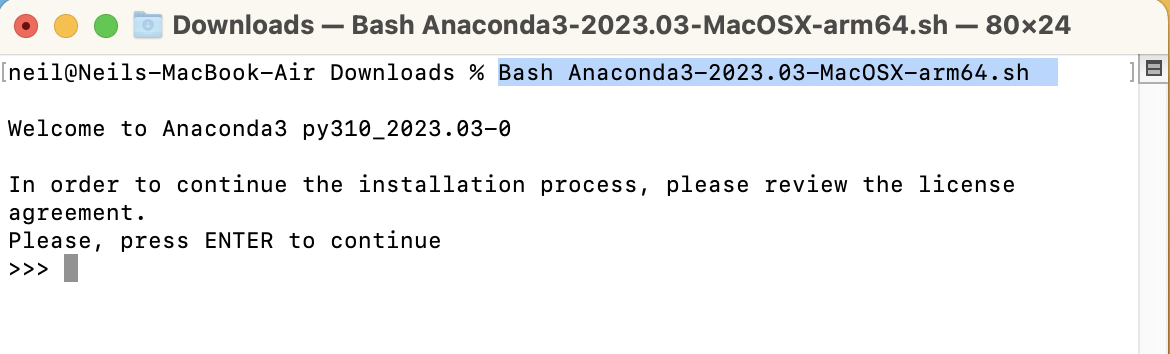
I agreed to the license termsTap the image to open it full size

I agreed to the license terms

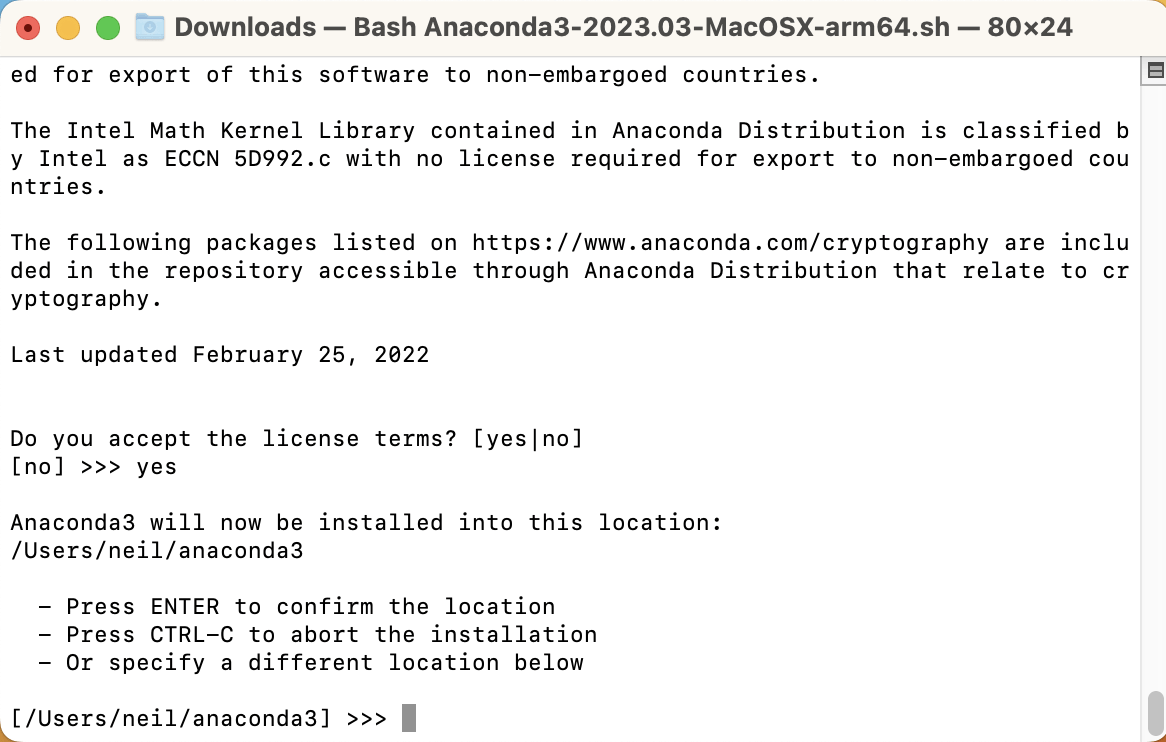
I confirmed the install locationTap the image to open it full size

I confirmed the install location

The Anaconda installation completedTap the image to open it full size

The Anaconda installation completed

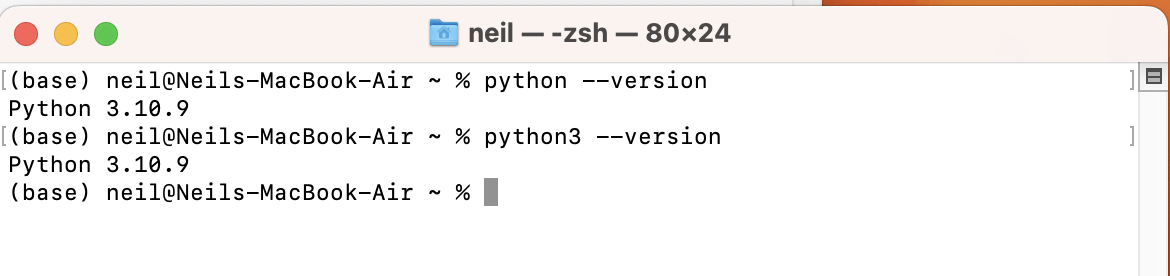
Python 3.10.9 was now available in the "base" Anaconda environmentTap the image to open it full size

Python 3.10.9 was now available in the "base" Anaconda environment
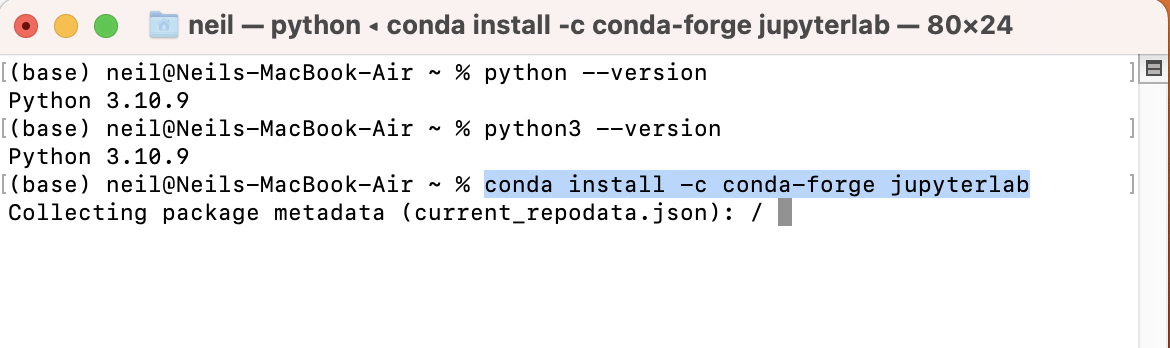
I installed support for Jupyter Lab into the base environmentTap the image to open it full size

I installed support for Jupyter Lab into the base environment