ASP.NET 5 C#

Neil Haddley • March 19, 2023

Generate Context and Entity Classes from an Existing Database

.NETSQLc#entity-frameworkdatabaselinq

ASP Web Forms was released in 2003 (based on Windows Server and the .NET Framework).

ASP.NET Model-View-Controller 5 was released in 2009 (based on Windows Server and .NET Framework, supported in Visual Studio 2019).

ASP.NET Core Model-View-Controller was released in 2017 (based on cross-platform .NET Core, supported in Visual Studio 2022).

I used Visual Studio 2019 and ASP.NET MVC 5 to create a todo app.
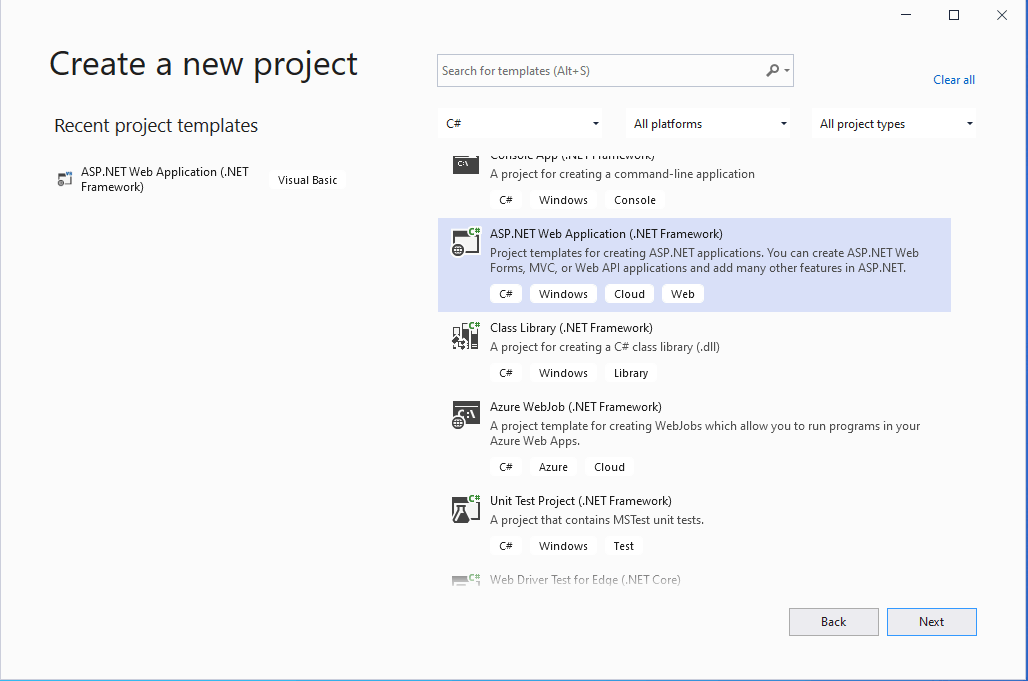
I created a new projectTap the image to open it full size

I created a new project

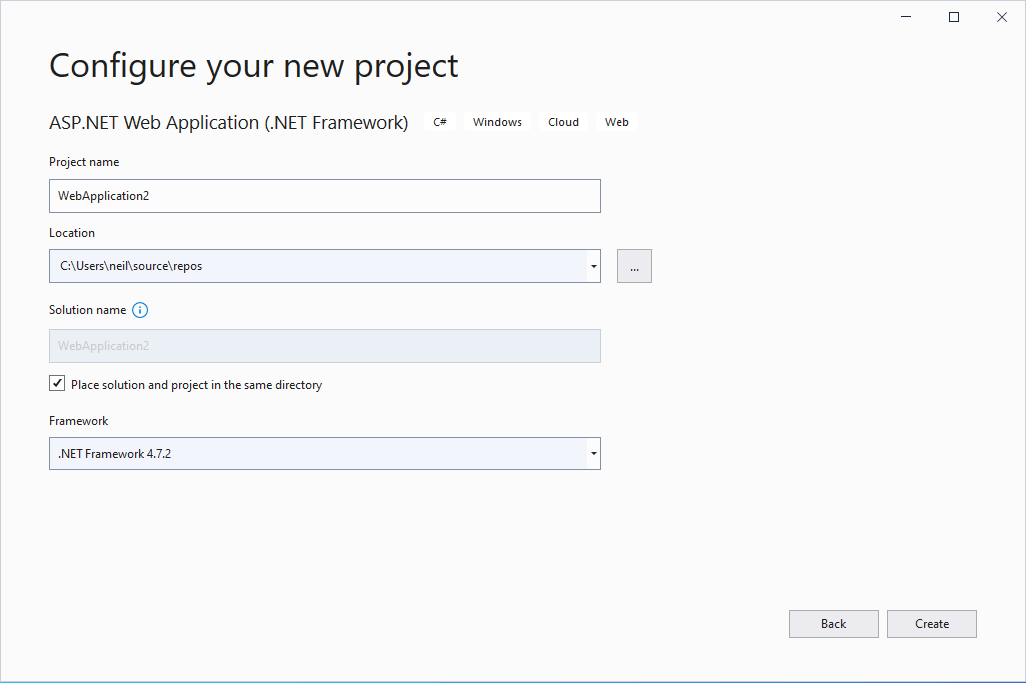
I configured the new projectTap the image to open it full size

I configured the new project

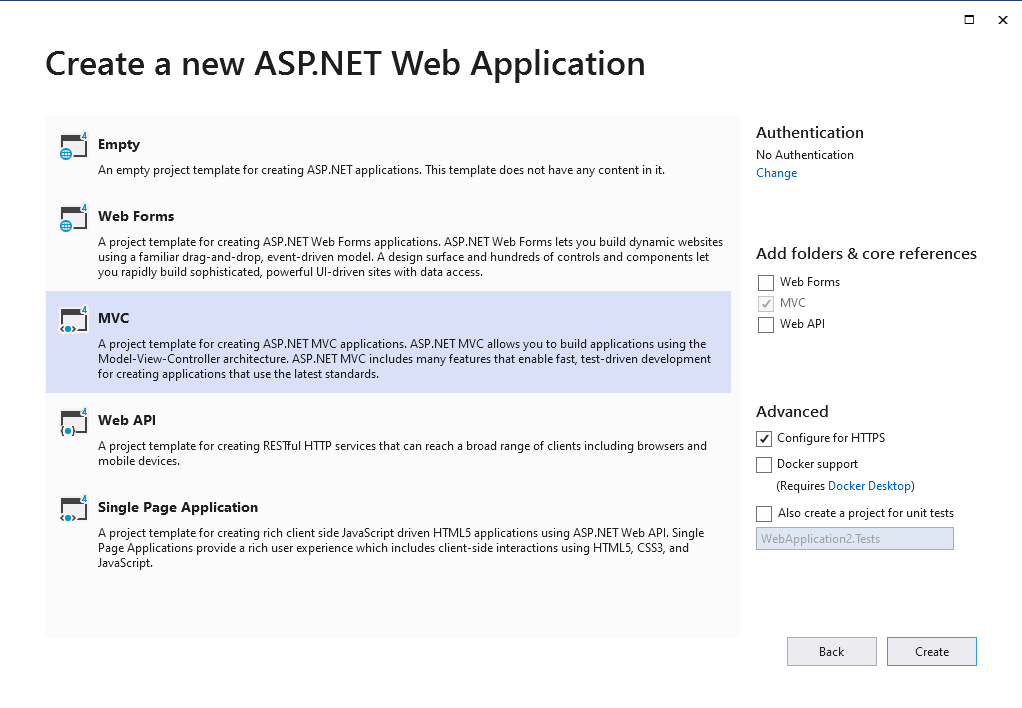
I created a Model-View-Controller web applicationTap the image to open it full size

I created a Model-View-Controller web application
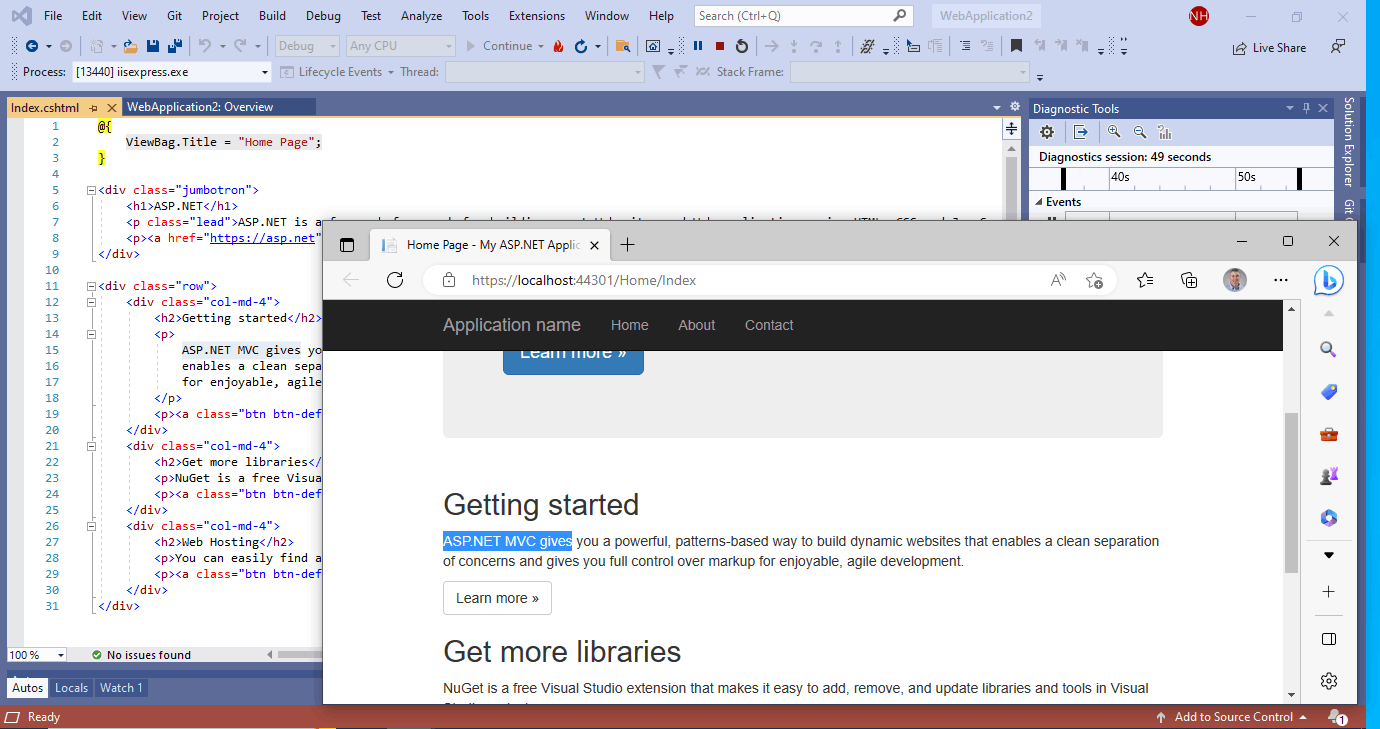
I ran the template project (notice the "ASP.NET MVC gives" text in the index.cshtml file and the web browser).Tap the image to open it full size

I ran the template project (notice the "ASP.NET MVC gives" text in the index.cshtml file and the web browser).
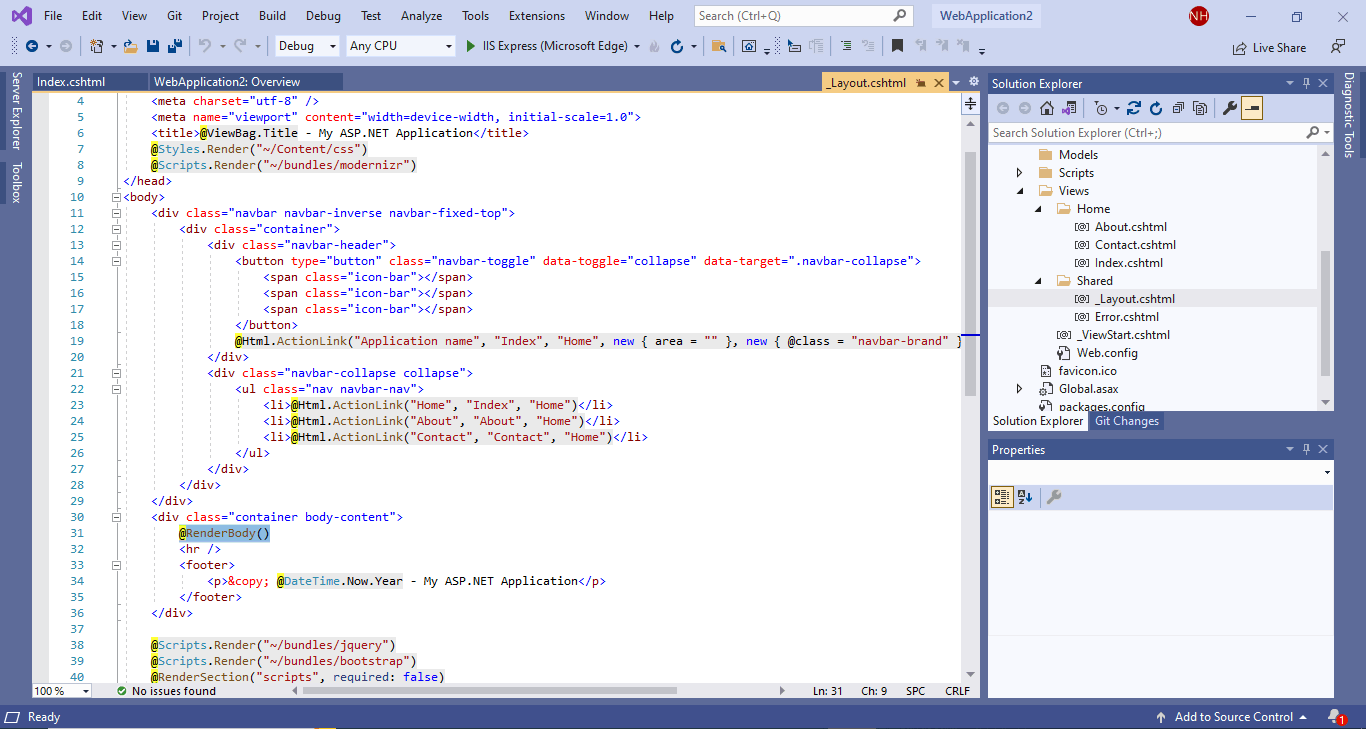
The _Layout.cshtml file provides a common web page framework and navigationTap the image to open it full size

The _Layout.cshtml file provides a common web page framework and navigation

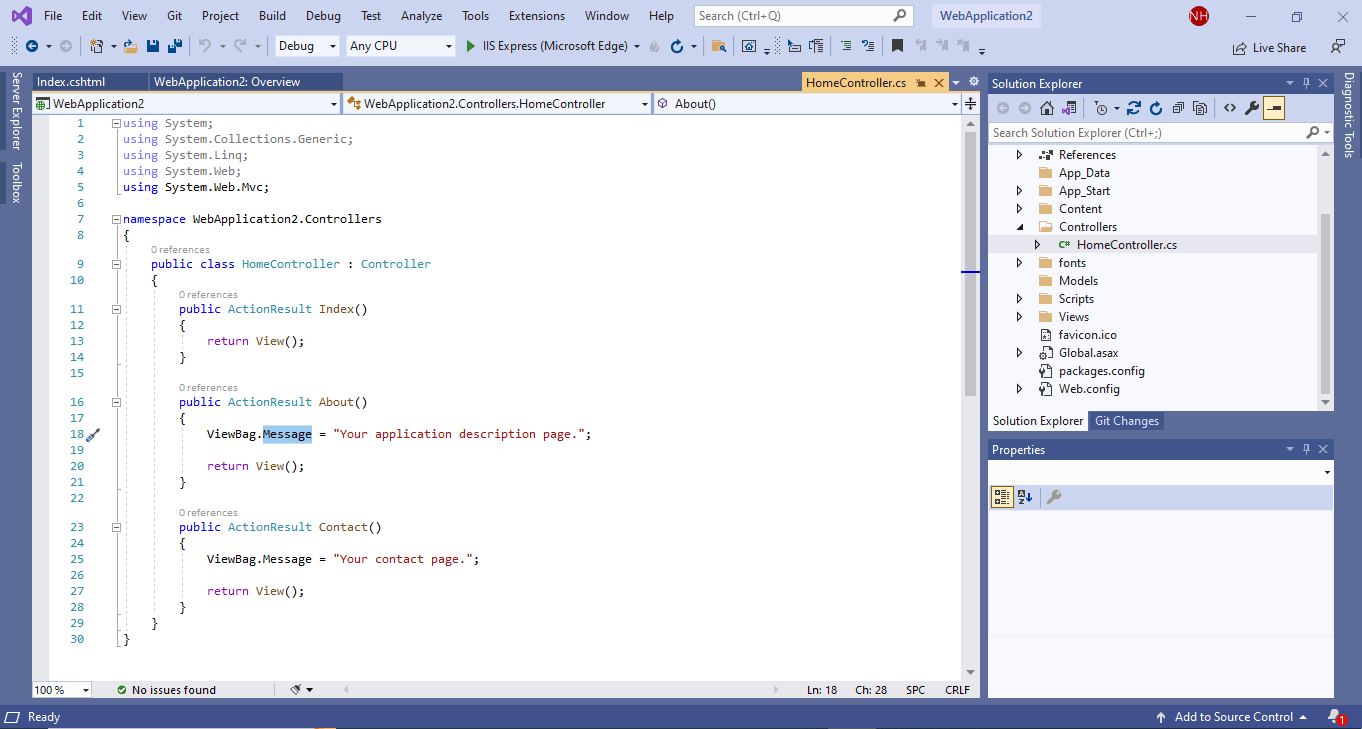
Web requests are handled by Controller functions/methods. The controller function will typically return a view (the Web response). The About function sets a "Message" value and then returns a corresponding About view.Tap the image to open it full size

Web requests are handled by Controller functions/methods. The controller function will typically return a view (the Web response). The About function sets a "Message" value and then returns a corresponding About view.
I noticed the About view rendered the "Message"Tap the image to open it full size

I noticed the About view rendered the "Message"
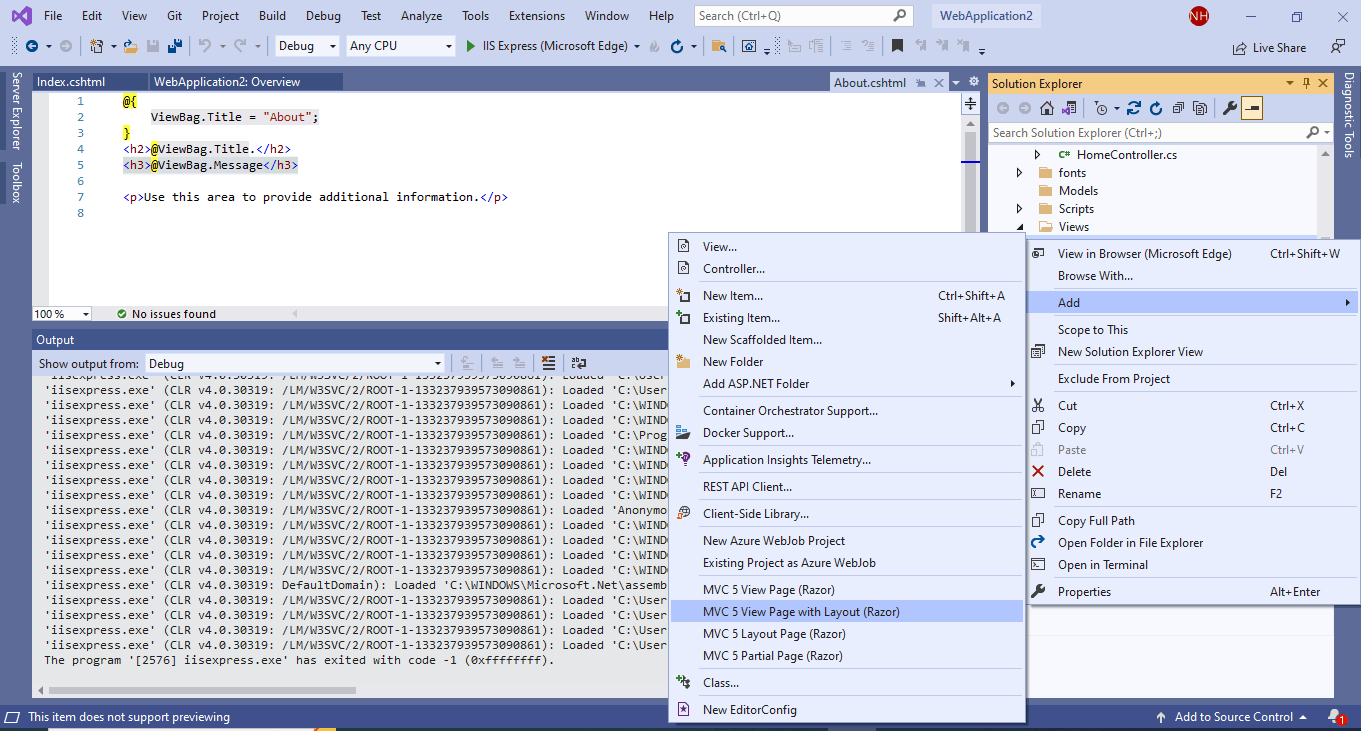
I added a view page to the HelloWorld folder.Tap the image to open it full size

I added a view page to the HelloWorld folder.
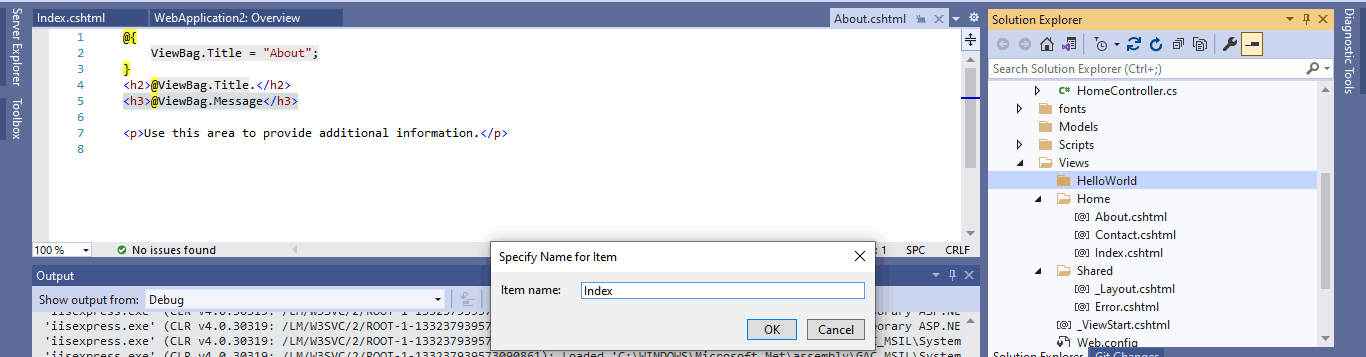
I named the new page "Index" making it the home page for the new folder.Tap the image to open it full size

I named the new page "Index" making it the home page for the new folder.
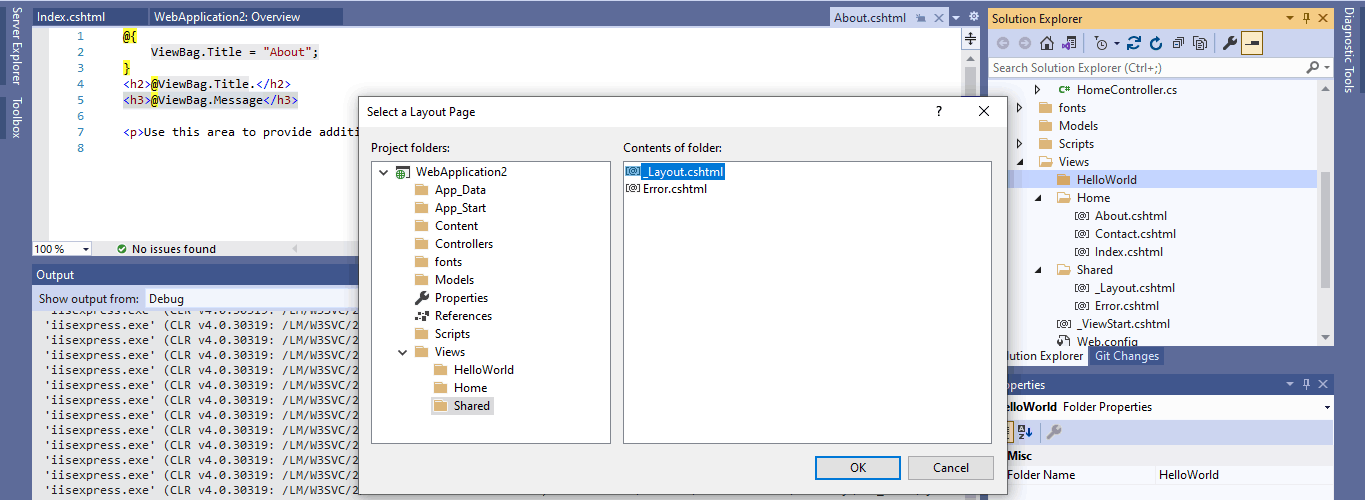
I selected the existing _Layout pageTap the image to open it full size

I selected the existing _Layout page

I added a reference to a "Name" value.Tap the image to open it full size

I added a reference to a "Name" value.

I added a new controller to the projectTap the image to open it full size

I added a new controller to the project
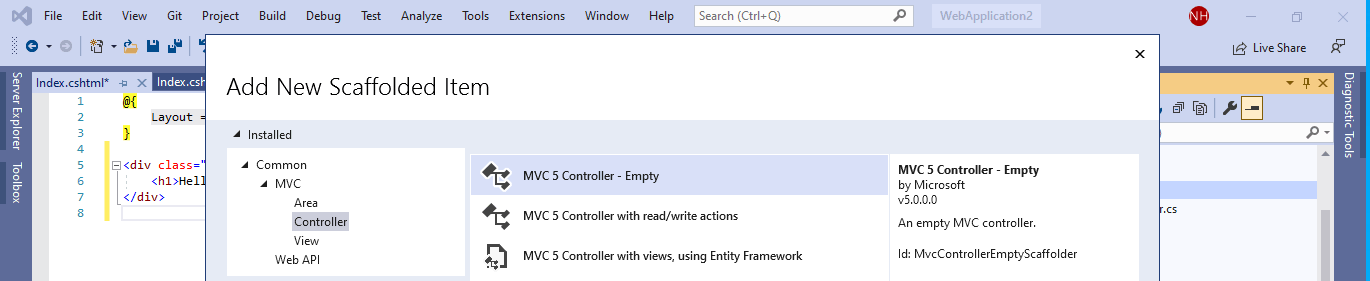
I created an empty controller.Tap the image to open it full size

I created an empty controller.

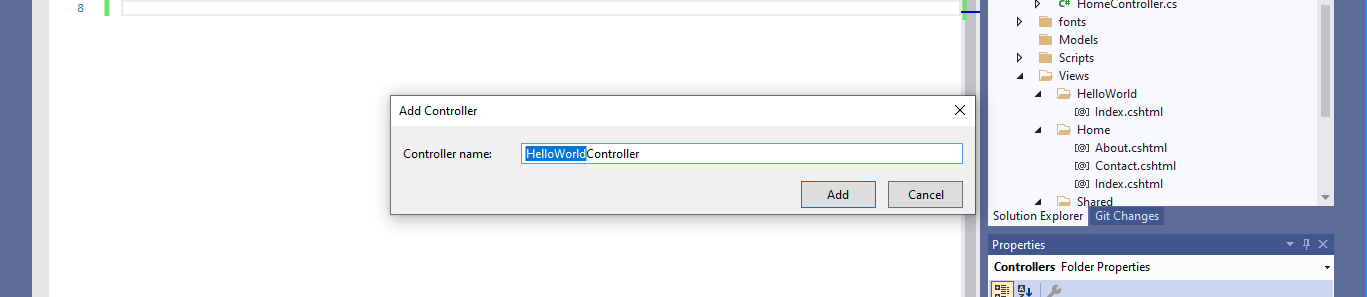
I named the controller HelloWorldController (in line with the folder I had already created)Tap the image to open it full size

I named the controller HelloWorldController (in line with the folder I had already created)
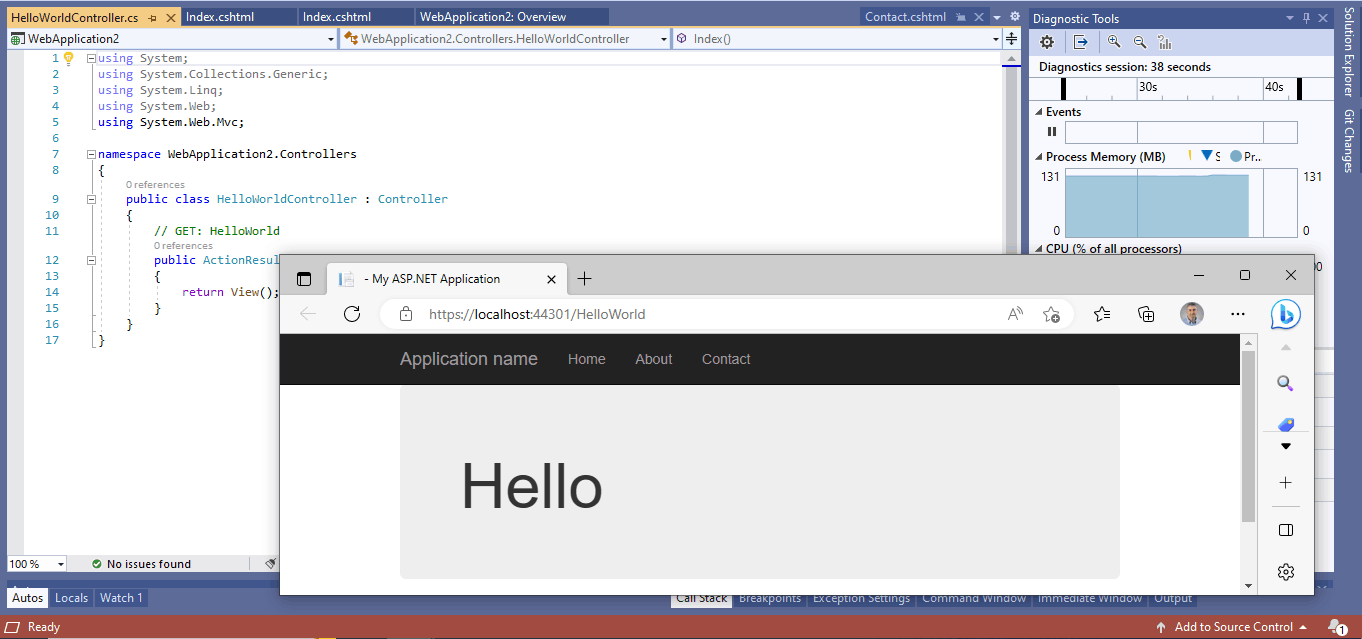
I added the folder name HelloWorld to the url and got the result aboveTap the image to open it full size

I added the folder name HelloWorld to the url and got the result above
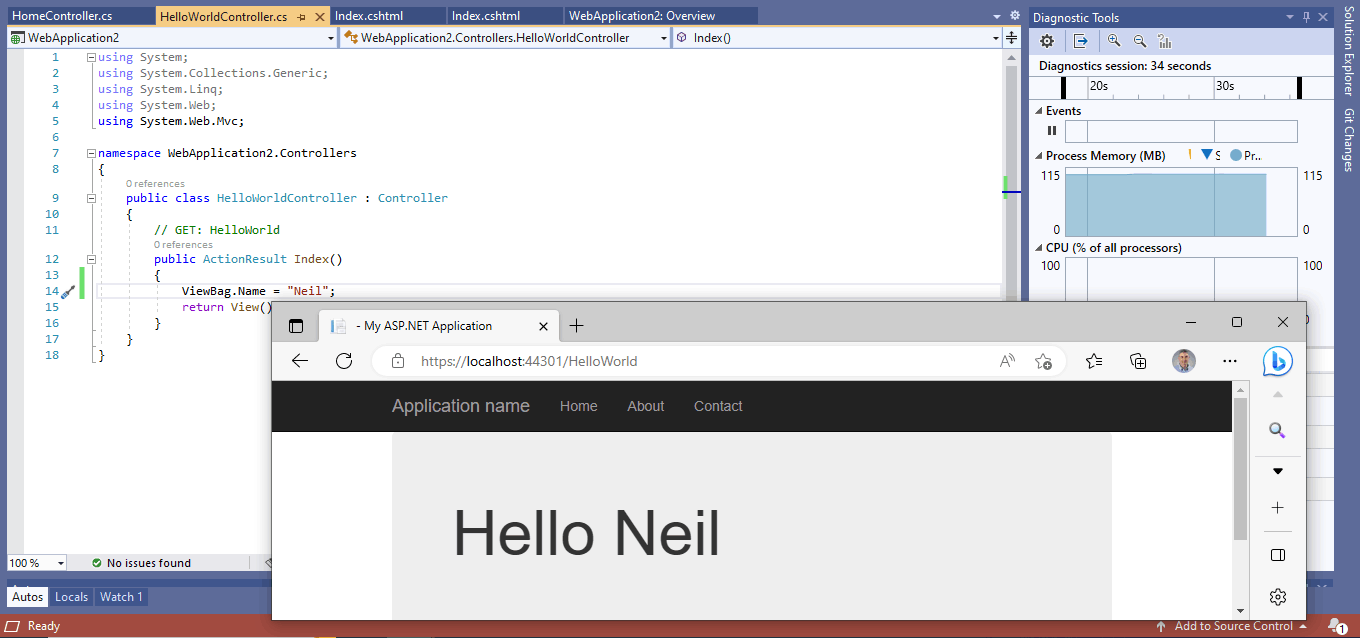
I updated the Controller function to set the "Name" value before returning the view. I refreshed the browser.Tap the image to open it full size

I updated the Controller function to set the "Name" value before returning the view. I refreshed the browser.
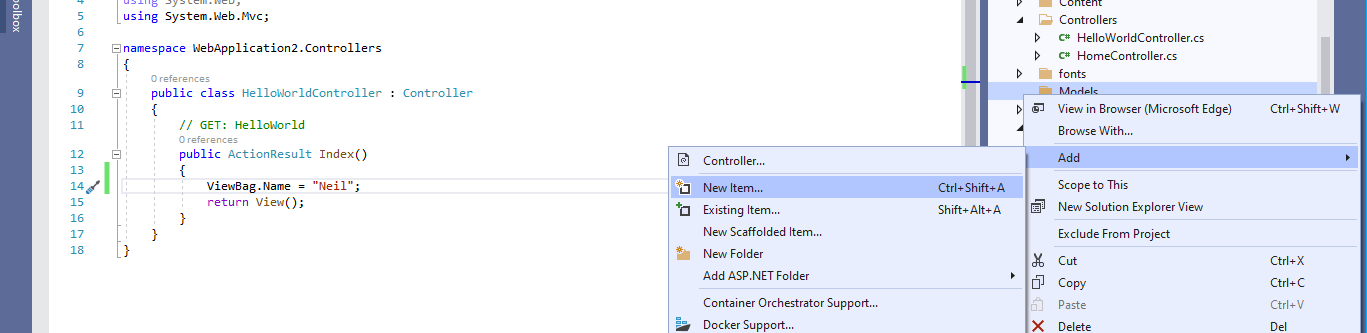
I selected the Models folder and selected the Add | New Item... menu itemTap the image to open it full size

I selected the Models folder and selected the Add | New Item... menu item
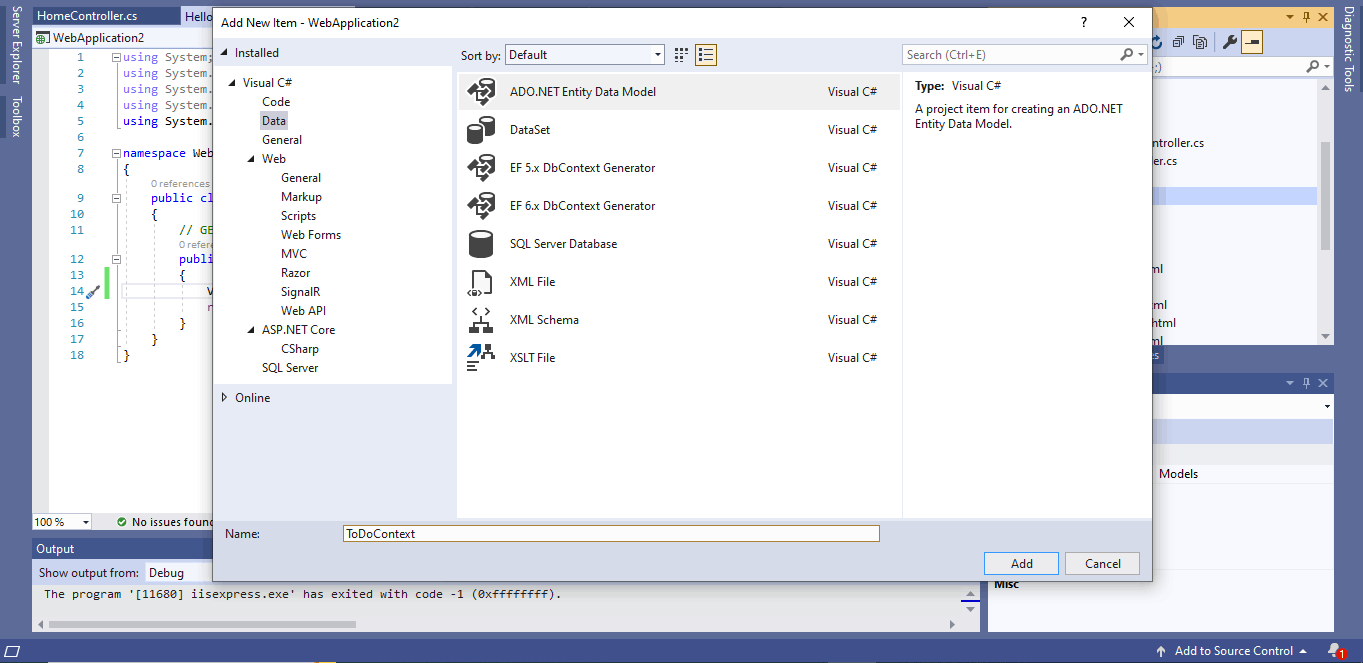
I entered the name ToDoContext and selected ADO.NET Entity Data ModelTap the image to open it full size

I entered the name ToDoContext and selected ADO.NET Entity Data Model
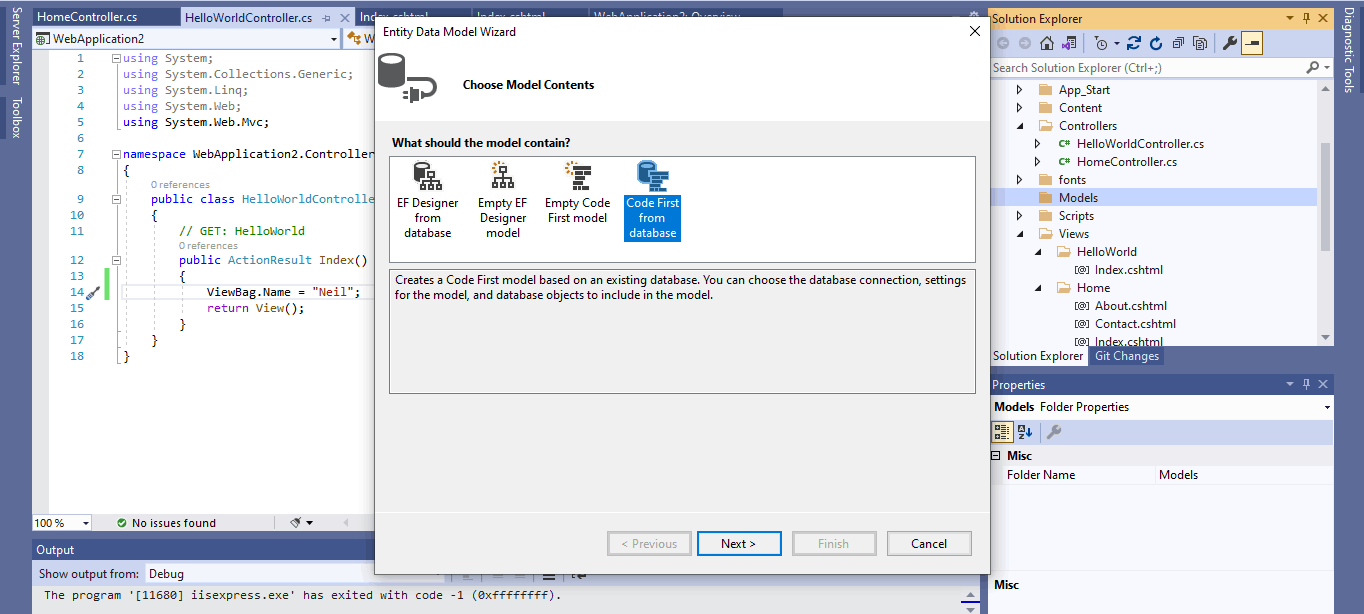
I selected Code First from databaseTap the image to open it full size

I selected Code First from database

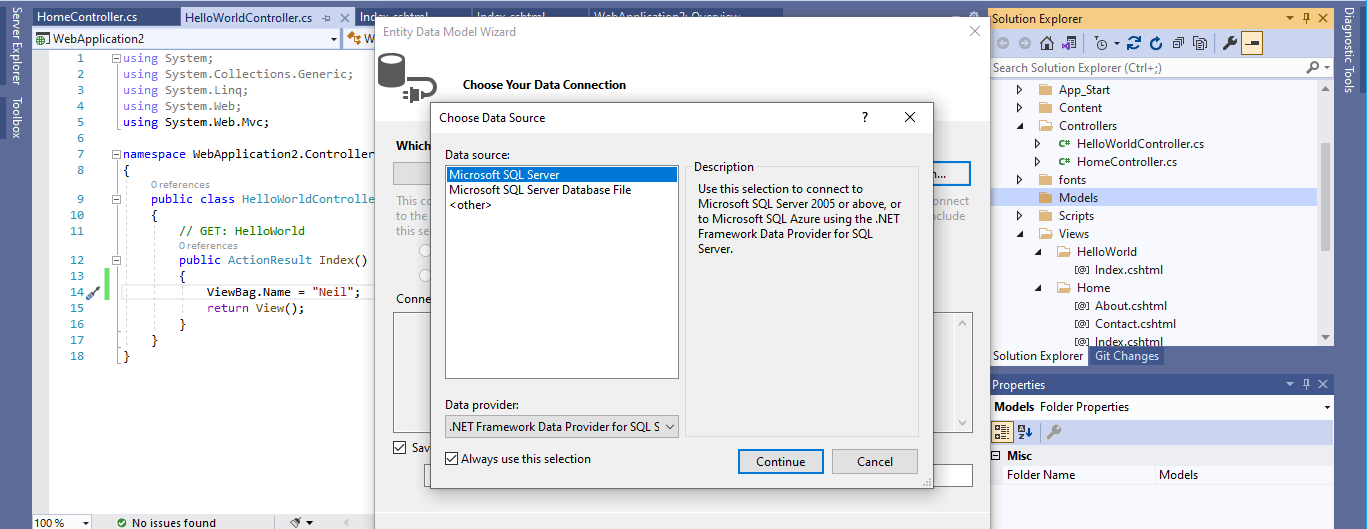
I created a new data connectionTap the image to open it full size

I created a new data connection

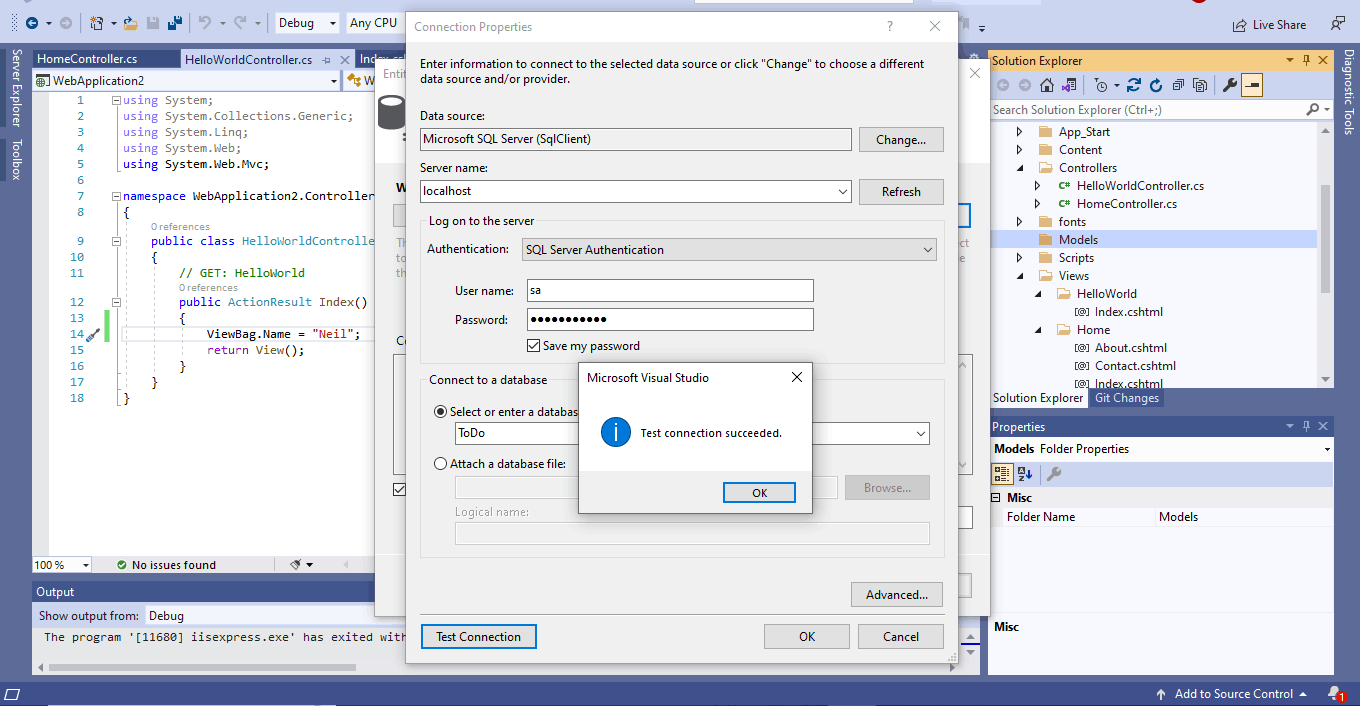
The test connection succeededTap the image to open it full size

The test connection succeeded

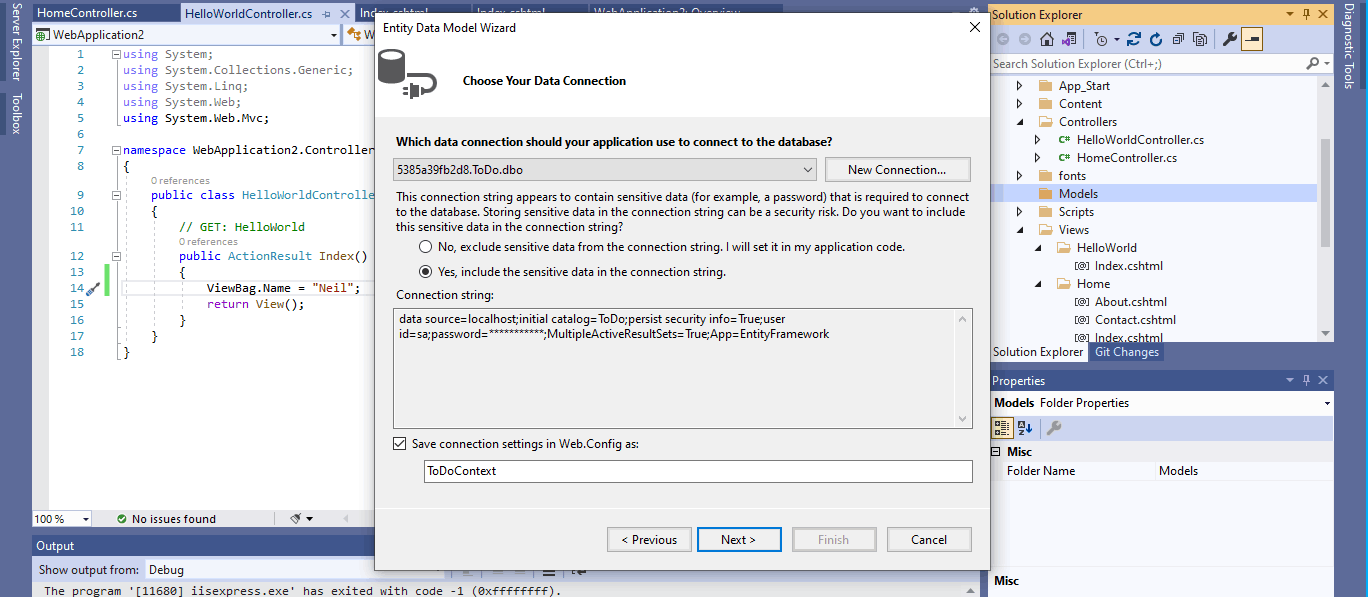
I asked Visual Studio to save the connection details in the Web.Config file (notice that the Web.Config file is never returned to a client browser)Tap the image to open it full size

I asked Visual Studio to save the connection details in the Web.Config file (notice that the Web.Config file is never returned to a client browser)
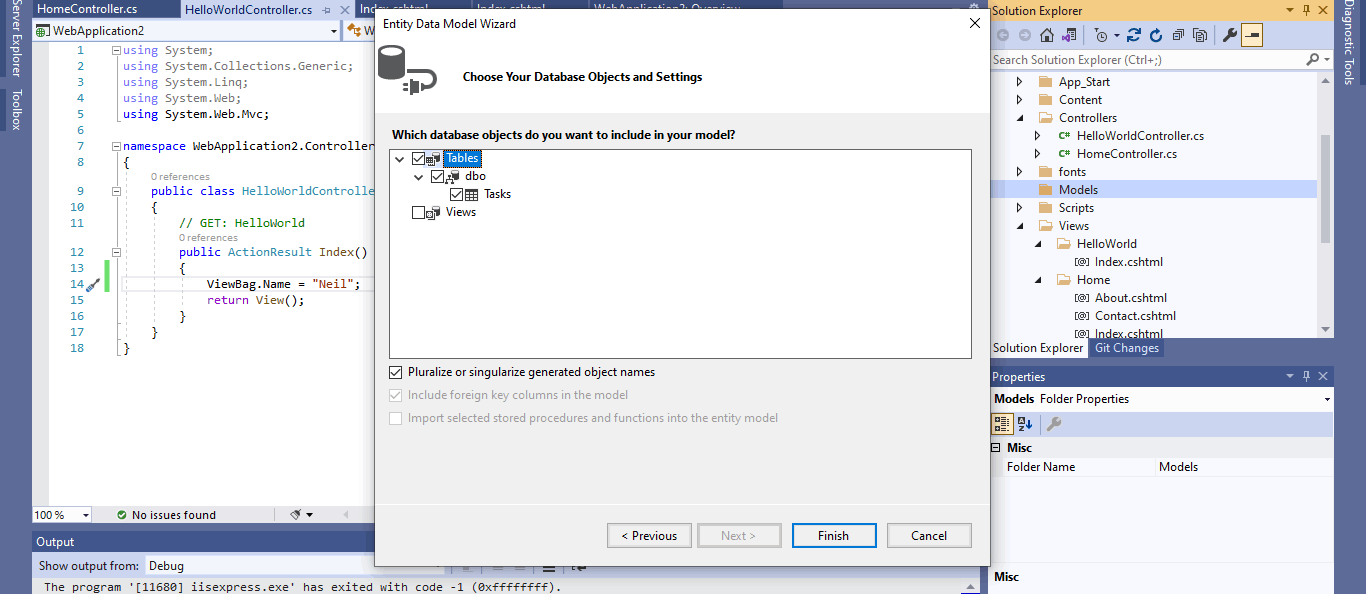
I selected the Tasks tableTap the image to open it full size

I selected the Tasks table

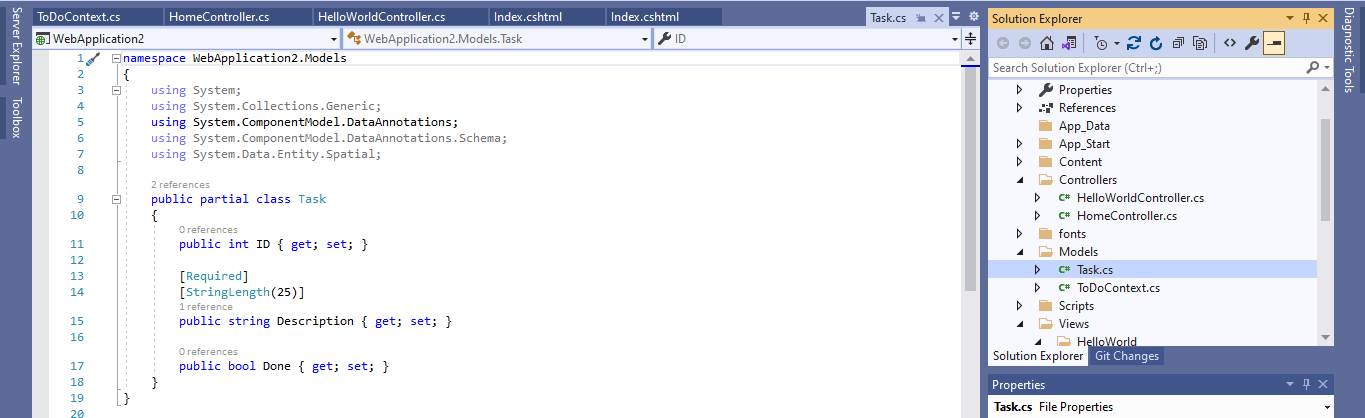
The Task class was generatedTap the image to open it full size

The Task class was generated

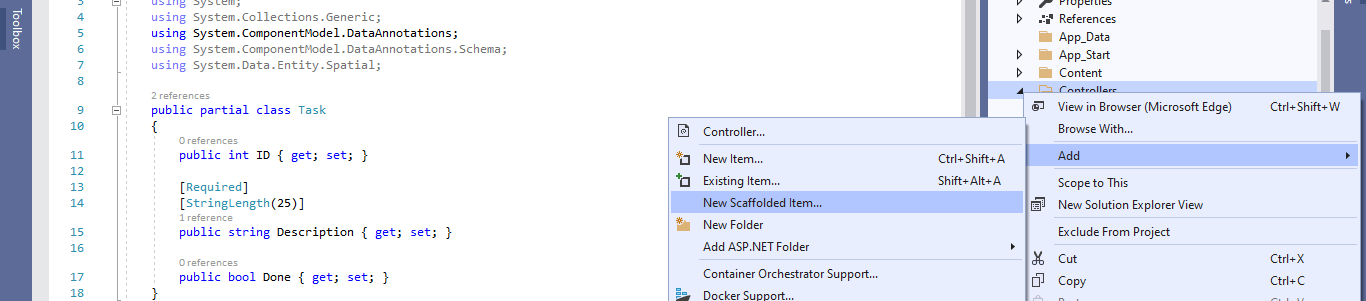
I selected the Controller folder and selected the Add | New Scaffolded Item... menu itemTap the image to open it full size

I selected the Controller folder and selected the Add | New Scaffolded Item... menu item
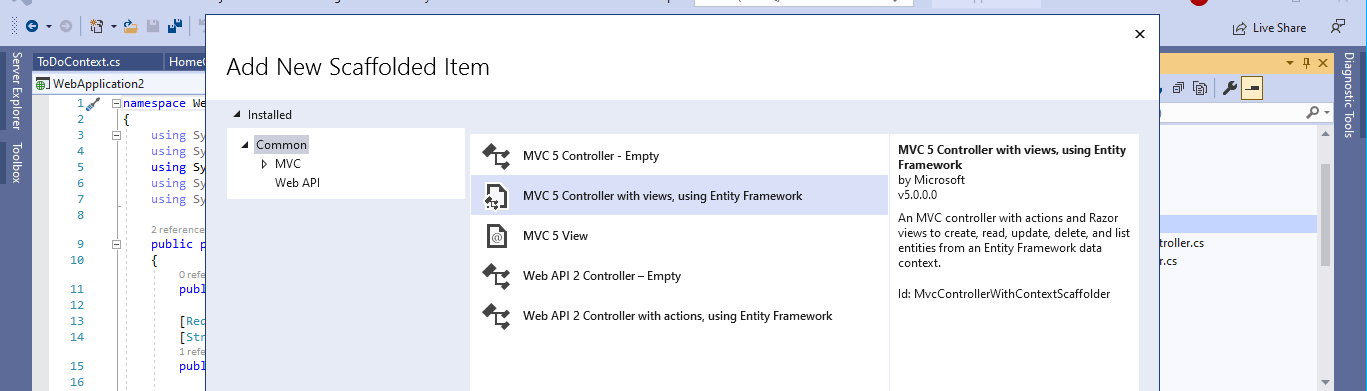
I selected the MVC 5 Controller with view, using Entity Framework optionTap the image to open it full size

I selected the MVC 5 Controller with view, using Entity Framework option
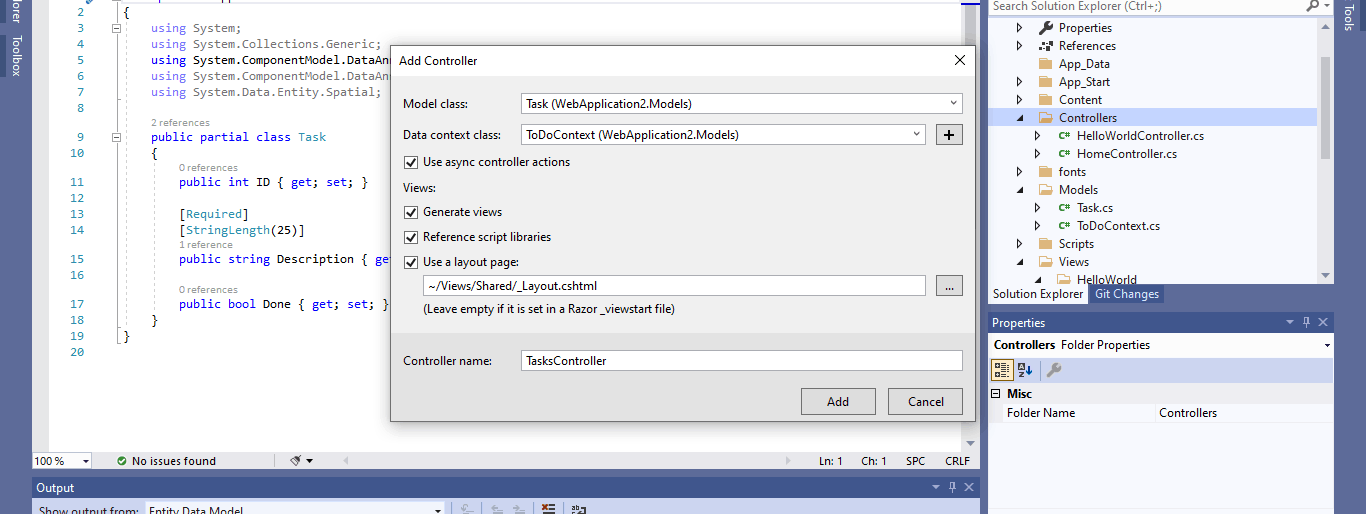
I entered the Model class name (Task) and the Data context class (ToDoContext).Tap the image to open it full size

I entered the Model class name (Task) and the Data context class (ToDoContext).
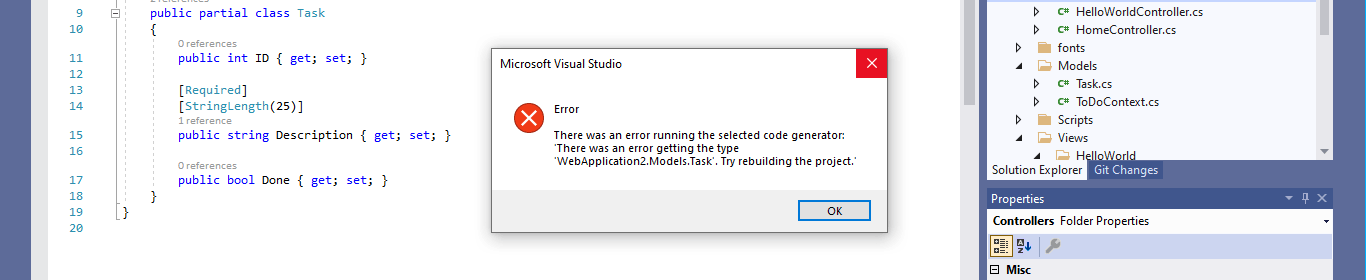
Visual Studio added CRUD controller functions and views (Visual Studio was confused by class "Task").Tap the image to open it full size

Visual Studio added CRUD controller functions and views (Visual Studio was confused by class "Task").
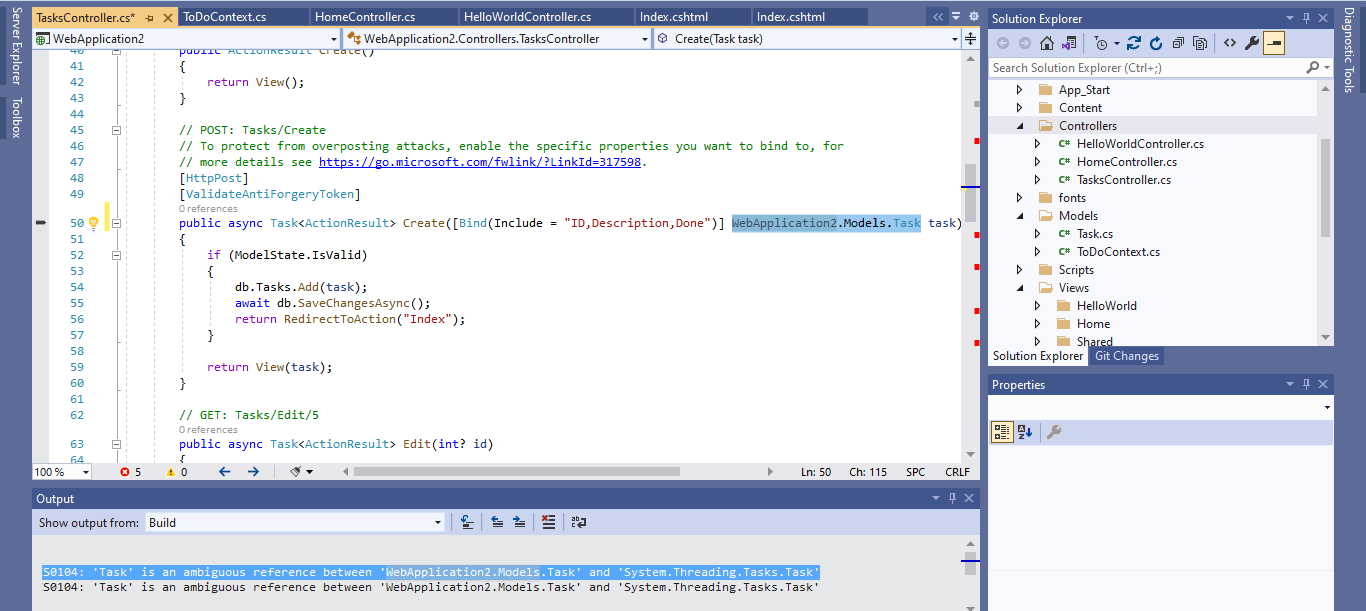
The controller functions includes Index. The TaskController.Index function will fetch all Tasks from the database and then display then using the corresponding Tasks/Index view (Models.Task class name fully qualified to avoid confusion).Tap the image to open it full size

The controller functions includes Index. The TaskController.Index function will fetch all Tasks from the database and then display then using the corresponding Tasks/Index view (Models.Task class name fully qualified to avoid confusion).
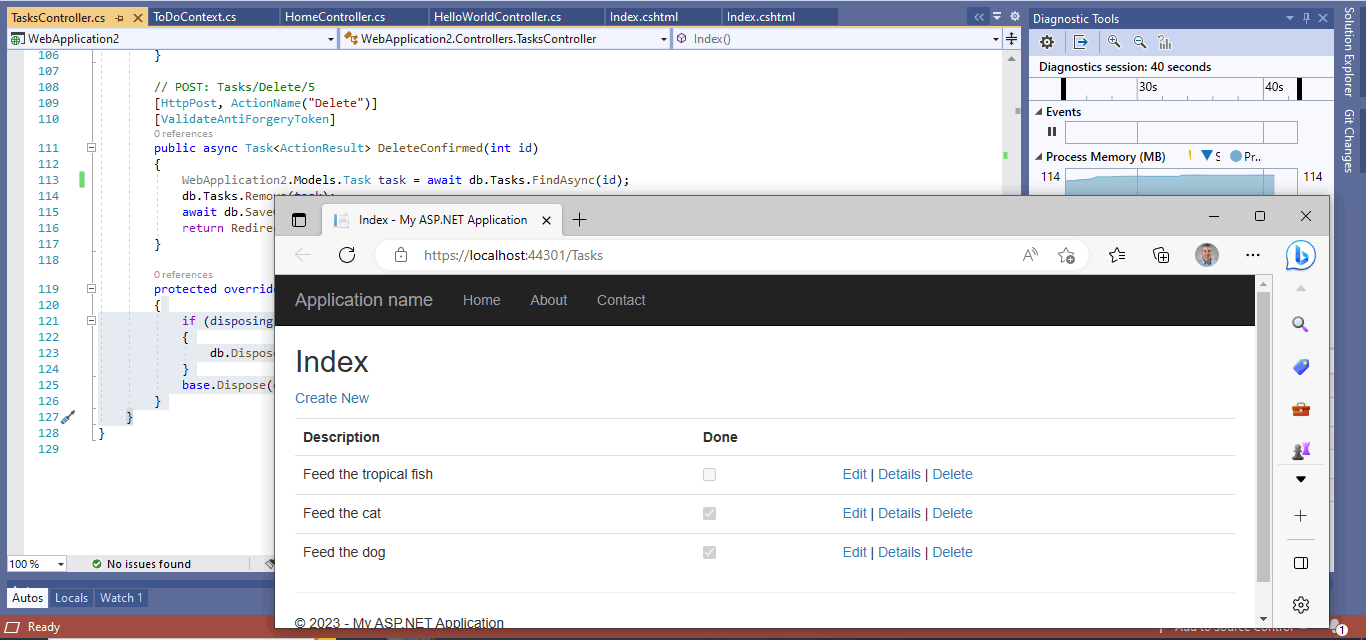
The TaskController.Index function ran when I navigated to /TasksTap the image to open it full size

The TaskController.Index function ran when I navigated to /Tasks