Azure Active Directory (Part 2)
Neil Haddley • April 17, 2021
Microsoft Azure Active Directory Authentication.
Single-page application with login
Quickstart projects make it easier to build applications that connect to Azure Active Directory, Microsoft Graph and other Azure resources.
Quickstart projects allow developers to create Web applications, Single page applications (SPAs), Mobile and desktop applications and Daemon applications.
I created a "Haddley React Single Page App" that supports Azure Active Directory login.
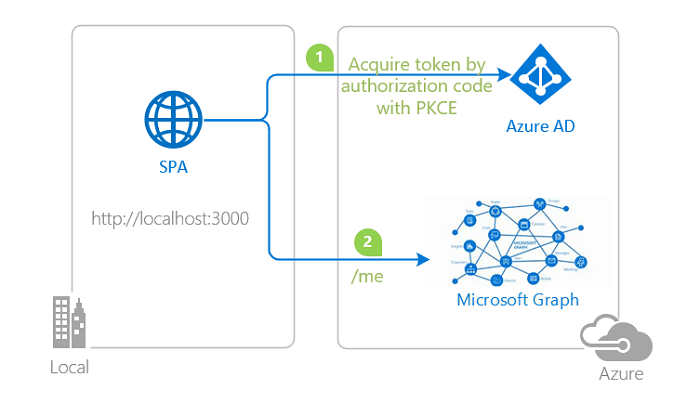
topology_callgraph by Doğan Erişen is licensed under MIT License
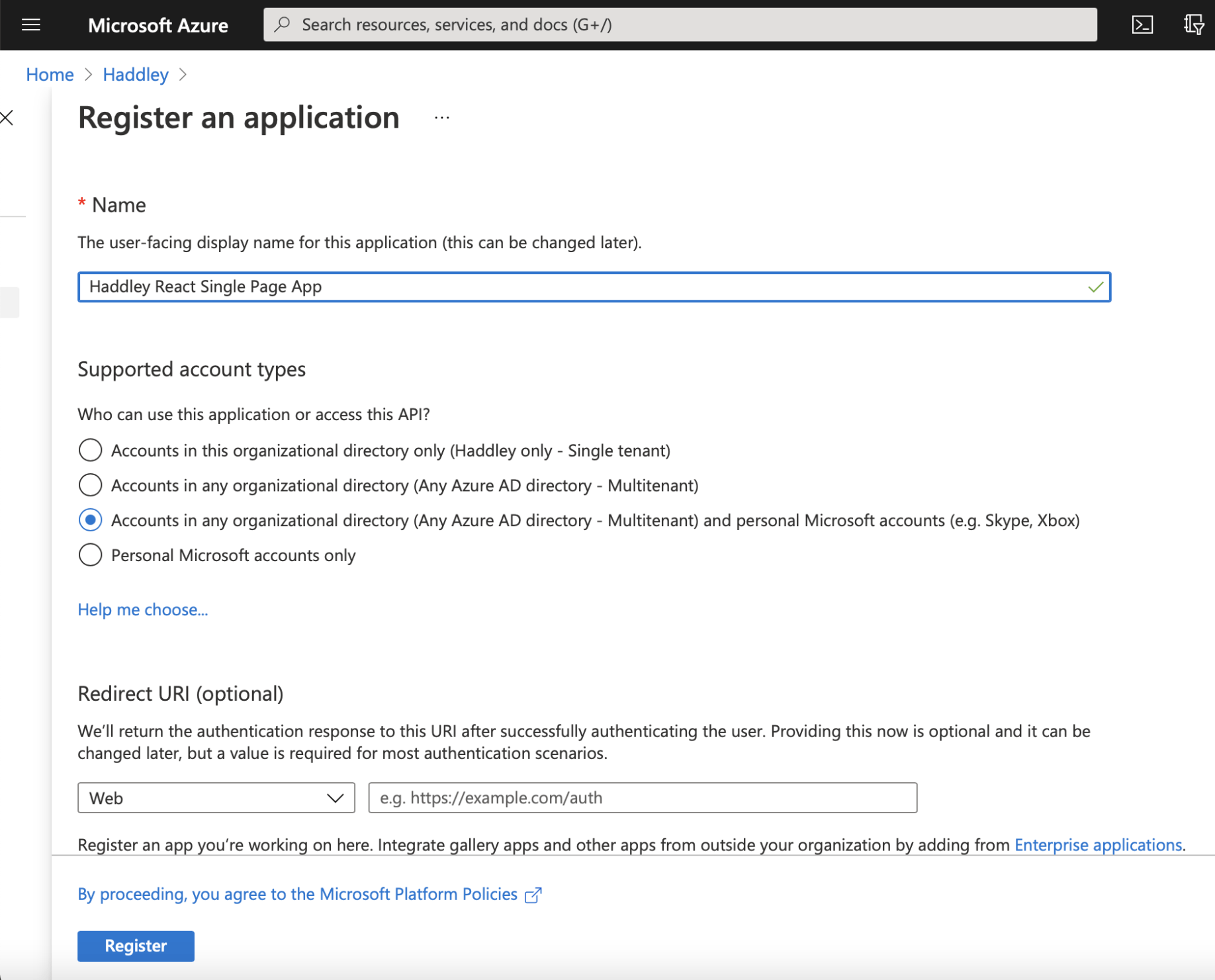
I named the app Haddley React Single Page App
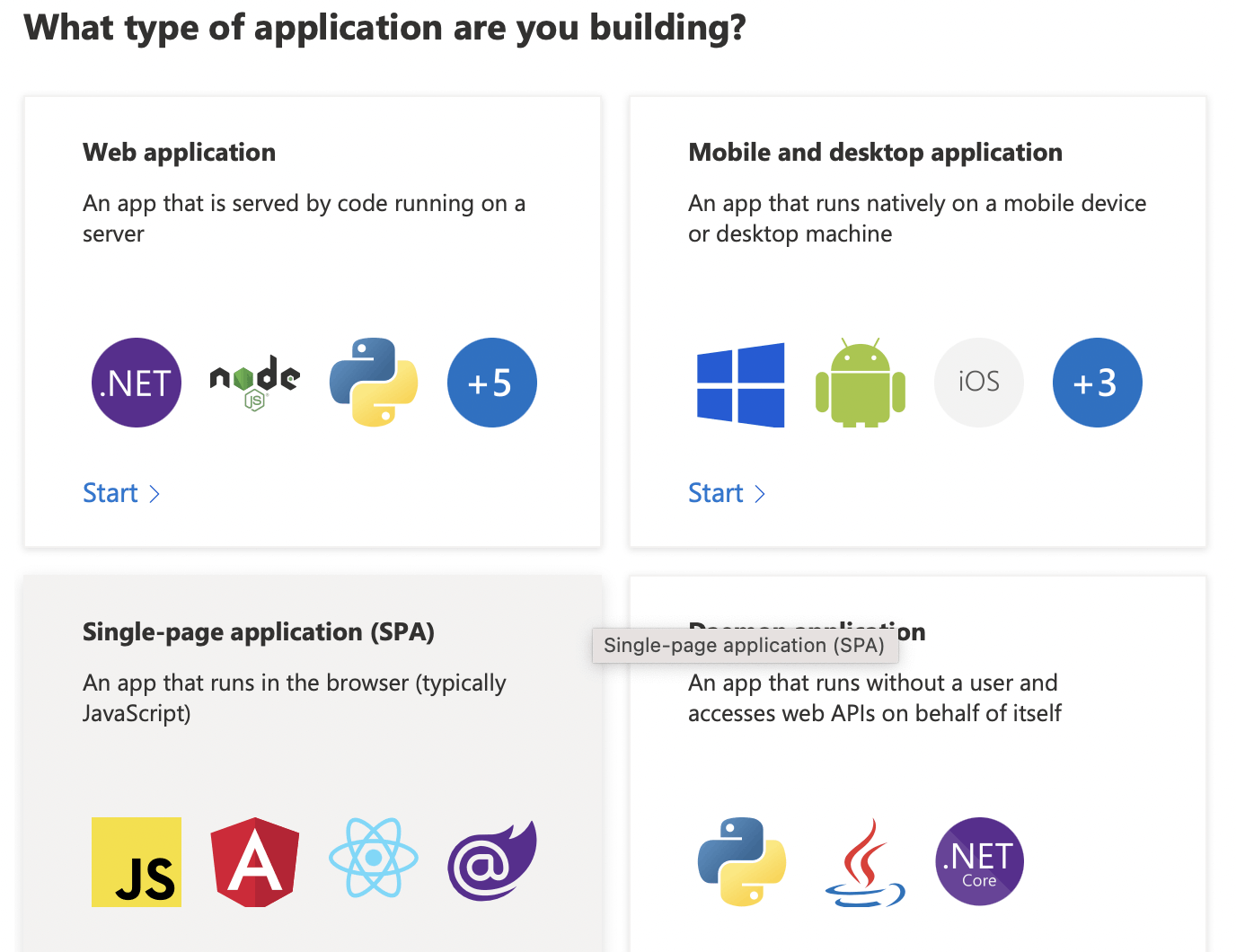
I selected "Single-page application (SPA)"
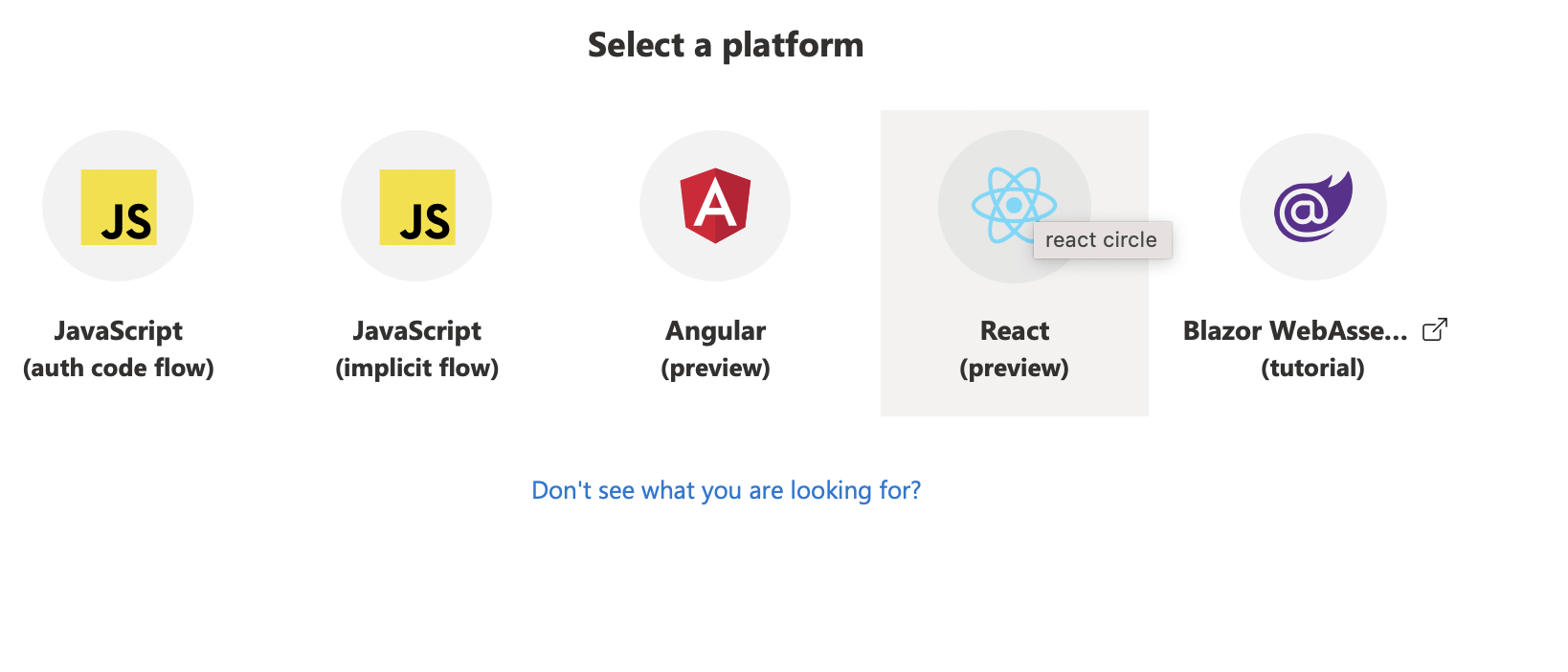
I selected "React (preview)"
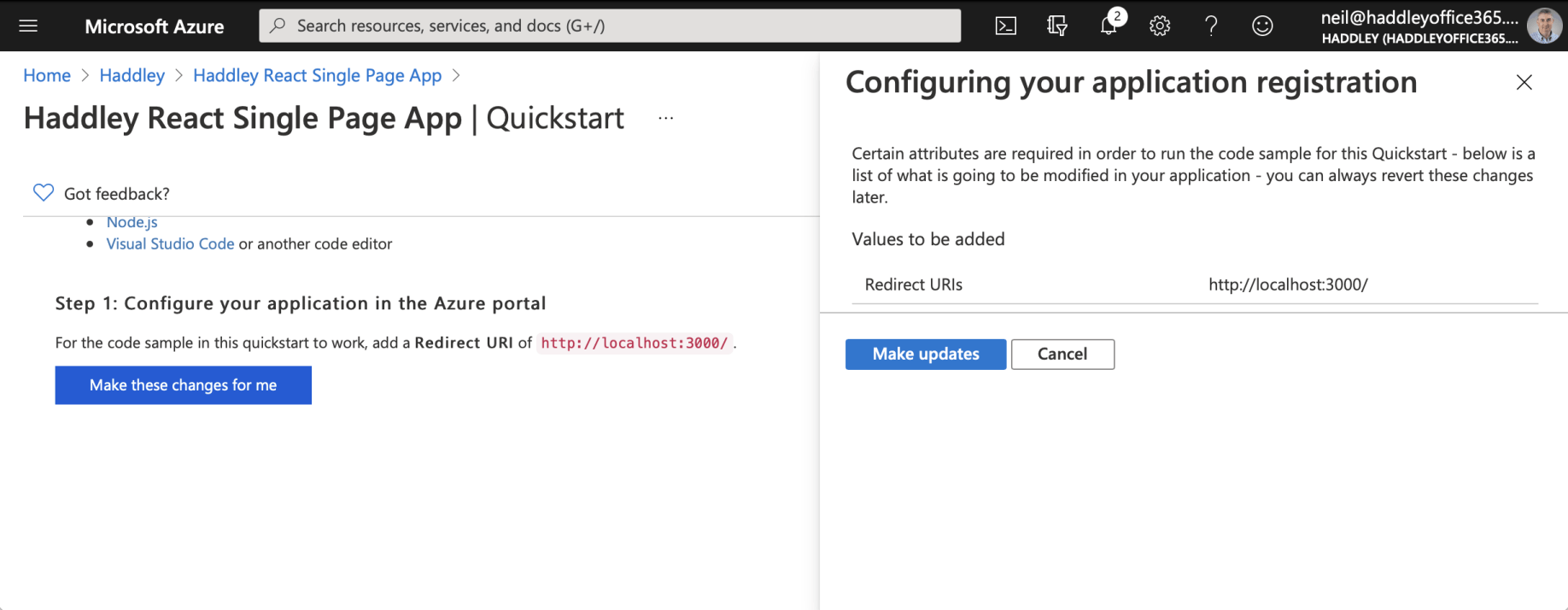
I allowed the Quickstart to update the Redirect URI to "http://localhost:3000/"
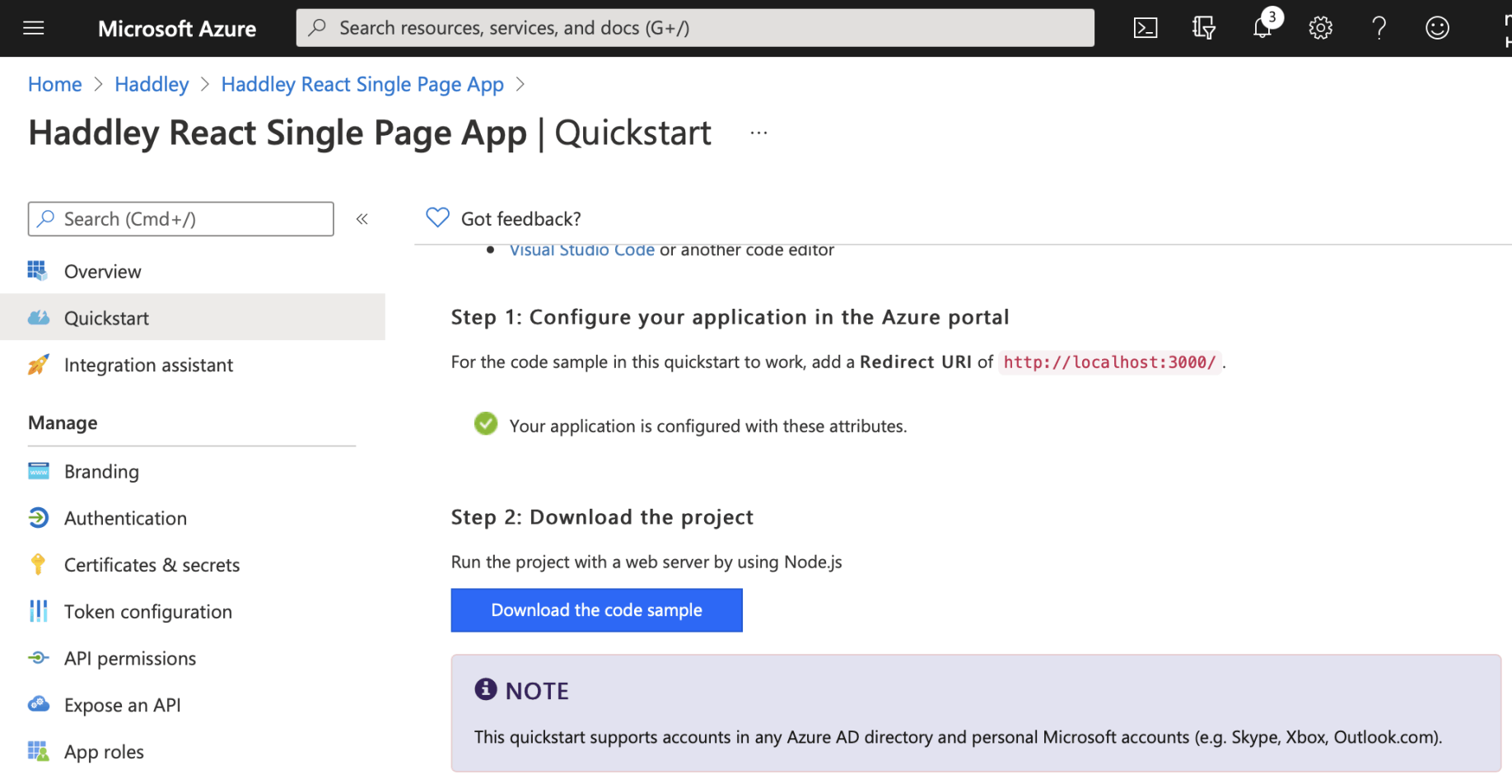
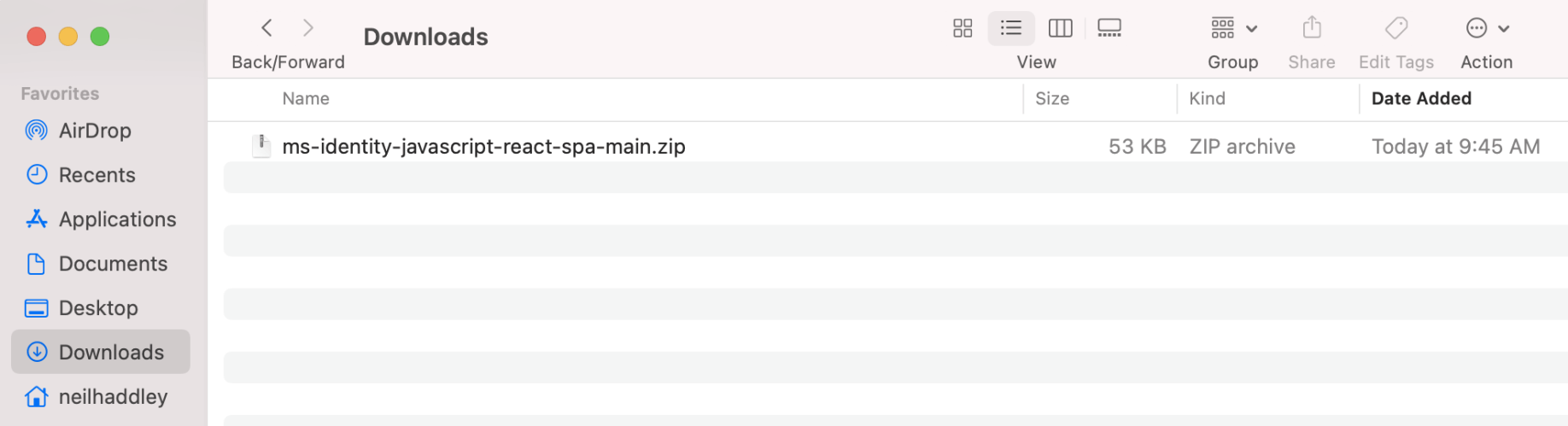
I downloaded the fully configured code sample
I opened the project using Visual Studio Code
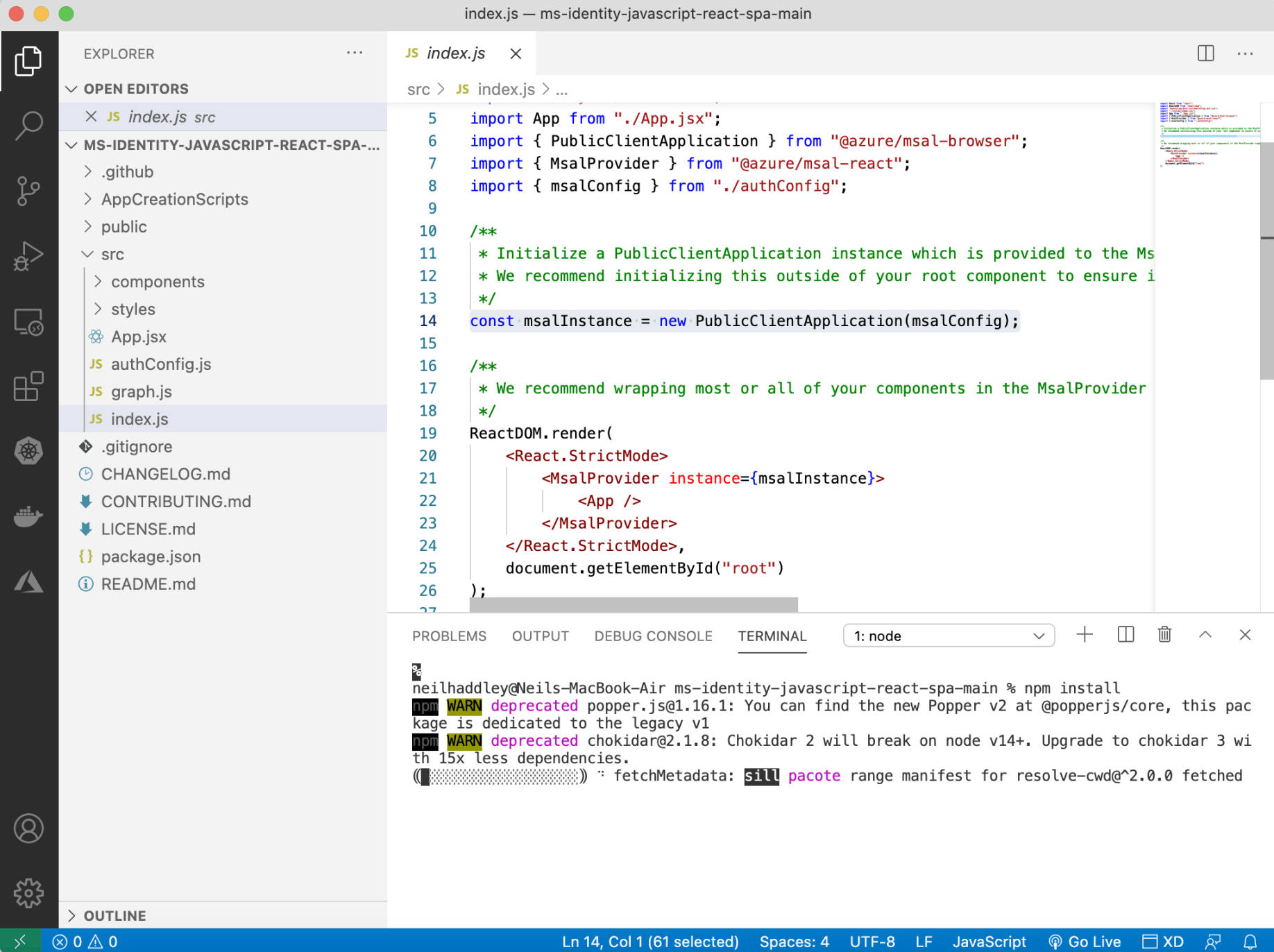
I ran npm install and npm start
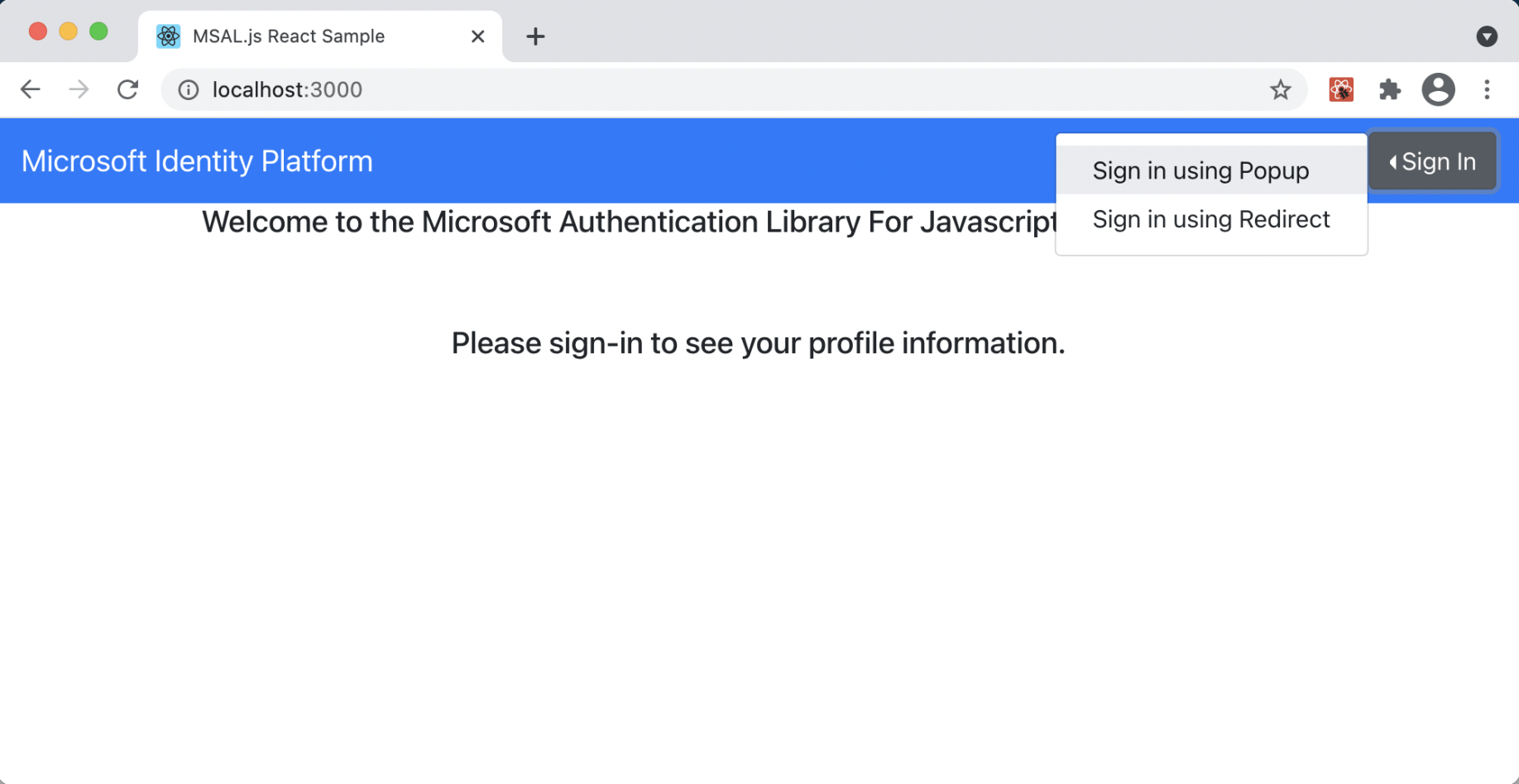
I selected "Sign in using Popup"
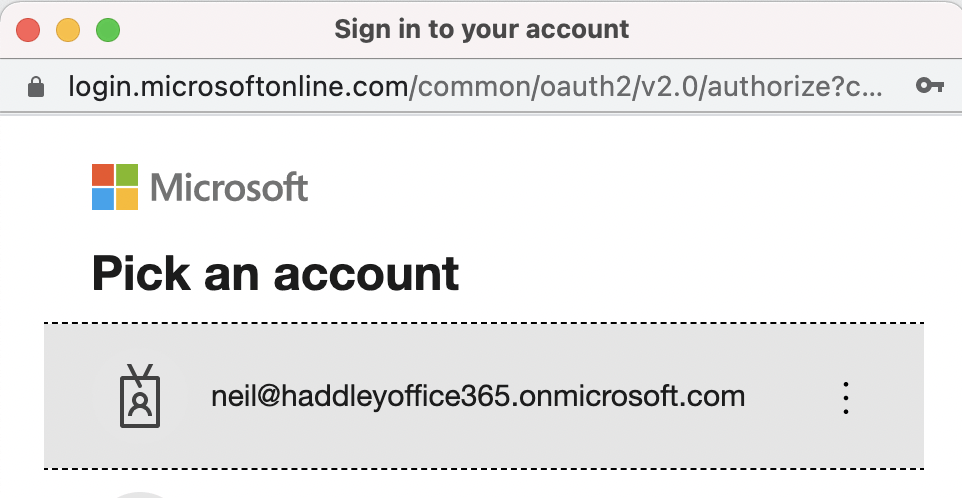
I picked an account
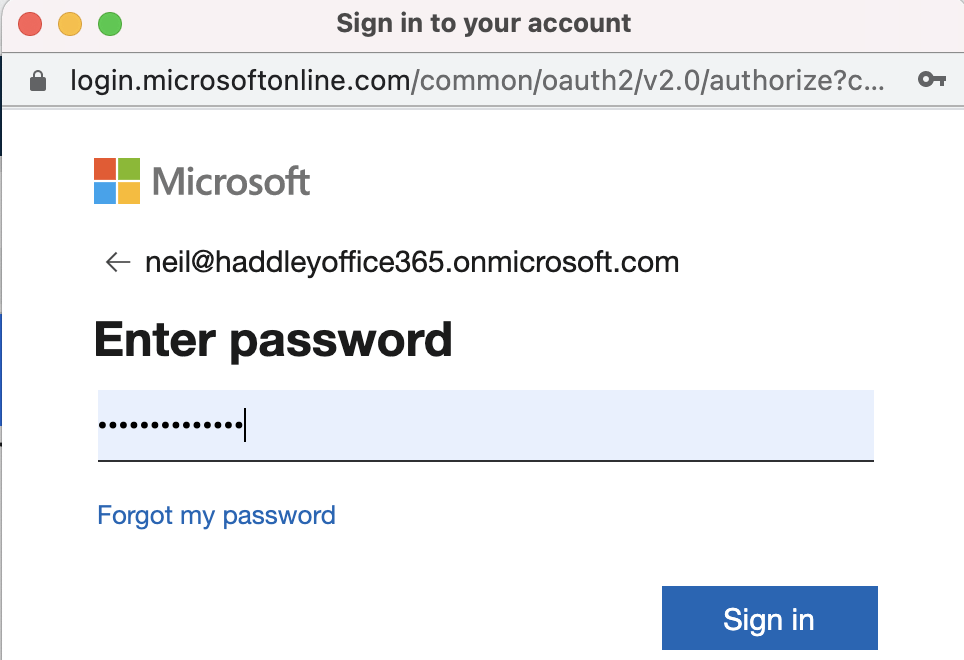
I entered the password
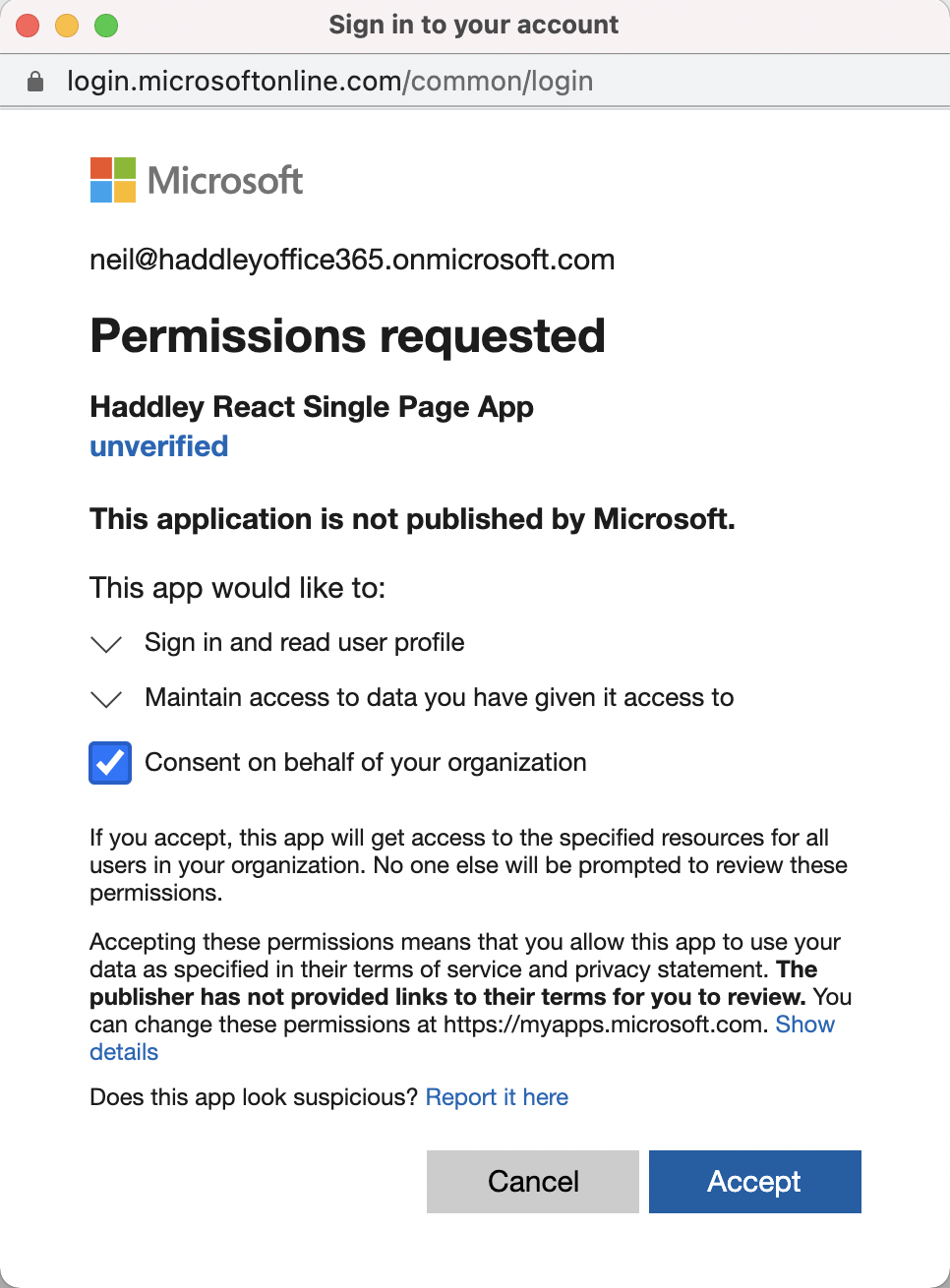
I clicked Accept
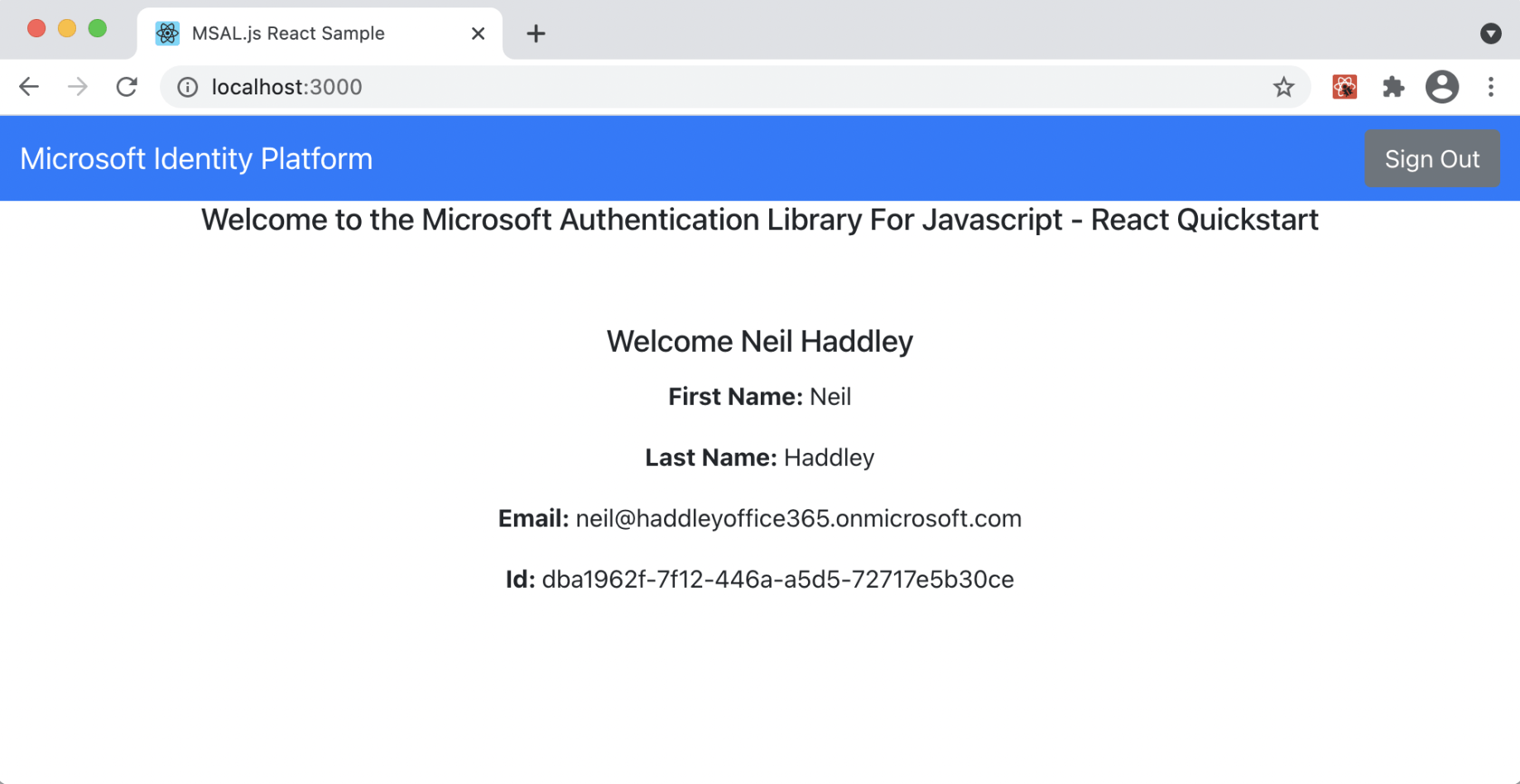
I pressed "Request Profile Information"
Vanilla JavaScript single-page application (SPA) using MSAL.js to authorize users for calling a protected web API on Azure AD
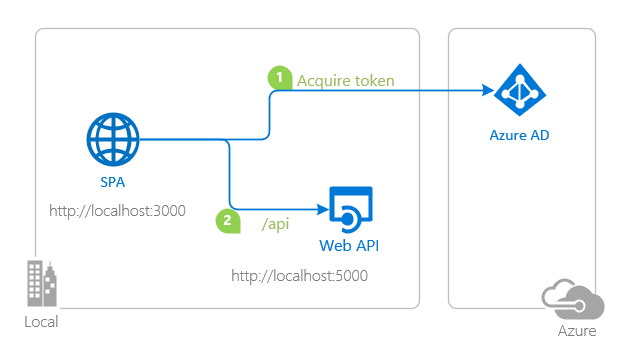
topology_callapi by Doğan Erişen is licensed under MIT License
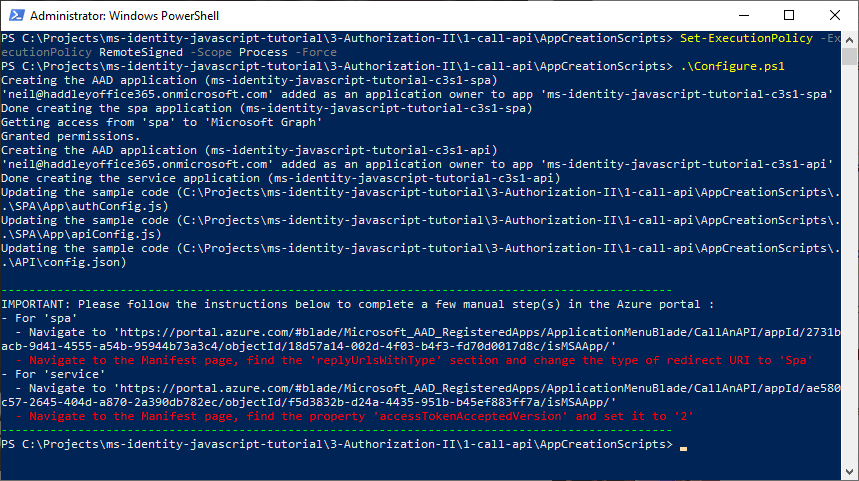
I ran .\Configure.ps1
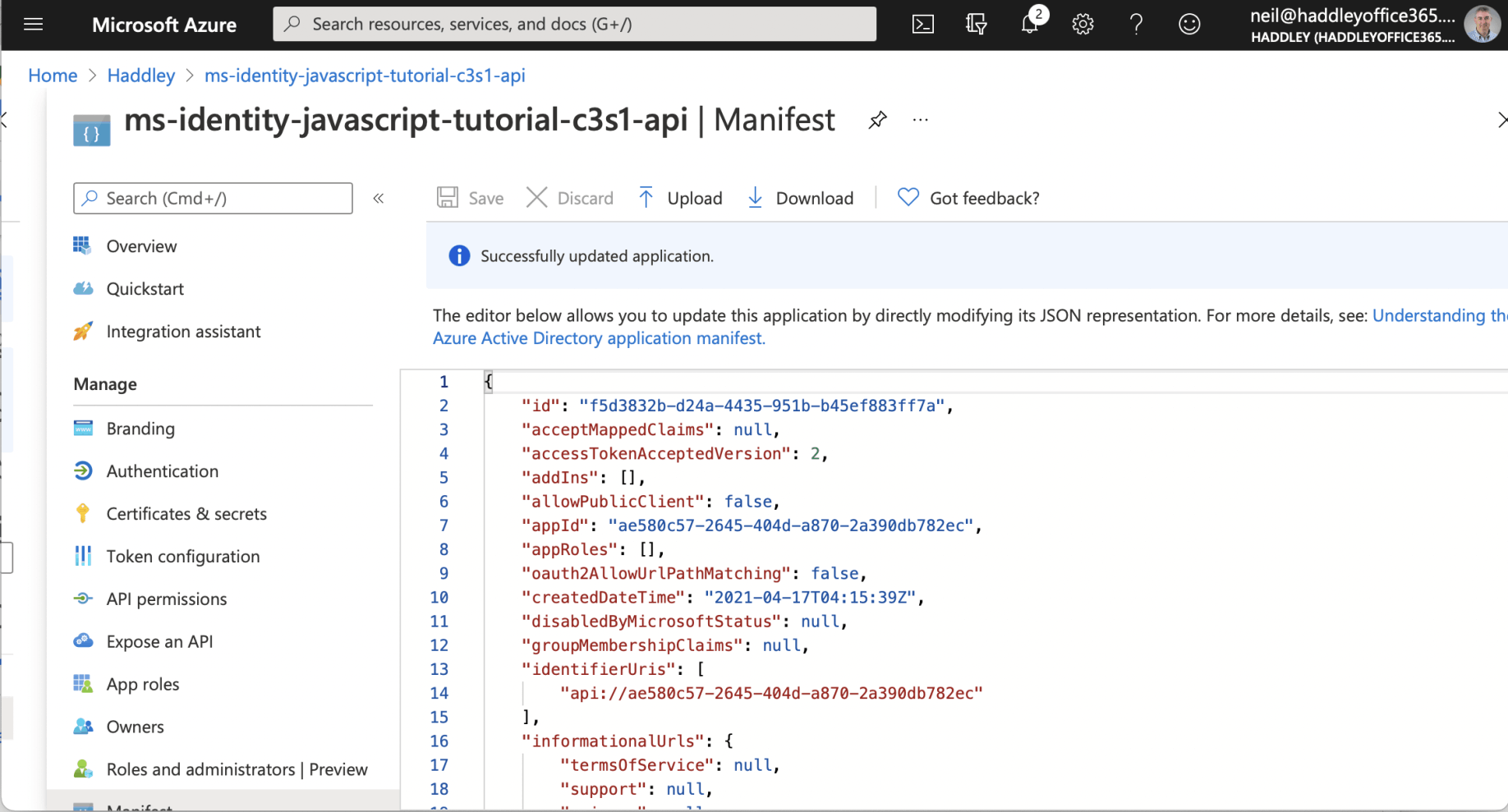
I updated the Manifest "accessTokenAcceptedVersion"
Configure and run the Client (SPA) and Service (API) apps
Configure the service app to use your app registration
I opened the project in my IDE (Visual Studio Code) to configure the code.
In the steps below, "ClientID" is the same as "Application ID" or "AppId".
I opened the config.js file.
I found the key clientID and replaced the existing value with the application ID (clientId) of the ms-identity-javascript-tutorial-c3s1-api application copied from the Azure portal.
I found the key tenantID and replaced the existing value with my Azure AD tenant ID.
I found the key audience and replaced the existing value with the application ID (clientId) of the ms-identity-javascript-tutorial-c3s1-api application copied from the Azure portal.
Configure the client app to use your app registration
I opened the project in my IDE (Visual Studio Code) to configure the code.
In the steps below, "ClientID" is the same as "Application ID" or "AppId".
I opened the App\authConfig.js file. Then:
I found the key Enter_the_Application_Id_Here and replaced the existing value with the application ID (clientId) of the ms-identity-javascript-c3s1-spa application copied from the Azure portal.
I found the key Enter_the_Cloud_Instance_Id_Here/Enter_the_Tenant_Info_Here and replaced the existing value with https://login.microsoftonline.com/XXXXXXXX-XXXX-XXXX-XXXX-XXXXXXXXXXXX (where XXXXXXXX-XXXX-XXXX-XXXX-XXXXXXXXXXXX is the Directory (tenant) ID).
I found the key Enter_the_Redirect_Uri_Here and replaced the existing value with the base address of the ms-identity-javascript-tutorial-c3s1-spa application (by default http://localhost:3000).
After configuring the web API, I opened the App\apiConfig.js file. Then:
I found the key Enter_the_Web_Api_Uri_Here and replaced the existing value with the coordinates of my web API (by default http://localhost:5000/api).
I found the key Enter_the_Web_Api_Scope_Here and replaced the existing value with the scopes for my web API, like api://e767d418-b80b-4568-9754-557f40697fc5/access_as_user.
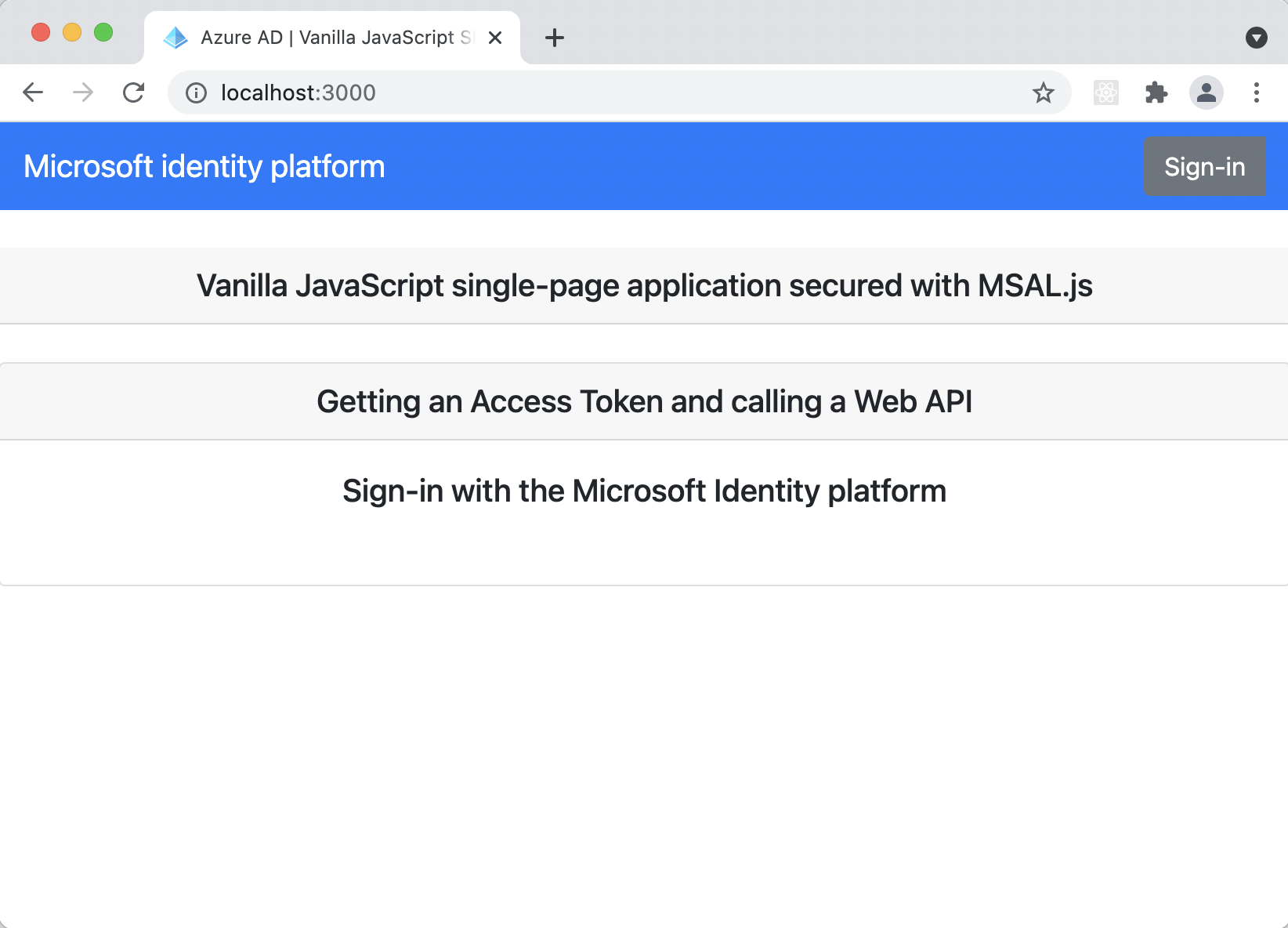
I clicked Sign-in
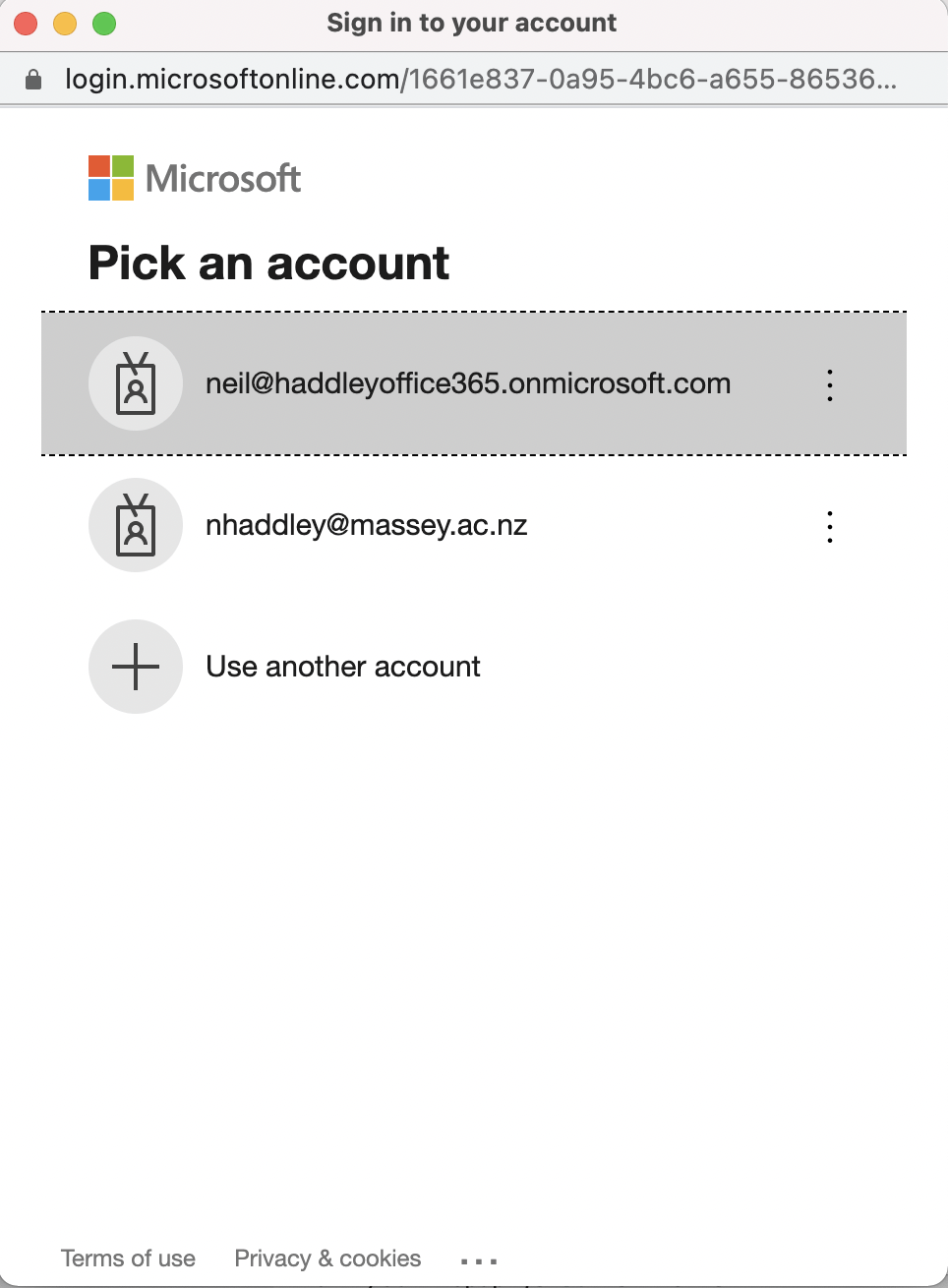
I entered my Azure/Office 365 credentials
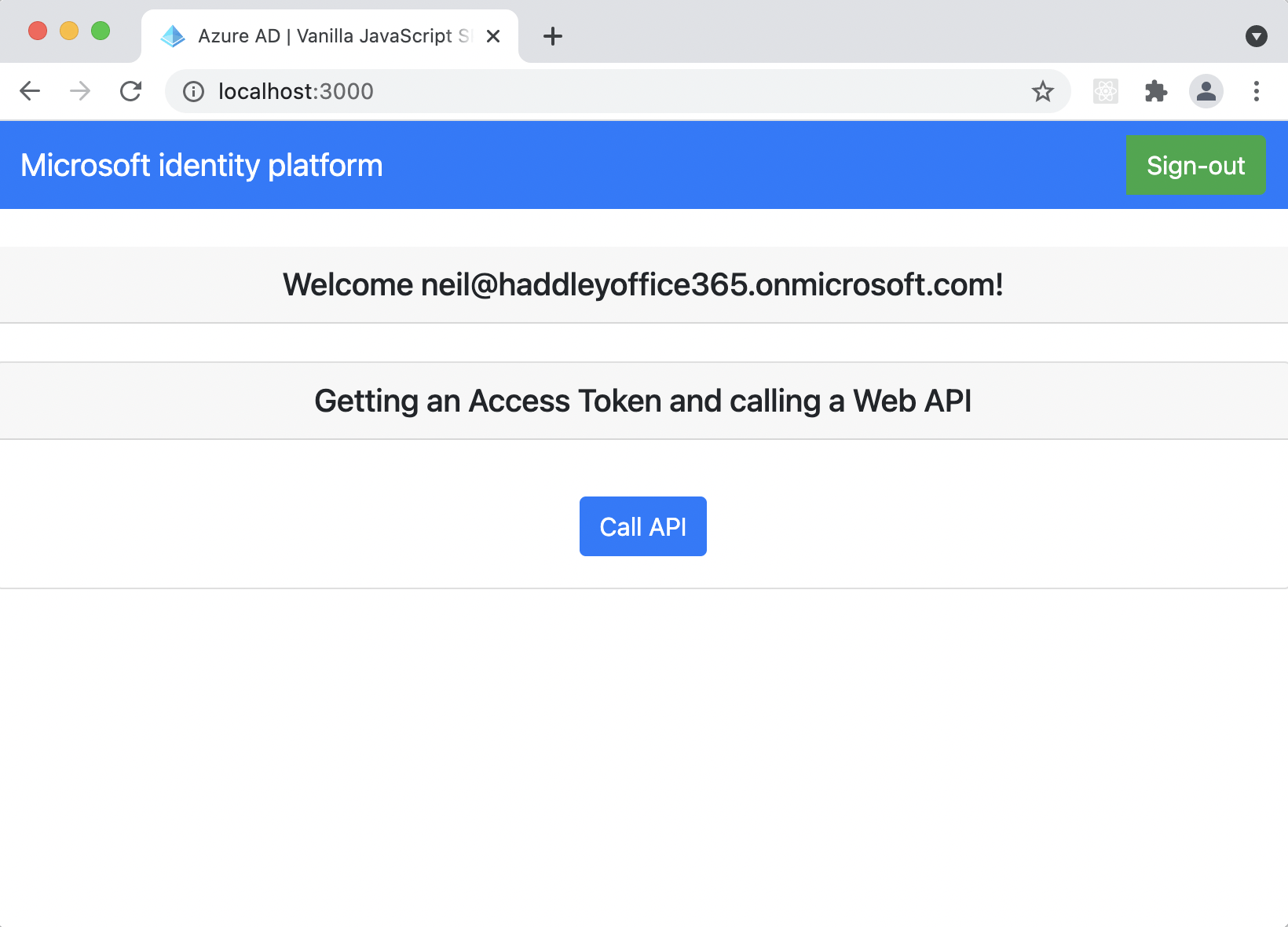
I pressed Call API
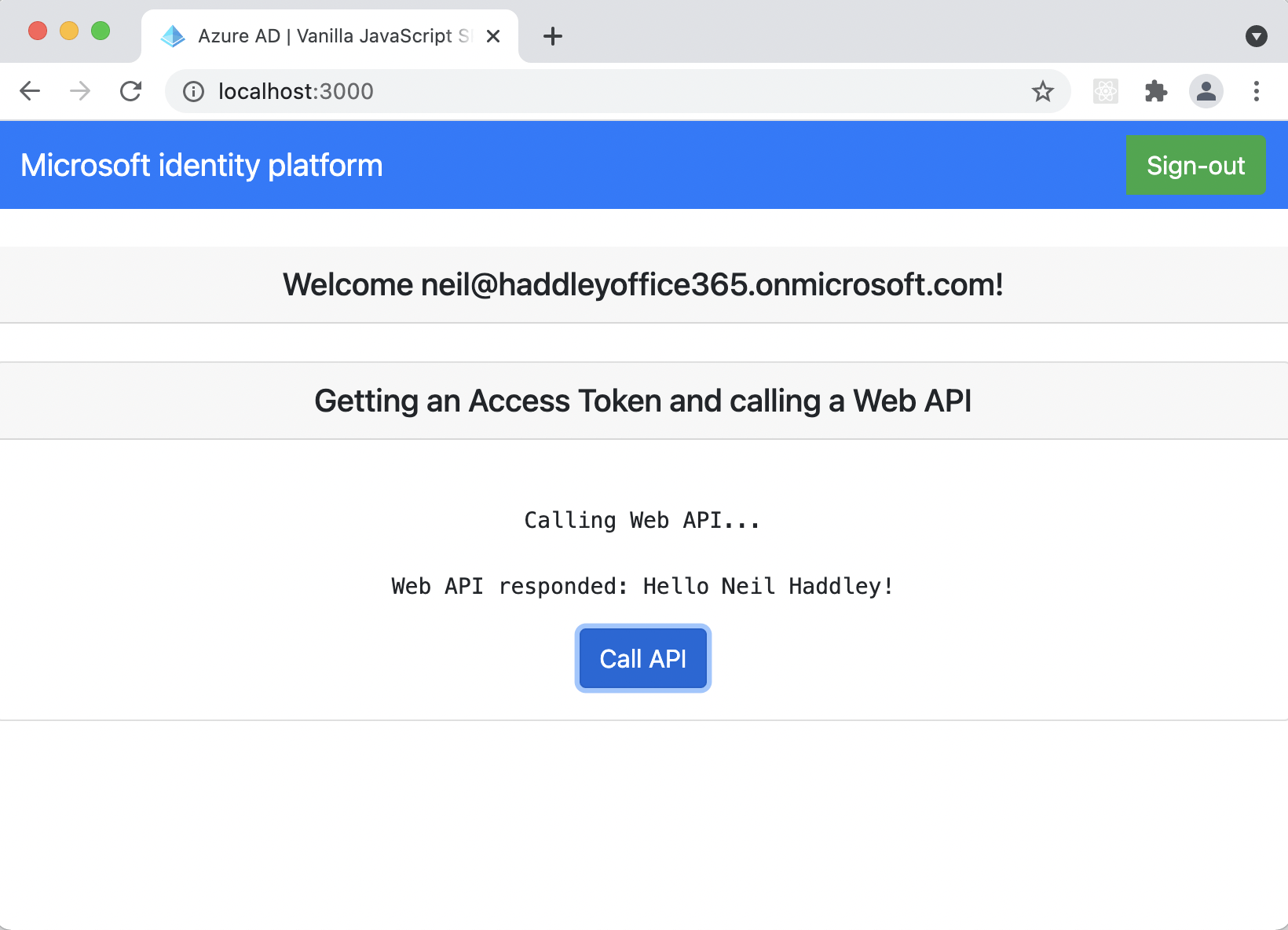
The protected API returned a result
Discussion
SPA is a single page application based on an html file and JavaScript (not React, Angular or Vue). As authPopup.js (or authRedirect.js) is loaded myMSALObj is set to a new msal.PublicClientApplication instance using msalConfig. Further down in the same file "selectAccount();" is called. selectAccount calls the getAllAccounts method on the msal.PublicClientApplication instance. If at least one account is returned the welcomeUser function is called passing the username from the first account.
welcomeUser is defined in ui.js. welcomeUser uses document.getElementById and css classes to update the html page (showing if a user is logged in).
If the html signIn button is pressed the signIn function in authPopup.js (or authRedirect.js) is run. This calls the loginPopup (or loginRedirect) method on the msal.PublicClientApplication instance passing loginRequest (an object with a scopes property ... {scopes: ["openid", "api://ae580c57-2645-404d-a870-2a390db782ec/access_as_user"]} ). The handleResponse function is called if the user login succeeds. The handleResponse function sets a username variable and calls the welcomeUser function again (passing the value of that username variable).
If the html callApiButton button is pressed the passTokenToApi function is executed. The passTokenToApi function calls getTokenPopup (or getTokenRedirect) which uses myMSALObj.acquireTokenSilent and (possibly) the myMSALObj.acquireTokenPopup (or myMSALObj.acquireTokenRedirect) methods (here the constant tokenRequest is used { scopes: ["Mail.Read"] }).
Once the access_token has been acquired function callApi is called passing apiConfig.uri ("http://localhost:5000/api") and the response.accessToken. callApi appends an Authorization header with value accessToken and uses fetch to call the API. The response from the API call should include the logged in user's name.
API is a Node express app. The code starts by defining const app=express(). "morgan" (for debugging) and "passport" are added to the express instance. bearerStrategy is added to the passport reference. CORS is enabled using permissive headers.
Then the "/api" endpoint is exposed. The /api handler is only run if passport.authenticated (see the response received from Azure Active Directory requesting "access_as_user" permissions). req.authInfo provides authentication information. In the sample information from the req.authInfo property is returned as the result of the API call (including the logged in user's name).
App.js
JAVASCRIPT
1import React, { useState } from "react";
2import { AuthenticatedTemplate, UnauthenticatedTemplate, useMsal } from "@azure/msal-react";
3import { loginRequest } from "./authConfig";
4import { PageLayout } from "./components/PageLayout";
5import { ProfileData } from "./components/ProfileData";
6import { callMsGraph } from "./graph";
7import Button from "react-bootstrap/Button";
8import "./styles/App.css";
9
10/**
11 * Renders information about the signed-in user or a button to retrieve data about the user
12 */
13const ProfileContent = () => {
14    const { instance, accounts } = useMsal();
15    const [graphData, setGraphData] = useState(null);
16
17    function RequestProfileData() {
18        // Silently acquires an access token which is then attached to a request for MS Graph data
19        instance.acquireTokenSilent({
20            ...loginRequest,
21            account: accounts[0]
22        }).then((response) => {
23            callMsGraph(response.accessToken).then(response => setGraphData(response));
24        });
25    }
26
27    return (
28        <>
29            <h5 className="card-title">Welcome {accounts[0].name}</h5>
30            {graphData ?
31                <ProfileData graphData={graphData} />
32                :
33                <Button variant="secondary" onClick={RequestProfileData}>Request Profile Information</Button>
34            }
35        </>
36    );
37};
38
39/**
40 * If a user is authenticated the ProfileContent component above is rendered. Otherwise a message indicating a user is not authenticated is rendered.
41 */
42const MainContent = () => {
43    return (
44        <div className="App">
45            <AuthenticatedTemplate>
46                <ProfileContent />
47            </AuthenticatedTemplate>
48
49            <UnauthenticatedTemplate>
50                <h5 className="card-title">Please sign-in to see your profile information.</h5>
51            </UnauthenticatedTemplate>
52        </div>
53    );
54};
55
56export default function App() {
57    return (
58        <PageLayout>
59            <MainContent />
60        </PageLayout>
61    );
62}