I started by creating a new resource group in the Azure portal to contain all the resources for this project.
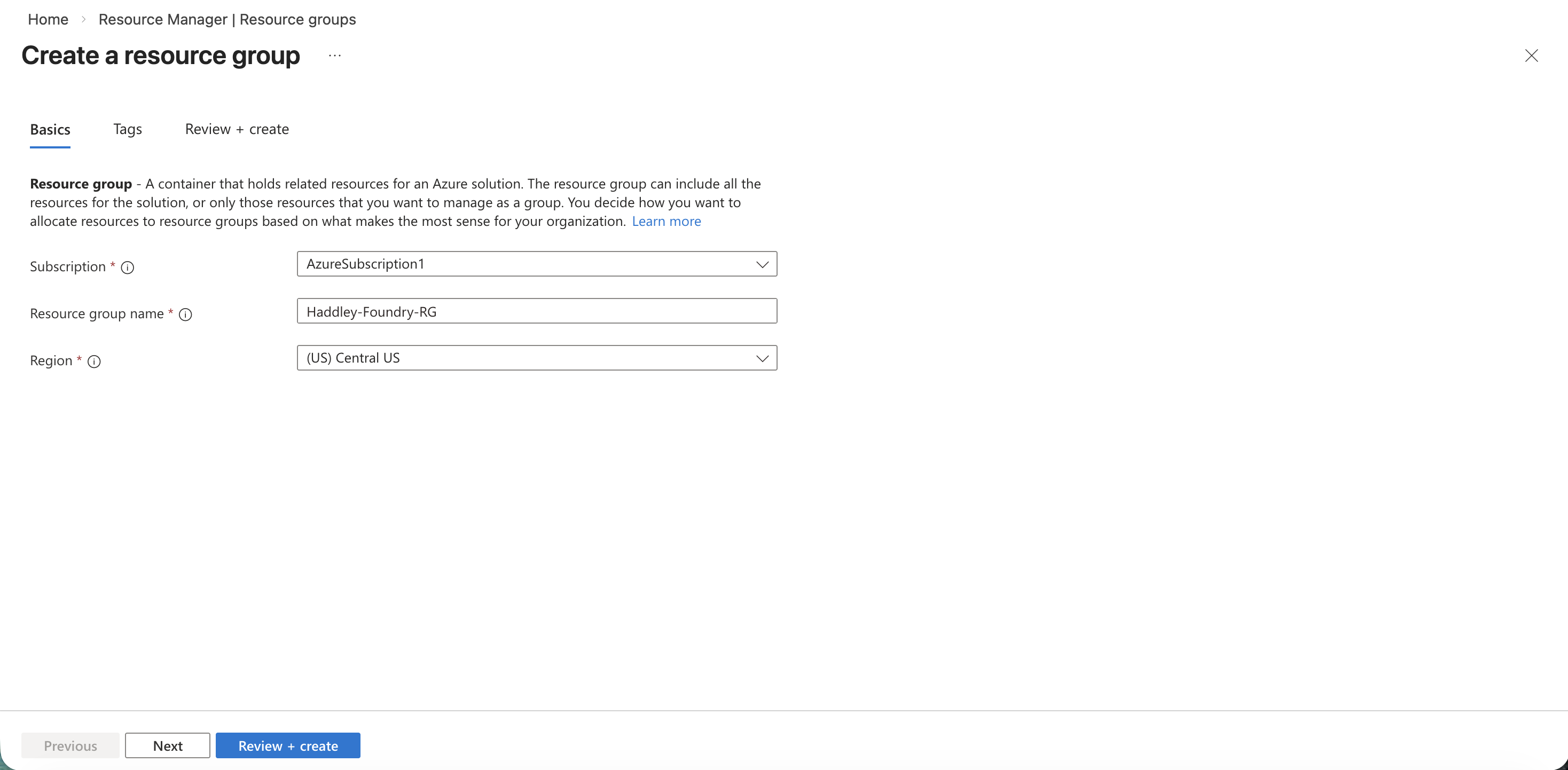
I created a new resource group named Haddley-Foundry-RG in the Central US region
I searched the Azure Marketplace for "foundry" and found the Microsoft Foundry service.
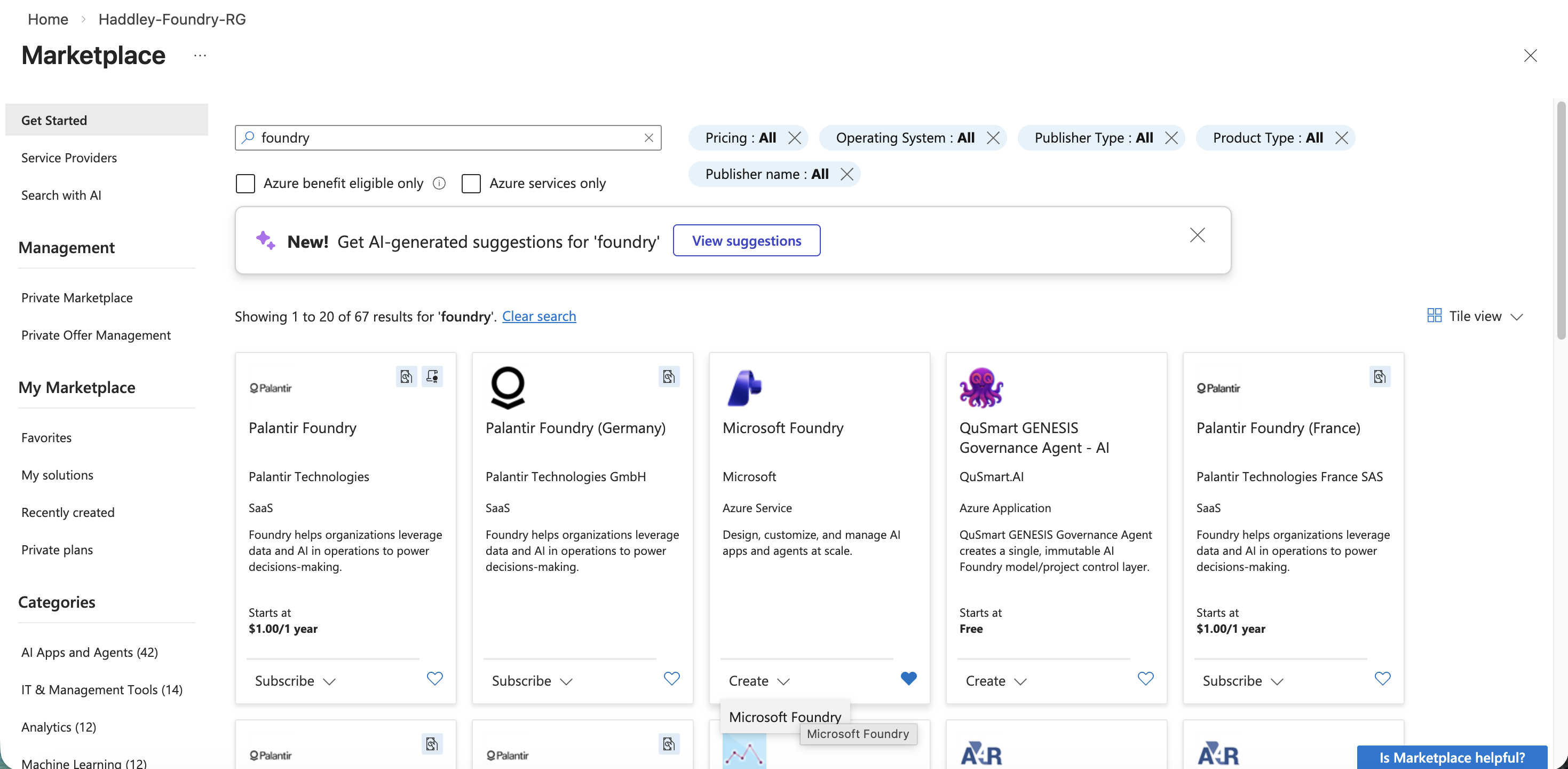
I searched the Marketplace for "foundry" and selected Microsoft Foundry
I filled in the Foundry resource details, naming the resource Haddley-Foundry with a default project of proj-haddley-foundry.
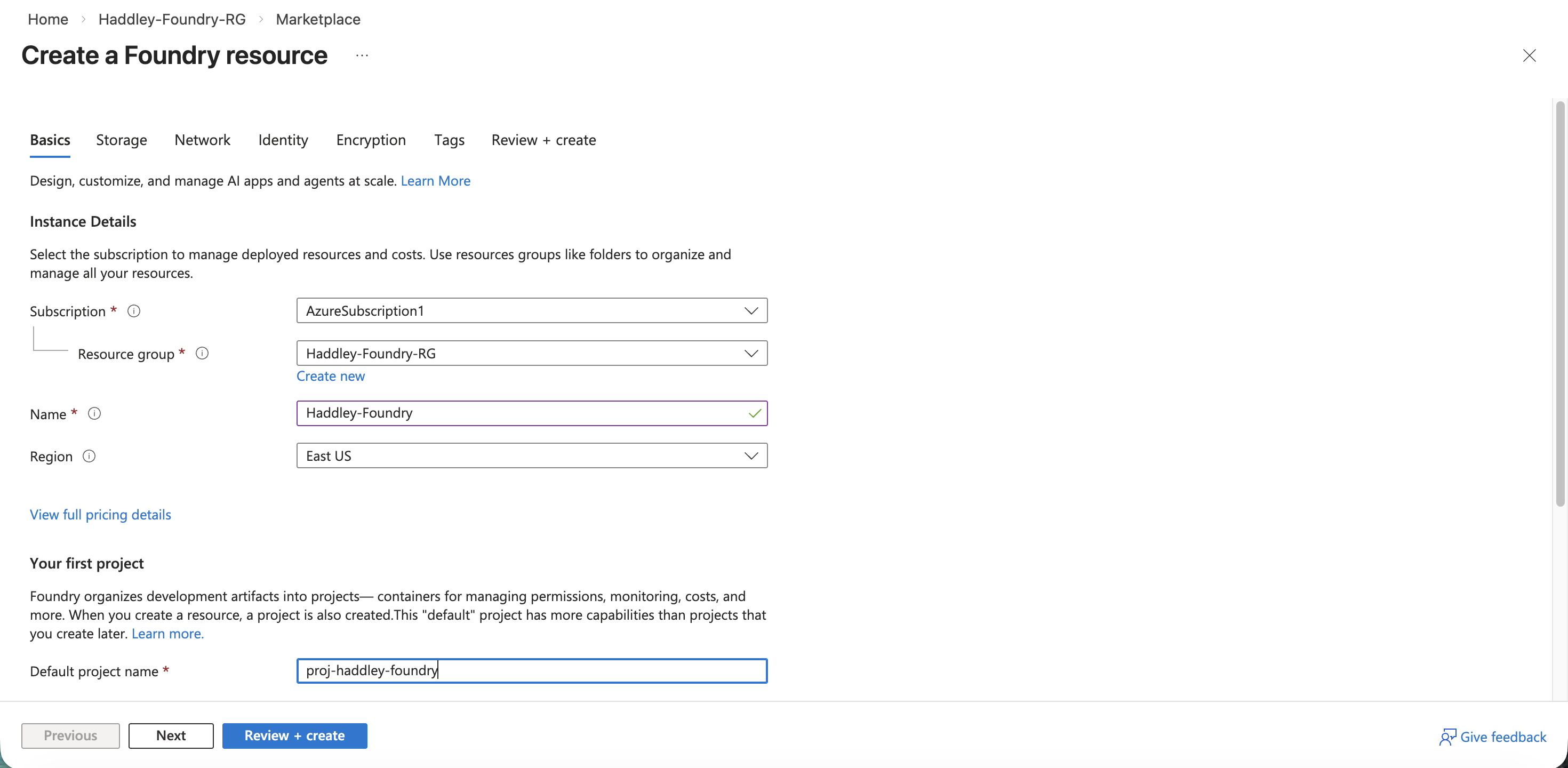
I entered the Foundry resource name and default project name
I reviewed the configuration and clicked Create.
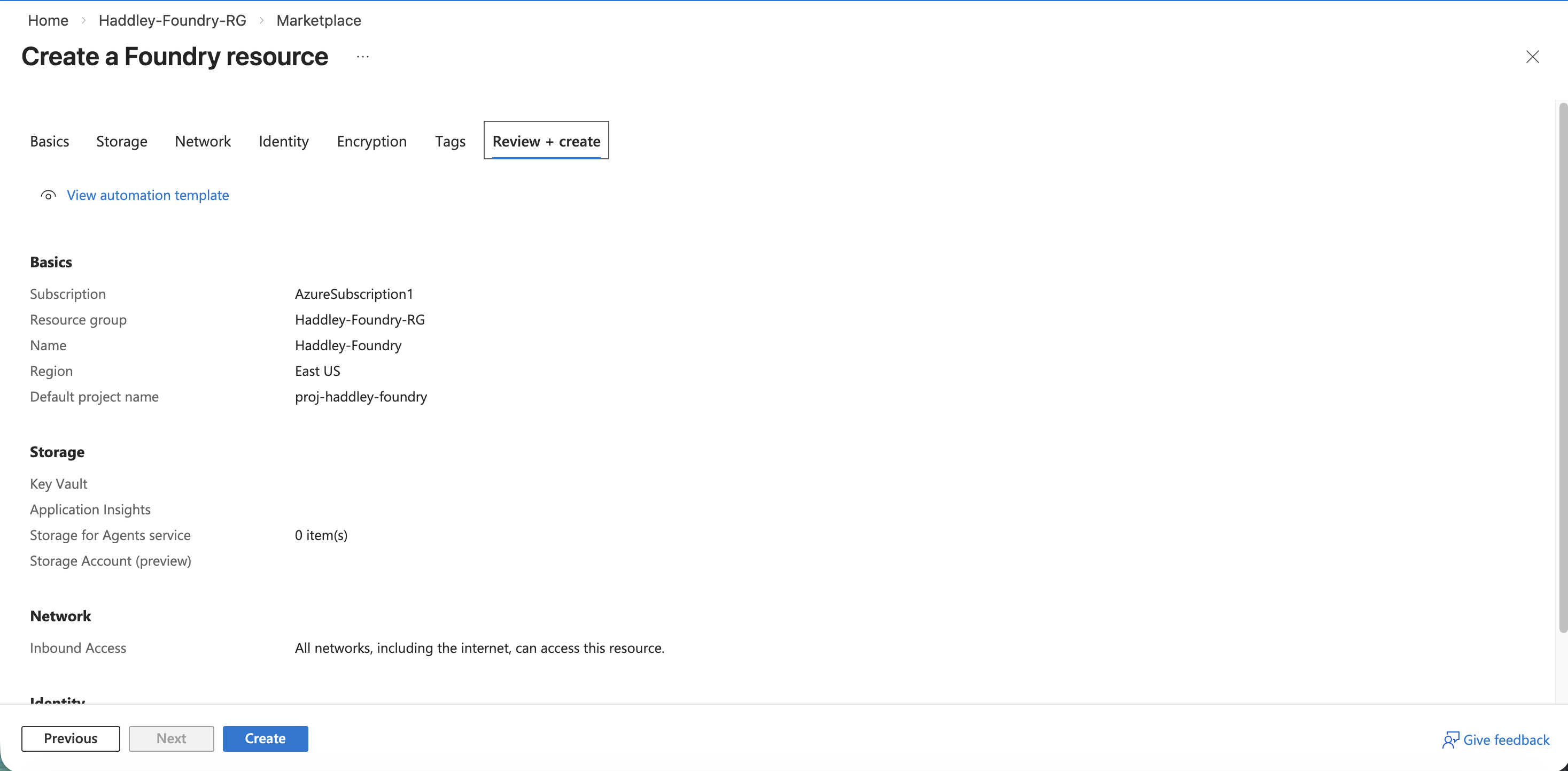
I reviewed the Foundry resource settings before creating
The Foundry deployment completed successfully.

The AIFoundry deployment completed
I navigated to the Foundry resource overview in the Azure portal.
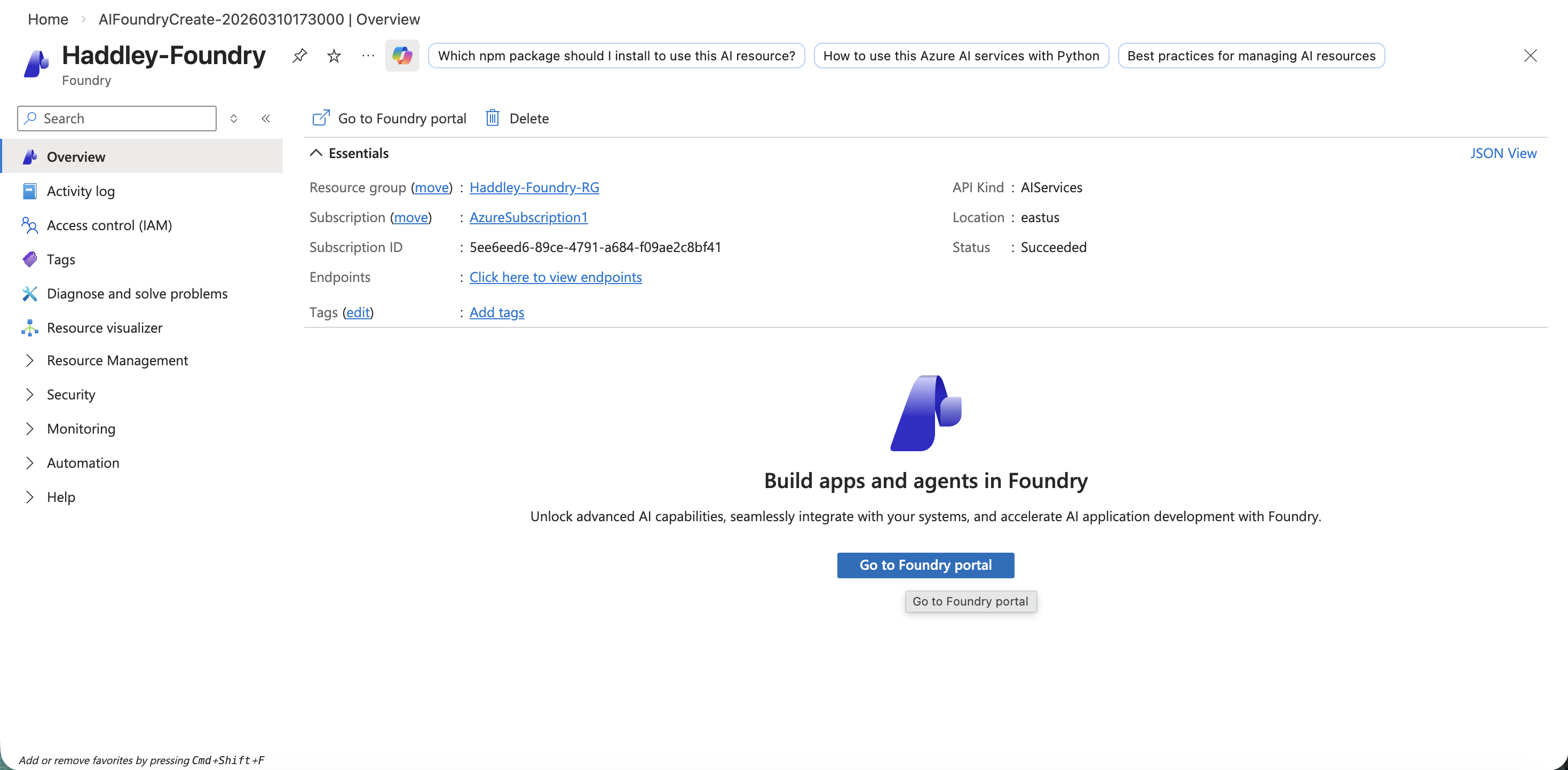
The Haddley-Foundry resource overview with the Go to Foundry portal button
I opened the Microsoft Foundry portal and saw the project overview with the API key and endpoint details.
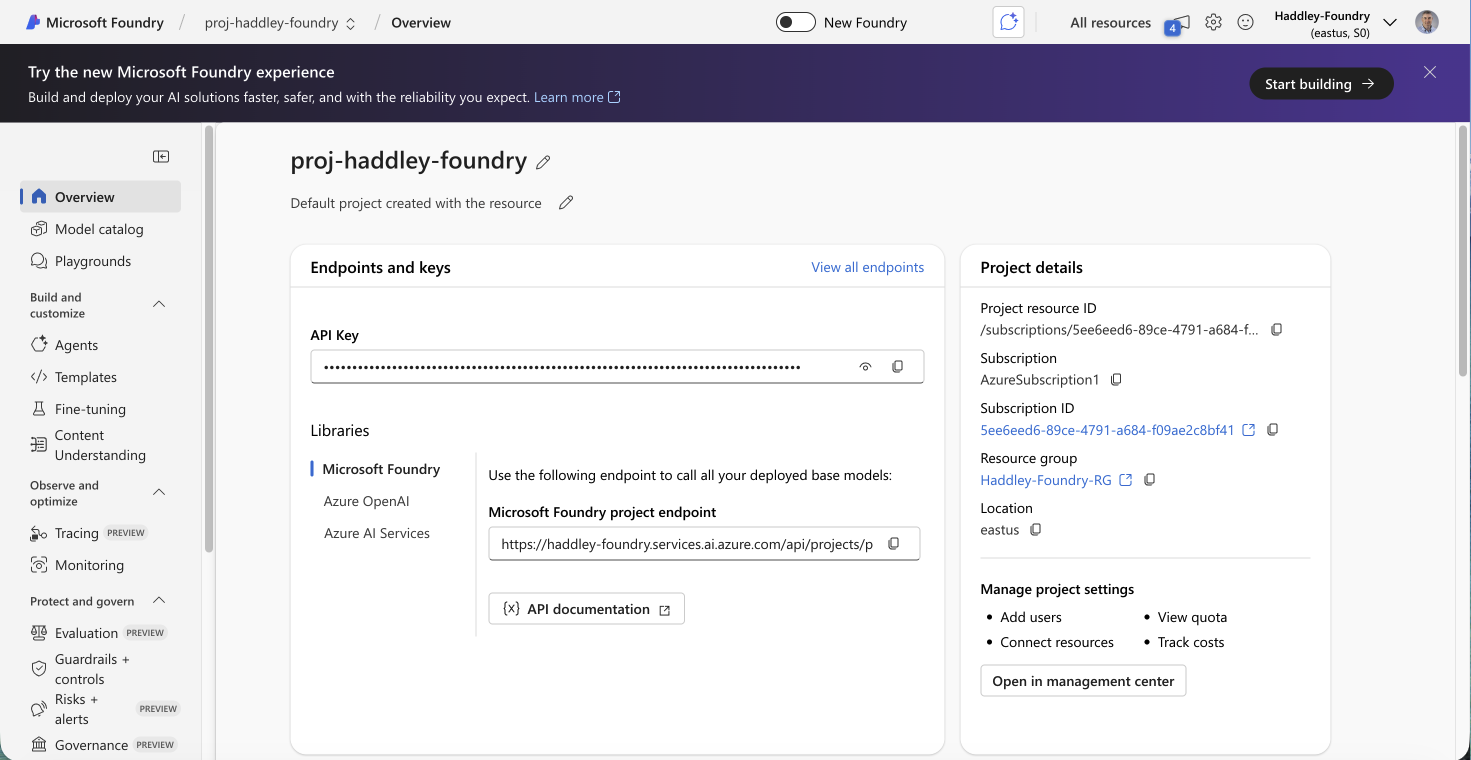
The proj-haddley-foundry project overview showing the API key, project endpoint, and Azure OpenAI endpoint
A dialog prompted me to select the project to continue with.
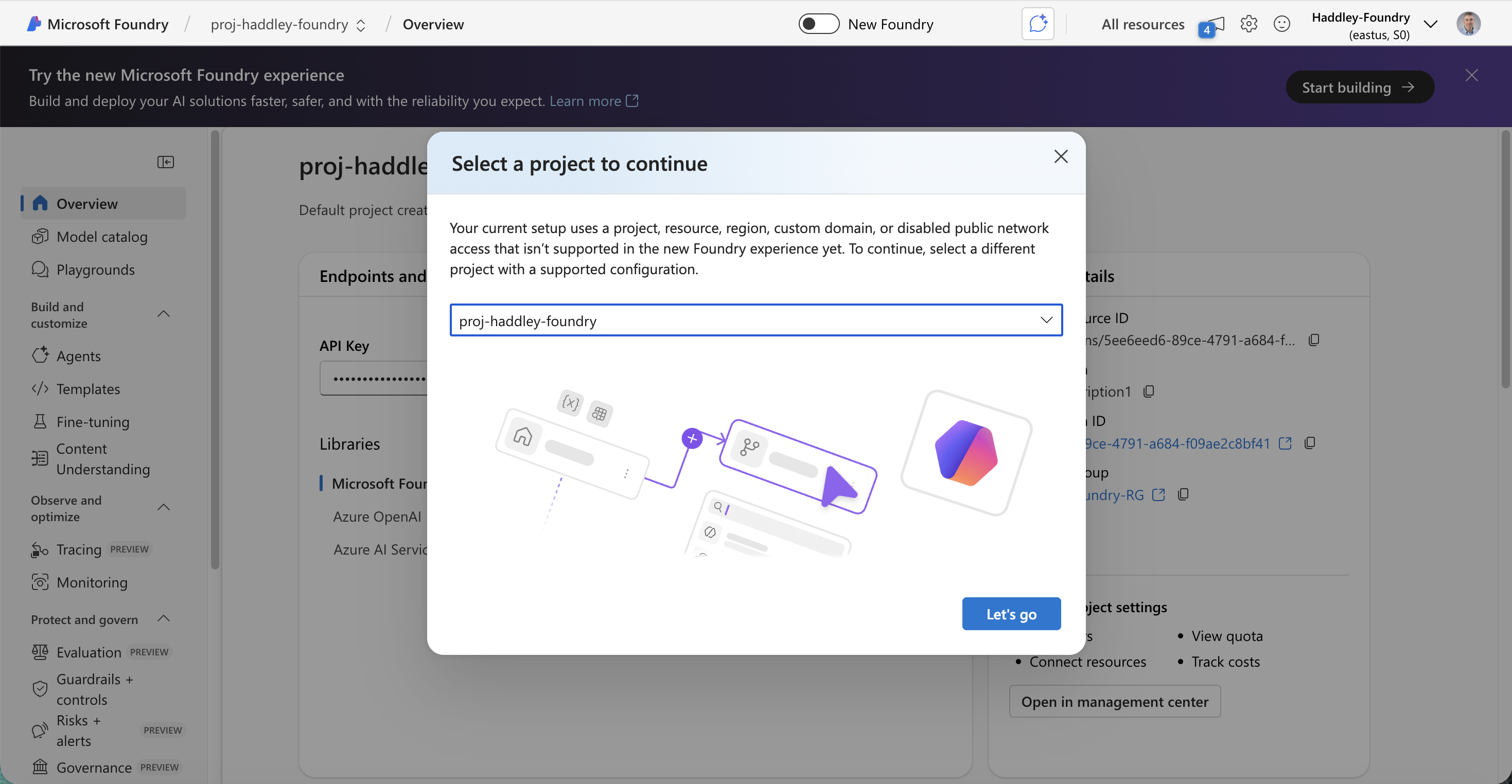
I selected proj-haddley-foundry to continue
The Microsoft Foundry home page loaded, showing the latest model arrivals.
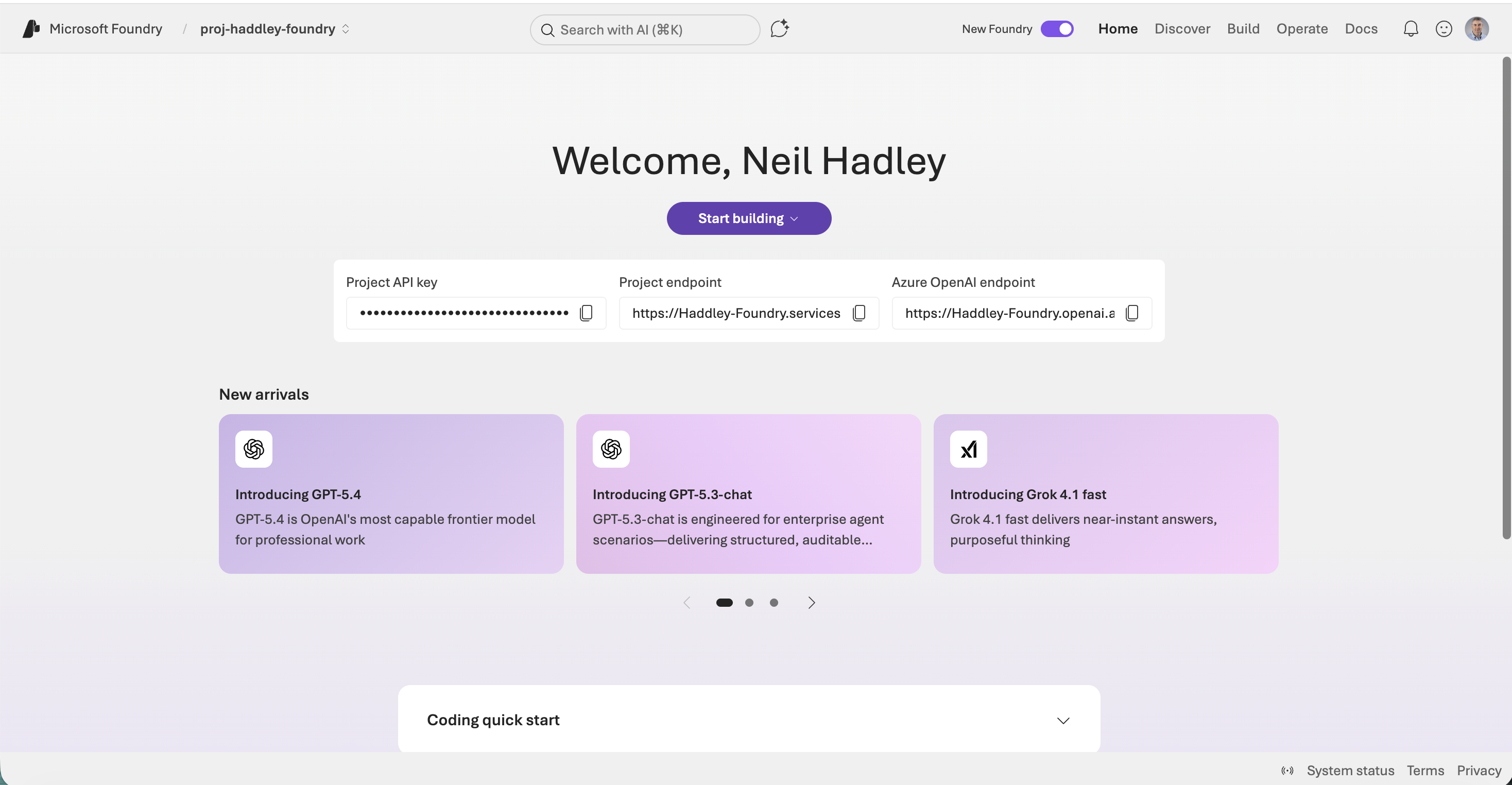
The Microsoft Foundry welcome page showing GPT-5.4, GPT-5.3-chat, and Grok 4.1 fast as new arrivals
Setting up Storage
I returned to the Azure Marketplace and searched for a storage account to hold the documents I wanted to index.
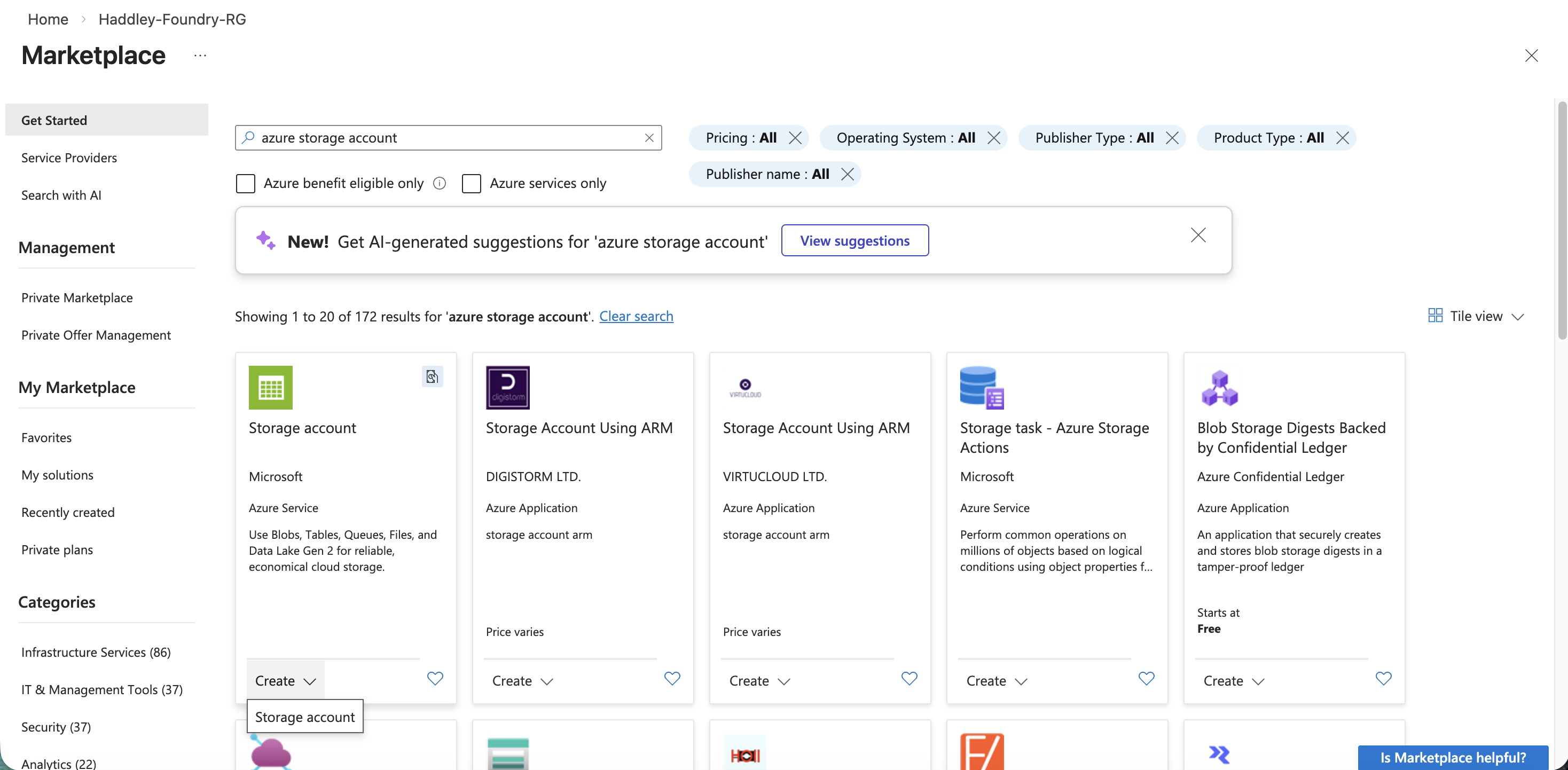
I searched the Marketplace for "azure storage account"
I configured a new storage account named haddleystorageaccount for machine learning workloads.
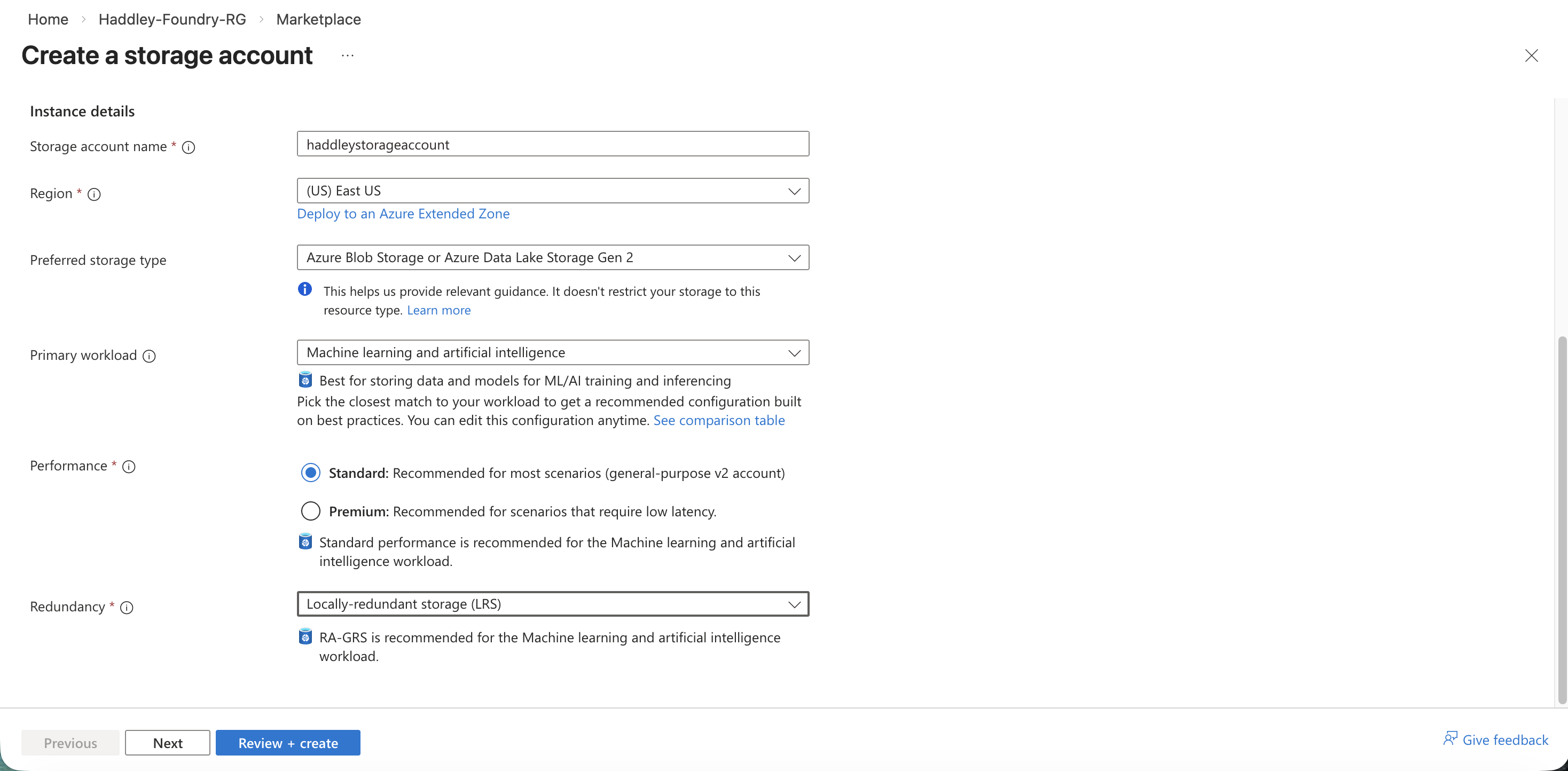
I created a storage account with the Machine learning and artificial intelligence workload type
I reviewed the storage account settings and clicked Create.
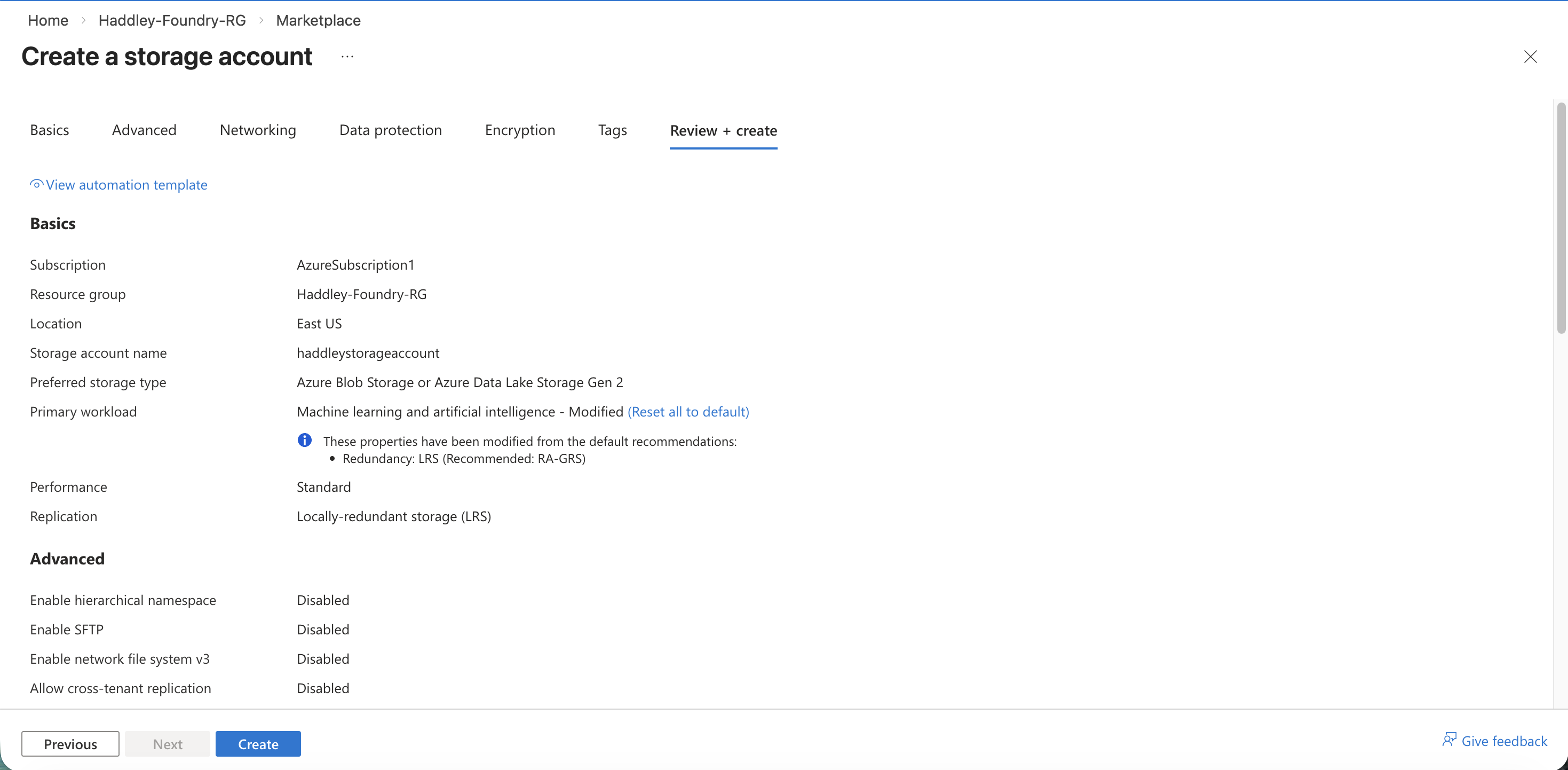
I reviewed the storage account configuration before creating
The storage account deployed successfully.
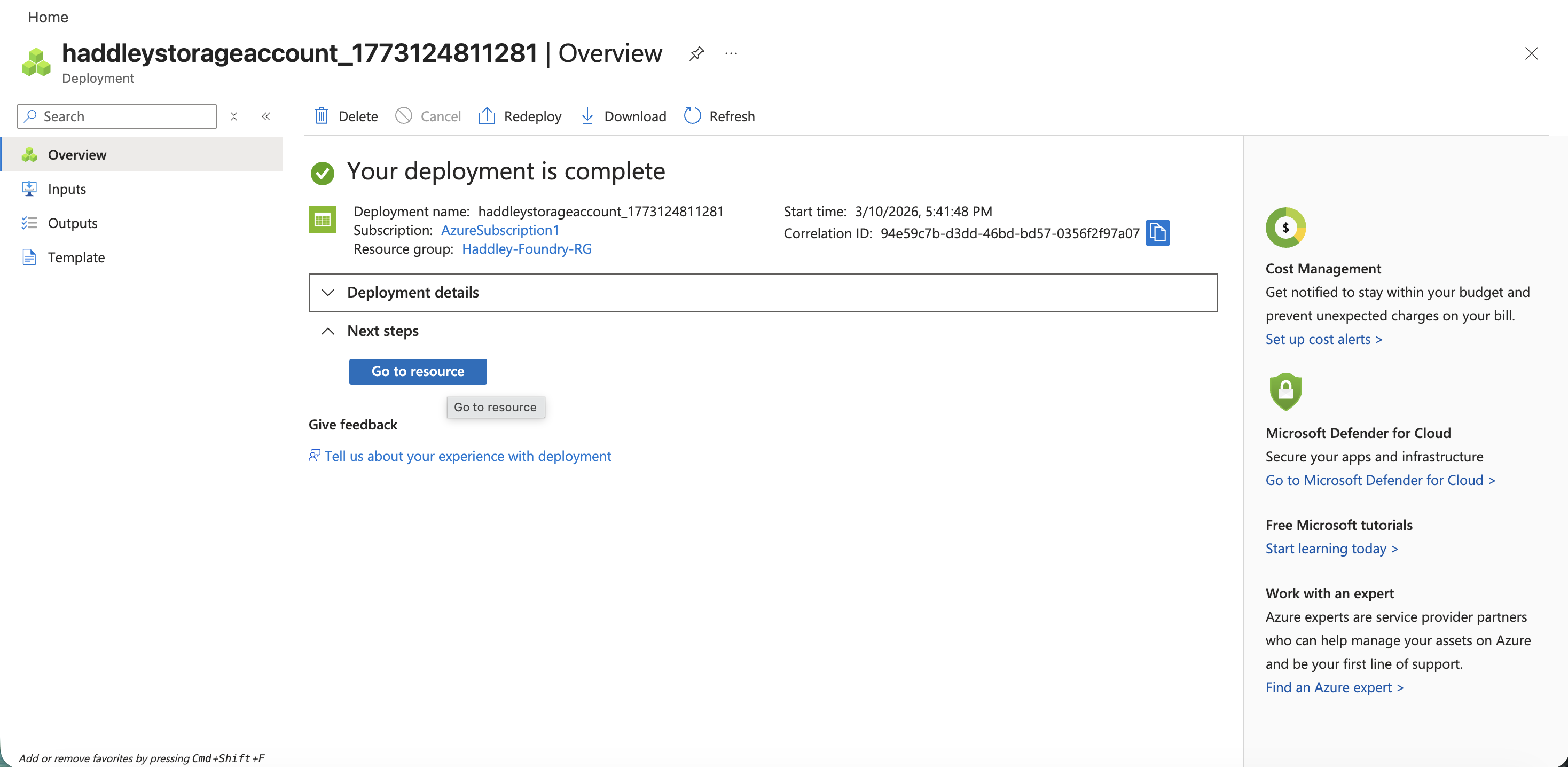
The storage account deployment completed
I created a new blob container named haddleystoragecontainer inside the storage account.
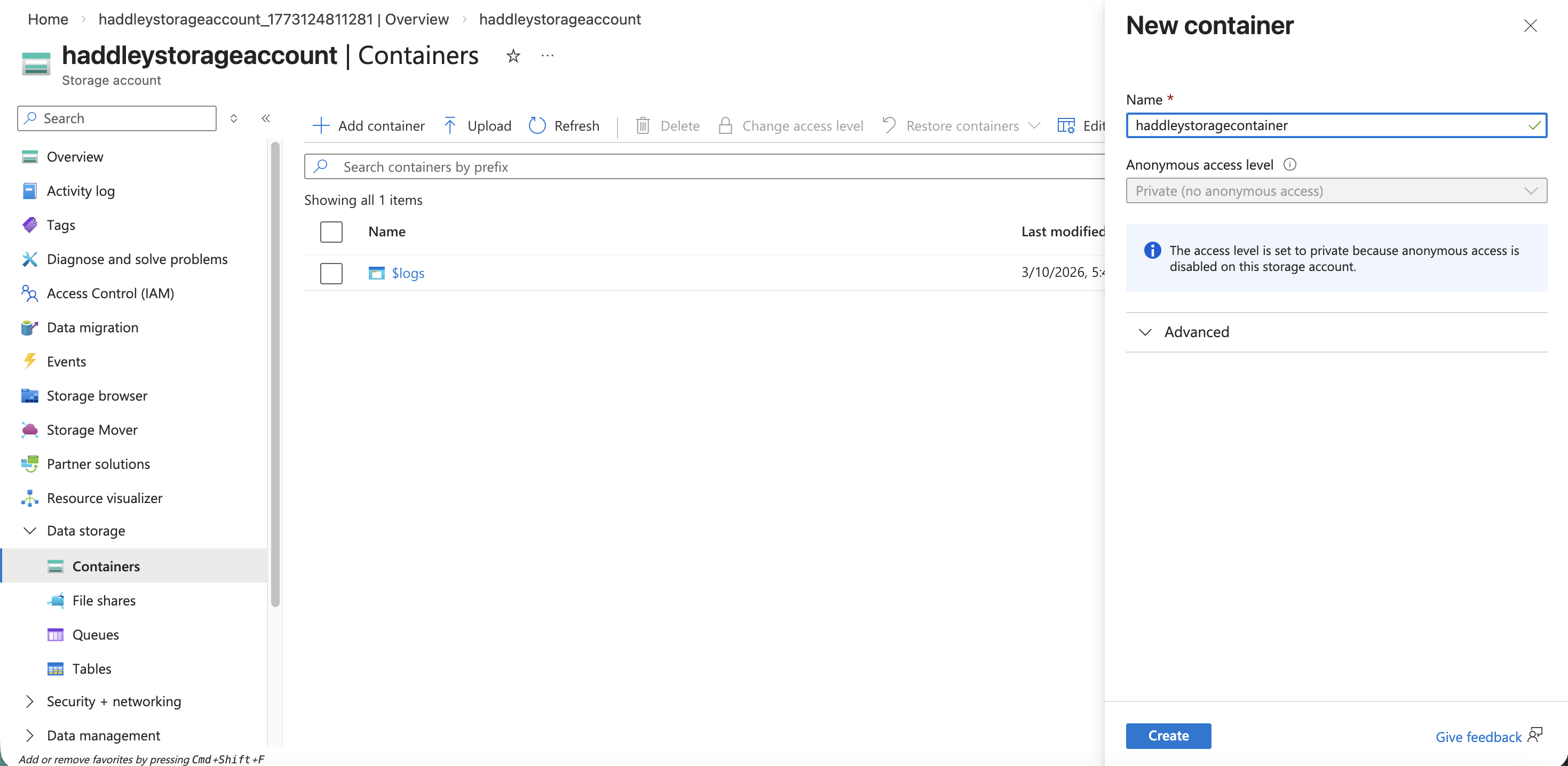
I created the haddleystoragecontainer blob container
The container appeared in the list alongside the system $logs container.
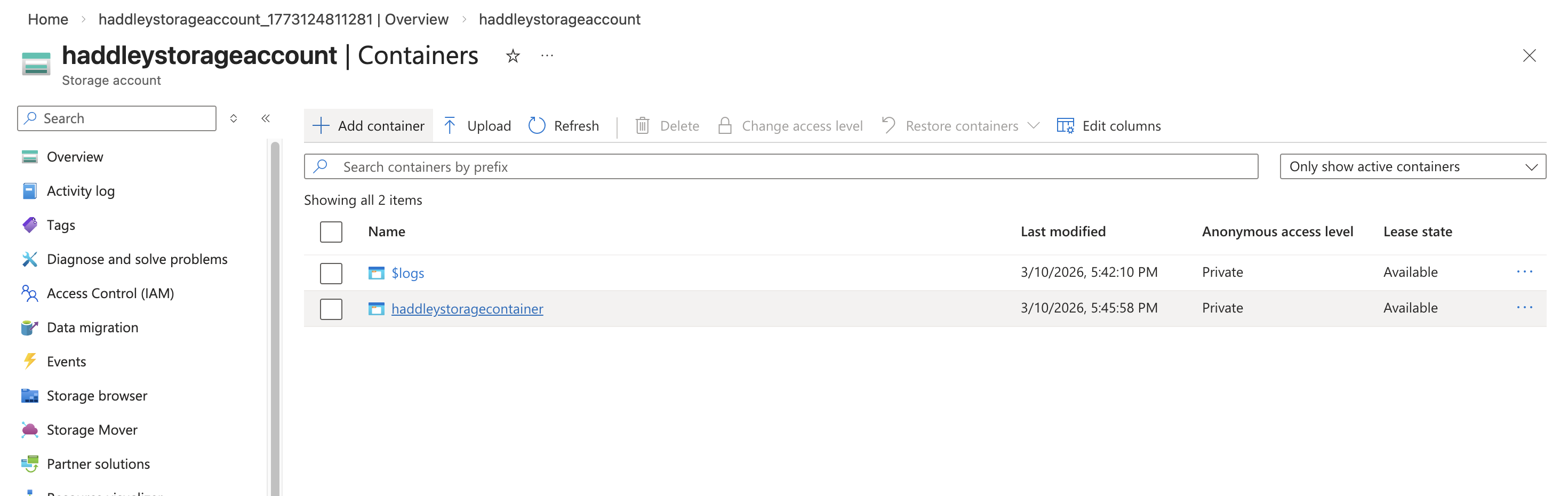
Both containers are now listed in the storage account
I opened the container and prepared to upload files.
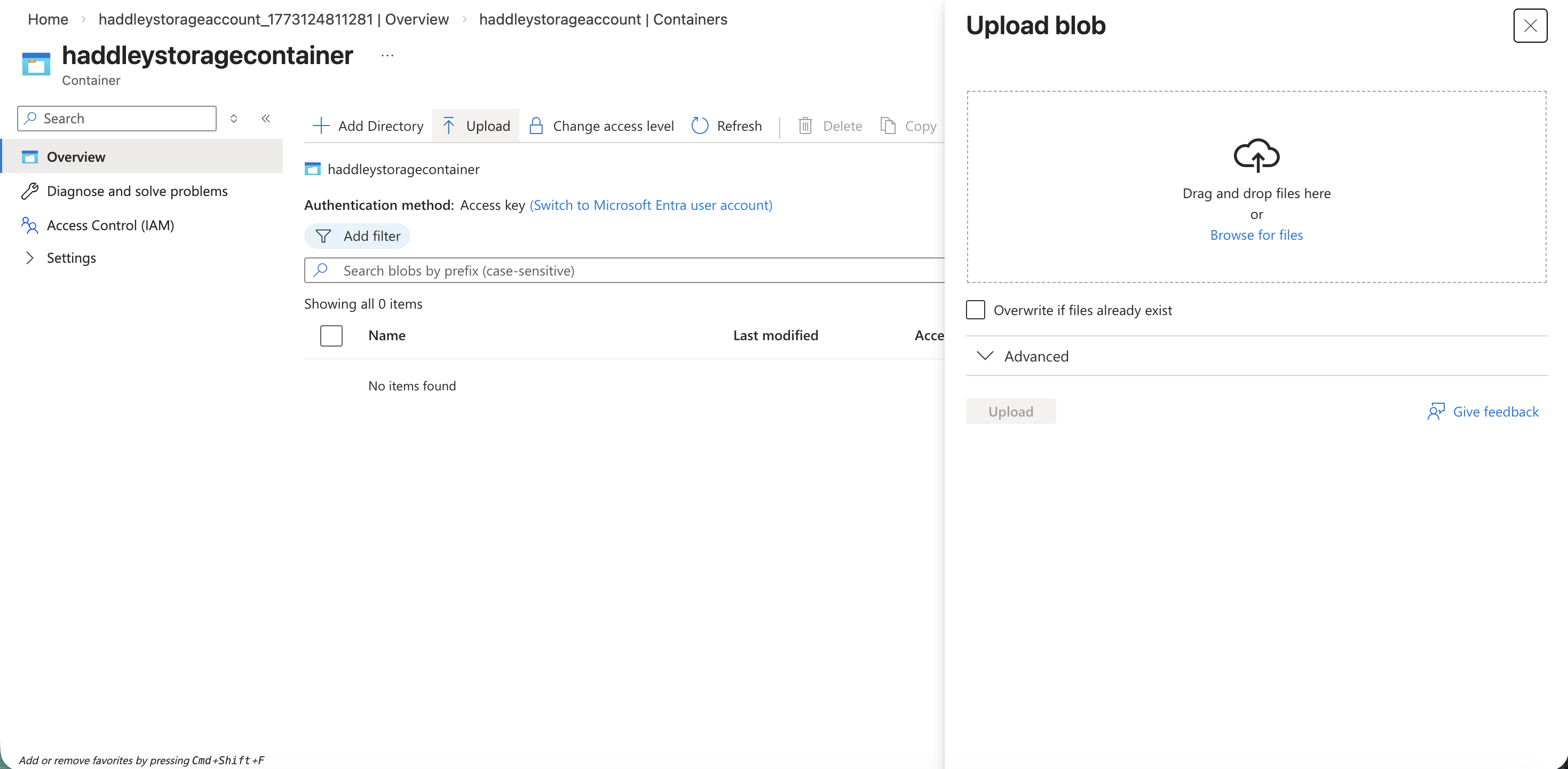
I opened the Upload blob panel in the empty container
I selected the health-plan PDF documents from my local machine to upload.
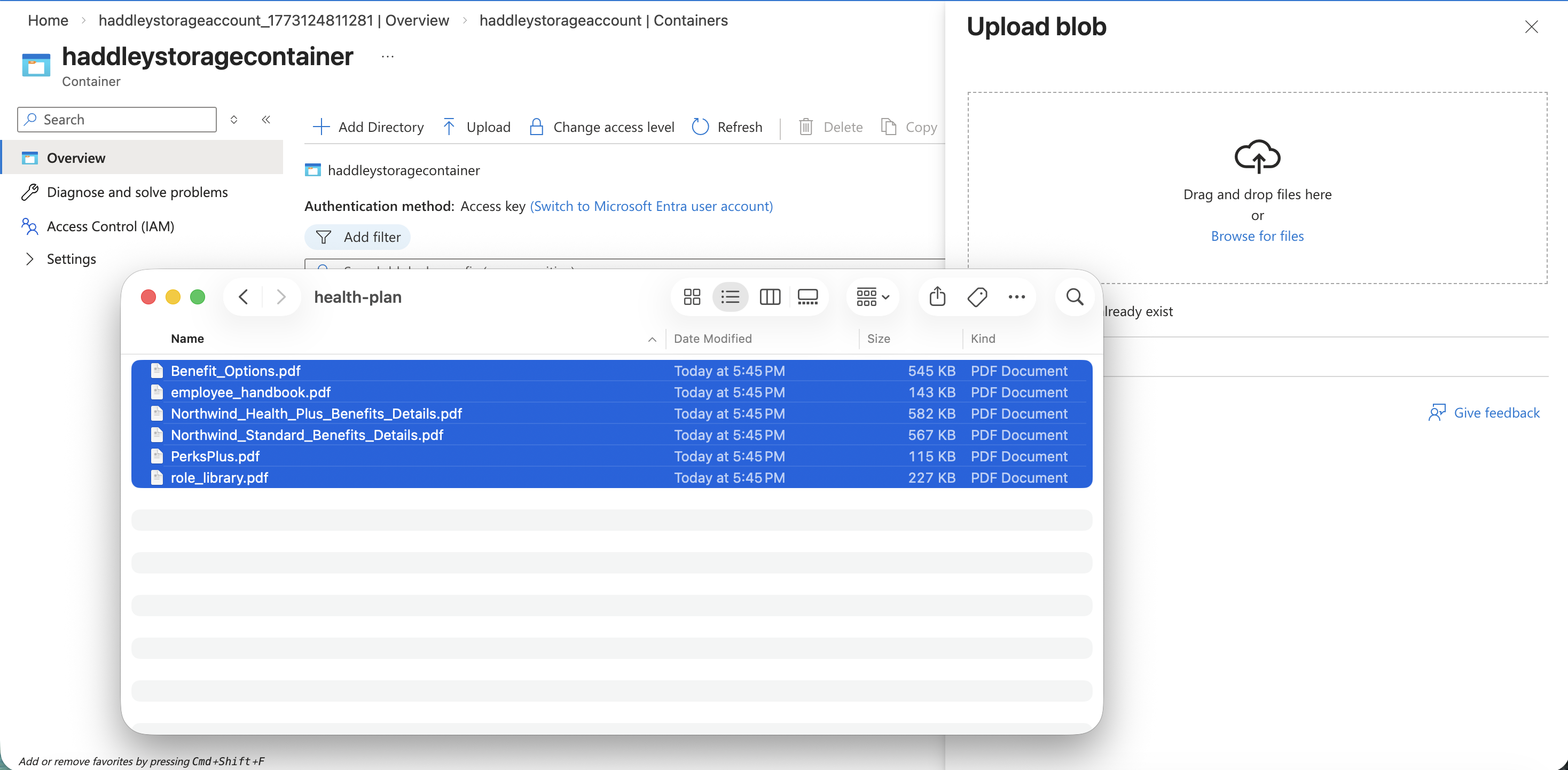
I selected six health-plan PDF files from my local health-plan folder
All six PDFs uploaded successfully to the container.
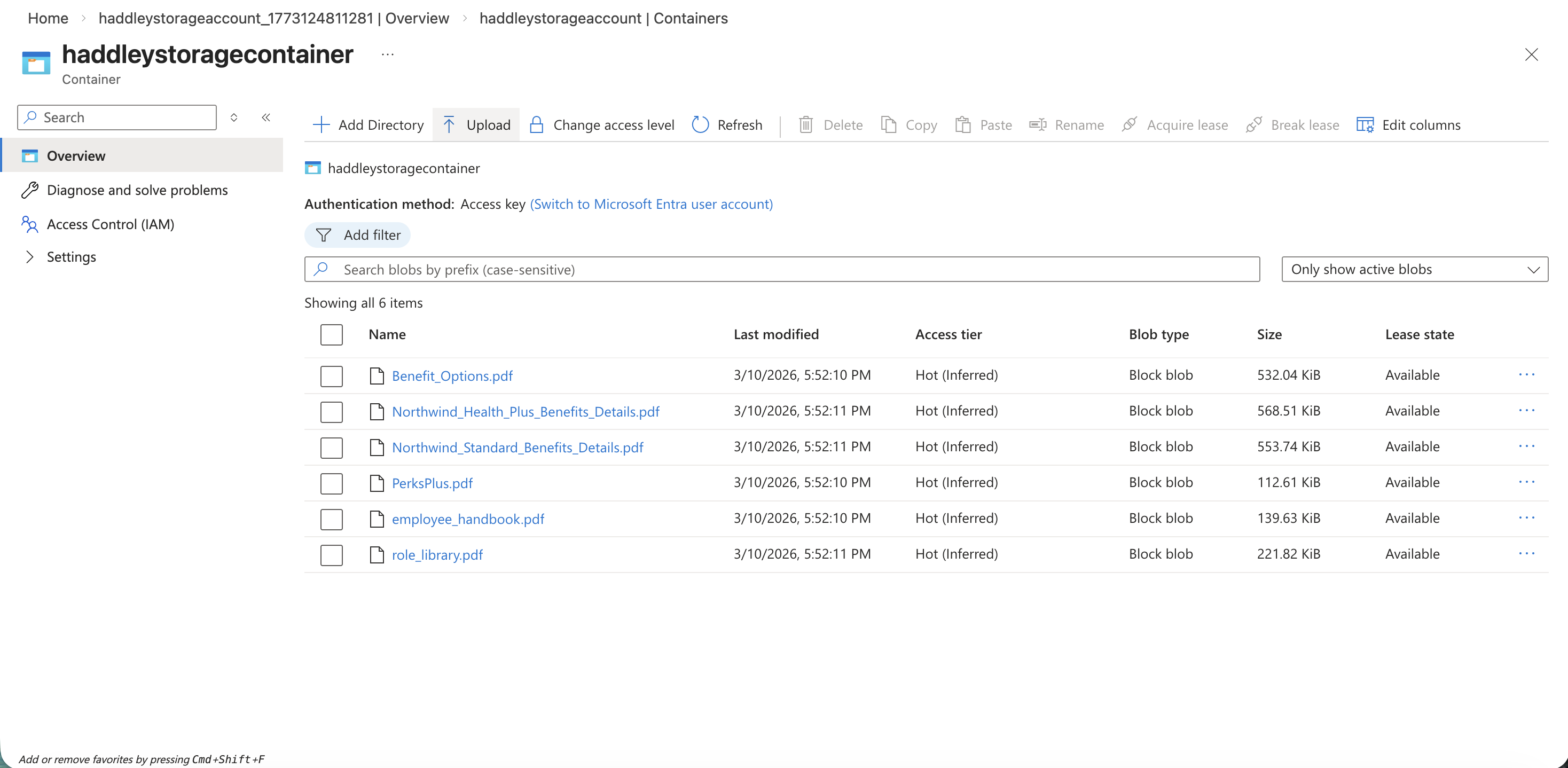
The six health-plan PDF blobs are now stored in haddleystoragecontainer
Deploying an Embedding Model
I searched the Microsoft Foundry model catalog for the text-embedding-ada-002 model.
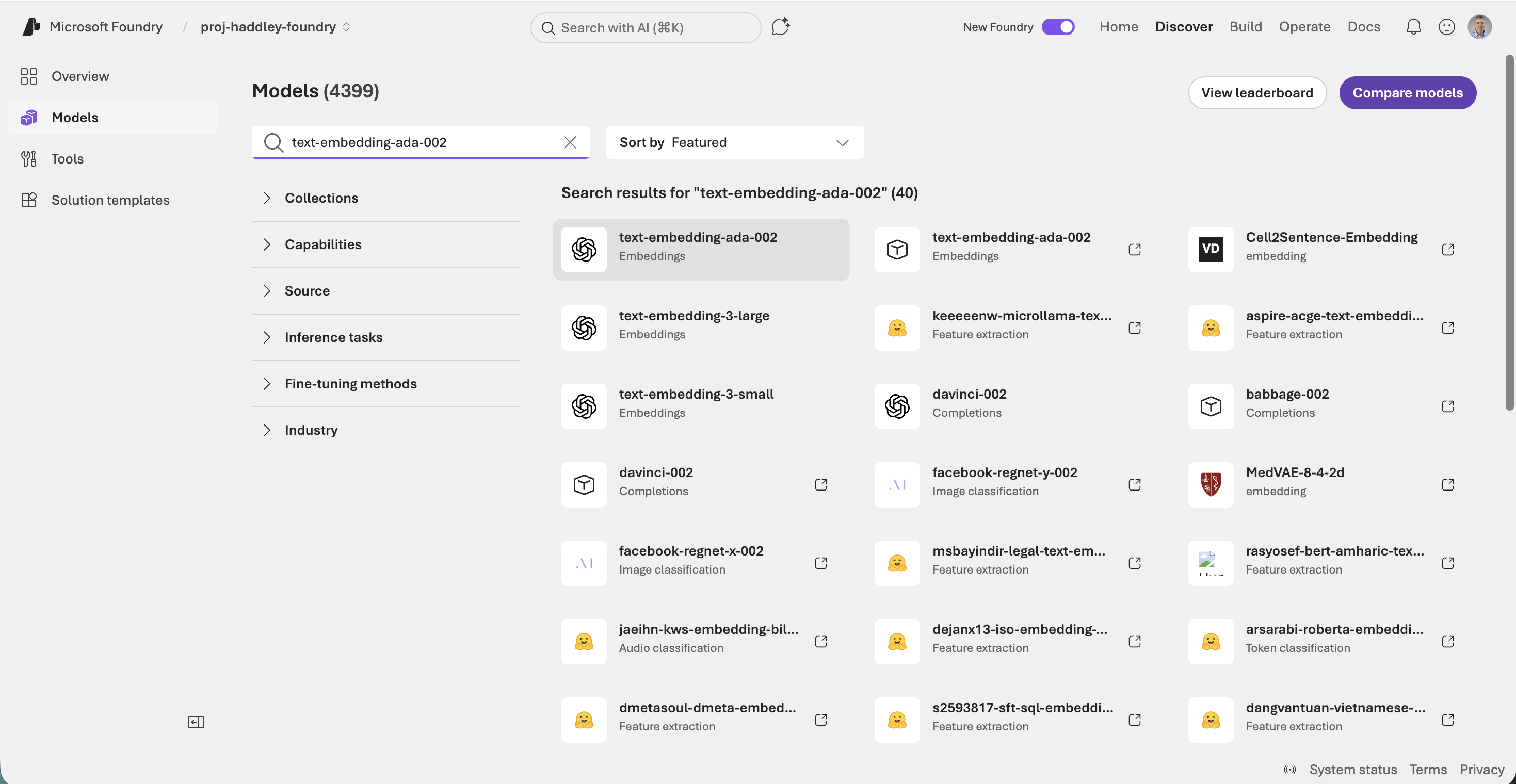
I searched for "text-embedding-ada-002" in the Foundry model catalog
I reviewed the text-embedding-ada-002 model details page.
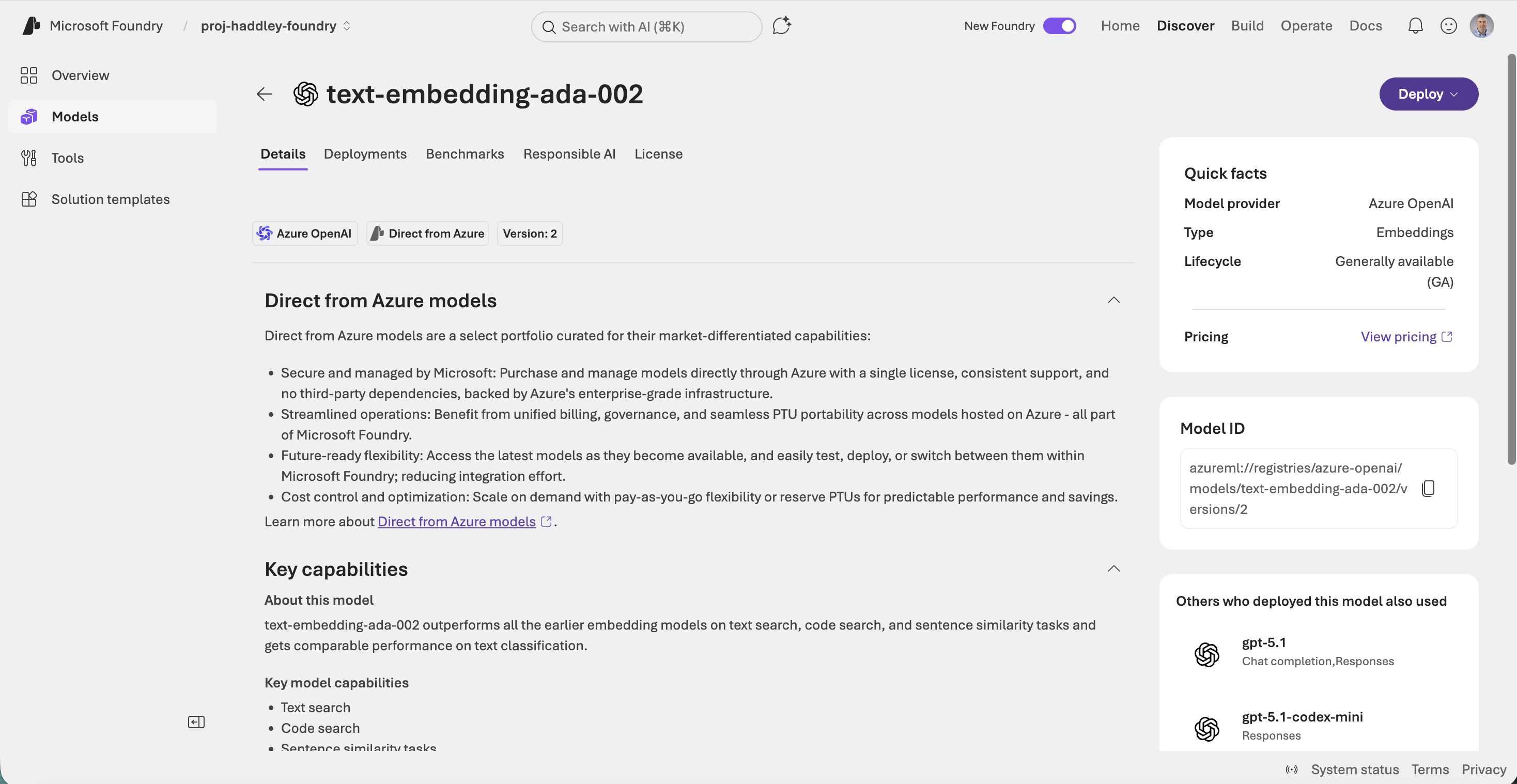
The text-embedding-ada-002 model detail page showing it is a Direct from Azure model provided by Azure OpenAI
The model deployed successfully with a 500,000 tokens-per-minute rate limit.
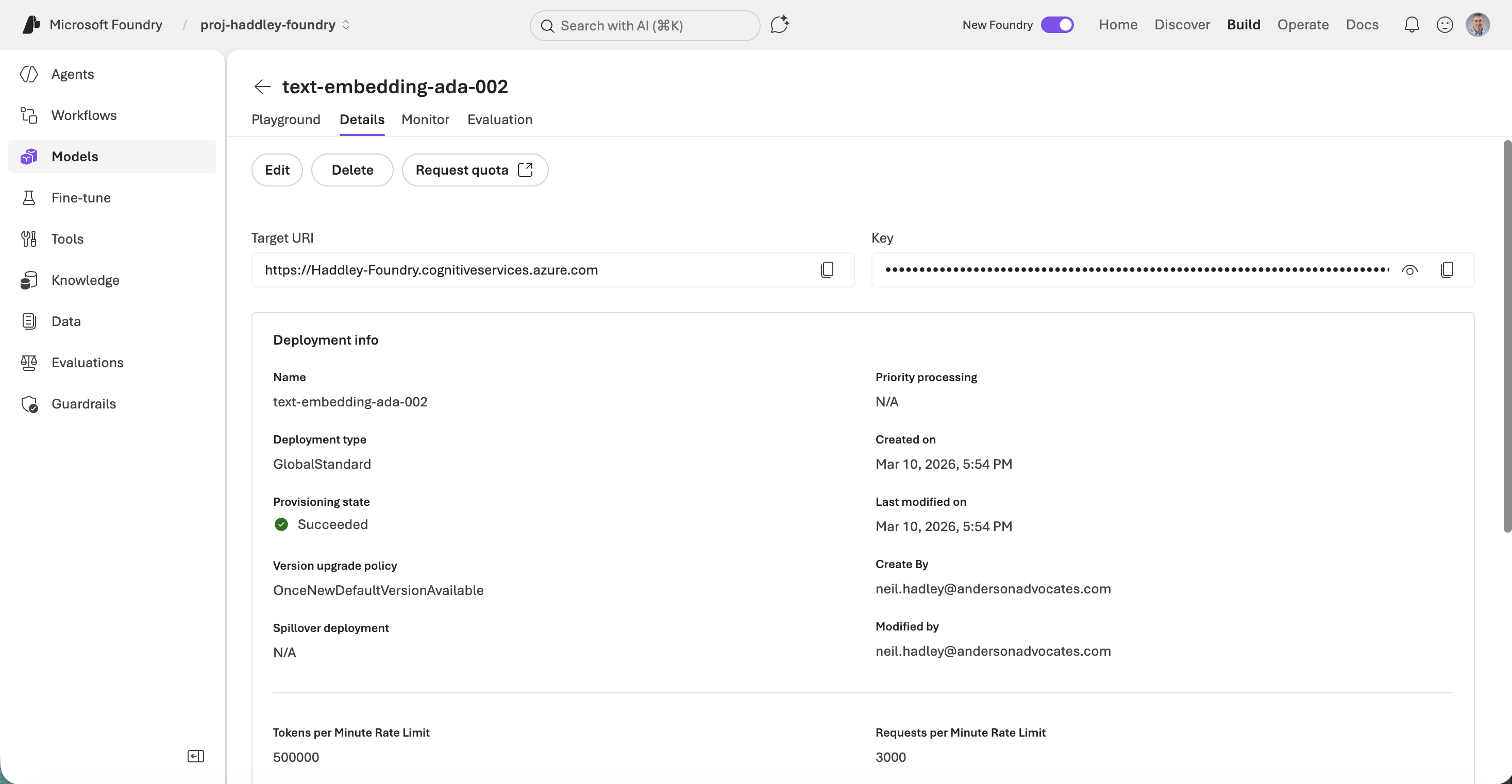
The text-embedding-ada-002 deployment details showing Target URI and provisioning state Succeeded
Creating an Azure AI Search Service
I searched the Marketplace for Azure AI Search to create a search index.
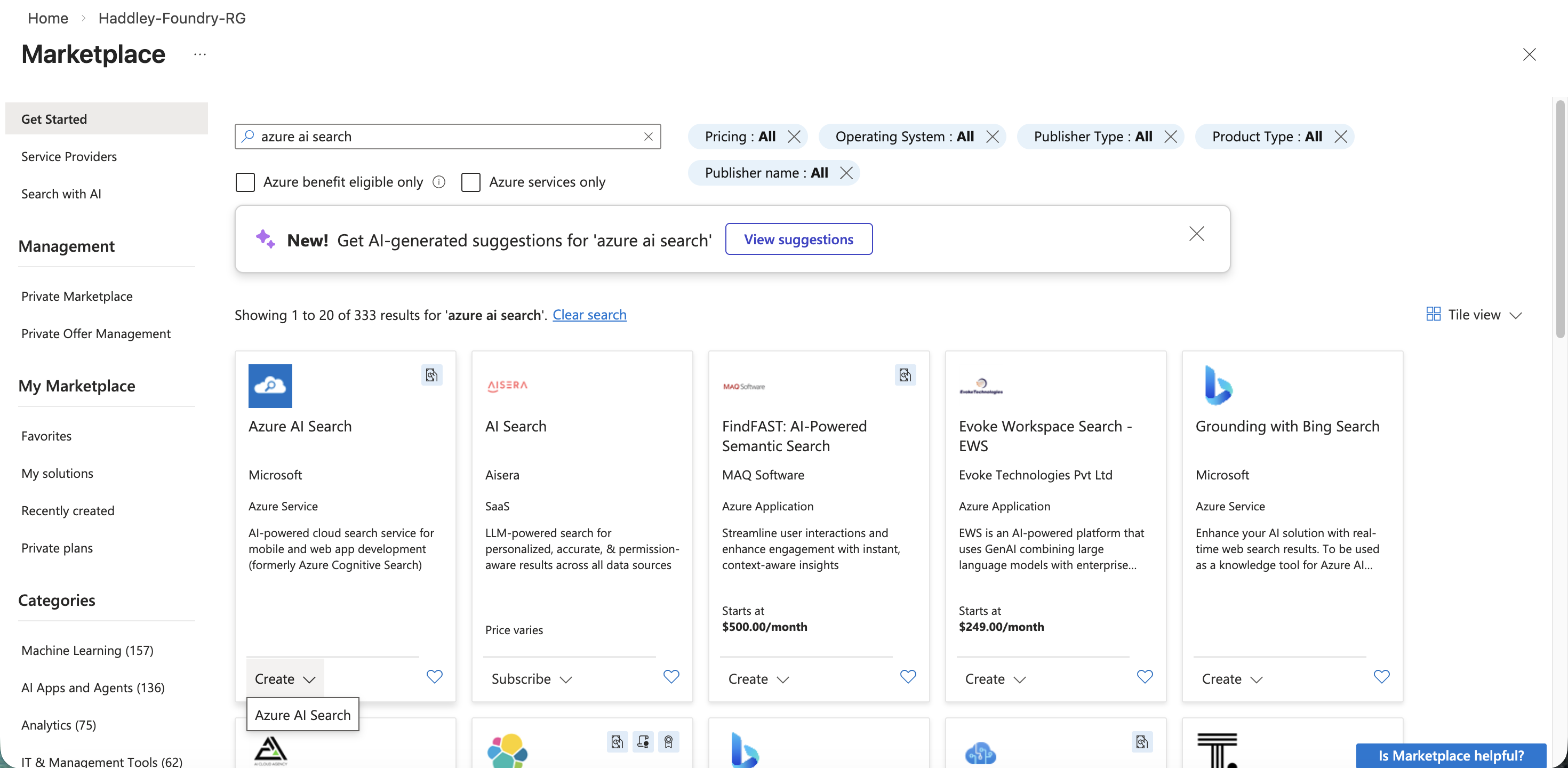
I searched the Marketplace for "azure ai search"
I configured a search service named haddleyaisearch on the Free pricing tier.
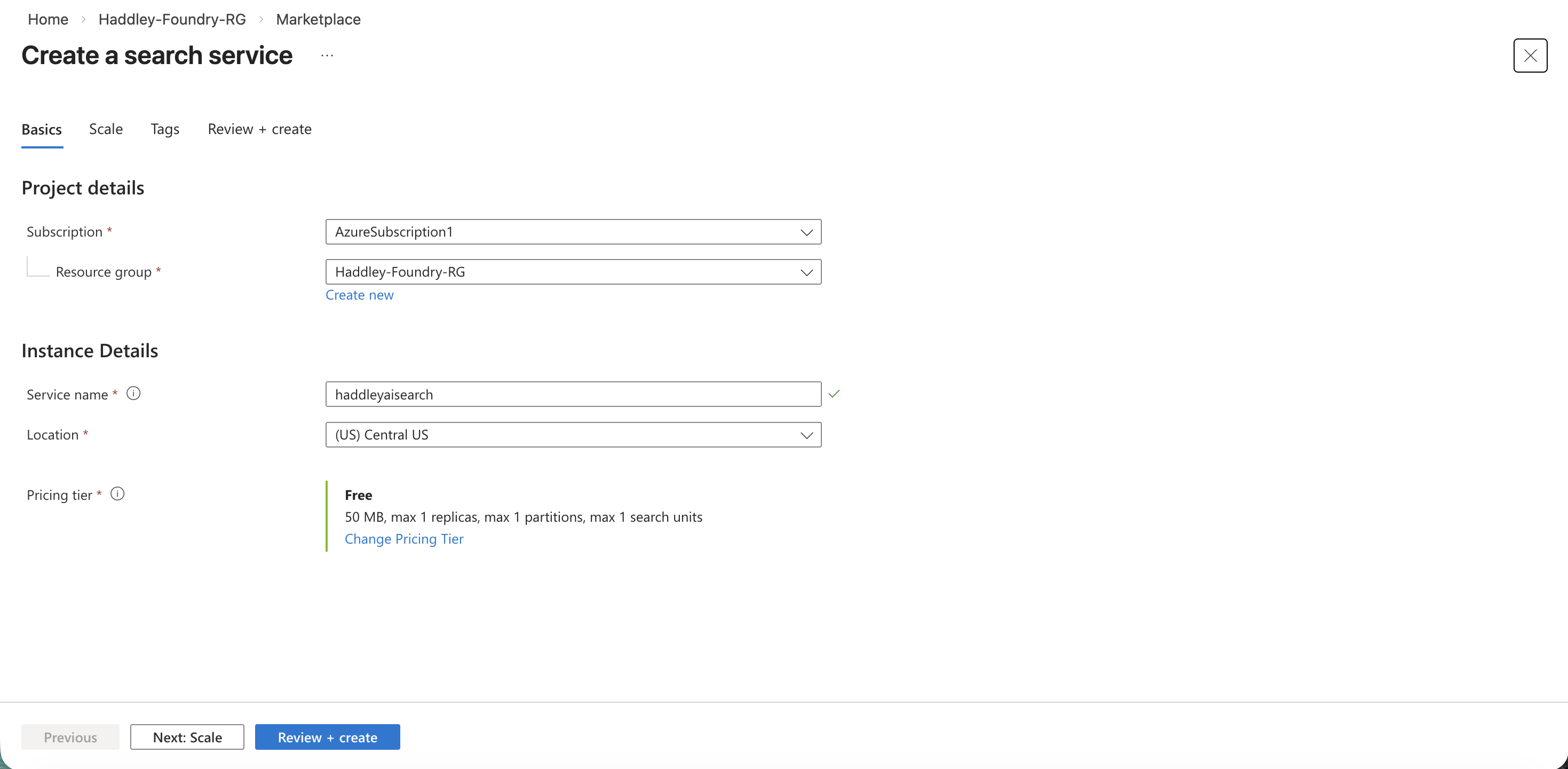
I created the haddleyaisearch service in Central US on the Free tier
The search service deployed successfully.
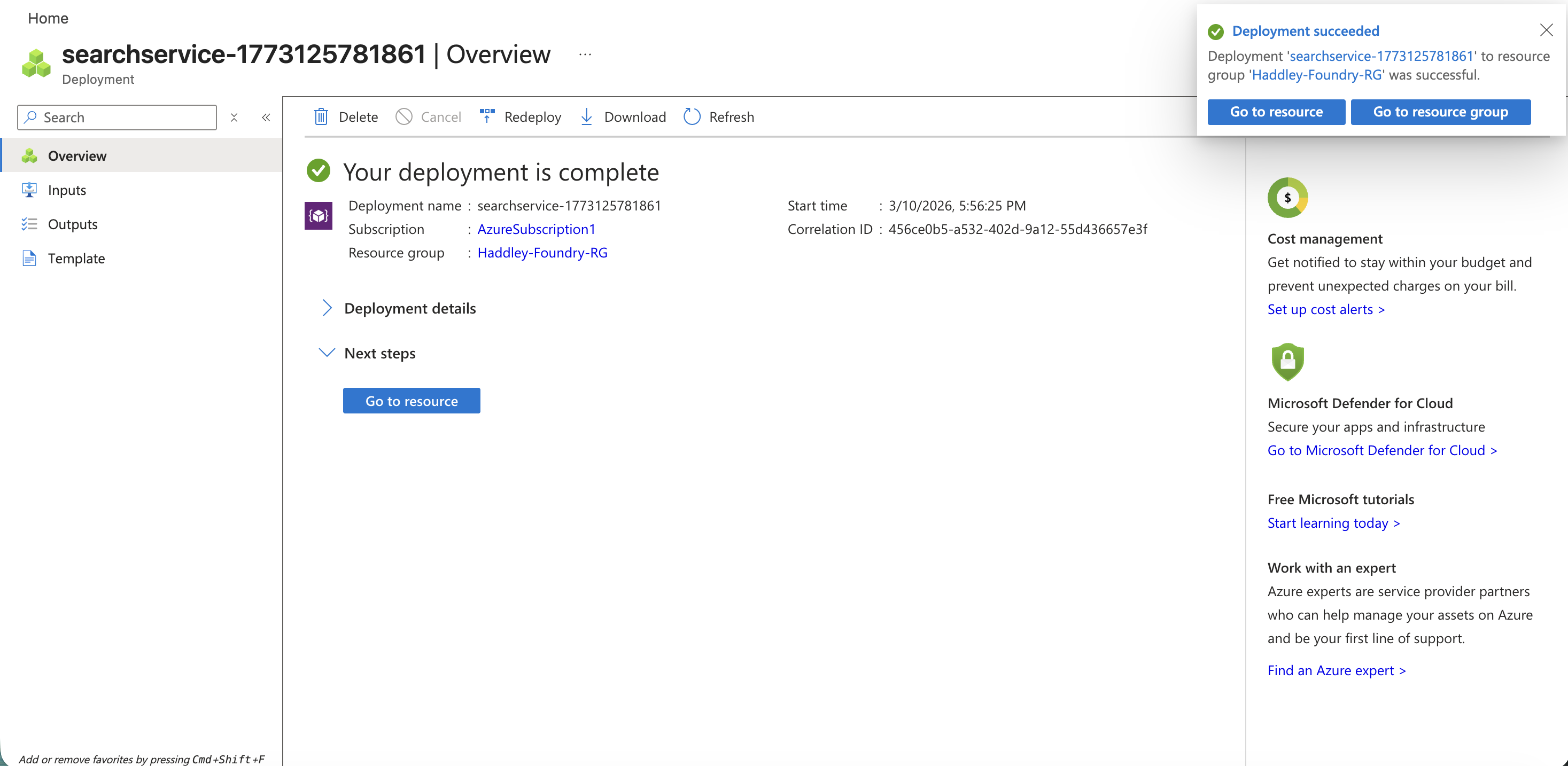
The search service deployment completed successfully
I viewed the haddleyaisearch overview showing the service is Running.
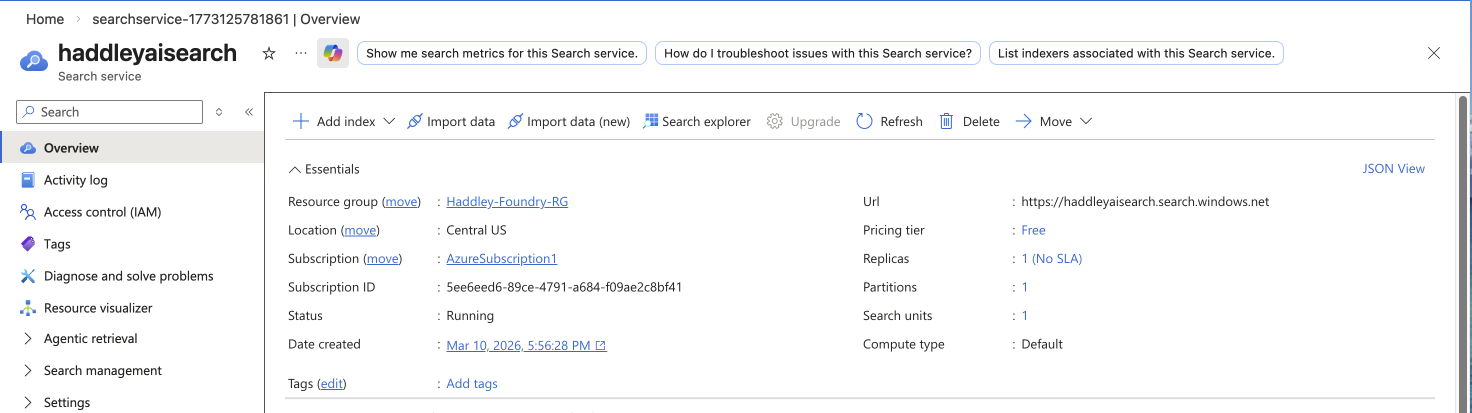
The haddleyaisearch service overview showing Running status and the search endpoint URL
Indexing with RAG
I clicked Import data (new) and selected Azure Blob Storage as the data source.
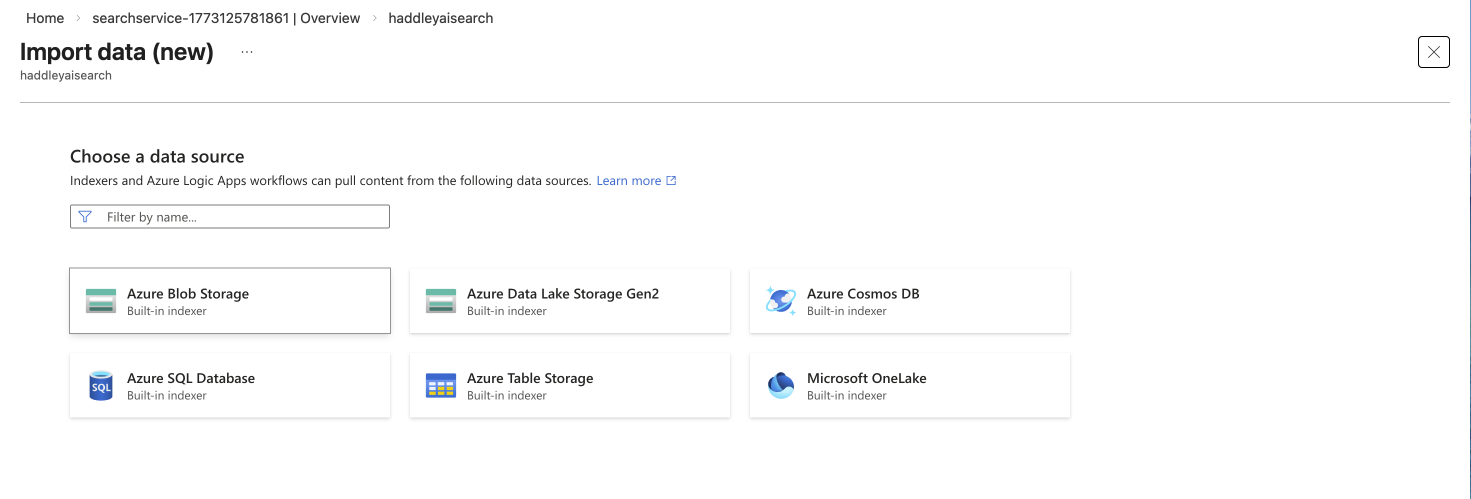
I selected Azure Blob Storage as the data source for the import wizard
I selected RAG as the scenario to enable AI-powered answers.
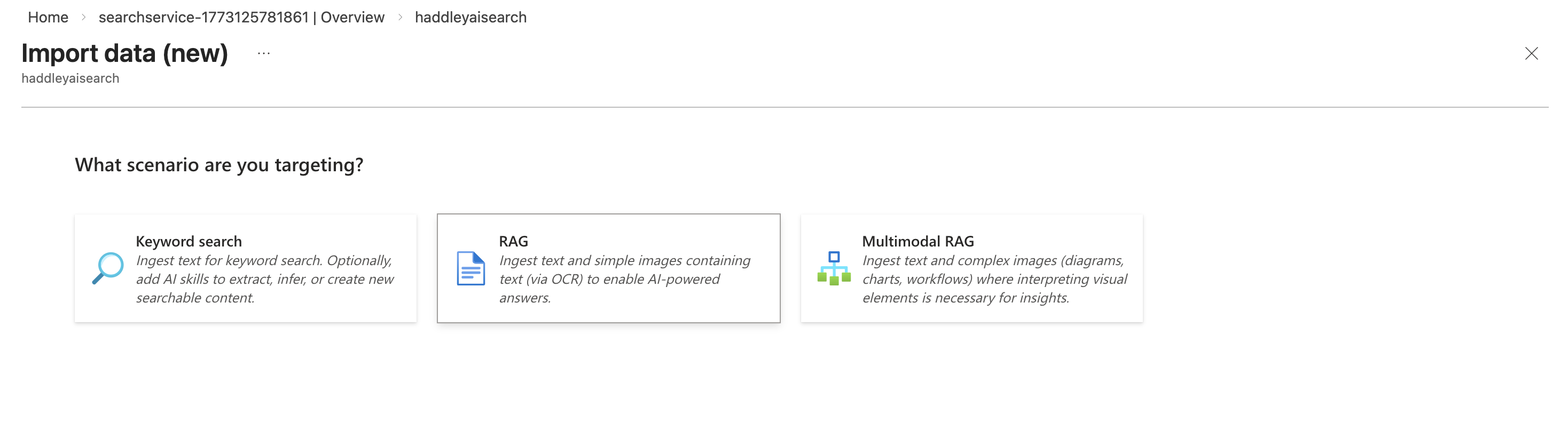
I selected the RAG scenario to ingest text for AI-powered answers
I connected the wizard to my haddleystoragecontainer.
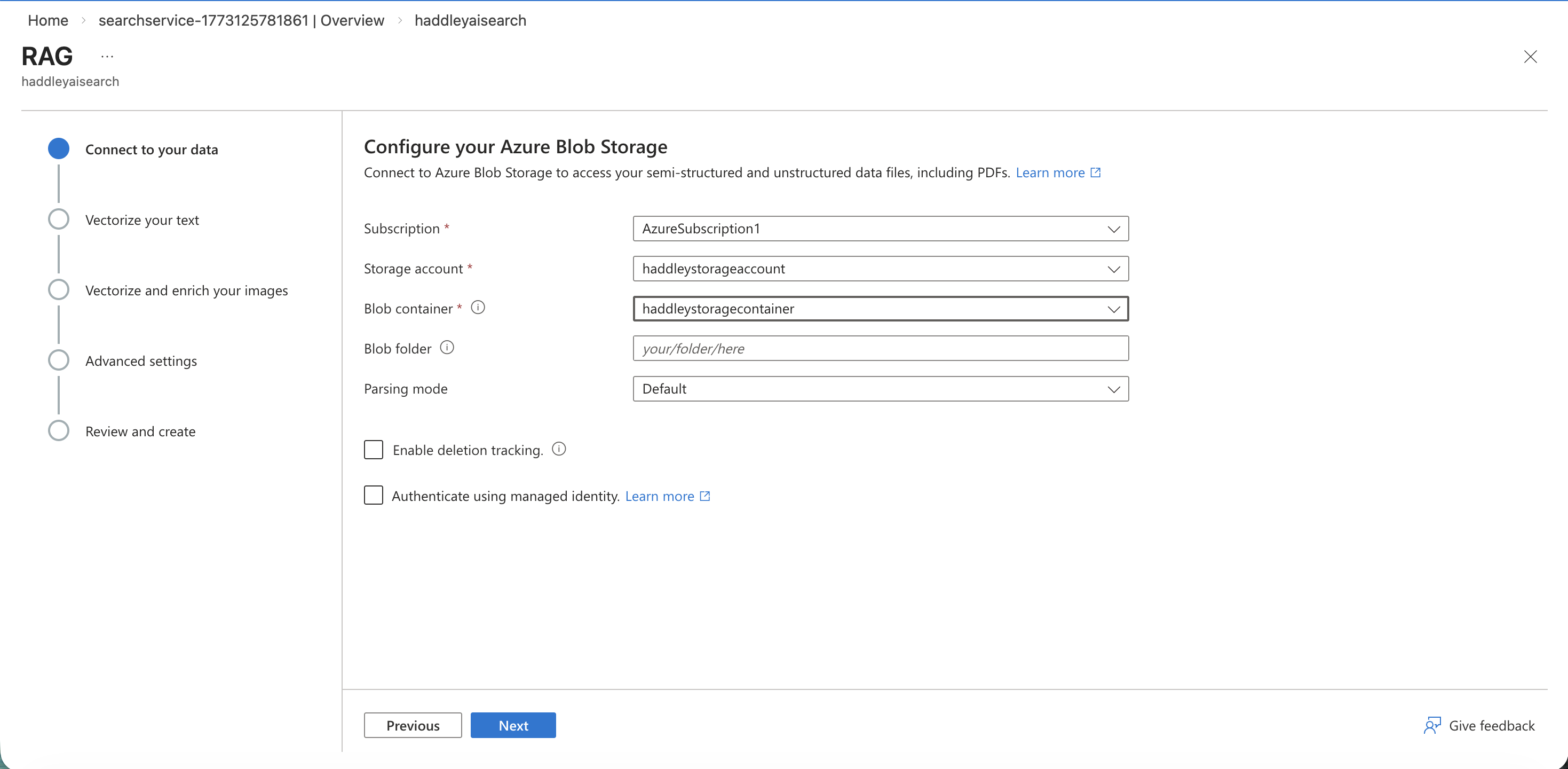
I configured the Azure Blob Storage connection to haddleystoragecontainer
The vectorization step initially showed no Azure OpenAI service available, so I needed to create one.
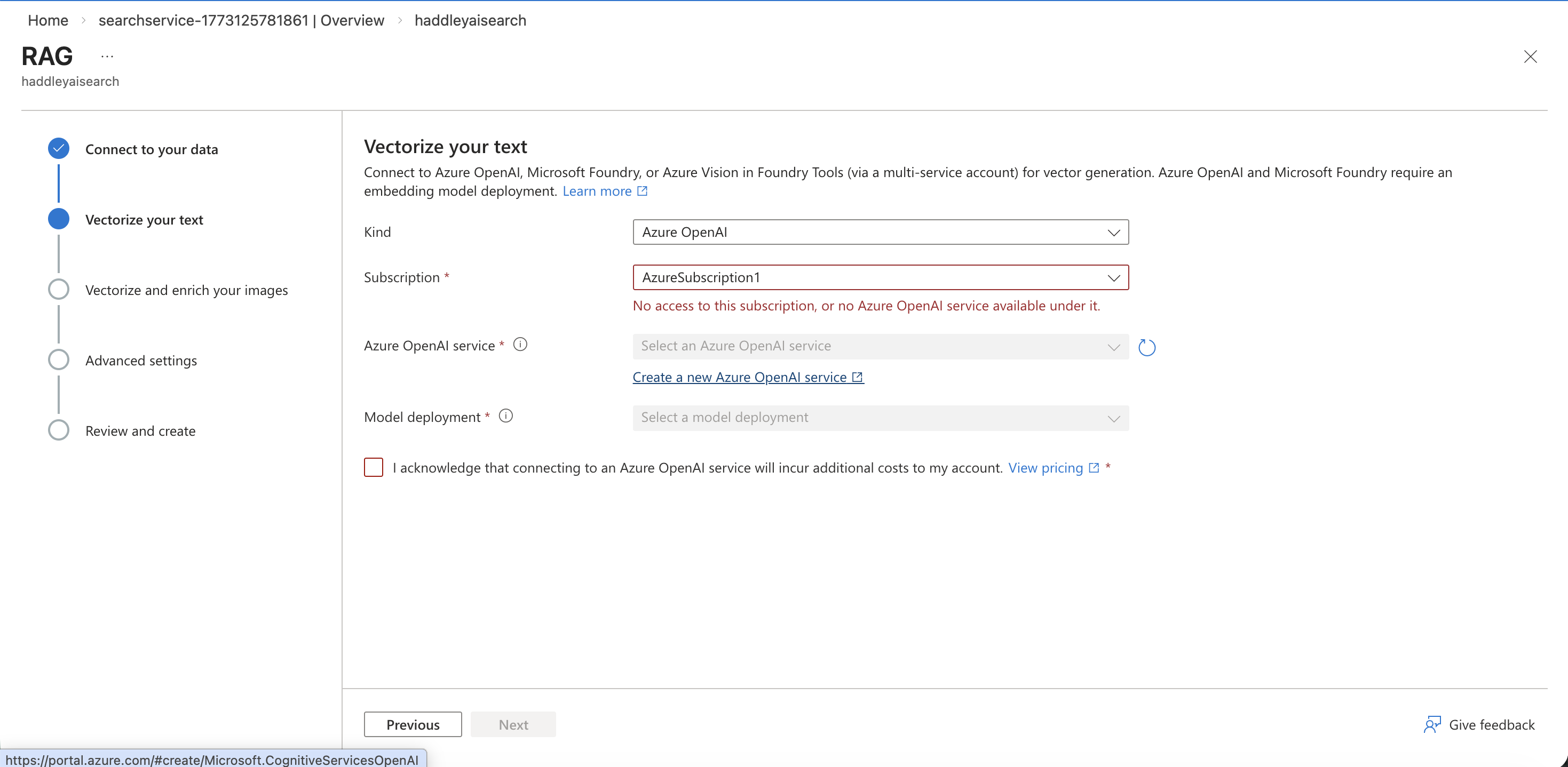
The Vectorize your text step showed no Azure OpenAI service available
I filled in the Create Azure OpenAI form with the name haddley-azure-openai on Standard S0.
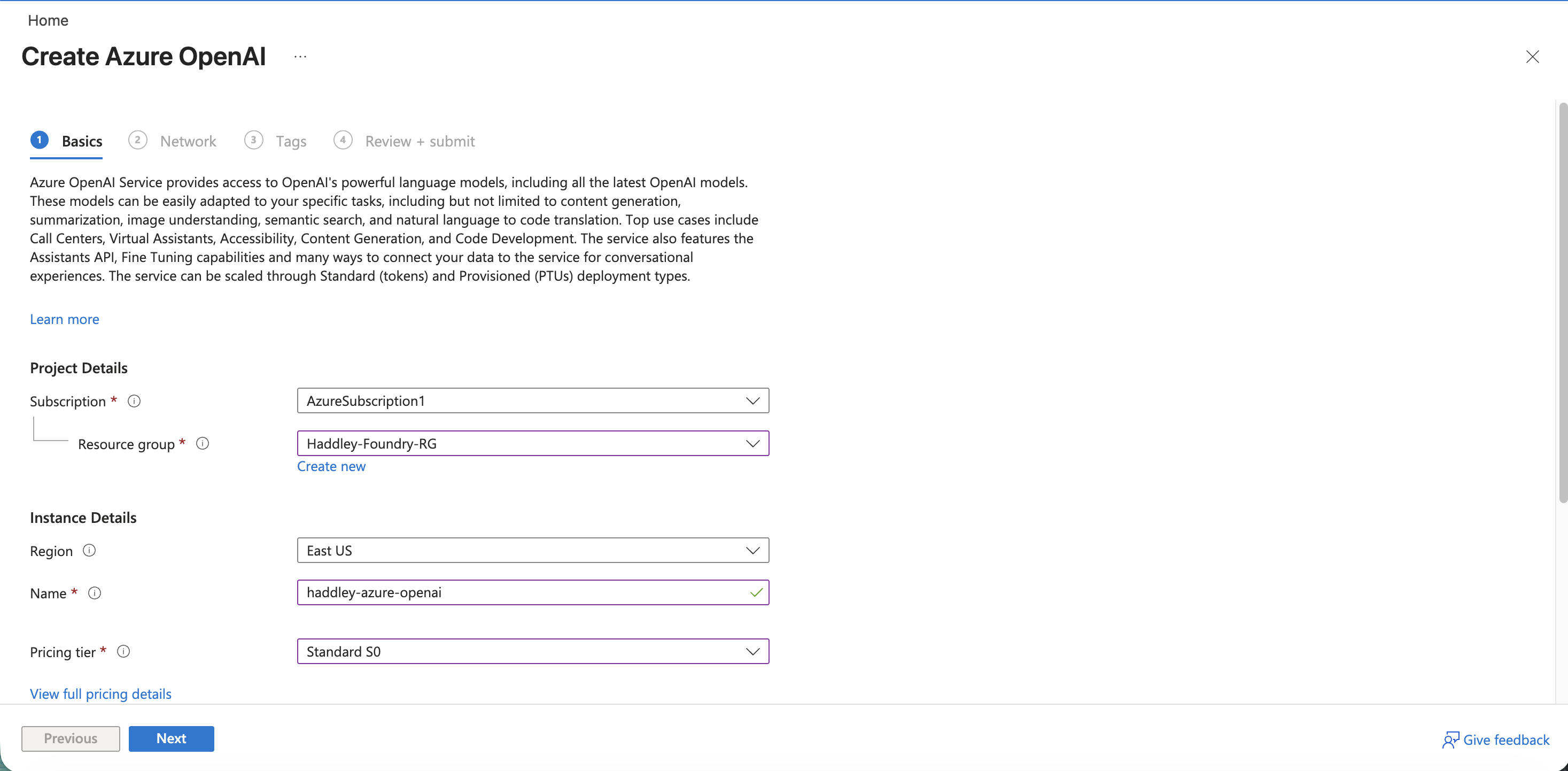
I entered the Azure OpenAI instance name and selected the Standard S0 pricing tier
I reviewed and submitted the Azure OpenAI deployment.
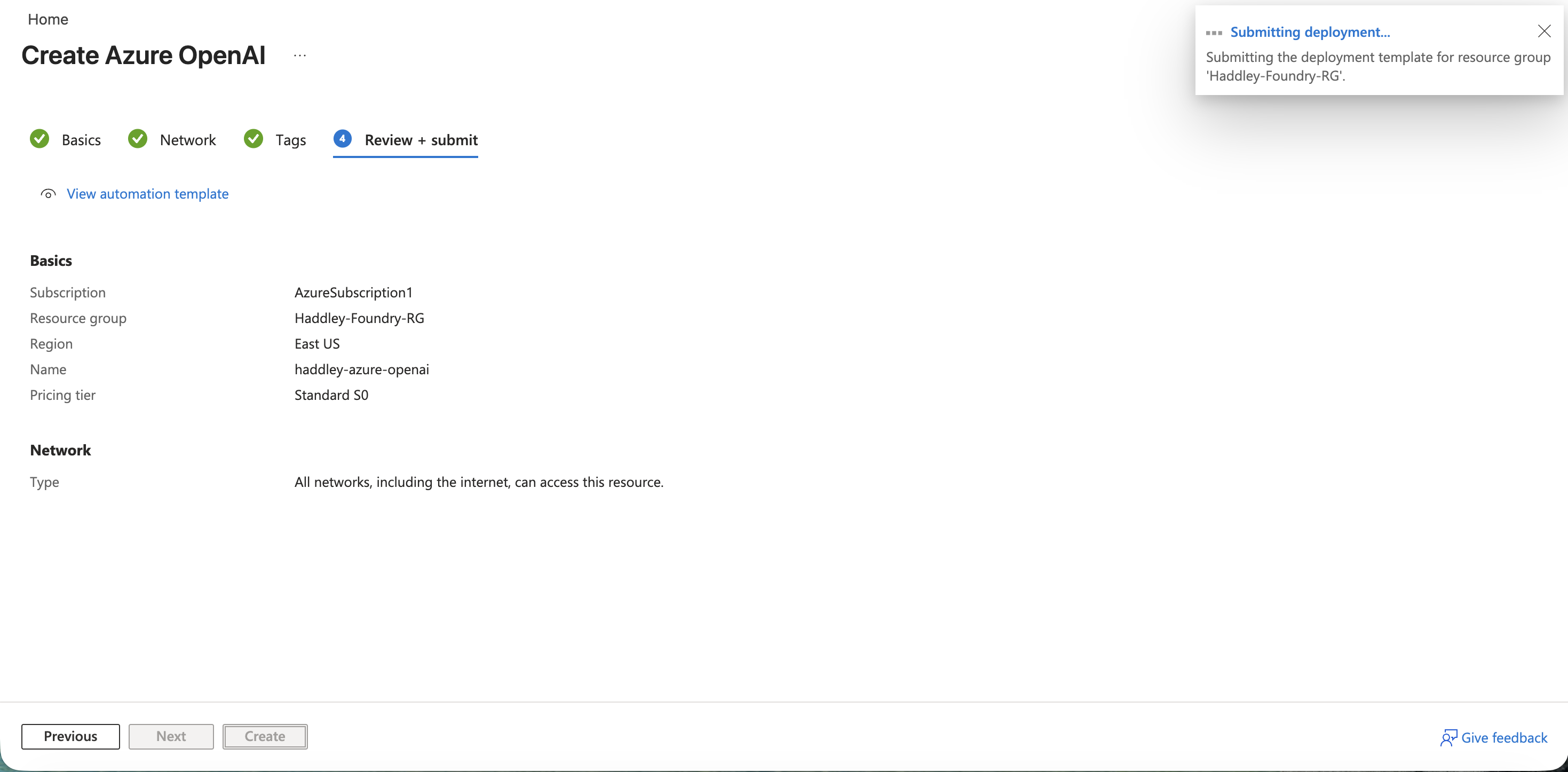
I submitted the Create Azure OpenAI deployment
The deployment started and the resource was being created.
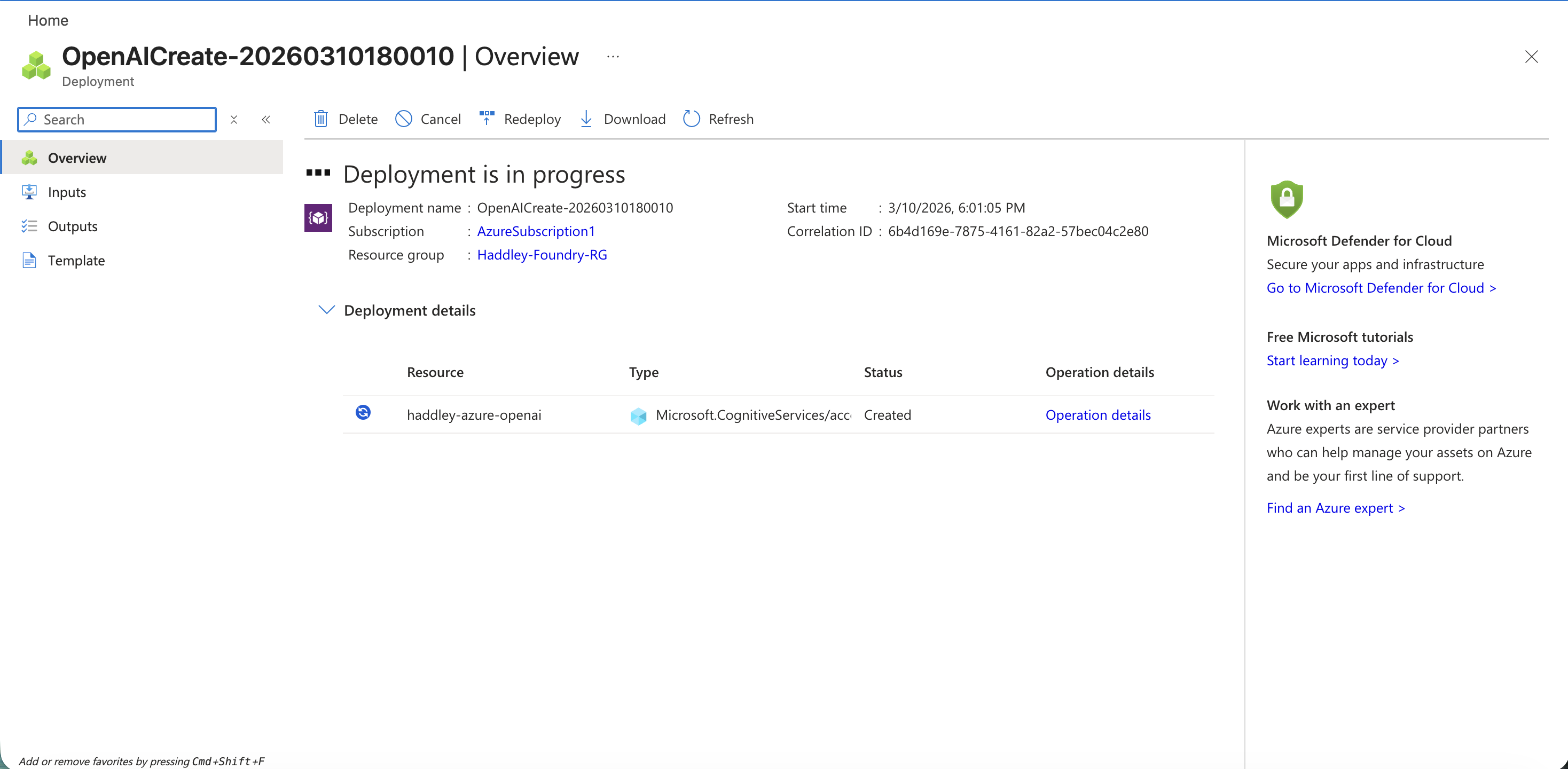
The Azure OpenAI deployment was in progress
Back in the RAG wizard, the haddley-azure-openai service appeared but had no deployments yet.
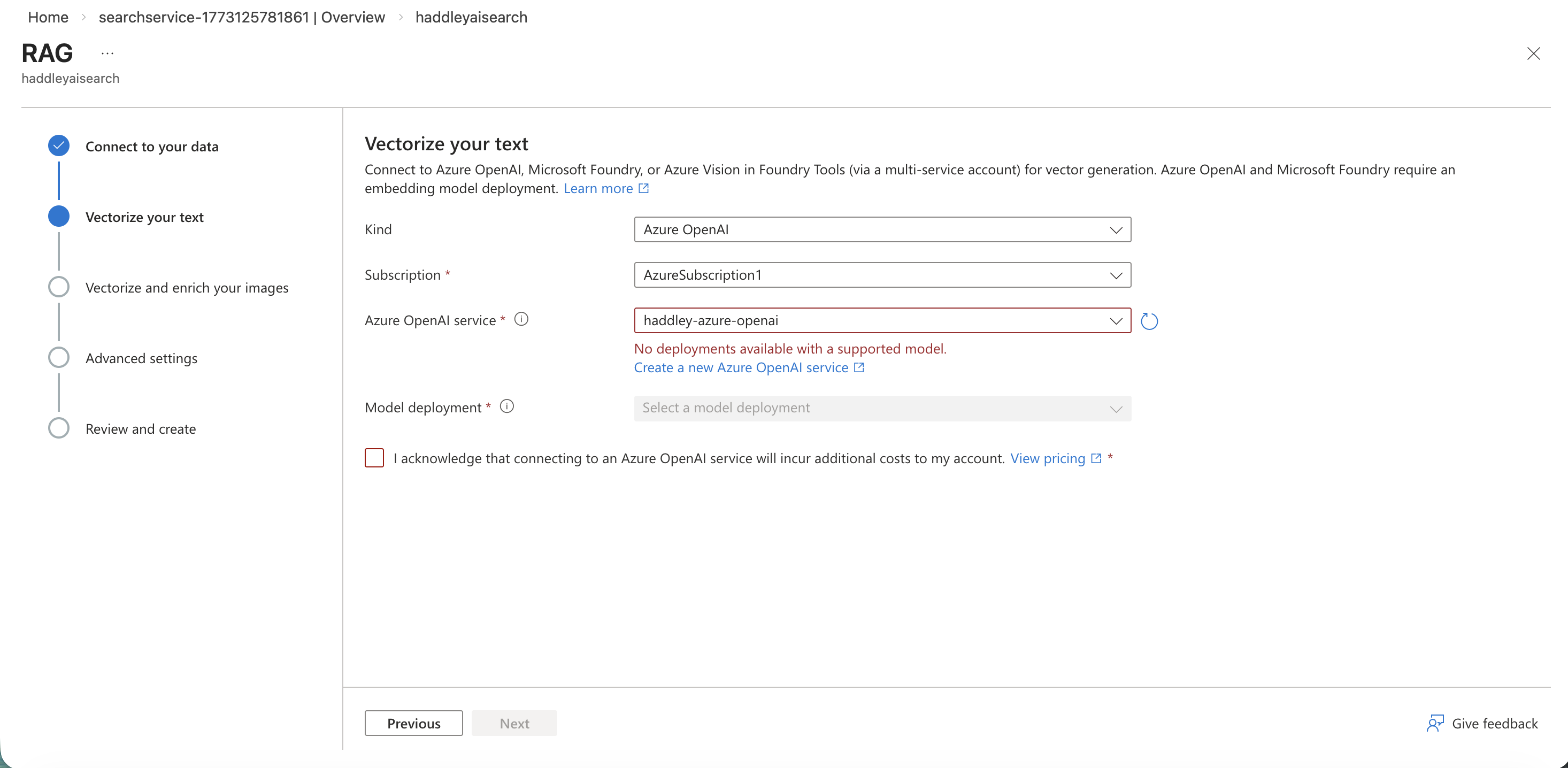
The Azure OpenAI service was selected but showed no deployments with a supported model
I navigated to the Azure OpenAI model catalog in Foundry and found text-embedding-ada-002.
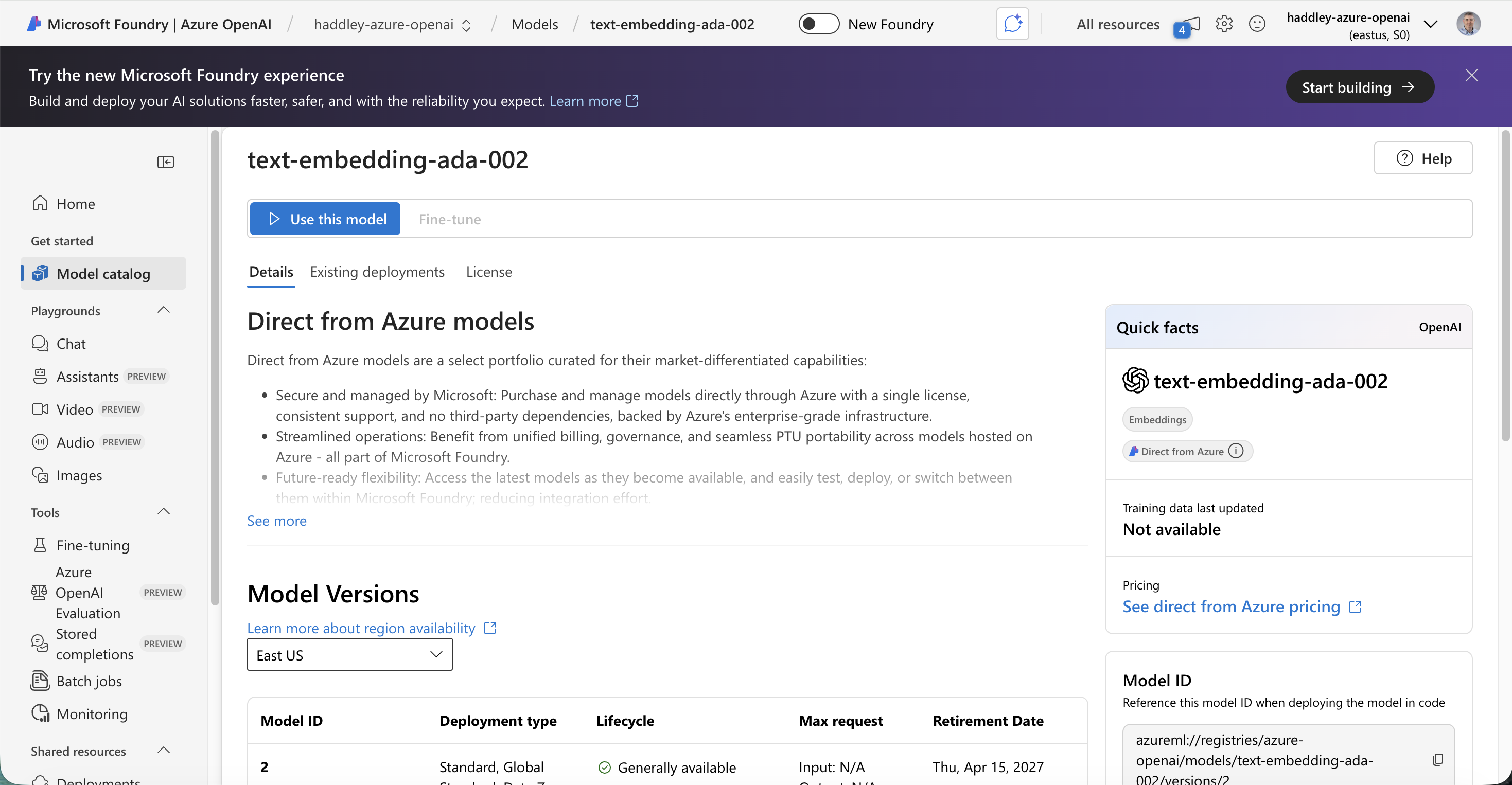
I opened the text-embedding-ada-002 model page in the Azure OpenAI section of Foundry
I deployed the model with a Standard GlobalStandard deployment type.
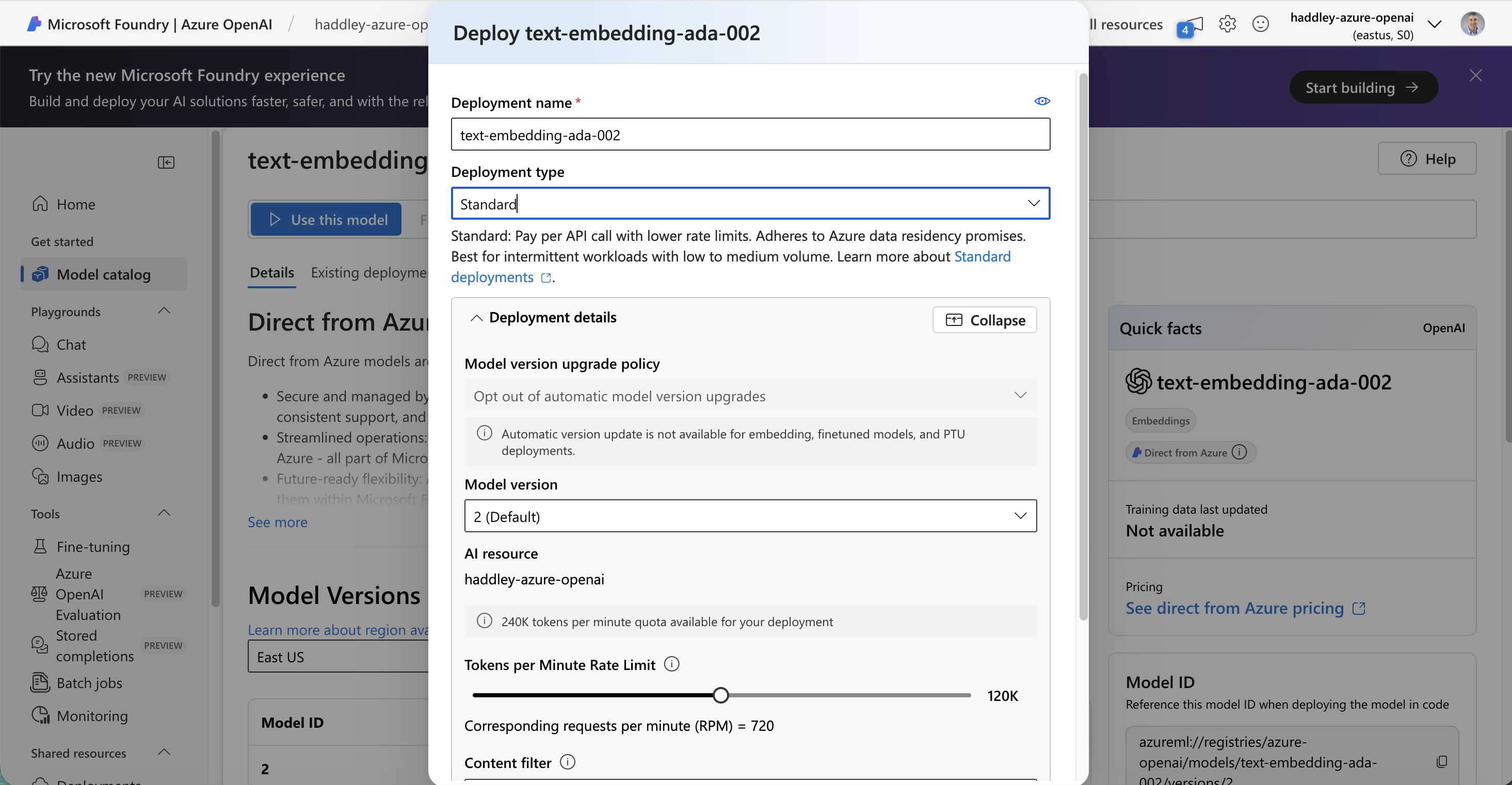
I deployed text-embedding-ada-002 with a Standard deployment type
Returning to the RAG wizard, text-embedding-ada-002 was now available to select.
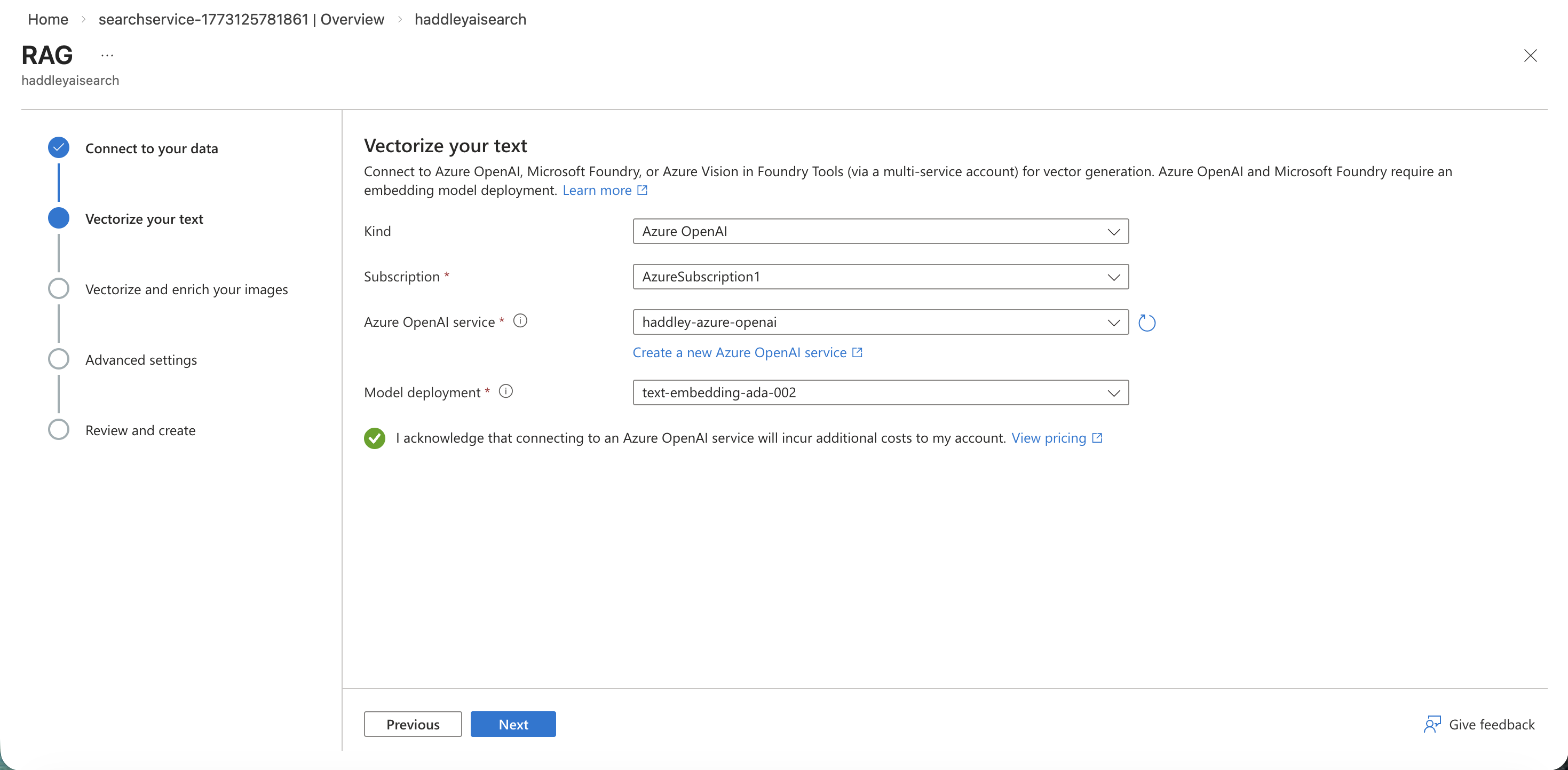
I selected text-embedding-ada-002 as the vectorization model
I skipped image vectorization and moved to the advanced settings.
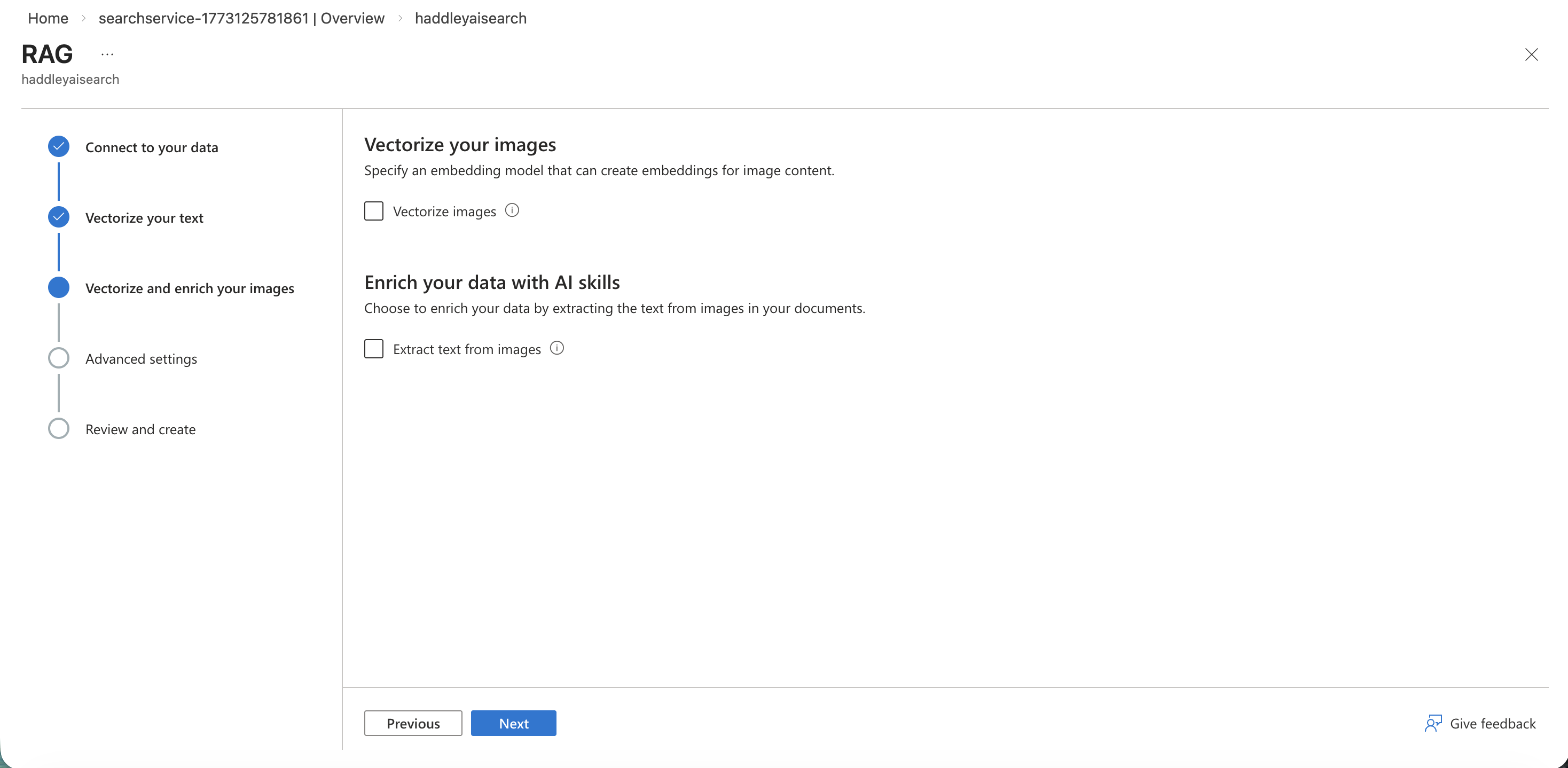
I left image vectorization unconfigured and clicked Next
I enabled the semantic ranker and kept the indexing schedule set to Once.
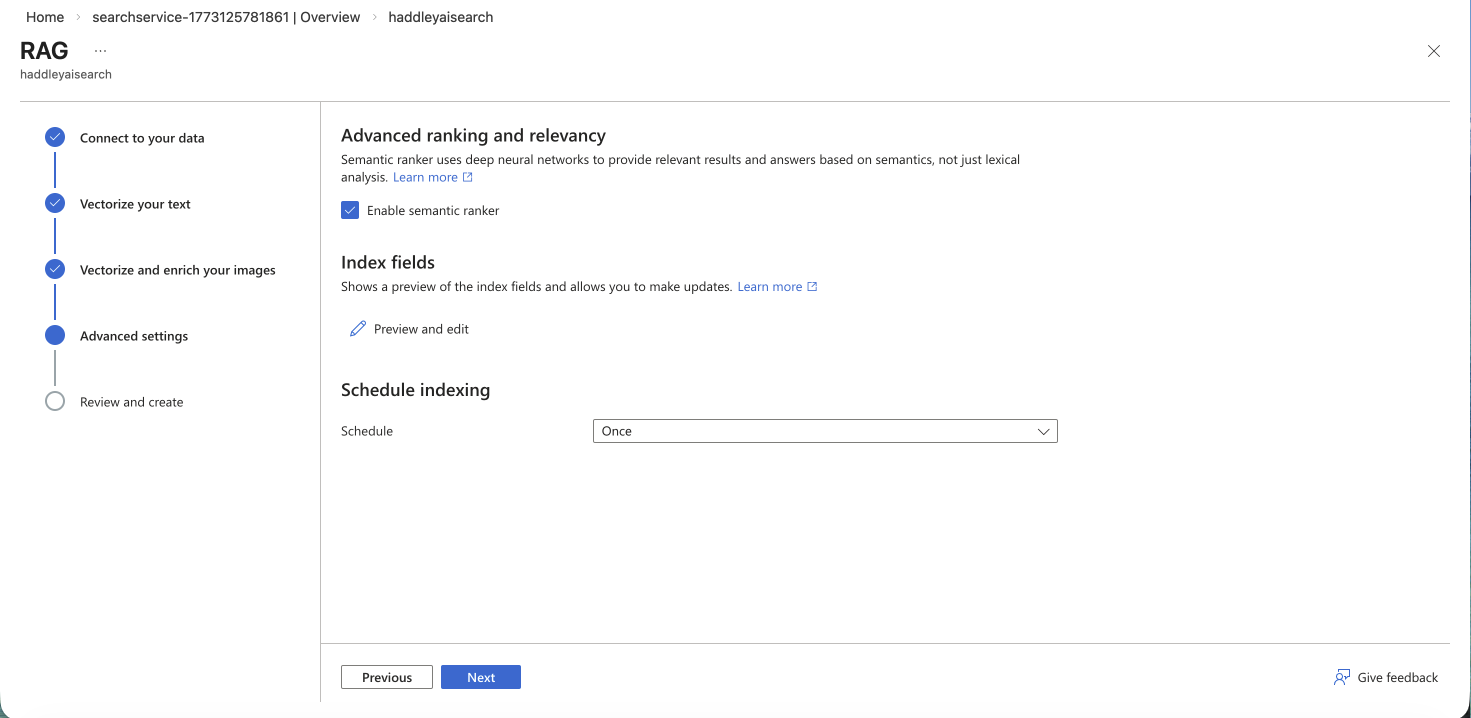
I enabled the semantic ranker in the advanced settings
I reviewed the RAG configuration and clicked Create.
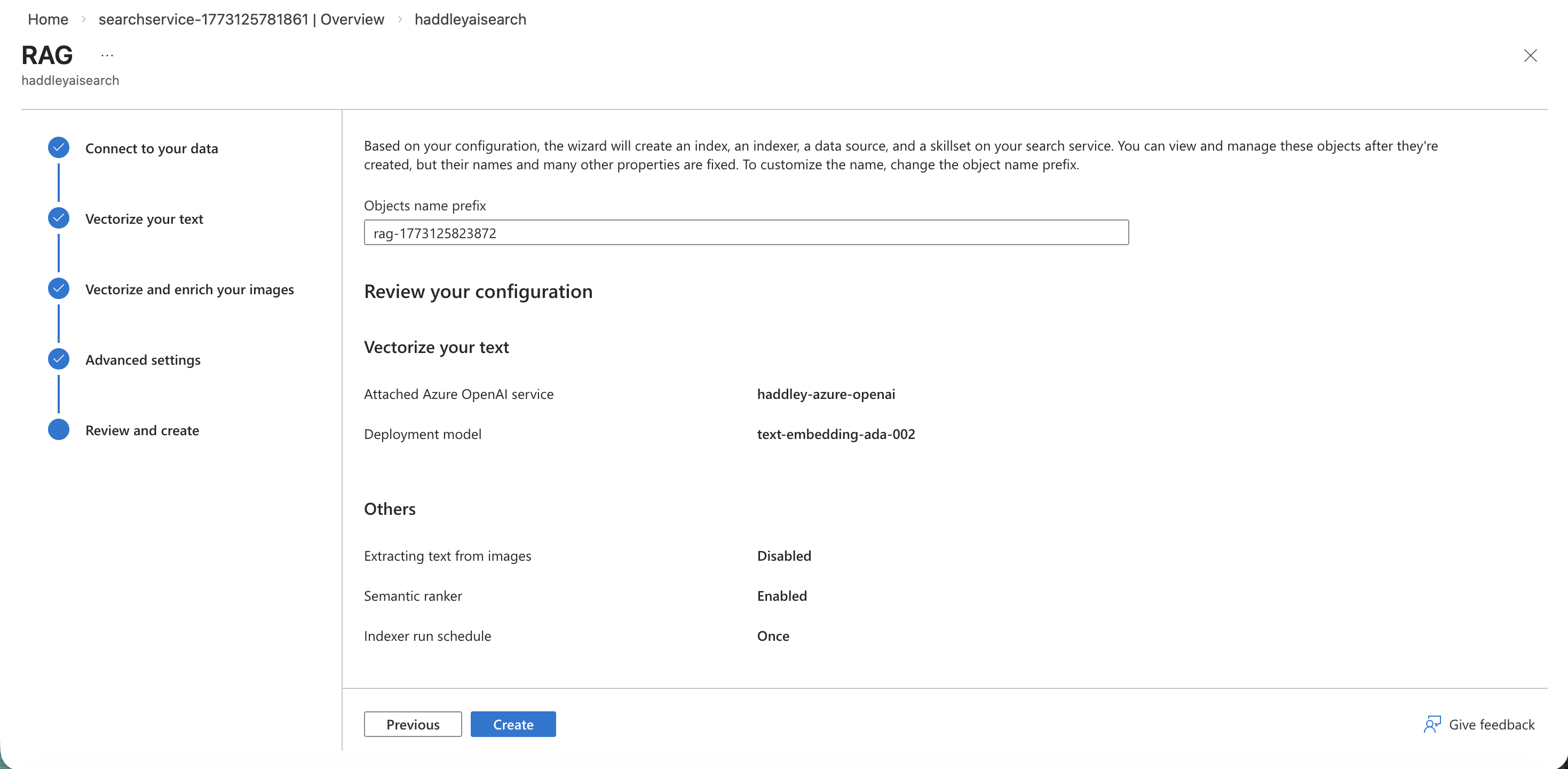
I reviewed the full RAG configuration before creating the index
The index was created successfully and indexing began.
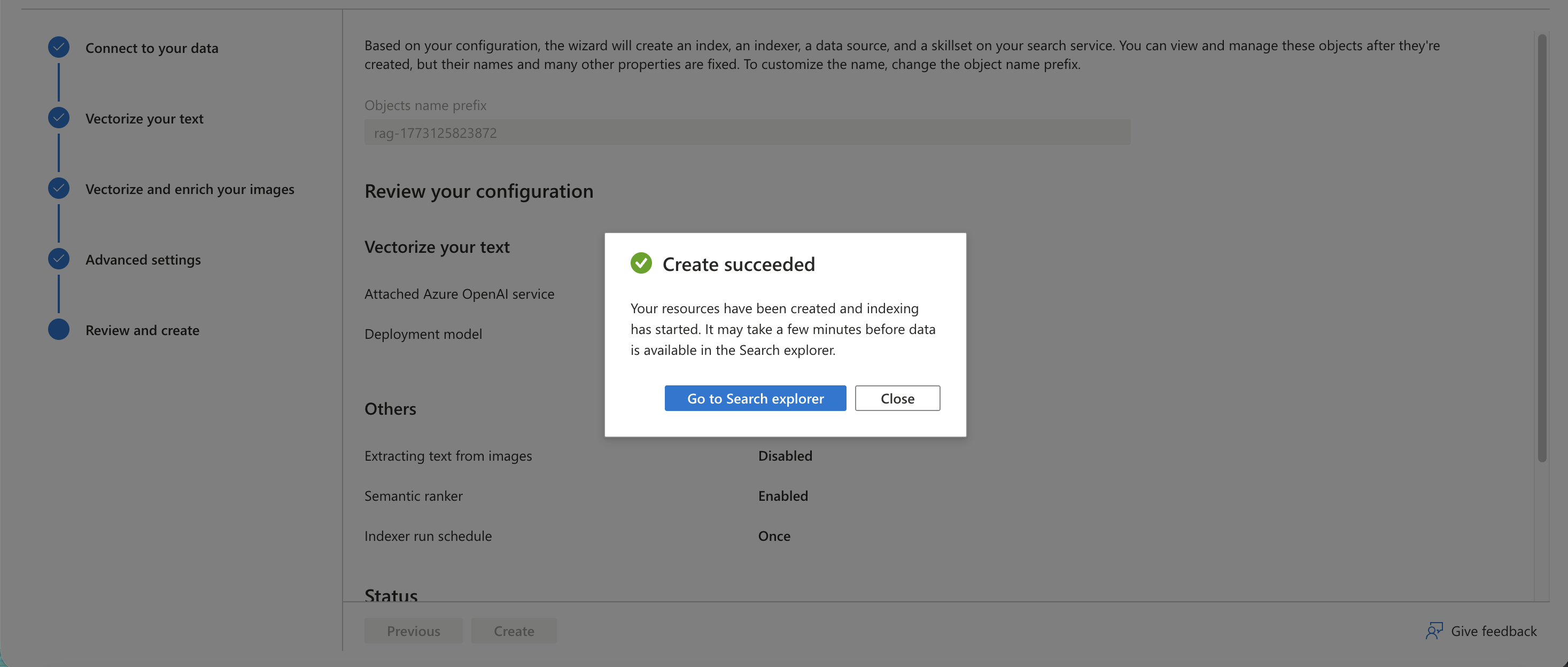
The Create succeeded dialog confirmed the index and indexer were created
I opened the Search explorer and tested the index with a sample question about health insurance costs.
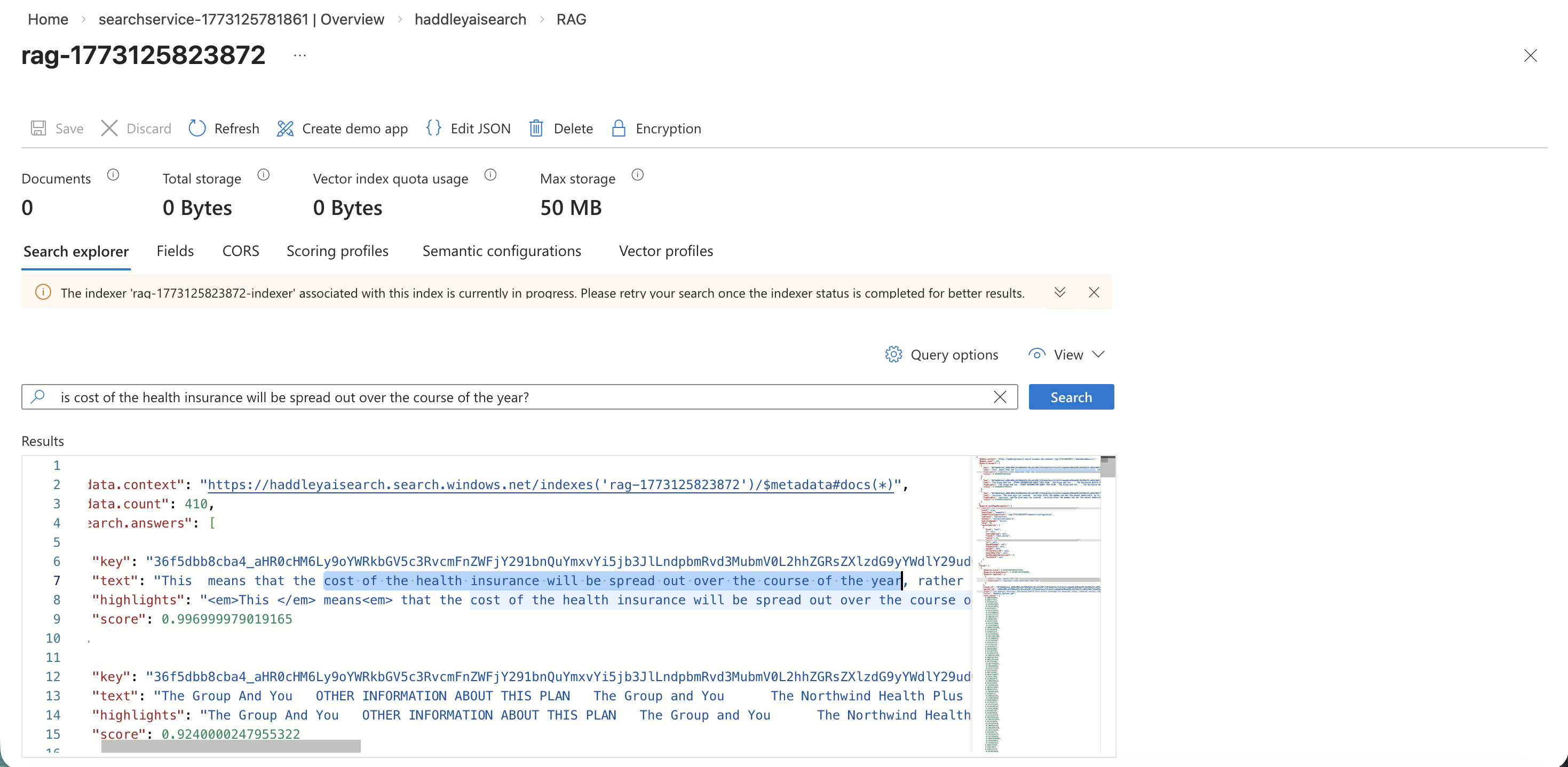
The Search explorer returned relevant results from the health-plan PDFs for my query
Creating the Agent
Back in the Foundry home, I clicked Start building and selected Create agent.
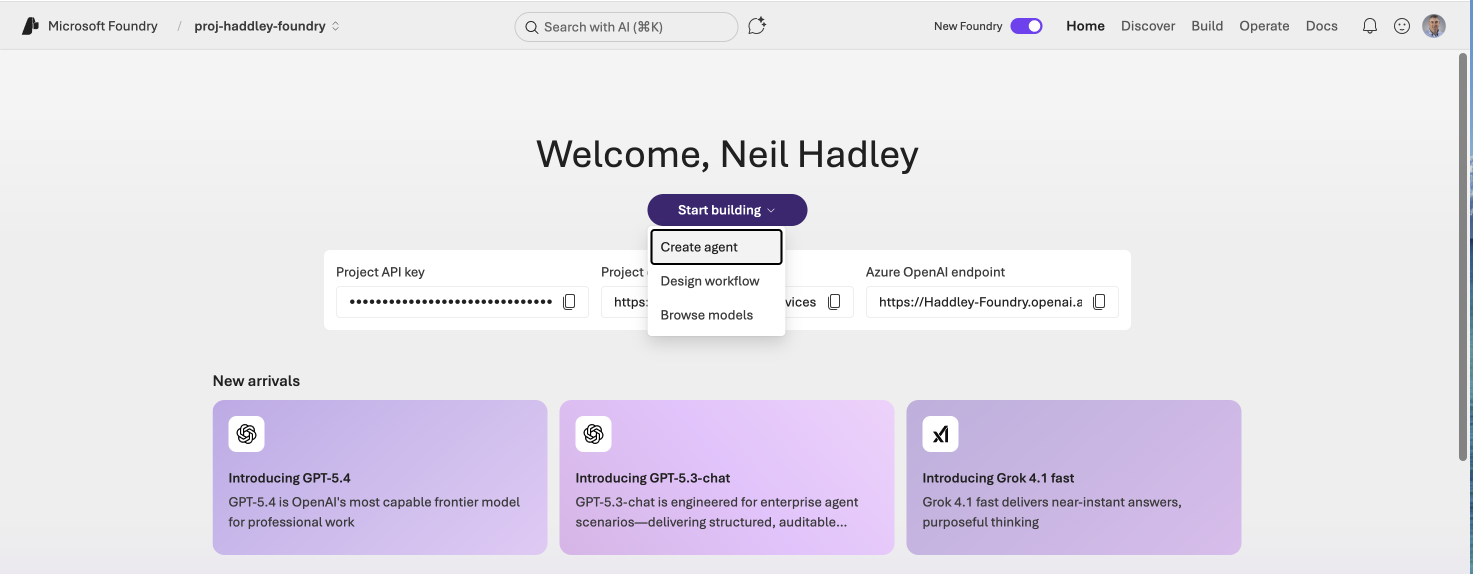
I clicked Start building and selected Create agent from the dropdown
I named the new agent haddley-health-plan-agent.
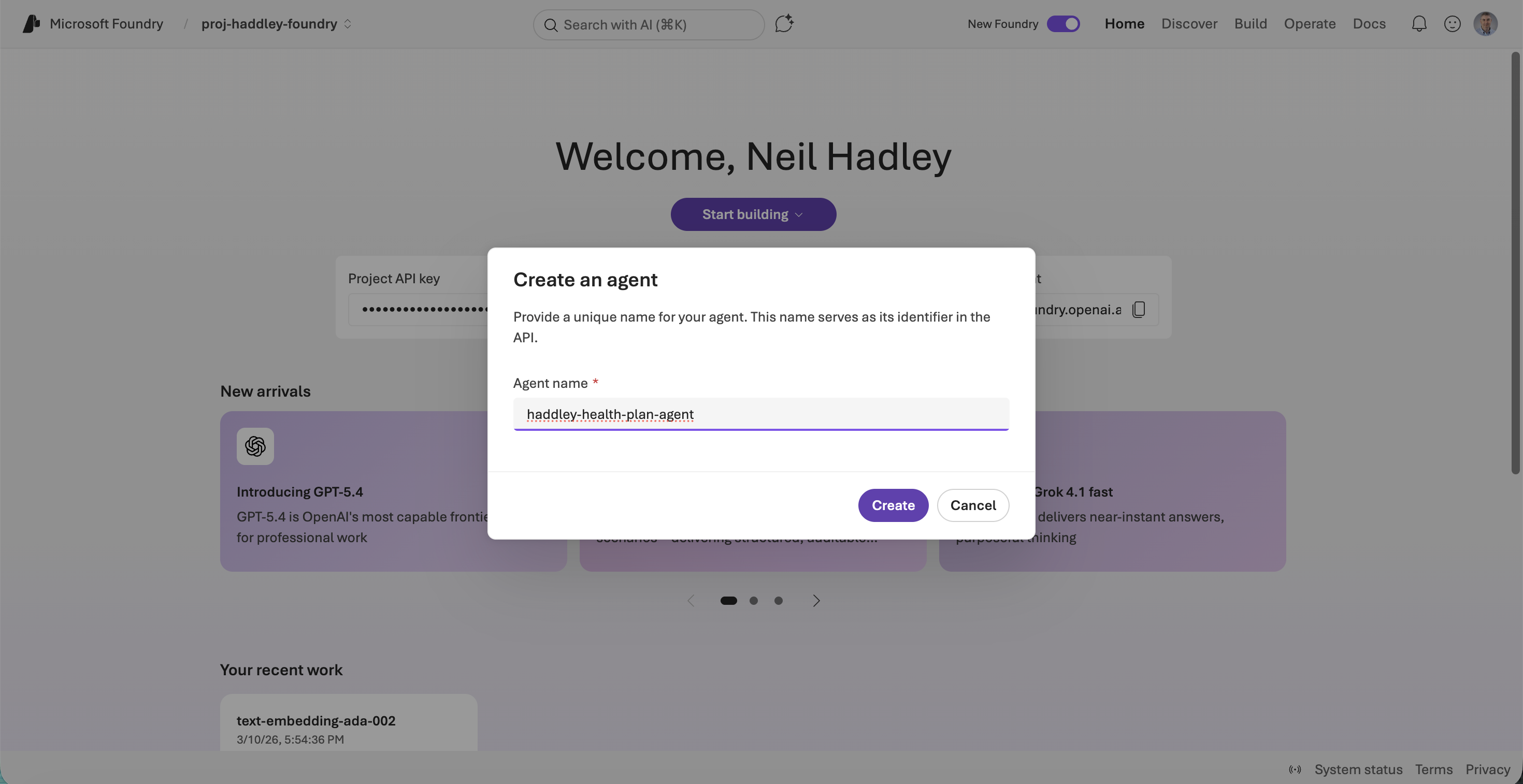
I entered haddley-health-plan-agent as the agent name
The agent playground opened and I clicked to add a tool.
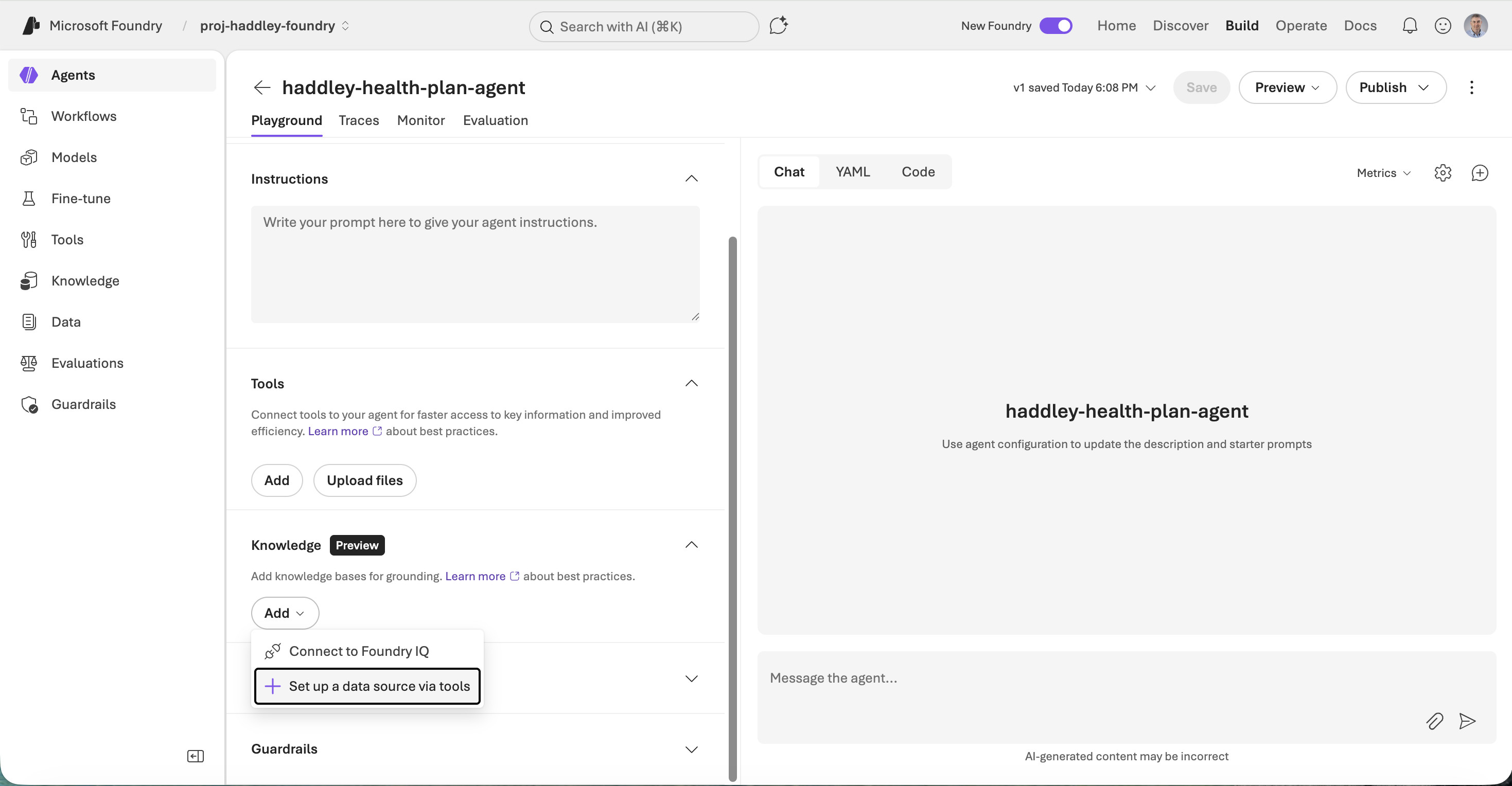
The agent playground opened — I clicked Set up a data source via tools to add Azure AI Search
I selected Azure AI Search from the tool catalog.
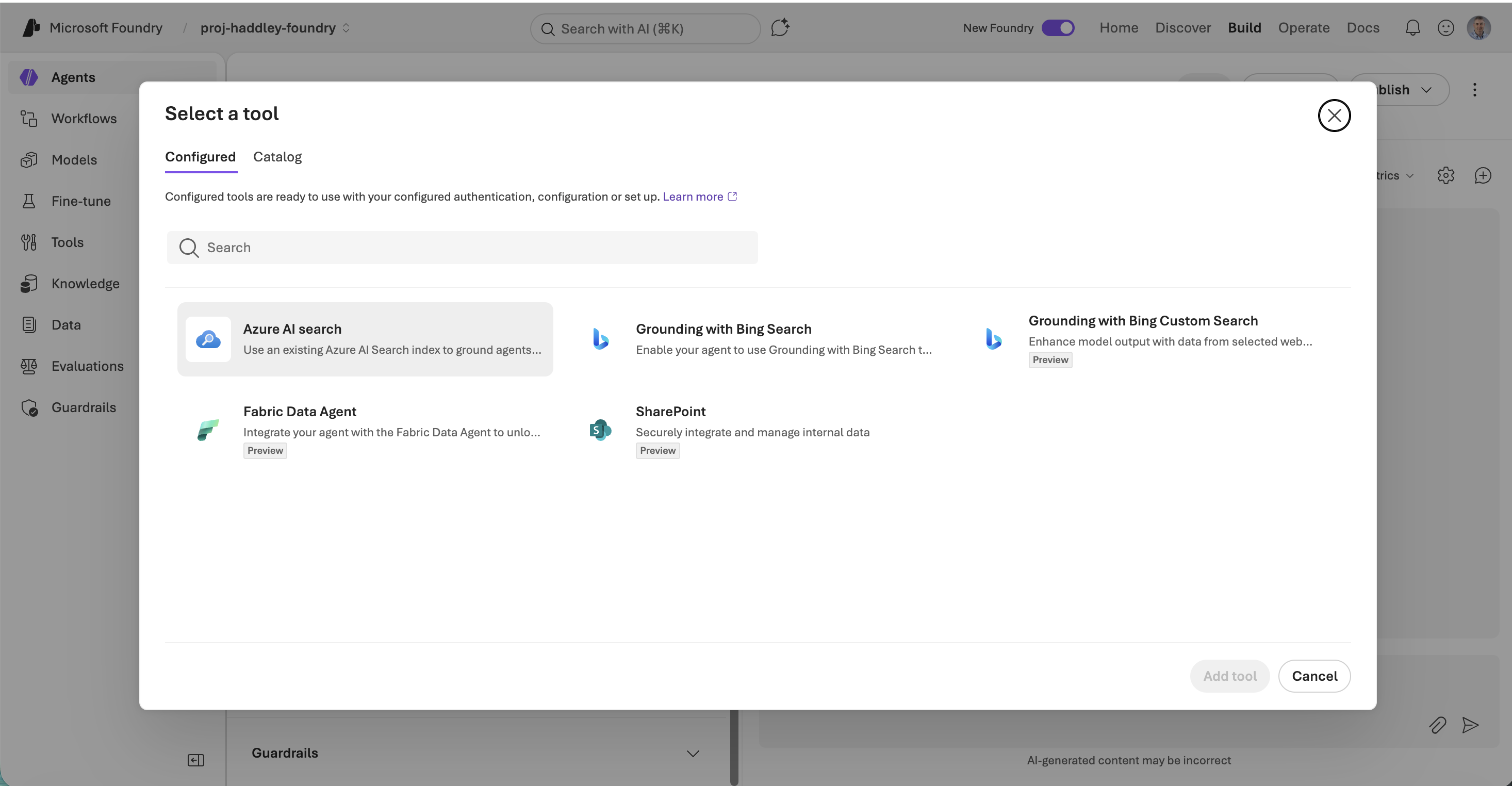
I selected Azure AI Search from the available tools
I confirmed the Azure AI Search tool selection.
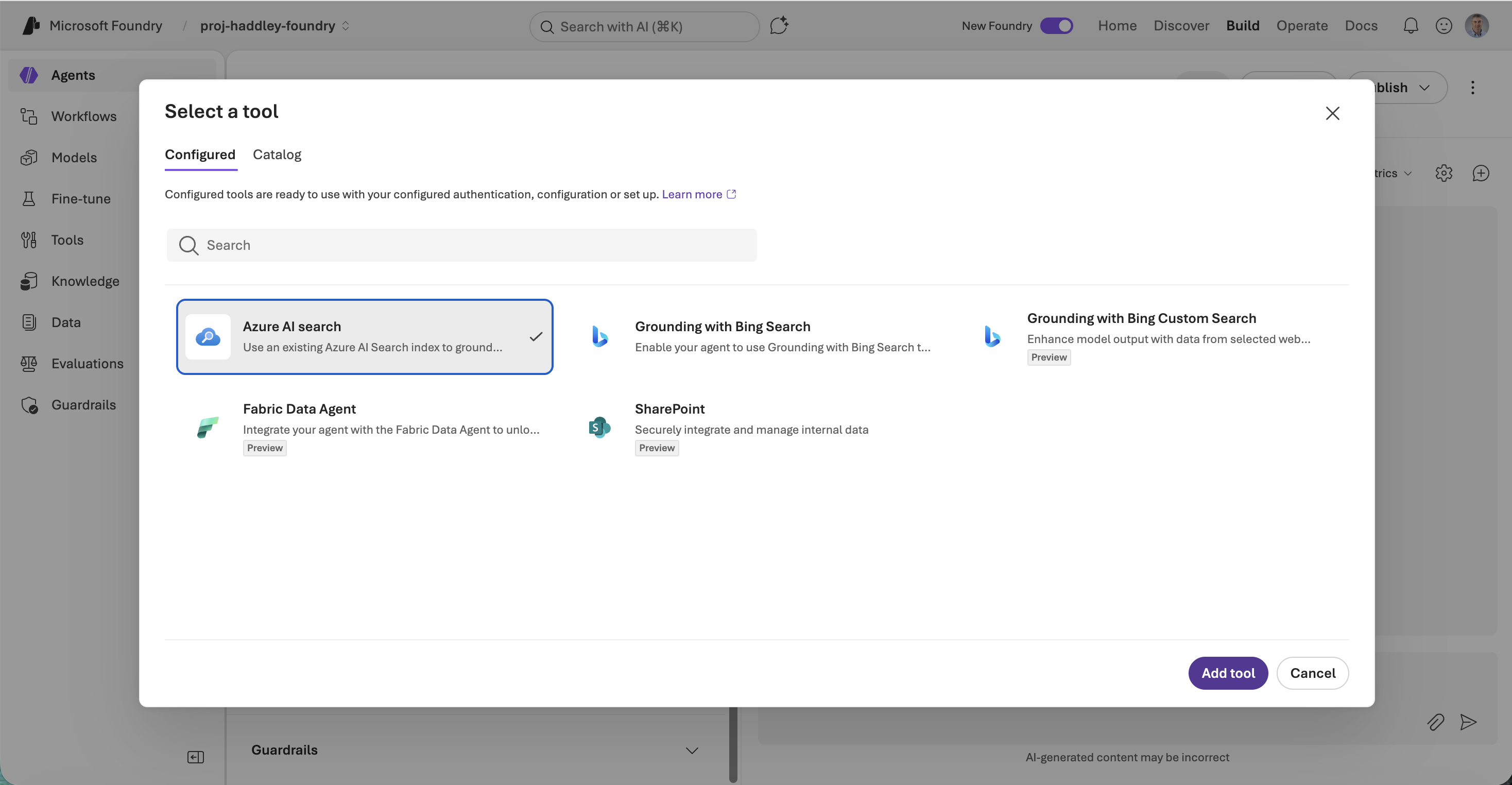
I selected Azure AI Search and clicked Add tool
No existing connections were available so I created a new one.
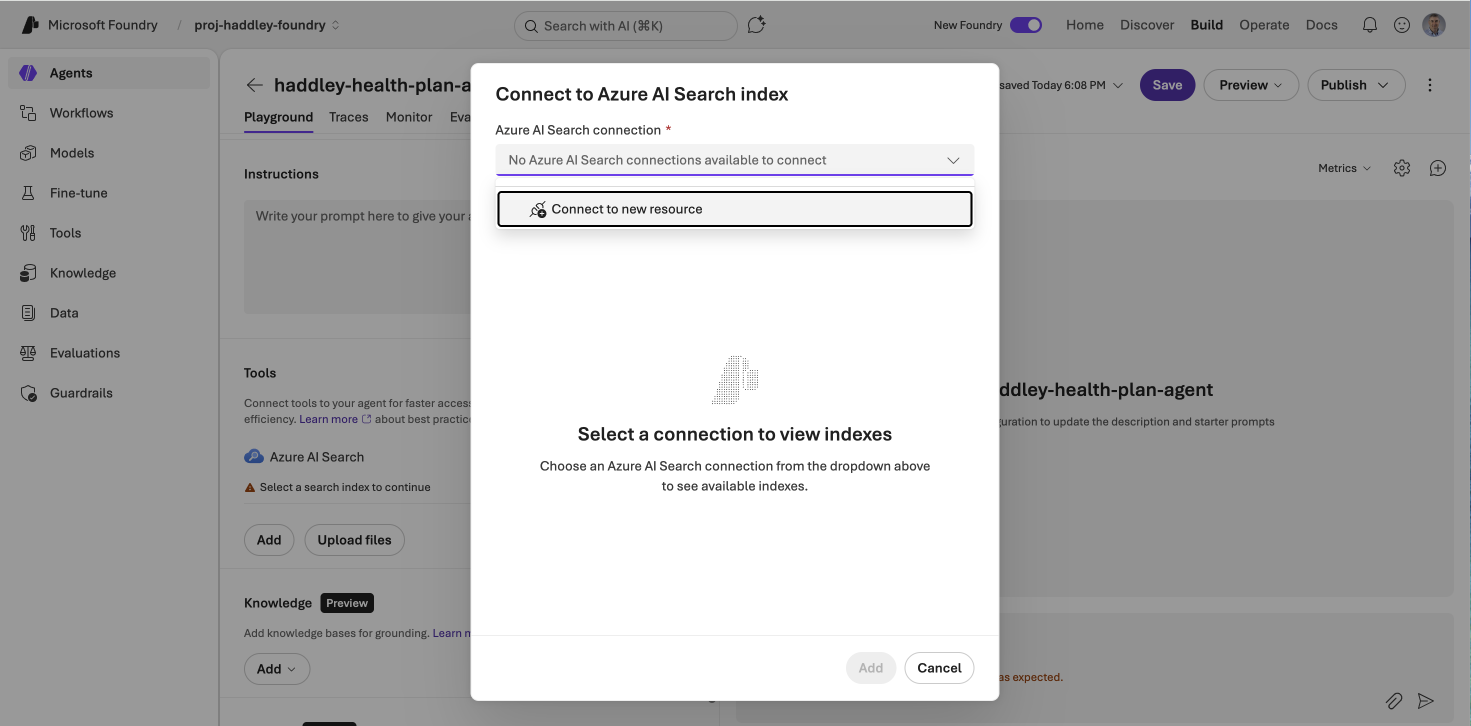
No Azure AI Search connections were available — I clicked Connect to new resource
I connected to the haddleyaisearch service using an API key.
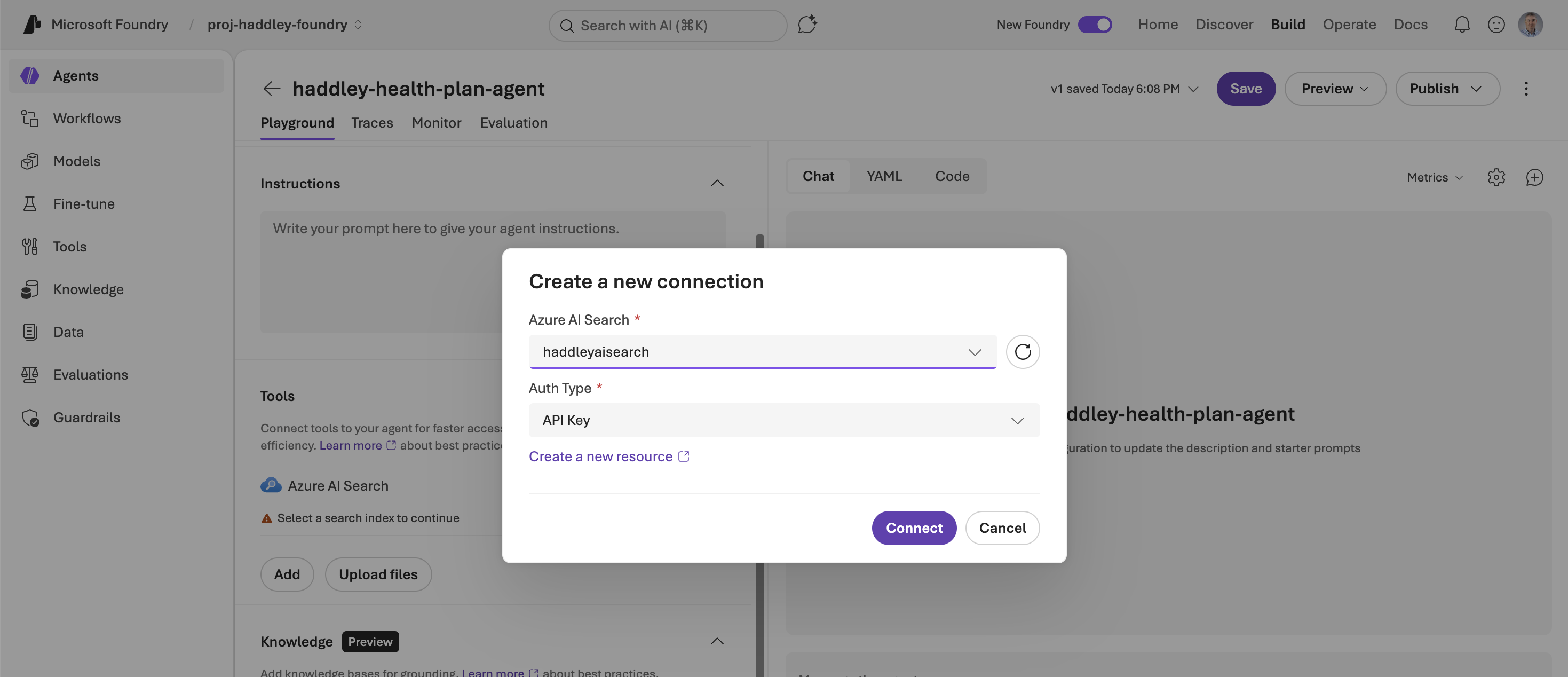
I selected haddleyaisearch and connected via API Key
The rag-1773125823872 index appeared and I selected it.
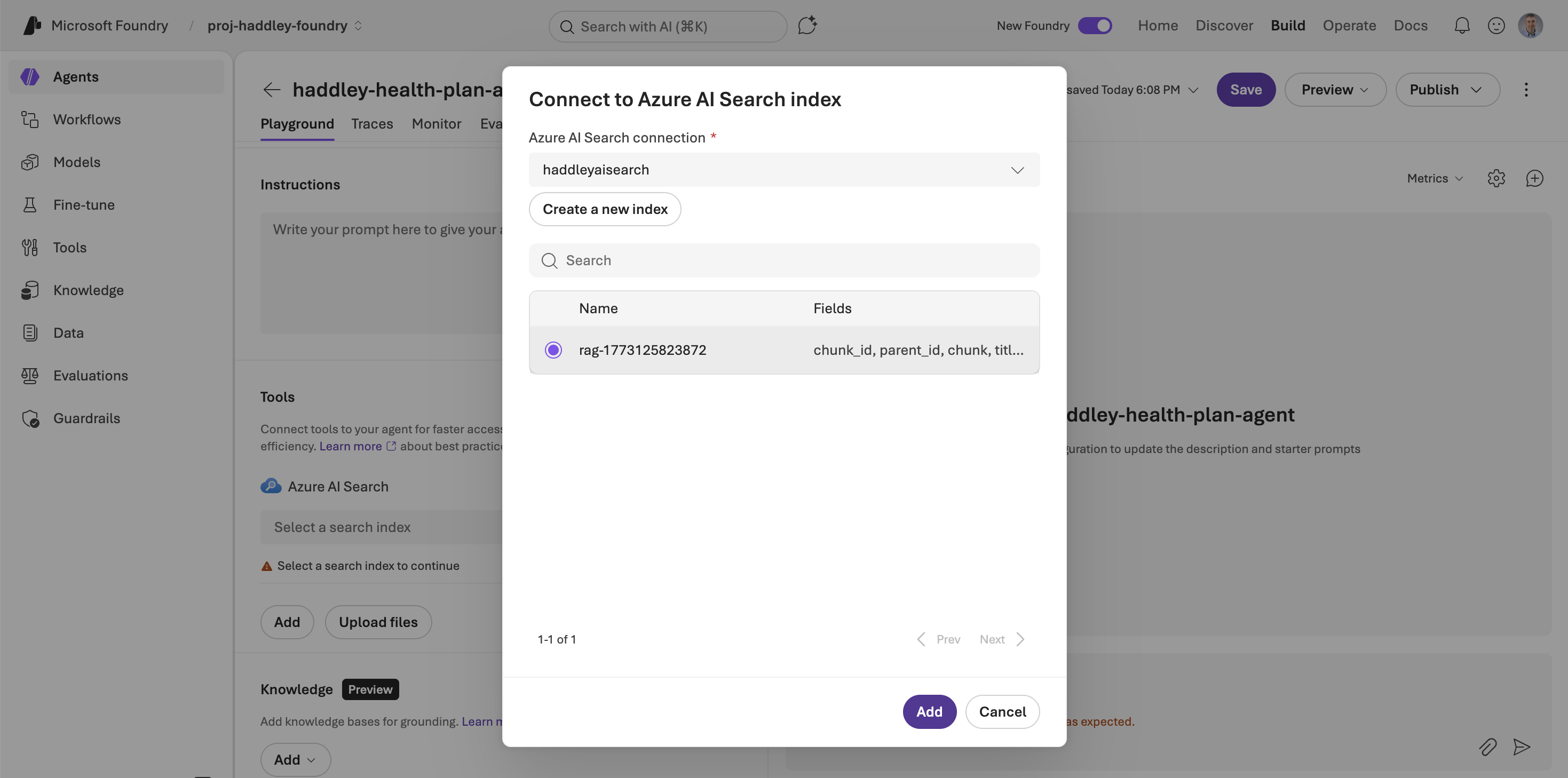
I selected the rag-1773125823872 index to connect to the agent
With the Azure AI Search tool connected and pointing at the RAG index, I typed a question in the chat.
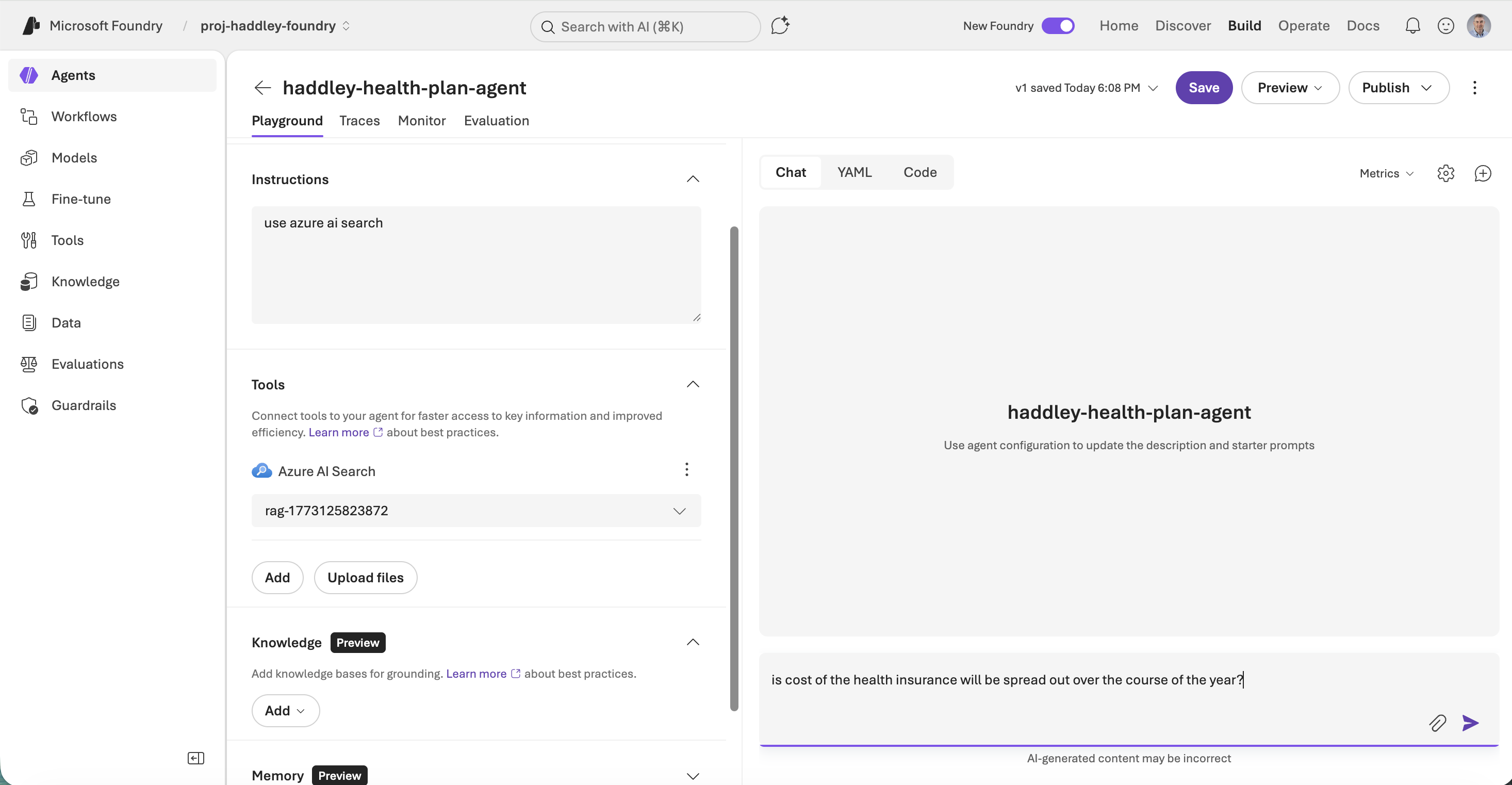
I asked the agent whether the cost of health insurance is spread out over the course of the year
The agent responded with a clear answer citing the Benefit_Options.pdf document.
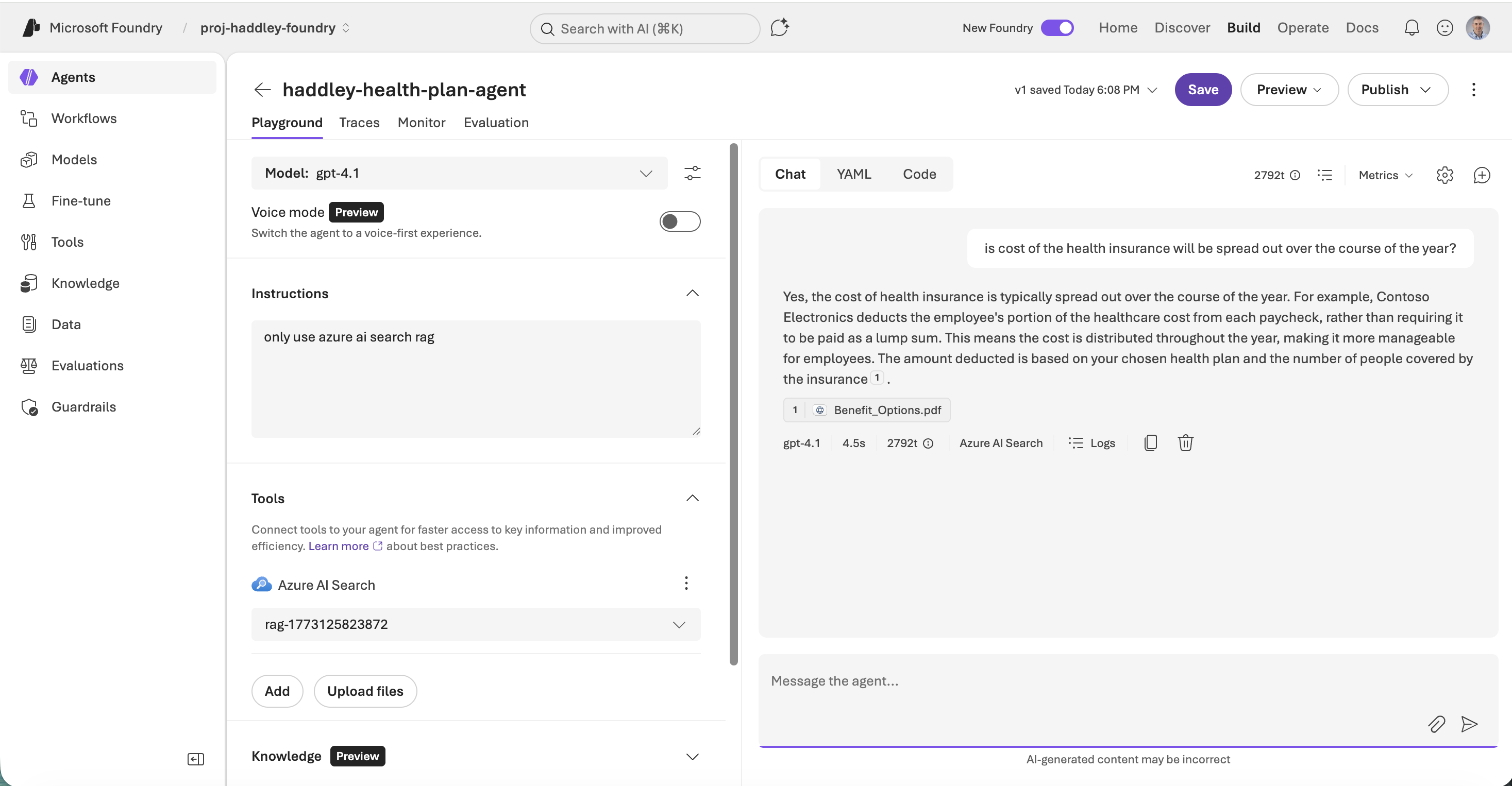
The agent answered correctly, explaining that health insurance costs are deducted from each paycheck, and cited Benefit_Options.pdf as the source