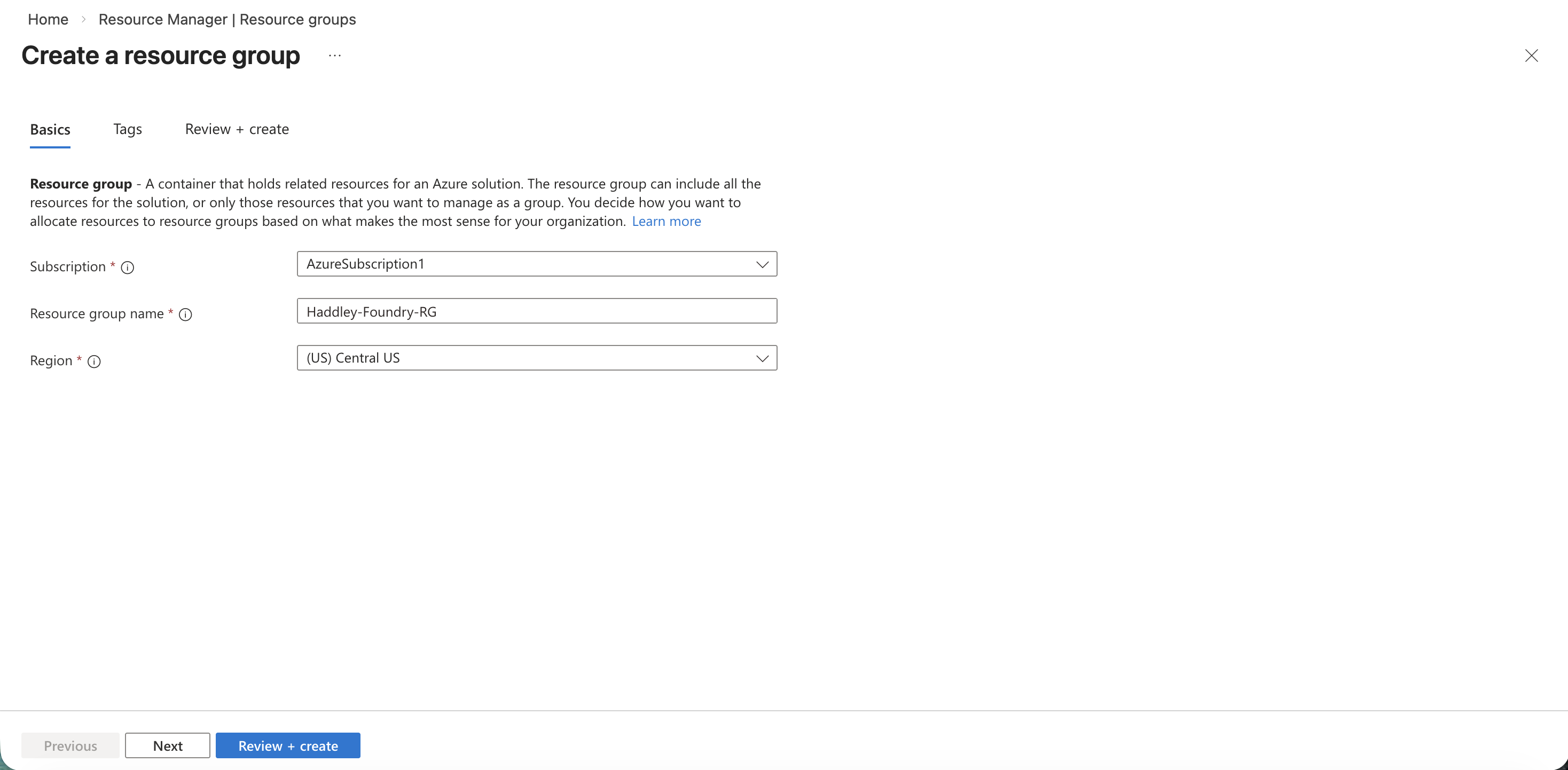
I started by creating a new resource group in the Azure portal to contain all the resources for this project.
 Tap the image to open it full size
I created a new resource group named Haddley-Foundry-RG in the Central US region
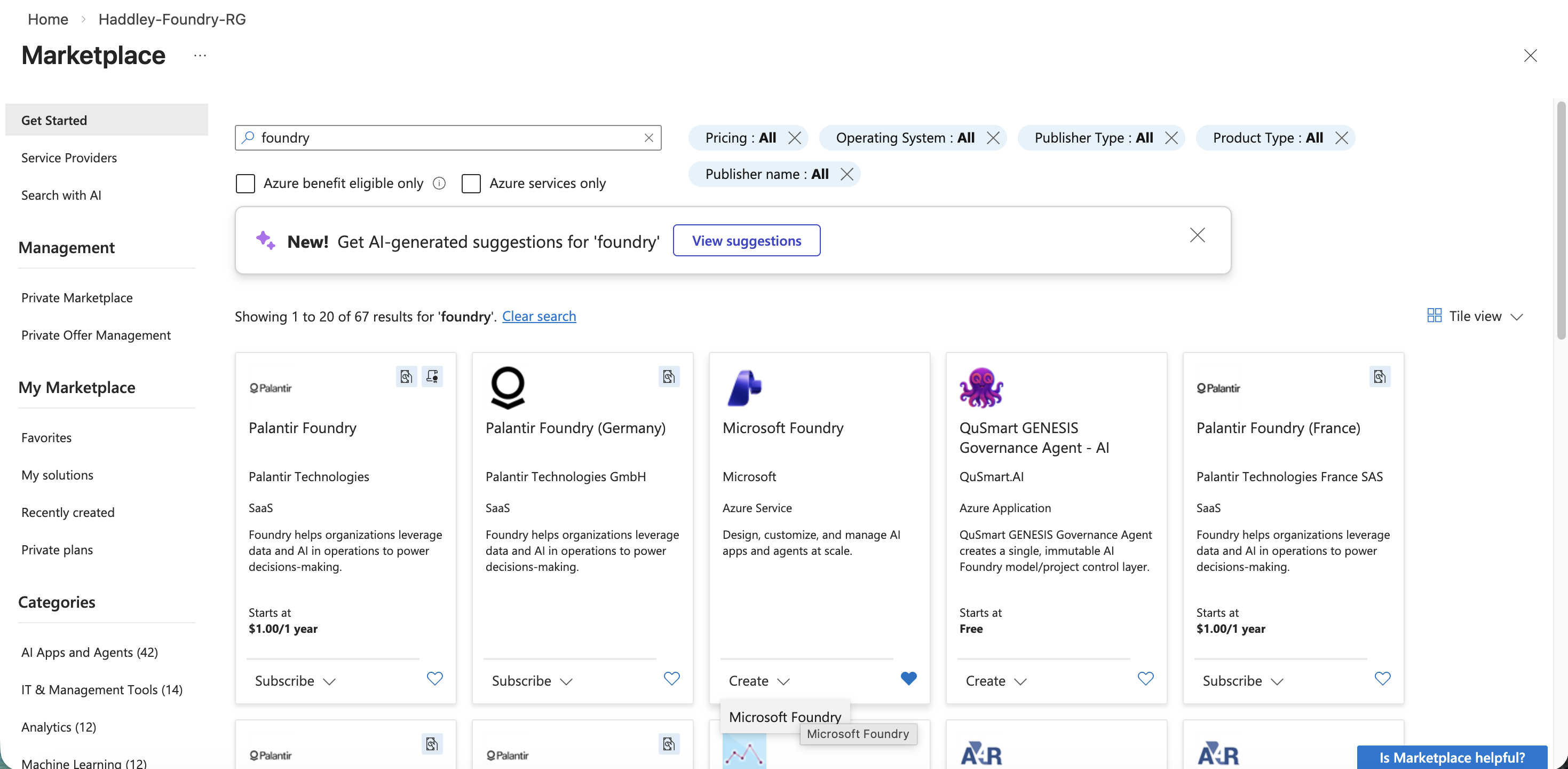
I searched the Azure Marketplace for "foundry" and found the Microsoft Foundry service.
 Tap the image to open it full size
I searched the Marketplace for "foundry" and selected Microsoft Foundry
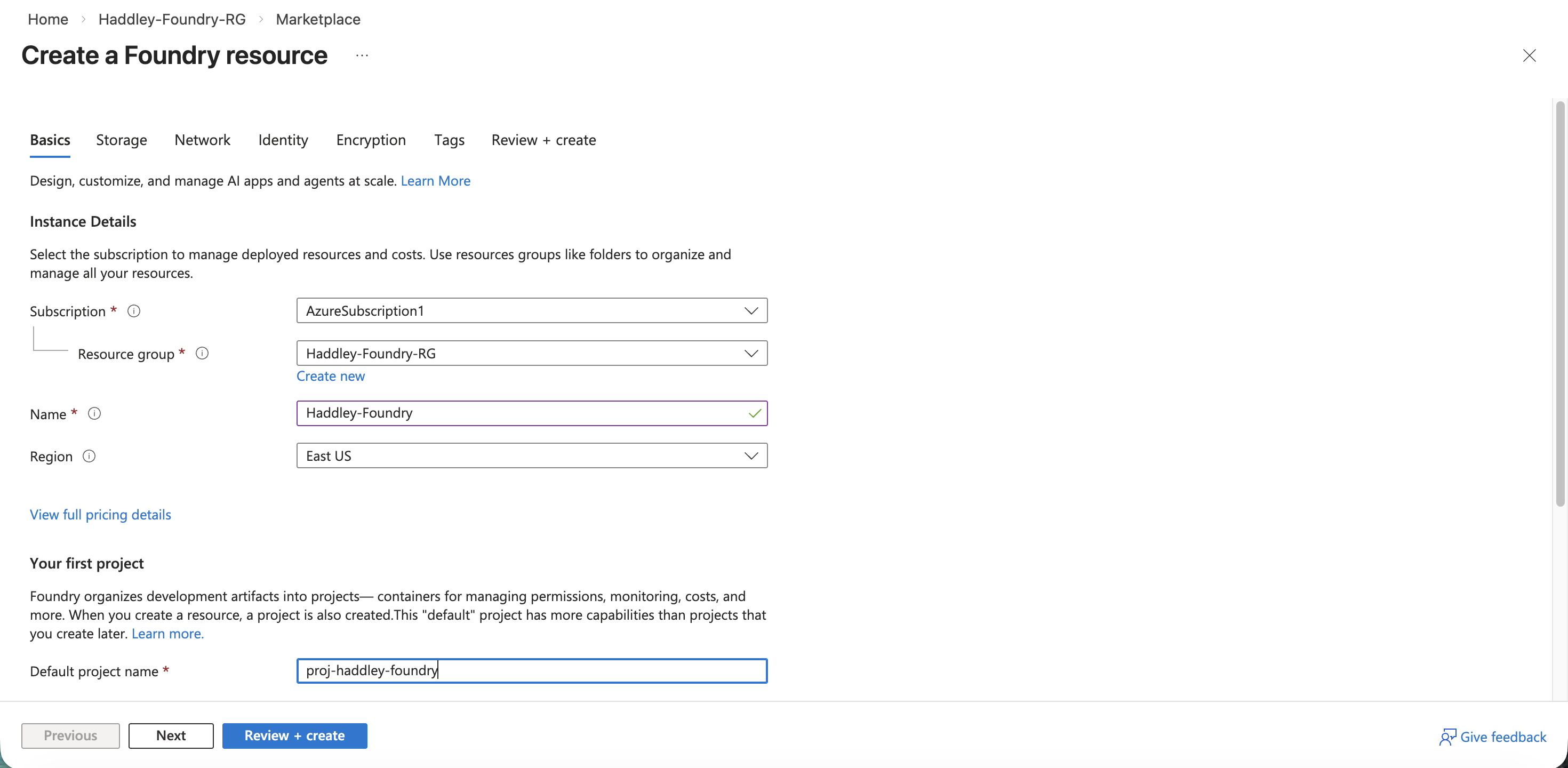
I filled in the Foundry resource details, naming the resource Haddley-Foundry with a default project of proj-haddley-foundry.
 Tap the image to open it full size
I entered the Foundry resource name and default project name
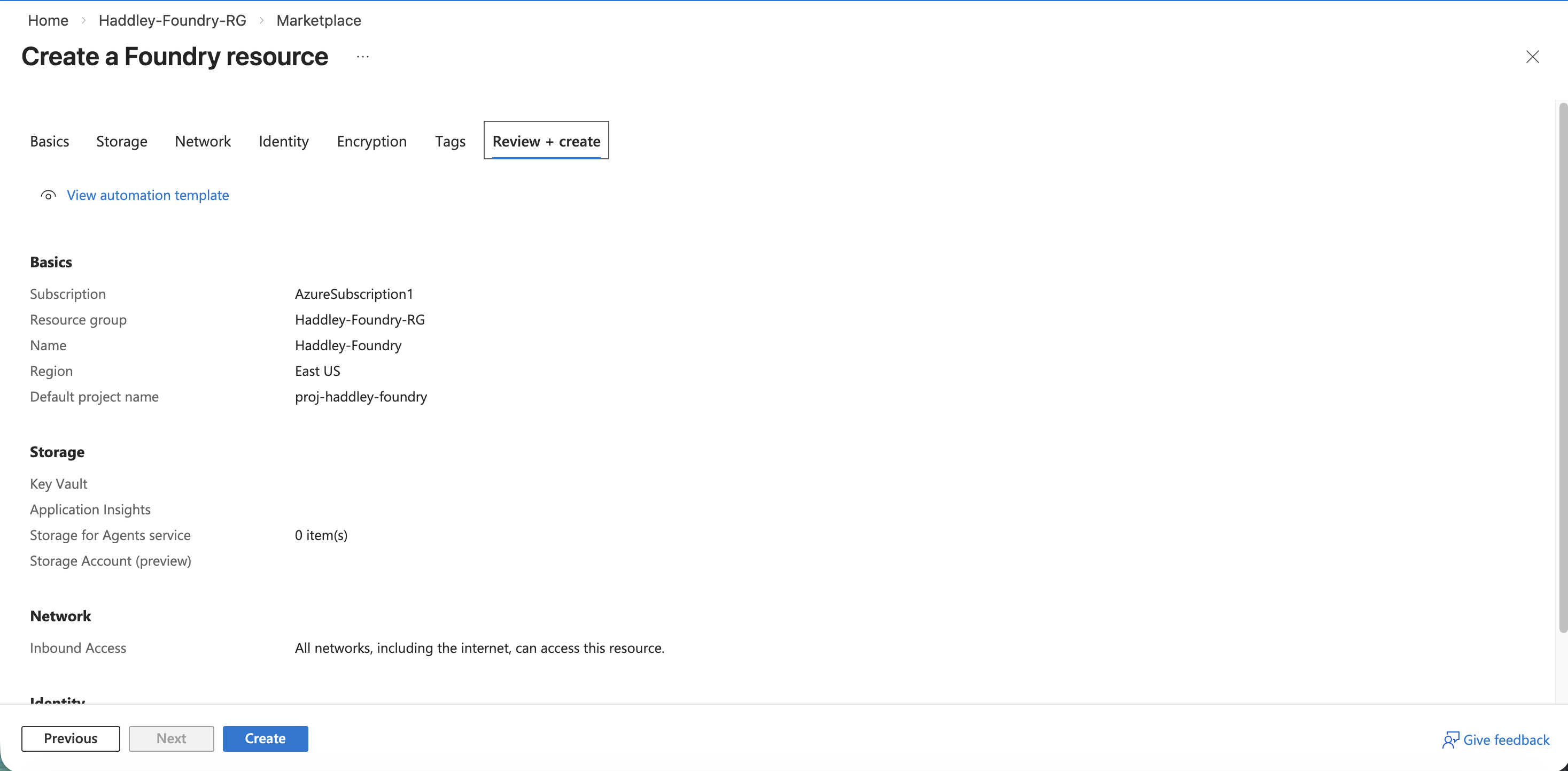
I reviewed the configuration and clicked Create.
 Tap the image to open it full size
I reviewed the Foundry resource settings before creating
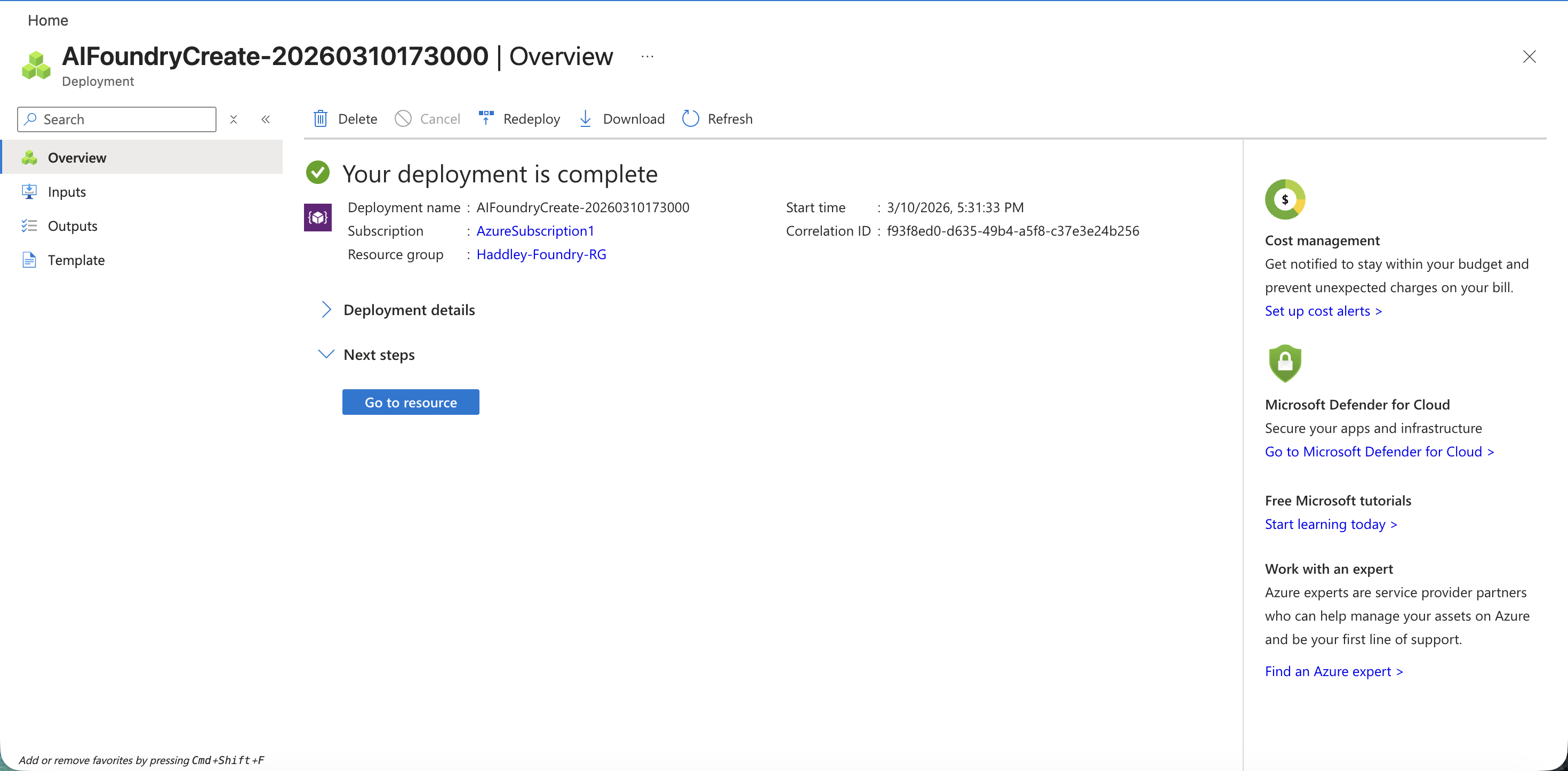
The Foundry deployment completed successfully.
 Tap the image to open it full size
The AIFoundry deployment completed
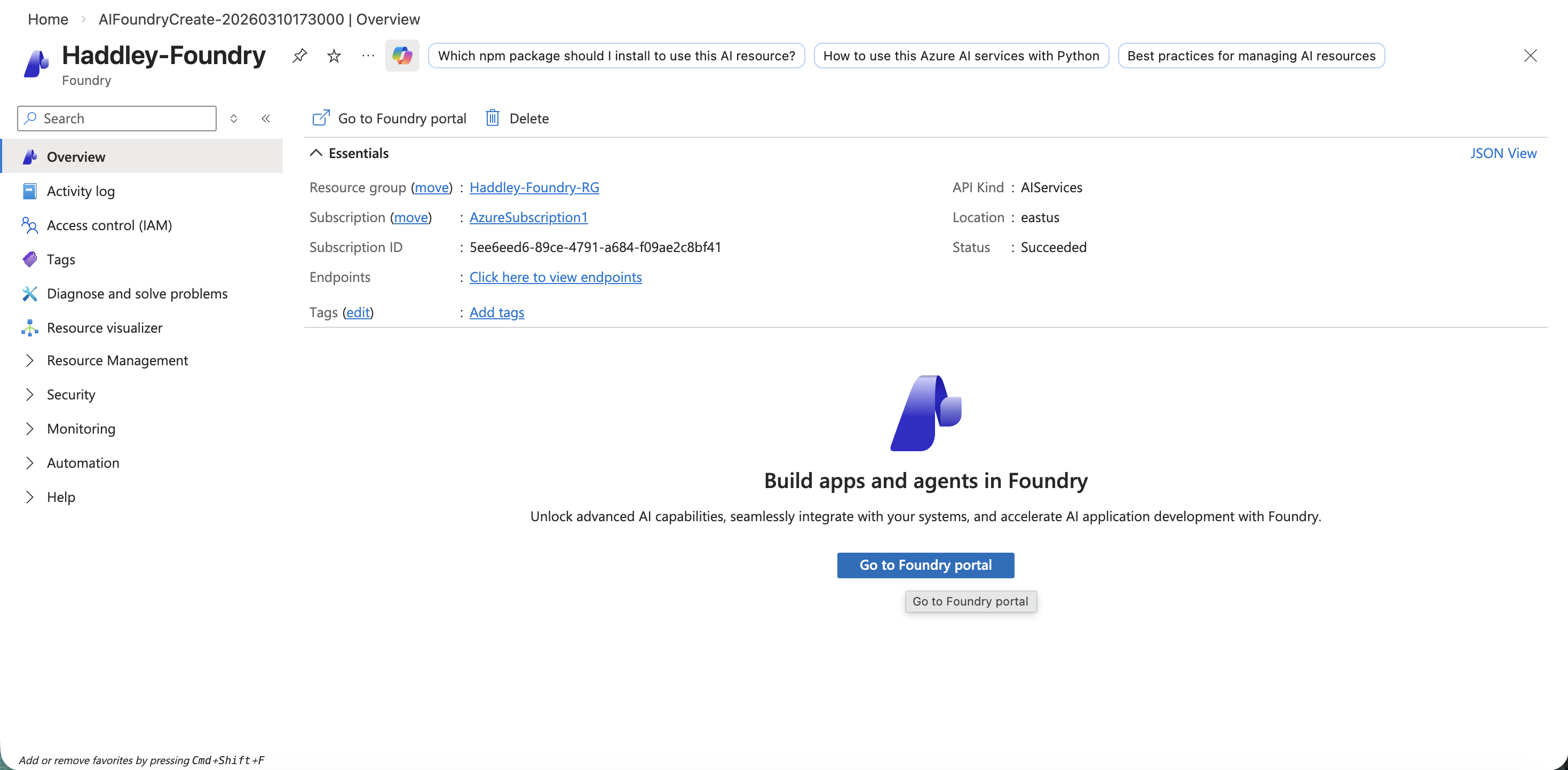
I navigated to the Foundry resource overview in the Azure portal.
 Tap the image to open it full size
The Haddley-Foundry resource overview with the Go to Foundry portal button
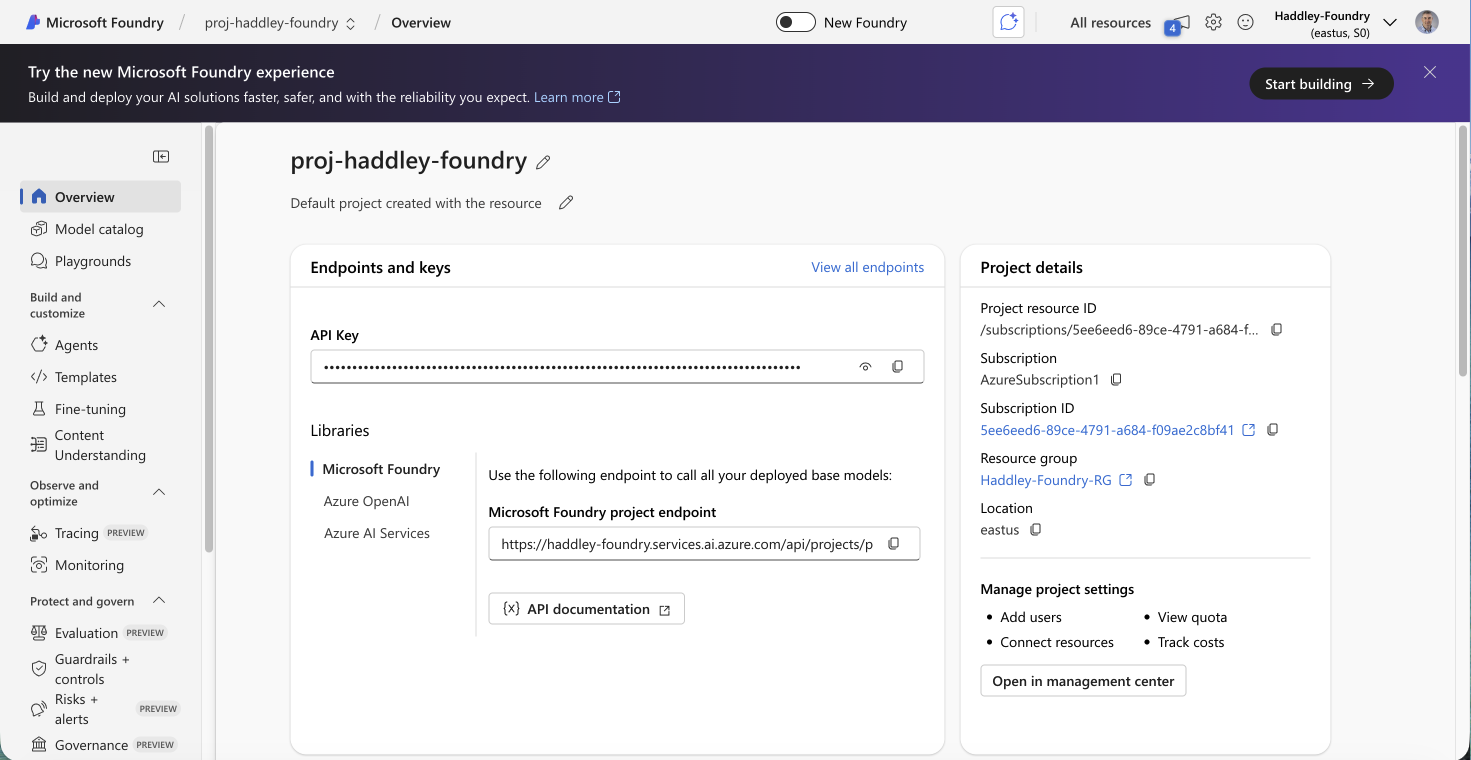
I opened the Microsoft Foundry portal and saw the project overview with the API key and endpoint details.
 Tap the image to open it full size
The proj-haddley-foundry project overview showing the API key, project endpoint, and Azure OpenAI endpoint
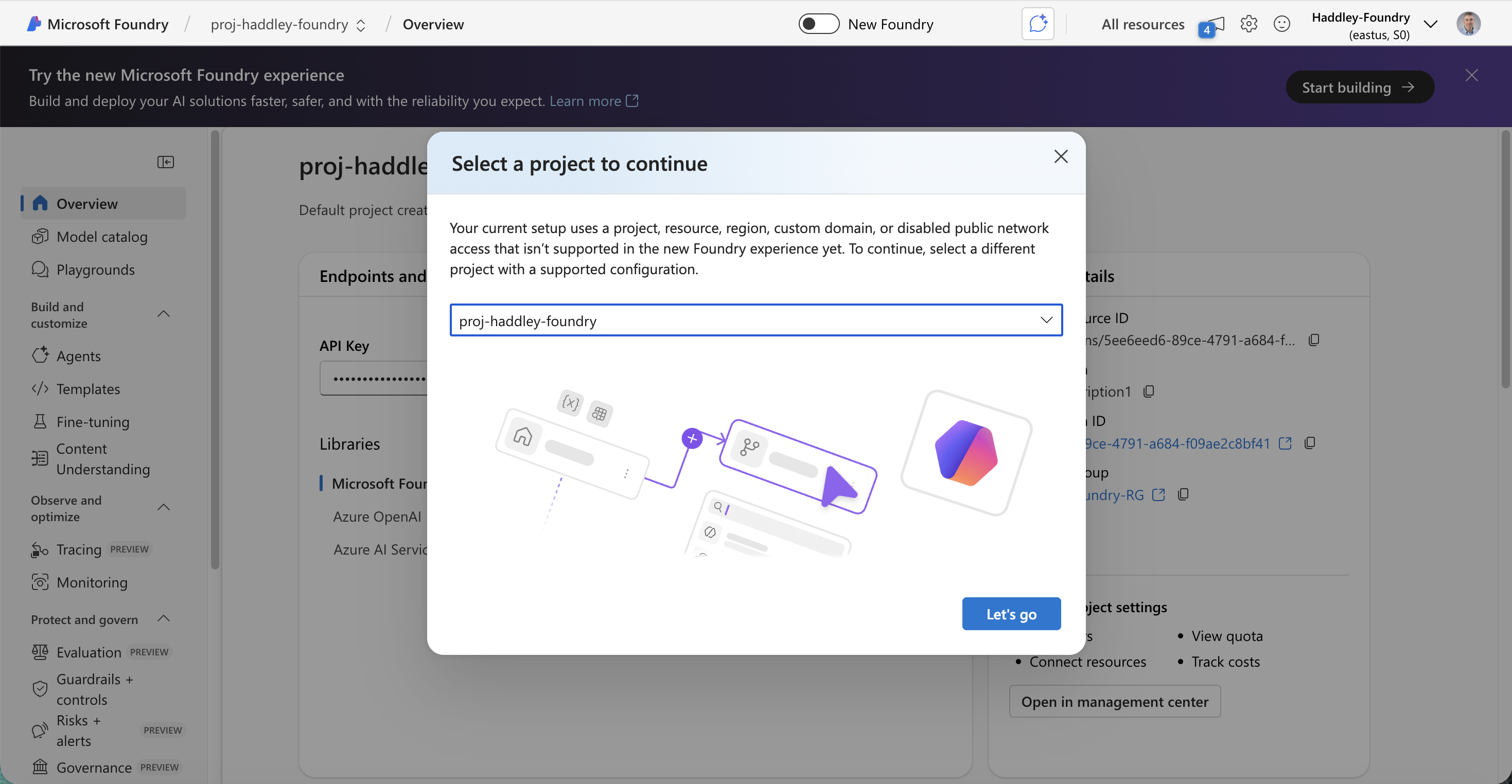
A dialog prompted me to select the project to continue with.
 Tap the image to open it full size
I selected proj-haddley-foundry to continue
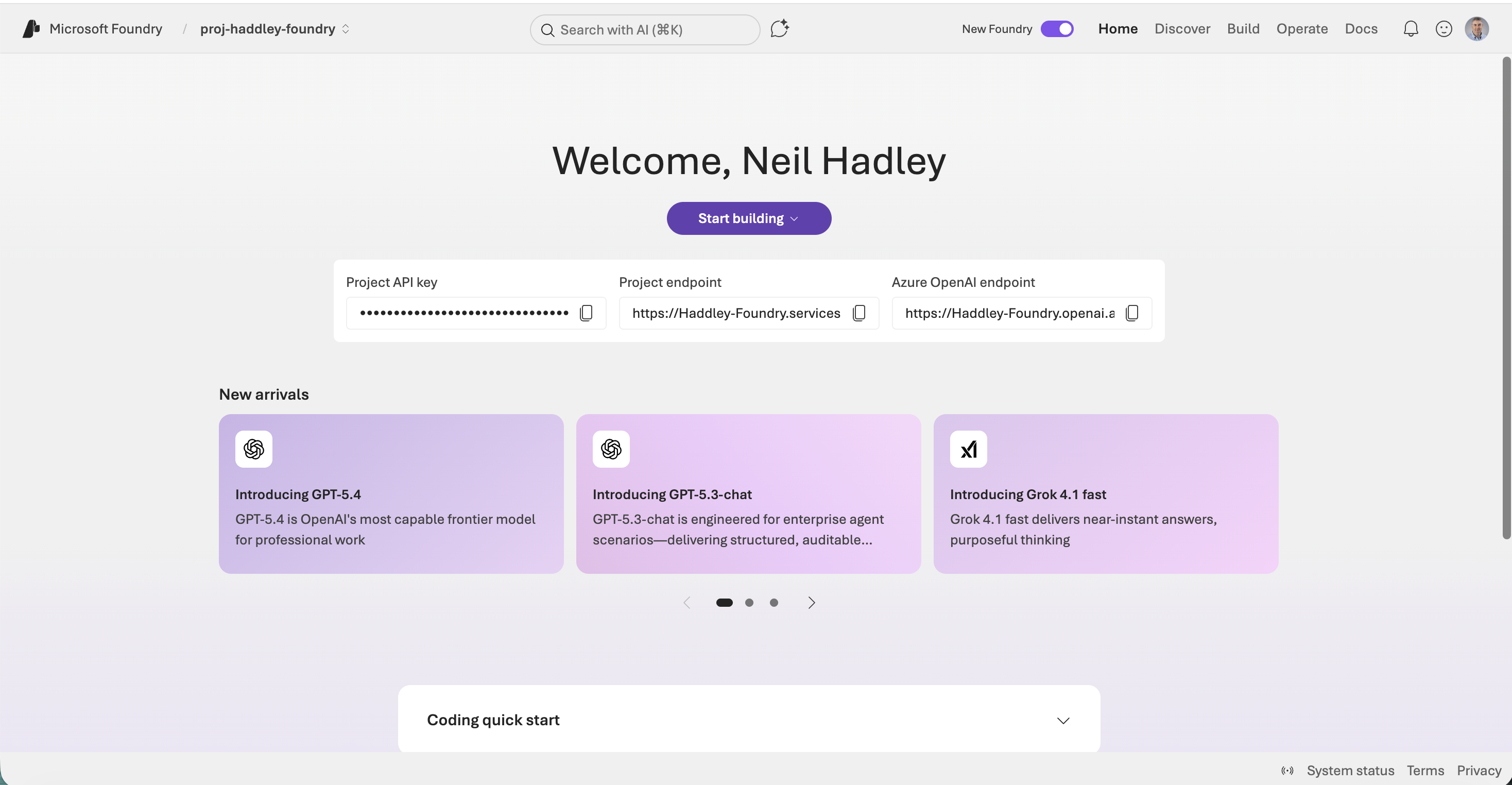
The Microsoft Foundry home page loaded, showing the latest model arrivals.
 Tap the image to open it full size
The Microsoft Foundry welcome page showing GPT-5.4, GPT-5.3-chat, and Grok 4.1 fast as new arrivals
Setting up Storage
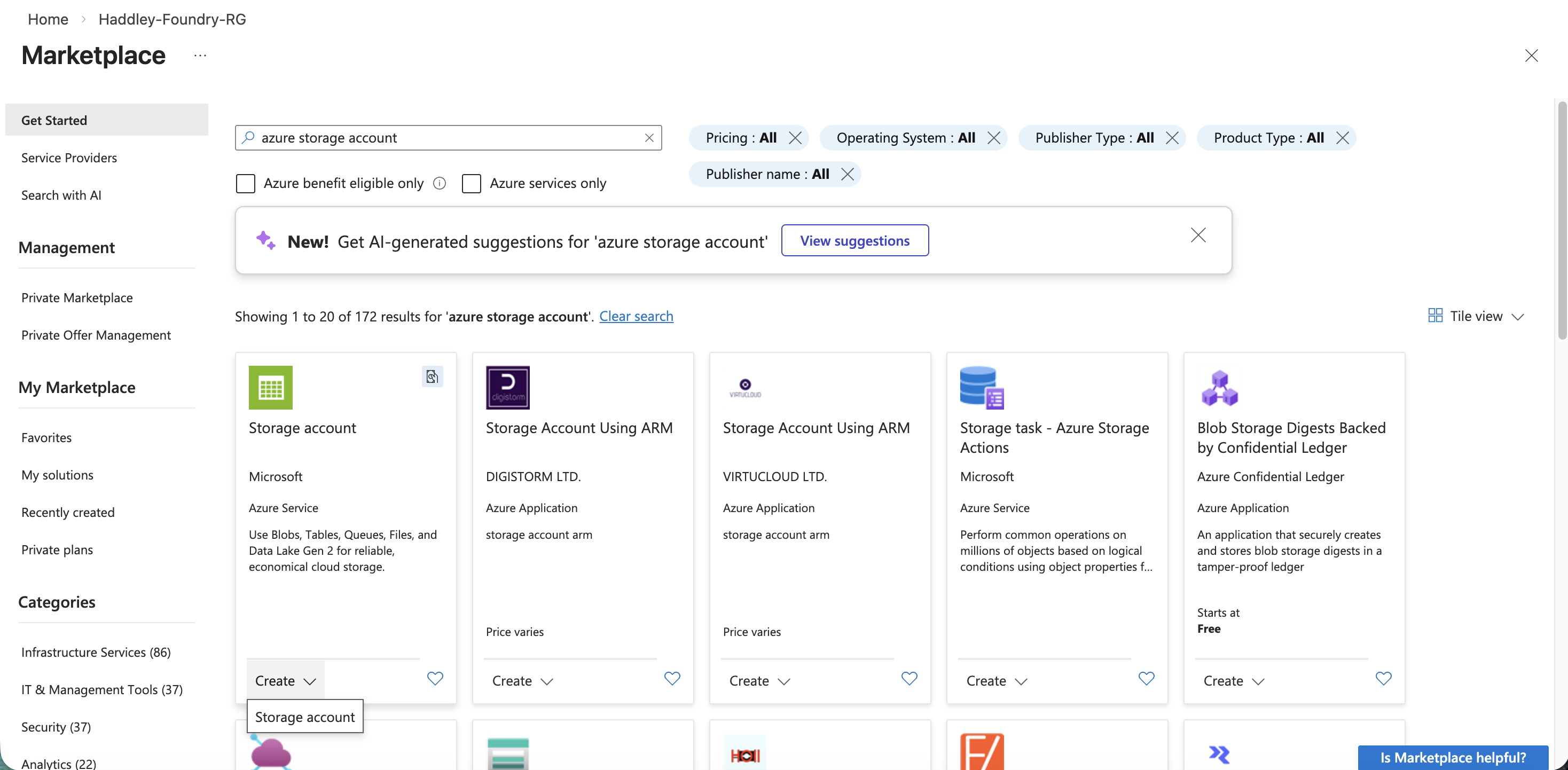
I returned to the Azure Marketplace and searched for a storage account to hold the documents I wanted to index.
 Tap the image to open it full size
I searched the Marketplace for "azure storage account"
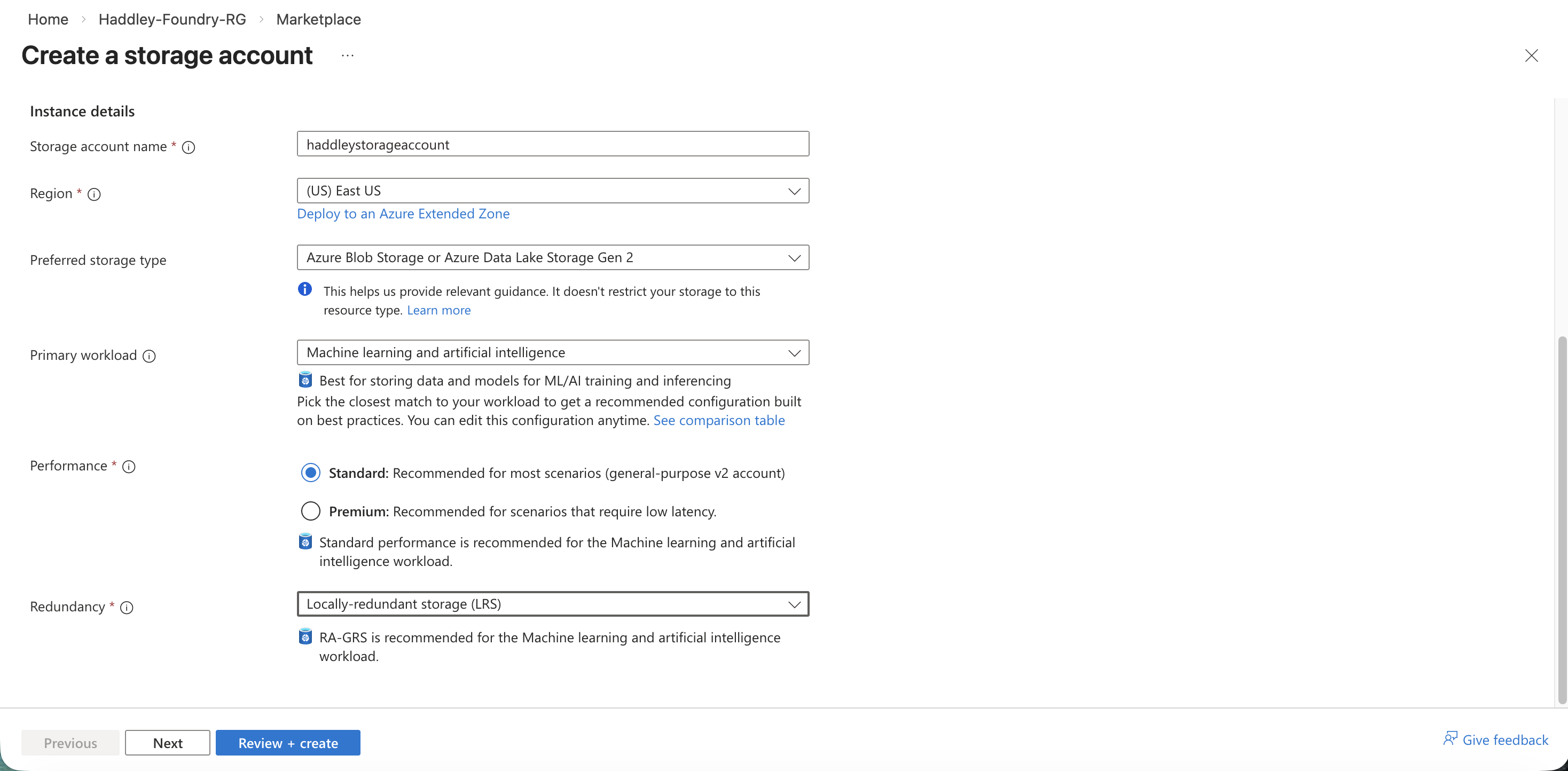
I configured a new storage account named haddleystorageaccount for machine learning workloads.
 Tap the image to open it full size
I created a storage account with the Machine learning and artificial intelligence workload type
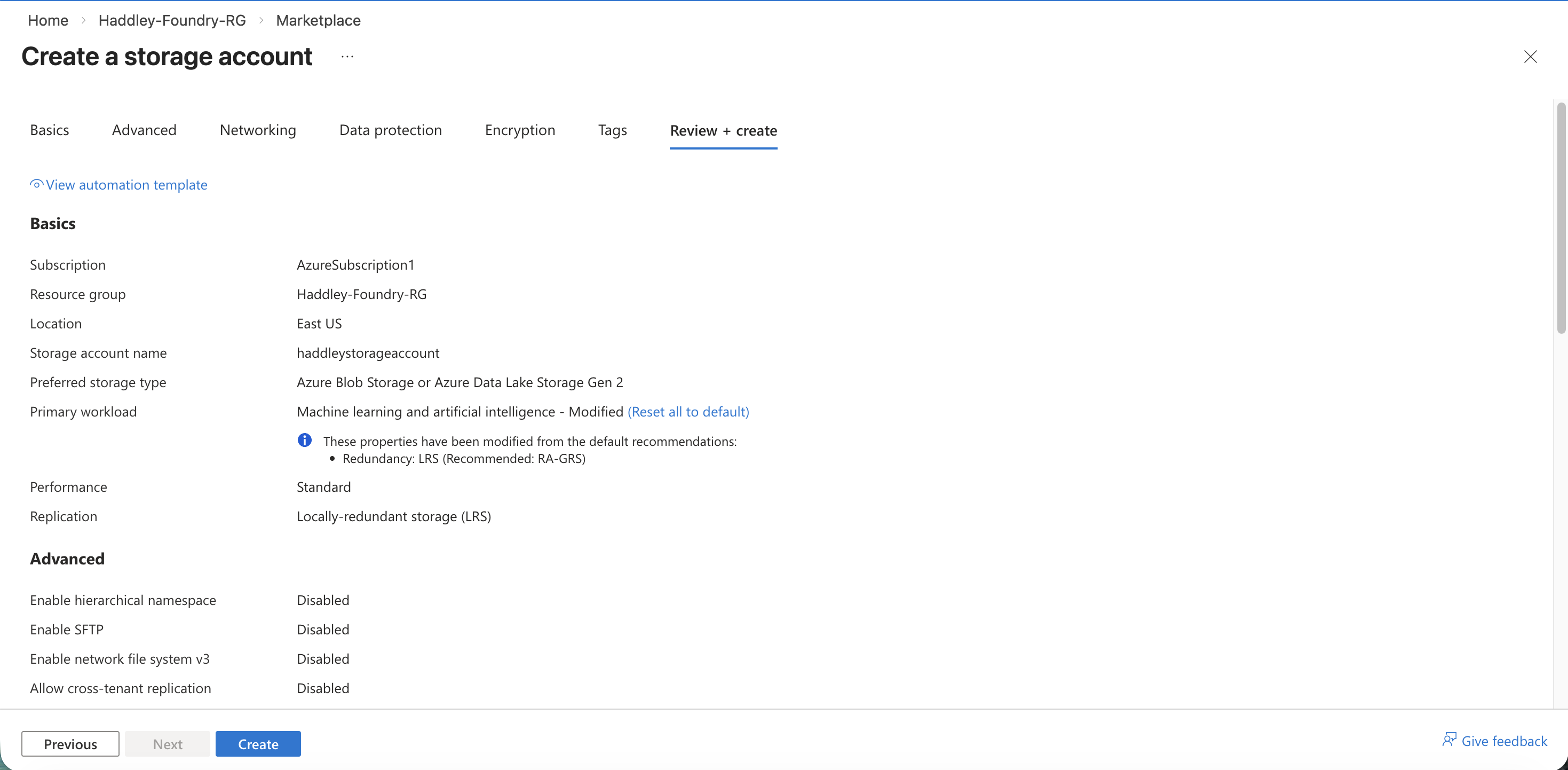
I reviewed the storage account settings and clicked Create.
 Tap the image to open it full size
I reviewed the storage account configuration before creating
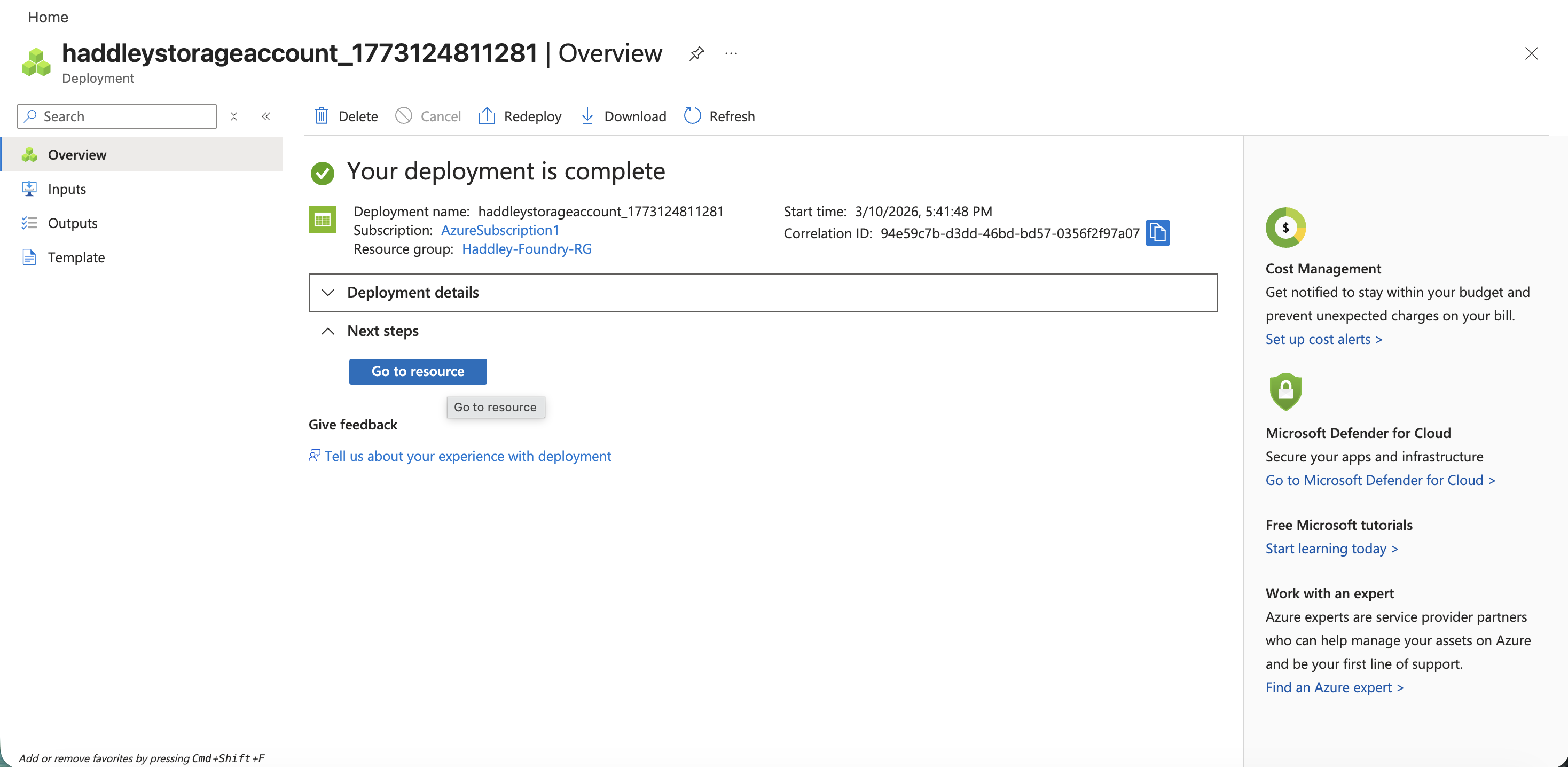
The storage account deployed successfully.
 Tap the image to open it full size
The storage account deployment completed
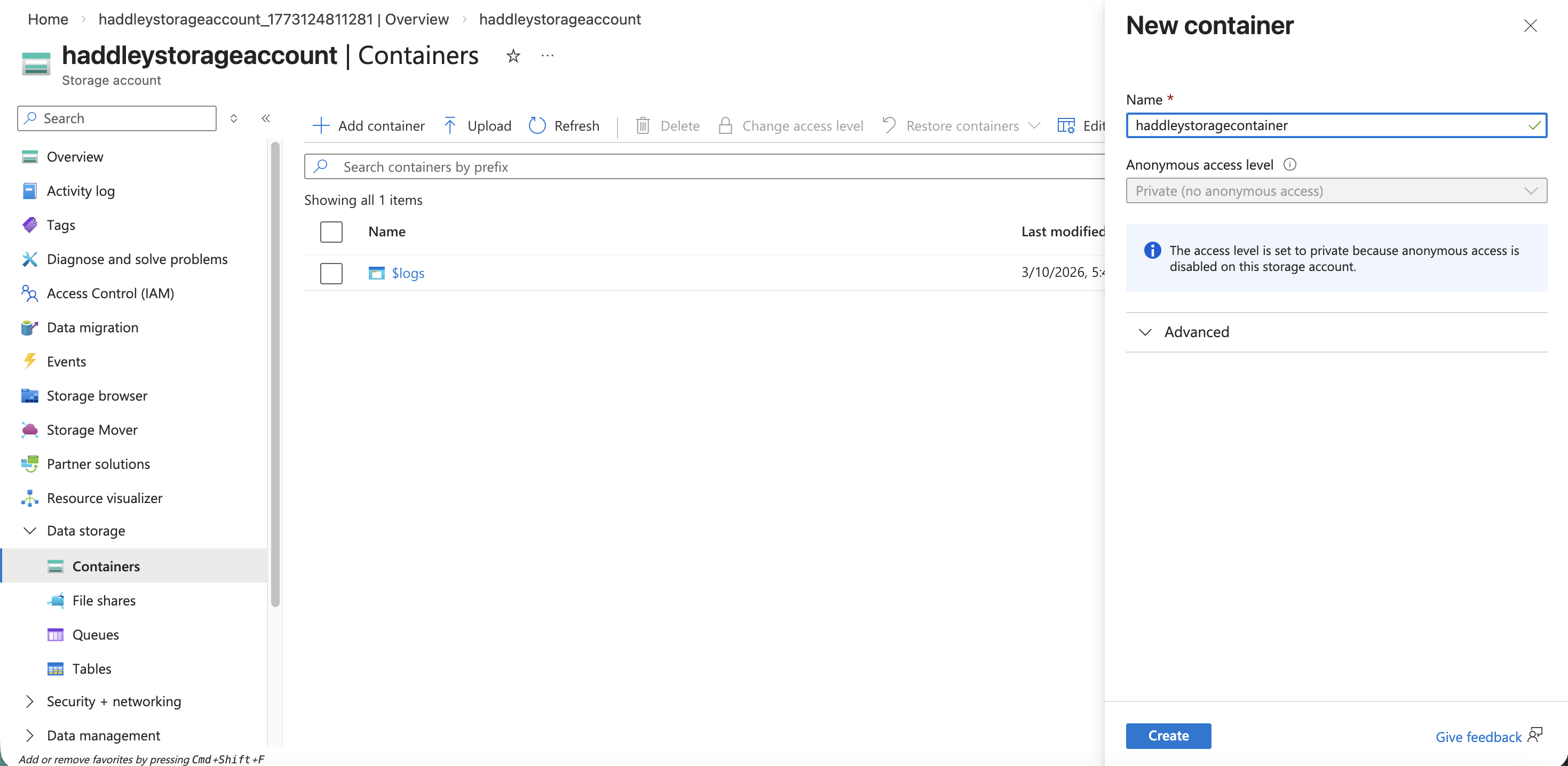
I created a new blob container named haddleystoragecontainer inside the storage account.
 Tap the image to open it full size
I created the haddleystoragecontainer blob container
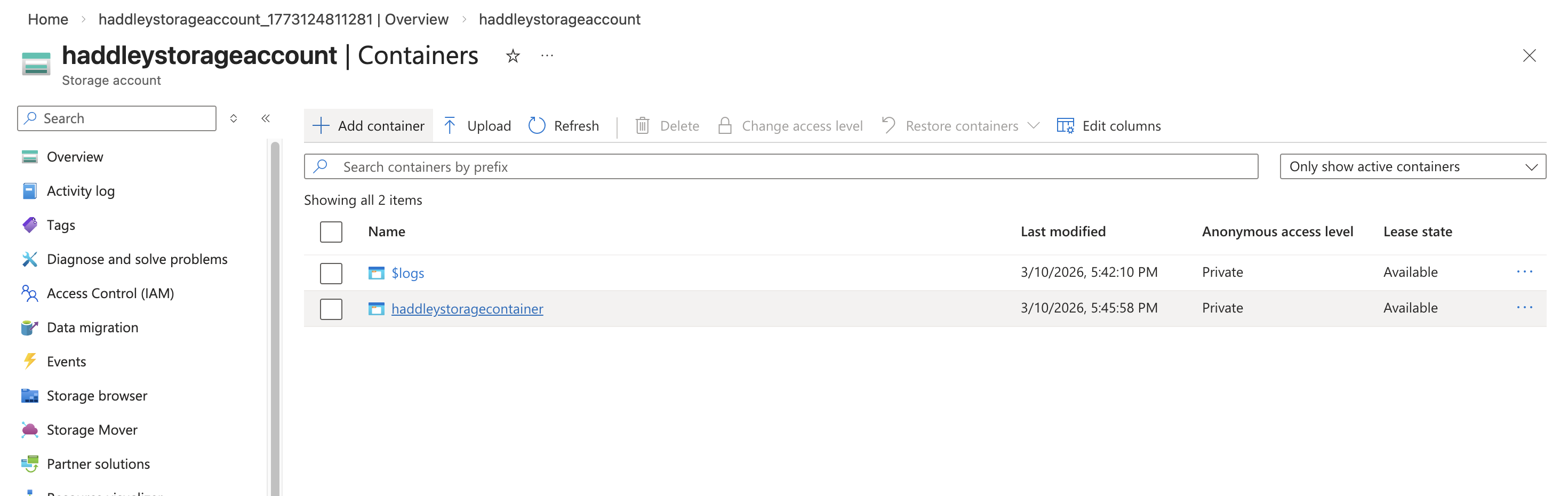
The container appeared in the list alongside the system $logs container.
 Tap the image to open it full size
Both containers are now listed in the storage account
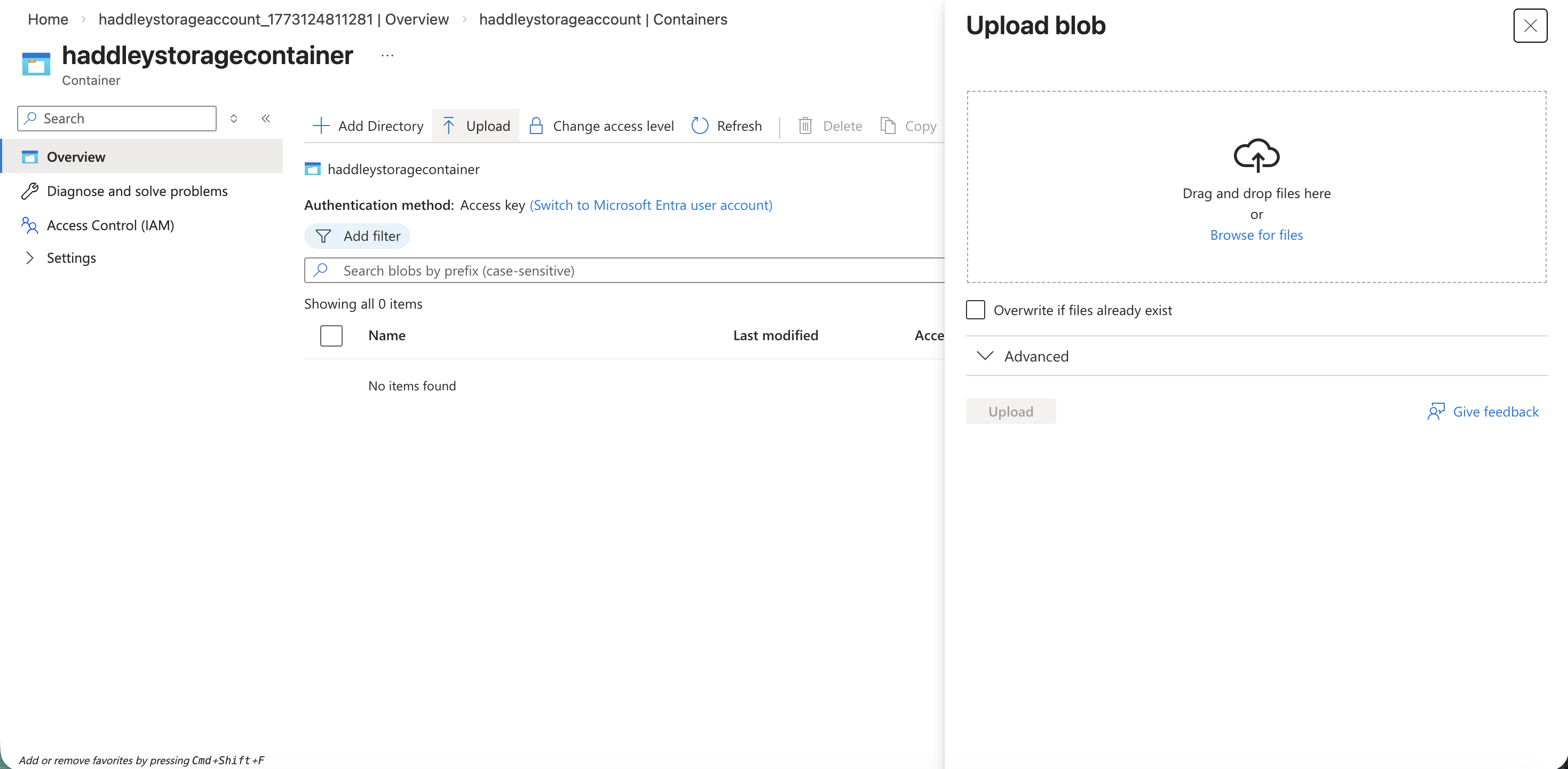
I opened the container and prepared to upload files.
 Tap the image to open it full size
I opened the Upload blob panel in the empty container
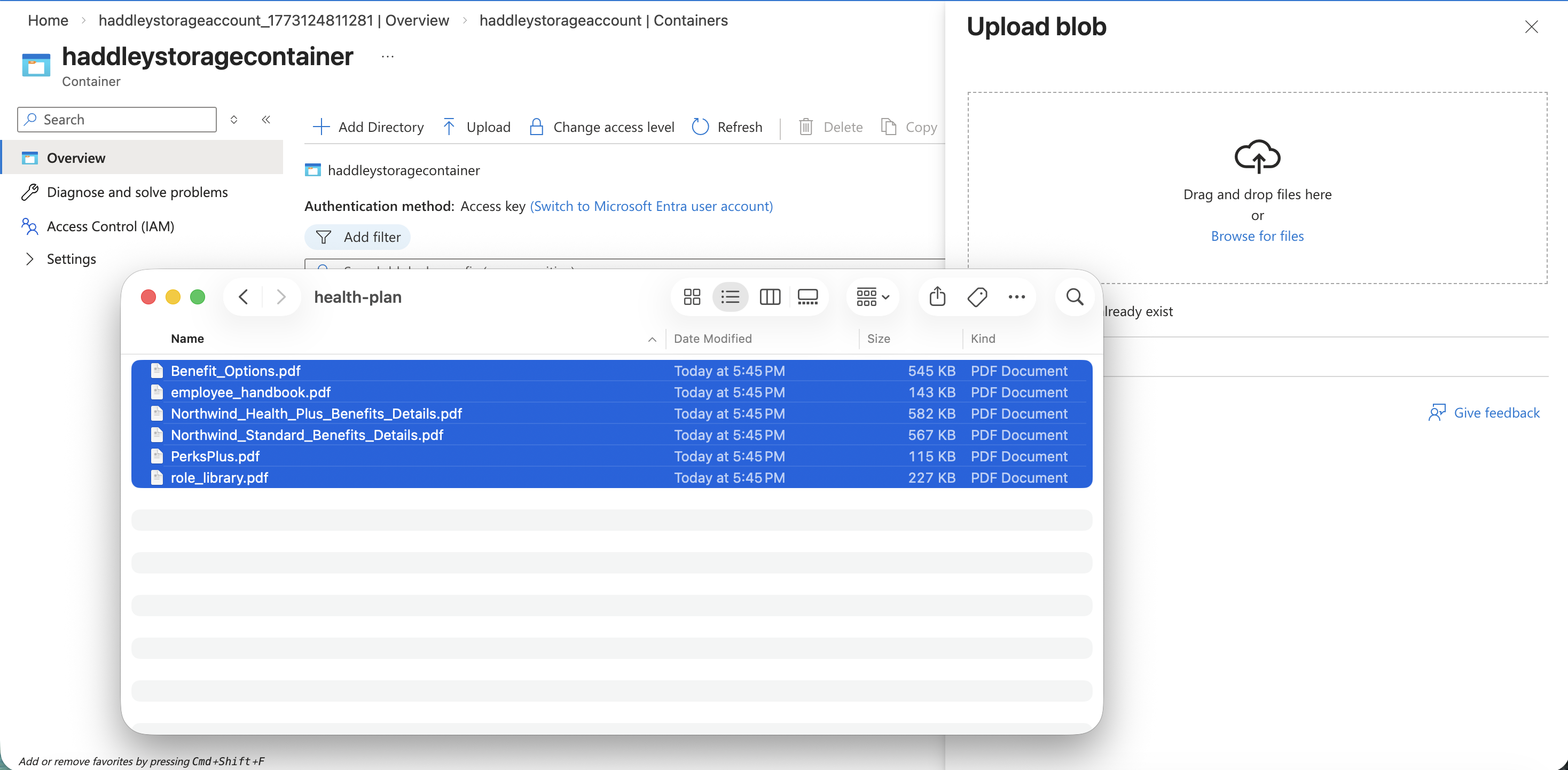
I selected the health-plan PDF documents from my local machine to upload.
 Tap the image to open it full size
I selected six health-plan PDF files from my local health-plan folder
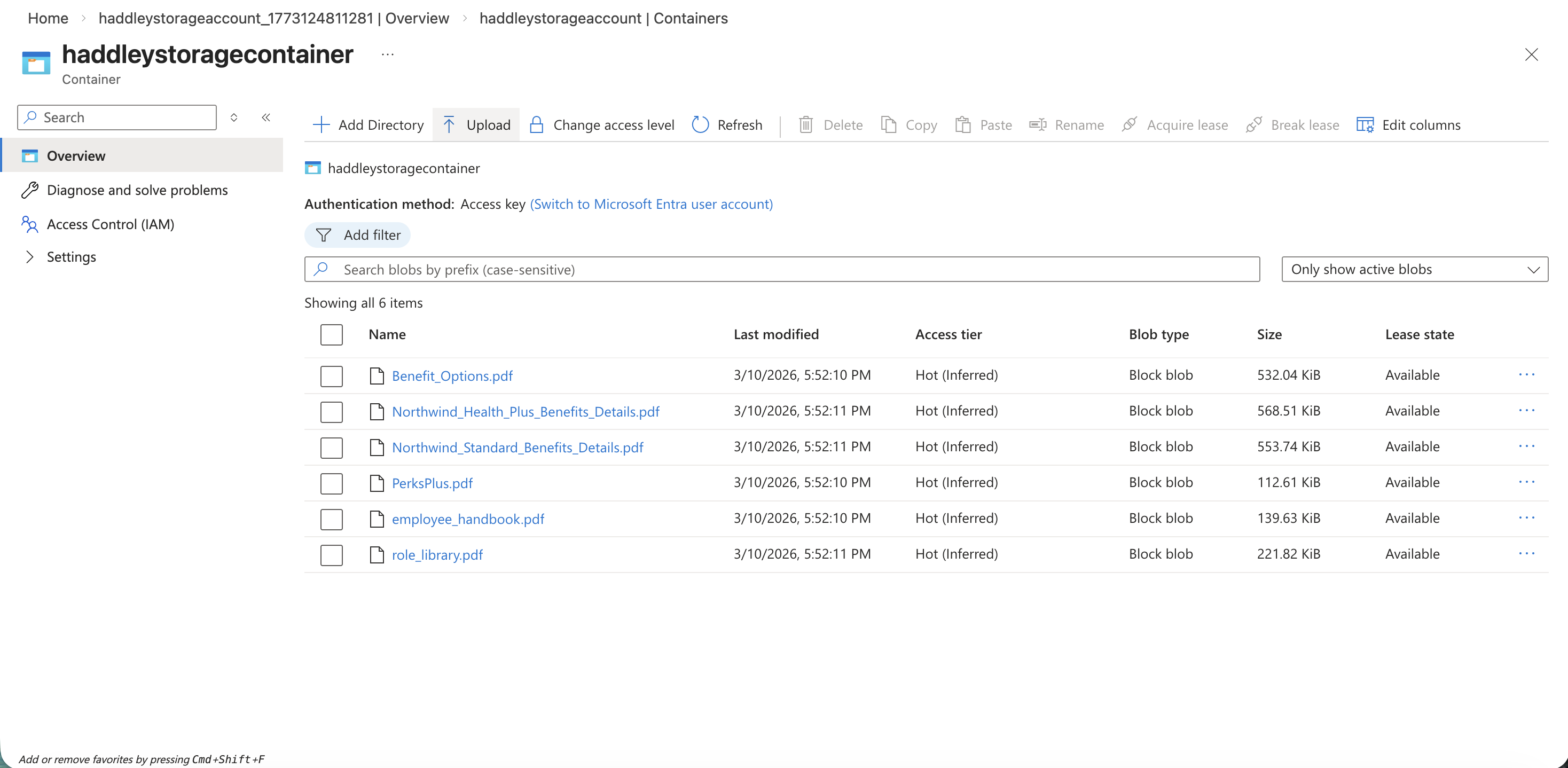
All six PDFs uploaded successfully to the container.
 Tap the image to open it full size
The six health-plan PDF blobs are now stored in haddleystoragecontainer
Deploying an Embedding Model
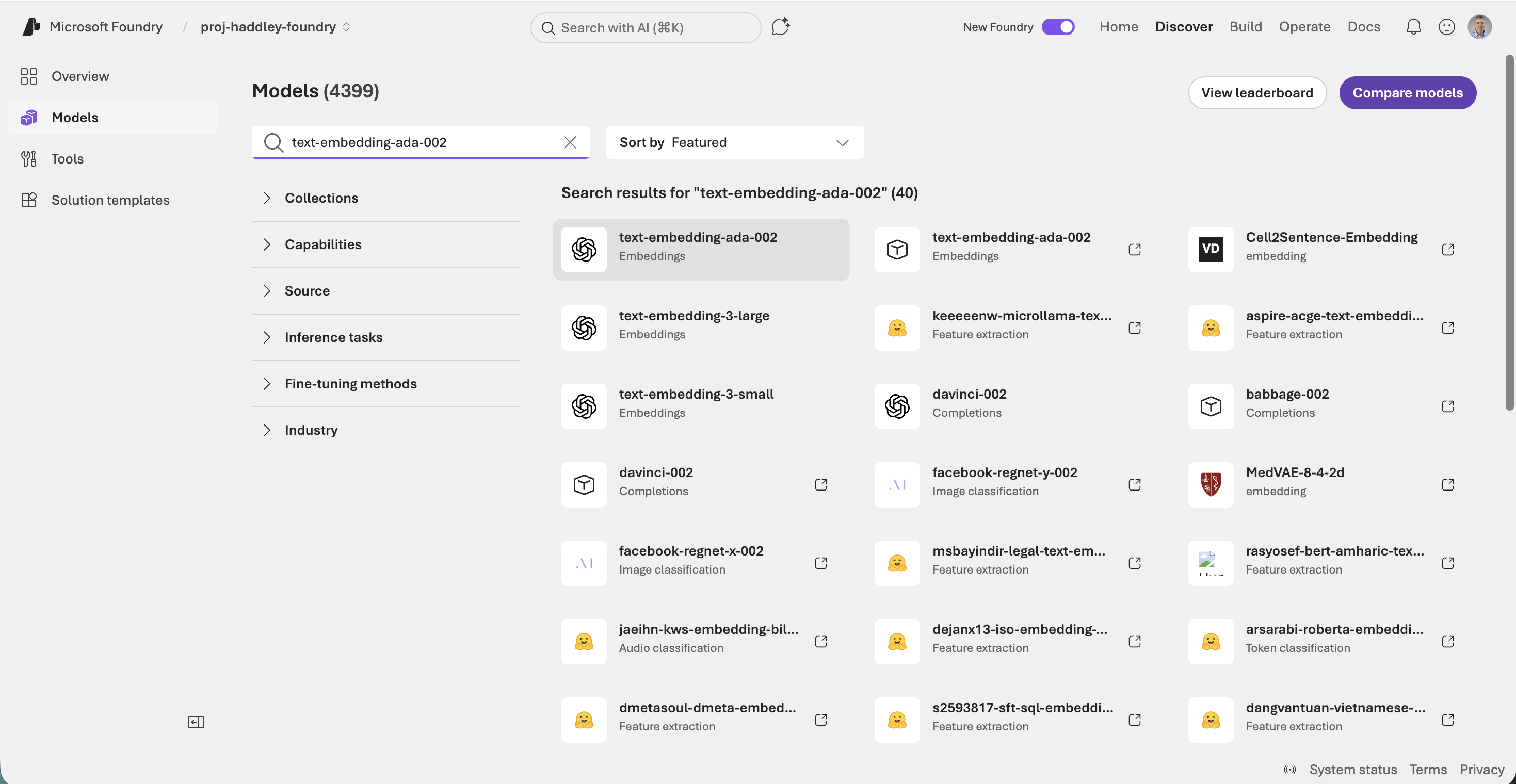
I searched the Microsoft Foundry model catalog for the text-embedding-ada-002 model.
 Tap the image to open it full size
I searched for "text-embedding-ada-002" in the Foundry model catalog
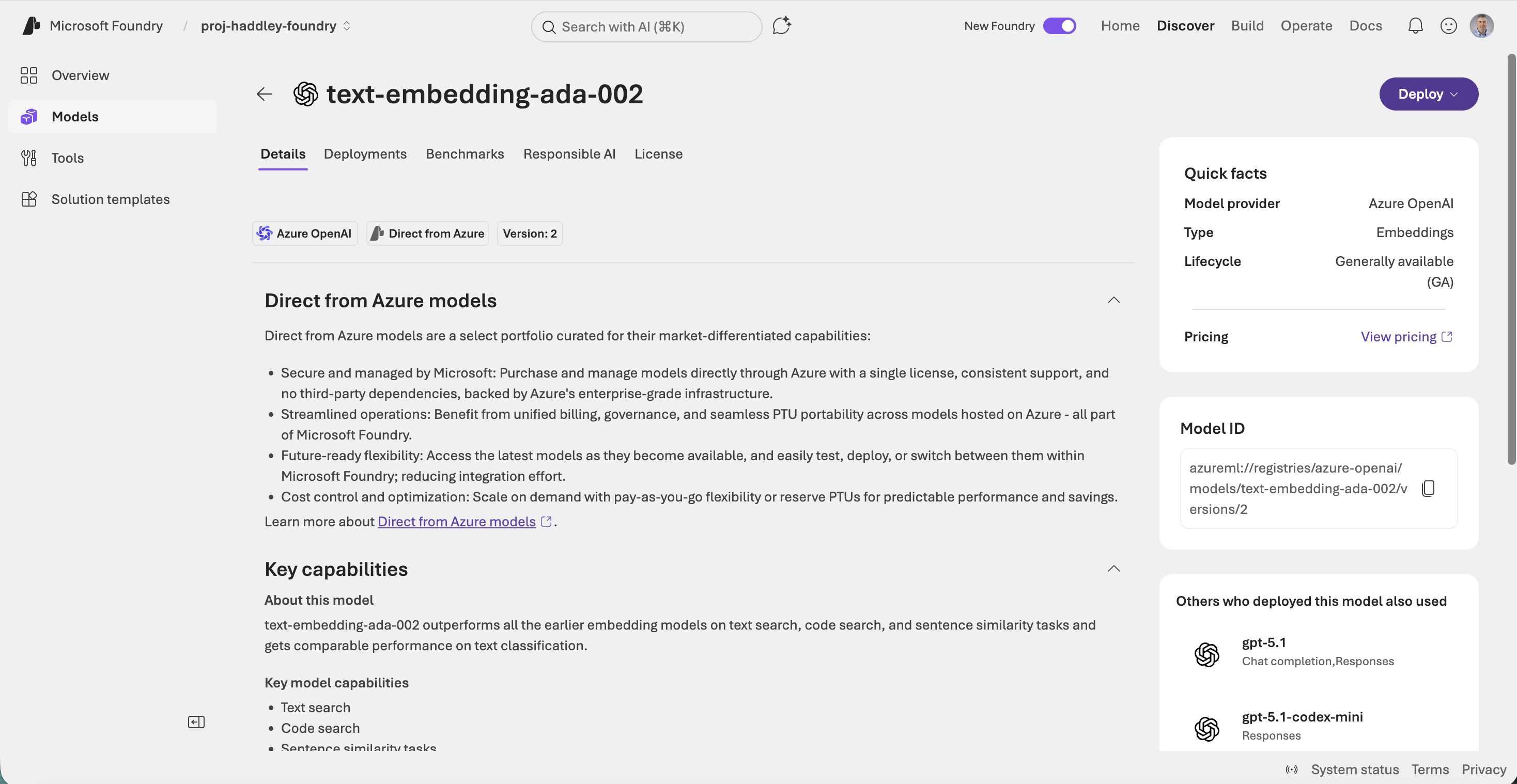
I reviewed the text-embedding-ada-002 model details page.
 Tap the image to open it full size
The text-embedding-ada-002 model detail page showing it is a Direct from Azure model provided by Azure OpenAI
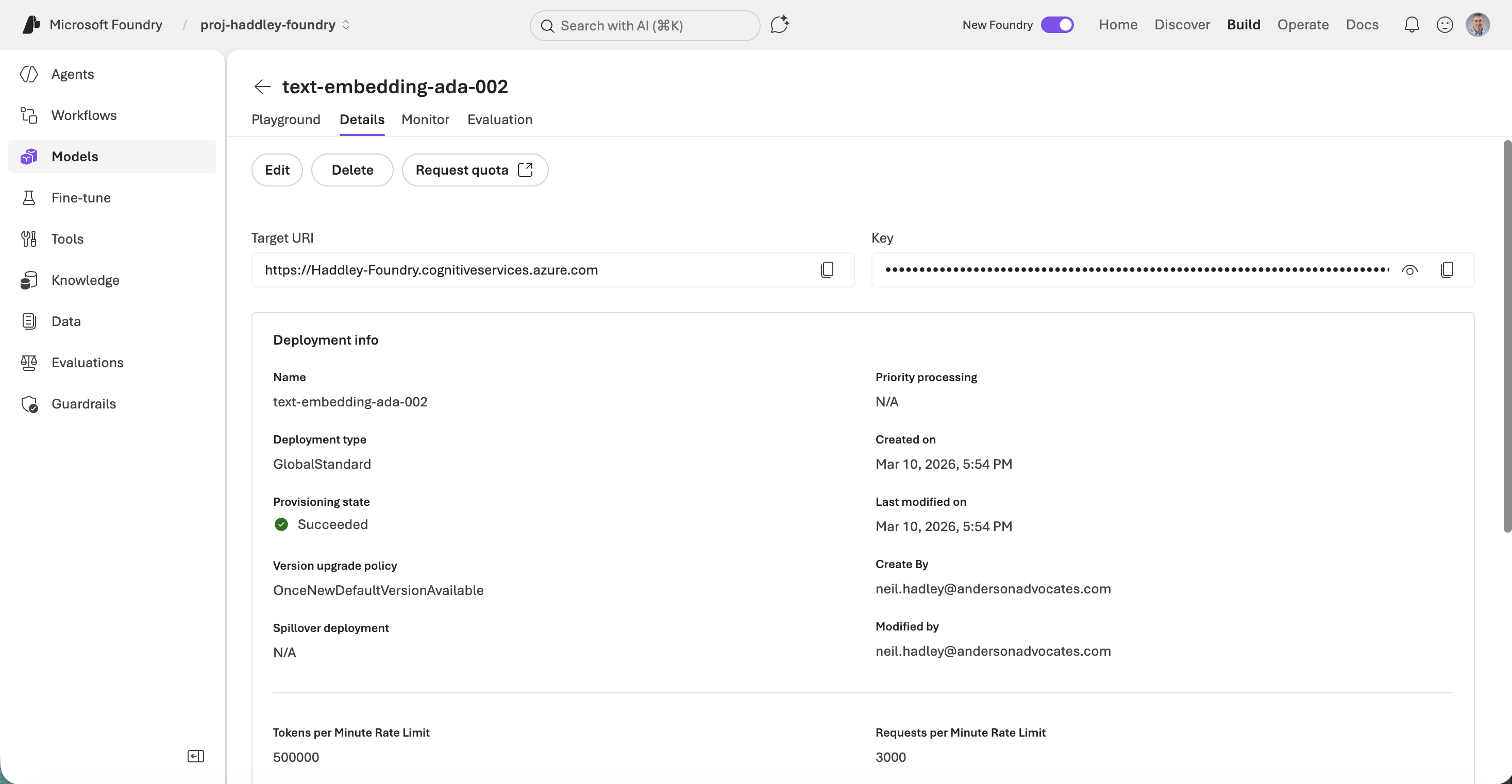
The model deployed successfully with a 500,000 tokens-per-minute rate limit.
 Tap the image to open it full size
The text-embedding-ada-002 deployment details showing Target URI and provisioning state Succeeded
Creating an Azure AI Search Service
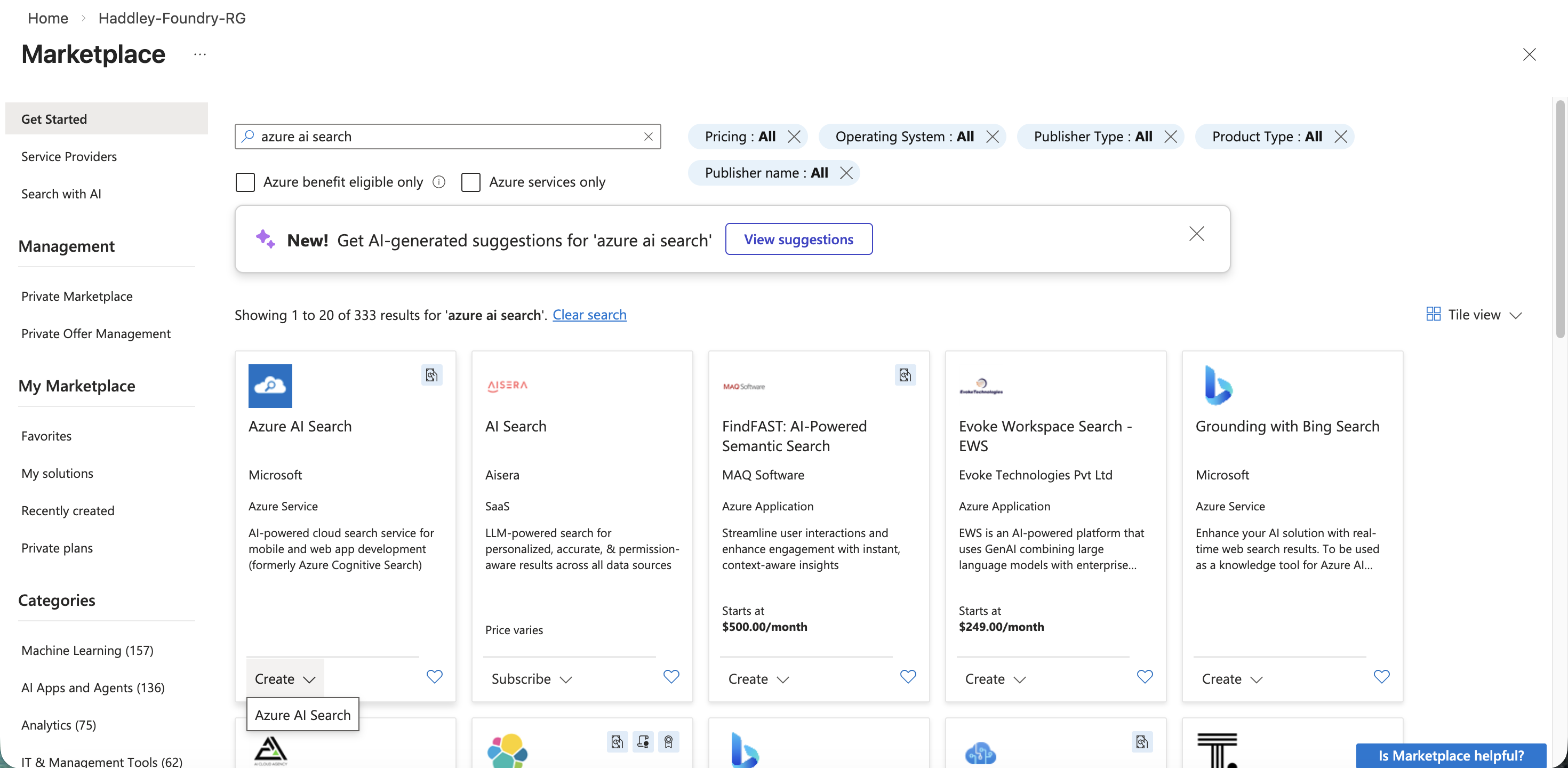
I searched the Marketplace for Azure AI Search to create a search index.
 Tap the image to open it full size
I searched the Marketplace for "azure ai search"
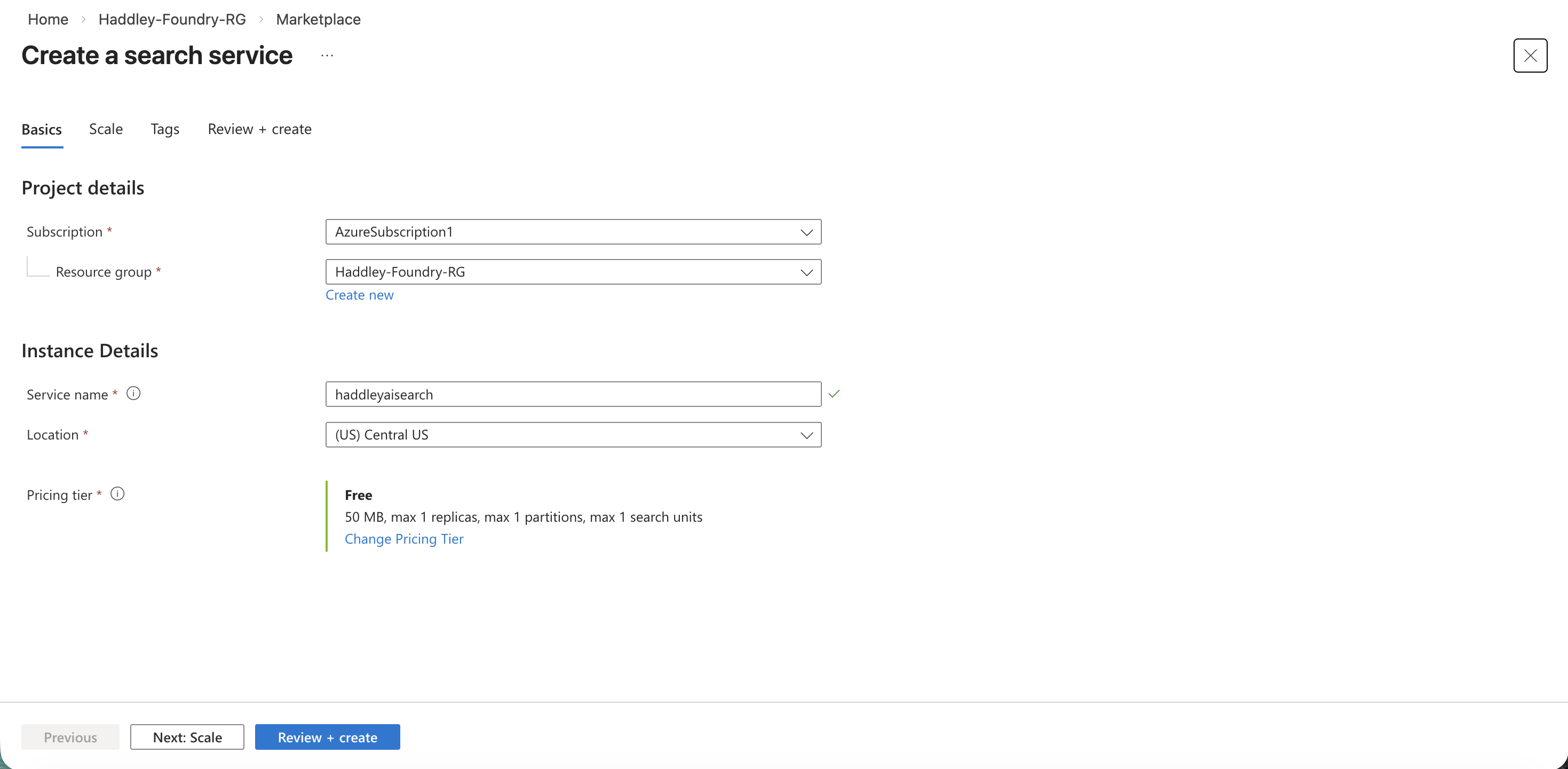
I configured a search service named haddleyaisearch on the Free pricing tier.
 Tap the image to open it full size
I created the haddleyaisearch service in Central US on the Free tier
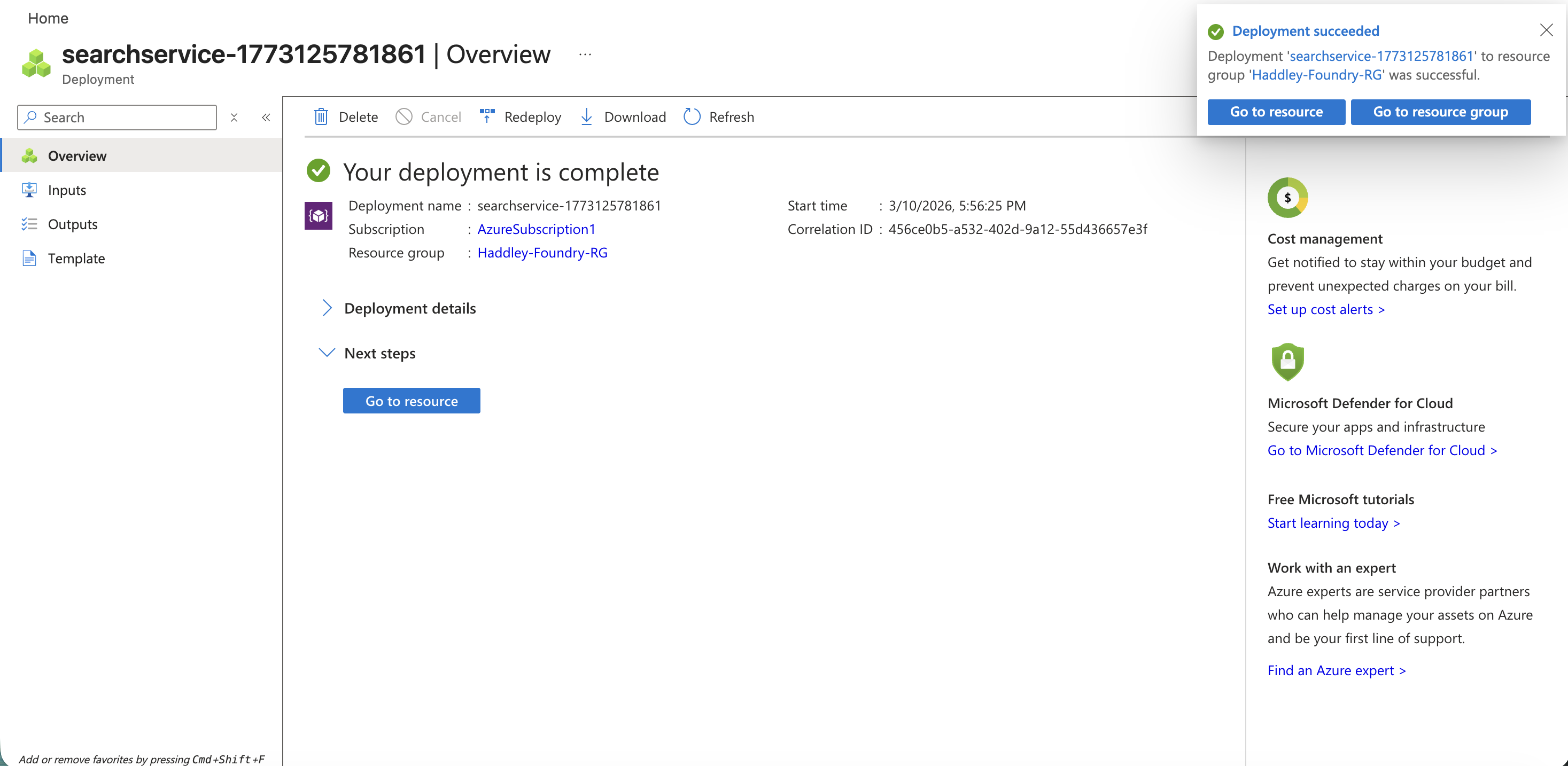
The search service deployed successfully.
 Tap the image to open it full size
The search service deployment completed successfully
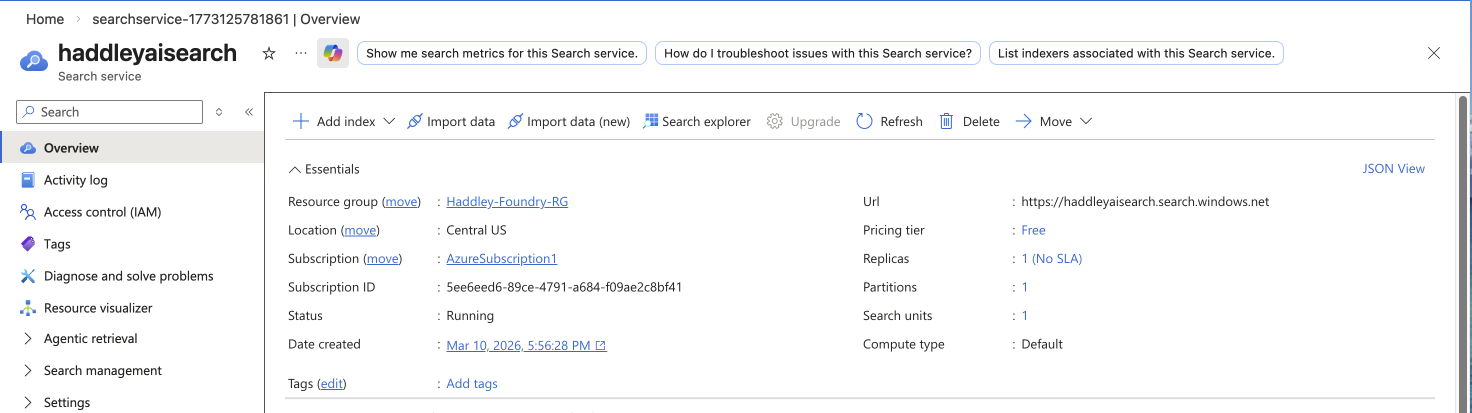
I viewed the haddleyaisearch overview showing the service is Running.
 Tap the image to open it full size
The haddleyaisearch service overview showing Running status and the search endpoint URL
Indexing with RAG
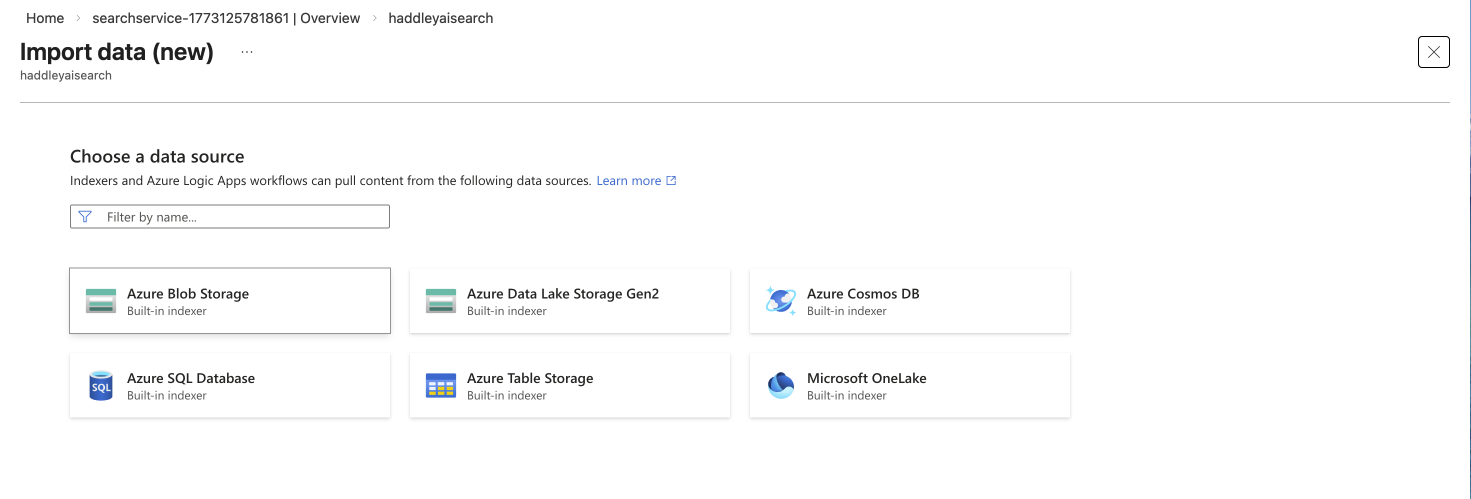
I clicked Import data (new) and selected Azure Blob Storage as the data source.
 Tap the image to open it full size
I selected Azure Blob Storage as the data source for the import wizard
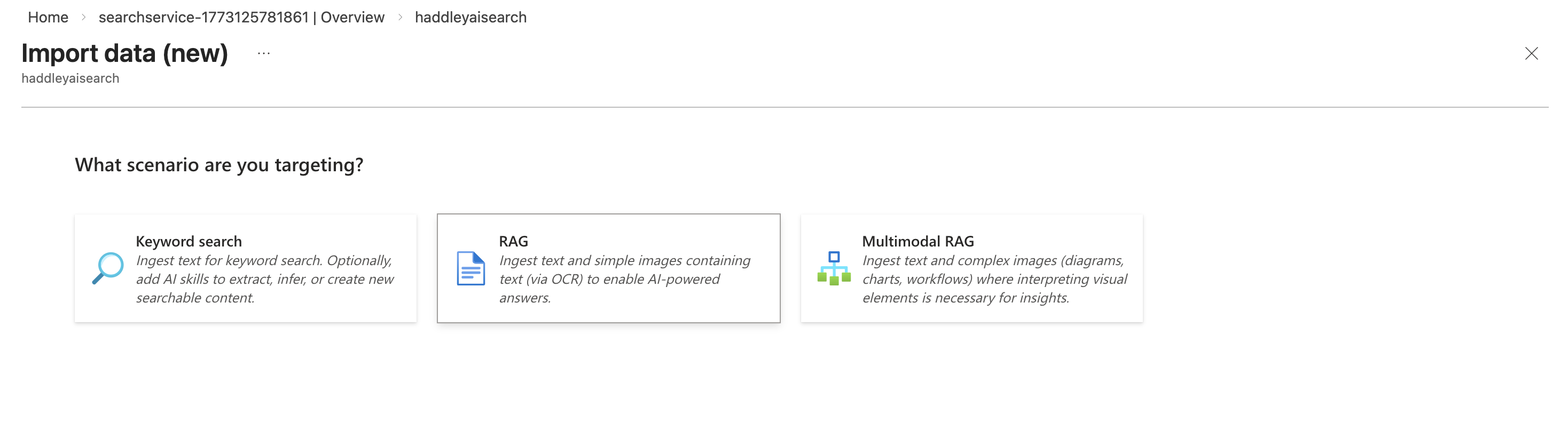
I selected RAG as the scenario to enable AI-powered answers.
 Tap the image to open it full size
I selected the RAG scenario to ingest text for AI-powered answers
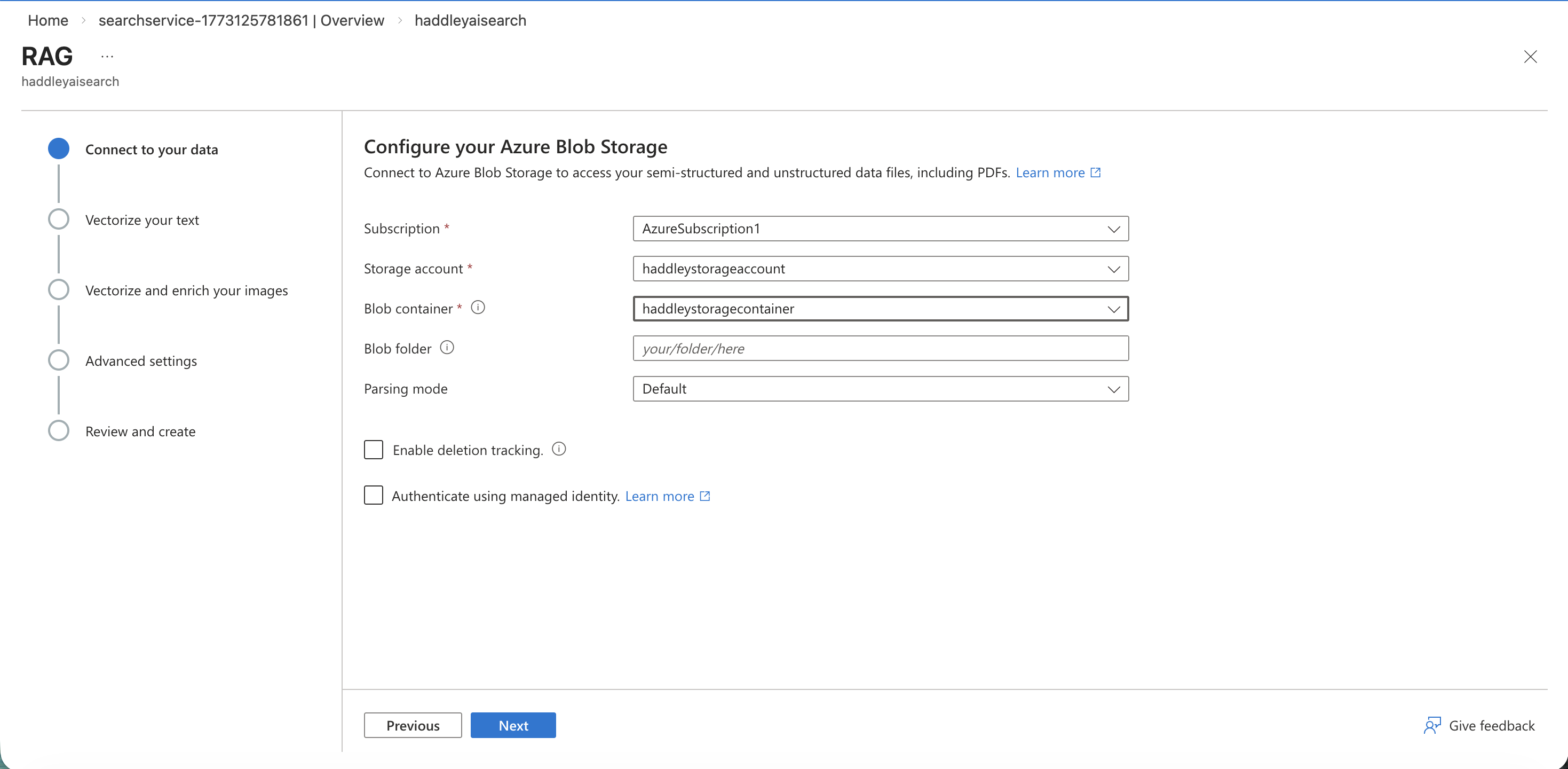
I connected the wizard to my haddleystoragecontainer.
 Tap the image to open it full size
I configured the Azure Blob Storage connection to haddleystoragecontainer
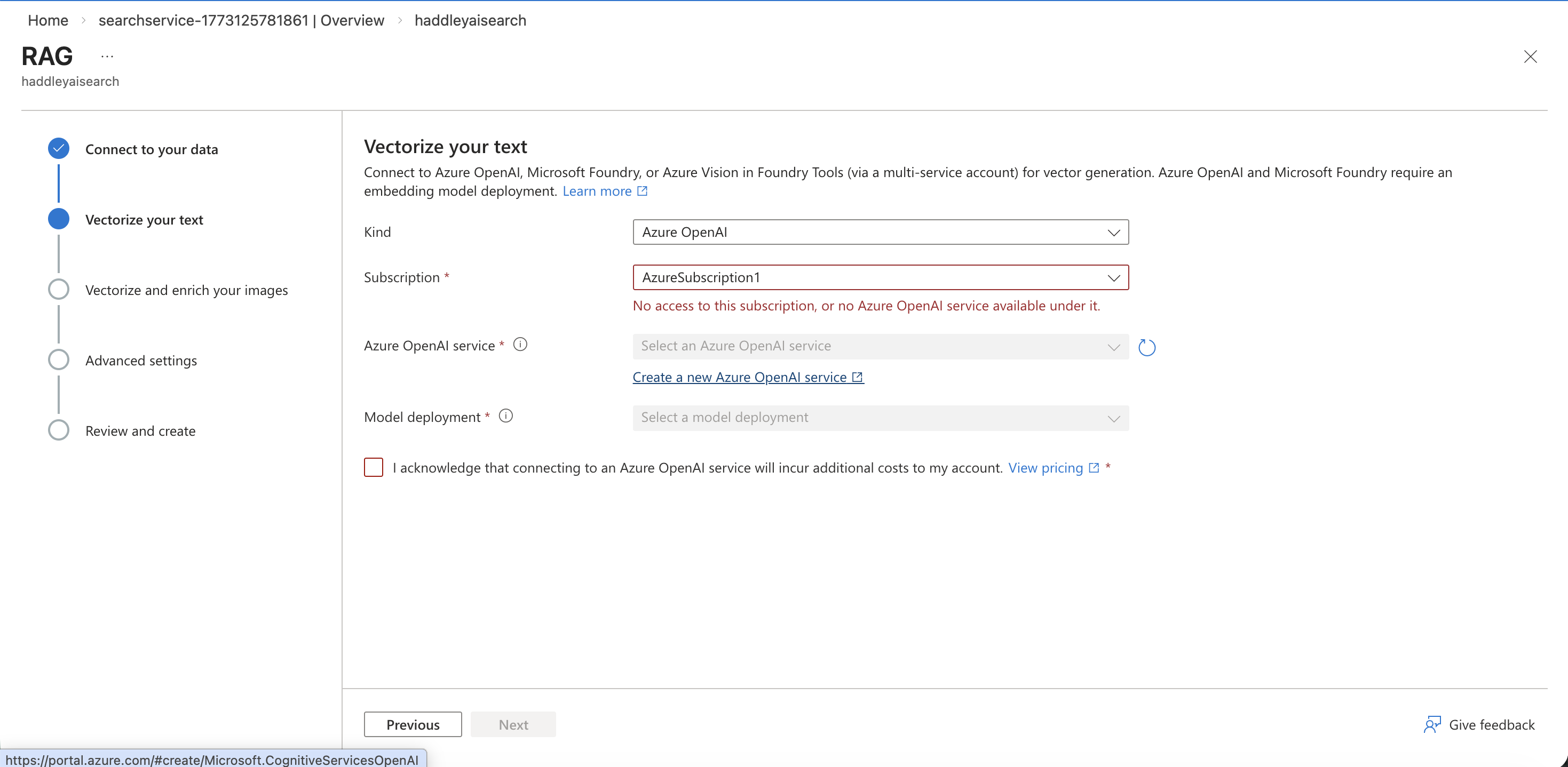
The vectorization step initially showed no Azure OpenAI service available, so I needed to create one.
 Tap the image to open it full size
The Vectorize your text step showed no Azure OpenAI service available
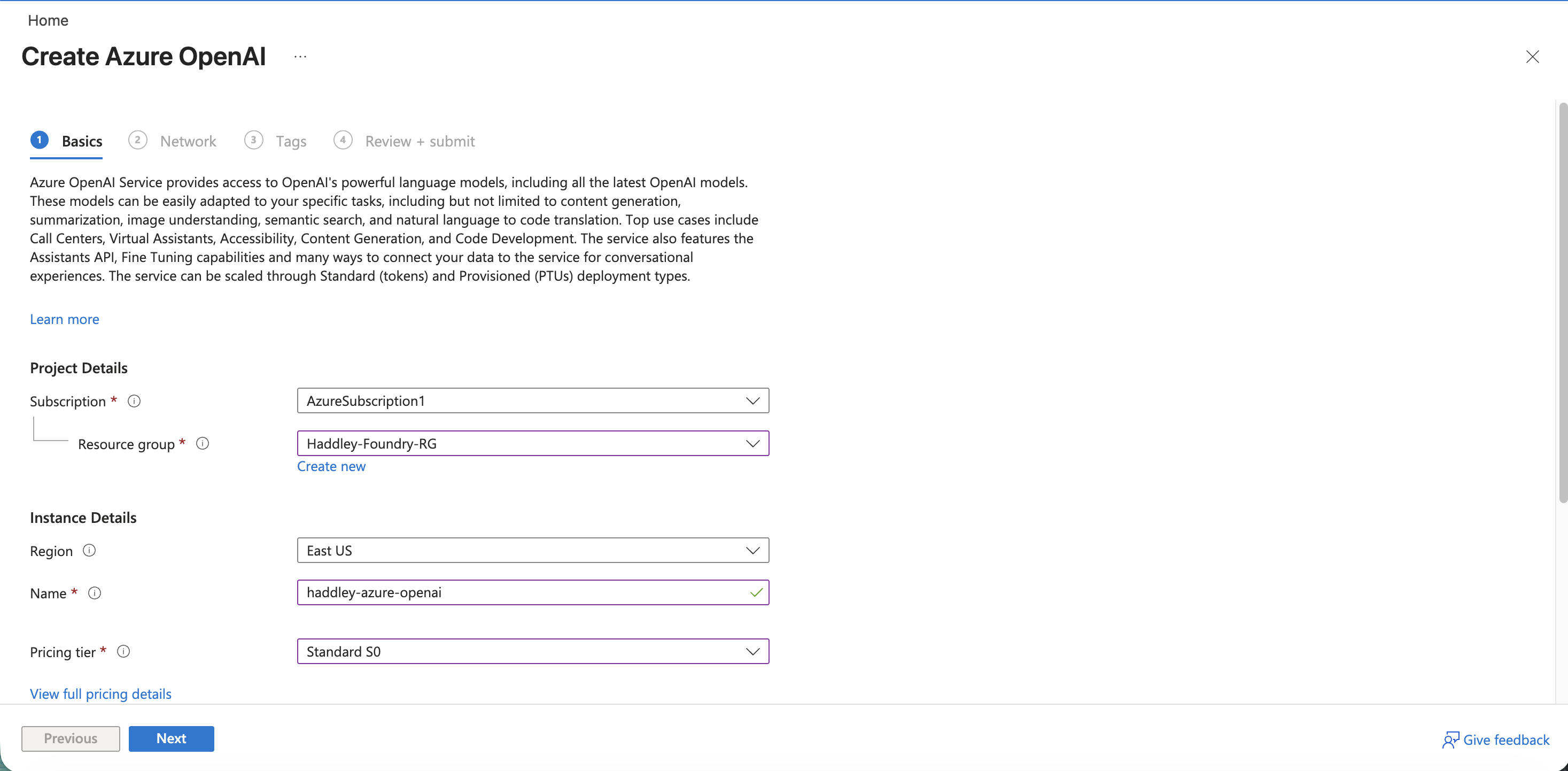
I filled in the Create Azure OpenAI form with the name haddley-azure-openai on Standard S0.
 Tap the image to open it full size
I entered the Azure OpenAI instance name and selected the Standard S0 pricing tier
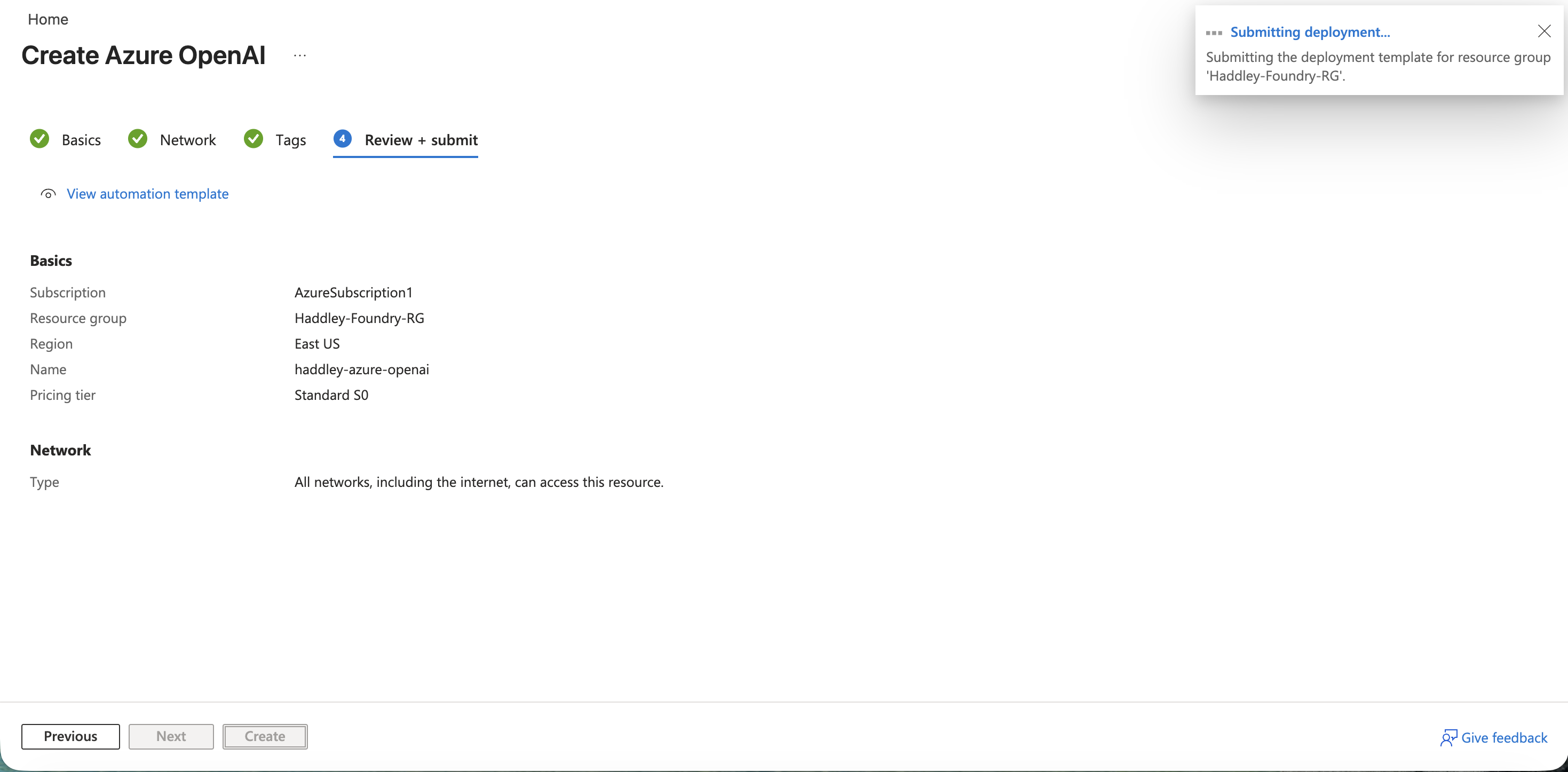
I reviewed and submitted the Azure OpenAI deployment.
 Tap the image to open it full size
I submitted the Create Azure OpenAI deployment
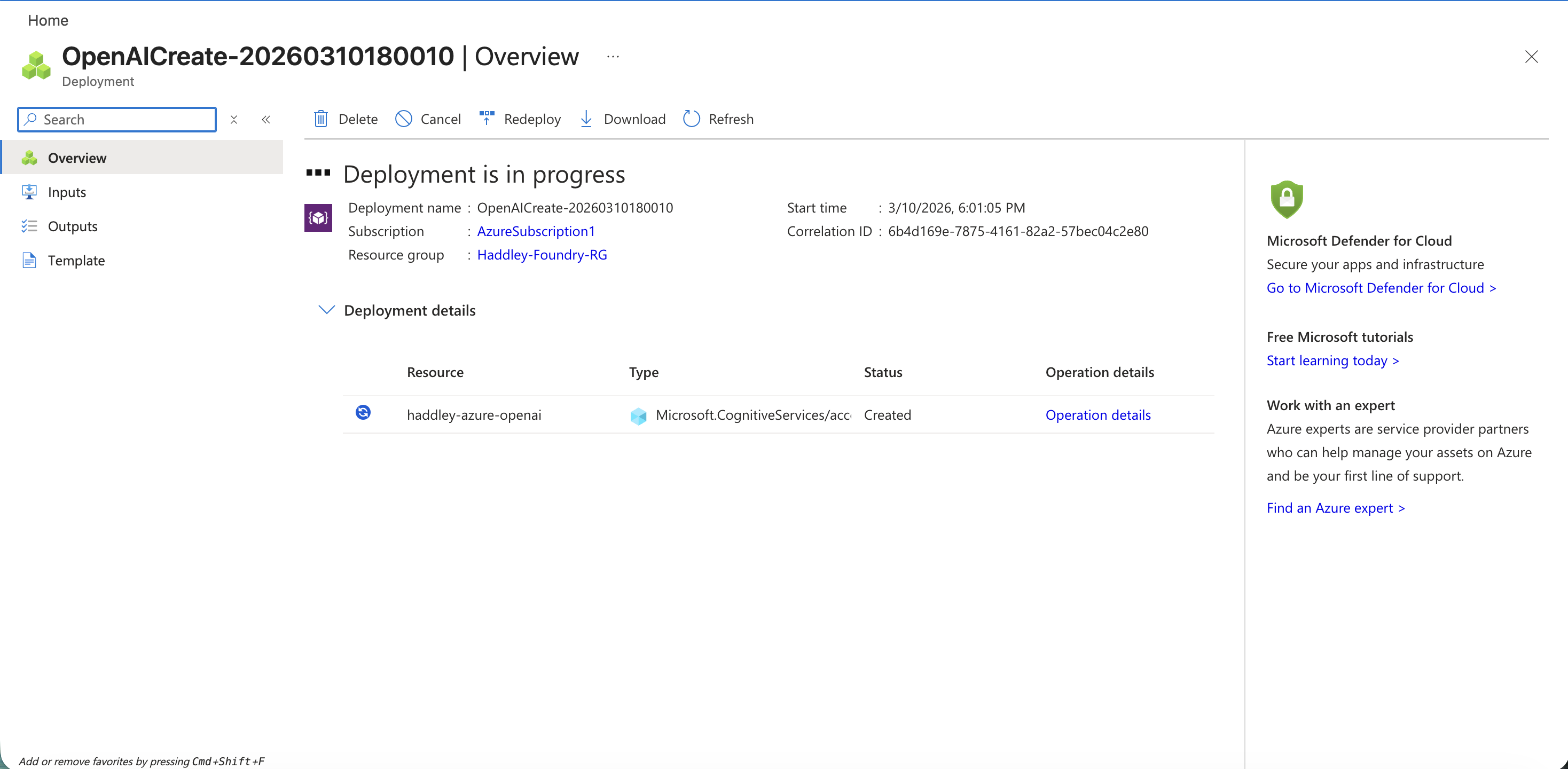
The deployment started and the resource was being created.
 Tap the image to open it full size
The Azure OpenAI deployment was in progress
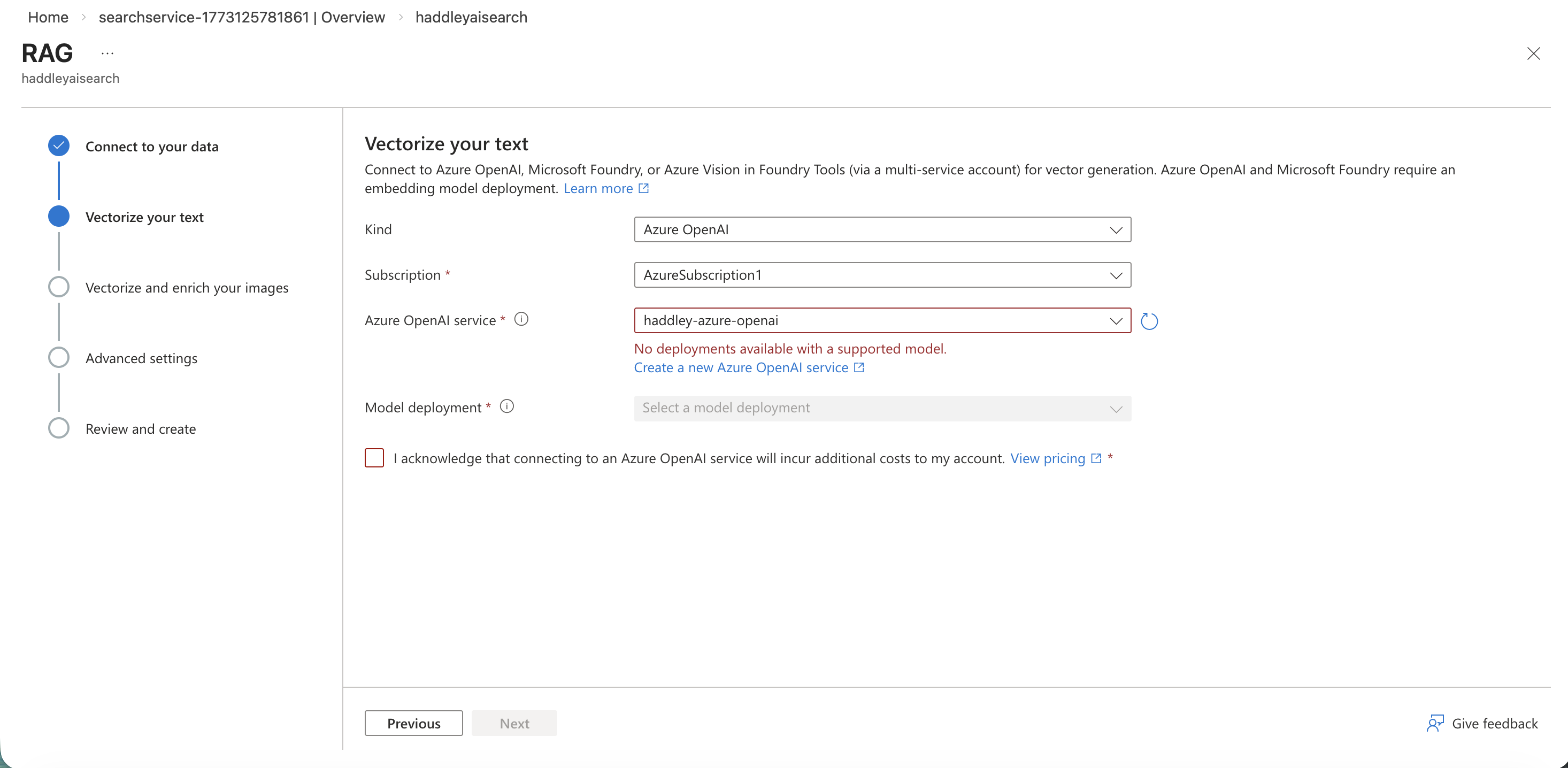
Back in the RAG wizard, the haddley-azure-openai service appeared but had no deployments yet.
 Tap the image to open it full size
The Azure OpenAI service was selected but showed no deployments with a supported model
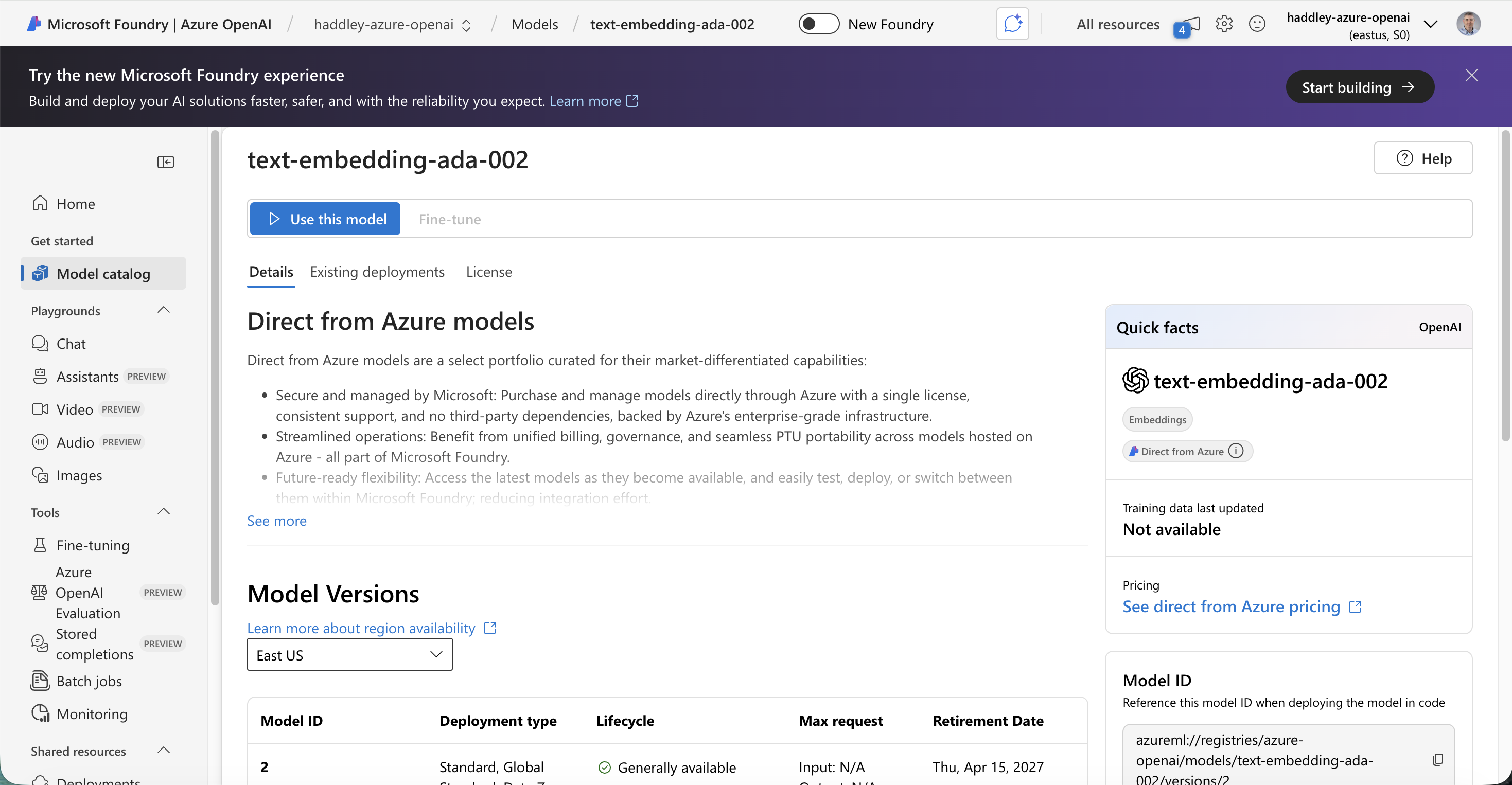
I navigated to the Azure OpenAI model catalog in Foundry and found text-embedding-ada-002.
 Tap the image to open it full size
I opened the text-embedding-ada-002 model page in the Azure OpenAI section of Foundry
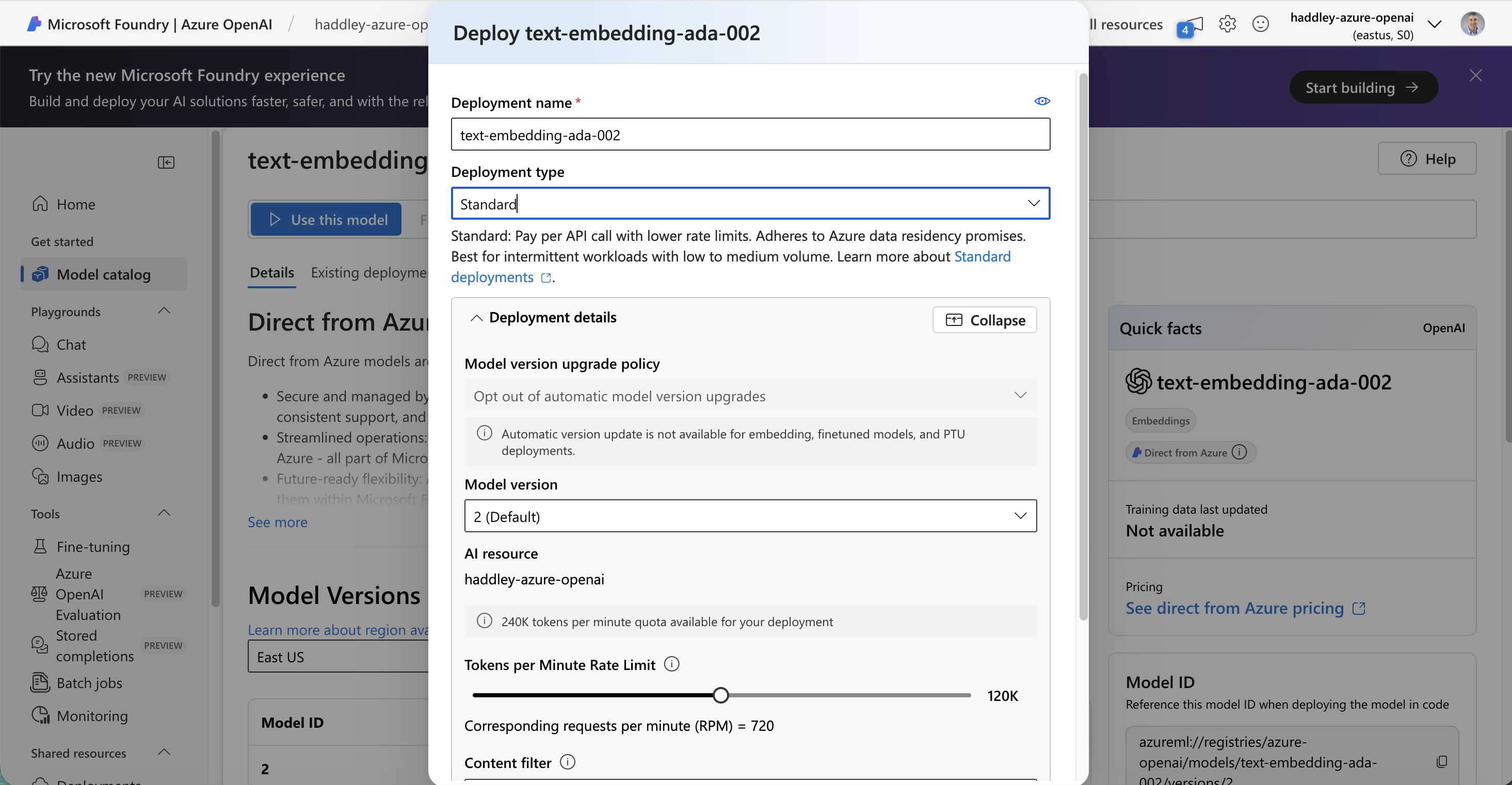
I deployed the model with a Standard GlobalStandard deployment type.
 Tap the image to open it full size
I deployed text-embedding-ada-002 with a Standard deployment type
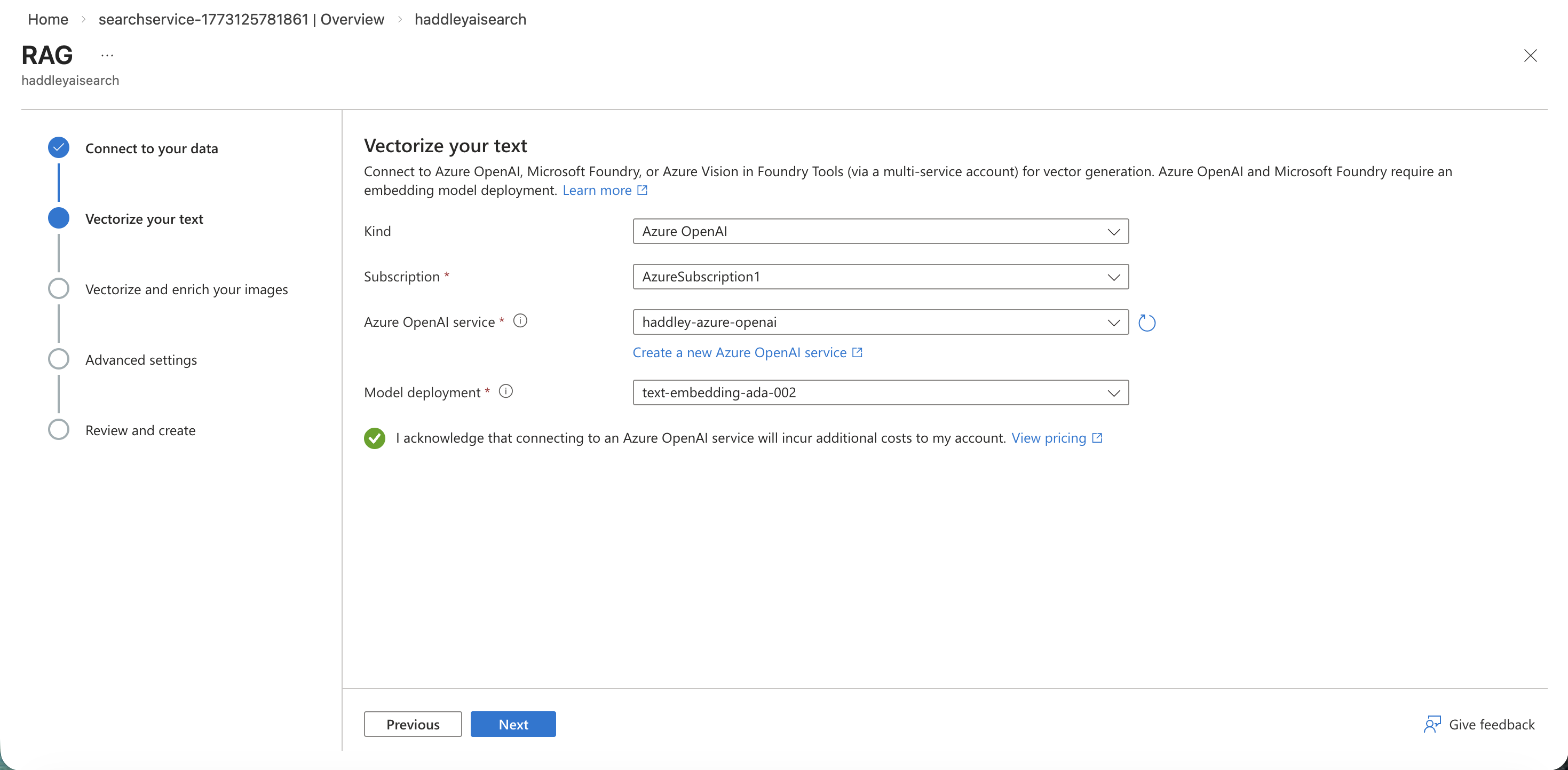
Returning to the RAG wizard, text-embedding-ada-002 was now available to select.
 Tap the image to open it full size
I selected text-embedding-ada-002 as the vectorization model
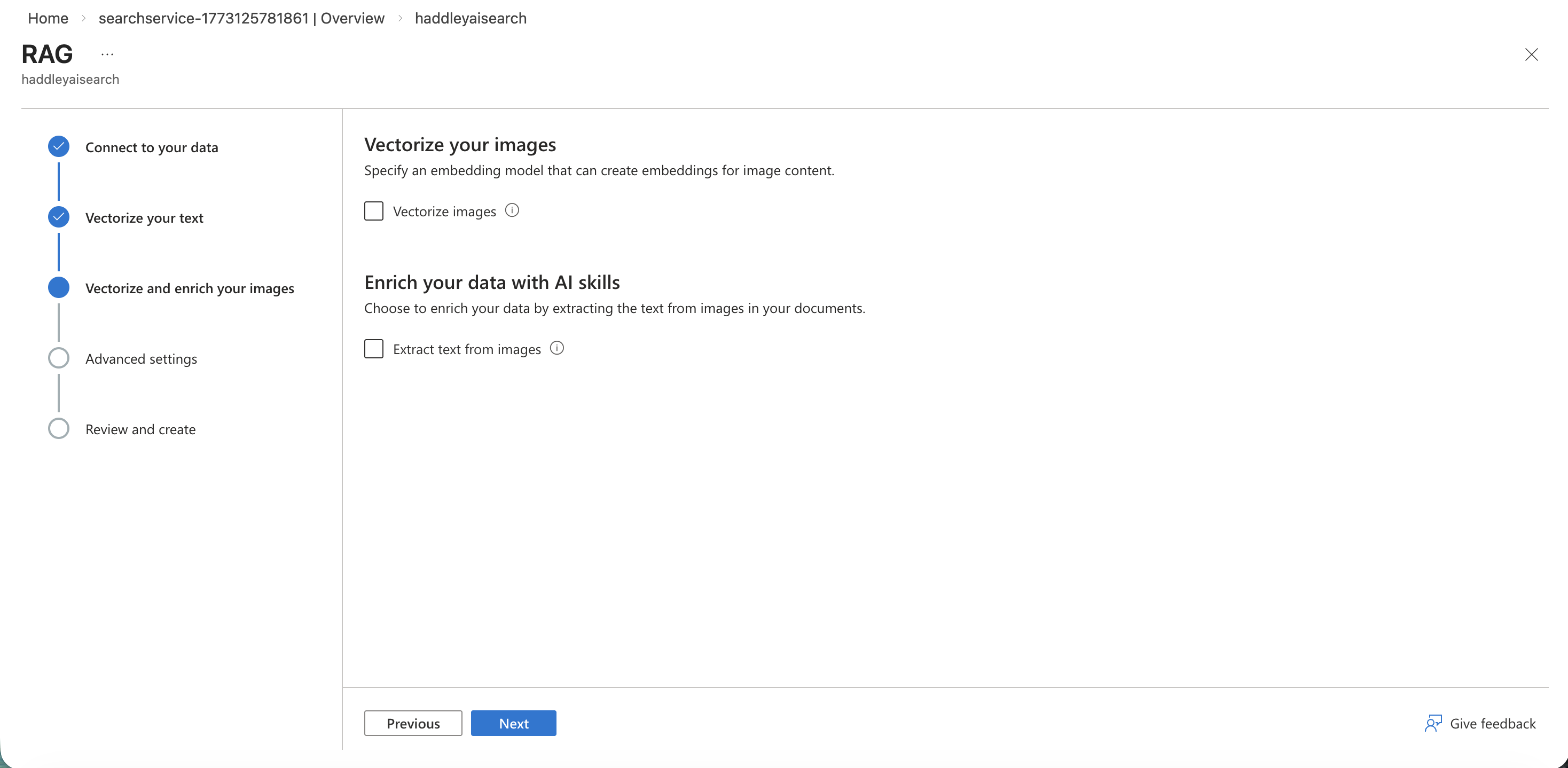
I skipped image vectorization and moved to the advanced settings.
 Tap the image to open it full size
I left image vectorization unconfigured and clicked Next
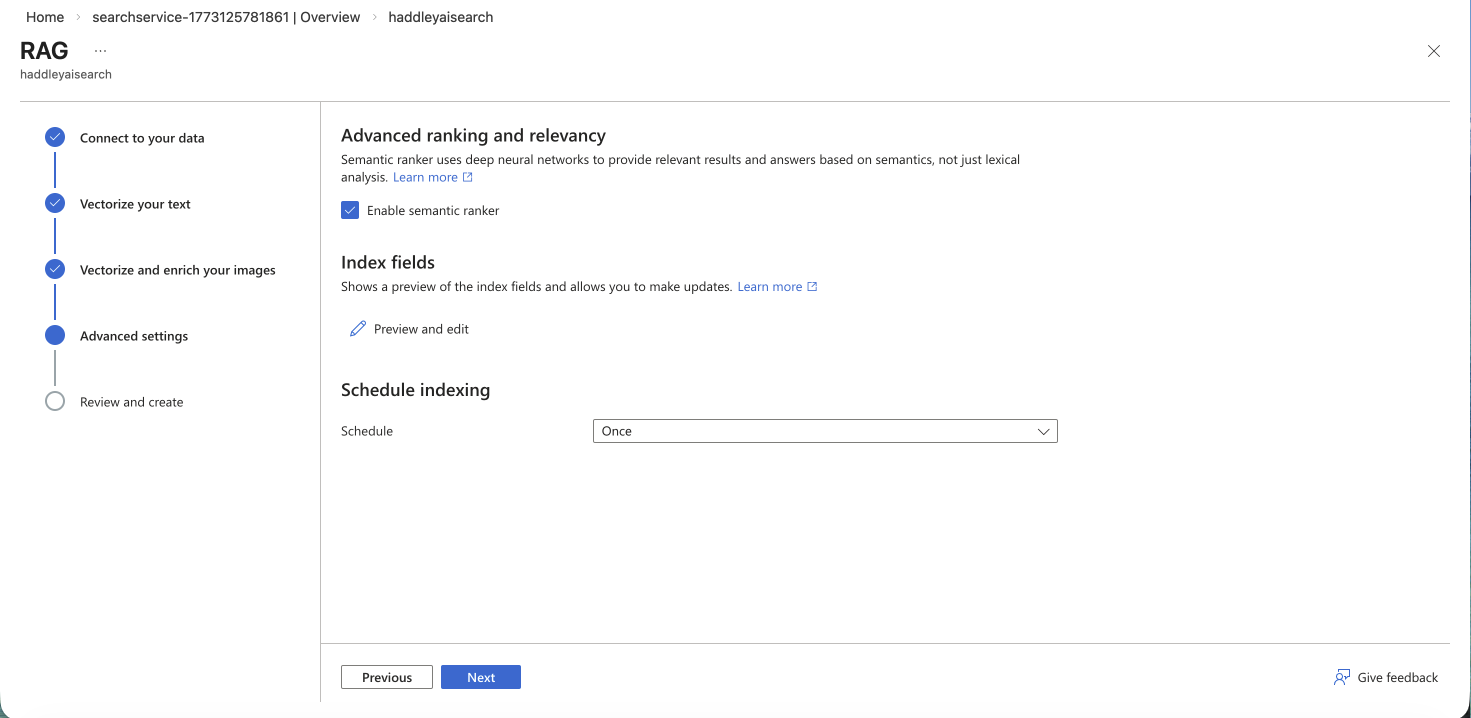
I enabled the semantic ranker and kept the indexing schedule set to Once.
 Tap the image to open it full size
I enabled the semantic ranker in the advanced settings
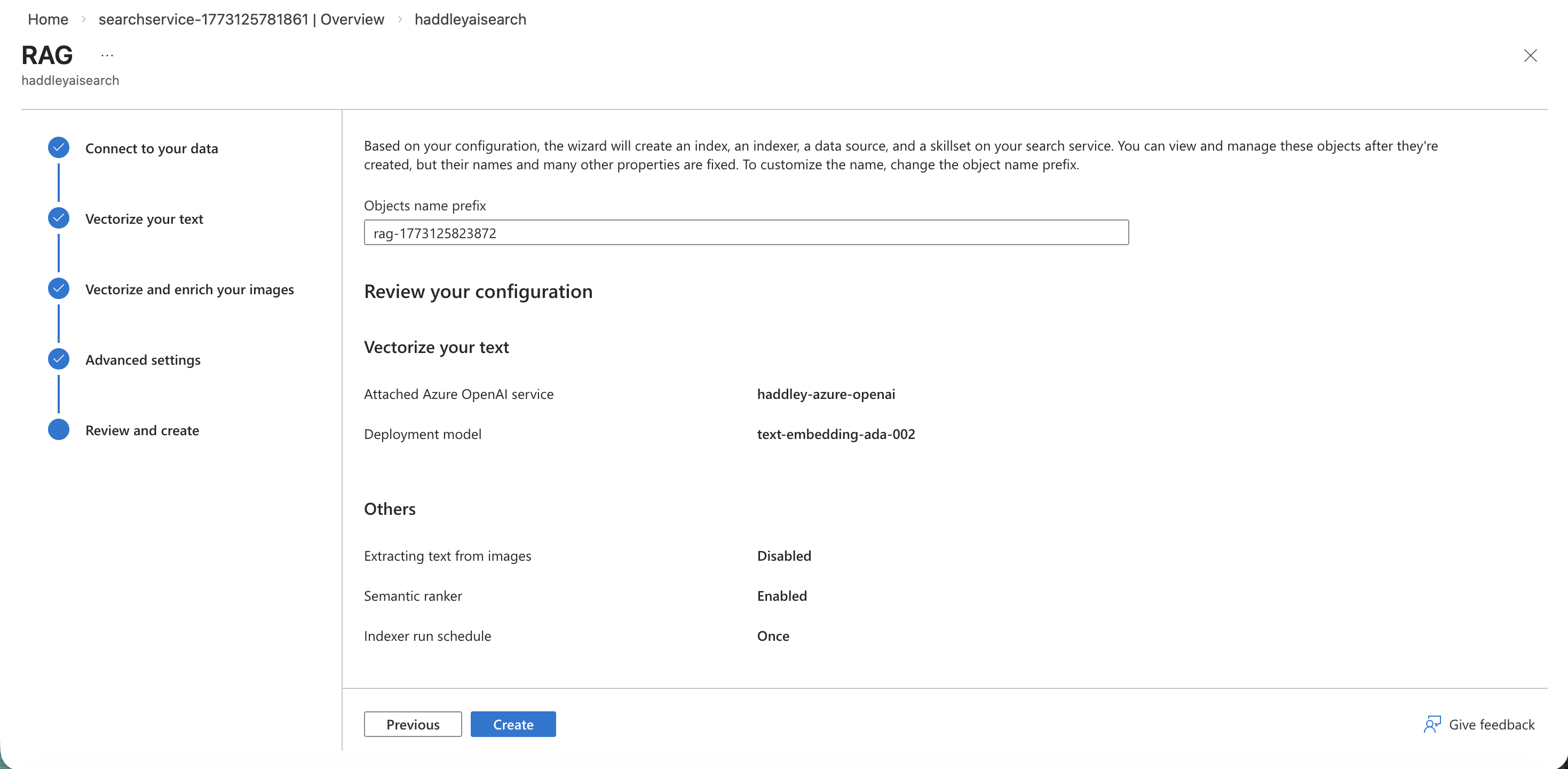
I reviewed the RAG configuration and clicked Create.
 Tap the image to open it full size
I reviewed the full RAG configuration before creating the index
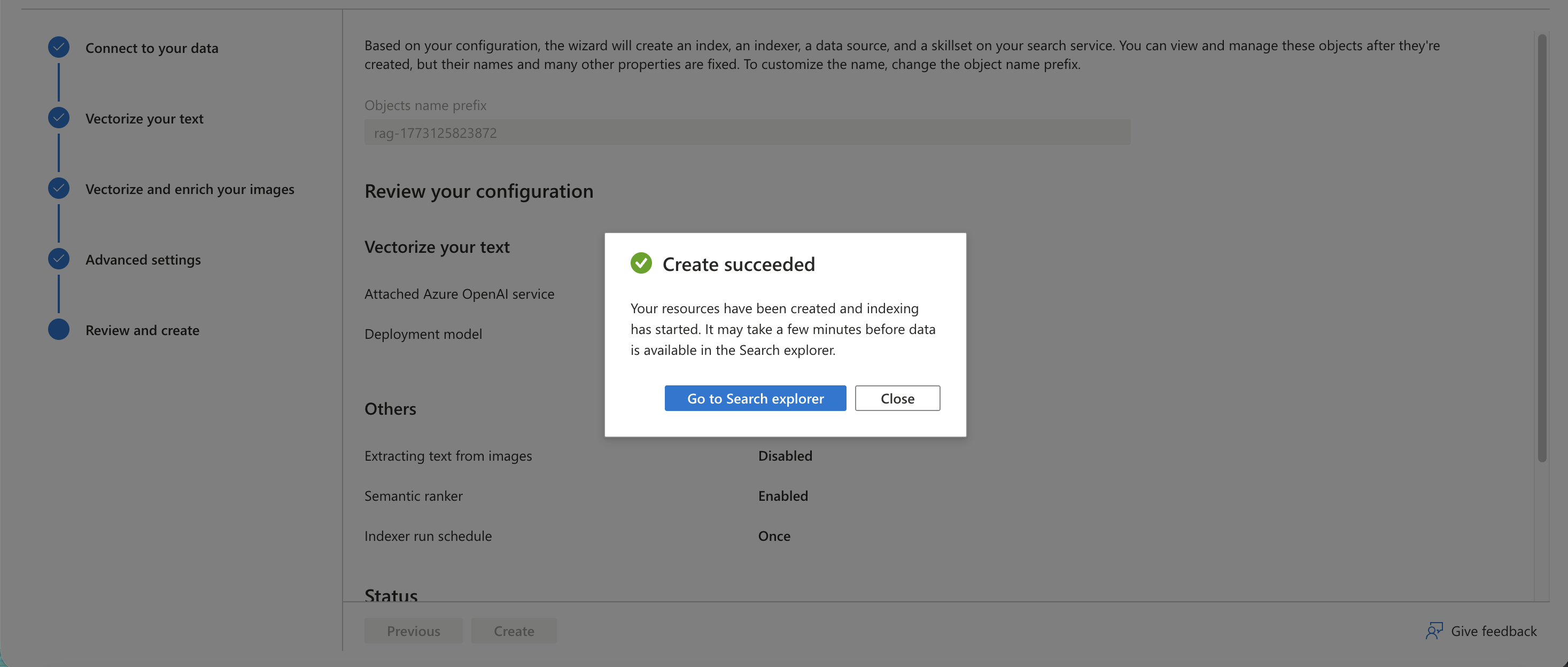
The index was created successfully and indexing began.
 Tap the image to open it full size
The Create succeeded dialog confirmed the index and indexer were created
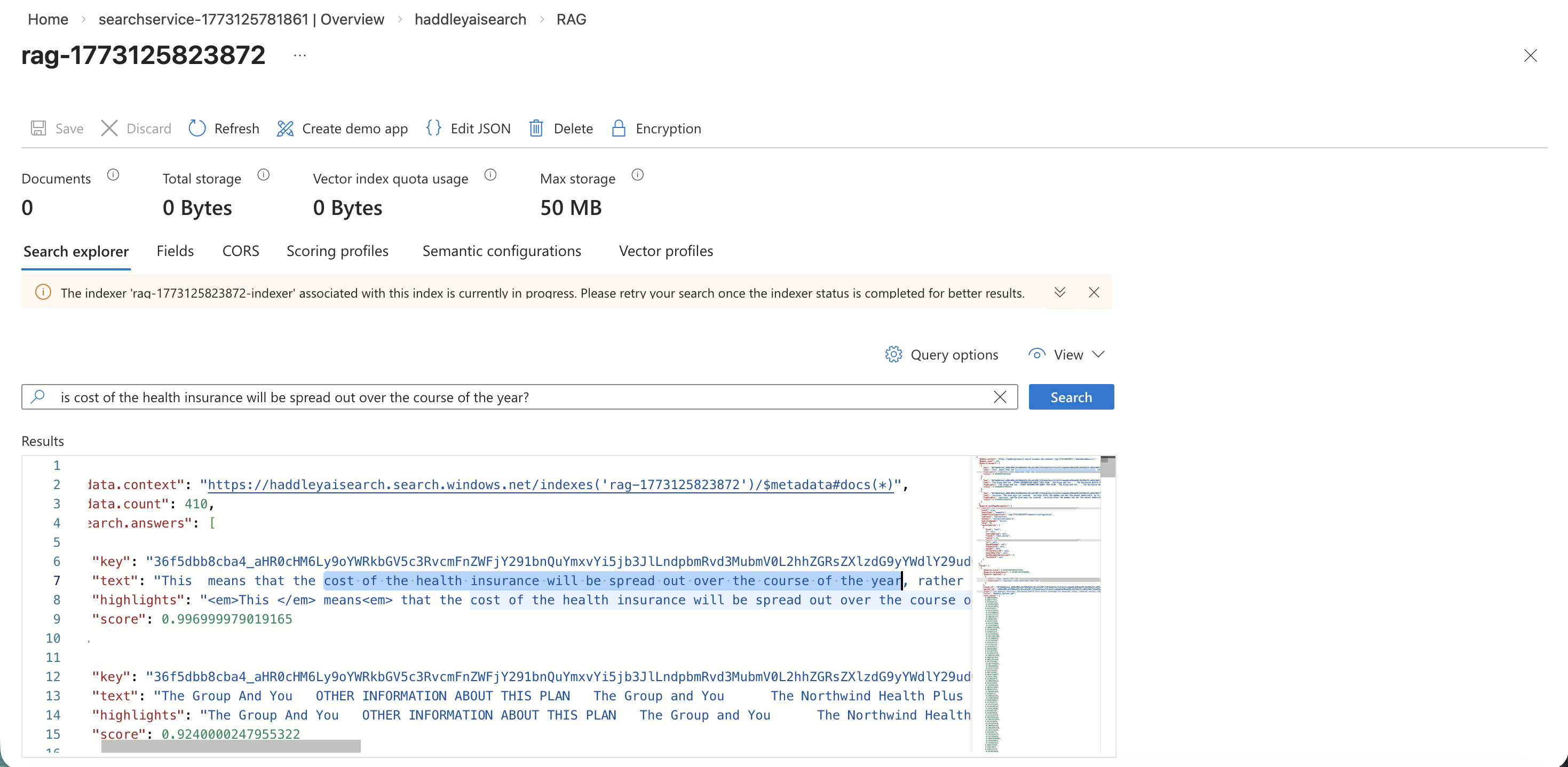
I opened the Search explorer and tested the index with a sample question about health insurance costs.
 Tap the image to open it full size
The Search explorer returned relevant results from the health-plan PDFs for my query
Creating the Agent
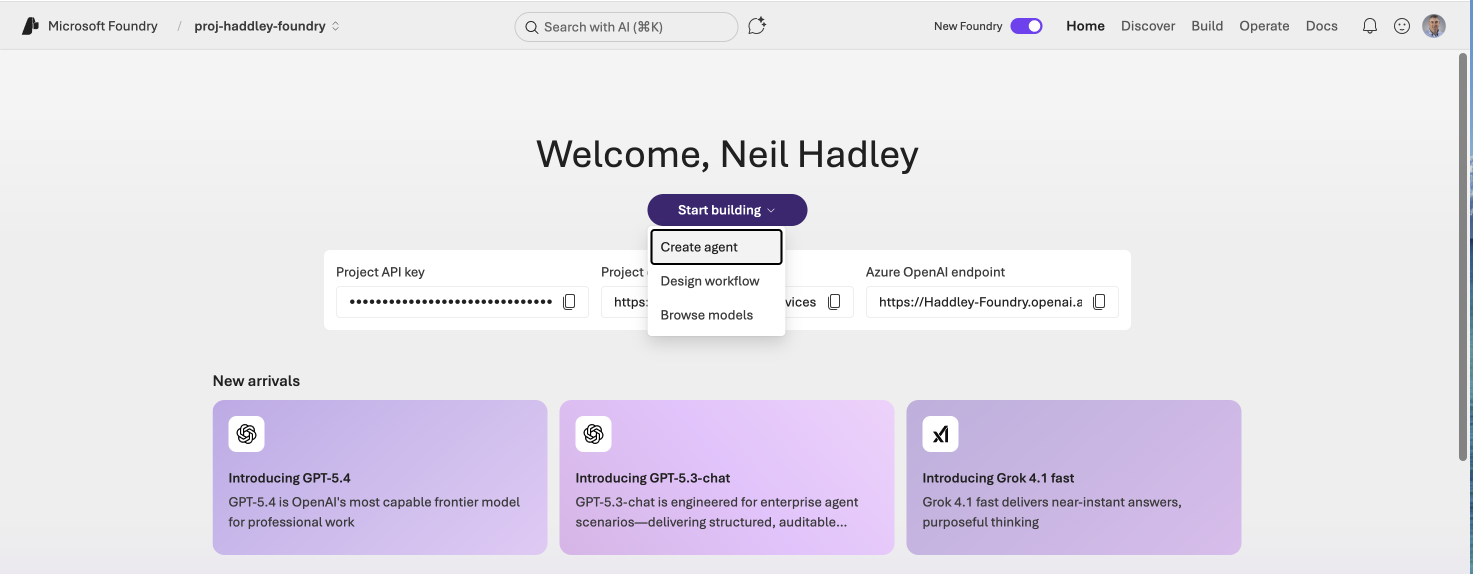
Back in the Foundry home, I clicked Start building and selected Create agent.
 Tap the image to open it full size
I clicked Start building and selected Create agent from the dropdown
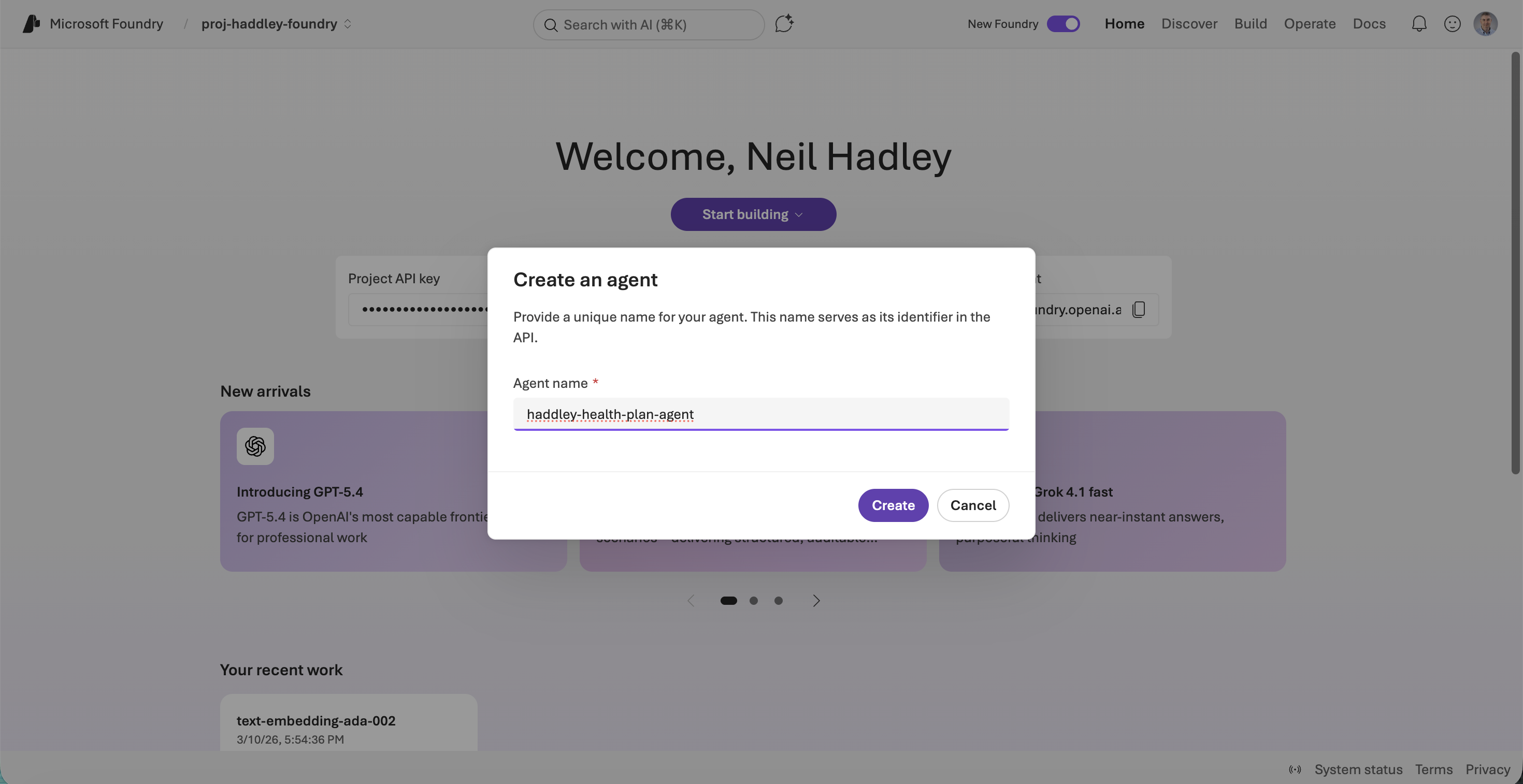
I named the new agent haddley-health-plan-agent.
 Tap the image to open it full size
I entered haddley-health-plan-agent as the agent name
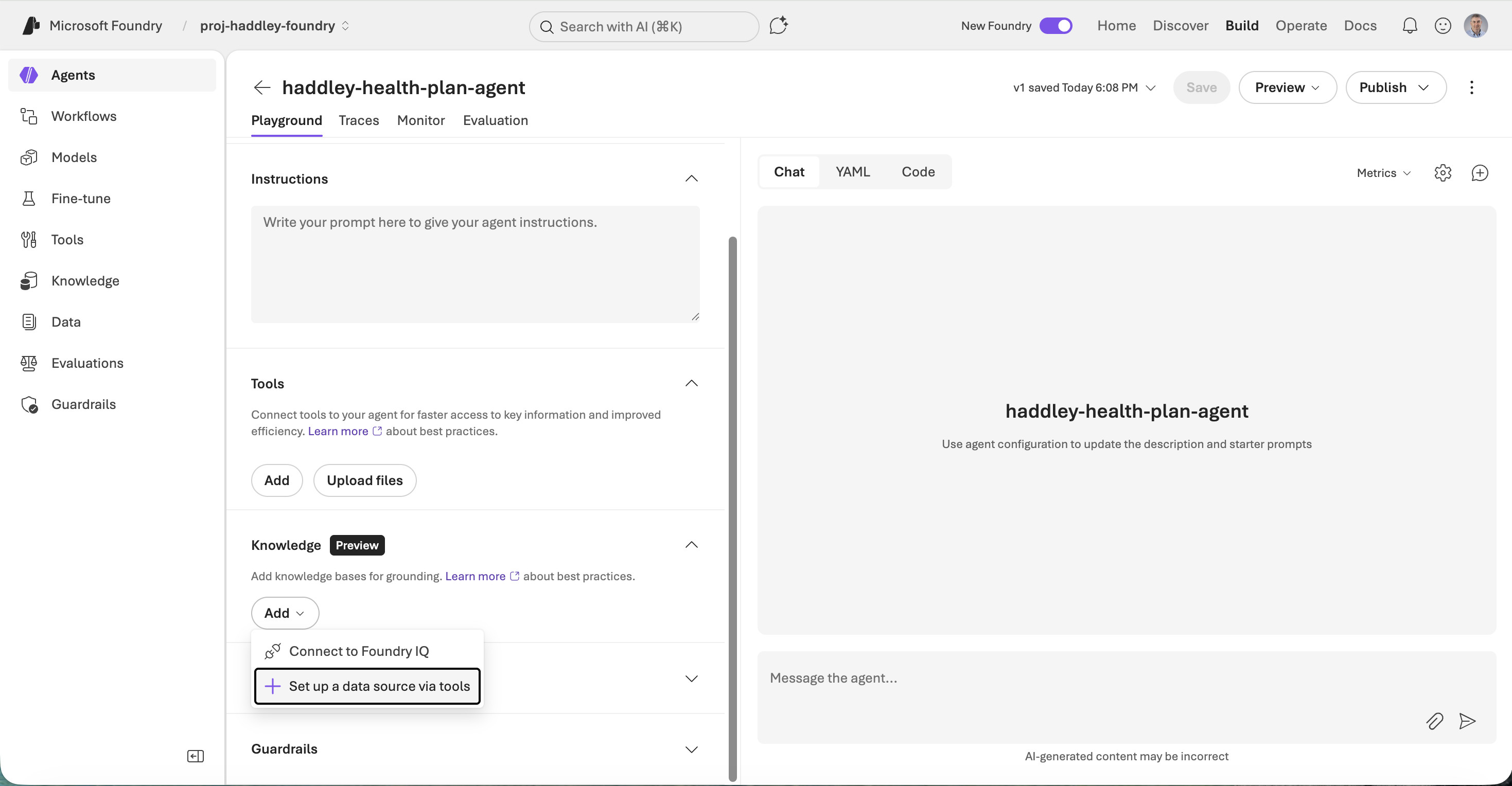
The agent playground opened and I clicked to add a tool.
 Tap the image to open it full size
The agent playground opened — I clicked Set up a data source via tools to add Azure AI Search
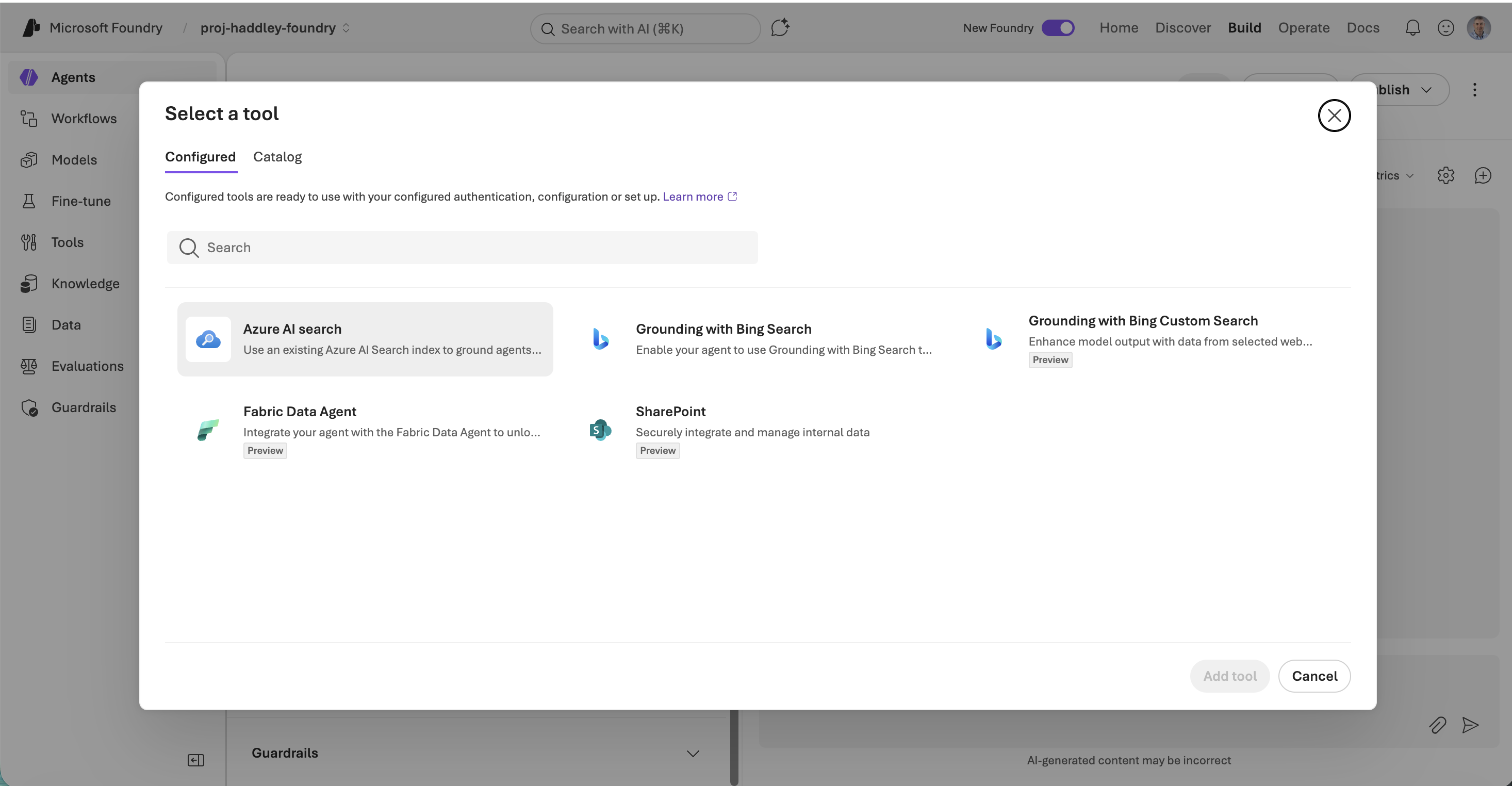
I selected Azure AI Search from the tool catalog.
 Tap the image to open it full size
I selected Azure AI Search from the available tools
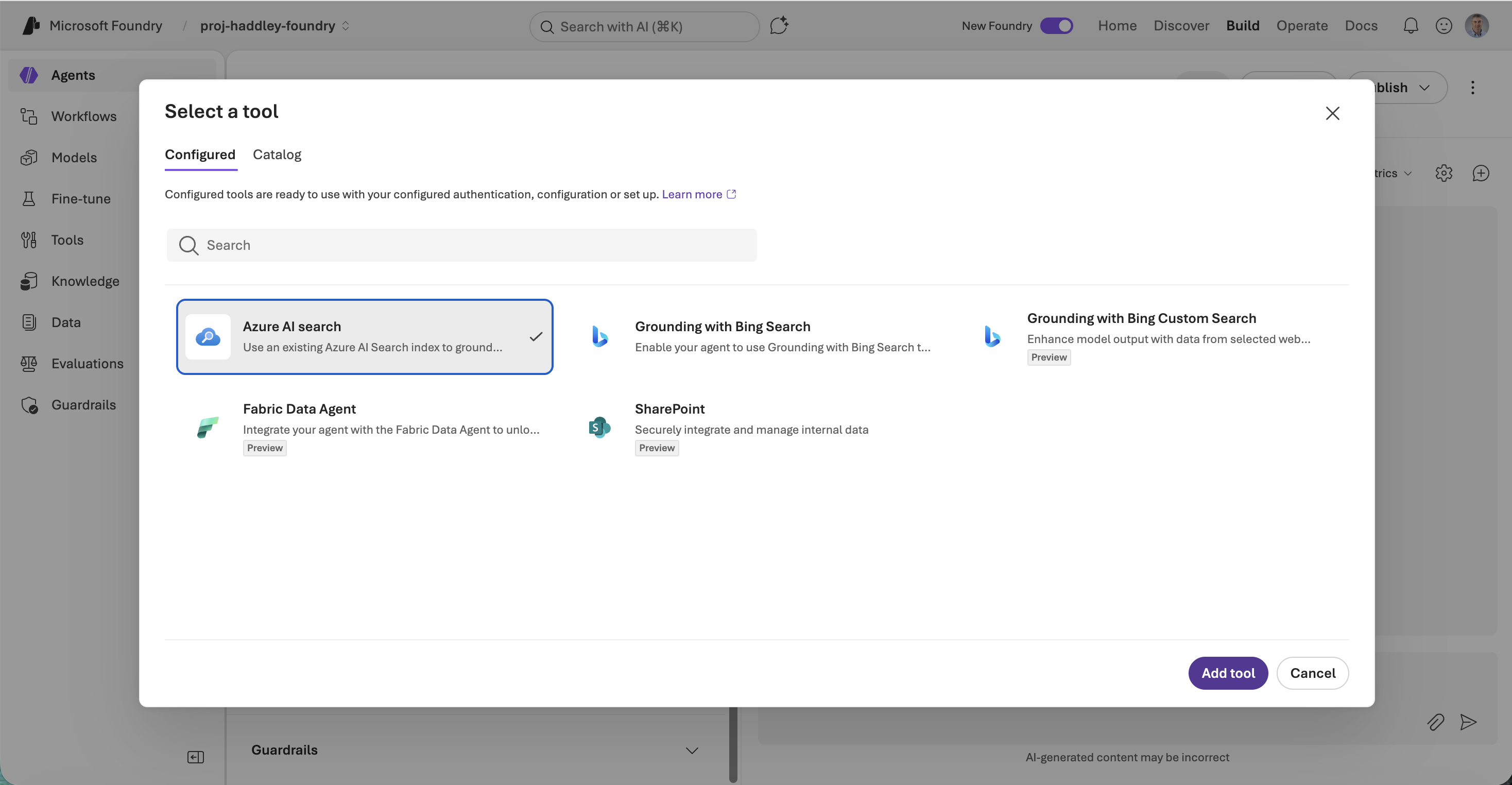
I confirmed the Azure AI Search tool selection.
 Tap the image to open it full size
I selected Azure AI Search and clicked Add tool
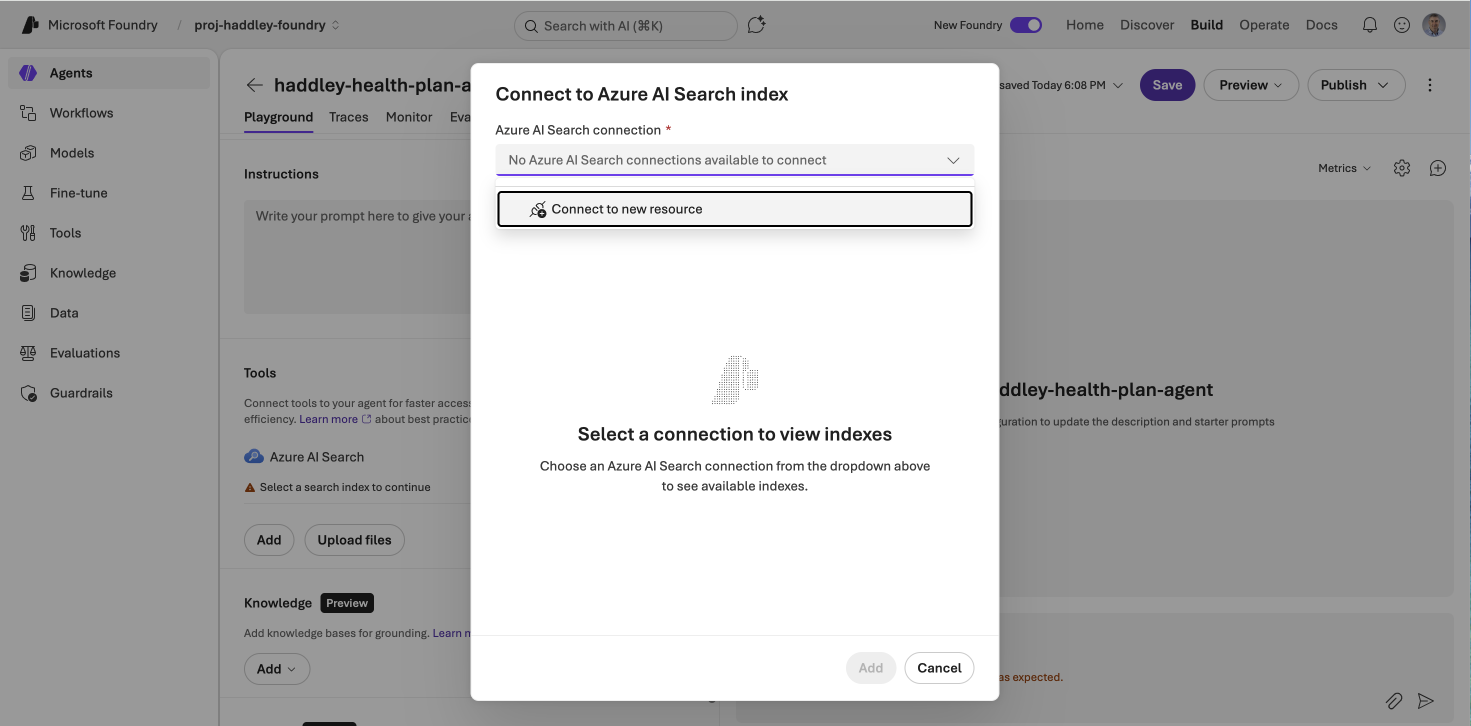
No existing connections were available so I created a new one.
 Tap the image to open it full size
No Azure AI Search connections were available — I clicked Connect to new resource
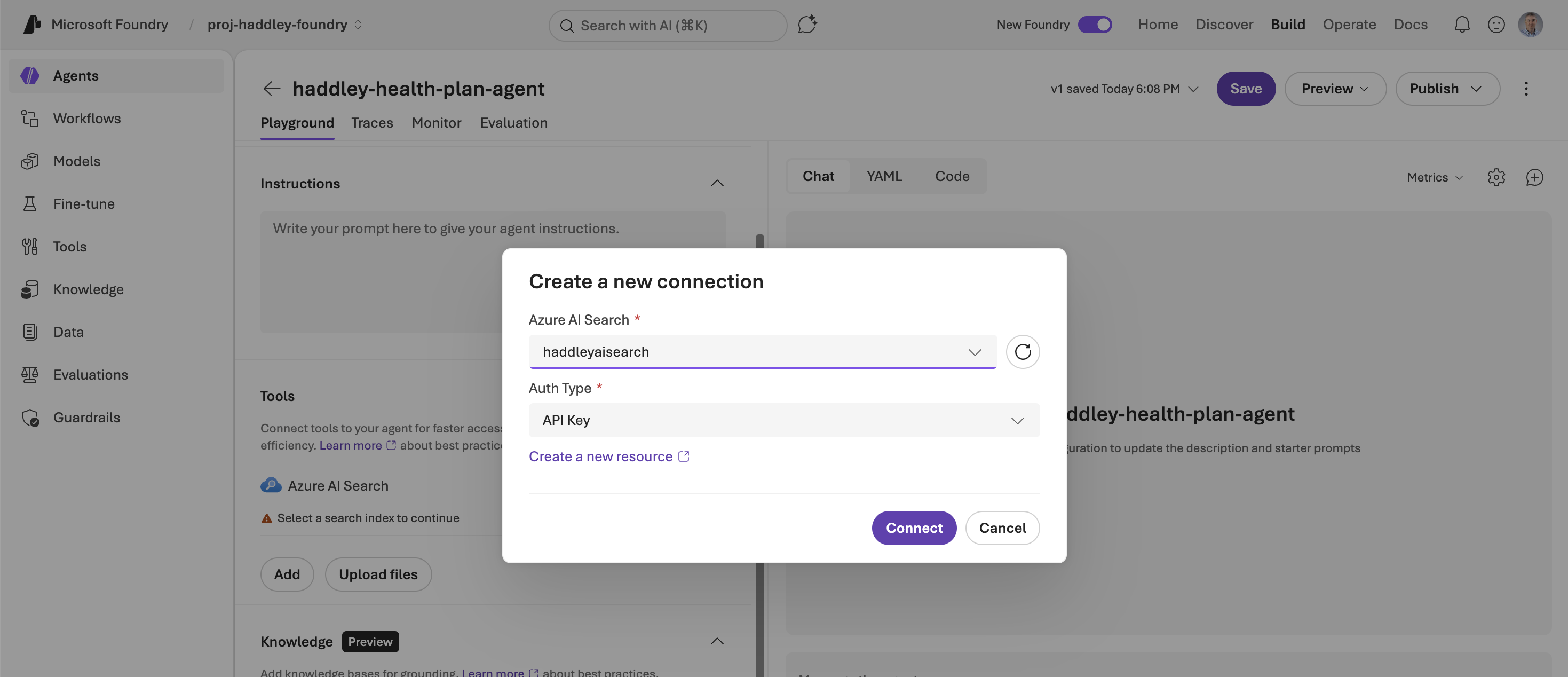
I connected to the haddleyaisearch service using an API key.
 Tap the image to open it full size
I selected haddleyaisearch and connected via API Key
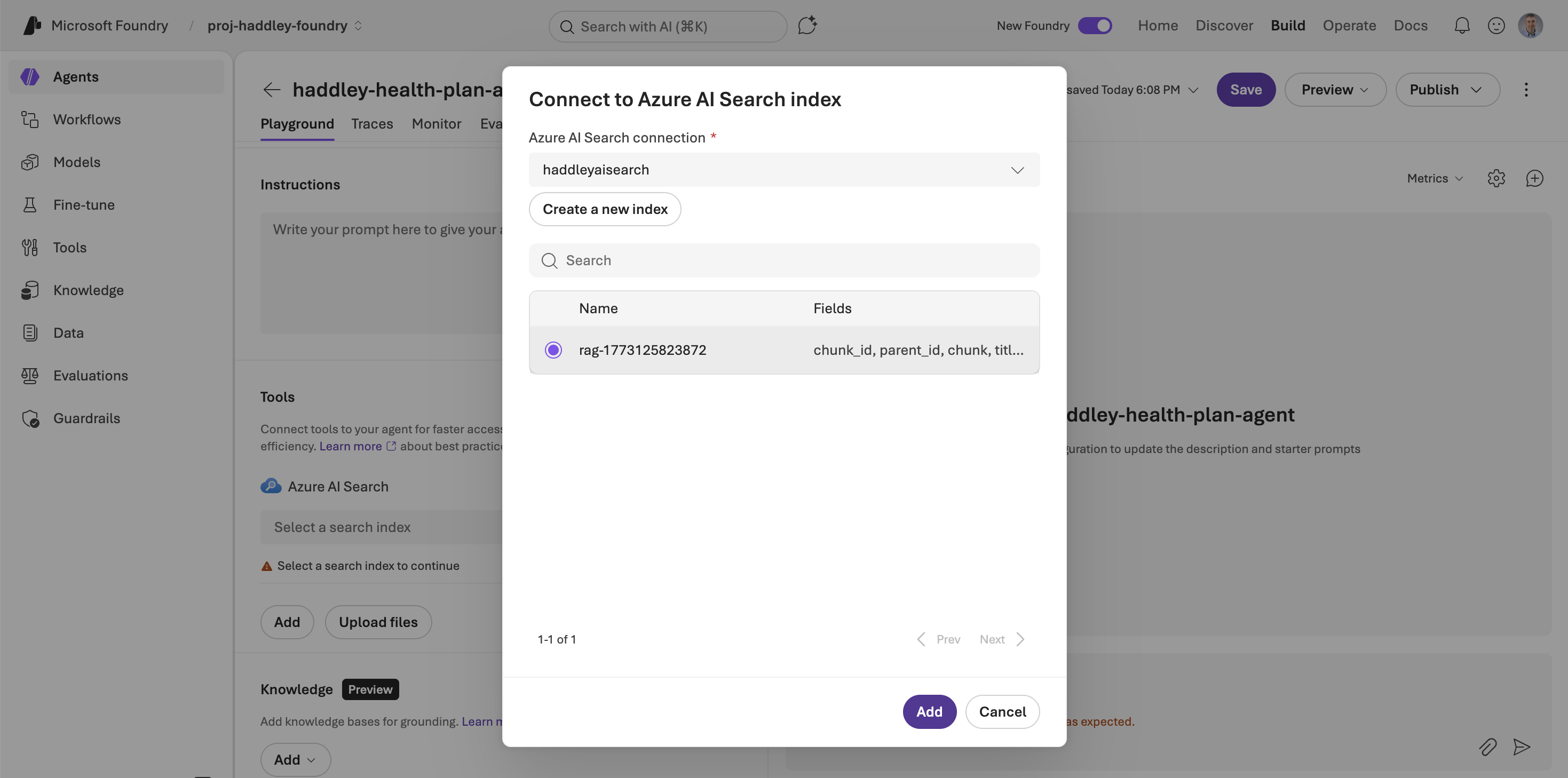
The rag-1773125823872 index appeared and I selected it.
 Tap the image to open it full size
I selected the rag-1773125823872 index to connect to the agent
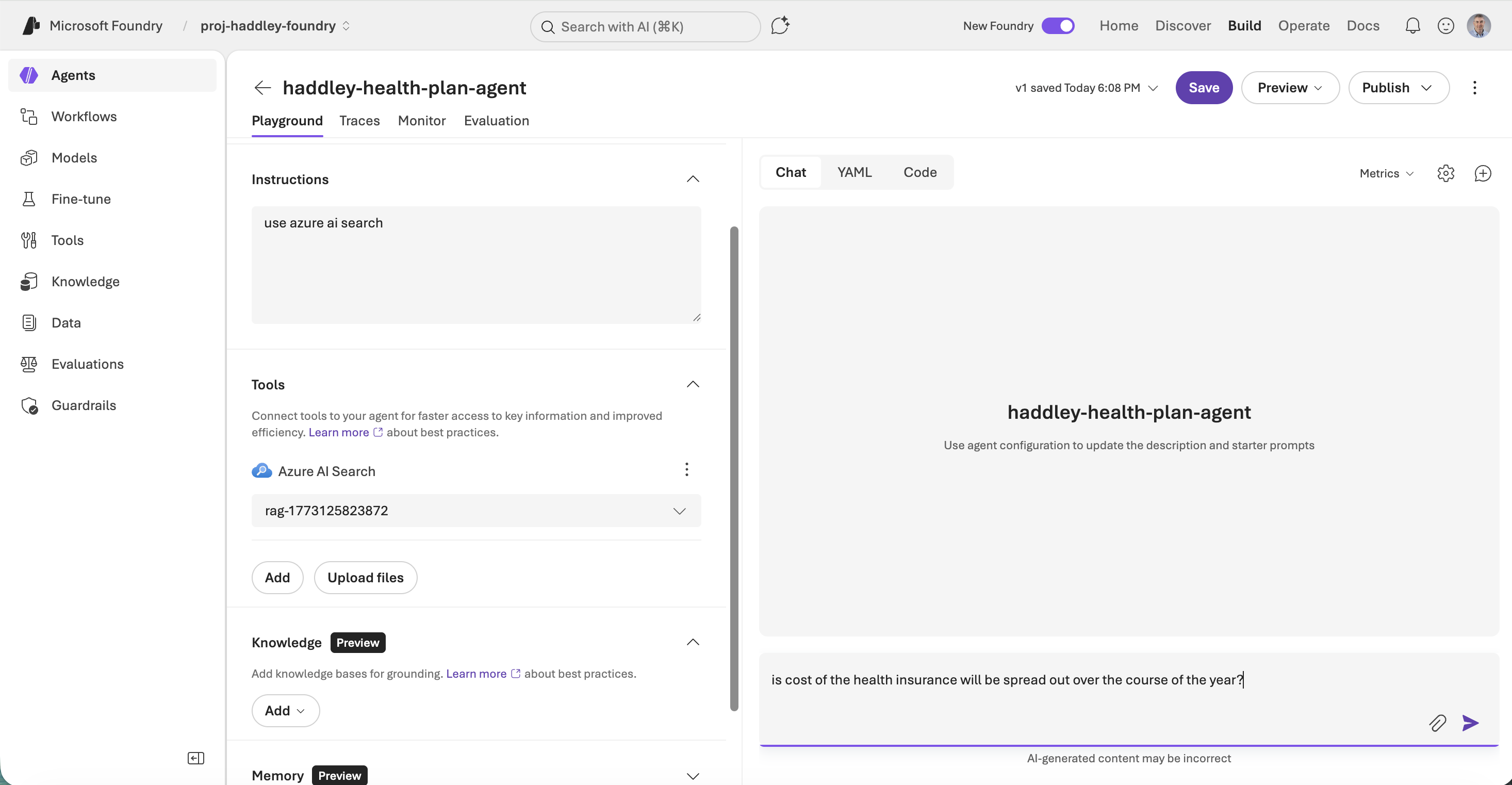
With the Azure AI Search tool connected and pointing at the RAG index, I typed a question in the chat.
 Tap the image to open it full size
I asked the agent whether the cost of health insurance is spread out over the course of the year
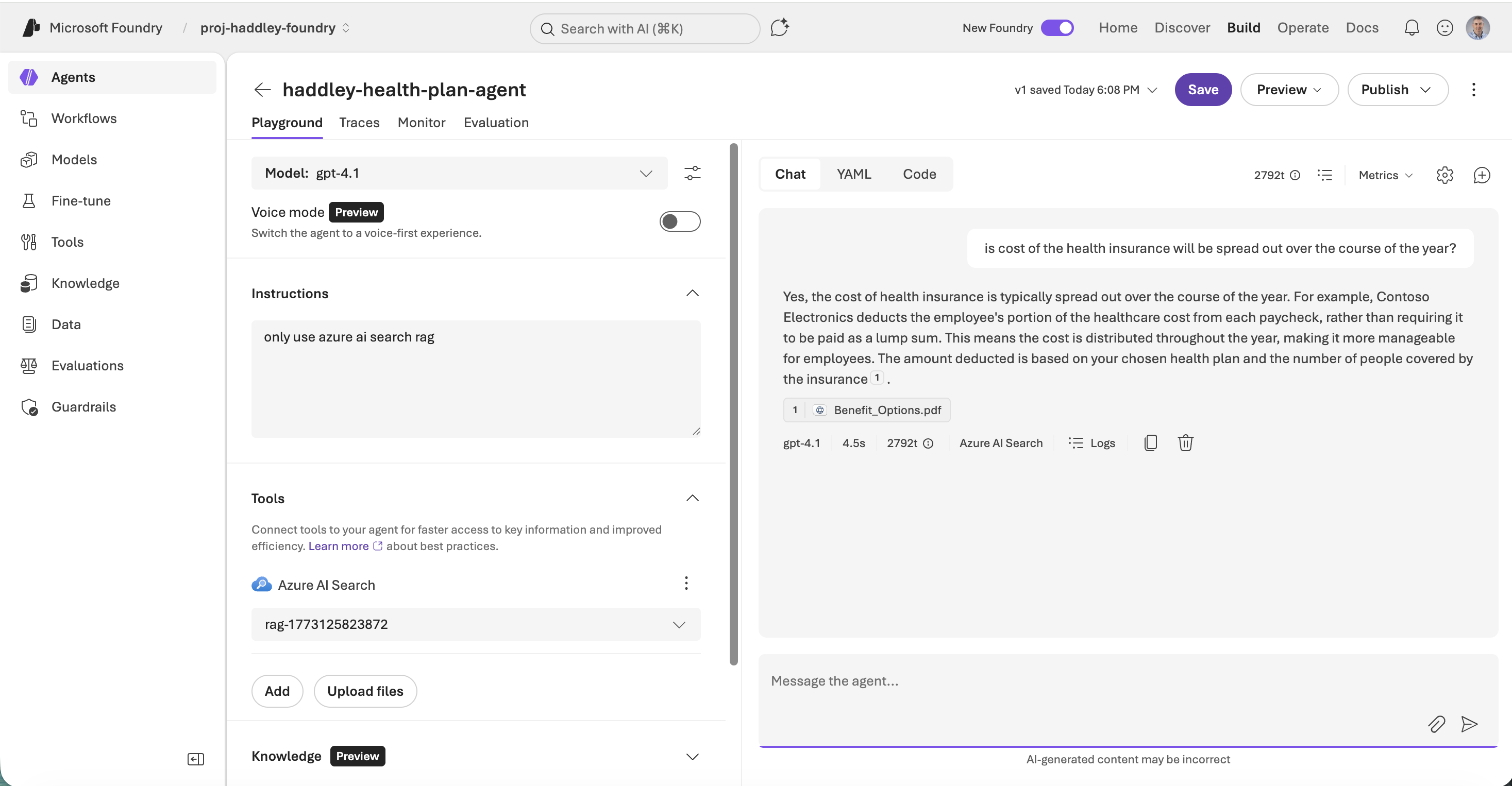
The agent responded with a clear answer citing the Benefit_Options.pdf document.
 Tap the image to open it full size
The agent answered correctly, explaining that health insurance costs are deducted from each paycheck, and cited Benefit_Options.pdf as the source