Business Central Azure Logic App
Neil Haddley • December 12, 2025
Azure Logic App with Business Central Trigger
Azure Logic App with Business Central Trigger
What is this combination?
Azure Logic App with Business Central Trigger is a cloud automation workflow that connects Microsoft's Azure Logic Apps (no-code/low-code workflow automation) with Dynamics 365 Business Central (ERP system) through a trigger mechanism.
Key Components
- A cloud service for creating automated workflows
- Connects different apps/services (SaaS, on-premises, Azure services)
- Uses triggers (when something happens) → actions (then do something)
- The starting point of the workflow
- Listens for specific events/changes in Business Central
- Two main types:
Available Business Central Triggers
1. When a record is created/modified
- Example: "When a Sales Order is created"
- Checks Business Central at regular intervals (every 5 min, 1 hour, etc.)
- Detects new/changed records since last check
2. When an item is created/updated
- Works with Business Central entities: Customers, Items, Sales Orders, Purchase Orders, etc.
1. When a Business Central notification arrives
- Business Central pushes notifications via webhooks
- More real-time than polling
- Requires Business Central to be configured for webhook notifications
Typical Use Cases & Workflows
Example 1: Sales Order Processing
CODE
1Trigger: When a Sales Order is created in BC
2→ Action 1: Send approval email to manager
3→ Action 2: Wait for approval response
4→ Action 3: If approved, create shipment in logistics system
5→ Action 4: Update BC with tracking info
Example 2: Inventory Sync
CODE
1Trigger: When Item stock level changes in BC
2→ Action 1: Update e-commerce website inventory
3→ Action 2: Send low-stock alert to warehouse team
4→ Action 3: Create Purchase Order if below threshold
Example 3: Customer Onboarding
CODE
1Trigger: When a new Customer is created in BC
2→ Action 1: Create account in CRM system
3→ Action 2: Send welcome email
4→ Action 3: Assign customer service rep
Configuration Requirements
1. Business Central Setup
- API enabled
- User with appropriate permissions
- Webhook setup (if using webhook triggers)
2. Azure Components
- Logic App resource
- Azure AD App Registration (for authentication)
- Managed Identity/Service Principal
3. Authentication Methods
- OAuth 2.0 with Azure AD
- Service-to-service authentication
Limitations & Considerations
✓ API Limits: Business Central has API call limits
✓ Latency: Polling triggers have delay (schedule-based)
✓ Complex Logic: Better for simpler workflows; complex logic might need custom code
✓ Cost: Logic Apps pricing based on executions
When to Use This Pattern
✅ Good for:
- Simple to medium complexity integrations
- Quick automation without coding
- Event-driven processes across systems
- When you need to connect BC with other cloud services
❌ Consider alternatives (Power Automate, custom APIs) when:
- Very complex business logic needed
- High-volume transactions
- Real-time requirements (polling adds delay)
- Need on-premises system integration
Example Setup Steps
1. Create Logic App in Azure Portal
2. Add Business Central connector
3. Choose trigger (e.g., "When a record is created")
4. Configure connection to your BC instance
5. Select entity (Customers, Items, etc.)
6. Add subsequent actions (email, update system, call API)
7. Save and enable the workflow
This integration enables business process automation by connecting Business Central events to hundreds of other services (Office 365, Salesforce, SQL, SAP, etc.) through Logic Apps' extensive connector library.
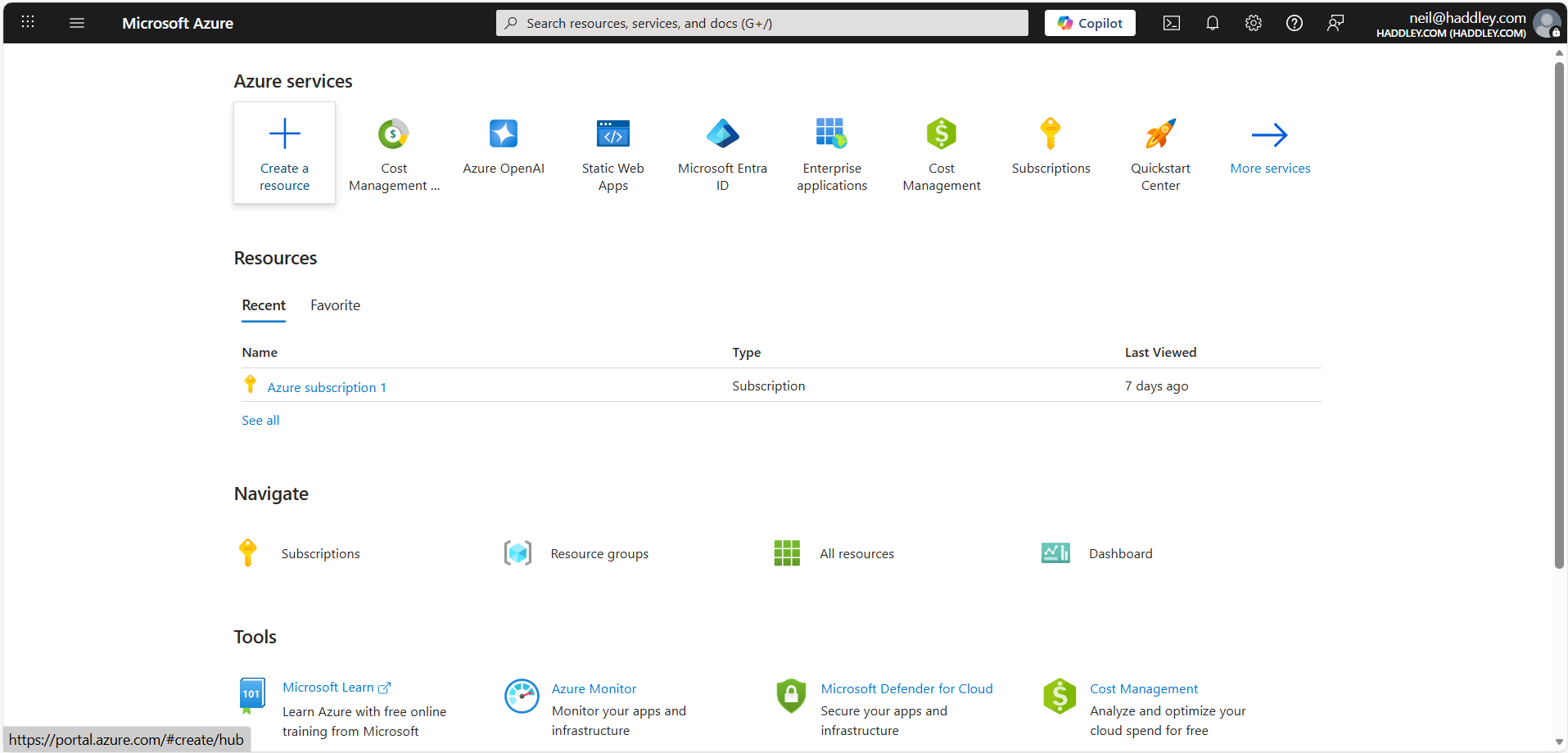
I clicked Create a resource
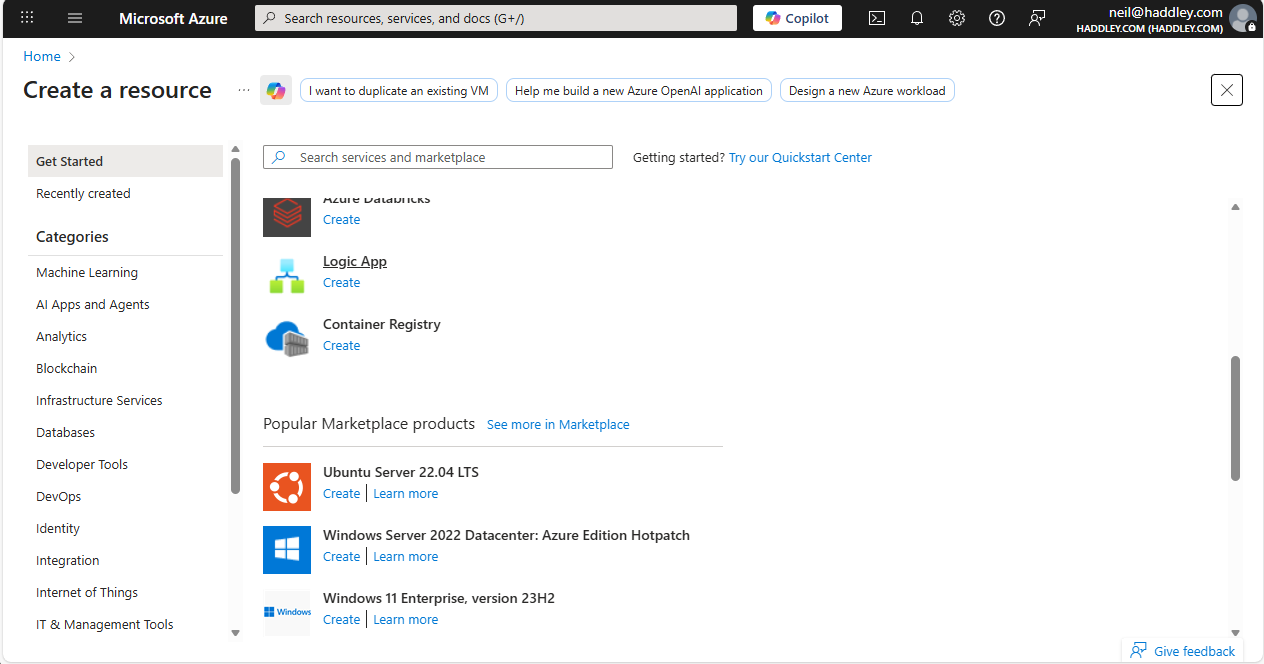
I created a Logic App
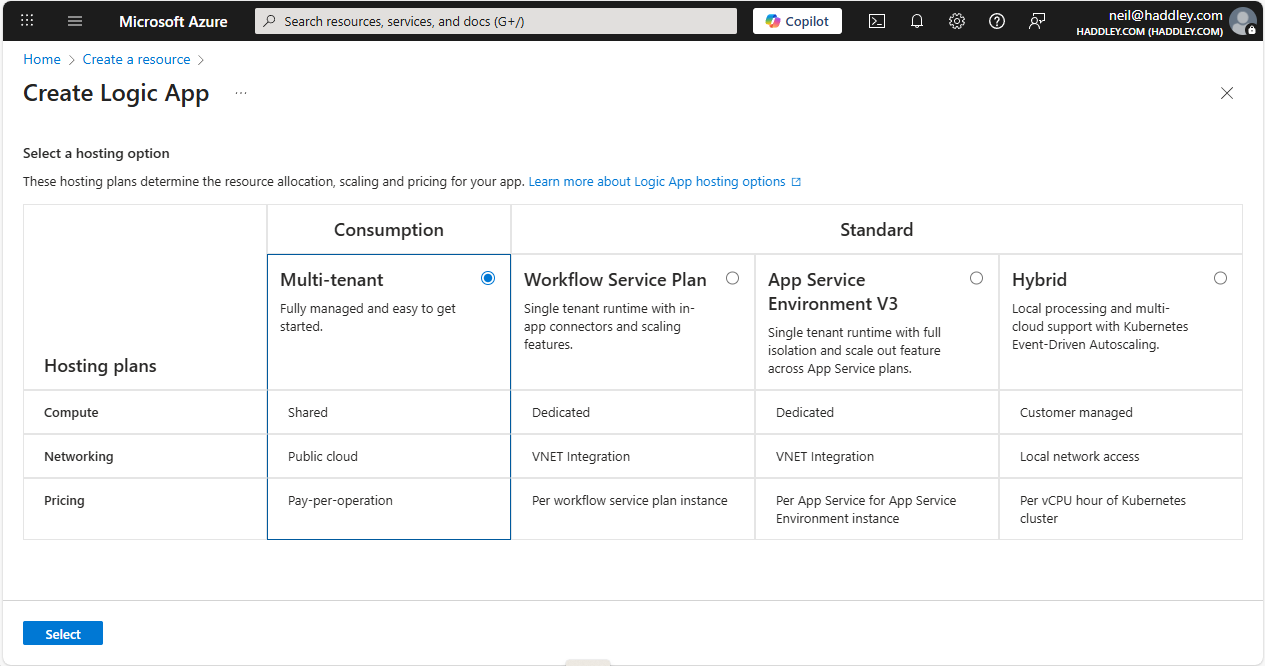
I selected Consumption
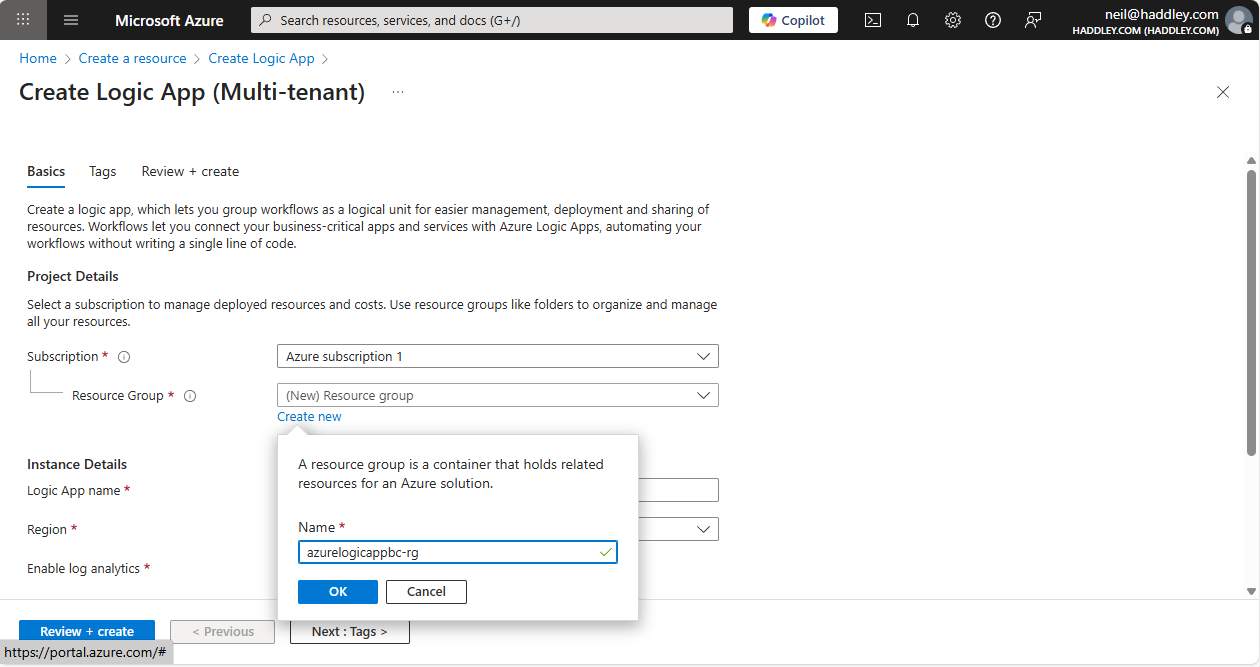
I selected the Resource Group
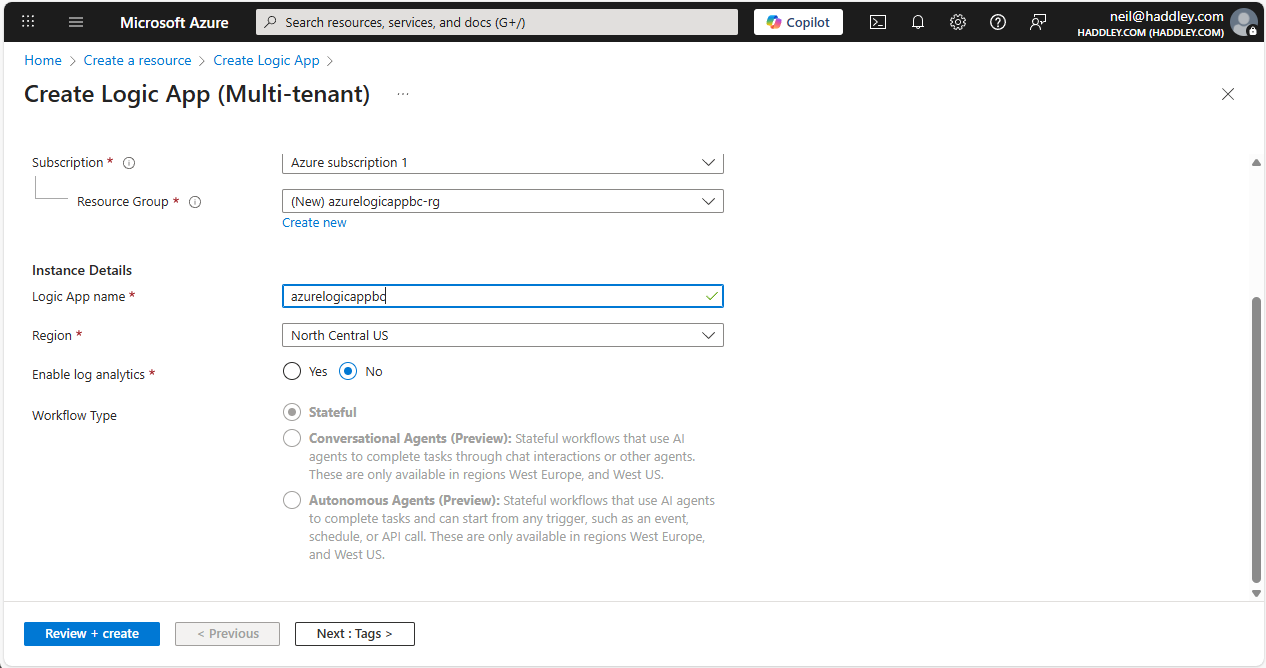
I entered the Logic App name
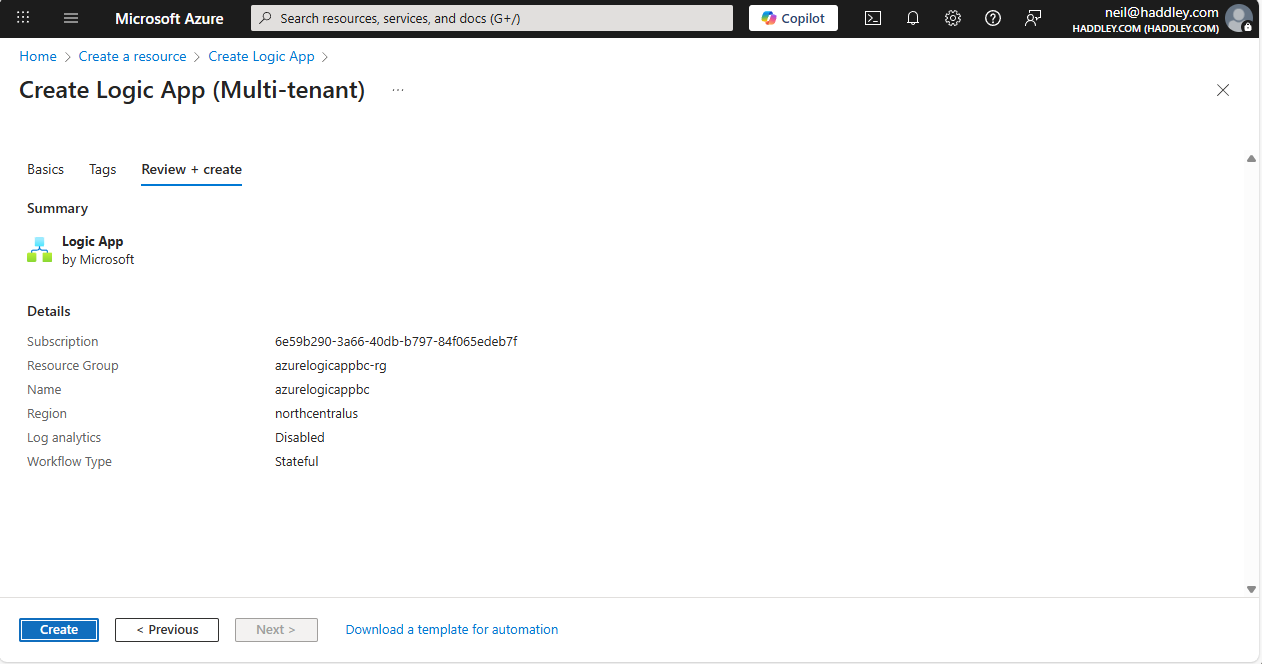
I clicked Create
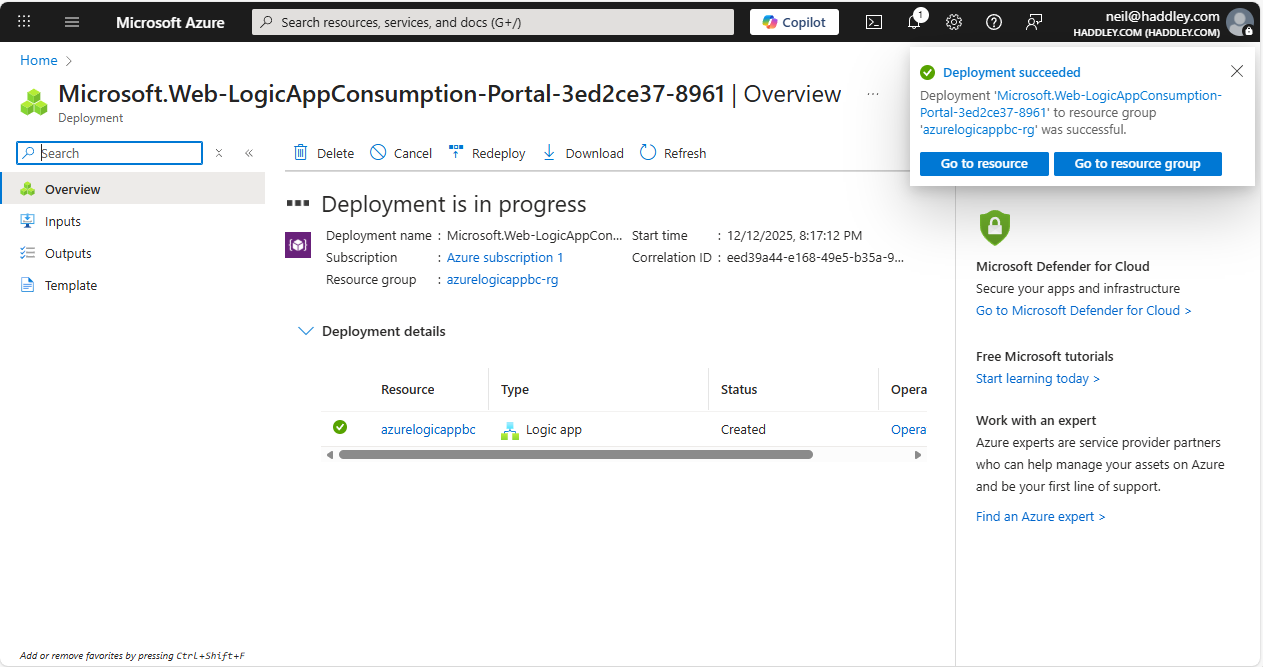
The deployment was in progress
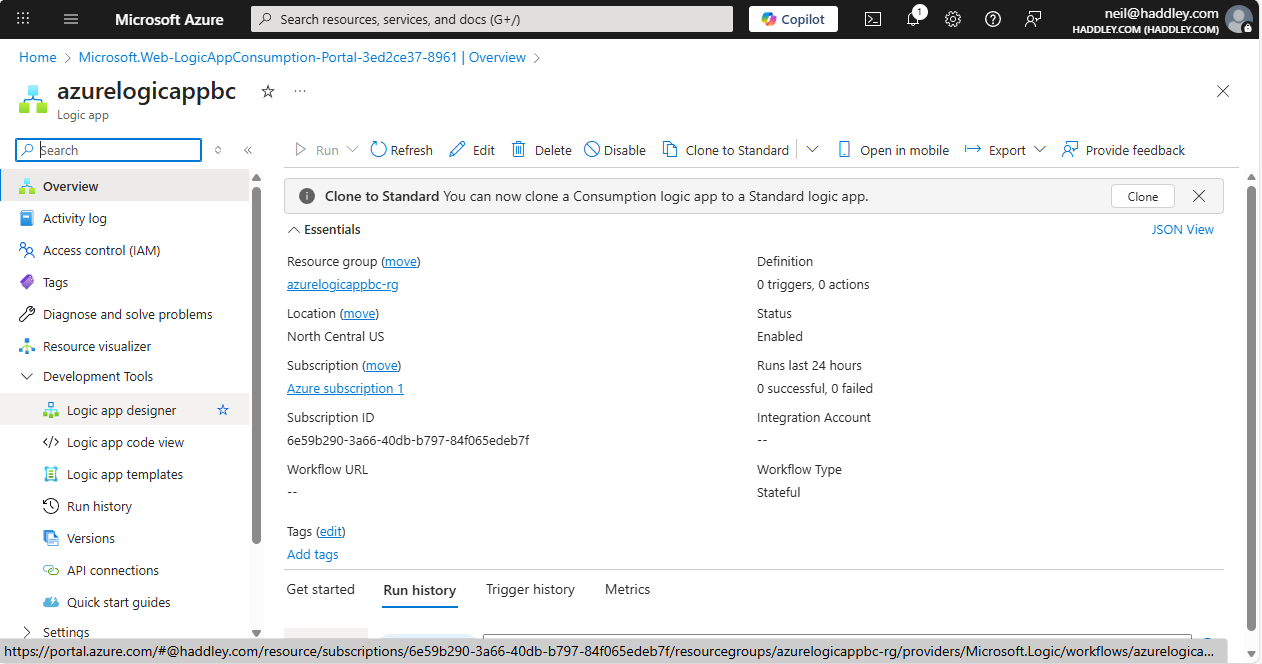
I opened the Logic App designer
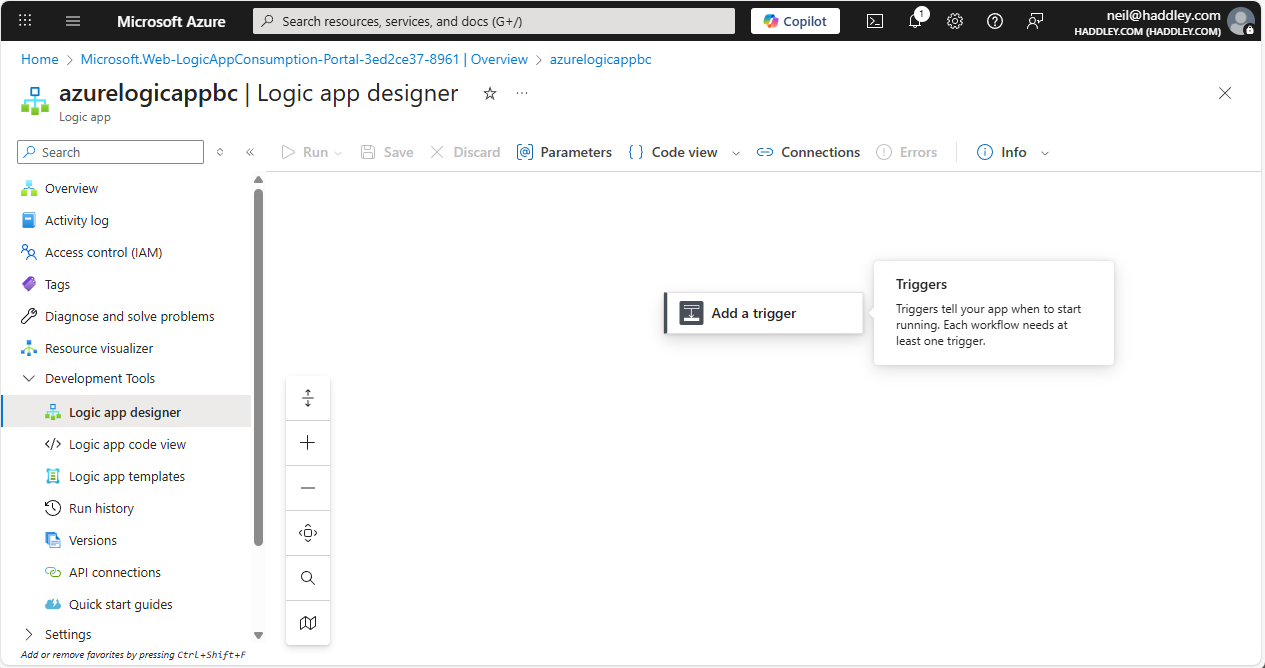
I added a trigger
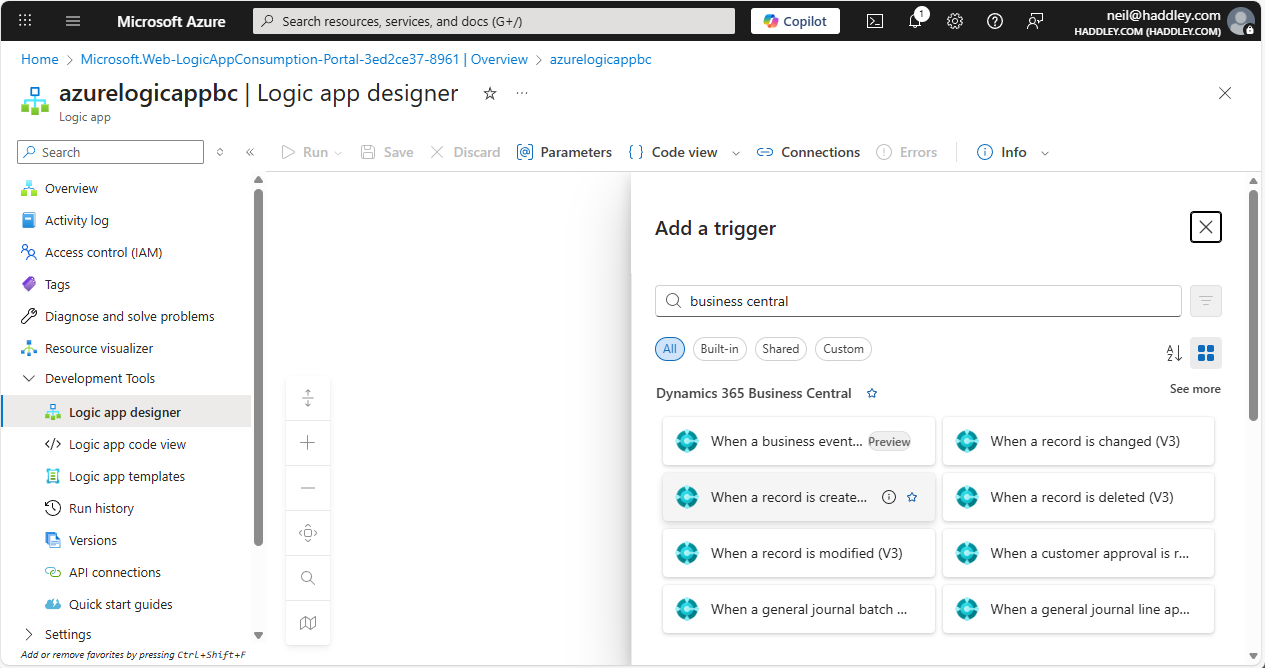
I searched for business central
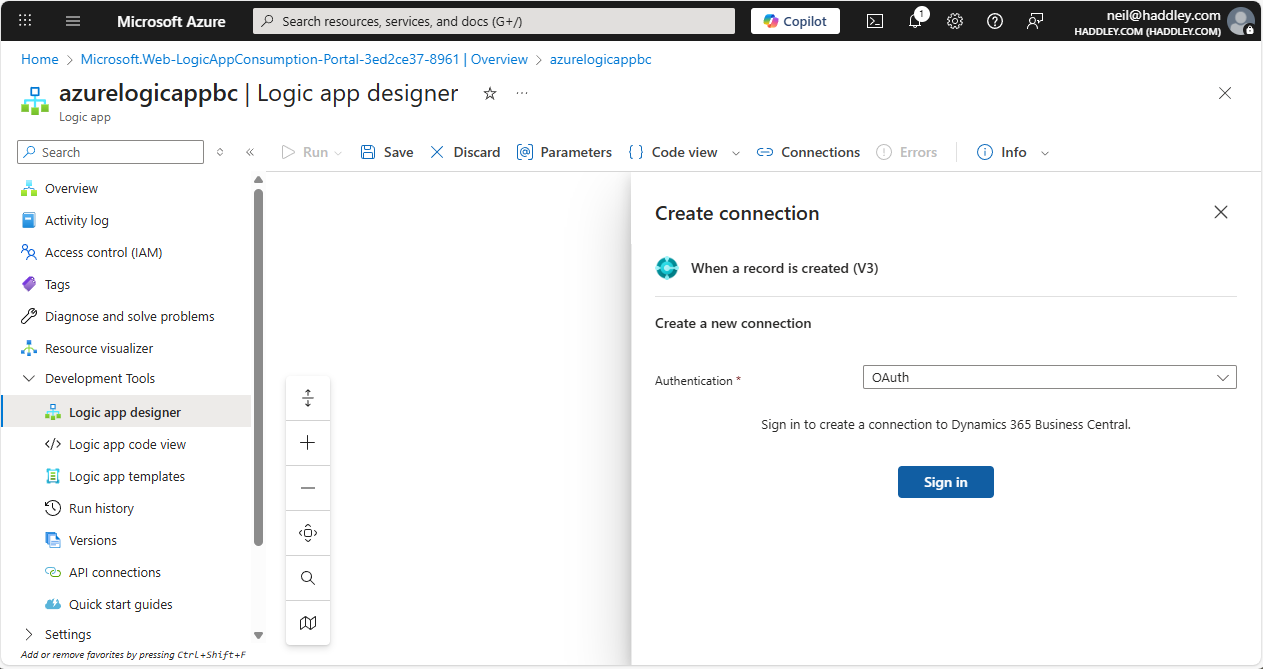
I created a connection
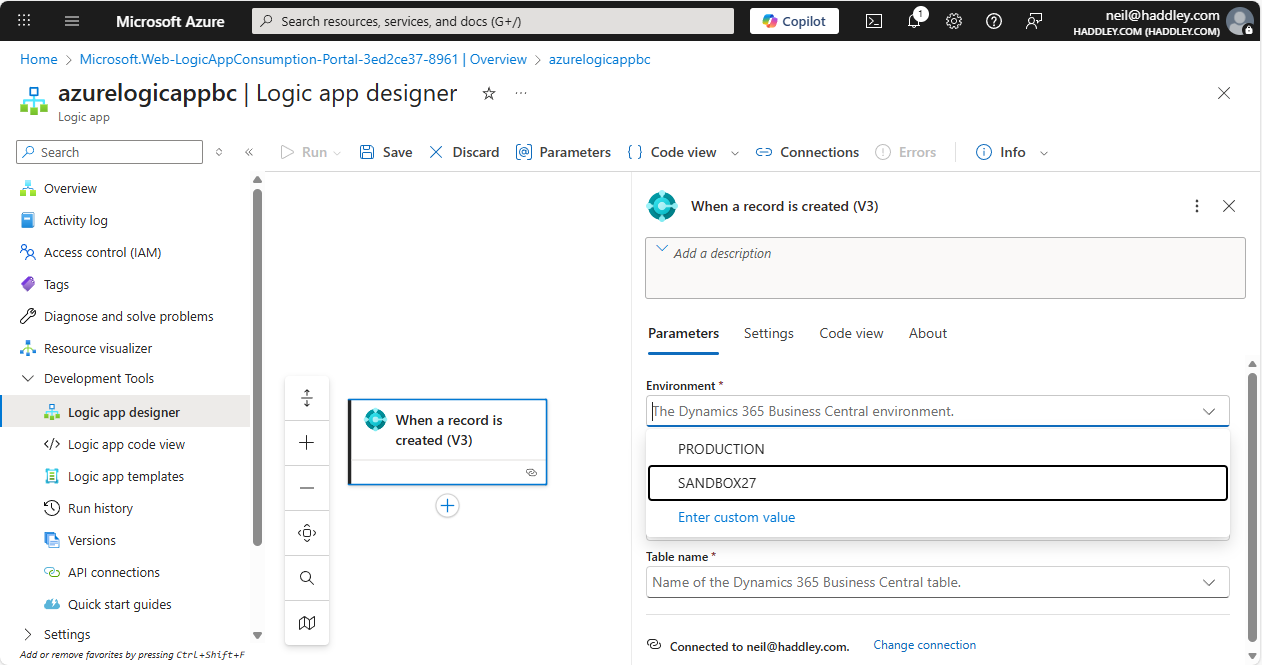
I selected SANDBOX27
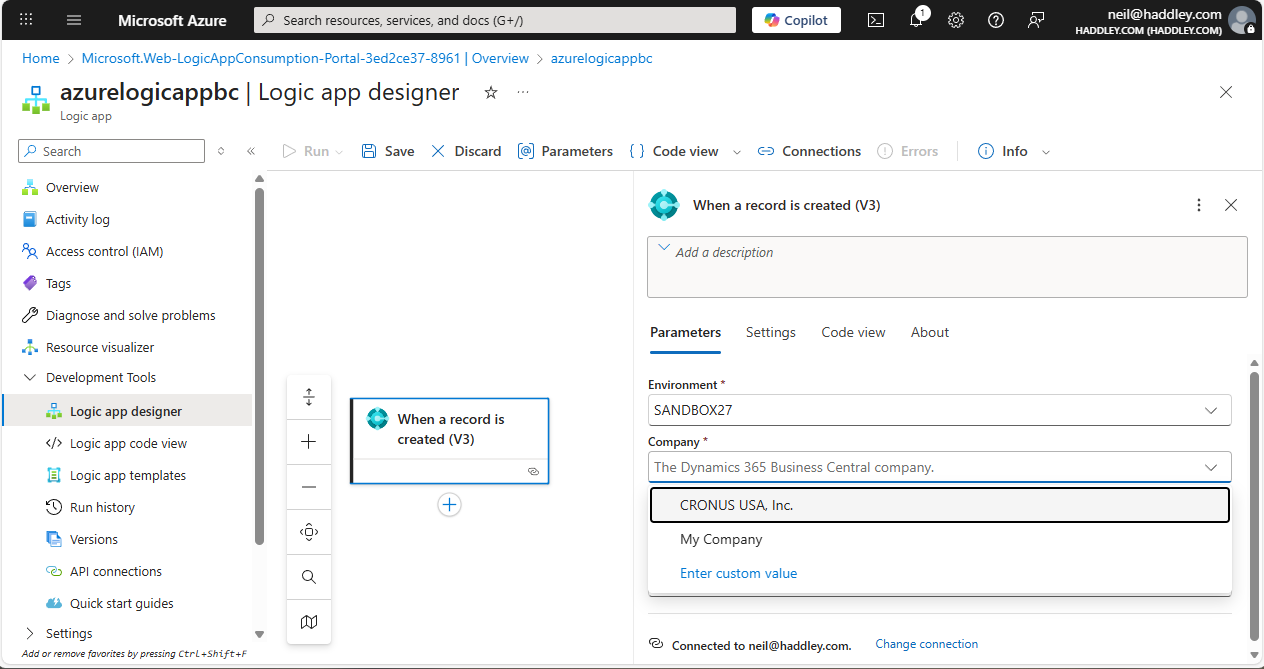
I selected CONUS USA, Inc.
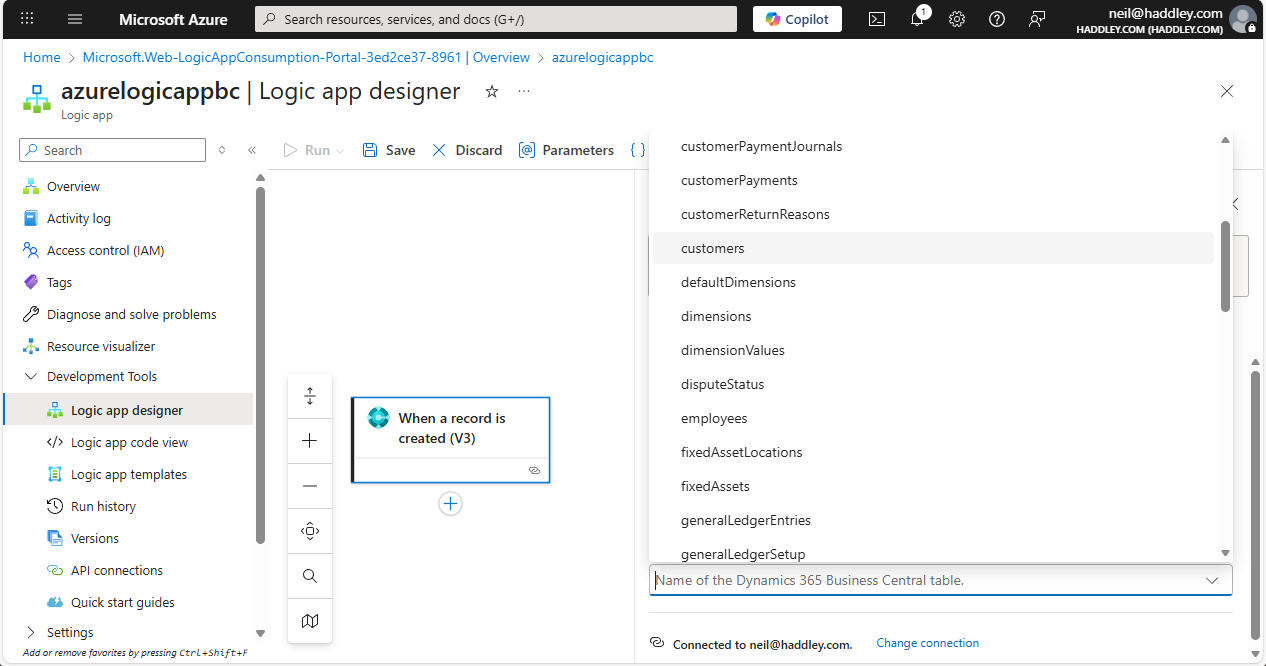
I selected customers
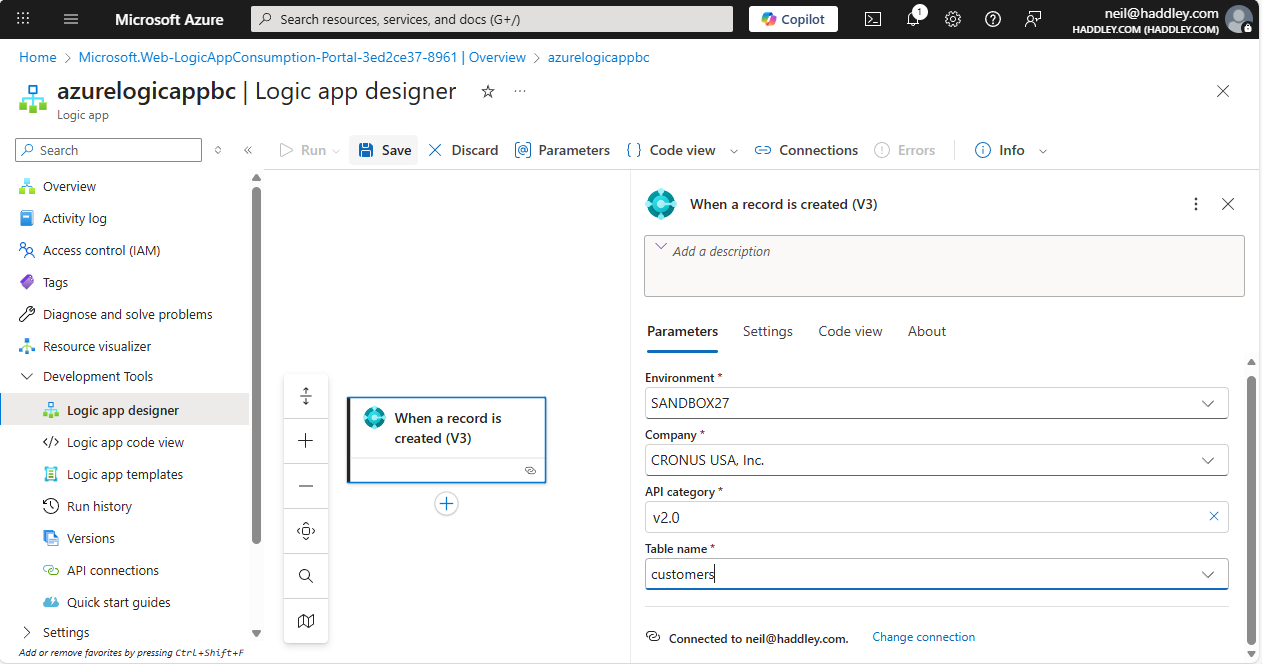
I clicked Save
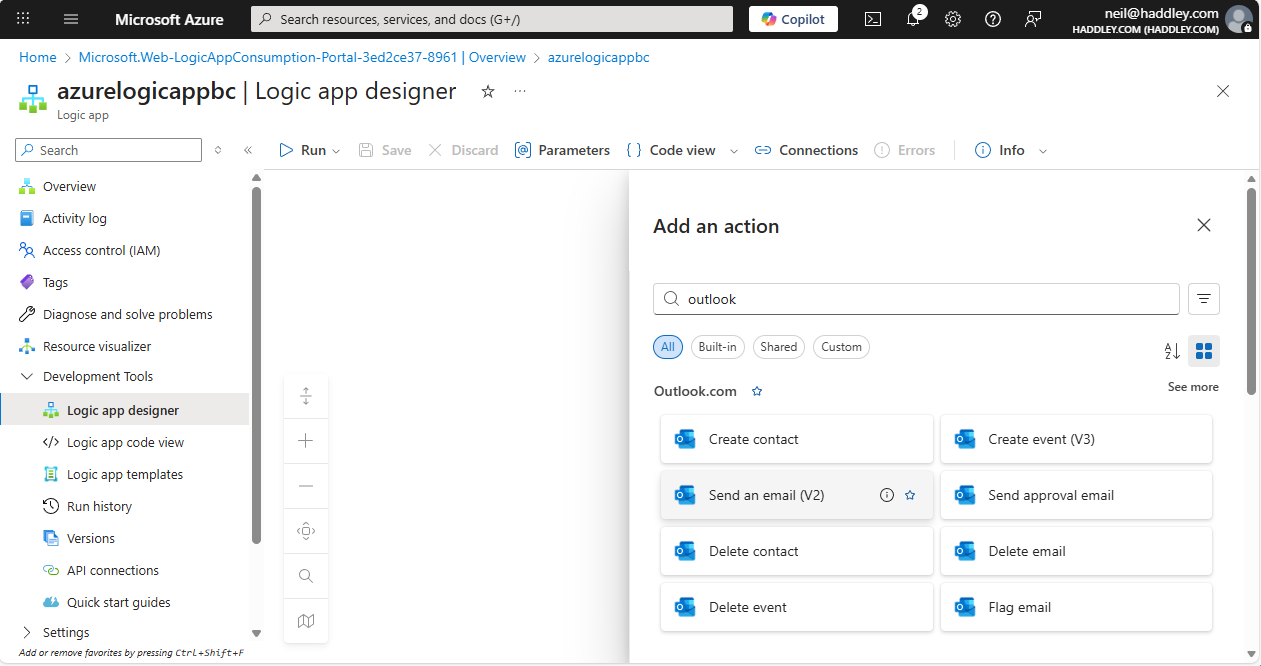
I added a Send an email (V2) action
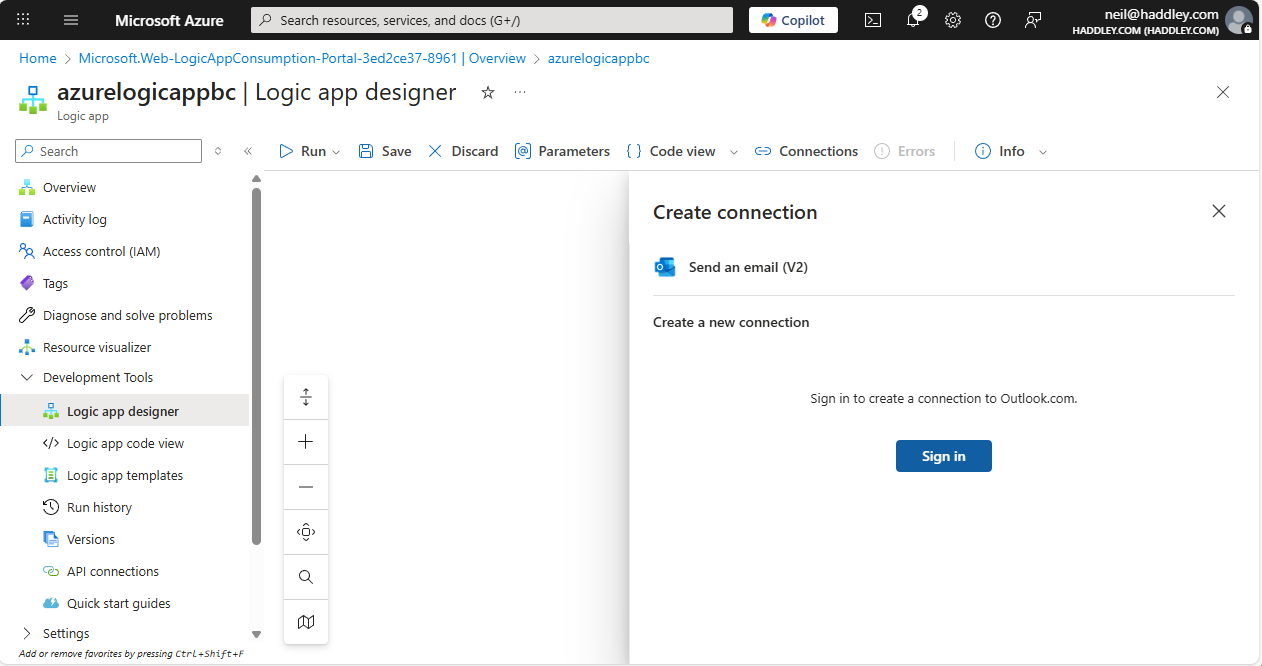
I signed in
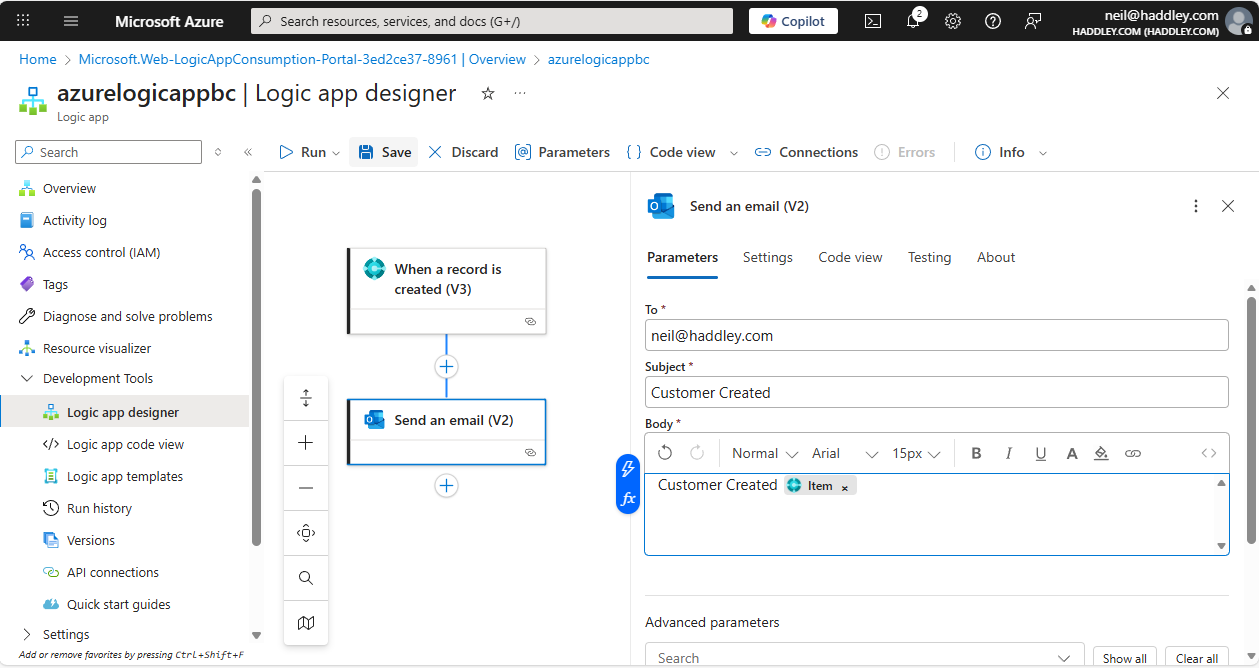
I configured Send an email (V2)
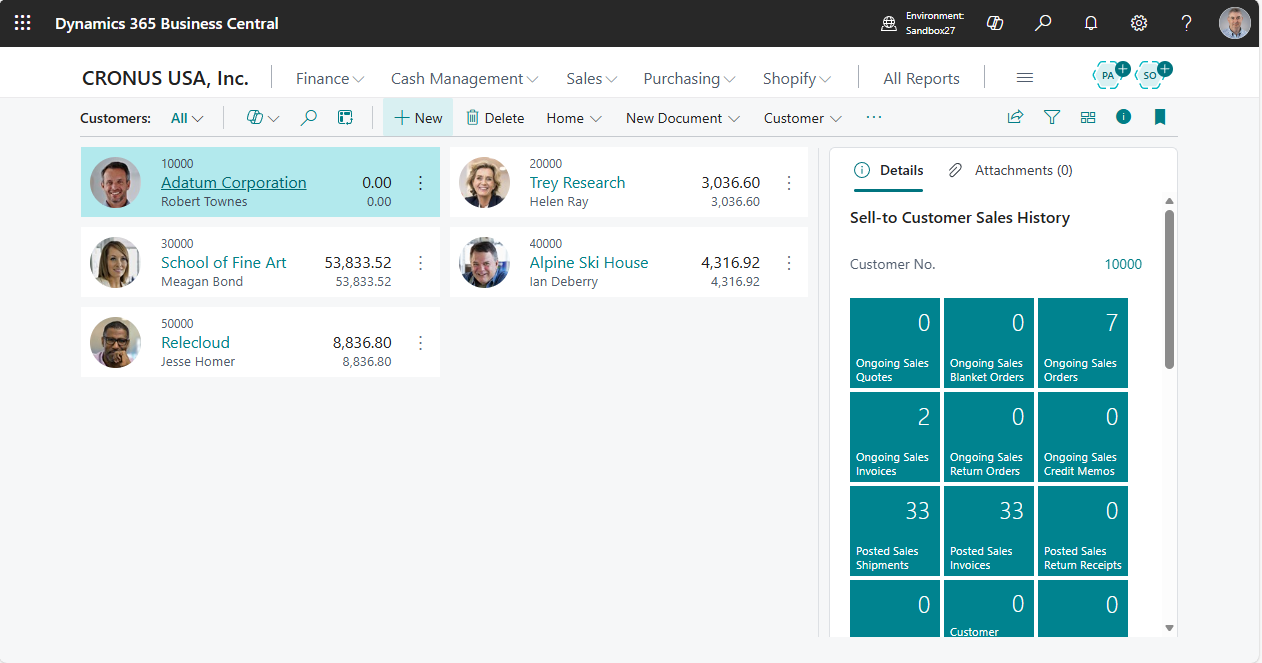
I clicked Customers +New
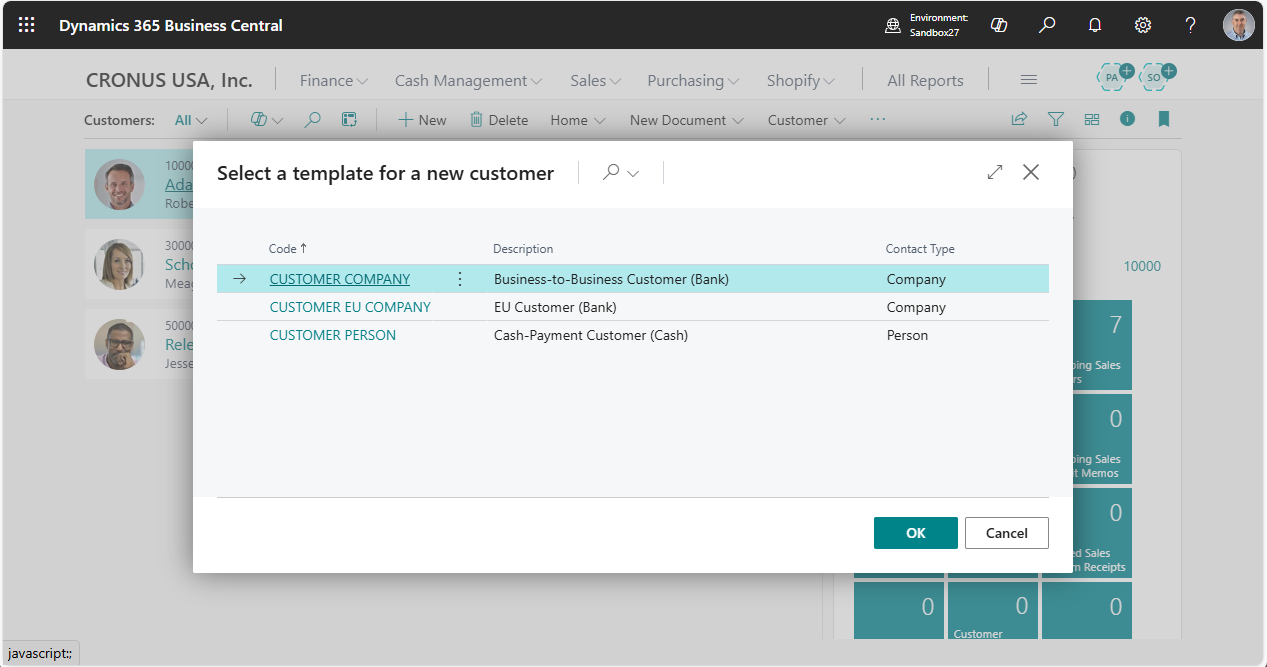
I selected Customer Company
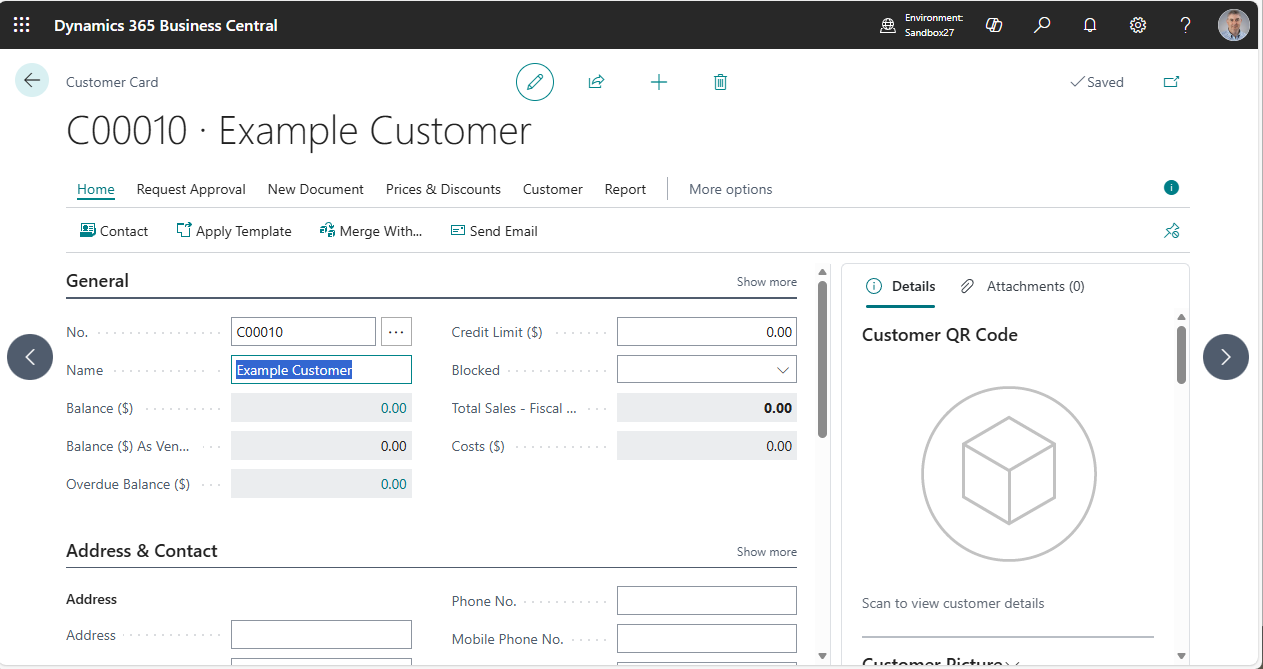
I created an example customer
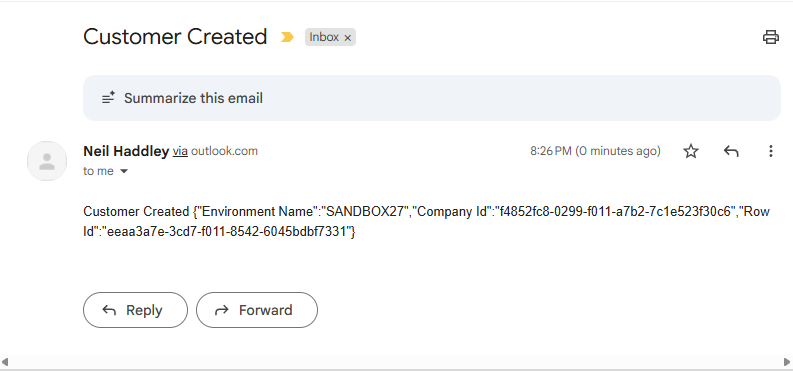
The email notification was sent