In this post I set up a full-text search in the Azure portal. I follow Microsoft's Quickstart: Full-text search in the Azure portal and index the hotel sample data, so that I can search hotels by keyword.
Here is the plan. I create a resource group and a storage account that holds the JSON file, then create a search service, and then run the import data wizard to turn the file into a searchable index.
Look at the data
The sample is a JSON file of hotels.
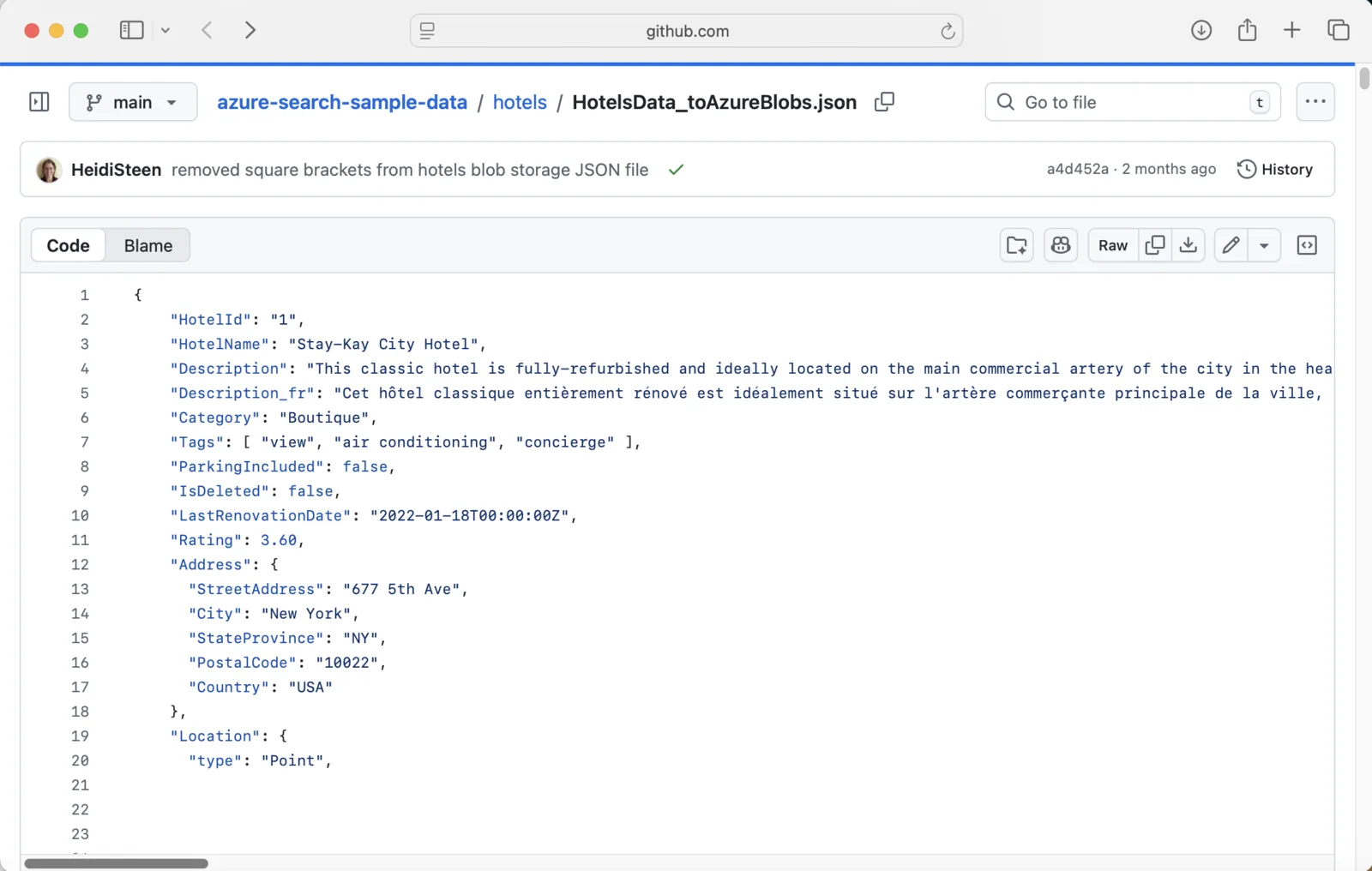
The sample hotel data on GitHub: a JSON file of hotels, each with a name, a description in English and French, a category, tags, a rating and an address
Create a resource group and a storage account
I put everything in one resource group, so that I can delete it all in one step when I have finished.
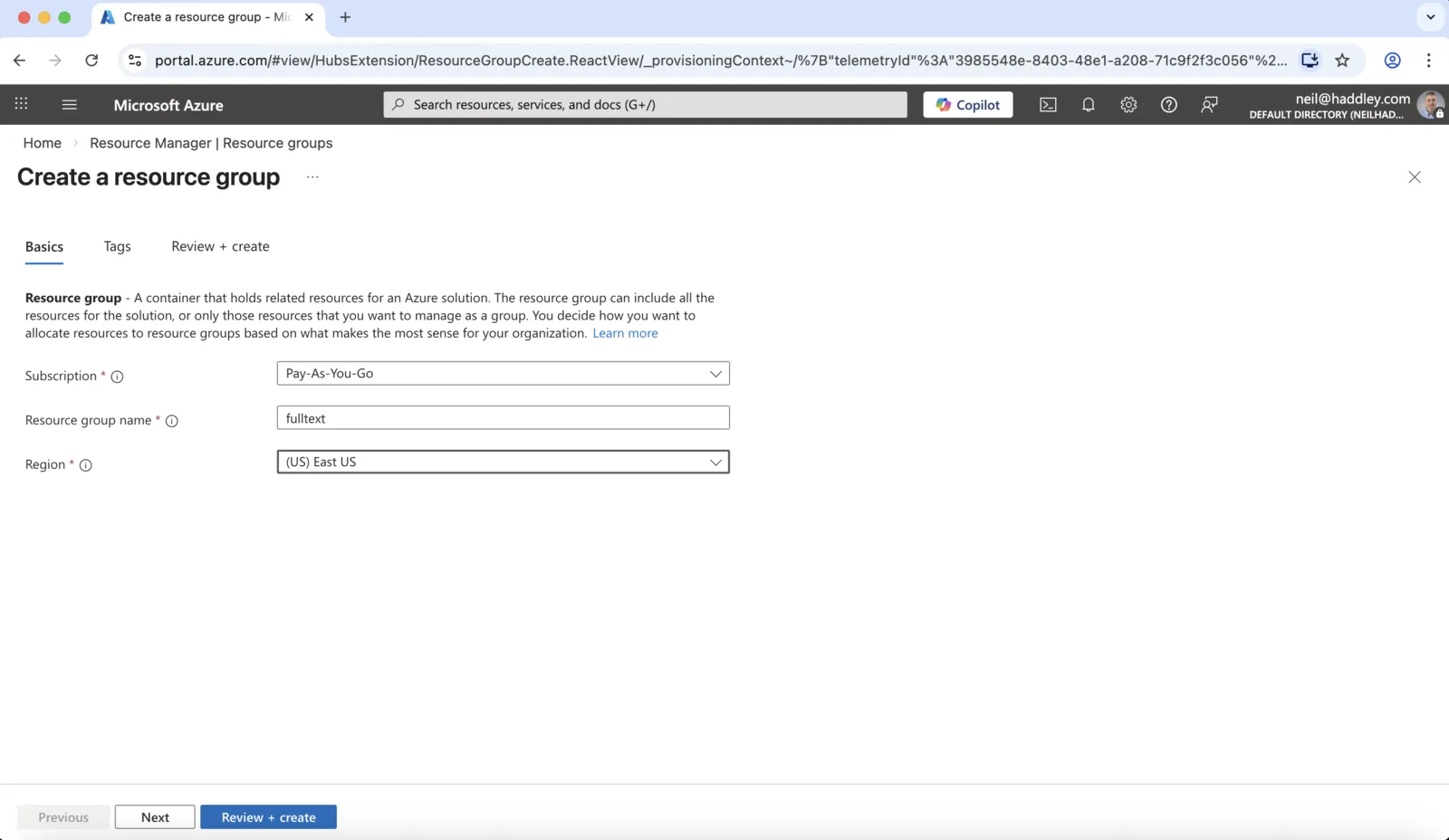
I created a resource group called fulltext in East US to hold everything for this walkthrough
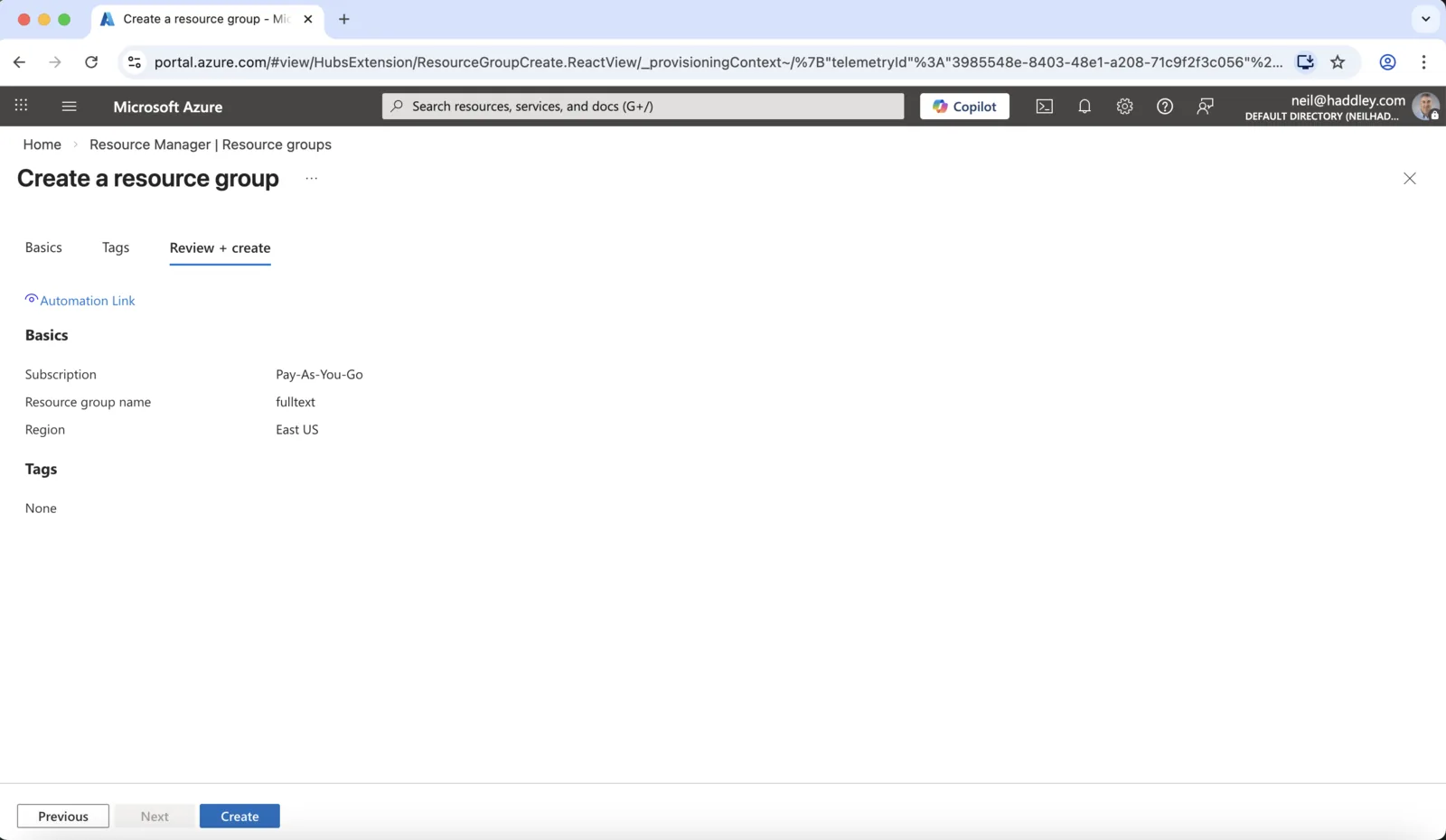
I reviewed the resource group settings and clicked Create
The data has to live somewhere that the search service can reach. I used a blob container in a storage account.
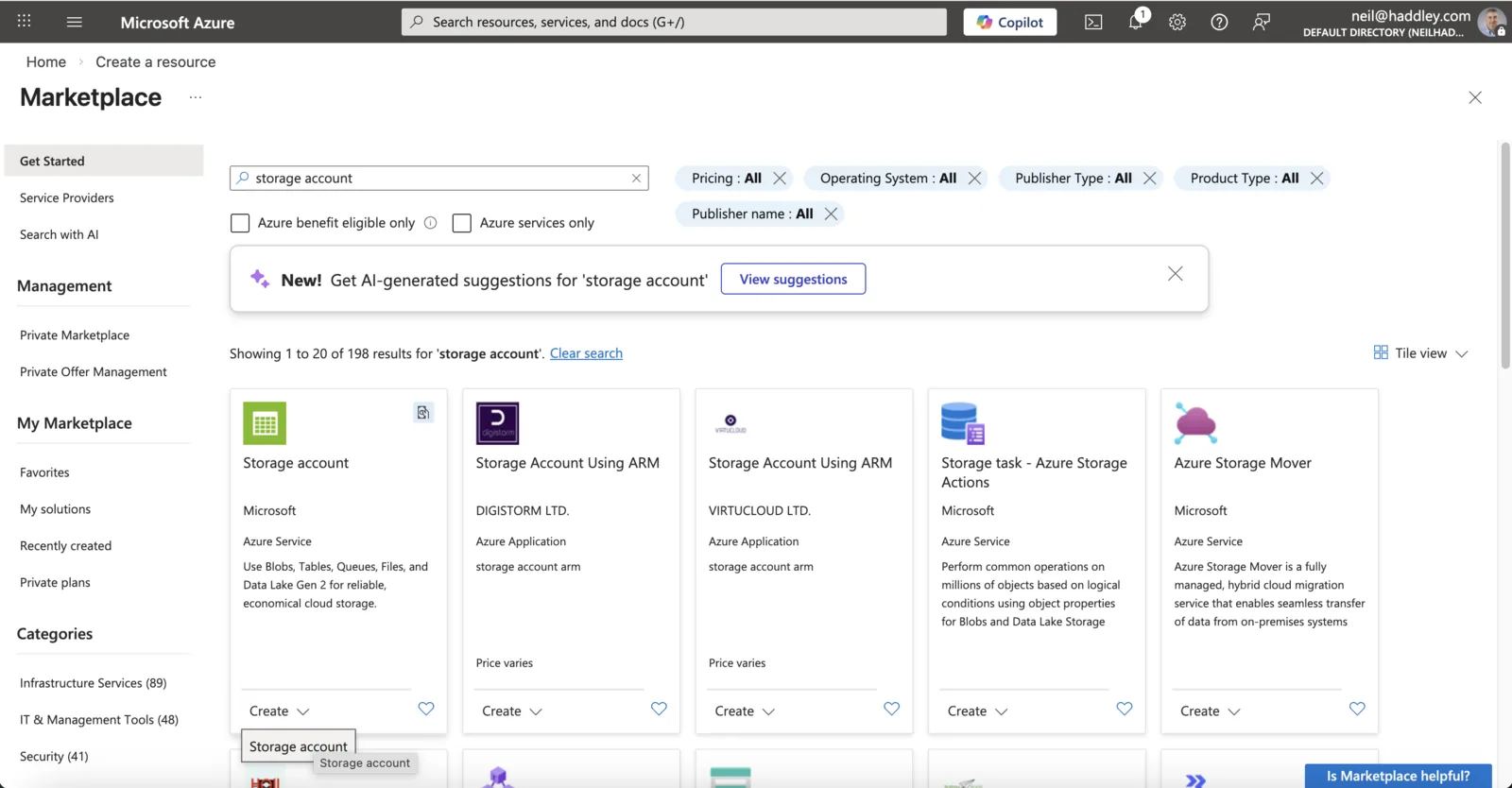
I searched the Marketplace for storage account and chose the Microsoft Storage account
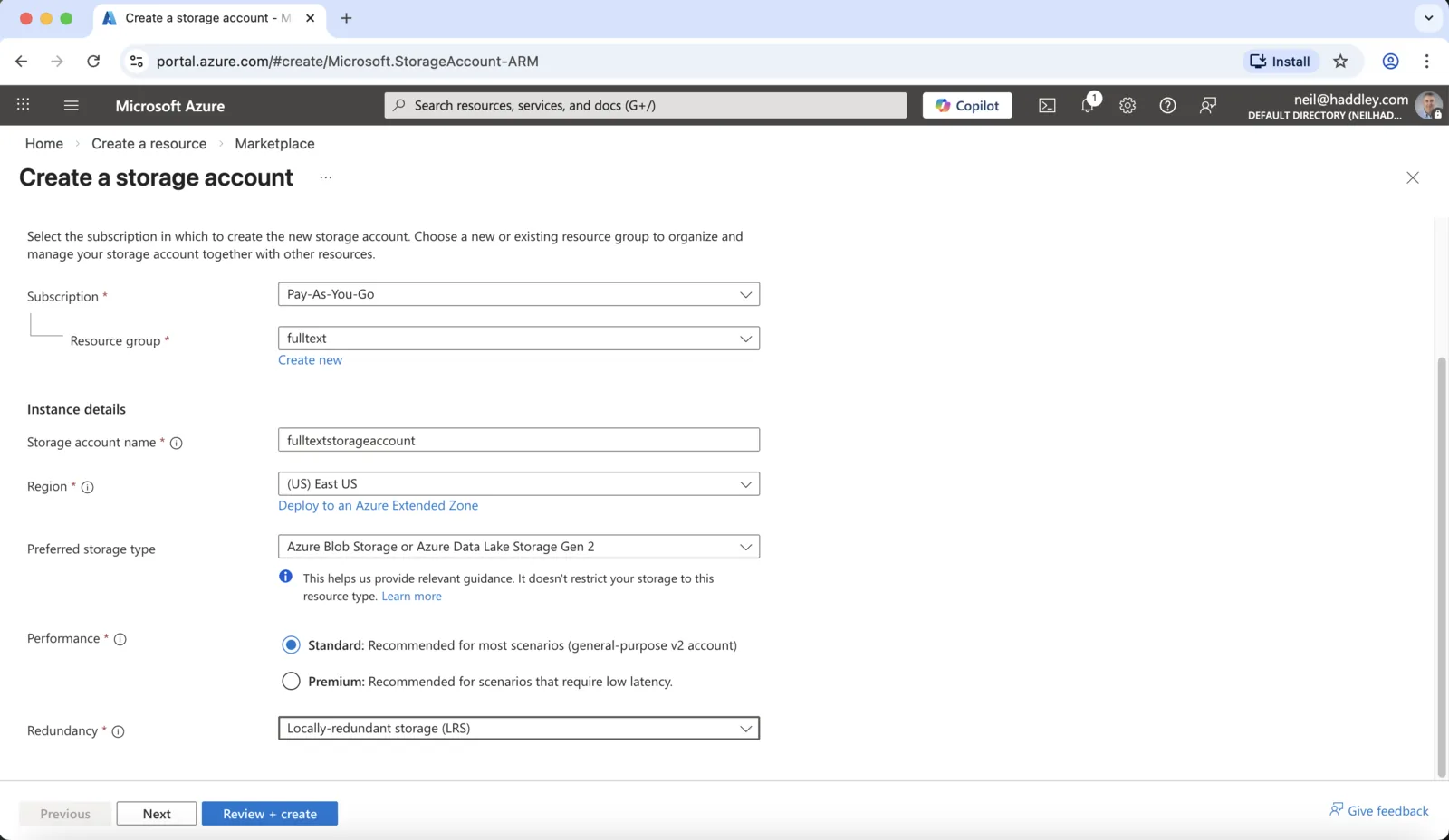
I named the storage account fulltextstorageaccount, put it in the fulltext resource group in East US, and chose Standard performance with locally redundant storage
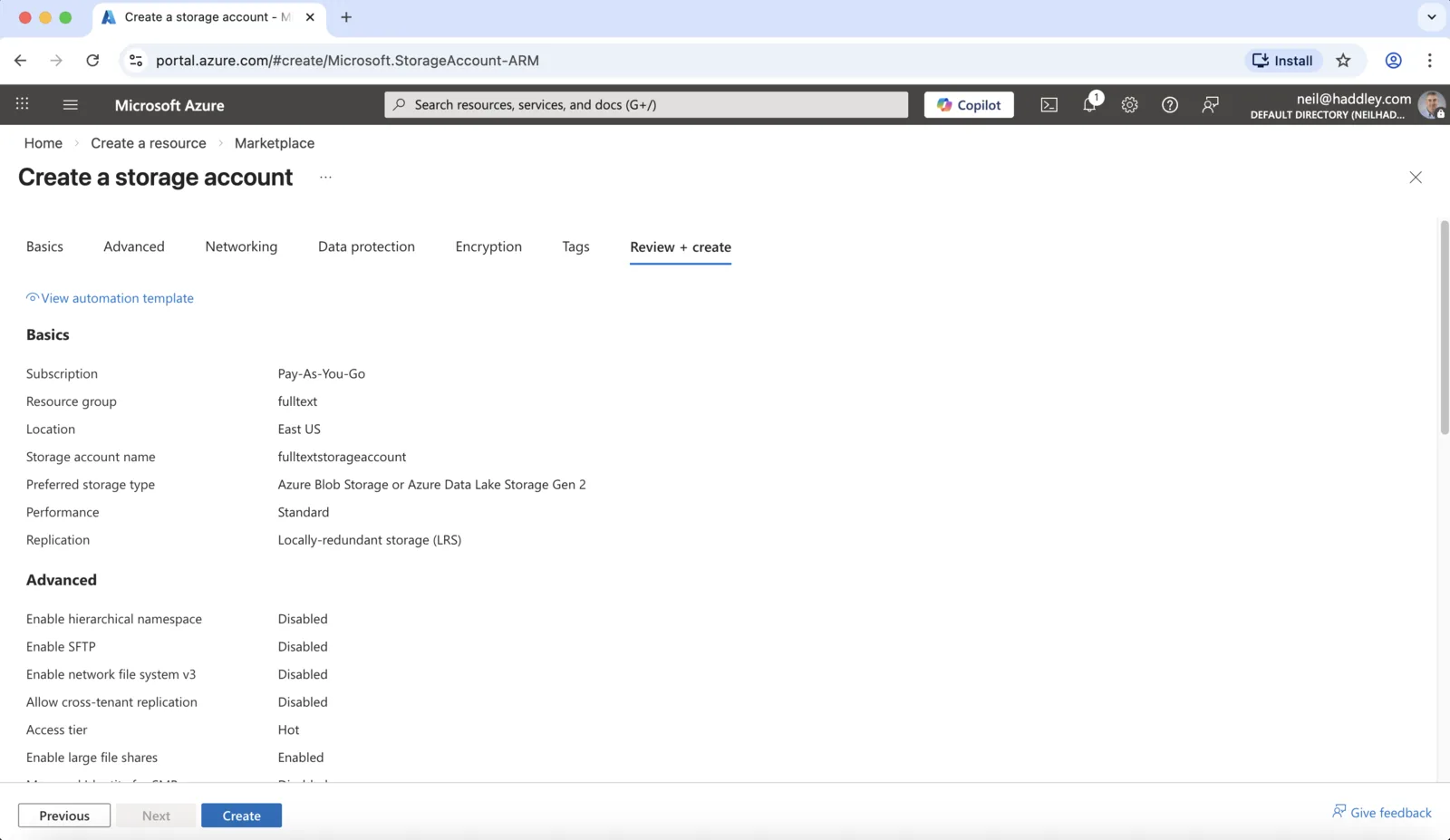
I reviewed the storage account settings and clicked Create
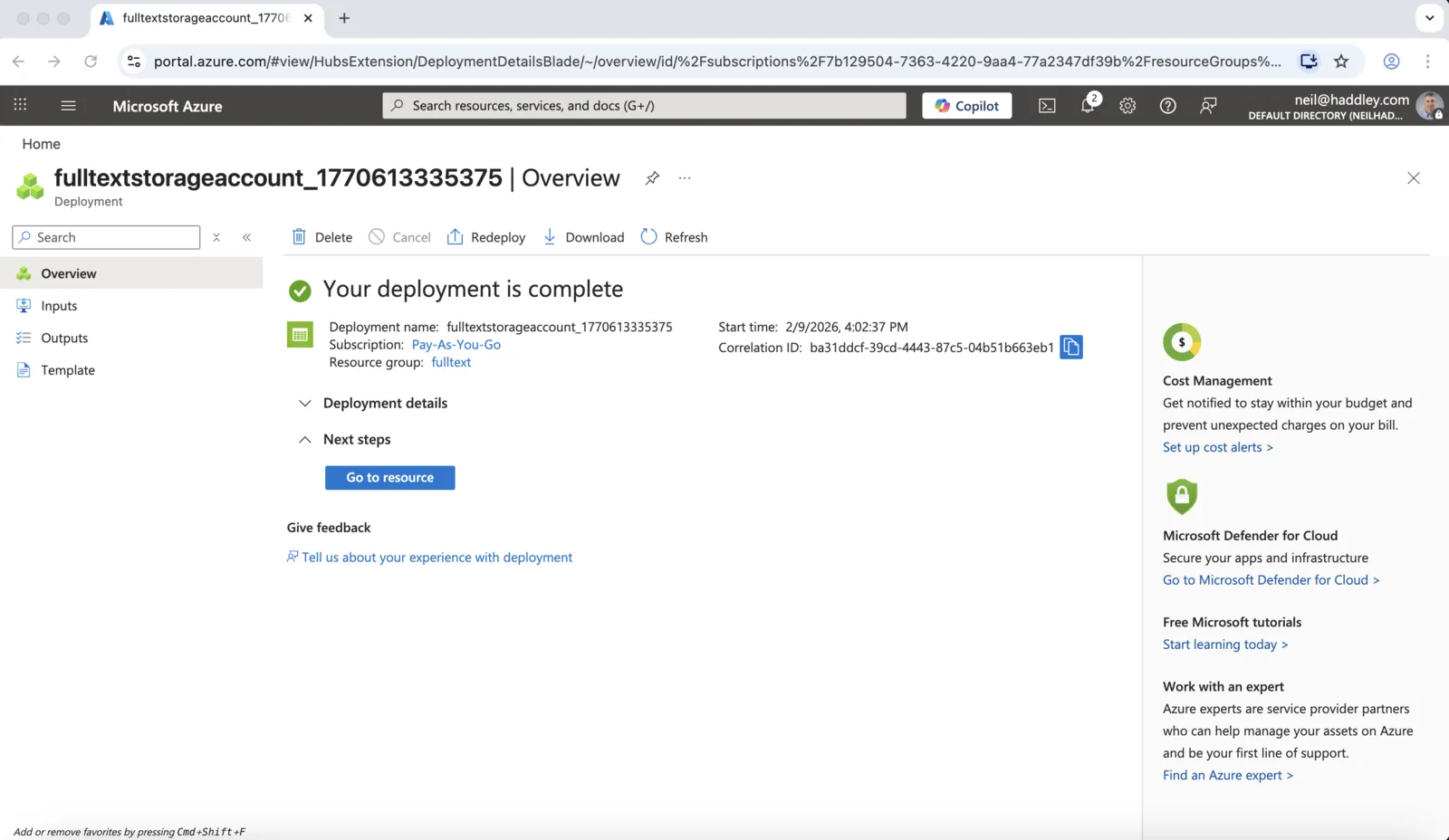
The storage account deployment is complete
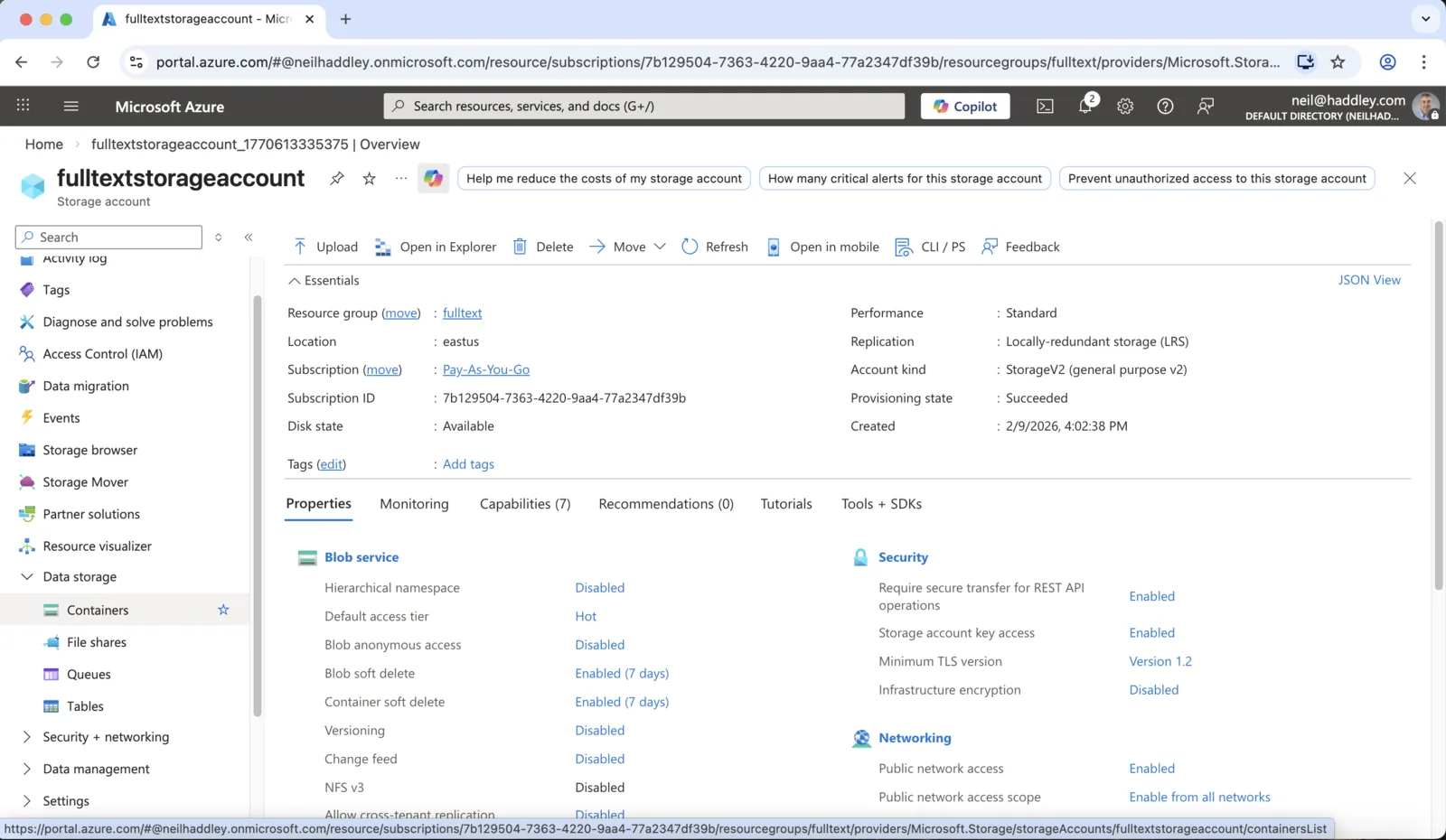
The fulltextstorageaccount overview
Upload the hotel data
The container now needs the file that I will index.
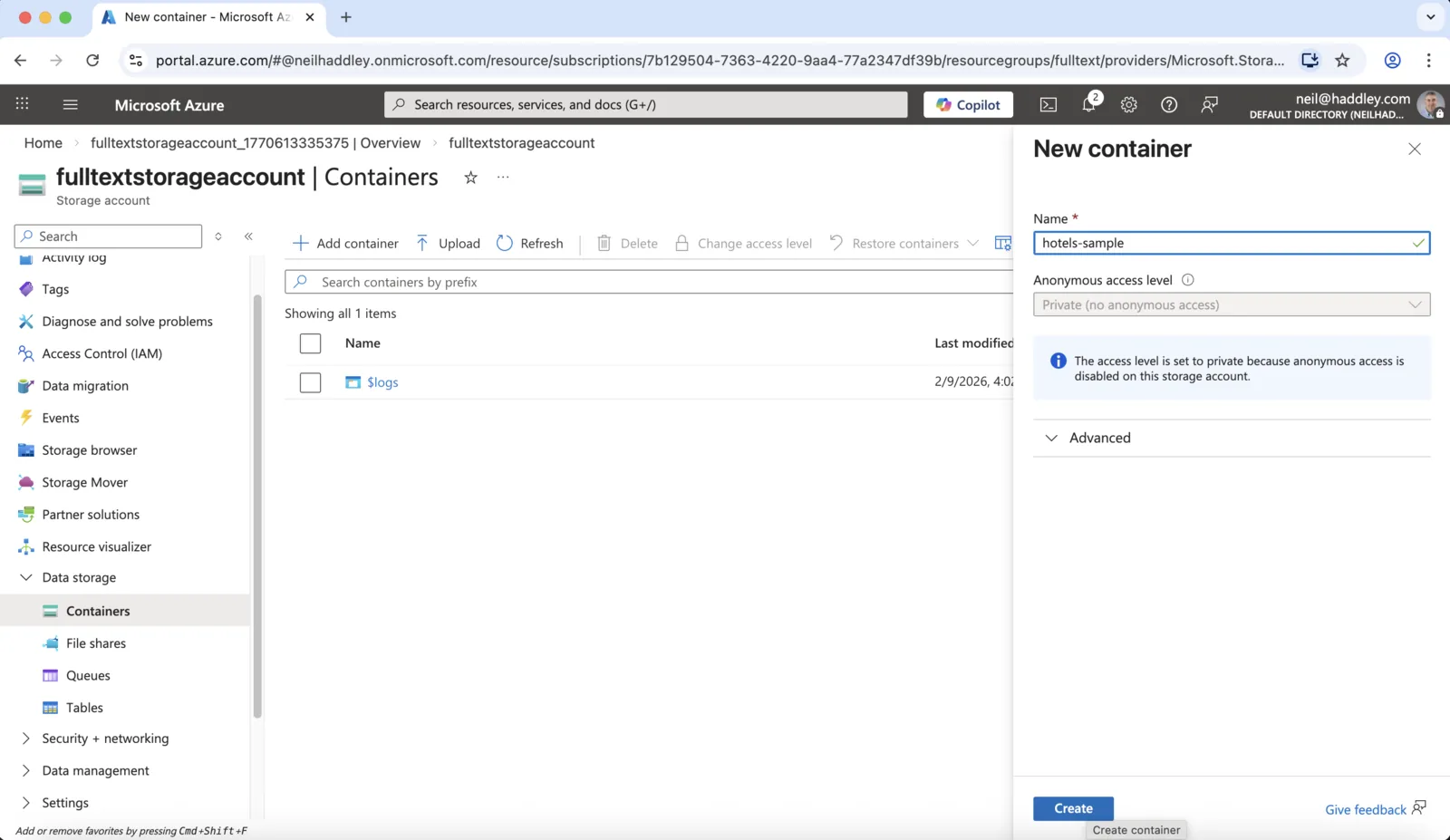
I created a private container called hotels-sample
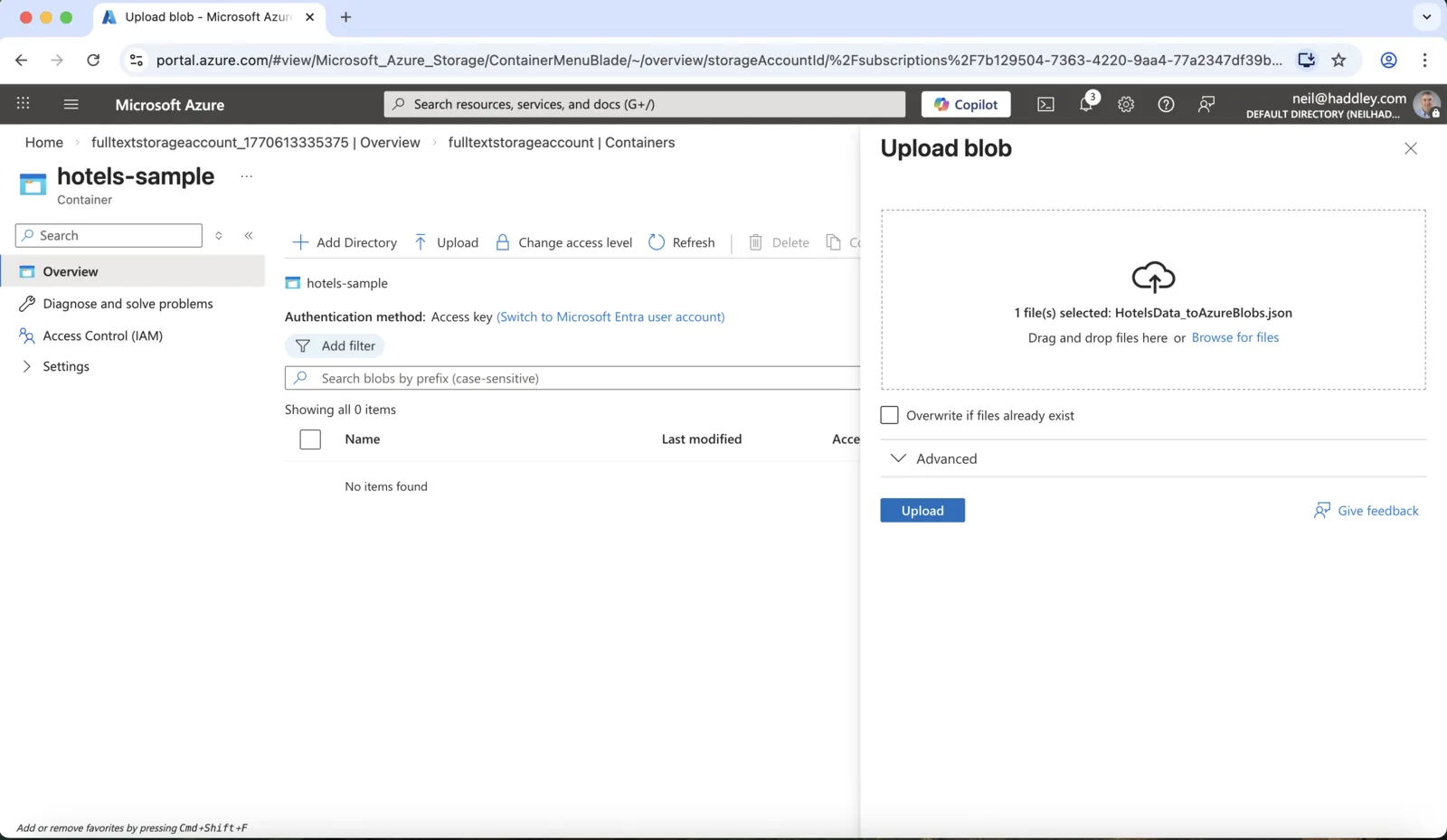
I chose the HotelsData_toAzureBlobs.json file to upload
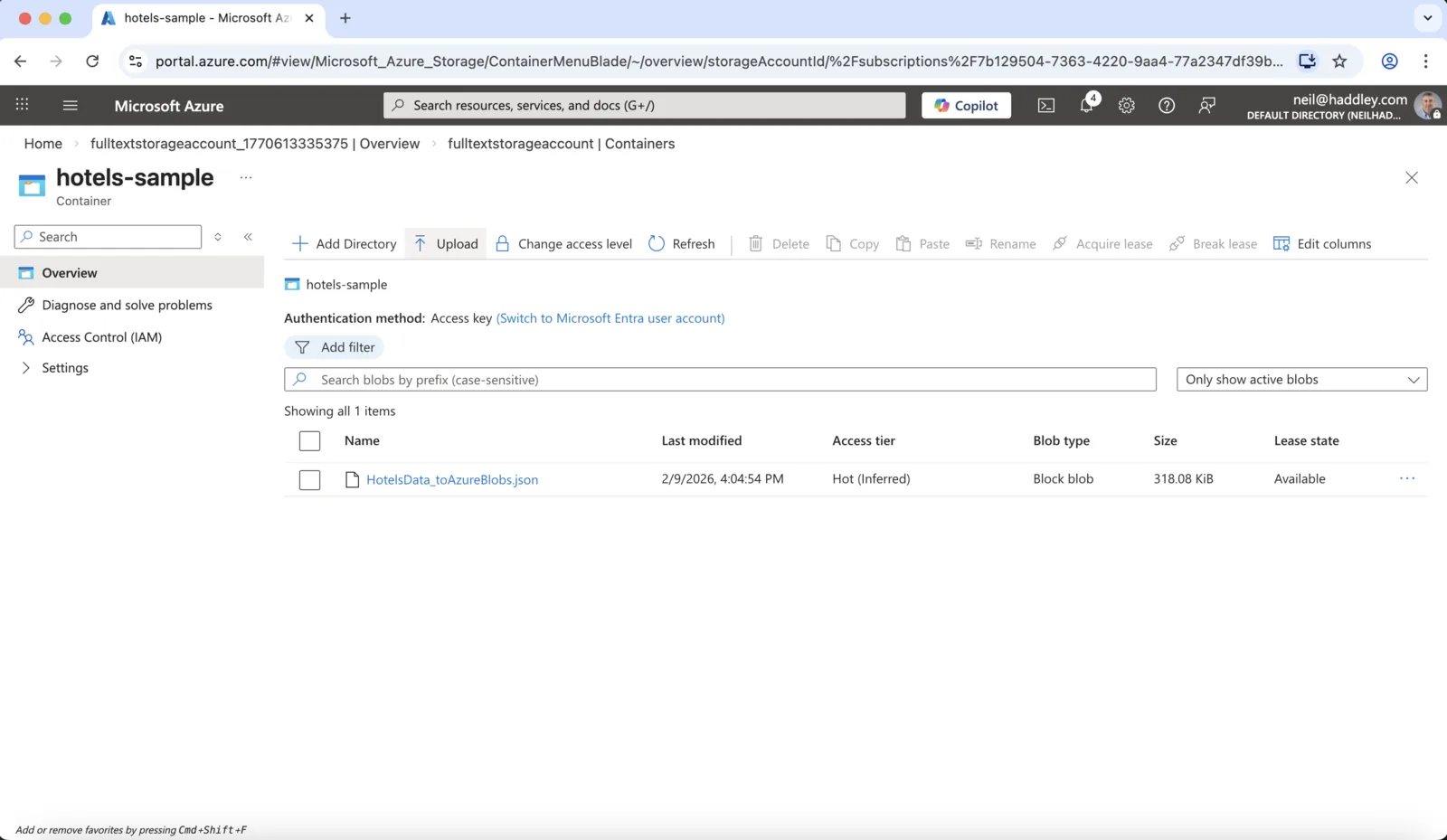
The container now holds HotelsData_toAzureBlobs.json, a 318 KiB block blob
Create the search service
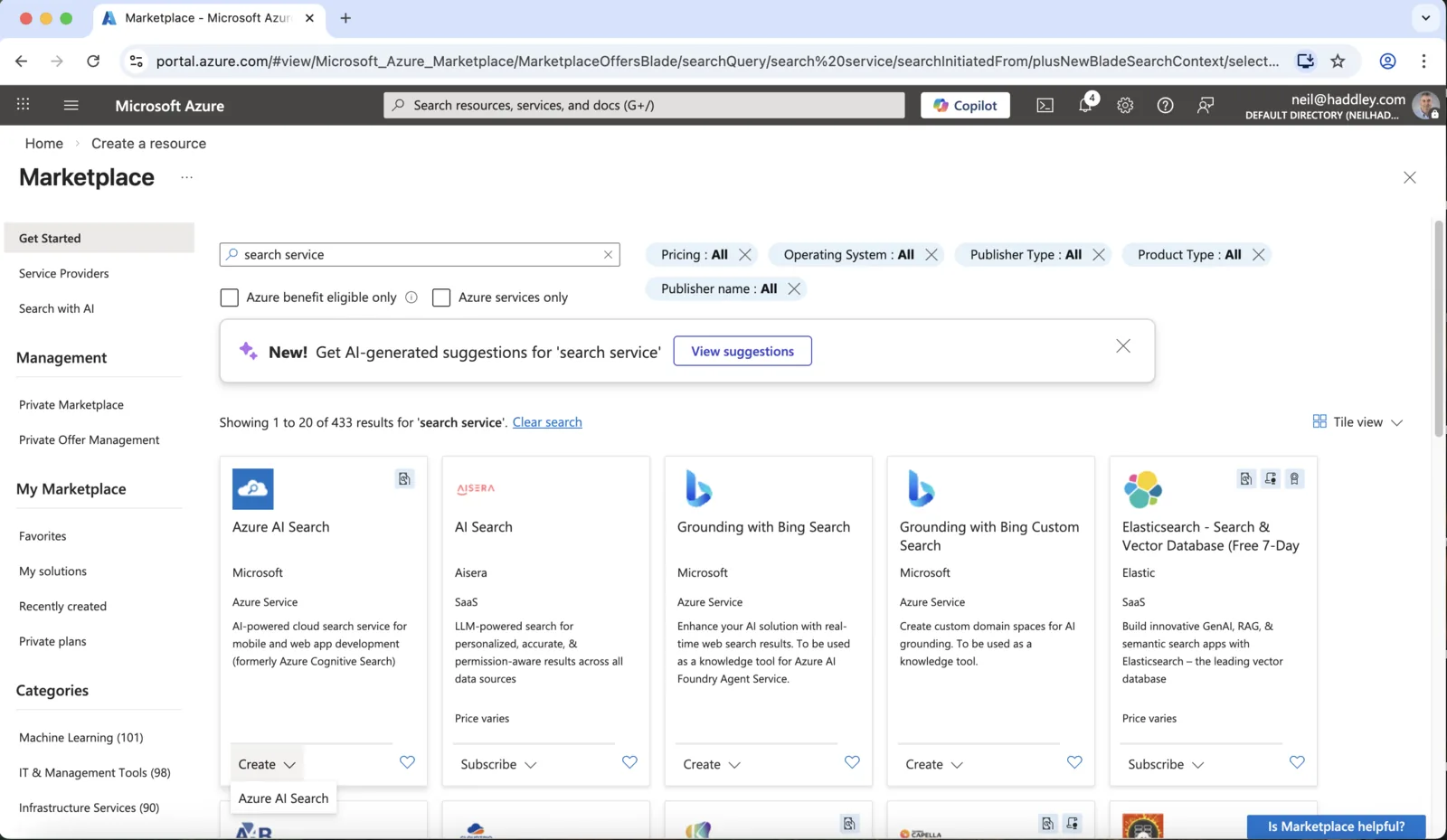
I searched the Marketplace for search service and chose Azure AI Search
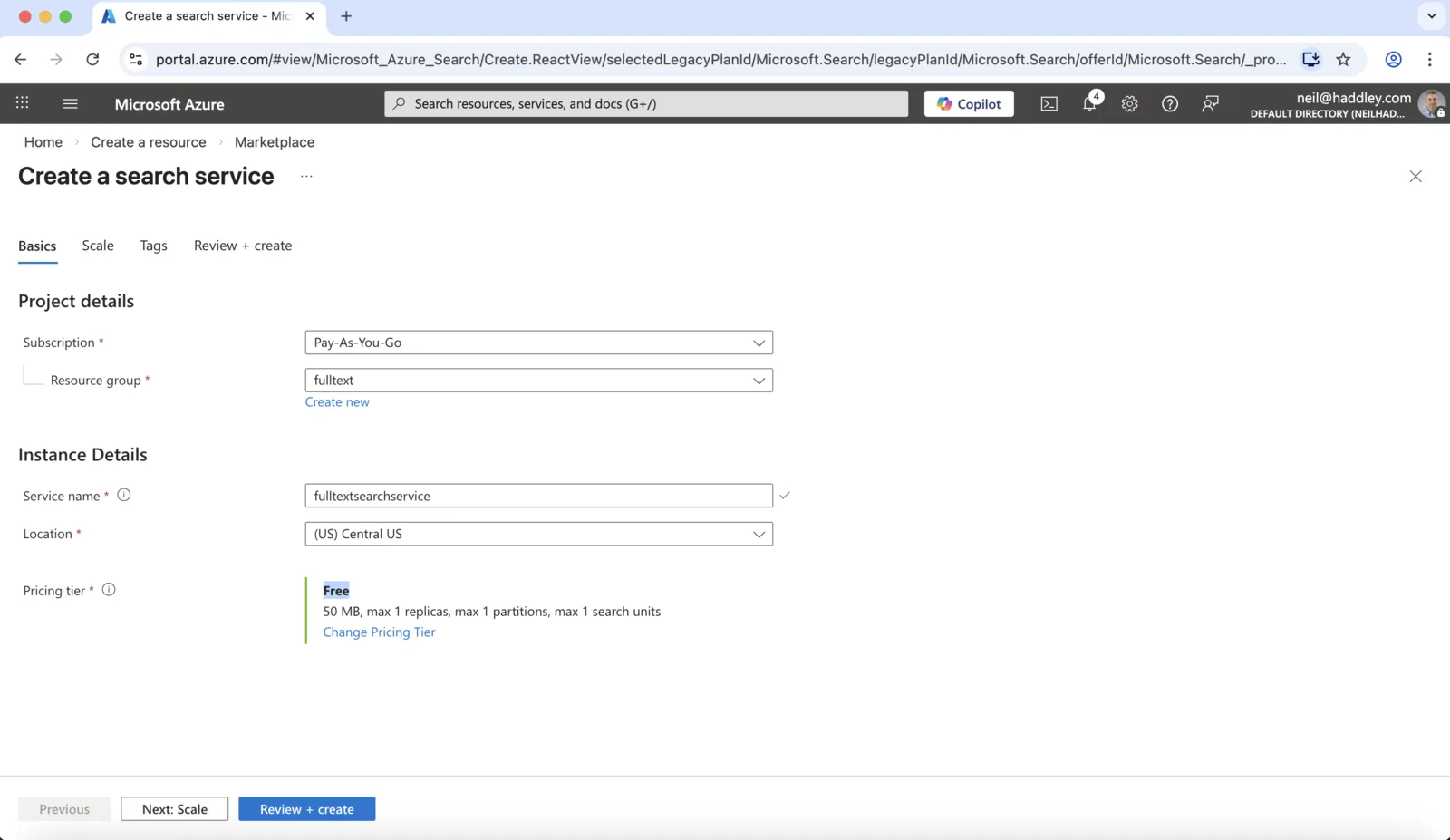
I named the service fulltextsearchservice, put it in Central US, and chose the Free pricing tier
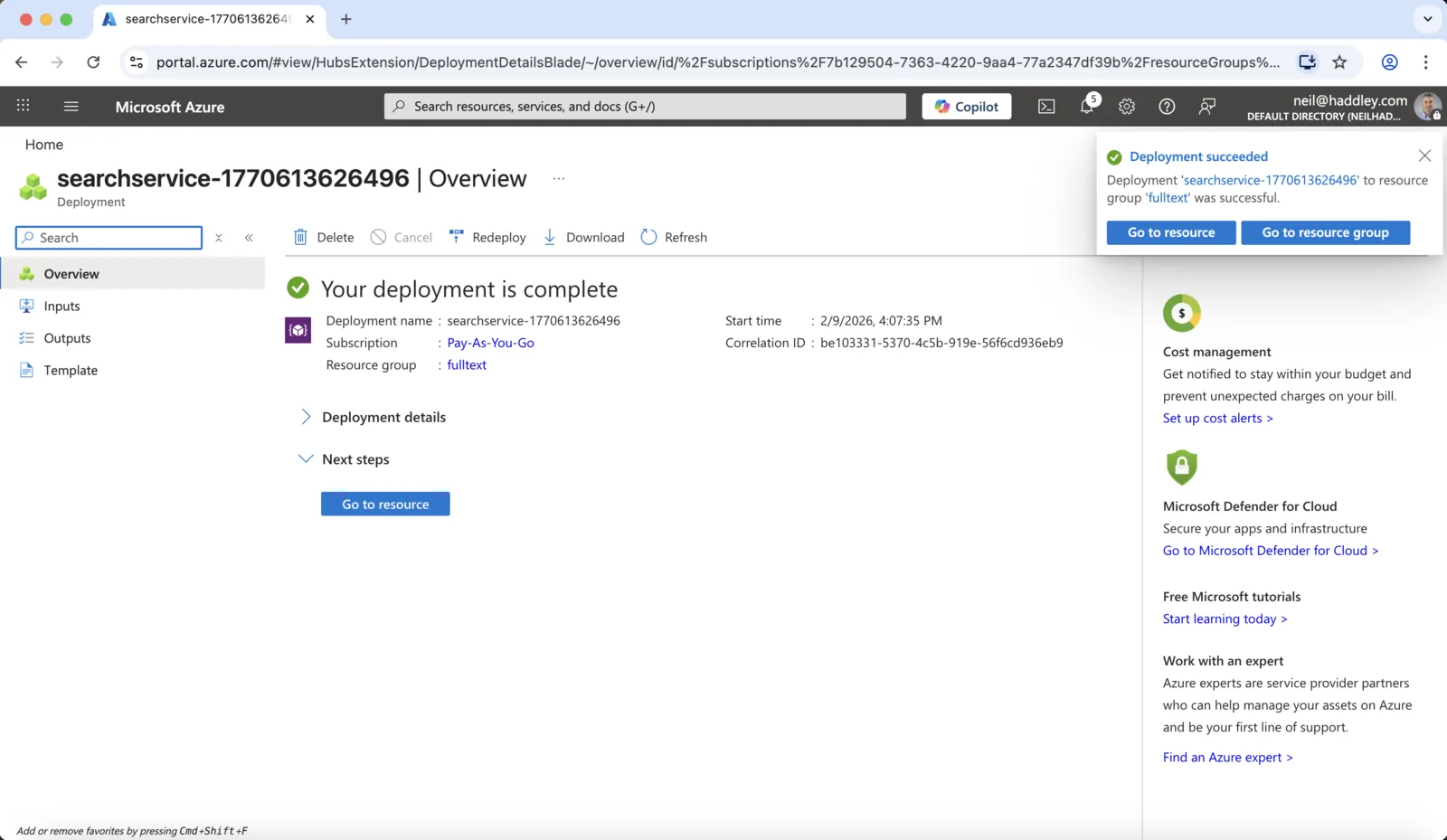
The search service deployment succeeded
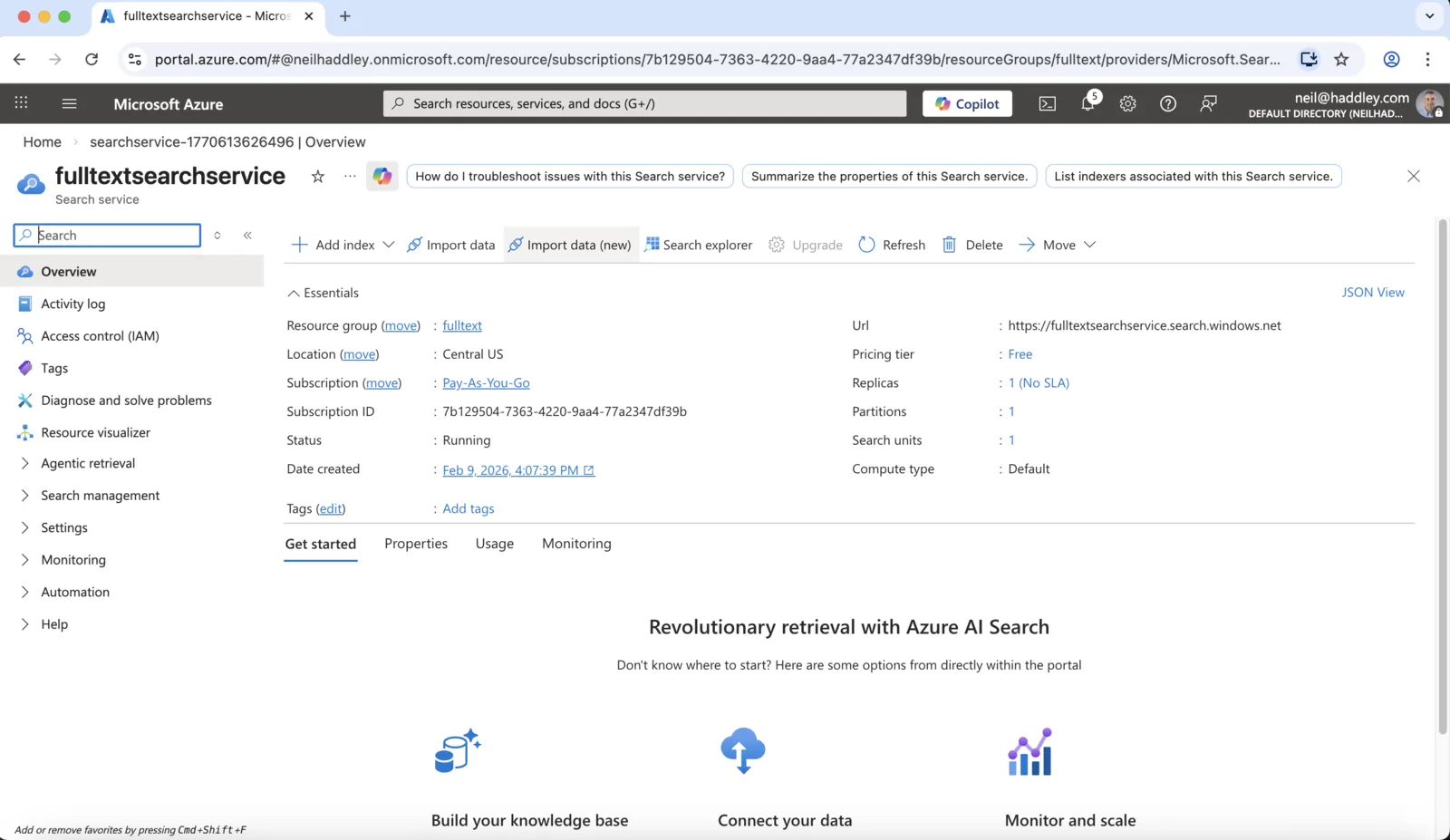
The fulltextsearchservice overview shows the Free tier and the Running status. Import data (new) is in the toolbar
Run the import data wizard
The wizard connects to the data, builds an index from it, and loads the index.
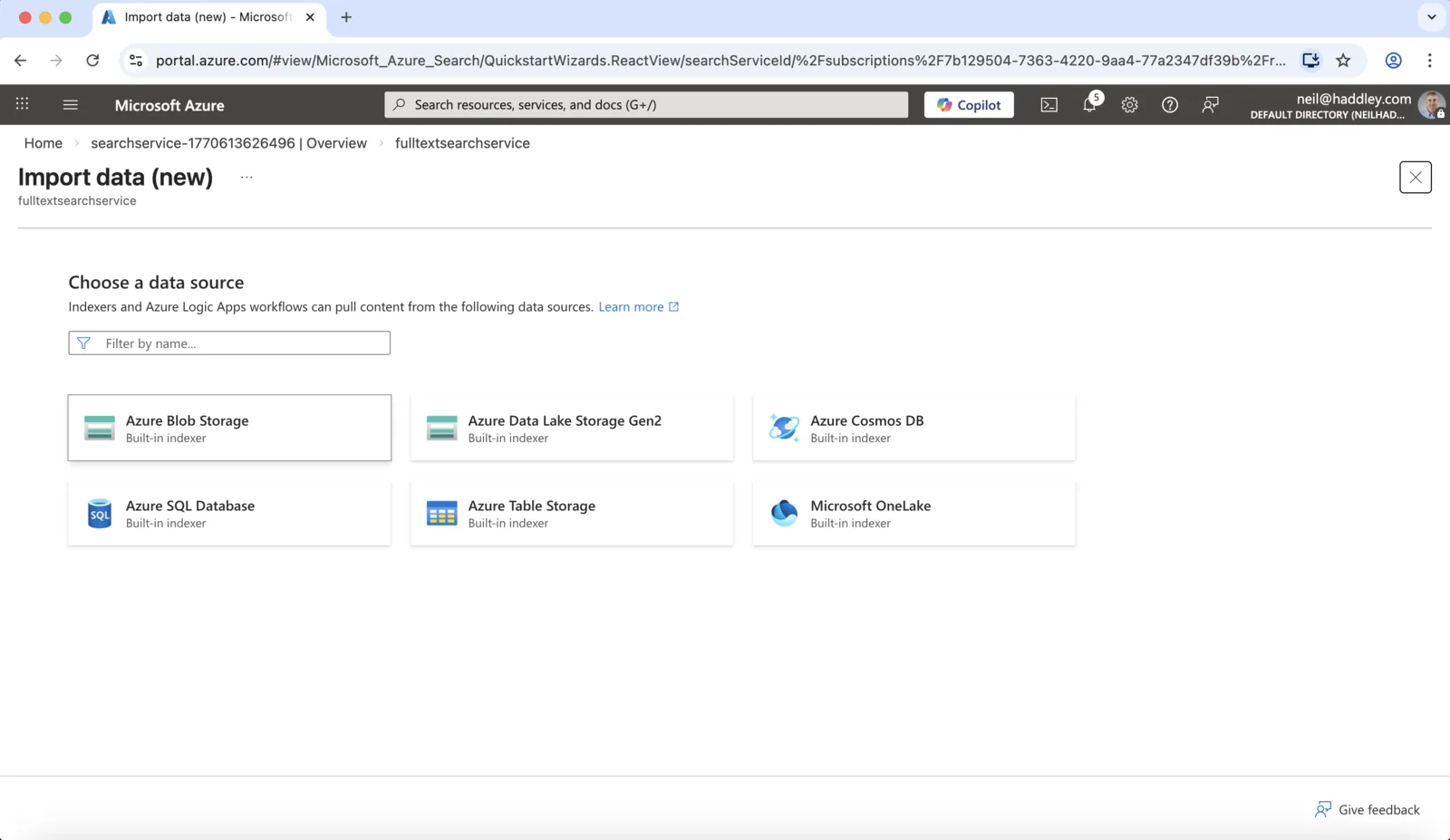
The import wizard asks for a data source, and I chose Azure Blob Storage
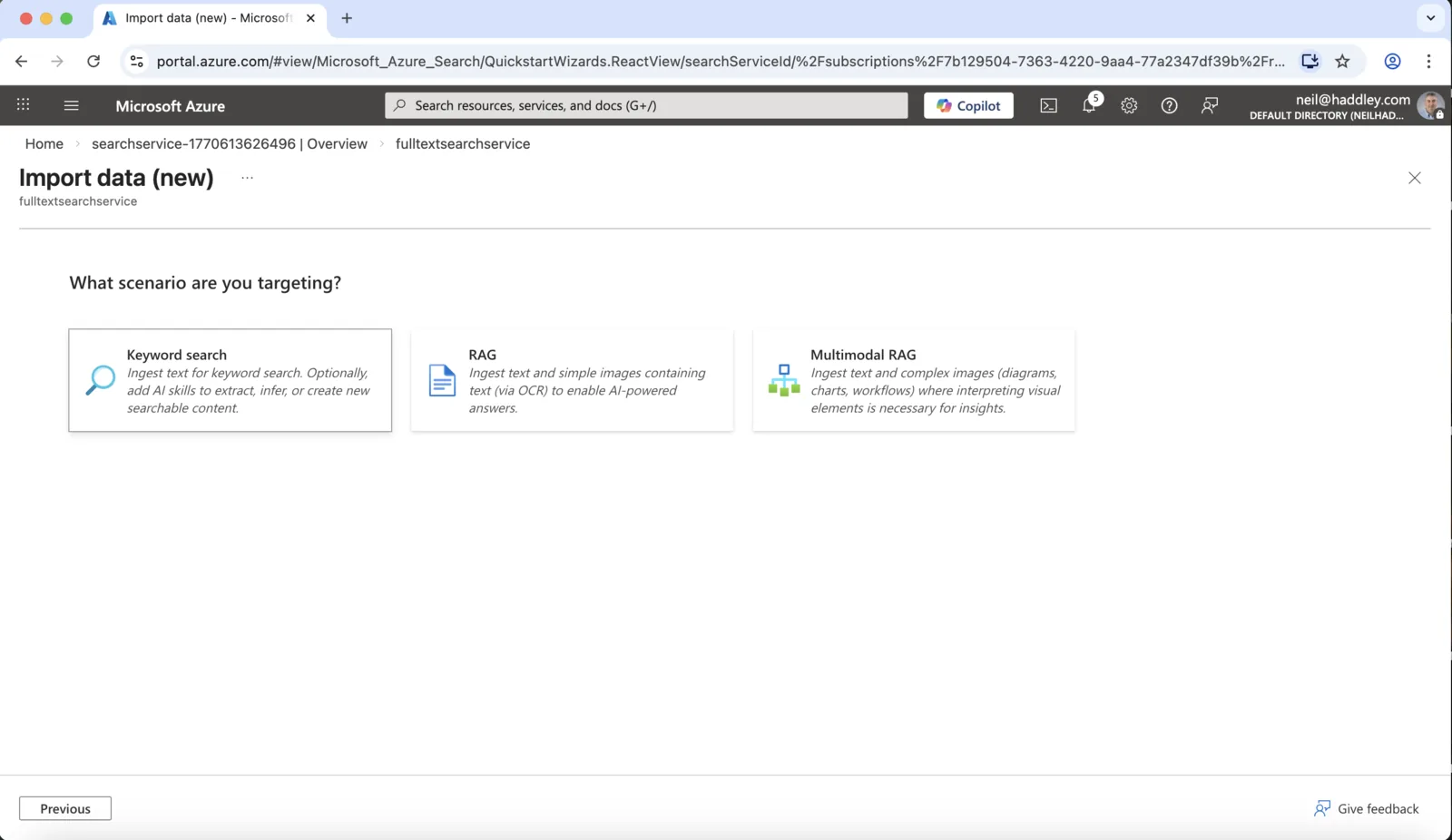
I chose the Keyword search scenario, which ingests text for a keyword search
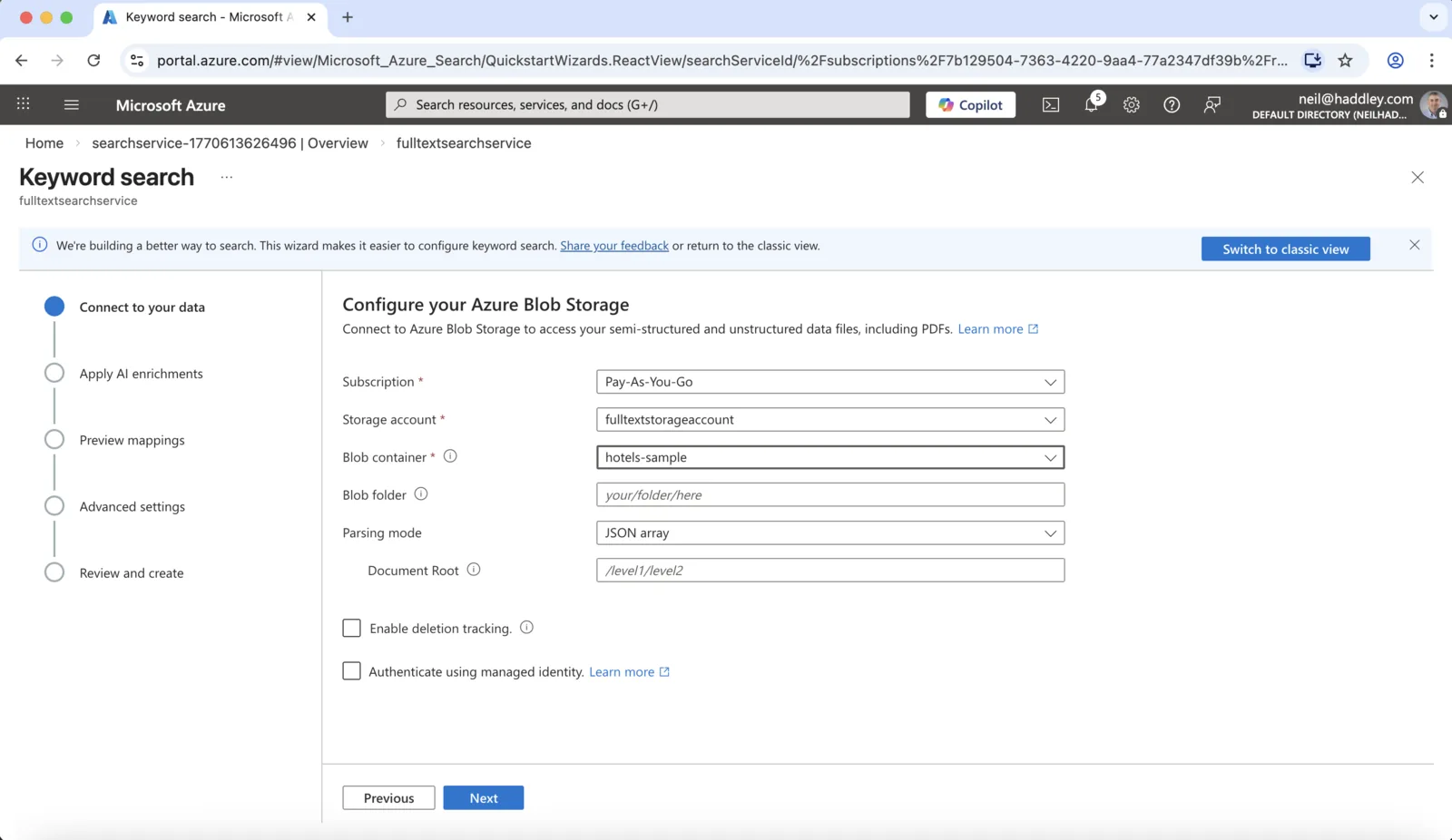
I pointed the wizard at fulltextstorageaccount and the hotels-sample container. The parsing mode started as JSON array
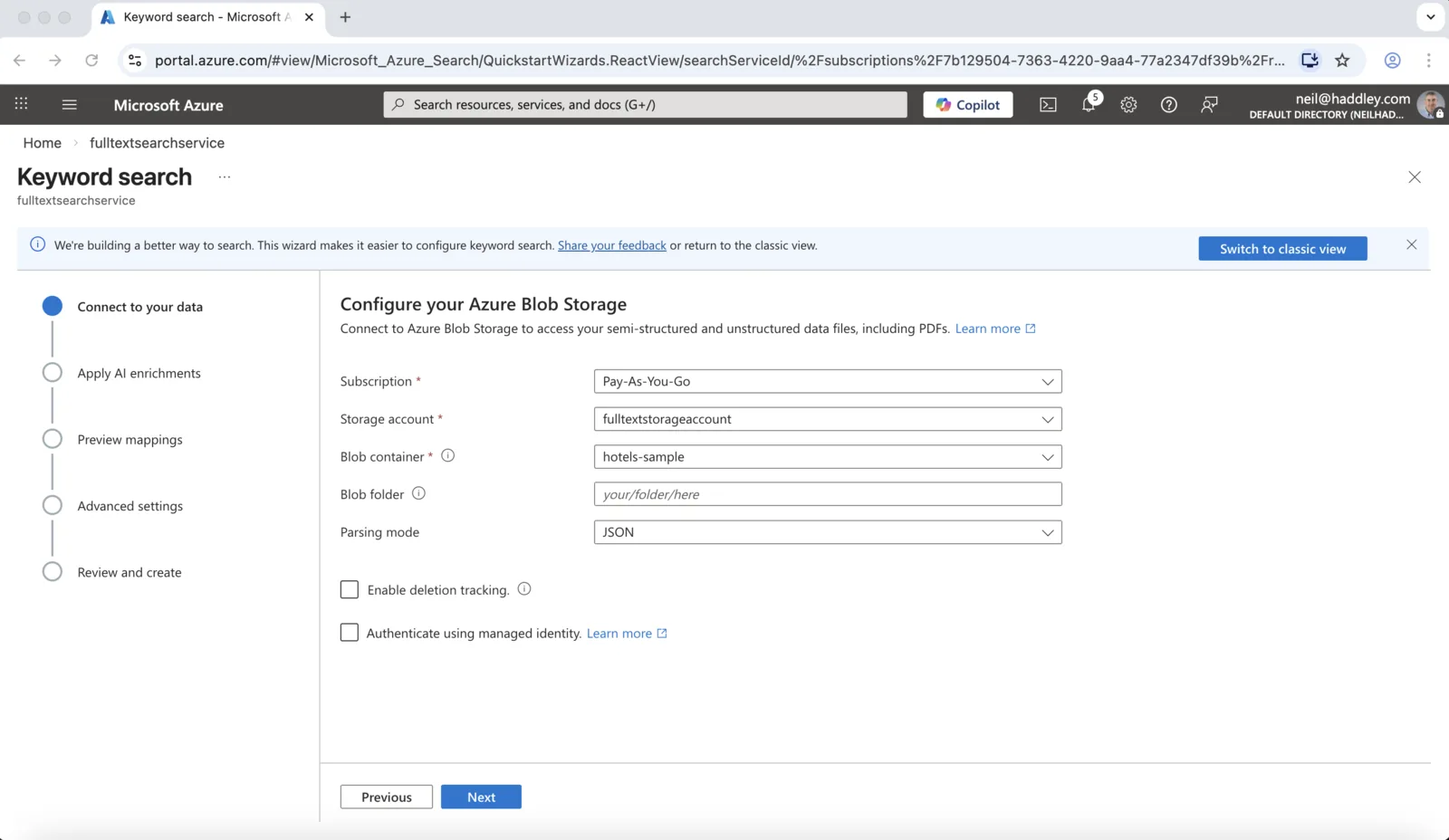
I changed the parsing mode to JSON and left deletion tracking and managed identity switched off
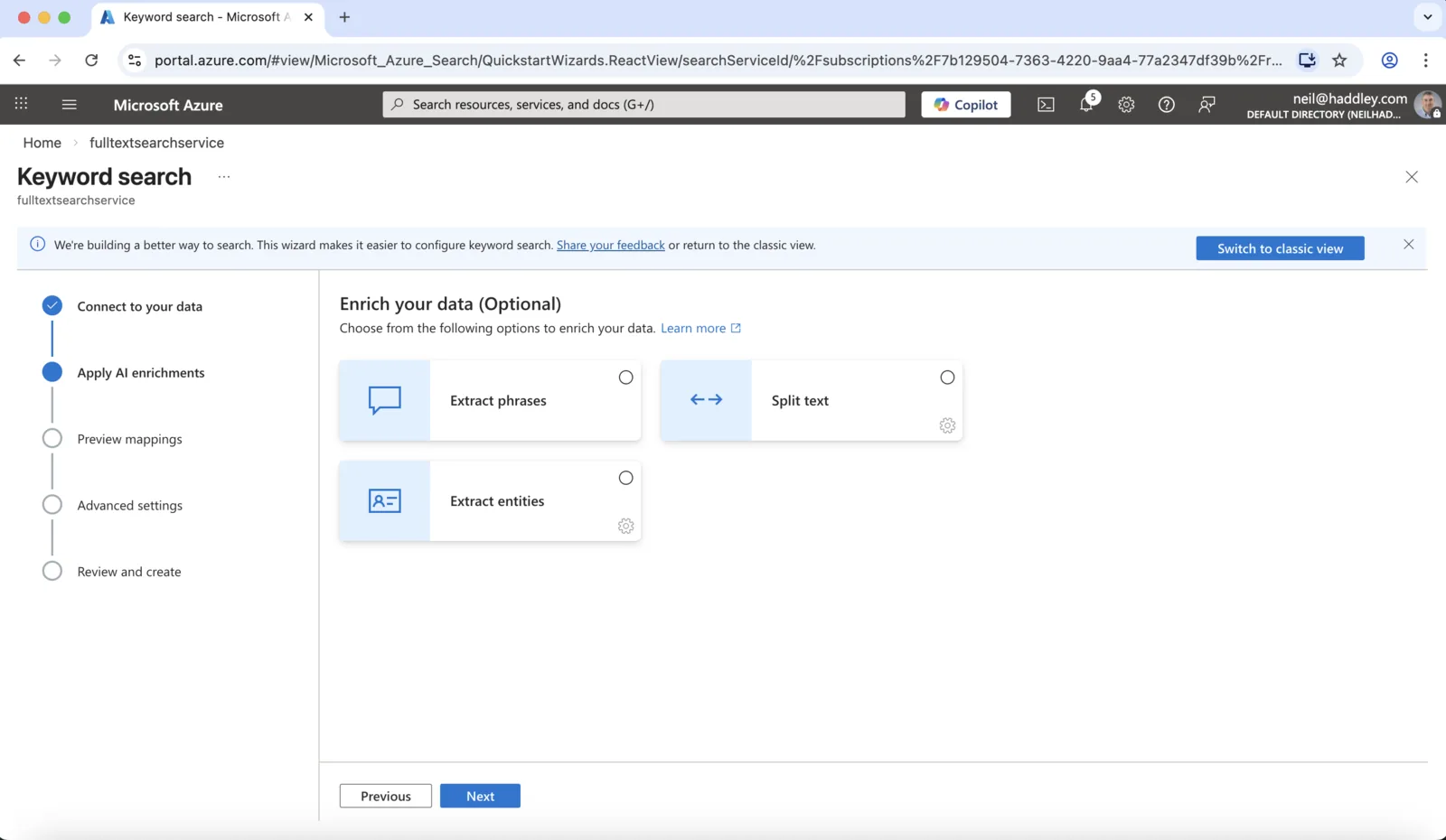
The wizard offers optional AI enrichments: extract phrases, split text and extract entities. I did not select any of them
Look at the index fields
The wizard guesses a type and a set of attributes for every field.
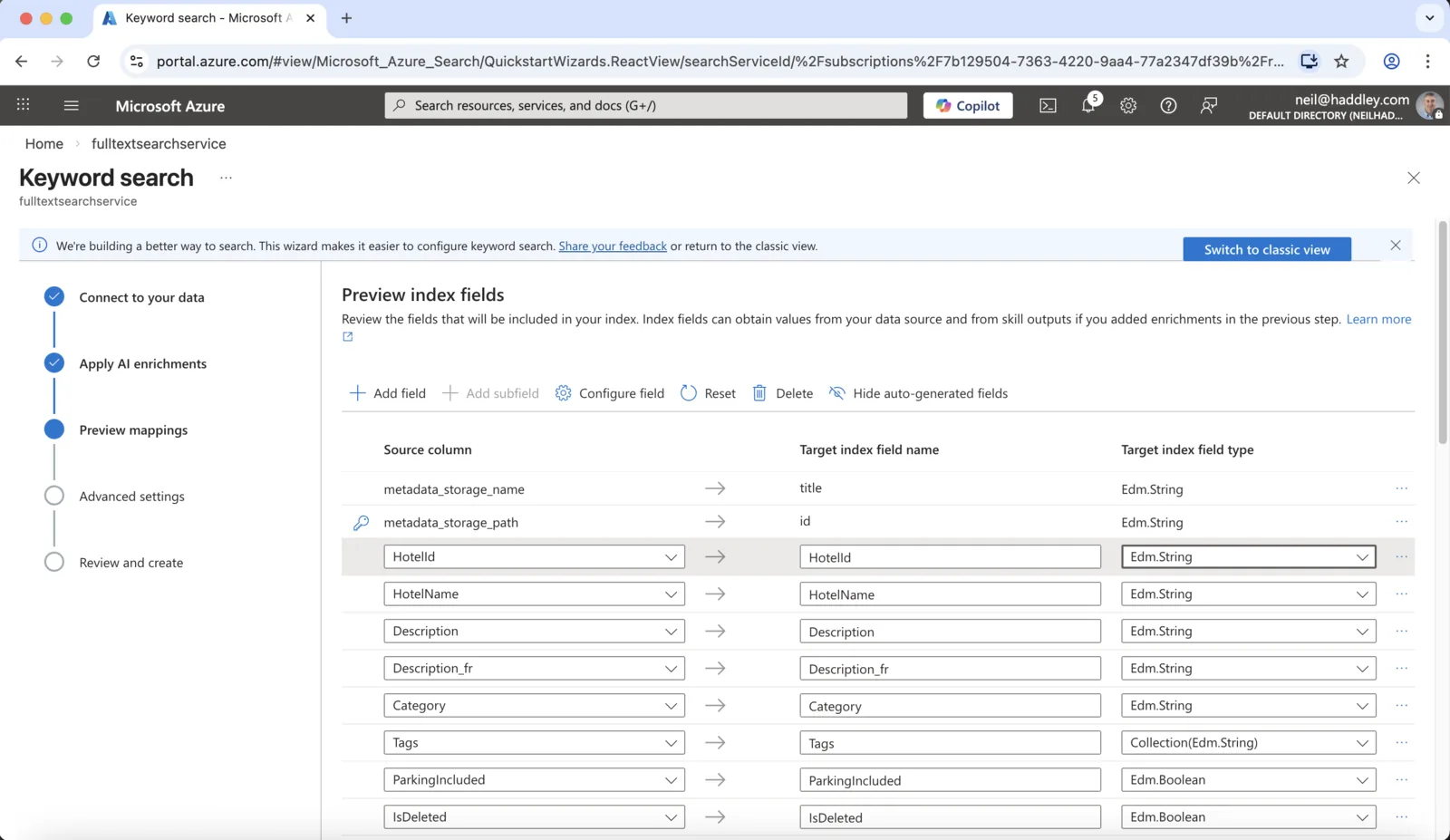
The wizard previews the index fields it built from the JSON, such as HotelId, HotelName, Description, Category and Tags, with a type for each
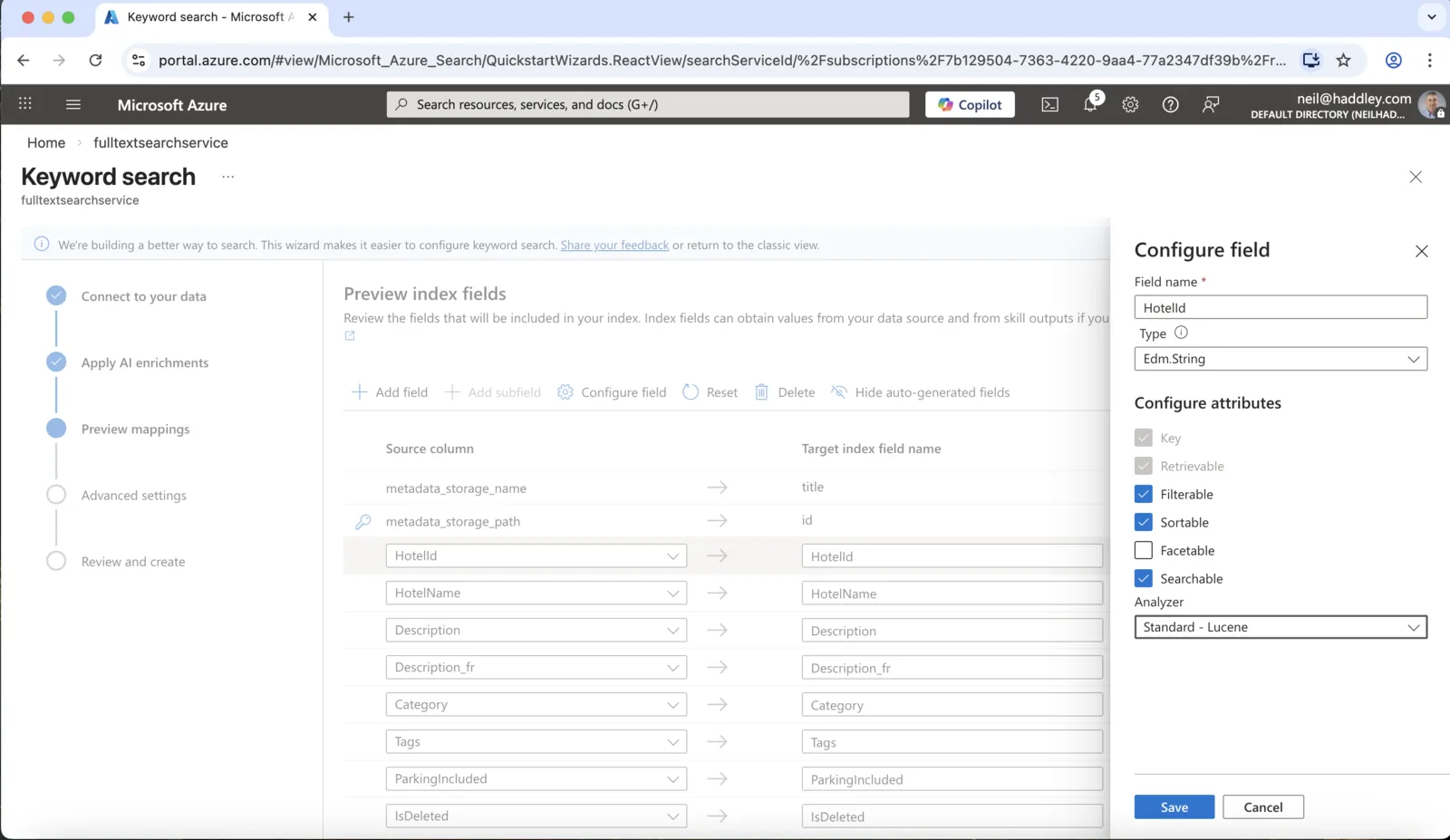
I opened the HotelId field to look at its attributes: filterable, sortable and searchable, with the Standard Lucene analyzer
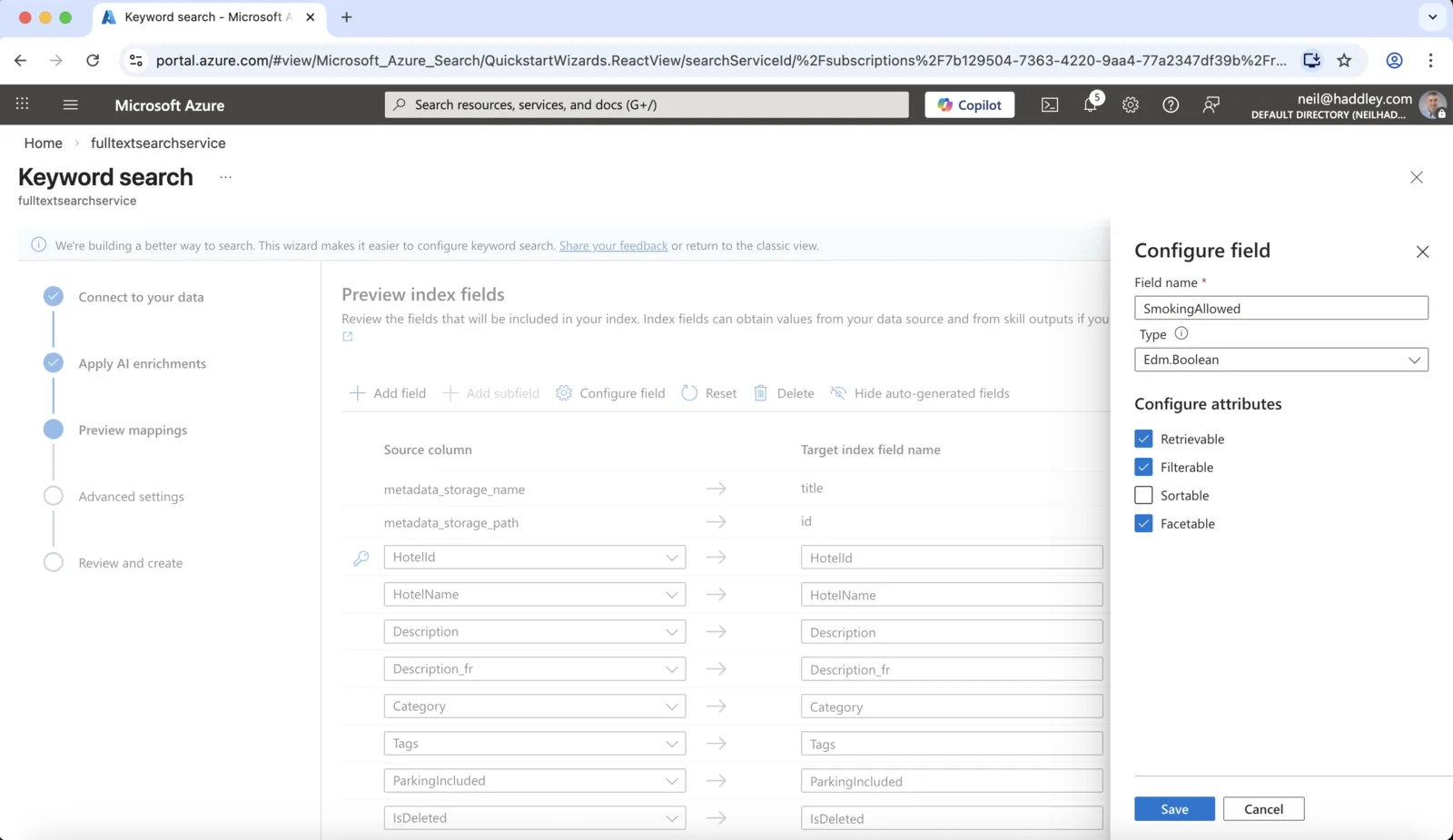
The SmokingAllowed field is a Boolean that is retrievable, filterable and facetable, but not sortable
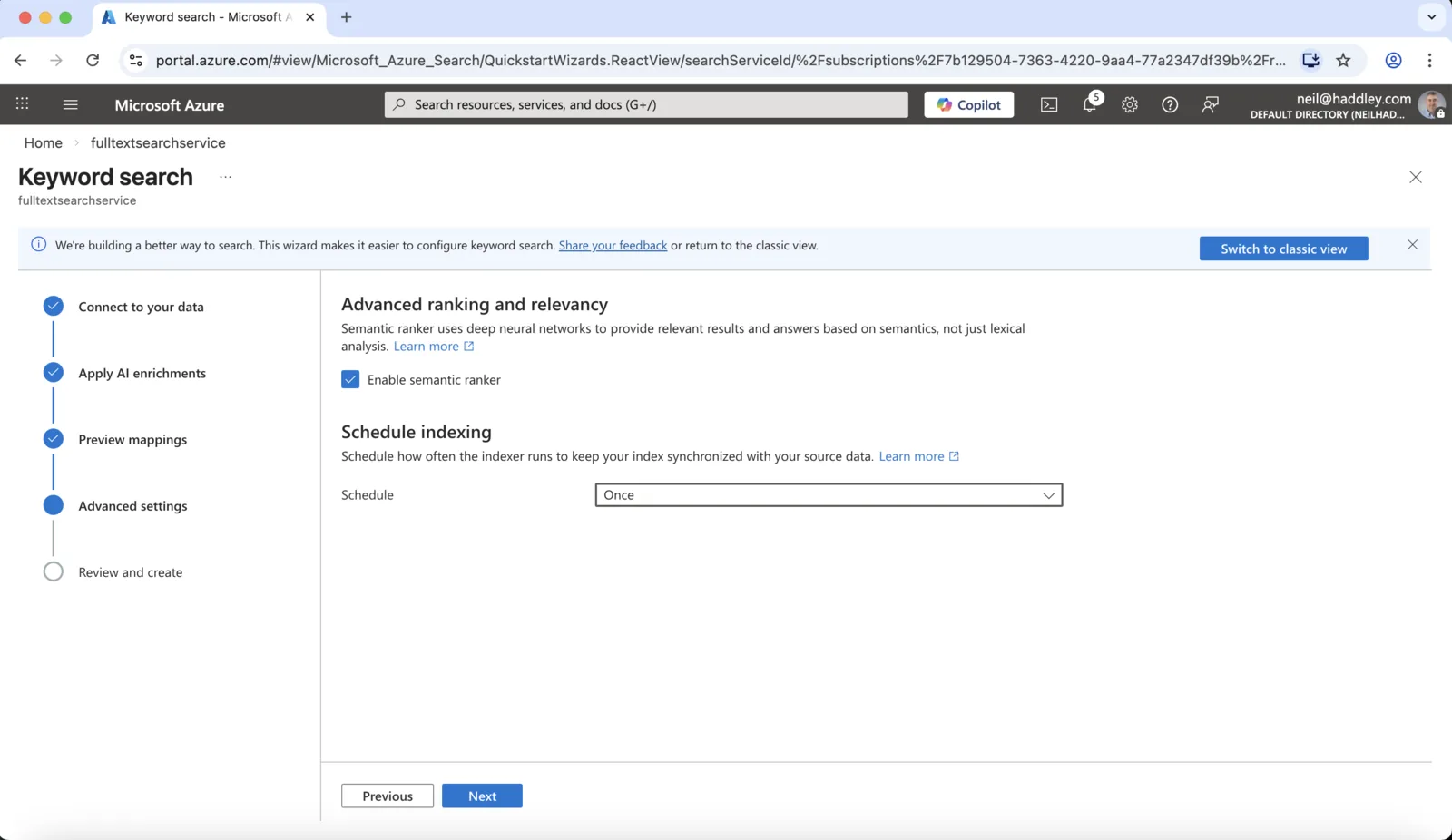
I enabled the semantic ranker and set the indexing schedule to Once
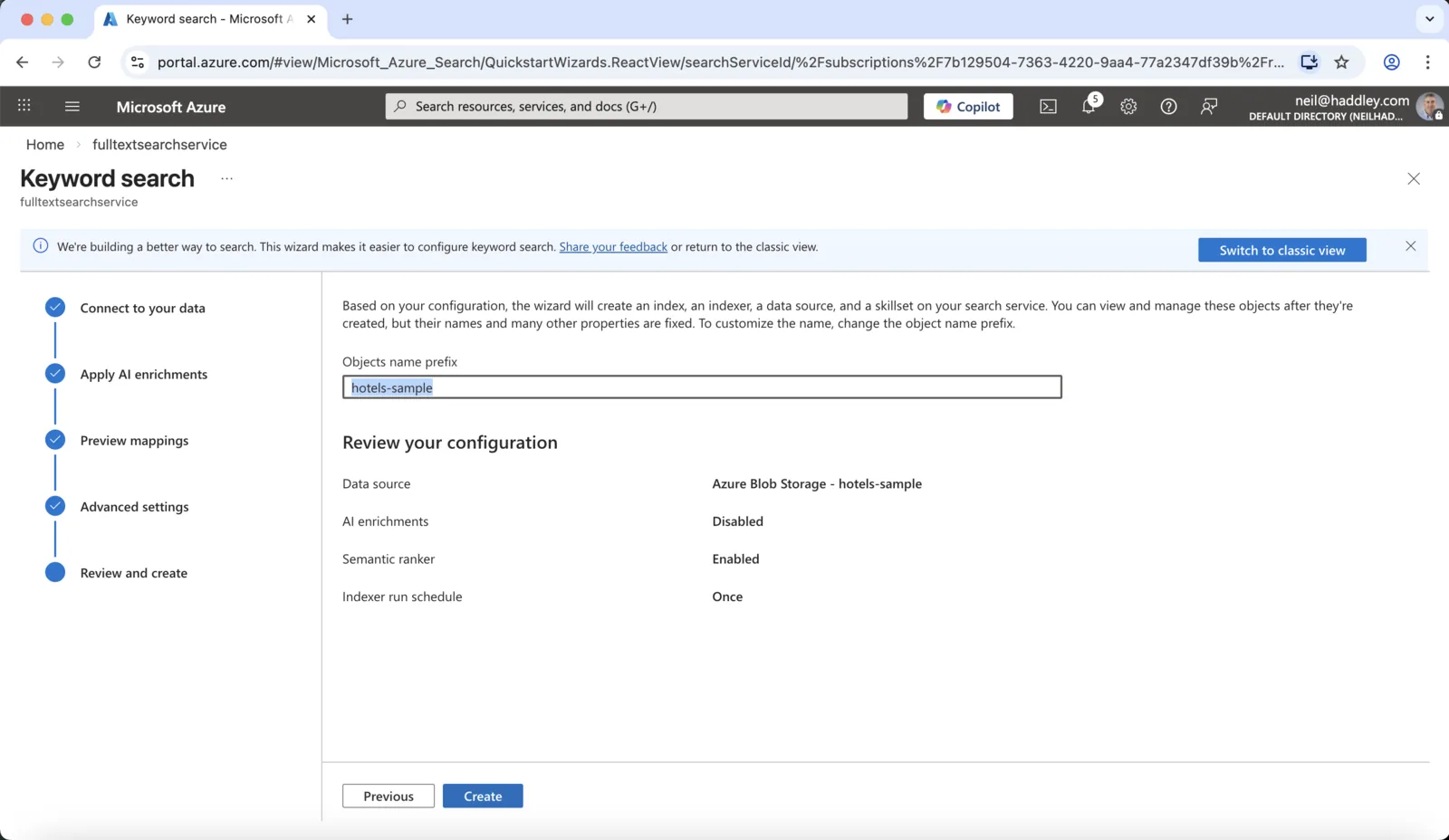
The review page shows the data source, the object name prefix hotels-sample, AI enrichments Disabled, the semantic ranker Enabled and the schedule Once
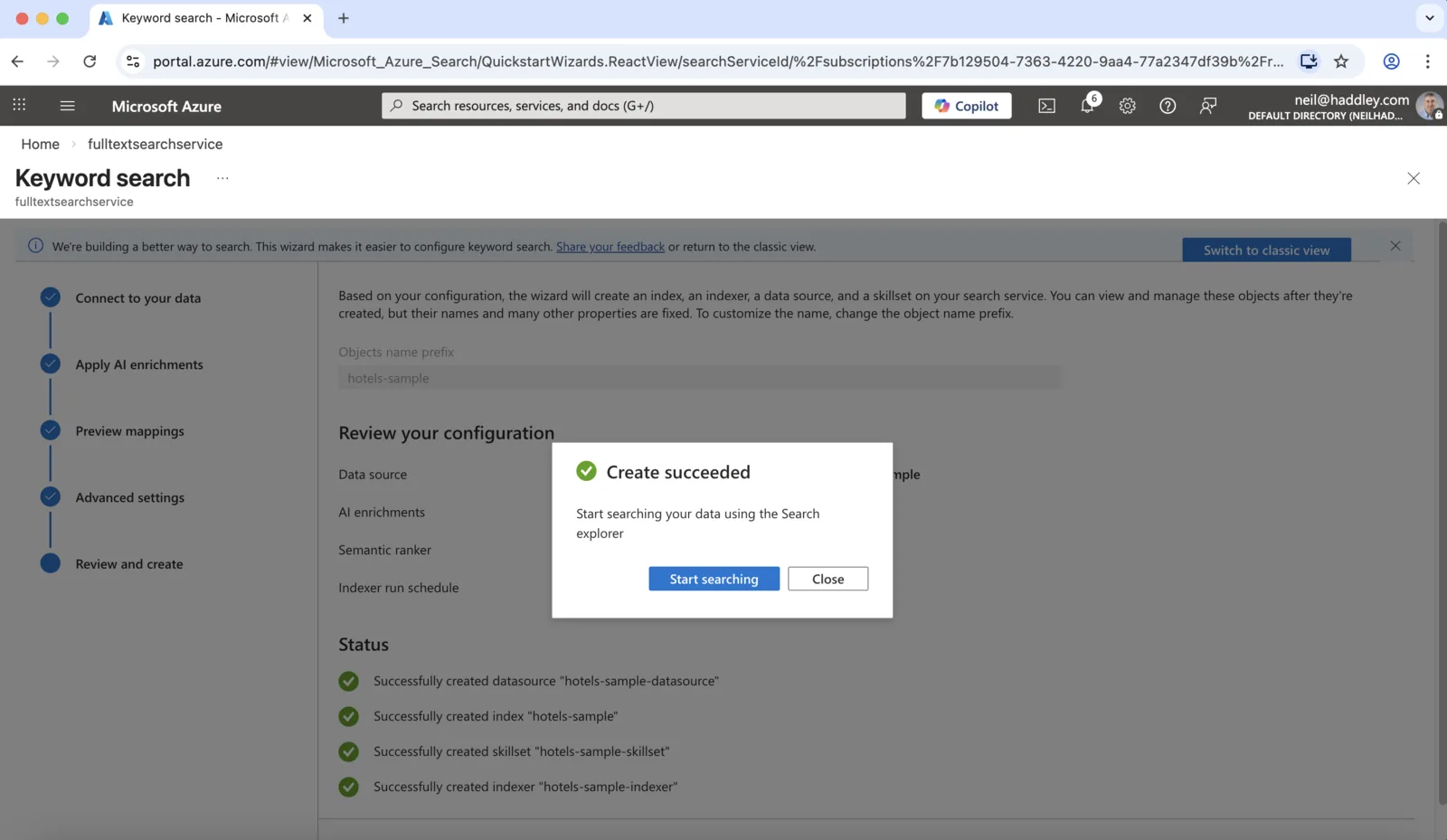
The wizard created the data source, the index, the skillset and the indexer
Under the hood: What the wizard created
Based on the status list on the final screen, the wizard created four objects on the search service: a data source that points at the container, an index with the fields I saw, a skillset, and an indexer that runs the pipeline. They share one name prefix, hotels-sample. I turned off AI enrichments, so the skillset has nothing to do in this run.
Search the index
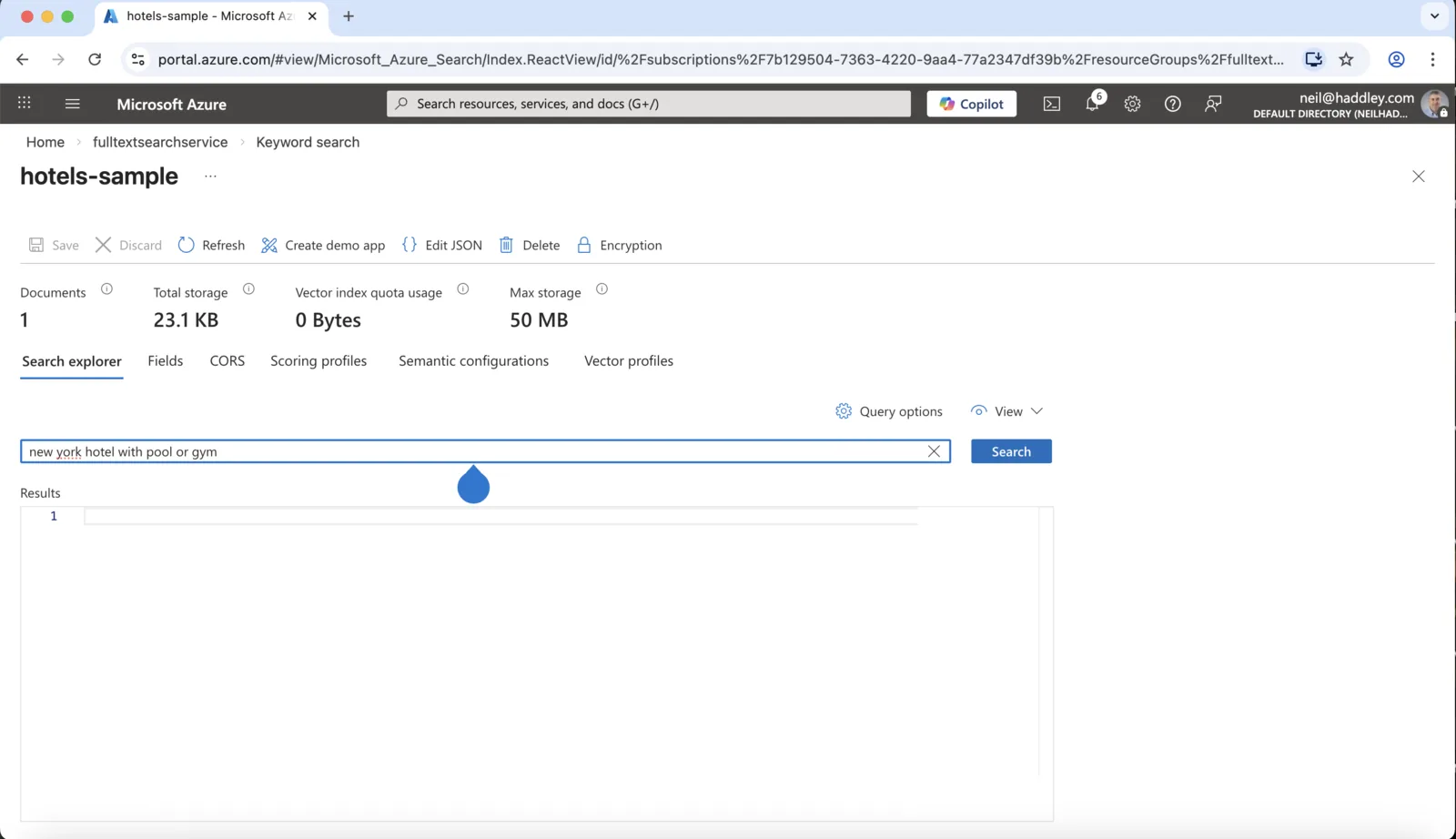
In the Search explorer, I typed new york hotel with pool or gym. The index holds 1 document and 23.1 KB
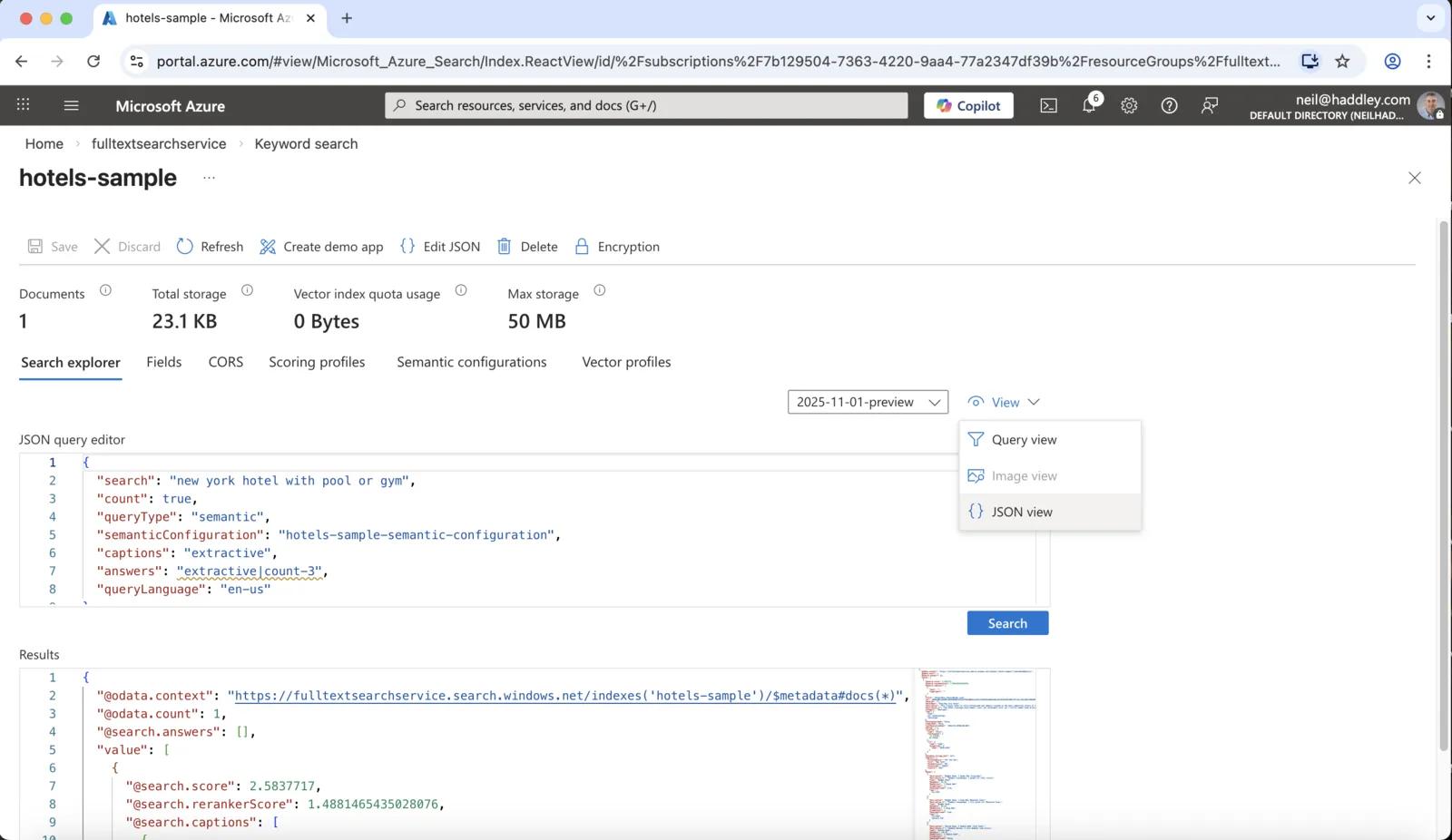
In the JSON view, the same query runs as a semantic search and returns 1 result, with a search score and a reranker score
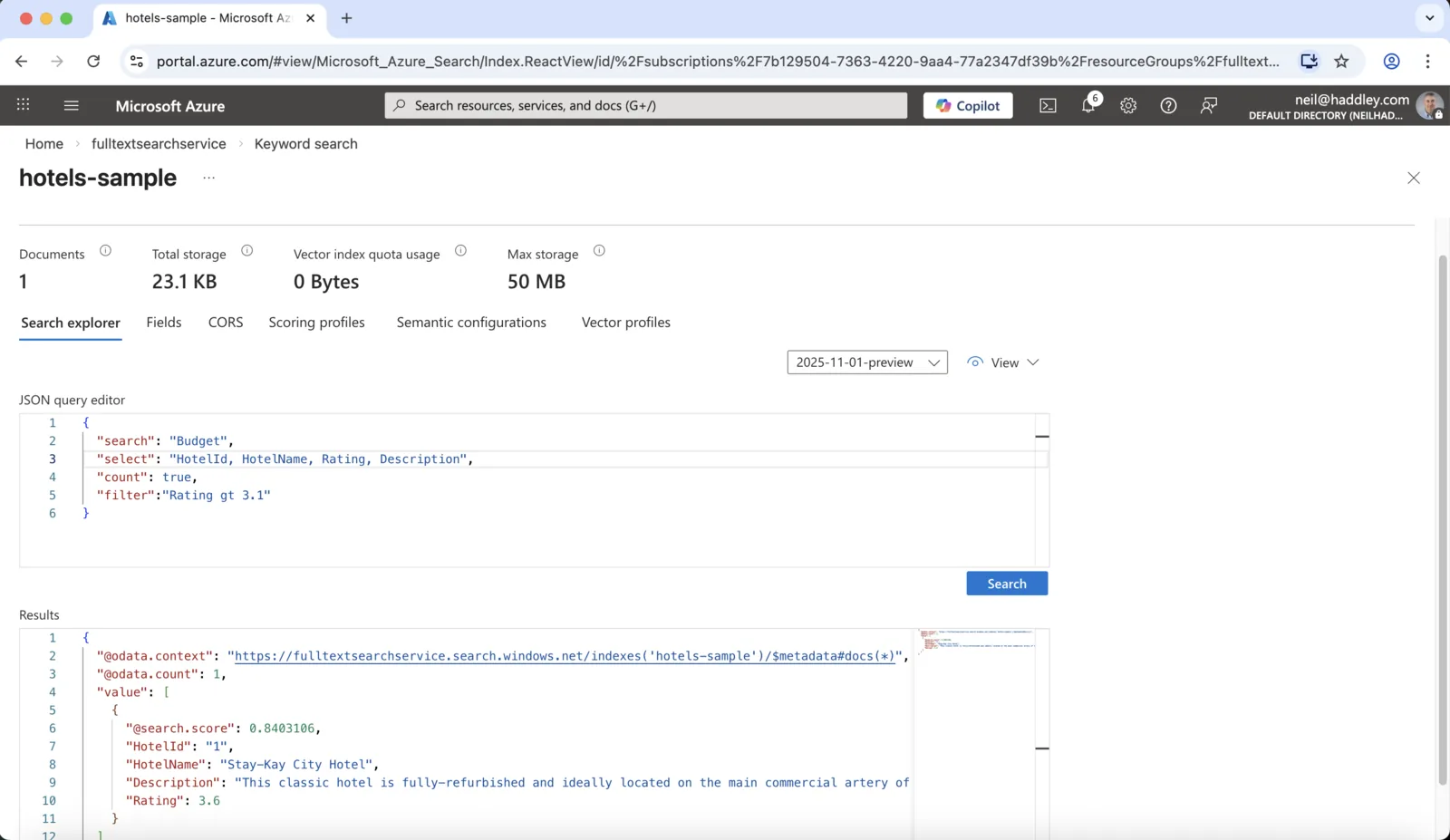
I tried a keyword query for Budget, with a filter of Rating gt 3.1 and a select of four fields. It returned the Stay-Kay City Hotel with a rating of 3.6