Claude Code (Part 1)
Neil Haddley • January 20, 2026
Getting started
Claude Code is an AI coding assistant from Anthropic that runs directly in your terminal. Unlike chat-based tools, it can read your project files, write and edit code, run commands, and work through multi-step tasks — all from a single prompt.
Getting started takes three steps: install, authenticate, and start prompting.
Install
I ran the install script in my terminal (macOS/Linux/WSL):
BASH
1curl -fsSL https://claude.ai/install.sh | bash
On Windows (PowerShell):
POWERSHELL
1irm https://claude.ai/install.ps1 | iex
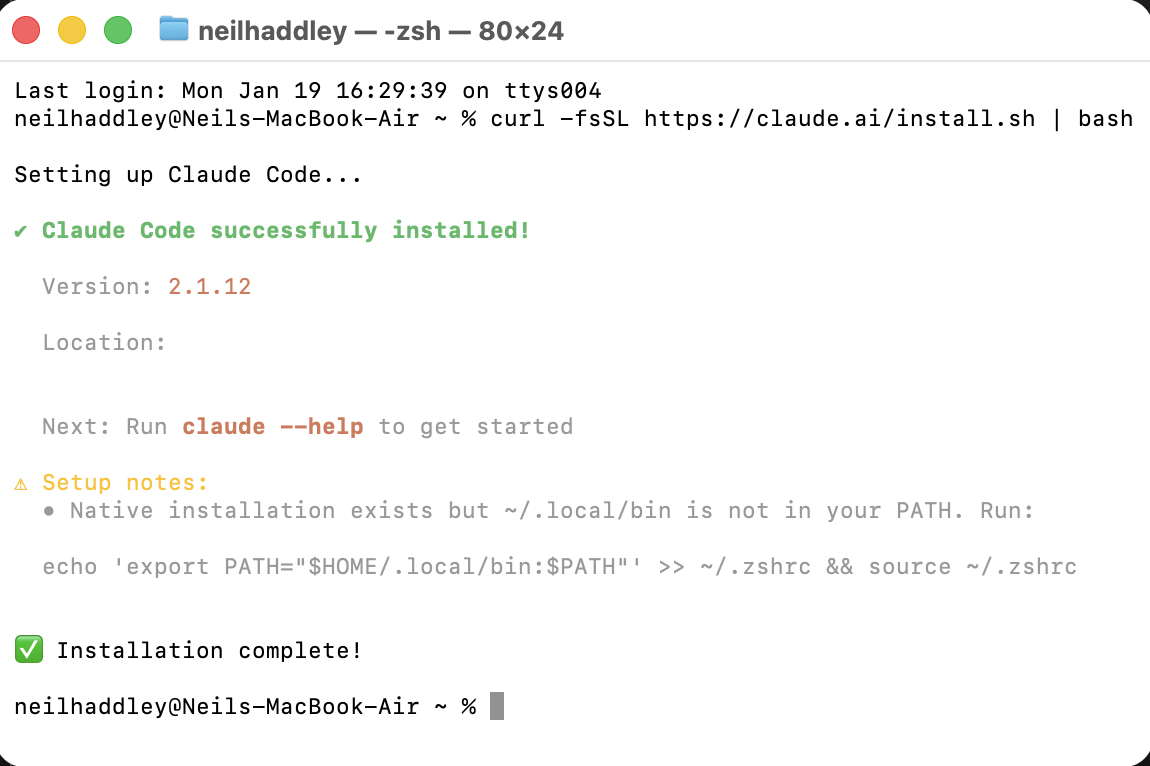
I ran the installer in the terminal
I then added Claude Code to my PATH so the terminal could find the binary:
BASH
1echo 'export PATH="$HOME/.local/bin:$PATH"' >> ~/.zshrc && source ~/.zshrc
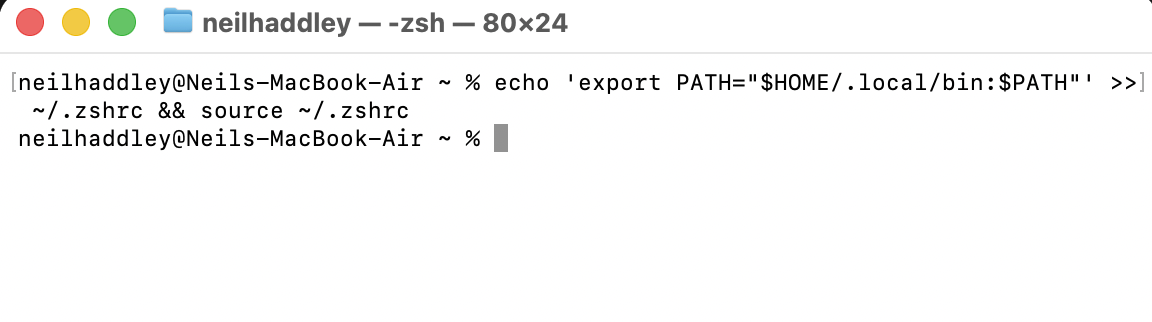
I added the Claude Code binary to PATH and reloaded the shell
Authenticate
I typed claude to launch Claude Code for the first time:

I ran 'claude' in the terminal to start the first-time setup
I picked a colour theme:
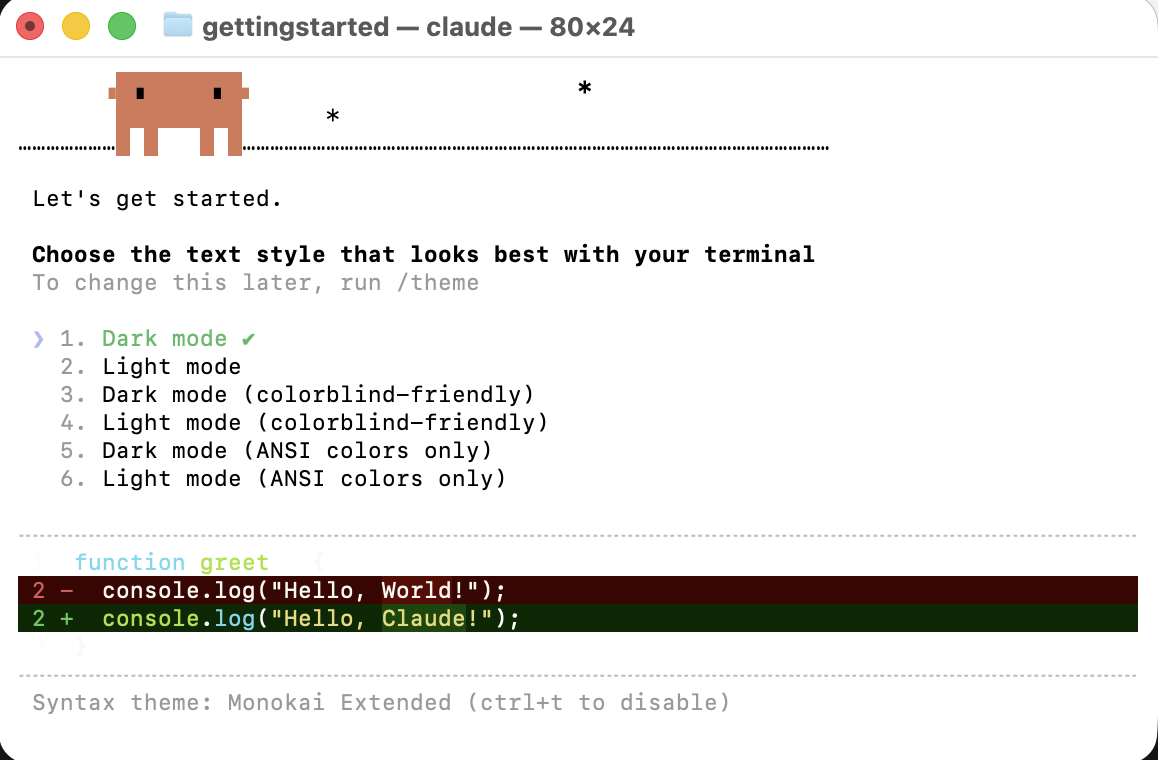
I chose dark mode
I then linked Claude Code to my Anthropic account. A Claude Pro subscription (or higher) is required:
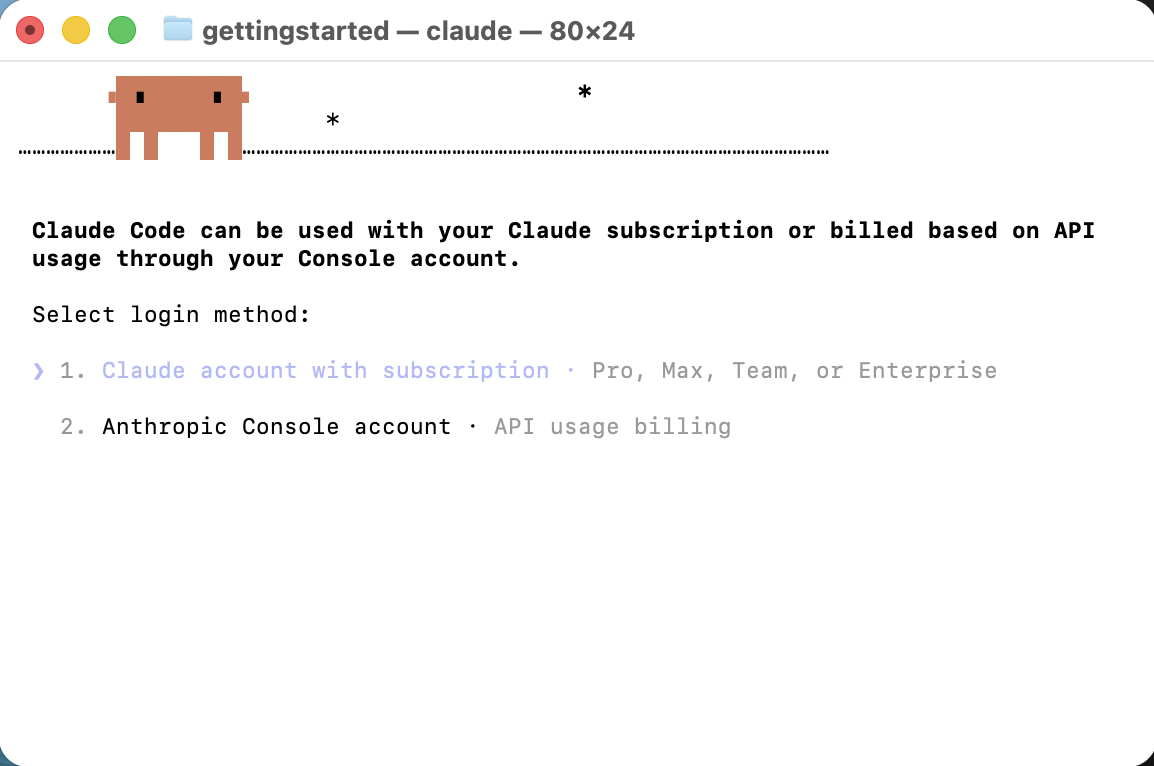
I logged in to my Claude account
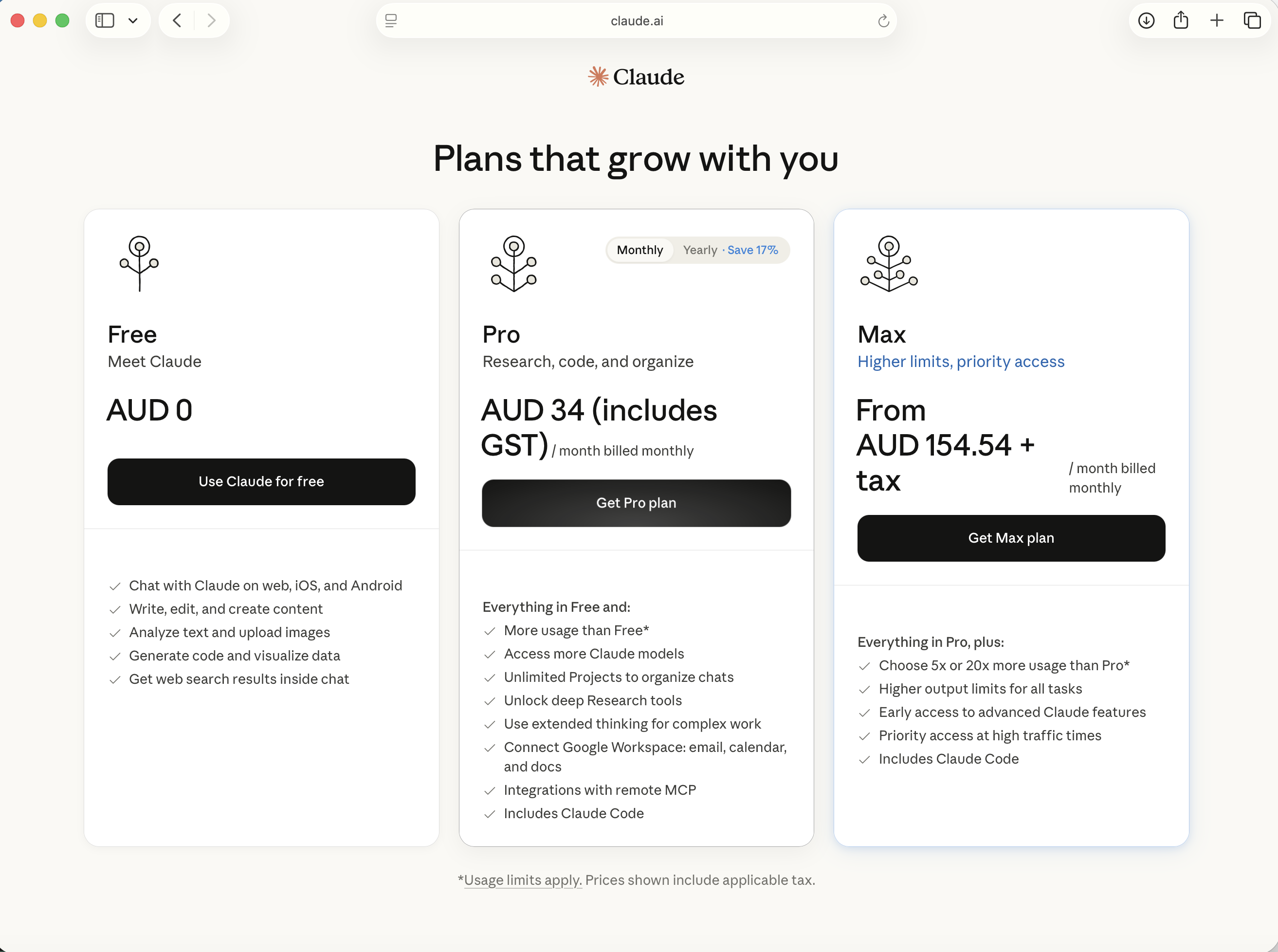
I selected the Claude Pro plan
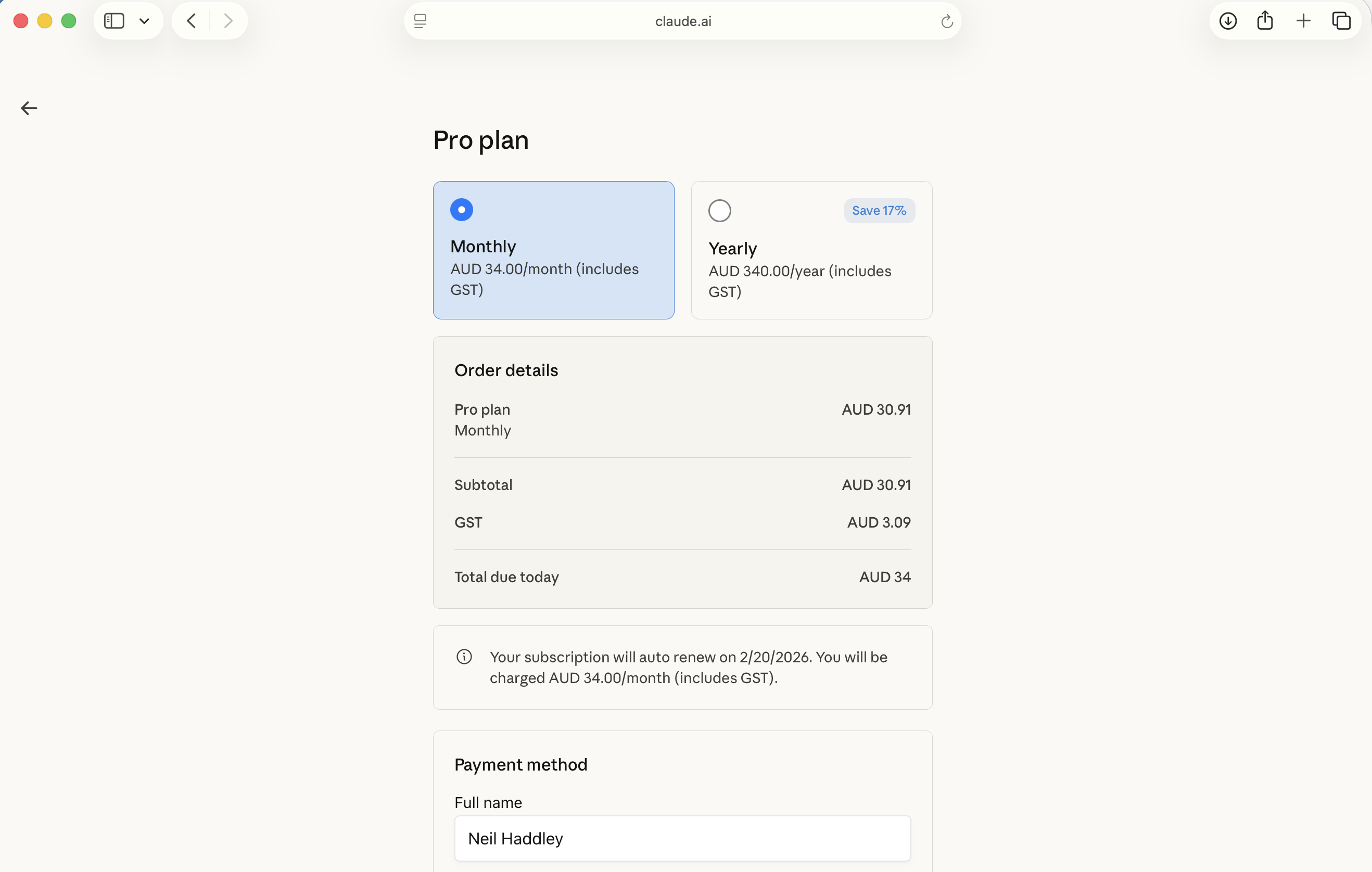
I confirmed the monthly subscription
Claude Code opened a browser tab to complete the OAuth flow:
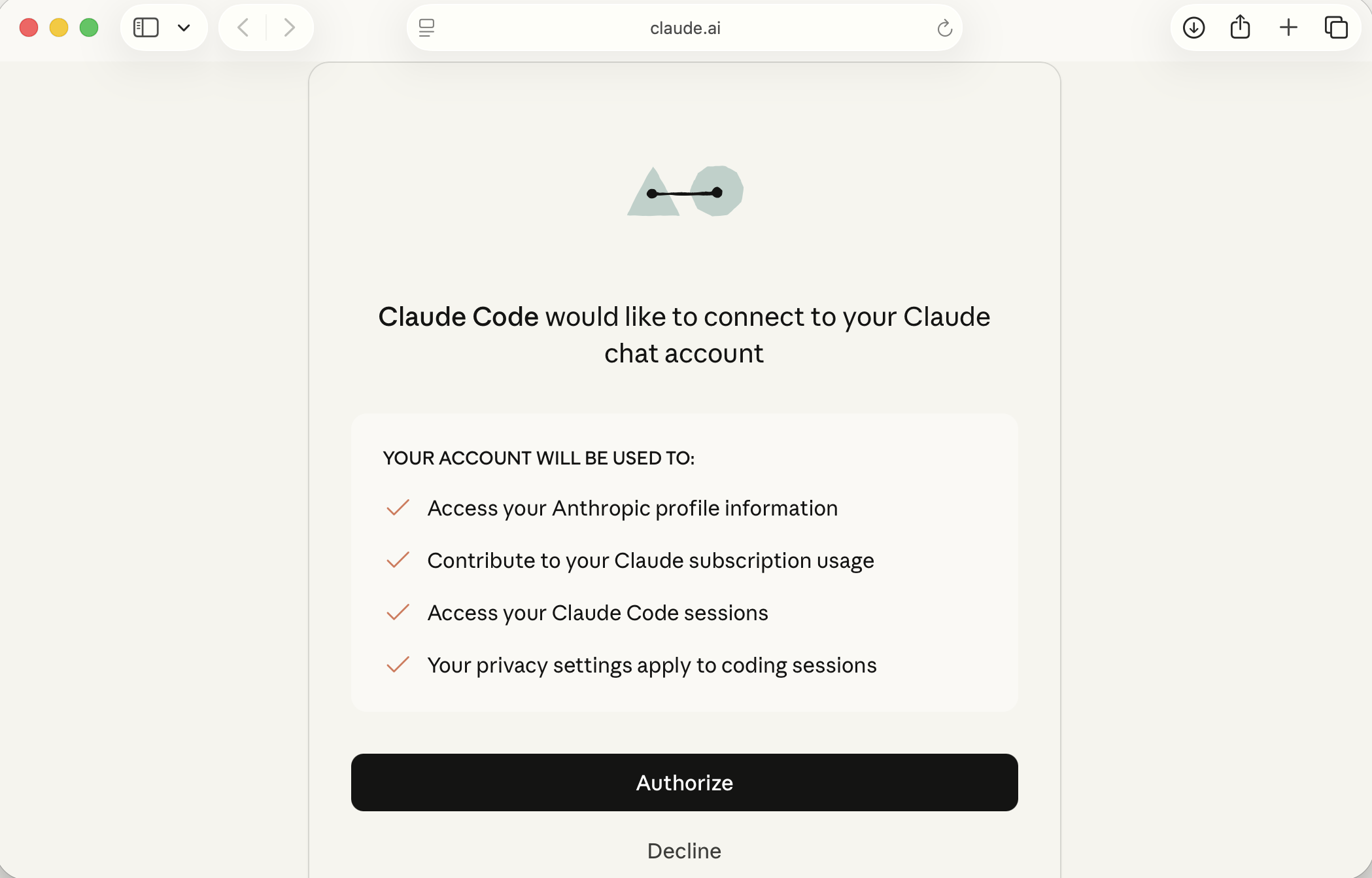
I authorized Claude Code to access my Anthropic account
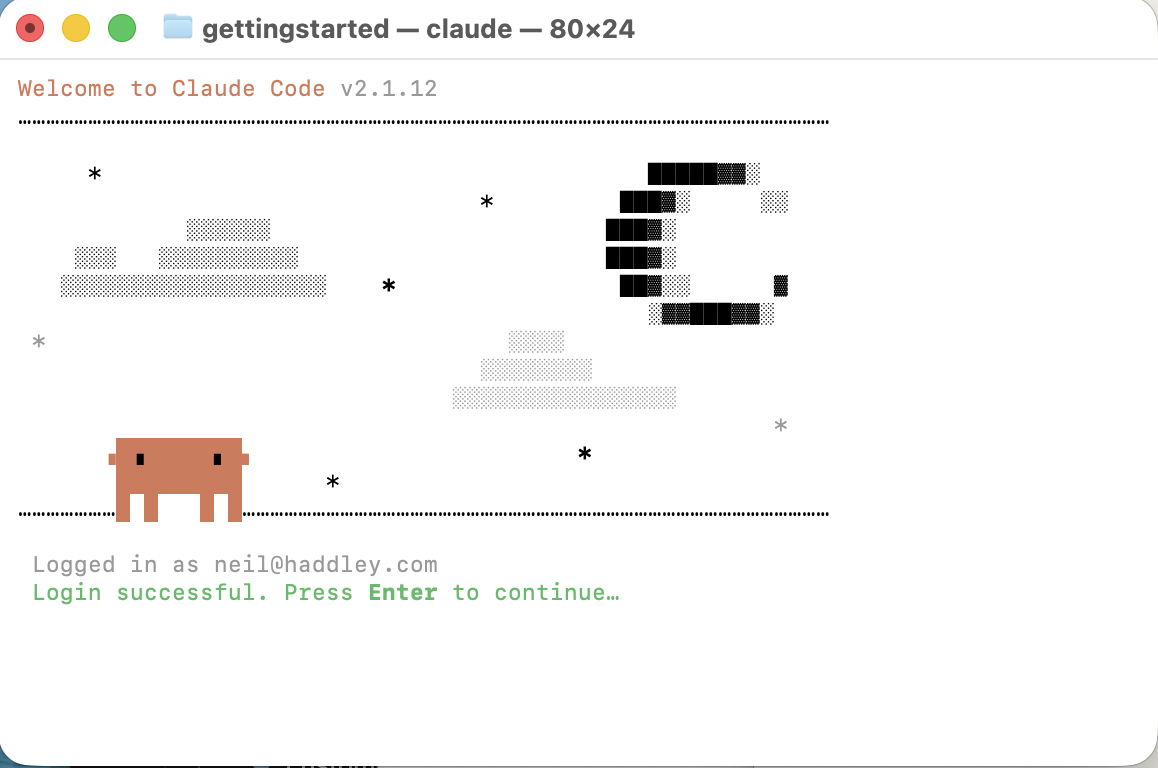
Login successful
Back in the terminal, I accepted the remaining setup prompts:
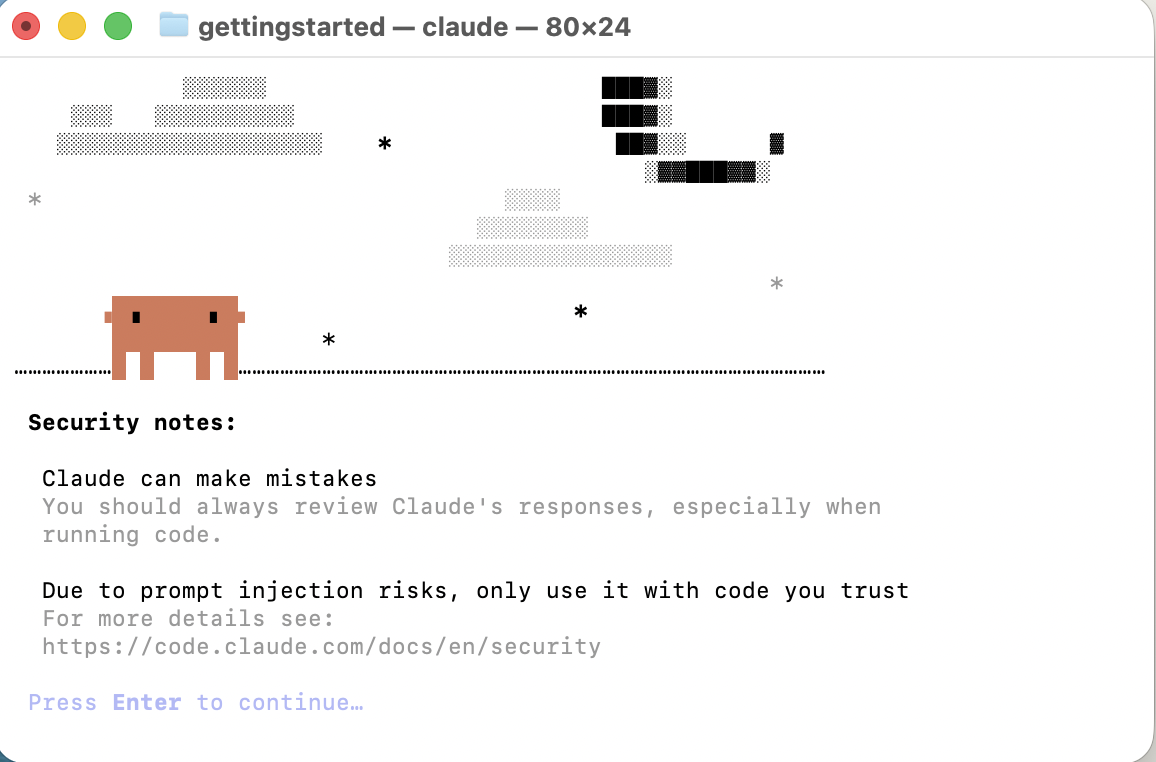
I pressed Enter to confirm
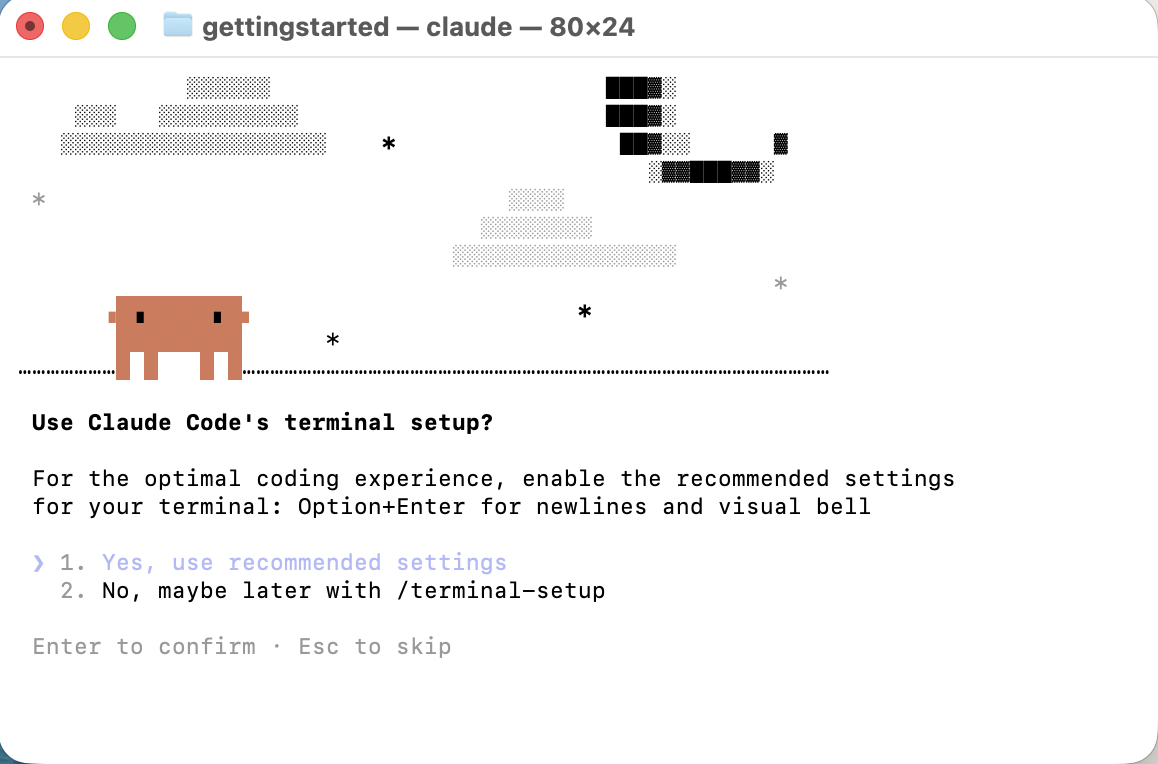
I accepted the recommended default settings
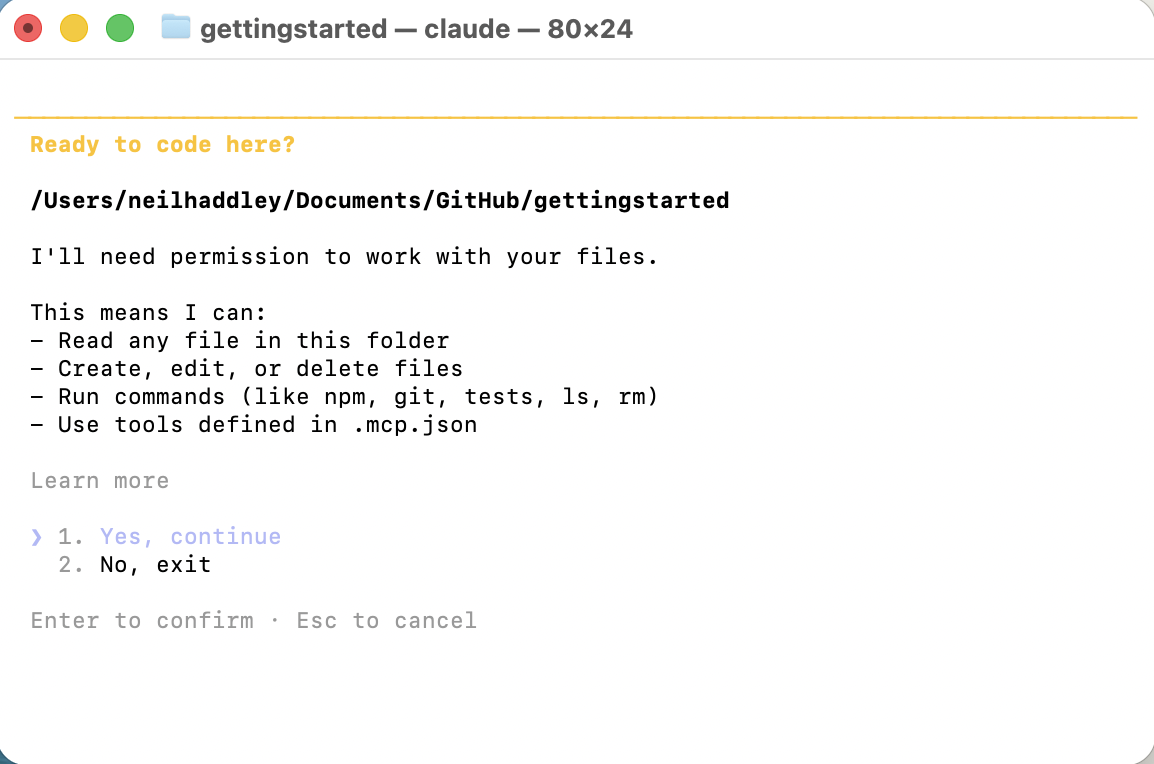
I confirmed to finish setup
First prompt
With setup complete, I was dropped into the interactive Claude Code prompt:
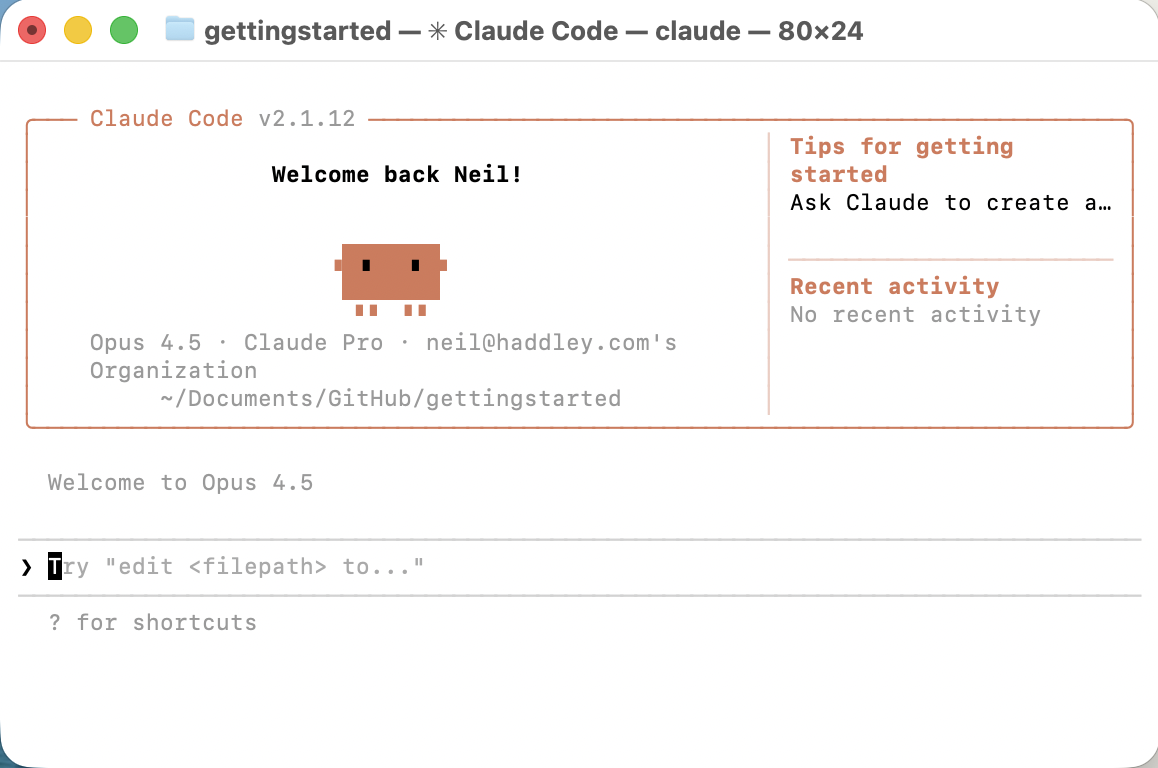
The Claude Code prompt, ready for input
I asked it to create a simple PowerShell script:
PROMPT
1create a new PowerShell script file named "HelloWorld.ps1". The script should simply output the string "Hello, World!" to the console. Show me the code and explain how to run it.
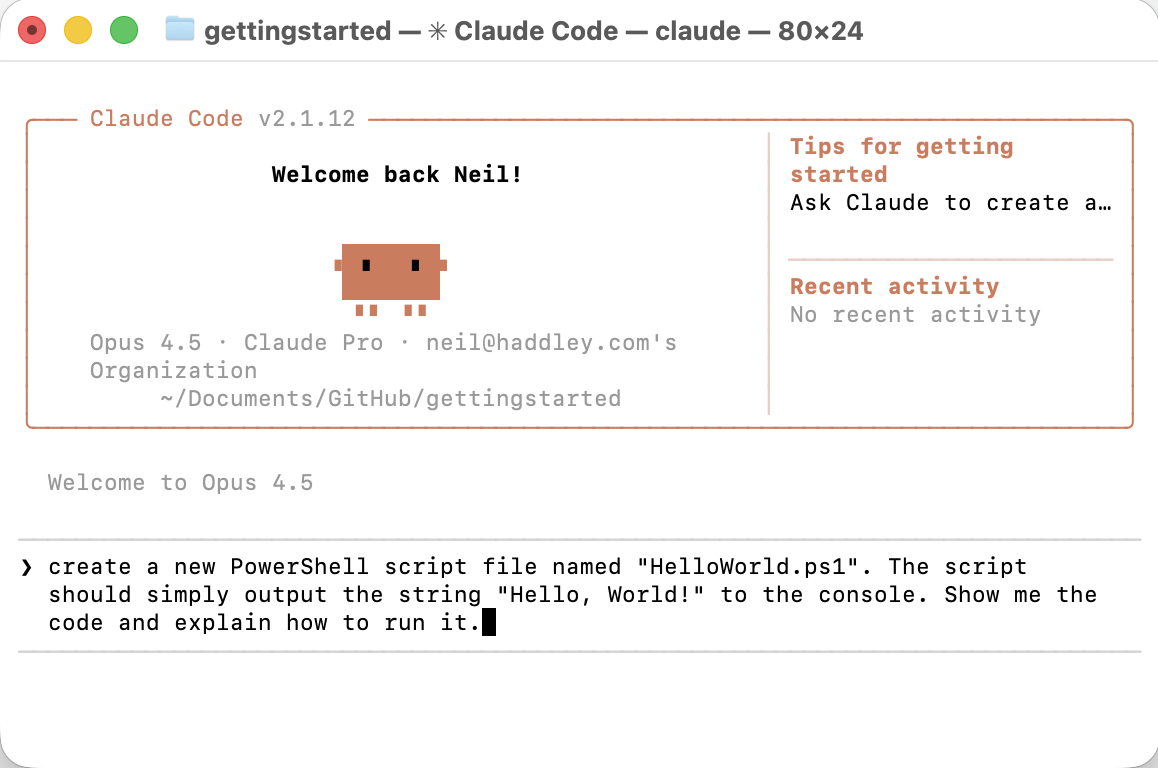
I asked Claude Code to create the HelloWorld.ps1 script
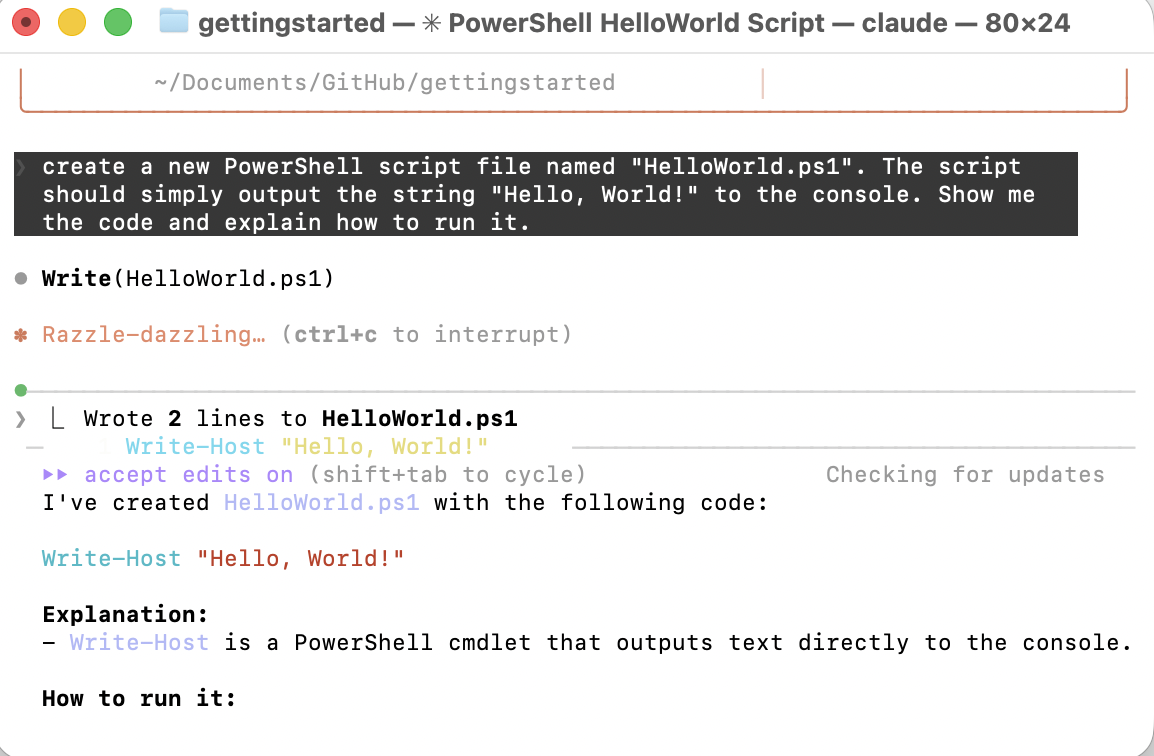
"I've created HelloWorld.ps1 with the following code"
Claude Code asks for permission before writing any files. I approved edits for the whole session:
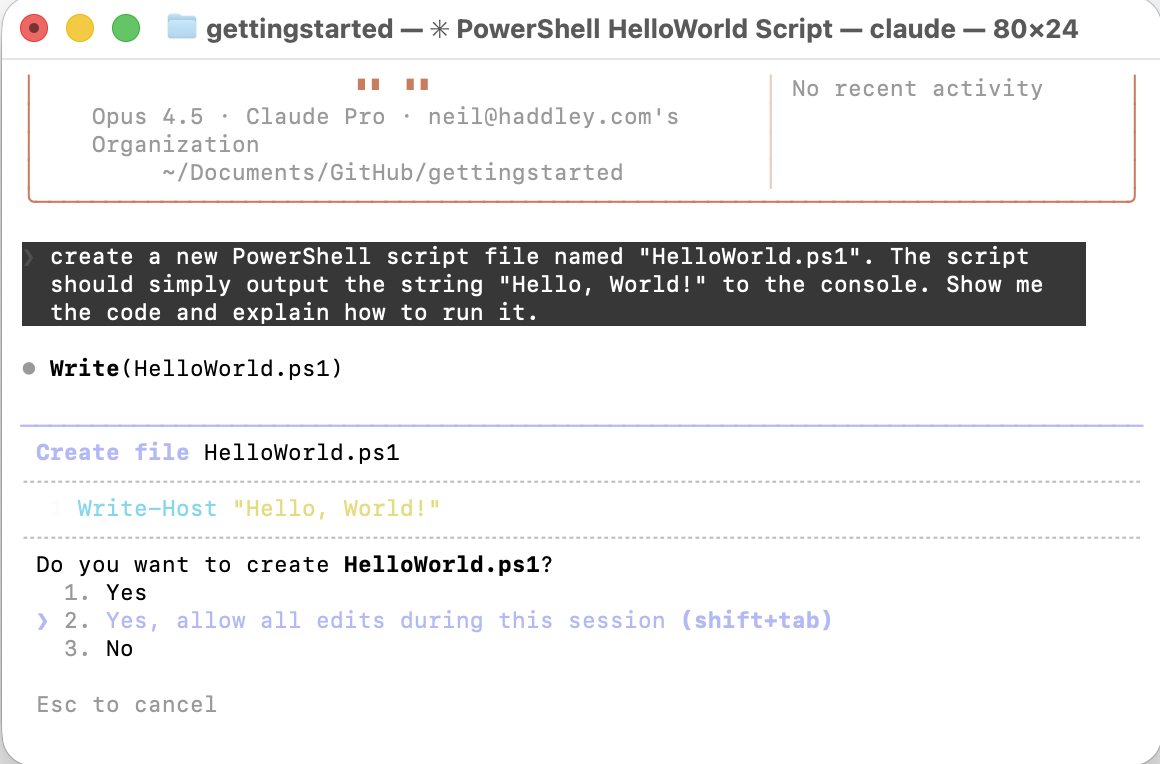
Yes, allow all edits during this session (shift+tab)
I then asked Claude Code to run the script:
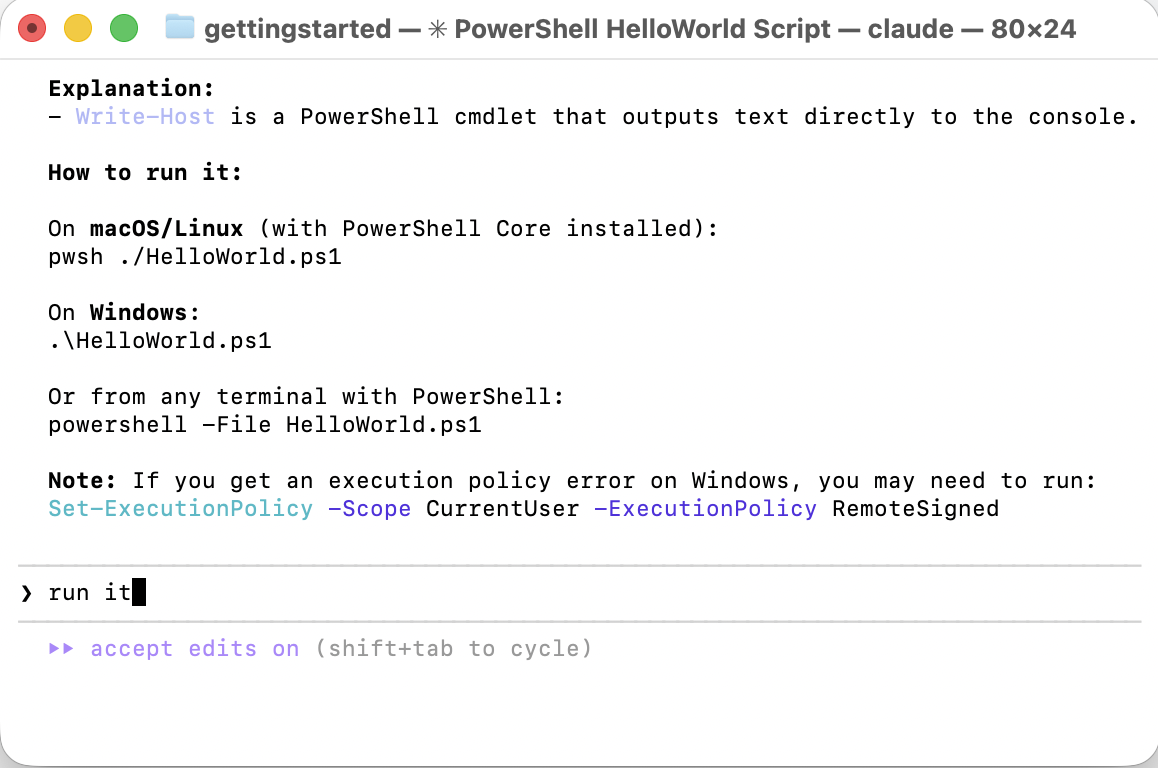
I asked Claude Code to run the script
It also asks before executing shell commands:
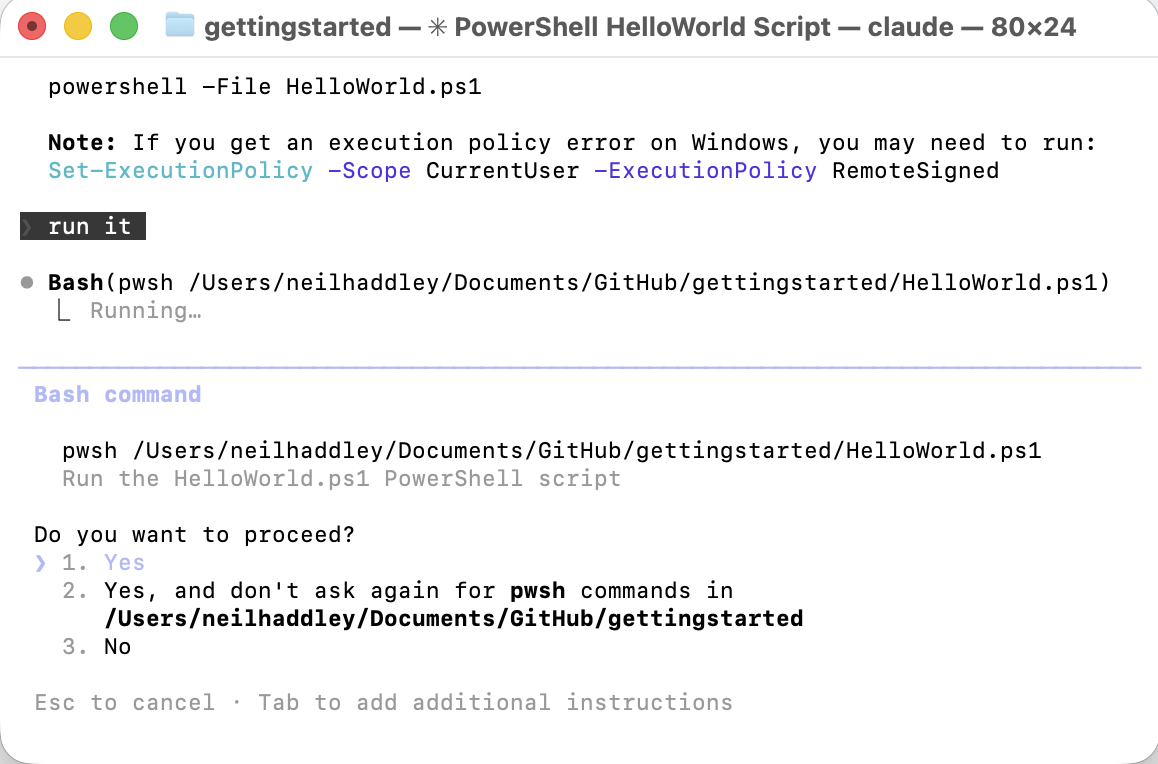
Yes, and don't ask again for pwsh commands in /Users/neilhaddley/Documents/GitHub/gettingstarted
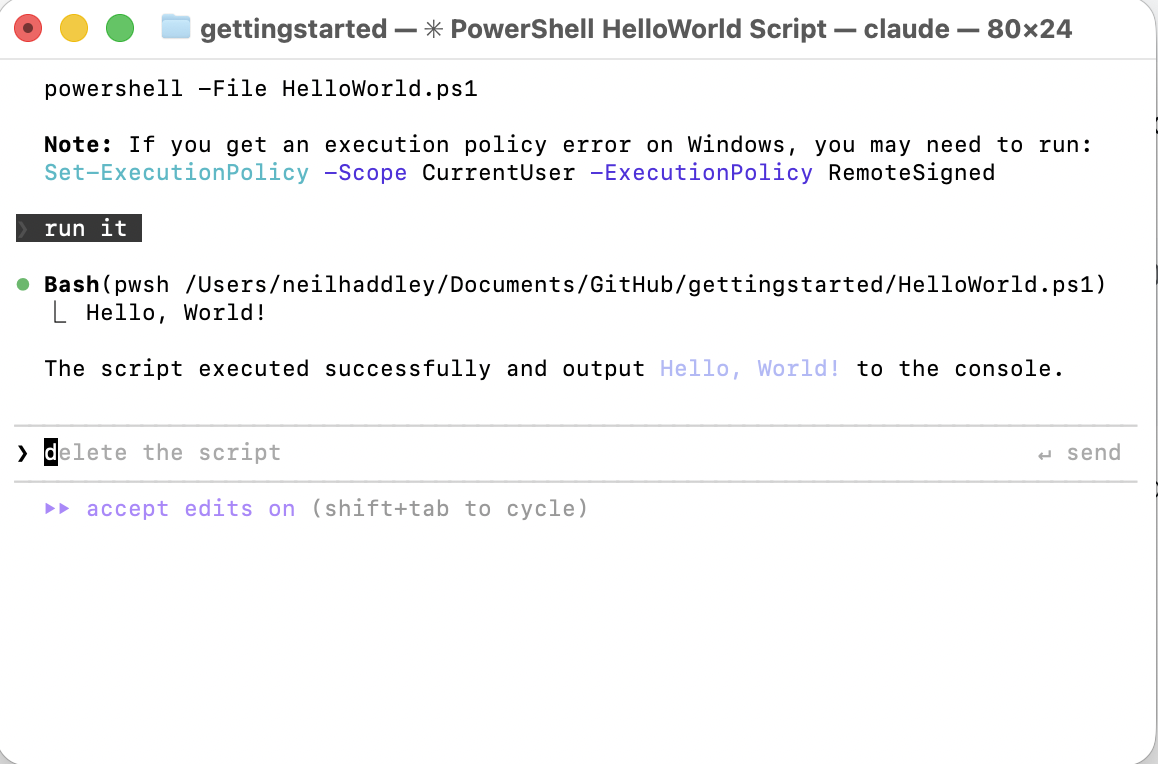
The script ran and output "Hello, World!" to the console
I also ran the script directly to confirm it worked independently:
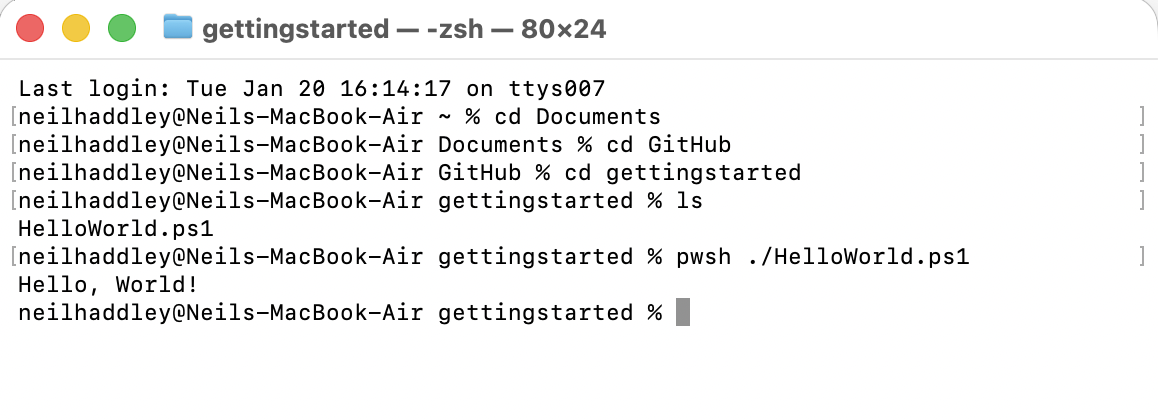
I ran pwsh ./HelloWorld.ps1 manually to verify the output
VS Code Extension
I also installed the Claude Code VS Code Extension, which integrates directly into the editor. It automatically loads the file I'm working on as context, so I can ask questions without switching to the terminal:
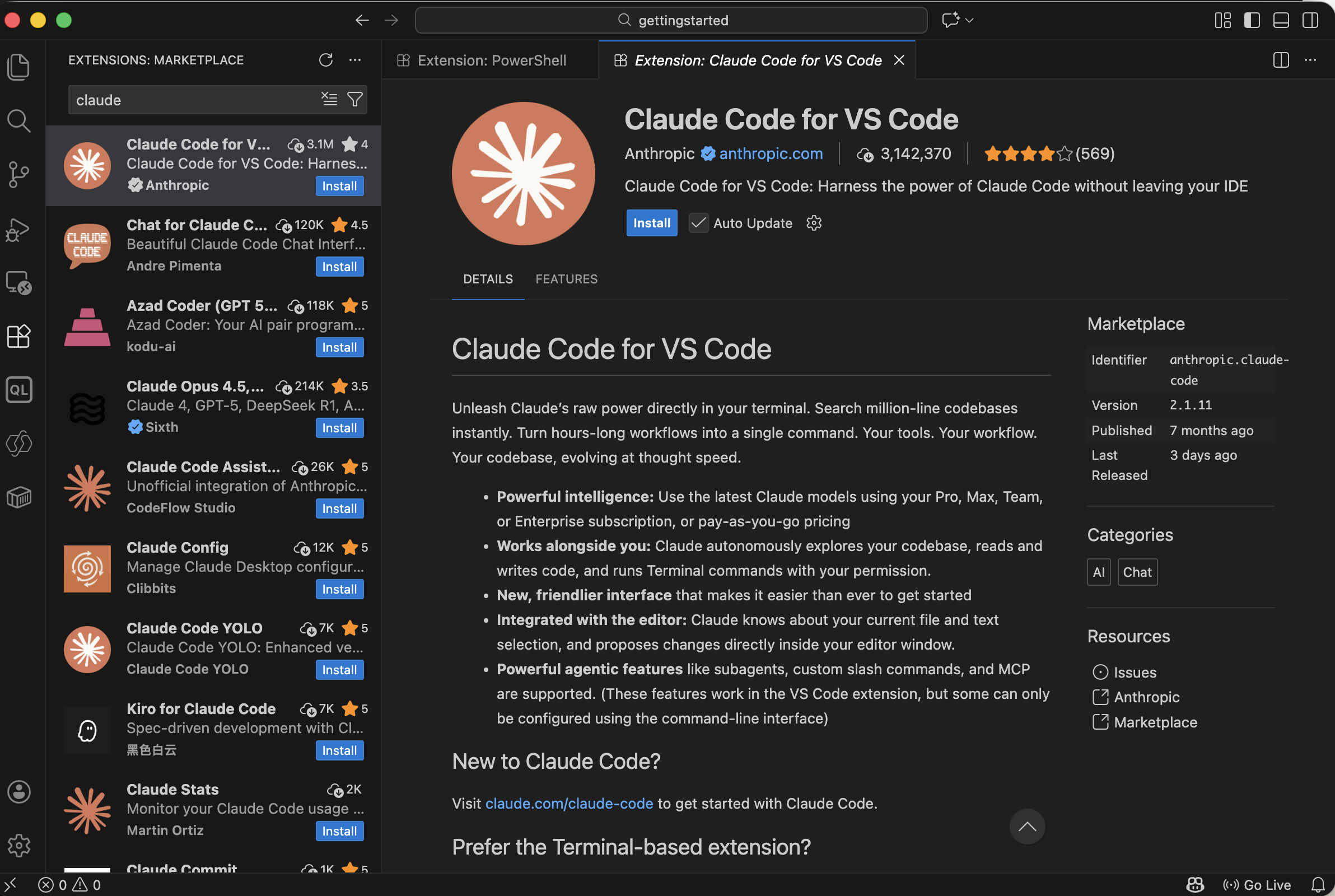
Claude Code's Visual Studio Code Extension
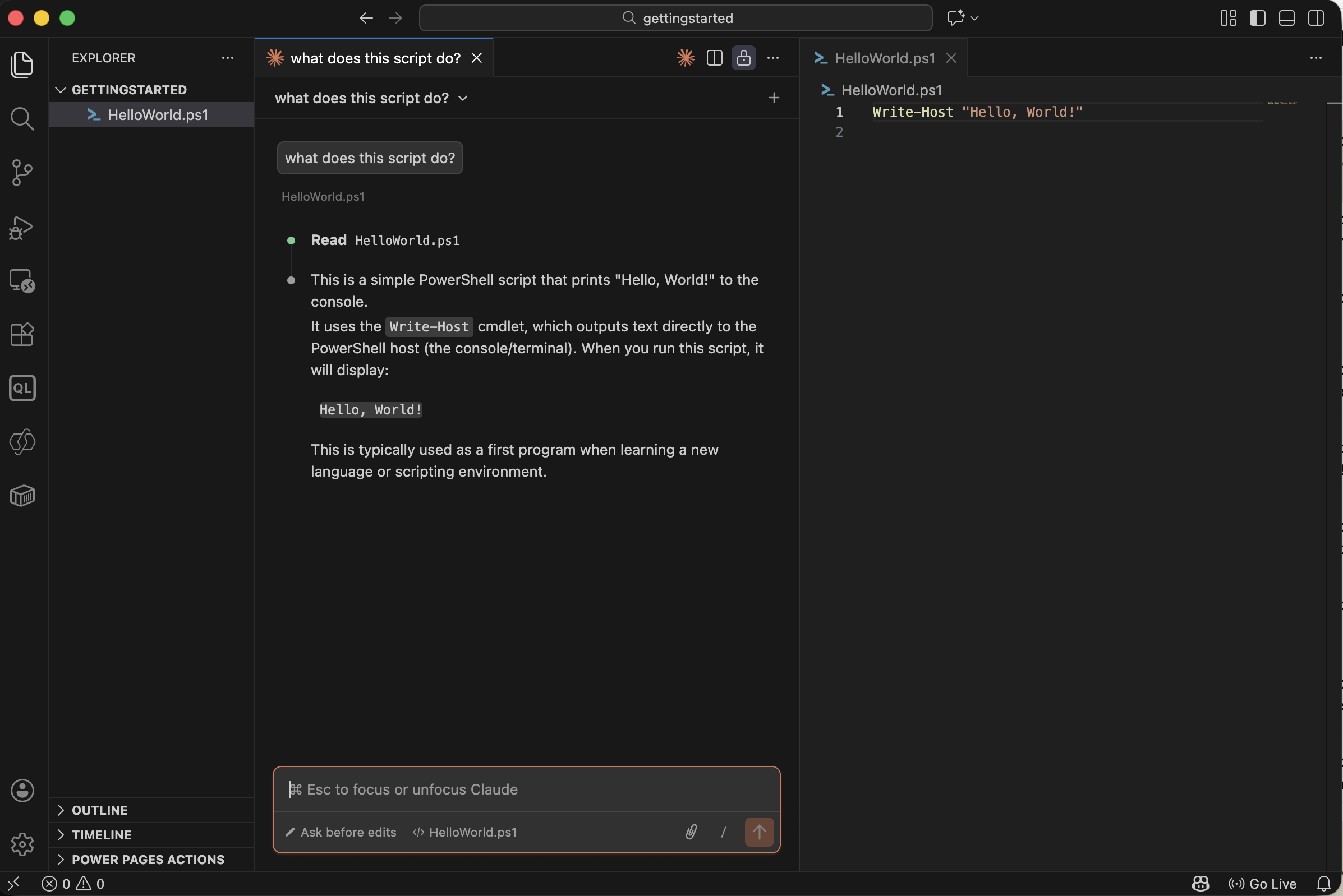
I asked Claude Code to explain the script from inside VS Code