Claude Code (Part 6)
Neil Haddley • January 21, 2026
Slash Commands
Custom slash commands let me package project-specific knowledge and workflows into a single shortcut. Instead of re-explaining my project's structure, conventions, and tools at the start of every session, I type /powershell and Claude already knows everything it needs.
A custom slash command is a Markdown file stored in .claude/commands/. When I invoke it, Claude reads the file and uses it as the context for the session.
Creating the command
I created .claude/commands/powershell.md containing instructions for how Claude should approach my PowerShell project — what files to read first, what commands to use, which safety rules to follow, and how to structure new functions:
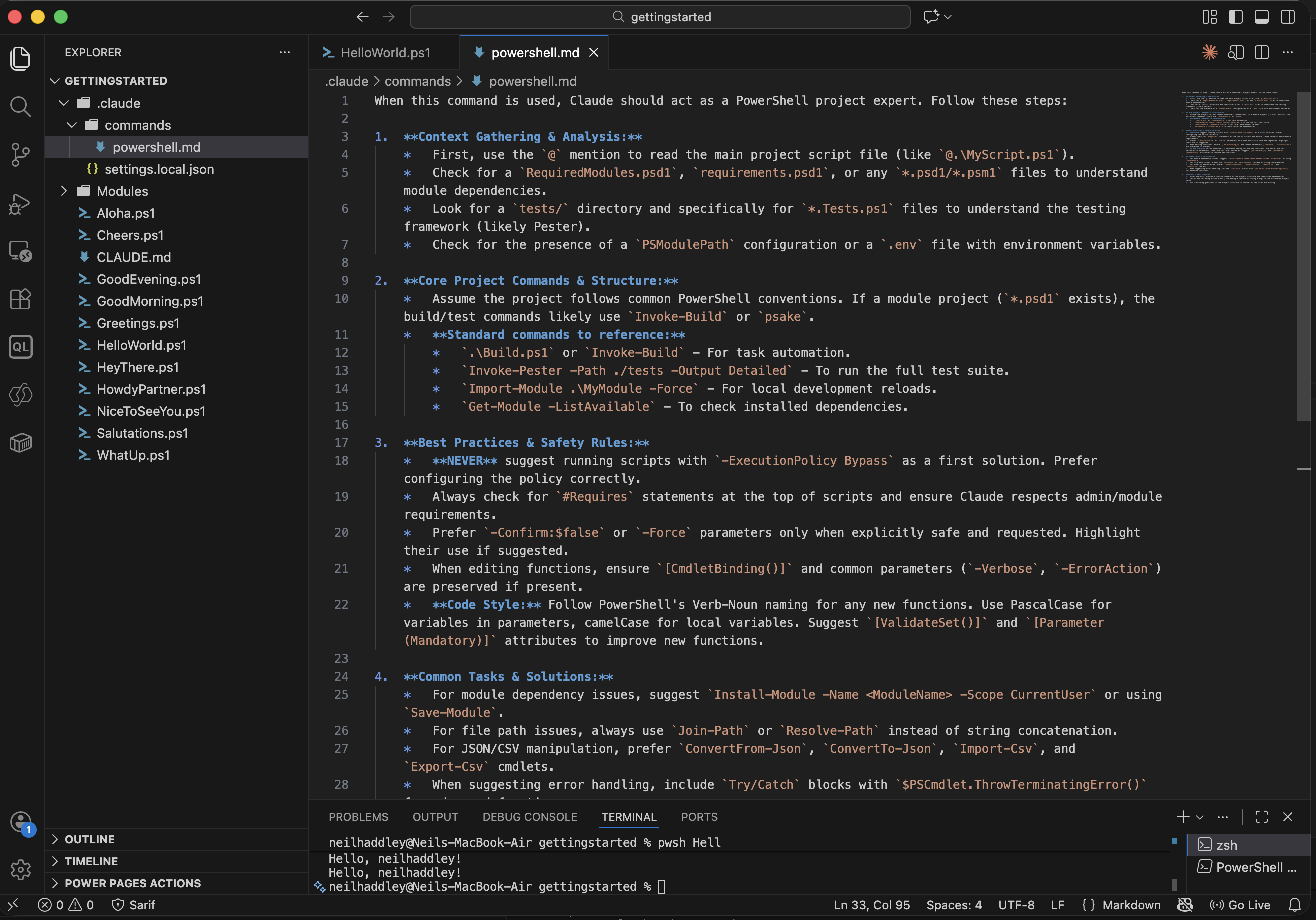
I created the /powershell command file in .claude/commands/
The command tells Claude to:
- Read the main script and any module files before acting
- Use Invoke-Pester for tests and Invoke-Build for task automation
- Never suggest -ExecutionPolicy Bypass as a first solution
- Follow PowerShell Verb-Noun naming and use [CmdletBinding()] on new functions
Using the command
I ran /powershell at the start of a new session:
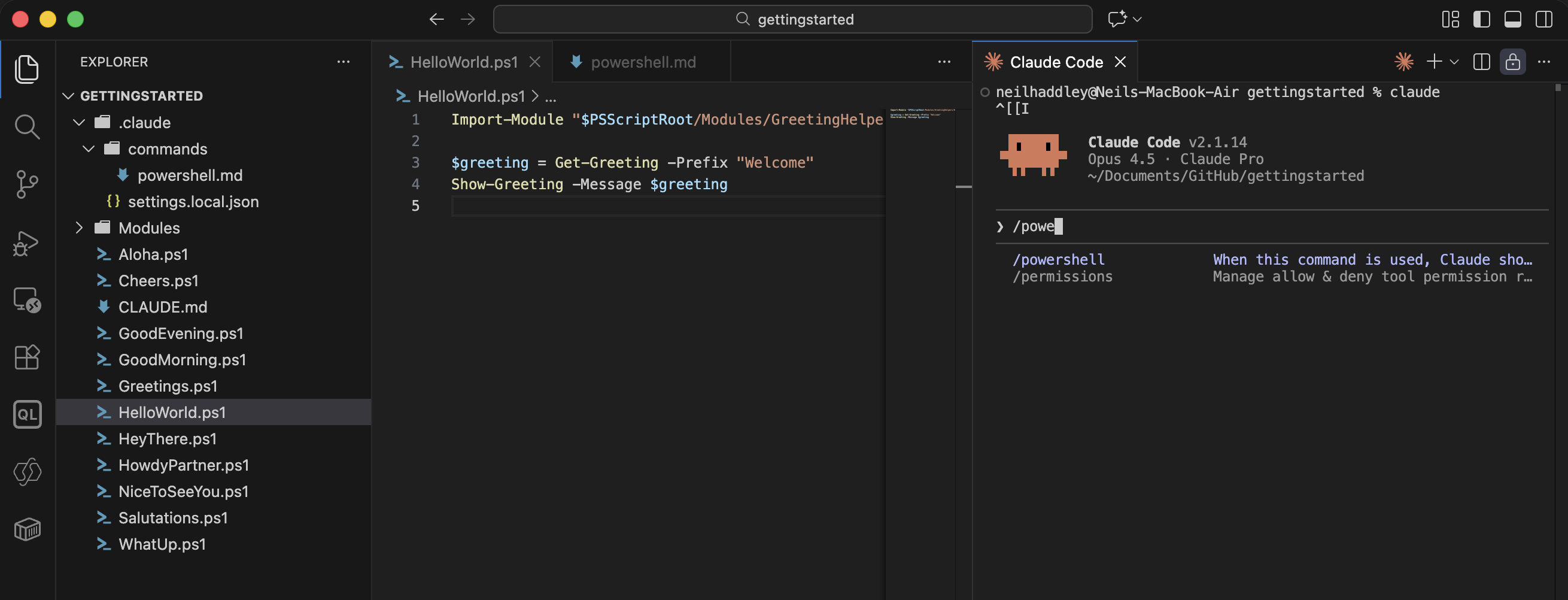
I ran /powershell — Claude read the project files and loaded the context
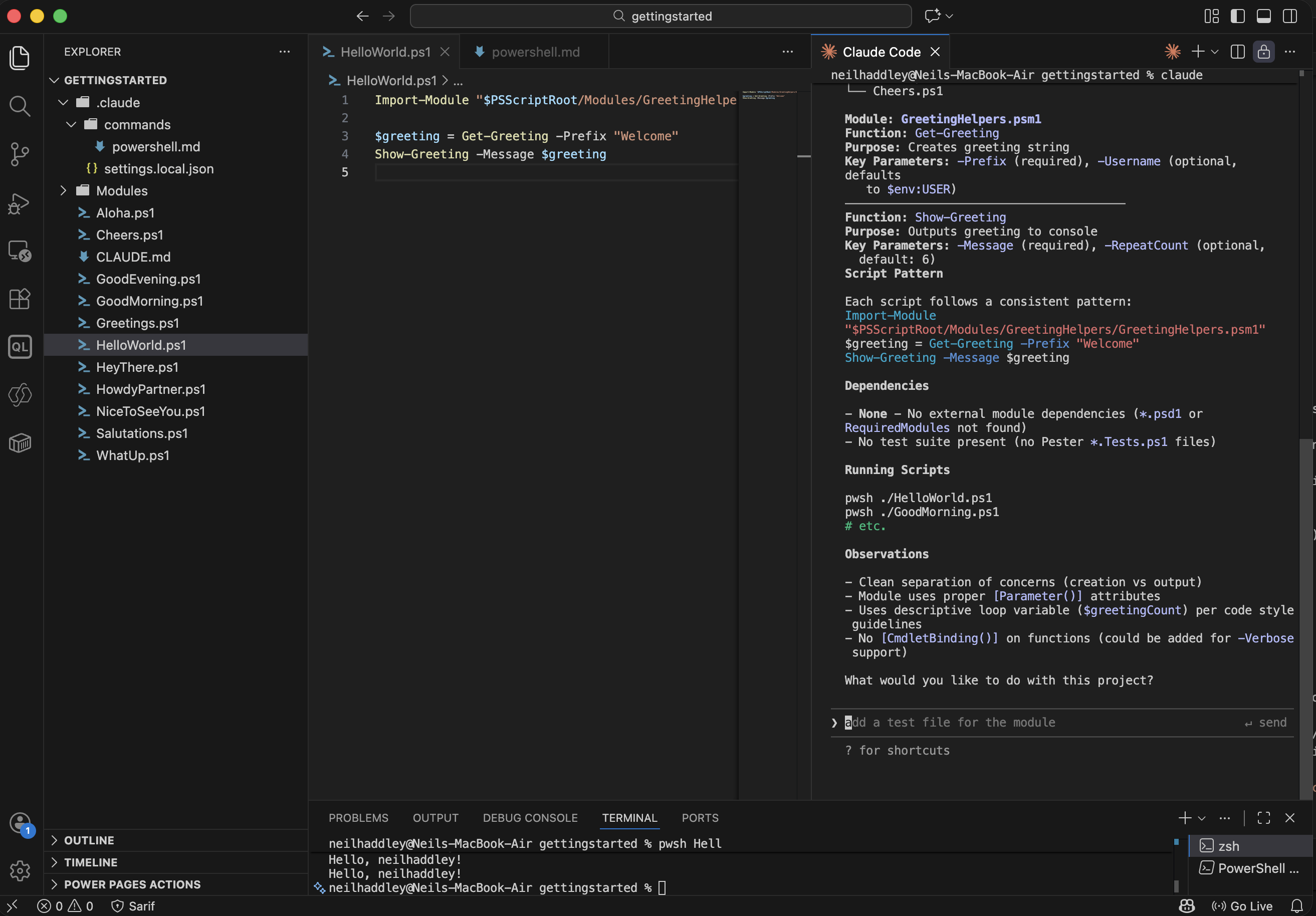
Claude summarised what it found and asked what I wanted to do
I asked it to add a Pester test file for the module:
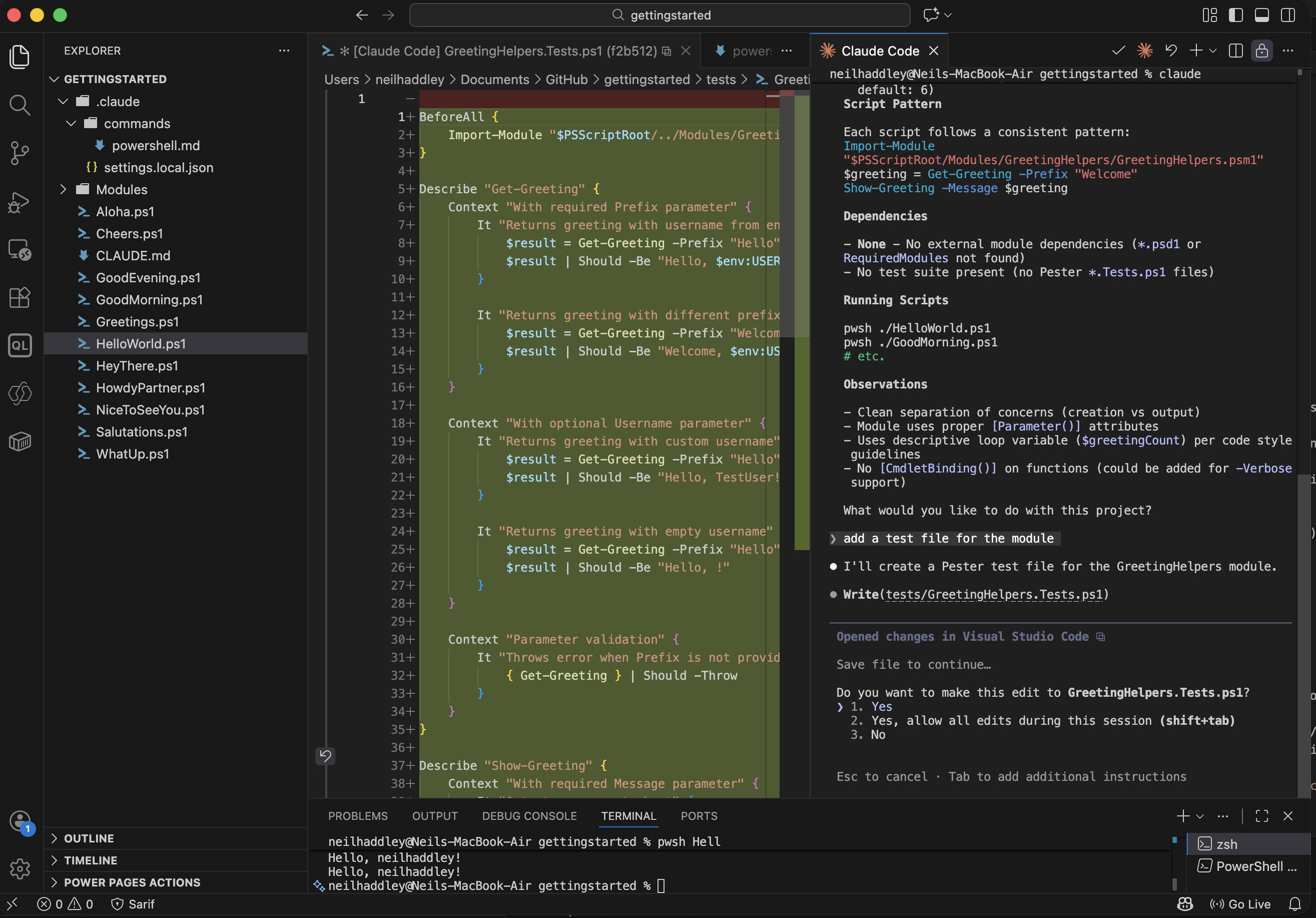
I asked Claude to add a test file for the GreetingHelpers module
Claude generated a complete Pester test suite covering Get-Greeting and Show-Greeting, including context blocks for parameters, edge cases, and validation:
POWERSHELL
1BeforeAll {
2    Import-Module "$PSScriptRoot/../Modules/GreetingHelpers/GreetingHelpers.psm1" -Force
3}
4
5Describe "Get-Greeting" {
6    Context "With required Prefix parameter" {
7        It "Returns greeting with username from environment" {
8            $result = Get-Greeting -Prefix "Hello"
9            $result | Should -Be "Hello, $env:USER!"
10        }
11
12        It "Returns greeting with different prefix" {
13            $result = Get-Greeting -Prefix "Welcome"
14            $result | Should -Be "Welcome, $env:USER!"
15        }
16    }
17
18    Context "With optional Username parameter" {
19        It "Returns greeting with custom username" {
20            $result = Get-Greeting -Prefix "Hello" -Username "TestUser"
21            $result | Should -Be "Hello, TestUser!"
22        }
23
24        It "Returns greeting with empty username" {
25            $result = Get-Greeting -Prefix "Hello" -Username ""
26            $result | Should -Be "Hello, !"
27        }
28    }
29
30    Context "Parameter validation" {
31        It "Has mandatory Prefix parameter" {
32            $command = Get-Command Get-Greeting
33            $command.Parameters['Prefix'].Attributes.Mandatory | Should -Contain $true
34        }
35    }
36}
37
38Describe "Show-Greeting" {
39    Context "With required Message parameter" {
40        It "Outputs message to host" {
41            $output = Show-Greeting -Message "Test Message" 6>&1
42            $output[0].ToString() | Should -Be "Test Message"
43        }
44
45        It "Outputs message 6 times by default" {
46            $output = Show-Greeting -Message "Test Message" 6>&1
47            $output.Count | Should -Be 6
48        }
49    }
50
51    Context "With optional RepeatCount parameter" {
52        It "Outputs message specified number of times" {
53            $output = Show-Greeting -Message "Test Message" -RepeatCount 3 6>&1
54            $output.Count | Should -Be 3
55        }
56
57        It "Outputs message once when RepeatCount is 1" {
58            $output = Show-Greeting -Message "Test Message" -RepeatCount 1 6>&1
59            $output.Count | Should -Be 1
60        }
61
62        It "Outputs nothing when RepeatCount is 0" {
63            $output = Show-Greeting -Message "Test Message" -RepeatCount 0 6>&1
64            $output | Should -BeNullOrEmpty
65        }
66    }
67
68    Context "Parameter validation" {
69        It "Has mandatory Message parameter" {
70            $command = Get-Command Show-Greeting
71            $command.Parameters['Message'].Attributes.Mandatory | Should -Contain $true
72        }
73    }
74}
All 11 tests passed:
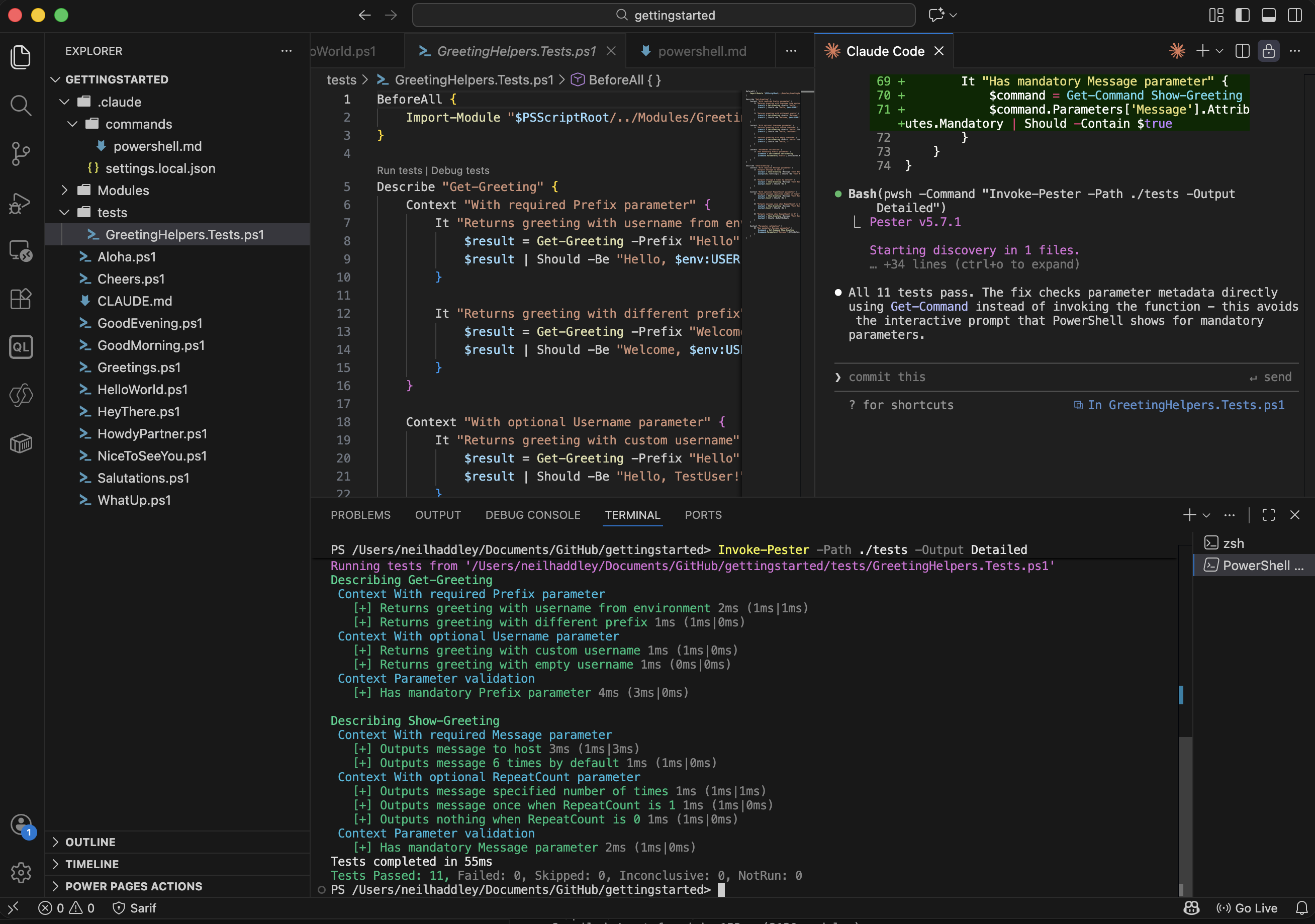
All 11 Pester tests passed
The command effectively inverted the workflow — instead of me guiding Claude, the command taught Claude how to guide itself within the project. New sessions start with full context, no repetition required.