Financial Operations Purchase Invoice
Neil Haddley • August 20, 2023
Payment Journals
Businesses that purchase items from Vendors need to provide payment.
Businesses should take advantage of payment terms and discounts for prompt payment.
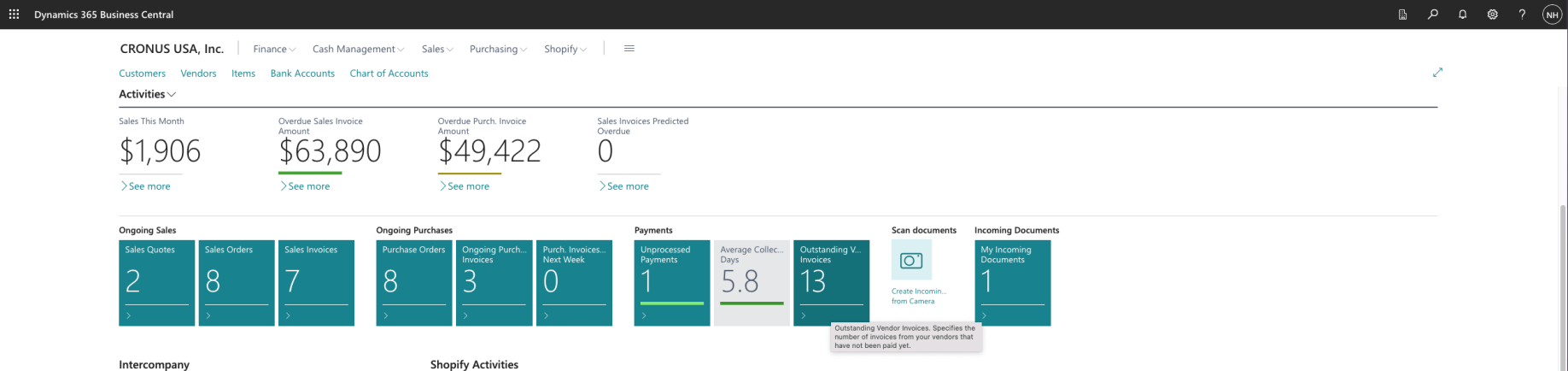
I noticed that there were 13 Outstanding Vendor Invoices in the CRONUS USA, Inc. company accounts

I created a payment for the $14,895 Nod Publishers Invoice
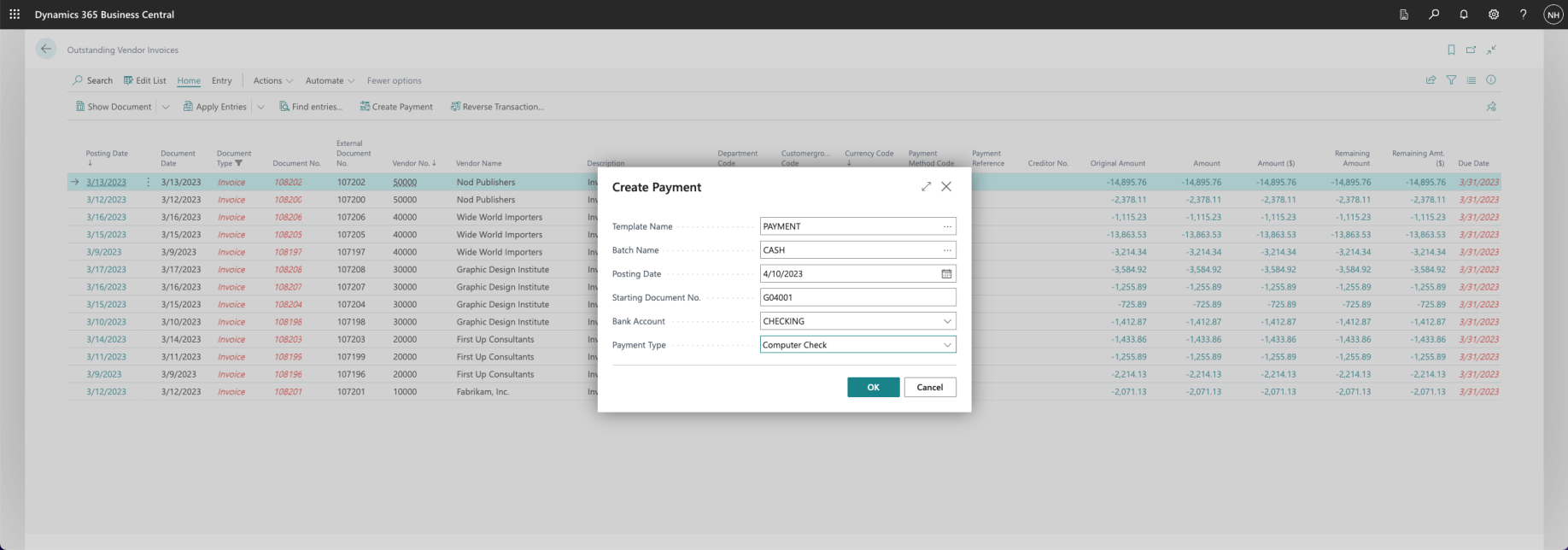
I selected Payment Type "Computer Check"

I noticed that the Check Printed value was false (unselected)

As a test I tried to Post the payment
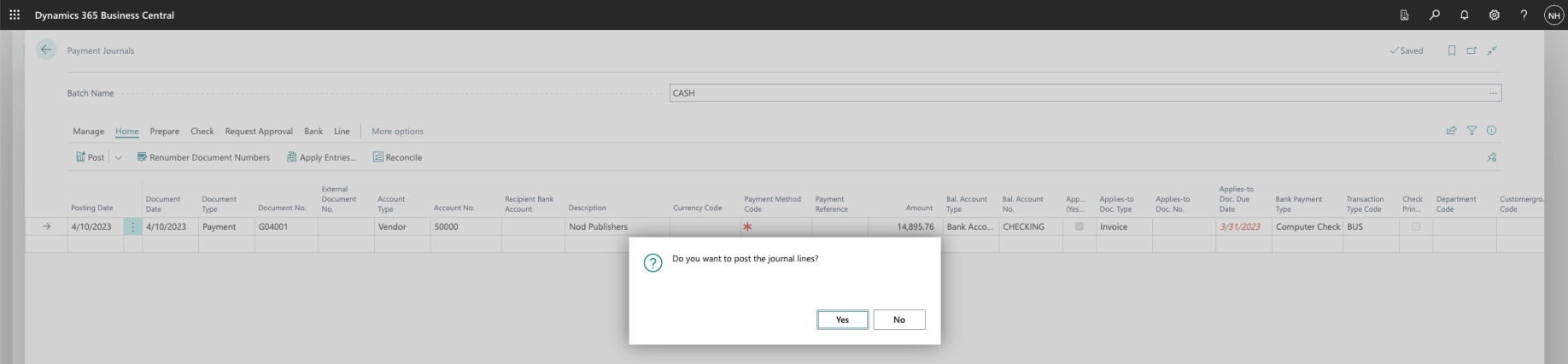
I confirmed Yes

Business Central generated an error. I had specified Computer Check but I had not printed a Check.

I selected the Check|Print Check... menu item
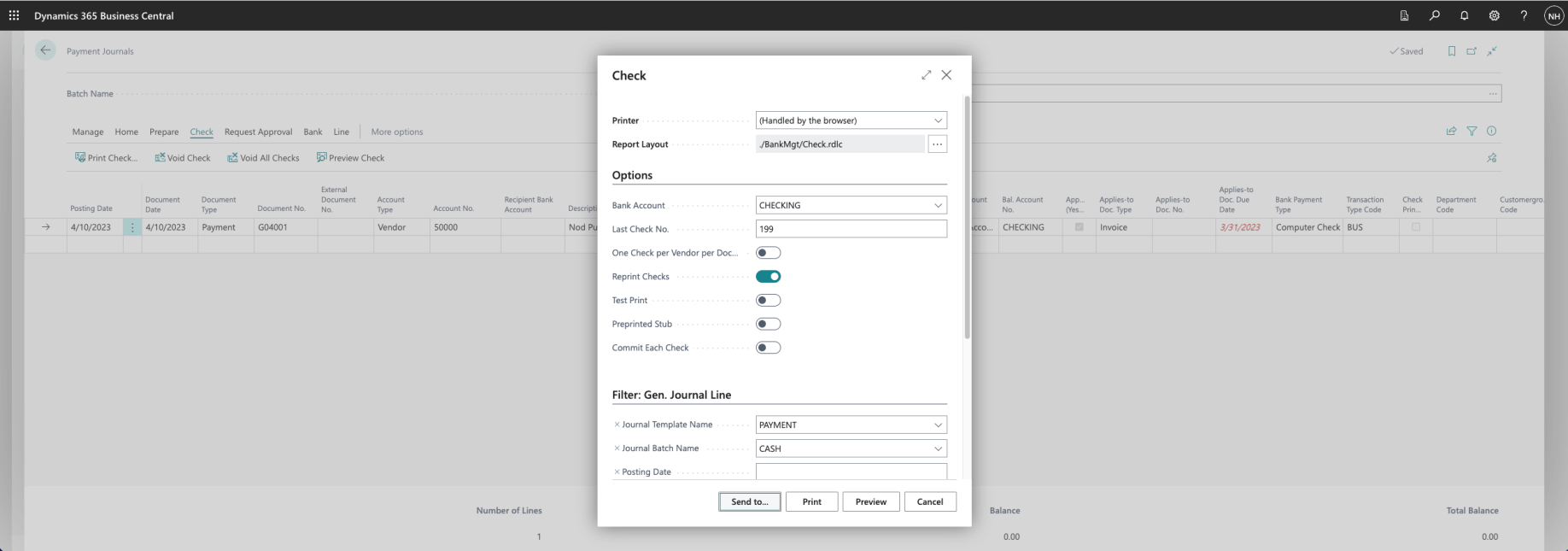
I selected the "Send to..." link
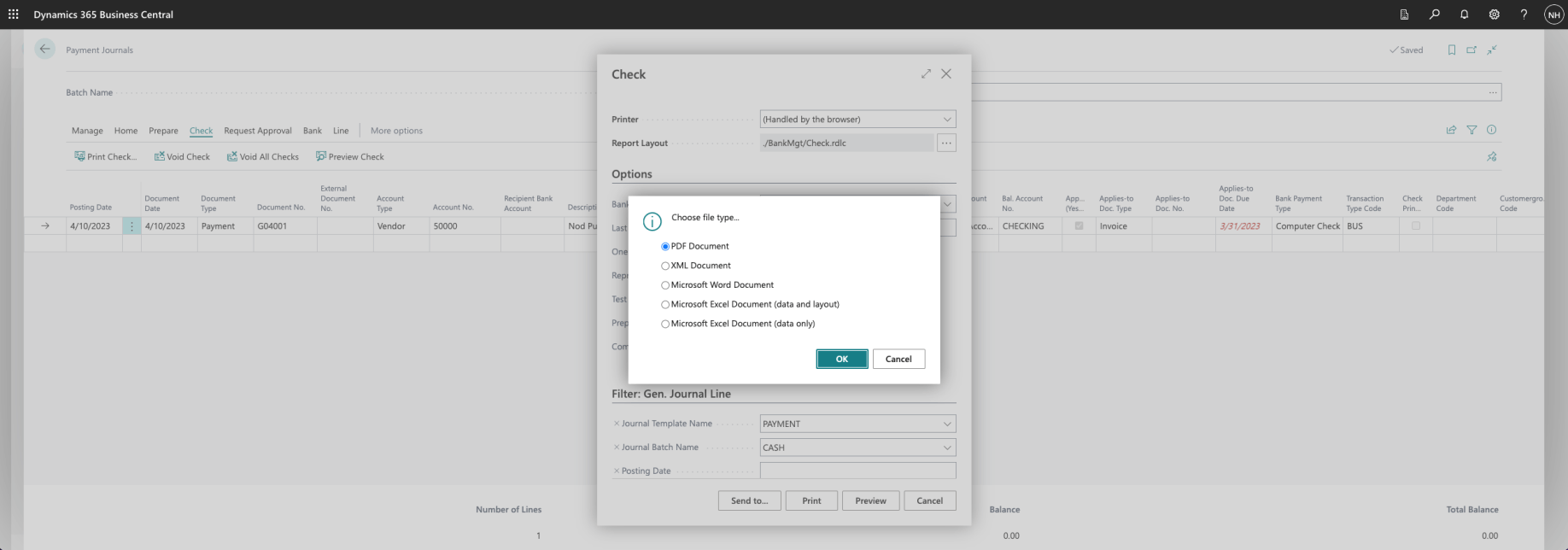
I selected the PDF Document option

Check.pdf was downloaded
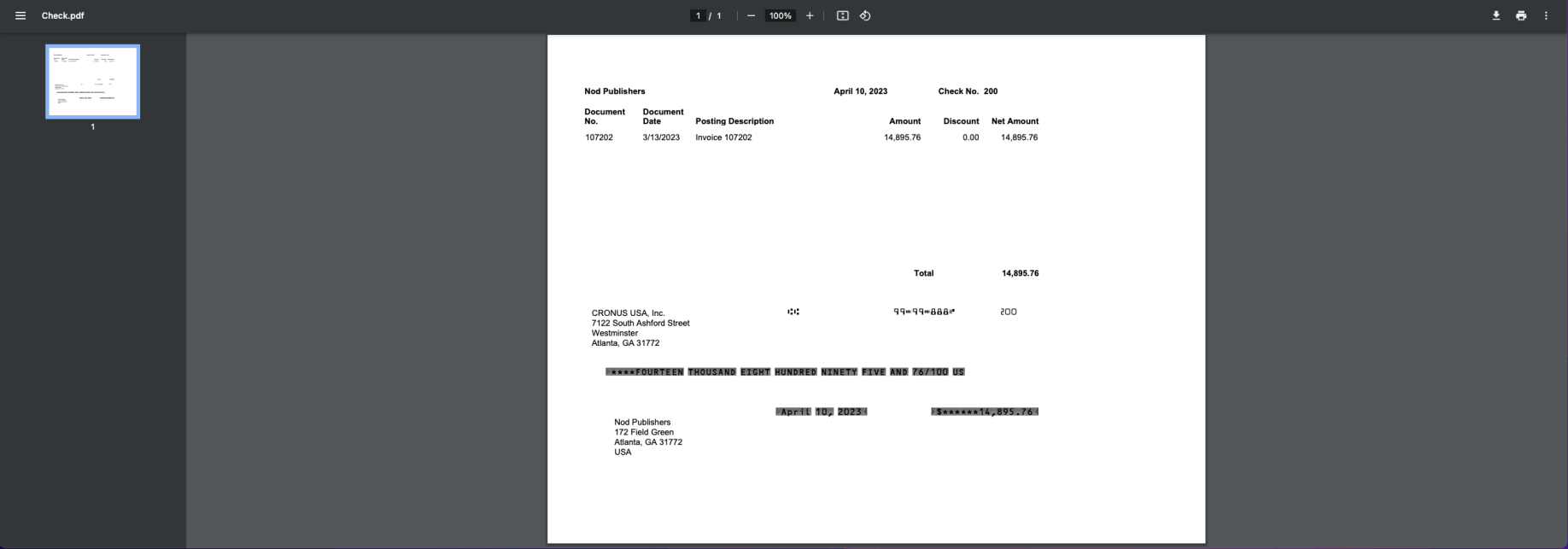
Business Central generated a one page pdf document (ready for me to print)

I selected Preview Posting

There were going to be two General Ledger Entries added, a Vendor Ledger Entry added, a Bank Account Ledger Entry added, and three Detailed Vendor Ledger Entries added

A Credit entry was going to be added to the Checking Account (The value of the Asset would reduce)

A Debit entry was going to be added to the Accounts Payable Account (The size of the Liability would reduce). I noticed that the name of the Vendor was added as a Description

A Debit entry was going to be added to the Nod Publishers Account in the Vendor Ledger

A Credit entry was going to be added to the CHECKING Account in the Bank Account Ledger

Three entries were going to be added to the Detailed Vendor Ledger

I selected the Post|Post menu item
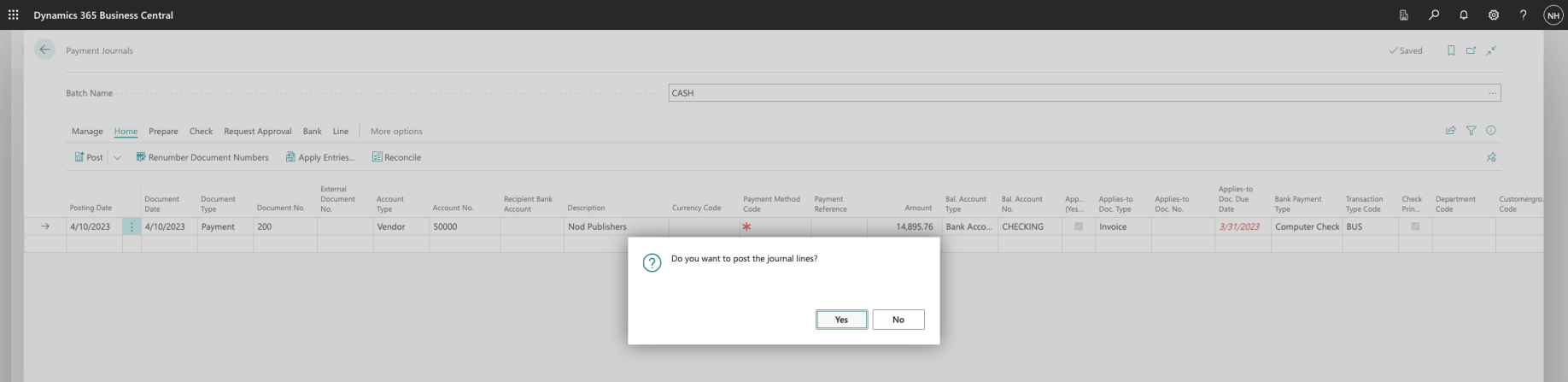
I selected the Yes option
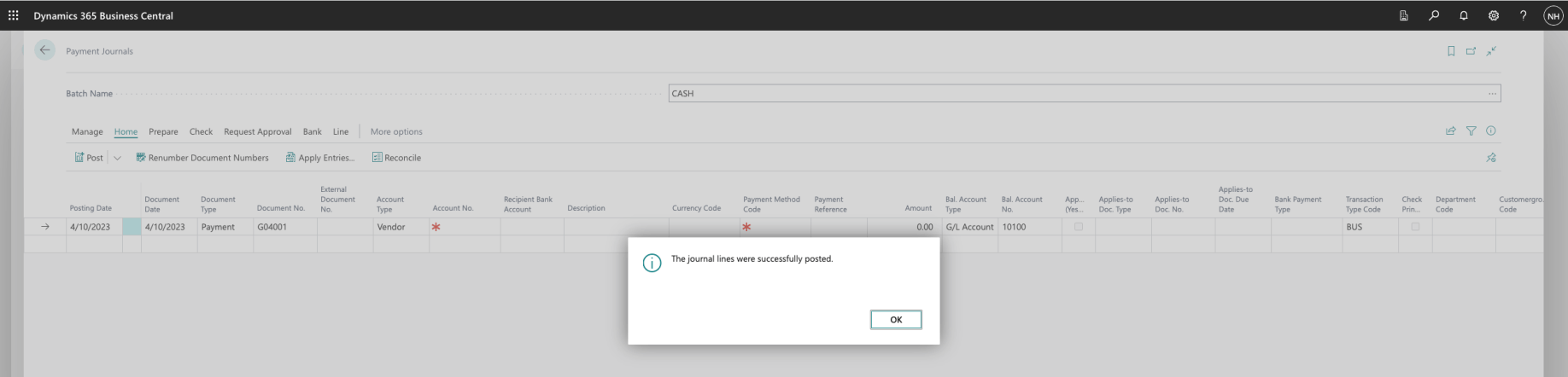
The journal lines were successfully posted
Suggest Vendor Payments
I used the Suggest Vendor Payments menu item to suggest payment lines. In normal operations suggested payment lines would include payments that will qualify for payment discounts.

I reviewed Payment Journals

I selected the CASH batch (as a starting point)

I clicked the Suggest Vendor Payments link
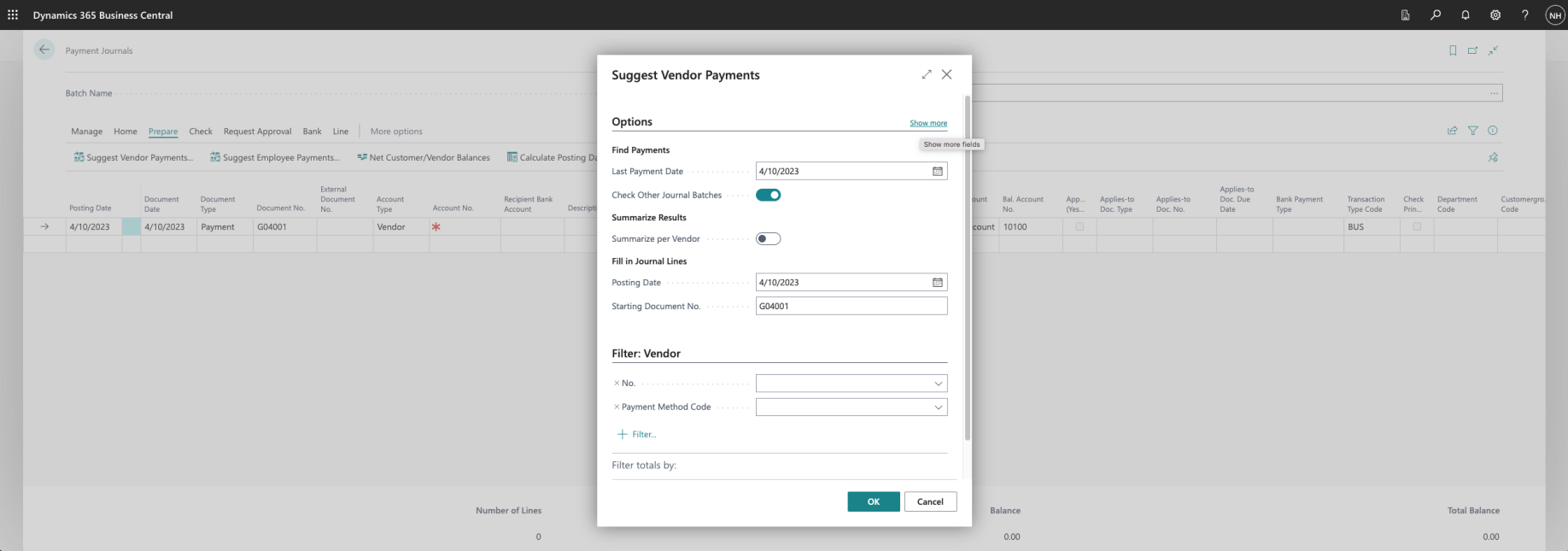
I clicked the "Show more" link
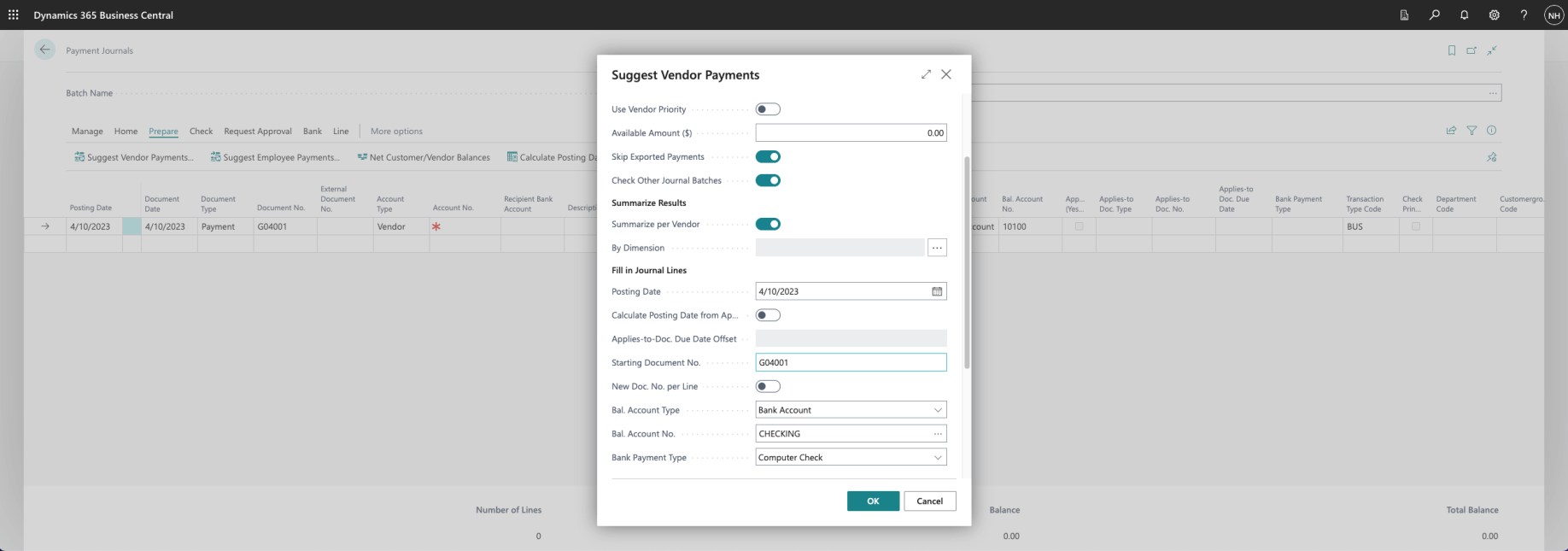
I selected Bal. Account Type: Bank Account, Bal. Account No.: CHECKING, and Bank Payment Type: Computer Check
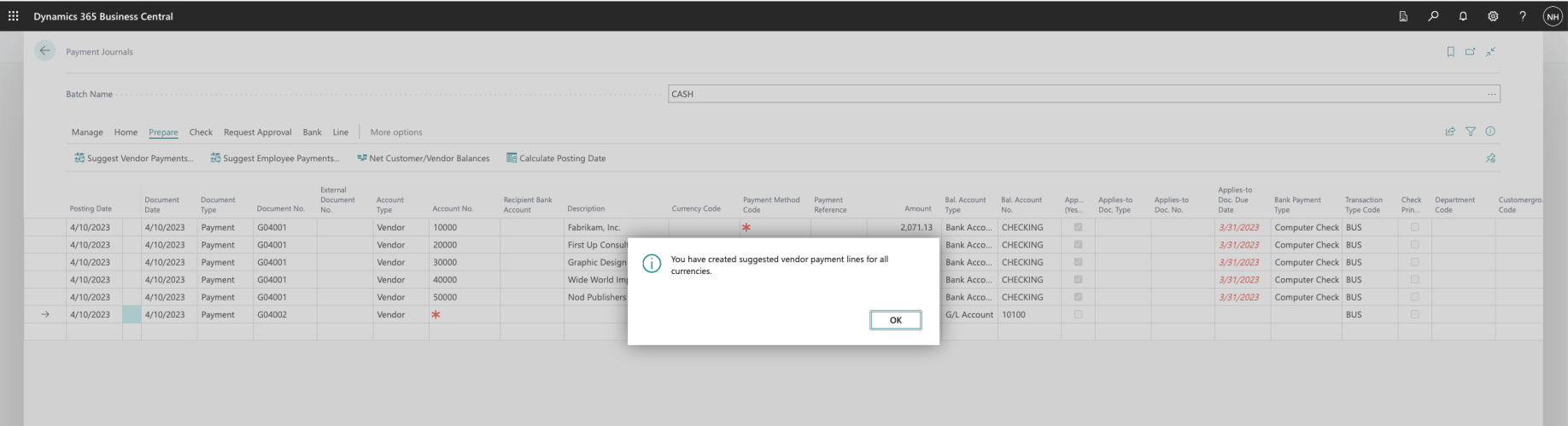
I clicked the OK link
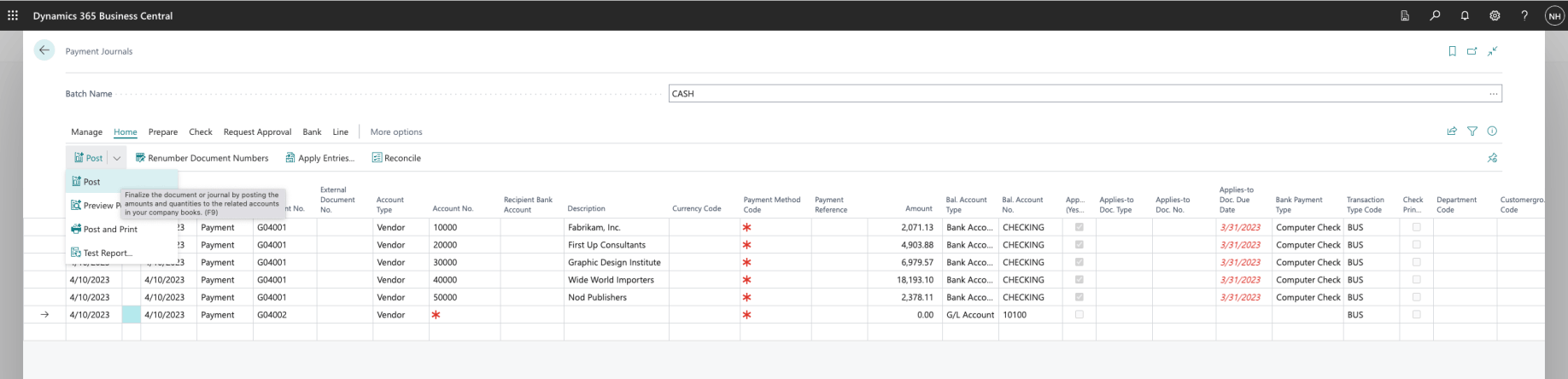
As a test I tried to click the Post|Post link

Again Business Central generated an error. I had specified Computer Check but I had not printed the Checks.
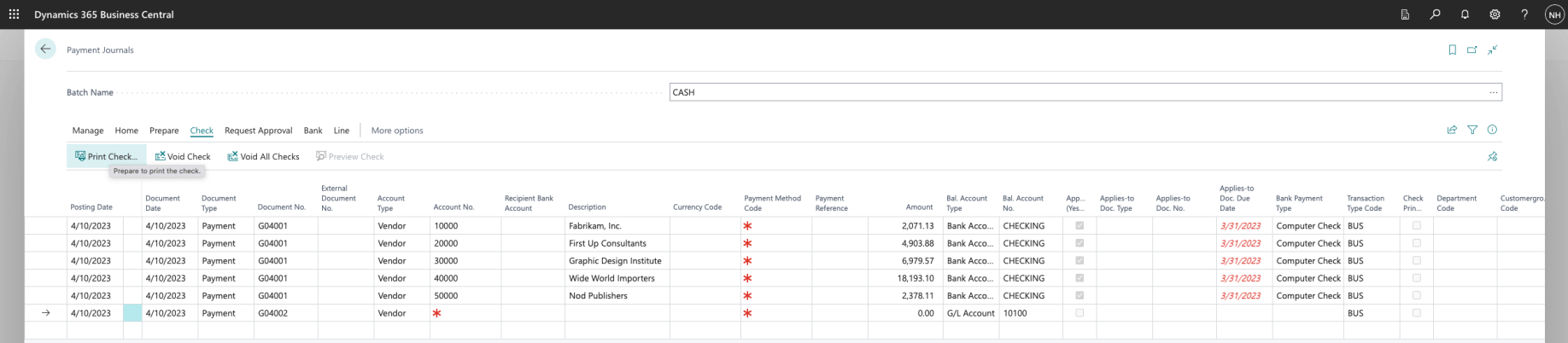
I clicked the Check|Print Check... link
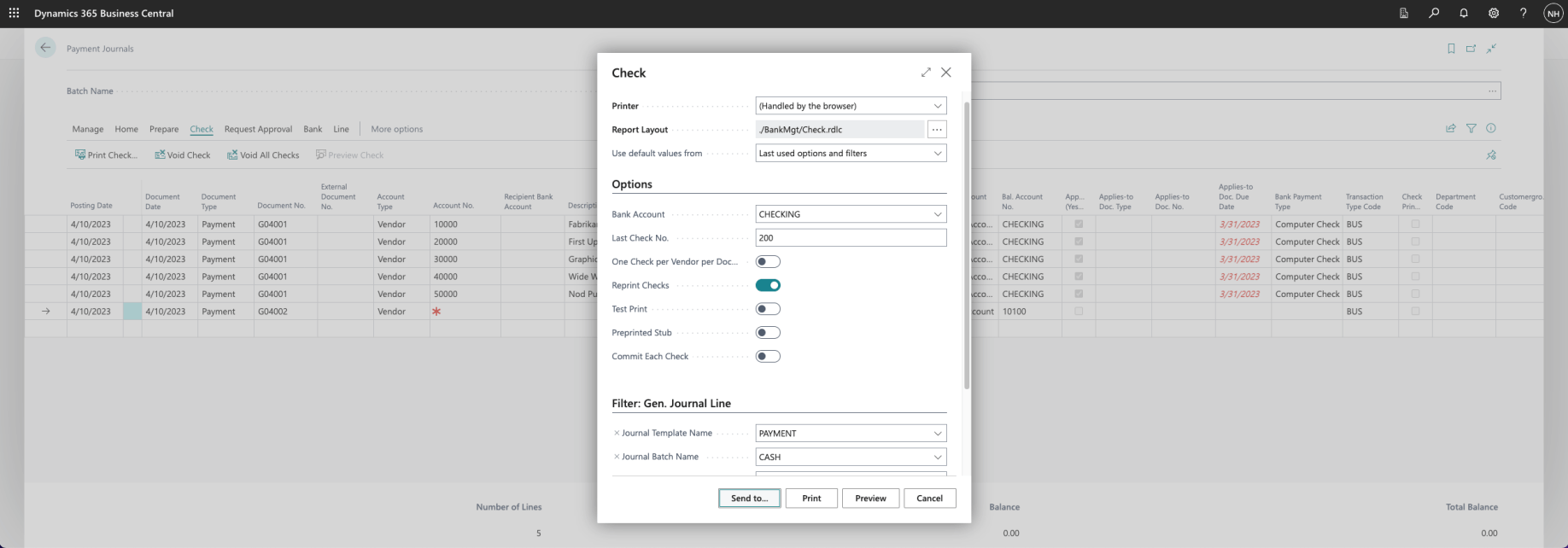
I selected the Send to... link
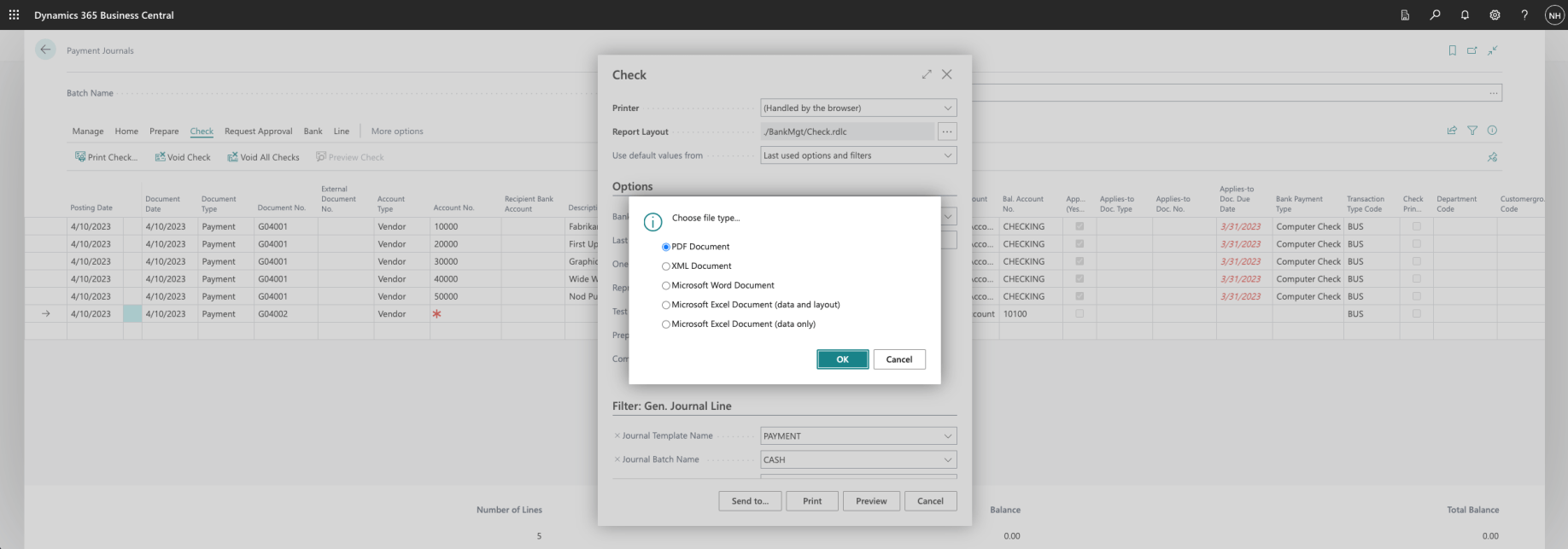
I selected the PDF Document option
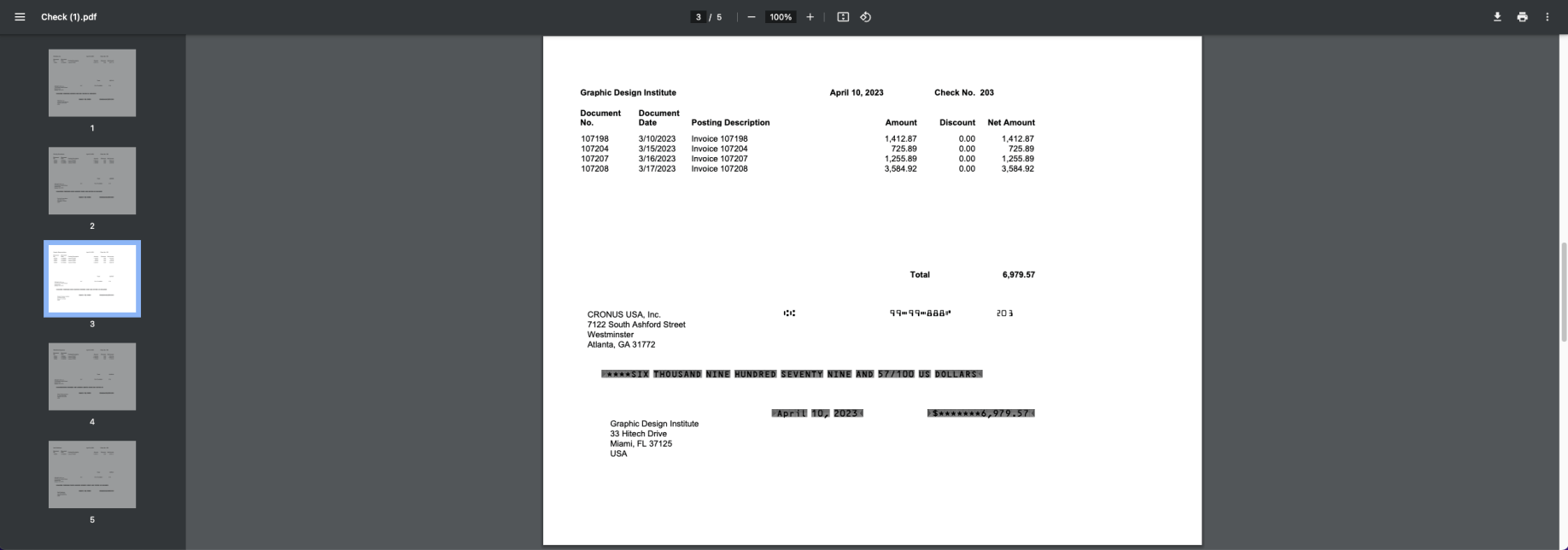
The result was a 5 page pdf file. Each page included the check details and the corresponding Vendor invoice details
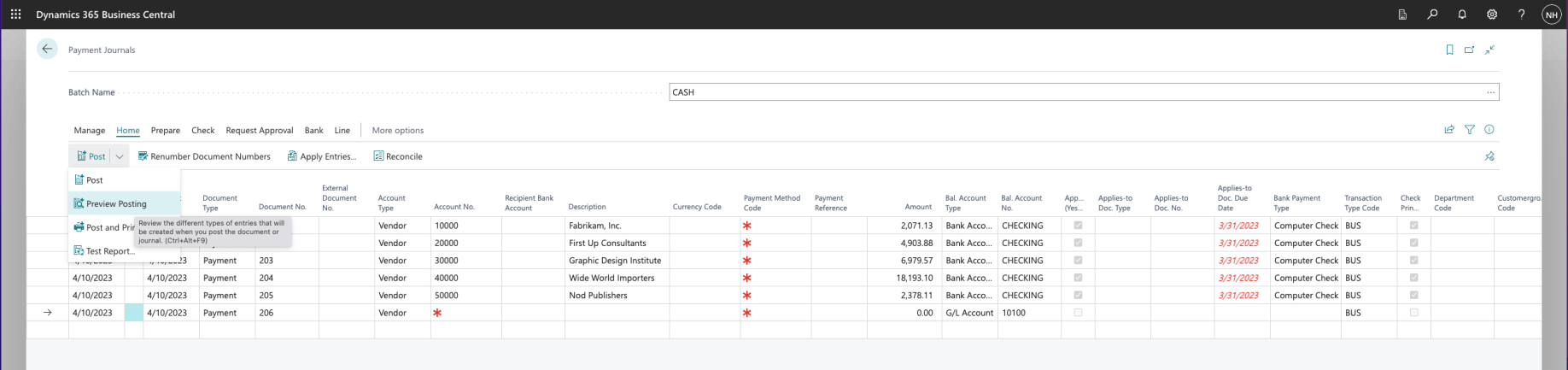
I selected Preview Posting
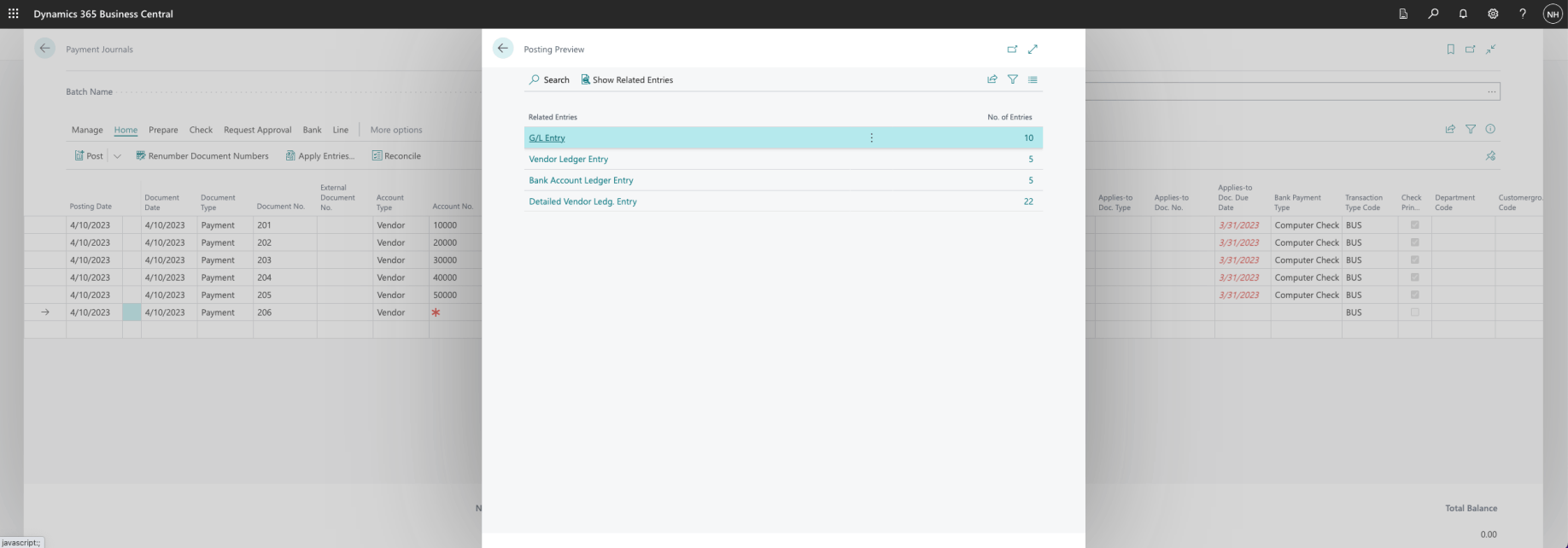
There were going to be ten General Ledger Entries added, five Vendor Ledger Entries added, five Bank Account Ledger Entries added, and twenty two Detailed Vendor Ledger Entries added
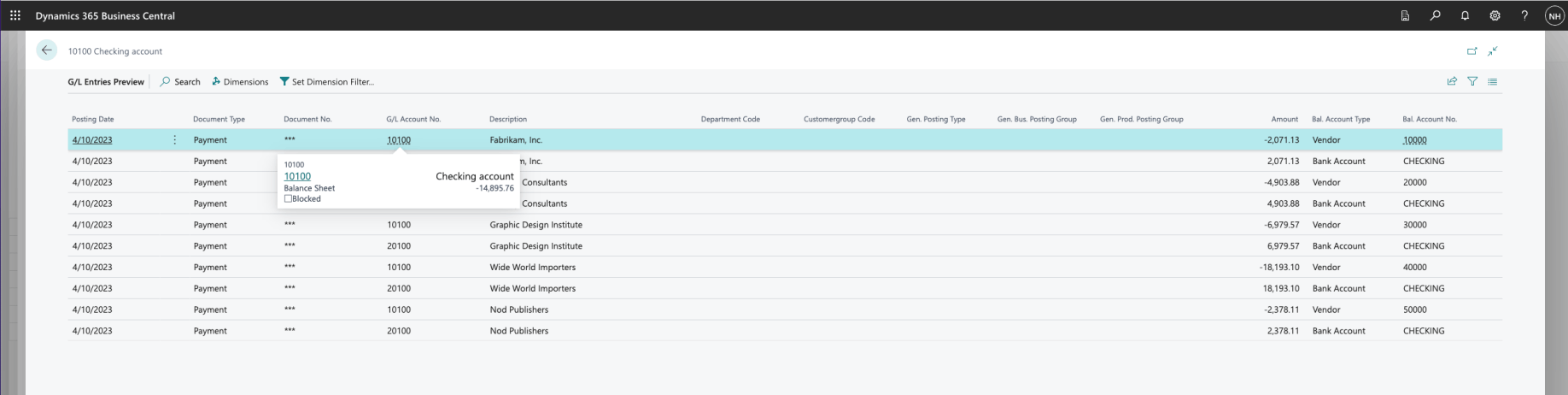
Five Credit entries were going to be added to the Checking Account (The value of the Asset would reduce)
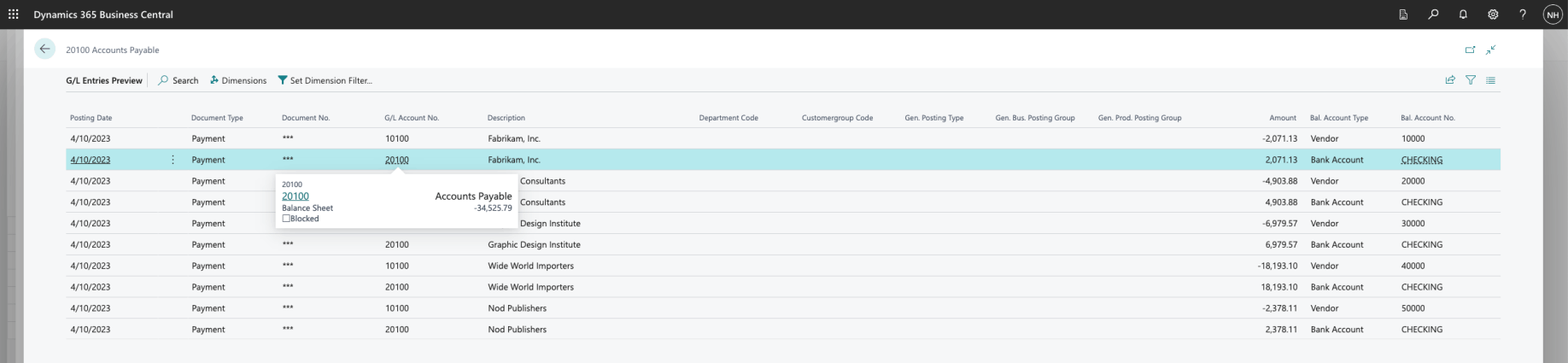
Five Debit entries were going to be added to the Accounts Payable Account (The size of the Liability would reduce). I noticed that in each instance the name of the Vendor was added as a Description
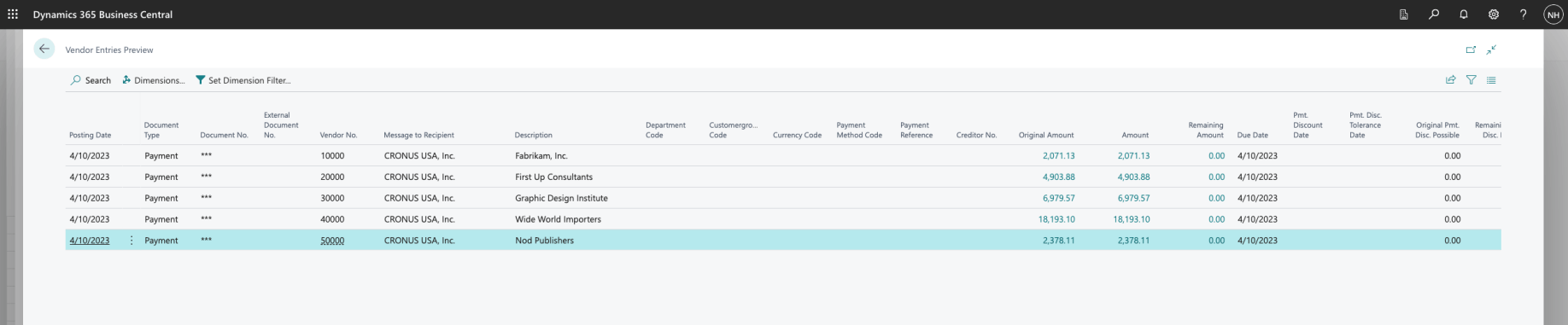
Five Debit entries were going to be added to the Vendor Ledger (one for each of the five Vendor Accounts)

Five Credit entries were going to be added to the CHECKING Account in the Bank Account Ledger
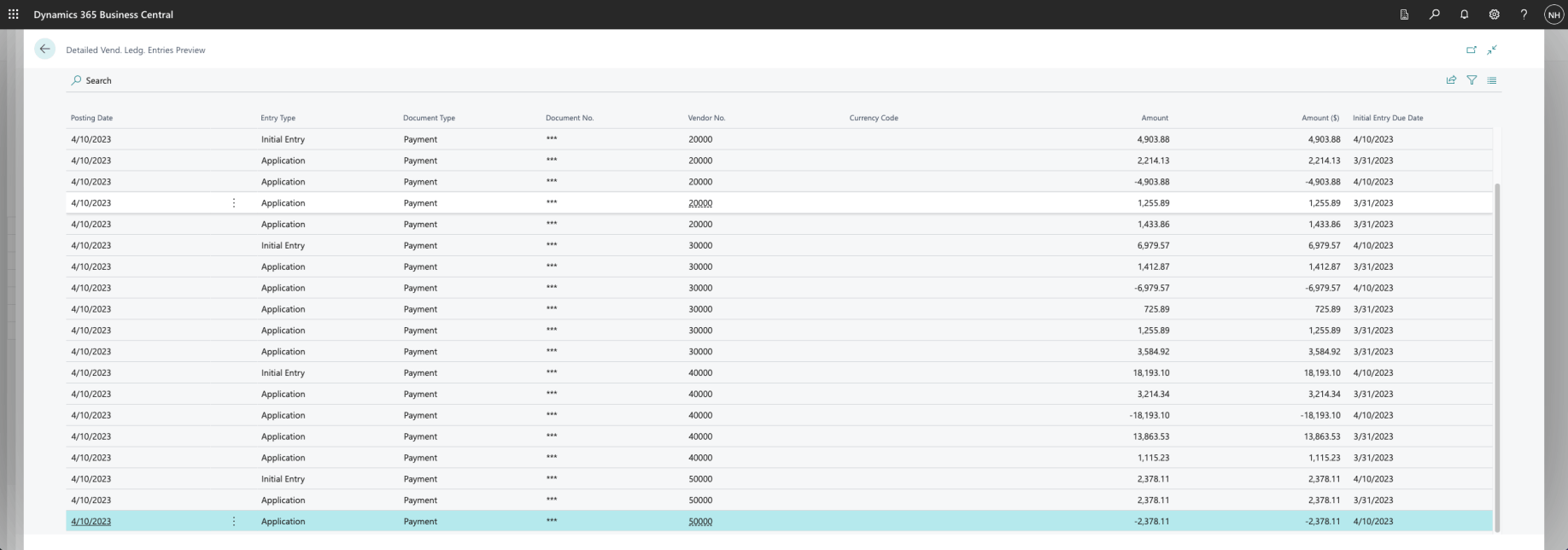
Twenty two entries were going to be added to the Detailed Vendor Ledger
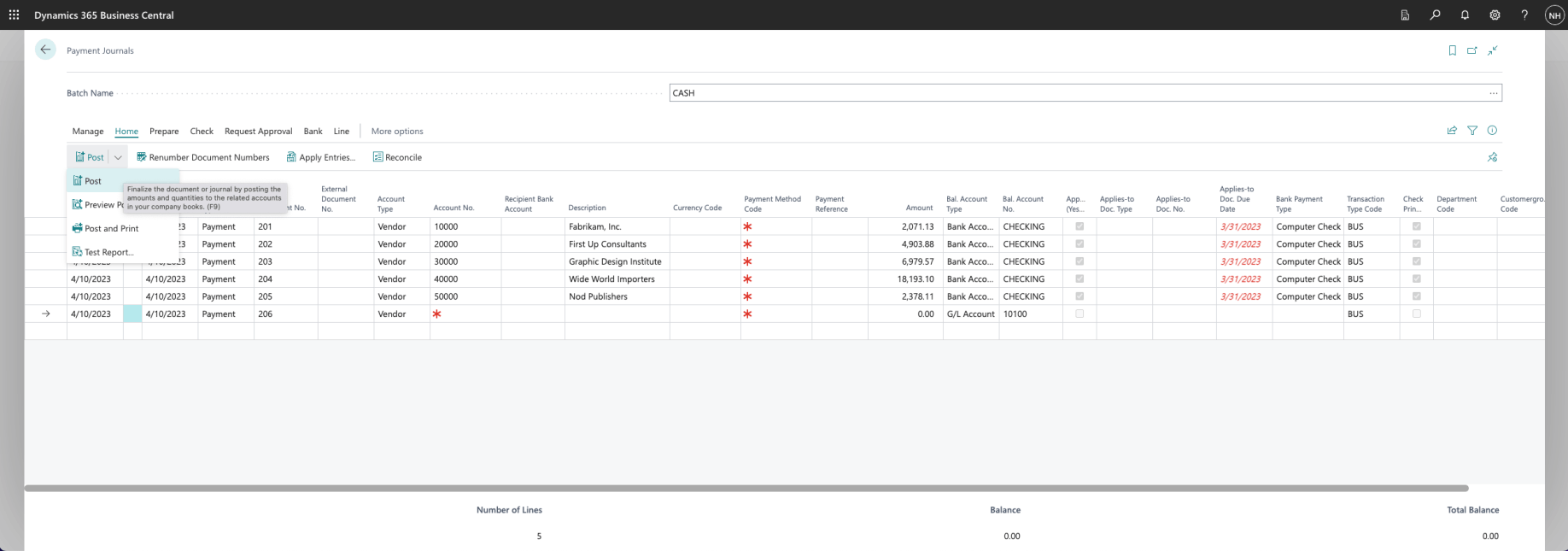
I selected the Post|Post menu item
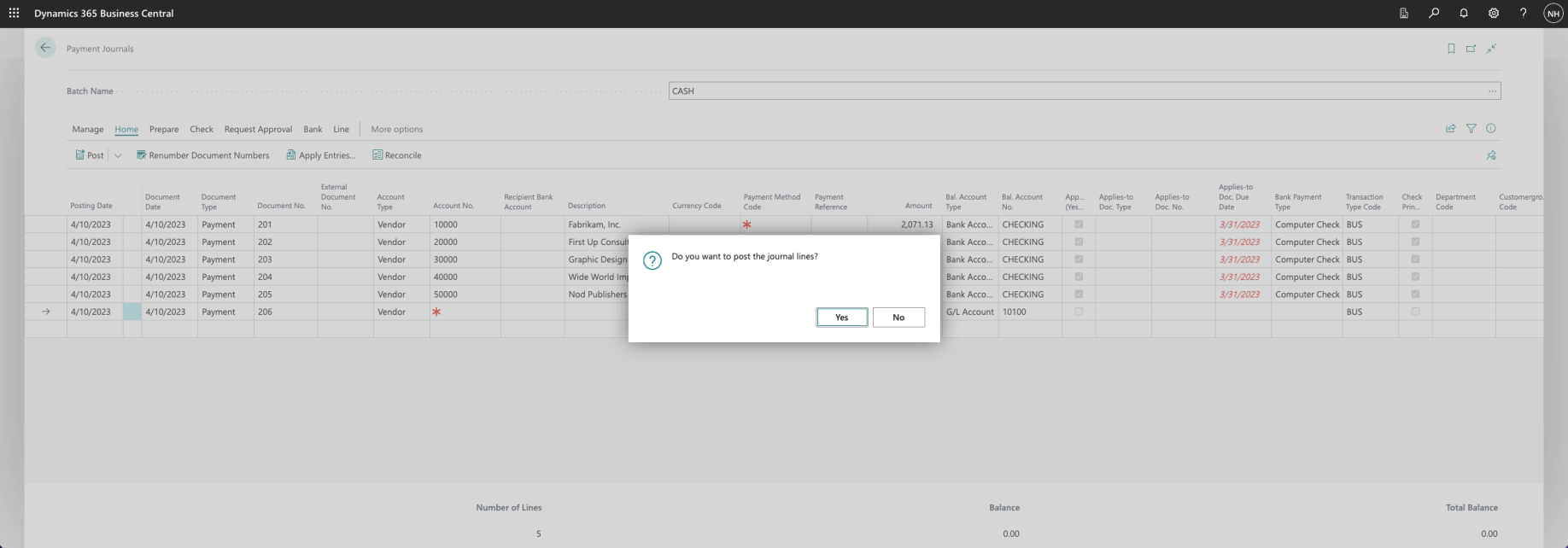
I selected the Yes option
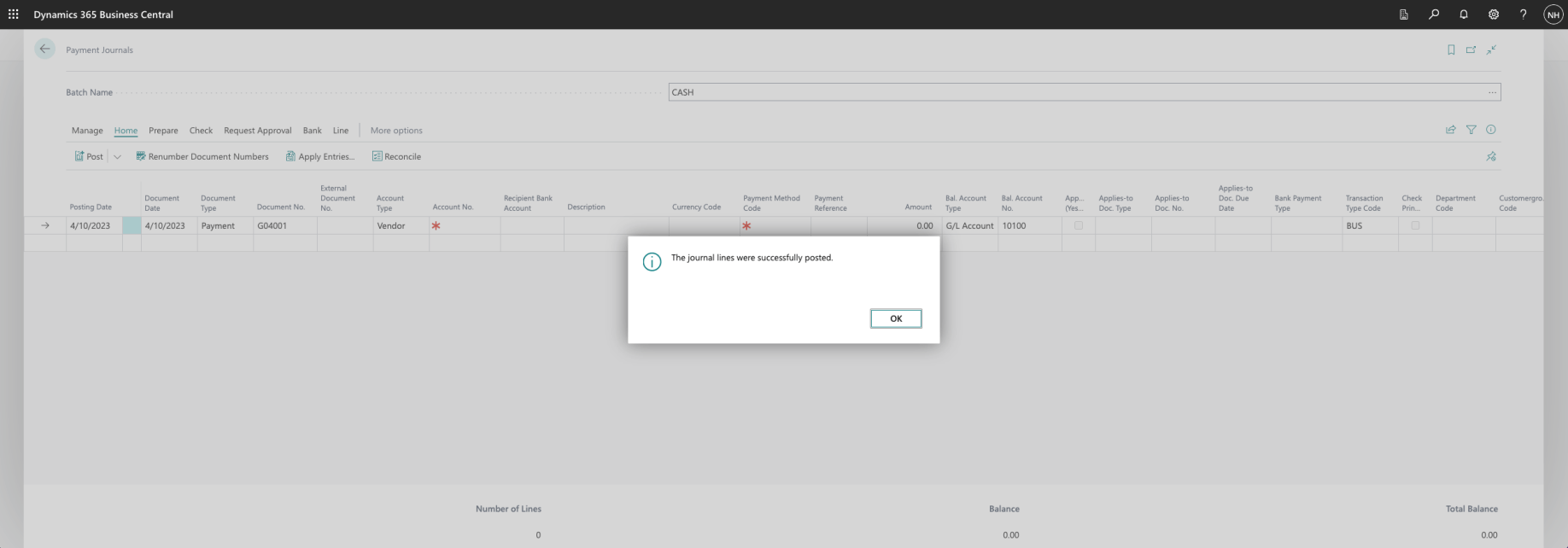
The journal lines were successfully posted

The Outstanding Vendor Invoices count was reduced to 0
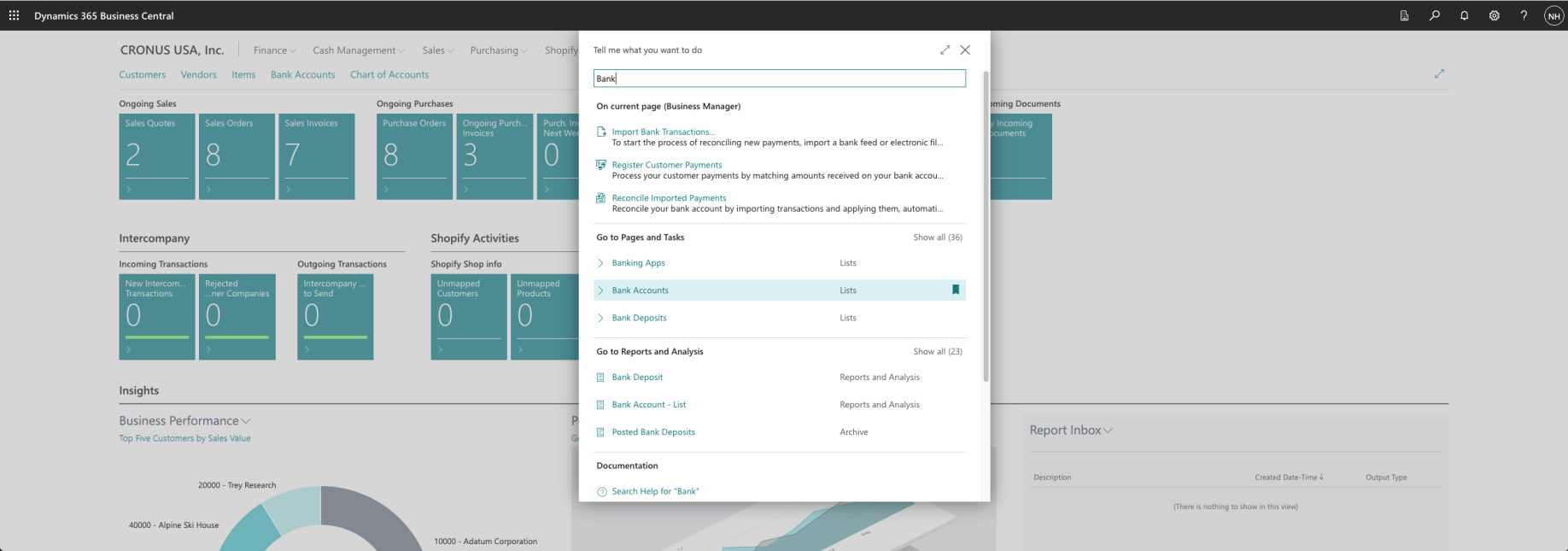
I reviewed the bank accounts list

At least $49,421.55 would need to be deposited in the CHECKING bank account before the Vendors received the physical checks.