Customising a HubSpot Quote Template with a Child Theme
Neil Haddley • September 20, 2025
How I customised a HubSpot quote template by creating a child theme, cloning the line_items_table module, and adding custom line item columns with red-highlighted subheading rows.
I customised a HubSpot quote template to display a custom line items table with Item name, Start Date, Term, and Quantity columns instead of the default Products & Services layout. To do this I created a child theme from the cms-quotes-theme, cloned the line_items_table module and basic.html template into it, and edited the module CSS to highlight line item subheading rows in red. I then configured a new Basic Updated quote template that uses the customised child theme and verified the output against a real deal.
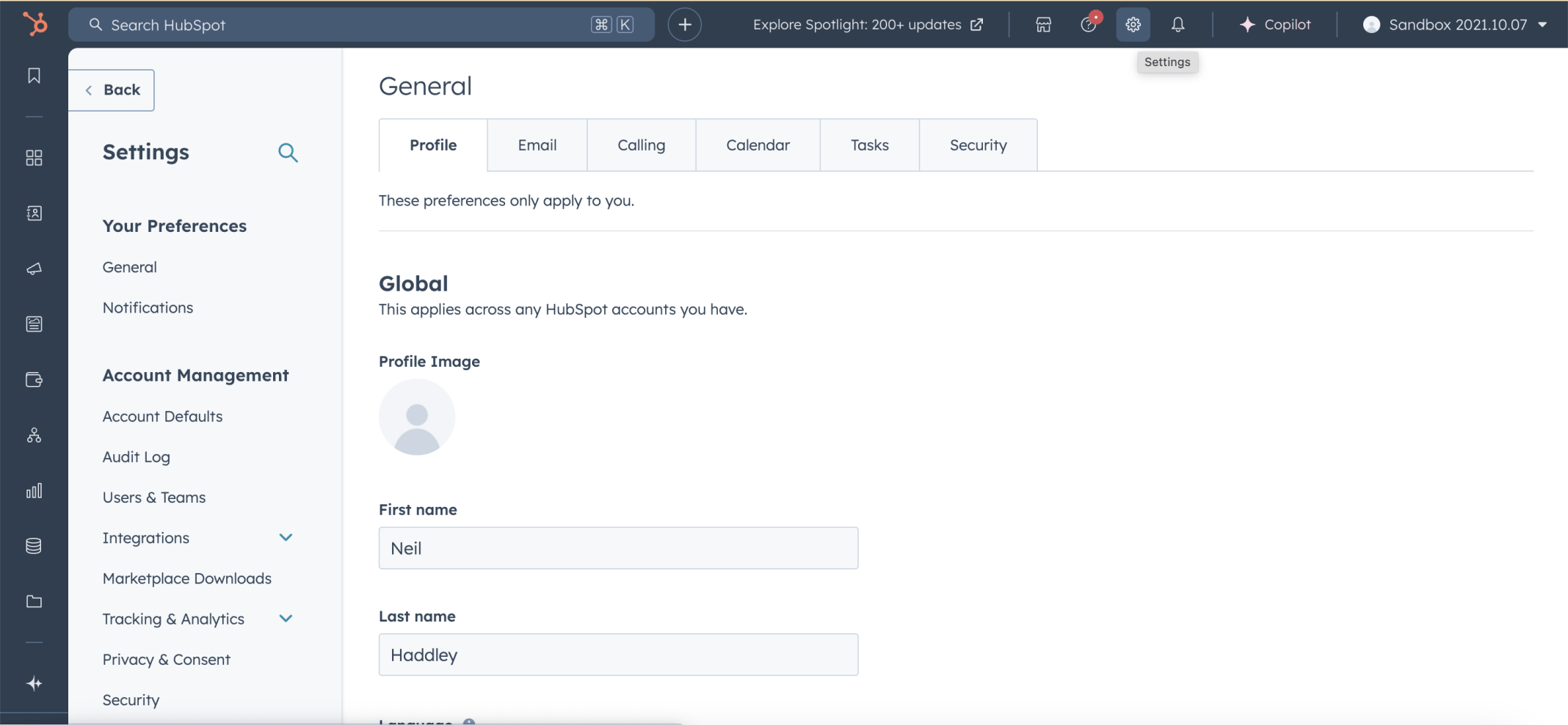
I clicked on the Settings button (the gear icon)
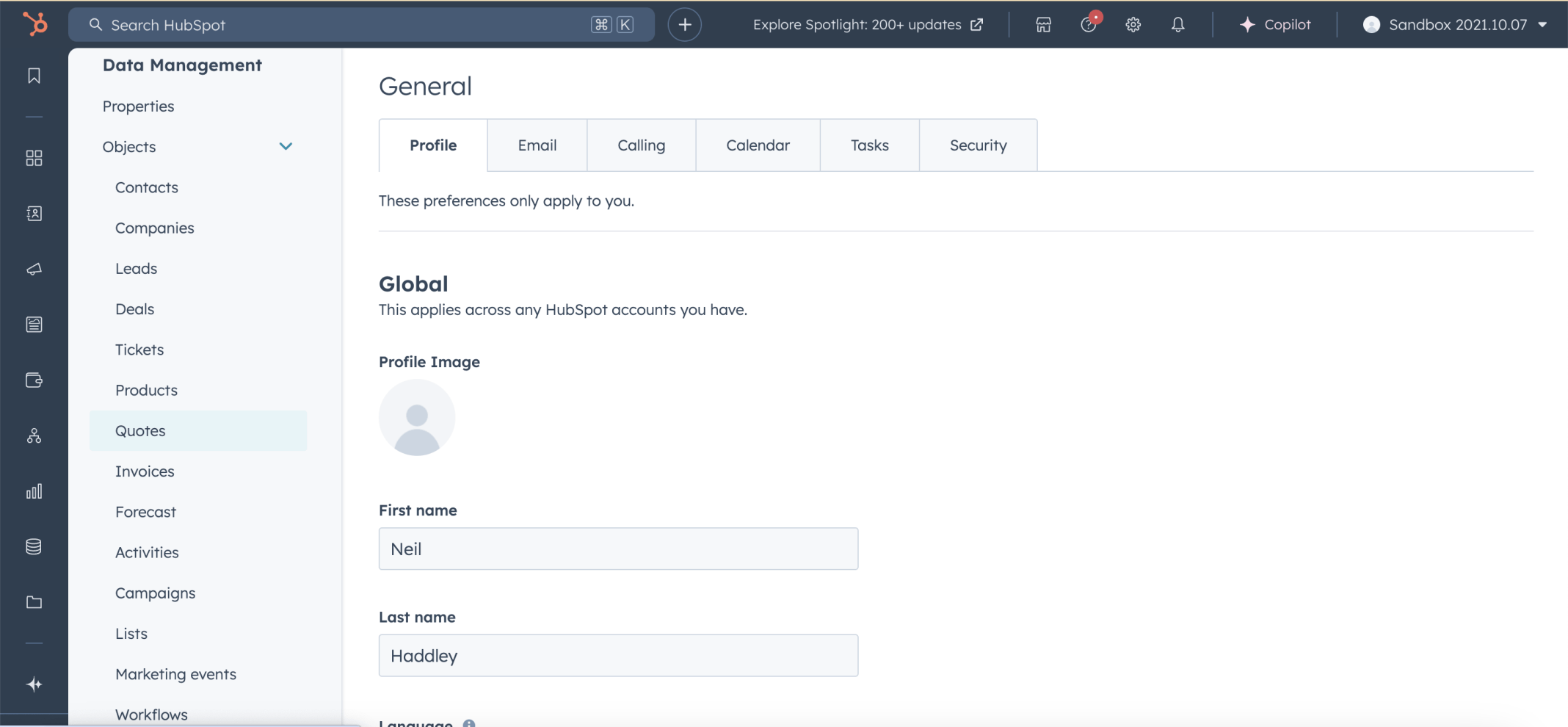
I selected the Data Management|Objects|Quotes menu item
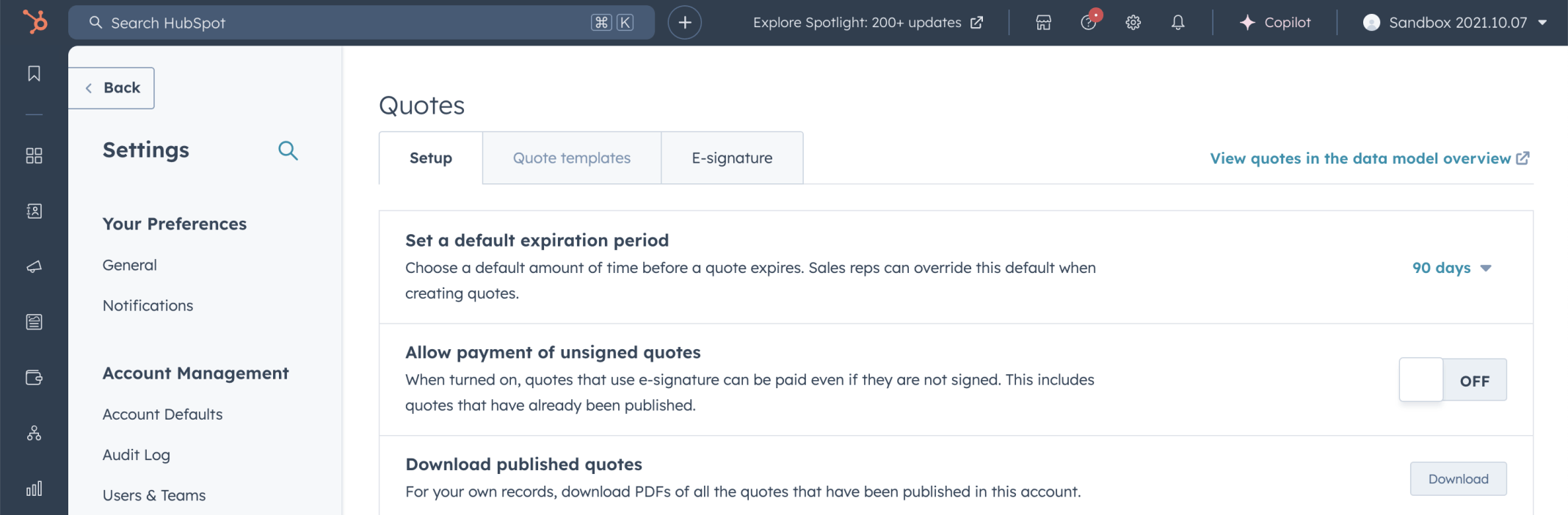
I clicked the Quote template tab
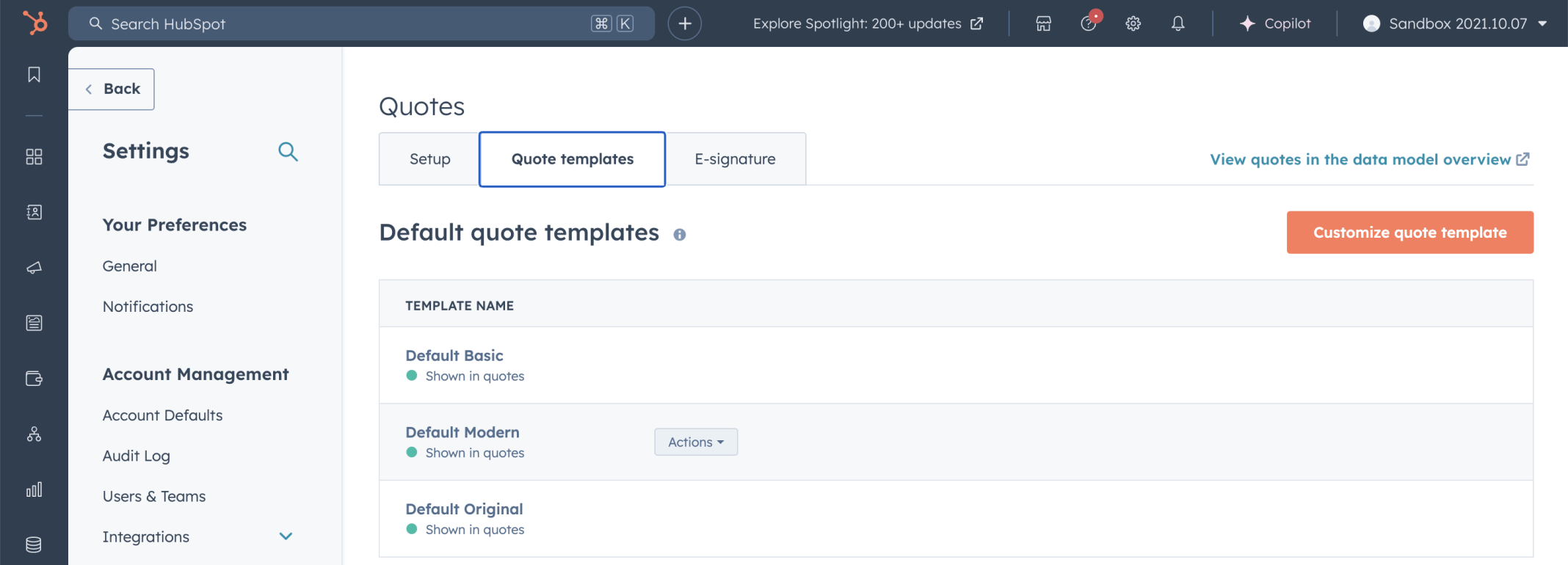
I clicked the Customize quote template button
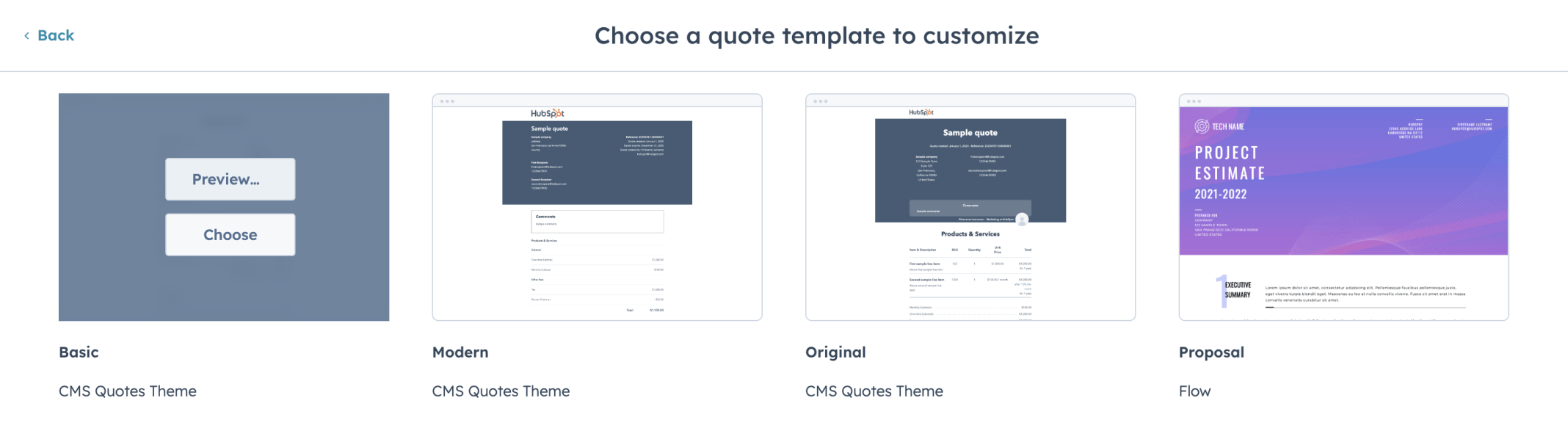
I selected the CMS Quotes Theme | Basic | Choose button

I clicked the pencil button

I updated the template name to Basic Updated and clicked the Save button
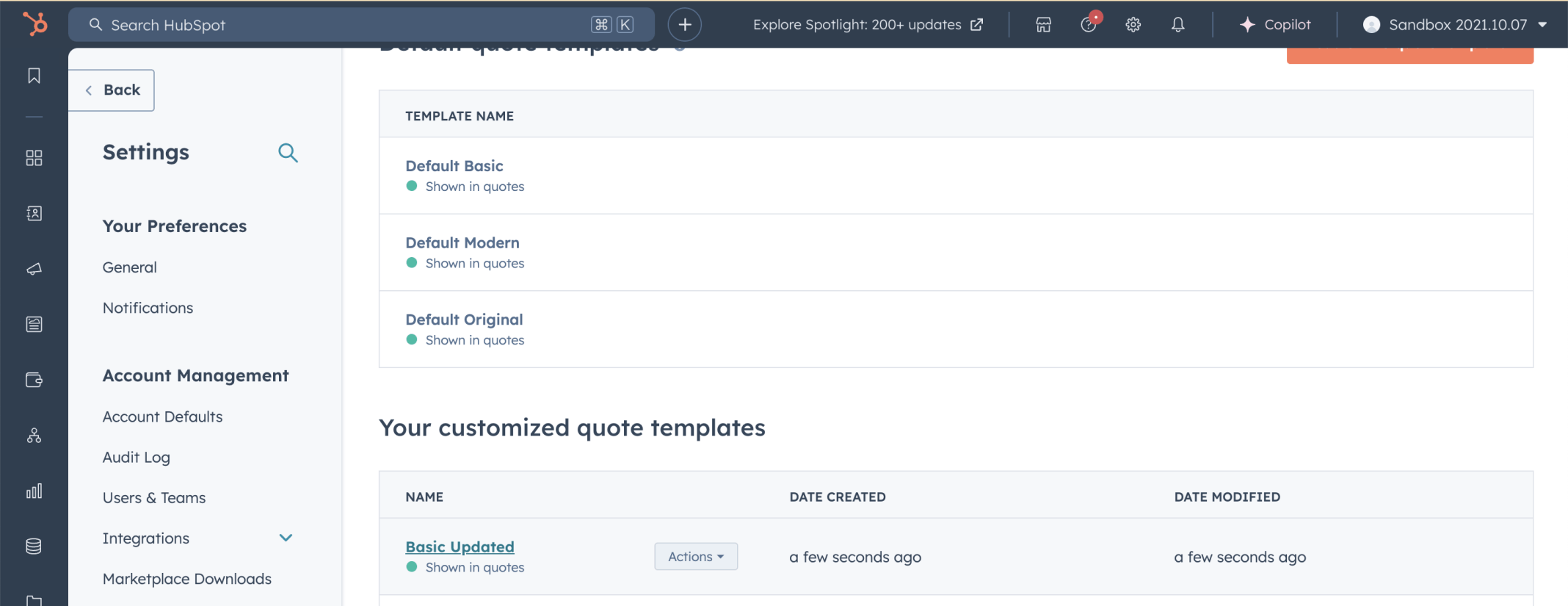
The Basic Updated quote template was added to the quote template list
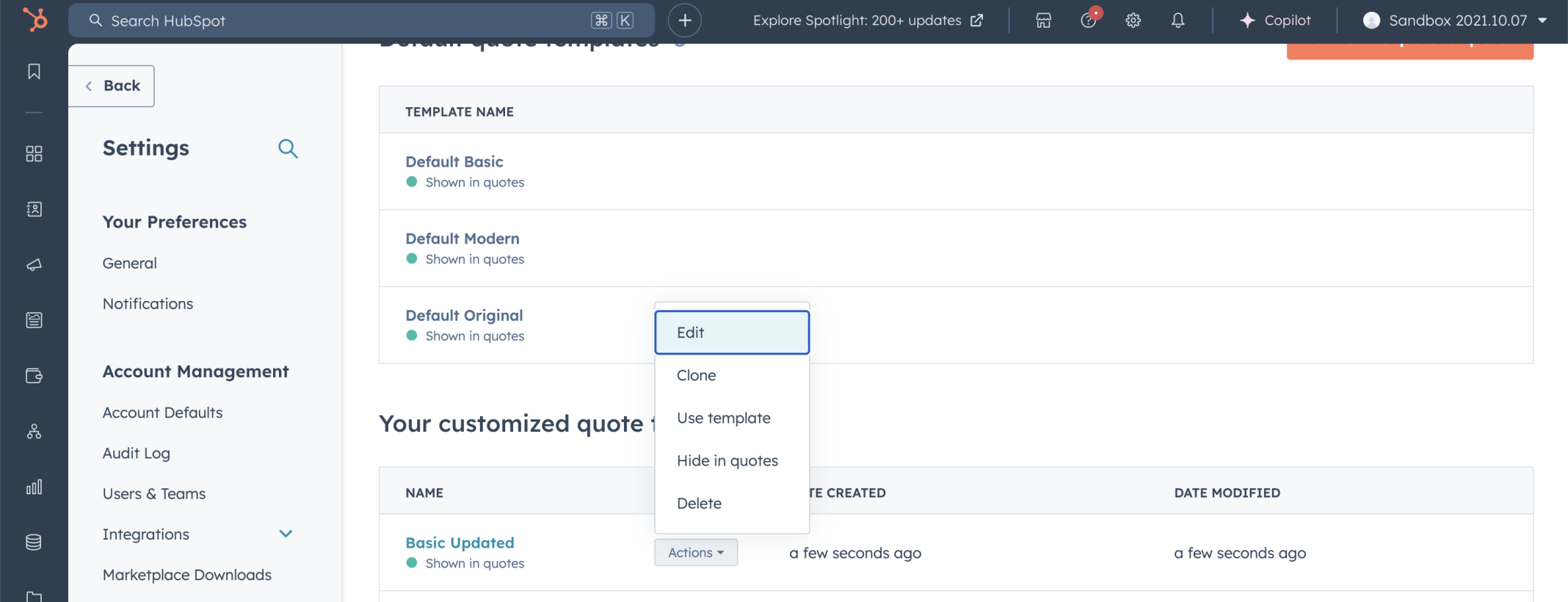
I clicked the Actions | Edit list item
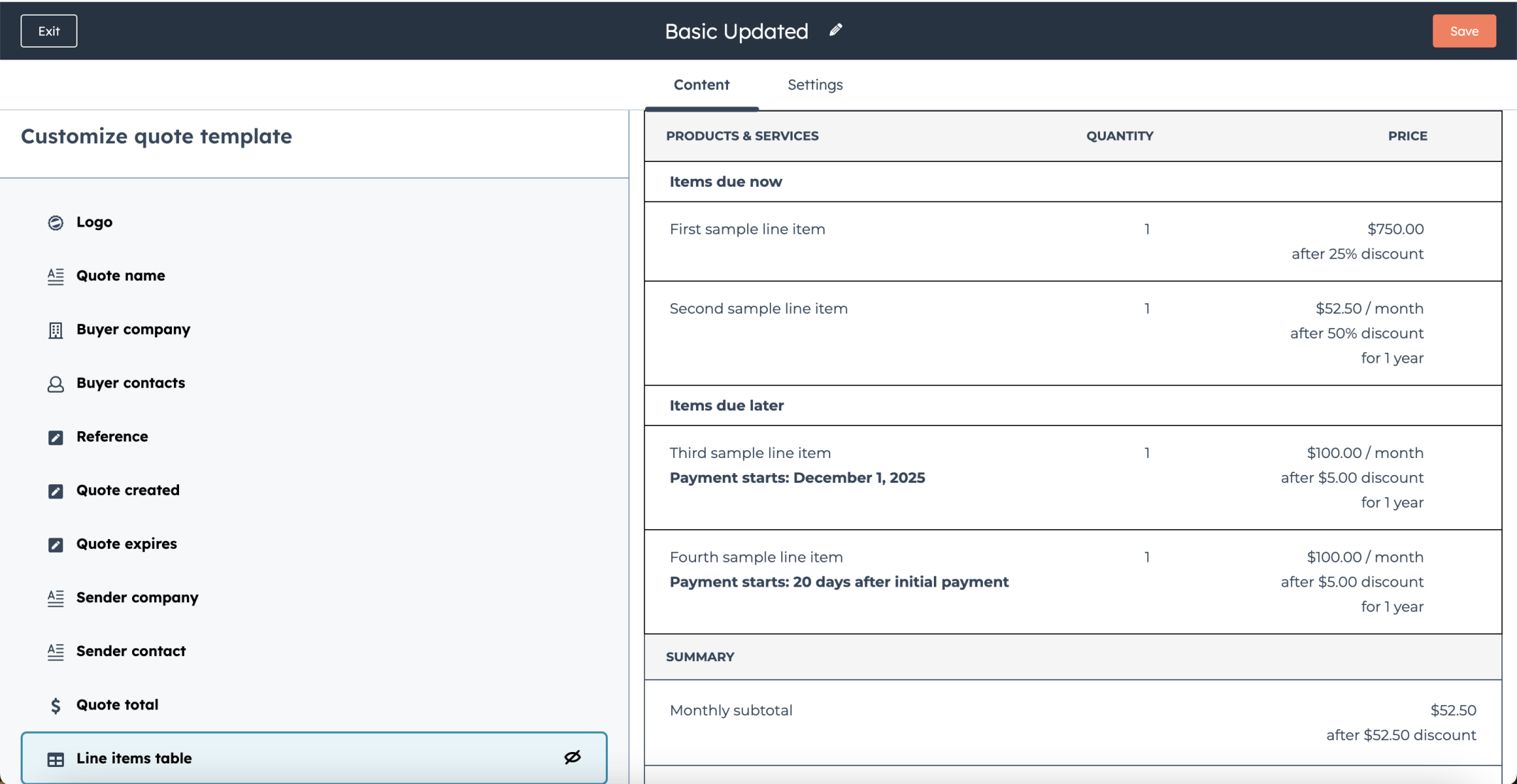
I selected the Line items table menu item
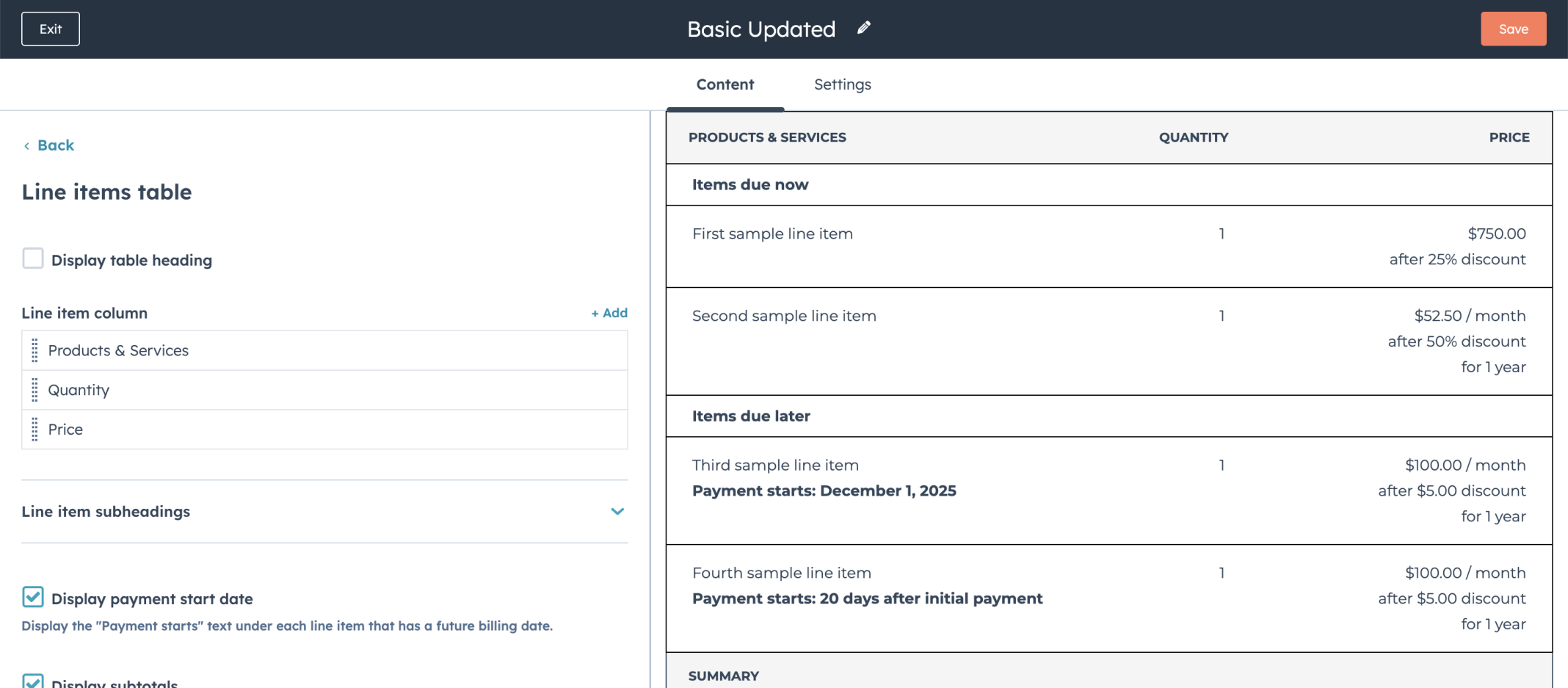
I updated the Line item columns
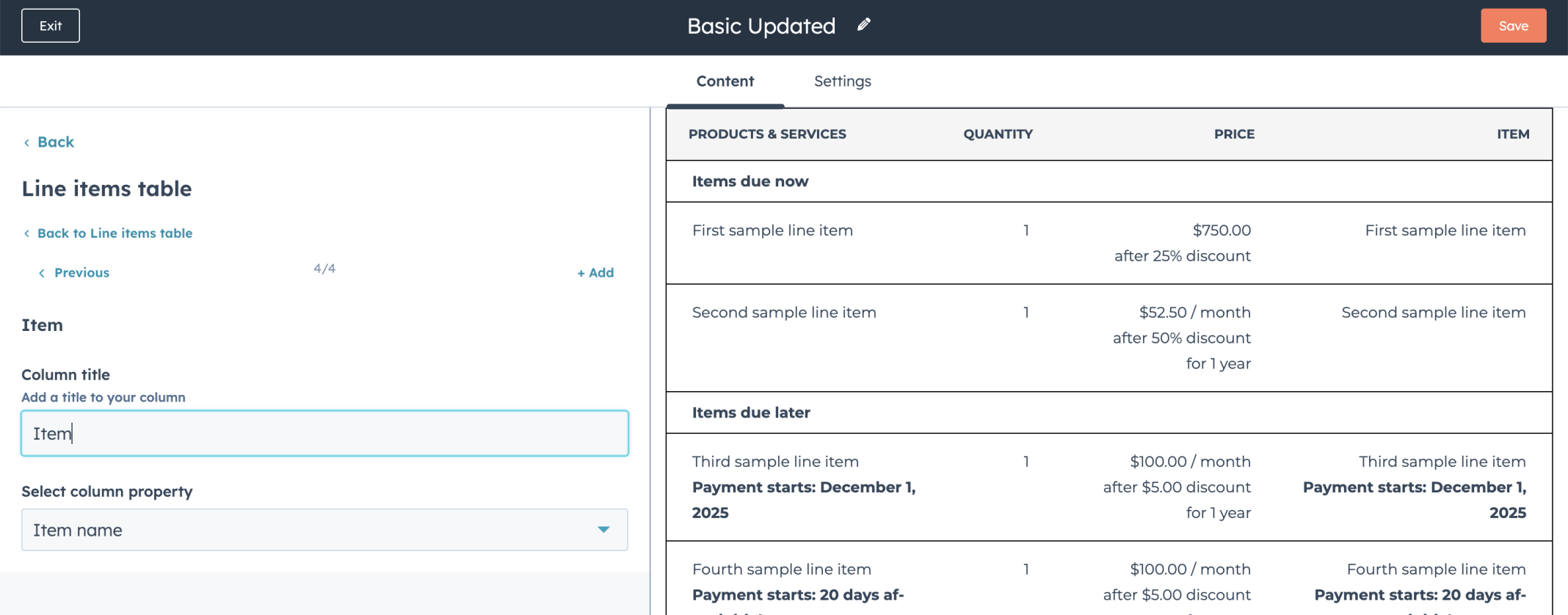
I added an Item column
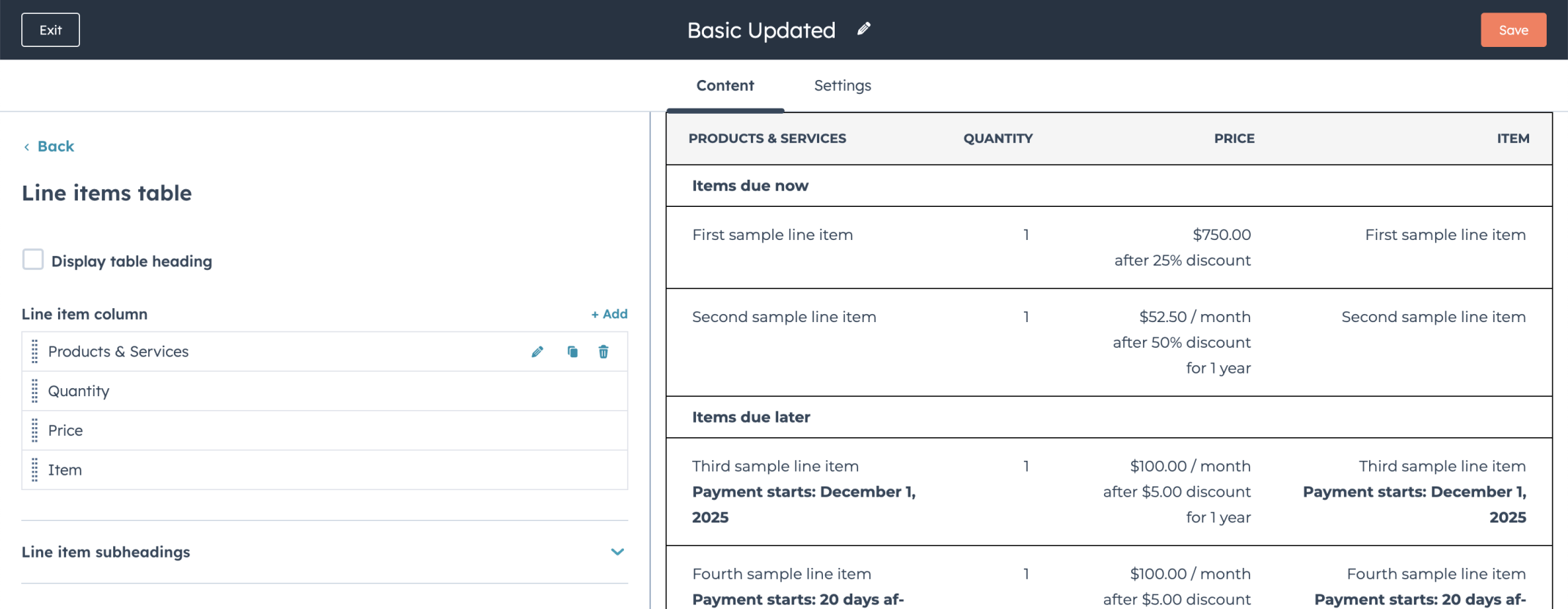
The Item column was added as the last item in the column list
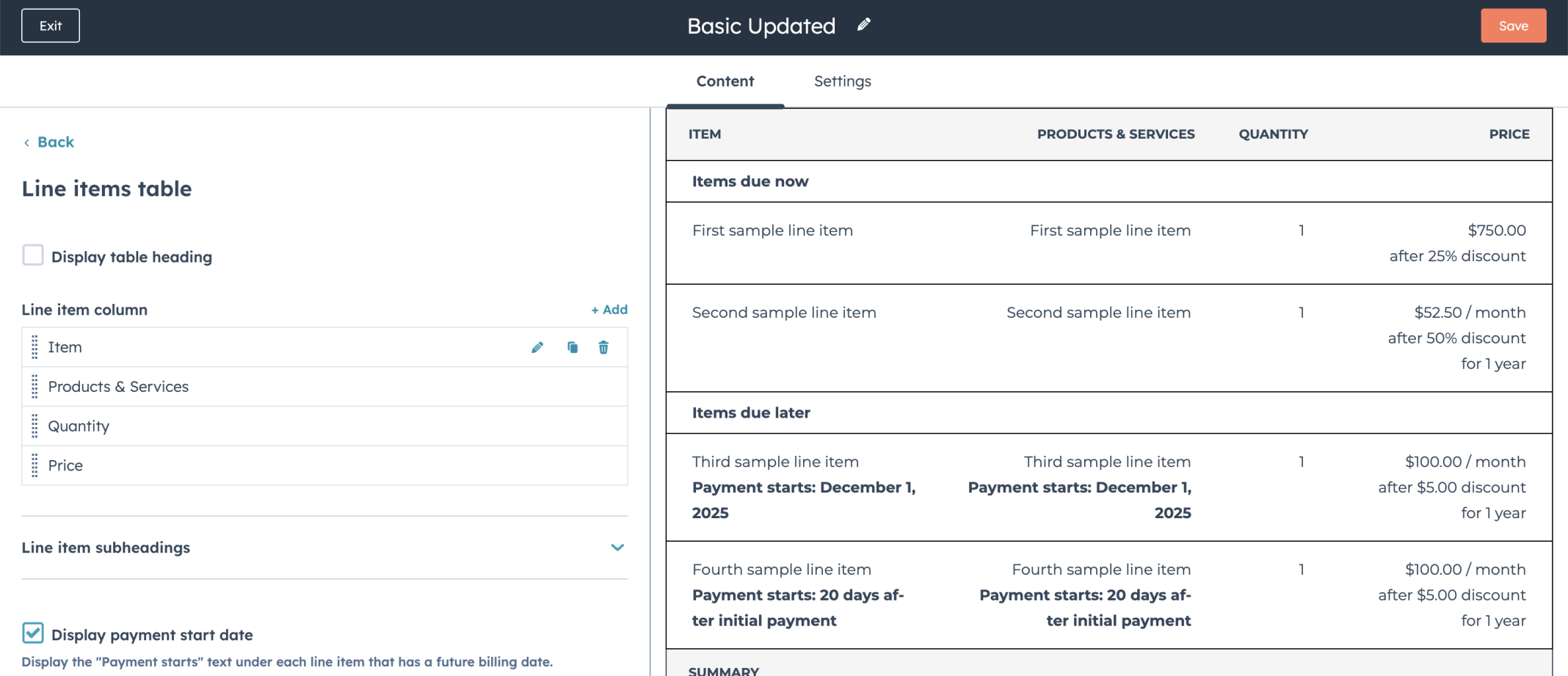
I used drag and drop to move Item column to the top of the column list
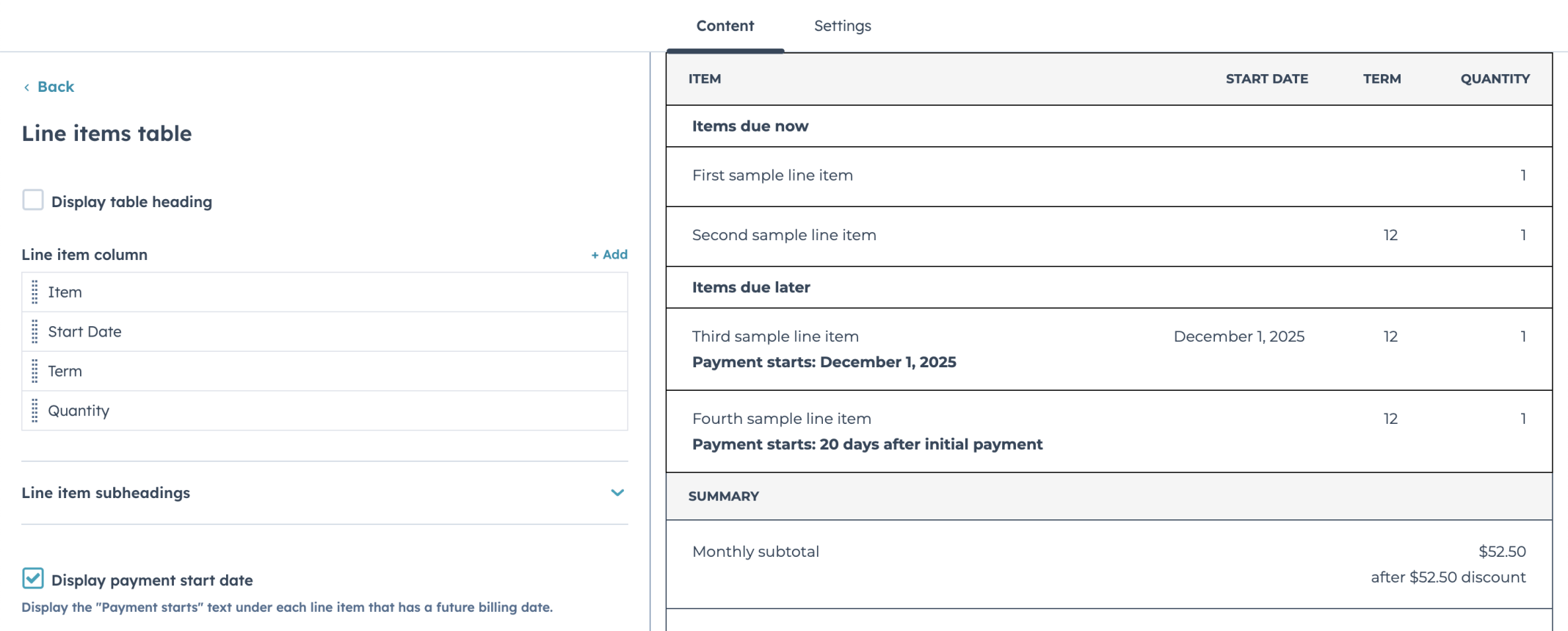
I added the Start Date and Term columns and removed the Products & Services and Price columns
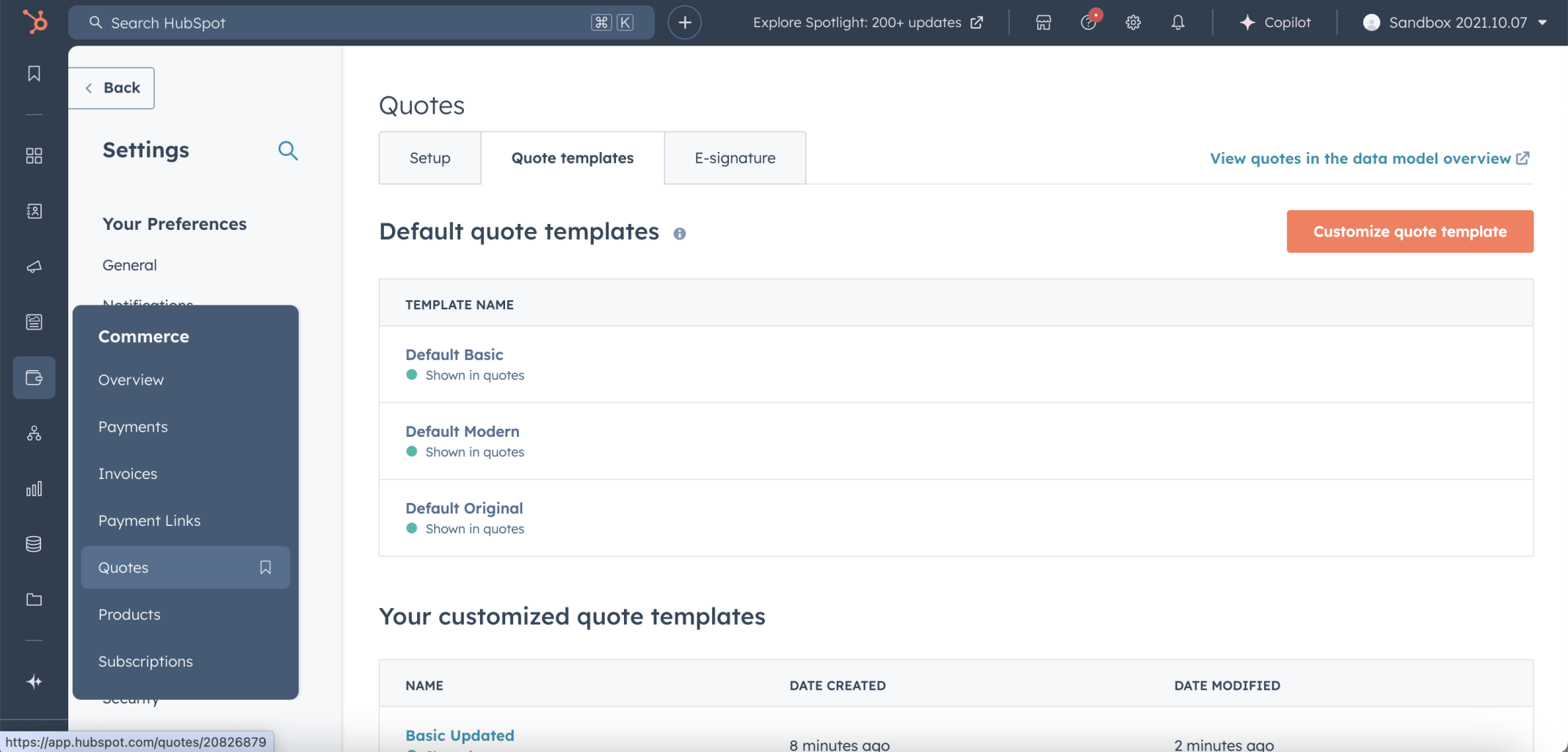
I selected the Commerce | Quotes menu item

I clicked the Create Quote button
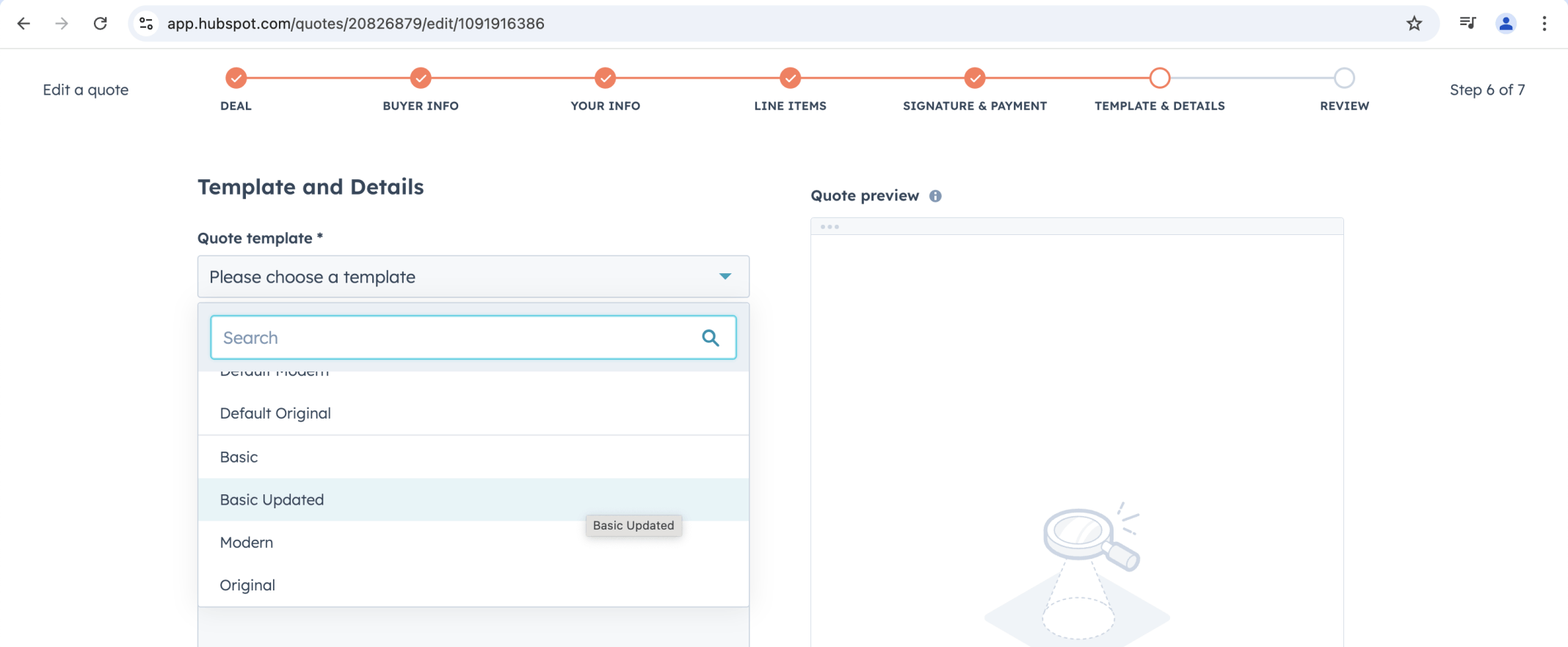
I selected a deal and clicked next until I was able to select the new Quote template

Notice that the Item, Start Date, Term and Quantity columns are displayed
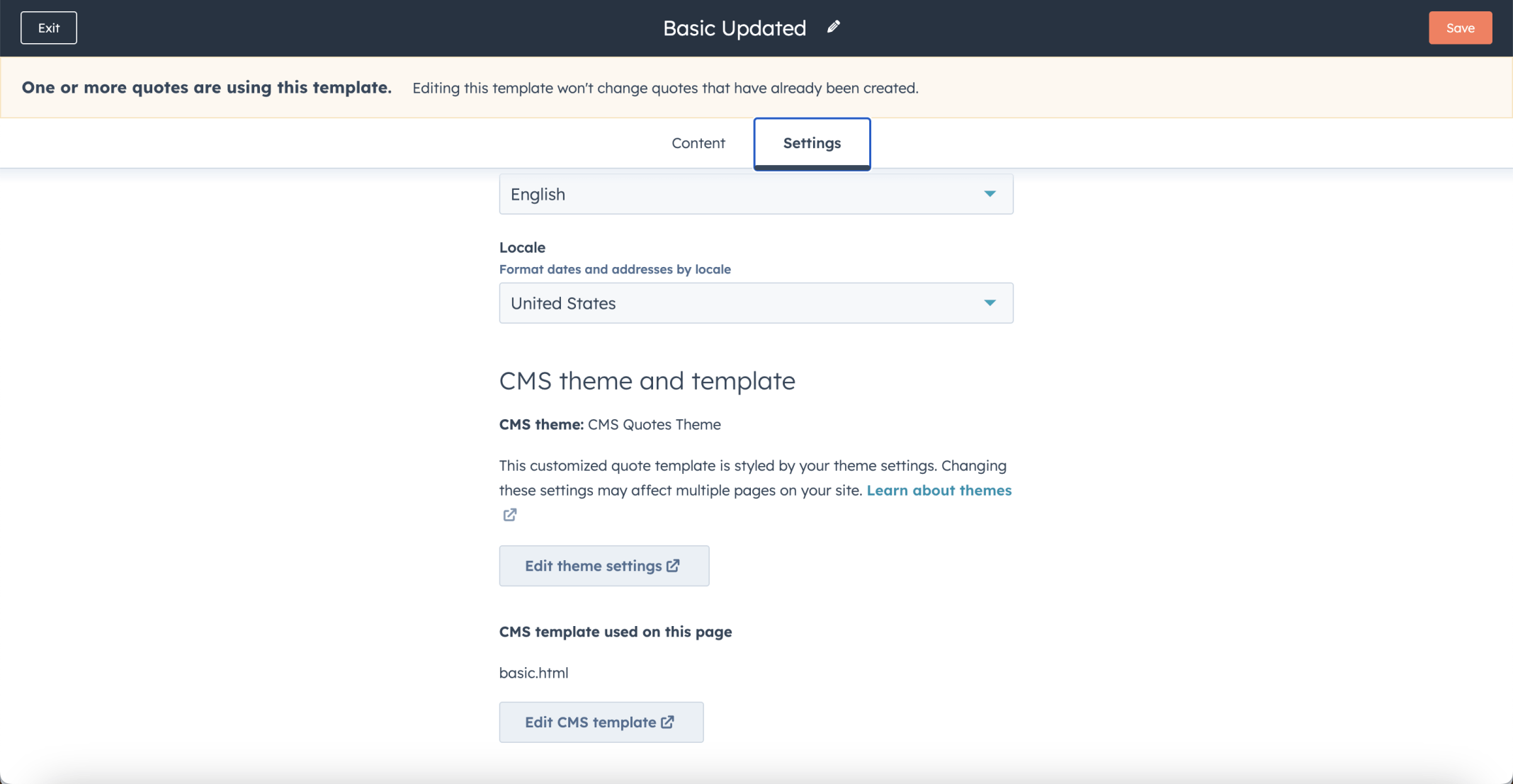
I clicked the Edit CMS template button

I navigated to the line_items_table module in the cms-quotes-theme and clicked the Create child theme button.
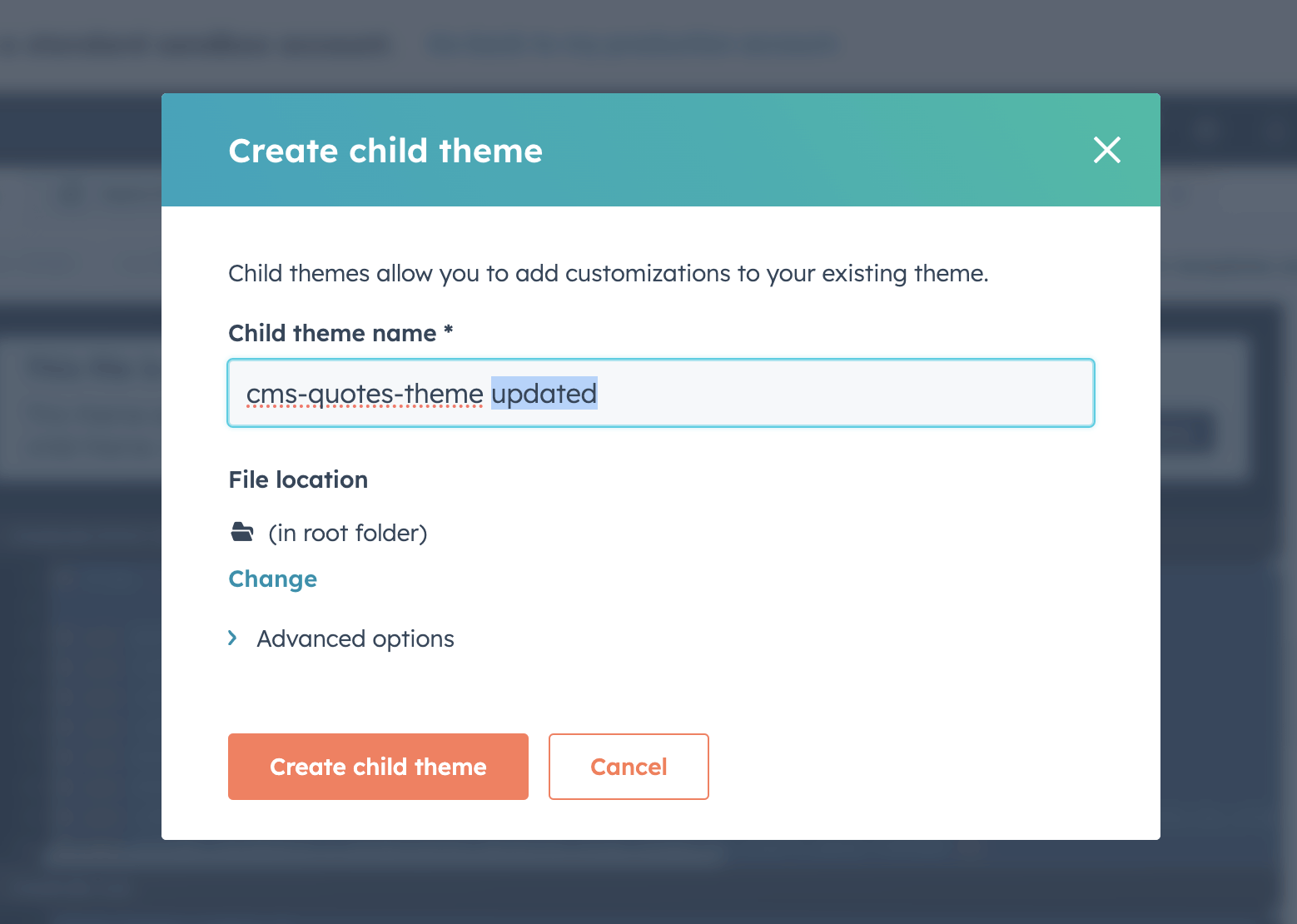
I named the child theme "cms-quotes-theme updated" and clicked Create child theme
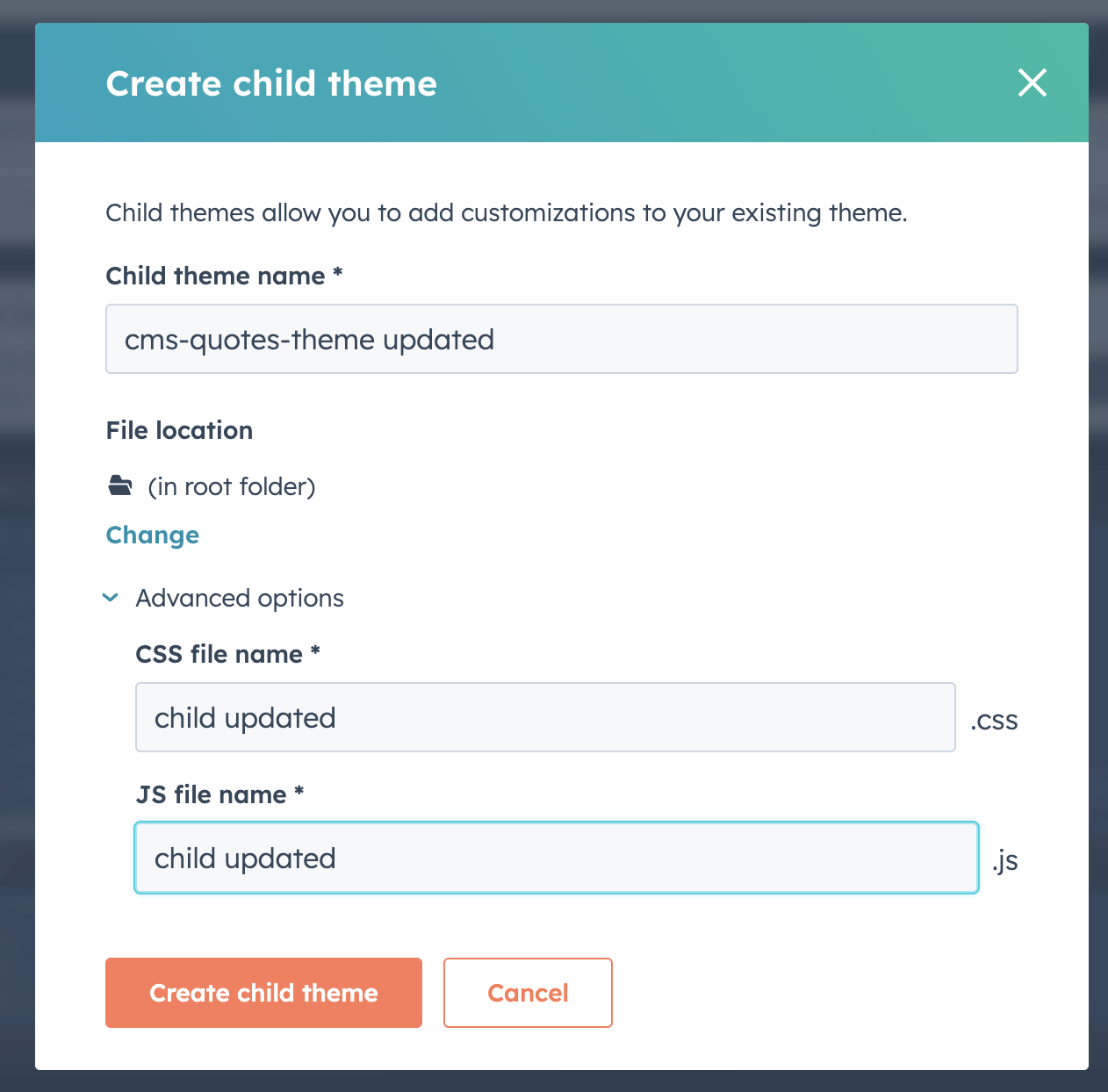
I expanded Advanced options and reviewed the CSS and JS file names
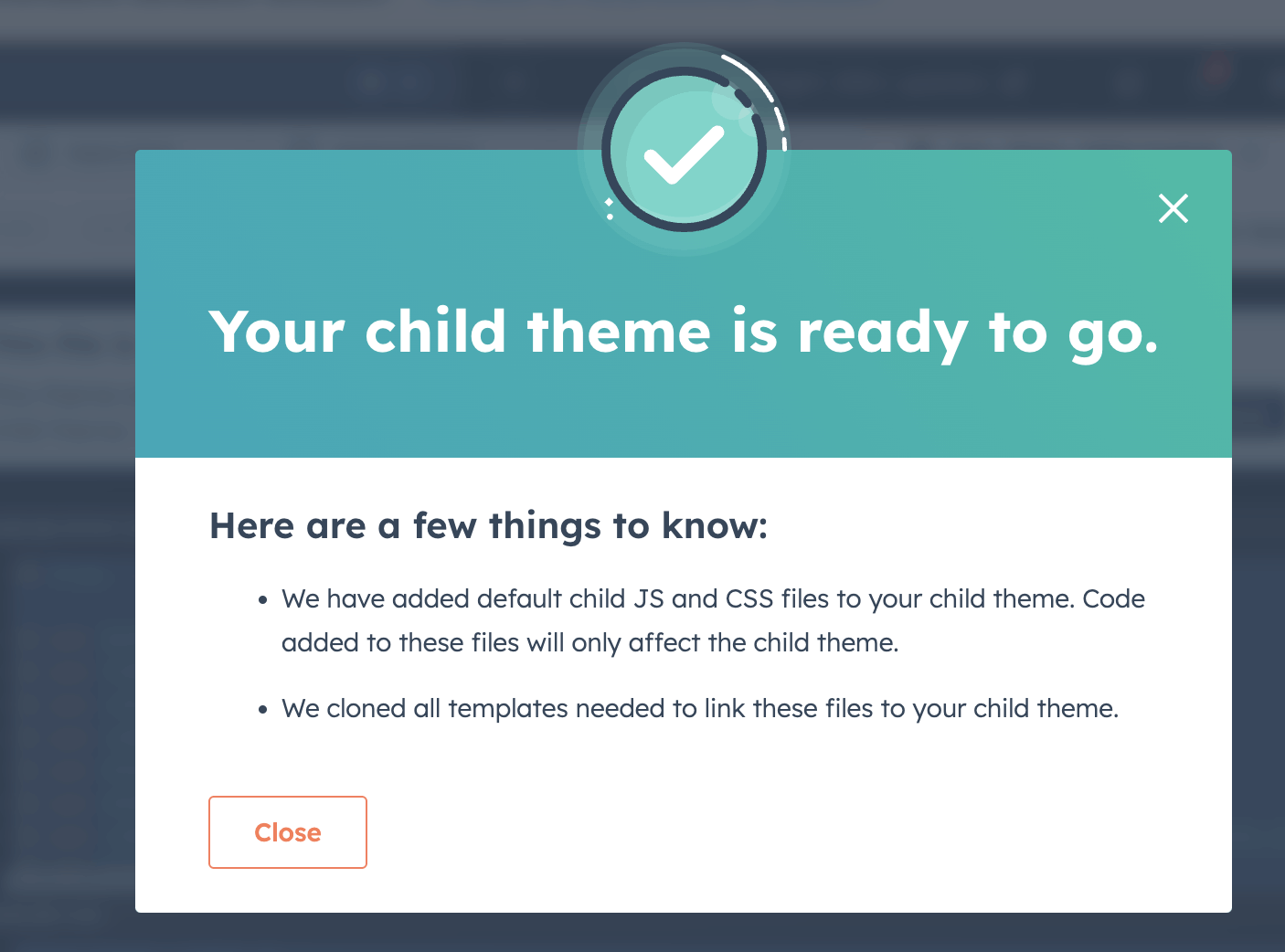
The child theme was created successfully
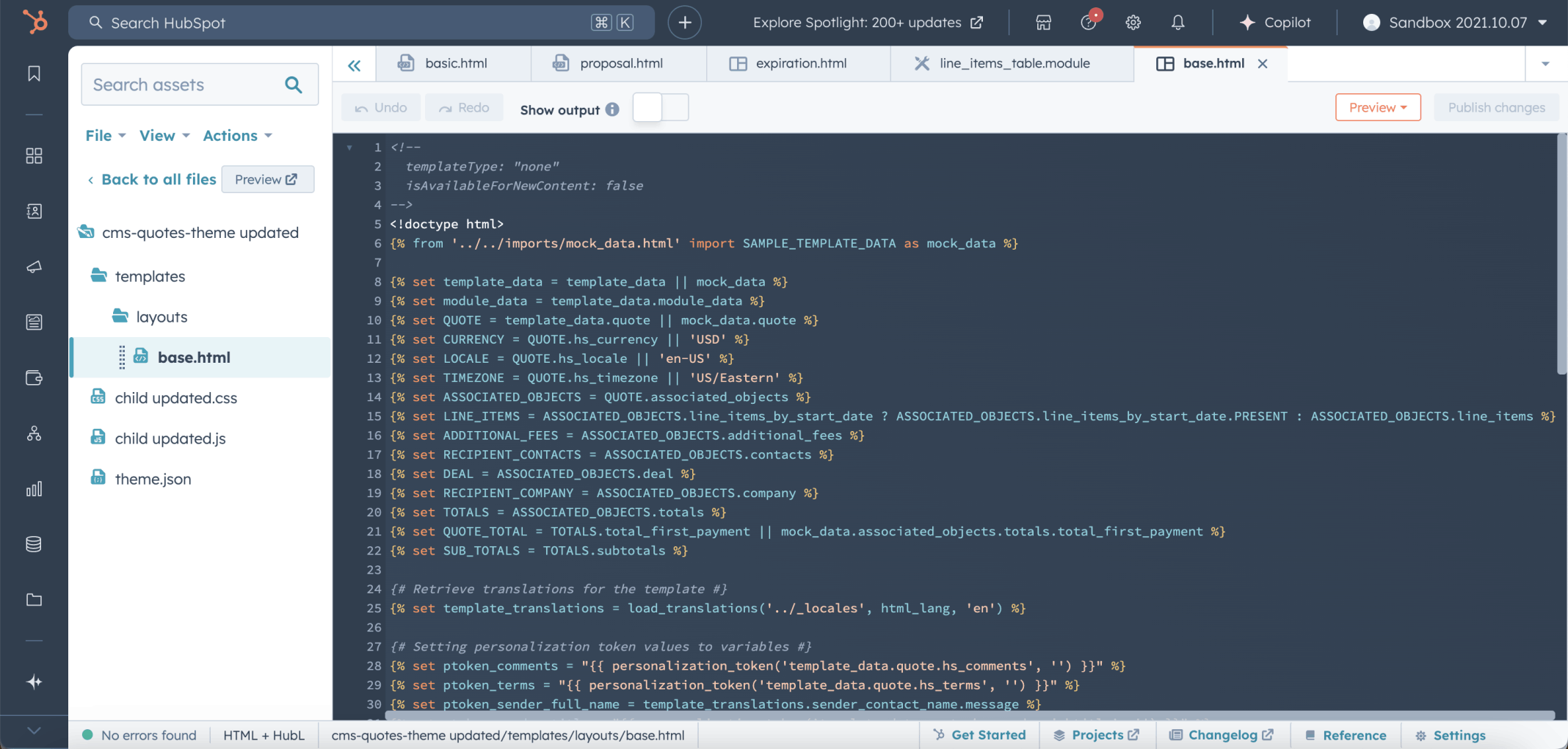
I reviewed the base.html template in the child theme
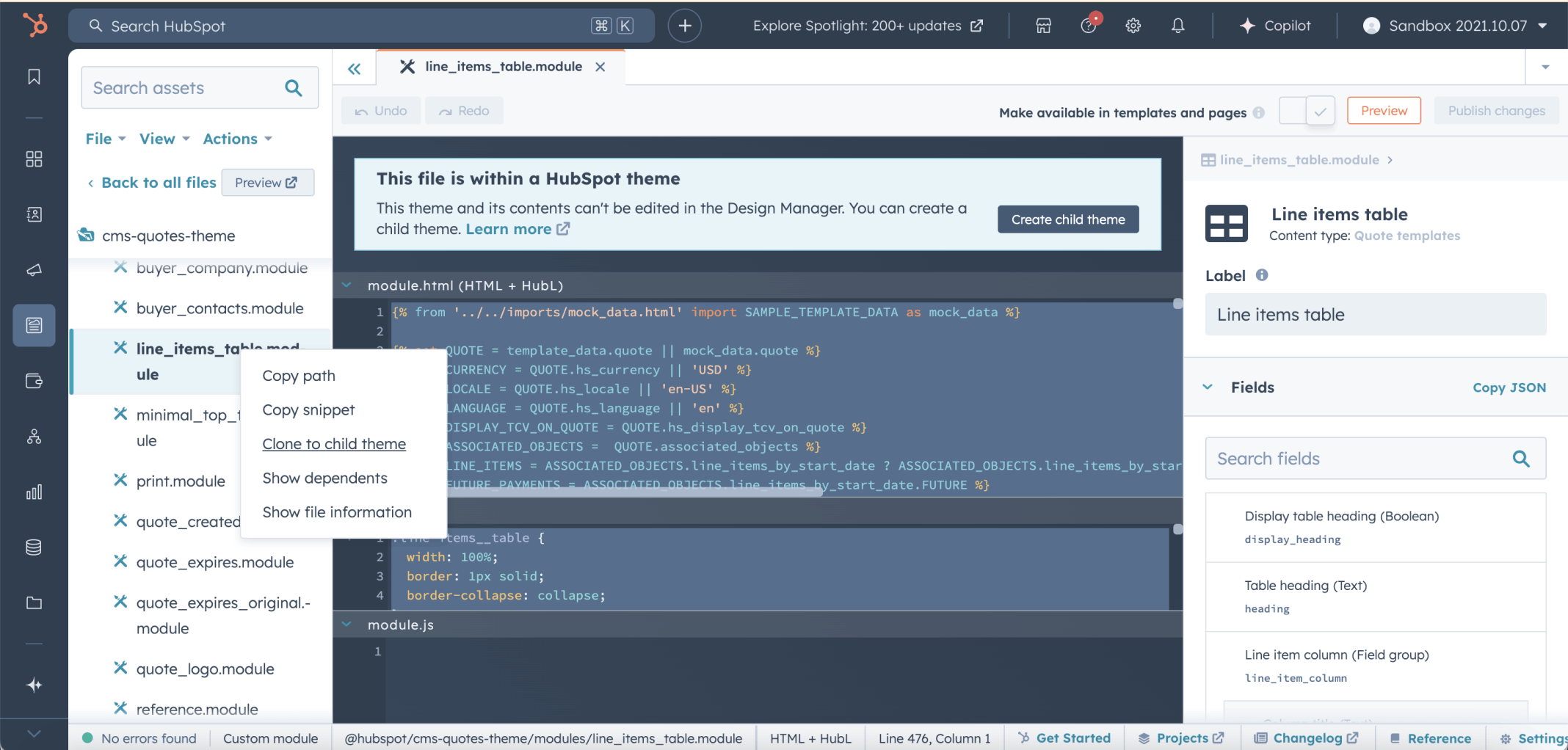
I right-clicked the line_items_table module and selected Clone to child theme
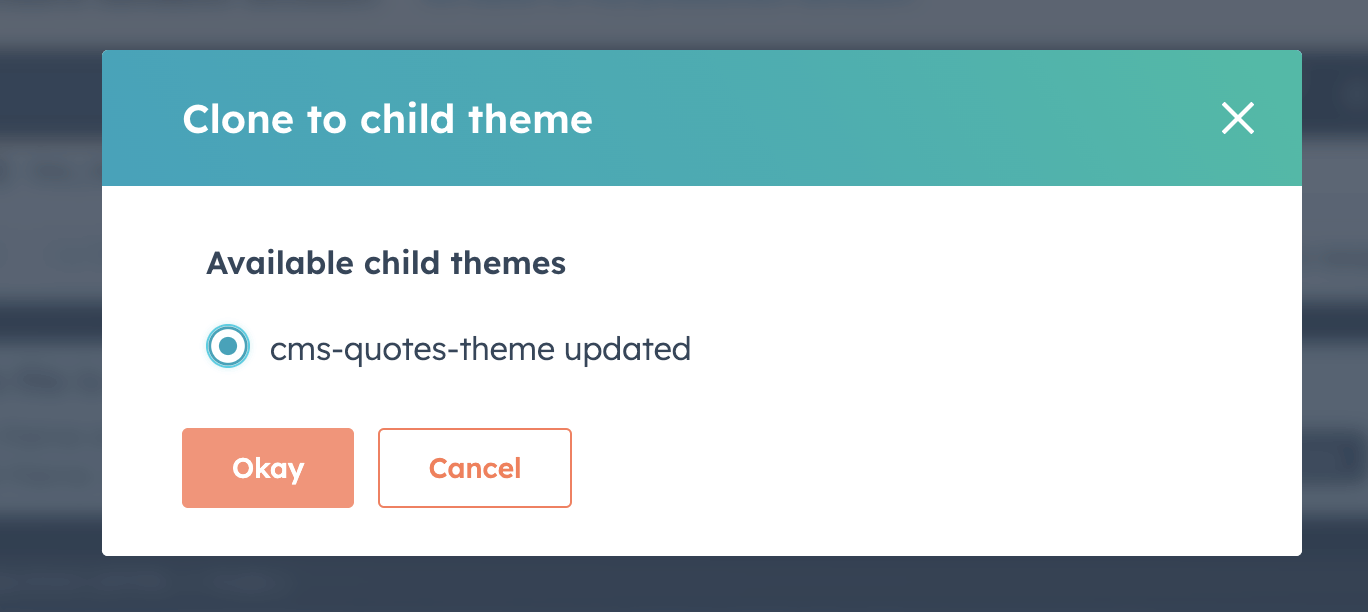
I selected cms-quotes-theme updated and clicked Okay
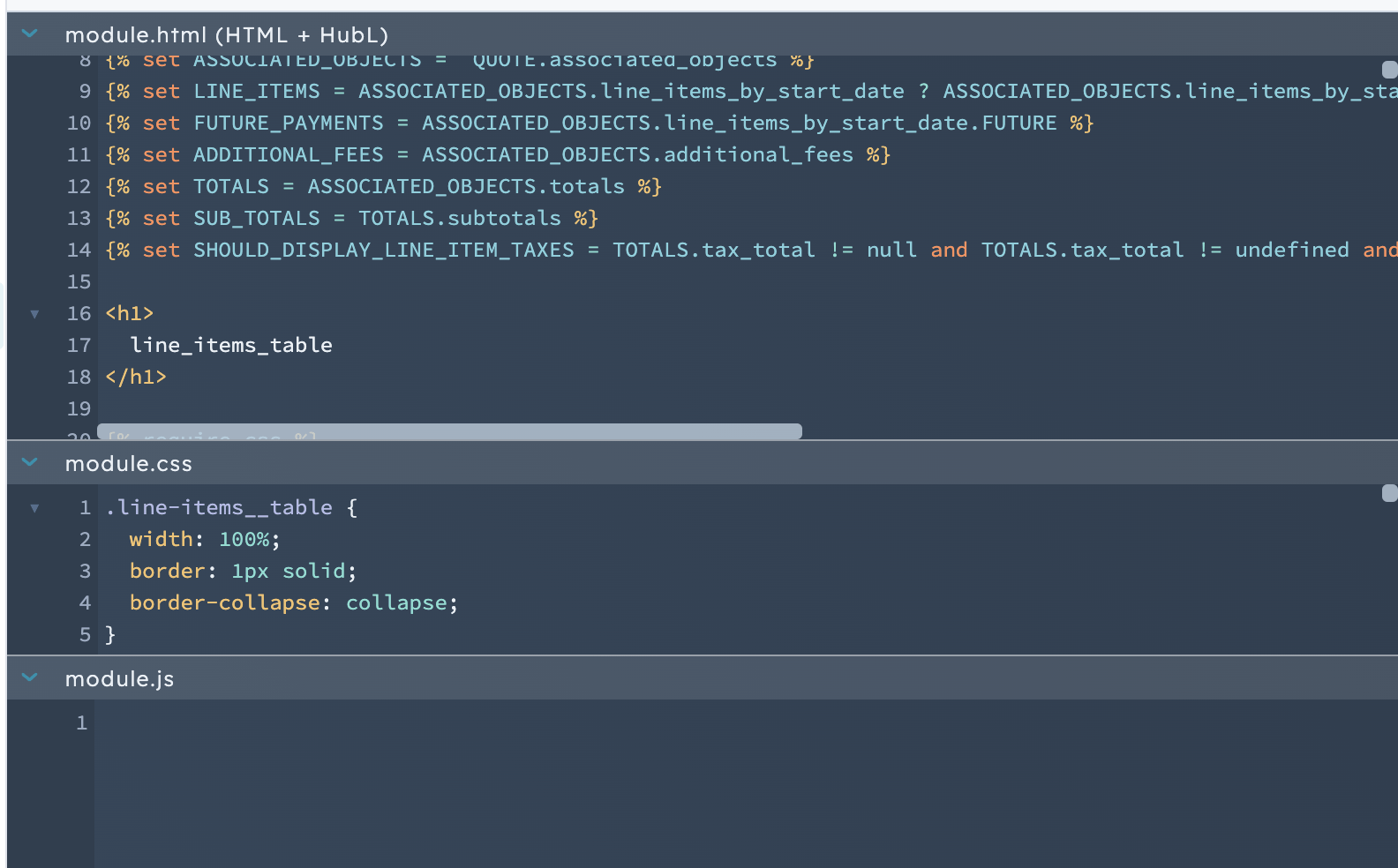
I reviewed the cloned line_items_table module's HTML, CSS, and JS files
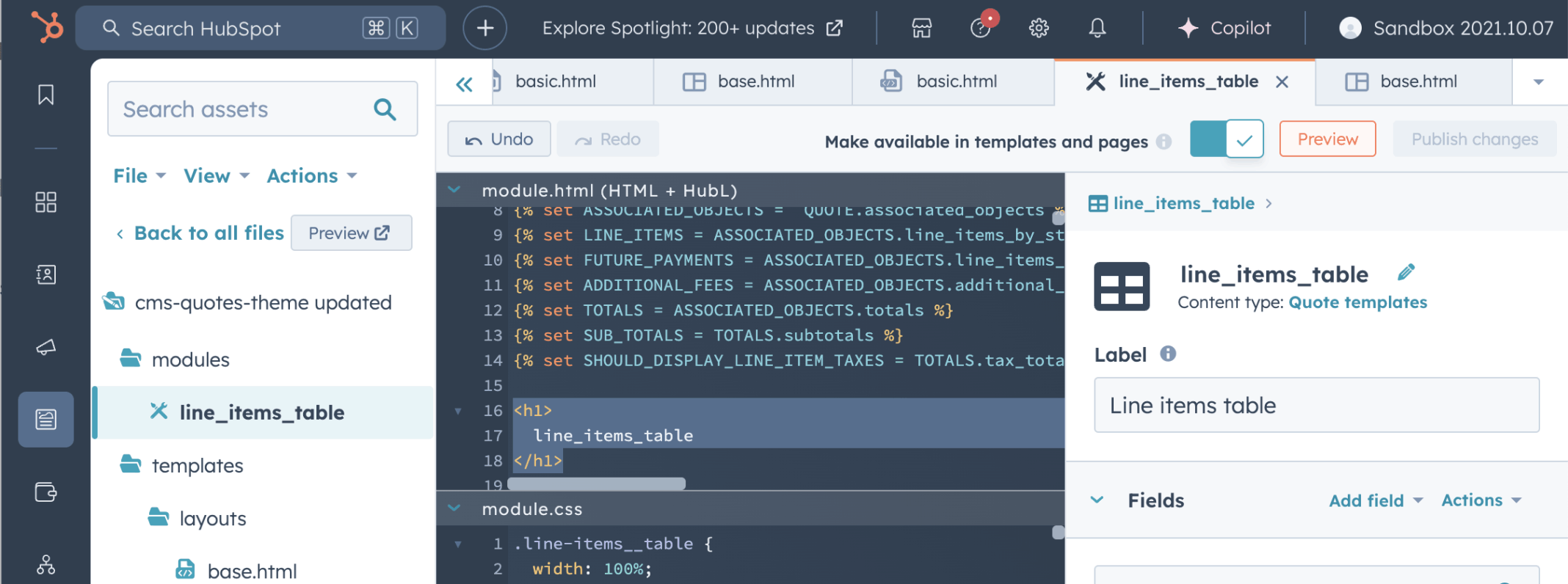
I opened the line_items_table module in the cms-quotes-theme updated child theme
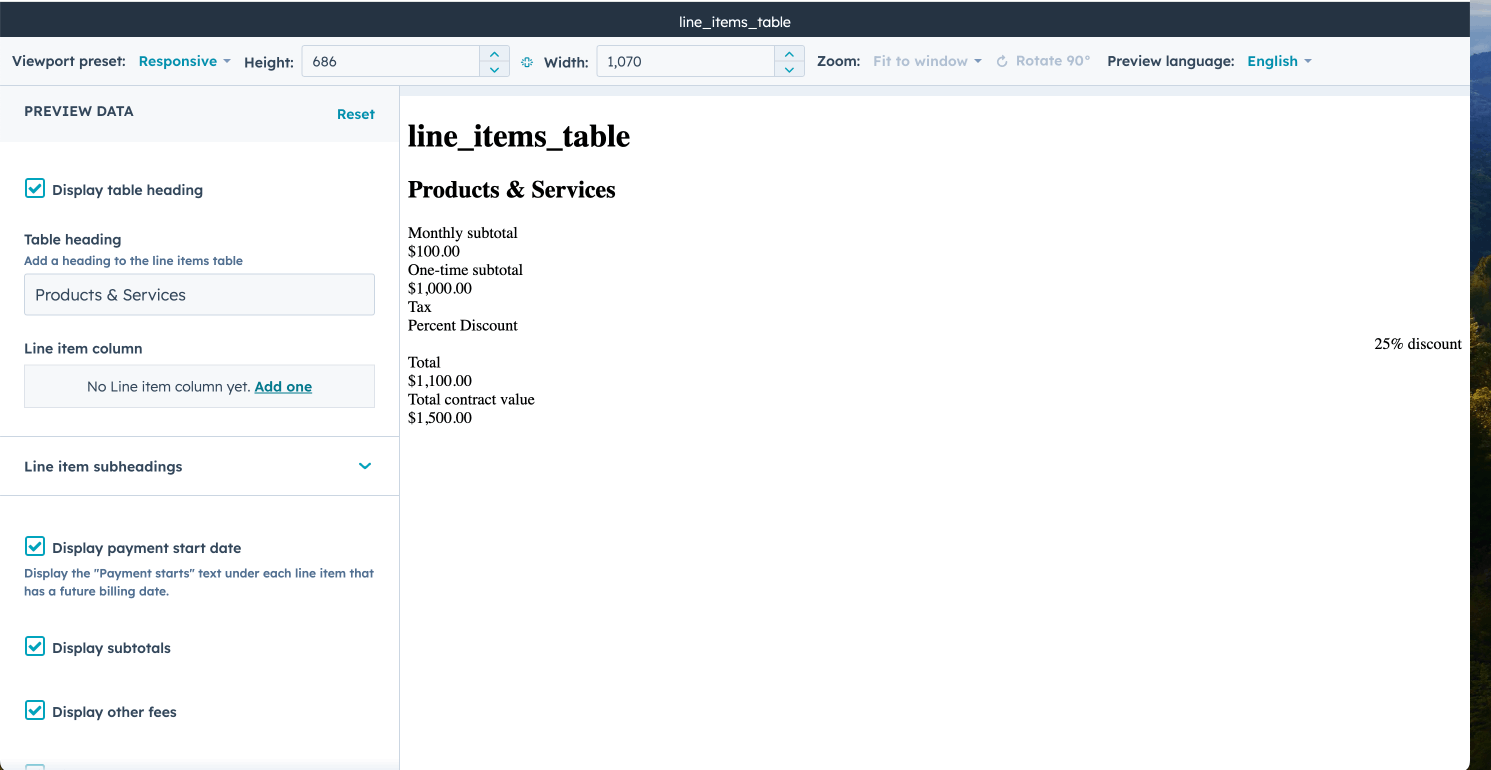
I previewed the line_items_table module — no Line item columns were configured yet
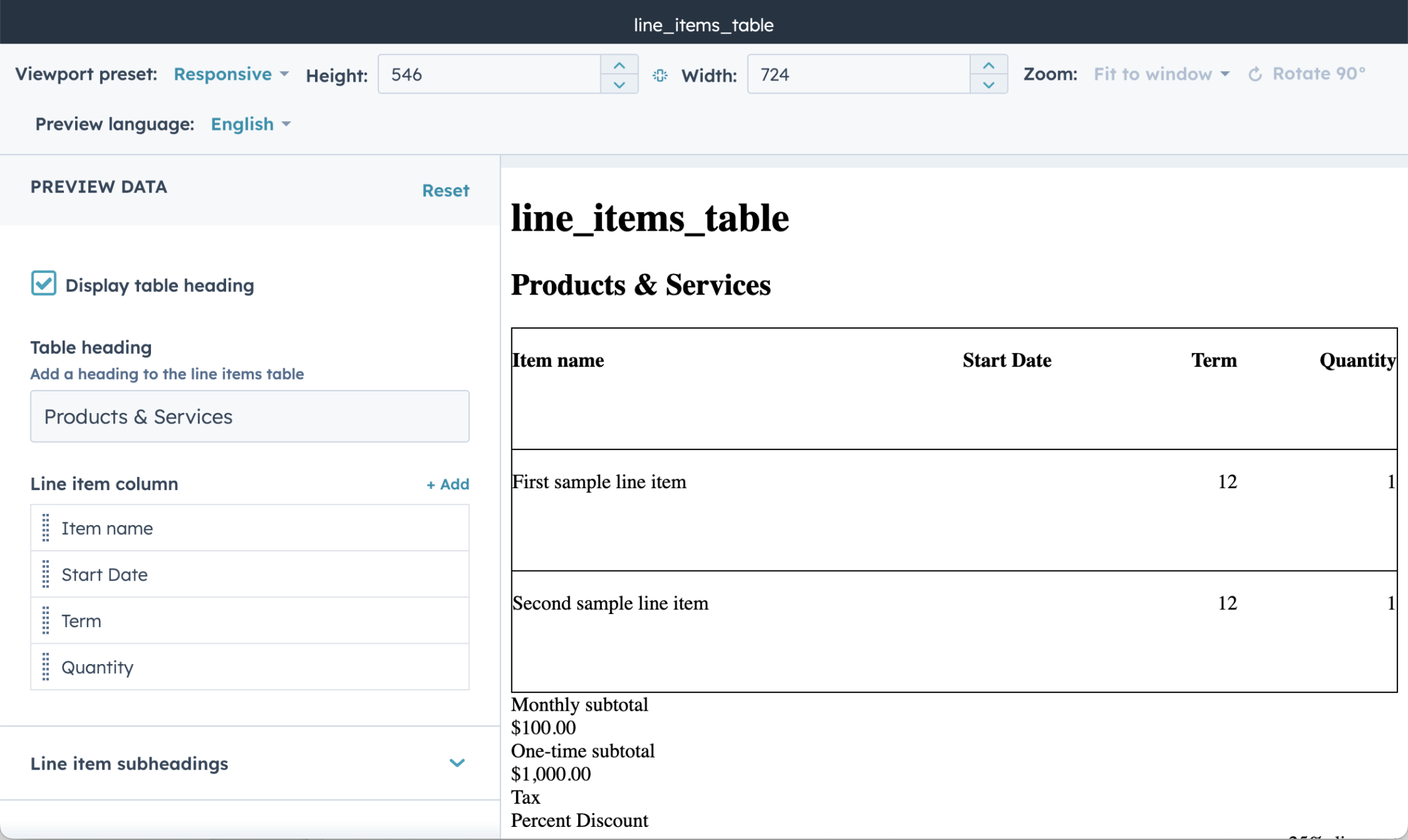
I previewed the updated line_items_table showing the Item name, Start Date, Term and Quantity columns
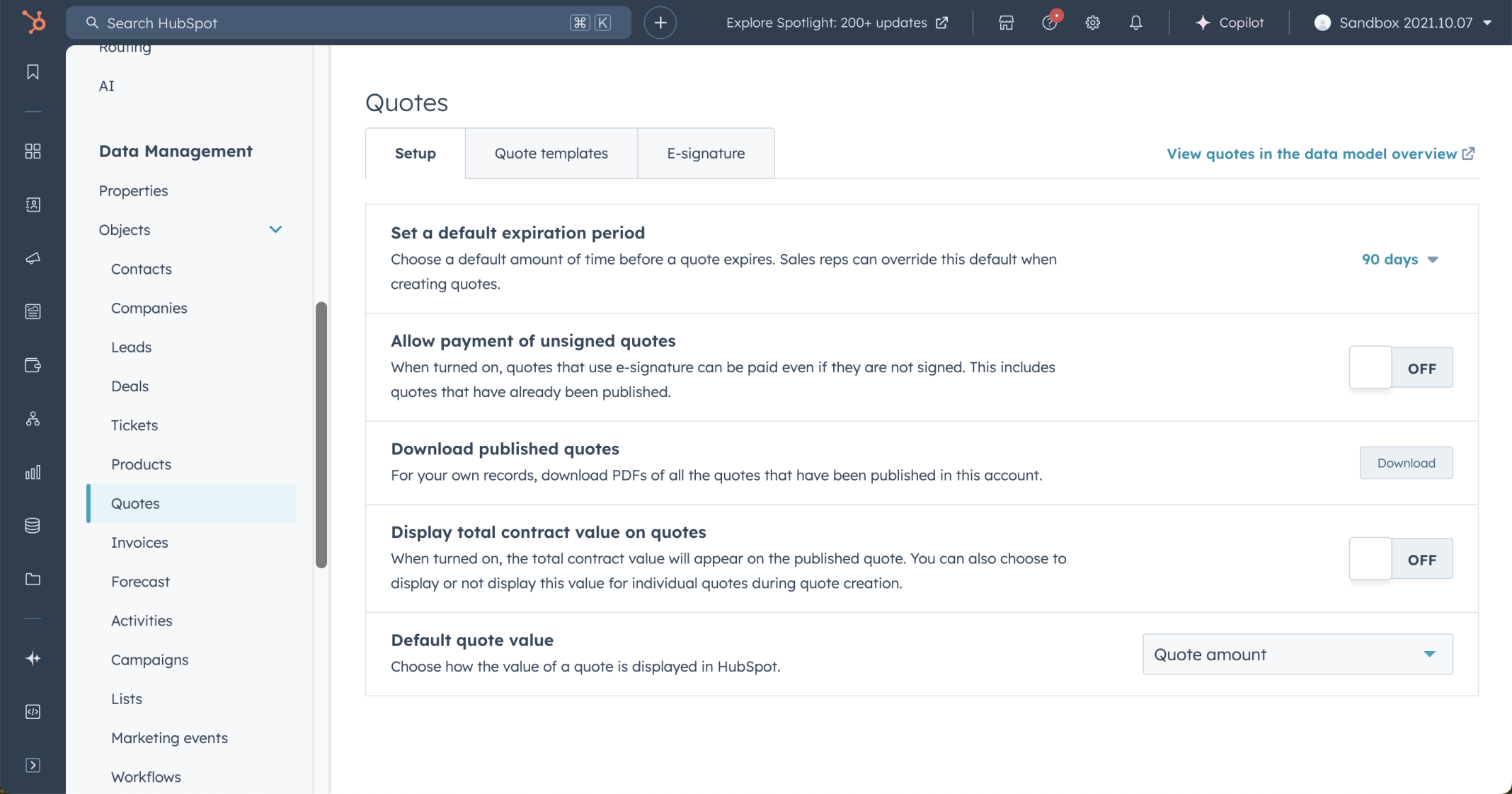
I reviewed the Quotes Setup page in HubSpot settings
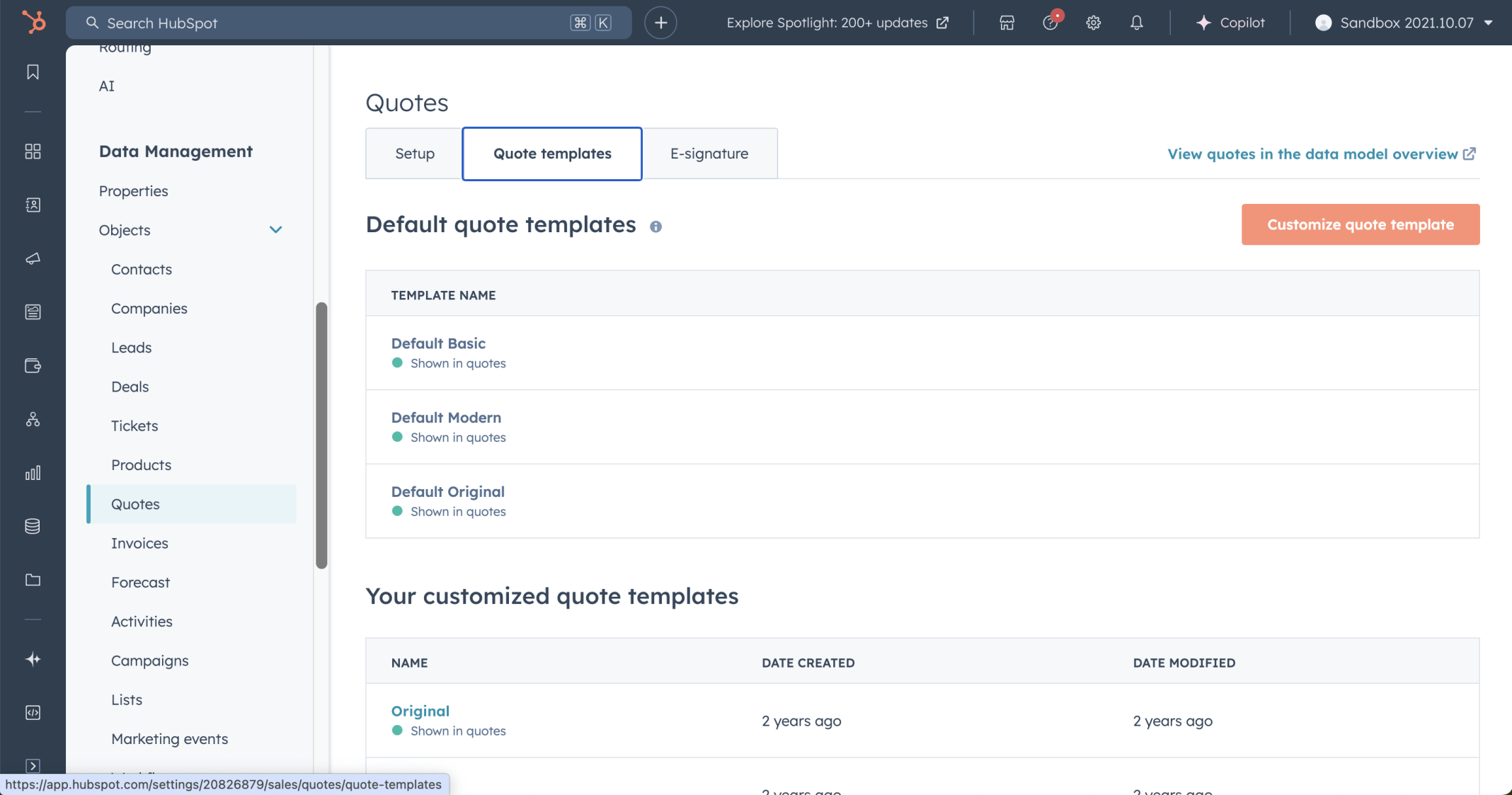
I reviewed the Quote templates tab showing the default and customised templates
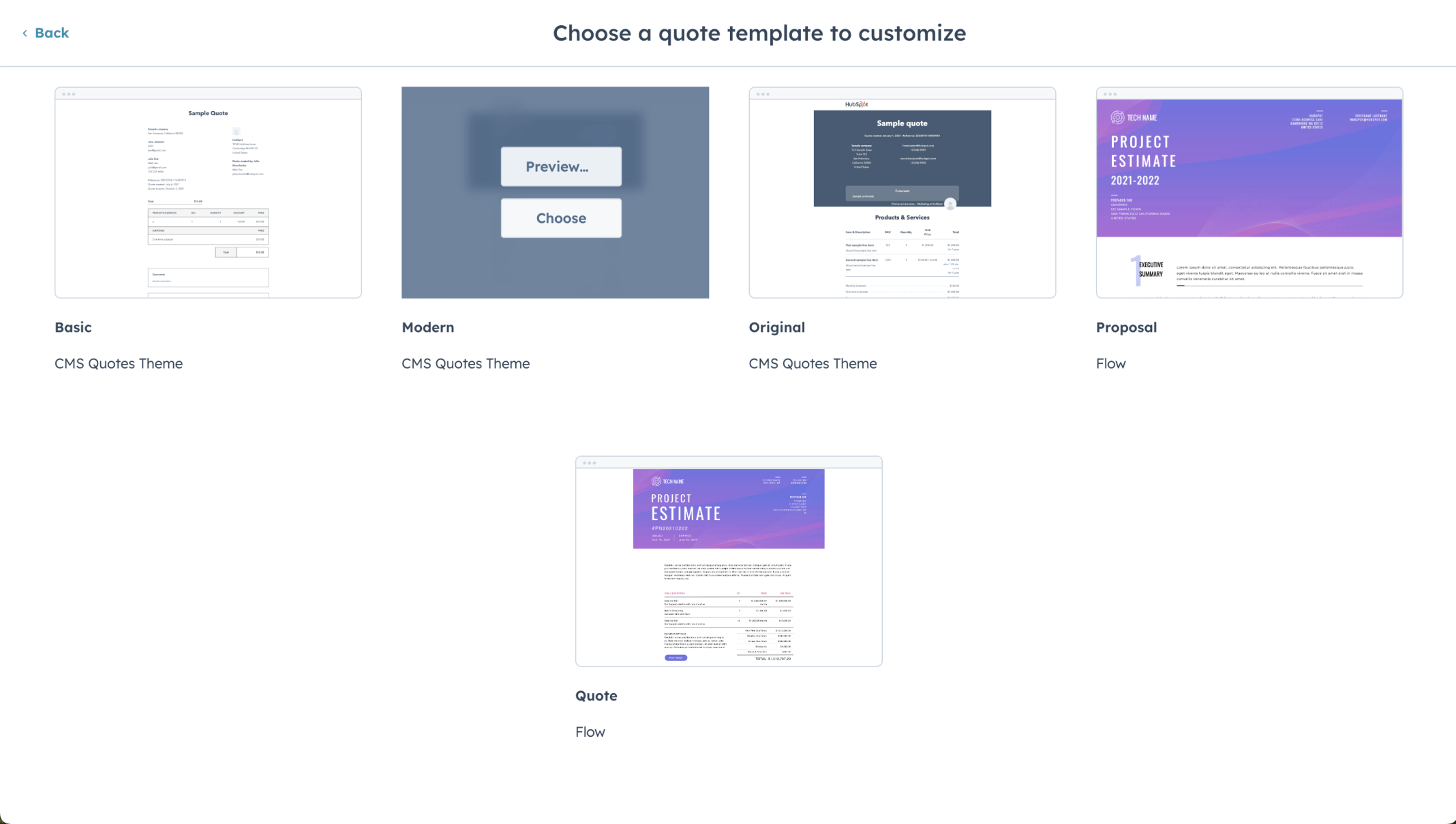
I selected a quote template to customise
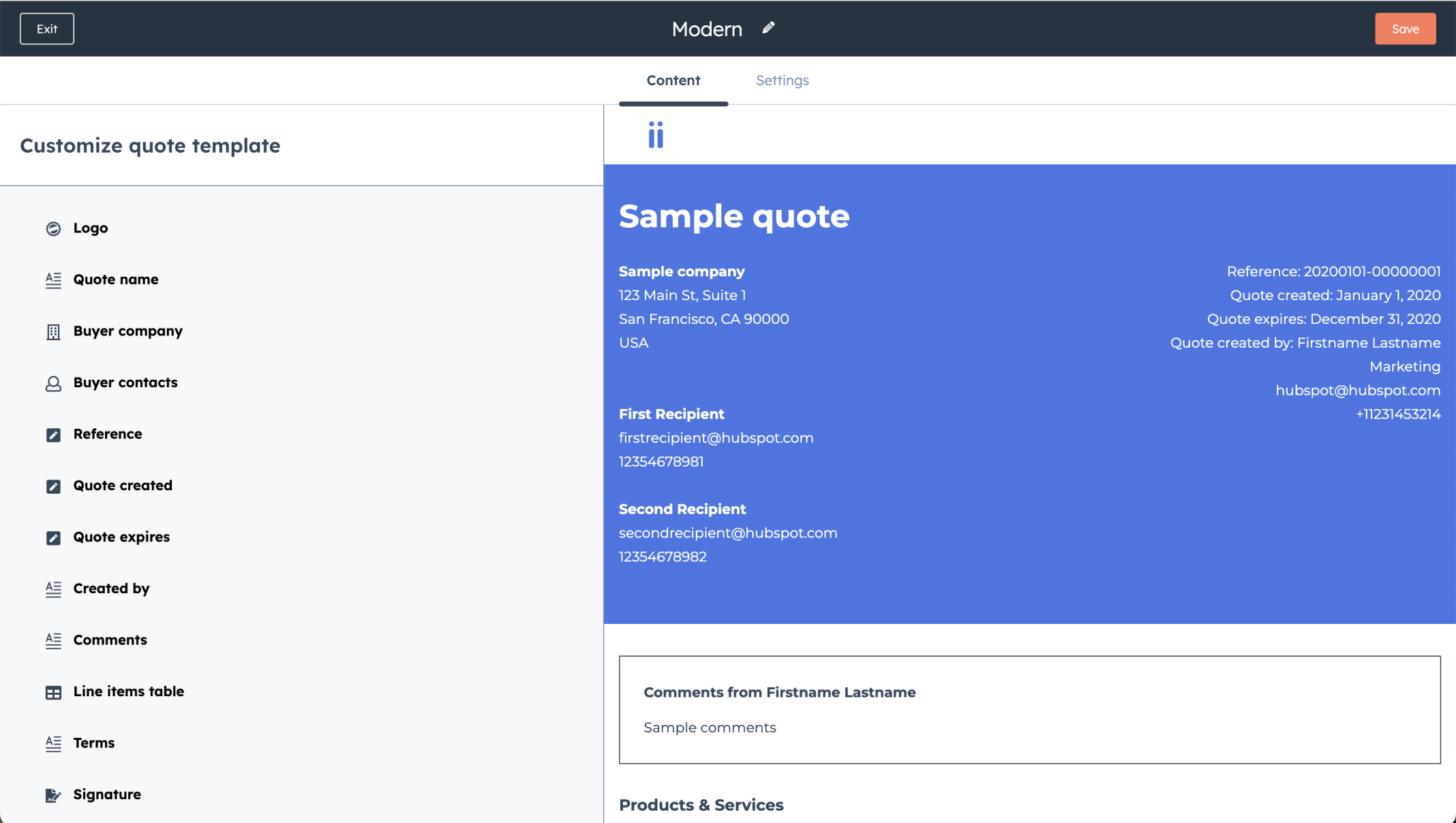
I reviewed the Modern quote template Content tab
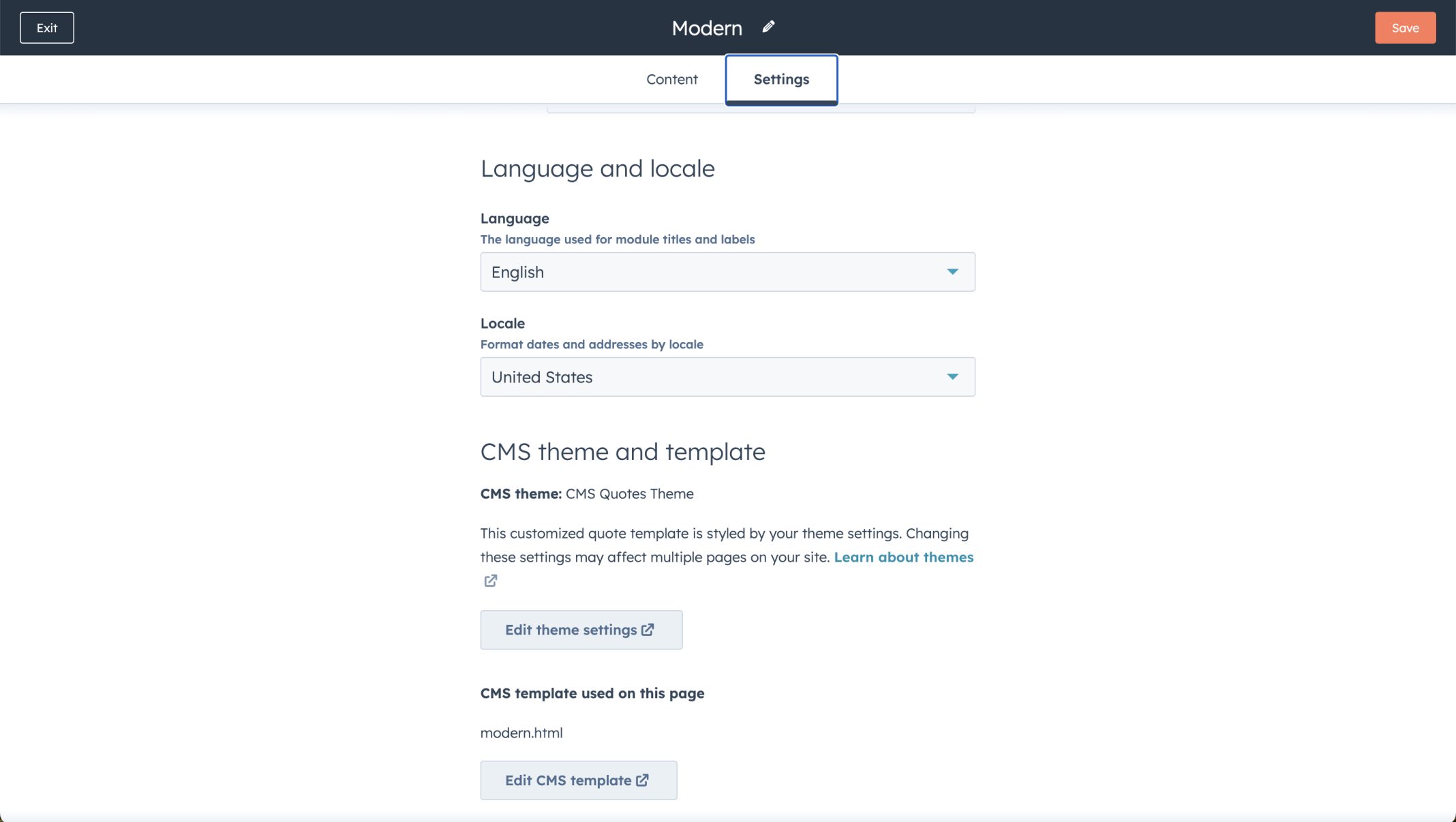
I reviewed the Modern quote template Settings tab
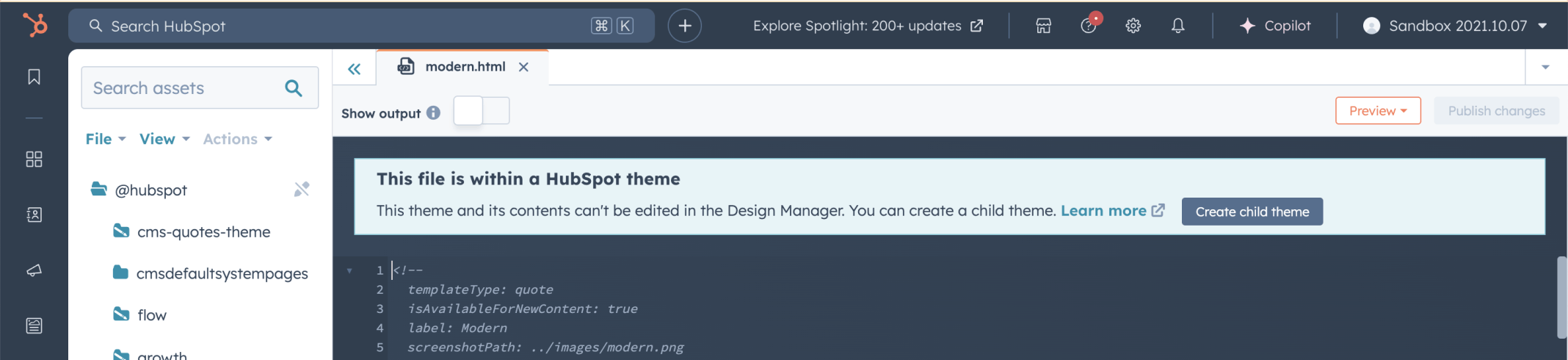
I opened the modern.html template in the CMS Design Manager
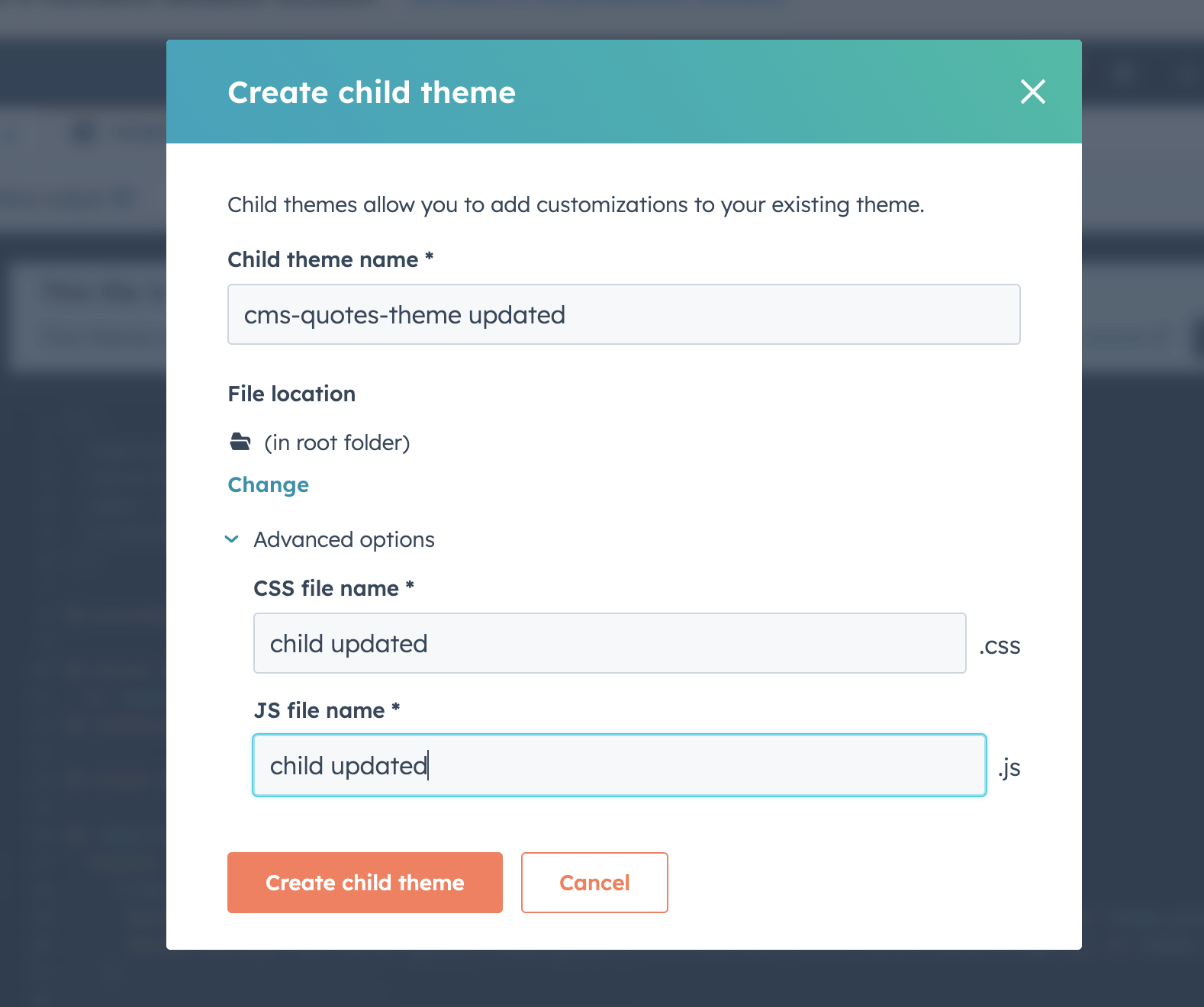
I entered the child theme name "cms-quotes-theme updated" with CSS and JS file names set to "child updated"
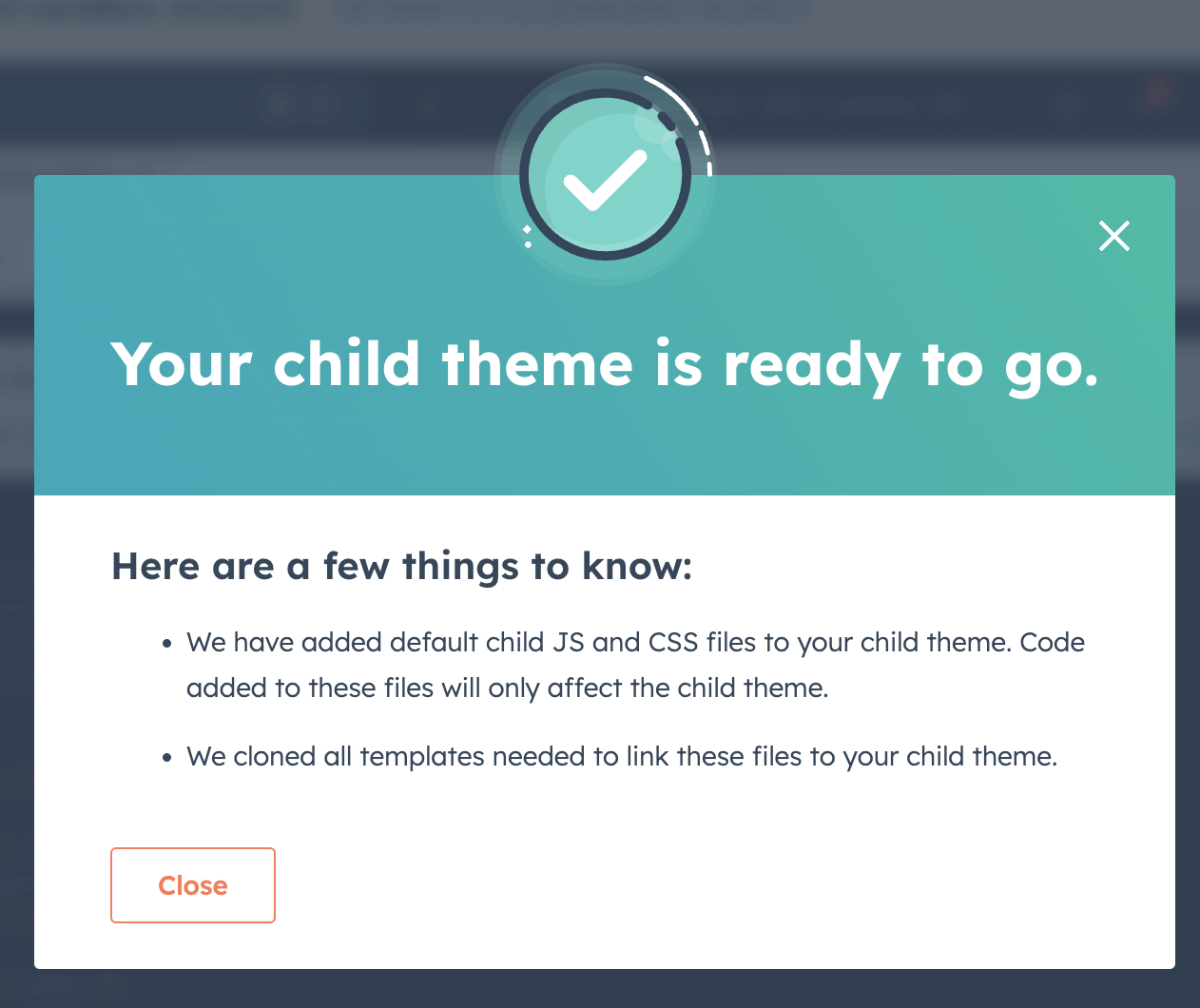
The child theme was created successfully
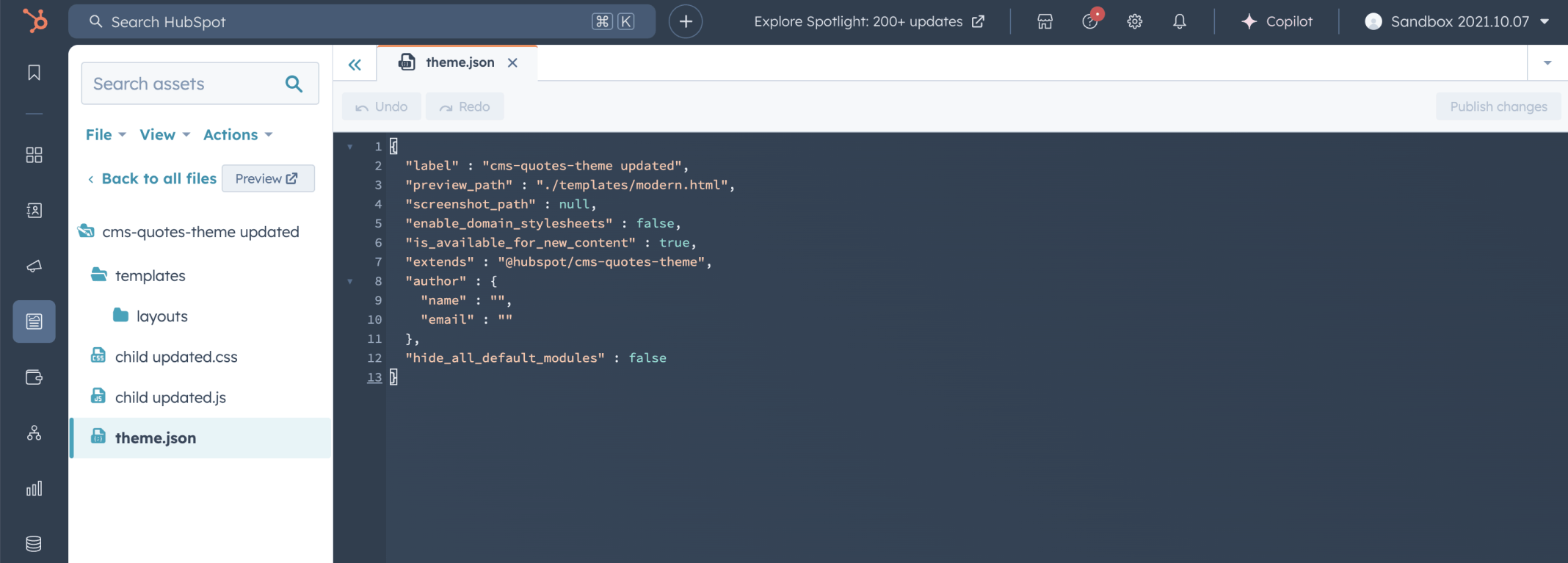
I reviewed the theme.json file in the cms-quotes-theme updated child theme
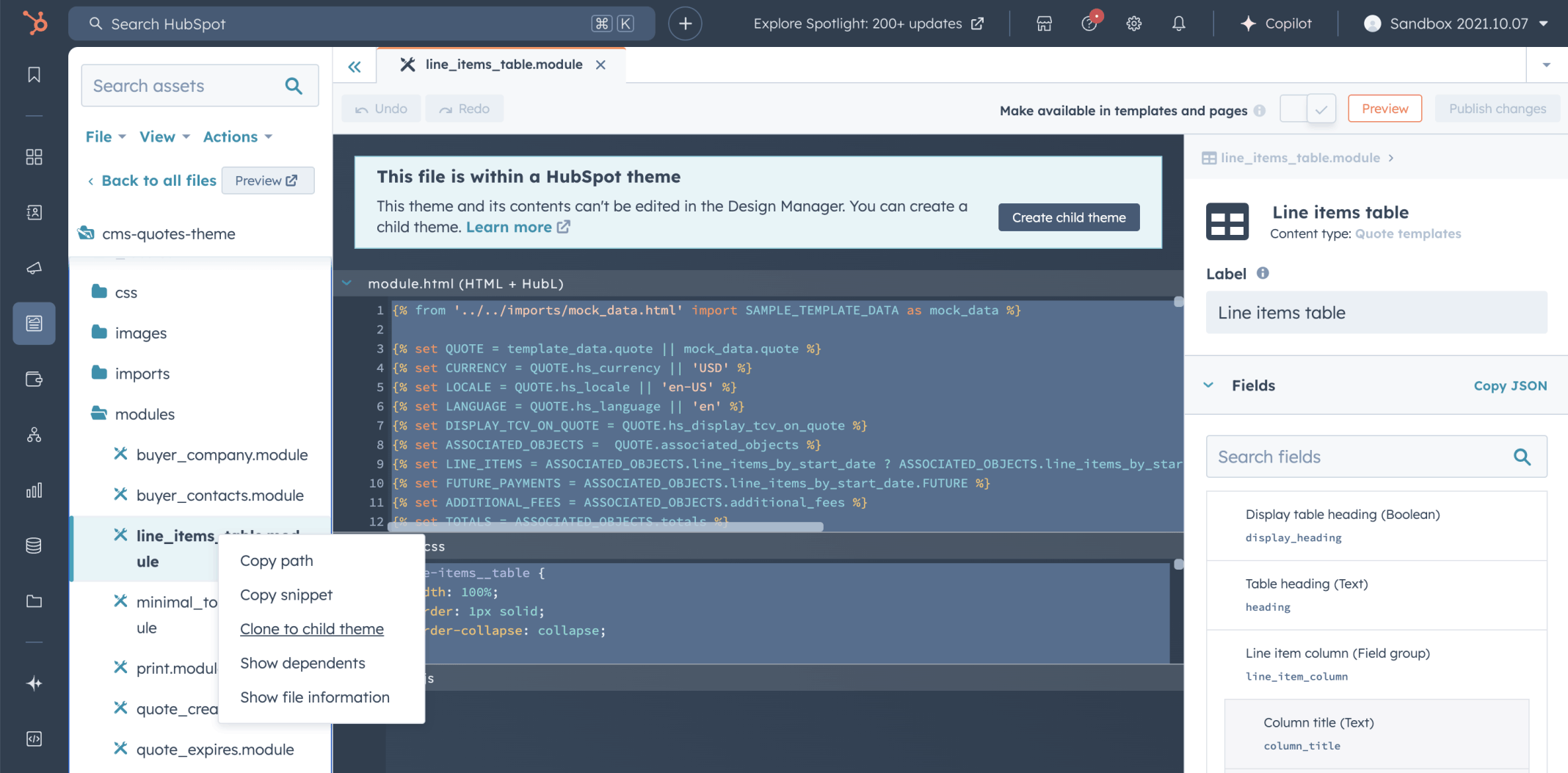
I right-clicked the line_items_table module in the cms-quotes-theme and selected Clone to child theme
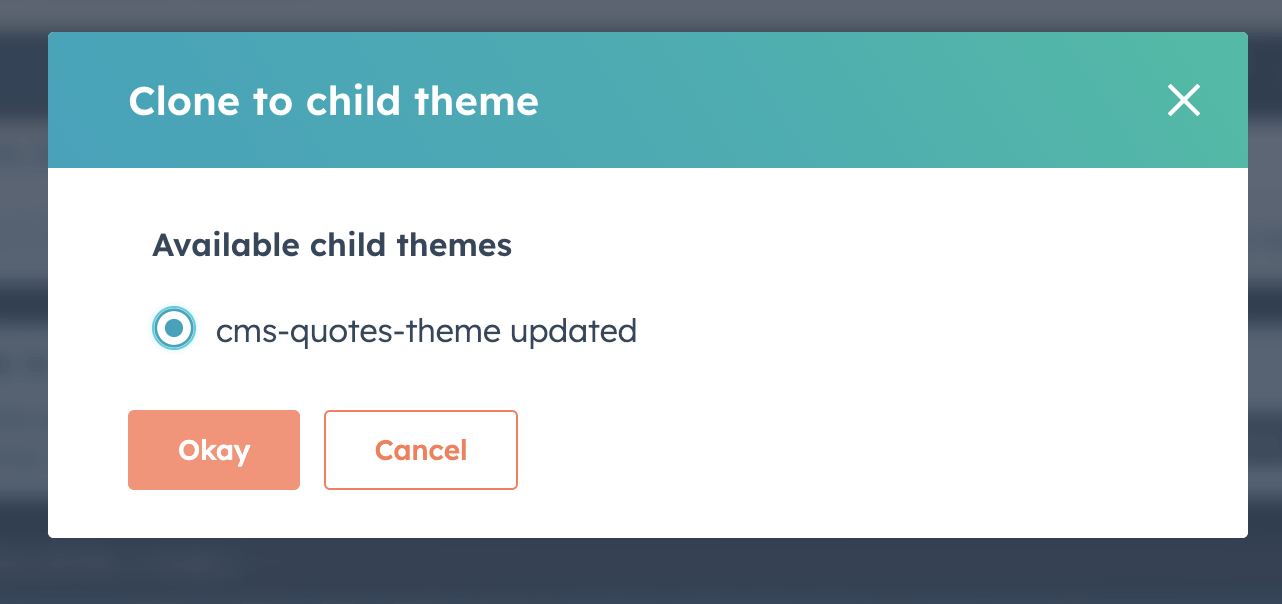
I selected cms-quotes-theme updated and clicked Okay
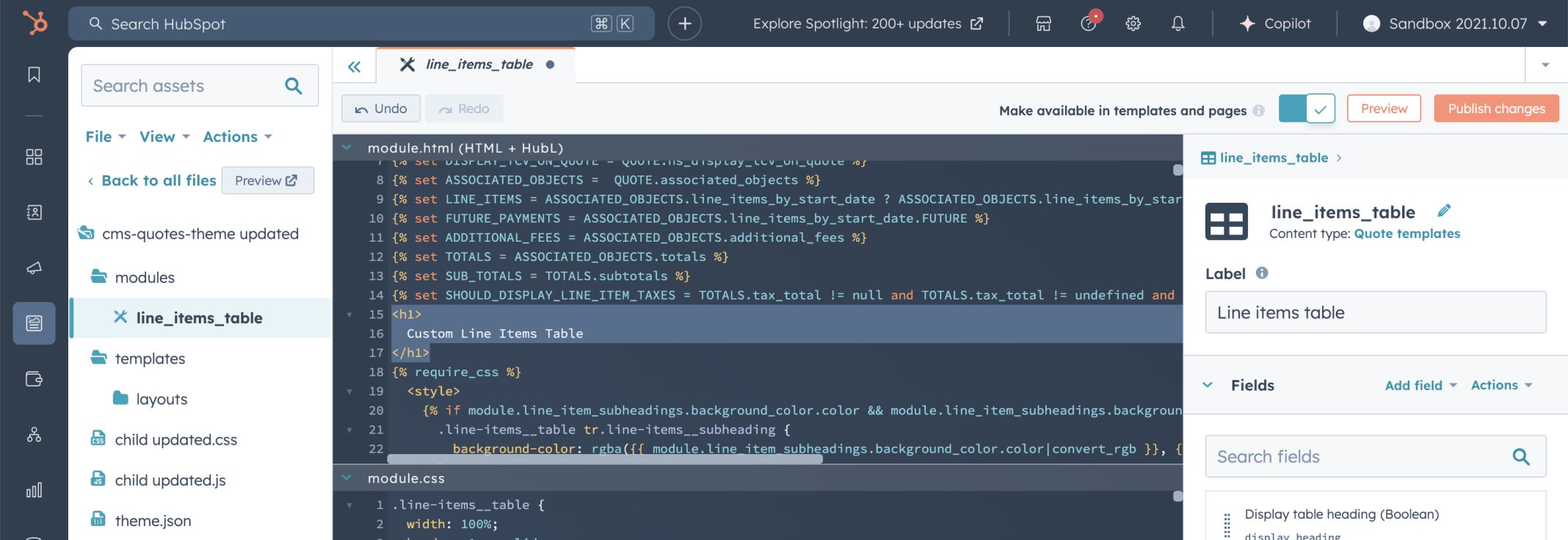
I edited the line_items_table module HTML in the cms-quotes-theme updated child theme
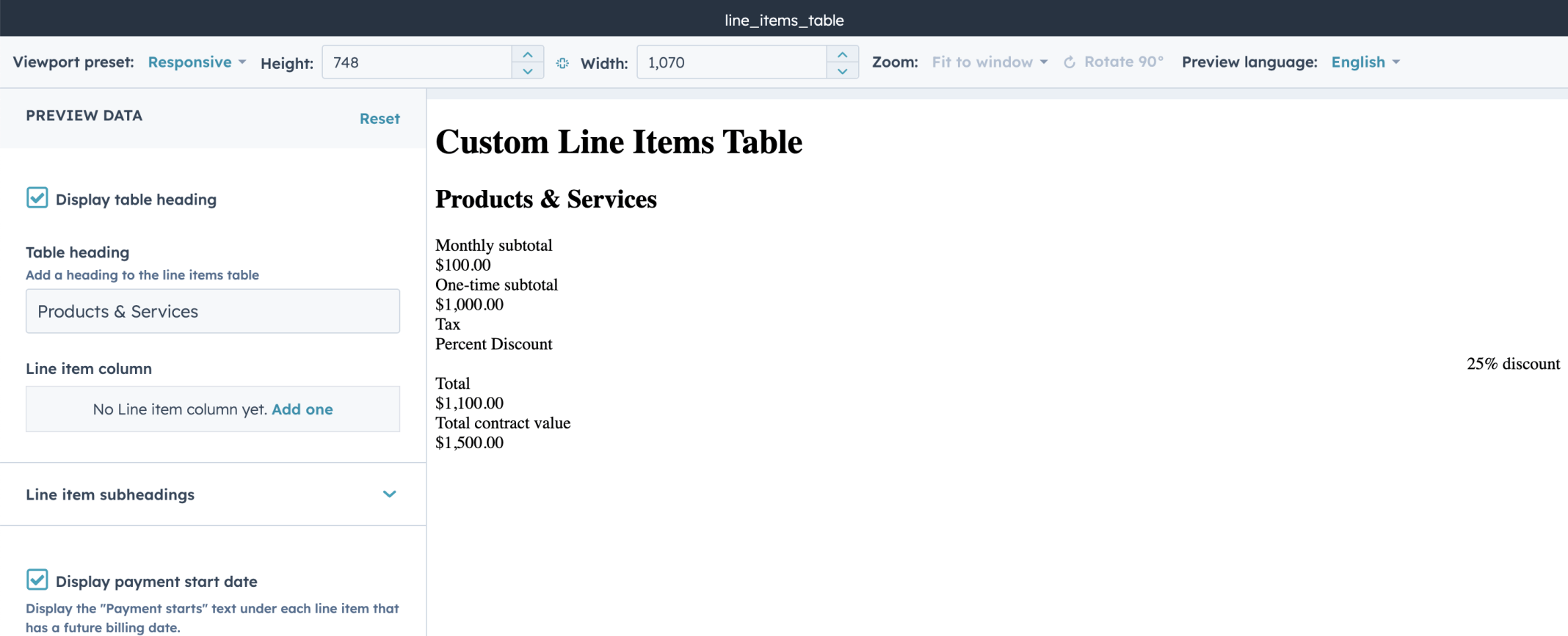
I previewed the line_items_table module — the table showed no Line item columns yet
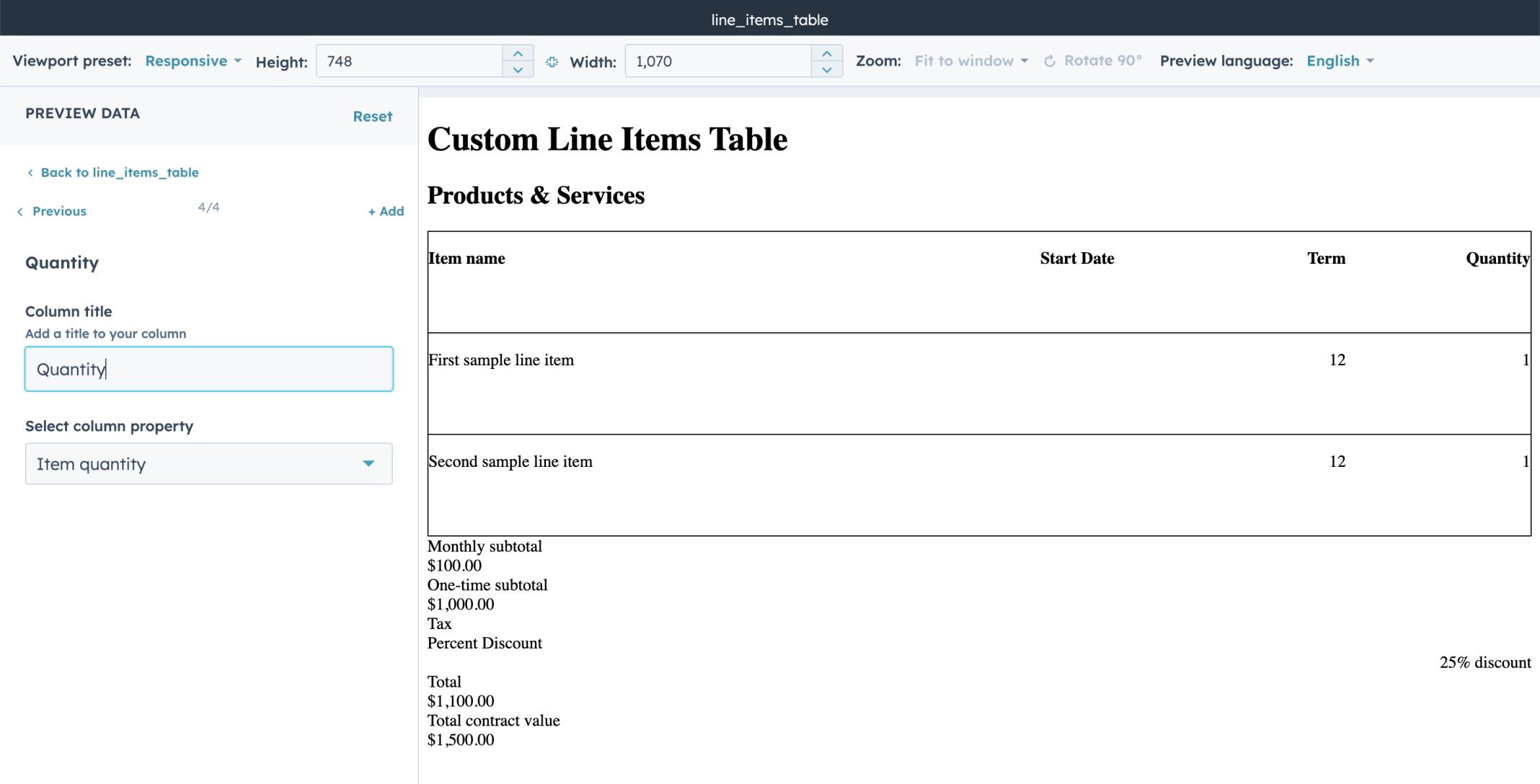
I previewed the line_items_table module with the Item name, Start Date, Term, and Quantity columns configured
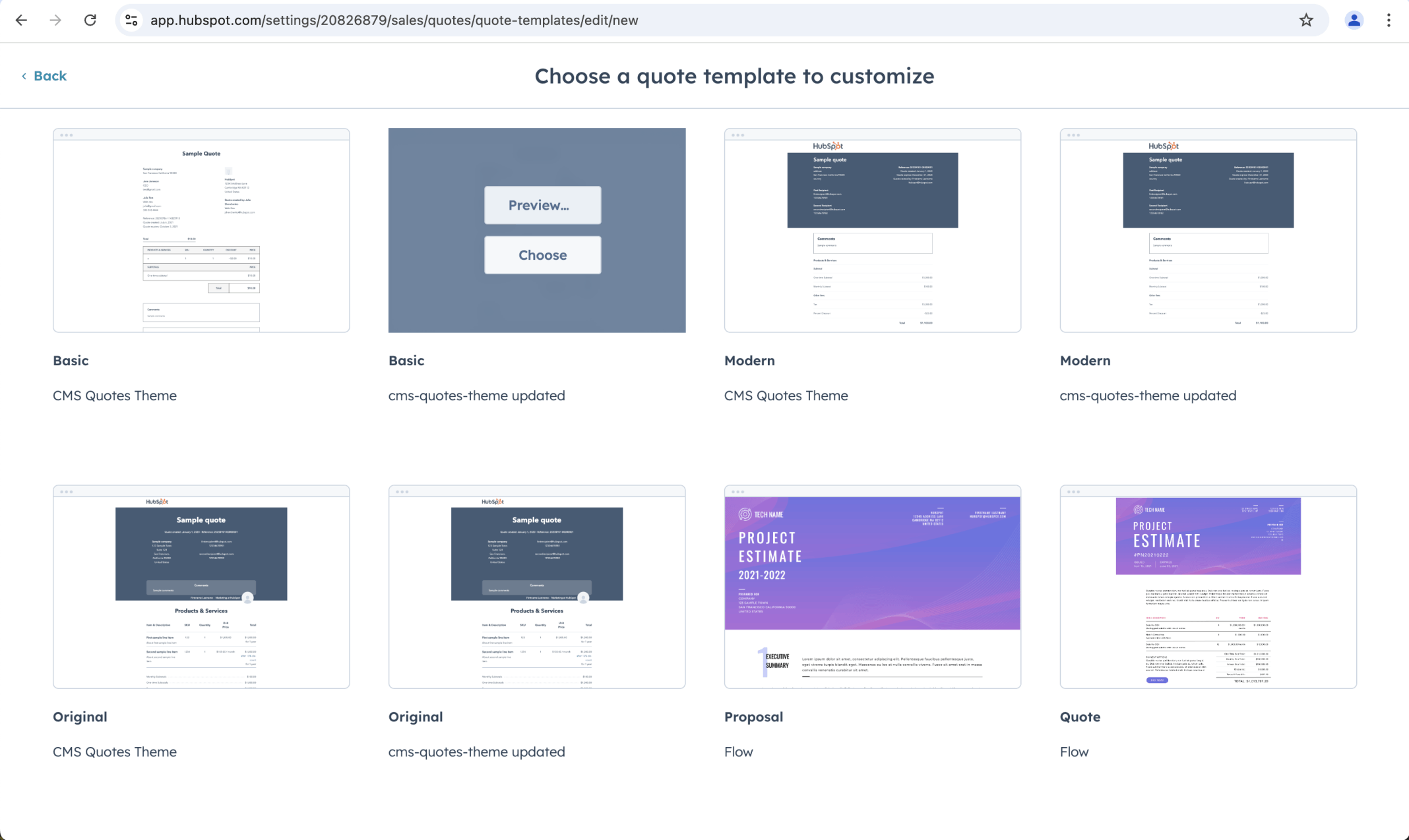
I clicked Choose on the Basic template from the cms-quotes-theme updated child theme

I opened the Basic quote template editor

I renamed the template to Basic Updated
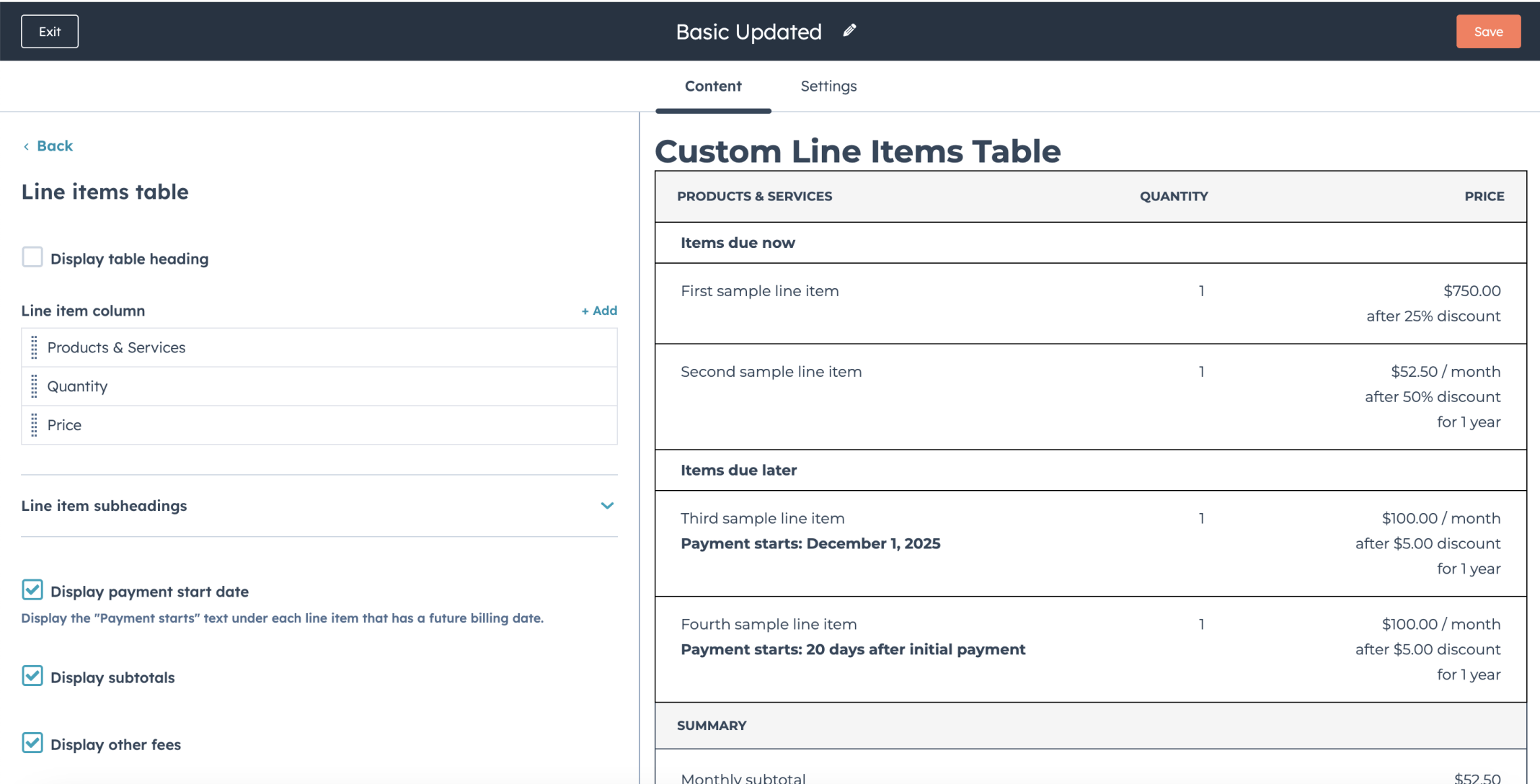
I reviewed the Line items table in the Basic Updated template showing the default Products & Services, Quantity, and Price columns
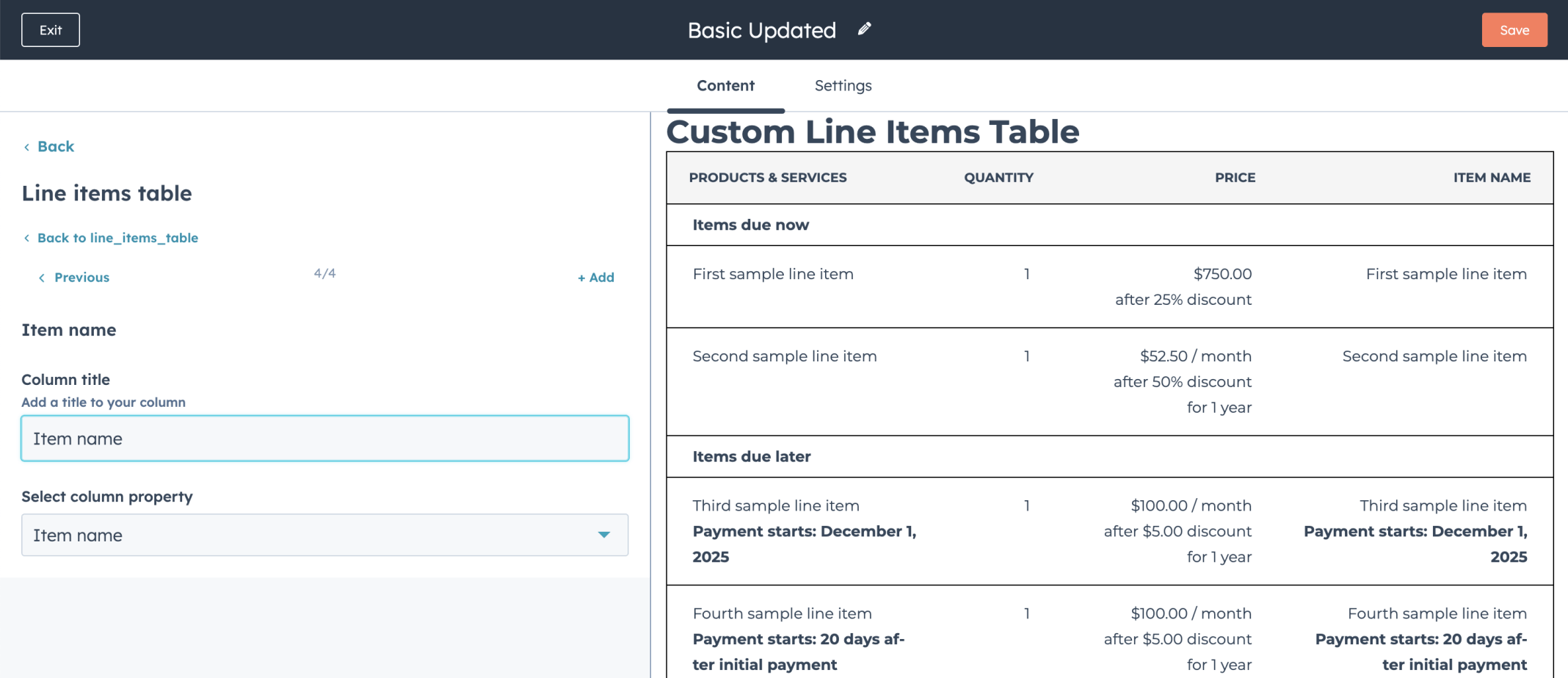
I configured the line items table with Item name, Start Date, Term, and Quantity columns
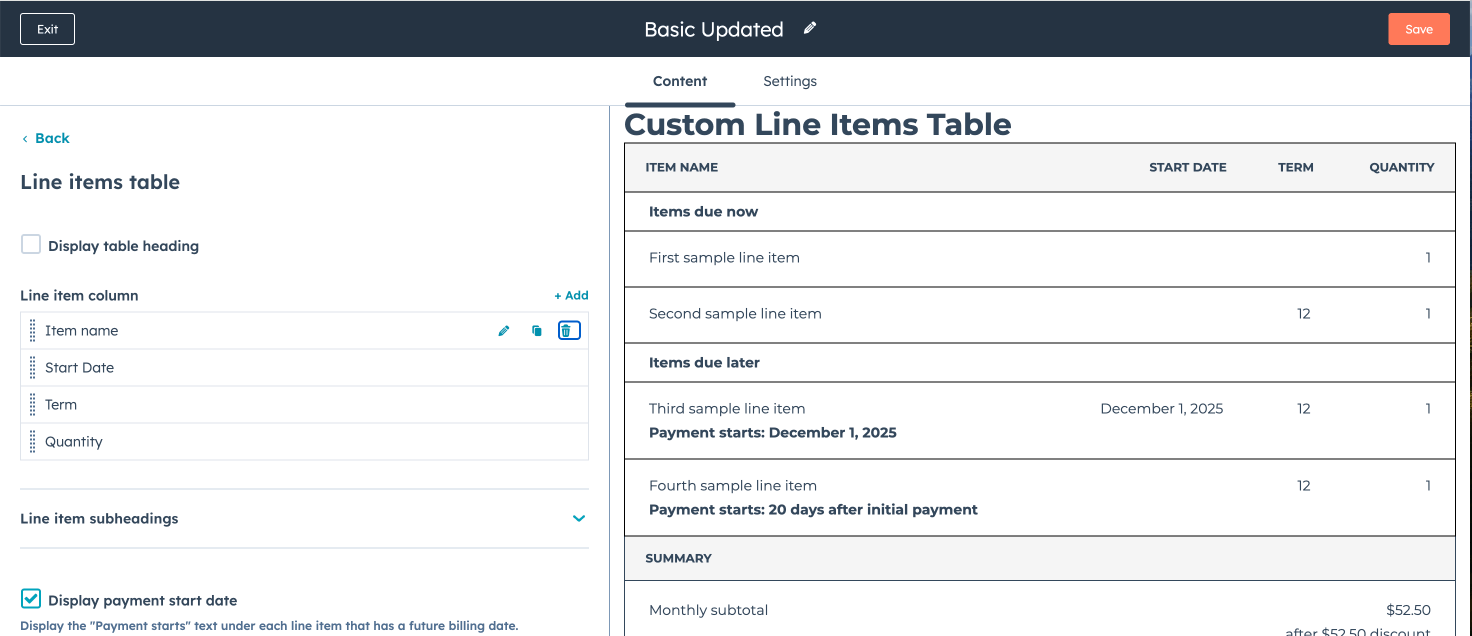
I added an Item name column and confirmed it appeared in the table preview
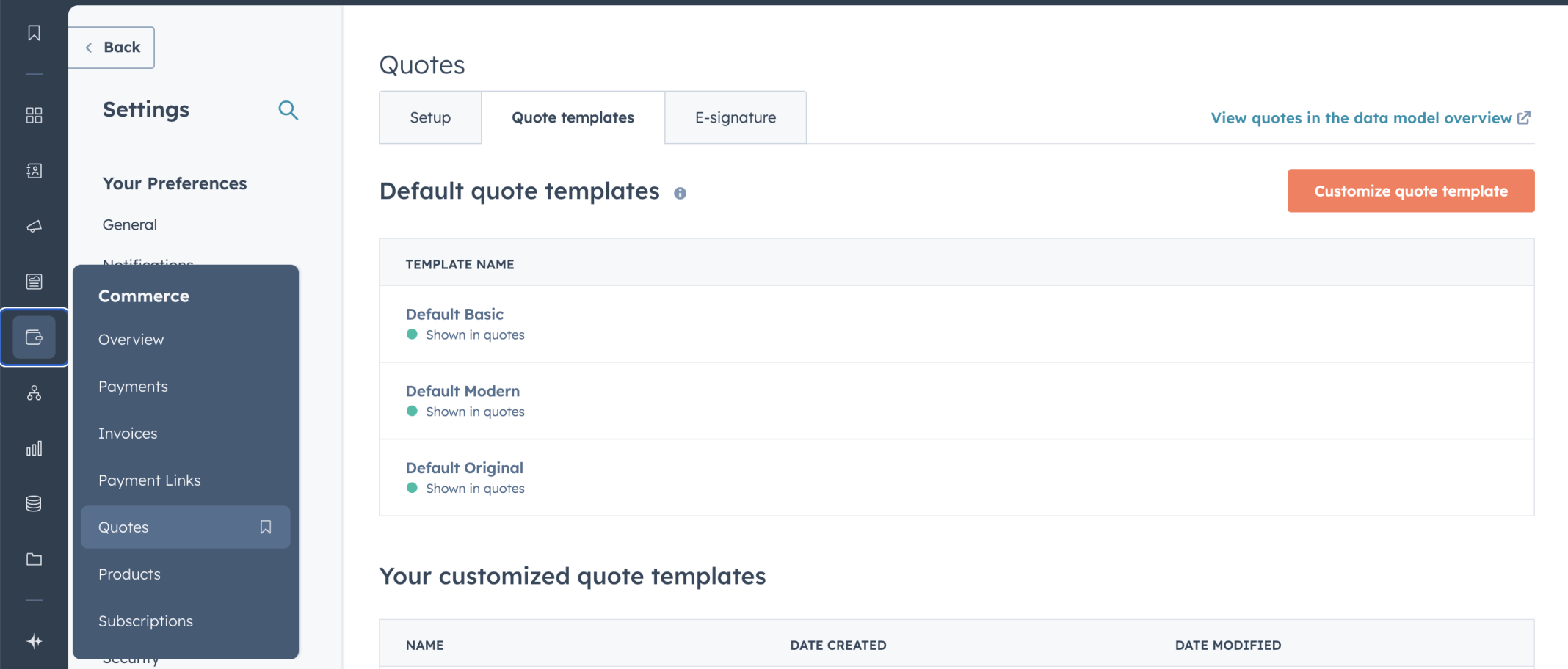
I reviewed the Quote templates tab in HubSpot settings

I navigated to the Quotes page and clicked Create quote
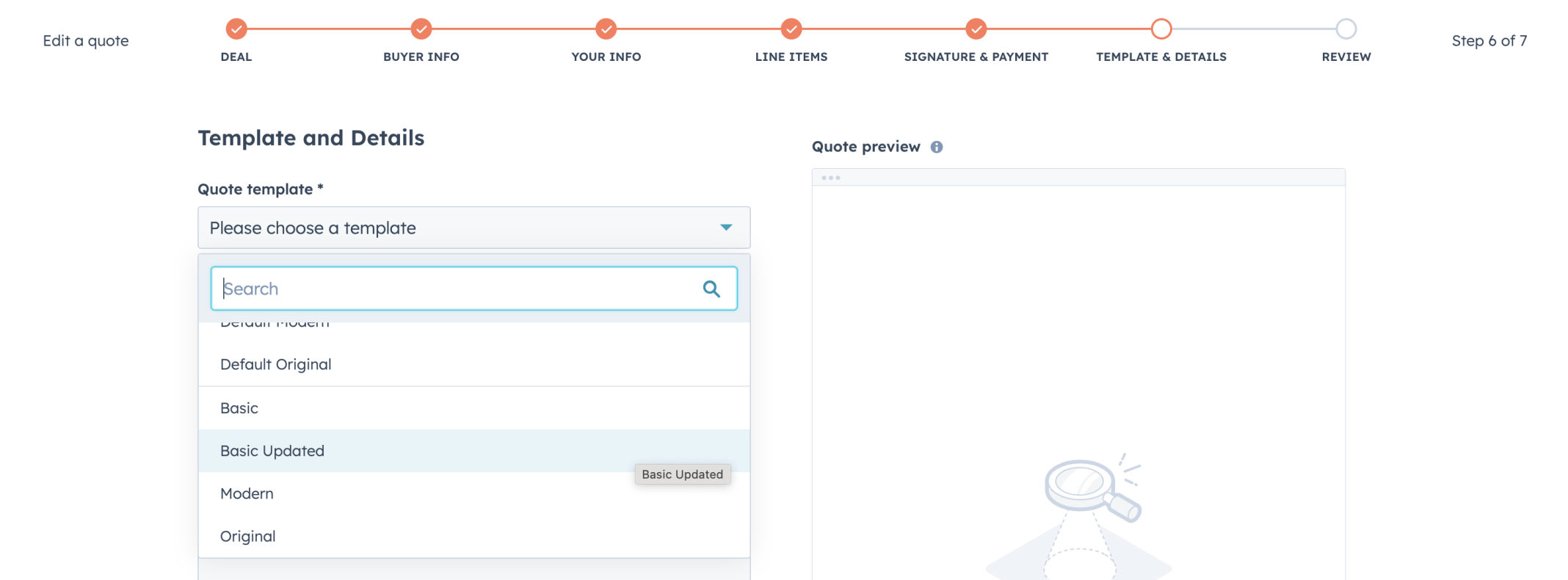
I selected the Basic Updated template from the Quote template dropdown
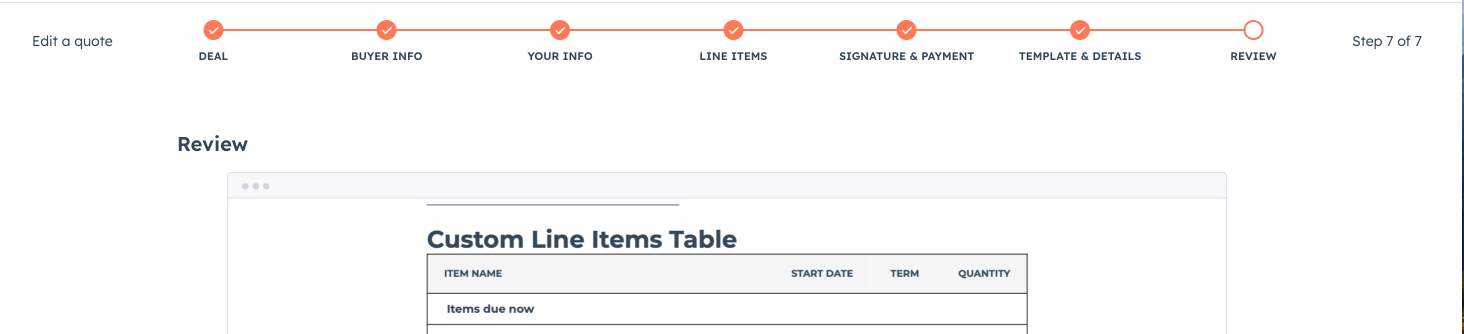
I reviewed the quote at the Review step — the Custom Line Items Table showed the Item name, Start Date, Term, and Quantity columns
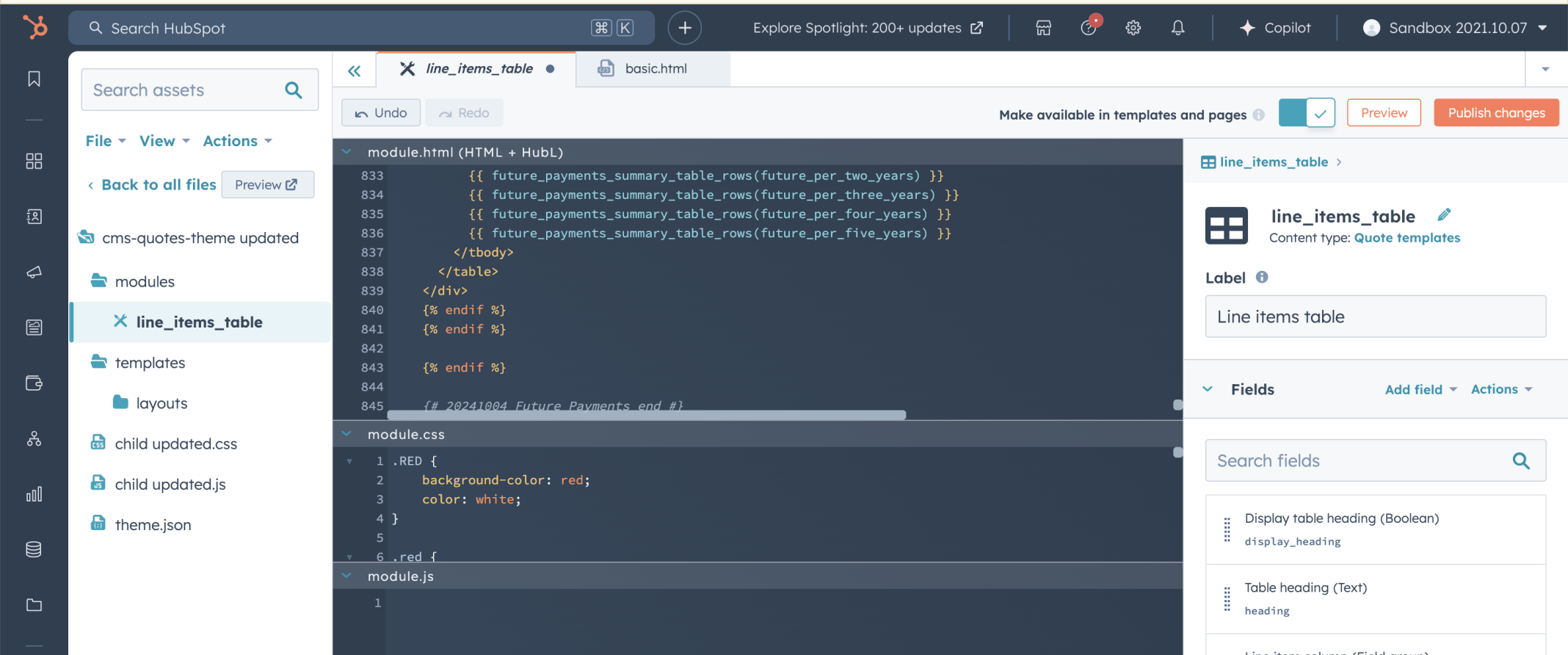
I added CSS classes to the line_items_table module to highlight subheading rows with a red background colour
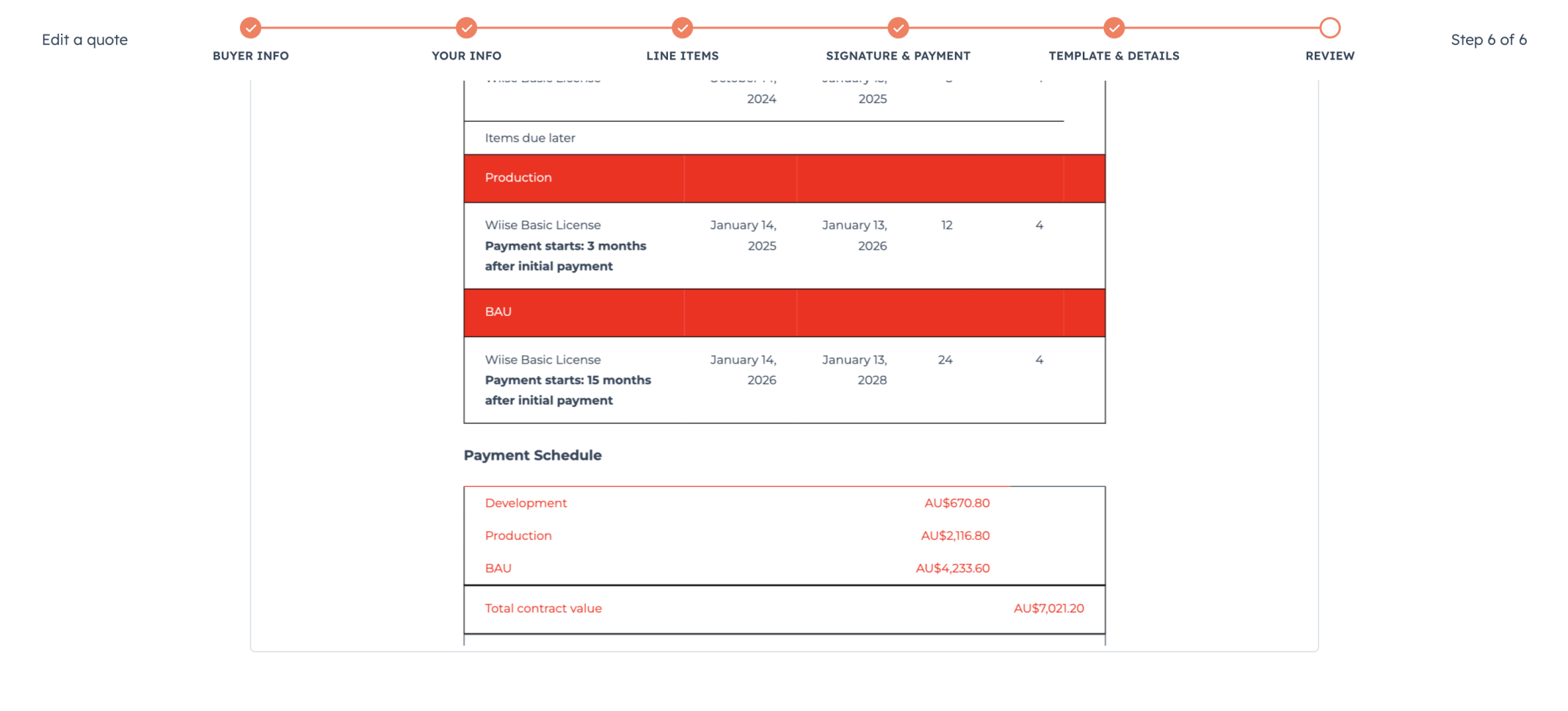
I reviewed the quote and confirmed the Production and BAU subheading rows were highlighted in red
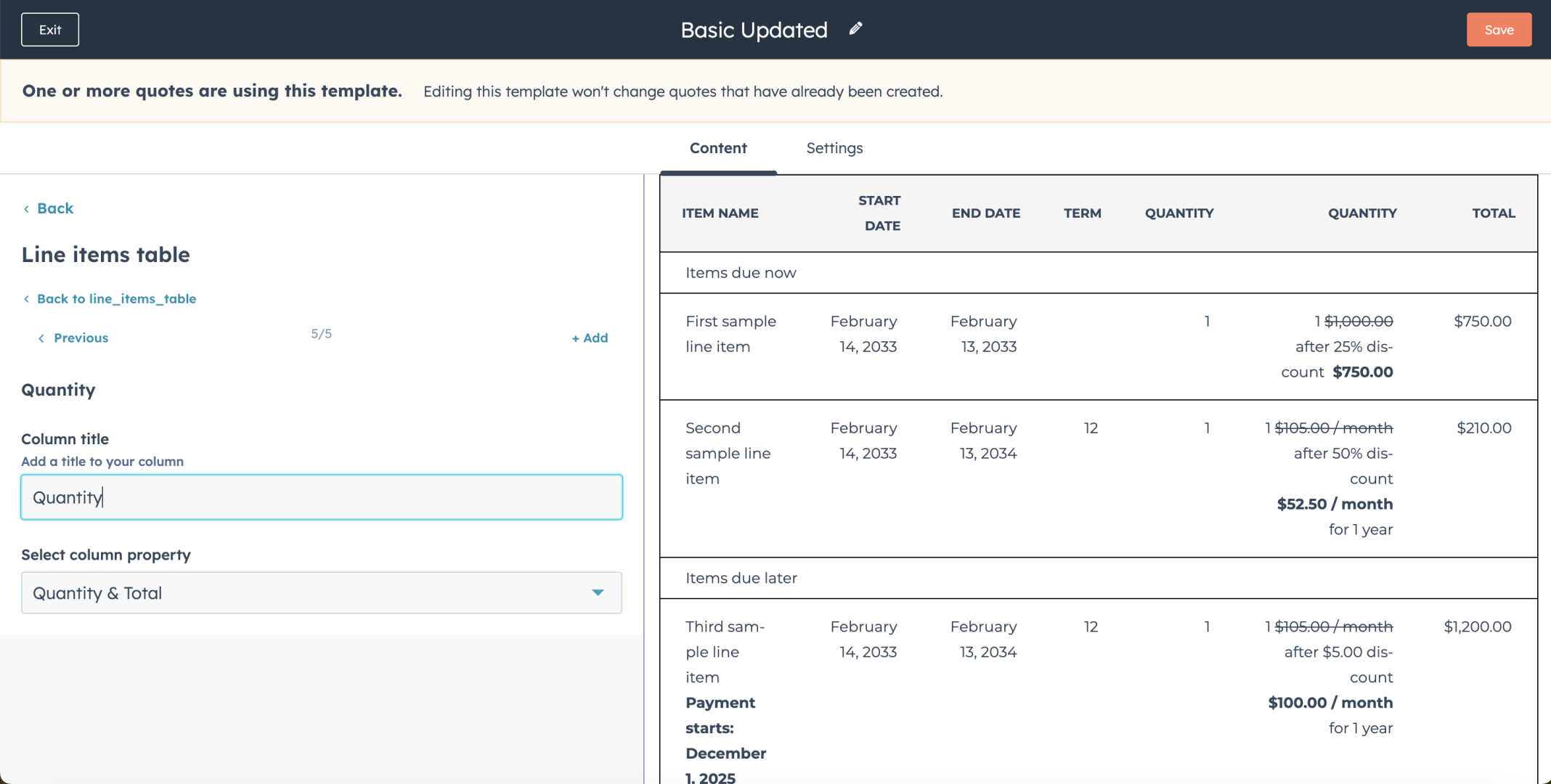
I added a Quantity & Total column to the line items table in the Basic Updated template
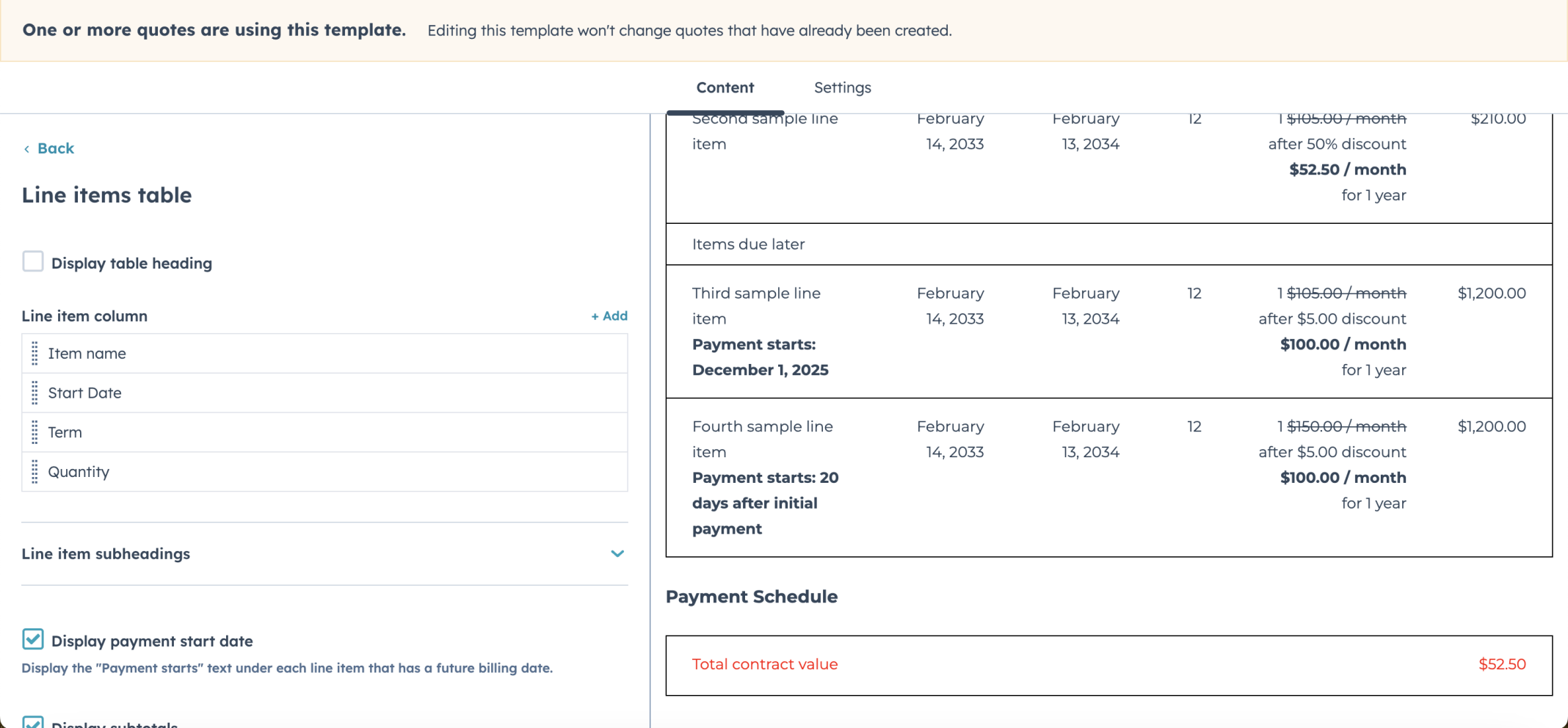
I reviewed the final line items table configuration with Item name, Start Date, Term, and Quantity columns
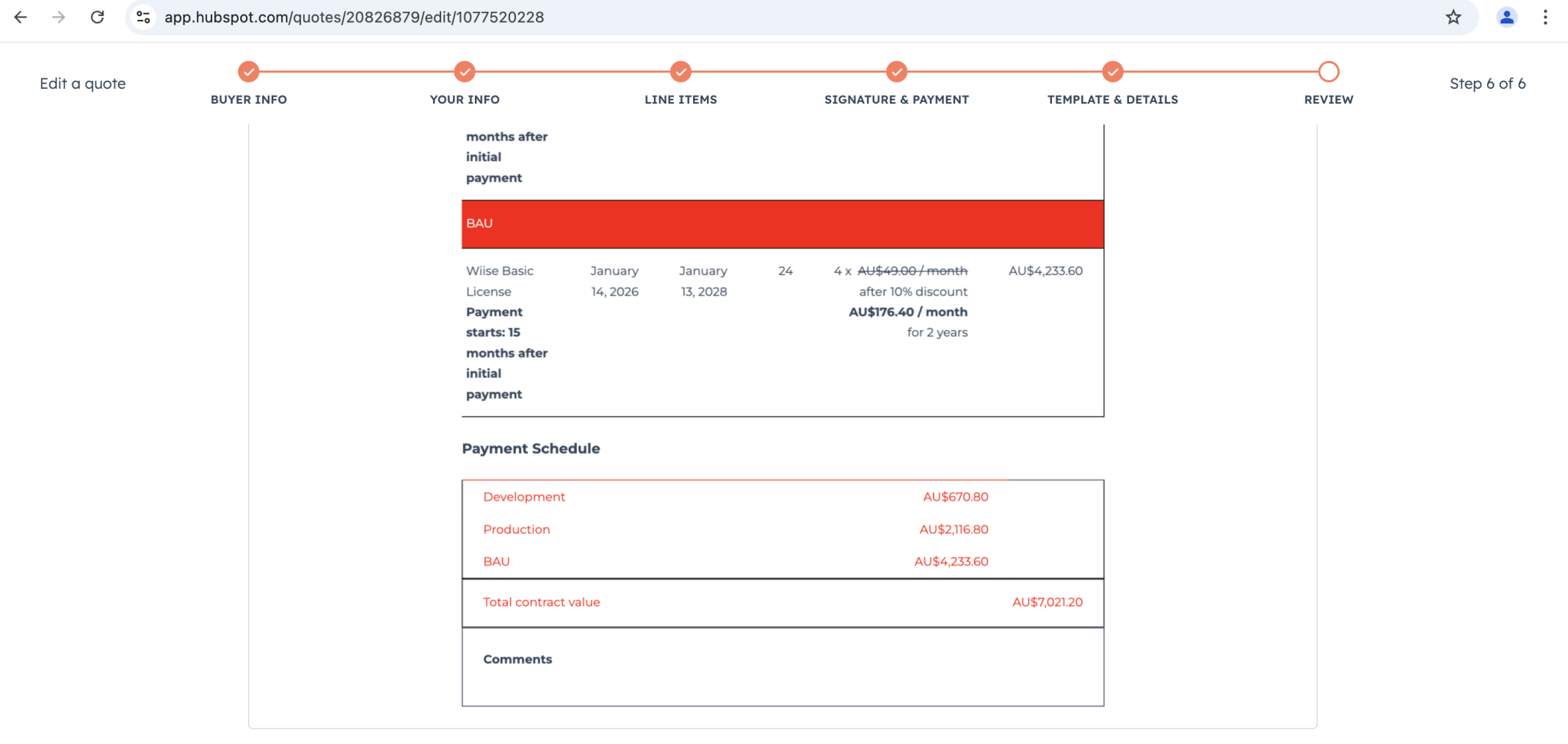
I reviewed the quote showing the custom line items table with real deal data and the Payment Schedule
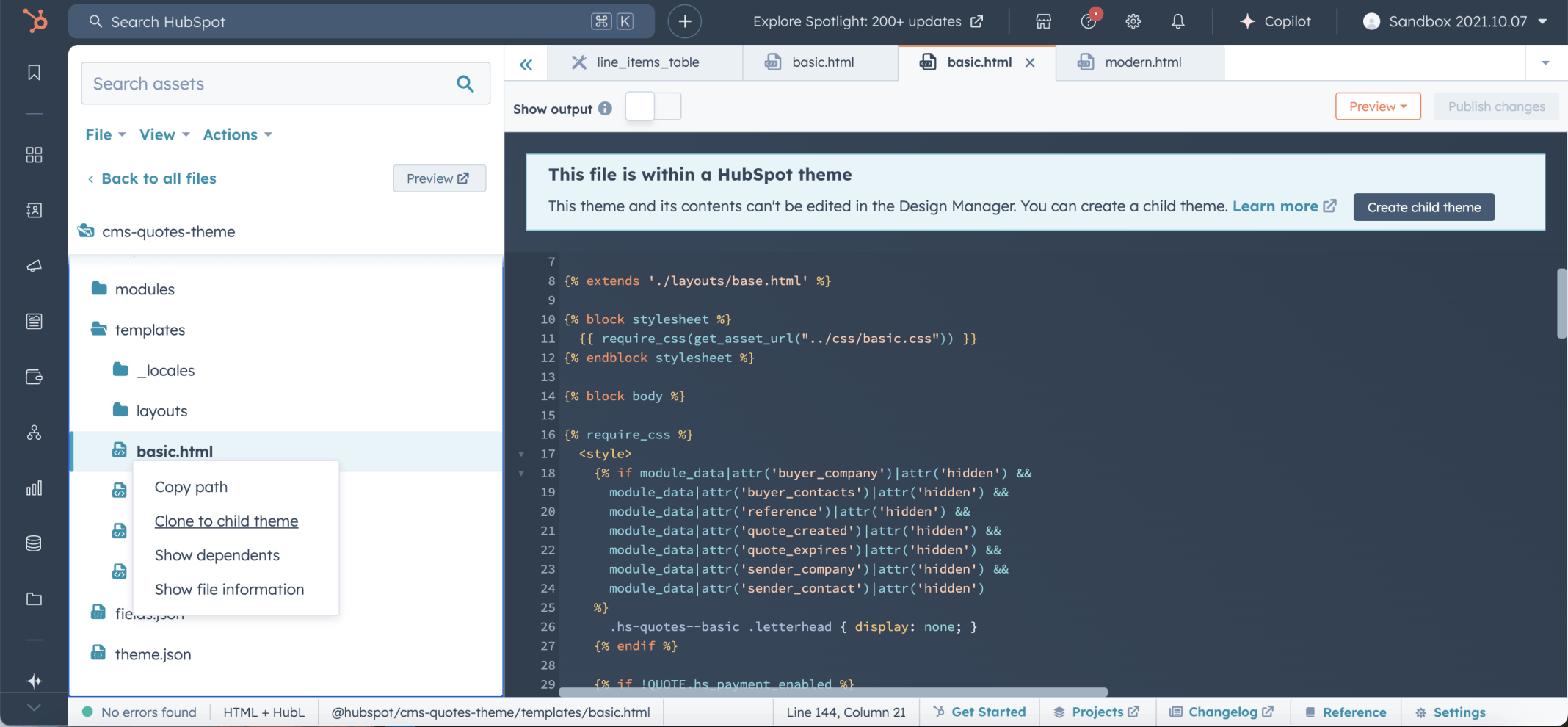
I right-clicked the basic.html template in the cms-quotes-theme and selected Clone to child theme
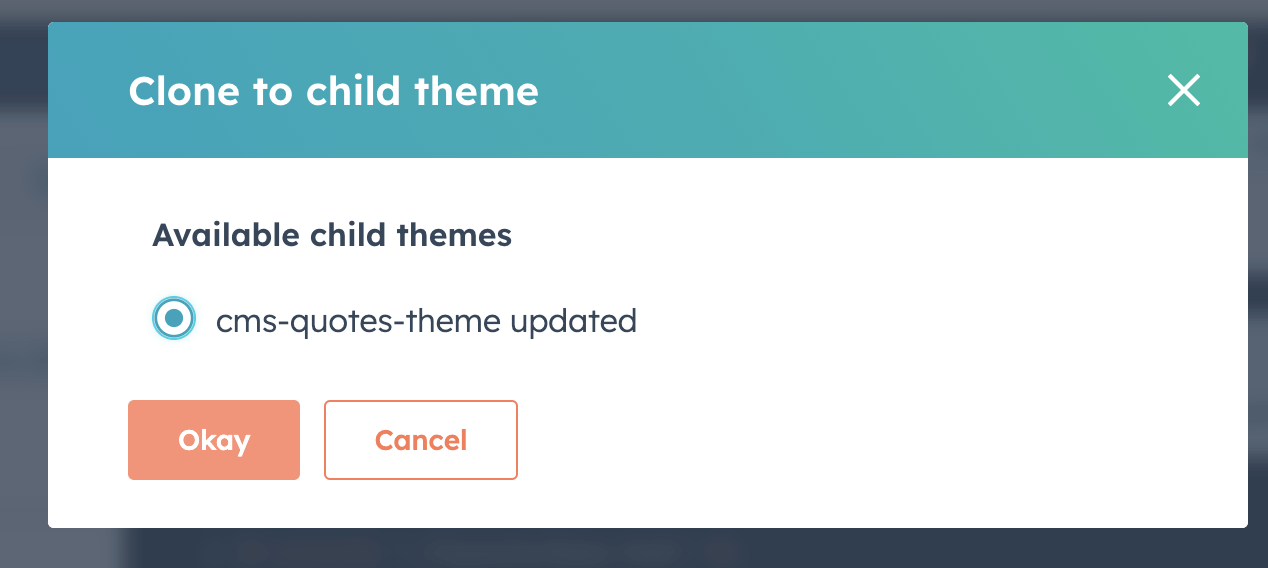
I selected cms-quotes-theme updated and clicked Okay
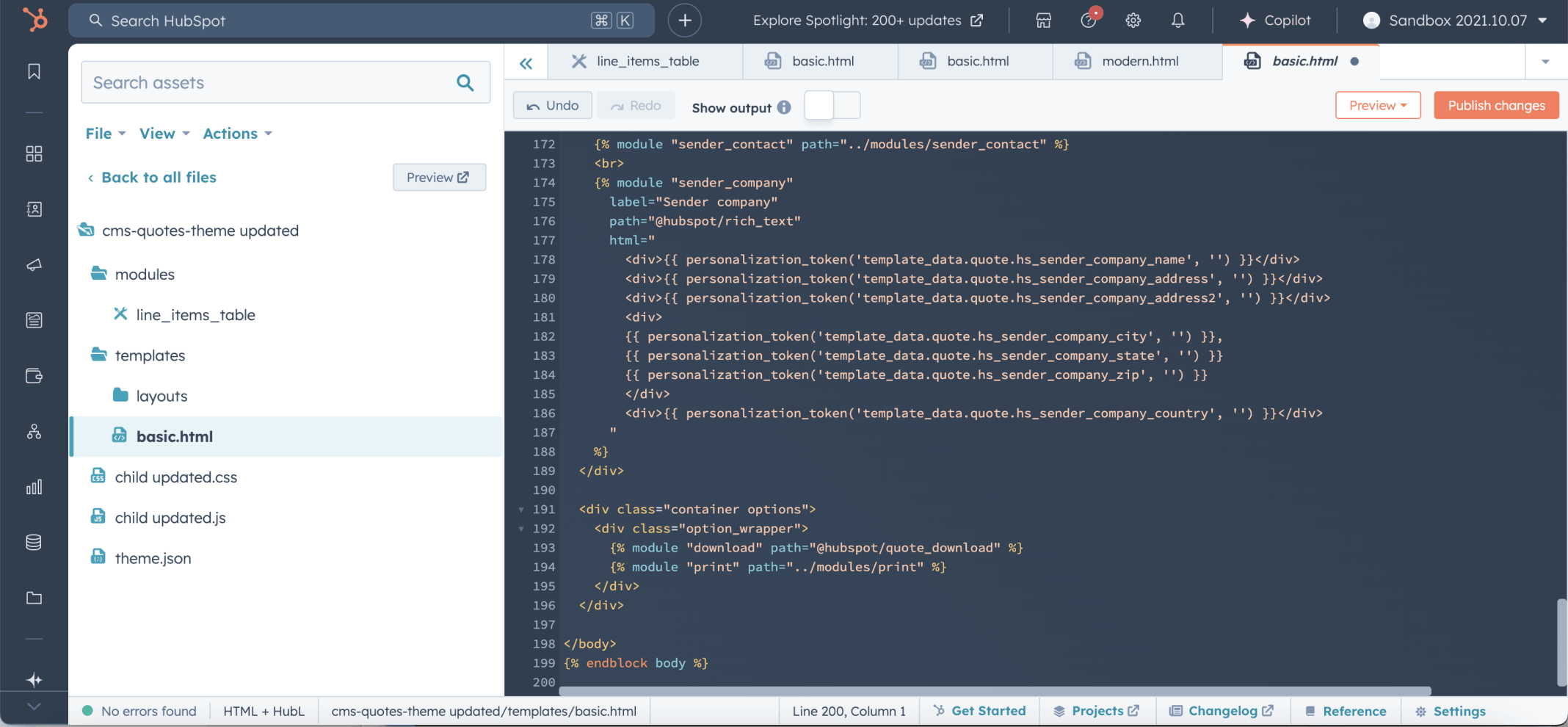
I reviewed the cloned basic.html template in the cms-quotes-theme updated child theme
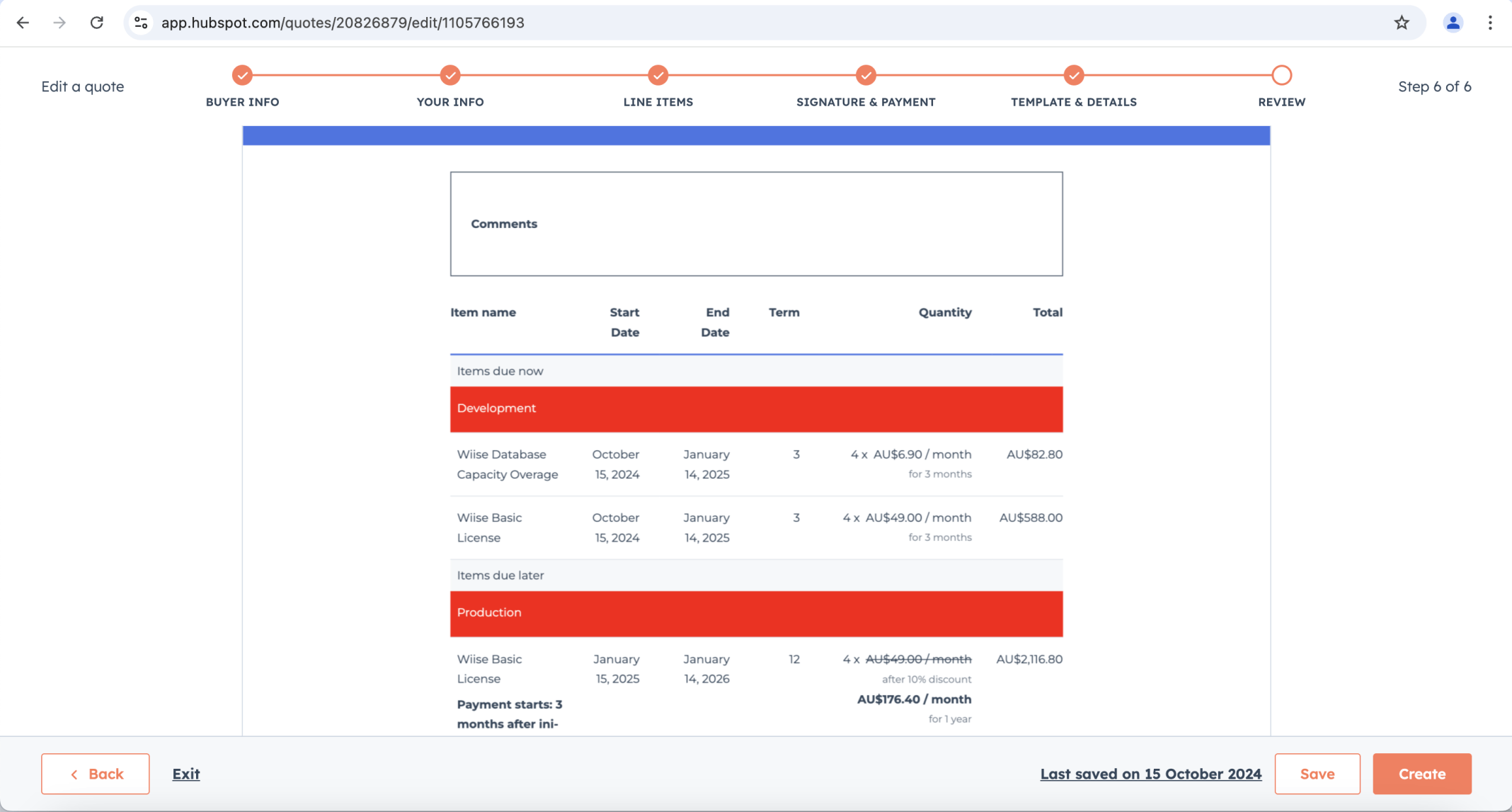
I reviewed the final quote showing the customised line items table with Development, Production, and BAU line item groups highlighted in red
The hero image for this post uses the HubSpot Logo from Wikimedia Commons. The logo is in the public domain — it does not meet the threshold of originality required for copyright protection as it consists of simple geometric shapes and text. The HubSpot name and logo may be protected as trademarks in some jurisdictions.