I set up Unity 6.3 LTS for Meta Quest Pro development. I installed the Meta XR Interaction SDK 203.0.0 from the Asset Store, worked through the Project Setup Tool to fix all required and recommended settings for both Standalone and Android platforms, explored Building Blocks, and built and deployed a Hello World APK to my Quest Pro headset.
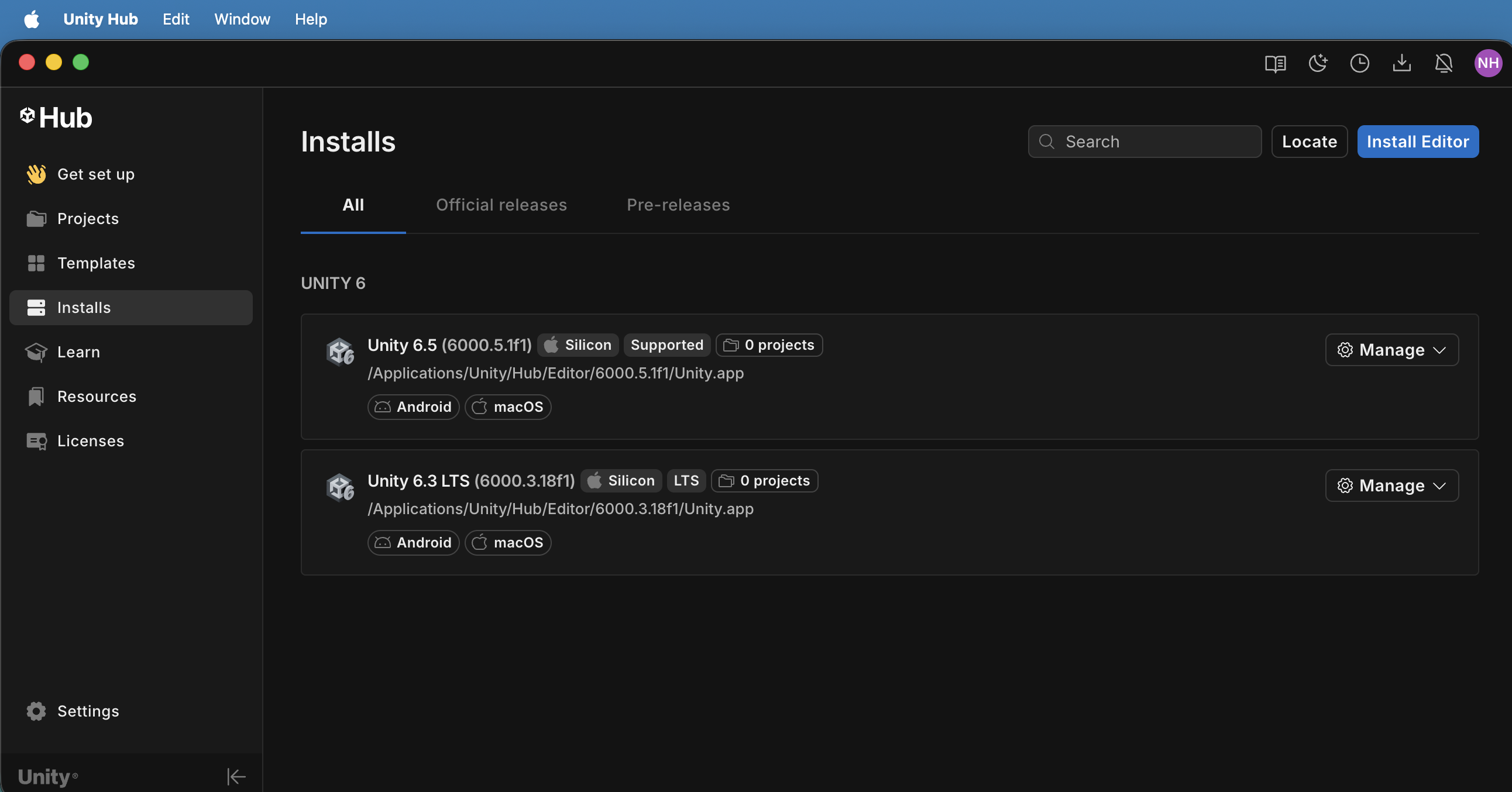
I opened Unity Hub and saw Unity 6.5 (6000.5.1f1) and Unity 6.3 LTS (6000.3.18f1) both installed with Android and macOS support.
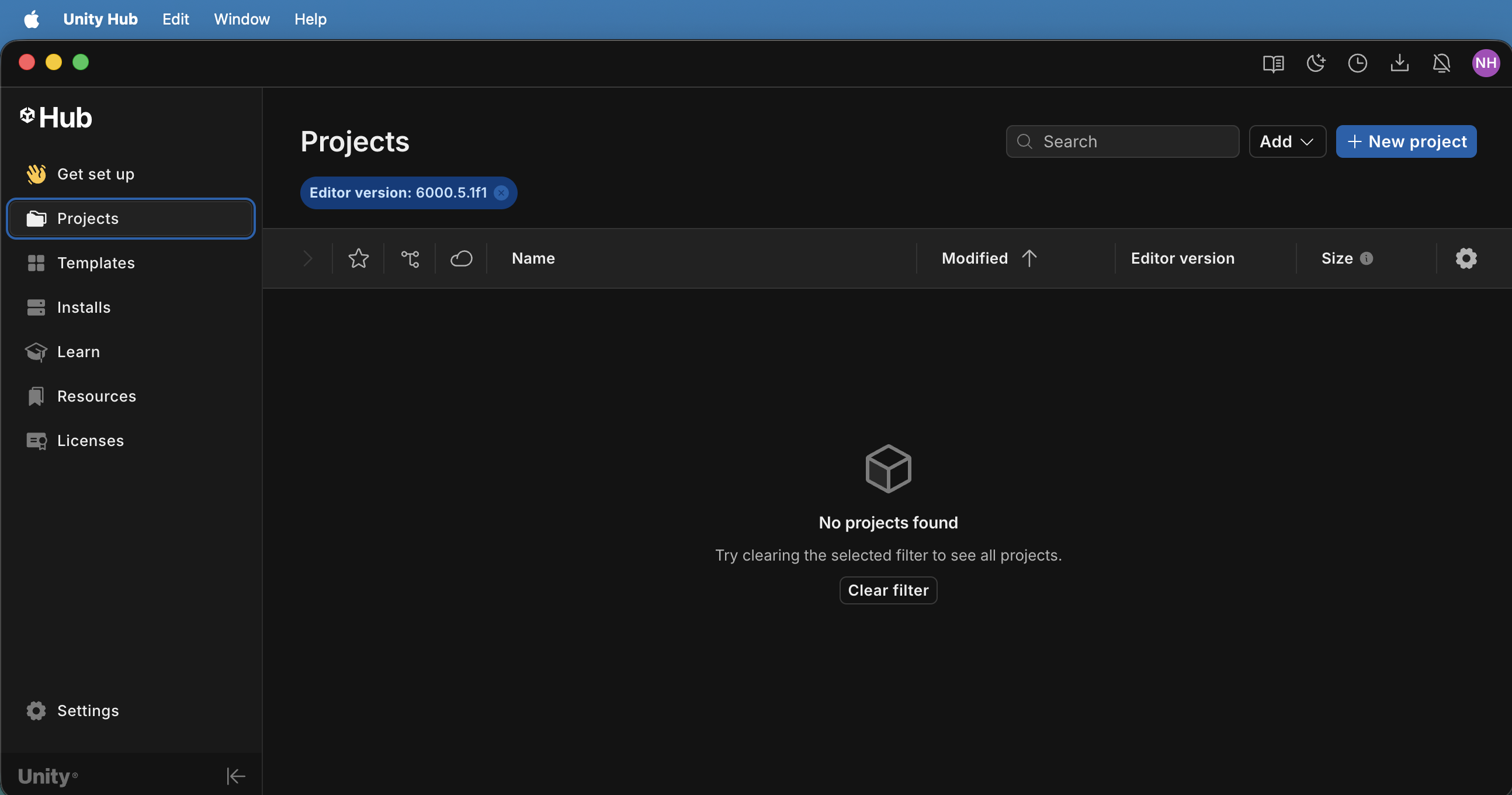
I switched to the Projects tab and saw no existing projects.
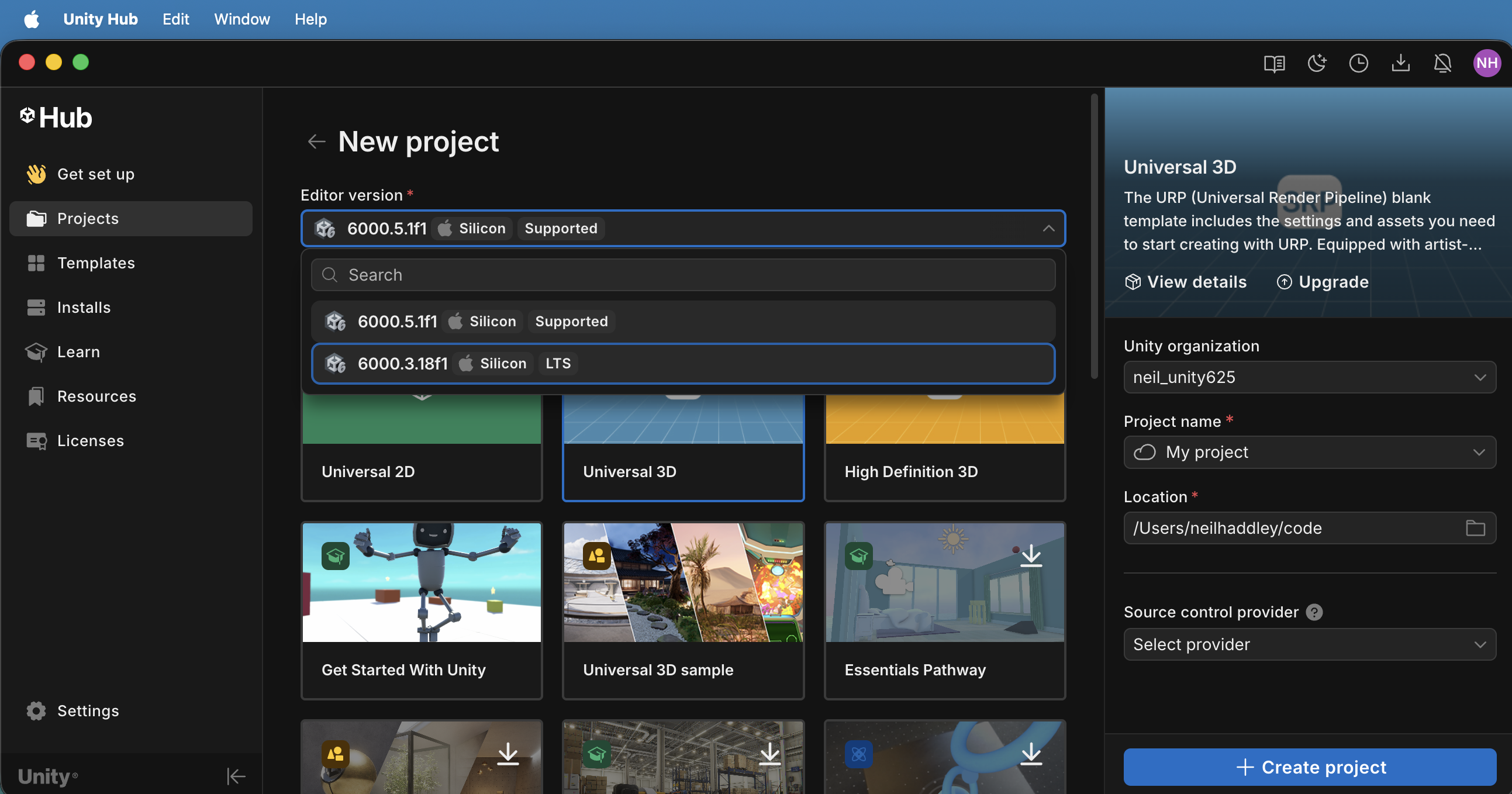
I opened the editor version dropdown in the New Project dialog and saw both Unity 6 versions available, with the Universal 3D template selected.
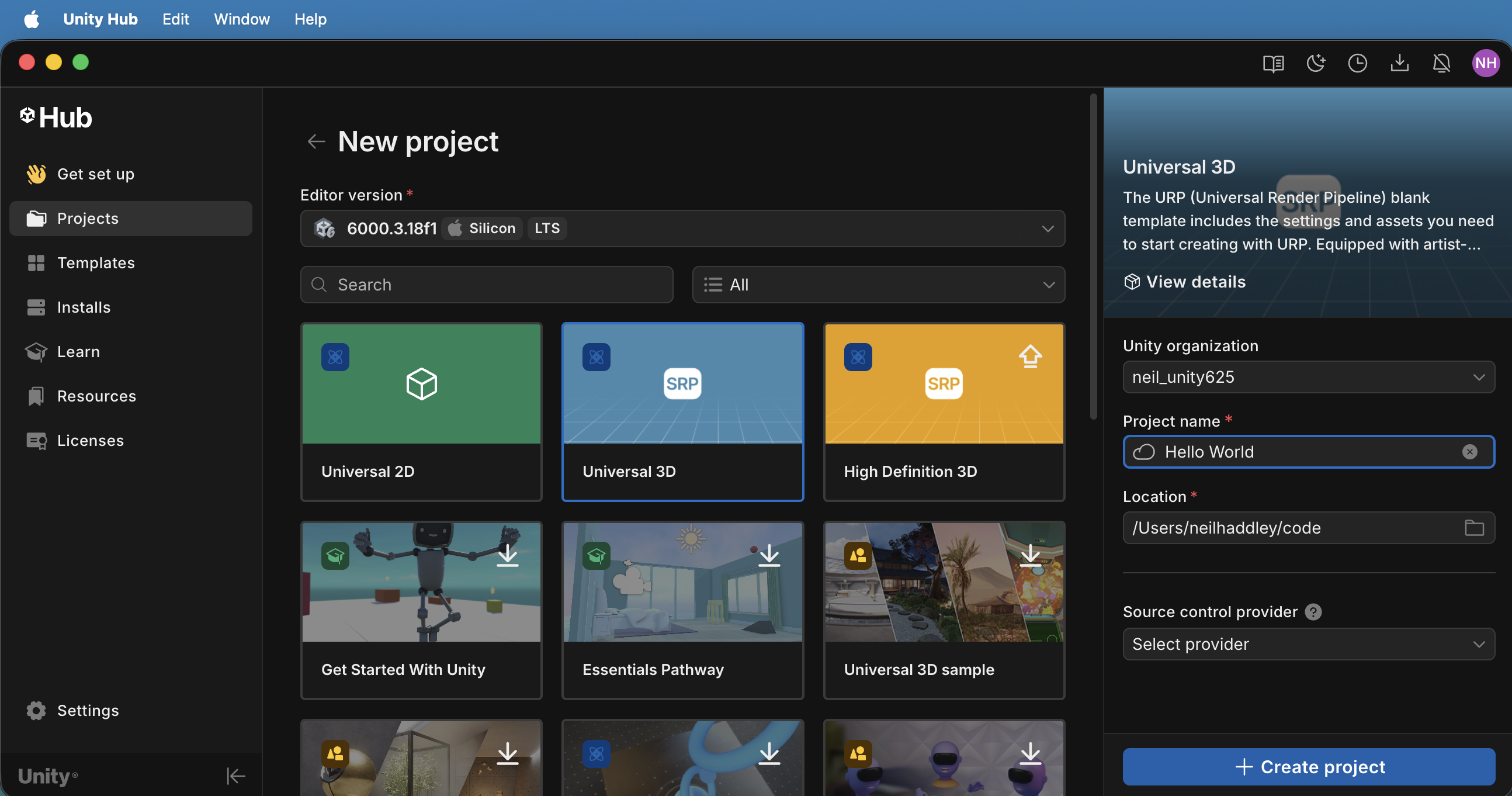
I selected Unity 6.3 LTS (6000.3.18f1), named the project "Hello World", chose the Universal 3D template, and set the location to /Users/neilhaddley/code.
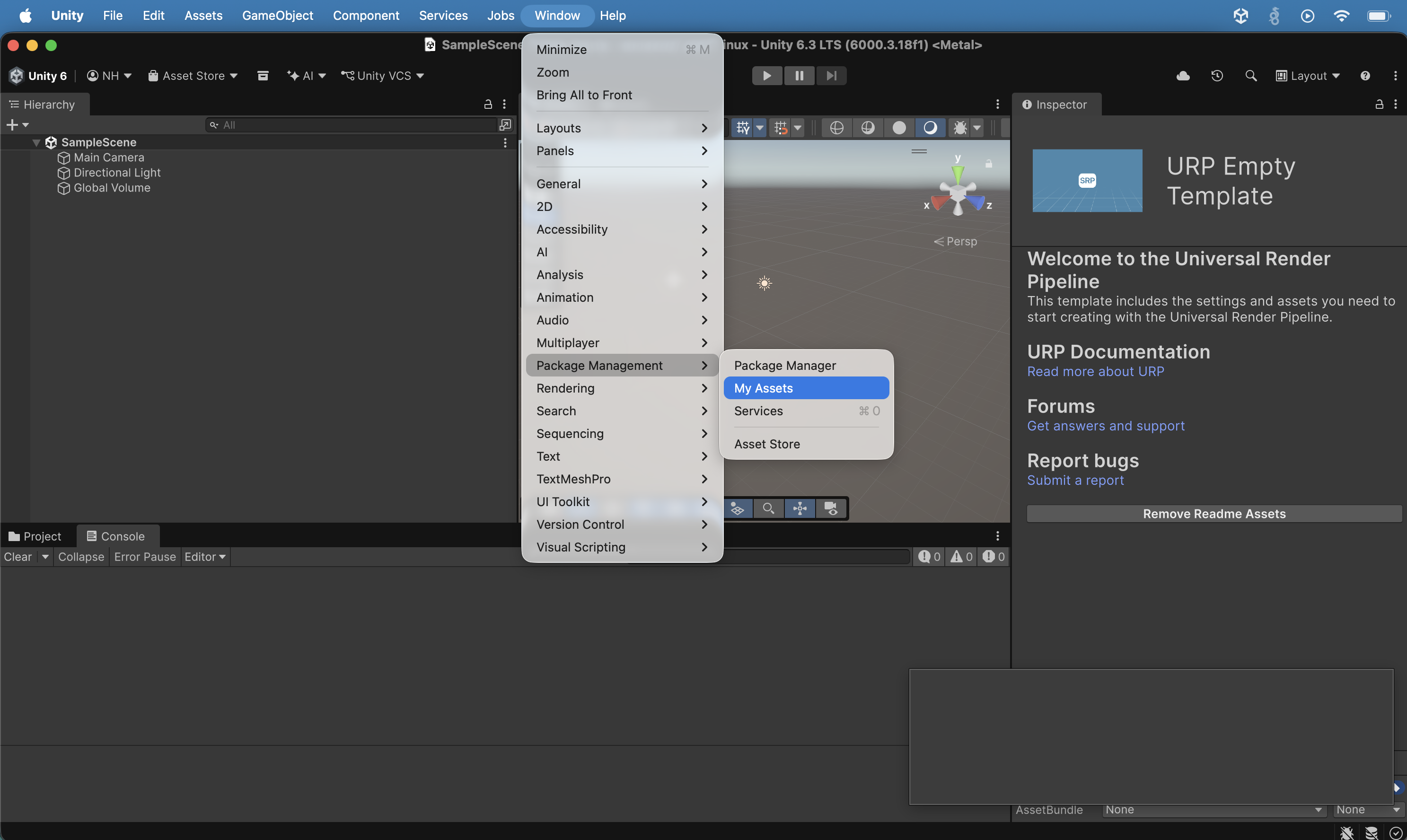
I opened Window > Package Management > My Assets in the Unity editor with the Hello World project loaded.
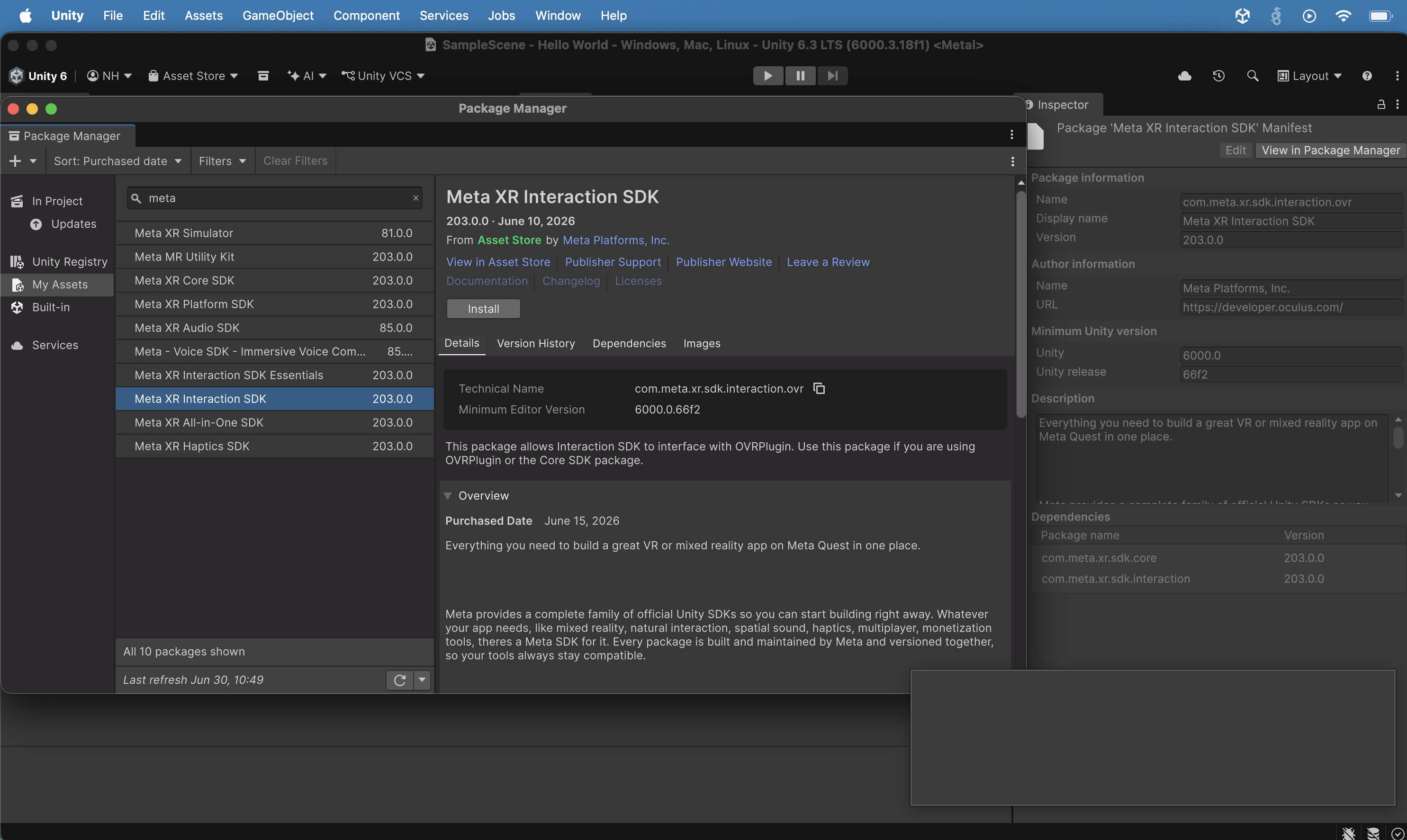
I found the Meta XR Interaction SDK 203.0.0 in the Package Manager Asset Store tab and clicked Install.
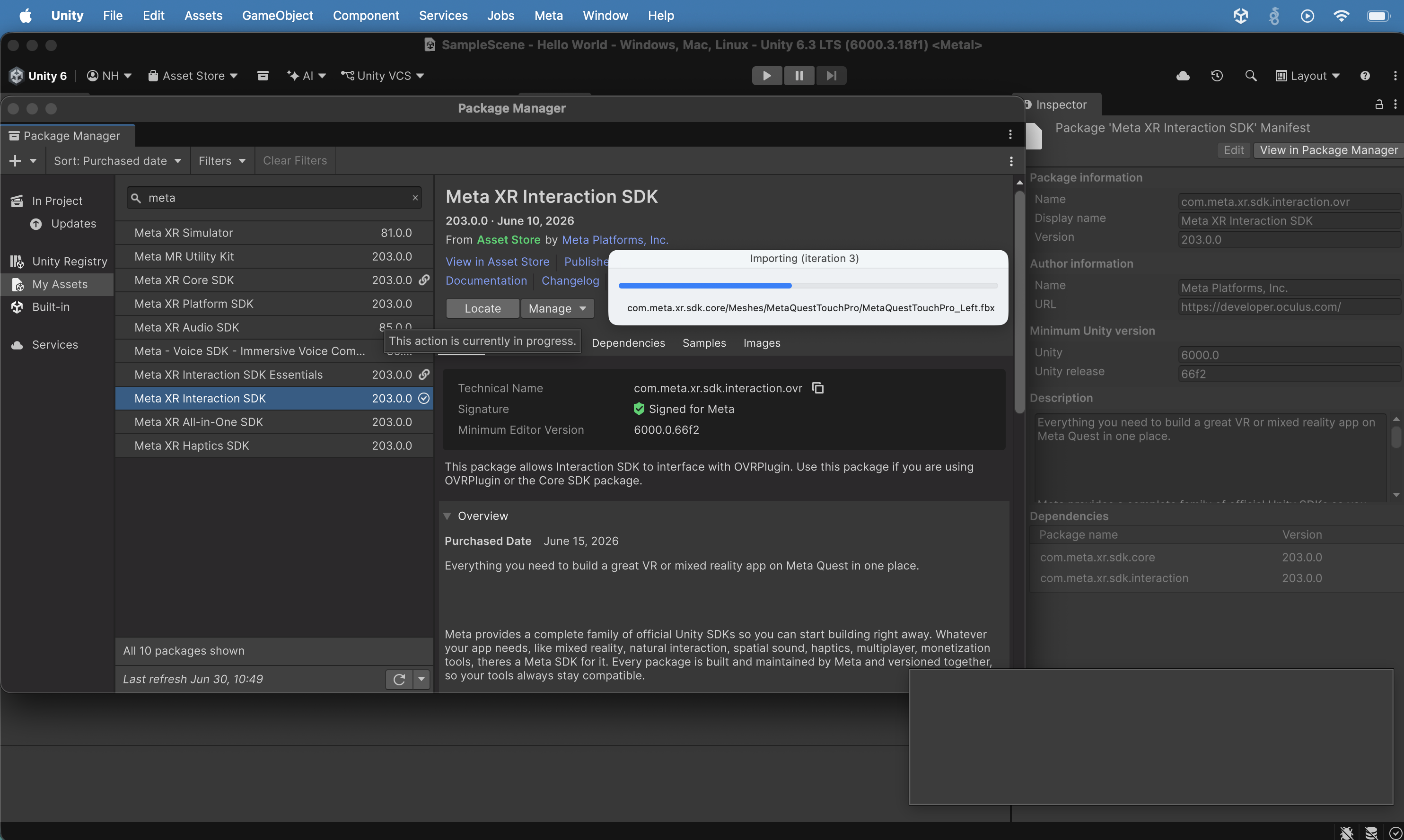
The Meta XR Interaction SDK began importing, showing a progress bar at "Importing iteration 3".
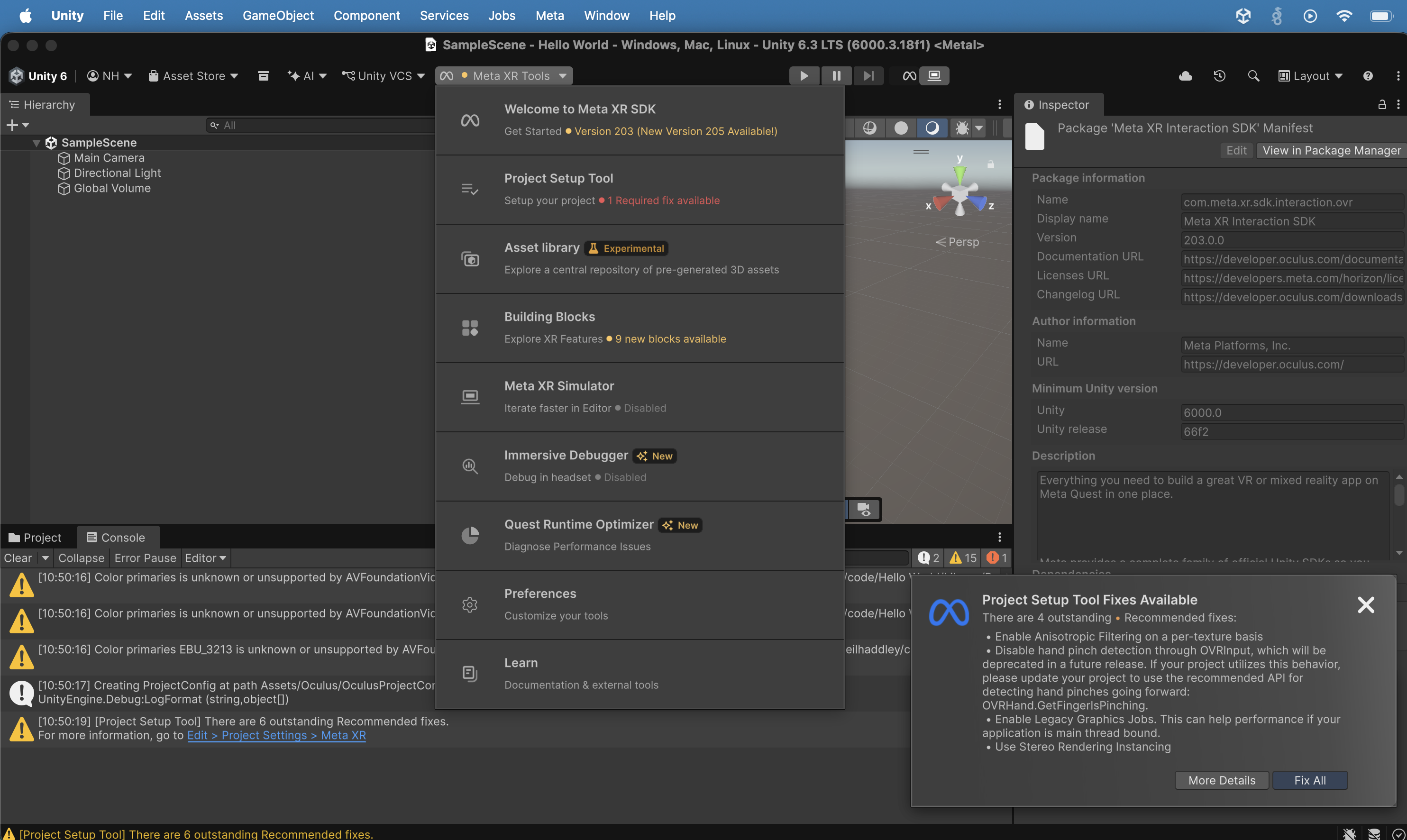
I opened the Meta XR Tools menu and saw a "Project Setup Tool Fixes Available" popup indicating 4 recommended fixes.
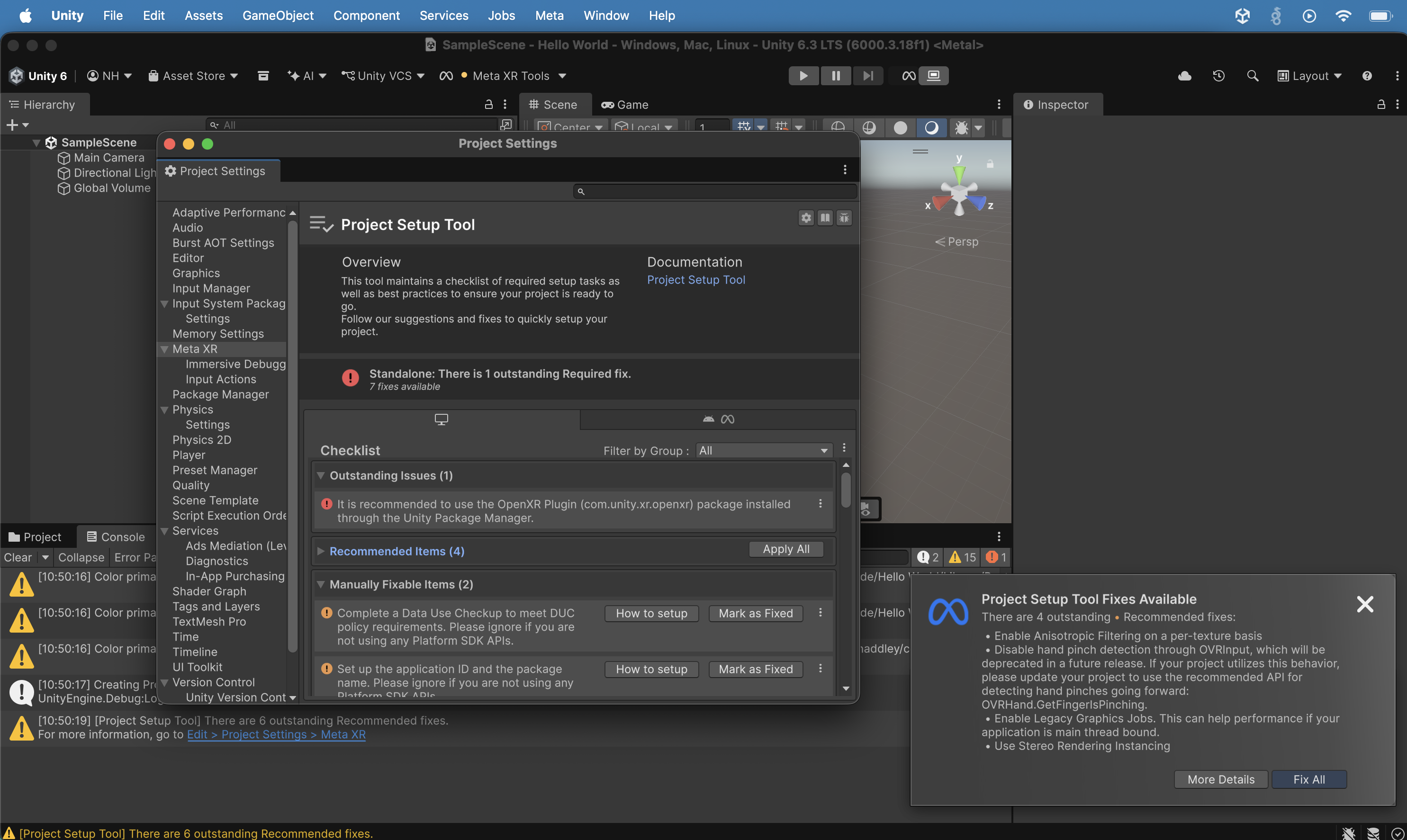
I opened Project Settings > Meta XR > Project Setup Tool on the Standalone platform and saw 1 Required fix, 4 Recommended Items, and 2 Manually Fixable Items. I clicked the first "Mark as Fixed" button.
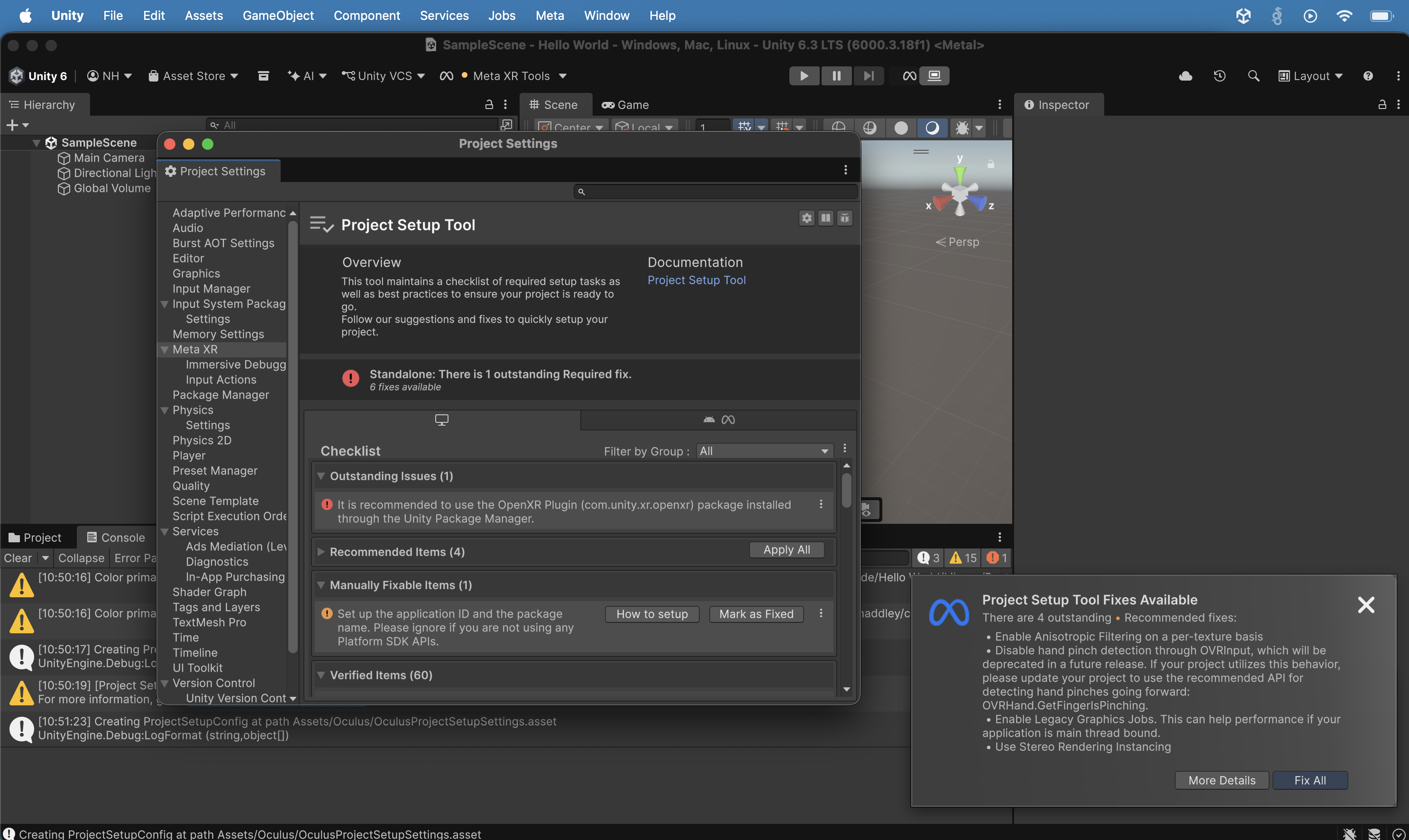
The Project Setup Tool showed 1 Outstanding Issue (OpenXR Plugin), 4 Recommended Items, 1 Manually Fixable Item, and 60 Verified Items. I clicked the second "Mark as Fixed" button.
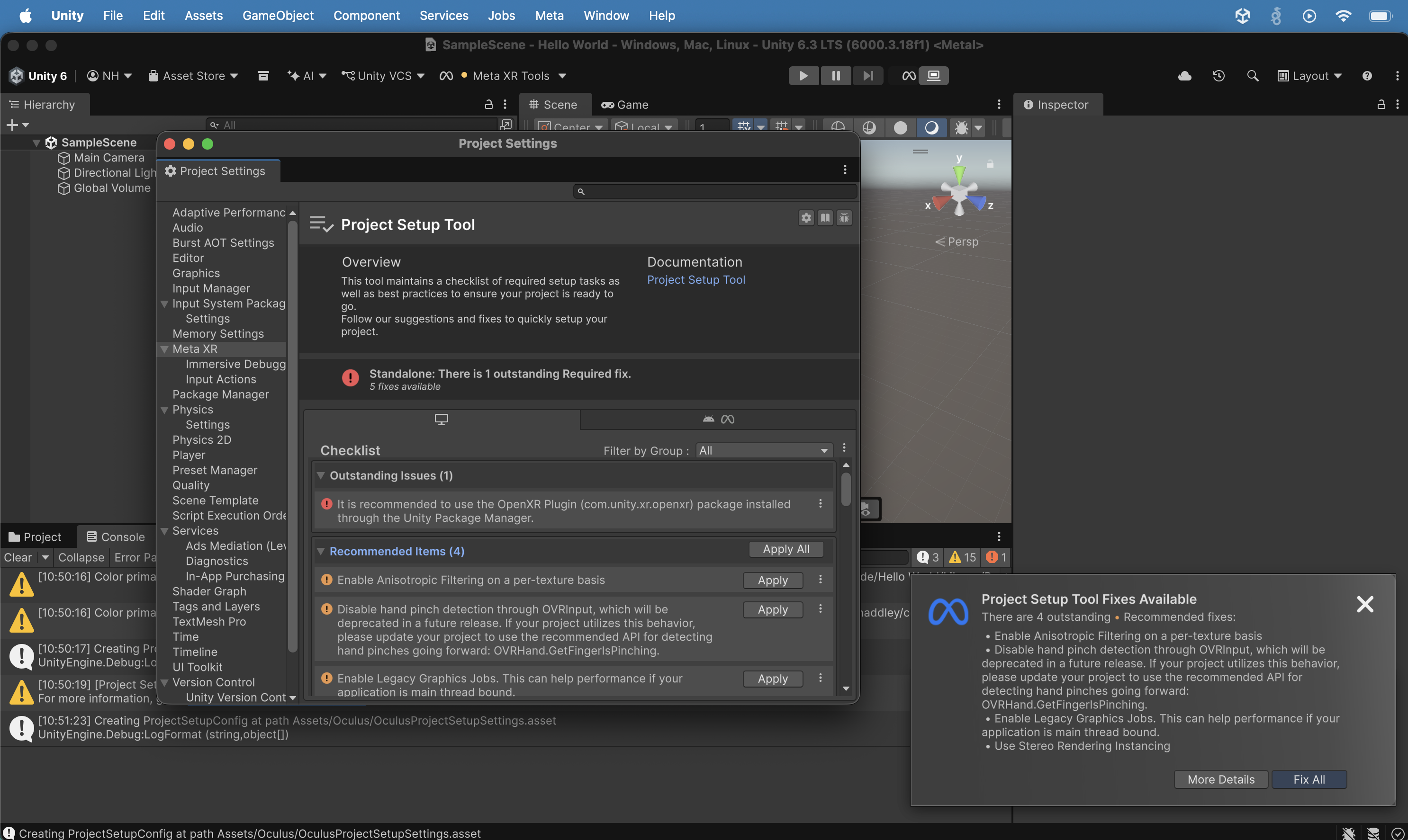
I expanded the Recommended Items section showing 4 fixes: Enable Anisotropic Filtering, Disable hand pinch detection through OVRInput, Enable Legacy Graphics Jobs, and Use Stereo Rendering Instancing. I clicked the "Apply All" button.
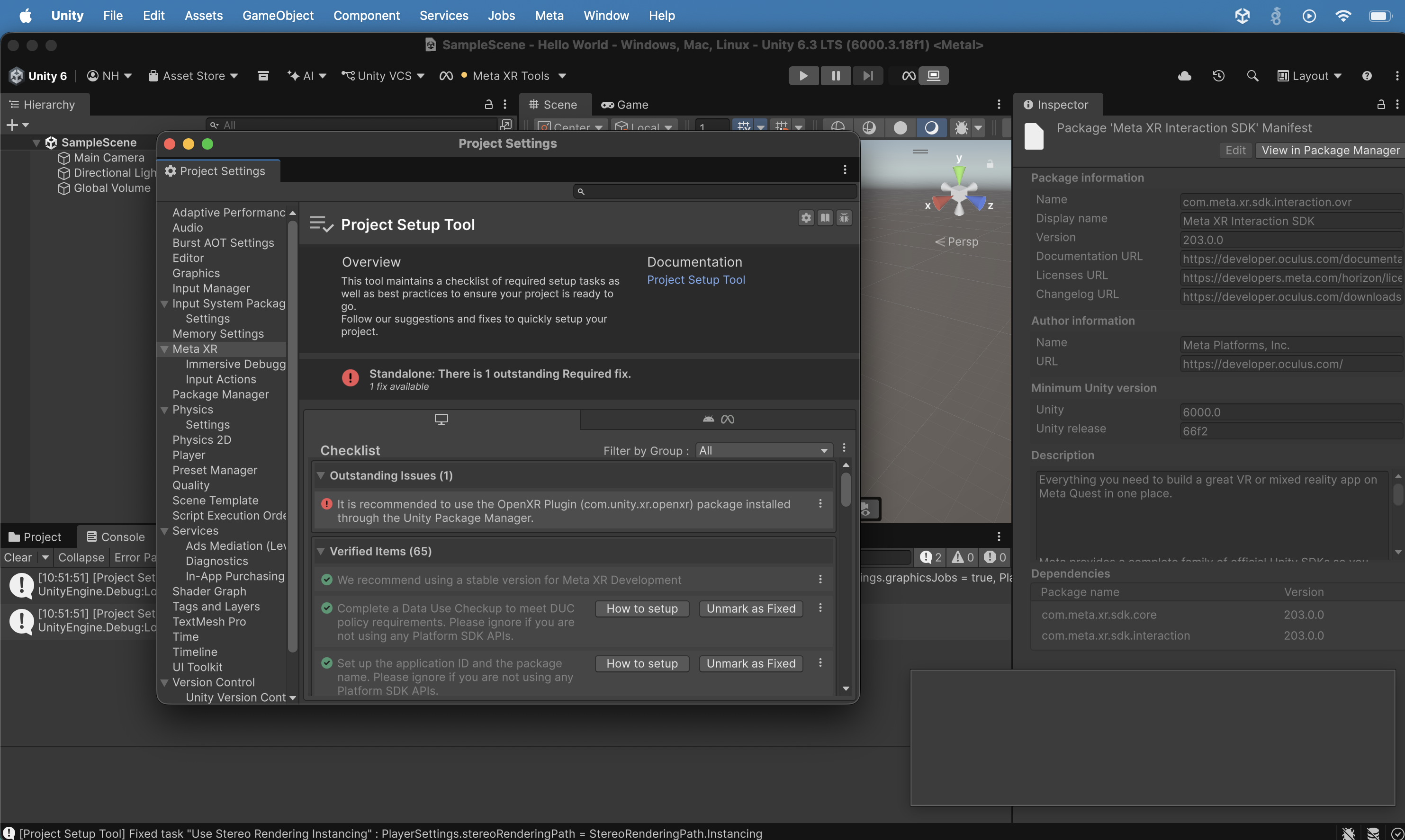
I applied the recommended fixes and the count dropped to 1 remaining fix (OpenXR Plugin) with 65 Verified Items. Notice that there was still one error displayed.
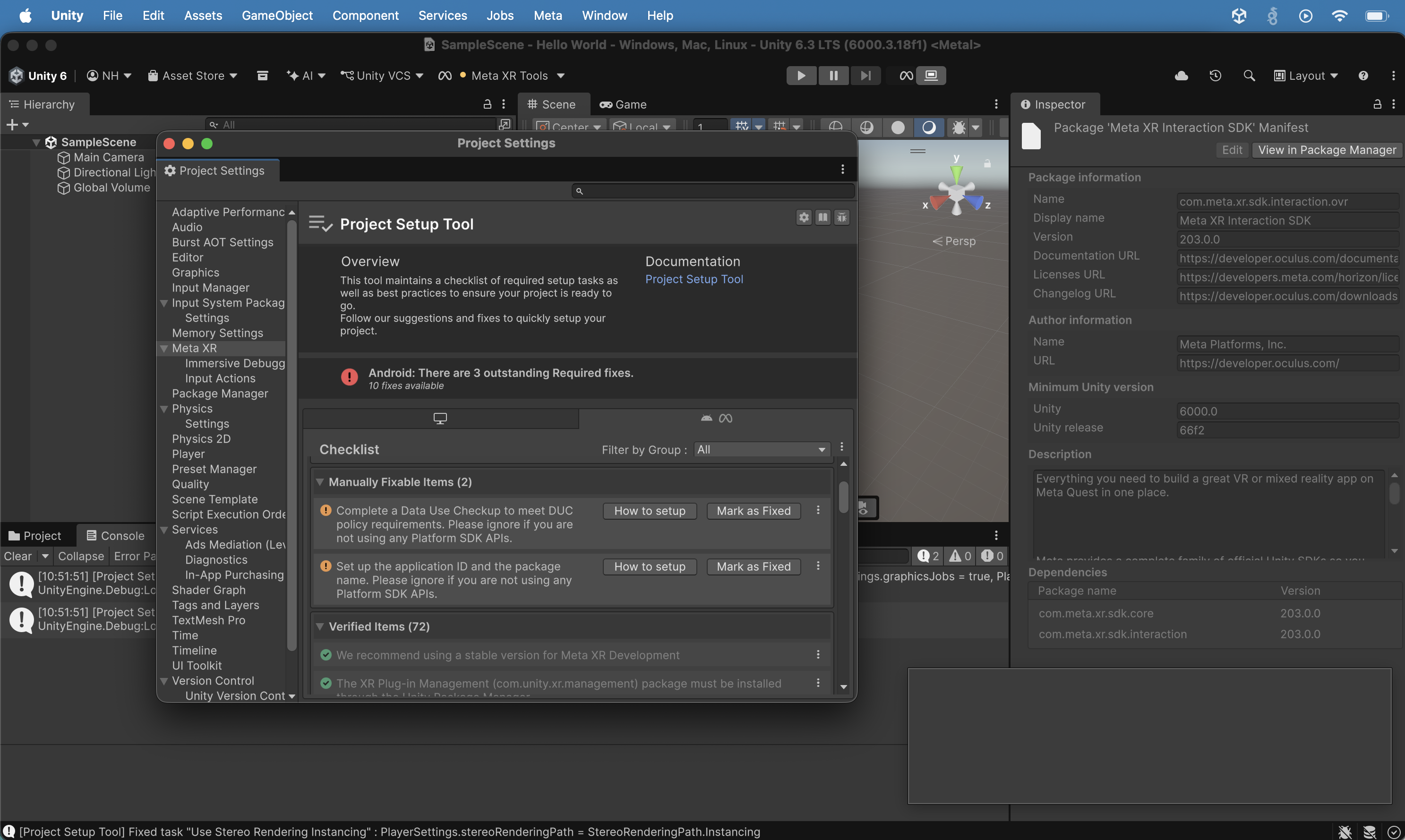
I switched to the Android platform in Project Setup Tool and saw 3 Required fixes and 2 Manually Fixable Items. I clicked the first "Mark as Fixed" button.
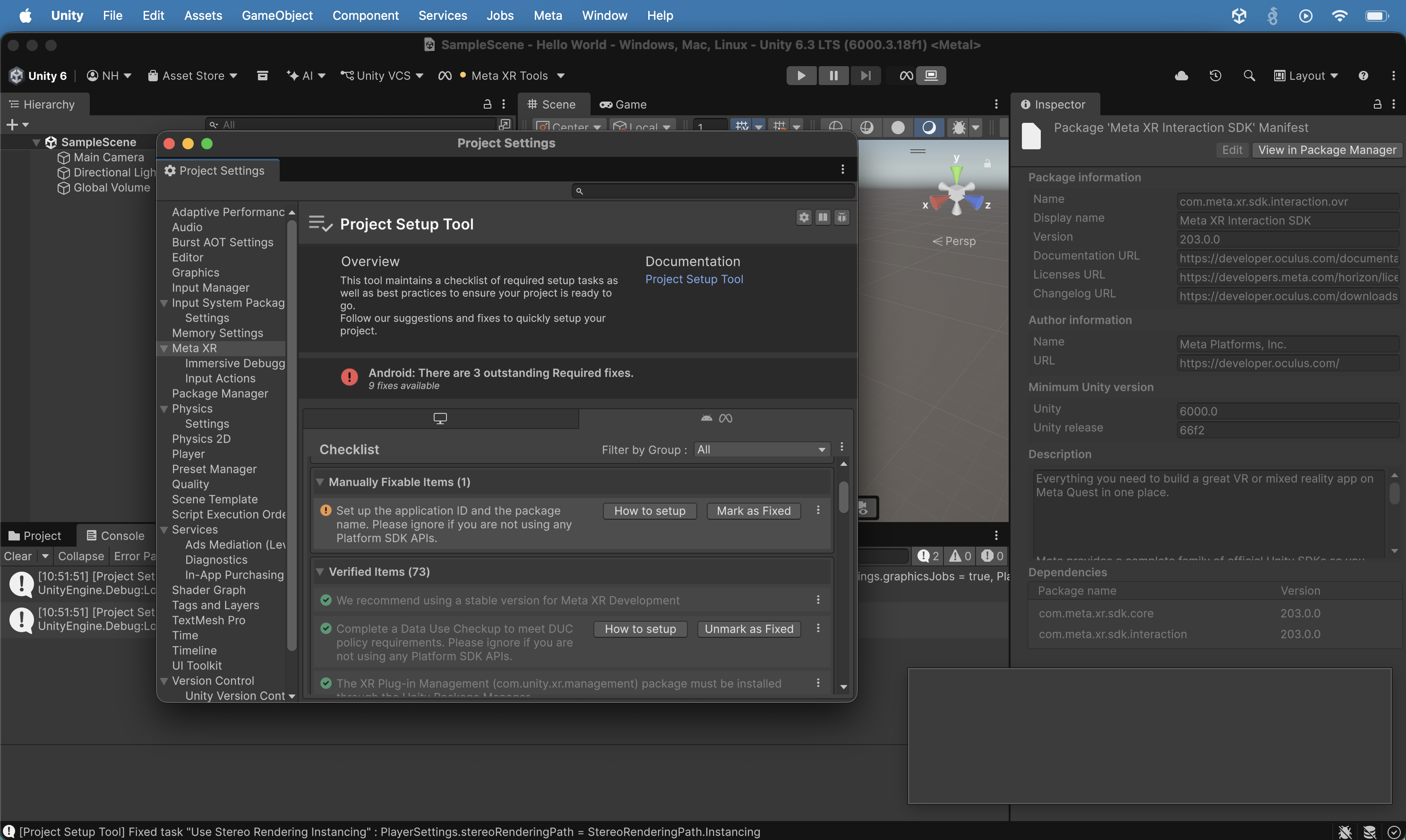
After applying fixes, the Android platform showed 3 Required fixes and 1 Manually Fixable Item remaining, with 73 Verified Items. I clicked the second "Mark as Fixed" button.
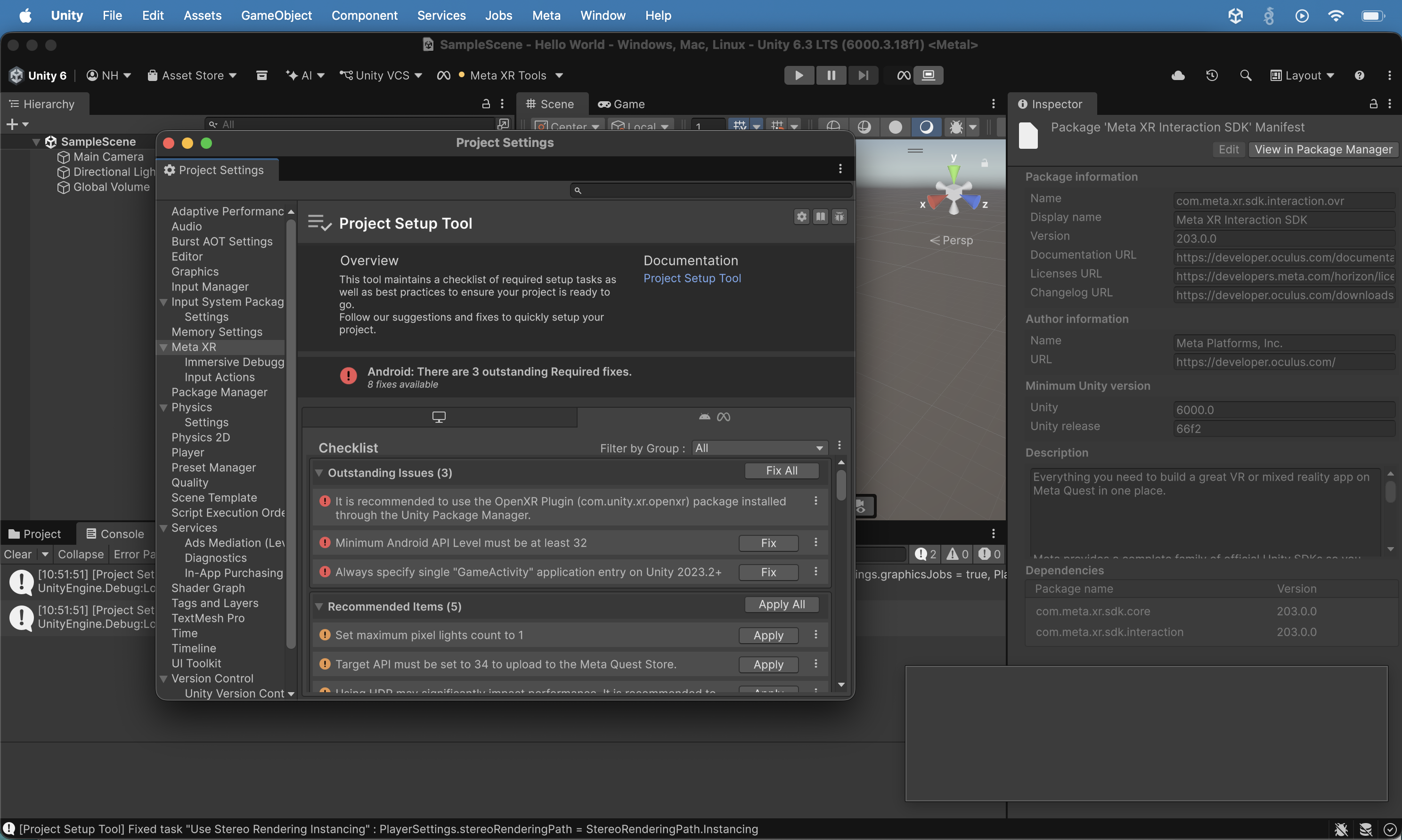
The Outstanding Issues section showed OpenXR Plugin, Minimum Android API Level 32, and Always specify single "GameActivity"; Recommended Items included pixel lights, Target API 34, HDR, and MSAA. I clicked the "Fix All" button
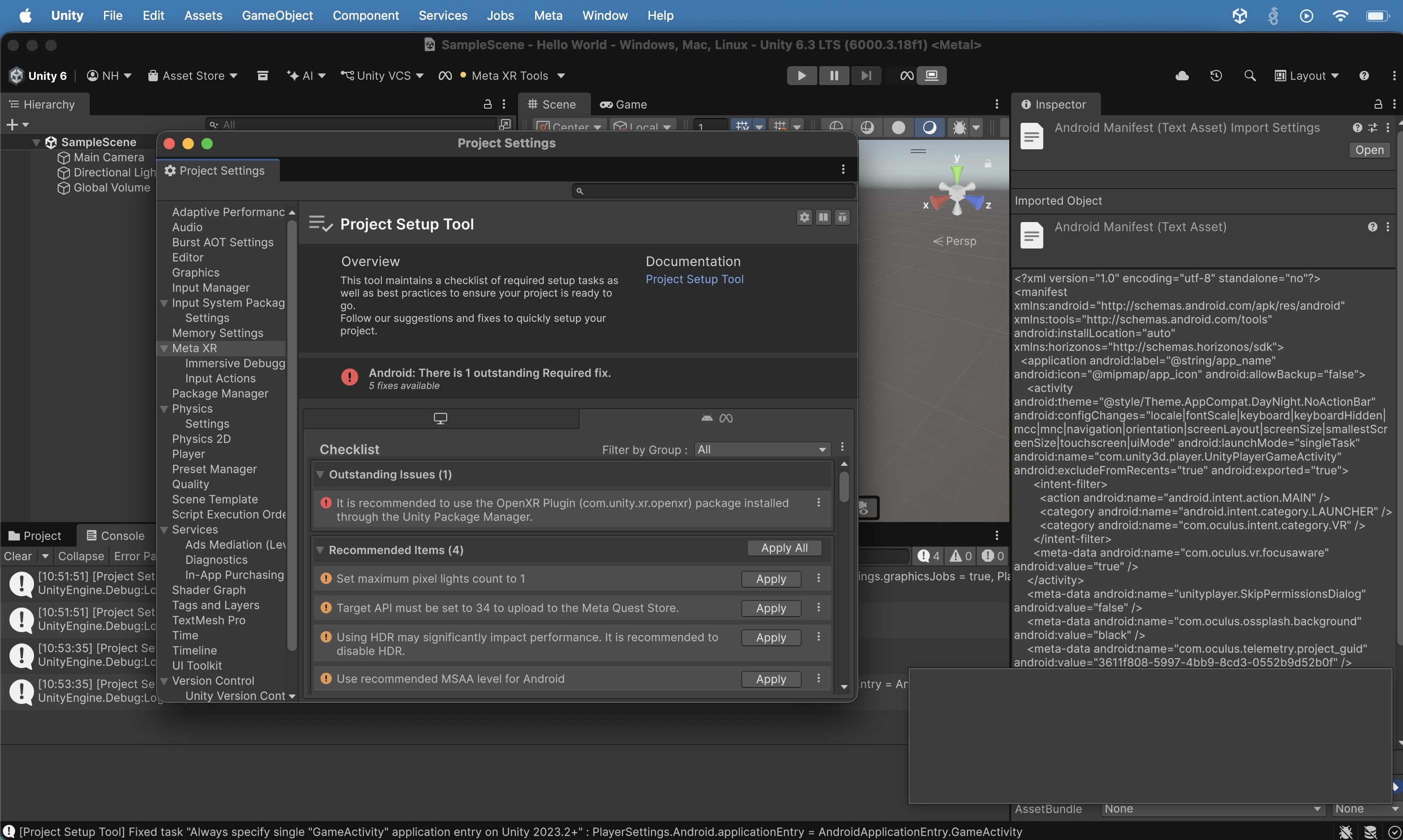
The Android Project Setup Tool showed 1 Required fix remaining with 5 total available, and the Inspector displayed the Android Manifest XML. I clicked the "Apply All" button.
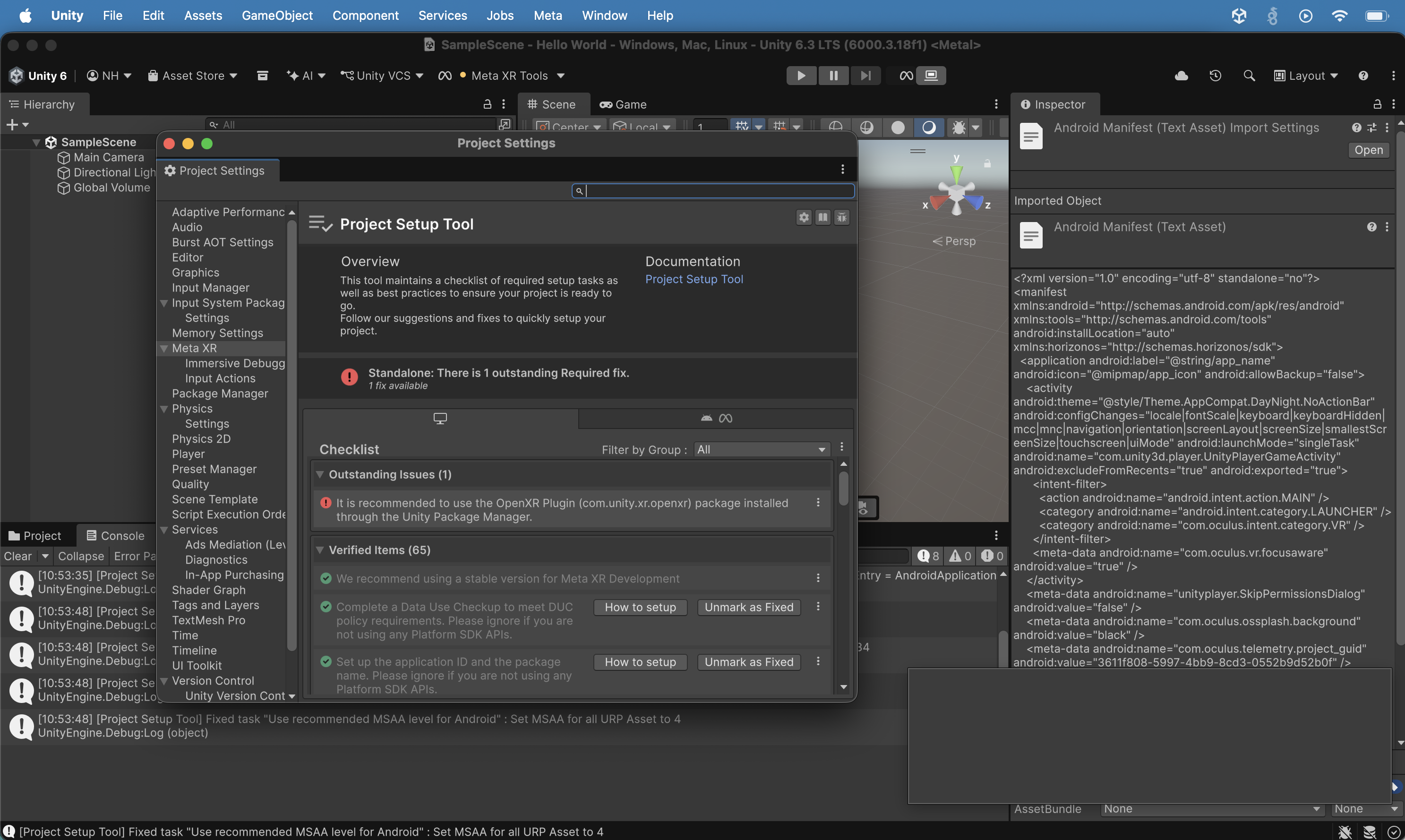
The Project Setup Tool (Android) showed 1 Outstanding Required fix for OpenXR Plugin with 65 Verified Items, and the Inspector showed the Android Manifest XML. Notice that there was still one error displayed.
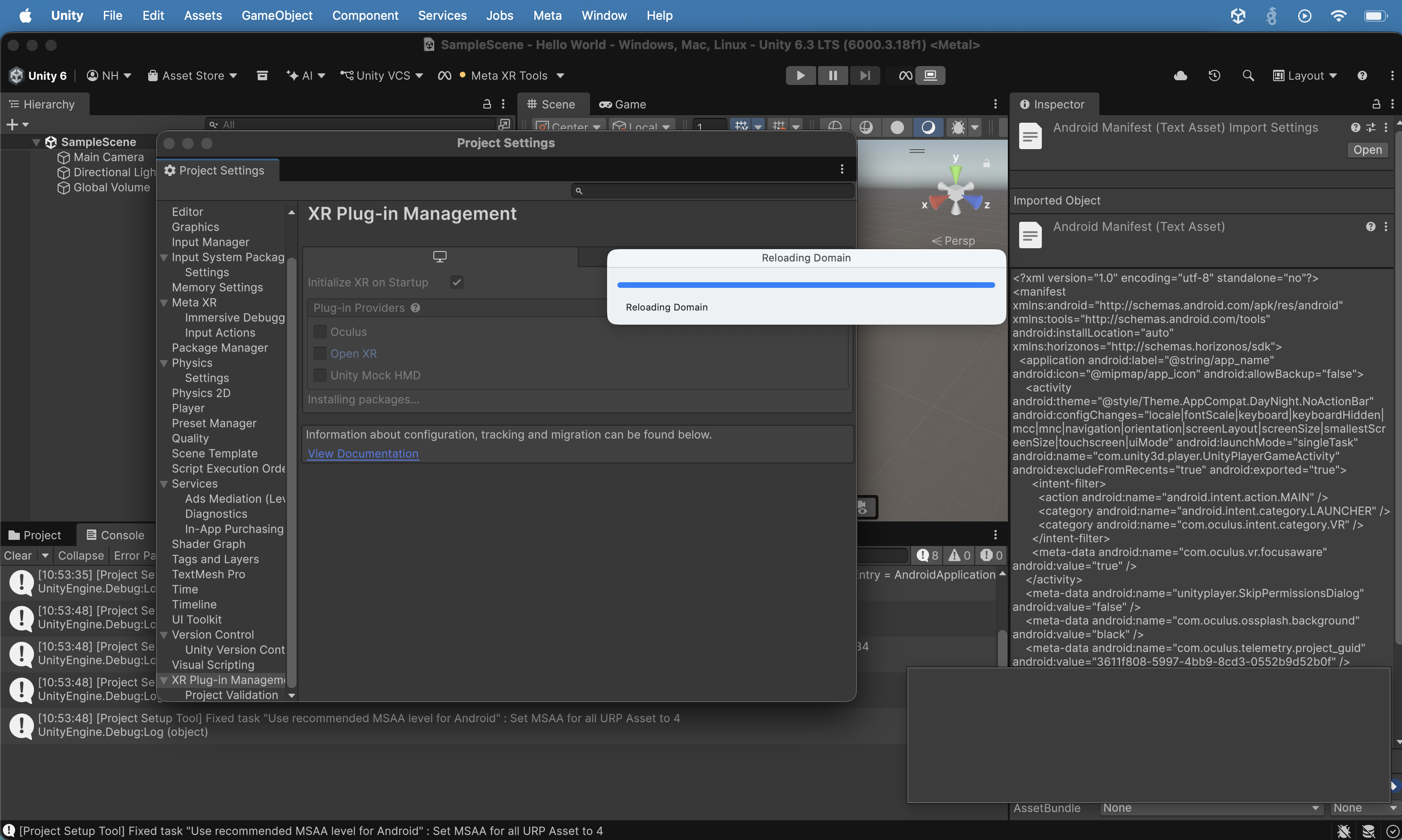
I switched to the Project Settings window and the XR PlugIn Managment item. I clicked the OpenXR radio button.
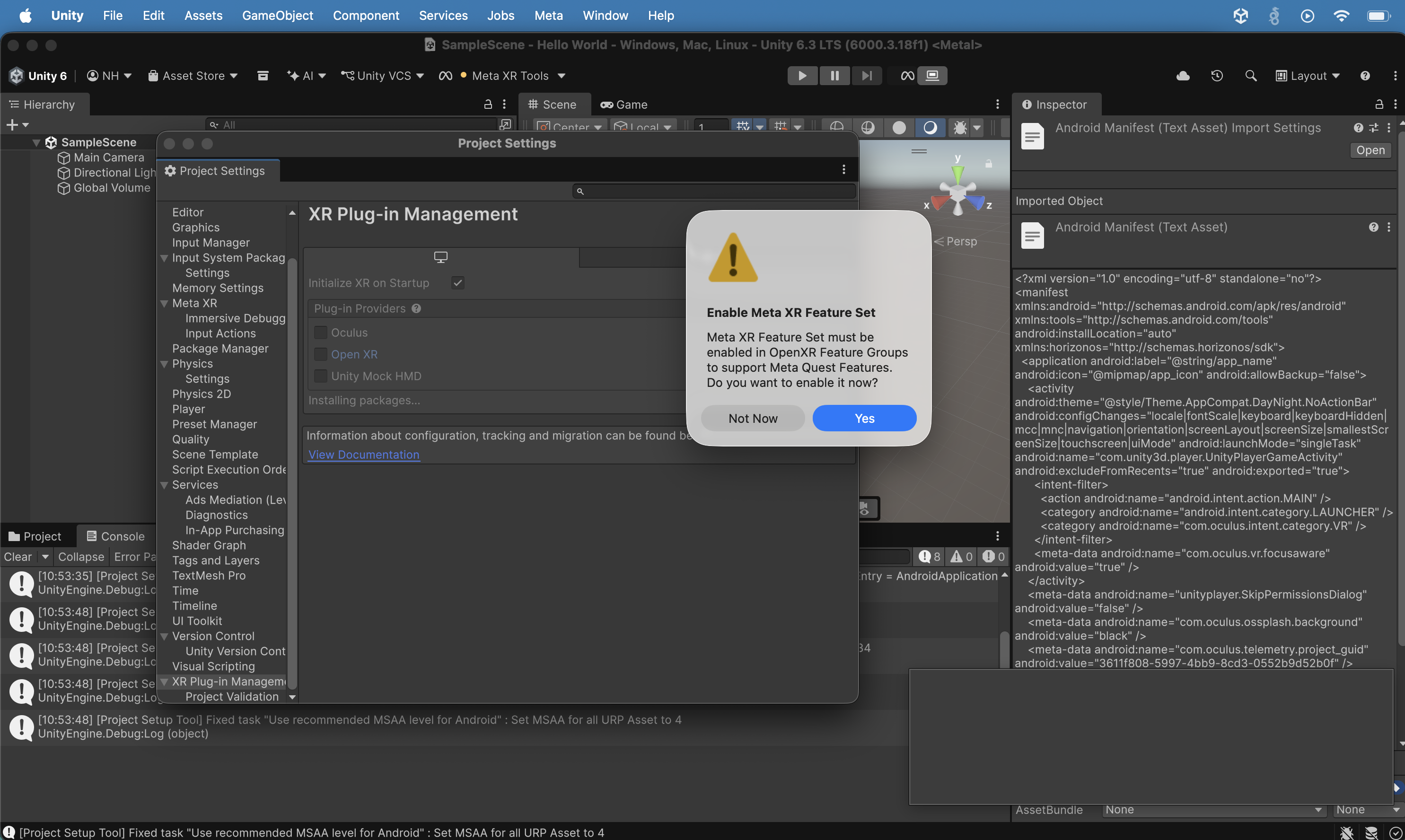
A dialog appeared asking whether to enable the Meta XR Feature Set in OpenXR Feature Groups to support Meta Quest features; I clicked Yes.
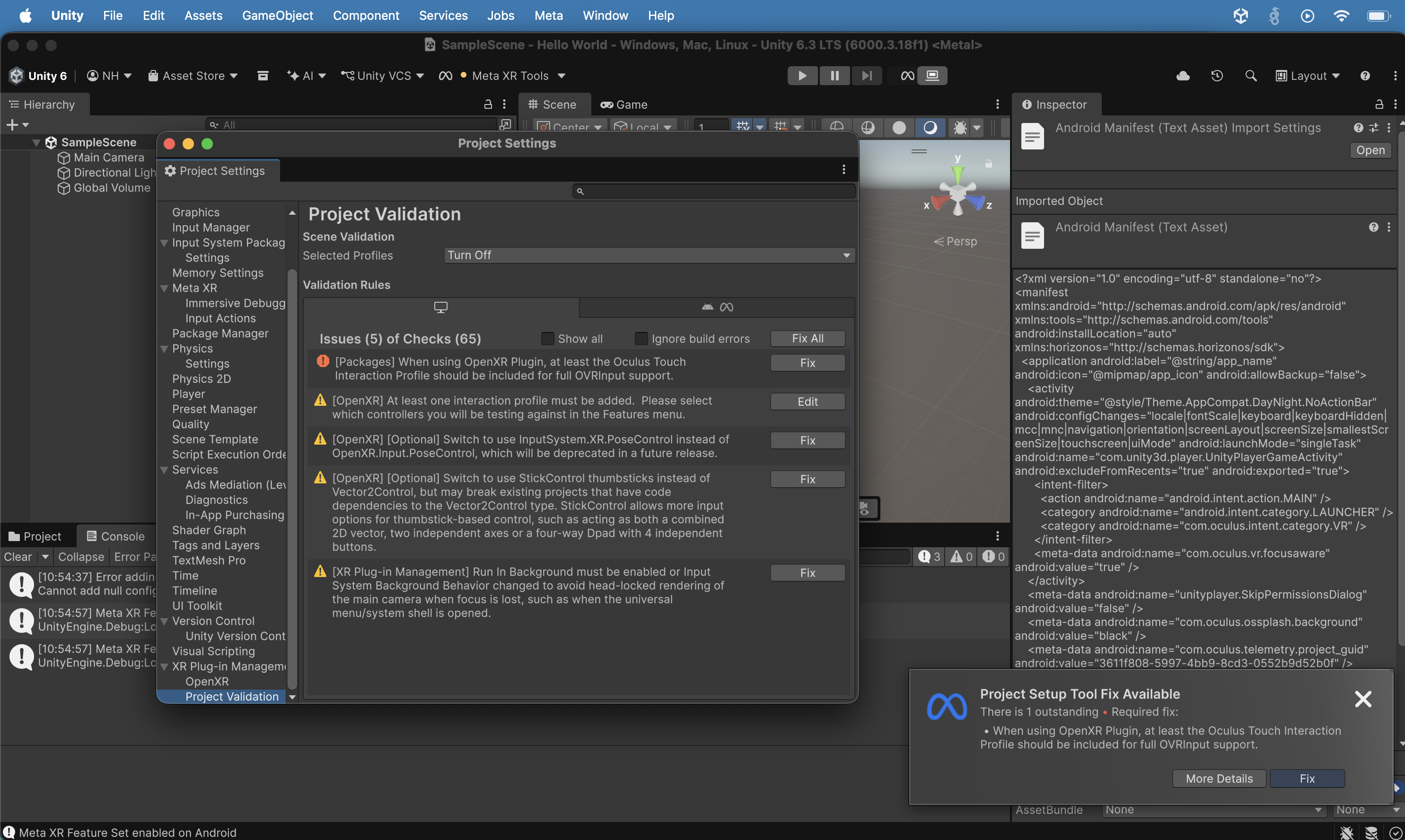
Project Validation showed 5 issues of 65 checks, including the OpenXR Touch Interaction Profile, InputSystem.XR.PoseControl, StickControl thumbsticks, and Run In Background; a "Project Setup Tool Fix Available" popup appeared. I clicked the "Fix All" button
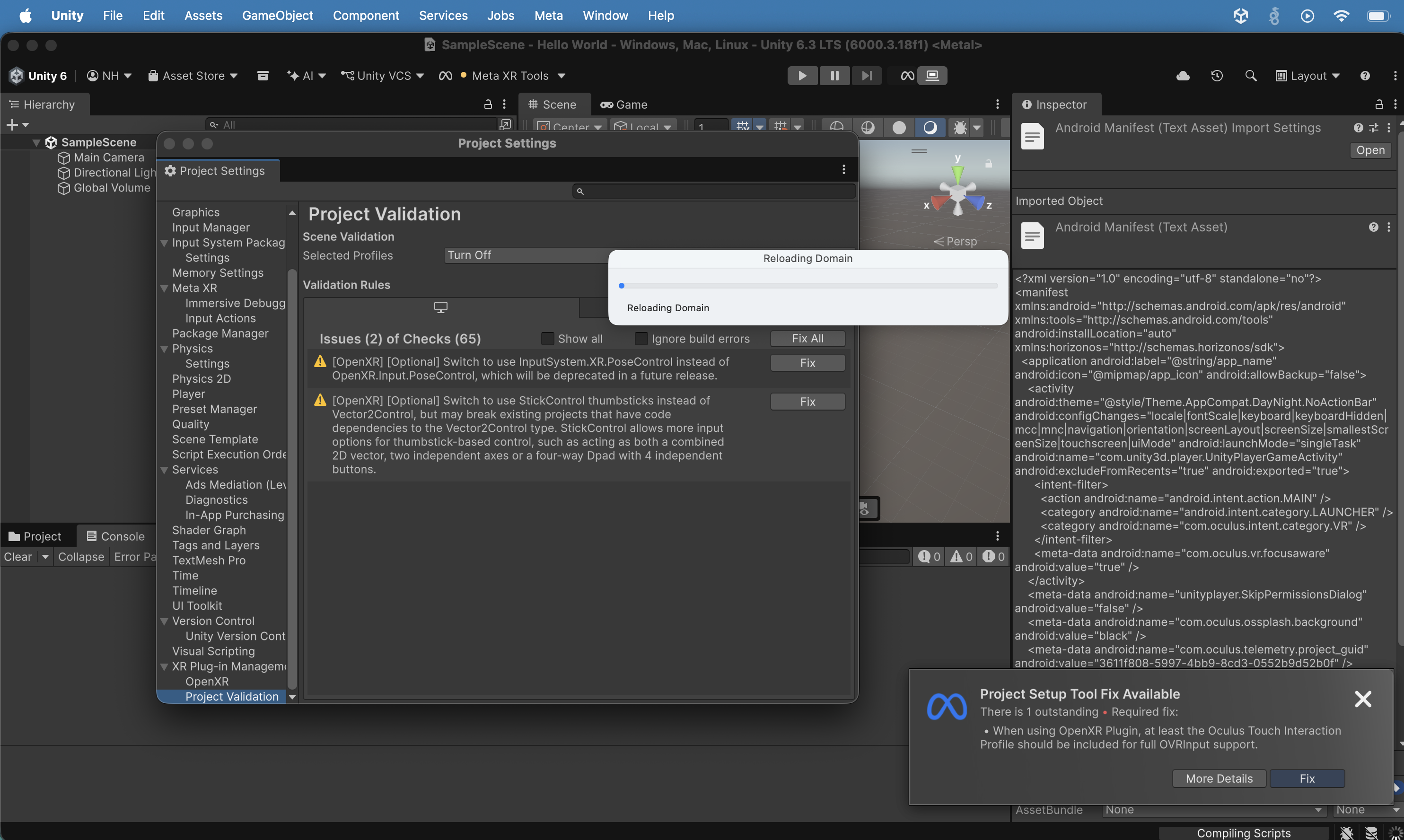
After fixing required issues, Project Validation showed 2 remaining optional warnings (PoseControl and StickControl) while the domain reloaded.
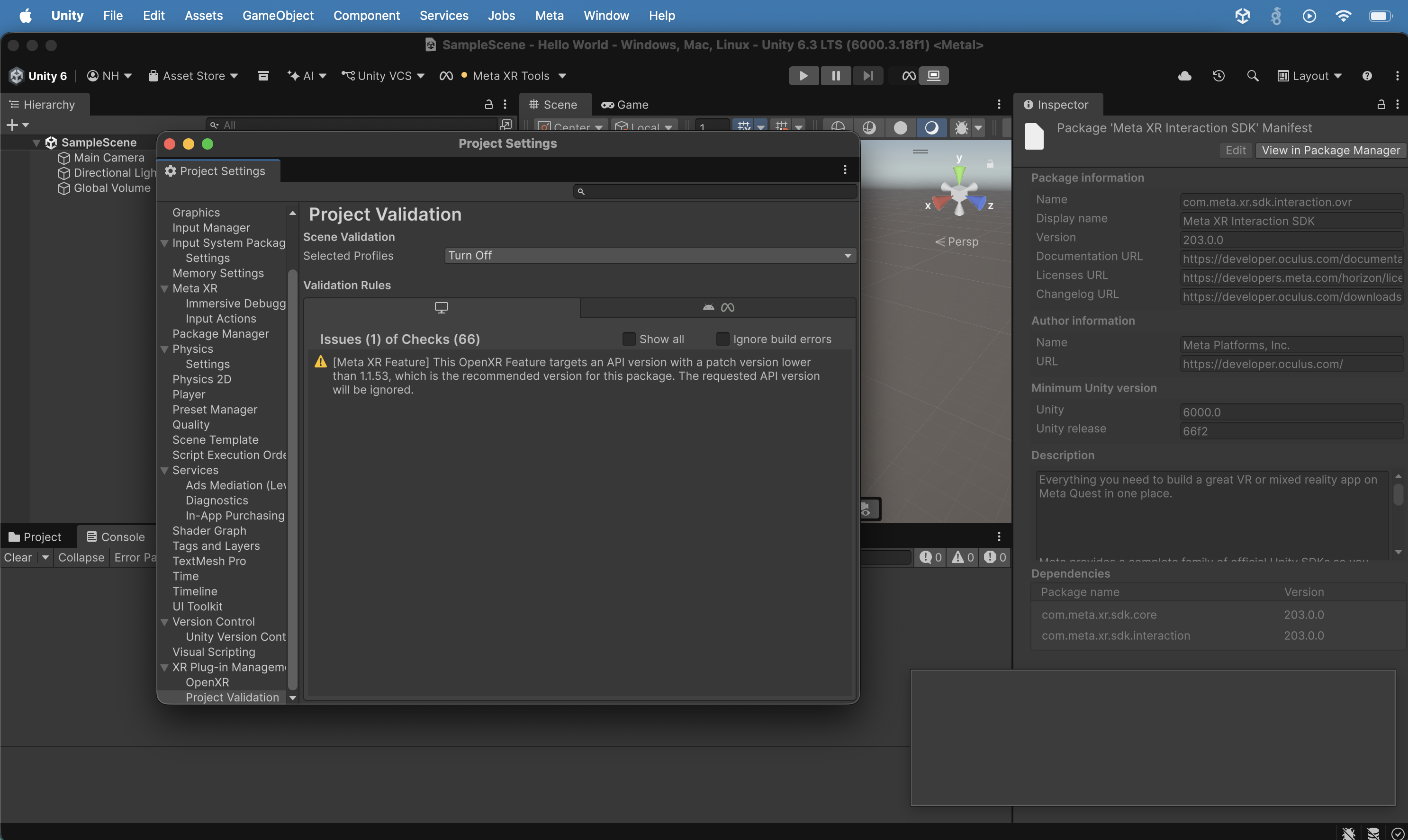
Project Validation showed 1 remaining issue about the Meta XR Feature targeting an older OpenXR API version; the Inspector showed the Meta XR Interaction SDK package info (version 203.0.0 by Meta Platforms Inc.).
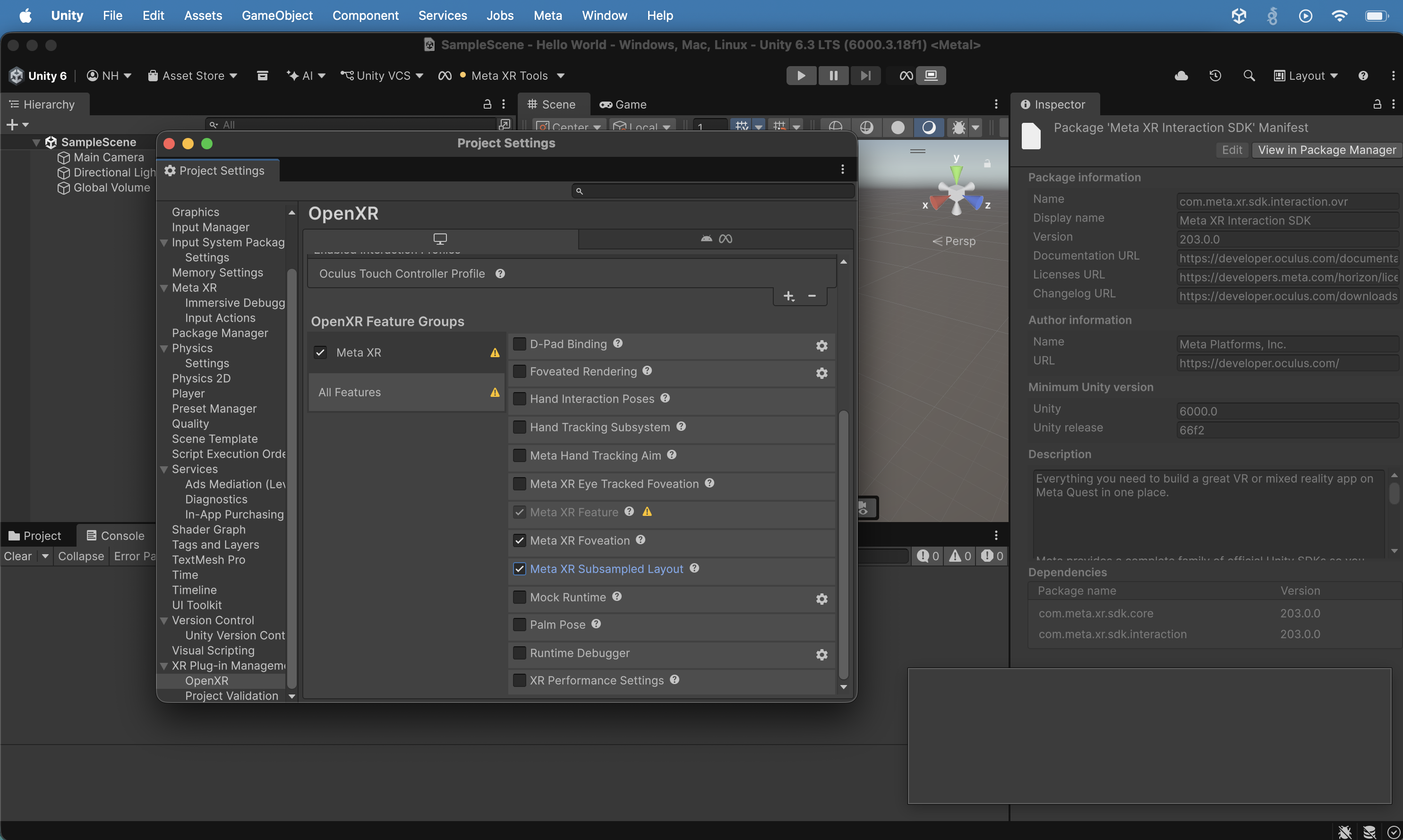
I viewed the OpenXR Feature Groups settings with the Meta XR group selected, I clicked the "Meta XR Subsampled Layout" radio button.
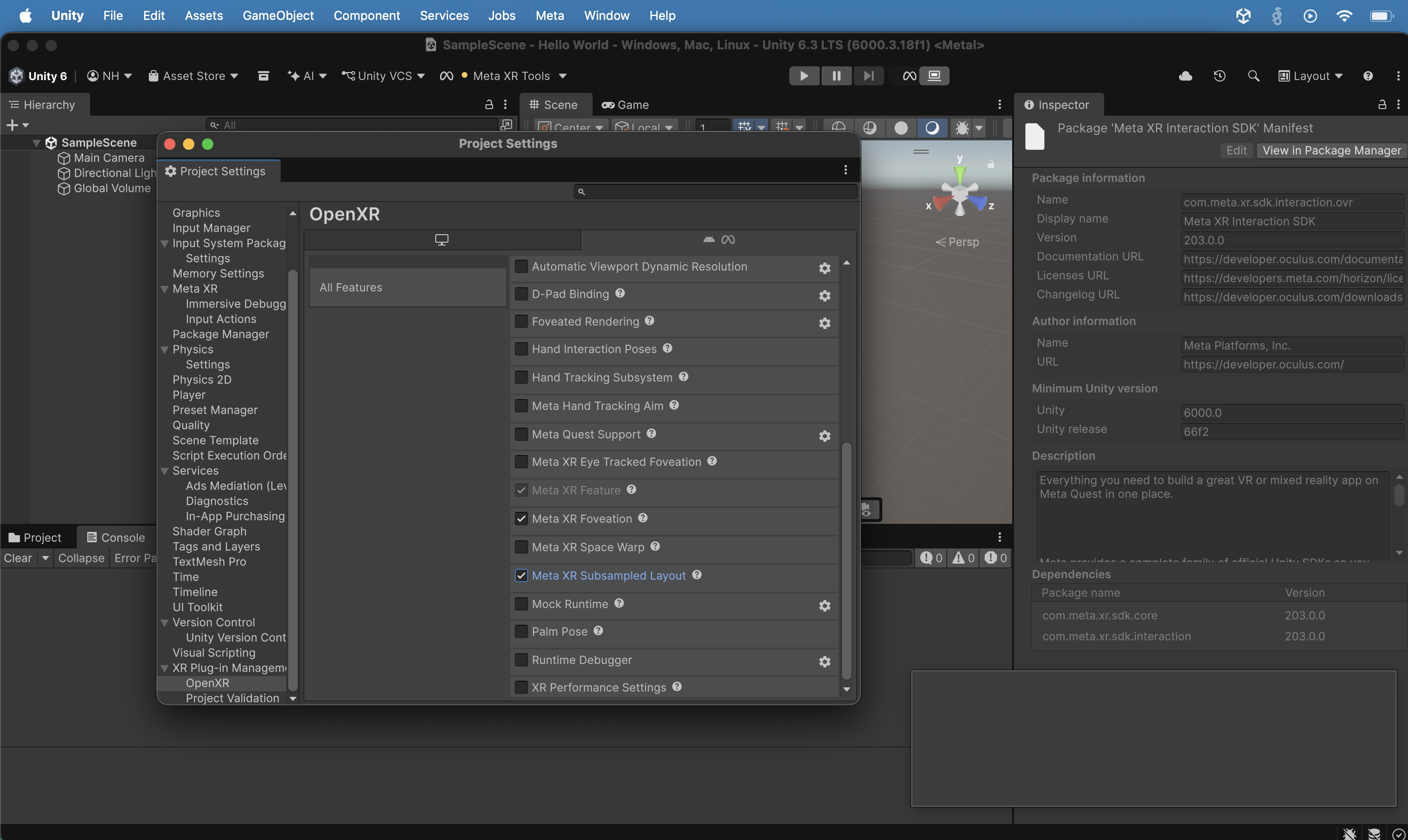
I switched to the quest tab in OpenXR settings. I clicked the "Meta XR Subsampled Layout" radio button.
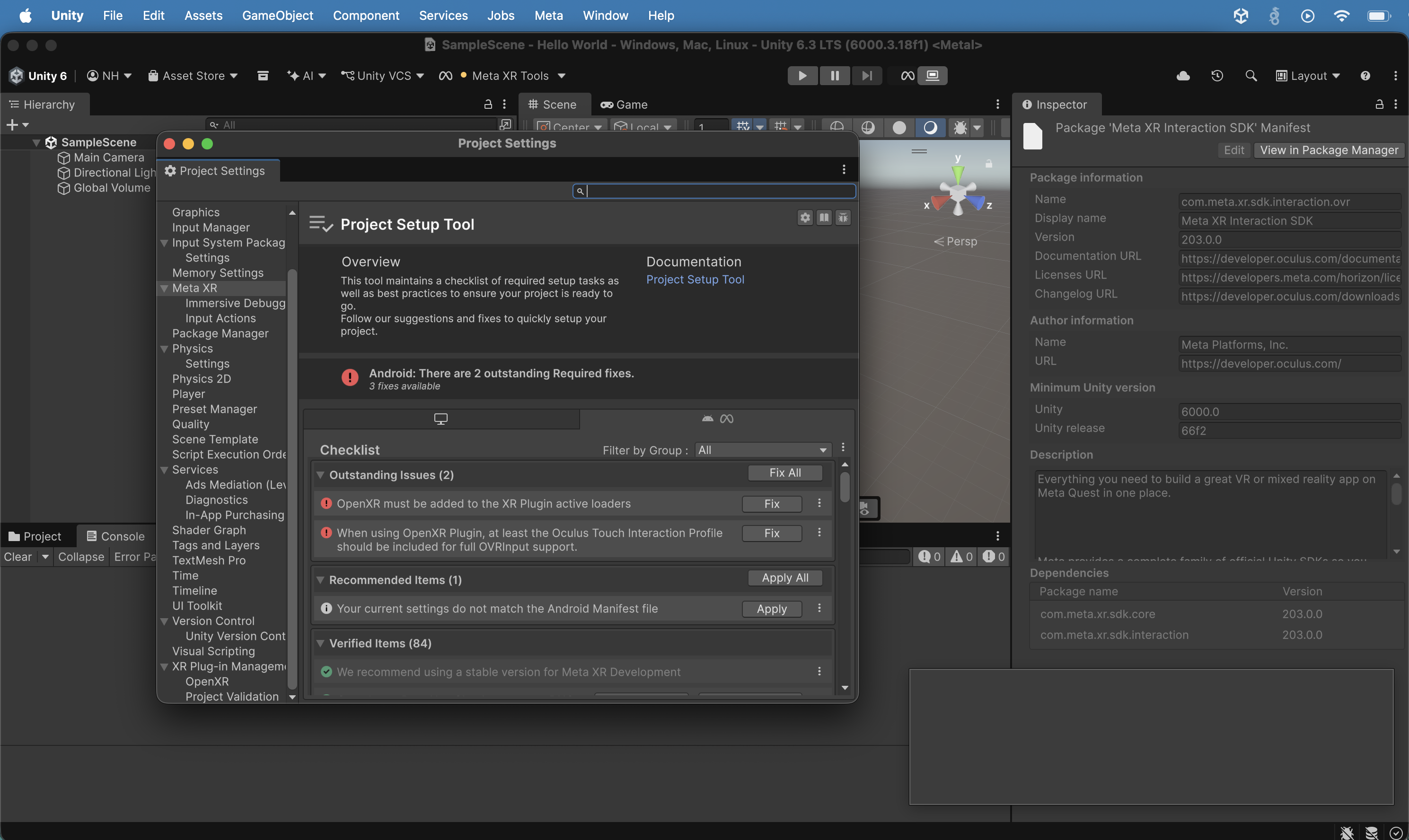
Back in the Project Setup Tool (Android), I saw 2 Outstanding Required fixes: OpenXR must be added to XR Plugin active loaders, and the Oculus Touch Interaction Profile was missing; 1 Recommended Item (Android Manifest mismatch) and 84 Verified Items. I clicked the "Fix All" button
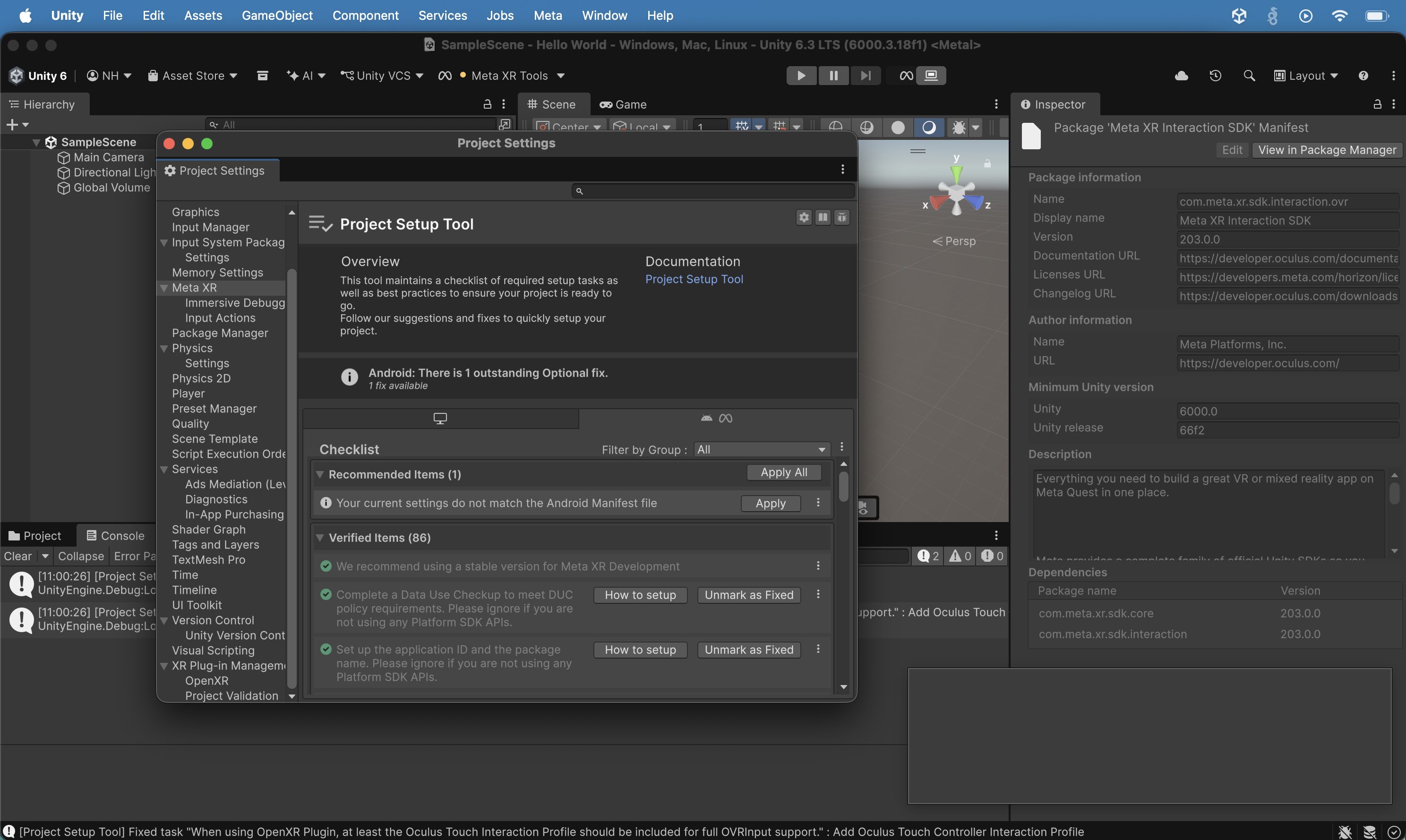
After fixing both required issues, the Project Setup Tool showed only 1 outstanding Optional fix (Android Manifest mismatch) with 86 Verified Items. I cicked the "Apply All" button.
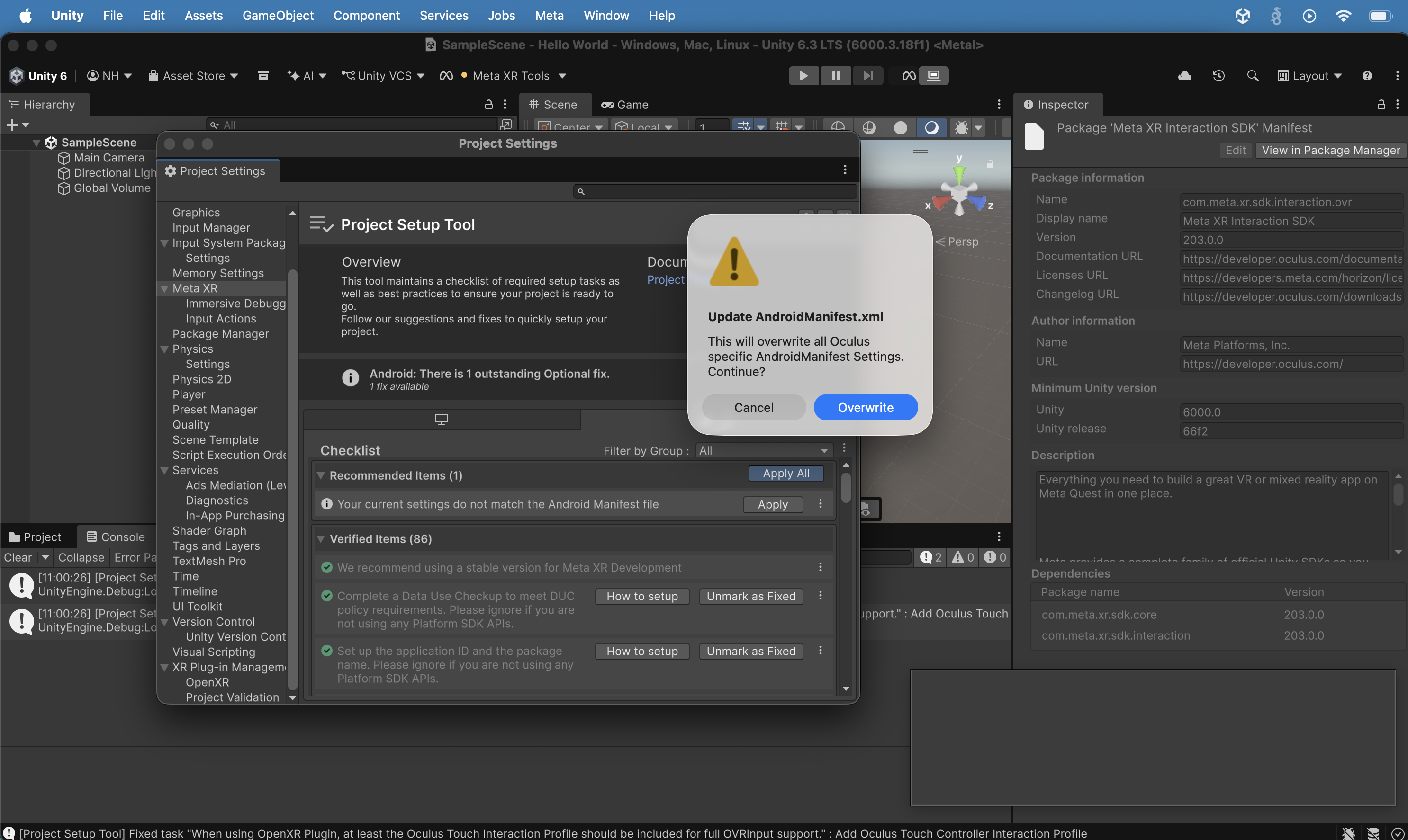
A dialog appeared asking to overwrite Oculus-specific AndroidManifest.xml settings; I clicked Overwrite.
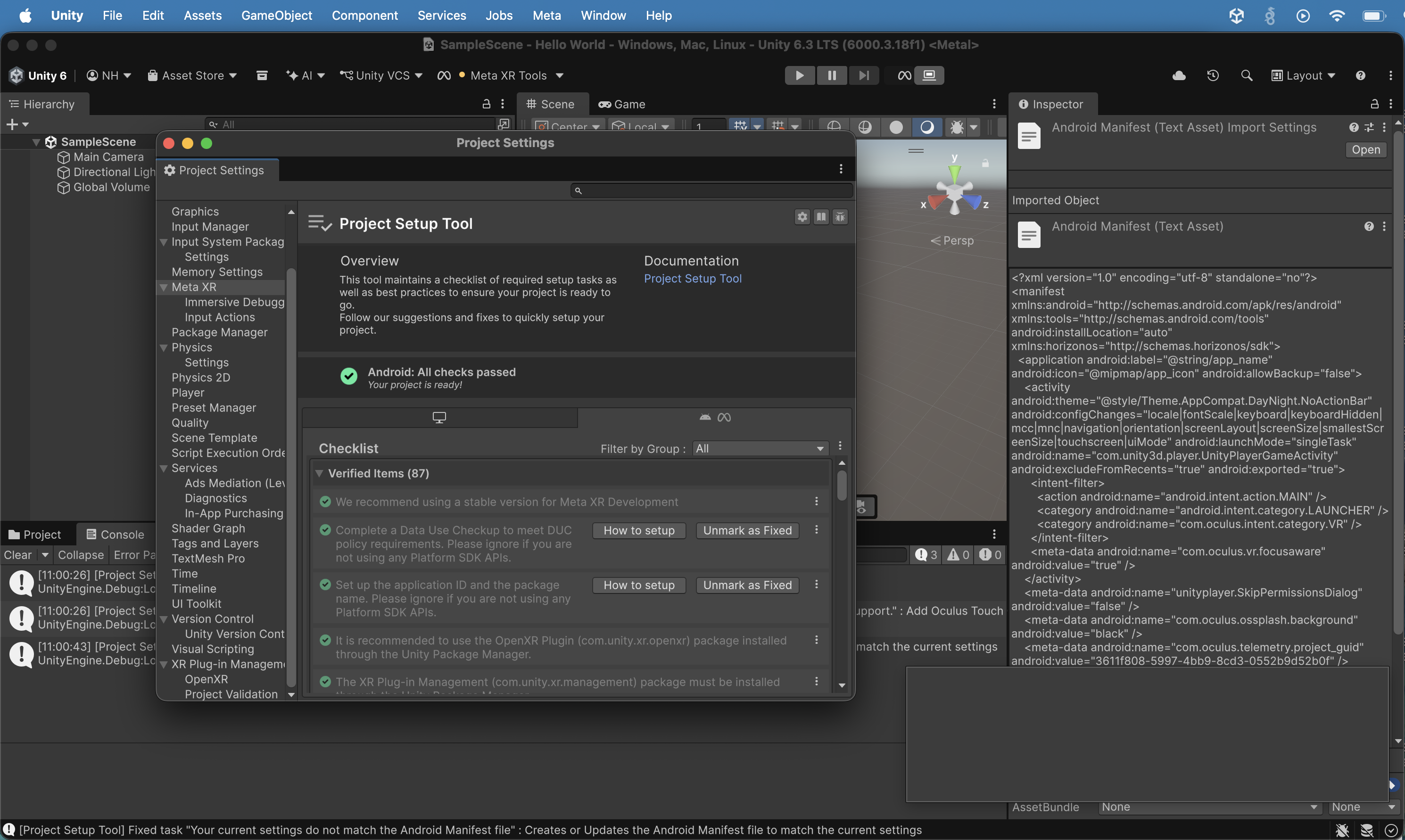
The Project Setup Tool (Android/Meta) showed "Android: All checks passed — Your project is ready!" with a green checkmark and 87 Verified Items.
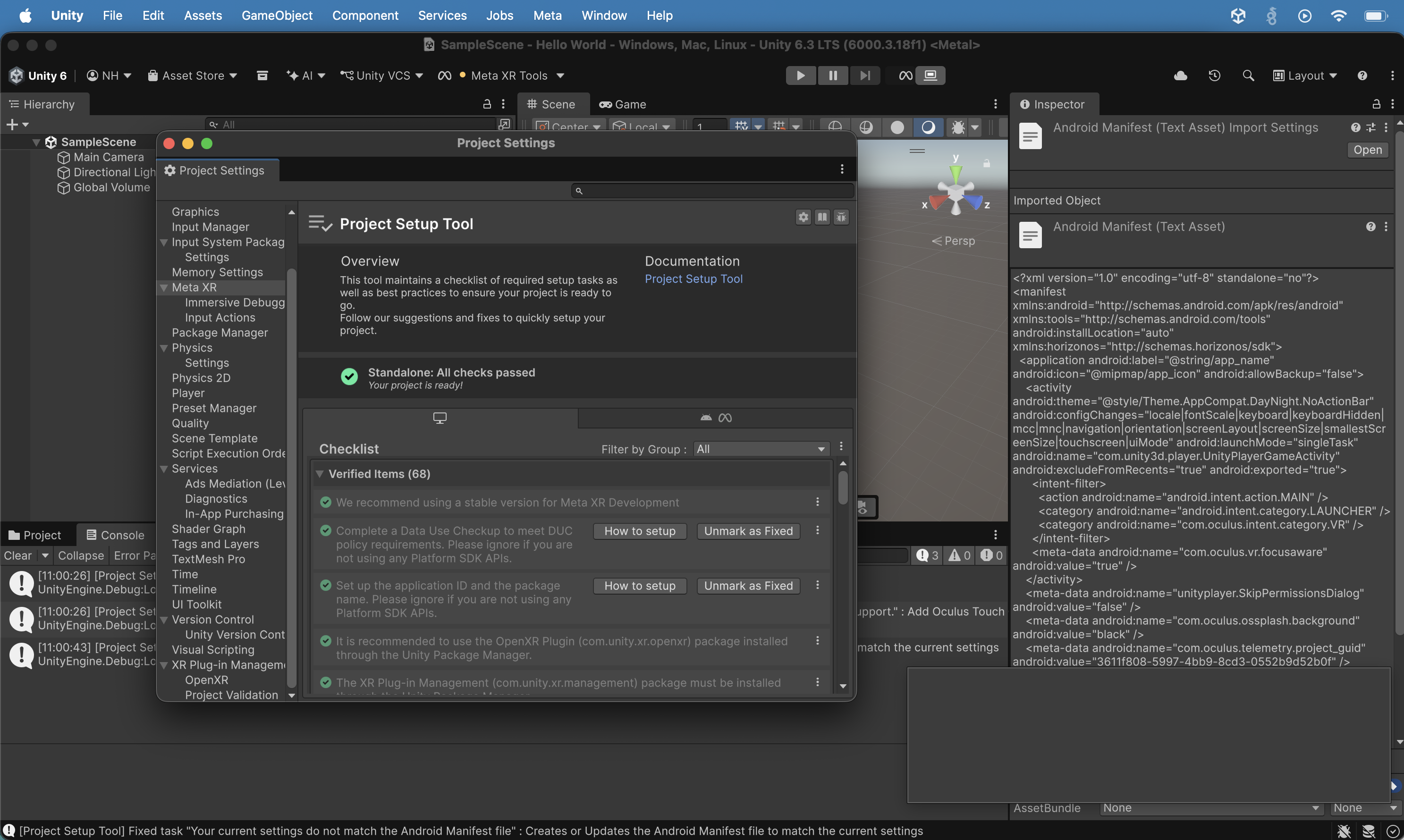
The Project Setup Tool (Standalone) also showed "Standalone: All checks passed — Your project is ready!" with a green checkmark and 68 Verified Items.
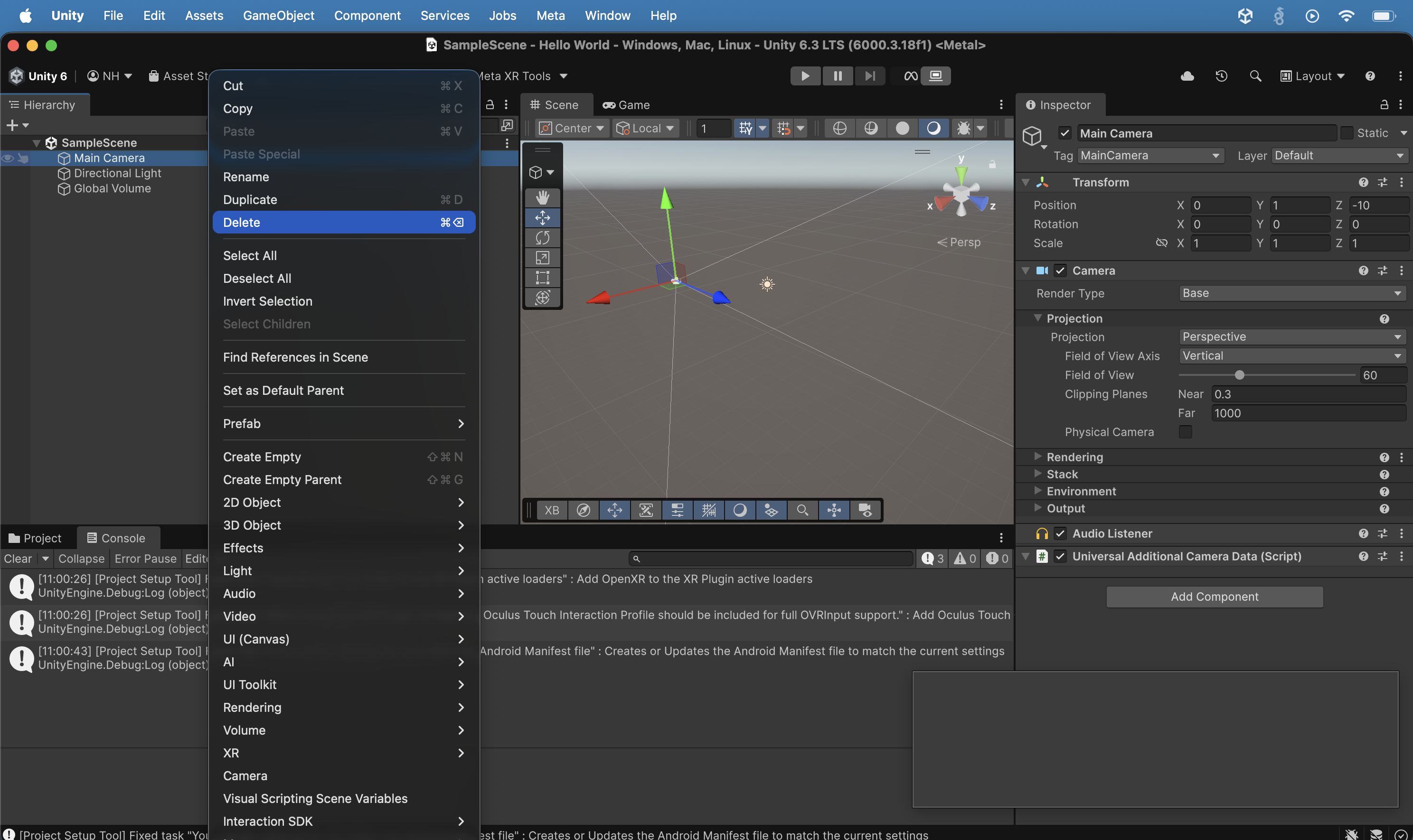
I right-clicked the Main Camera in the Hierarchy and saw the context menu including the Delete option; the XR > Interaction SDK submenu was visible.
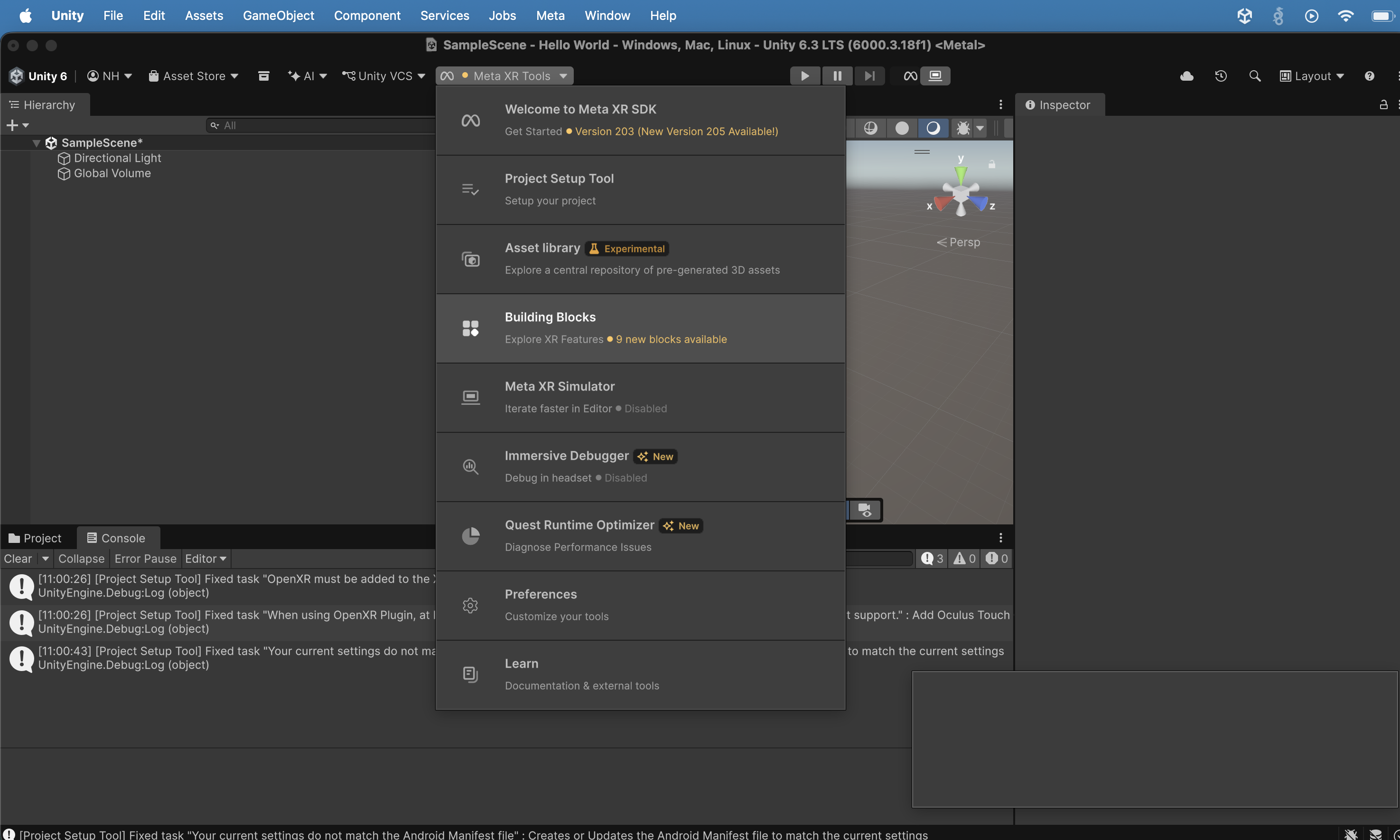
I opened the Meta XR Tools menu and saw all available tools: Welcome to Meta XR SDK (version 203, new version 205 available), Project Setup Tool, Asset Library (Experimental), Building Blocks (9 new blocks available), Meta XR Simulator, Immersive Debugger, Quest Runtime Optimizer, Preferences, and Learn. I selected Building Blocks.
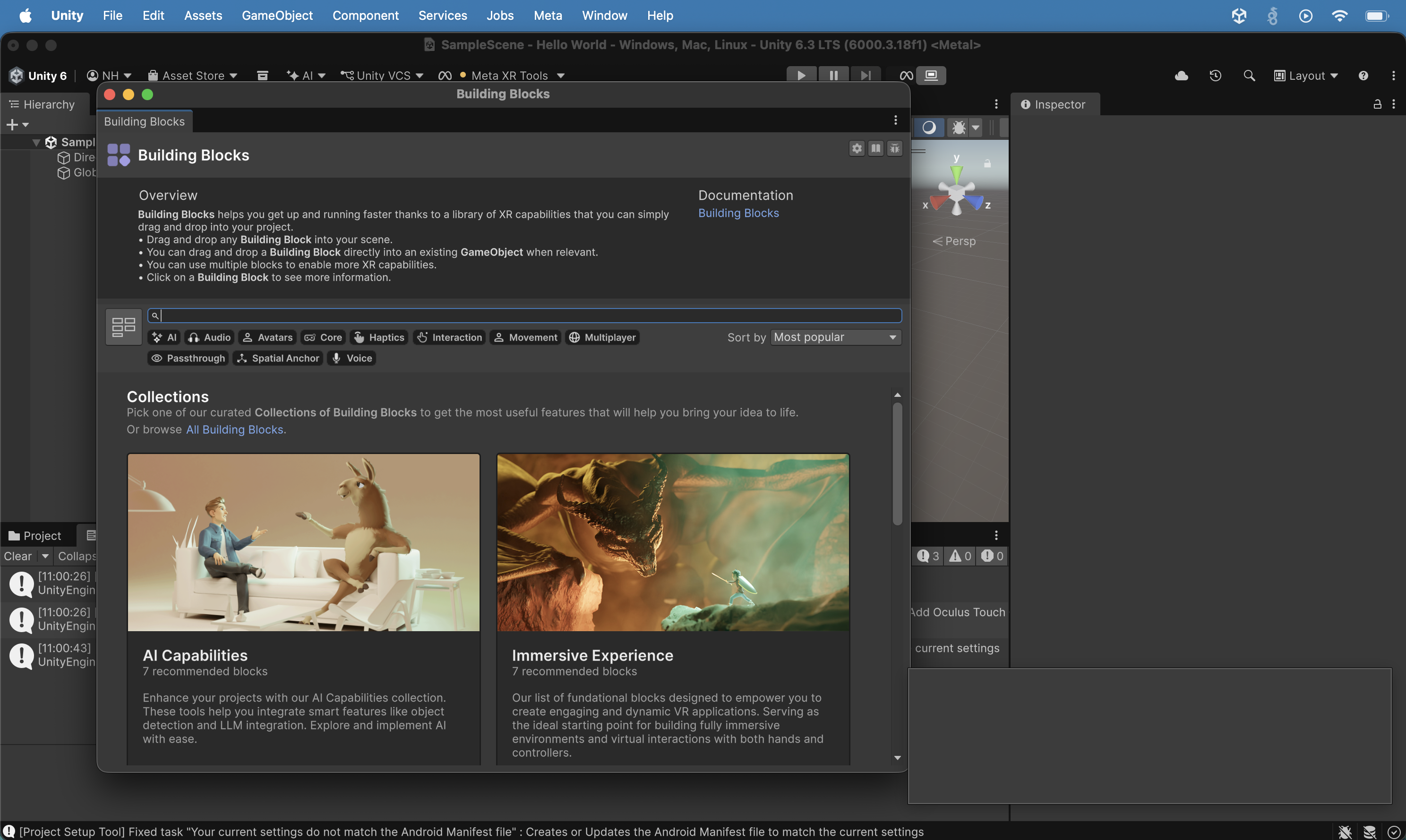
I opened the Building Blocks window and saw Collections with "AI Capabilities" (7 recommended blocks) and "Immersive Experience" (7 recommended blocks), with categories including AI, Audio, Avatars, Core, Haptics, Interaction, Movement, Multiplayer, Passthrough, Spatial Anchor, and Voice.
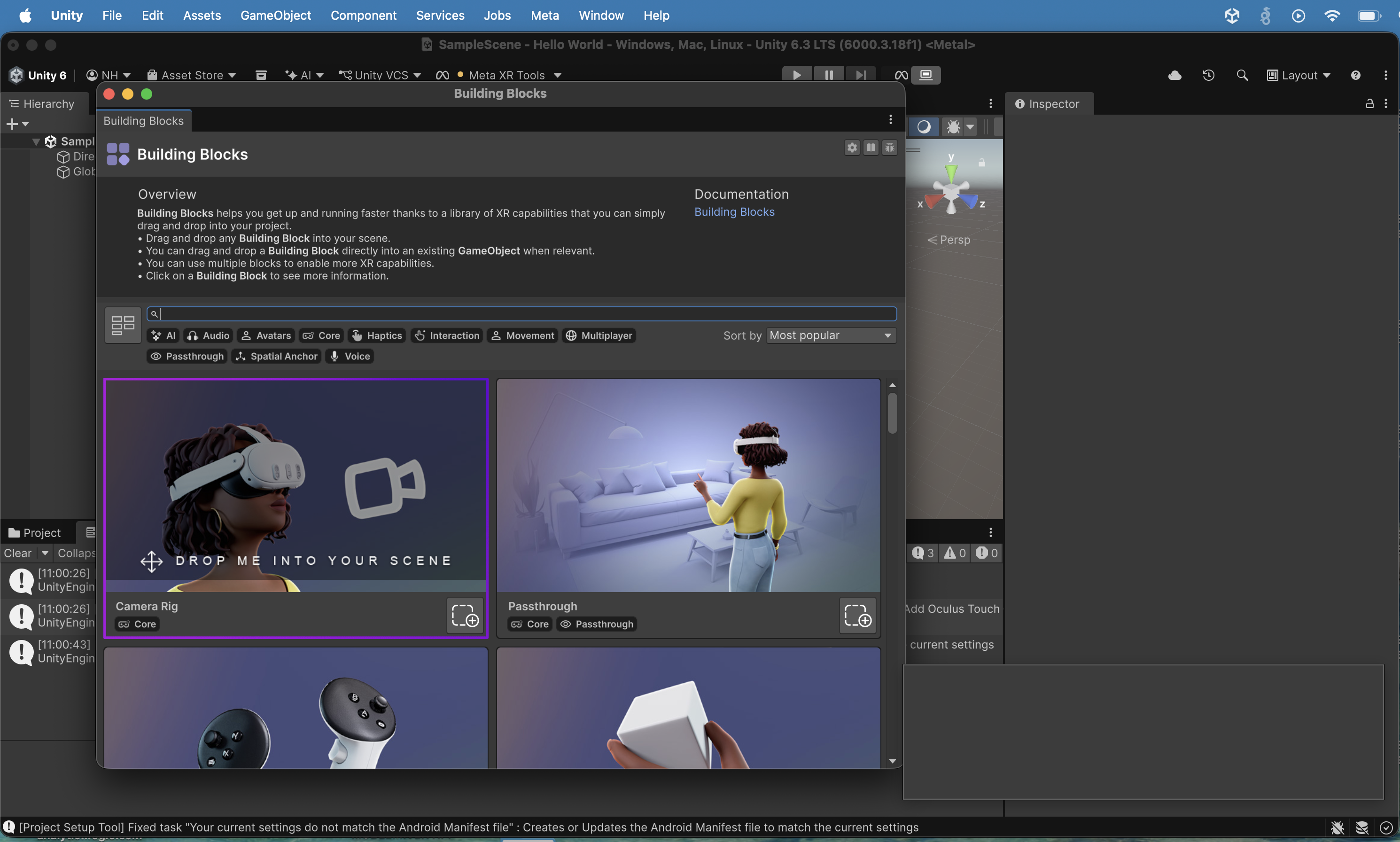
The Building Blocks grid showed the Camera Rig block (Core) highlighted and the Passthrough block, with an overview explaining how to drag and drop blocks into the scene. I dropped a "Camera Rig" block.
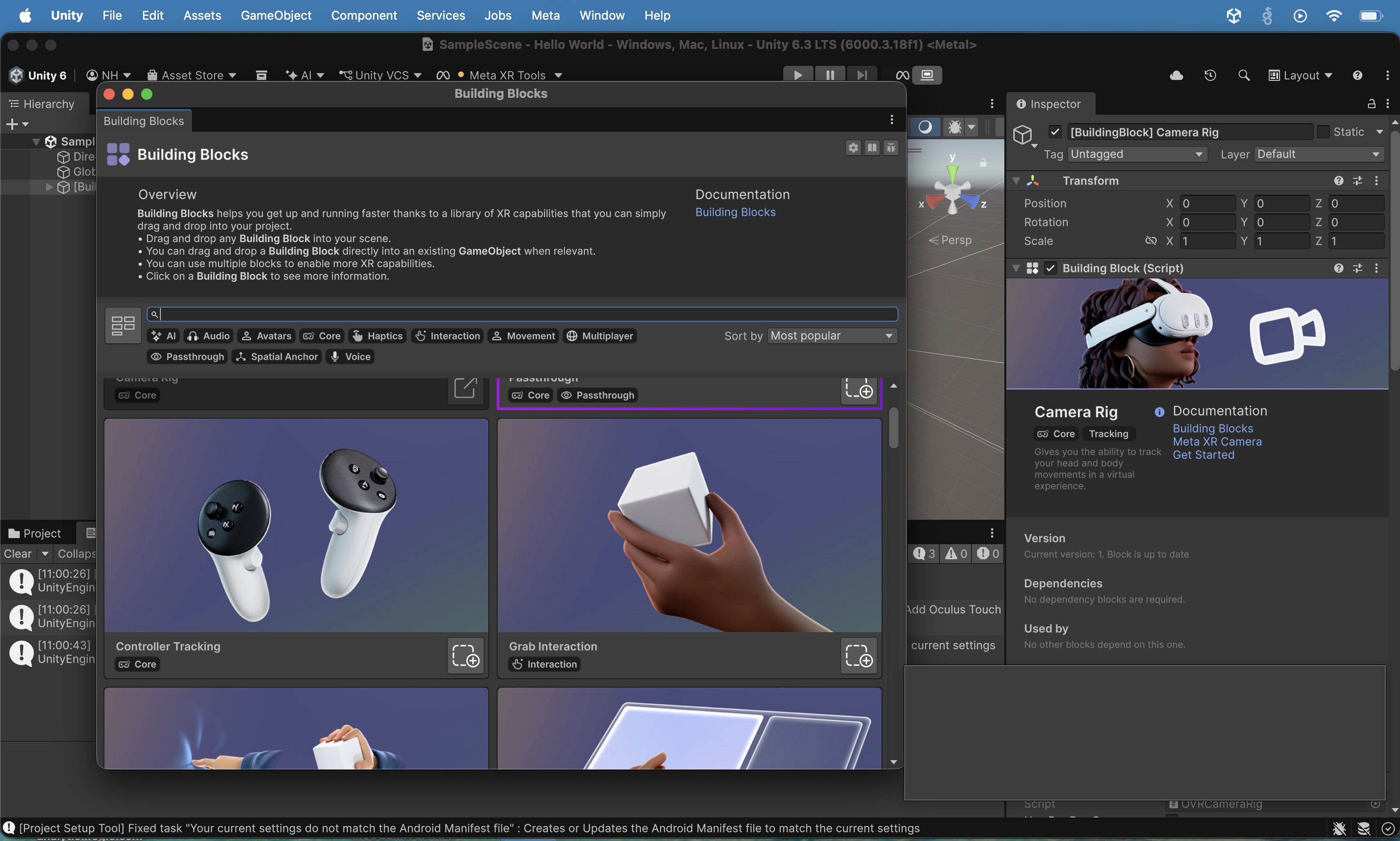
I selected the Camera Rig block and the Inspector showed its description: "Gives you the ability to track your head and body movements in a virtual experience", with links to Building Blocks and Meta XR Camera documentation. I dropped a "Grab Interaction" block.
![I added a Camera Rig and Cube block to the scene; the Hierarchy showed the OVRComprehensiveInteractionRig and [BuildingBlock] Cube GameObjects, and the Scene view showed the Camera Rig at the origin.](/assets/images/metaunitysetupJune2026/Screenshot-2026-06-30-at-11.06.58-AM.png)
I added a Camera Rig and Cube block to the scene; the Hierarchy showed the OVRComprehensiveInteractionRig and [BuildingBlock] Cube GameObjects, and the Scene view showed the Camera Rig at the origin.
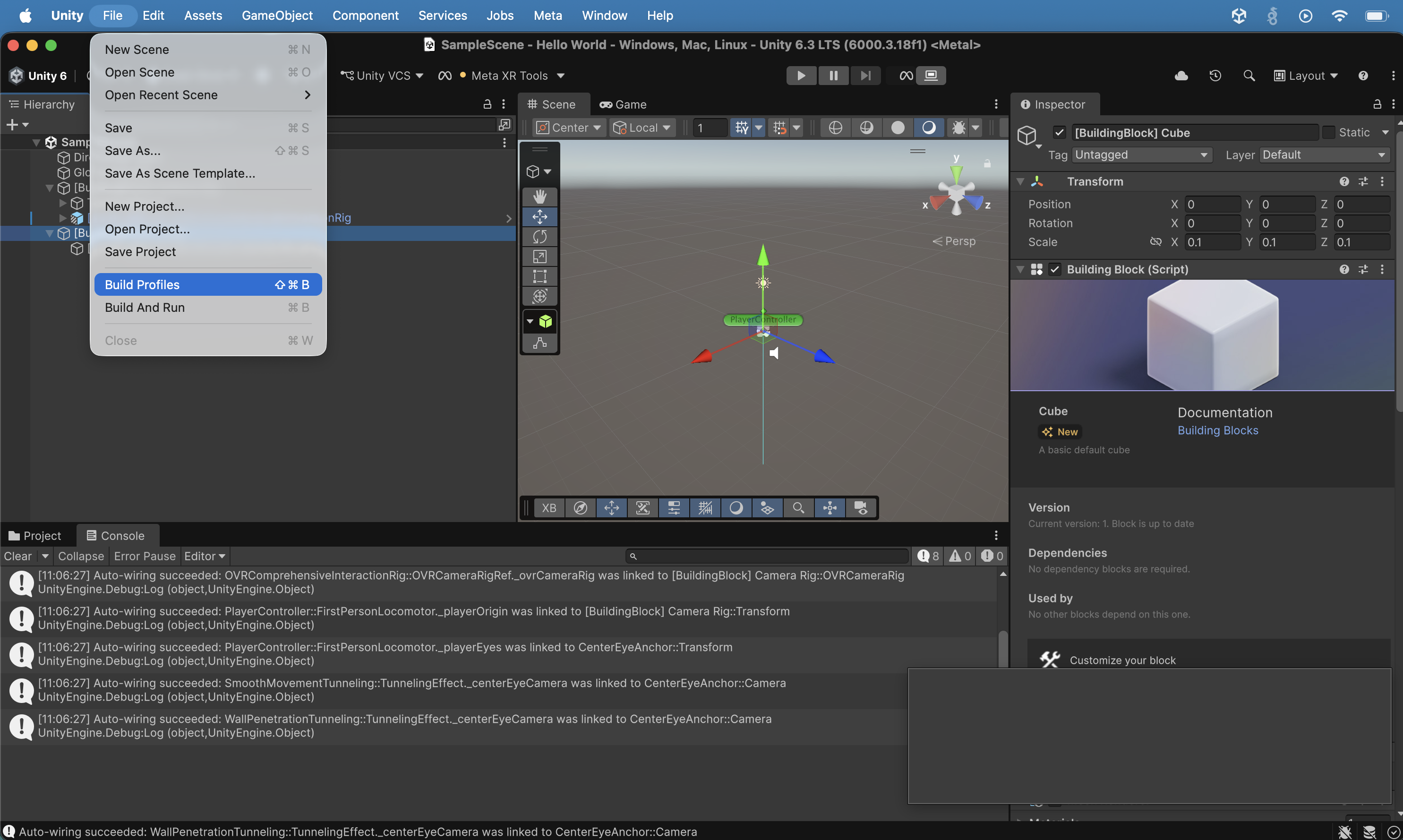
I opened File > Build Profiles (Shift+Cmd+B) with the Build Profiles option highlighted in the menu.
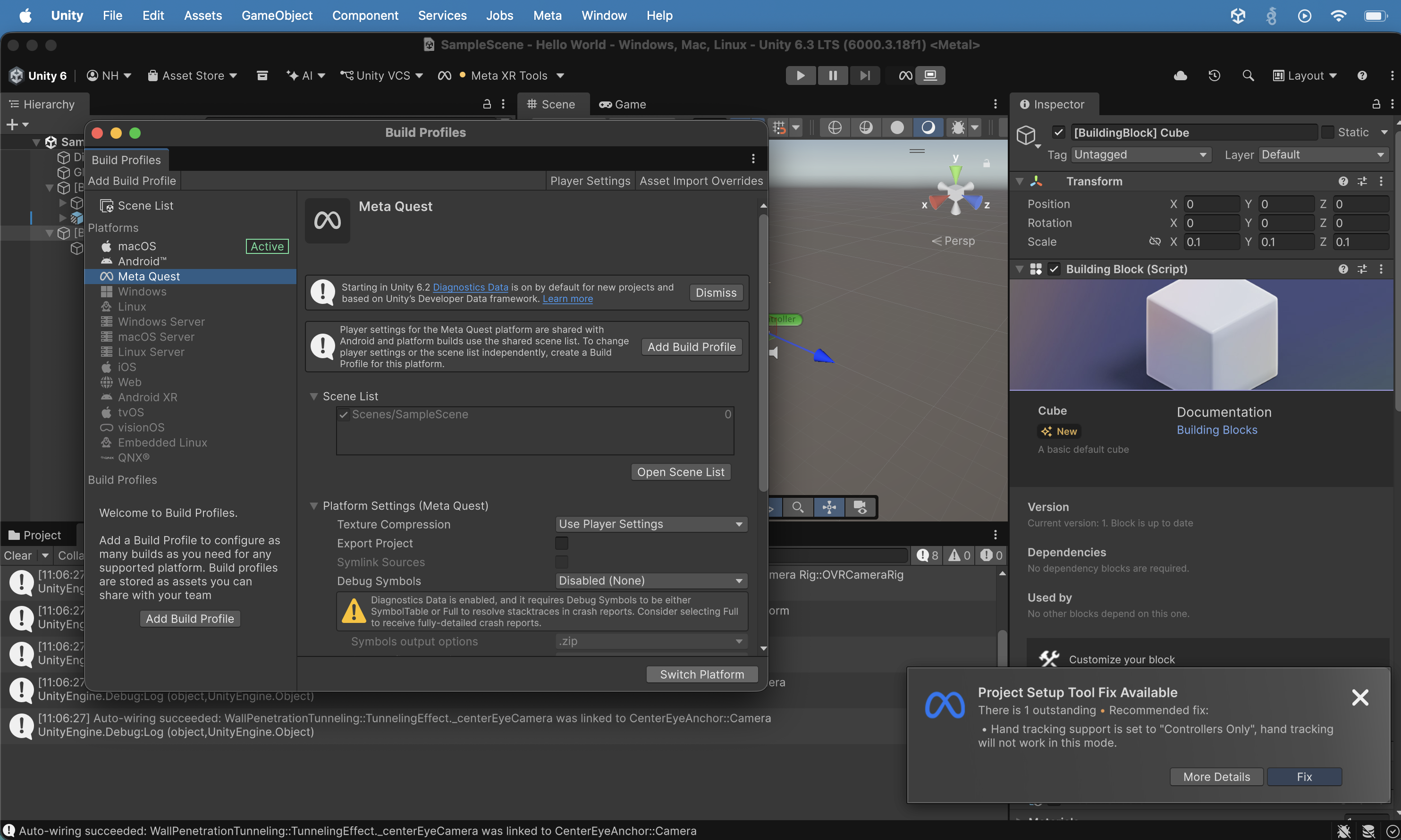
The Build Profiles window opened with "macOS" selected as the active platform. I selected "Meta Quest" and clicked the "Switch Platform" button
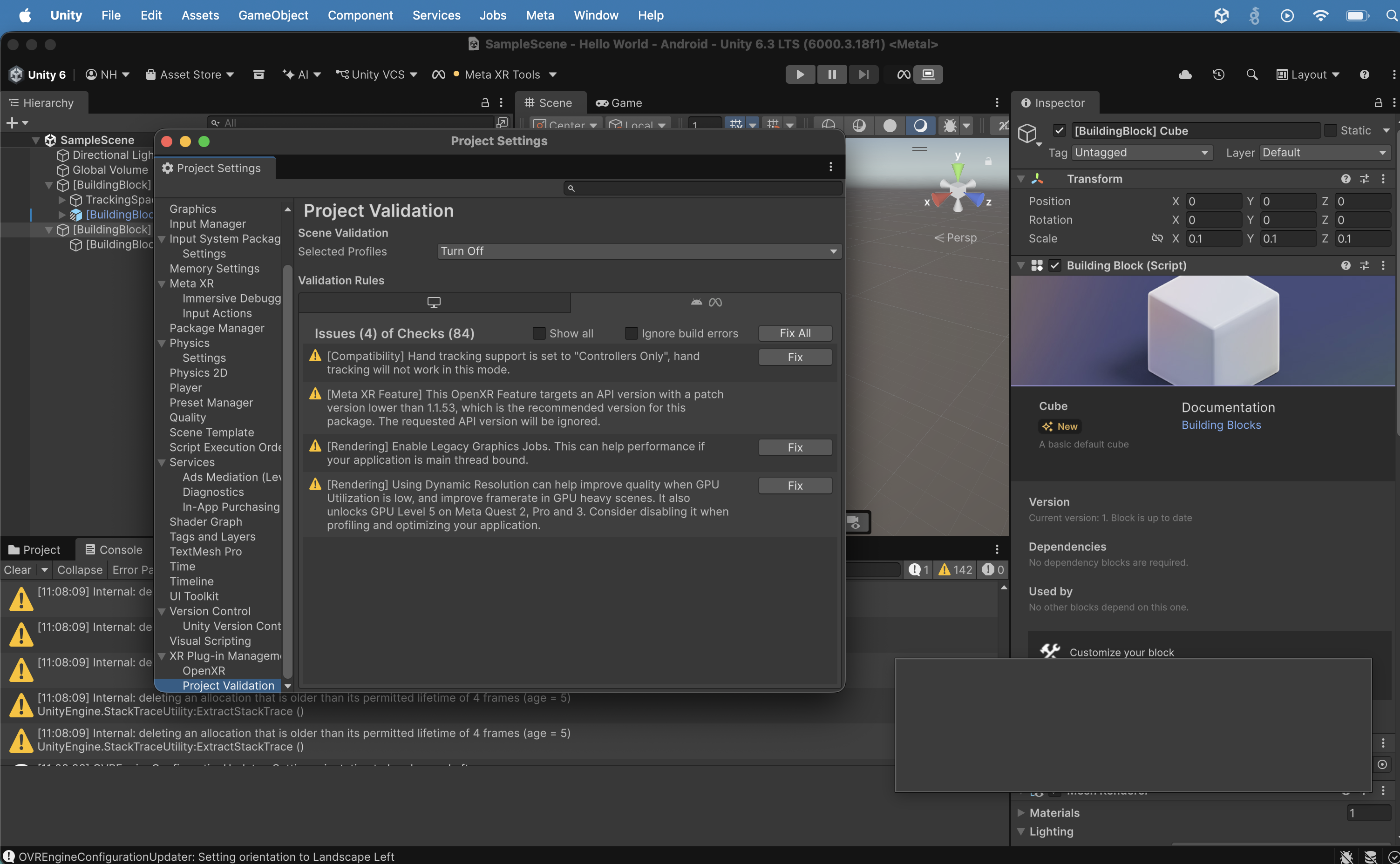
After switching to the Android build target, Project Validation showed 4 issues of 84 checks: hand tracking set to "Controllers Only", Meta XR Feature targeting an older OpenXR API version, Enable Legacy Graphics Jobs, and Using Dynamic Resolution. I clicked the "Fix All" button.
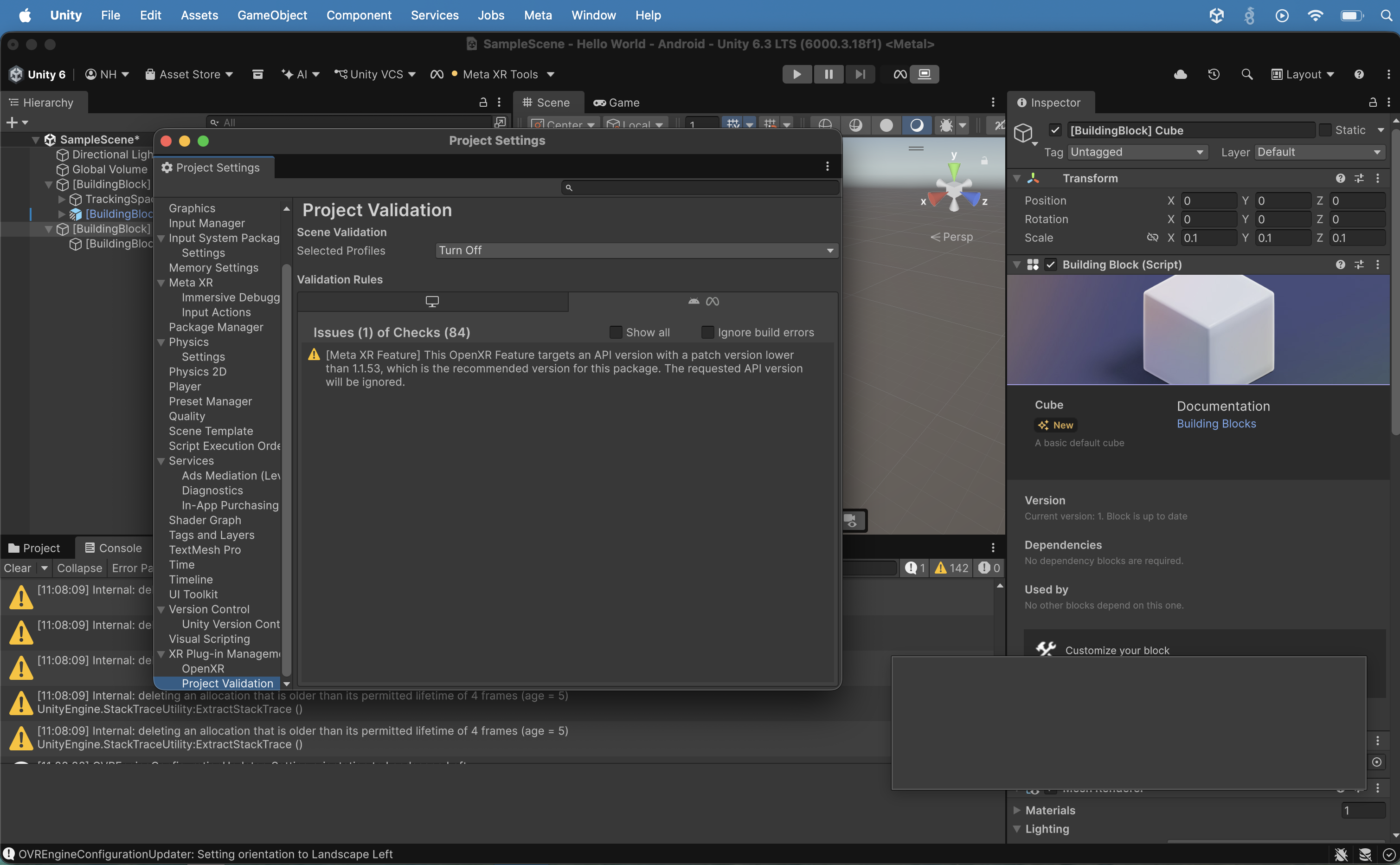
After fixing the fixable issues, Project Validation (Android) showed 1 remaining issue of 84 checks: the Meta XR Feature OpenXR API version warning.
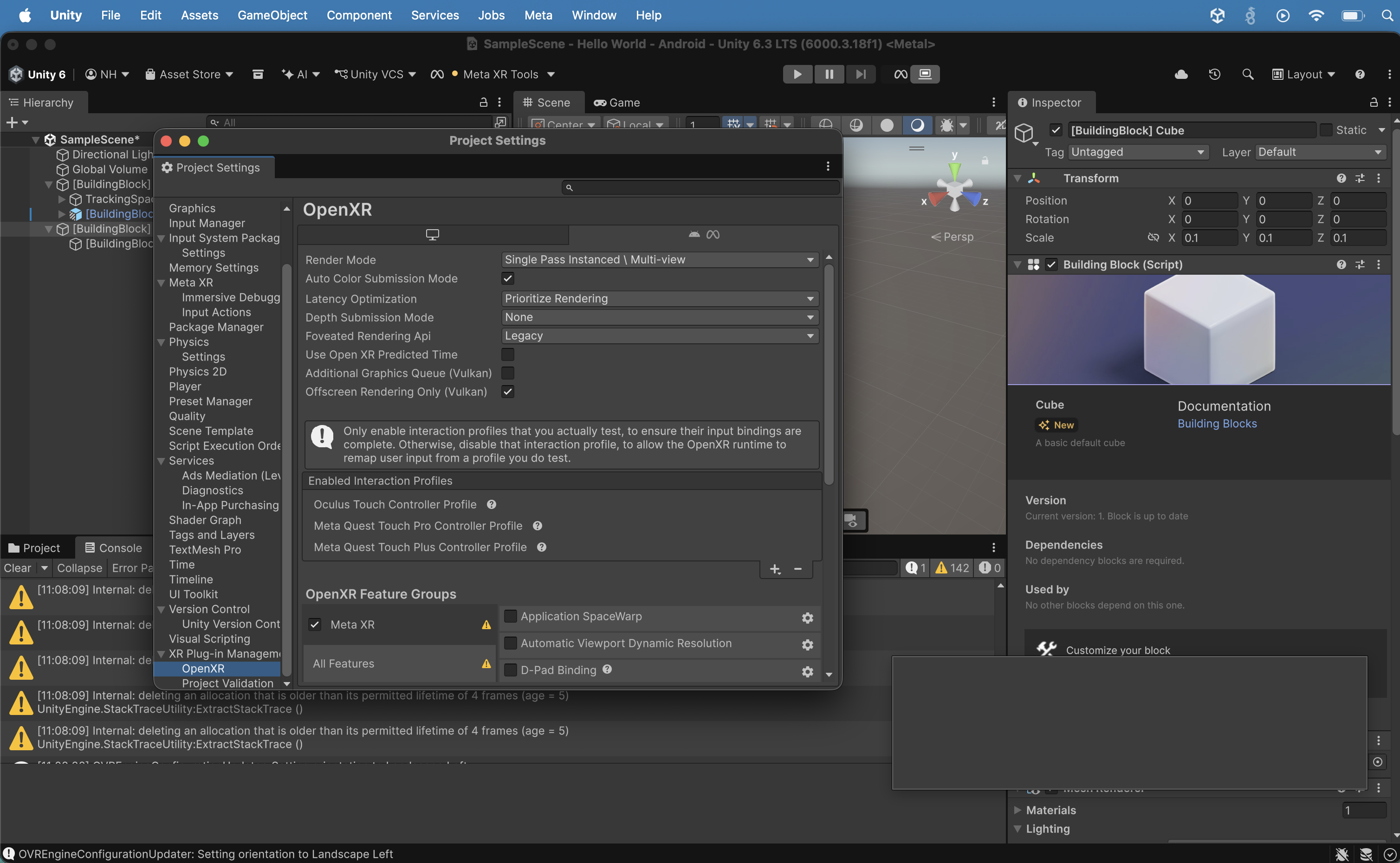
I viewed the OpenXR settings showing Render Mode: Single Pass Instanced / Multi-view, the three enabled Interaction Profiles (Oculus Touch, Meta Quest Touch Pro, Meta Quest Touch Plus), and the OpenXR Feature Groups (Meta XR and All Features, both with warnings).
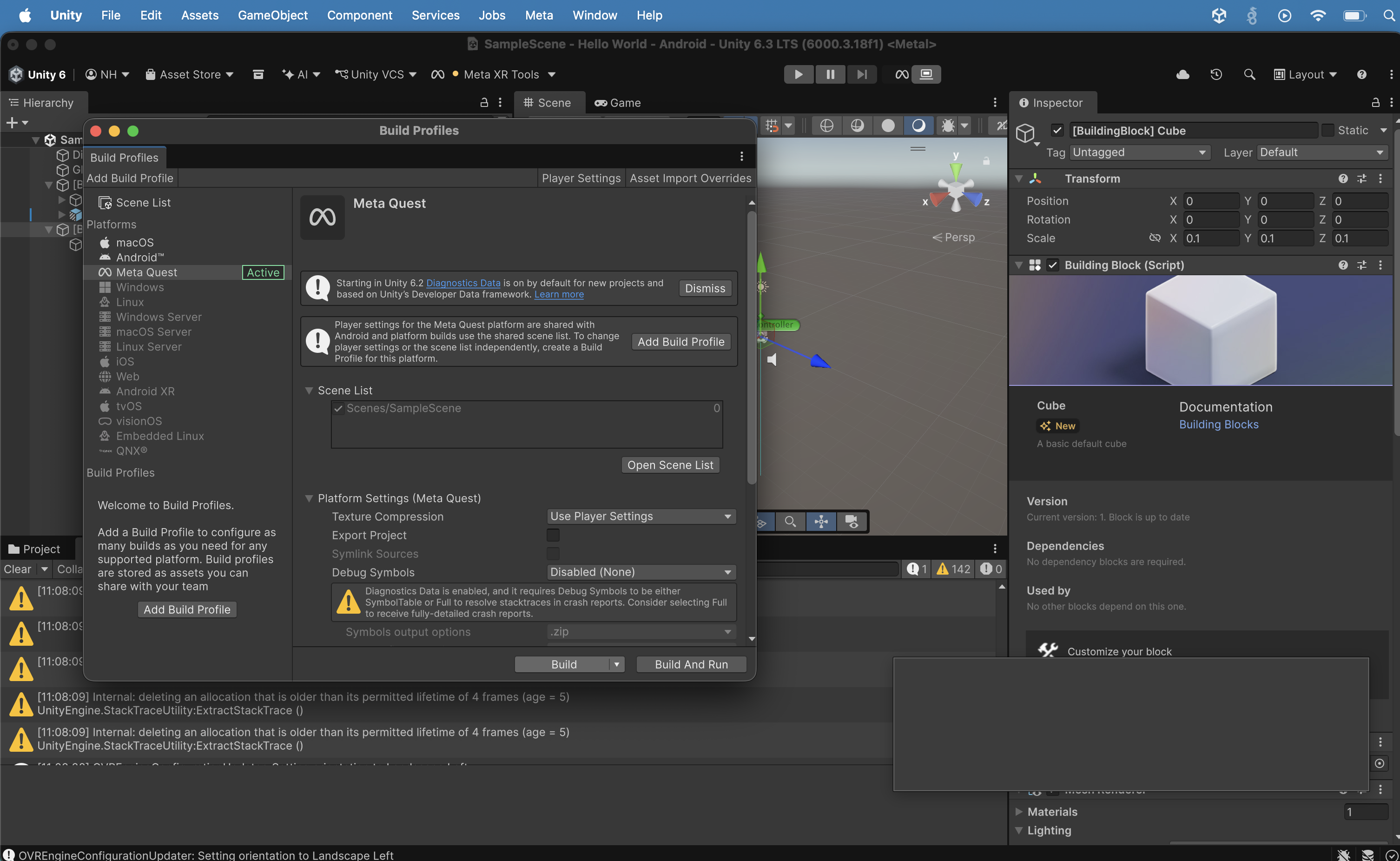
The Build Profiles window showed Meta Quest as the active platform with the Scene List (Scenes/SampleScene) and Platform Settings, with Build and Build And Run buttons ready. I clicked the Build Button.
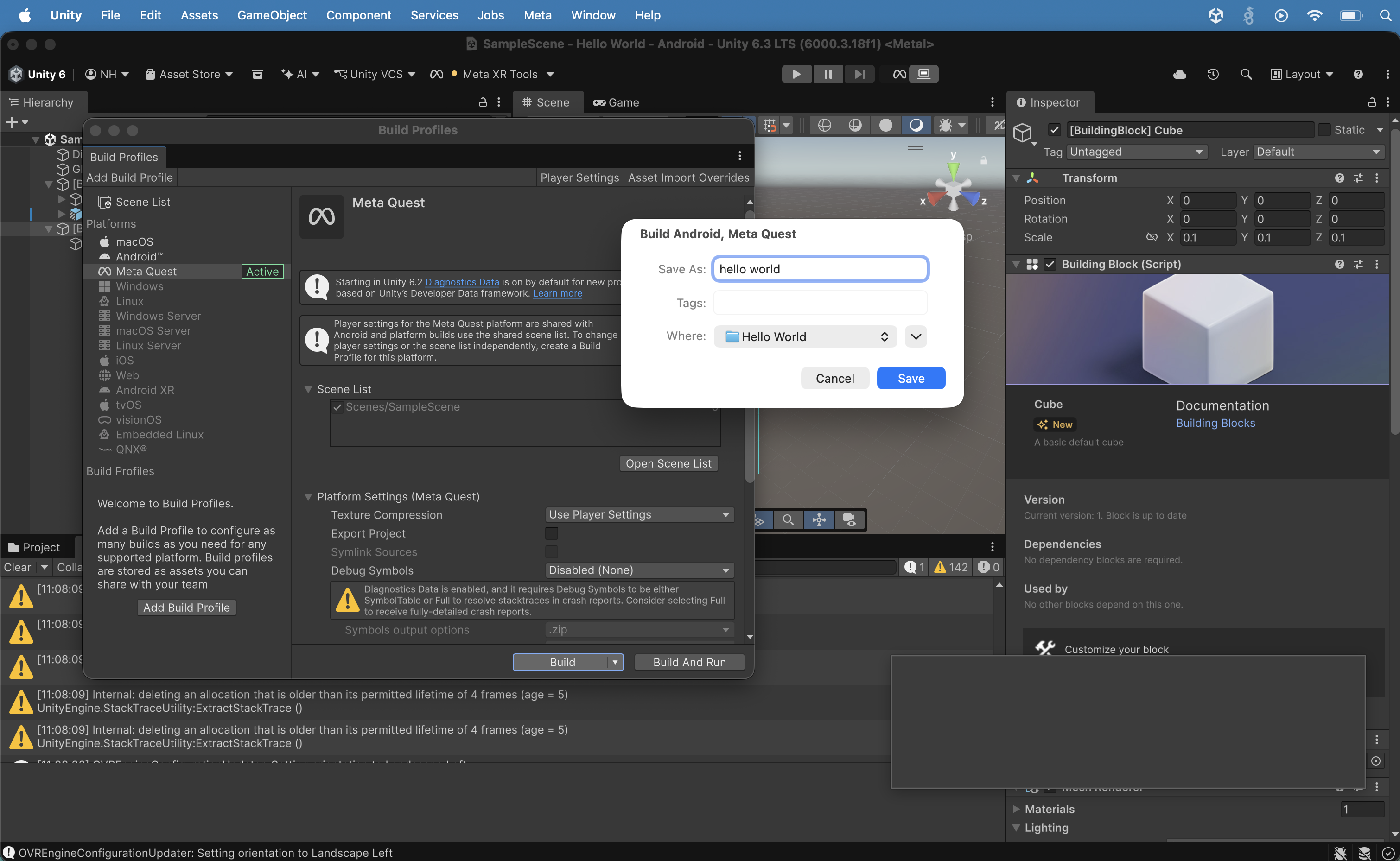
A "Build Android, Meta Quest" save dialog appeared with the filename "hello world" and the Hello World project folder selected.
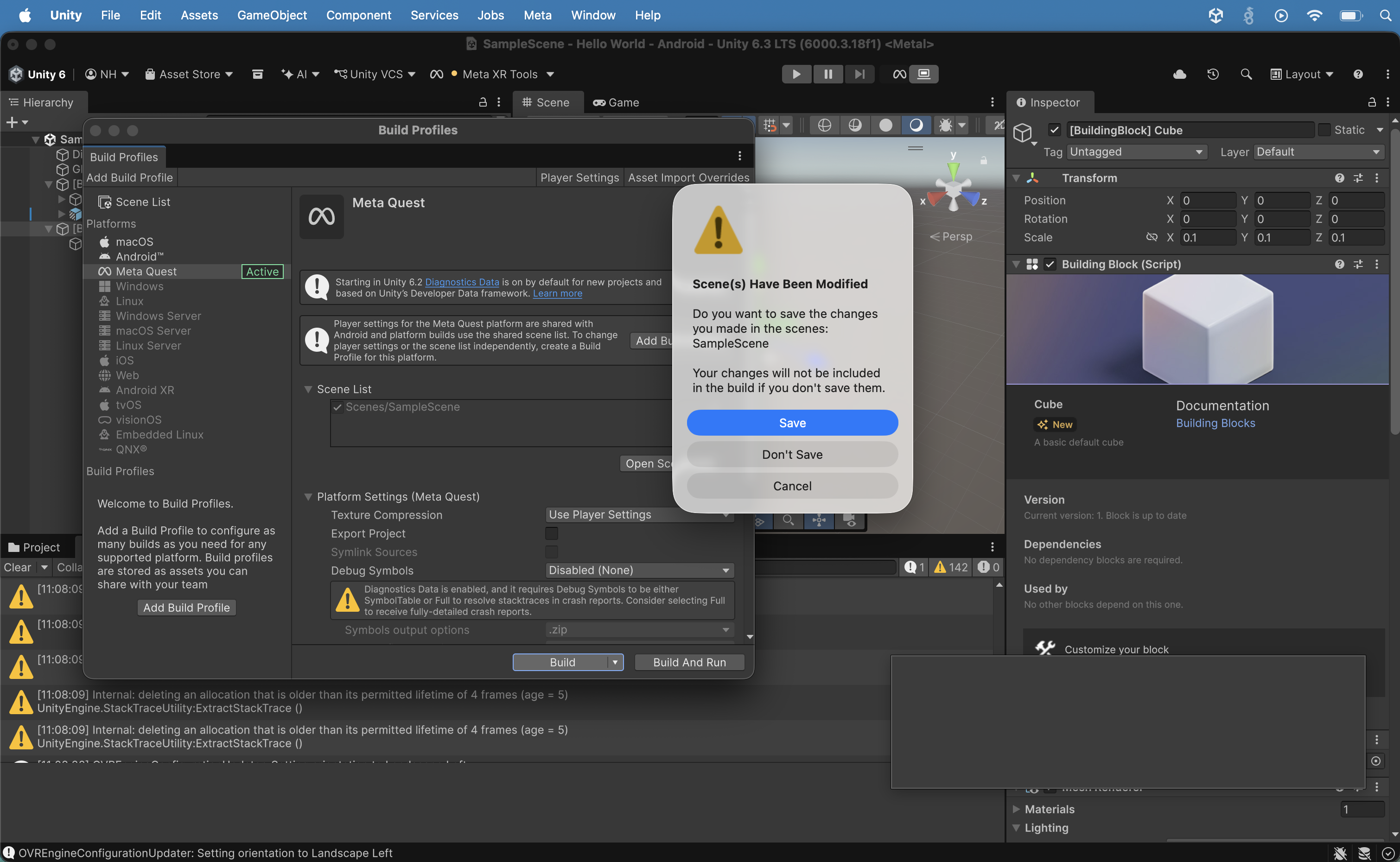
A "Scene(s) Have Been Modified" dialog appeared asking whether to save changes to SampleScene before the build; I clicked Save.
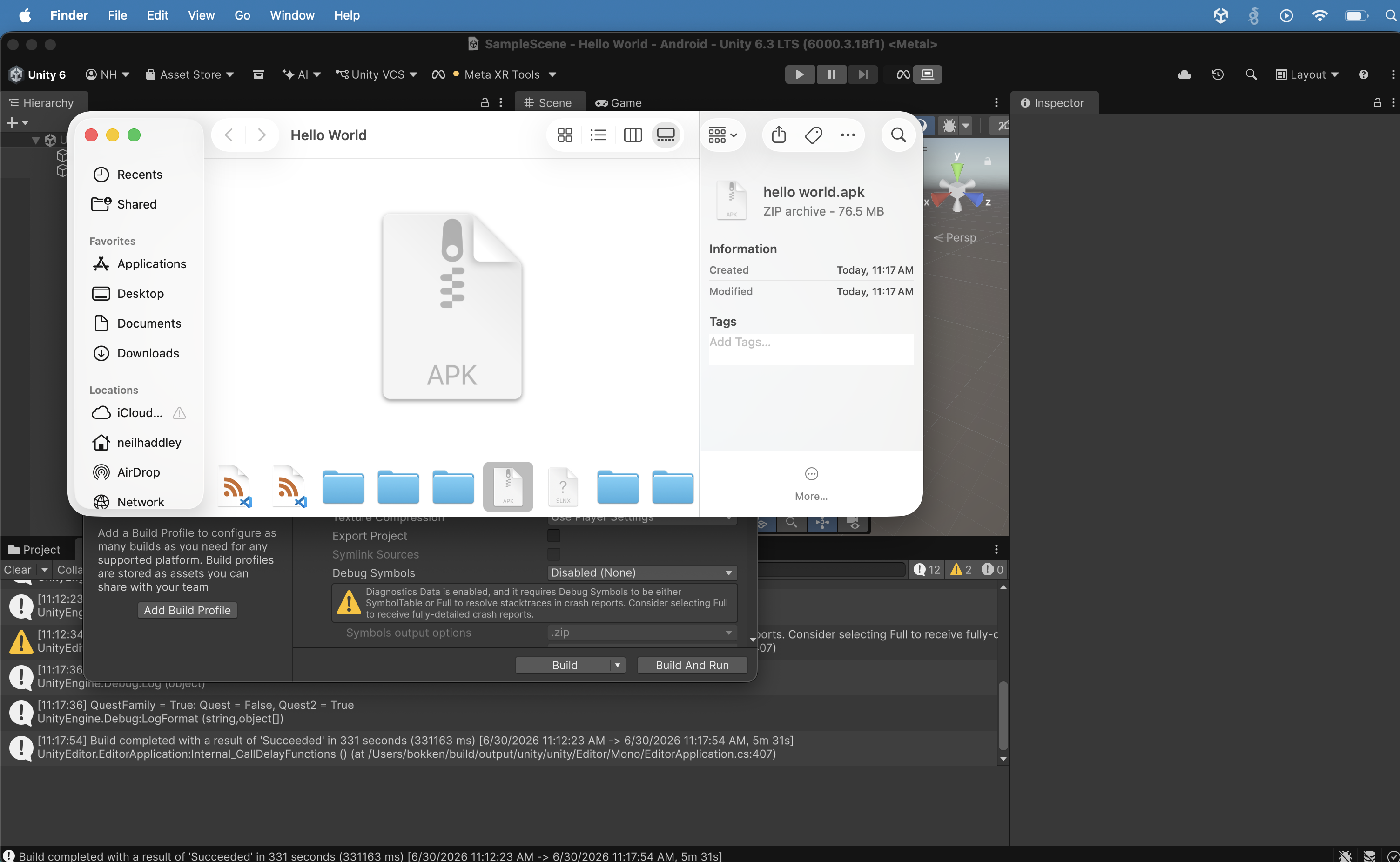
The build completed successfully in 331 seconds, and Finder showed the Hello World project folder containing the resulting hello world.apk file (ZIP archive, 76.5 MB), created at 11:17 AM.
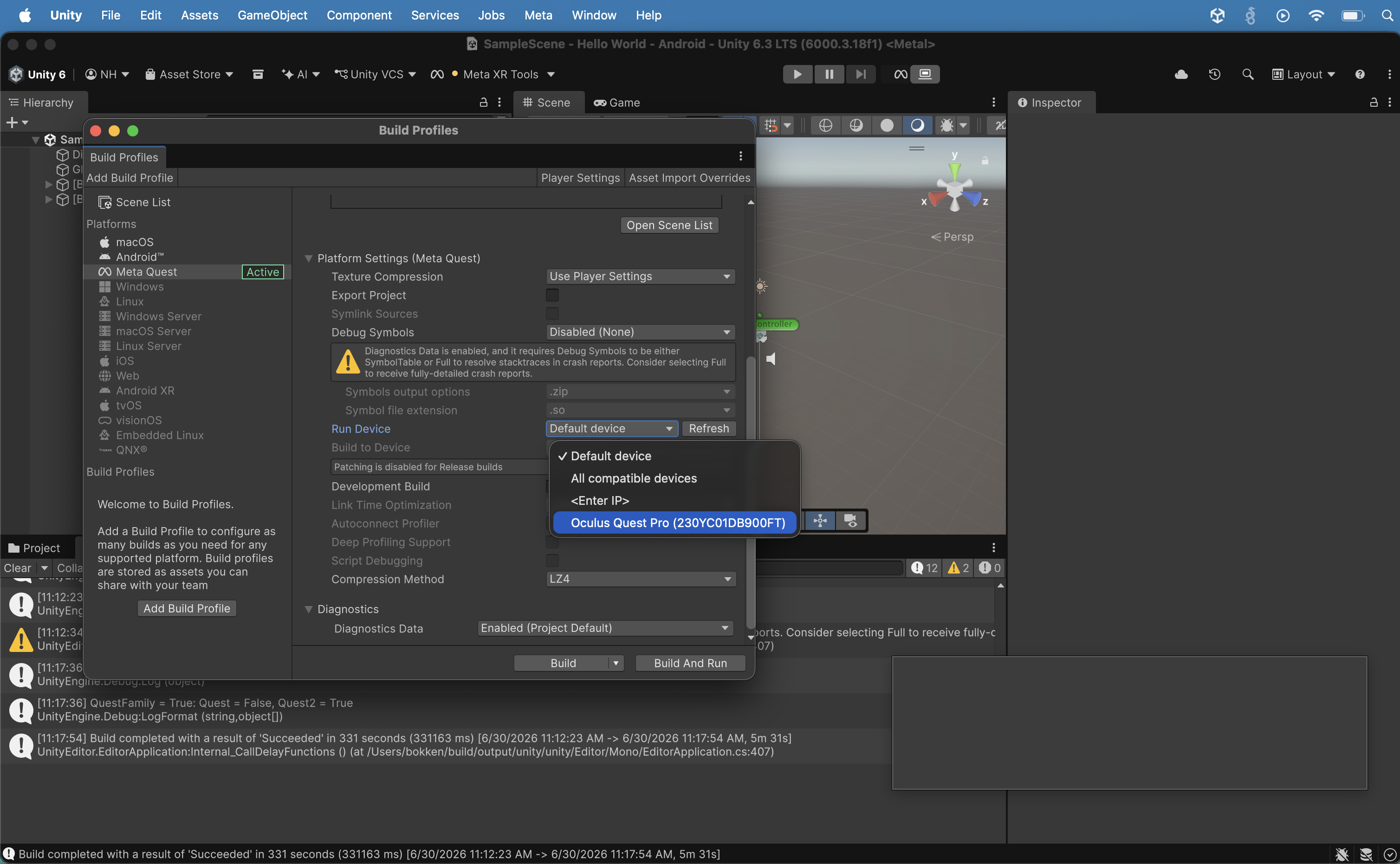
I connected my Meta Quest Pro to my Macbook with a USB C cable, I opened the Run Device dropdown in Build Profiles and selected "Oculus Quest Pro (230YC01DB900FT)" from the device list.
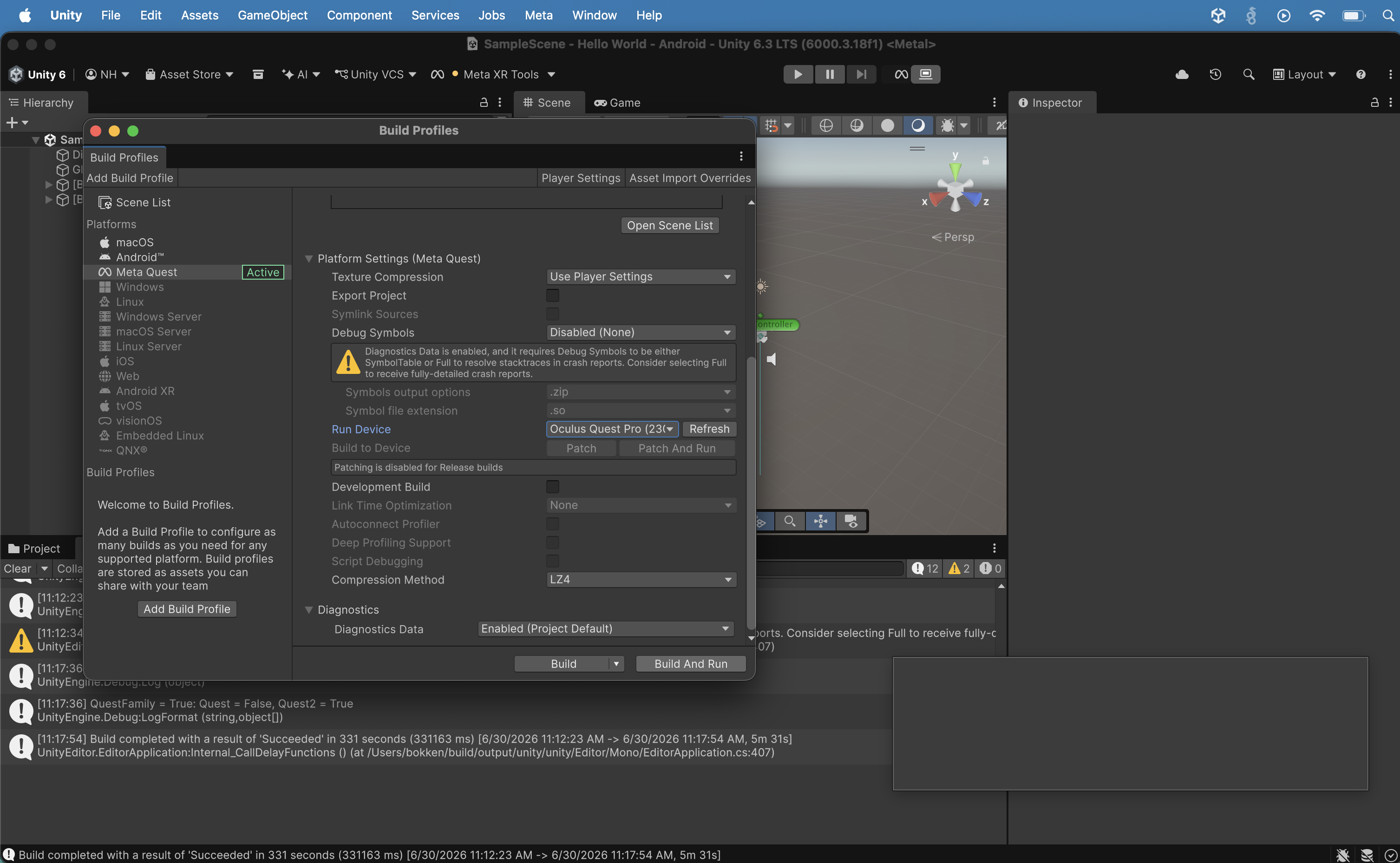
The Build Profiles window showed the Oculus Quest Pro selected as the Run Device, with Patch and Patch And Run build options now available alongside Build and Build And Run. I clicked the "Build And Run" button
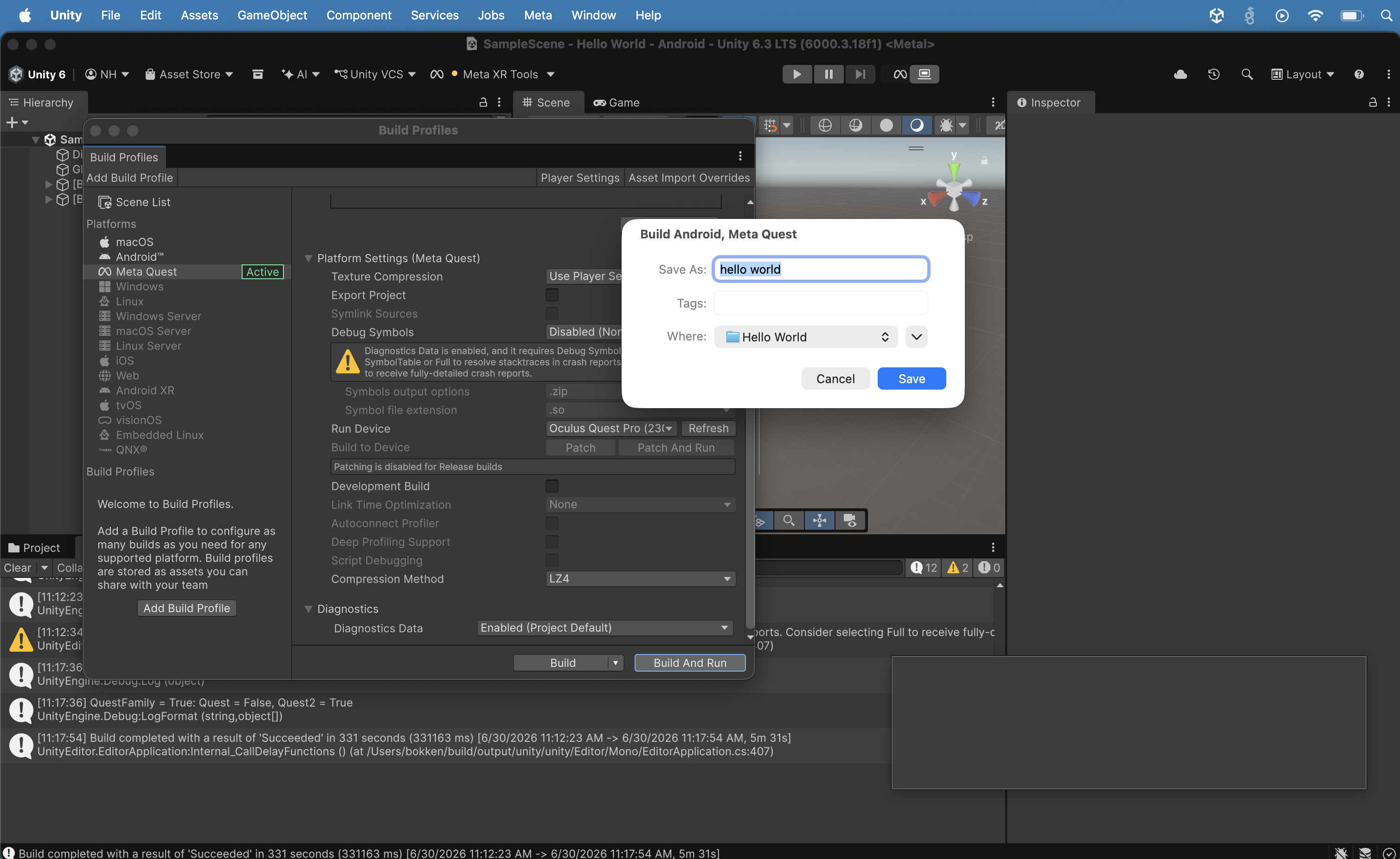
A second "Build Android, Meta Quest" save dialog appeared with "hello world" as the filename and the Hello World folder as the destination.
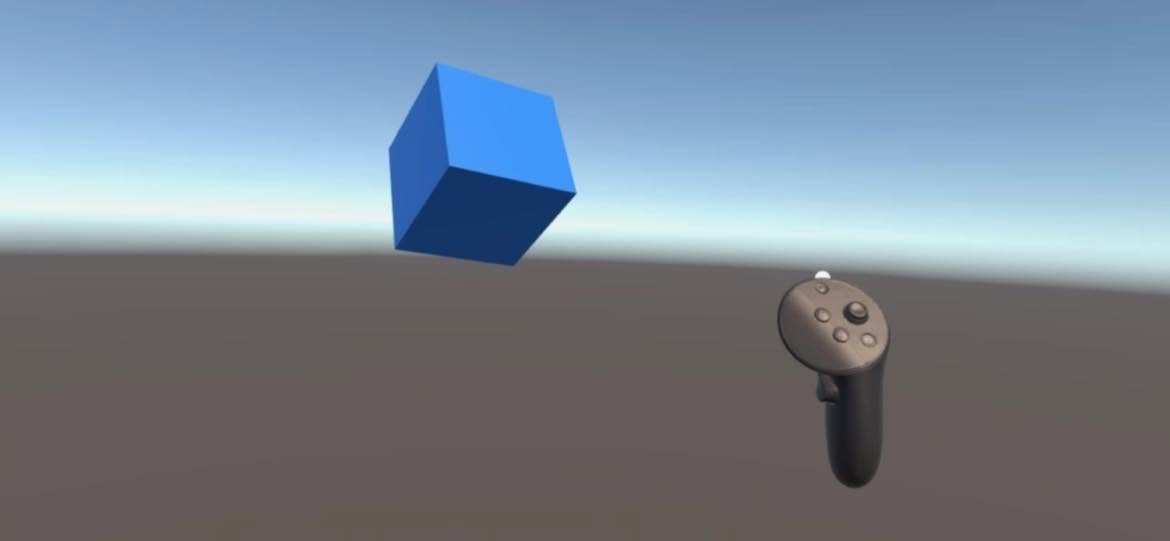
I saw the scene running on the Meta Quest Pro headset: a blue cube floating in mid-air above the ground plane, with the Quest controller visible in the lower right.