Microsoft Dynamics 365 App for Outlook
Neil Haddley • September 20, 2025
References
Microsoft Dynamics 365 App for Outlook connects a Dataverse Model Driven app to Outlook.
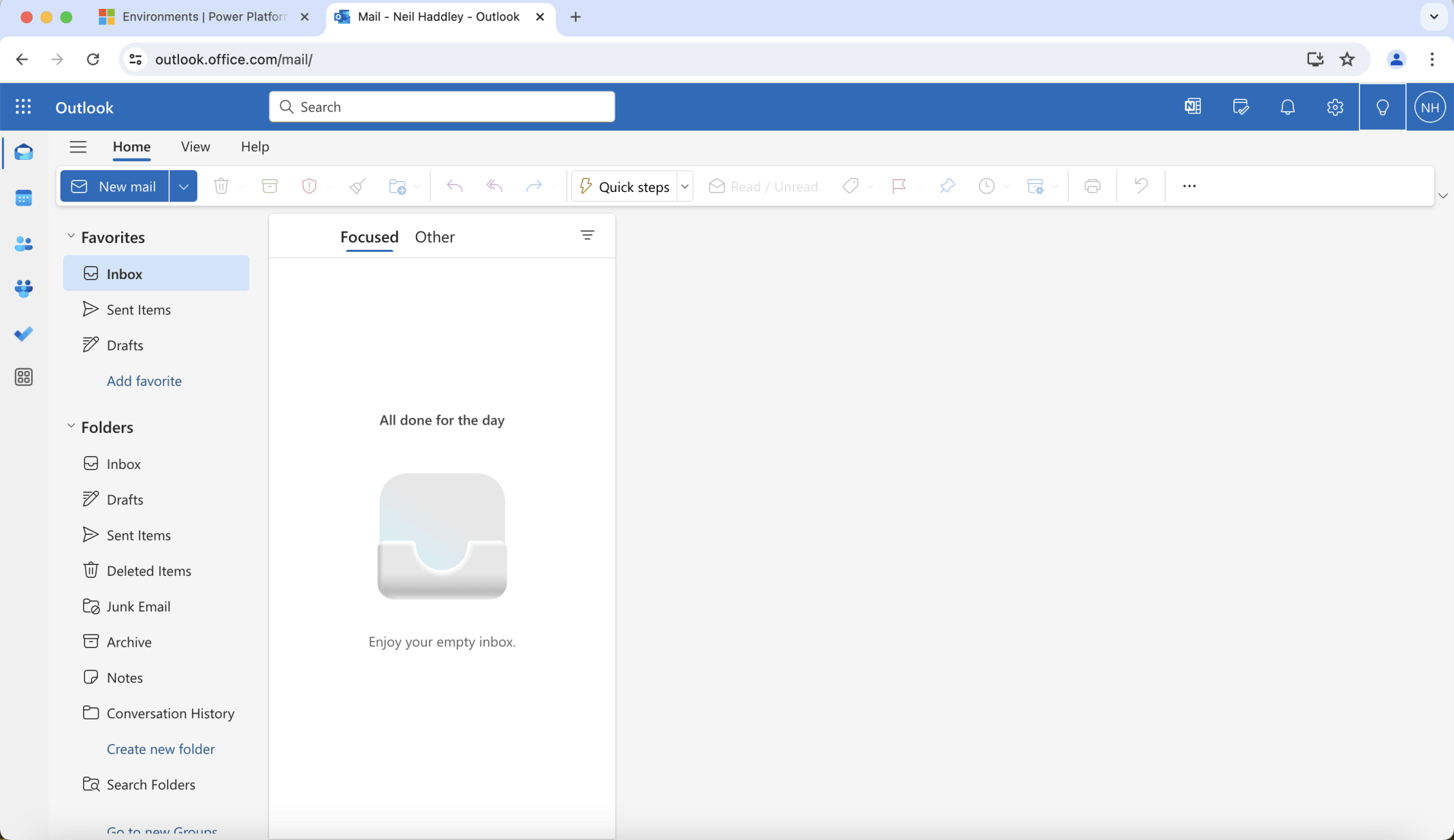
I reviewed Outlook
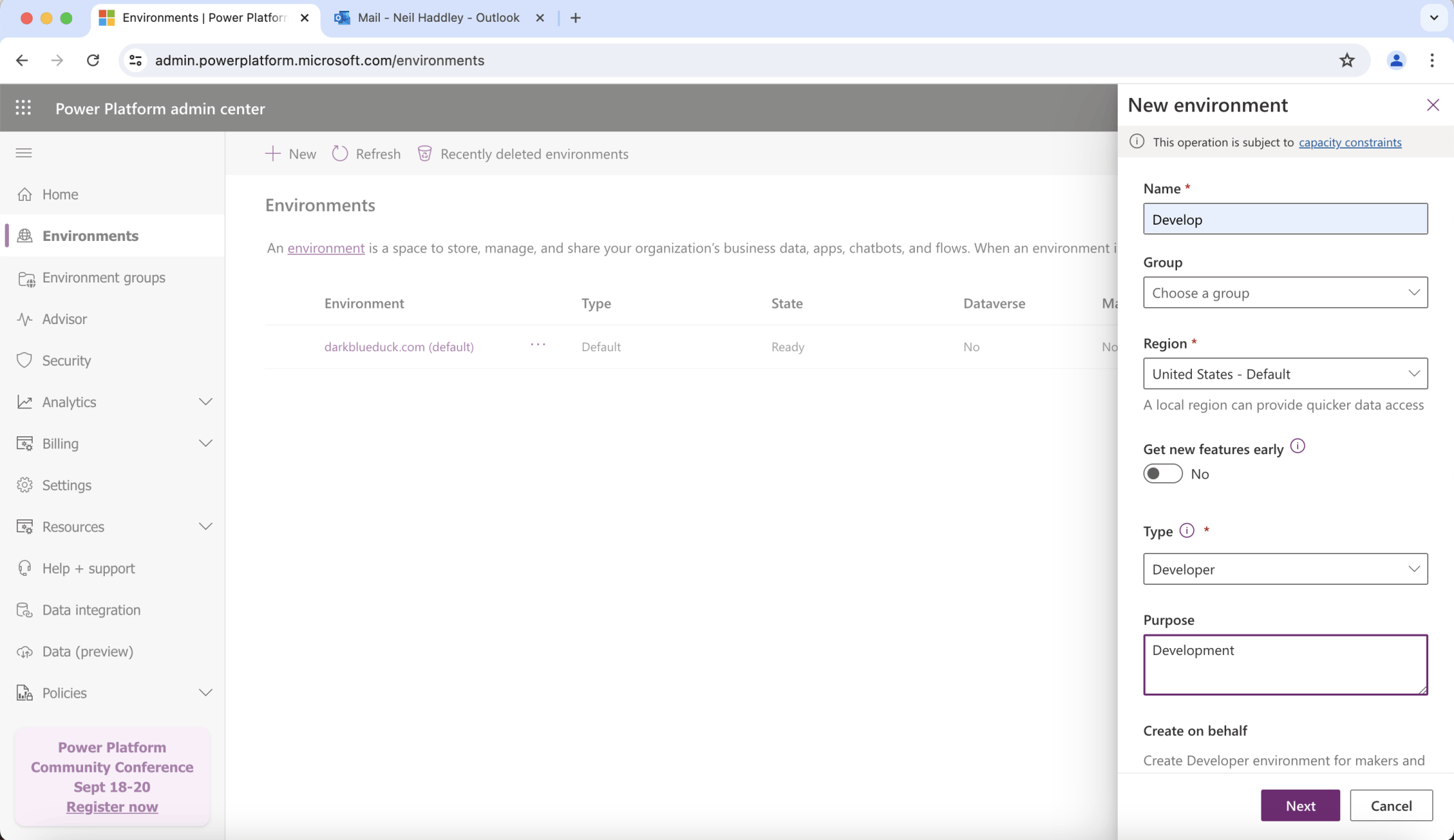
I created a new Power Platform Environment
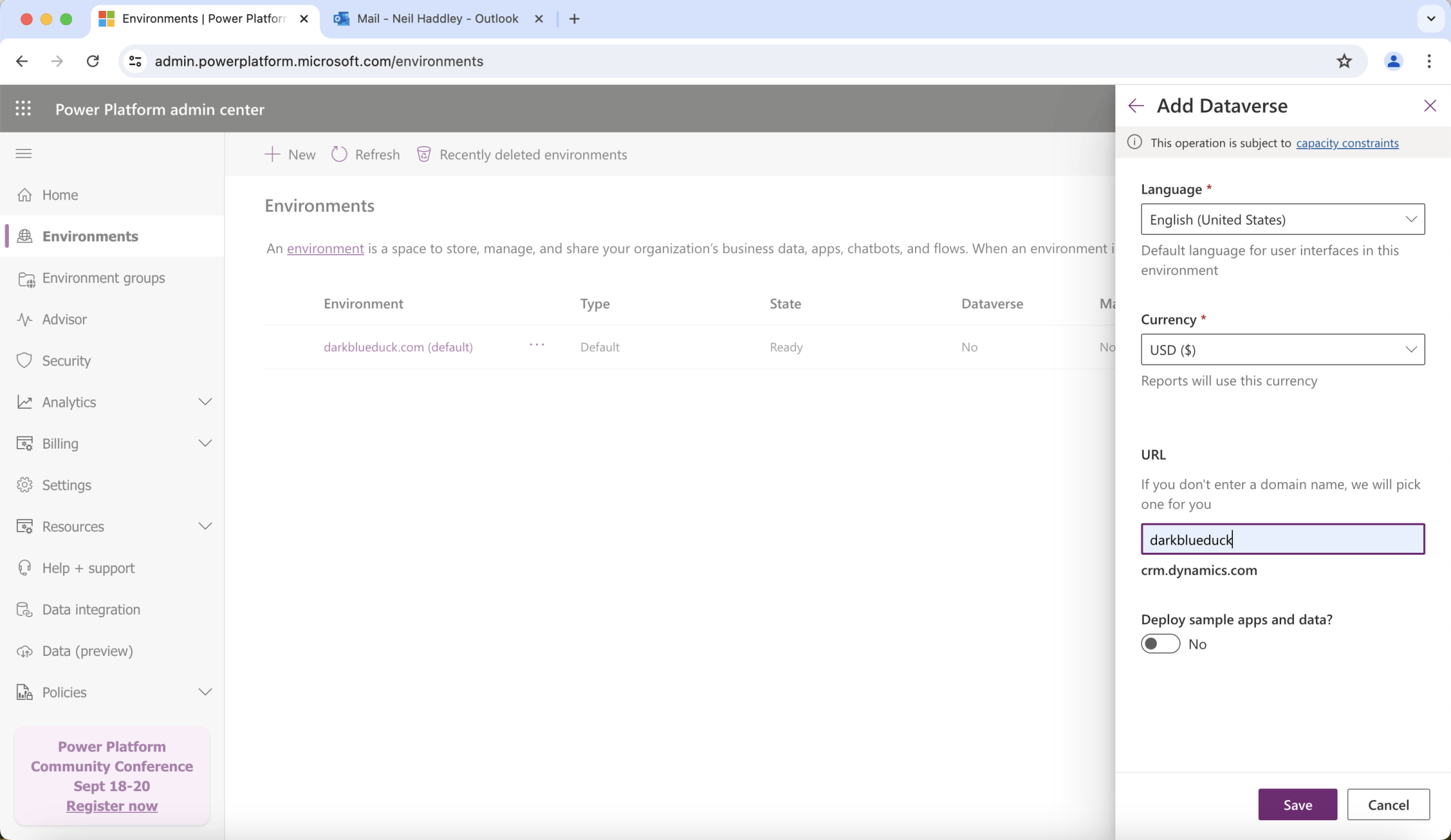
I entered a unique url https://darkblueduck.crm.dynamics.com
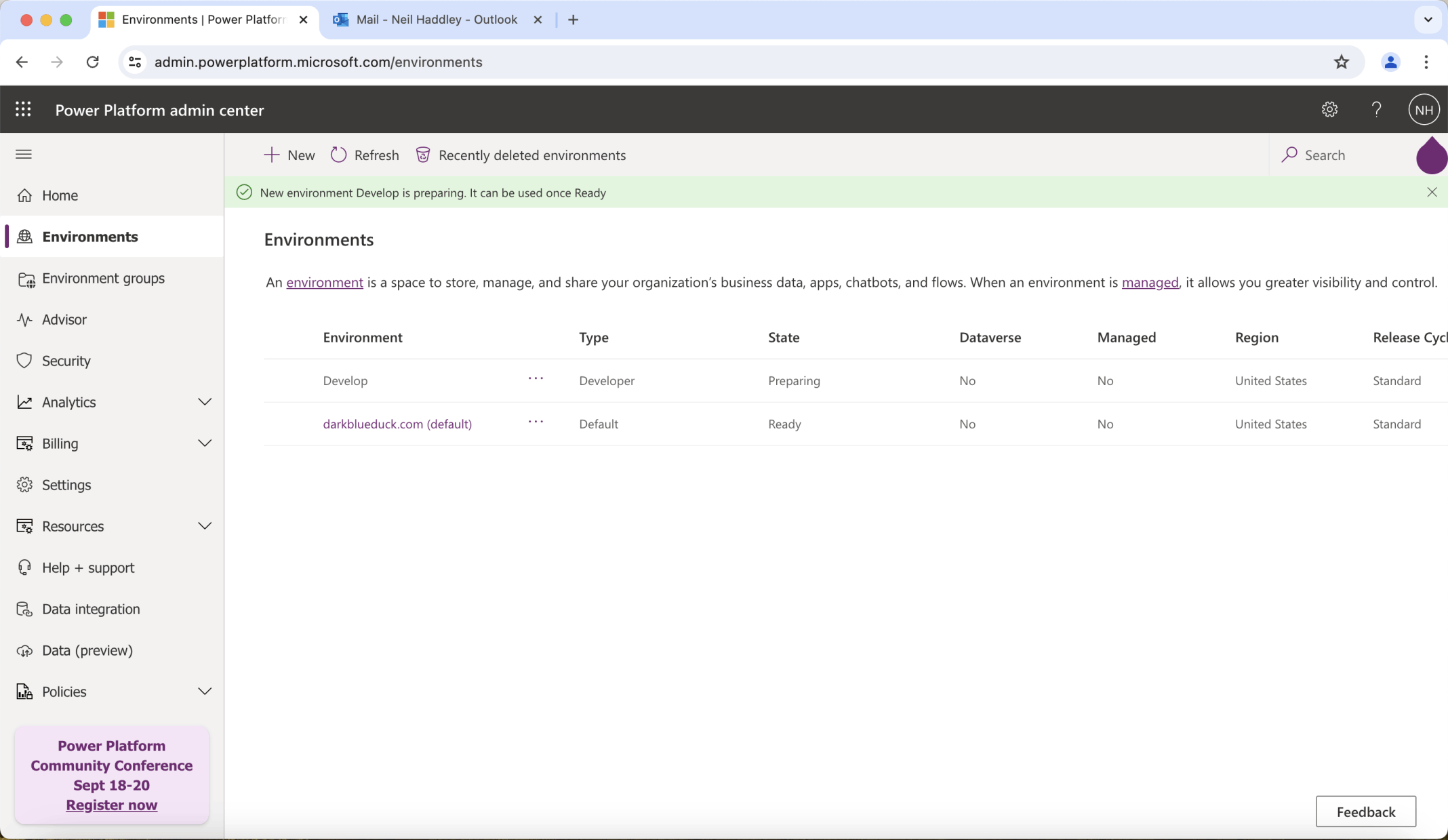
I waited while the environment was preparing...
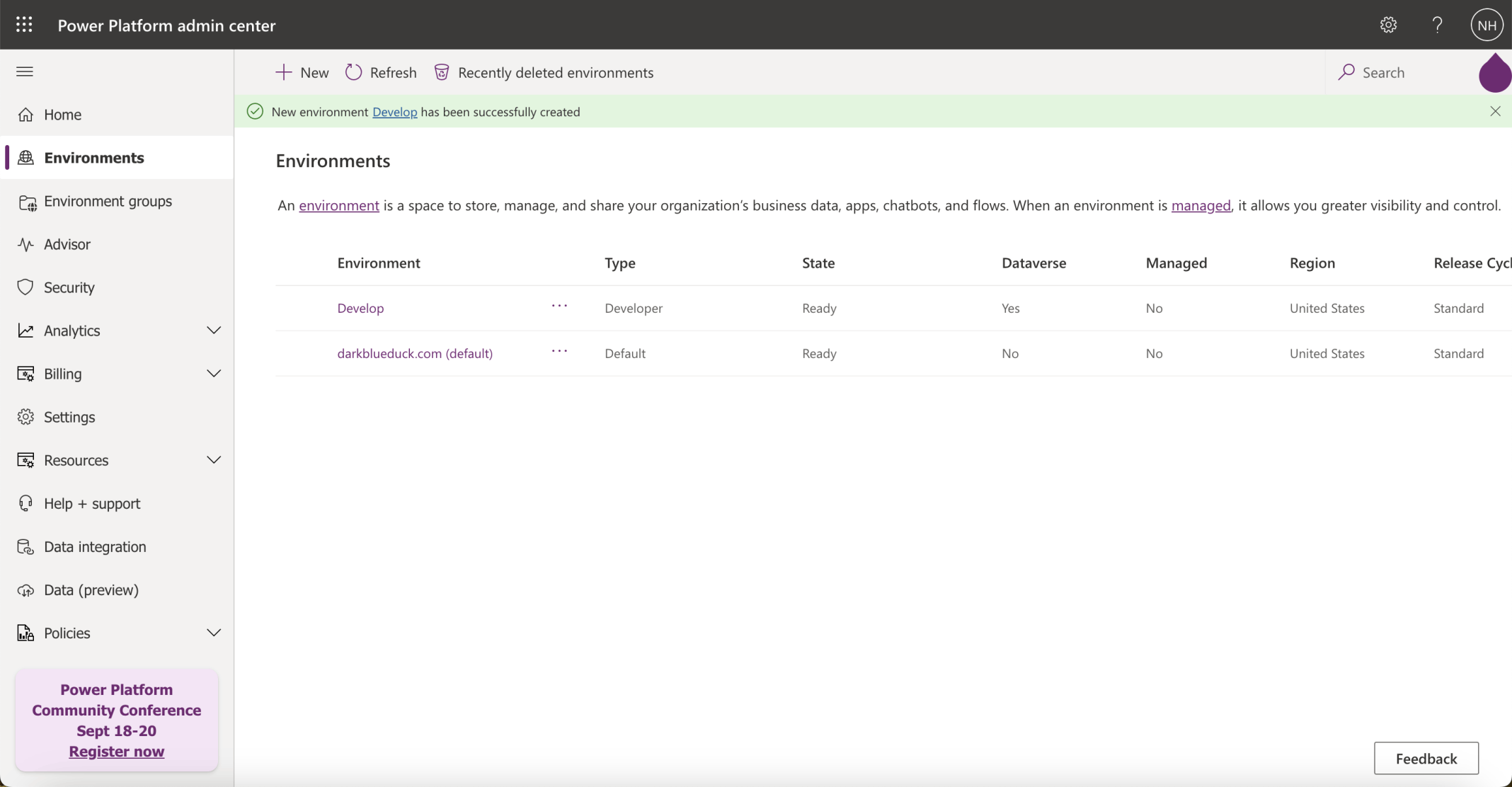
I confirmed the environment was ready
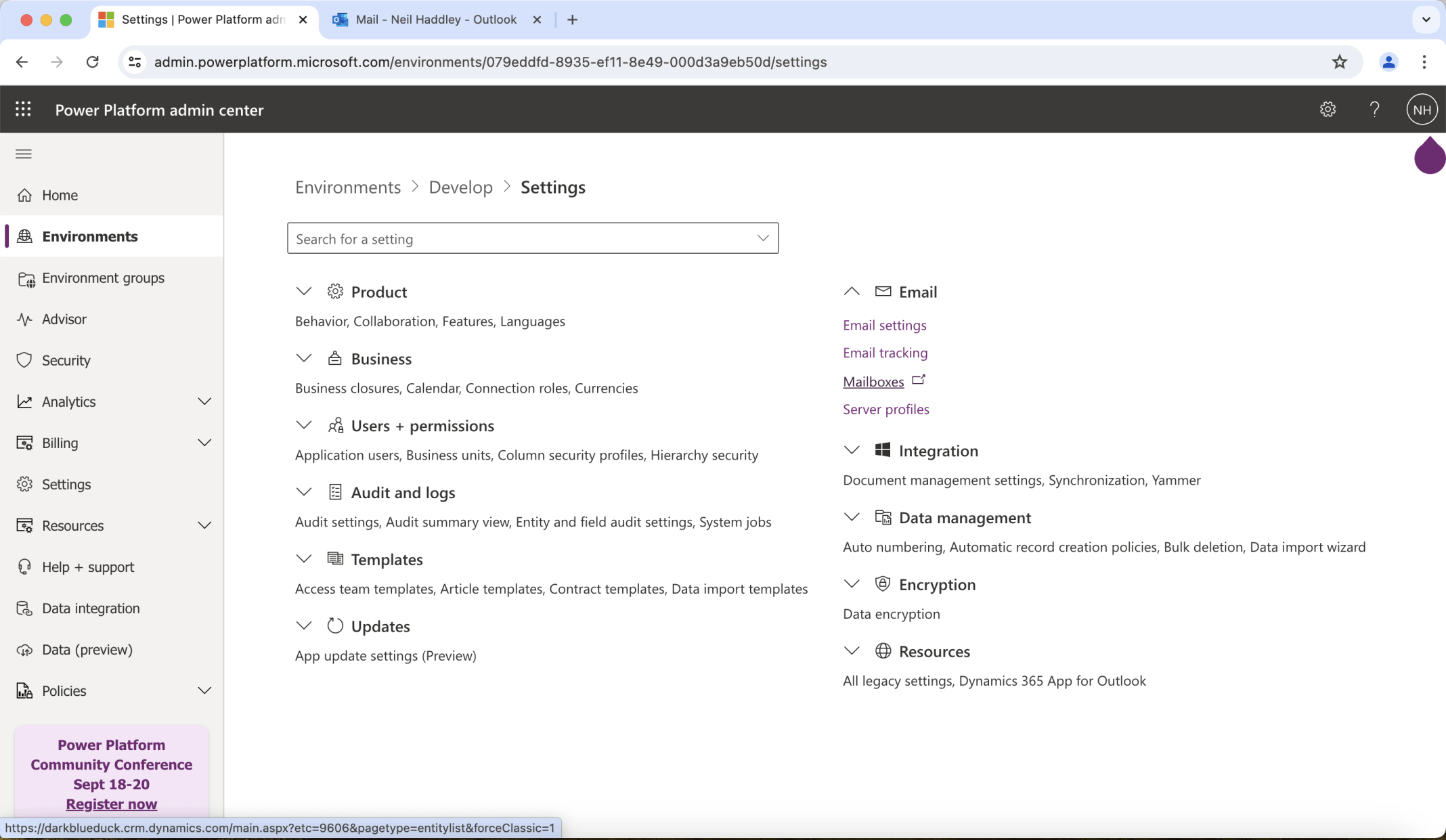
I navigated using the Settings | Mailboxes link
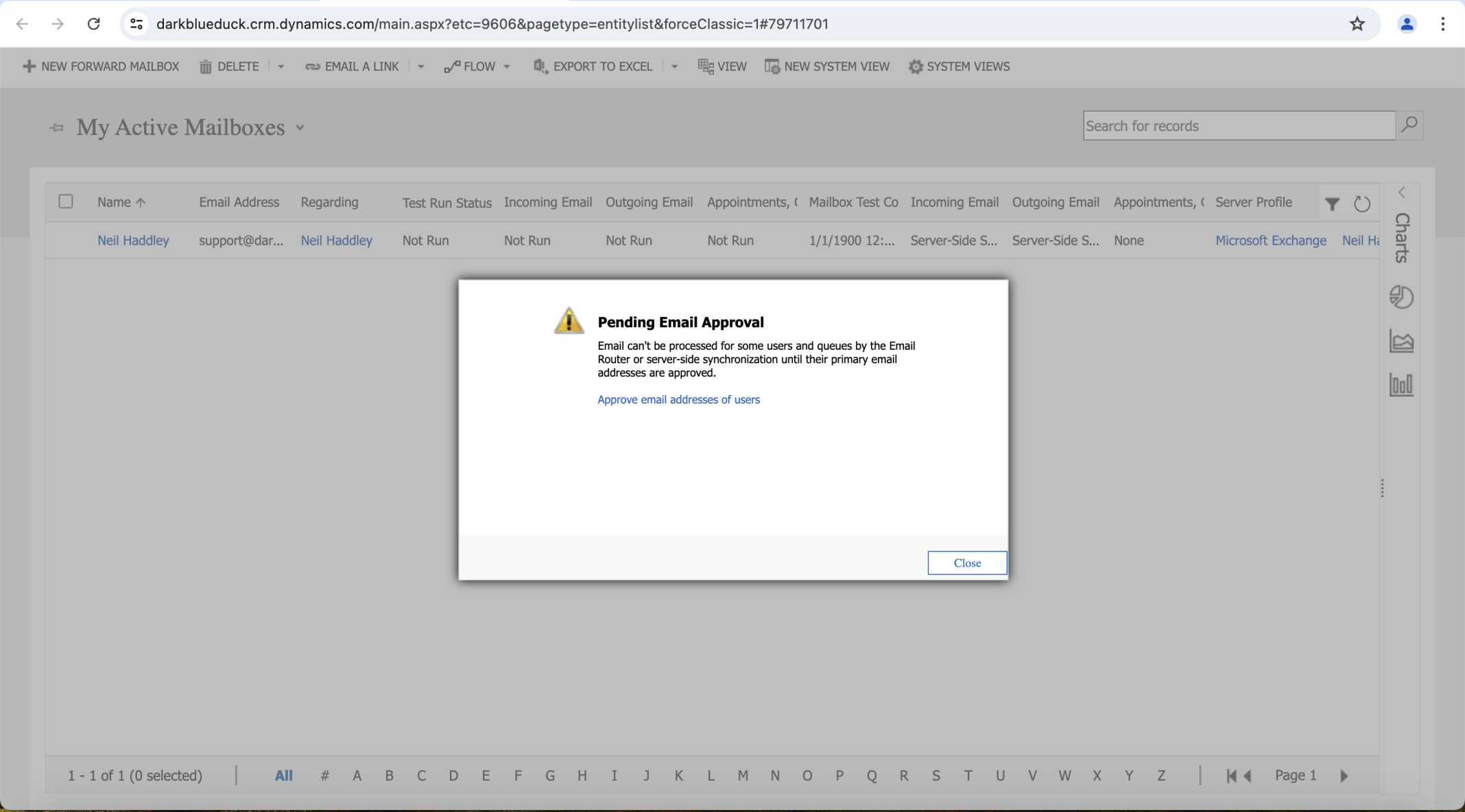
I clicked Close
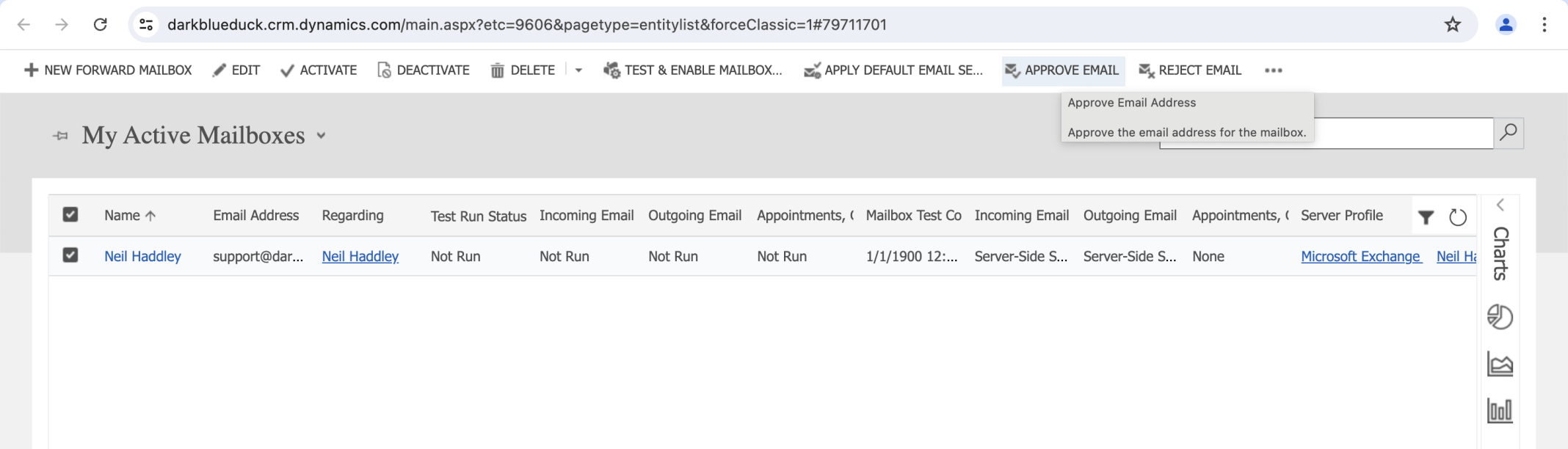
I clicked APPROVE EMAIL
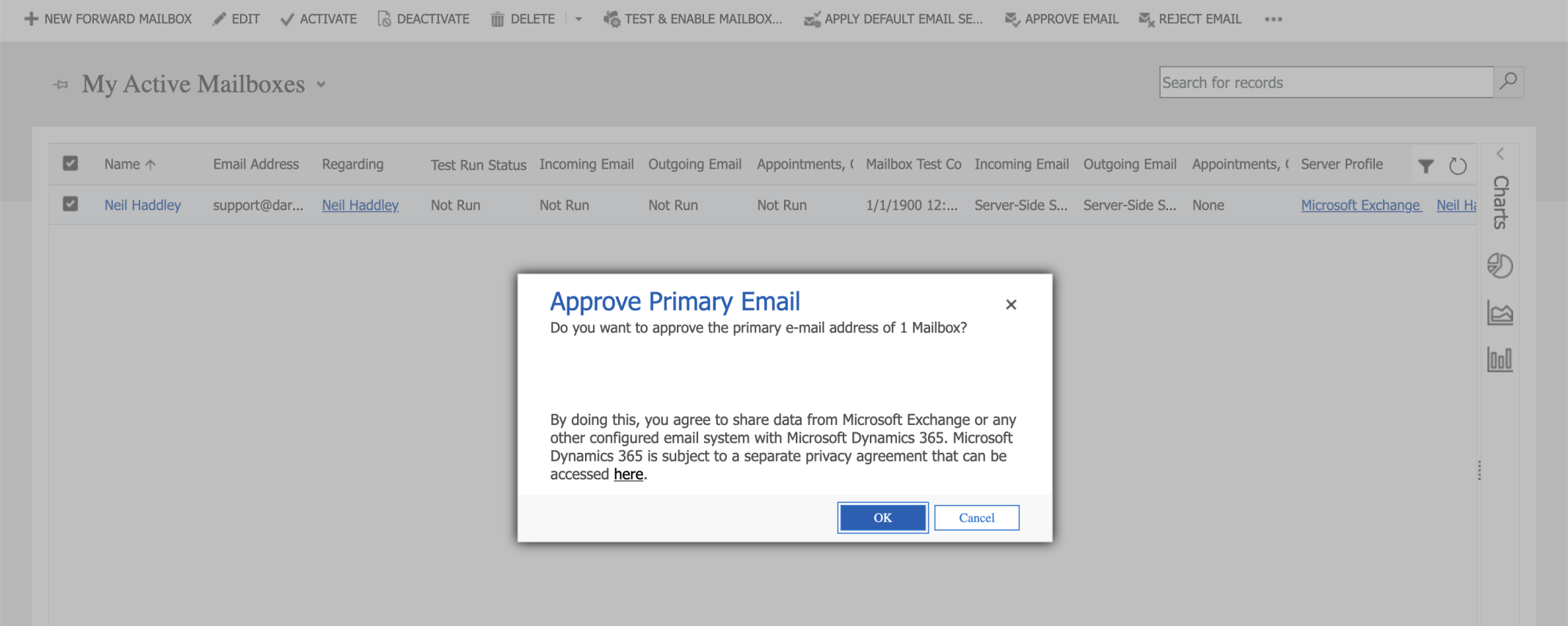
I clicked OK
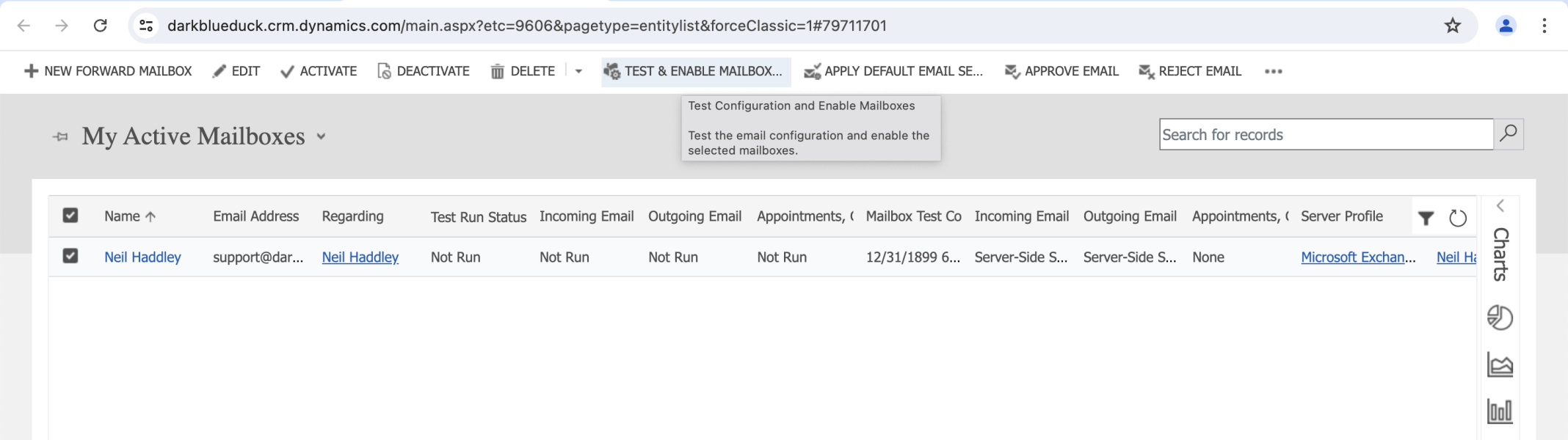
I clicked TEST & ENABLE MAILBOXES
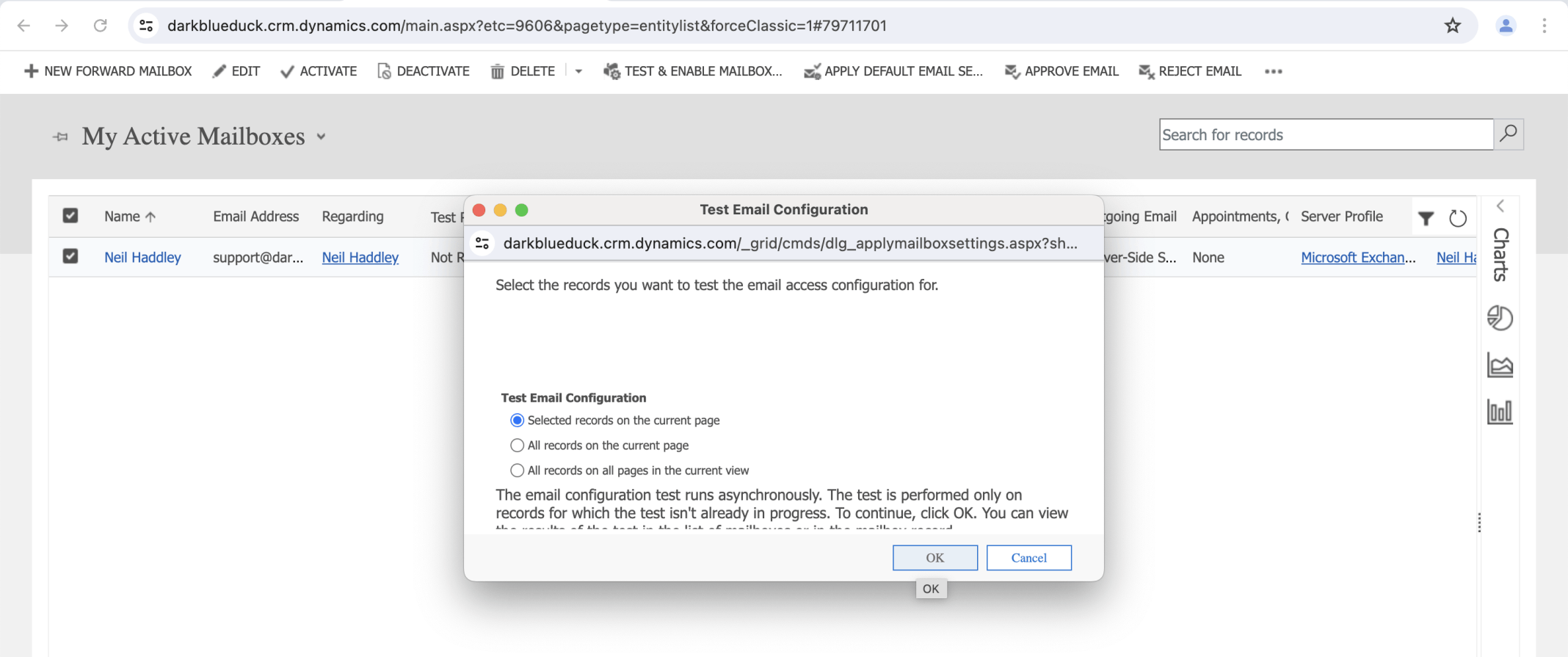
I clicked OK
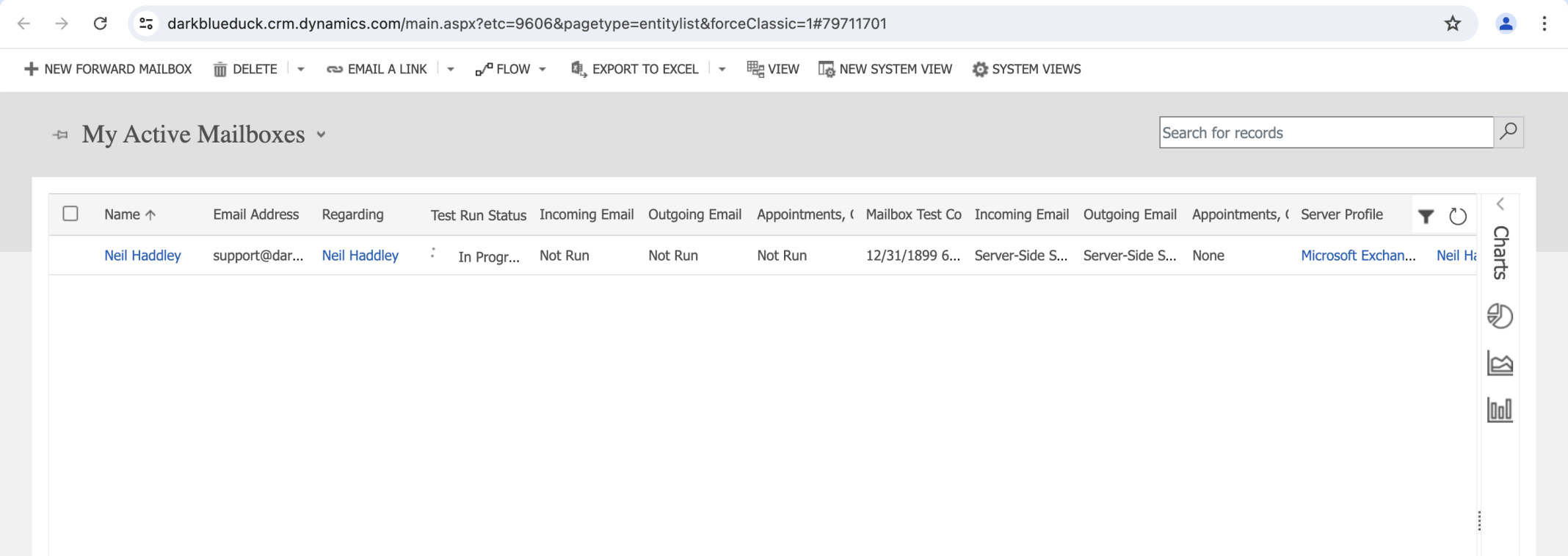
I waited while testing was in progress (takes a long time)
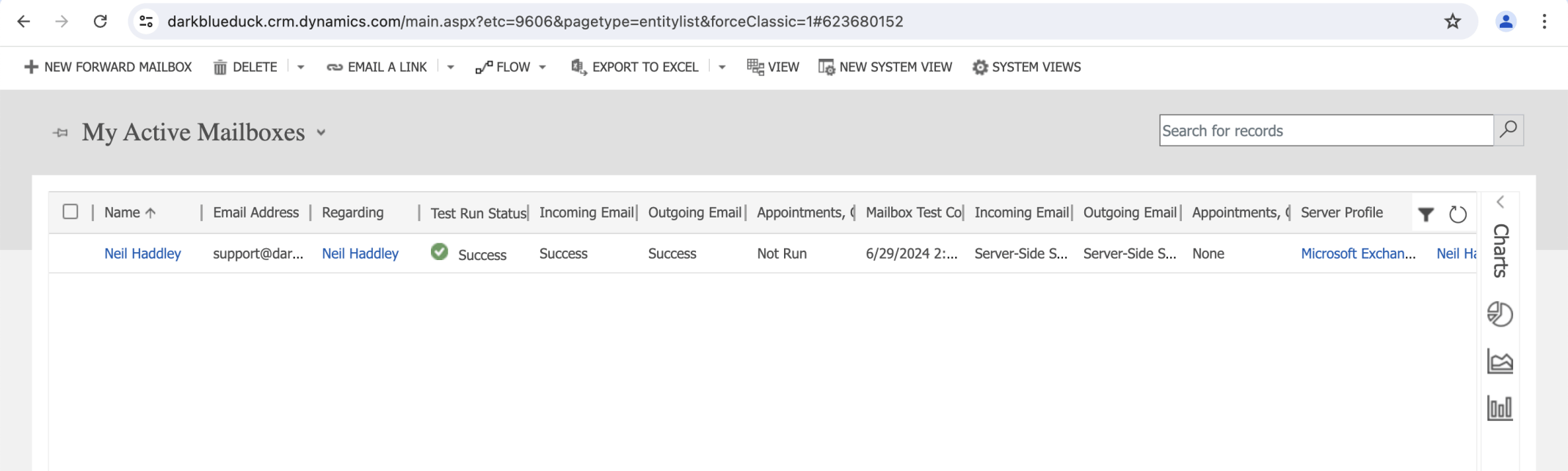
I confirmed success
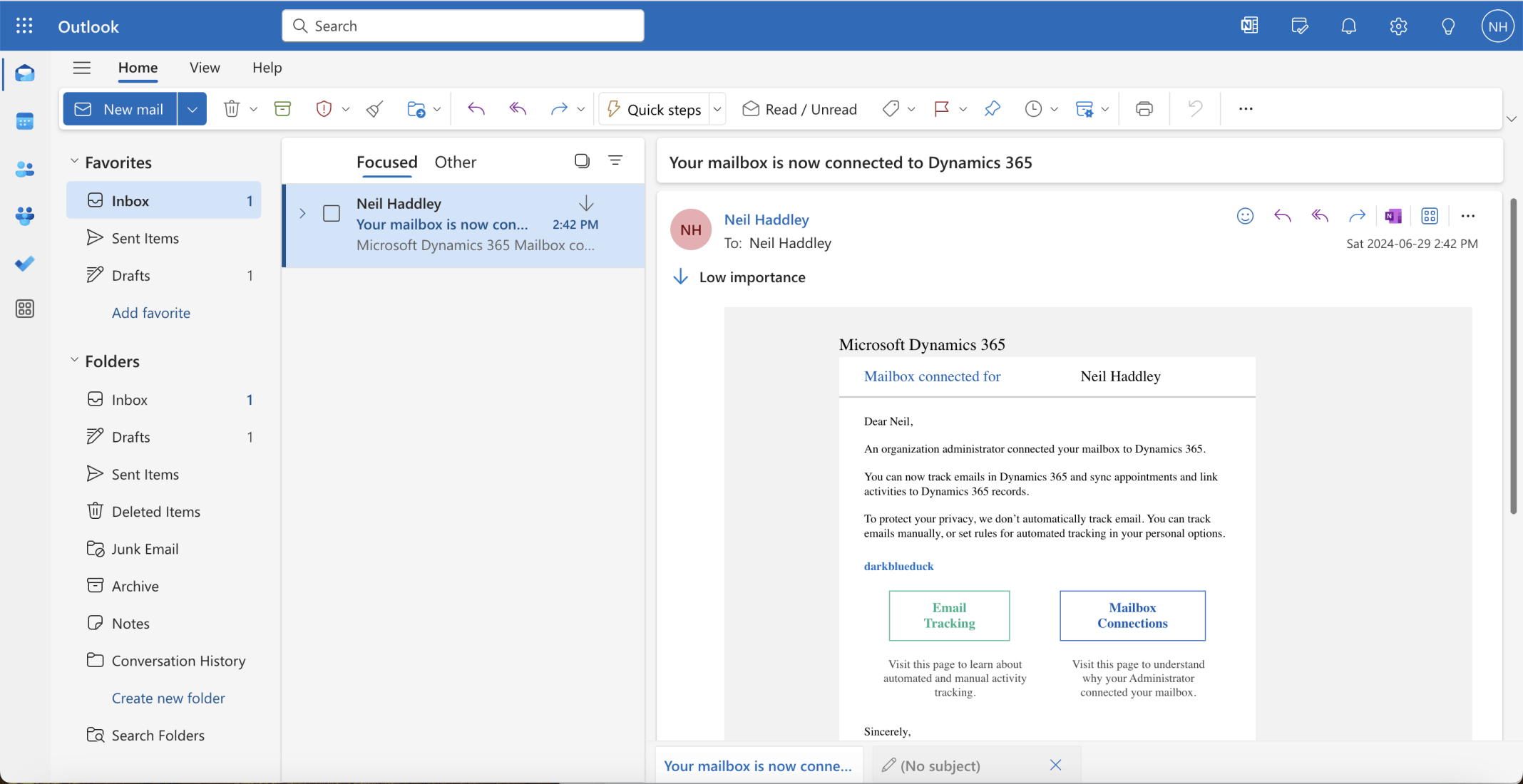
I reviewed the notification
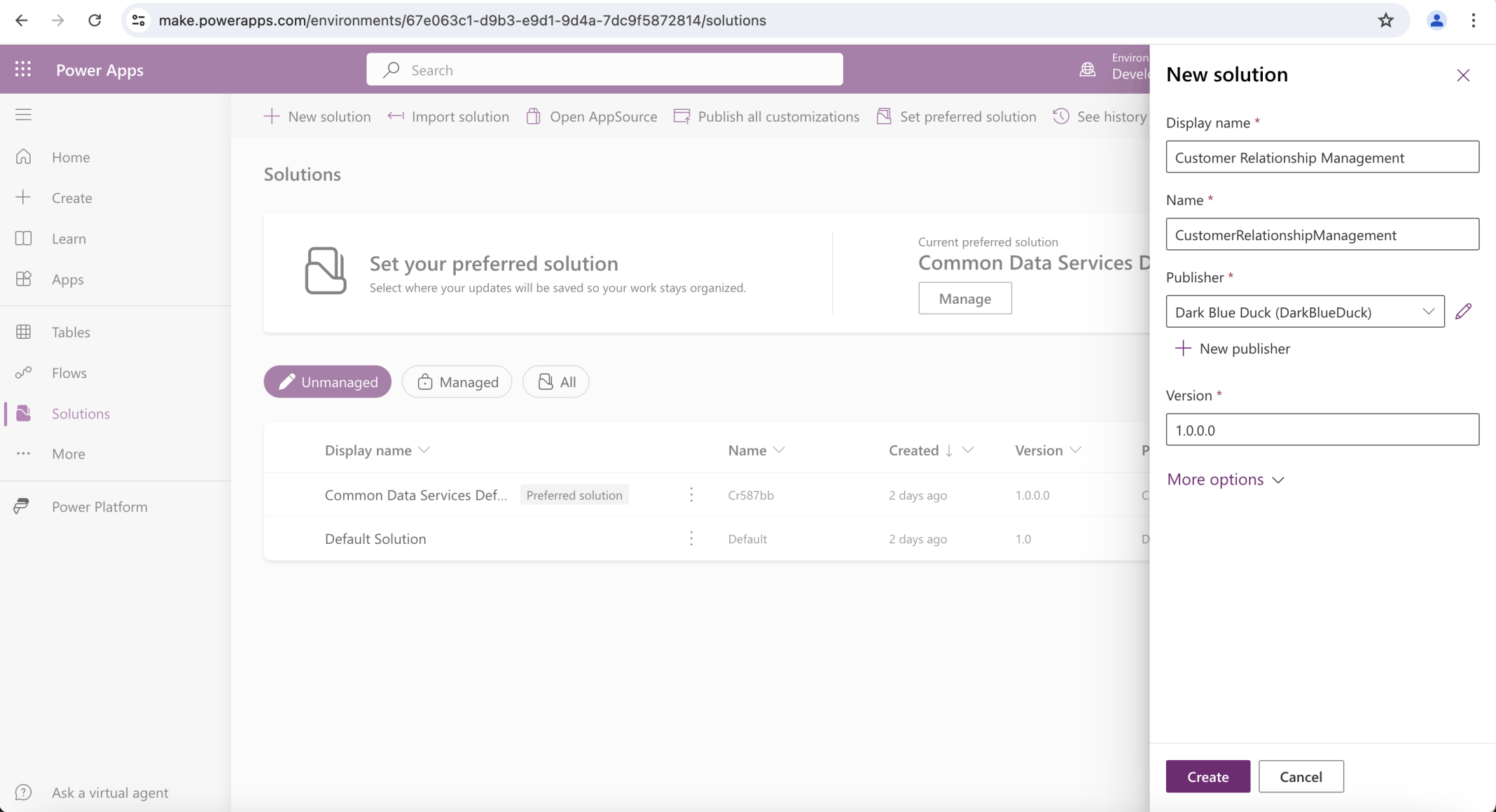
I created a "Customer Relationship Management" solution
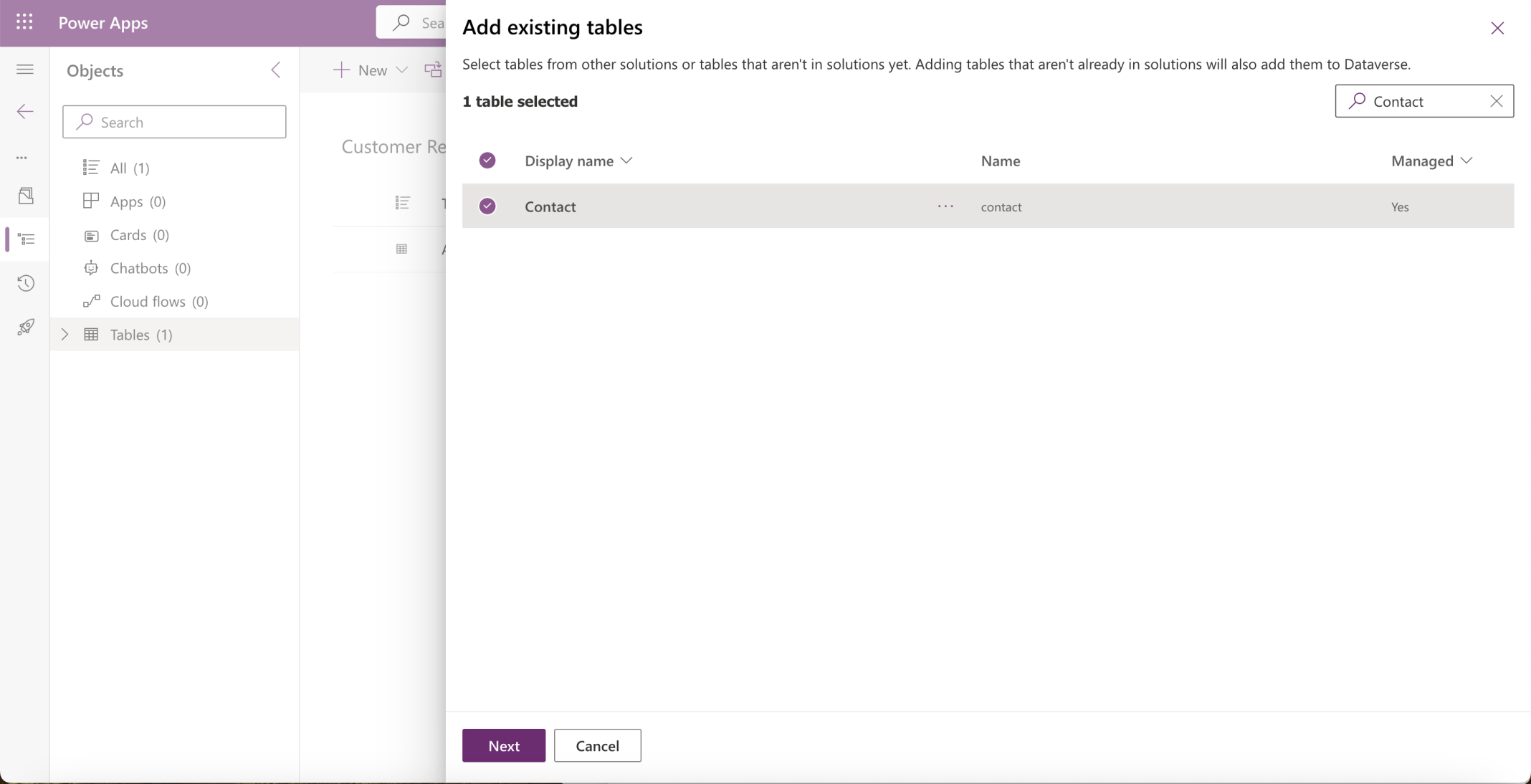
I added the existing Account and Contact tables
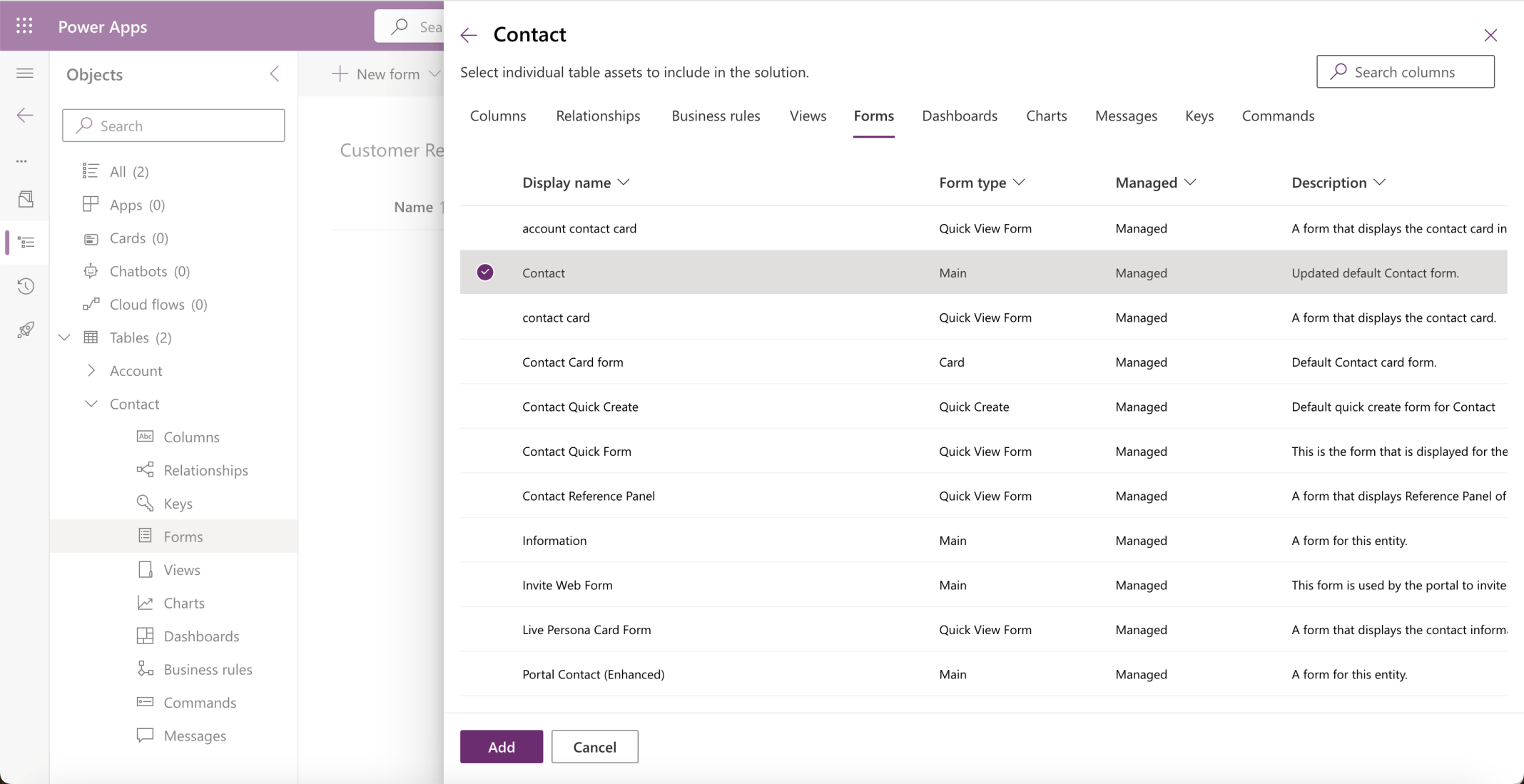
I reviewed the Contact table's Main form
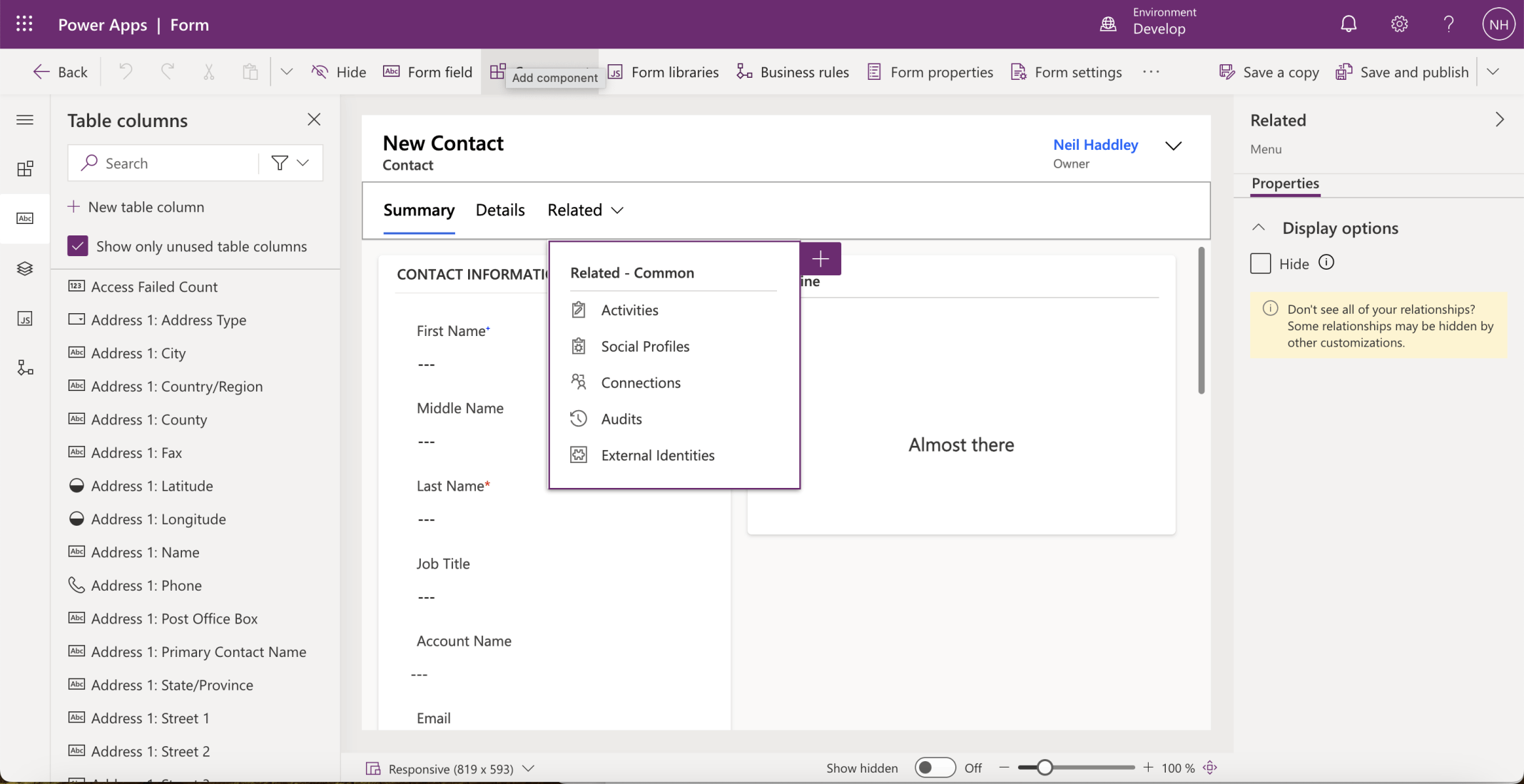
I noted that the Main form included a Timeline control
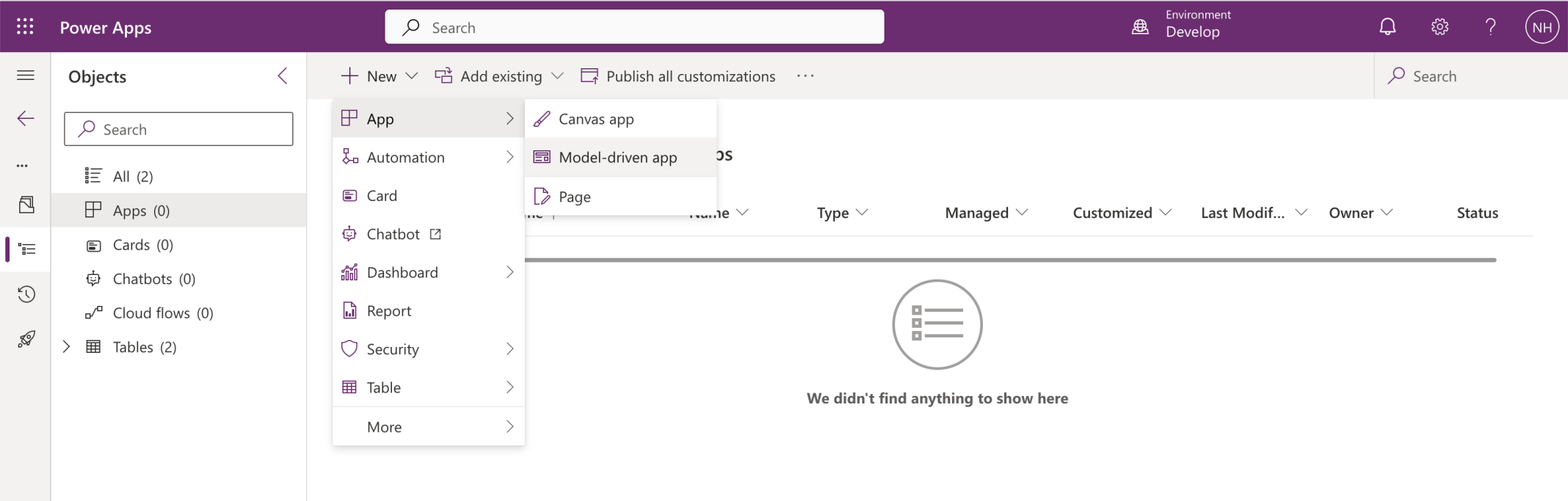
I created a new Model-driven app
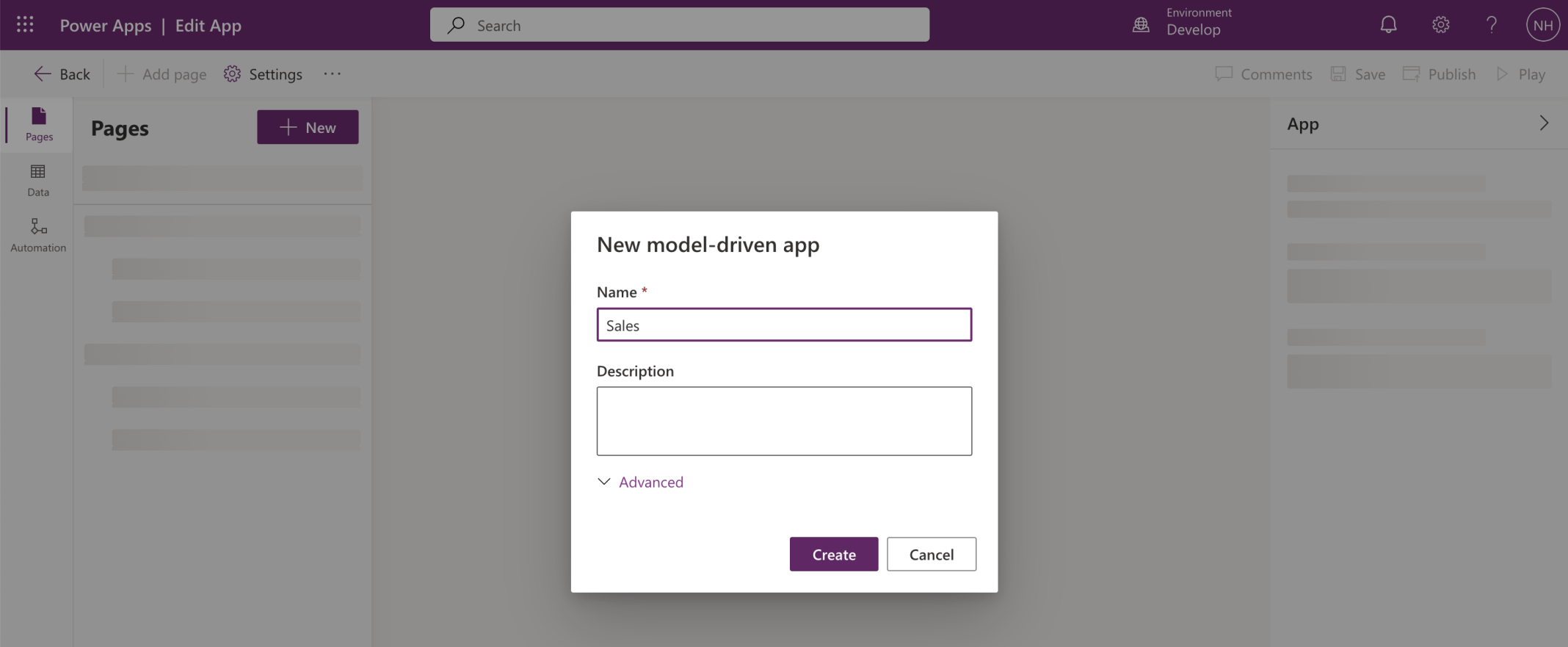
I named the app Sales
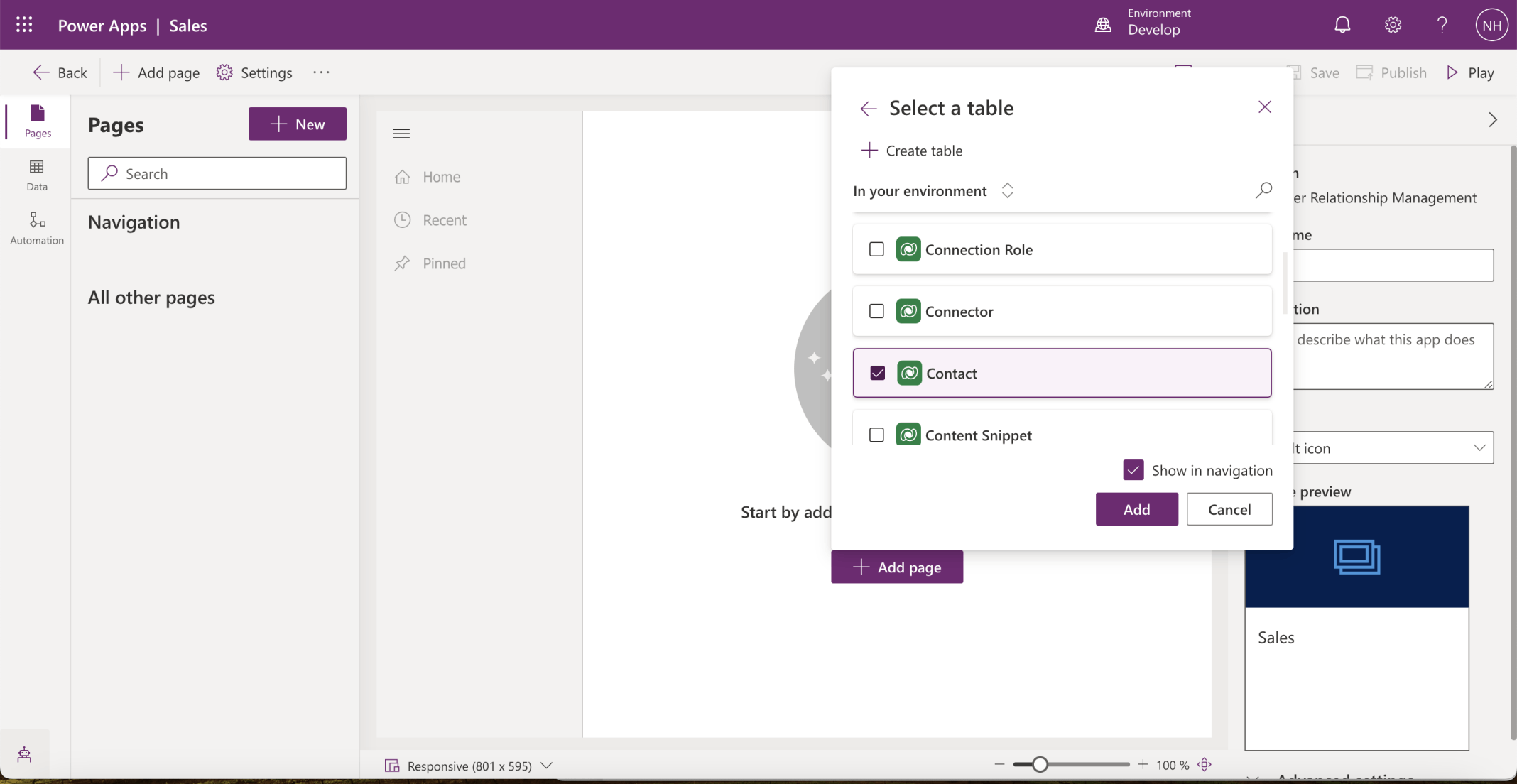
I added the Account and Contact tables
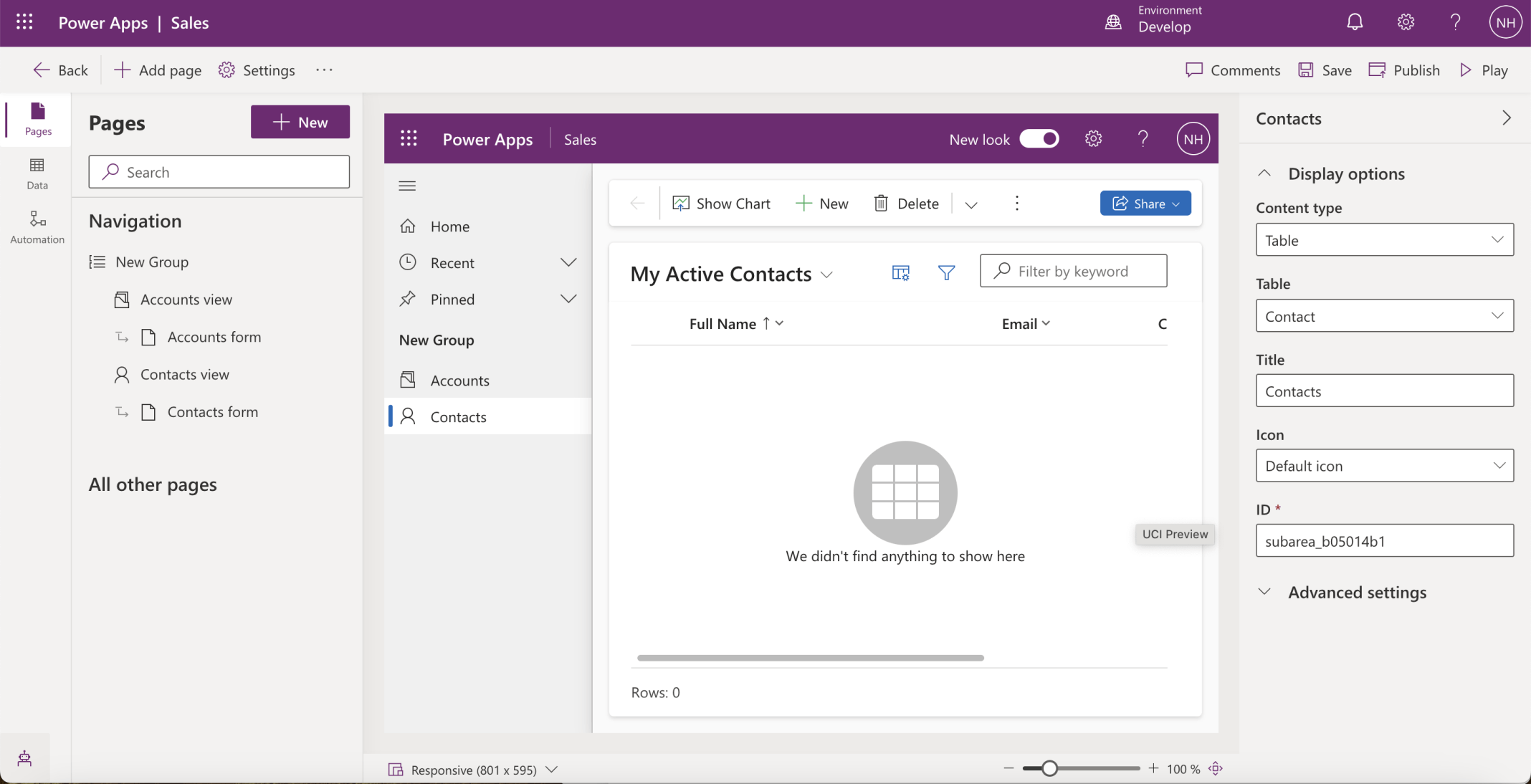
I clicked the Play button
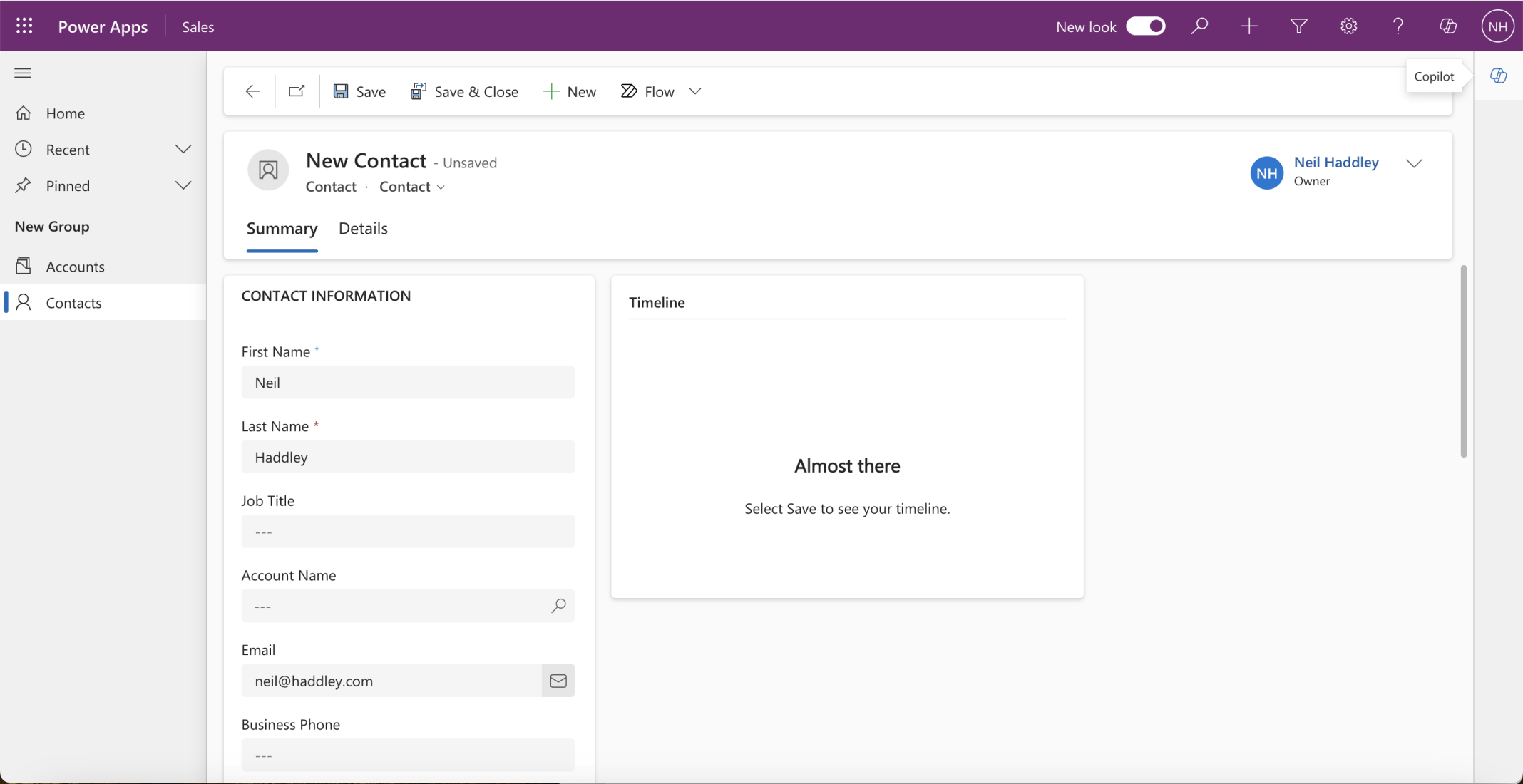
I created a new Contact (using my personal email address)
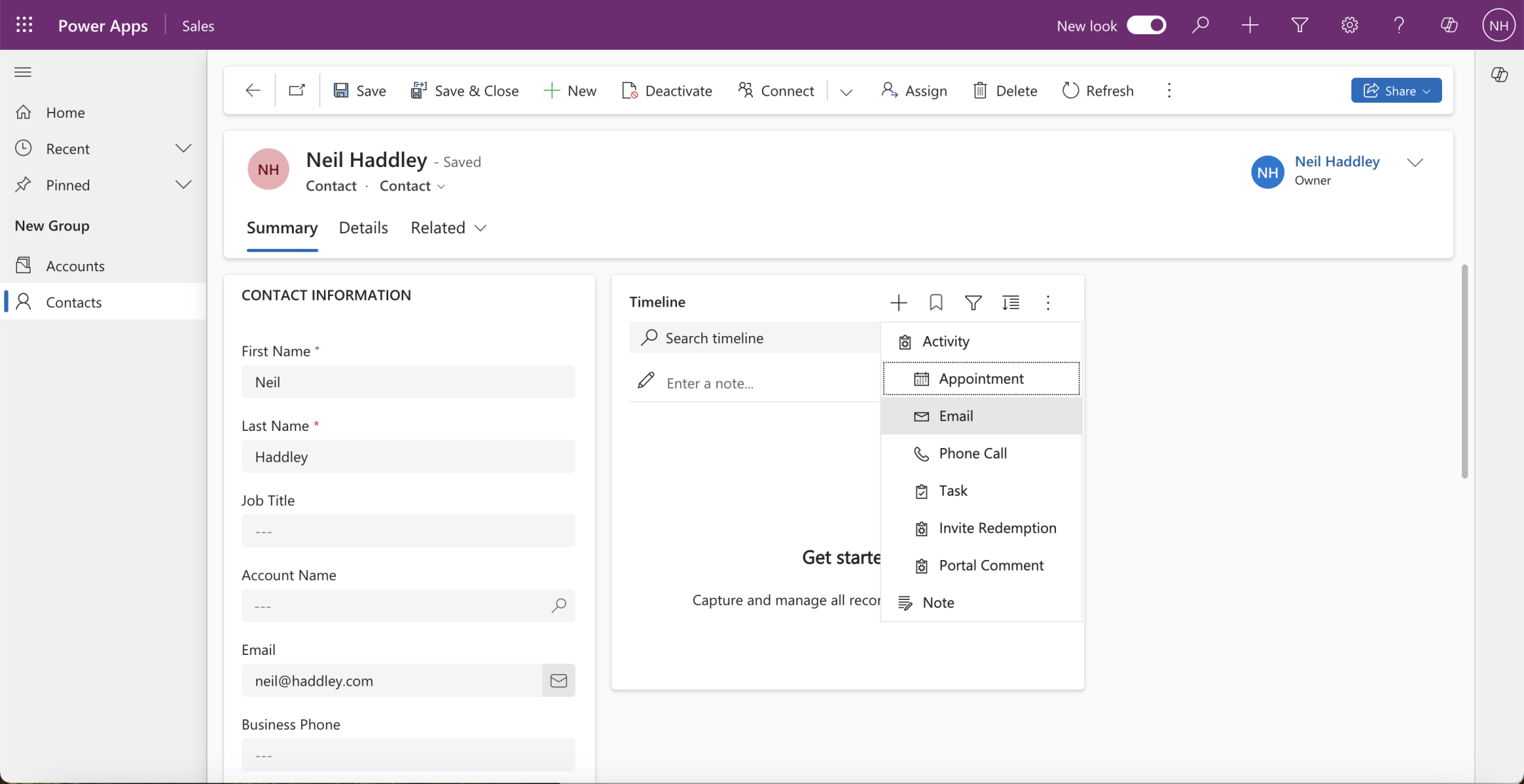
I used the Timeline control to create an Email
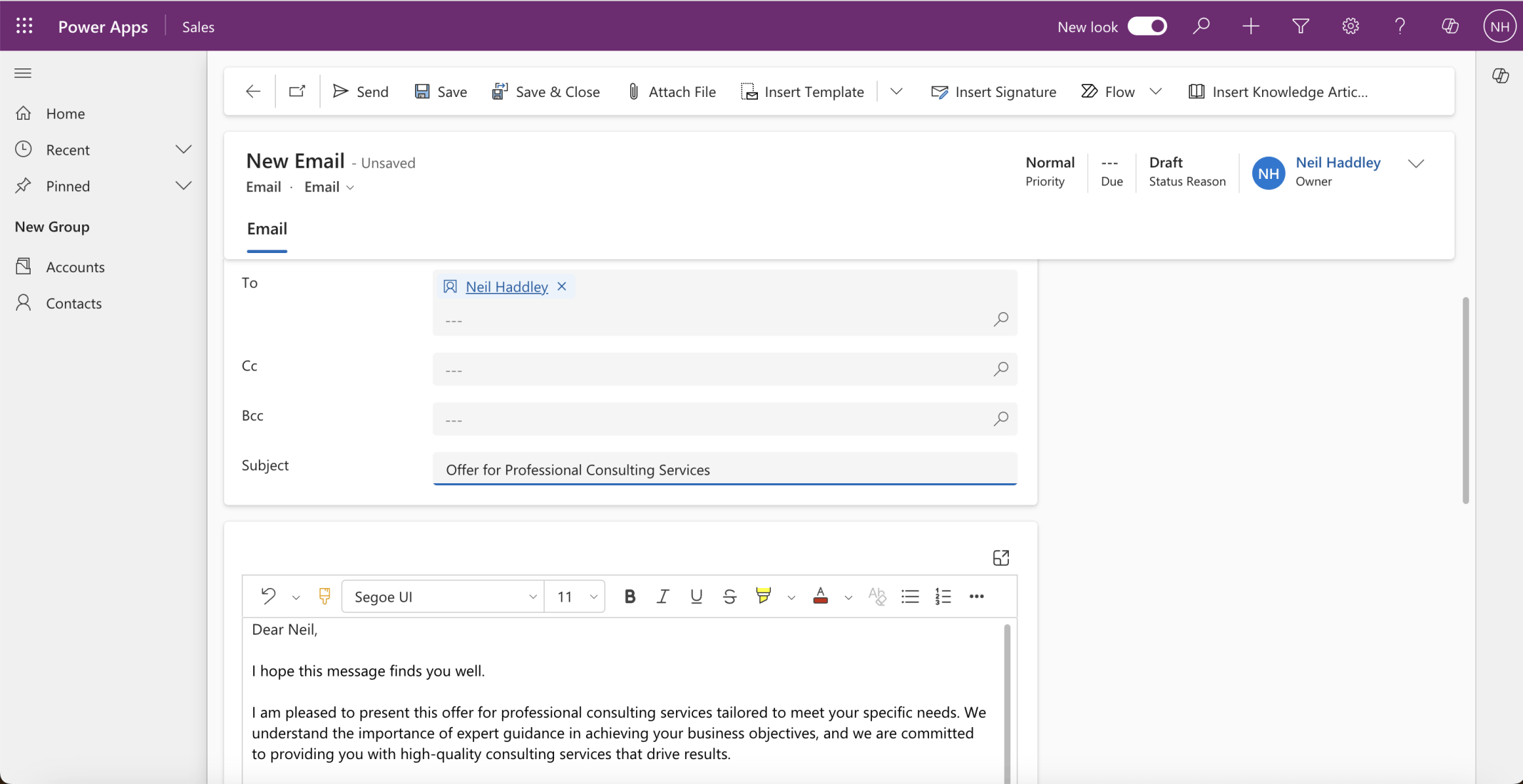
I clicked Send
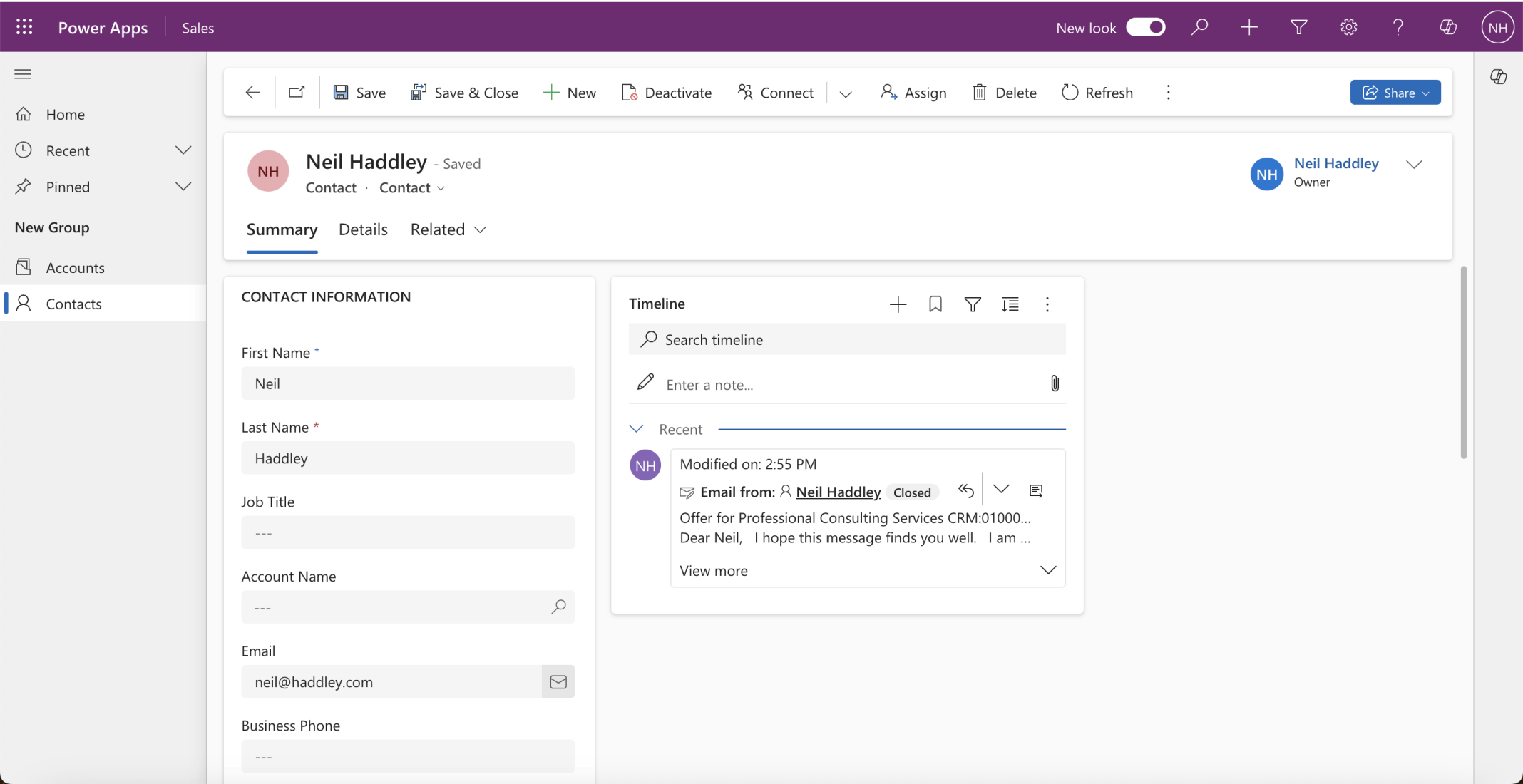
I confirmed the email was added to the Dataverse mailbox
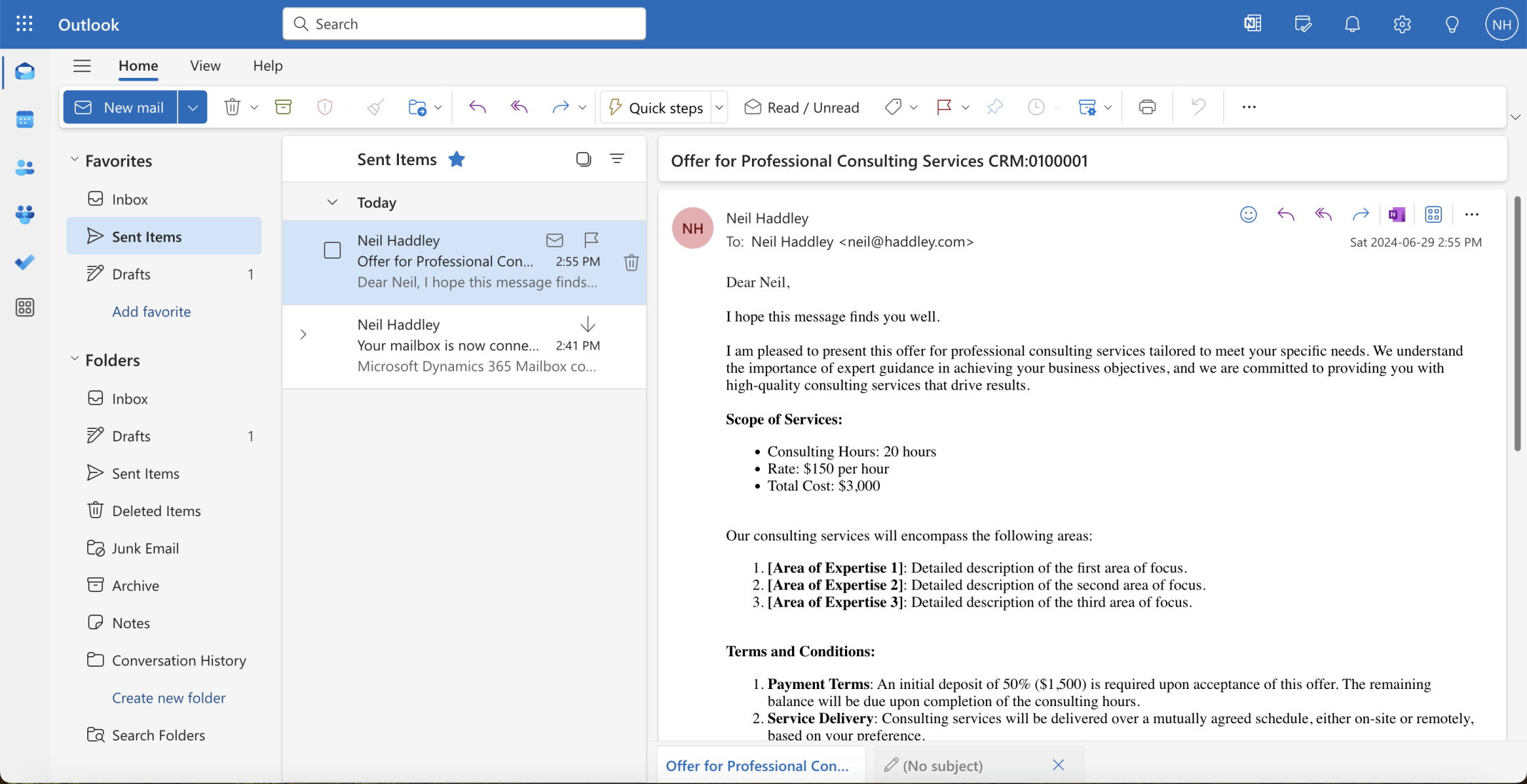
I confirmed the email was sent by support@darkblueduck.com
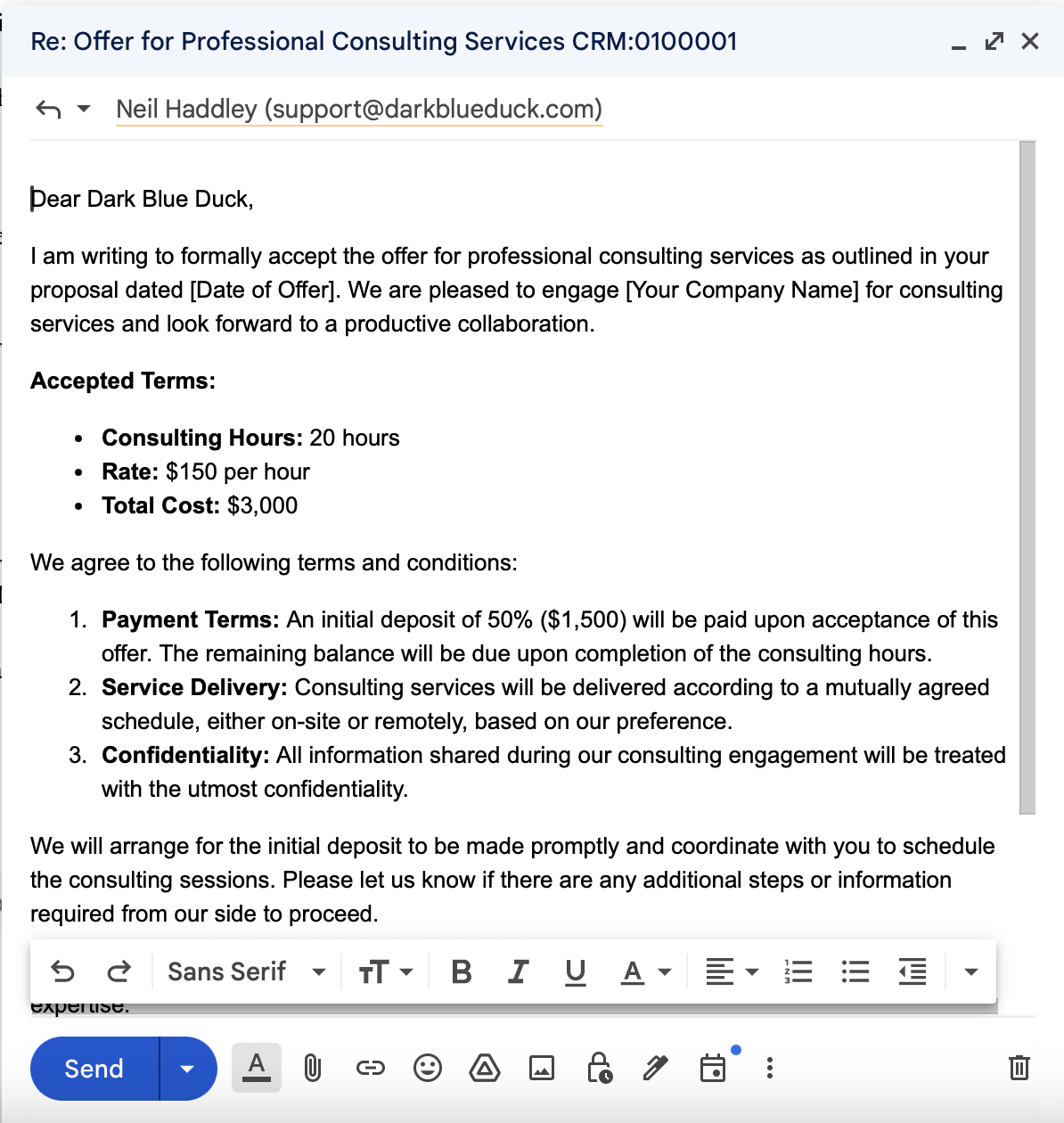
I composed a response
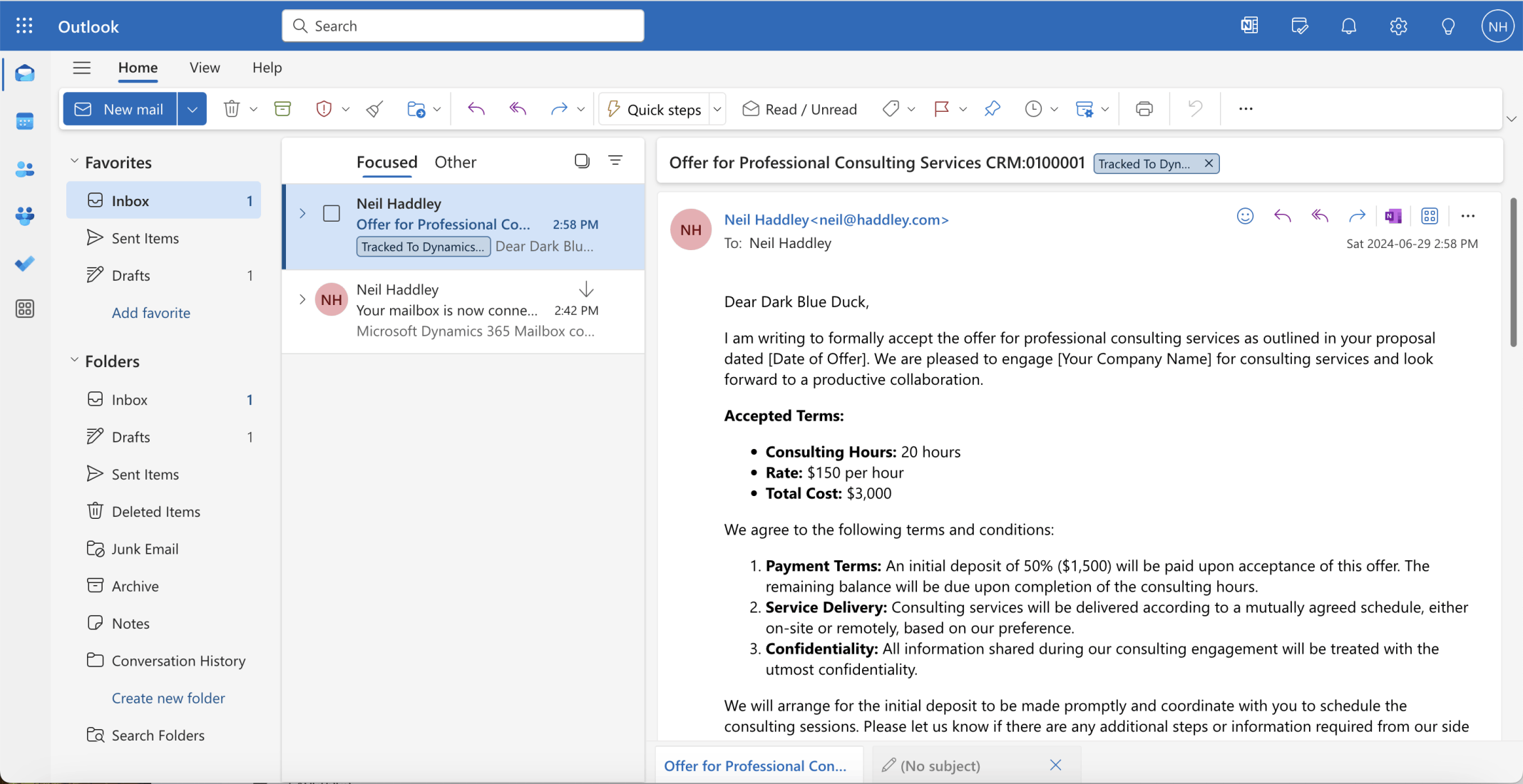
I confirmed the response was received and marked as "Tracked To Dynamics"
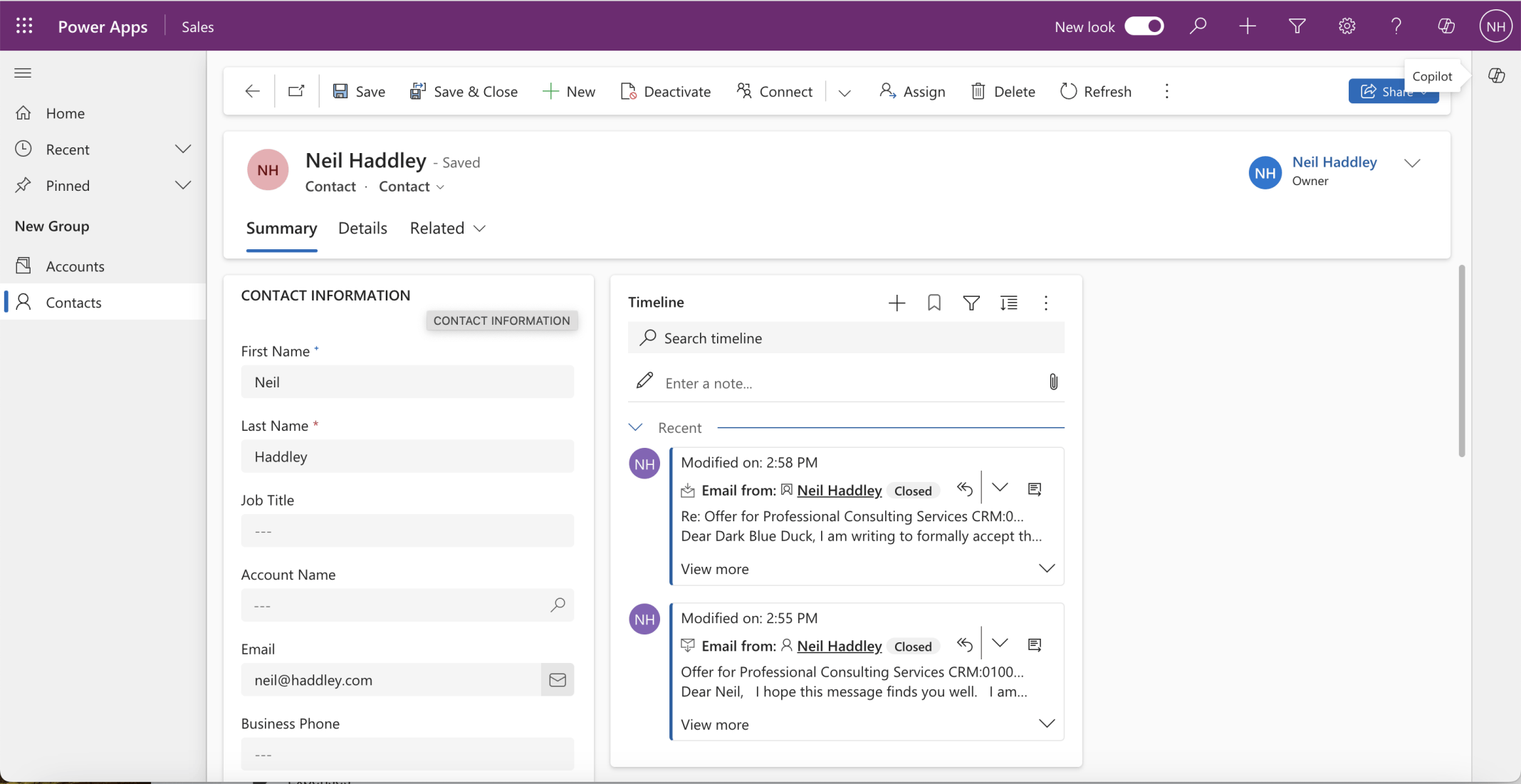
I confirmed the response was displayed in the Timeline
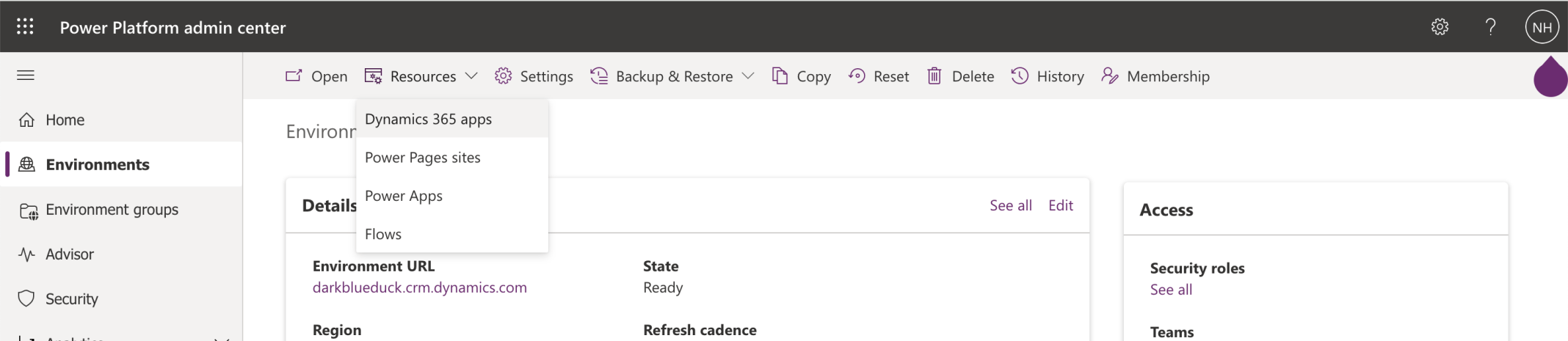
I reviewed the Dynamics 365 apps associated with the Envrionment
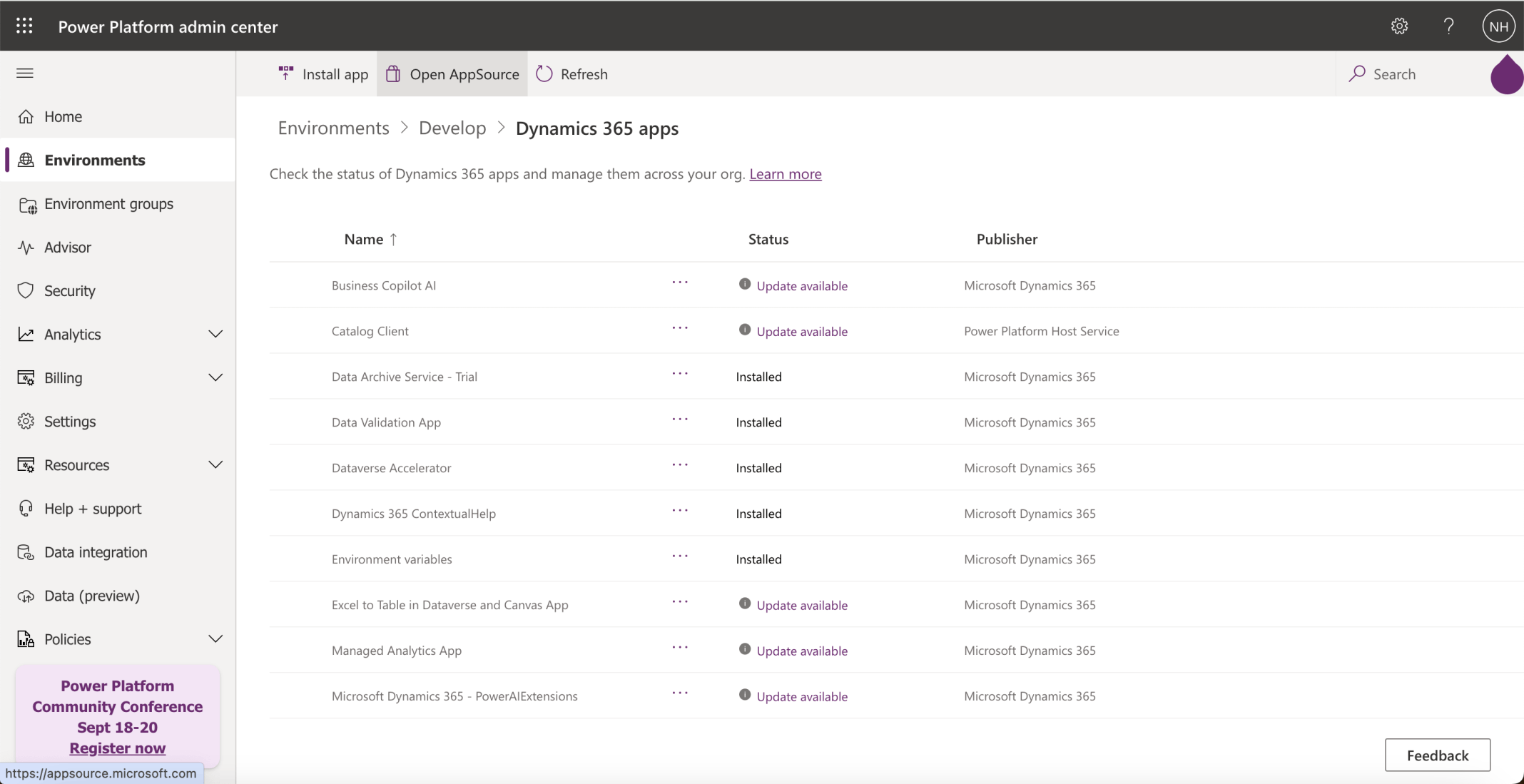
I clicked the Open AppSource button
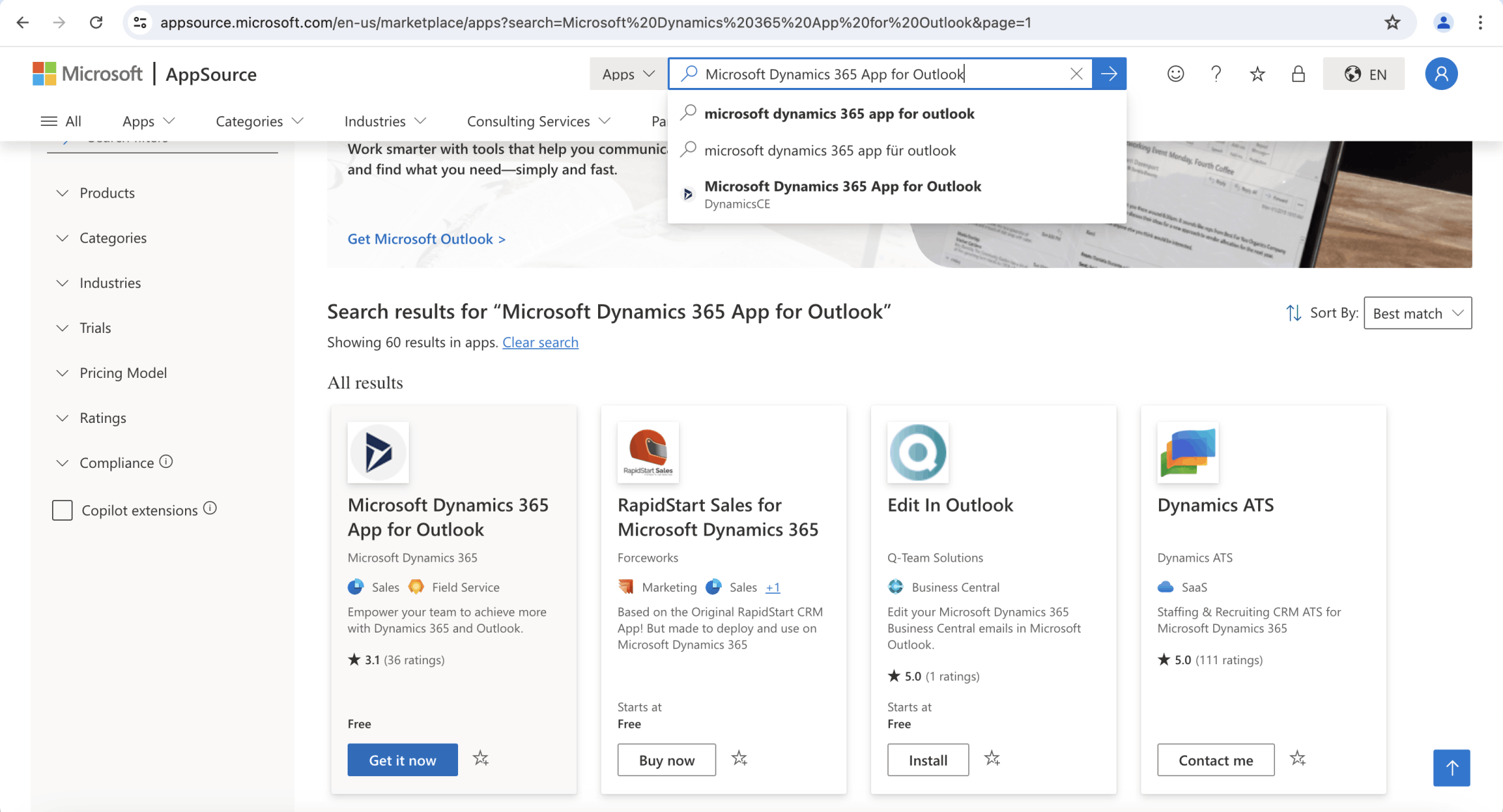
I located the Microsoft Dynamics 365 App for Outlook app and clicked the Get it now button
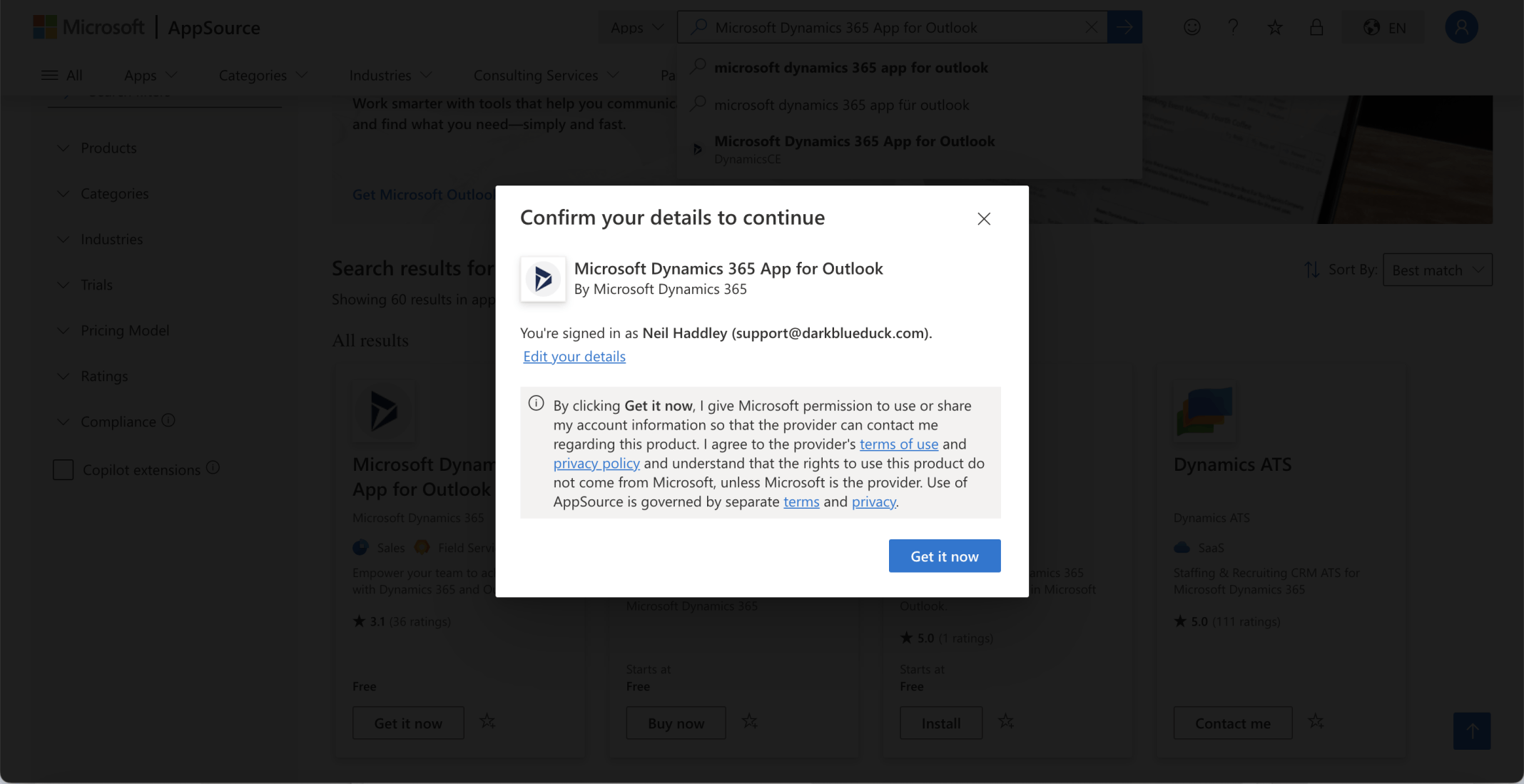
I clicked the Get it now button
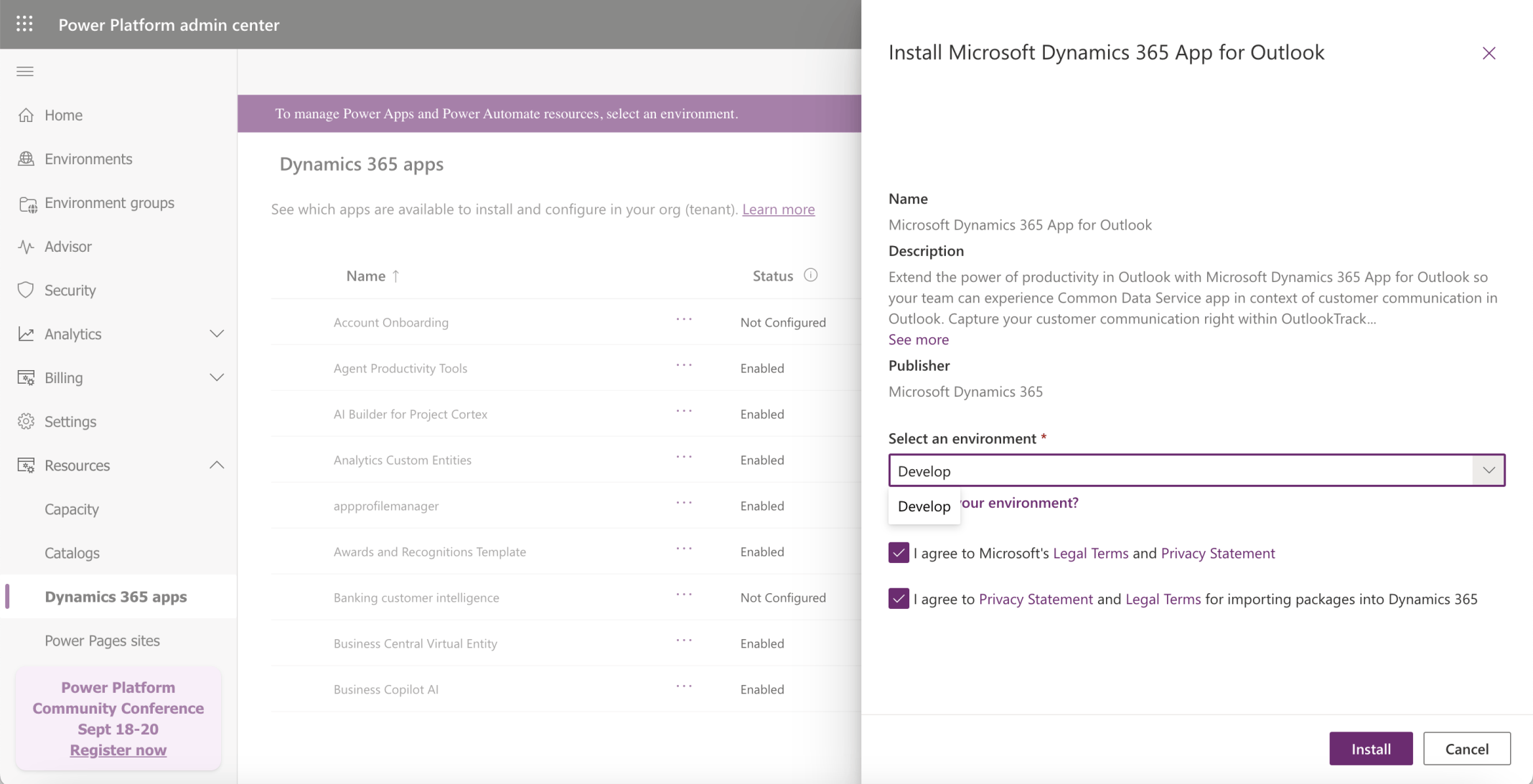
I selected the Develop Environment
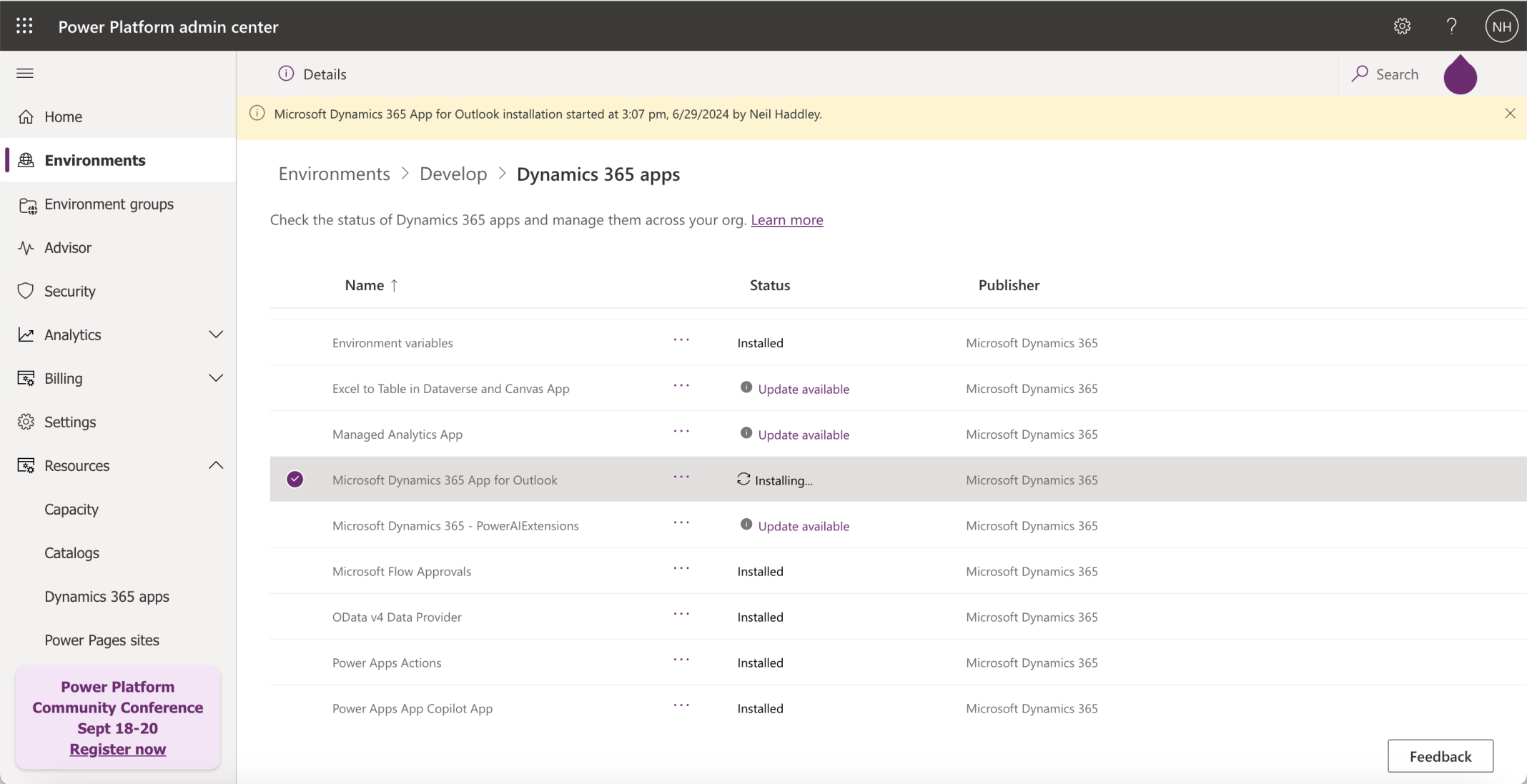
I waited while installing
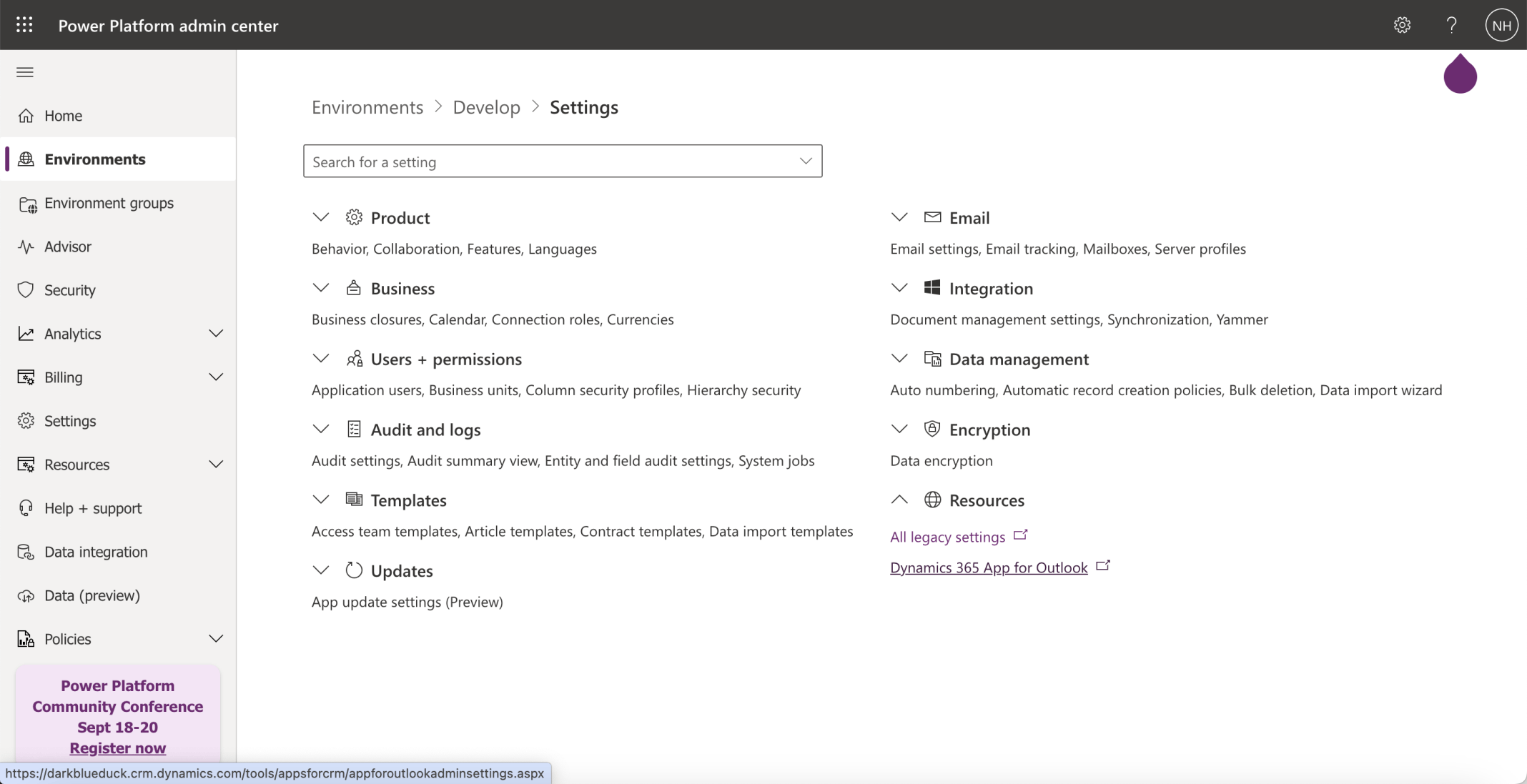
I clicked the Settings | Resources | Dynamics 365 App for Outlook link
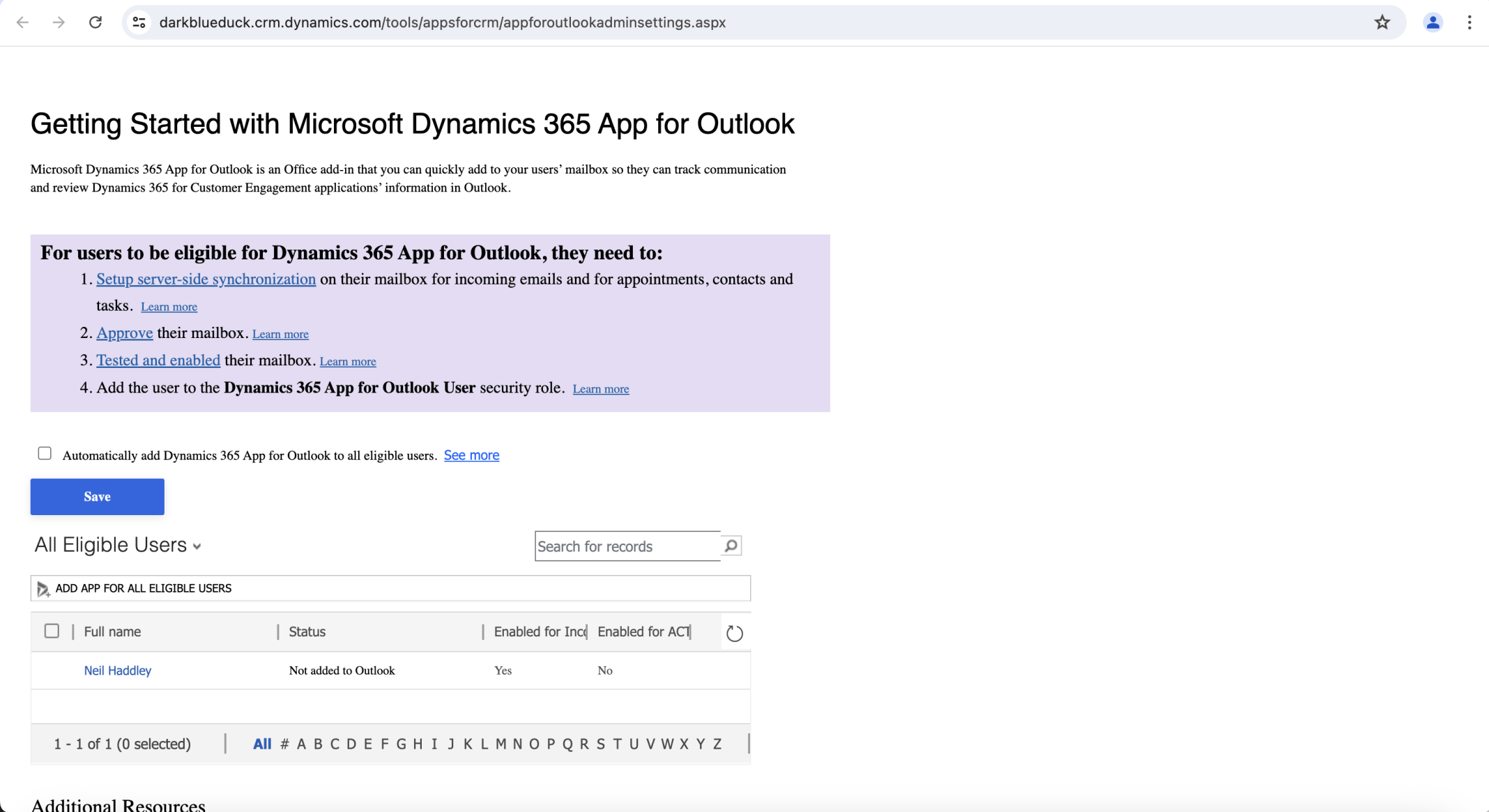
I reviewed the requirements
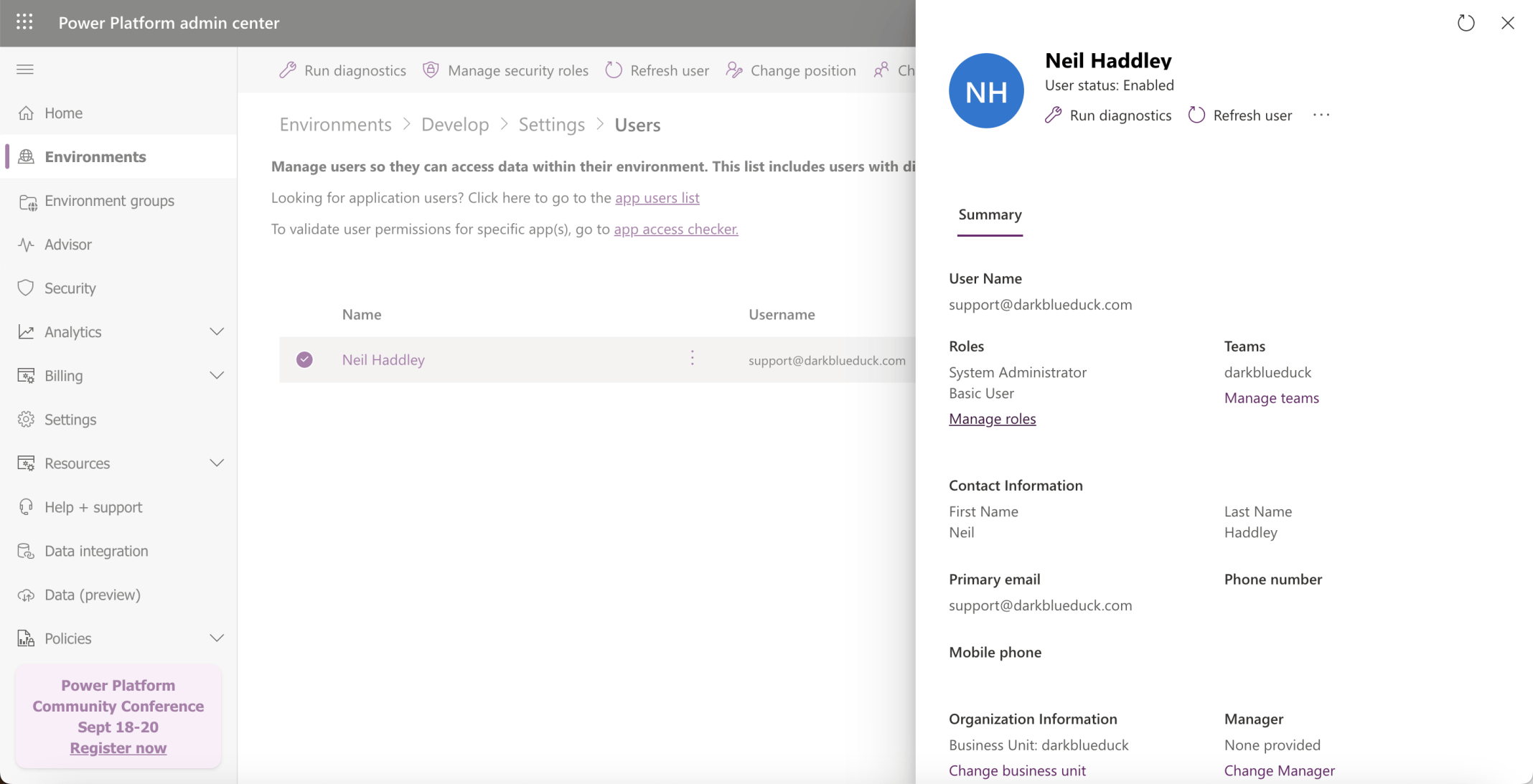
I navigated to the Settings | Users page, selected the account and clicked the Manage roles link
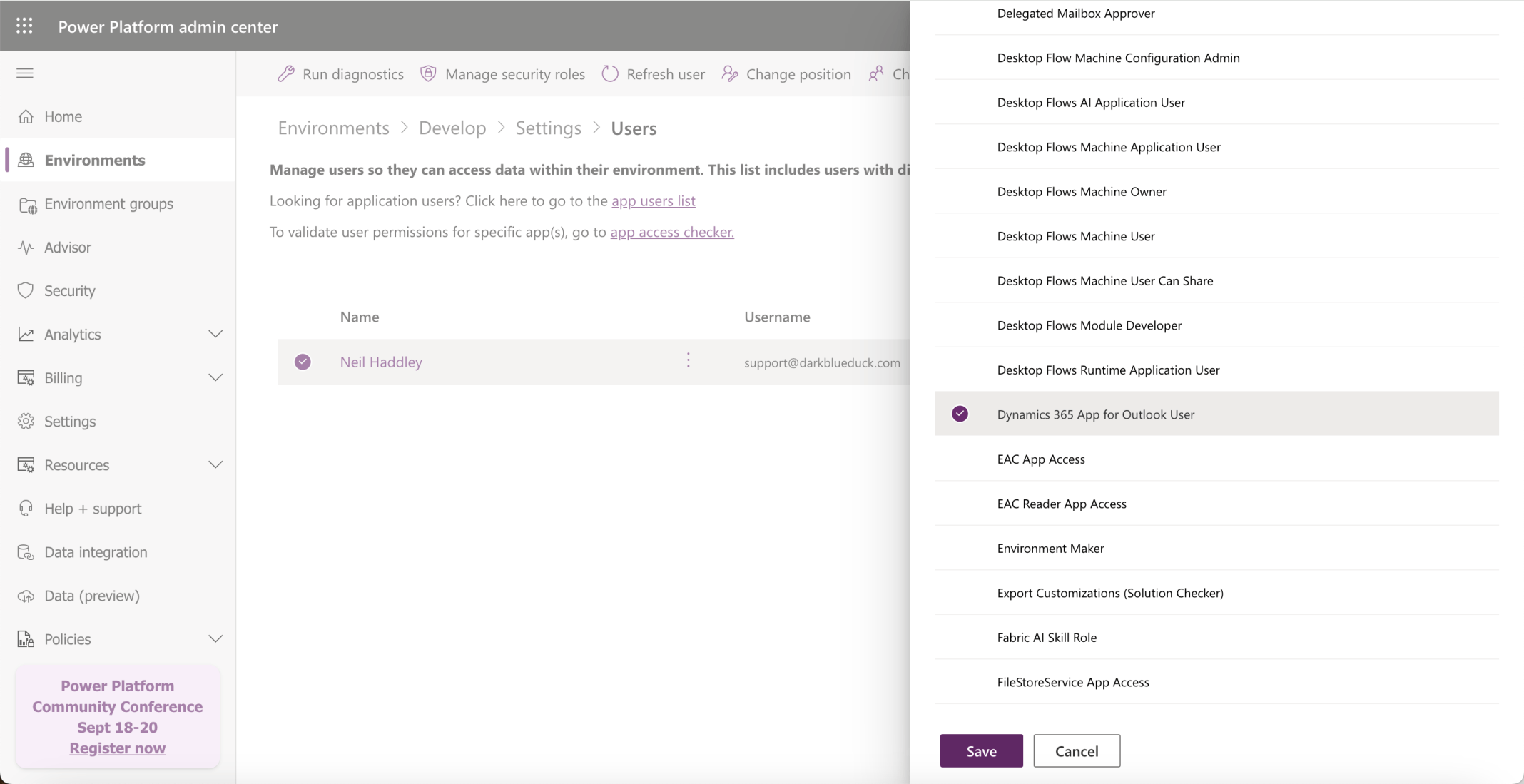
I selected the Dynamics 365 App for Outlook User role and clicked Save
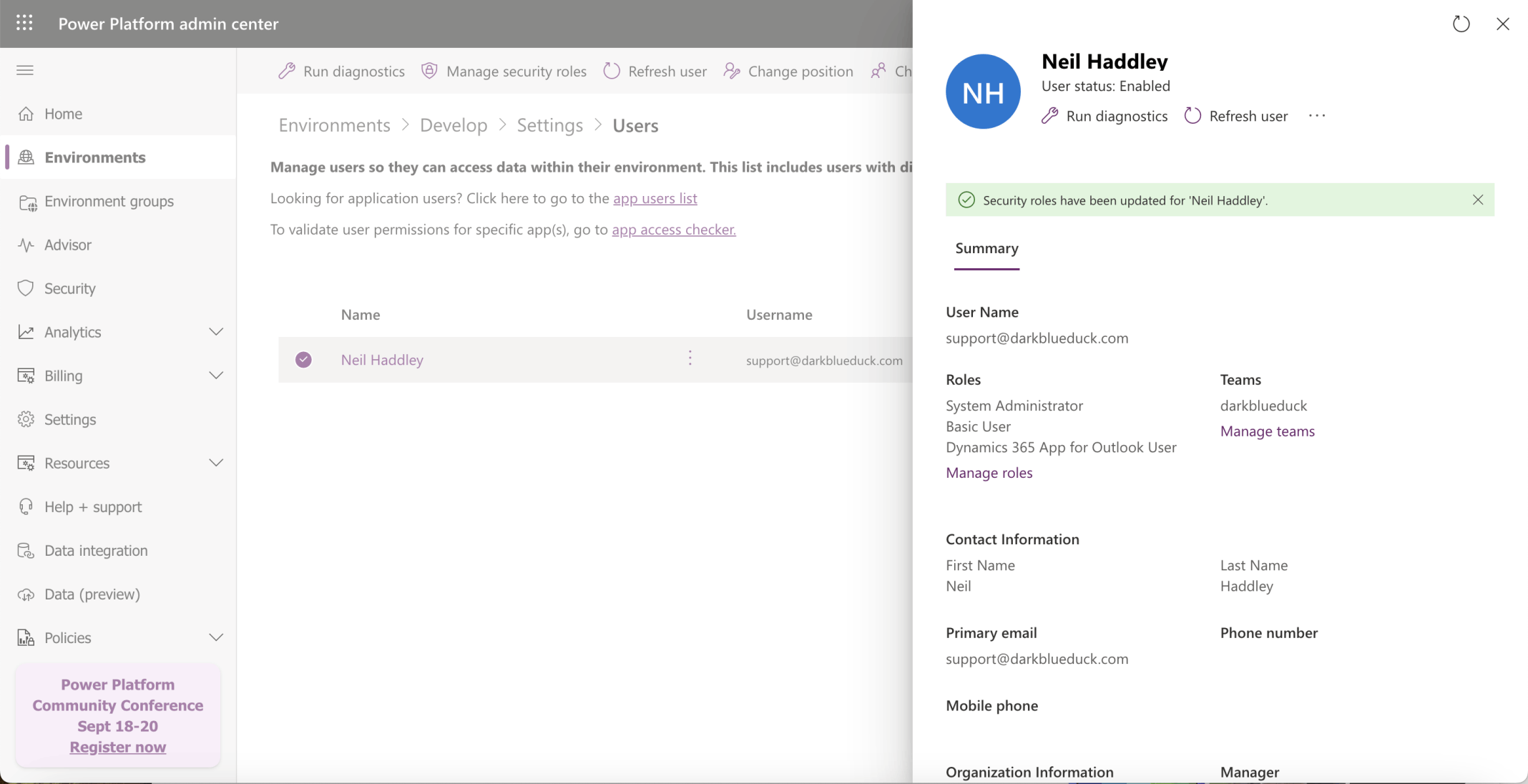
I confirmed the Dynamics 365 App for Outlook User role was added to the account
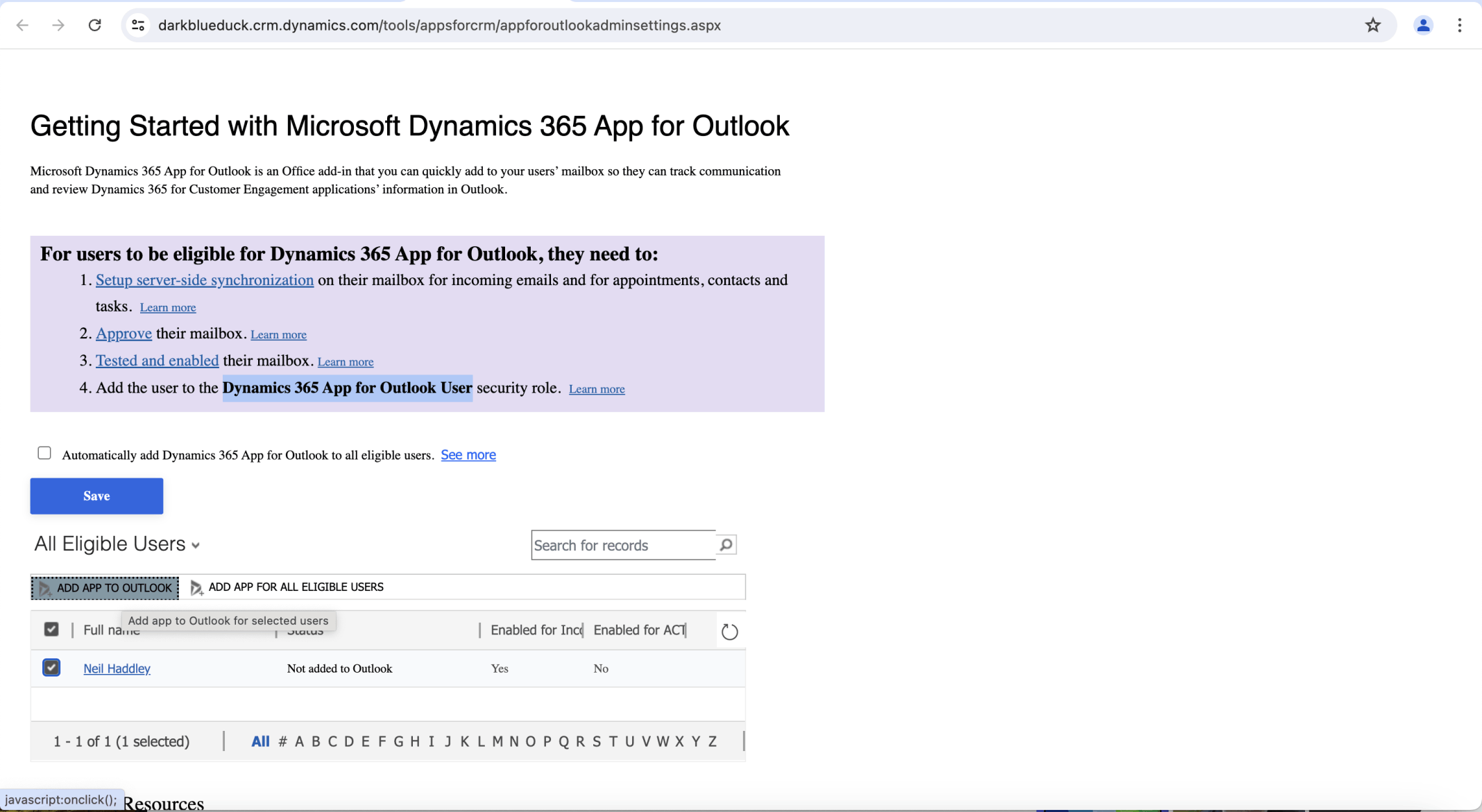
I selected the account and clicked ADD APP TO OUTLOOK
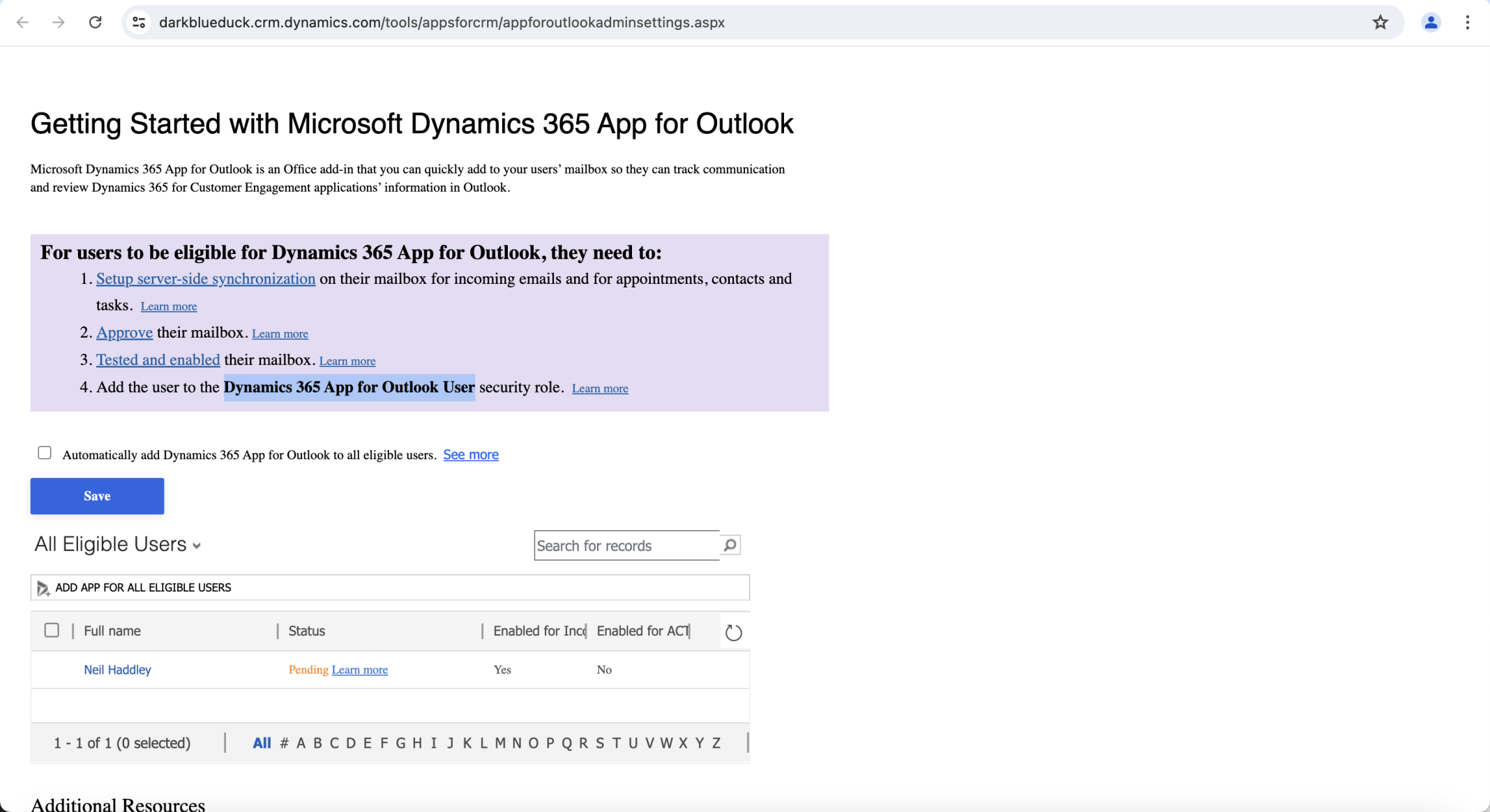
I waited while the app was pending
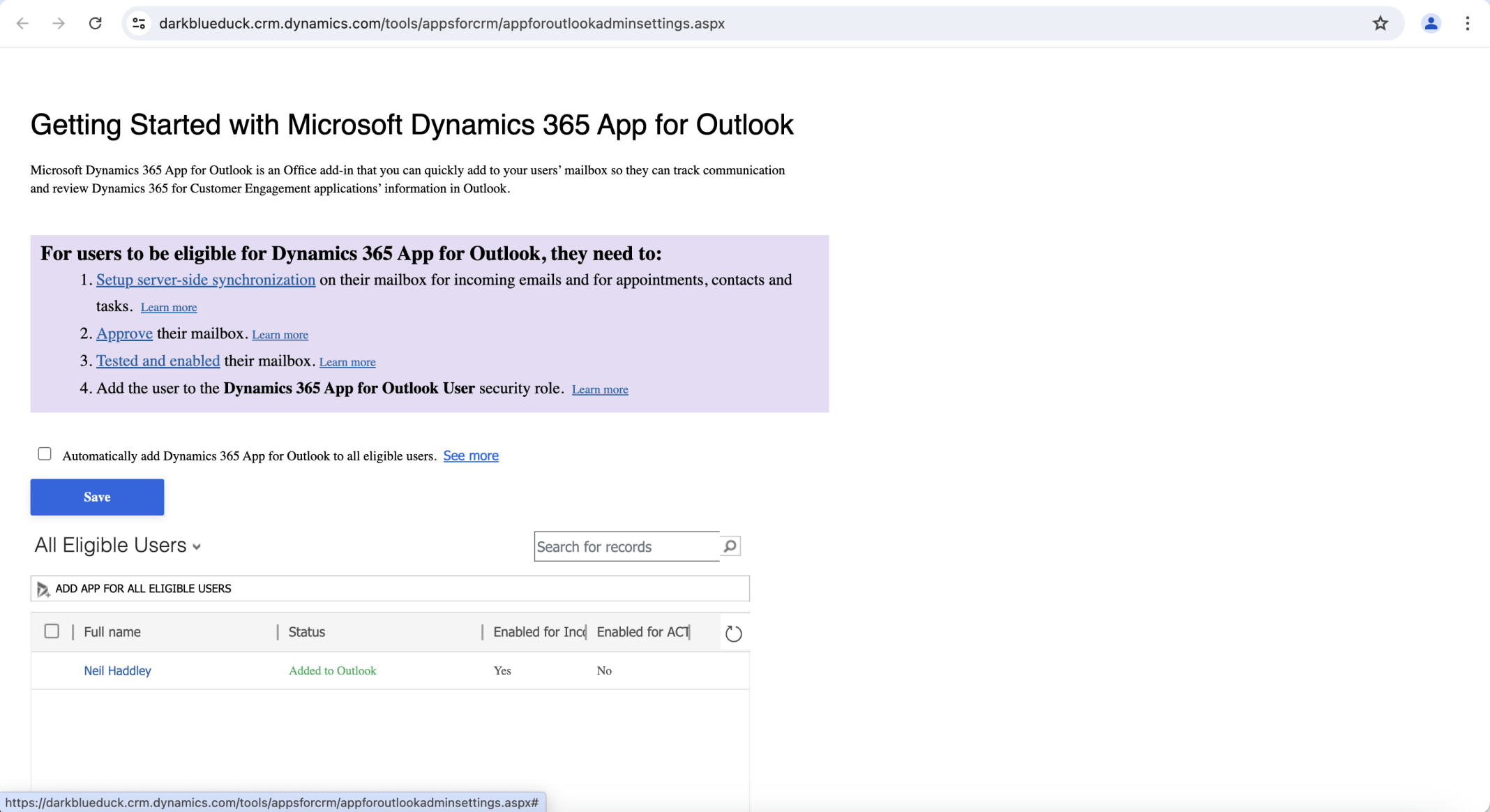
I confirmed the app was added to Outlook
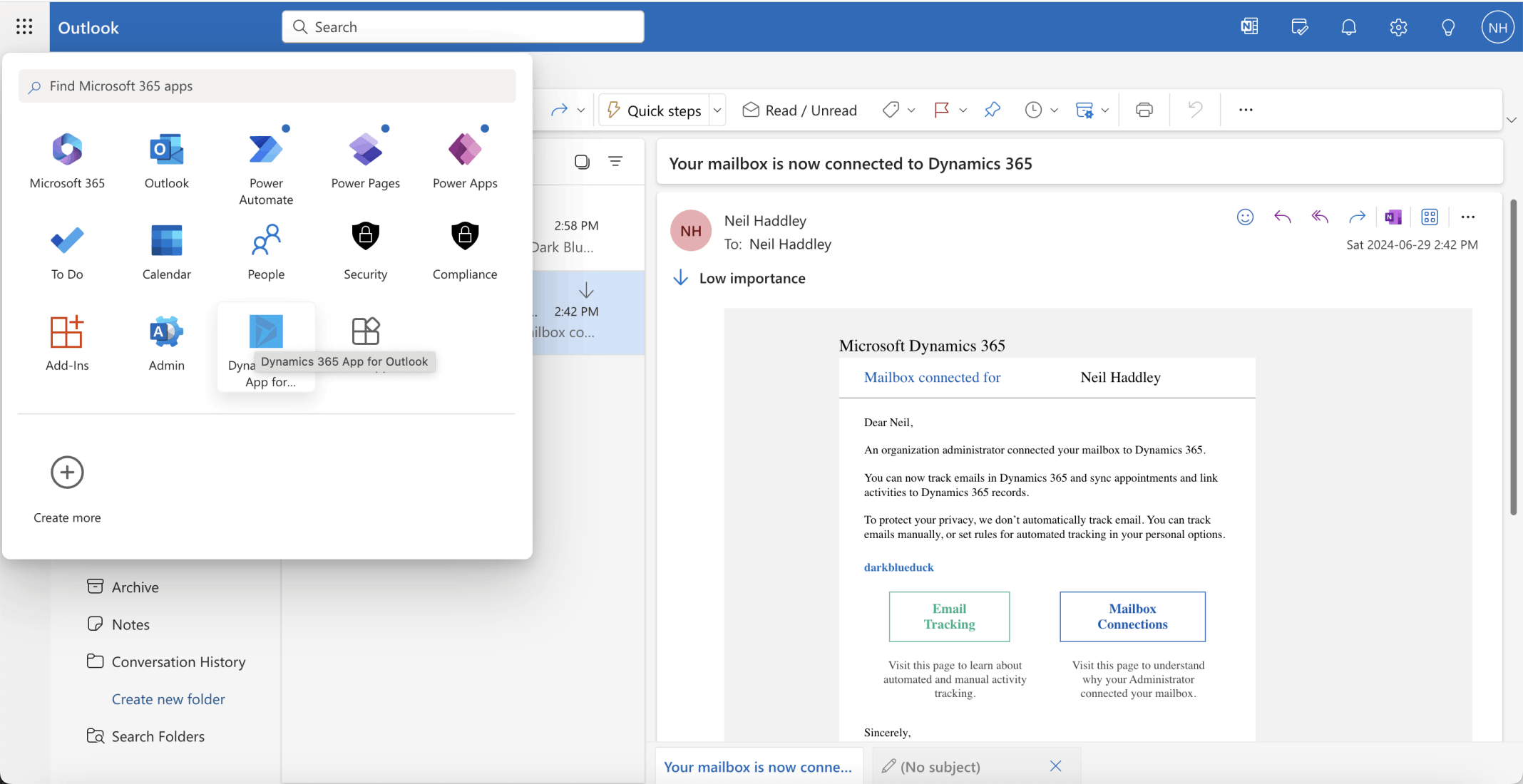
I checked that the Dynamics 365 App for Outlook was added
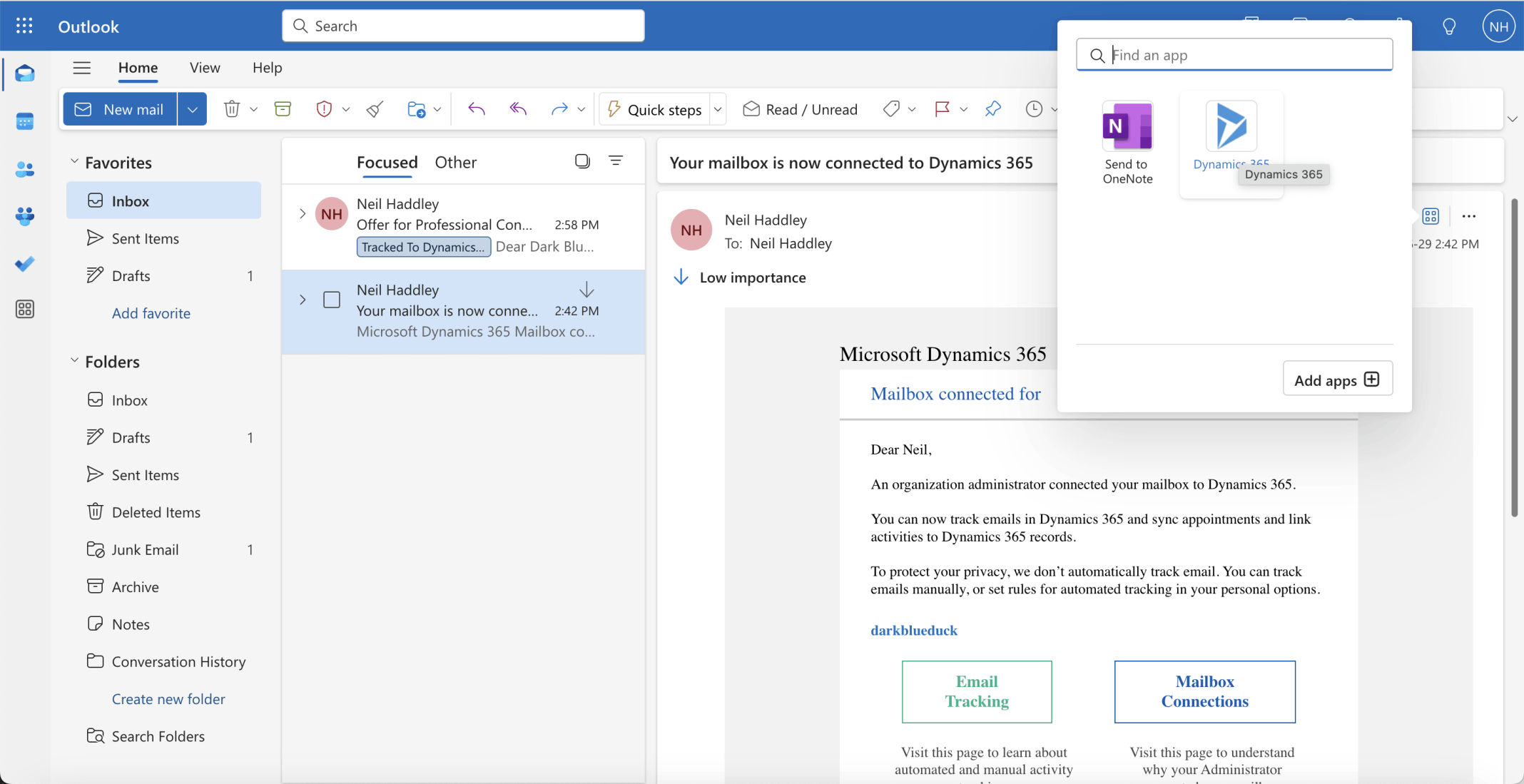
I selected the notification email and clicked the Dynamics 365 app
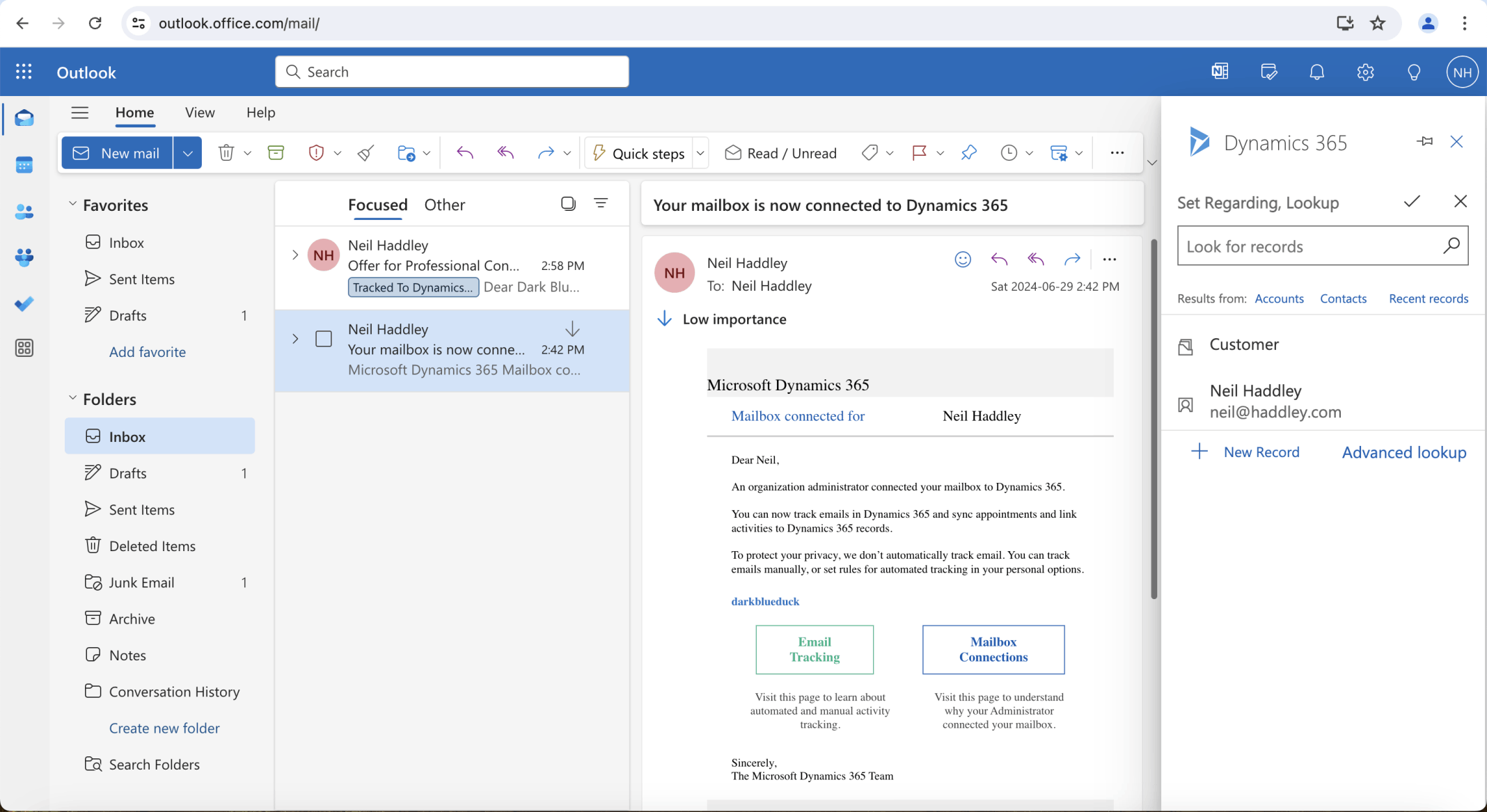
I could select a Dataverse Account or a Contact
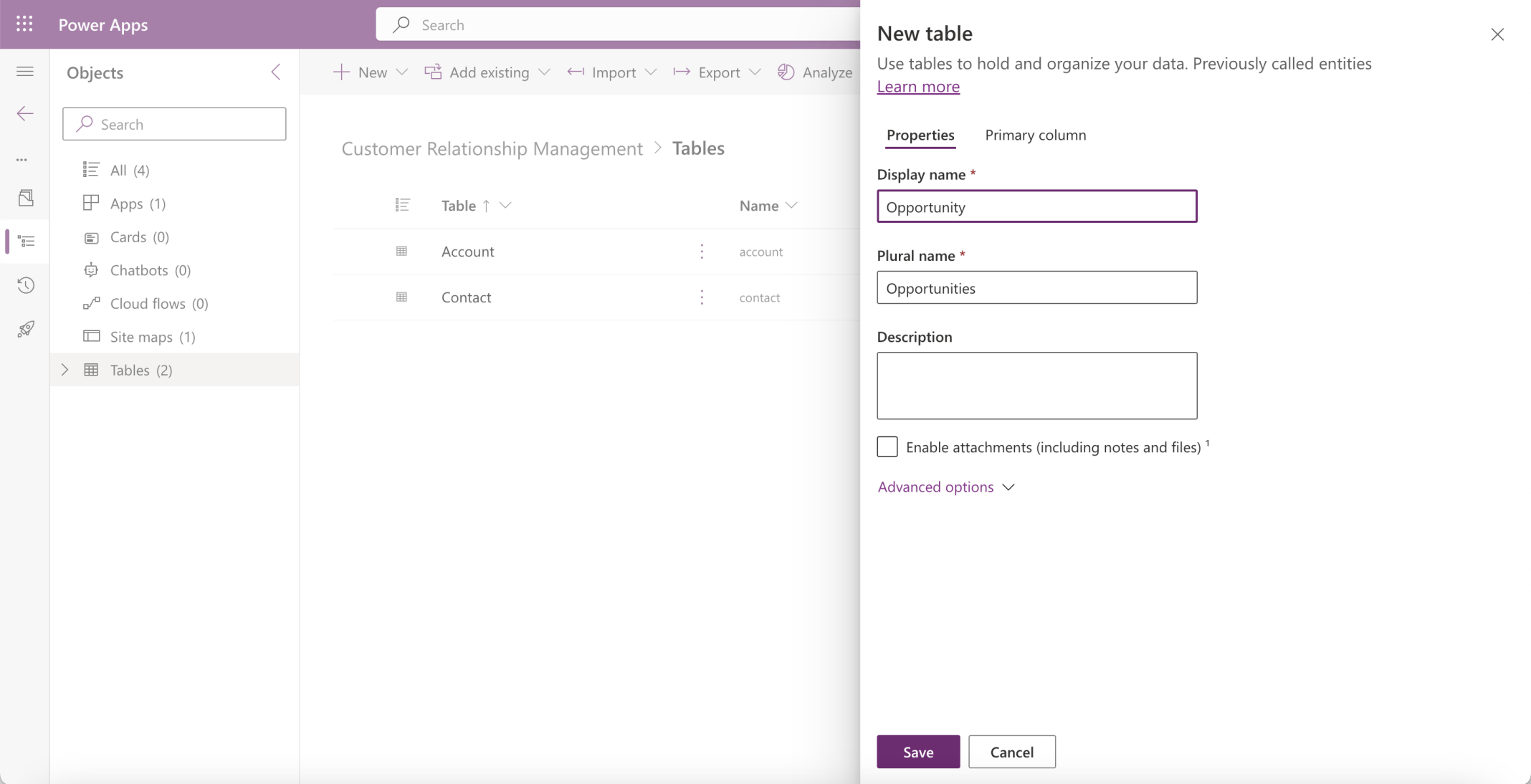
I added an Opportunity table to the Customer Relationship Management solution
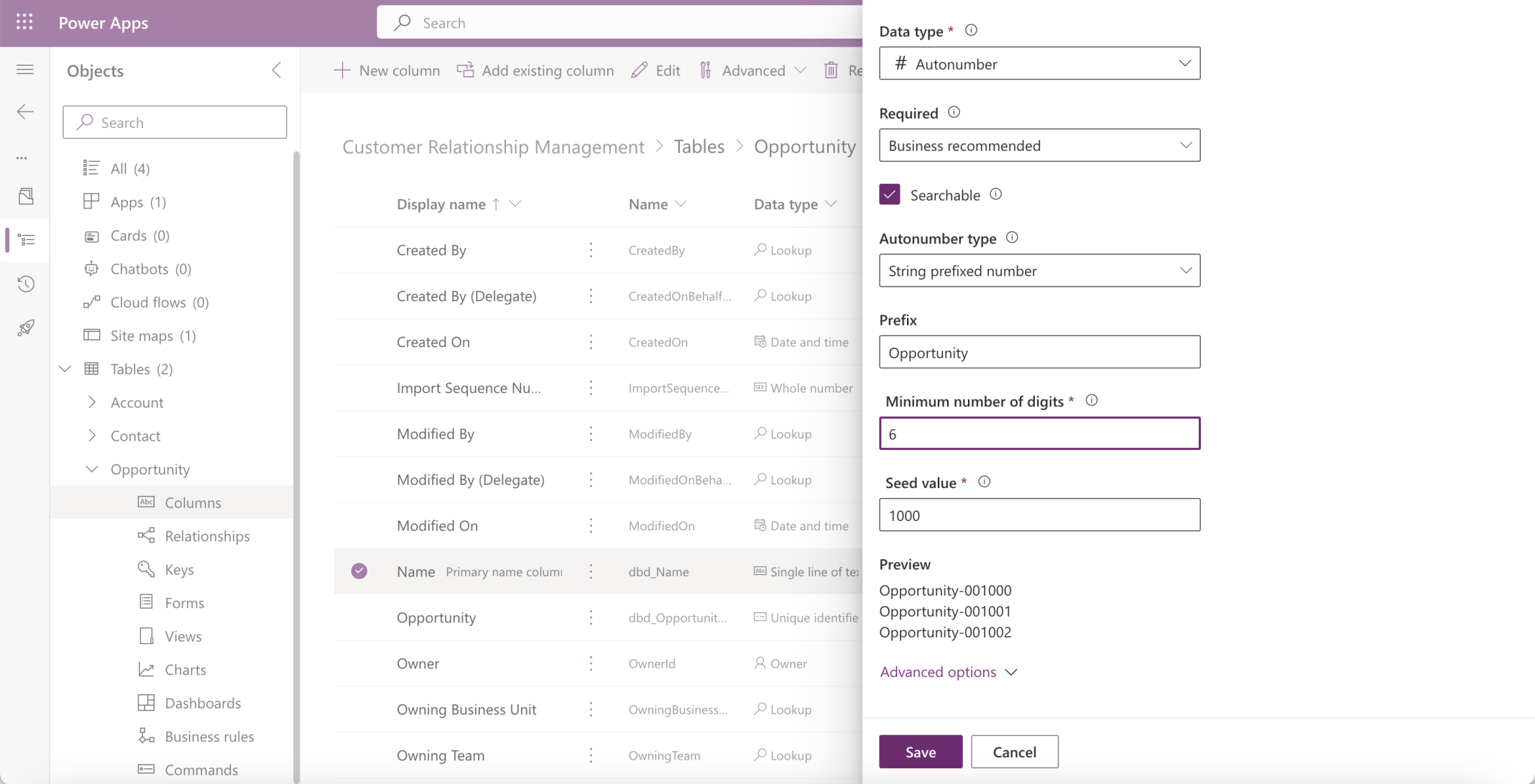
I updated the Name column to be an automatically generated value
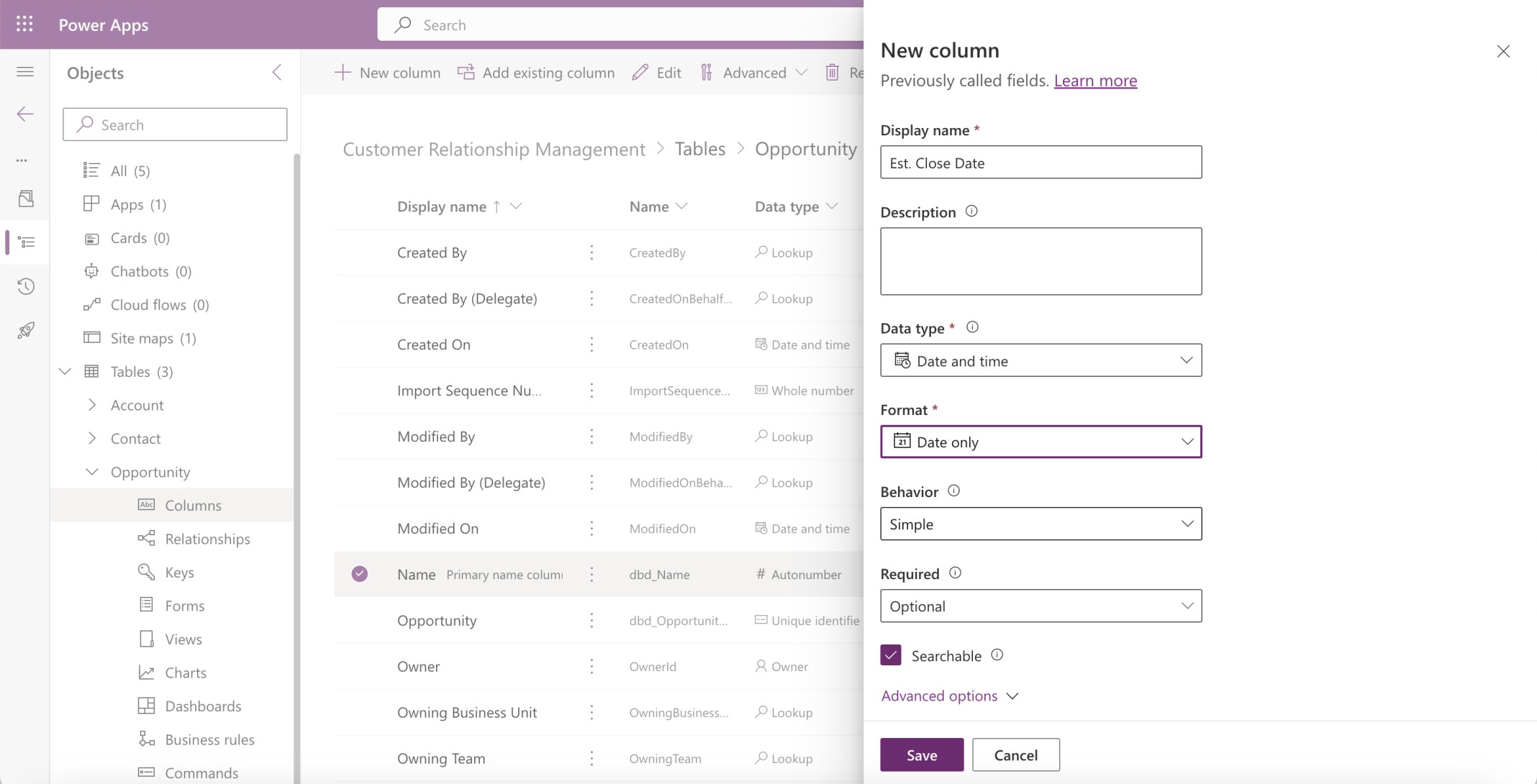
I added an estimated close date column
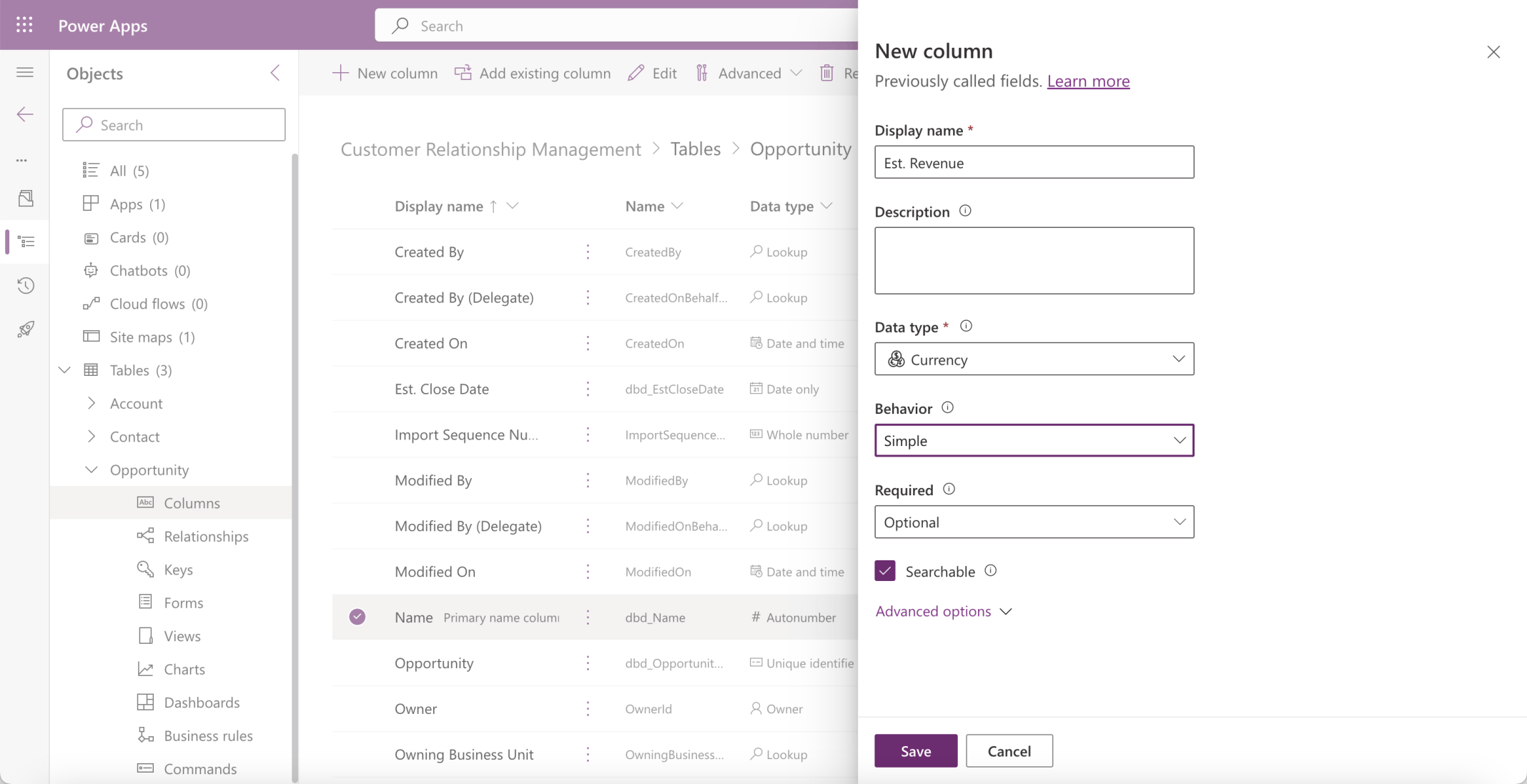
I added an estimated revenue column
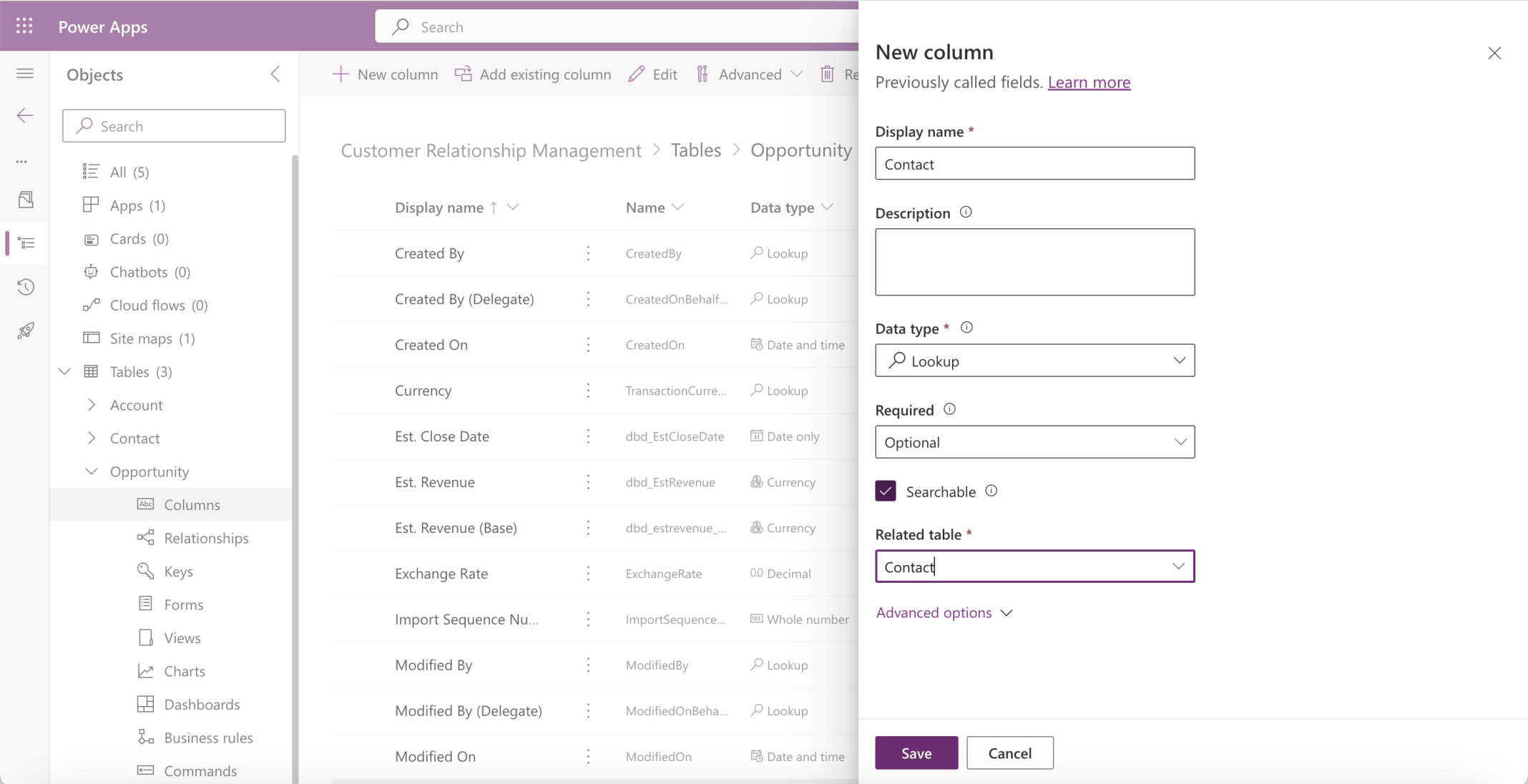
I added a Contact table lookup column
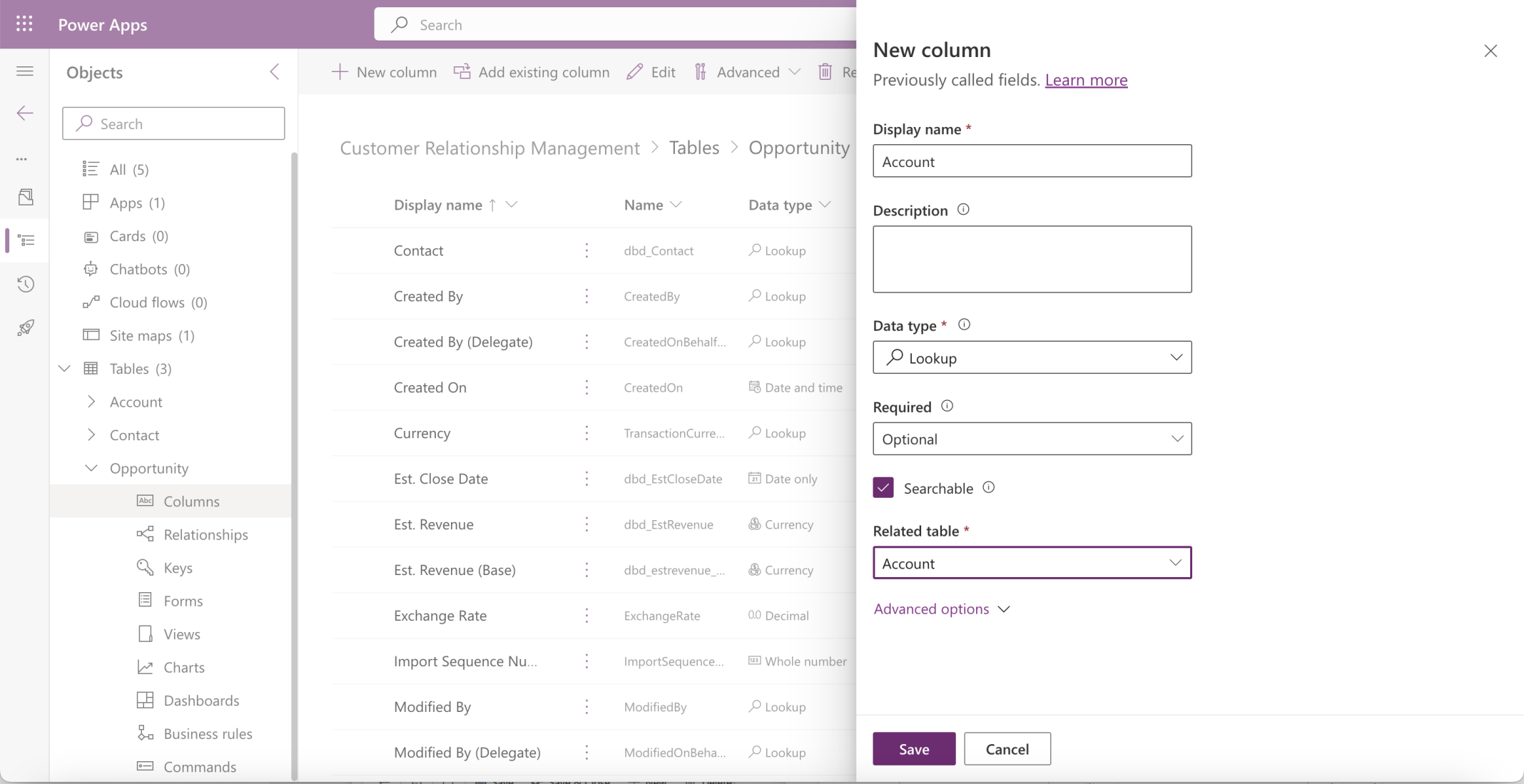
I added an Account table lookup column
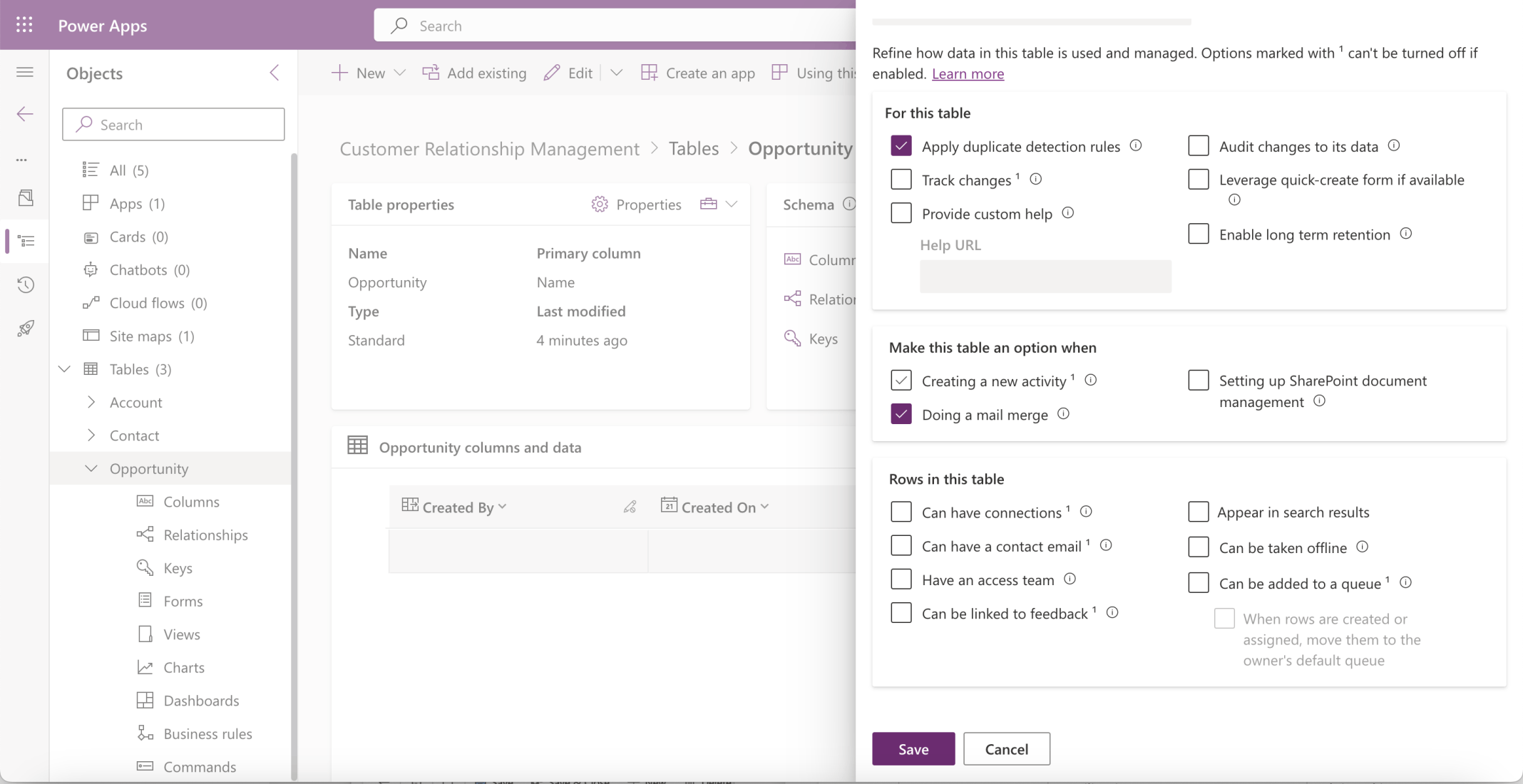
I checked the "Creating a new activity" option
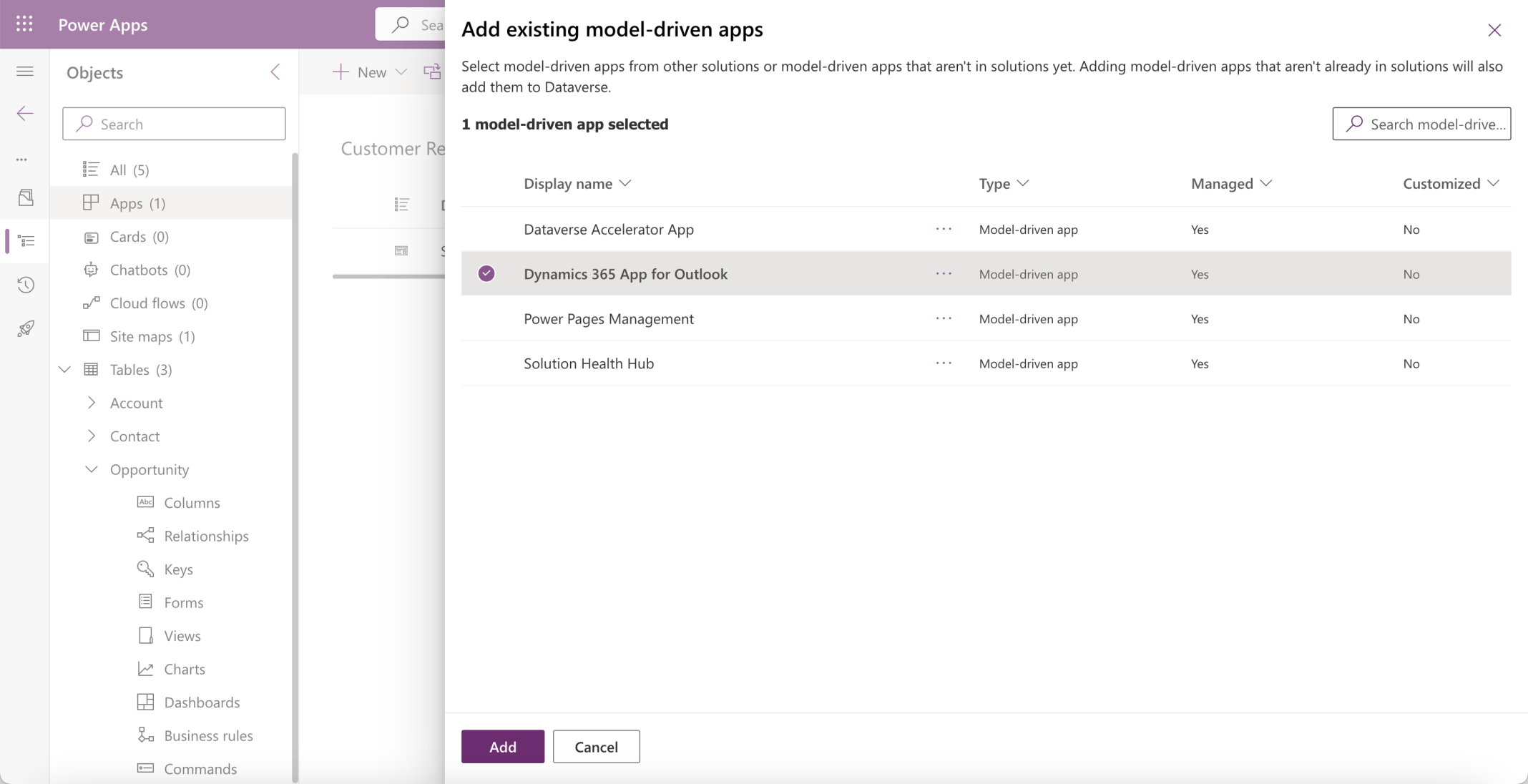
I added the existing Dynamics 365 App for Outlook app
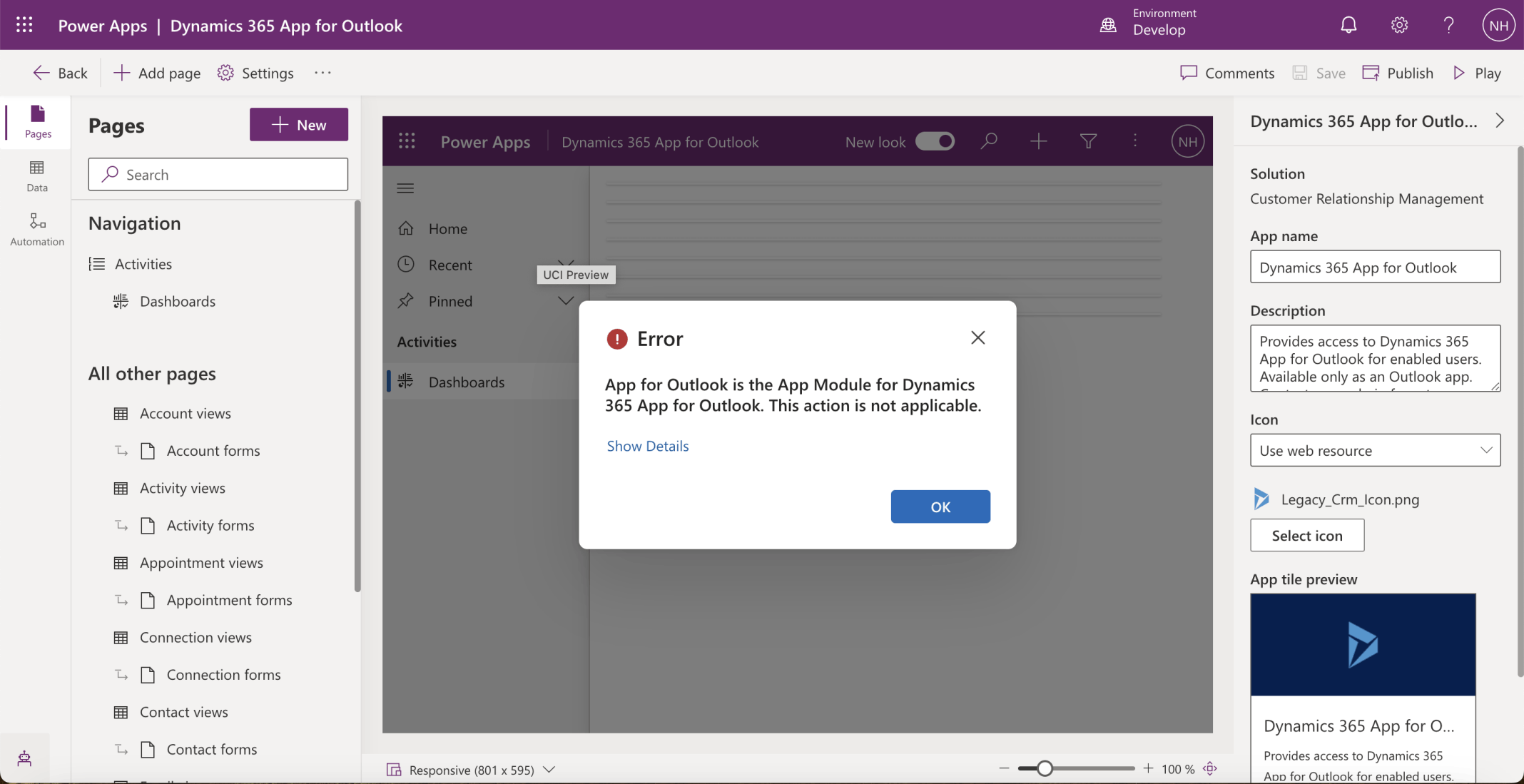
I ignored the error
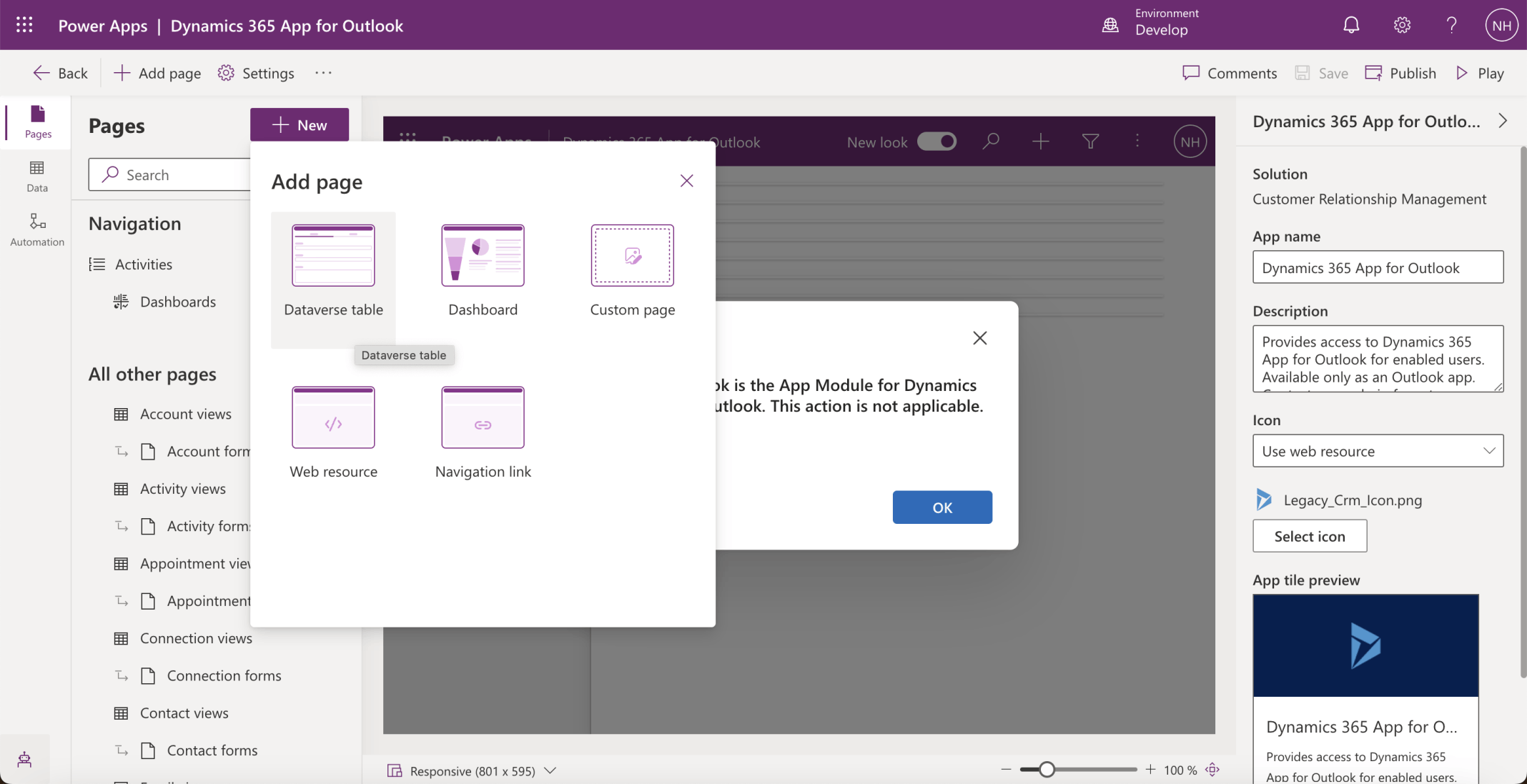
I added a Dataverse table page
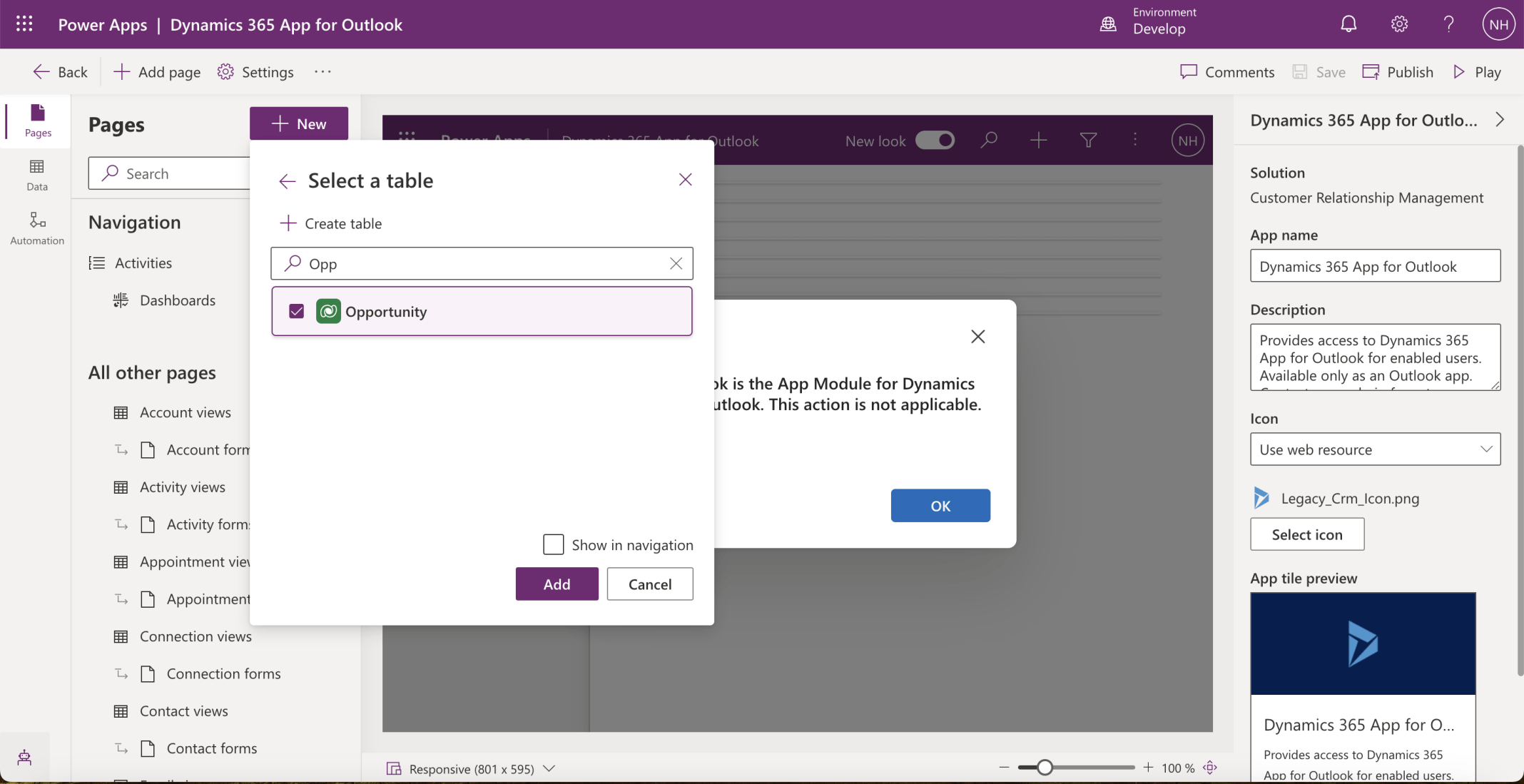
I added the Opportunity table (no need to show in navigation)
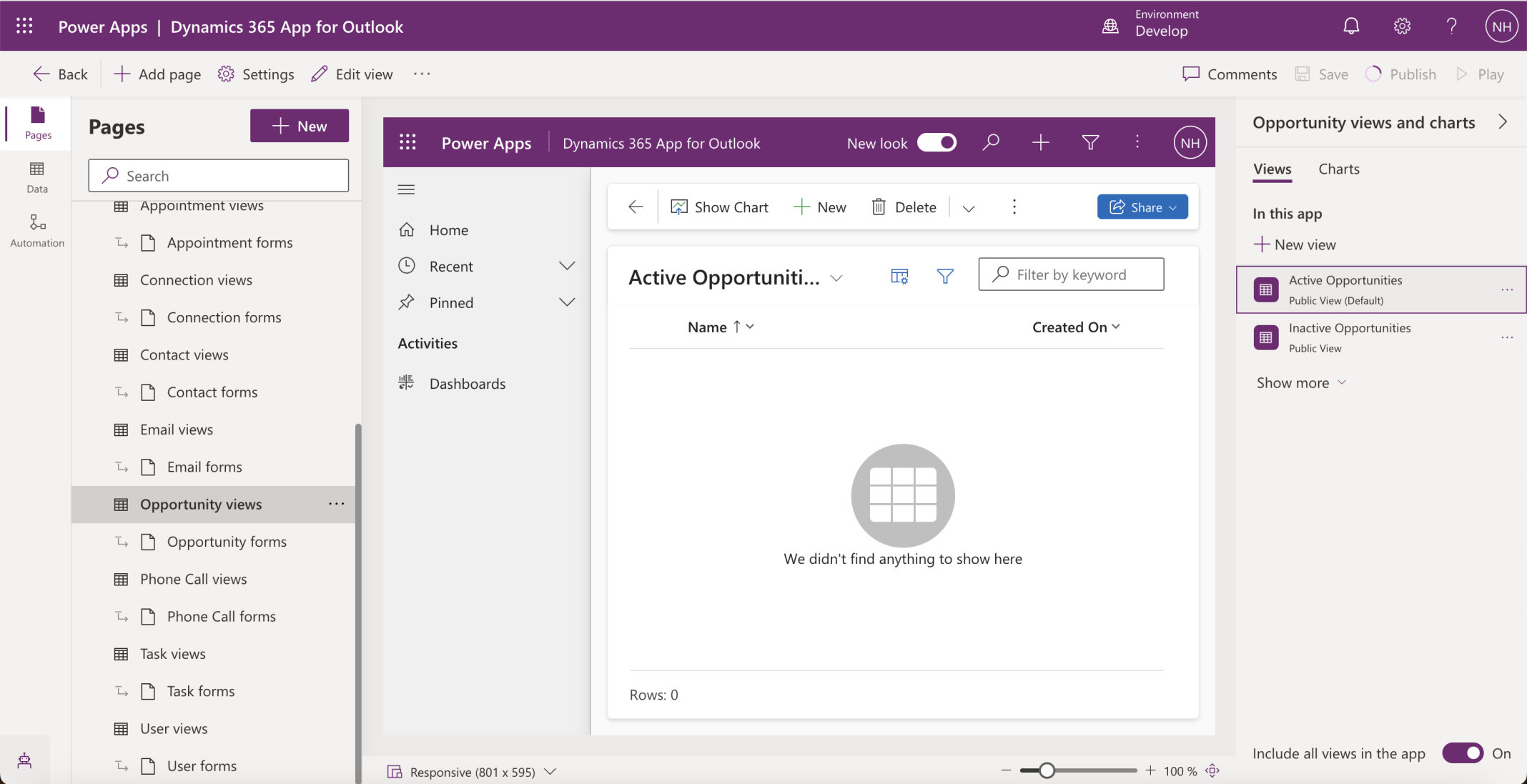
I confirmed the Opportunity page was created
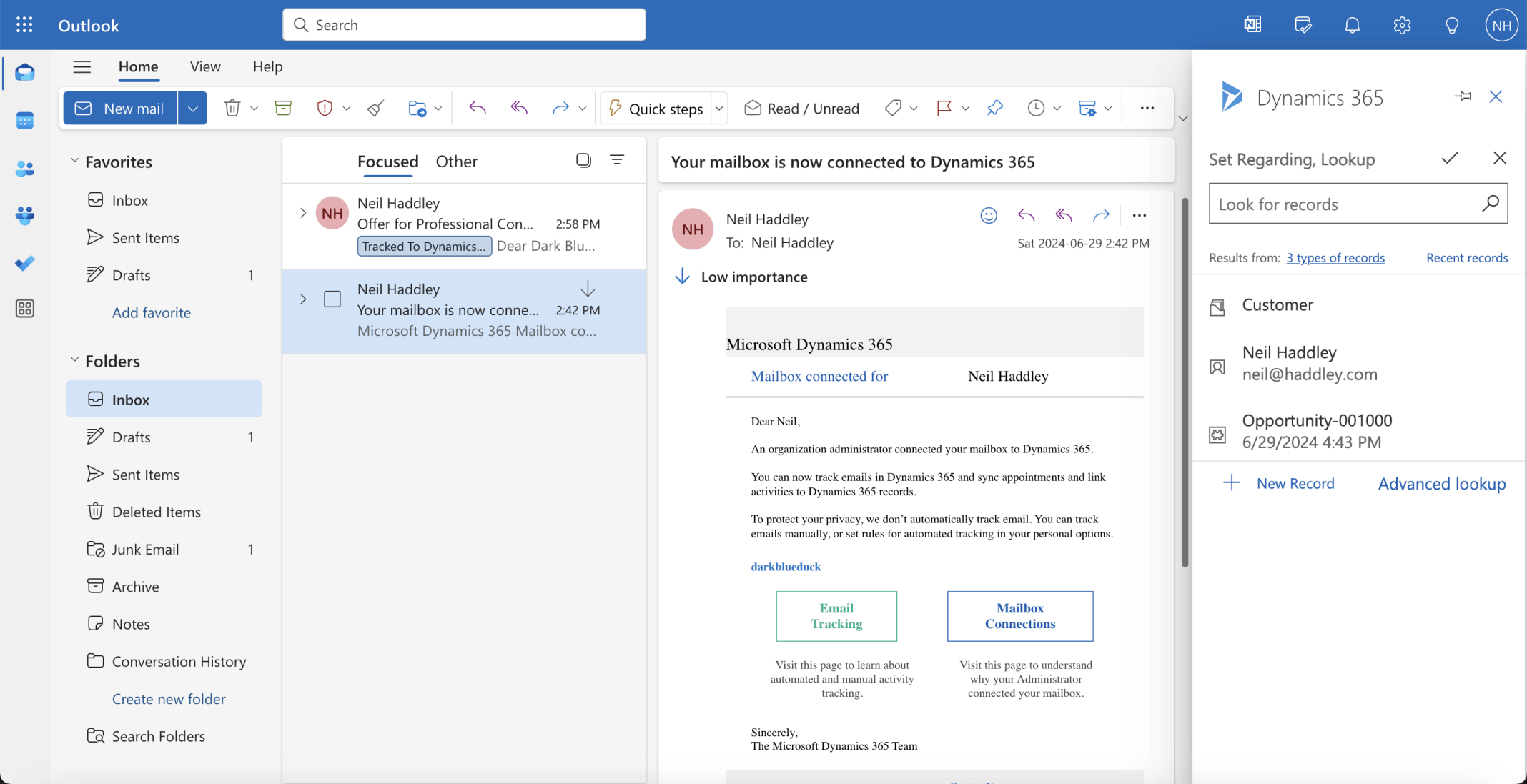
I clicked on the notification email again. Now 3 types of records.
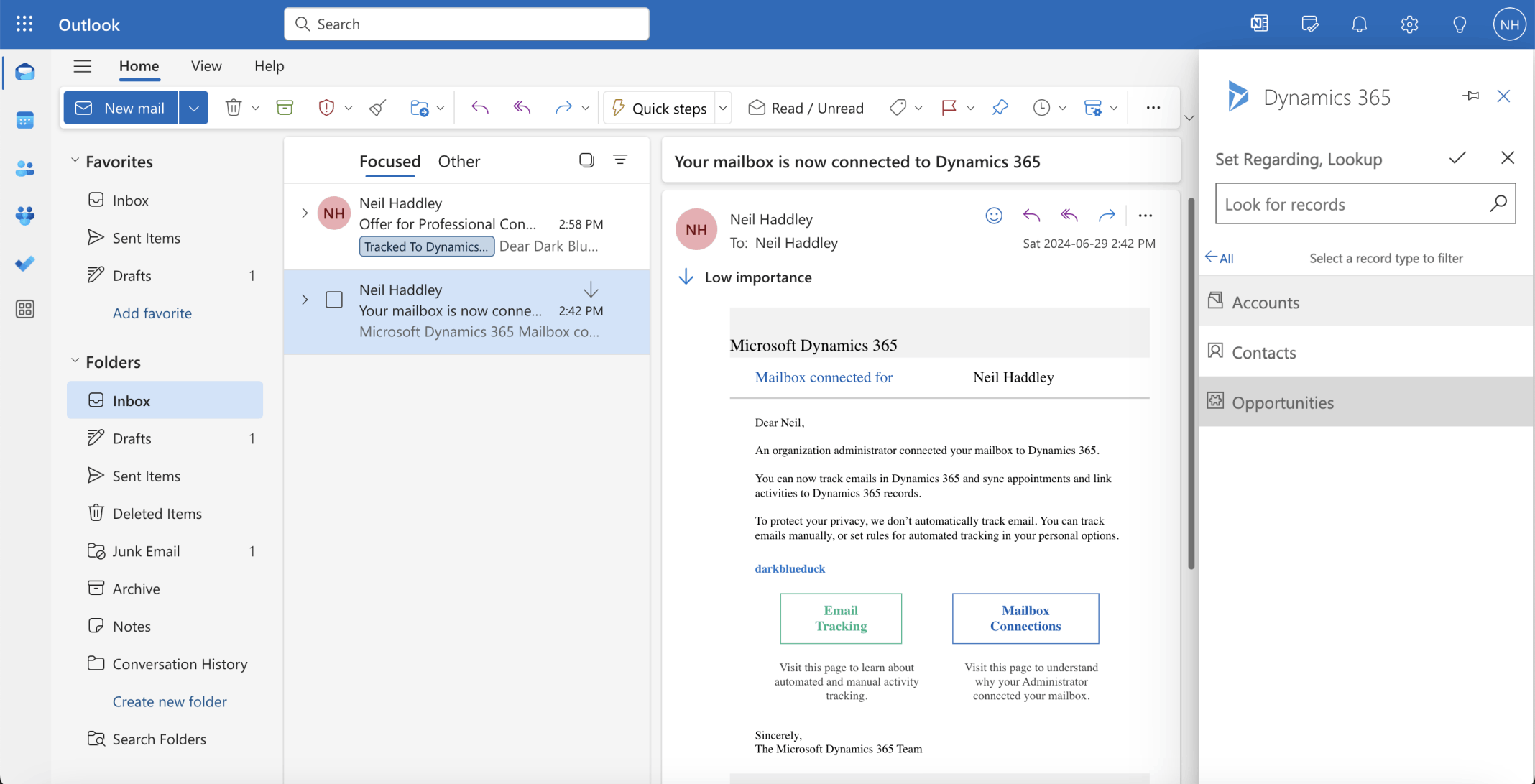
I selected Opportunities
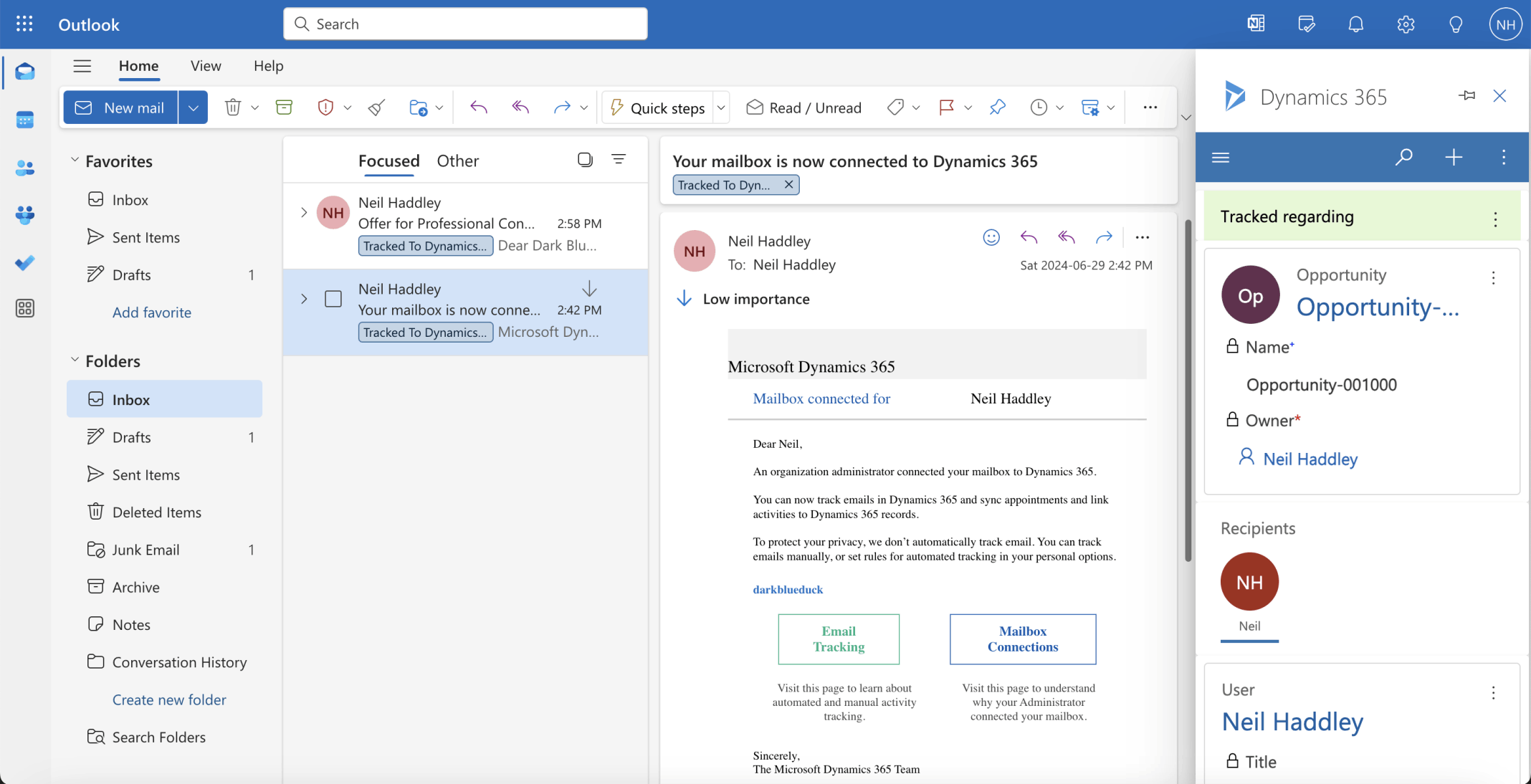
I was able to select the new opportunity
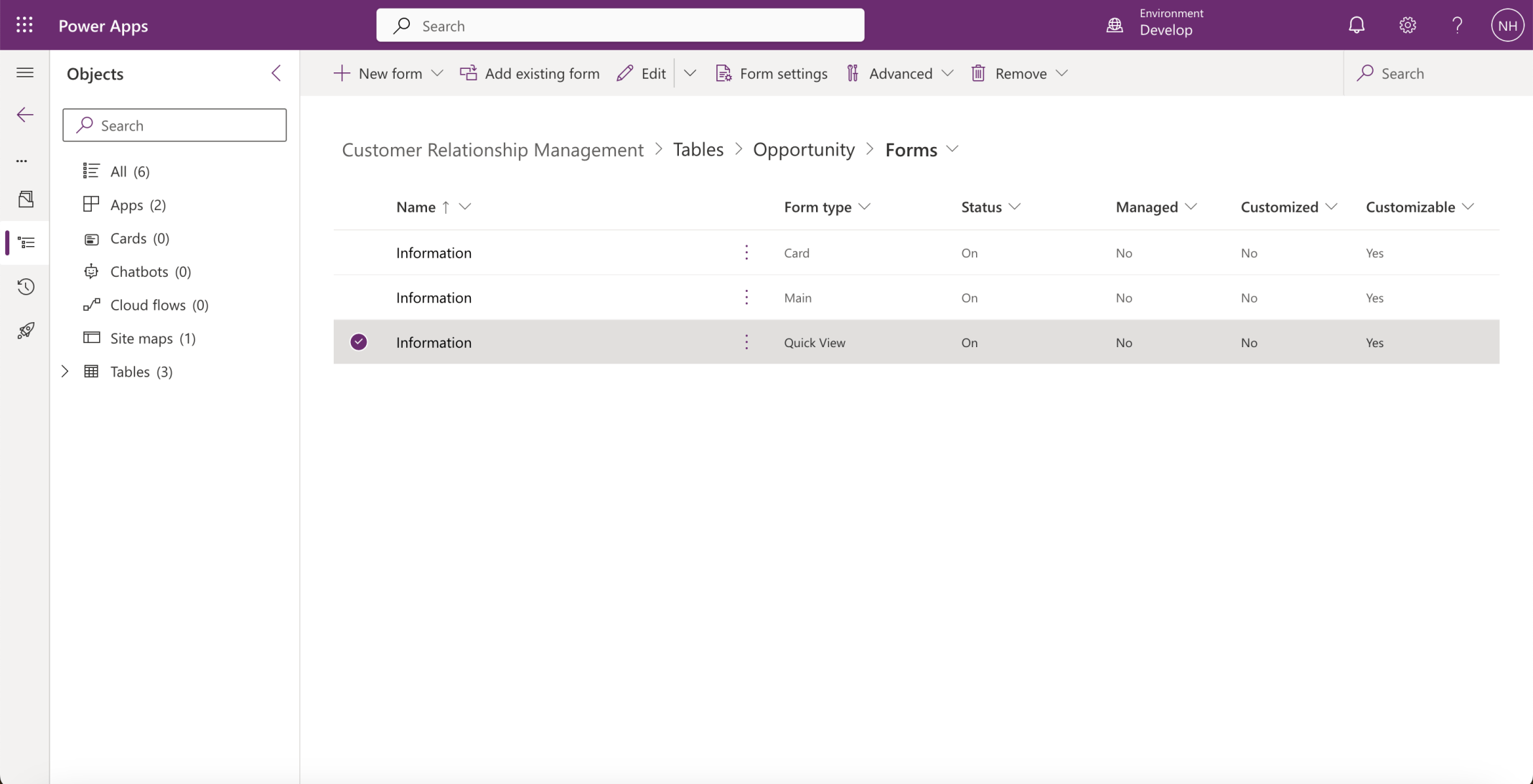
I updated the Opportunity Quick View Form
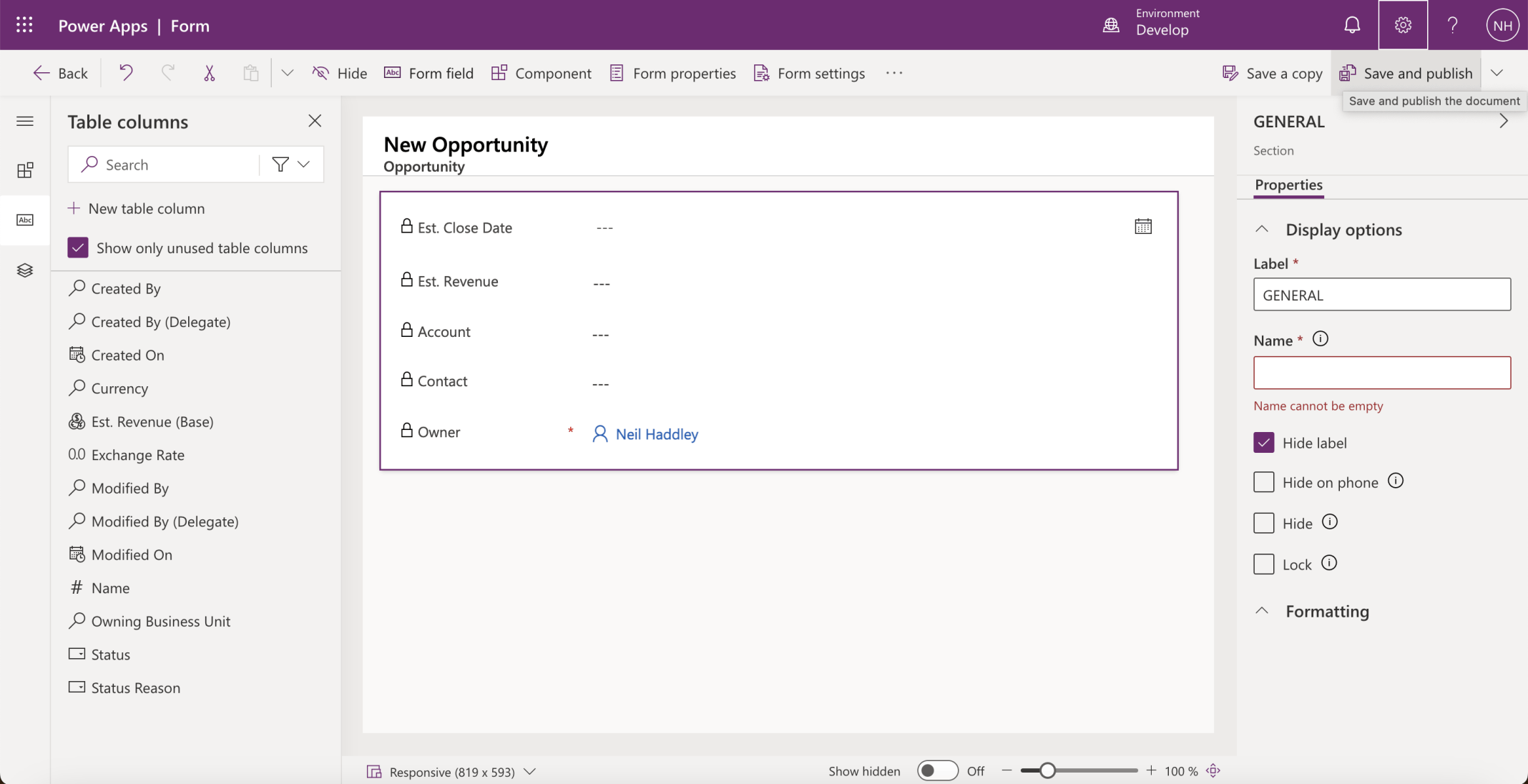
I removed the Name and added Est. Close Date... fields
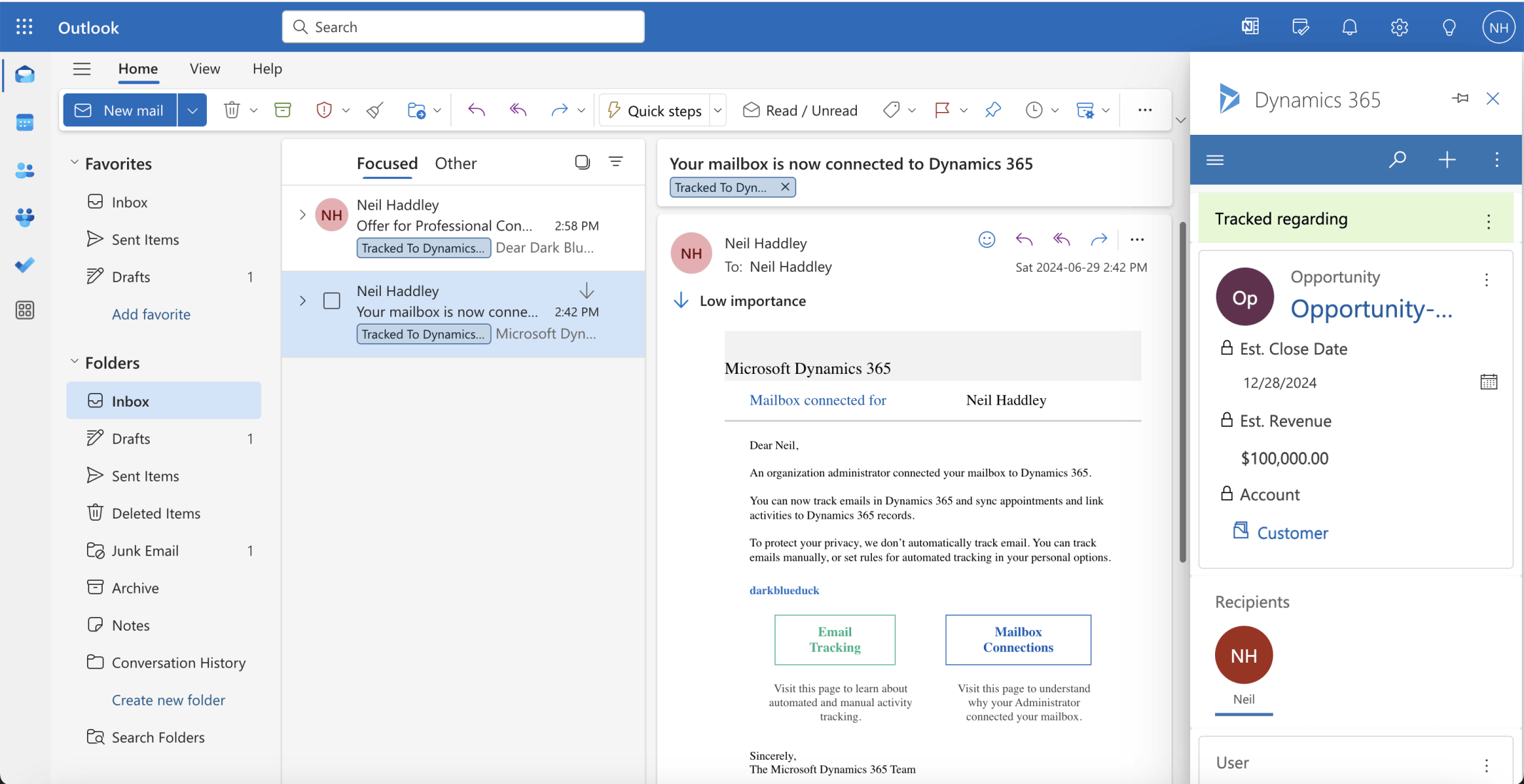
I clicked on the Tracked email and the Quick View form contents were displayed
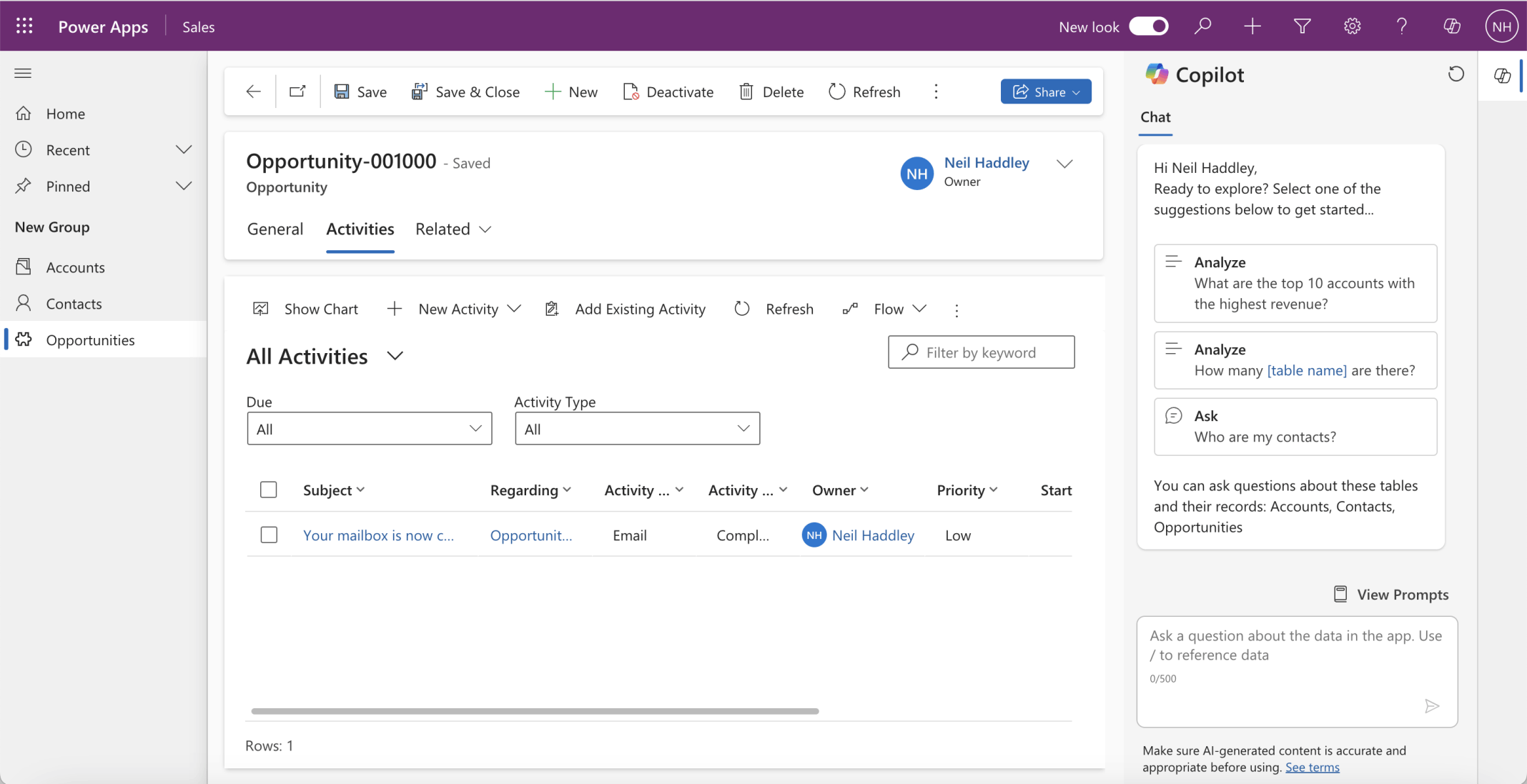
I confirmed the email was displayed in the Related Activities tab
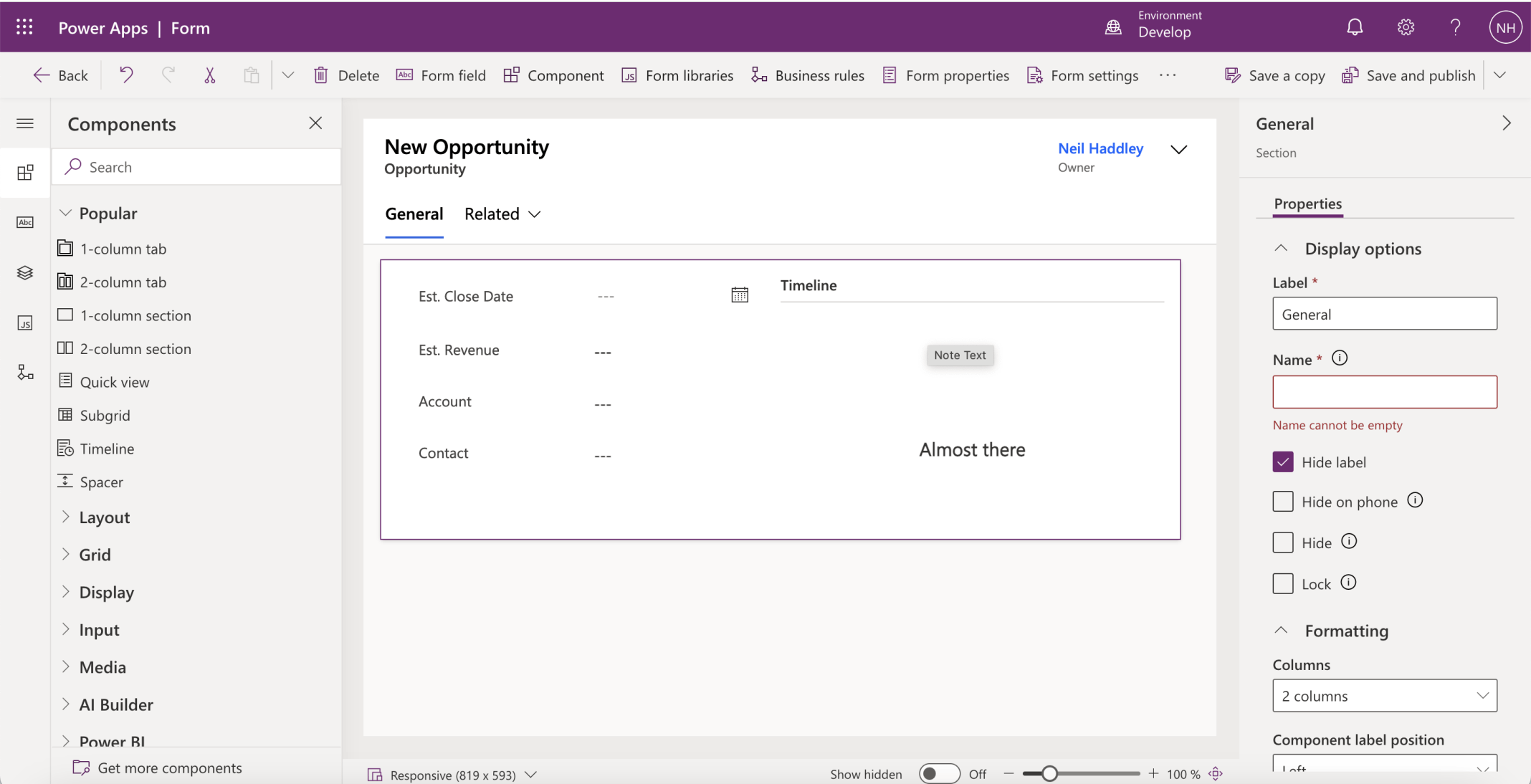
I added a Timeline control to the Opportunities Main form
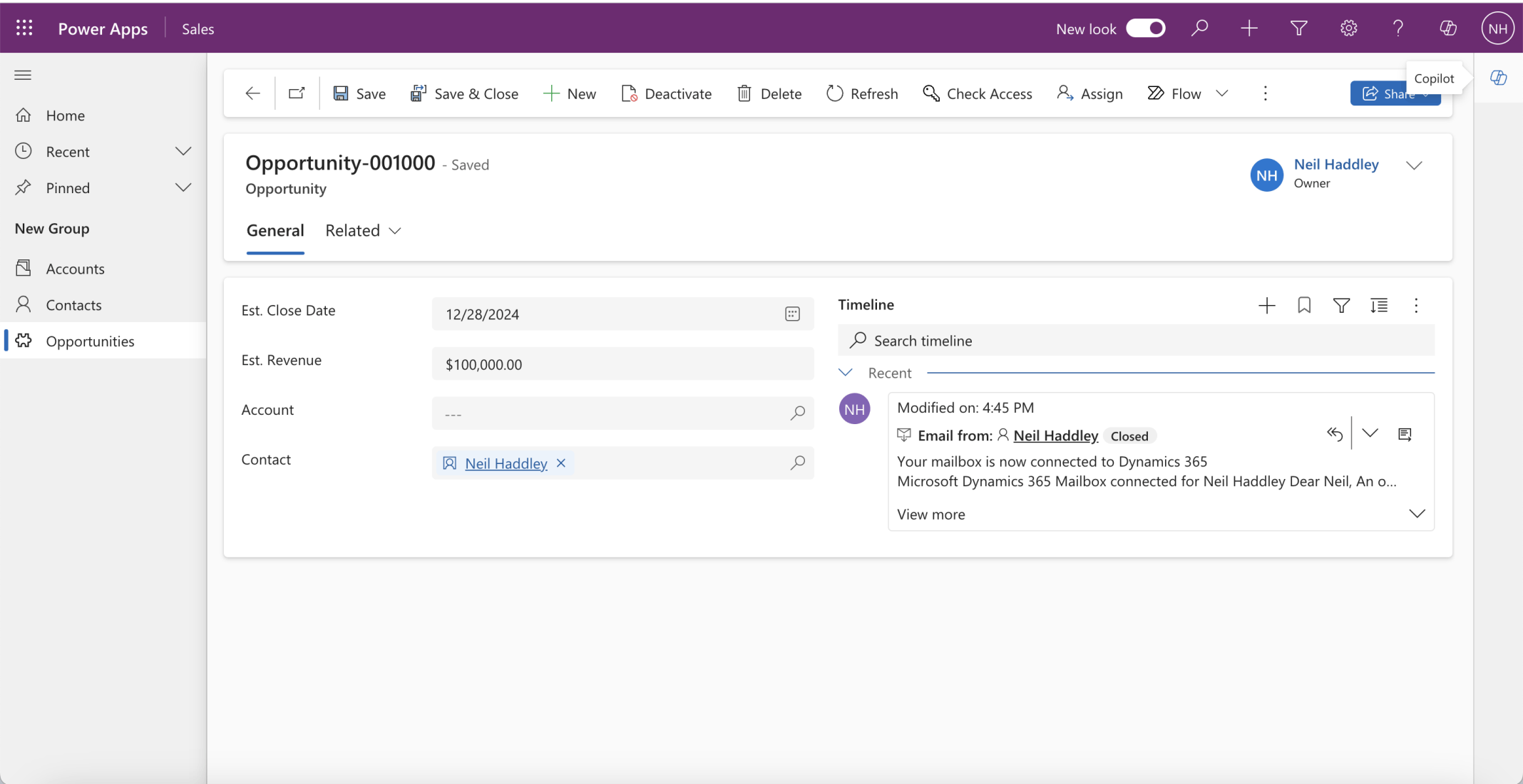
I confirmed the related email was displayed
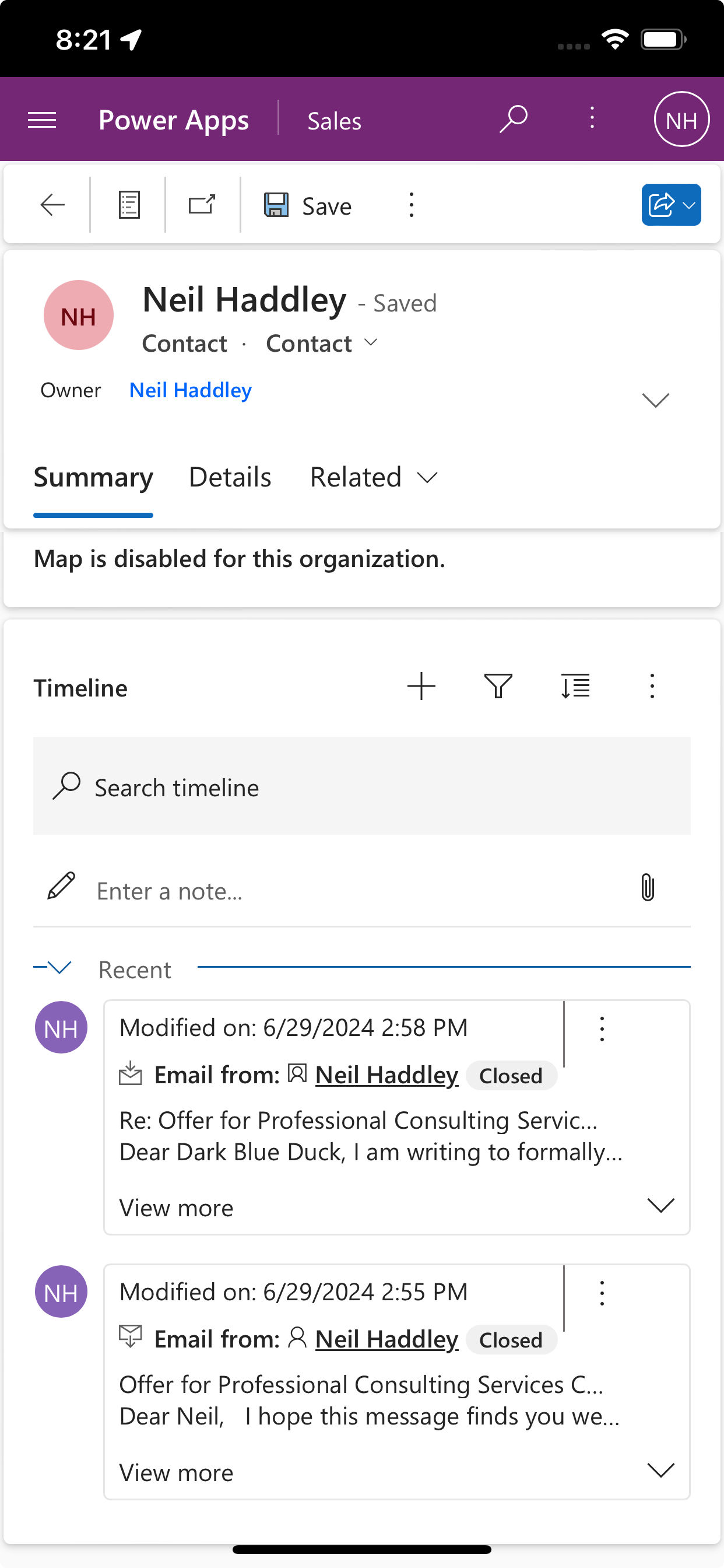
Sales app running on a mobile phone