Model Driven Purchase Orders
Neil Haddley • March 2, 2024
Quick View
I created a Power Platform Model Driven application to manage Business Central Purchase Orders.
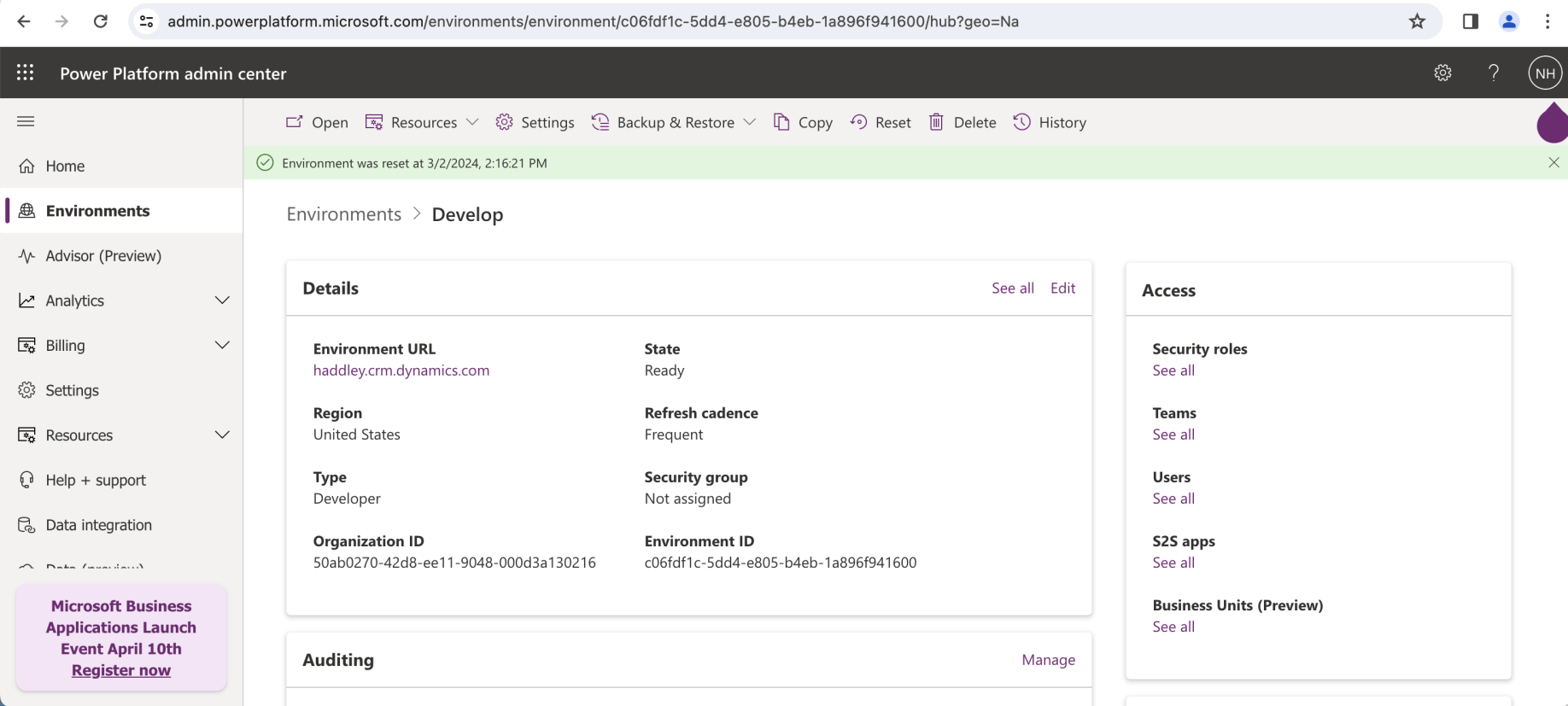
I reset my Develop environment
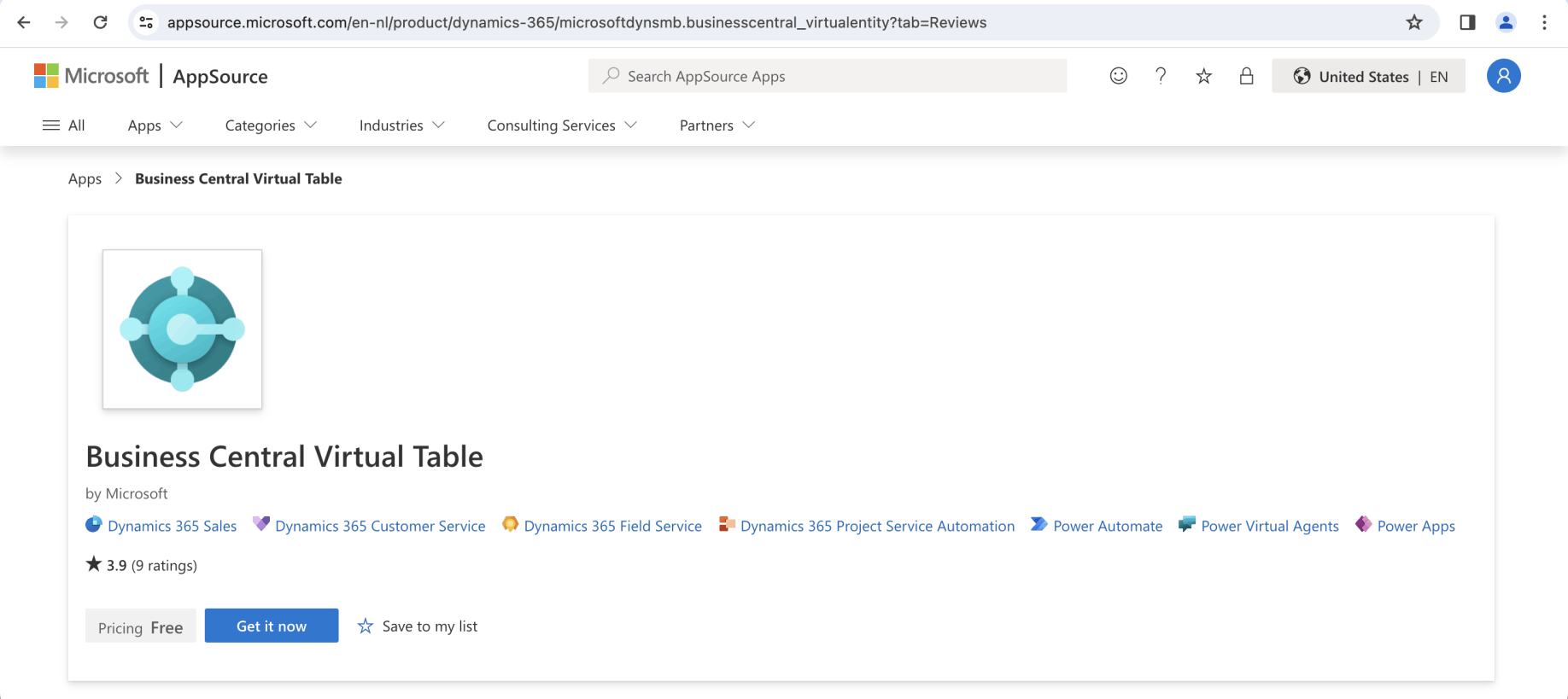
I navigated to the Business Central Virtual Table app published on AppSource
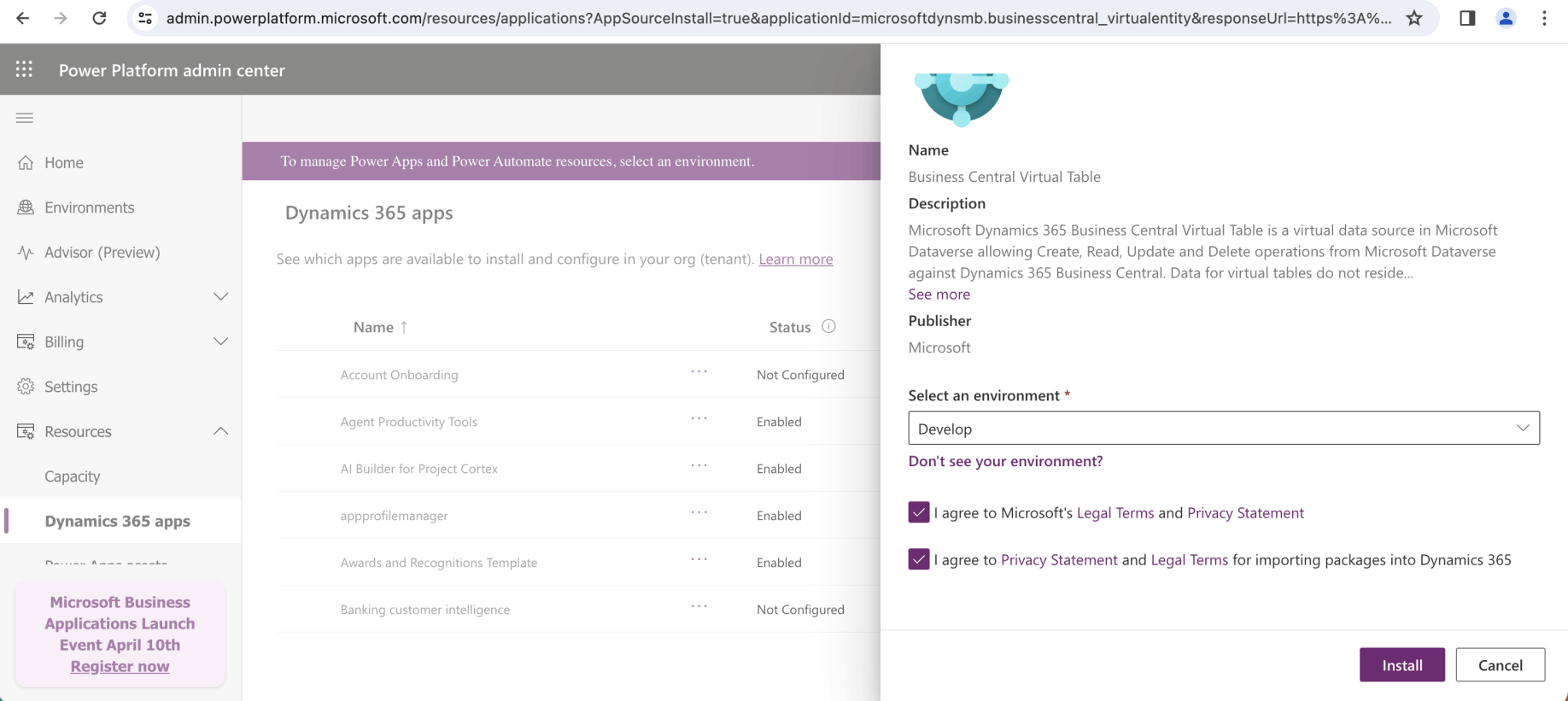
I selected the Develop environment and clicked the Install button
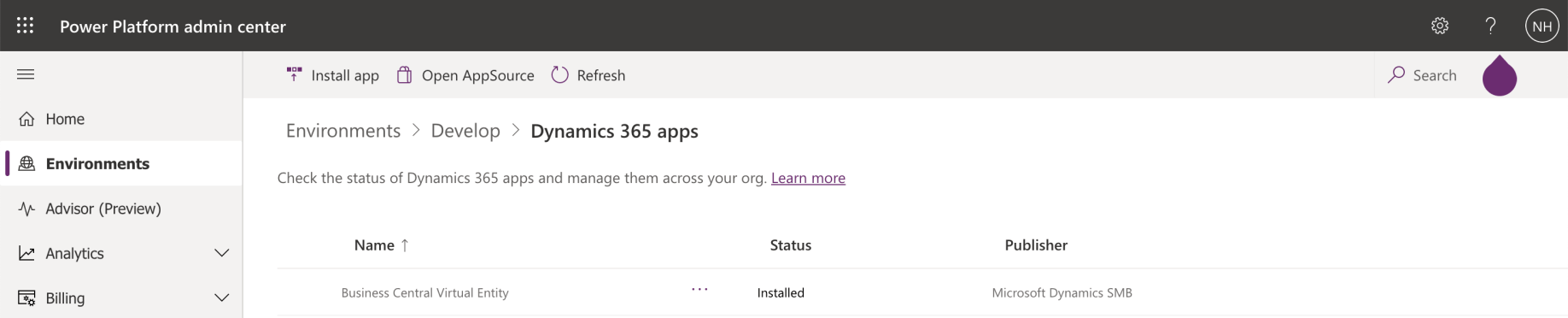
The Business Central Virtual Entity Dynamics 365 app installed successfully
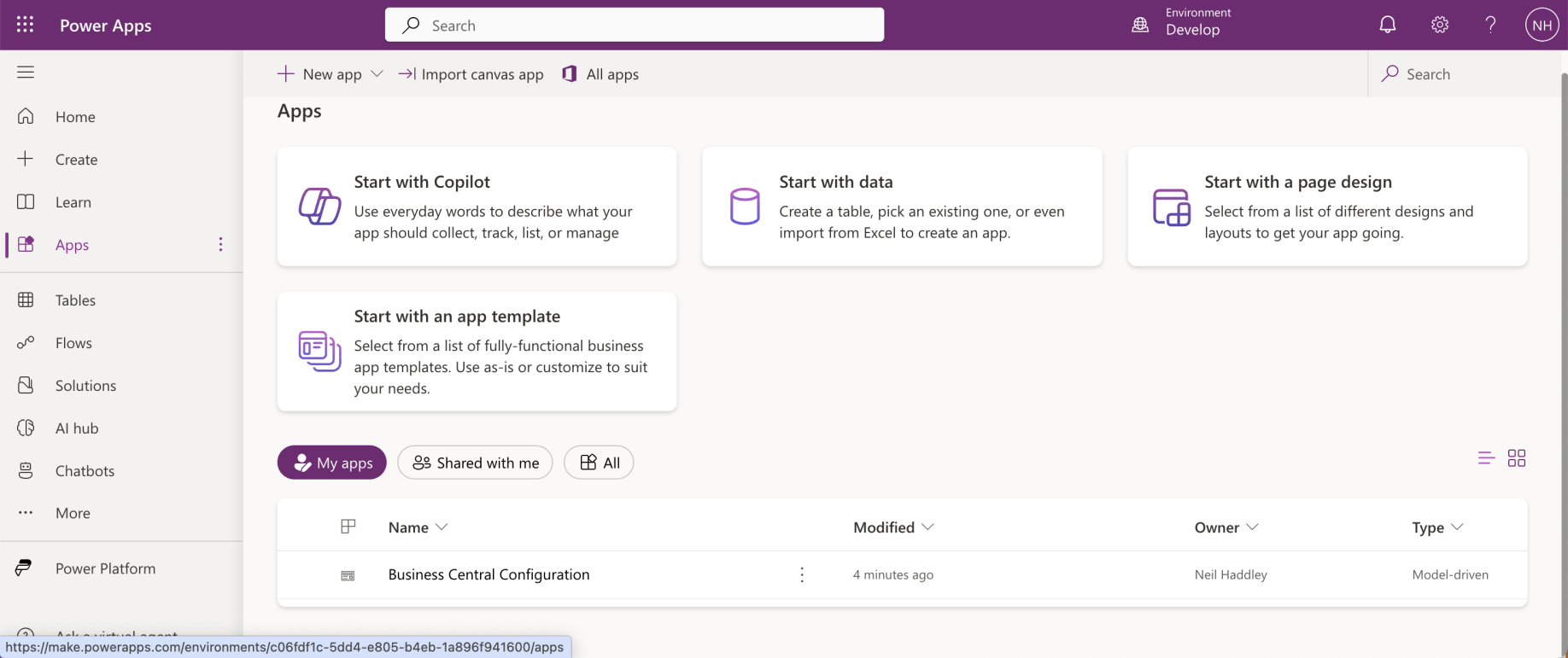
I navigated to make.powerapps.com and ran the Business Central Configuration app
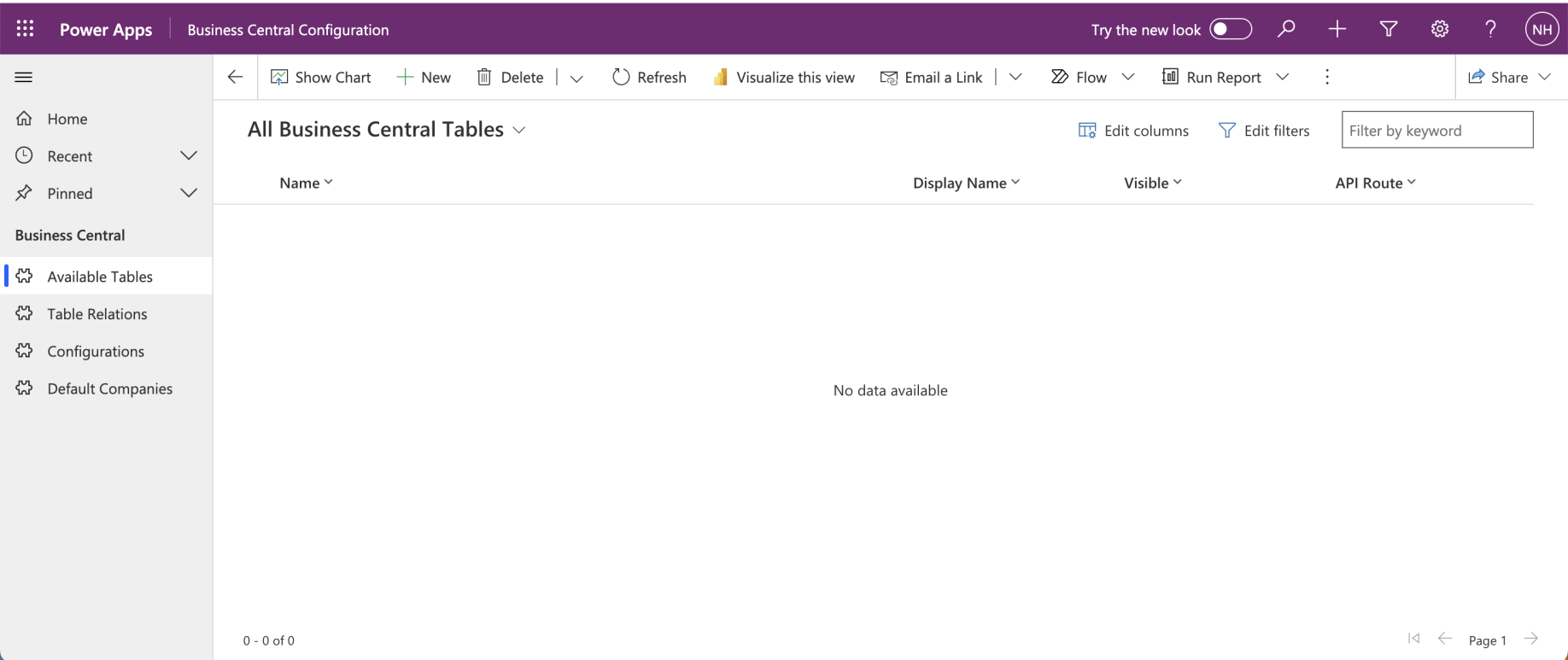
No tables appeared
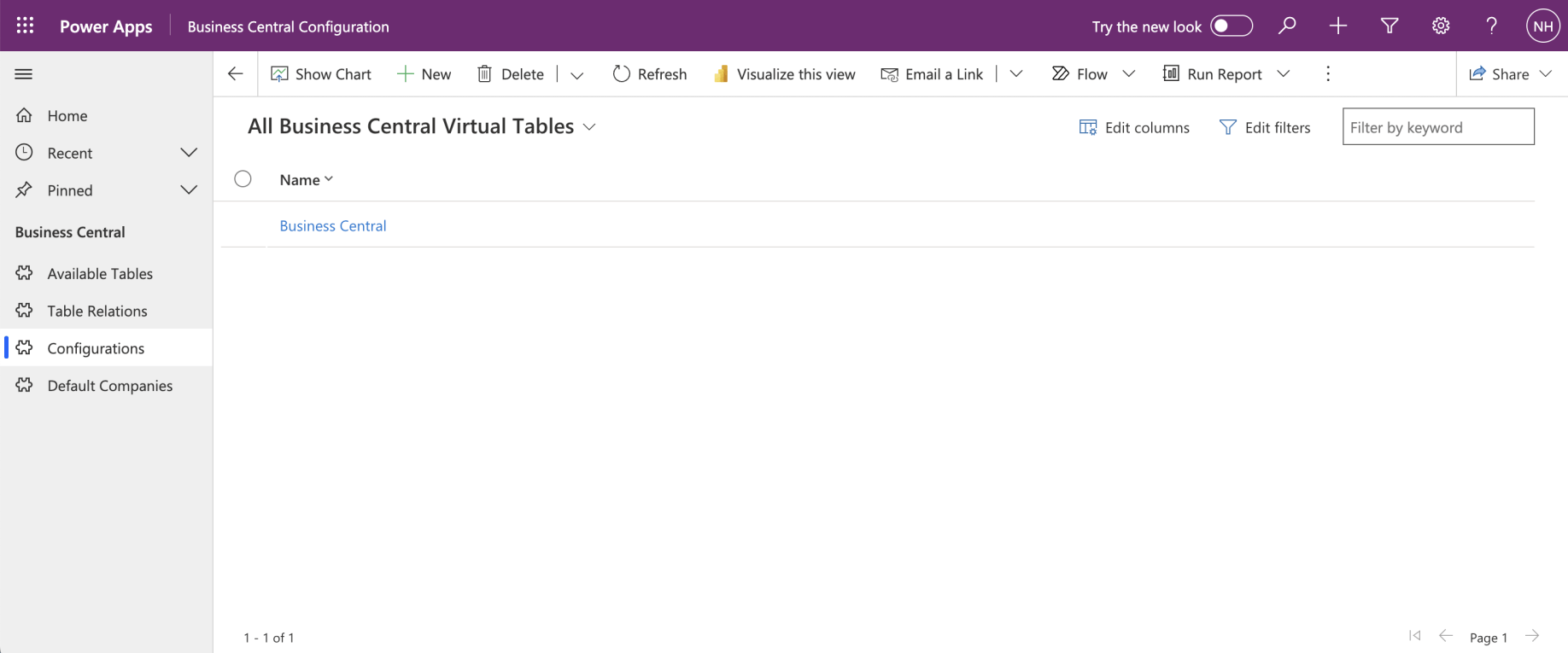
I navigated to the Configurations page and clicked on the Business Central item
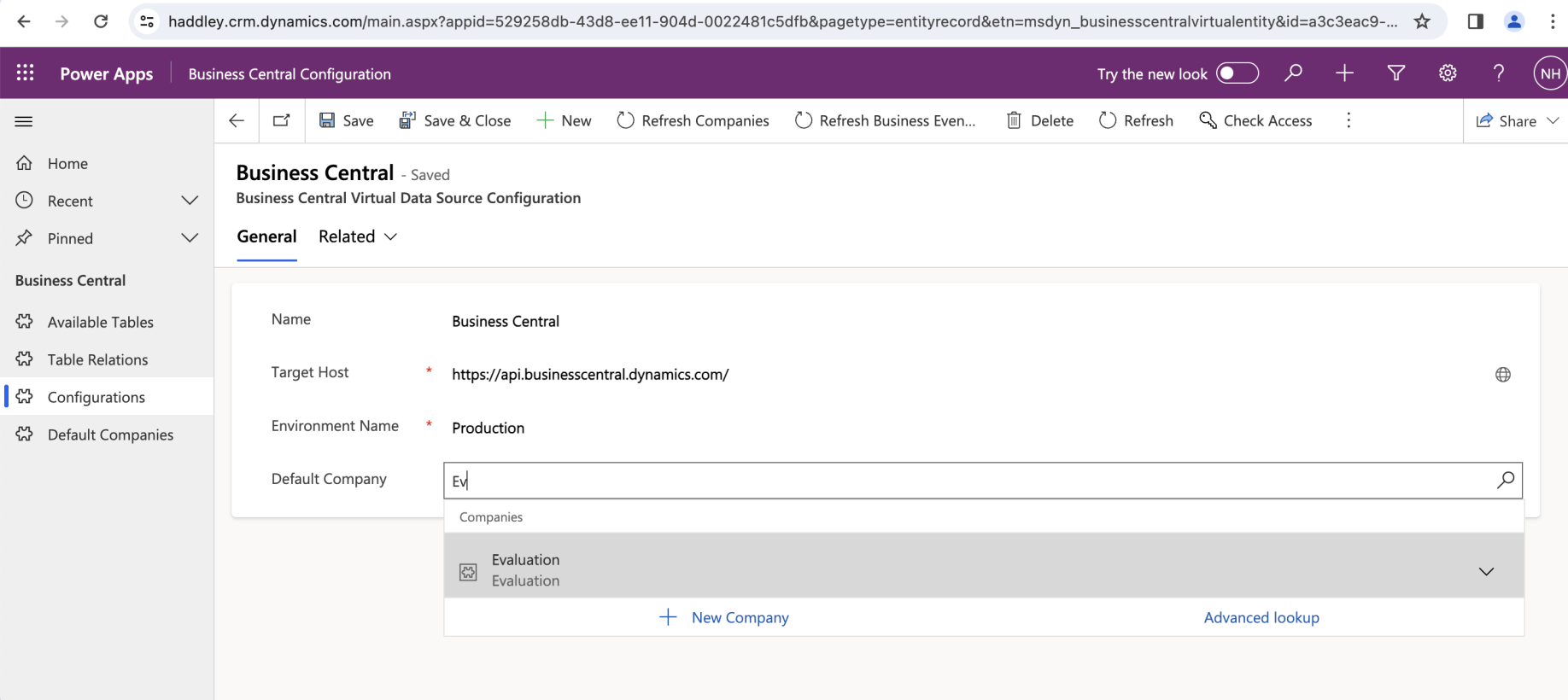
I entered Production as the Environment name and Evaluation as the Default Company name
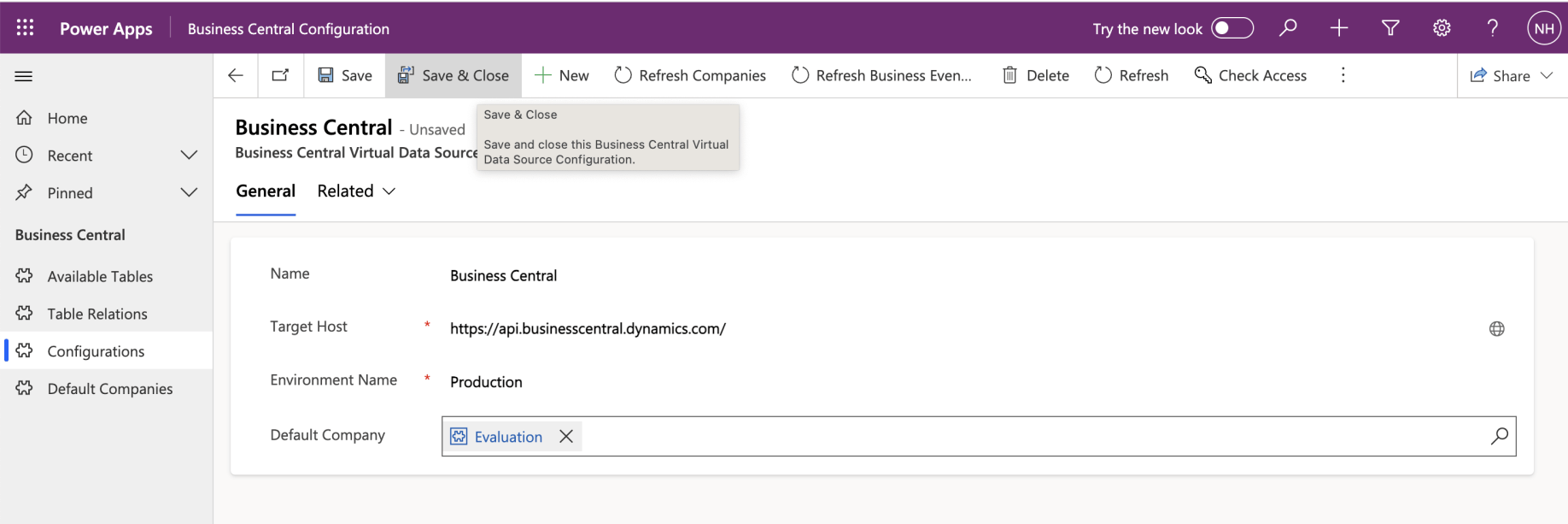
I clicked the Save & Close button
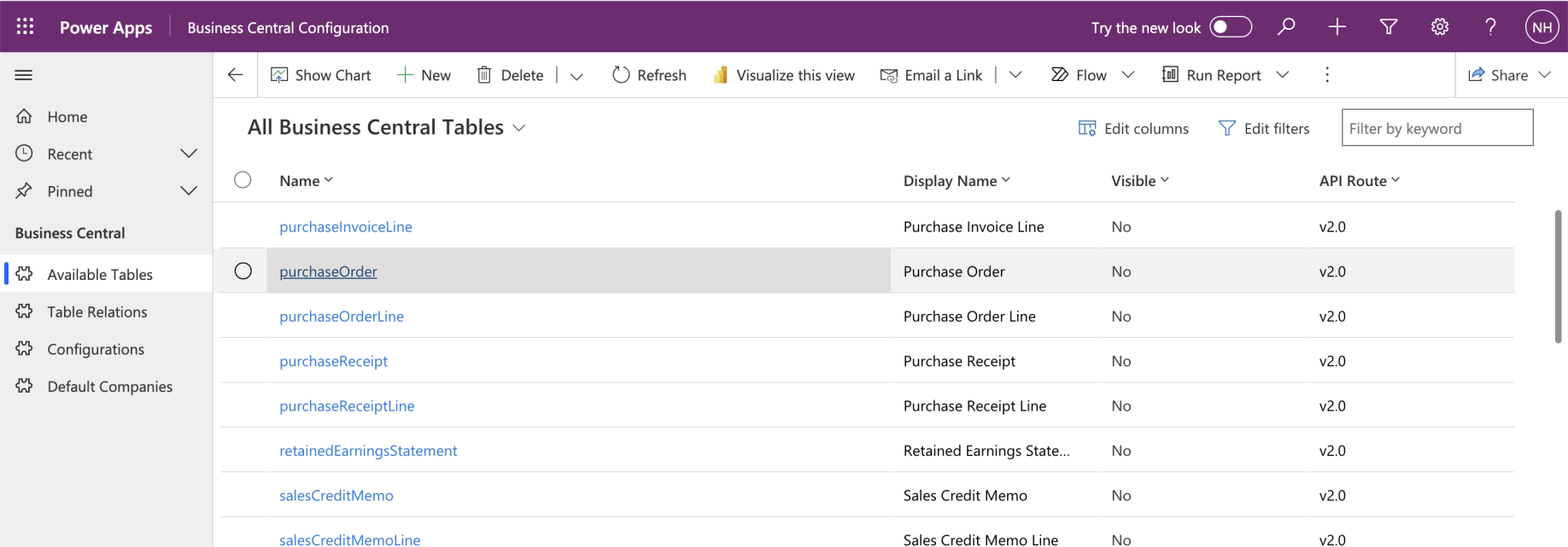
I navigated to the Available Tables page and clicked on the purchaseOrder table
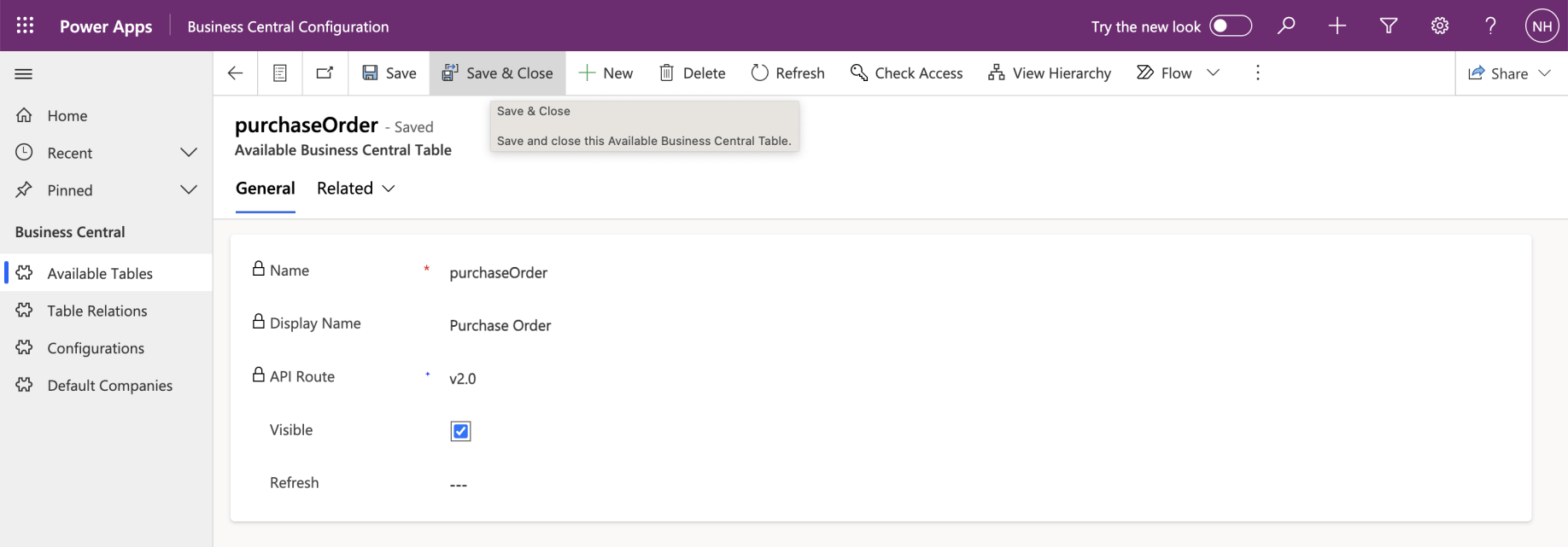
I updated the Visible value to Yes. I clicked the Save & Close button
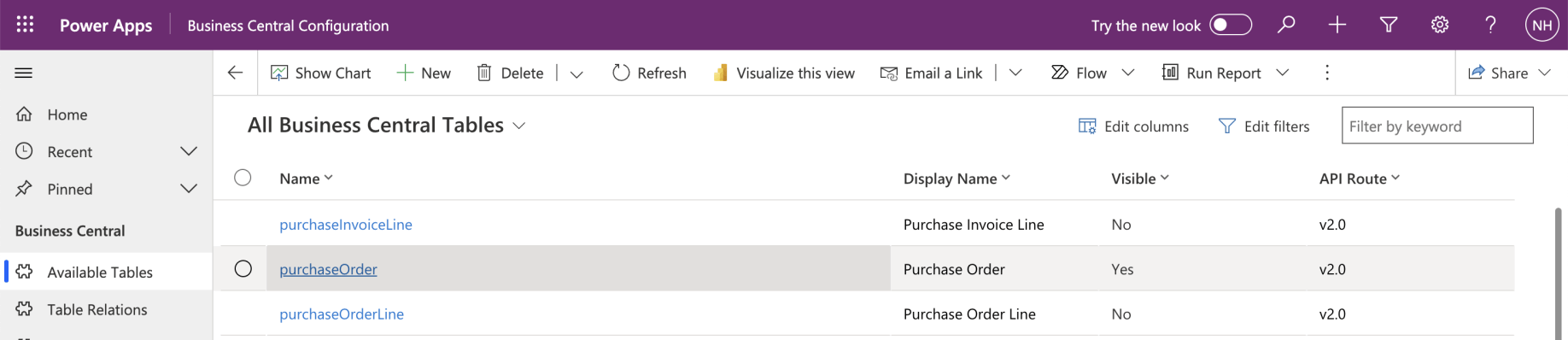
The purchaseOrder table was now Visible
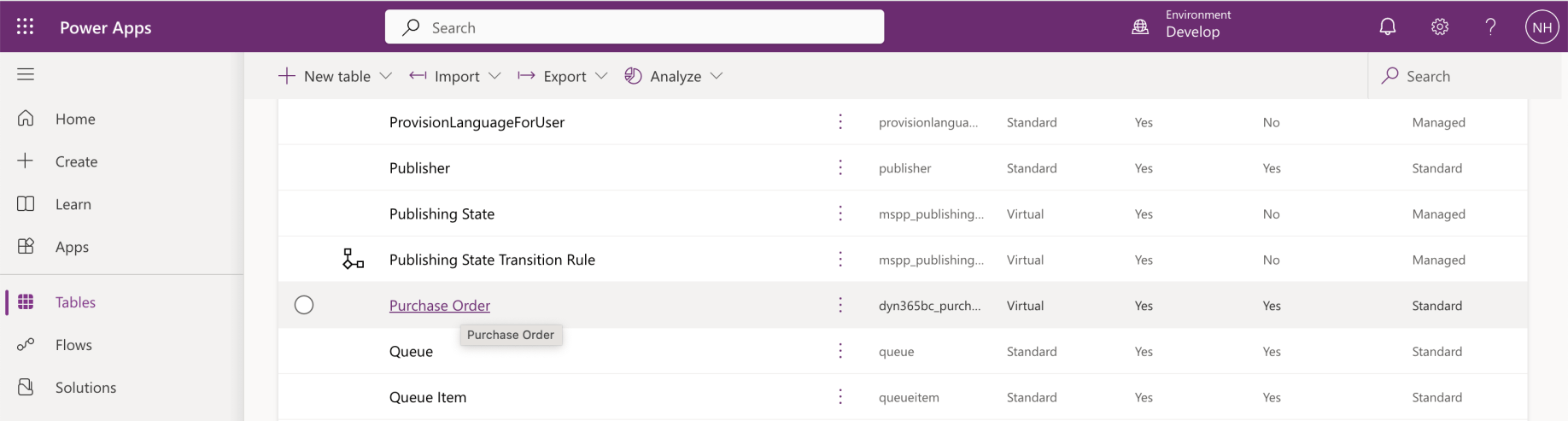
I navigated the the Power Apps Tables list and clicked on the Purchase Order Table
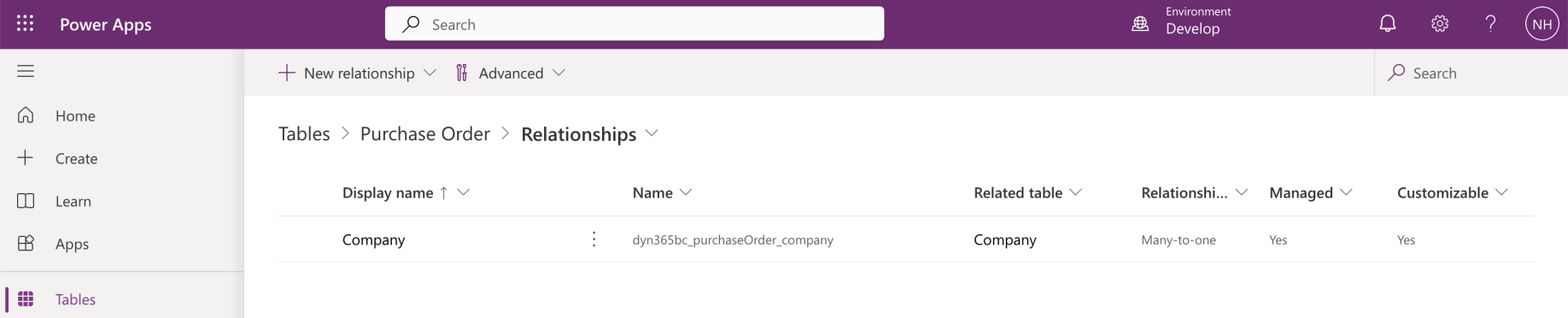
I clicked on the Relationships link and could see that there was a relationship between the Purchase Order table and the Company table
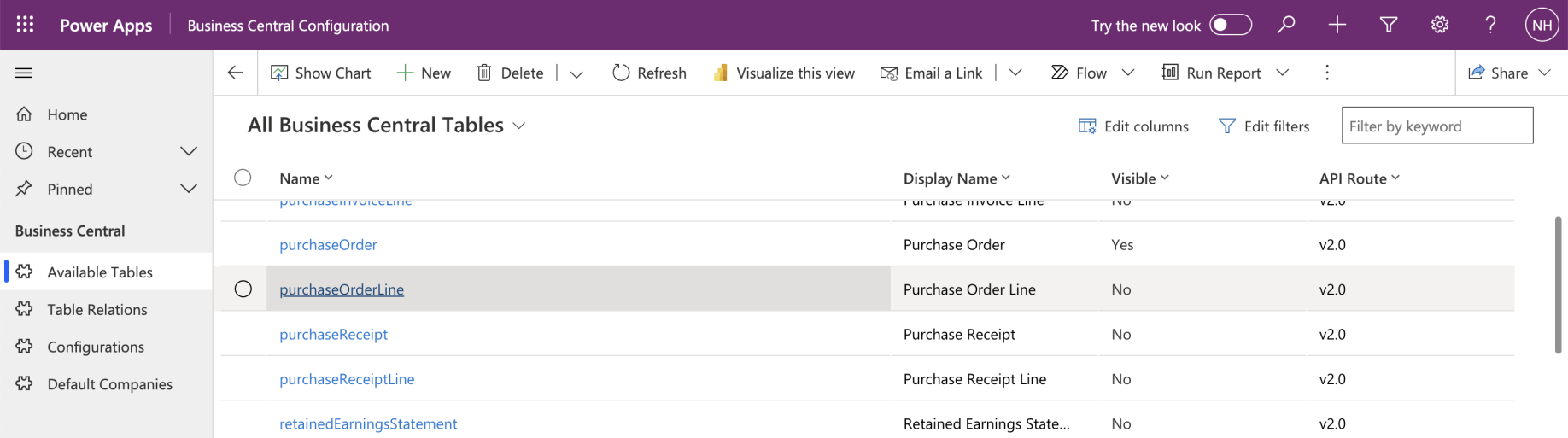
I returned to the Business Central Configuration app and selected the purchaseOrderLine table
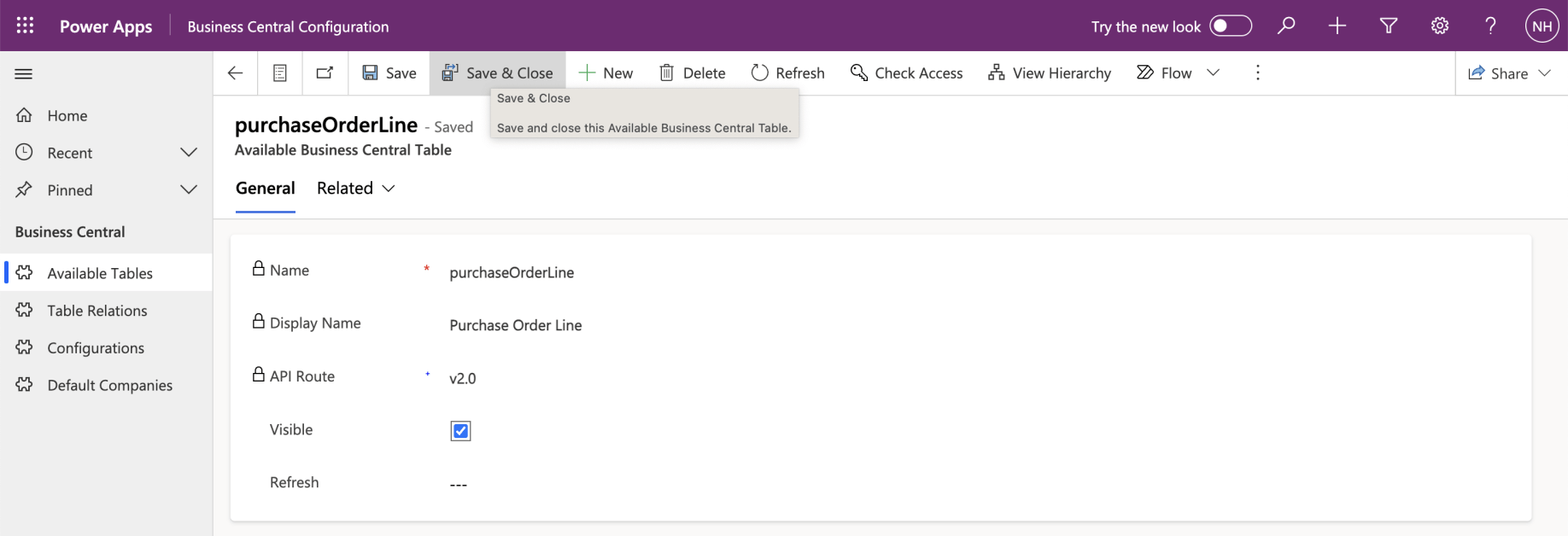
I set the purchaseOrderTable to Visible. I clicked the Save & Close button
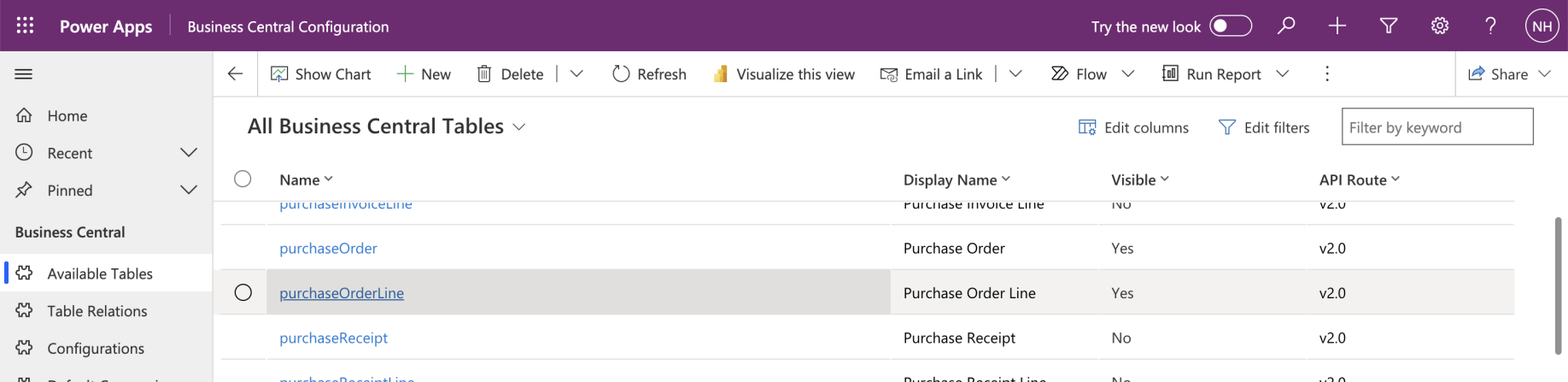
The Visible property of the purchaseOrderLine table updated
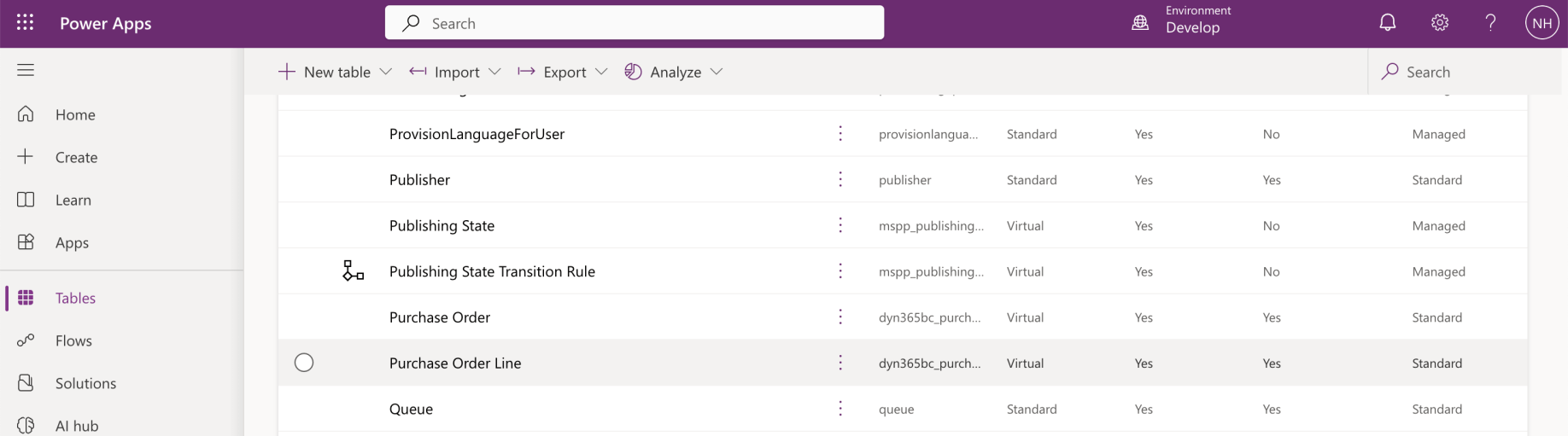
The purchaseOrderLine table appeared in the Power Apps Tables list
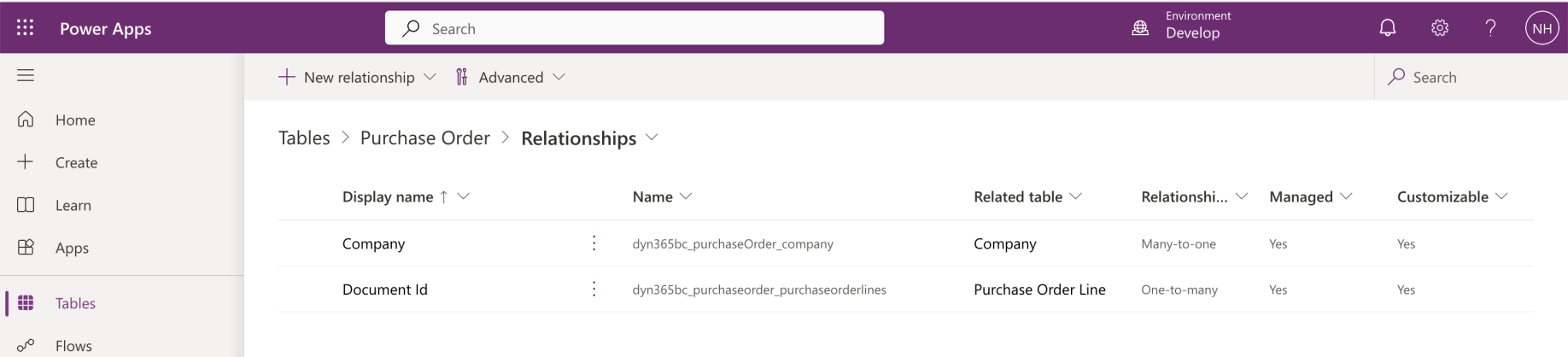
I reviewed the purchaseOrder table's Relationships. A Document Id relationship was shown between the purchaseOrder table and the purchaseOrderLine table
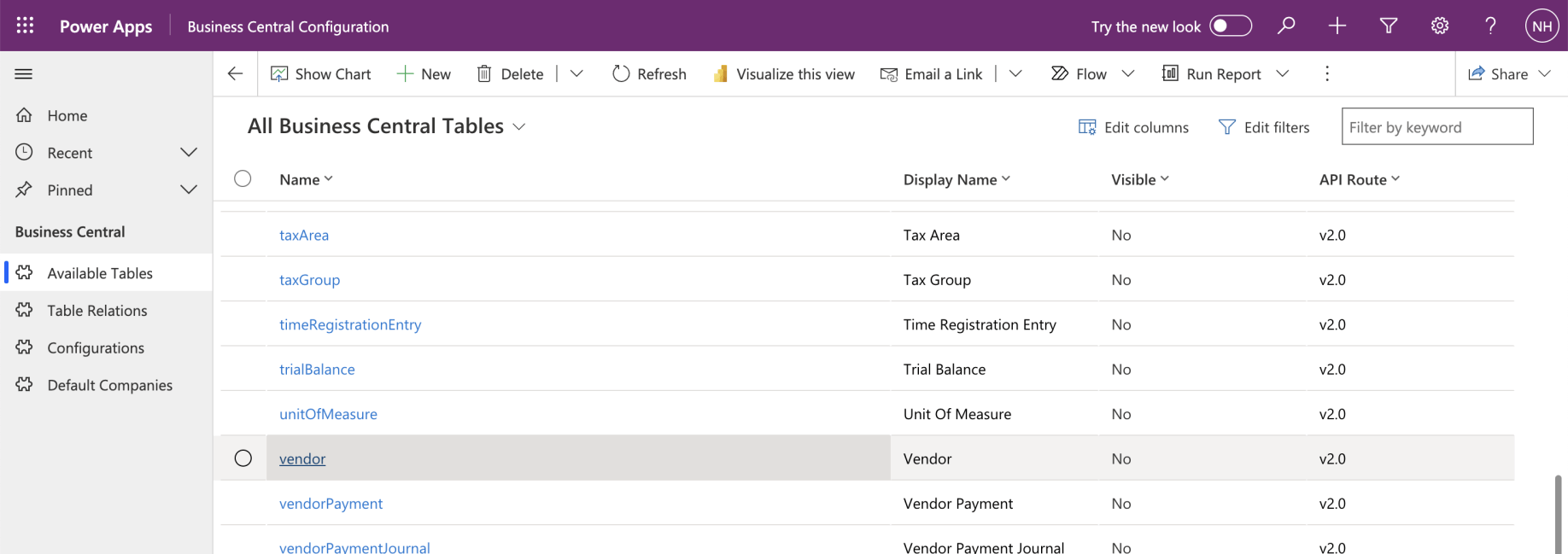
I returned to the Business Central Configuration app and selected the vendor table
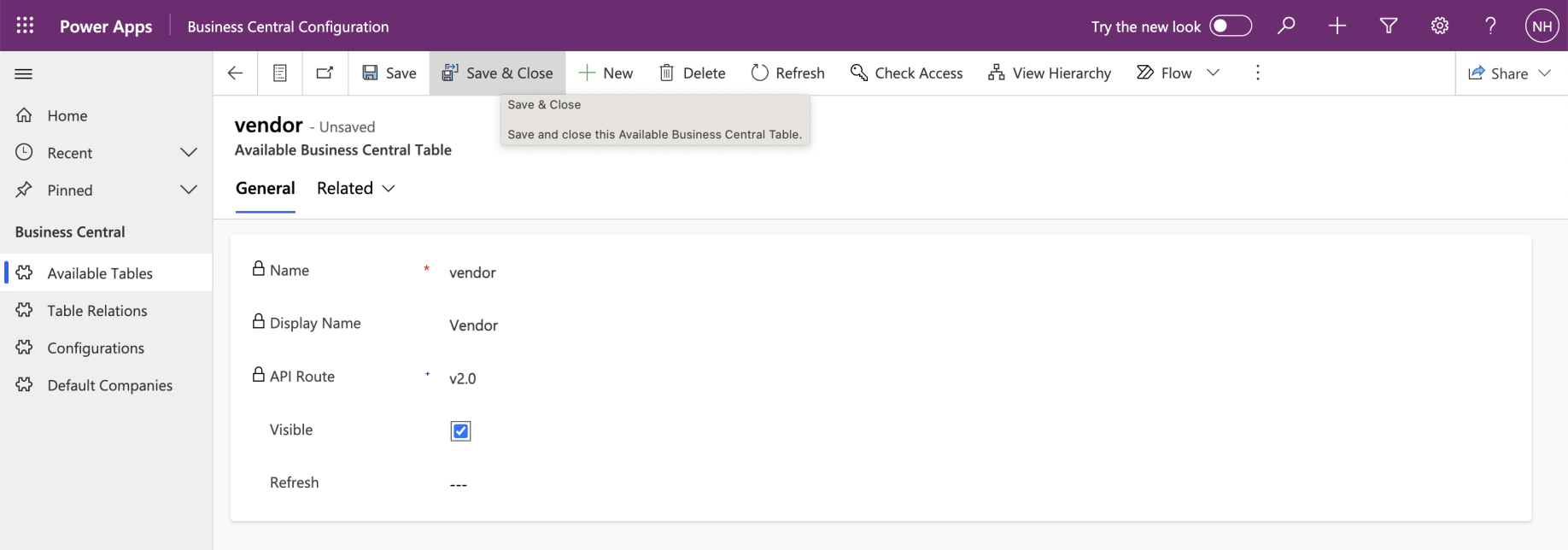
I set the vendor to Visible. I clicked the Save & Close button
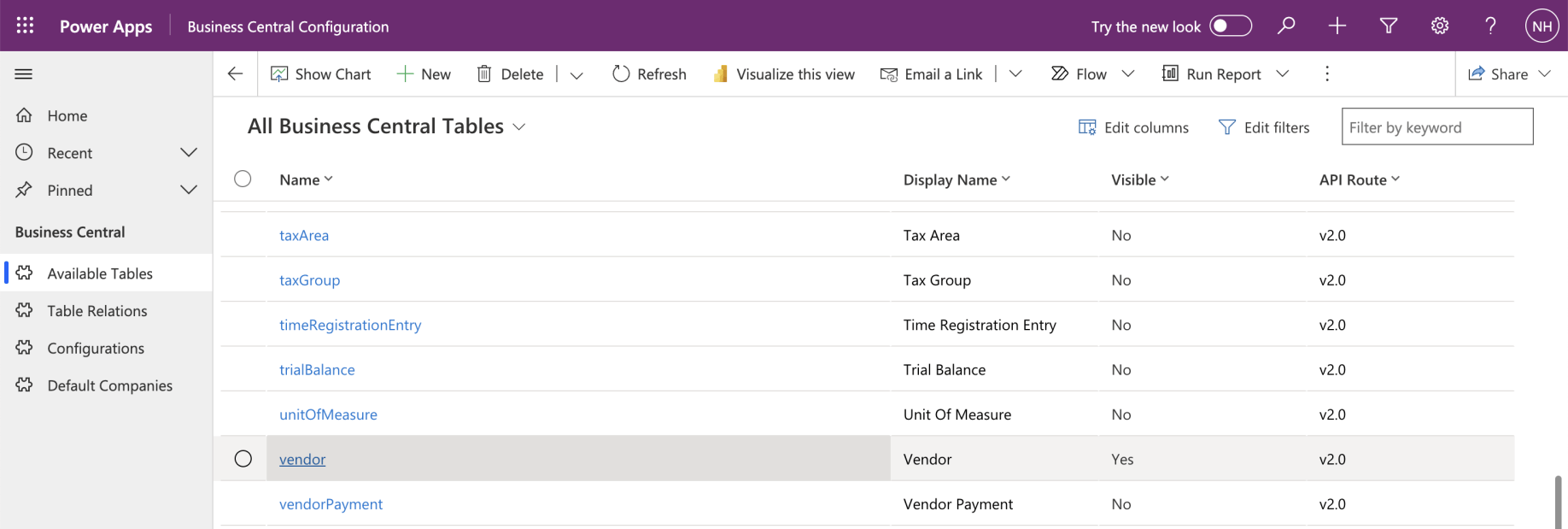
The Visible property of the vendor table updated

The vendor table appeared in the Power Apps Tables list
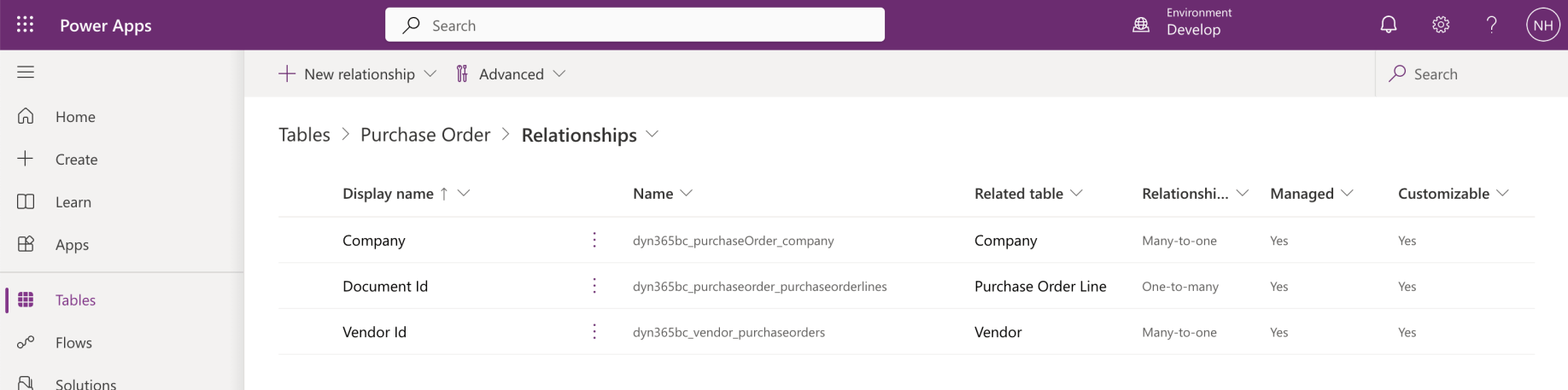
I reviewed the purchaseOrder table's Relationships. A Vendor Id relationship was shown between the purchaseOrder table and the vendor table
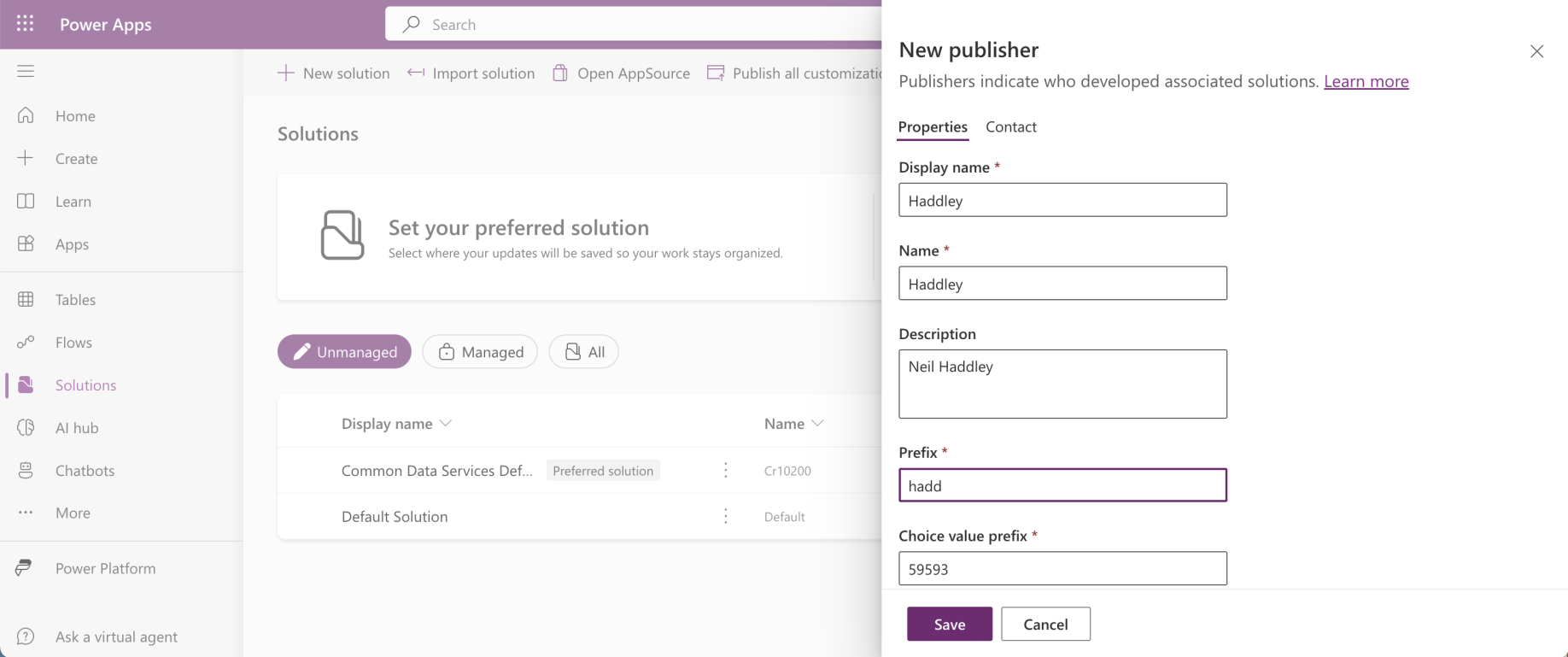
I created a new publisher
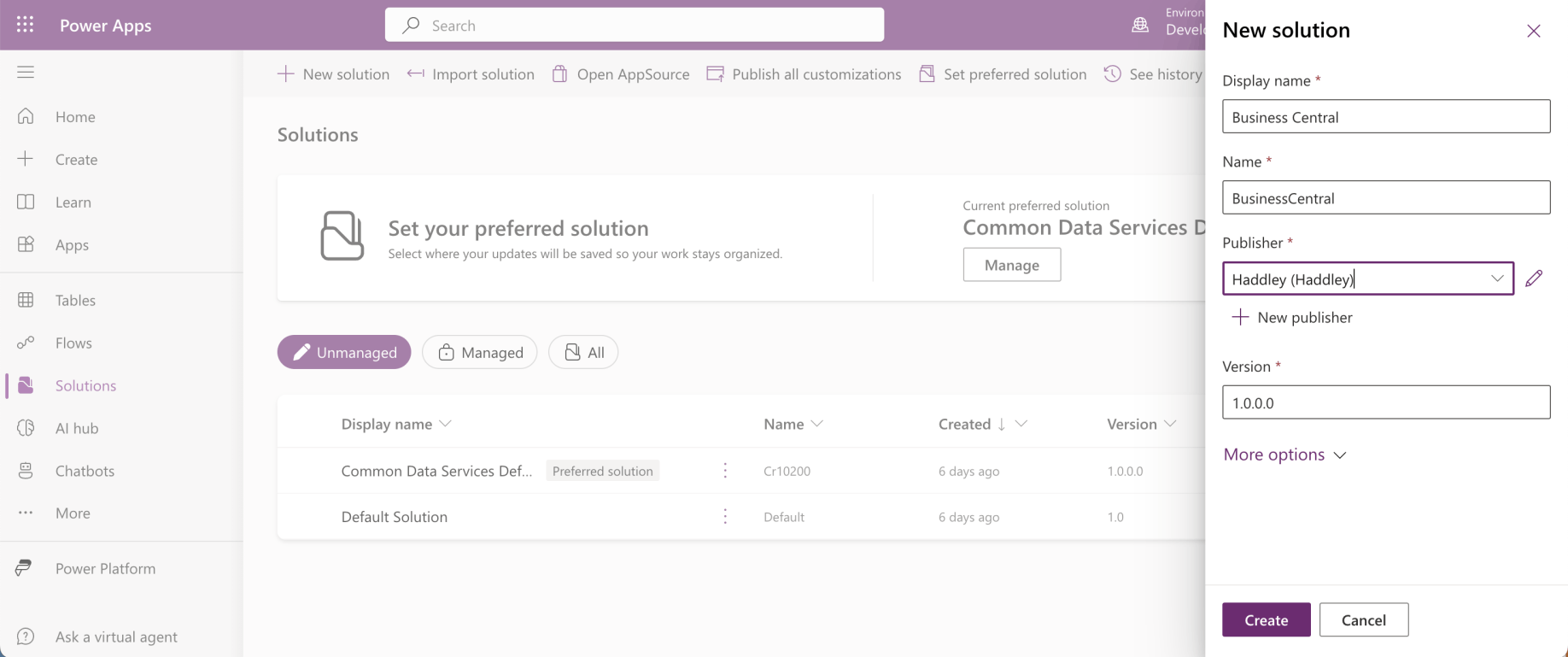
I created a new Business Central solution
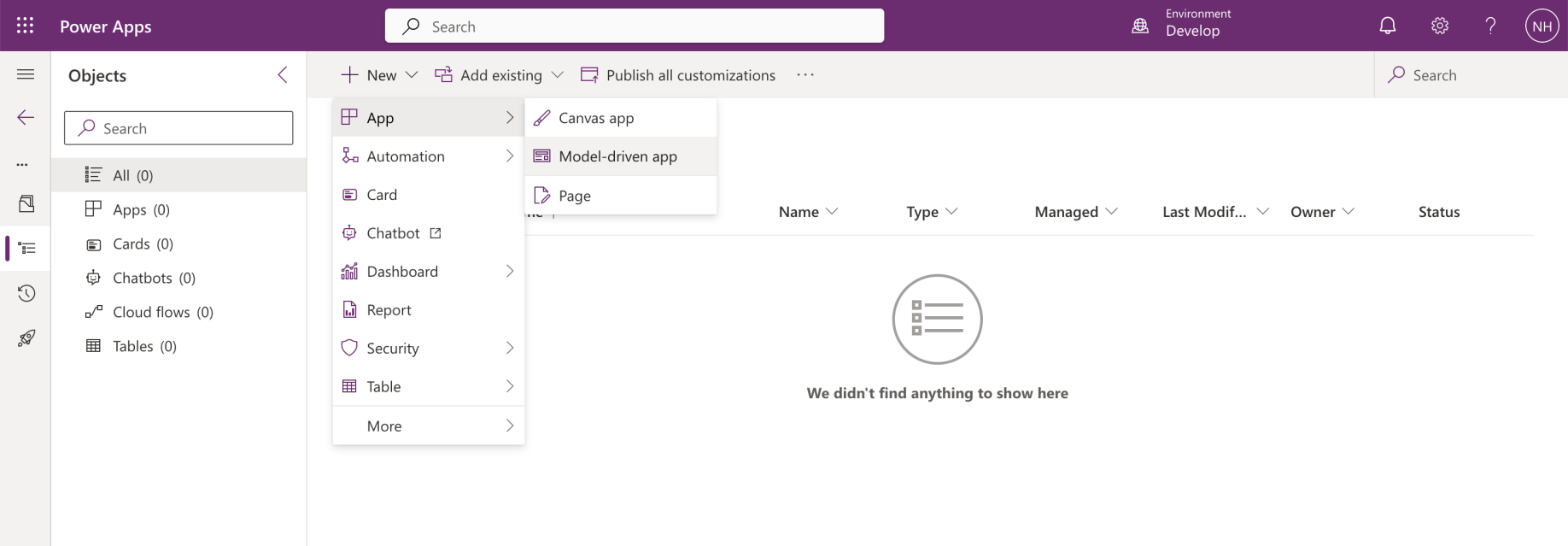
I added a Model-driven app to the Business Central solution
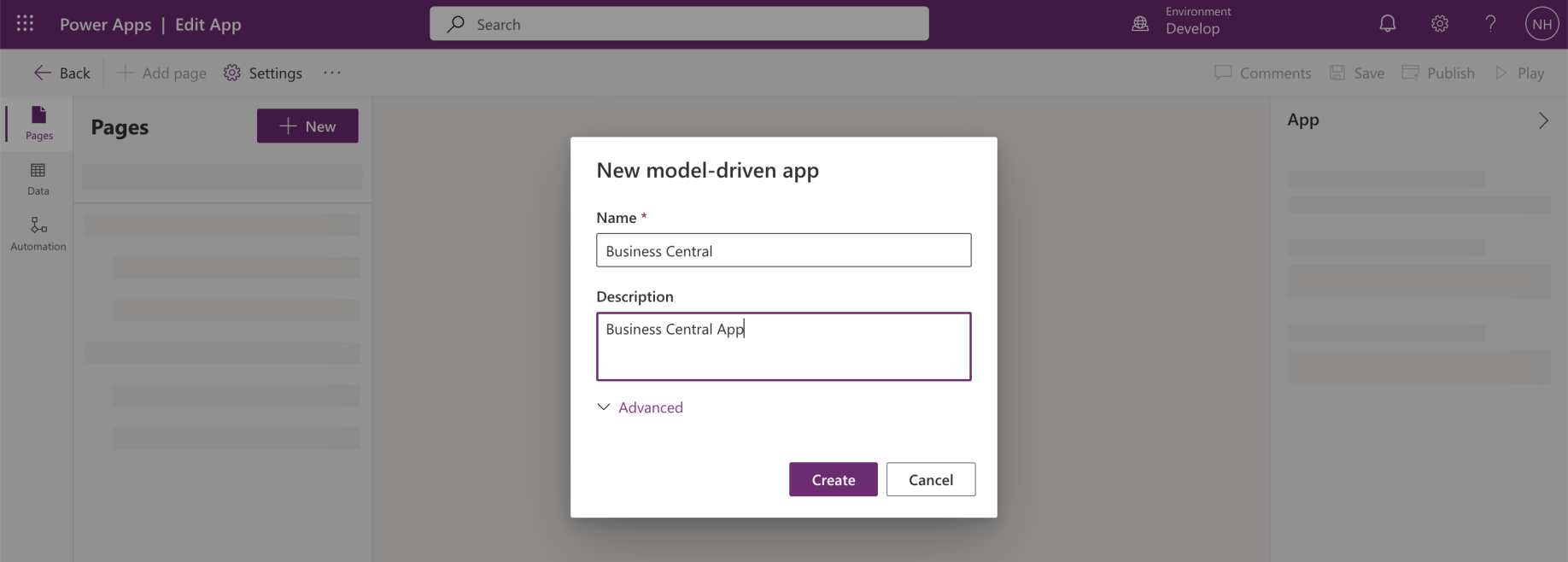
I named the app Business Central
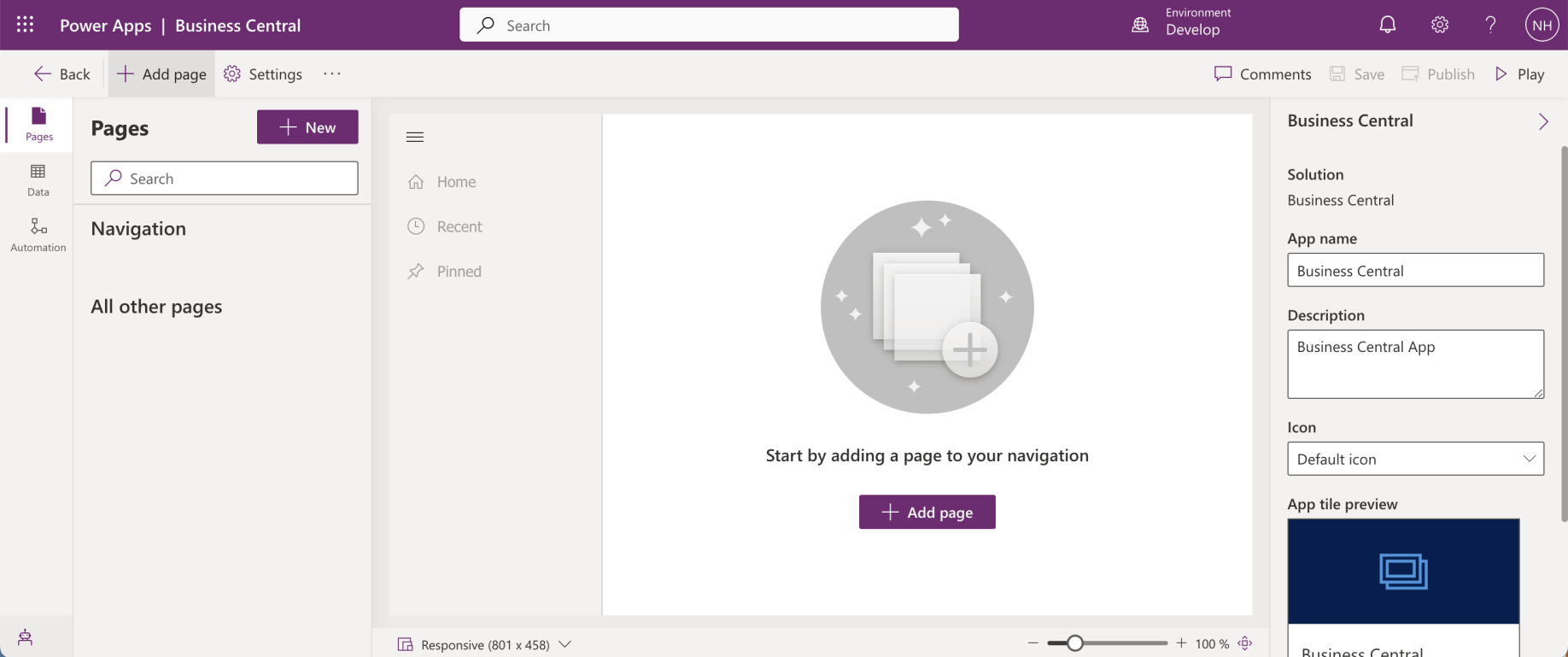
I added a page to the app
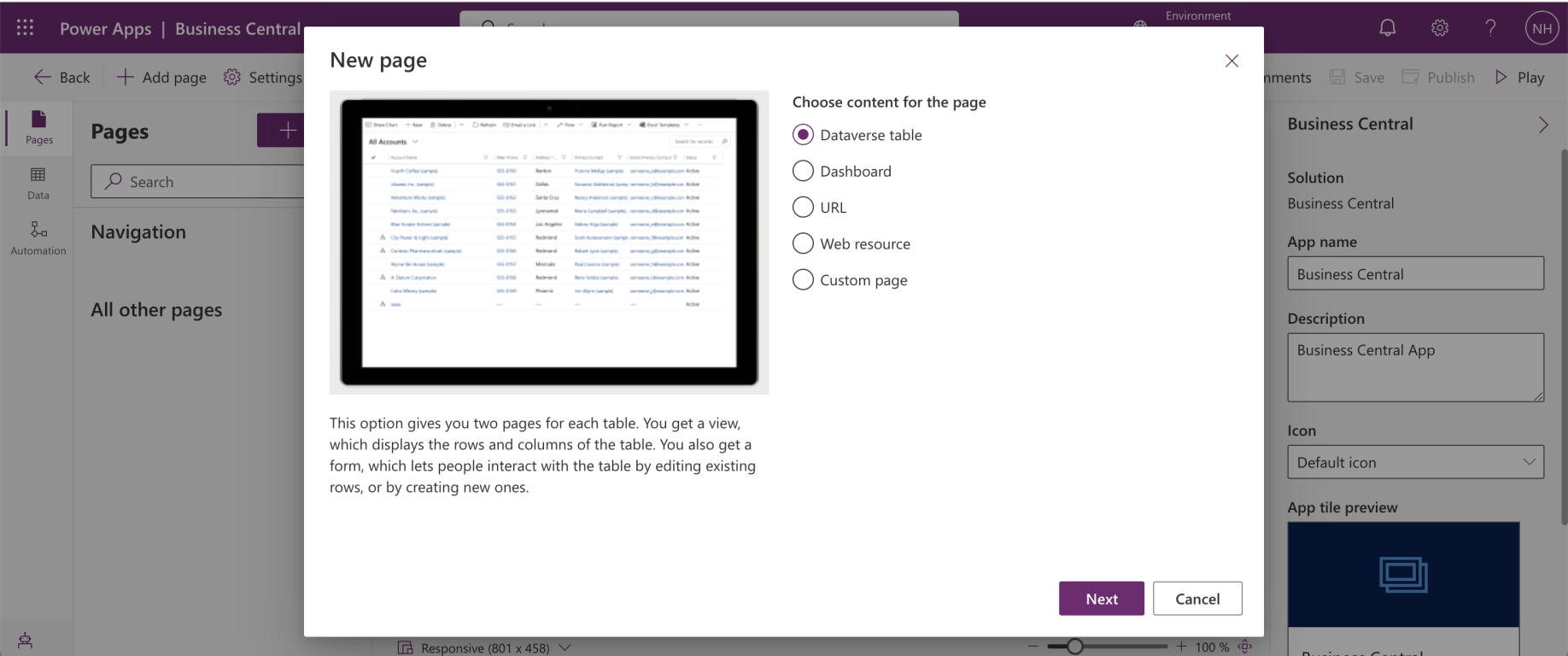
I selected the "Dataverse table" option and clicked the Next button
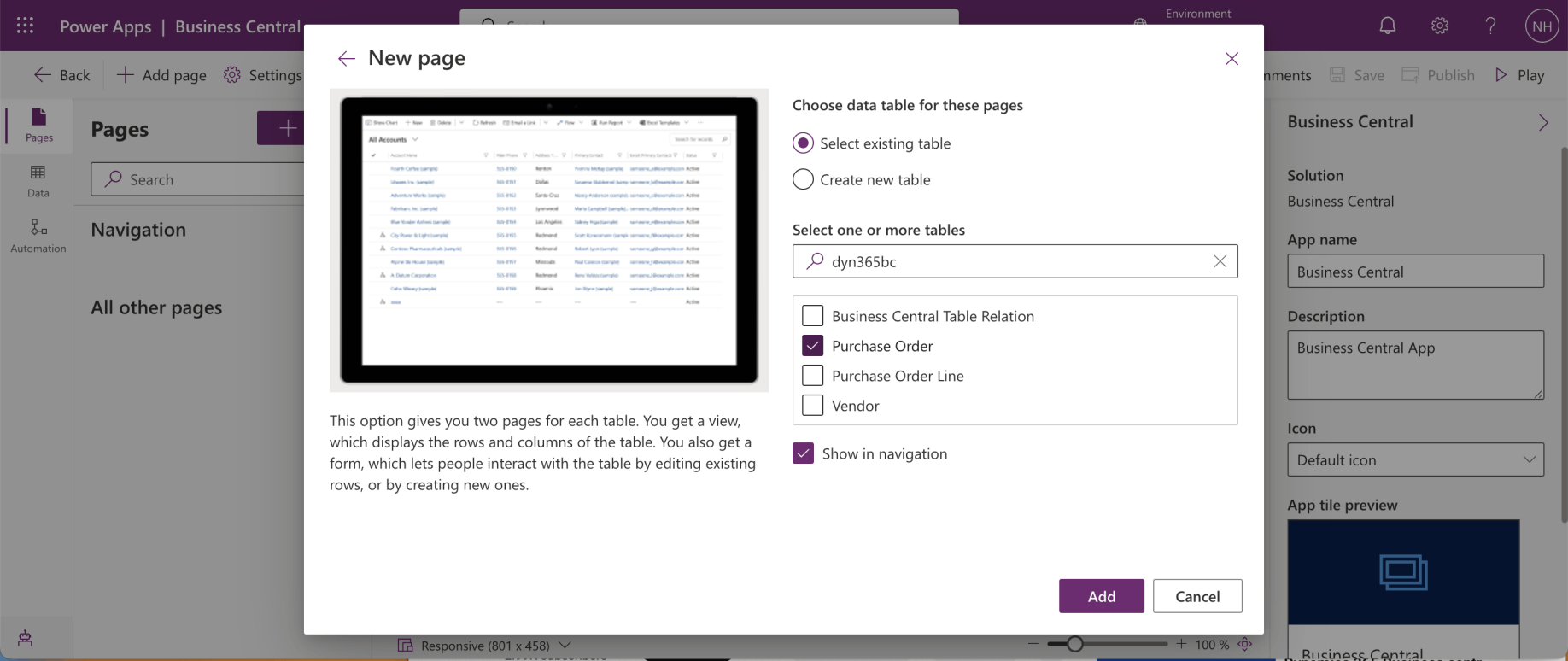
I selected the Purchase Order table and checked the Show in navigation checkbox
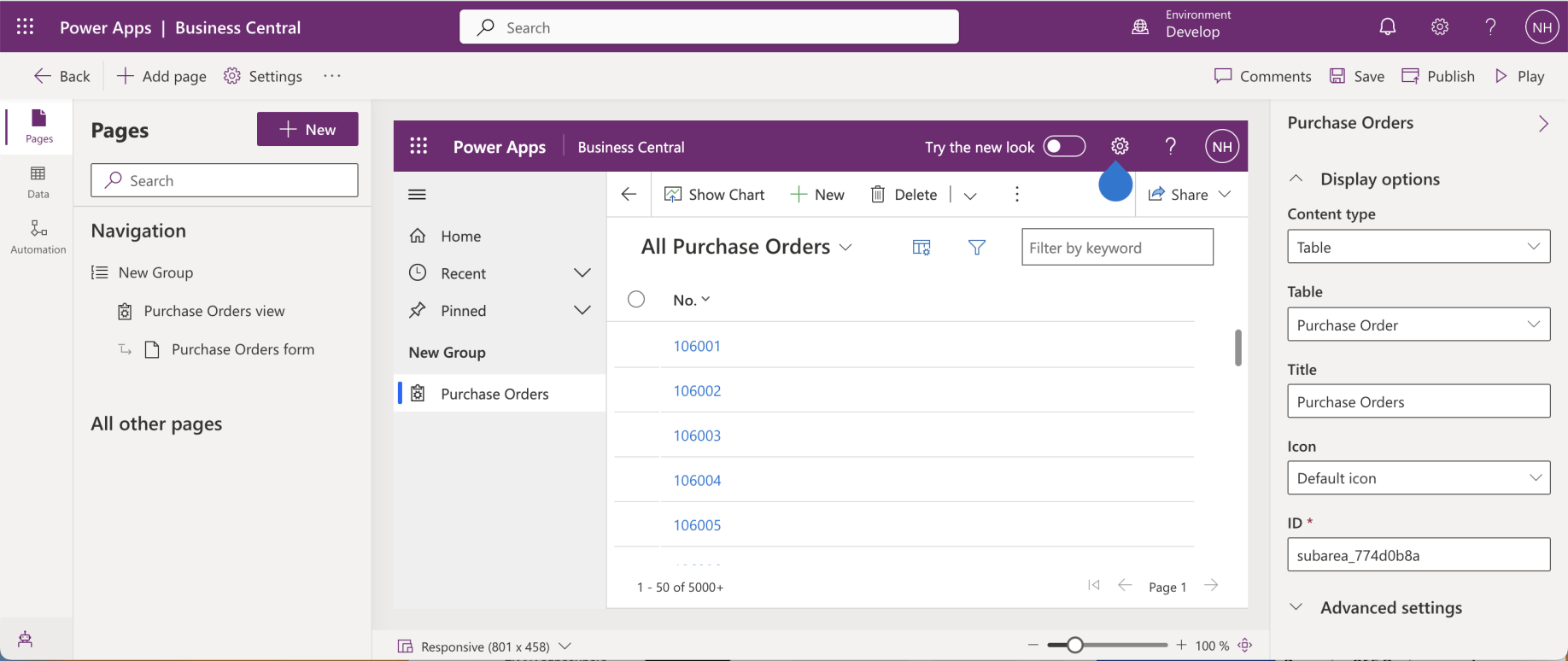
The Model-driven app opened.
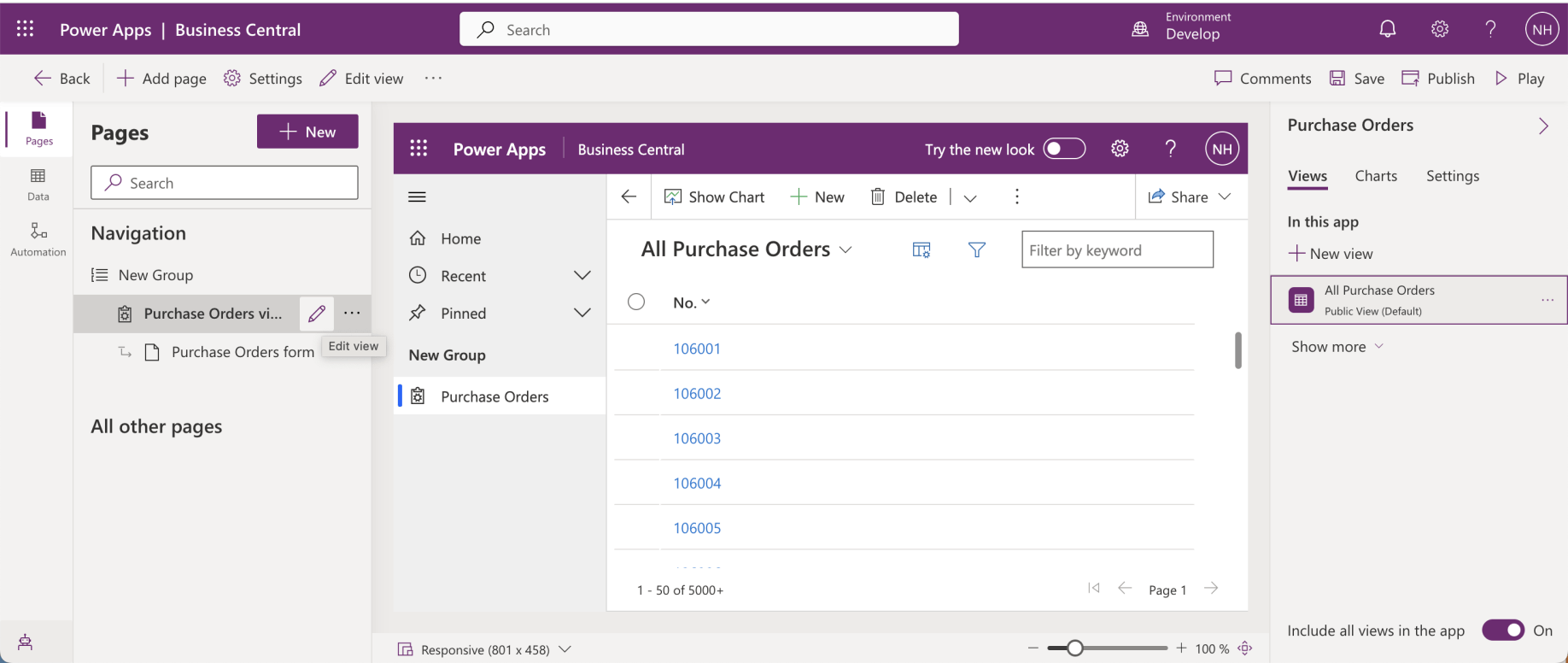
I clicked the Edit View link on the Purchase Orders view item
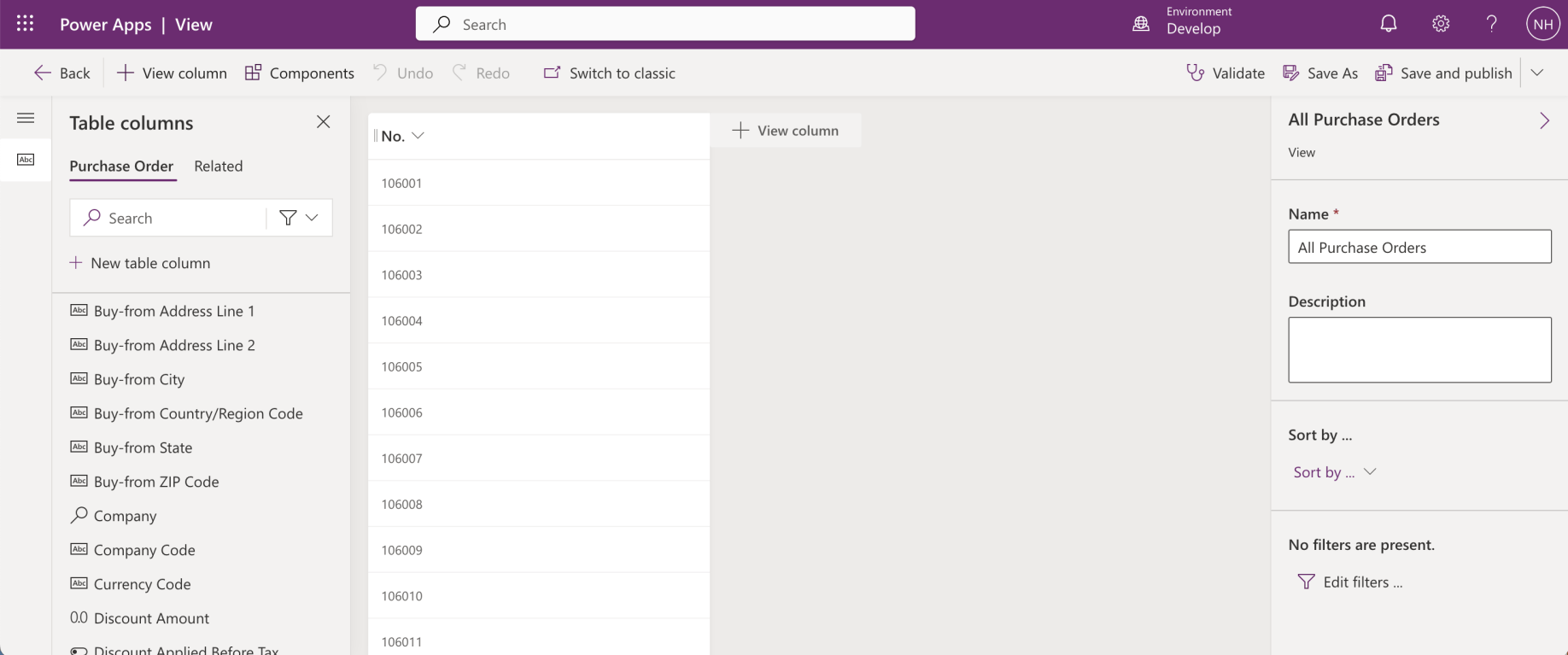
The "All Purchase Orders" view only included the Purchase Order number (No.) column
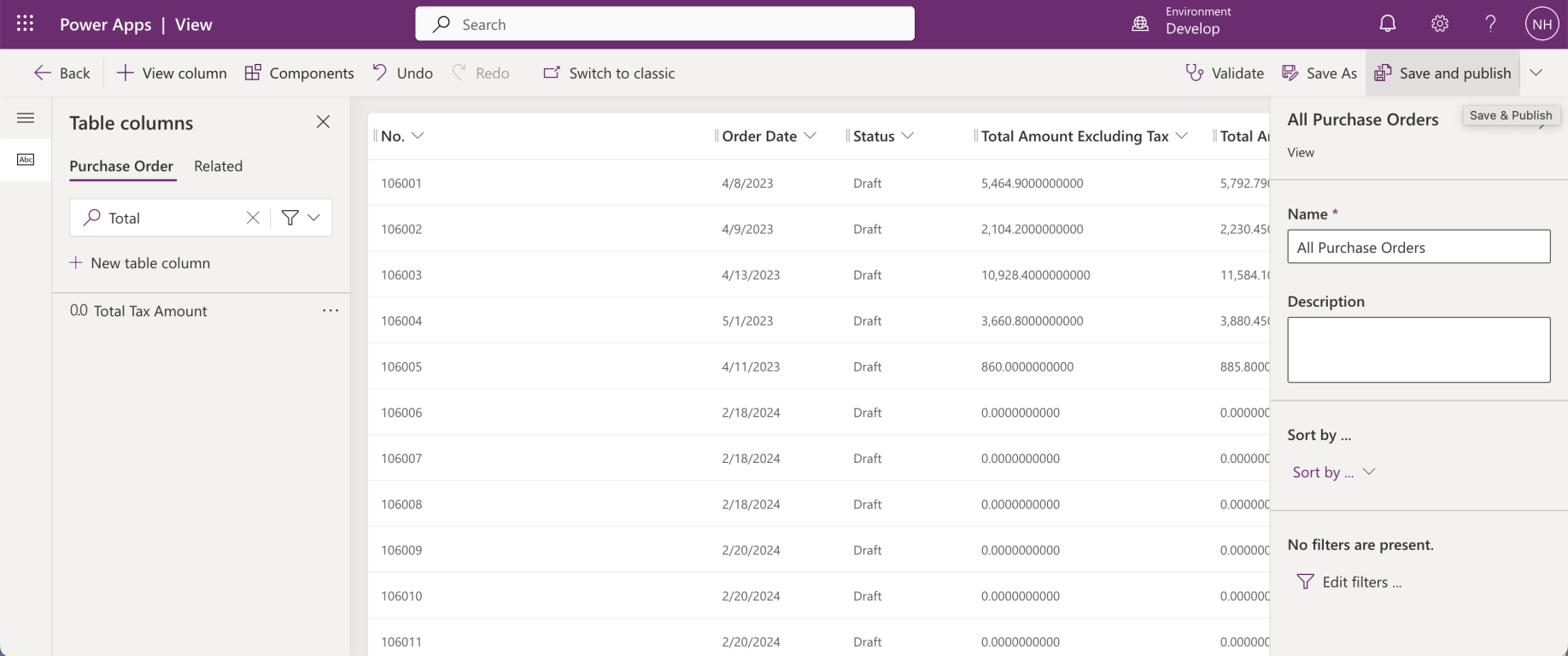
I added the Order Date, Status, Total Amount Excluding Tax and Total Amount Including Tax columns to the view
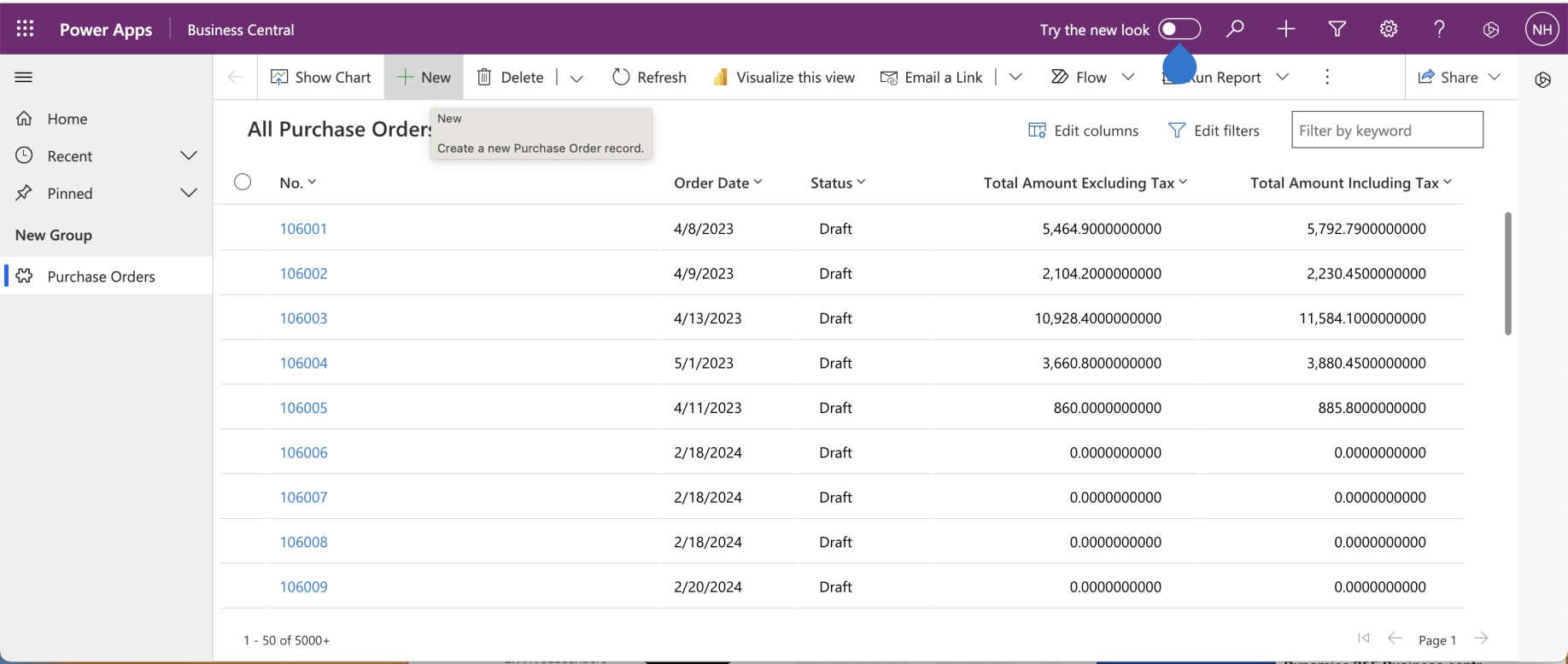
I ran the model driven app. The Purchase Orders tab was selected and a list of Business Central Purchase Orders were displayed. I clicked the + New button
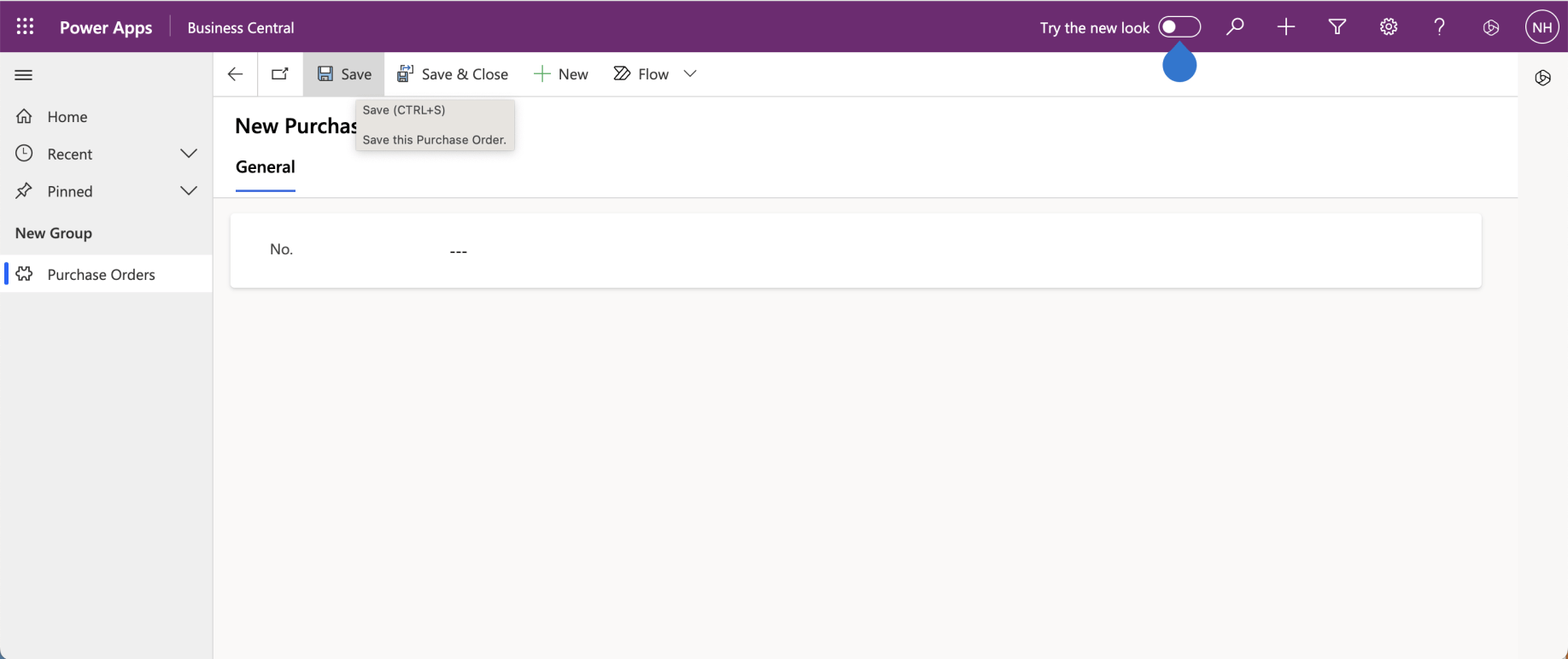
The New Purchase Order form was displayed. I clicked the Save button
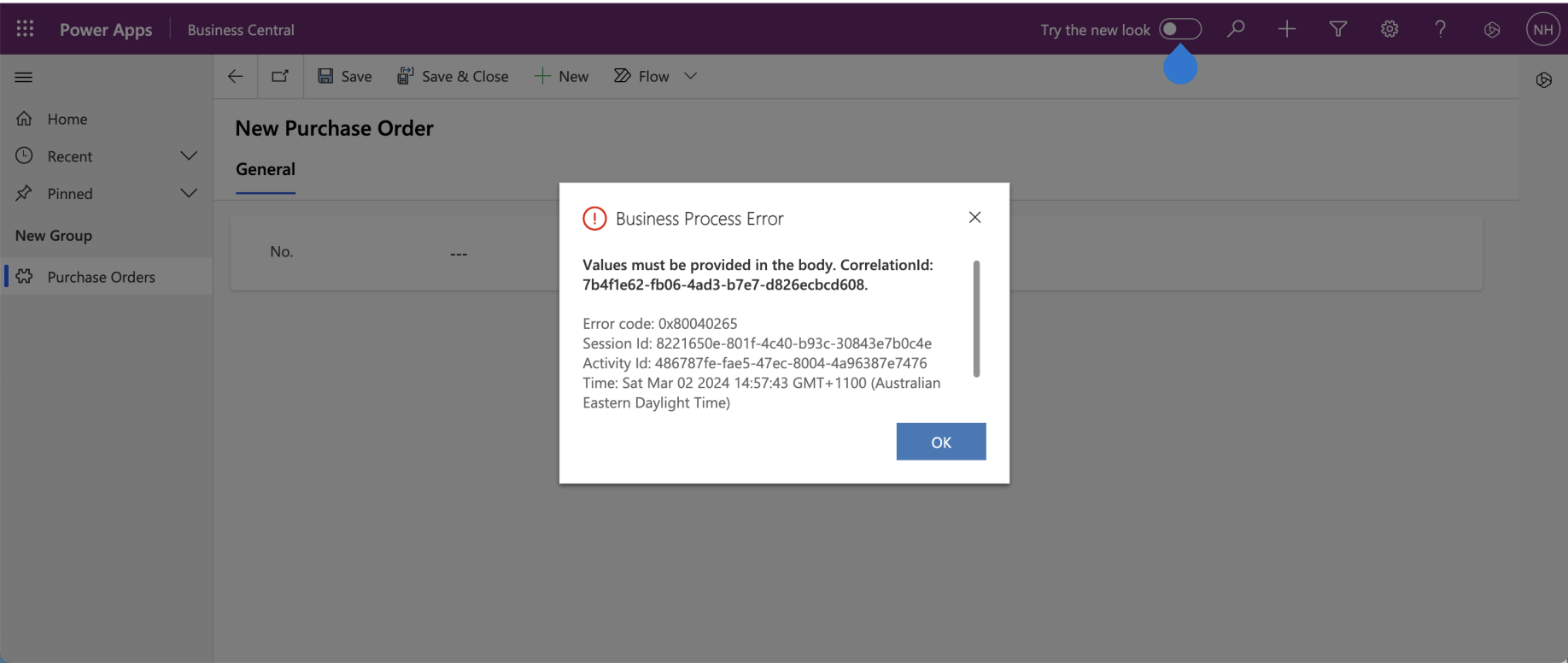
The model driven app displayed an error (because to create a Purchase Order I needed to at least provide a Vendor)
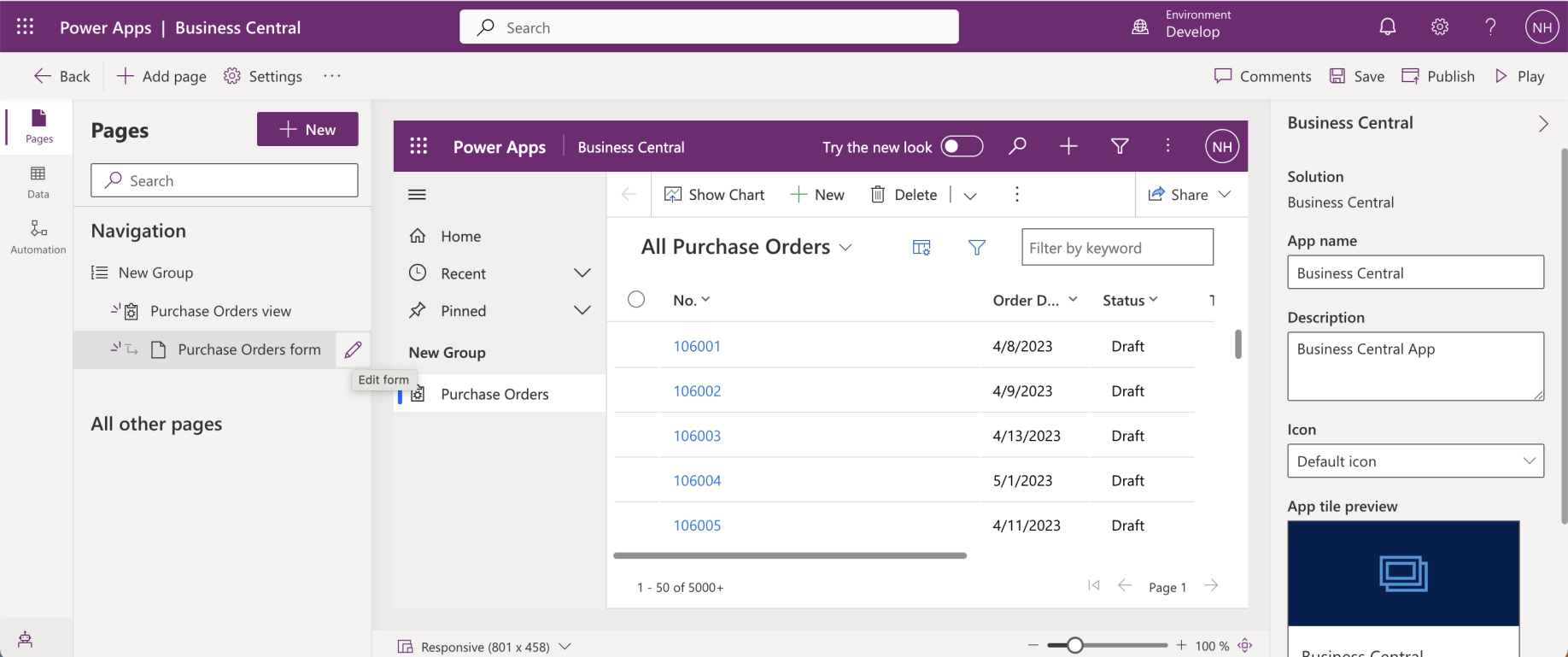
I clicked the Edit form link on the Purchase Orders form
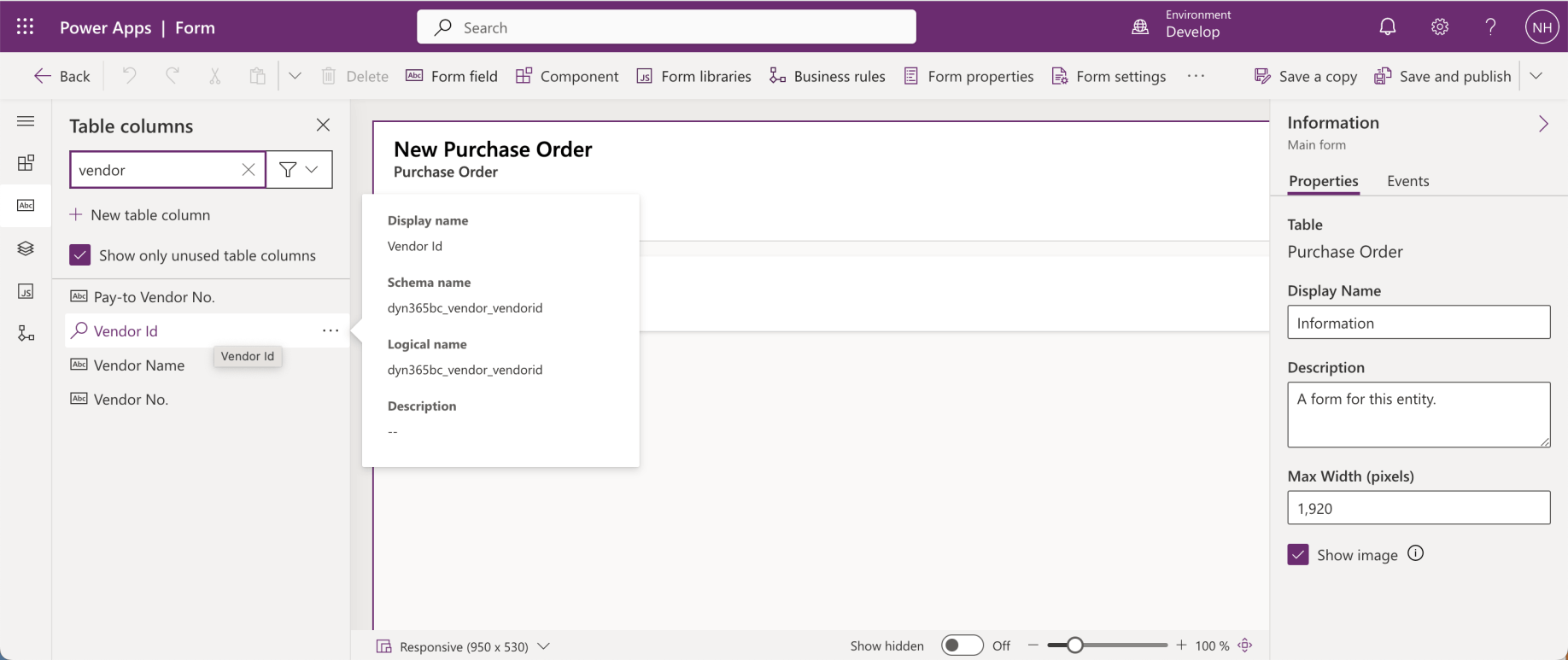
I searched for the Vendor Id column.
Quick View
I configured the General tab to have two columns. I wanted to add a Quick View form to the right-hand column so I could select a Vendor Id on the left and see the corresponding Vendor details on the right.
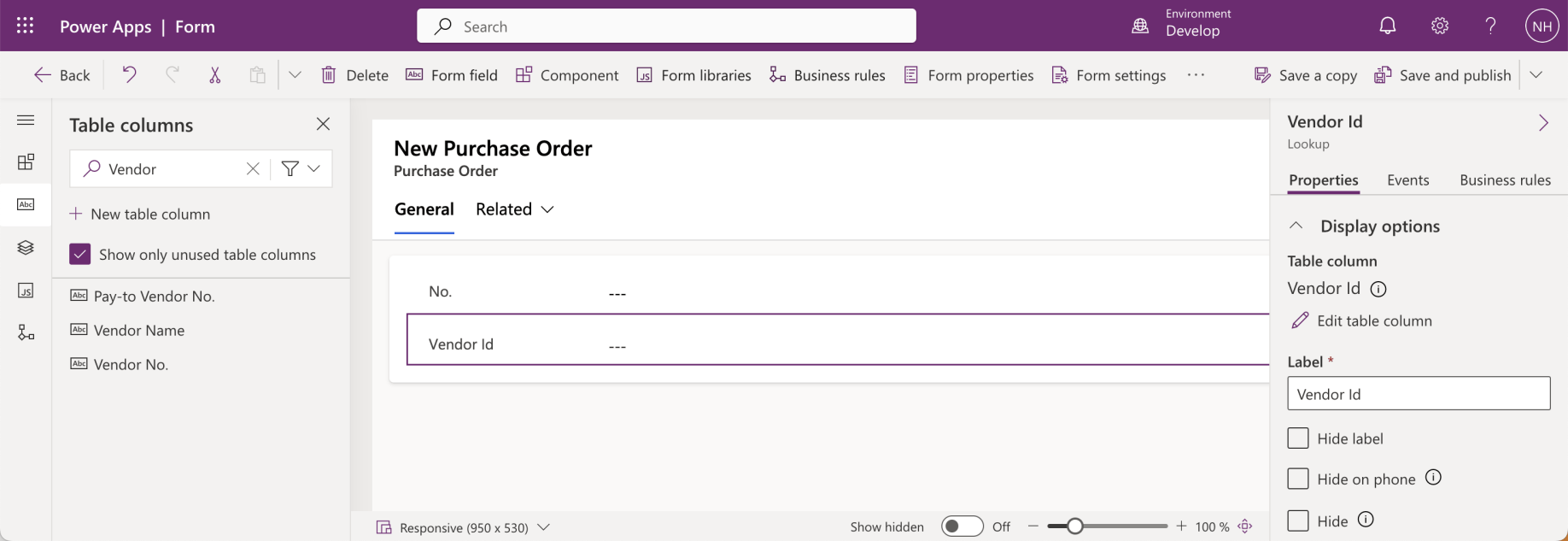
The Vendor Id column appeared on the Purchase Order form
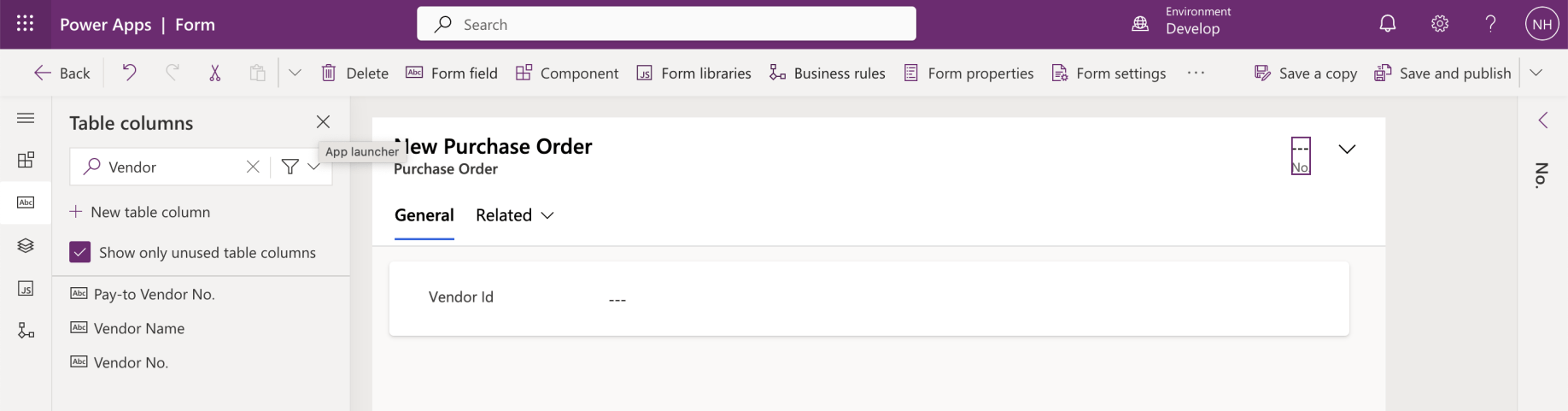
I dragged the Purchase Order No. field into the header of the form (into the top right of the form)
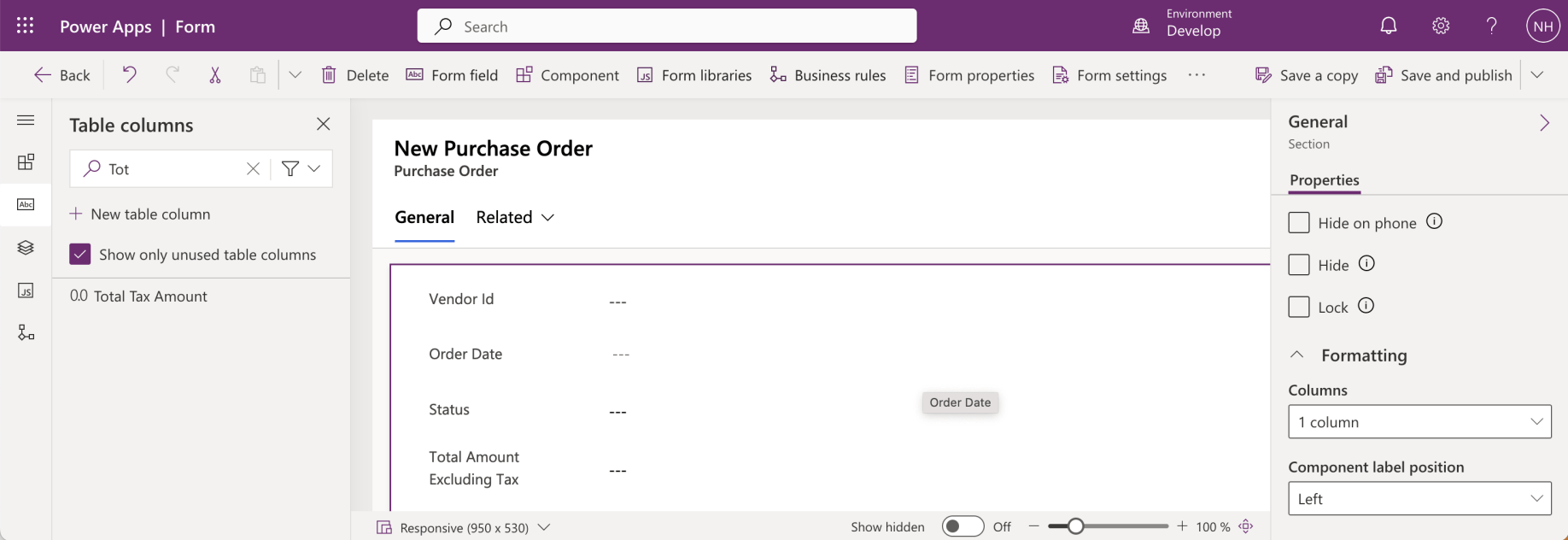
I added the Order Date, Status, Total Amount Excluding Tax and Total Amount Including Tax columns into the General Section
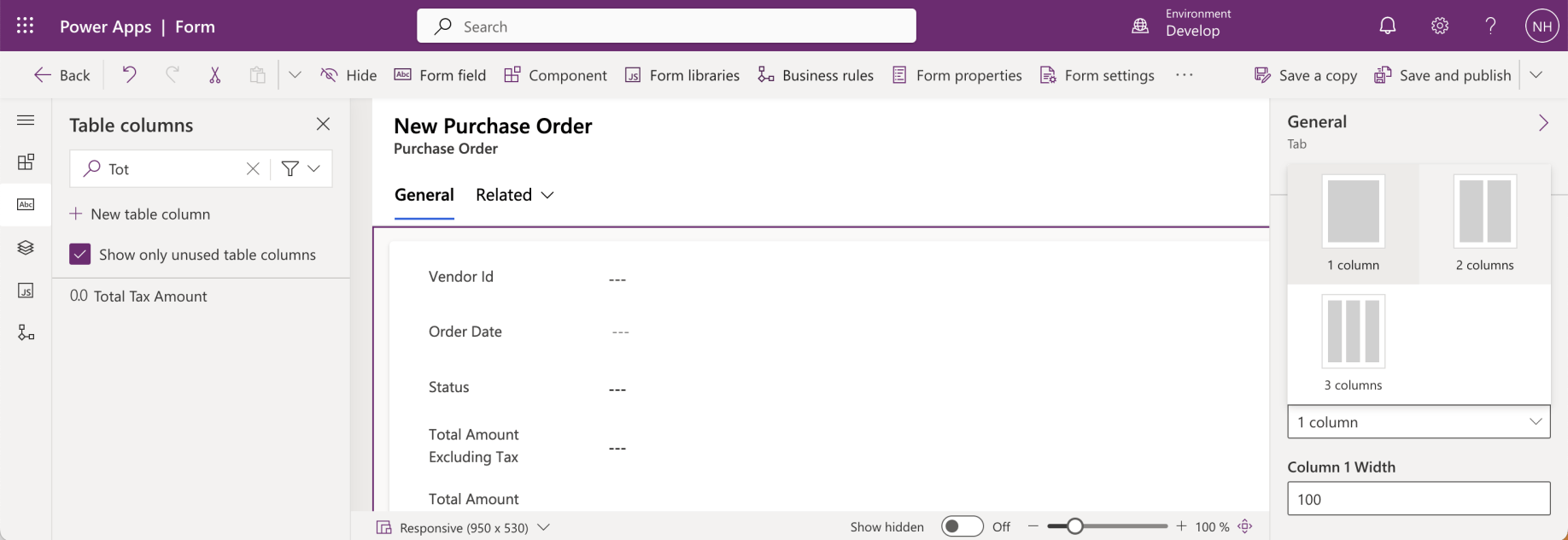
I selected the General Tab and selected 2 columns
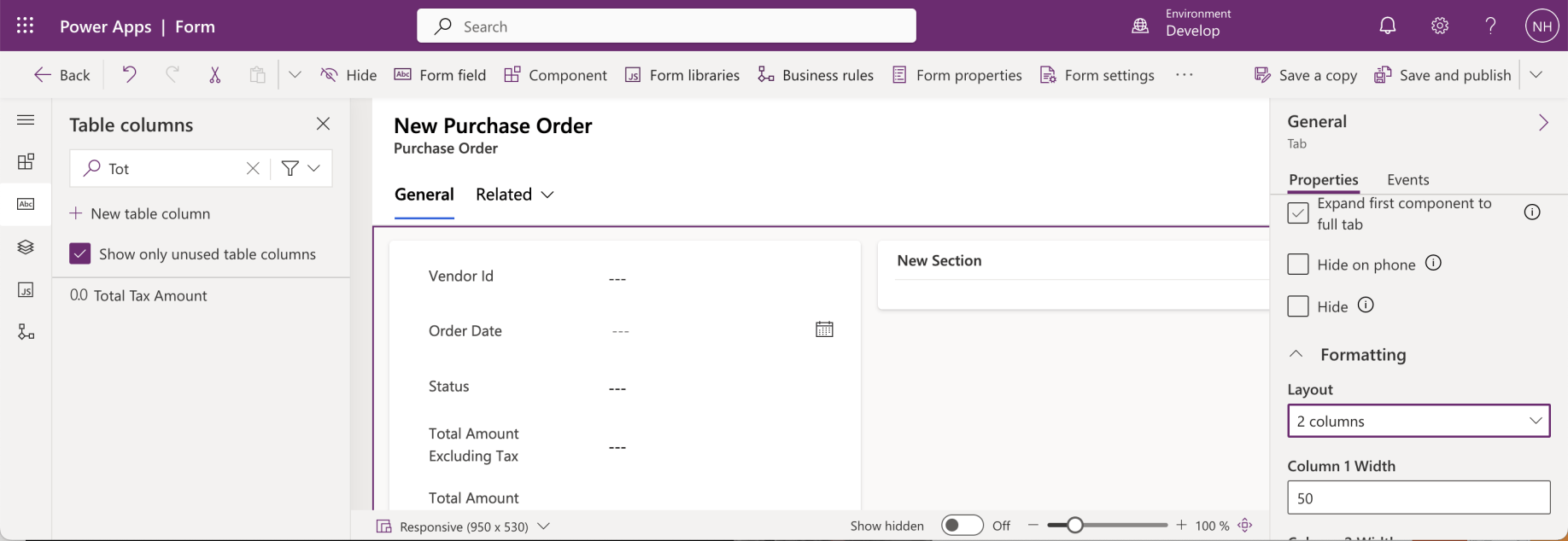
A new section "New Section" appeared in the General Tab
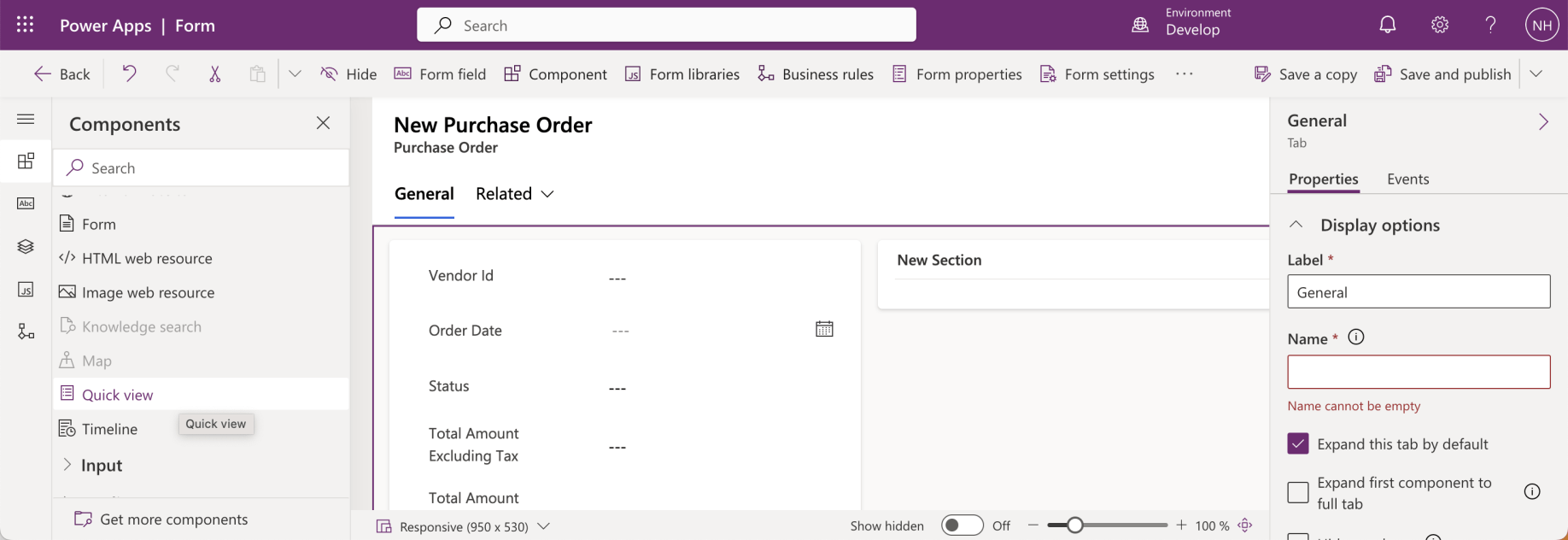
I selected the Quick view component
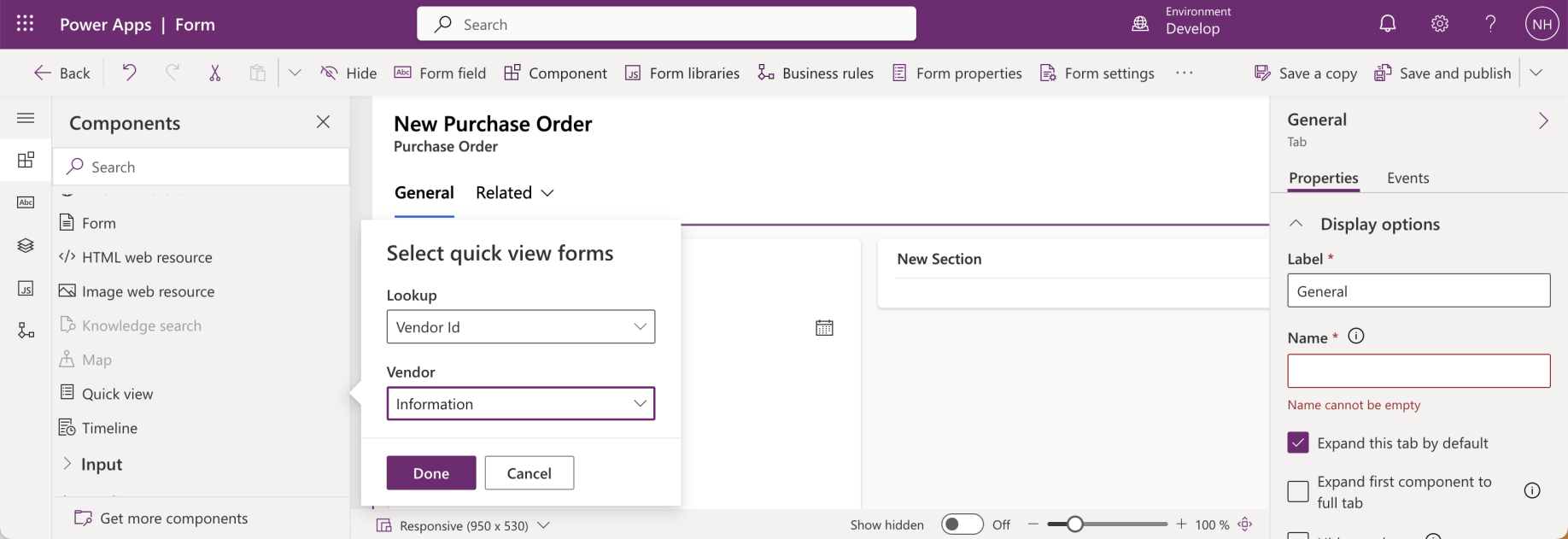
I selected the Vendor Id Lookup and the Vendor Information Quick View form
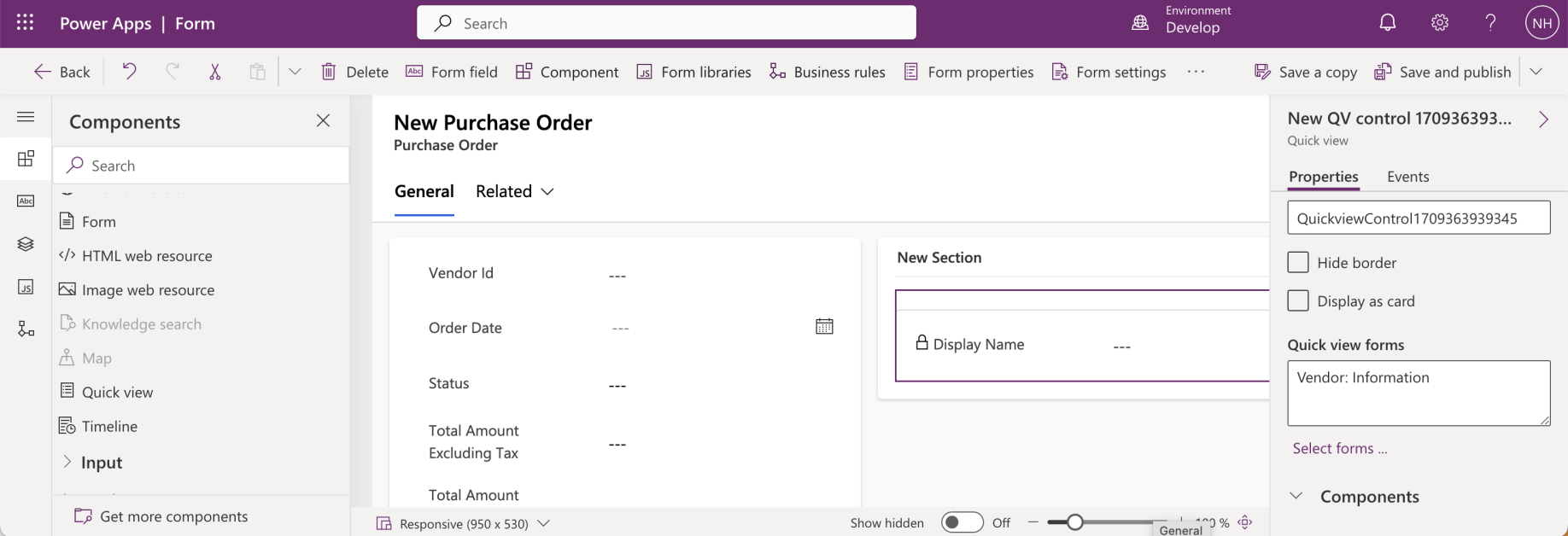
I dragged the Quick View component to the right hand column (and hid the "New Section" label)
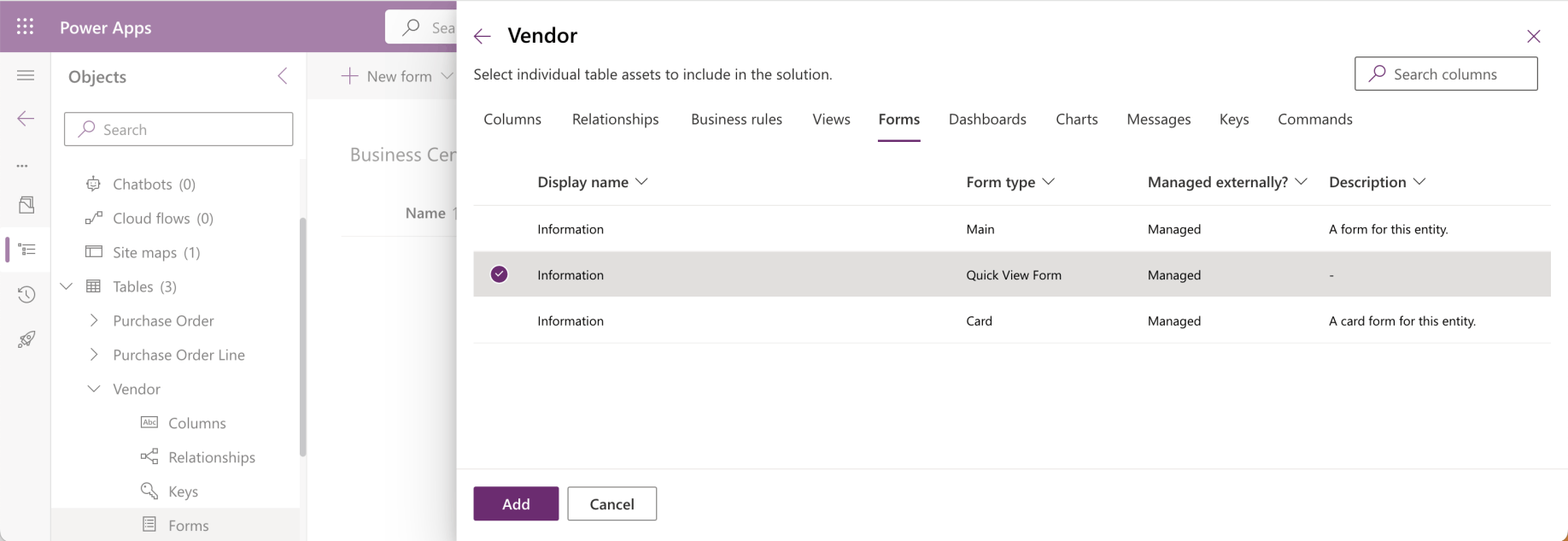
I added the Vendor Quick View form to the solution
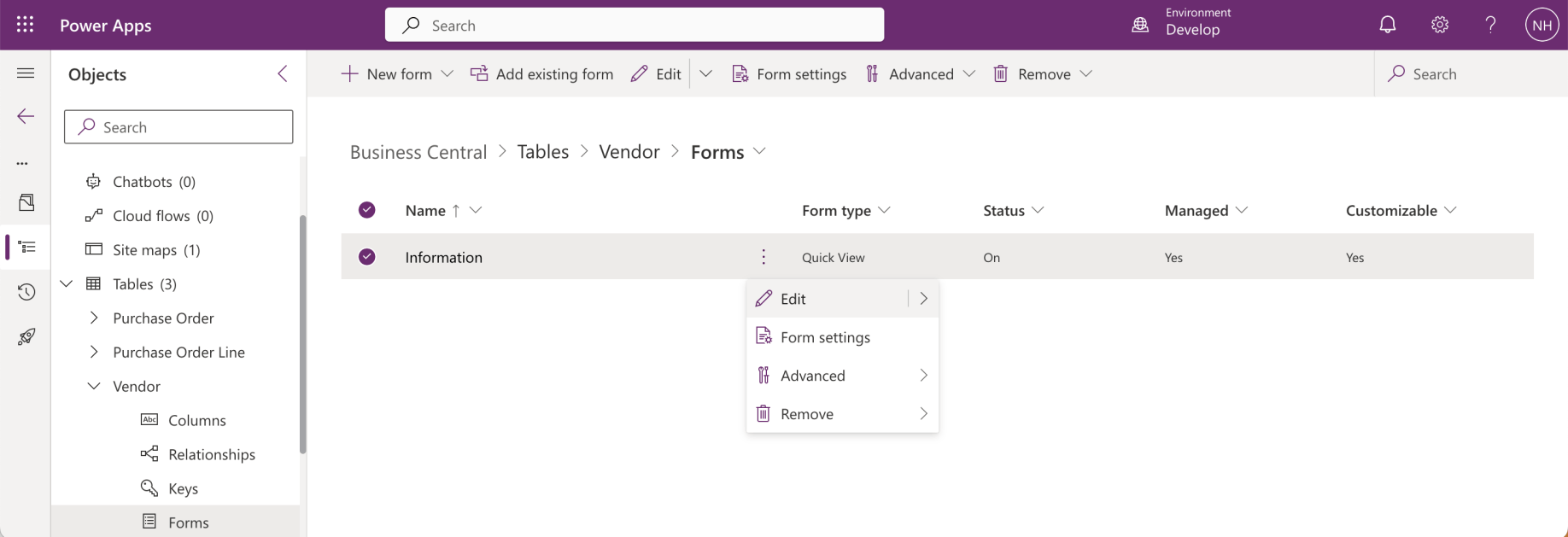
I edited the Quick View form
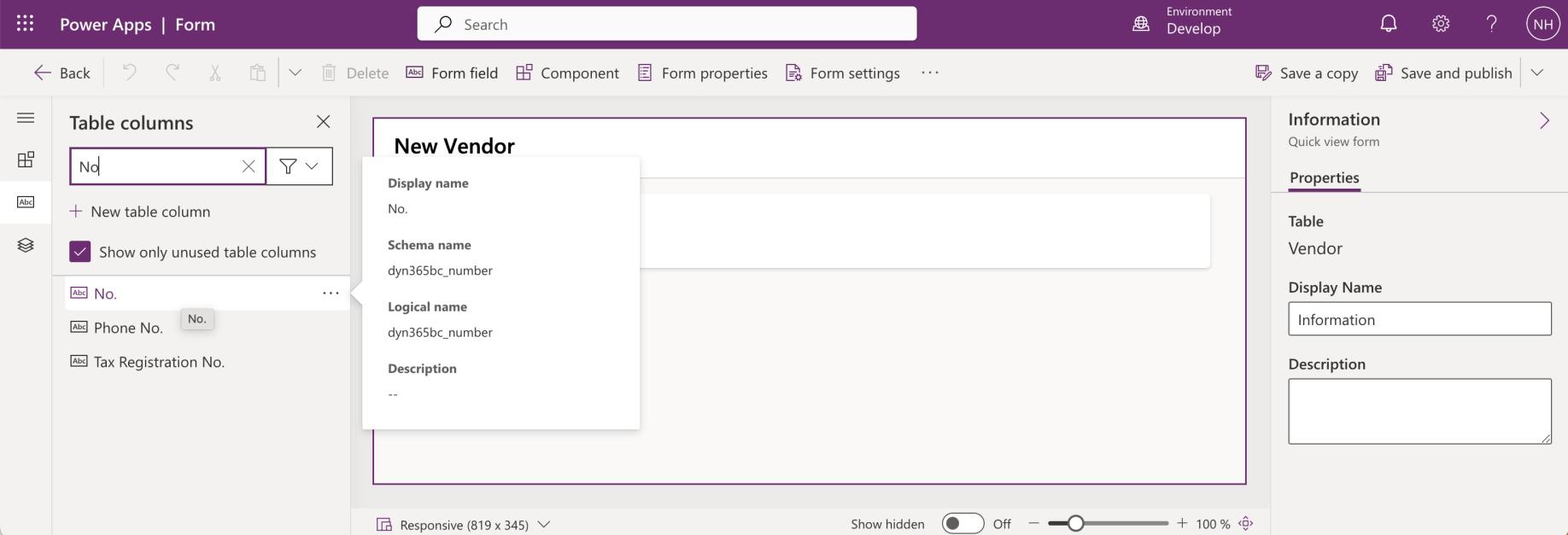
I added the No. field
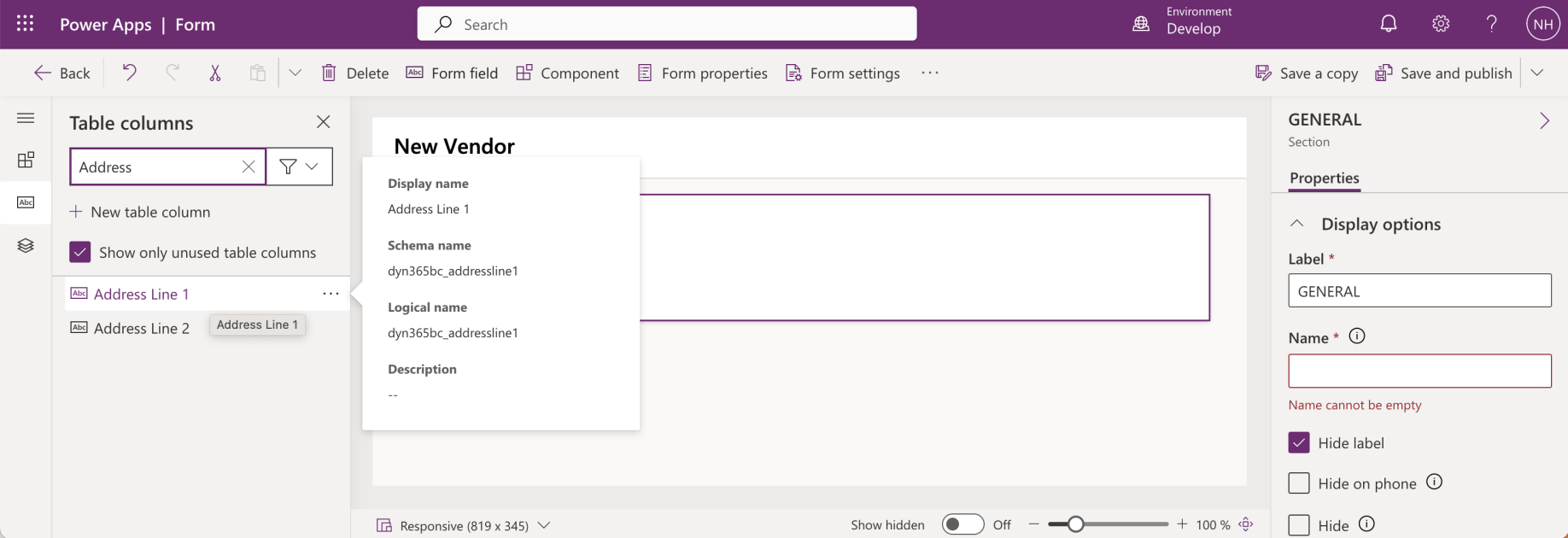
I added the Address Line 1 and Address Line 2 fields
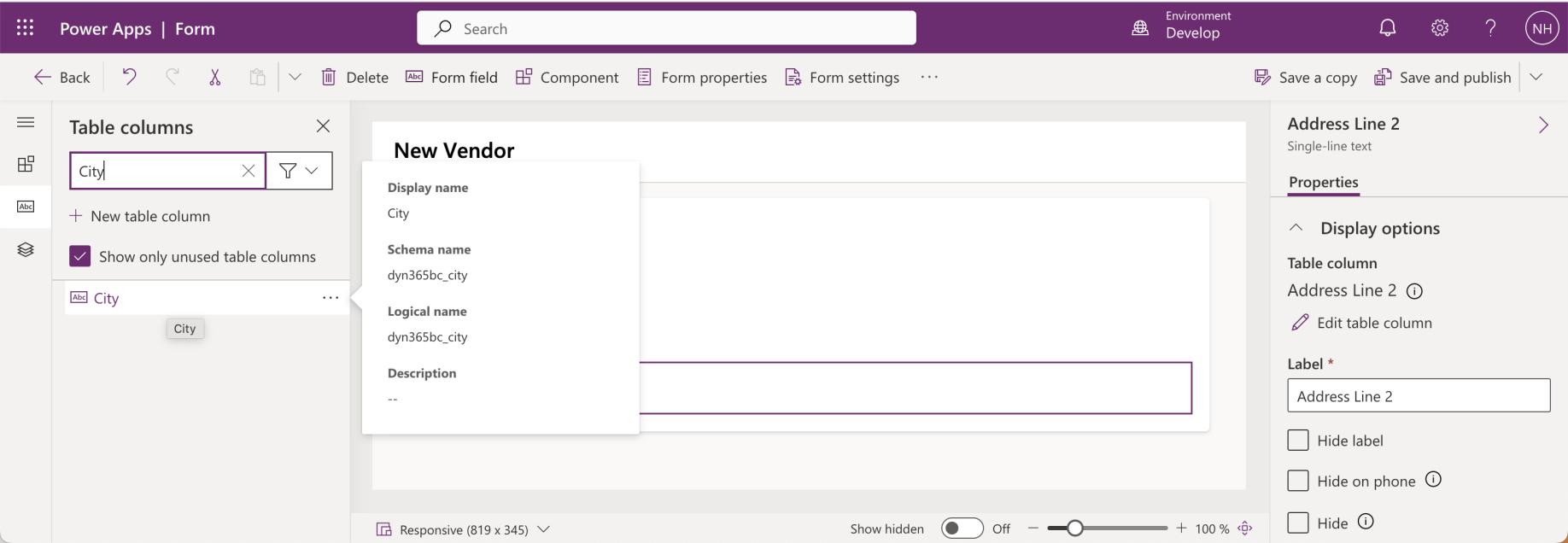
I added the City field
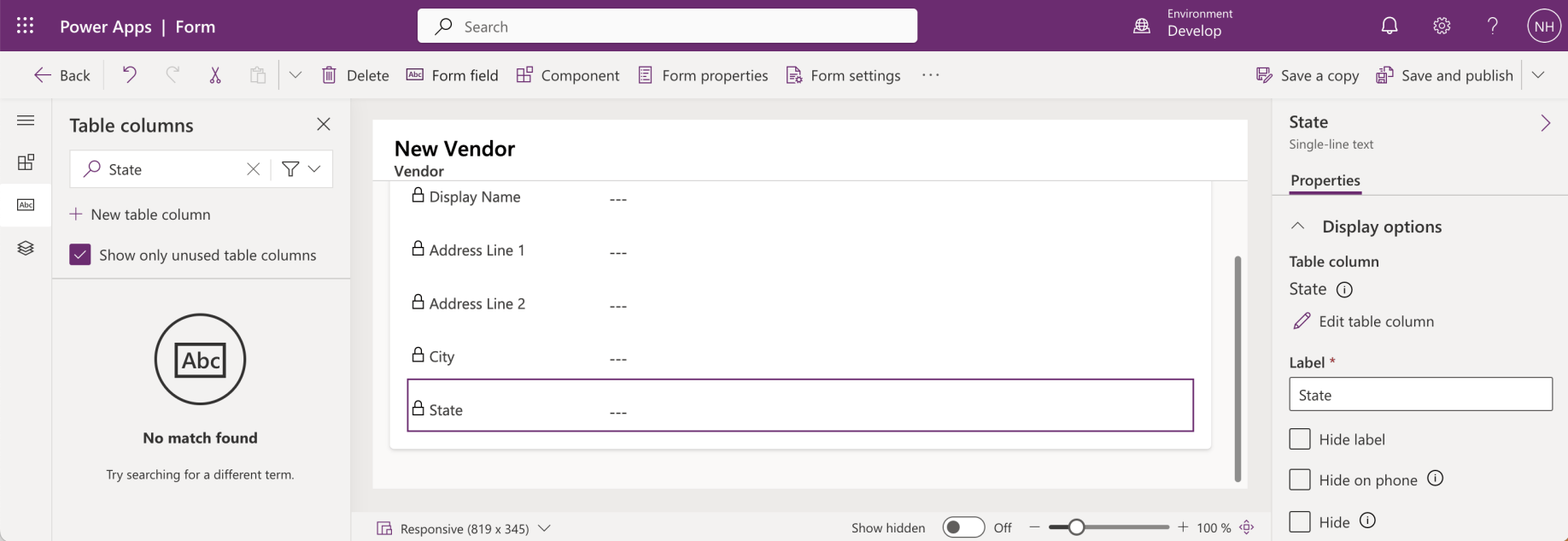
I added the State field
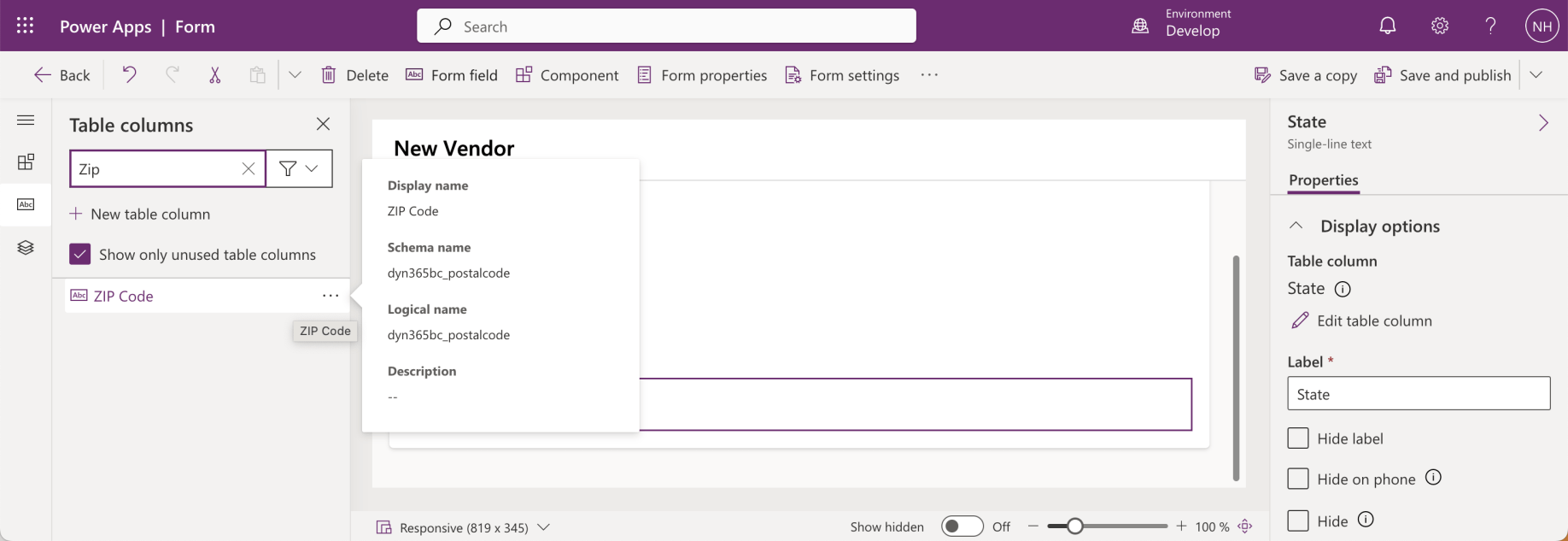
I added the Zip Code field
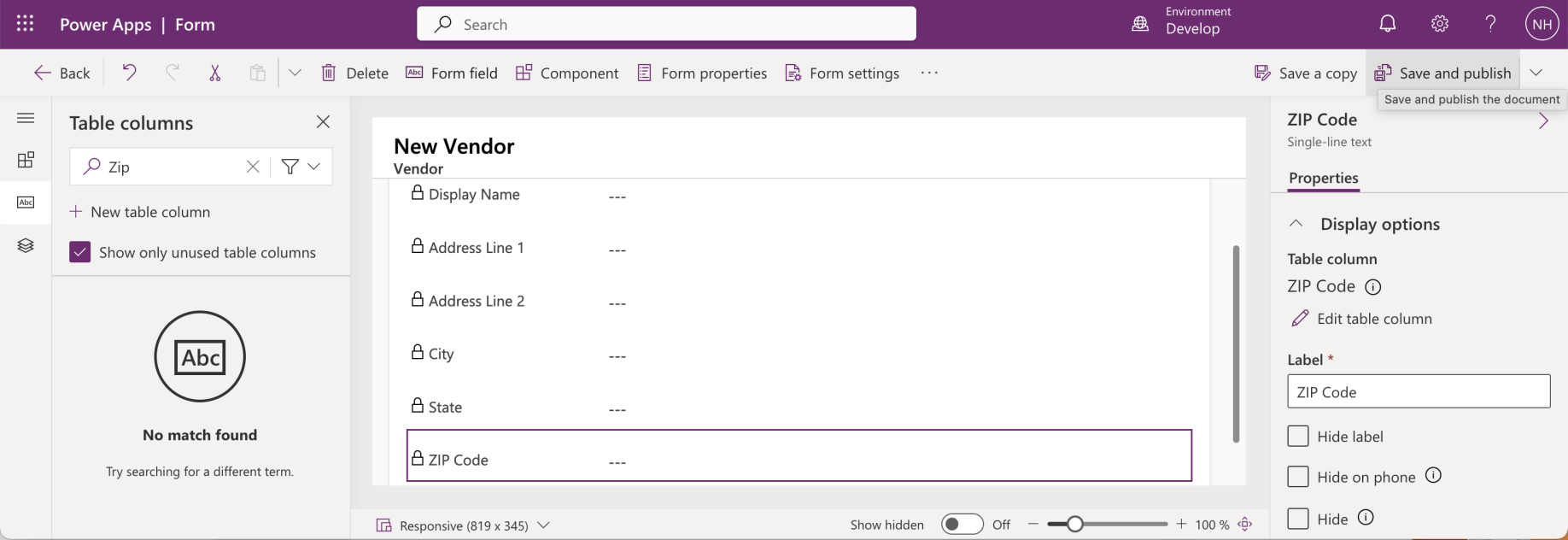
I clicked Save & Publish
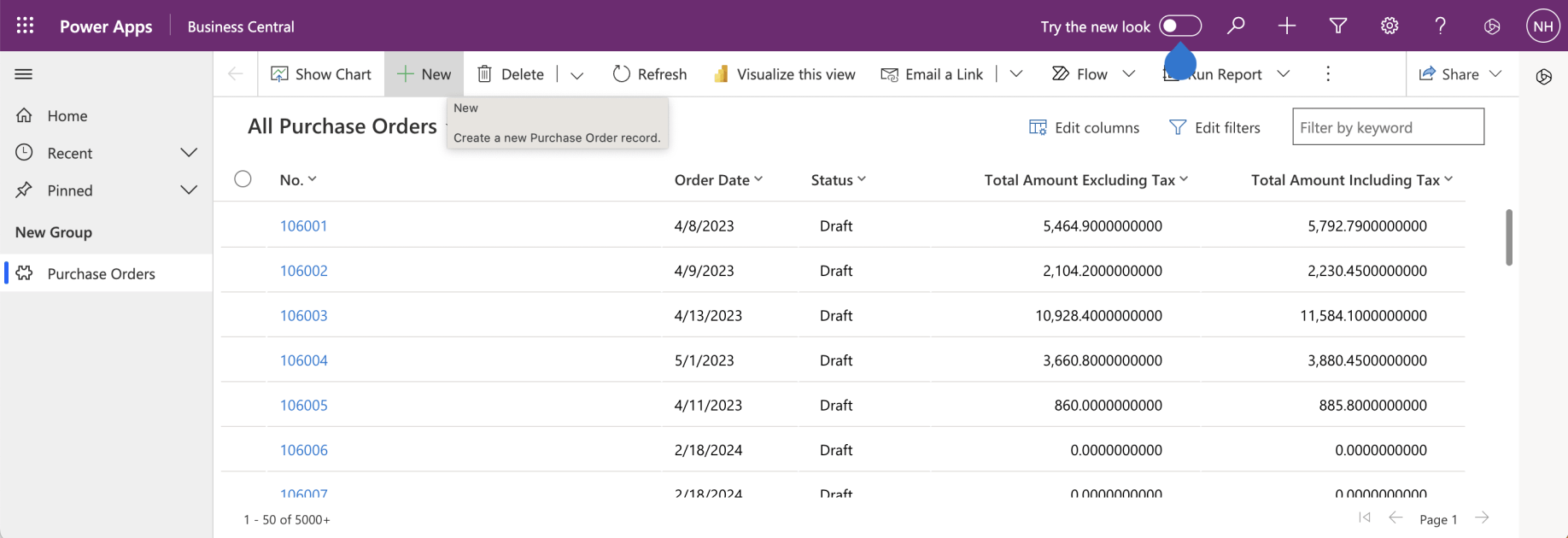
I ran the Business Central app. I clicked the + New button
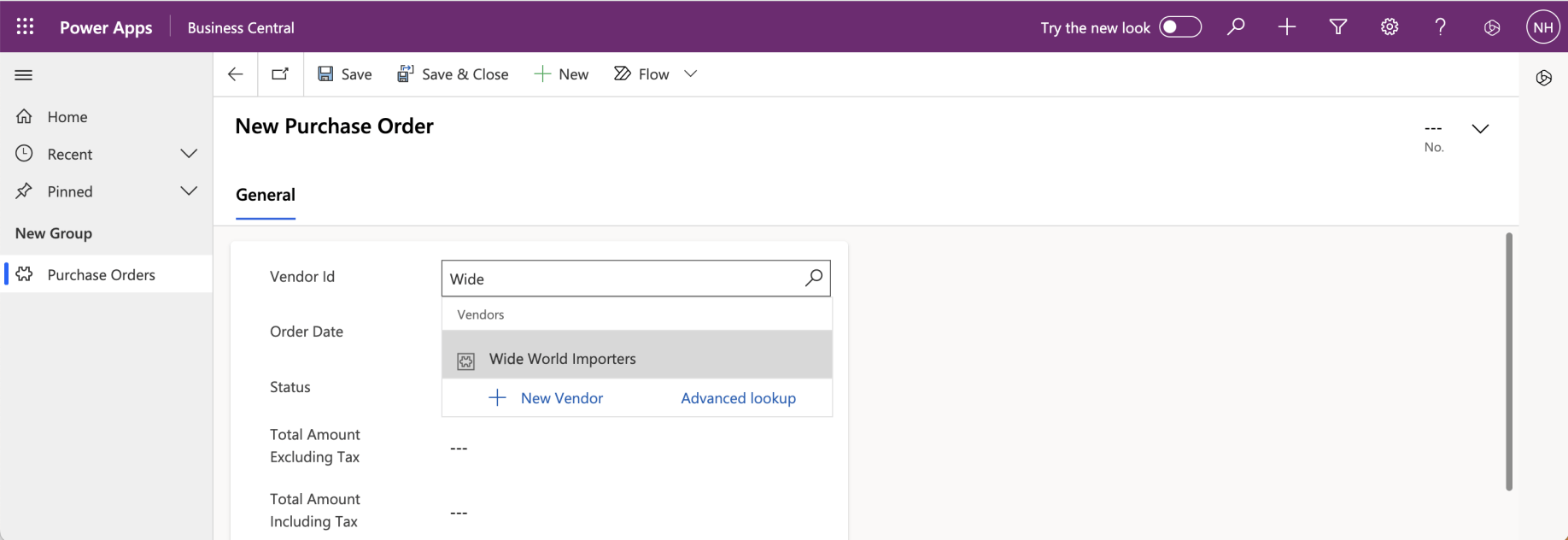
I selected a Vendor
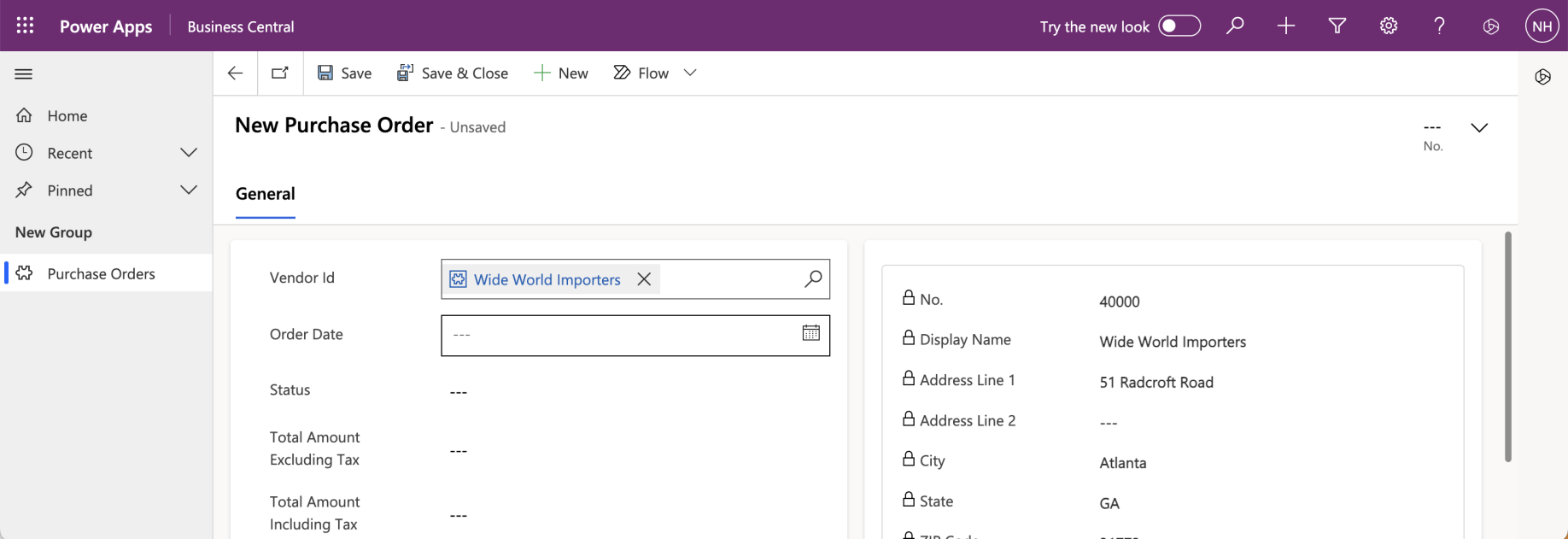
The Vendor Id field populated and the Quick View form appeared on the right-hand side
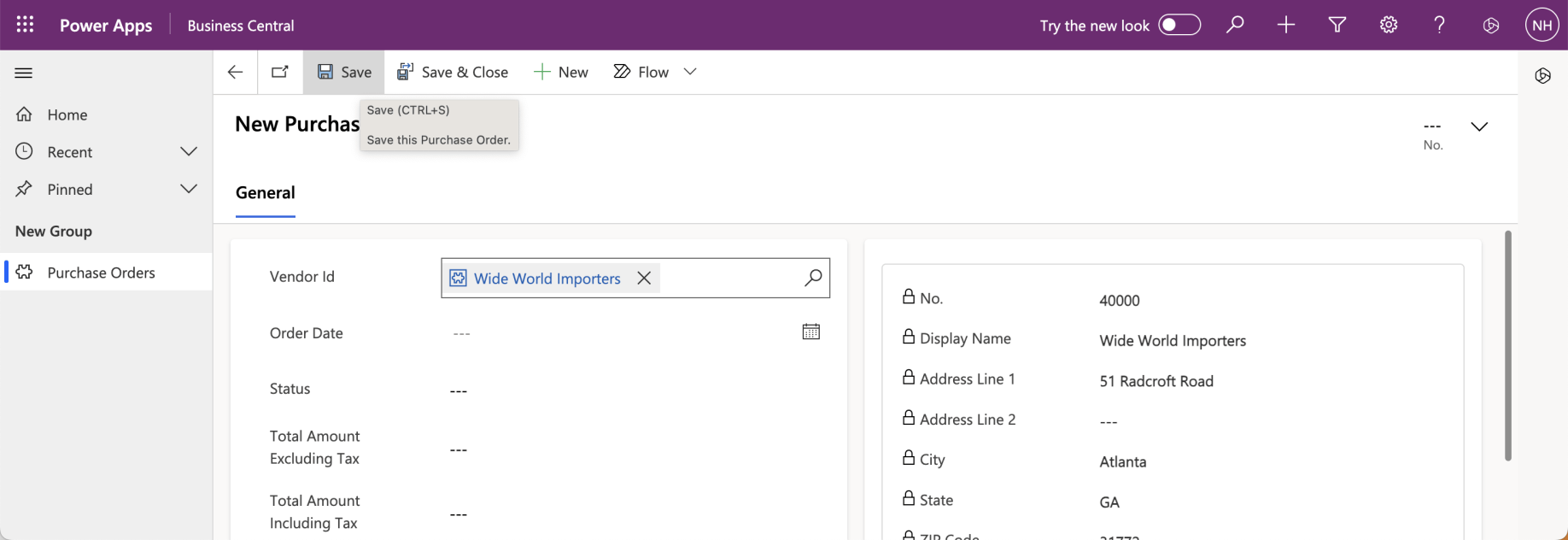
I clicked the Save button
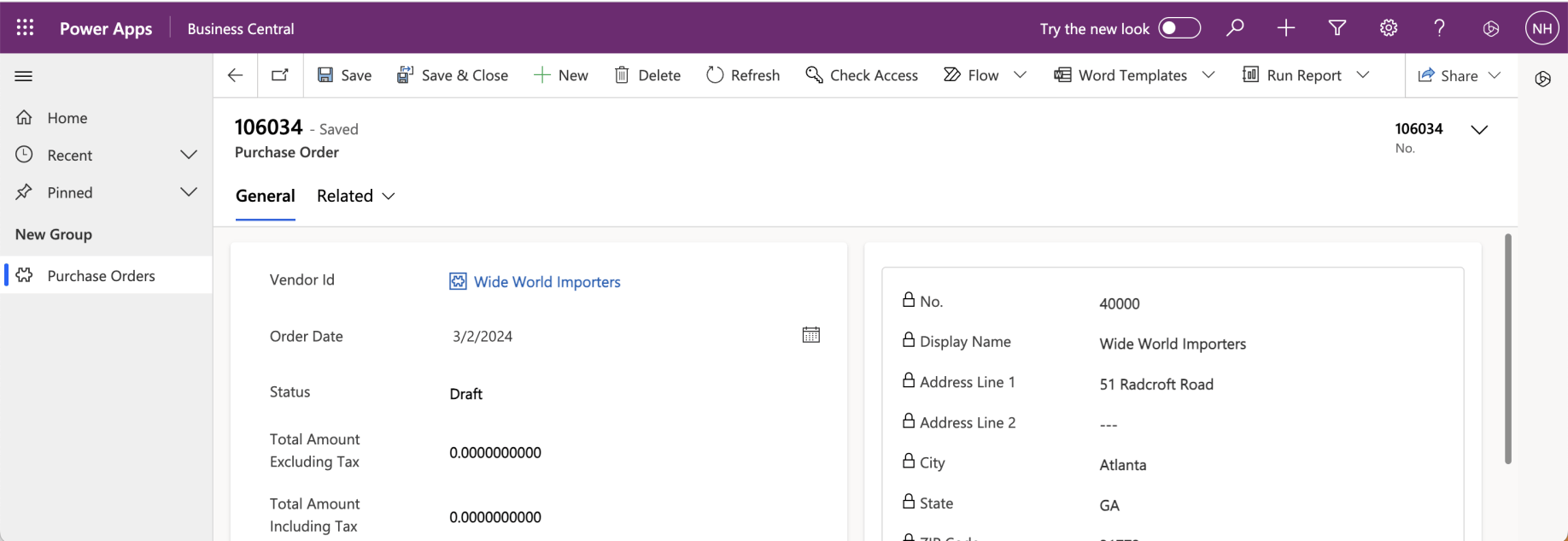
Business Central saved the record and automatically assigned No. value 106034
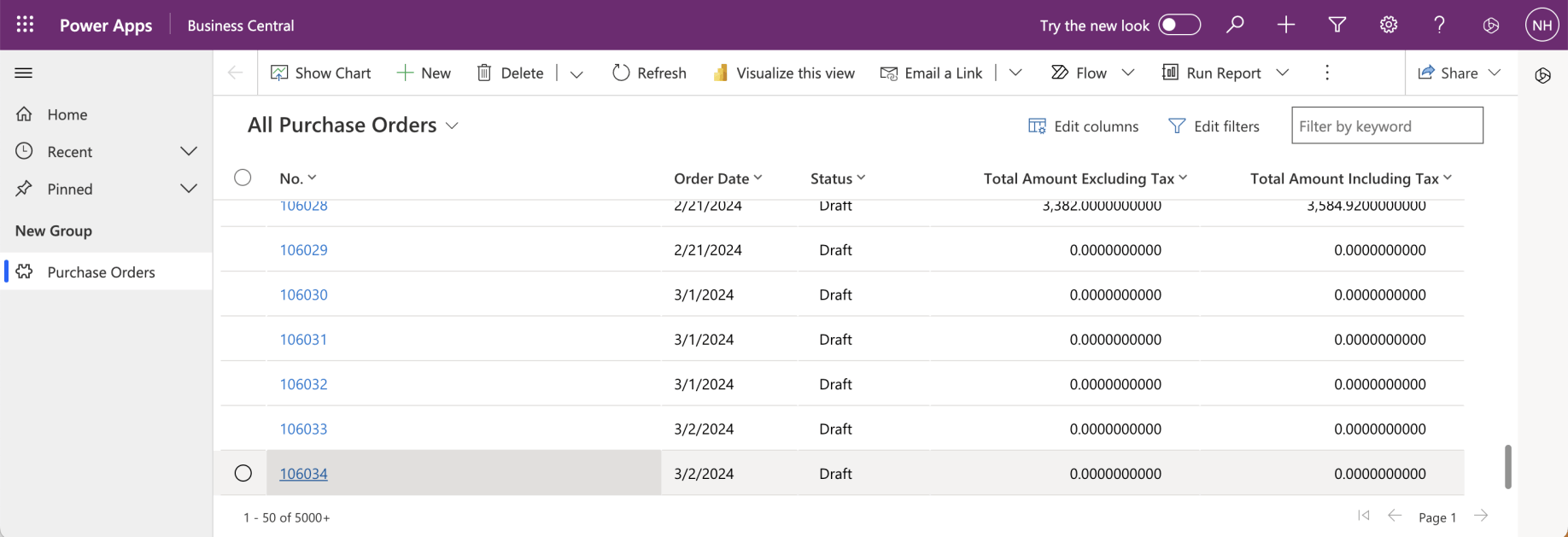
The new purchase order appeared at the bottom of the "All Purchase Orders" view