Raspberry Pi Imager
Neil Haddley • July 22, 2023
Raspberry Pi Imager Advanced Options
I used the Raspberry Pi Imager tool to write a standard operating system image onto a microSD card. I used the Imager's advanced features to customise the connectivity settings, which let me remotely access the Raspberry Pi immediately after powering it on for the first time.
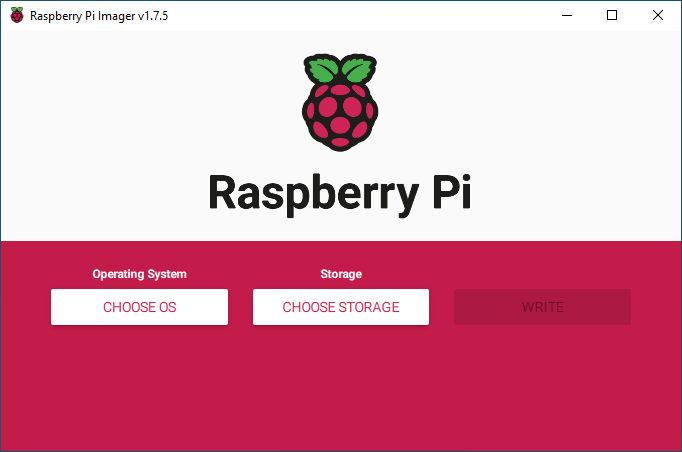
Imager
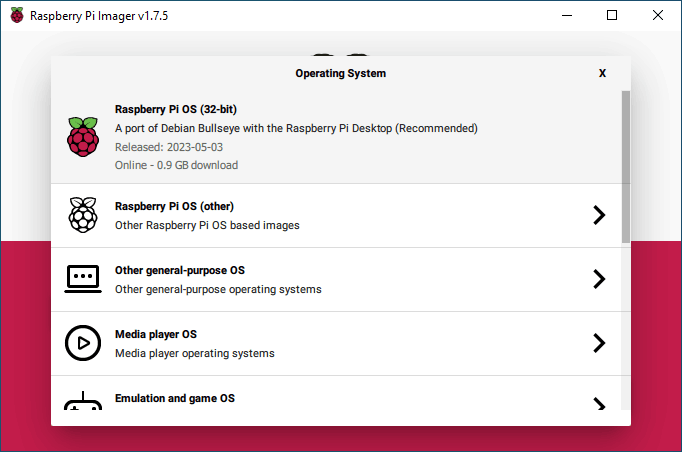
Raspberry Pi OS (32-bit)
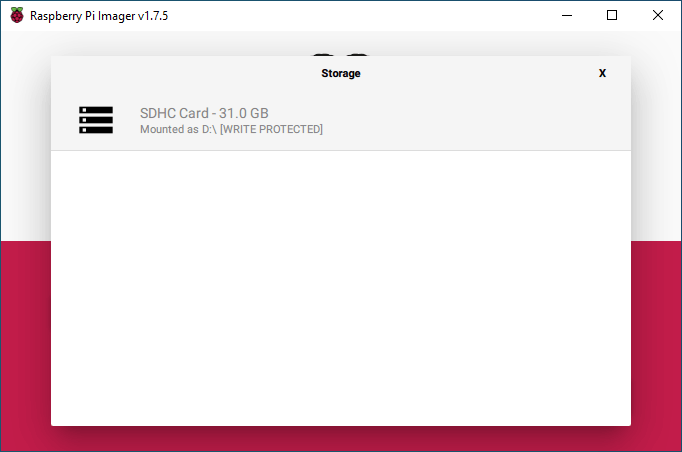
SD Card
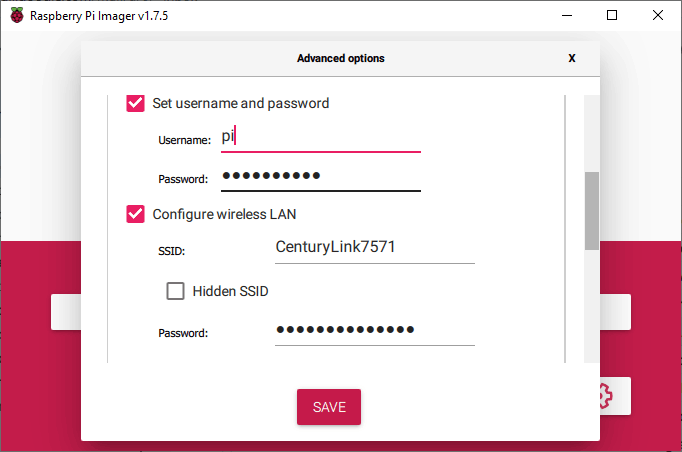
I used 'pi' as the admin username
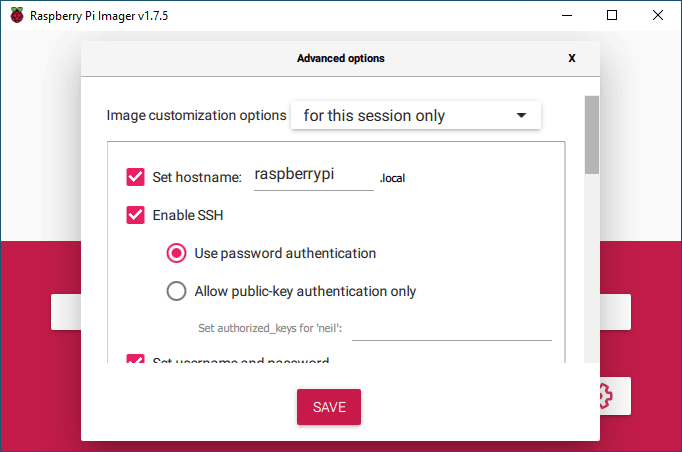
I provide a hostname and enabled SSH (remote terminal access)
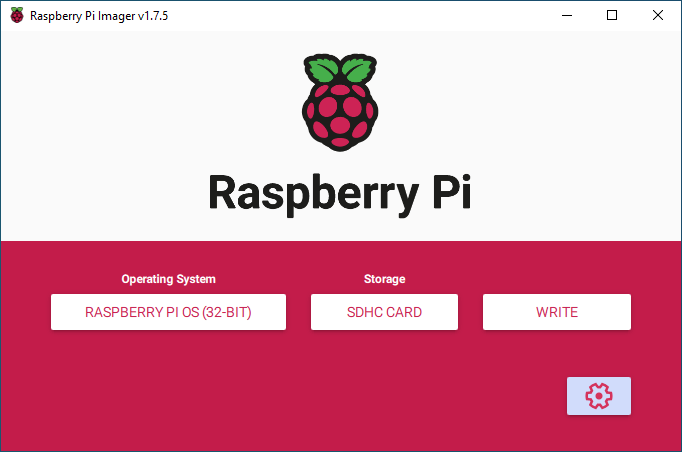
I pressed the WRITE button
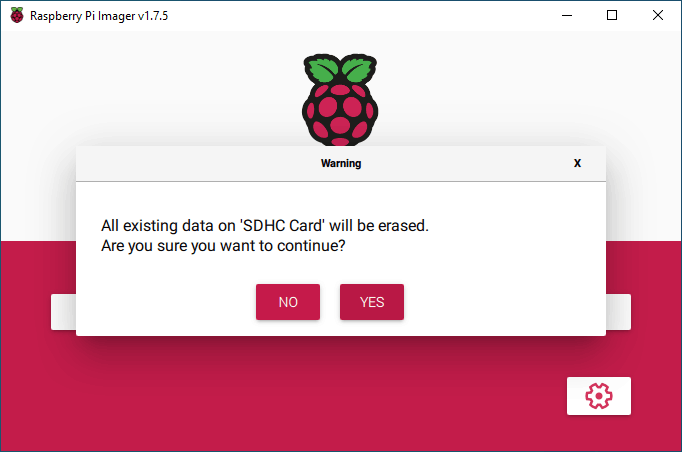
I did want to erase the SD Card
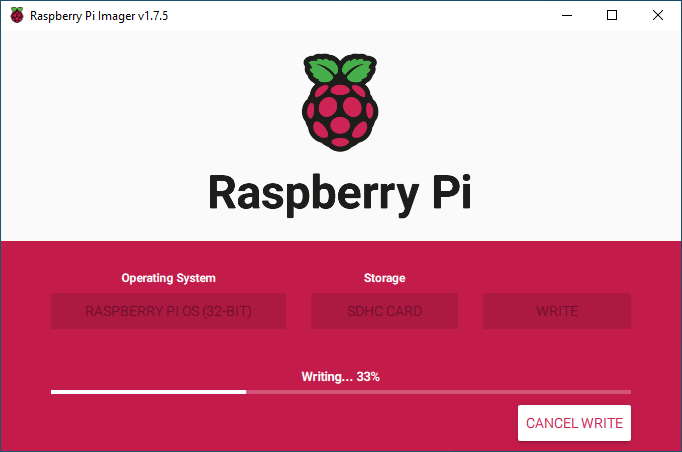
The writing process took some time...
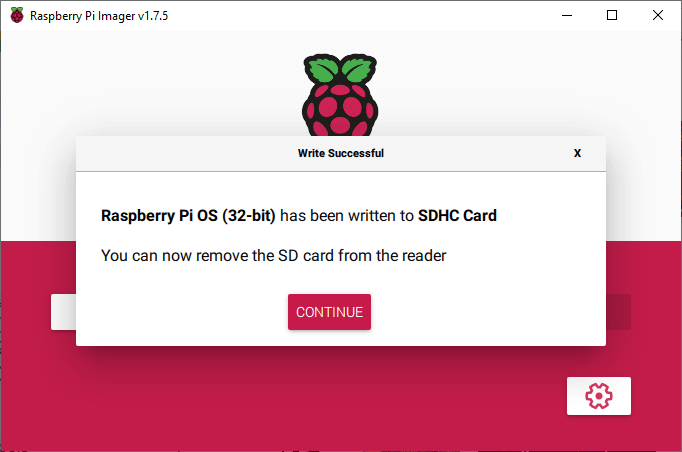
Finished
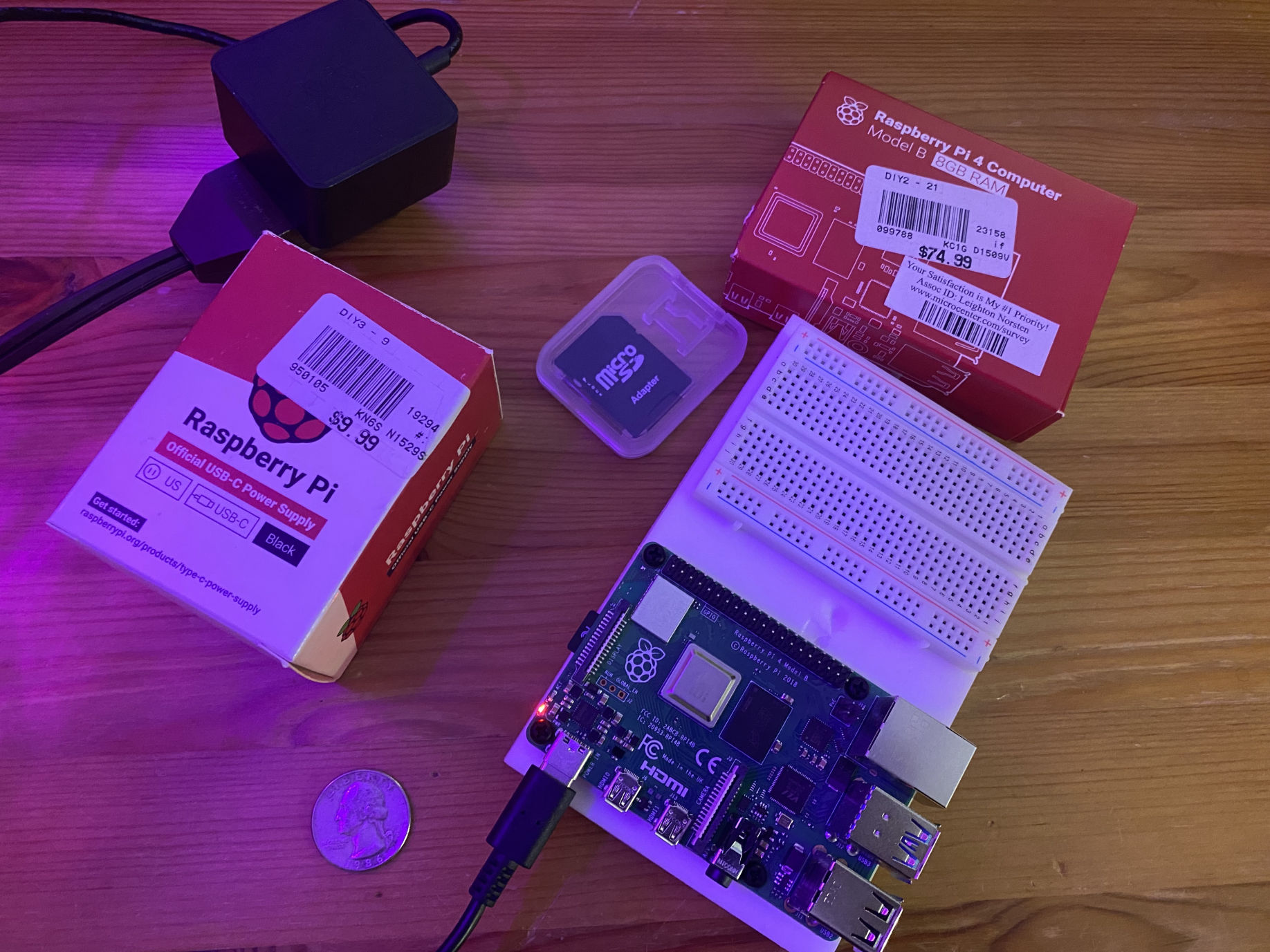
I put the Micro SD Card into the Raspberry Pi and plugged in the power
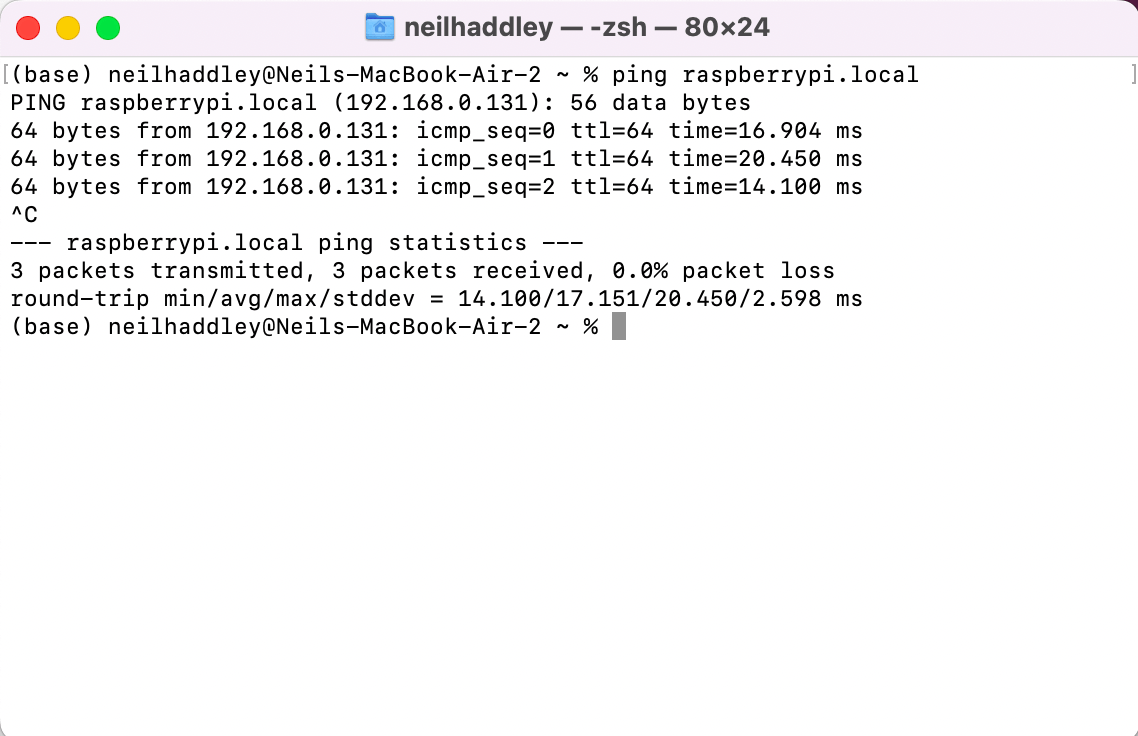
I used ping to check that the Raspberry Pi was connected to the network
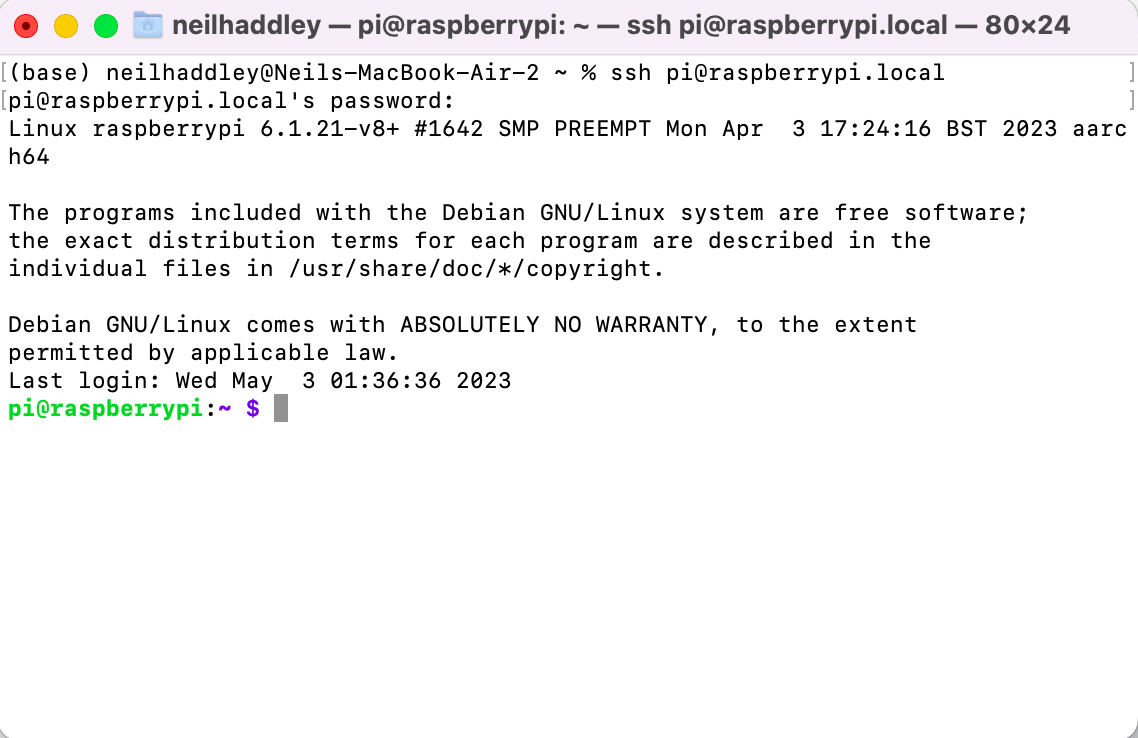
I connected to the Raspberry Pi using SSH
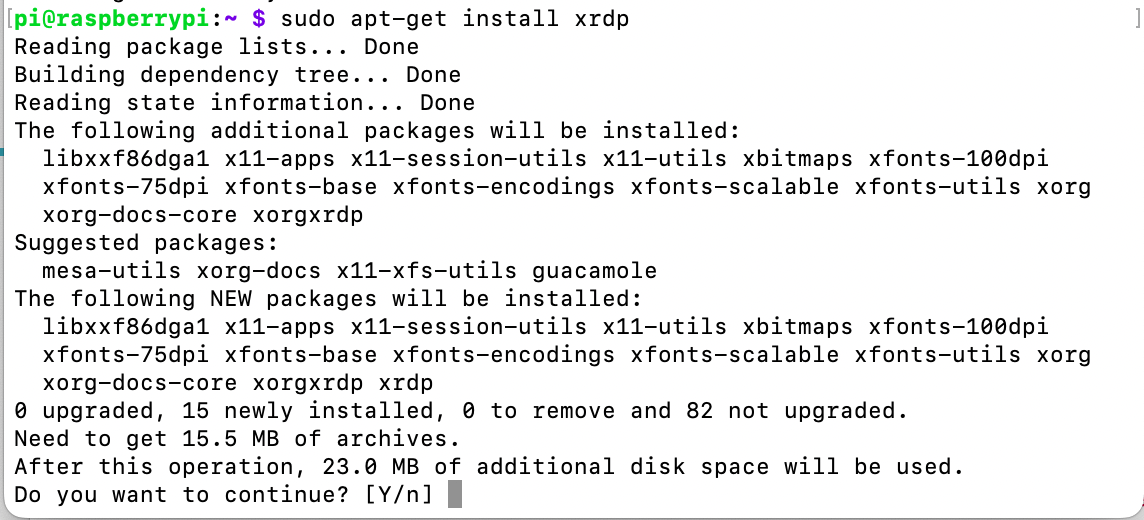
sudo apt-get install xrdp
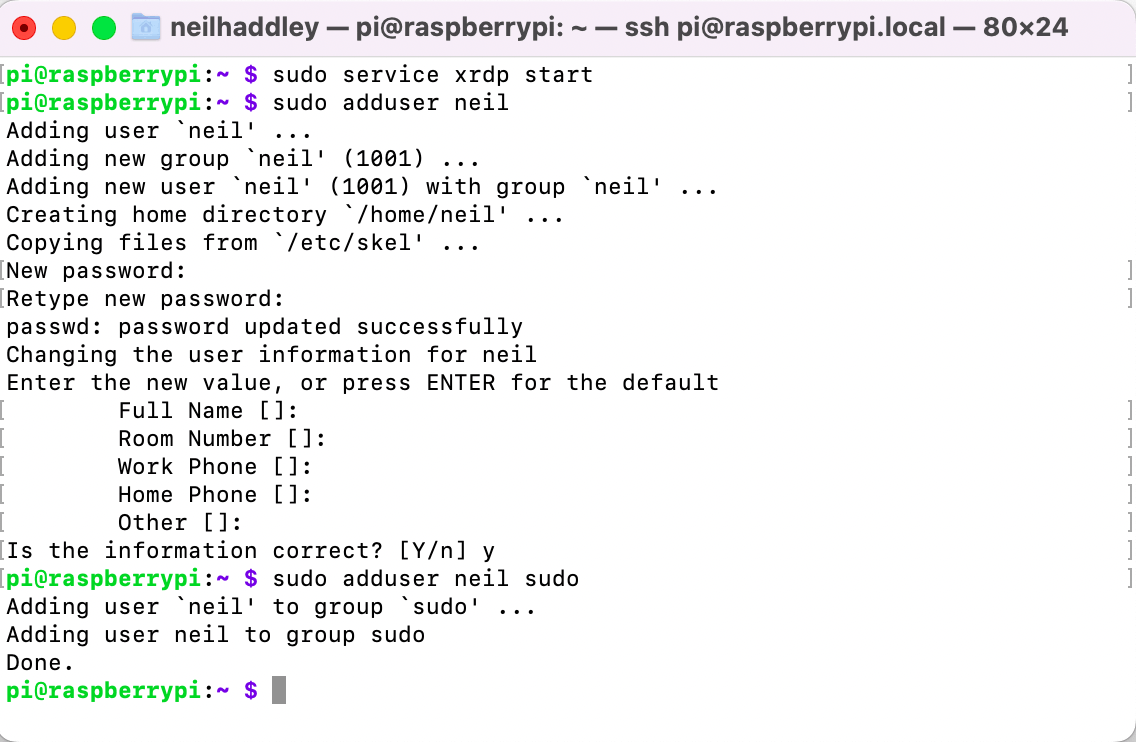
I added a new administrative account "neil"
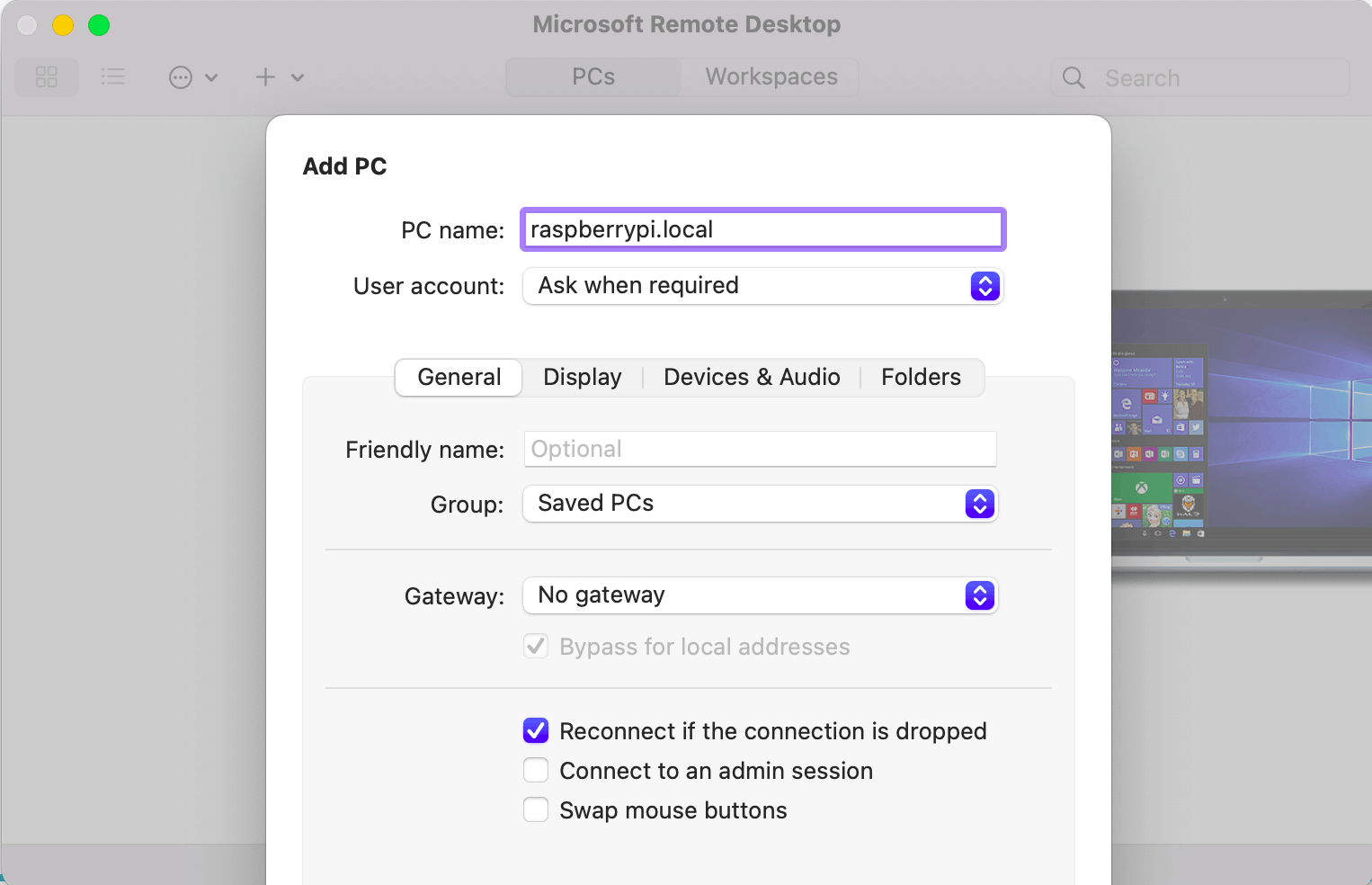
Microsoft Remote Desktop Client (for MacOS)
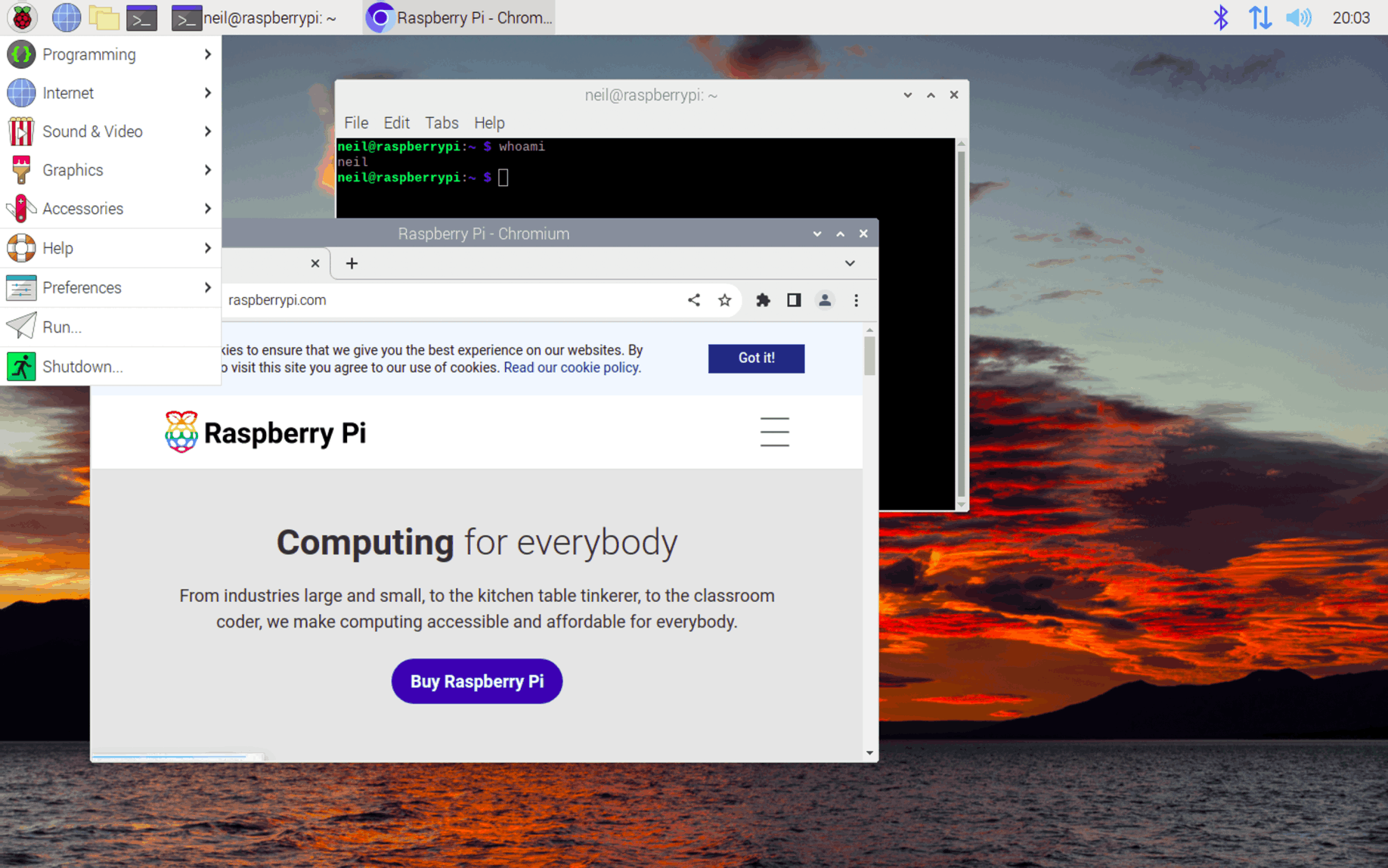
Connected to raspberrypi.local as neil