Picade Console
Neil Haddley • May 31, 2026
Building and setting up the Pimoroni Picade mini arcade cabinet with RetroPie on a Raspberry Pi
The Pimoroni Picade is a desktop mini arcade cabinet kit designed for the Raspberry Pi. It comes with an 8-inch display, a proper joystick, arcade buttons, and a laser-cut wooden enclosure — everything you need to build a compact retro gaming machine. This post covers building one from scratch, including a joystick wiring mistake that tripped me up along the way.
Hardware Assembly
I followed Pimoroni's assembly guide to put the hardware together. The build was straightforward but I made one mistake: I inserted the joystick connector the wrong way around. I only noticed when RetroPie recognised upward movement on the joystick but ignored left, right, and down. After some research I found this is a well-known issue — flipping the connector fixed it immediately.
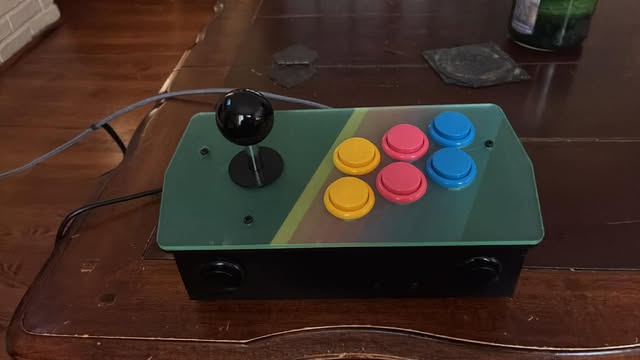
The completed Picade console with its green acrylic top panel, joystick, and coloured arcade buttons
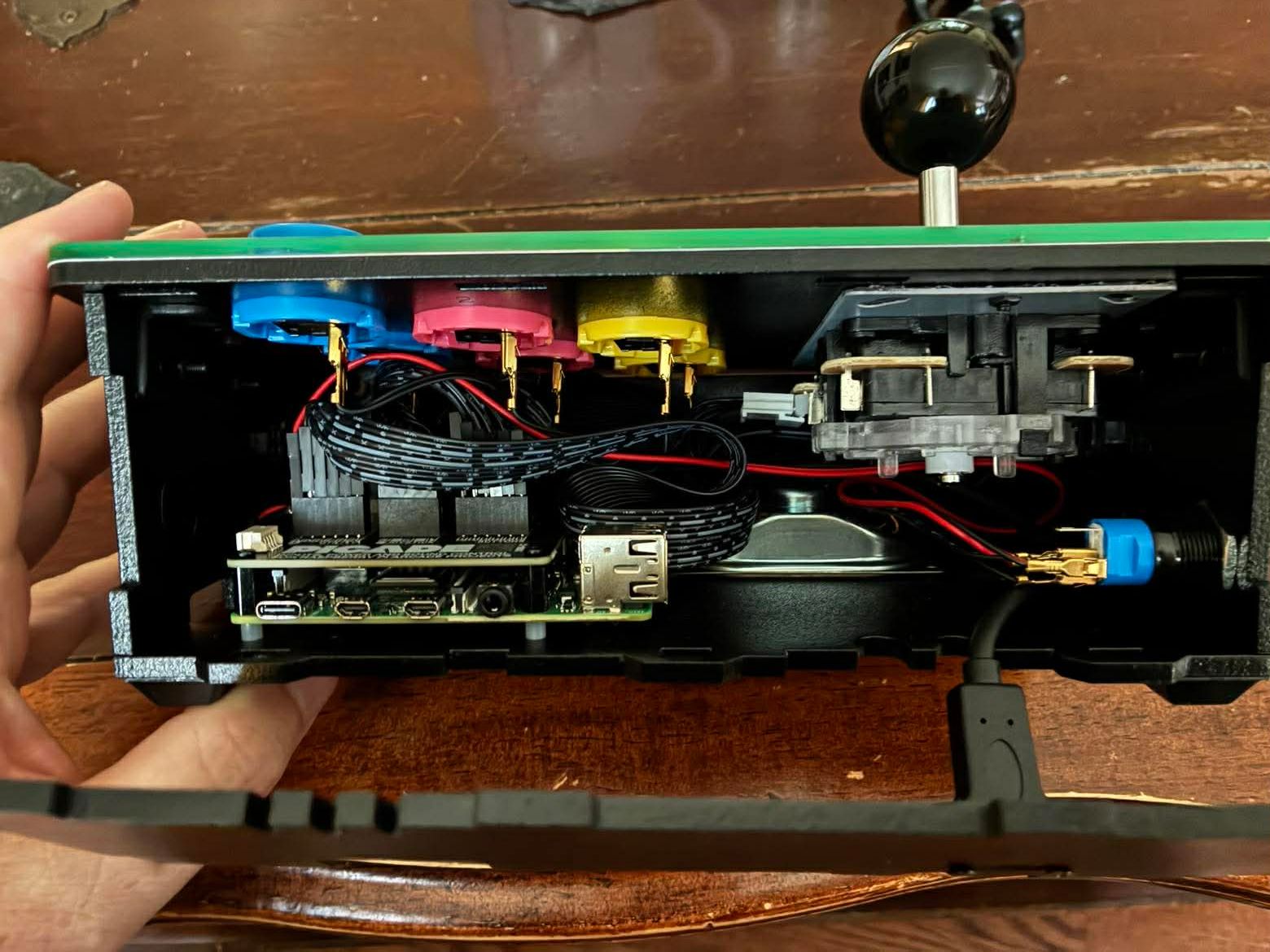
I opened up the case to check the internal wiring — the Raspberry Pi and button connectors are all packed in neatly
Software Setup
For the software I followed Pimoroni's Picade setup guide. I found it much easier to skip the recommended OS image and instead install Raspberry Pi OS Lite (64-bit) — a port of Debian Bookworm — directly, adding Wi-Fi details and enabling SSH during the Raspberry Pi Imager setup, then installing RetroPie as a separate step afterwards. This gave me a clean base to work from and made it easy to troubleshoot each stage independently.
BASH
1ssh neil@picade.local
BASH
1sudo apt update && sudo apt upgrade
BASH
1sudo apt install git
BASH
1cd ~
2git clone https://github.com/RetroPie/RetroPie-Setup.git
BASH
1cd RetroPie-Setup
2sudo ./retropie_setup.sh
BASH
1cd ~
2git clone https://github.com/pimoroni/picade-hat
3cd picade-hat
4sudo ./install.sh
To add my first ROM I copied it into the RetroPie roms directory:
BASH
1cp ~/picade-hat/roms/megadrive/TANGLEWD.BIN ~/RetroPie/roms/megadrive
BASH
1sudo reboot
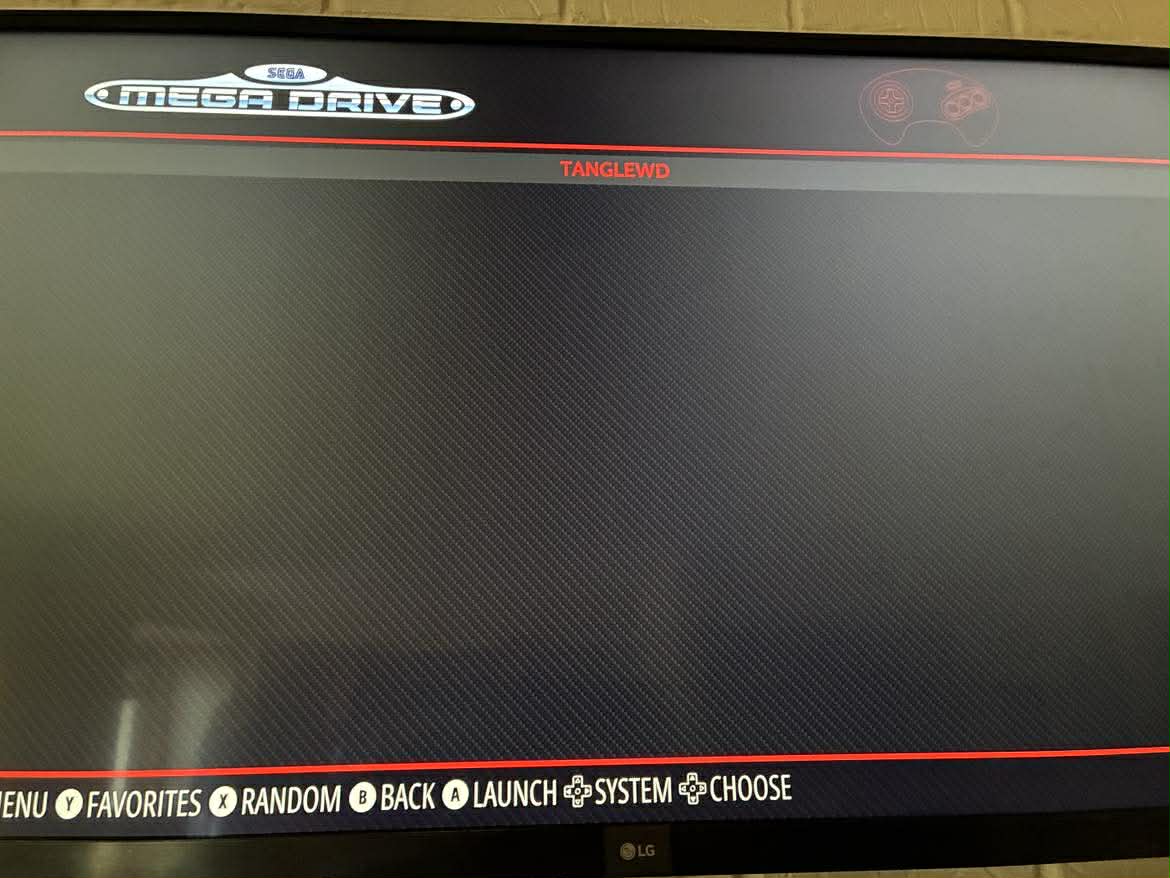
EmulationStation showing the Sega Mega Drive game list with Tanglewood selected
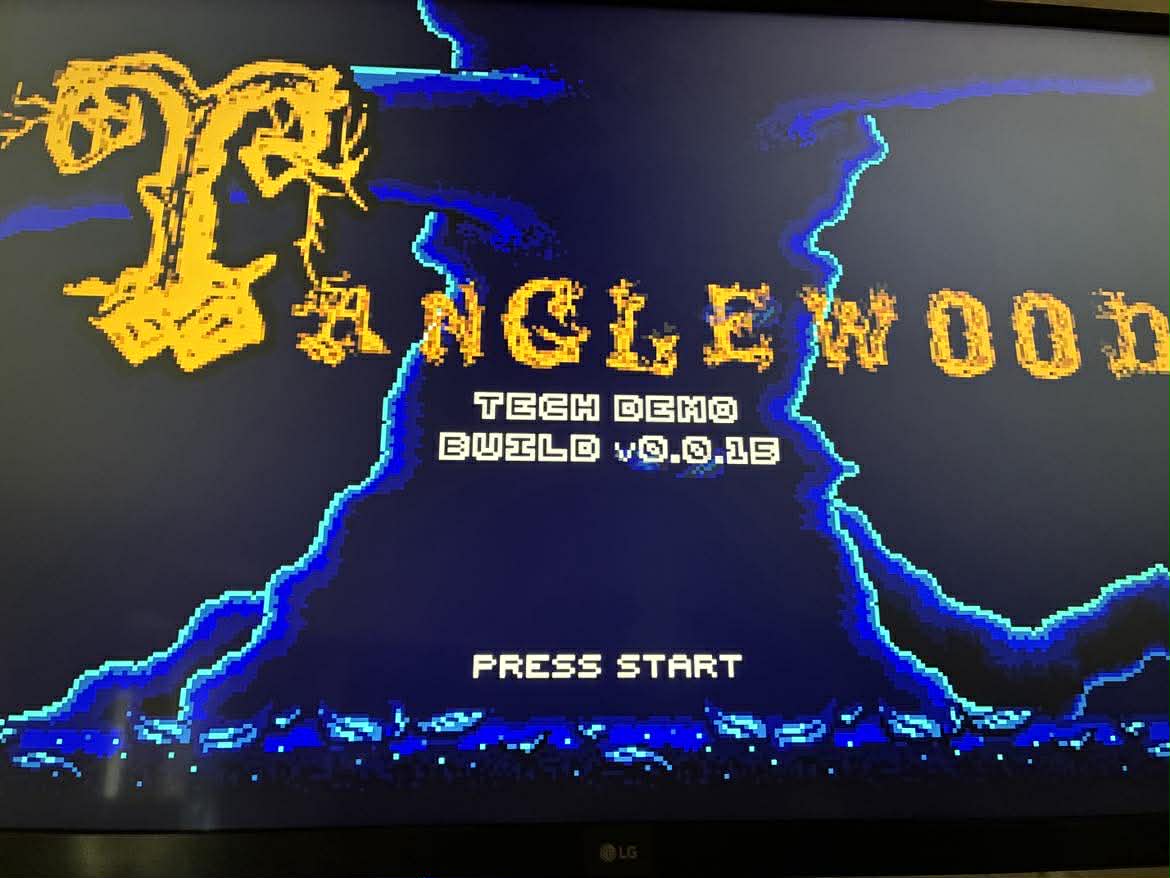
The Tanglewood tech demo title screen — a homebrew Mega Drive game
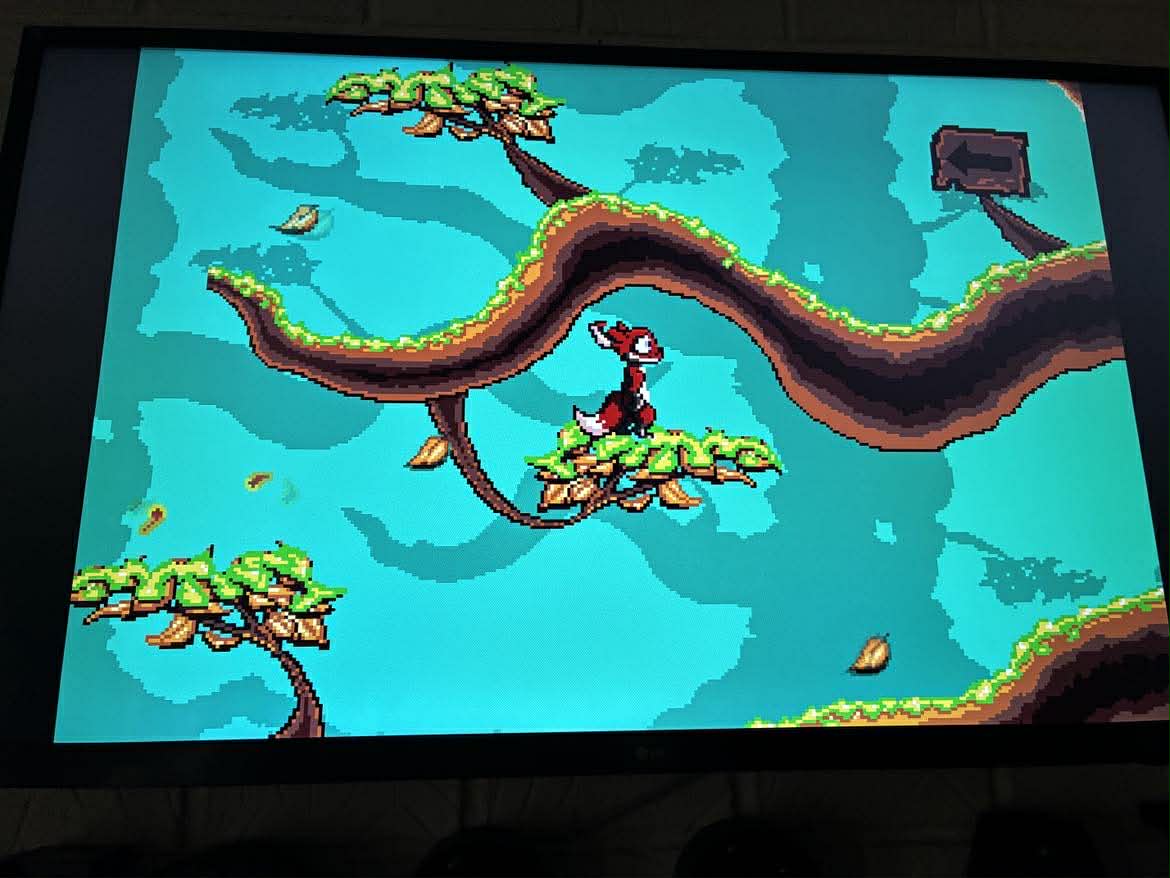
I played through the Tanglewood demo, running across tree branches
To copy further ROMs across the network I used scp:
BASH
1scp -v 'xxx.zip' neil@picade.local:~/RetroPie/roms/arcade