A Power Apps Application
Neil Haddley • July 14, 2021
Power Apps Application.
New app
I navigated to https://make.powerapps.com/ and selected the Apps menu item.
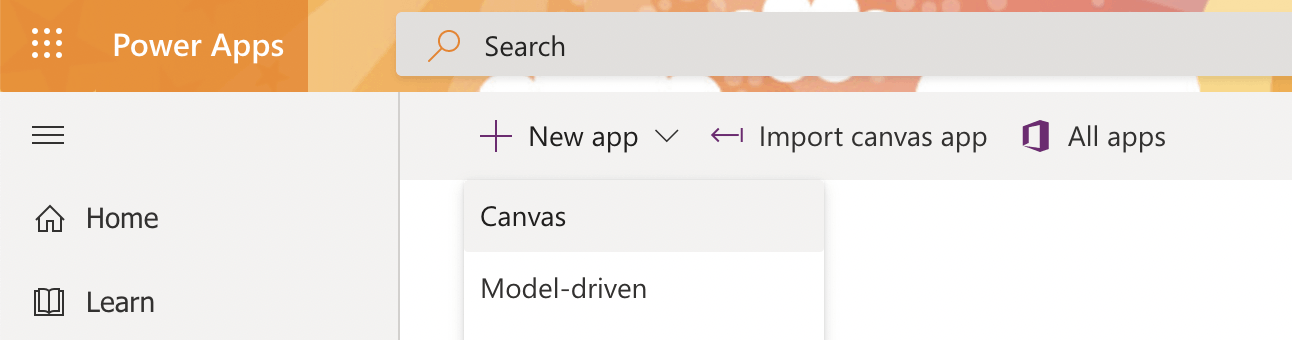
+ New app | Canvas
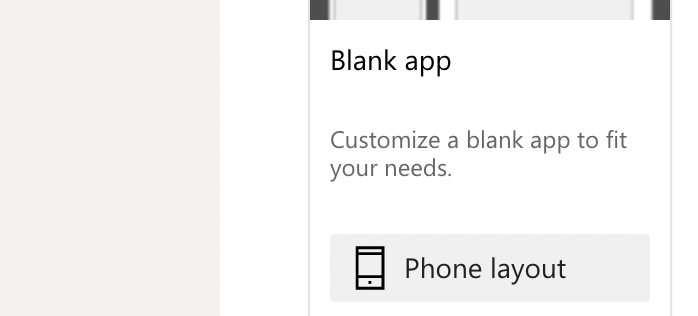
Blank app | Phone layout
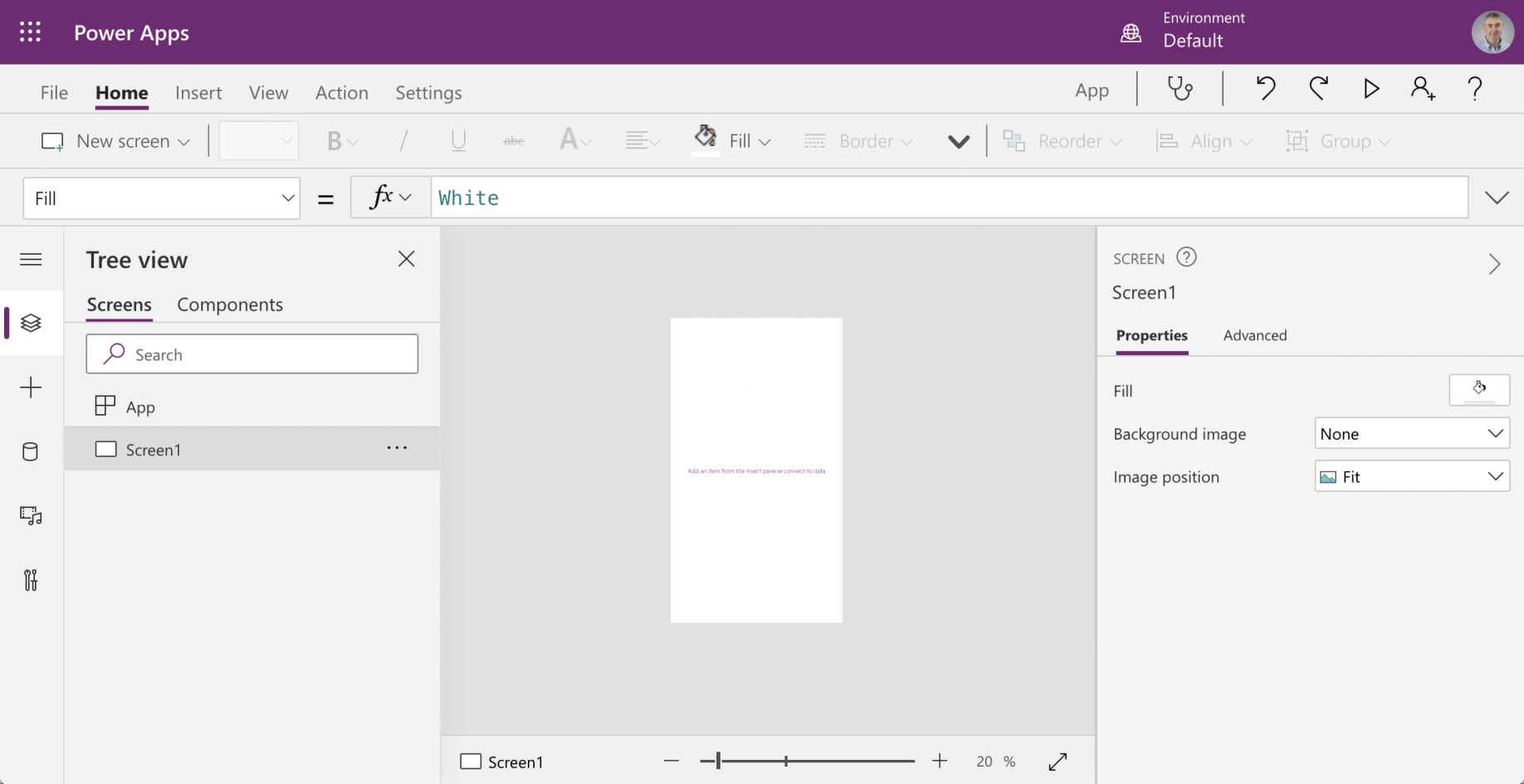
Blank app App with Screen "Screen1"
Screens
I added three extra blank screens and renamed the four screens: BrowseScreen, DetailScreen, EditScreen, and NewScreen.
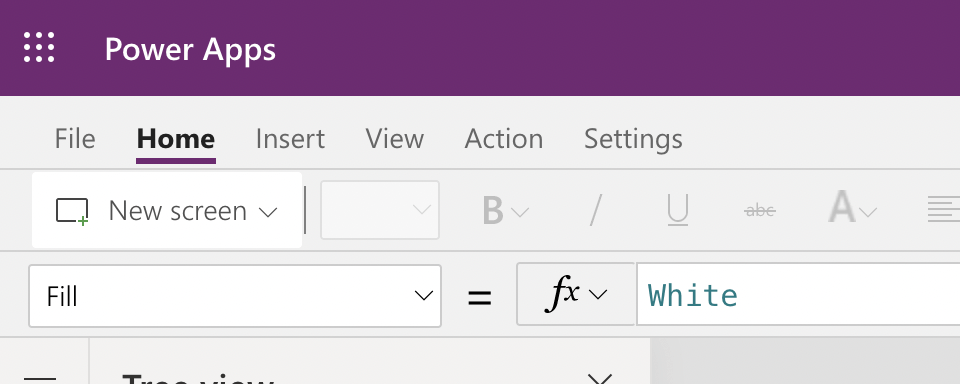
New Screen
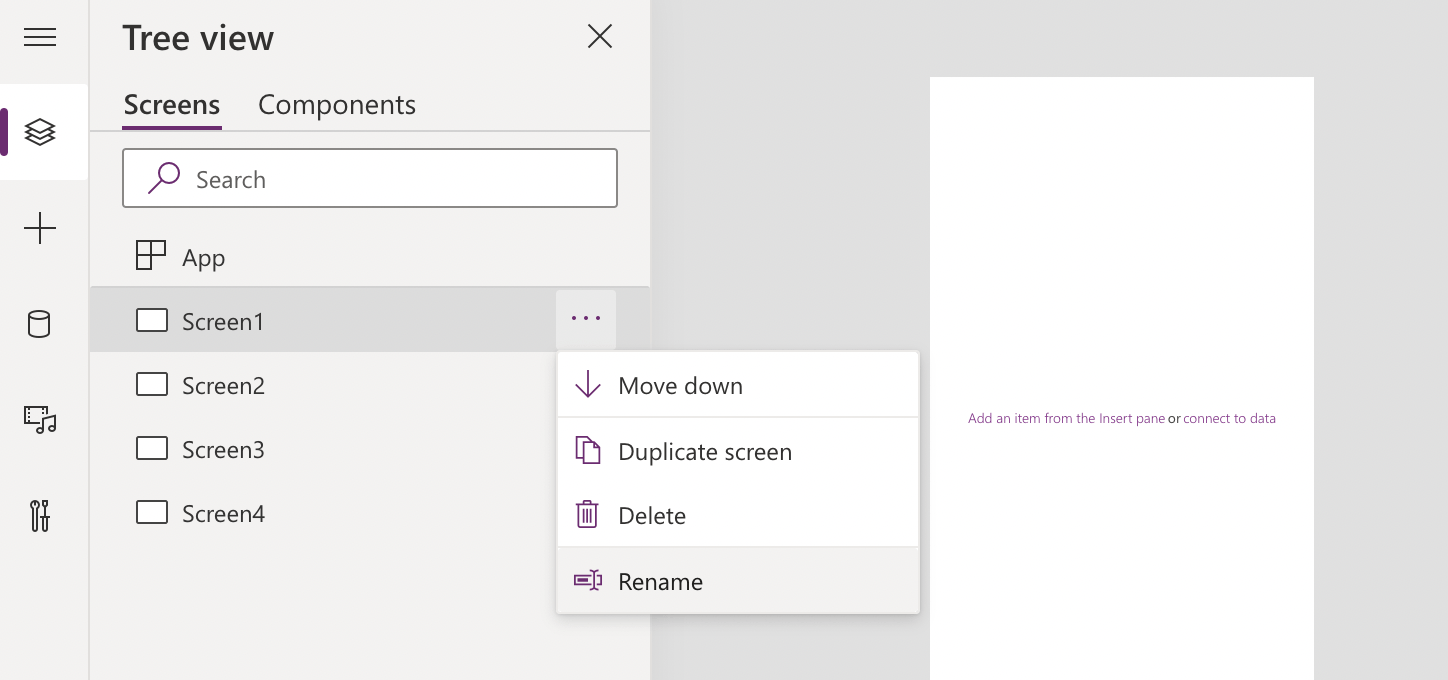
Three additional screens added
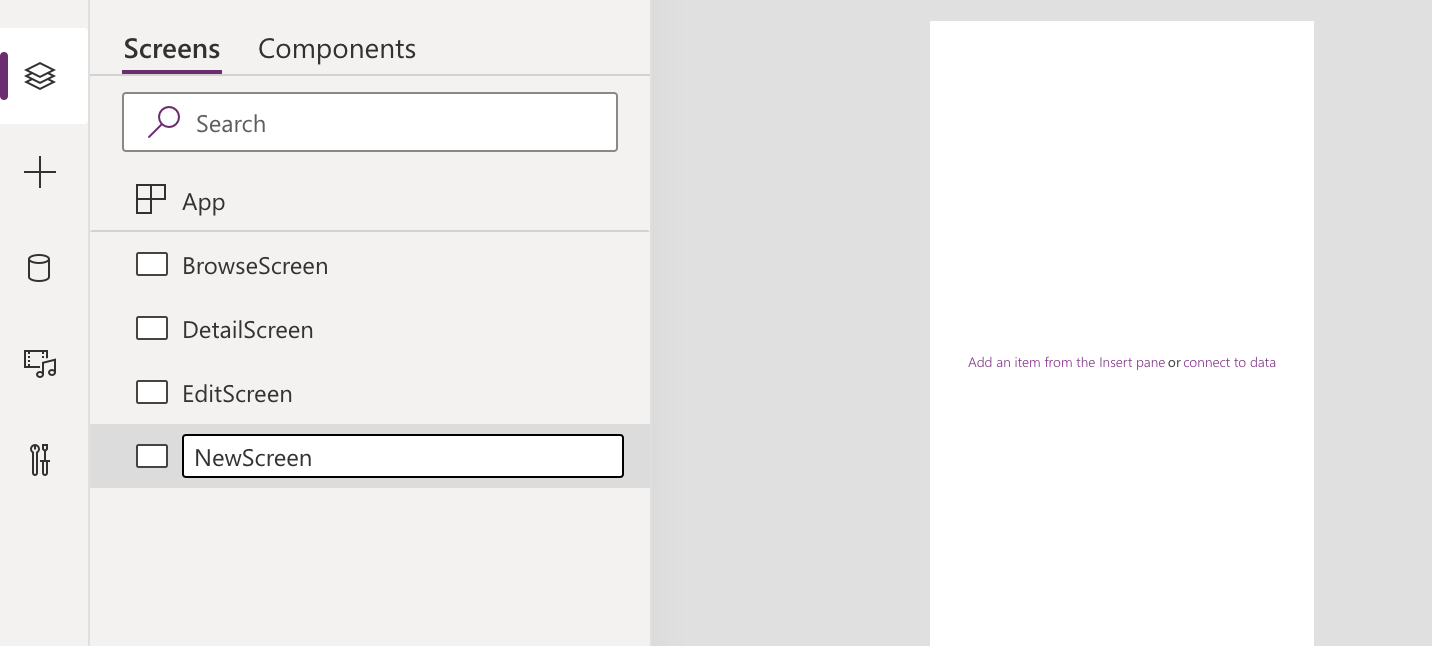
All four screens renamed
Import Component Library
I selected the + menu item and clicked the "Get more components" button.
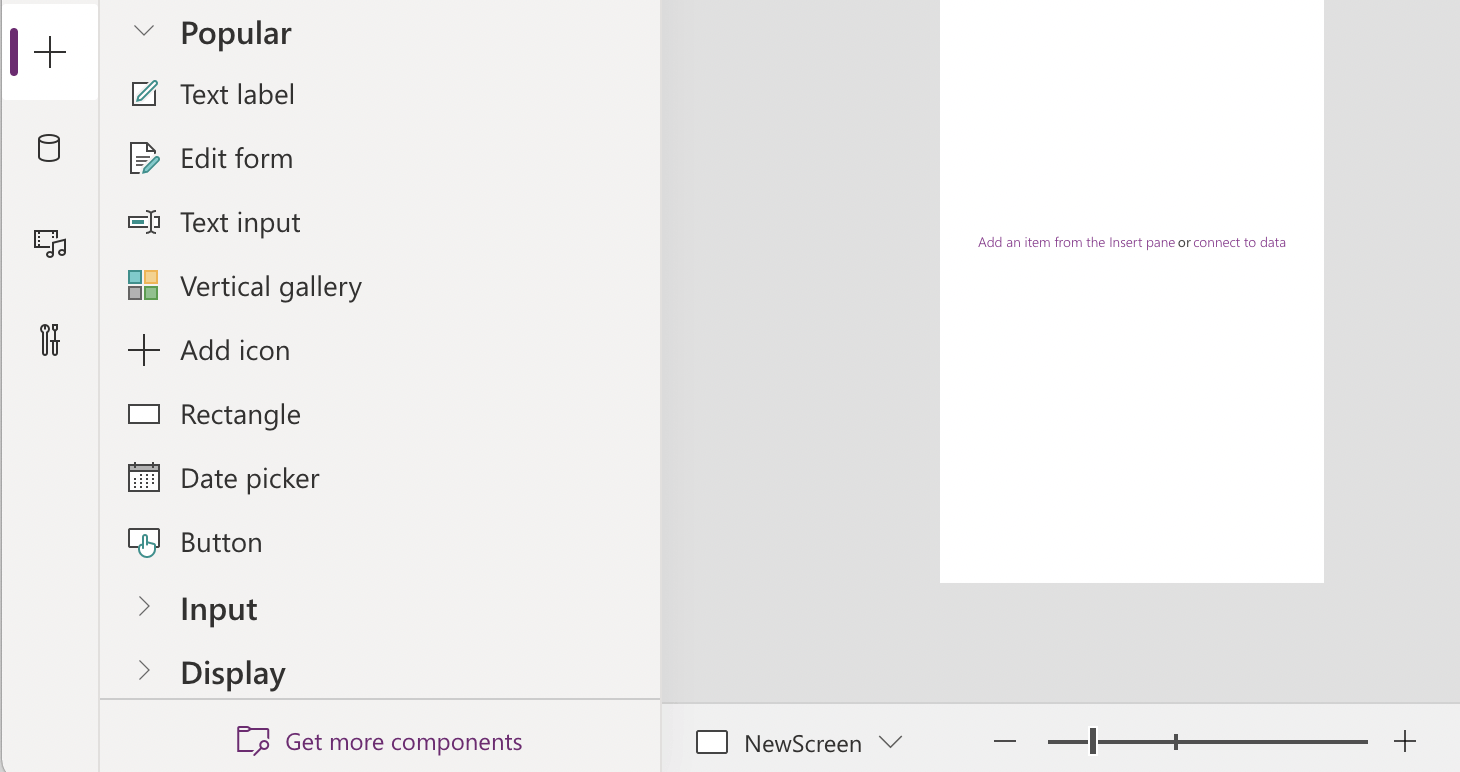
Get more components
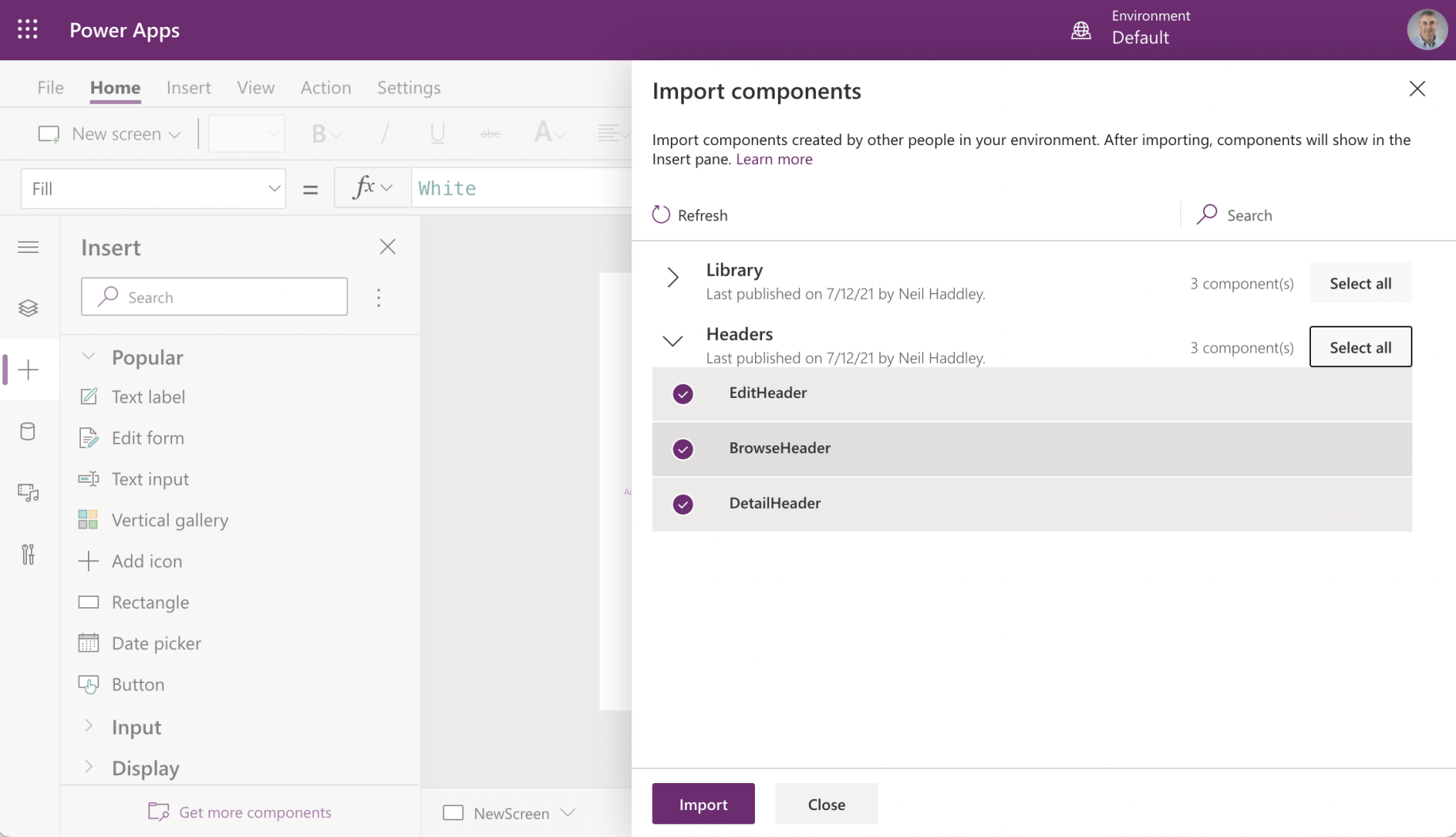
I imported custom components from the Headers component library
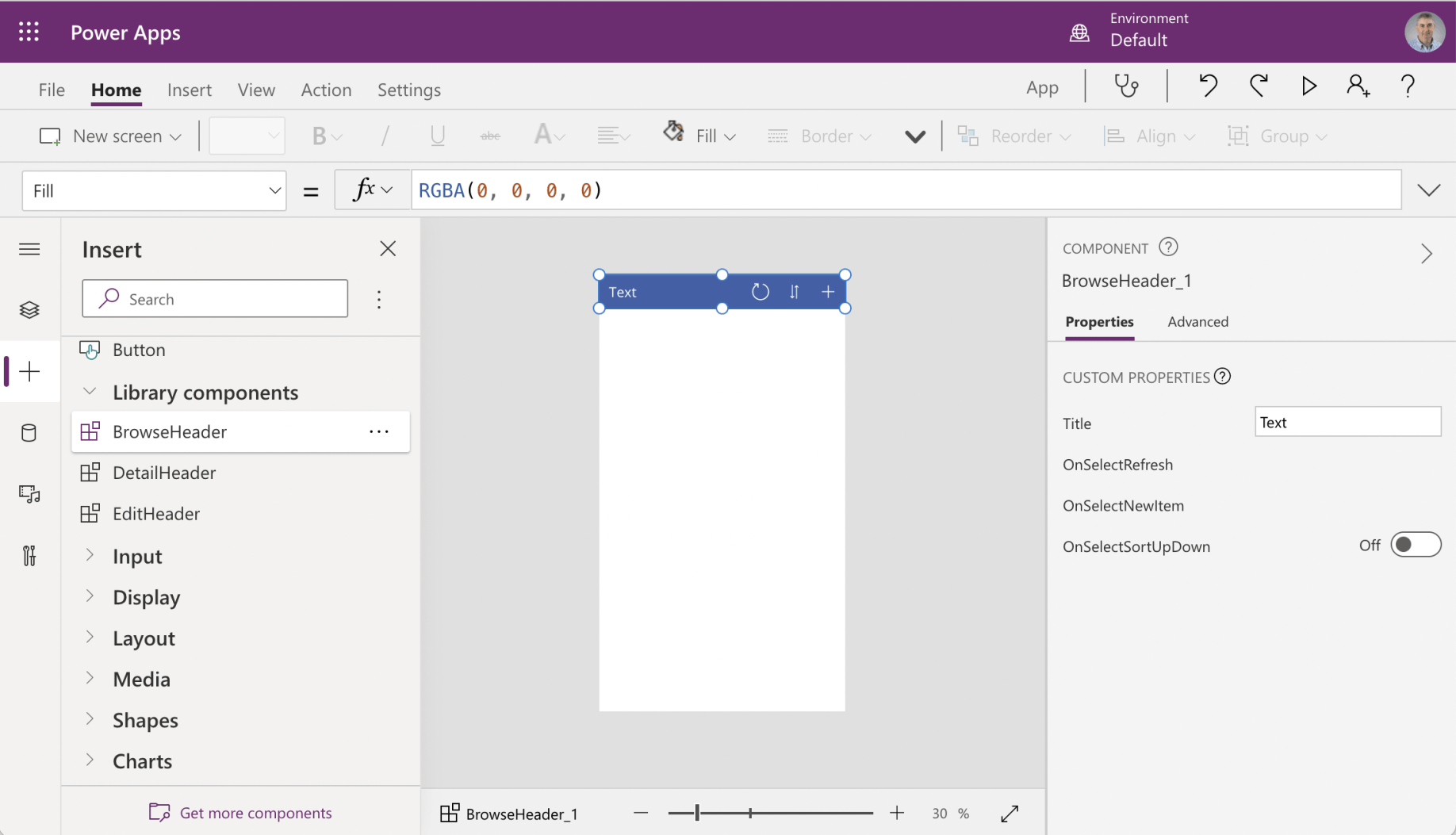
I added a BrowseHeader component to the BrowseScreen
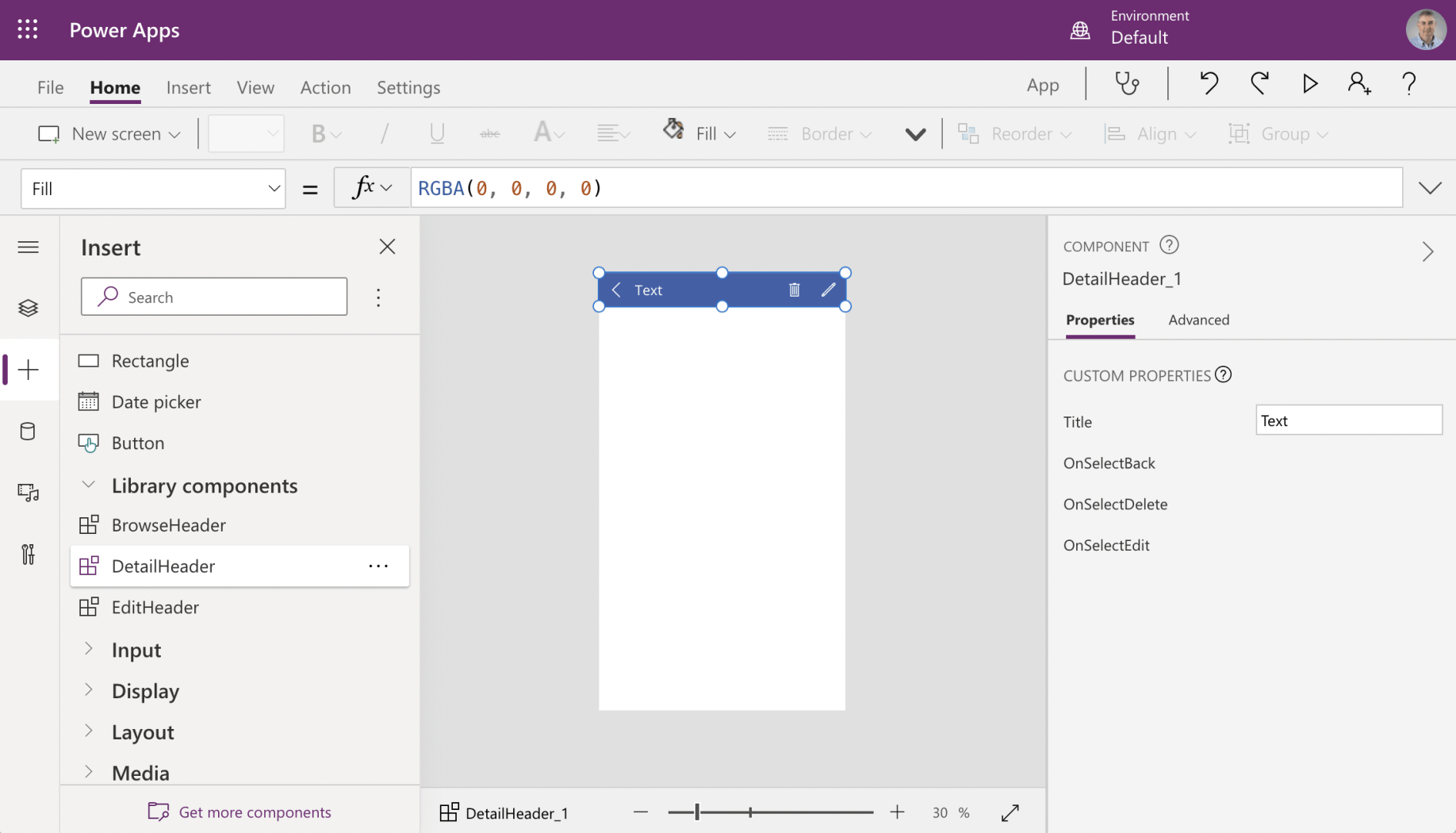
I added a DetailHeader component to the DetailScreen
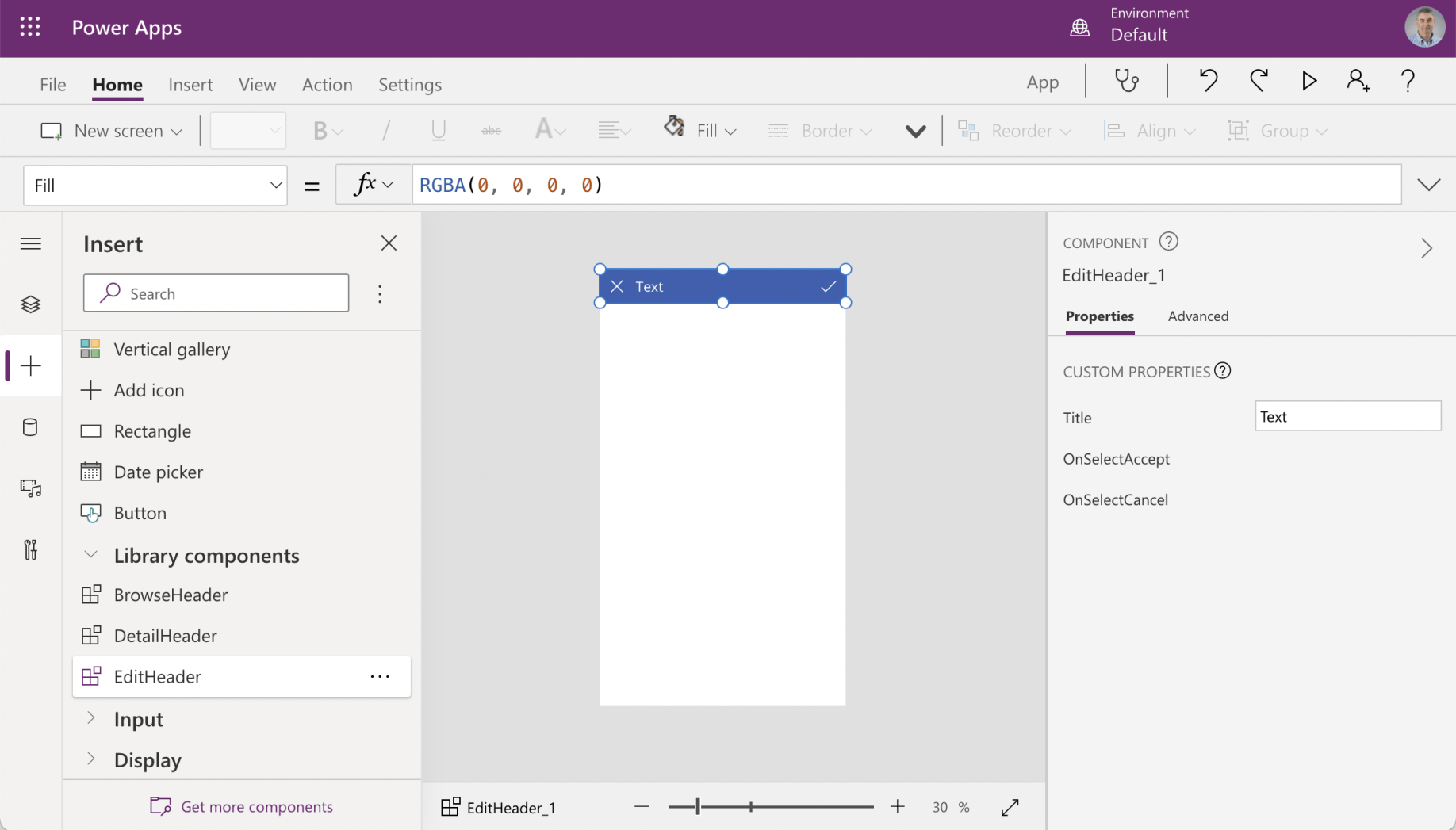
I added an EditHeader component to the EditScreen

I added an EditHeader component to the NewScreen
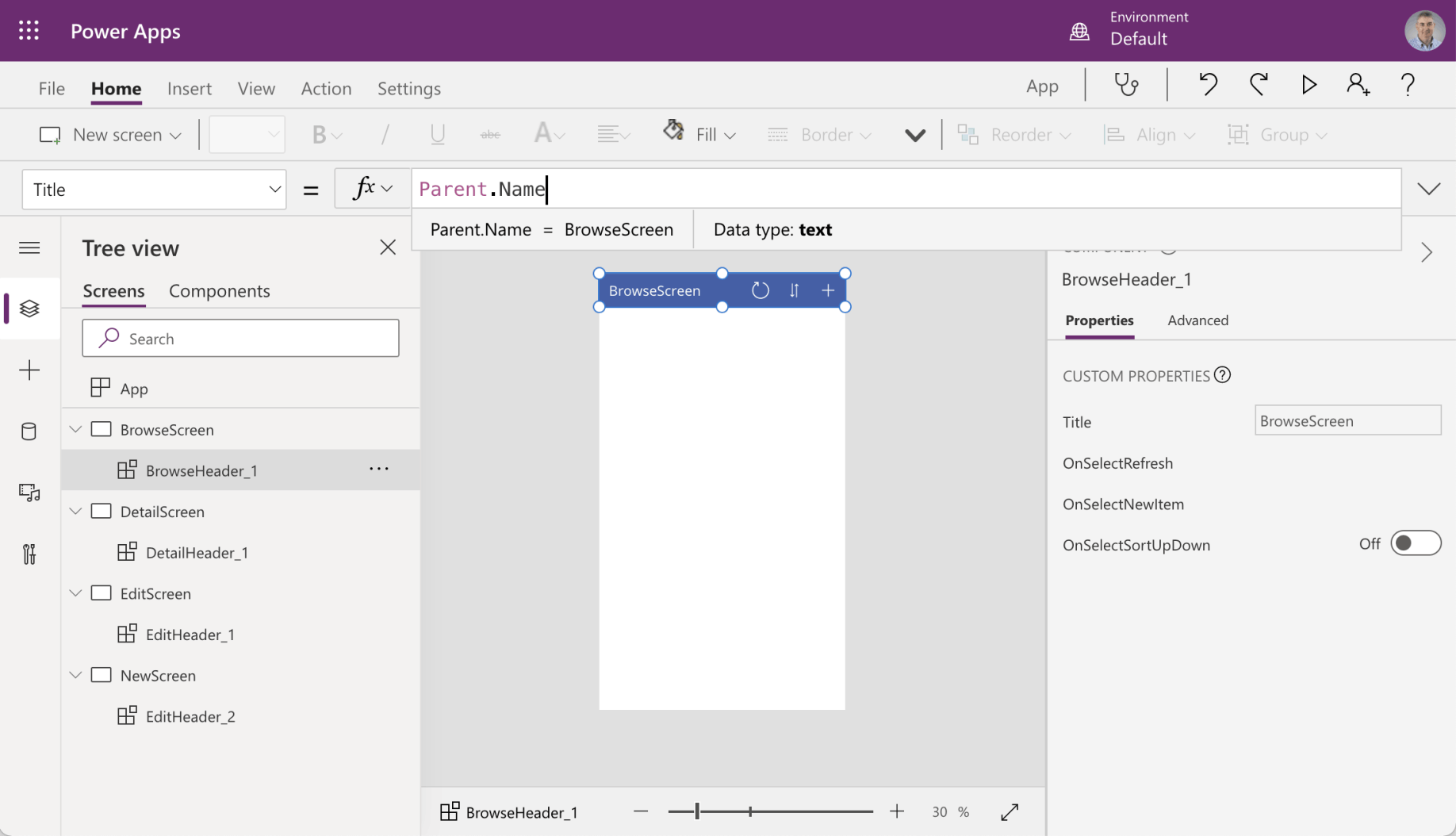
I set the "Title" property of the Header component in each screen to "Parent.Name"
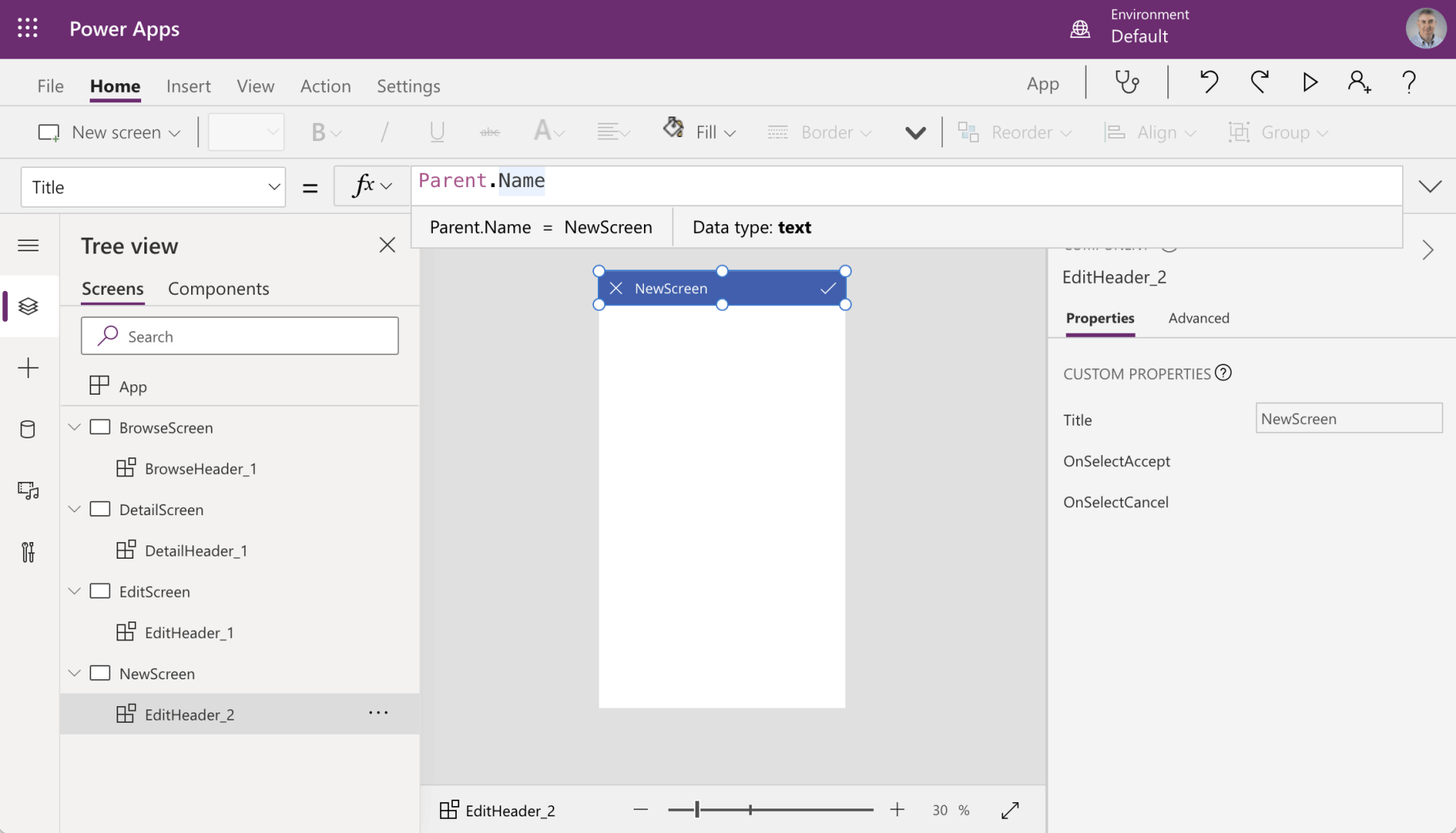
Every Header component is now displaying the name of the screen it is on.
Handle the custom OnSelect events
I updated all of the custom OnSelect events to enable navigation between screens.
BrowseScreen | BrowseHeader_1
OnSelectRefresh =
OnSelectNewItem = Navigate(NewScreen)
OnSelectSortUpDown = Set(varSortDescending,!varSortDescending)
DetailScreen | DetailHeader_1
OnSelectBack = Navigate(BrowseScreen)
OnSelectDelete = Navigate(BrowseScreen)
OnSelectEdit = Navigate(EditScreen)
EditScreen | EditHeader_1
OnSelectAccept = Navigate(BrowseScreen)
OnSelectCancel = Navigate(BrowseScreen)
NewScreen| EditHeader_2
OnSelectAccept = Navigate(BrowseScreen)
OnSelectCancel = Navigate(BrowseScreen)
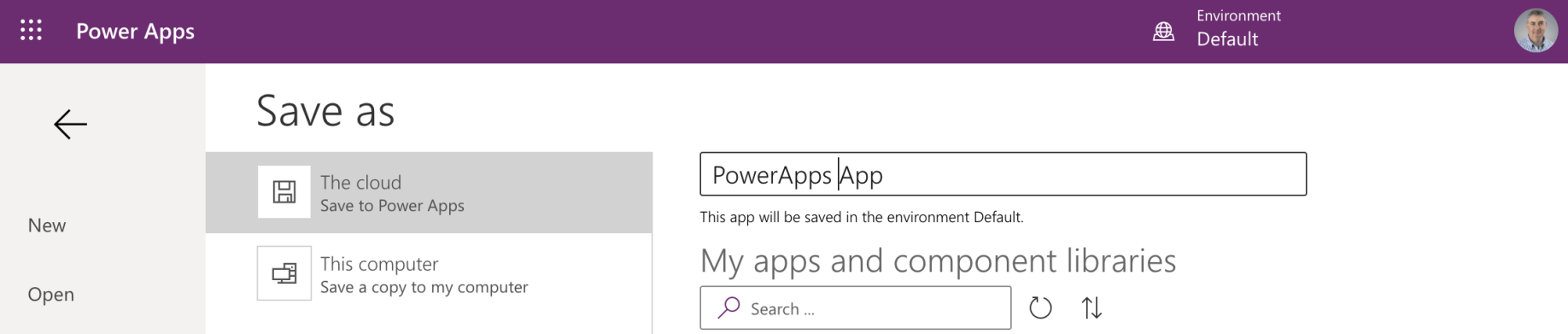
esp8266
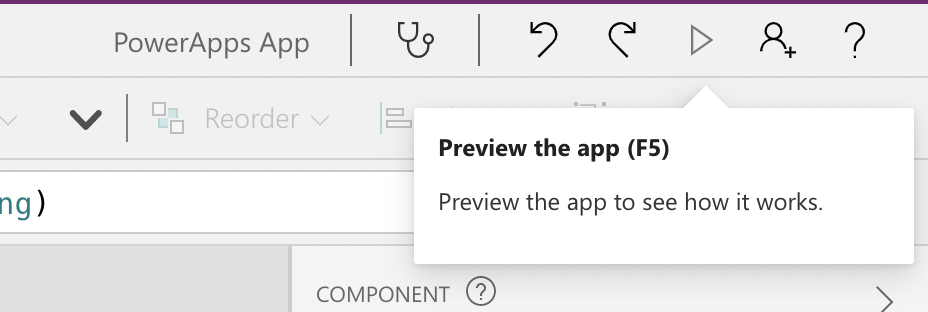
I previewed the app
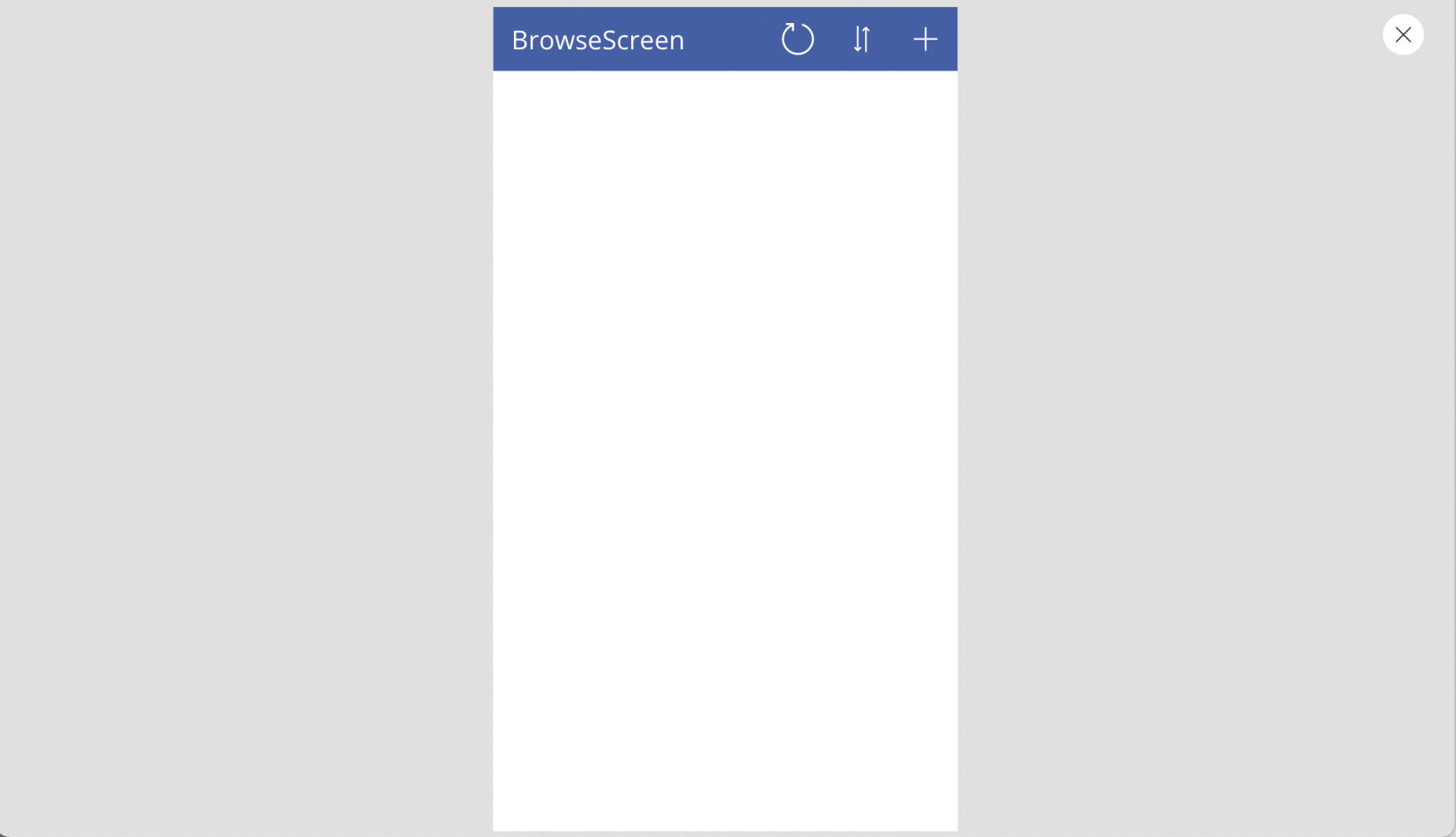
I clicked the + icon
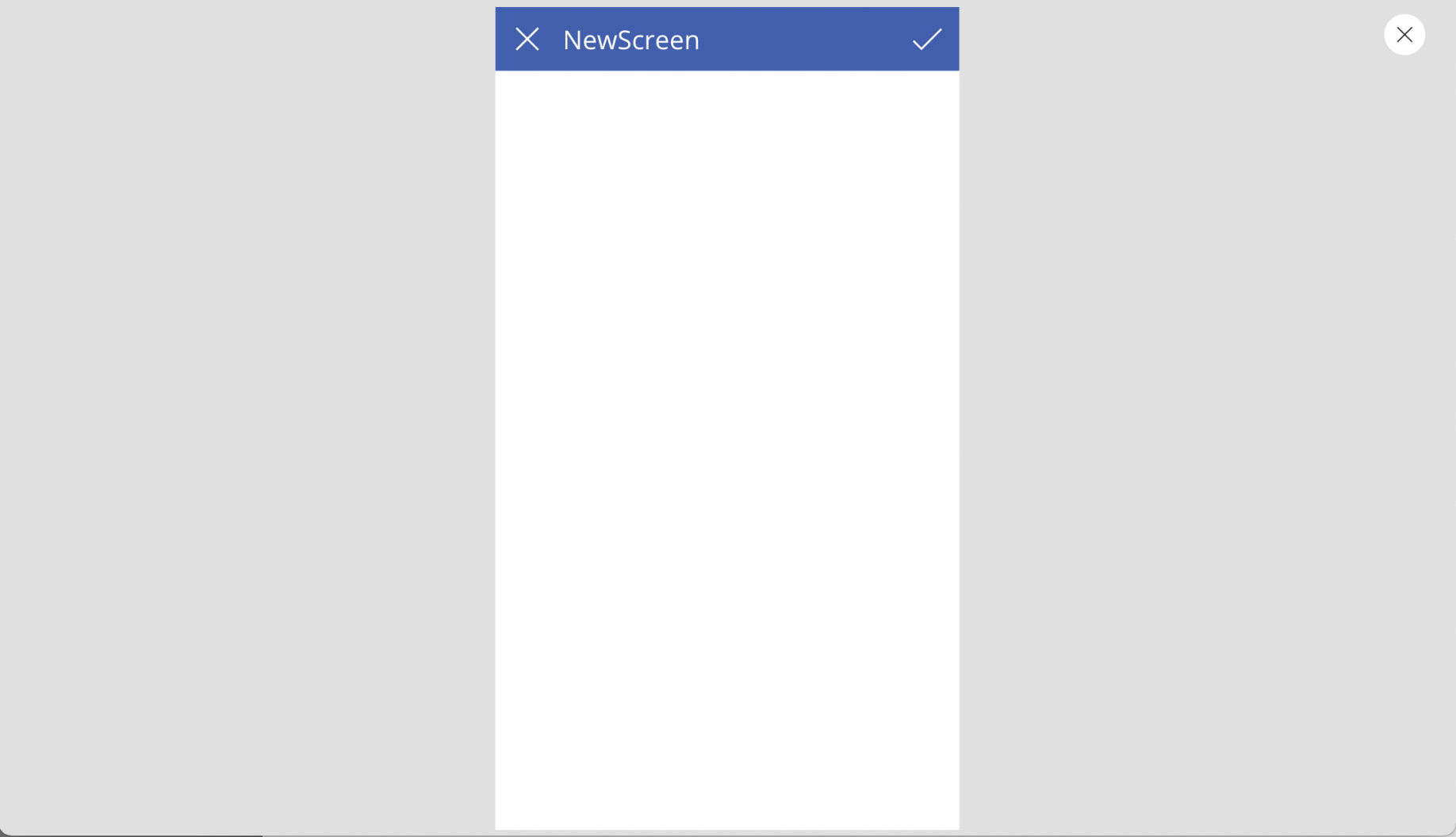
I clicked X or the tick to return to the BrowseScreen
Adding connection to API
I selected the database menu item and clicked the "Add data" button.
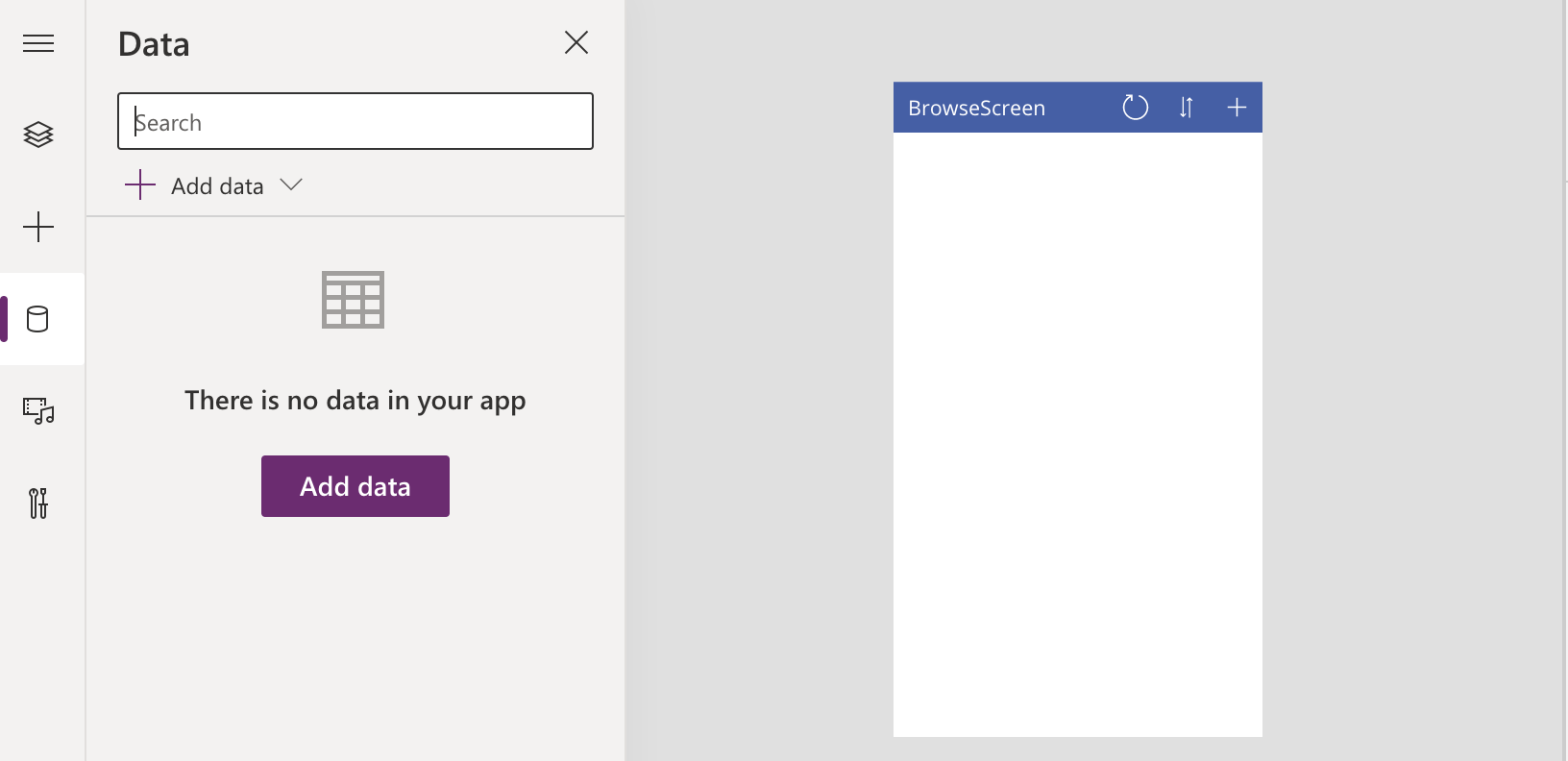
Add data
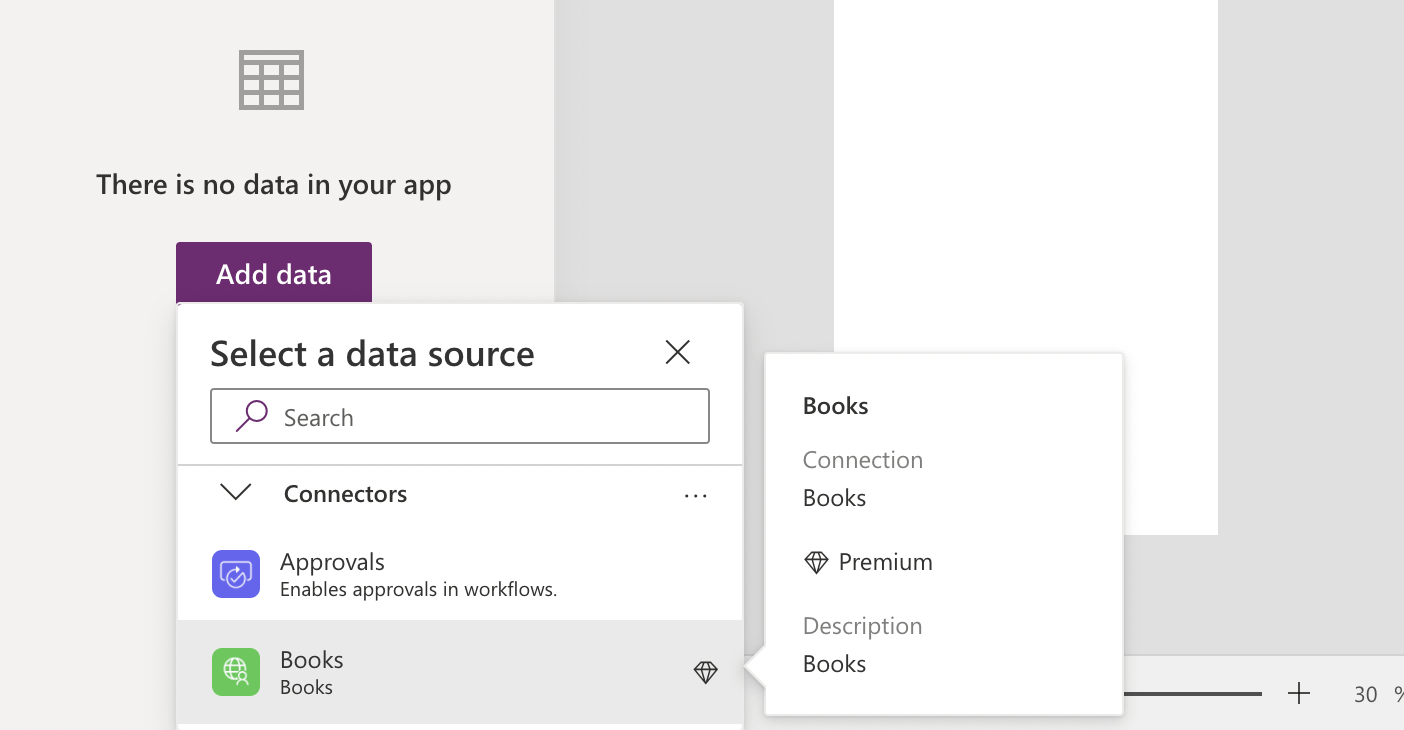
I selected the Books Custom Connector
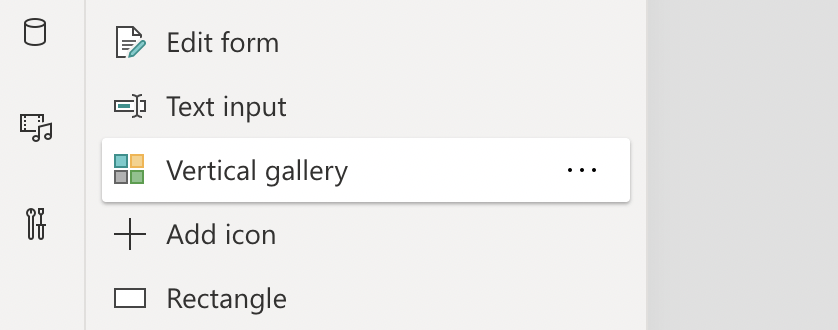
I added a Vertical gallery control to the BrowseScreen
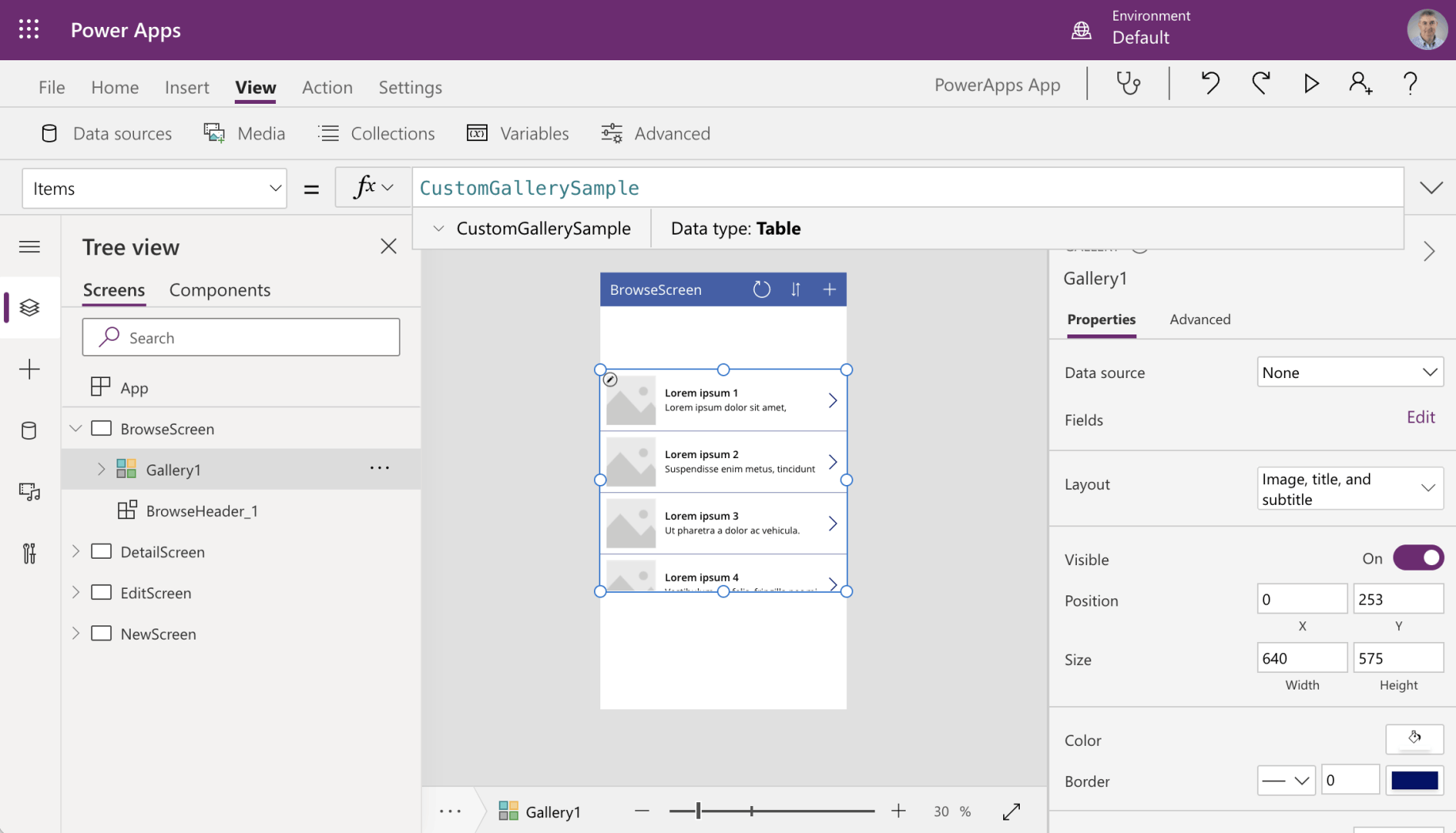
The Gallery had no data source yet; the Items property was set to "CustomGallerySample"
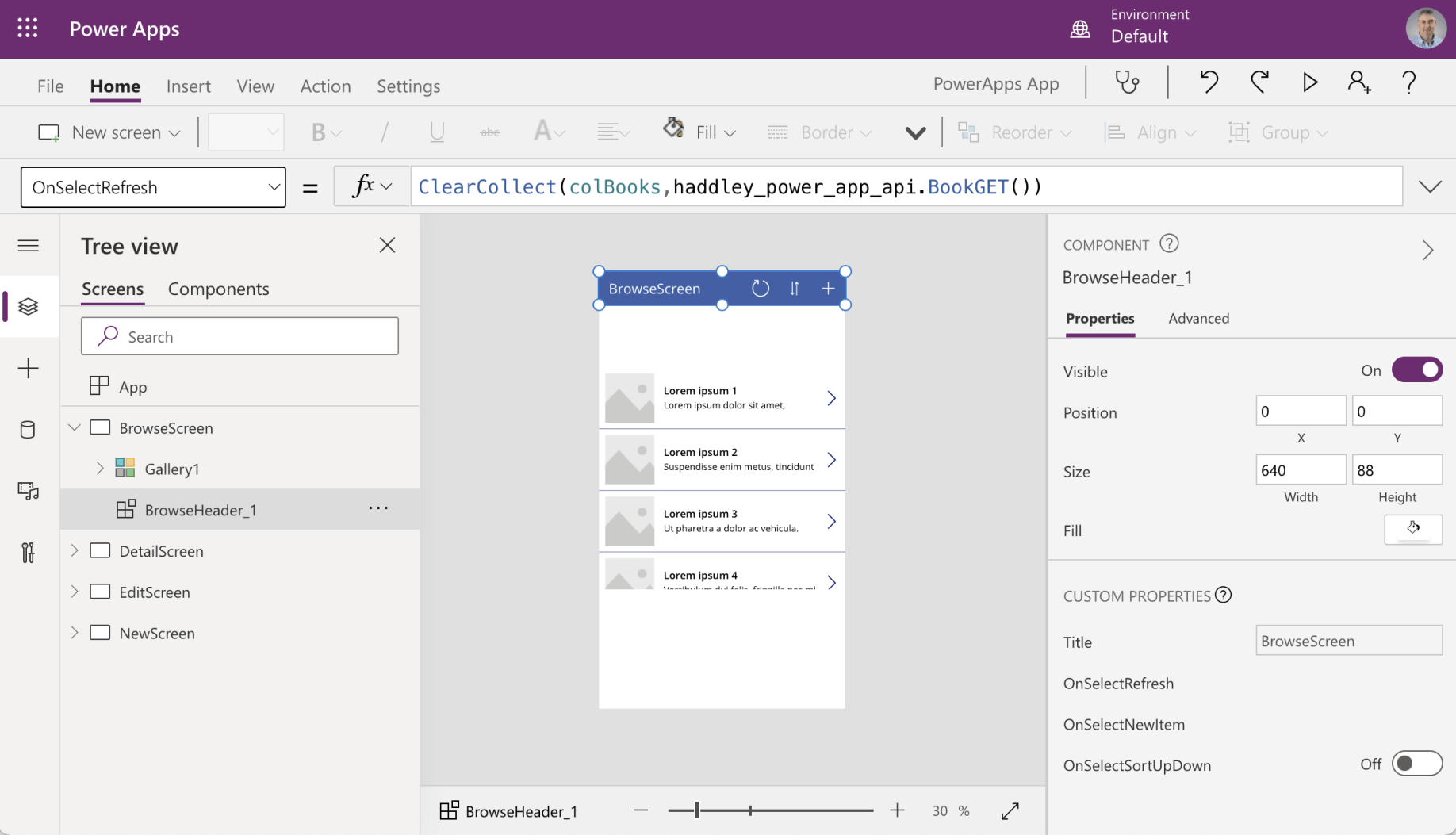
BrowseHeader_1 | OnSelectRefresh = ClearCollect(colBooks,haddley_power_app_api.BookGET())
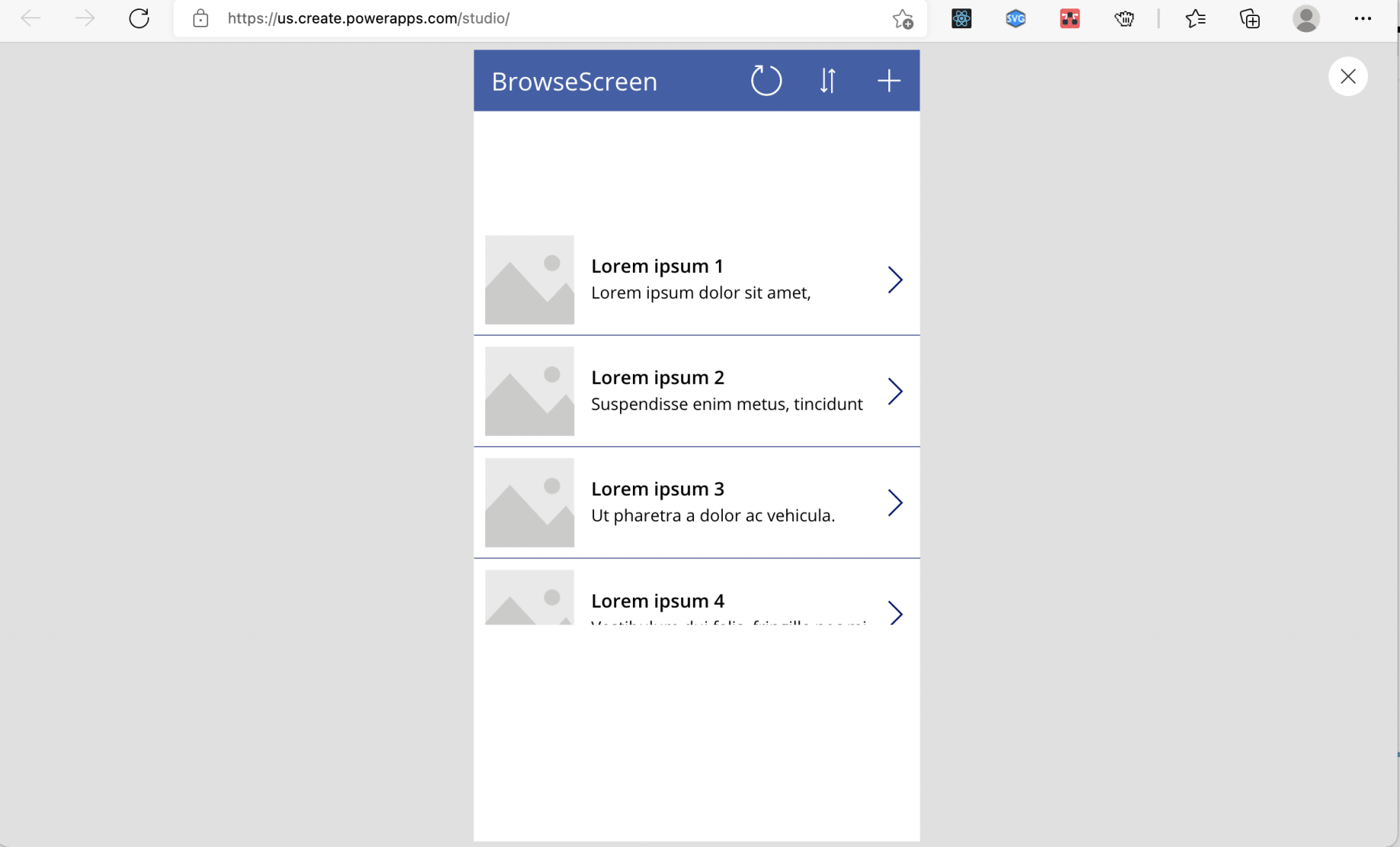
Sample data appeared in the gallery; I clicked the refresh button to update the colBooks collection
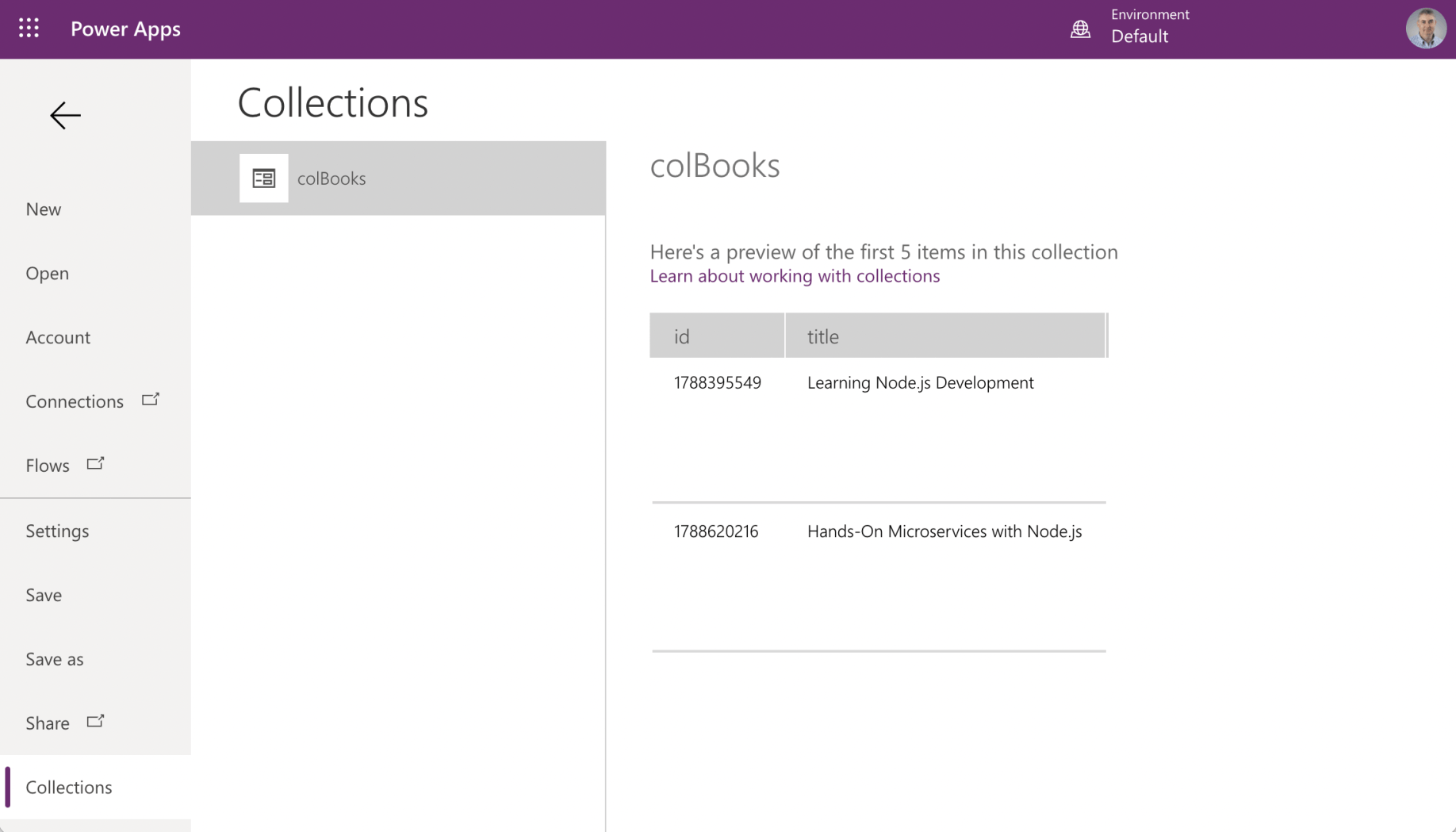
I selected the Collections menu item to view the colBooks collection
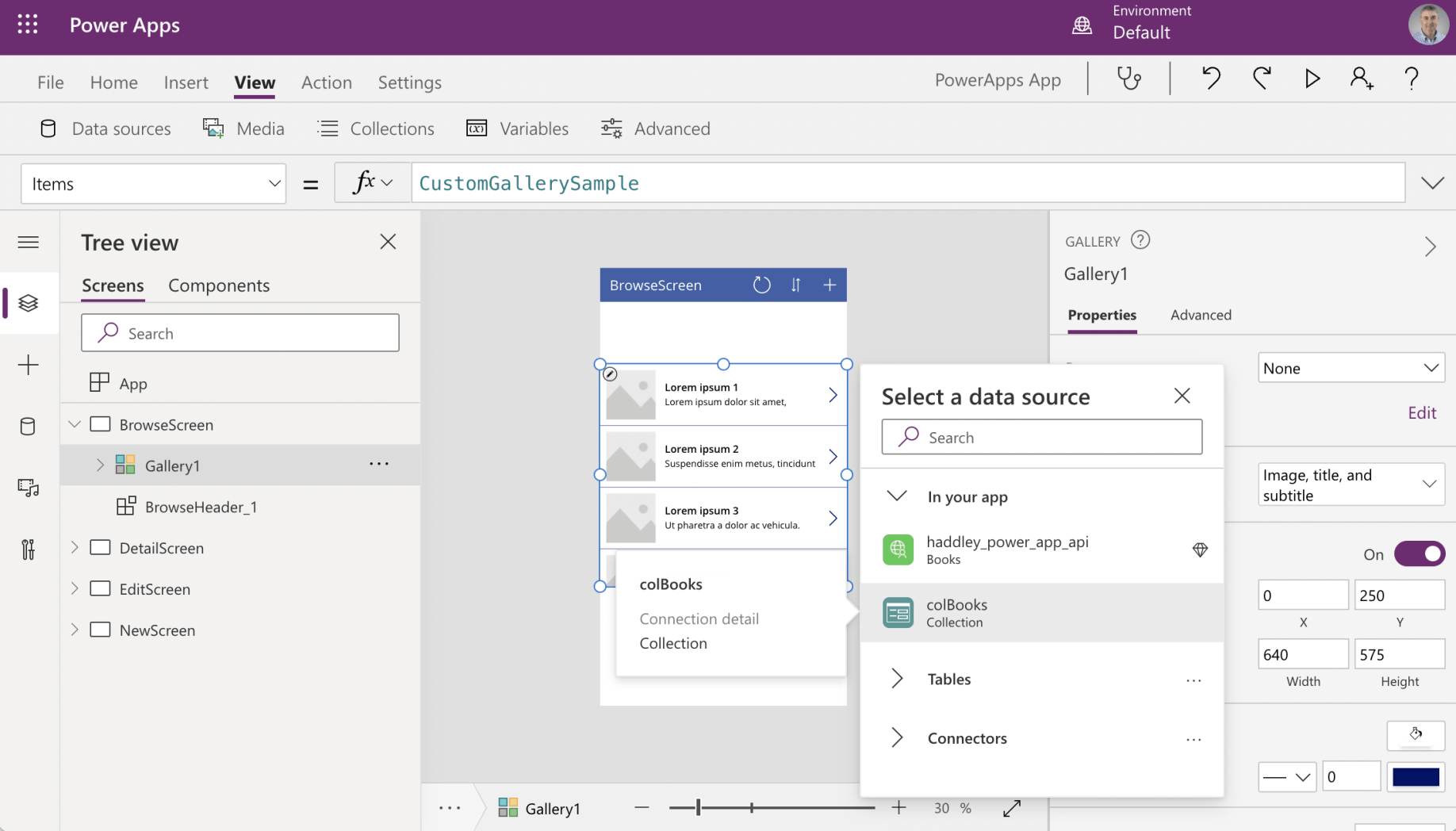
I updated the gallery's data source to colBooks
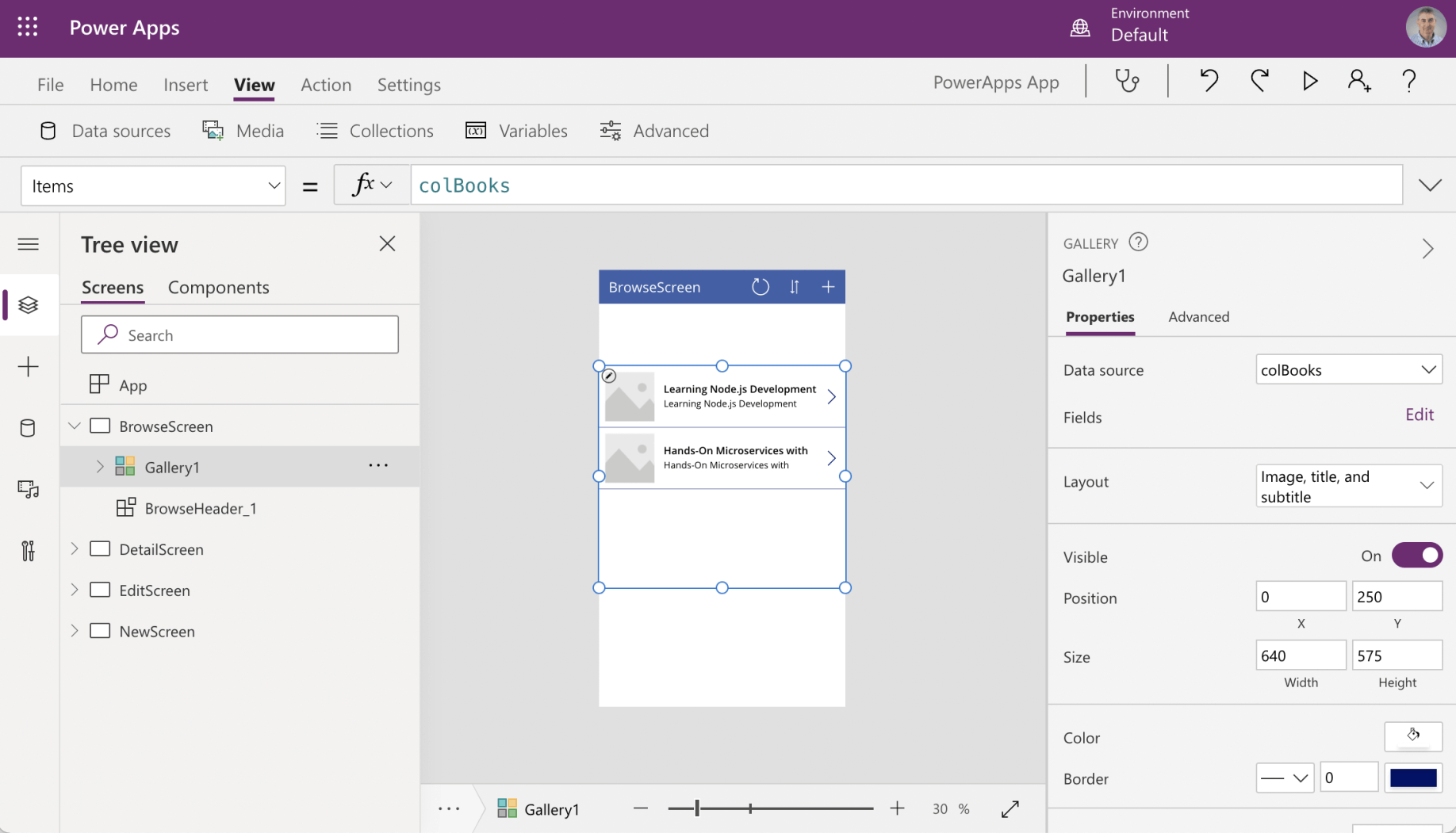
colBooks items appeared
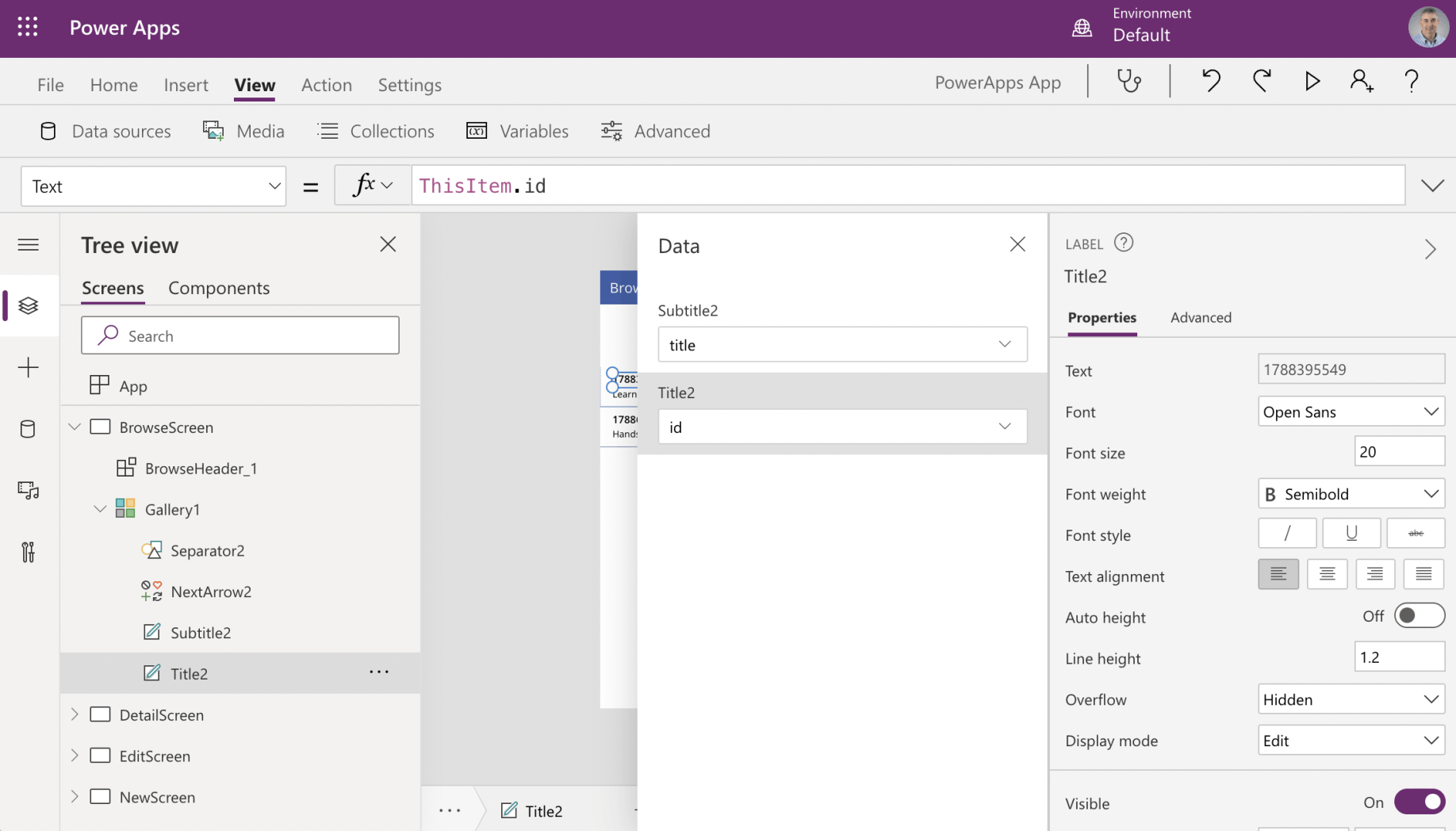
I updated the layout
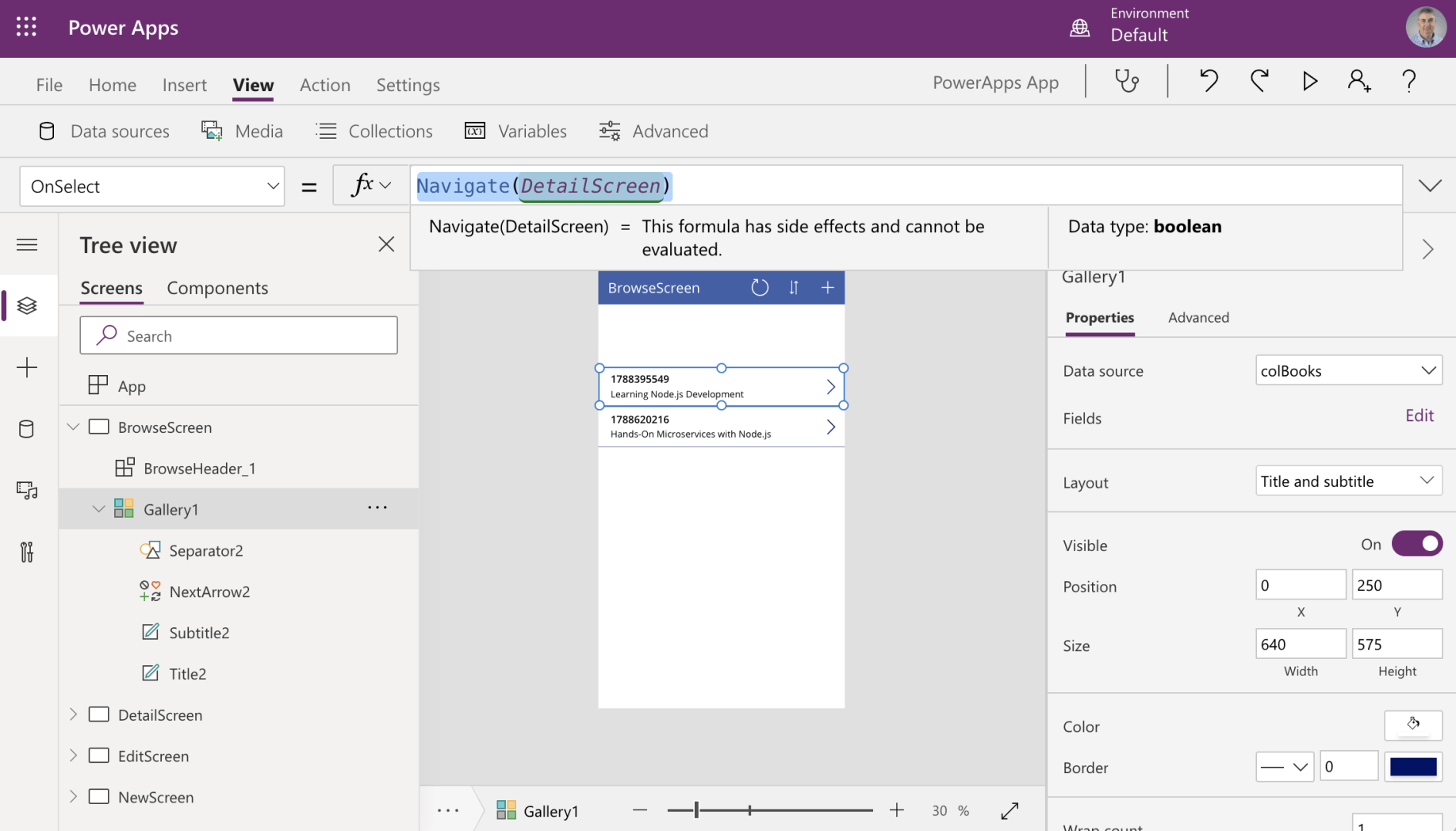
Gallery1 | OnSelect = Navigate(DetailScreen)
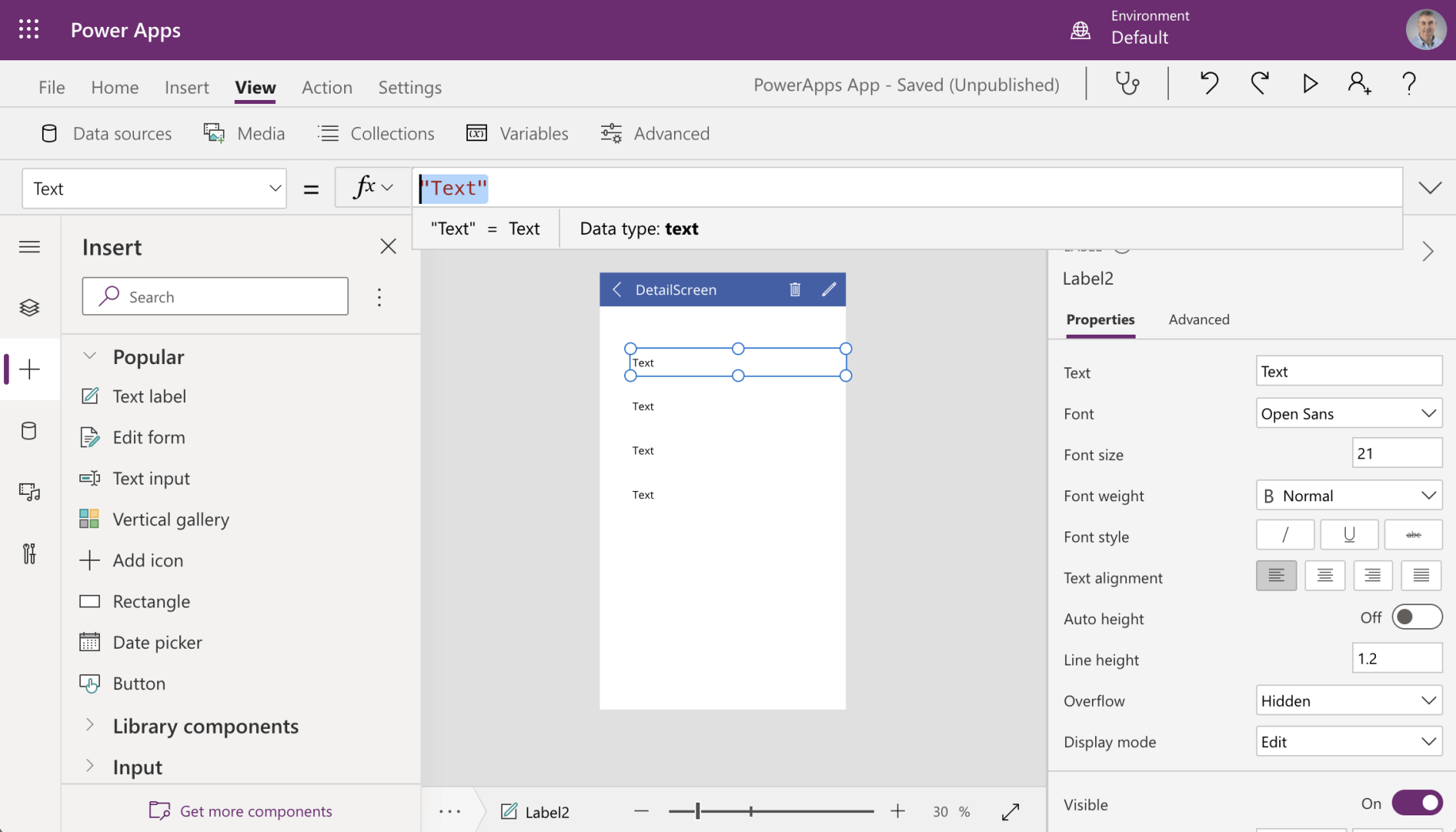
I added four Text labels to the DetailsScreen
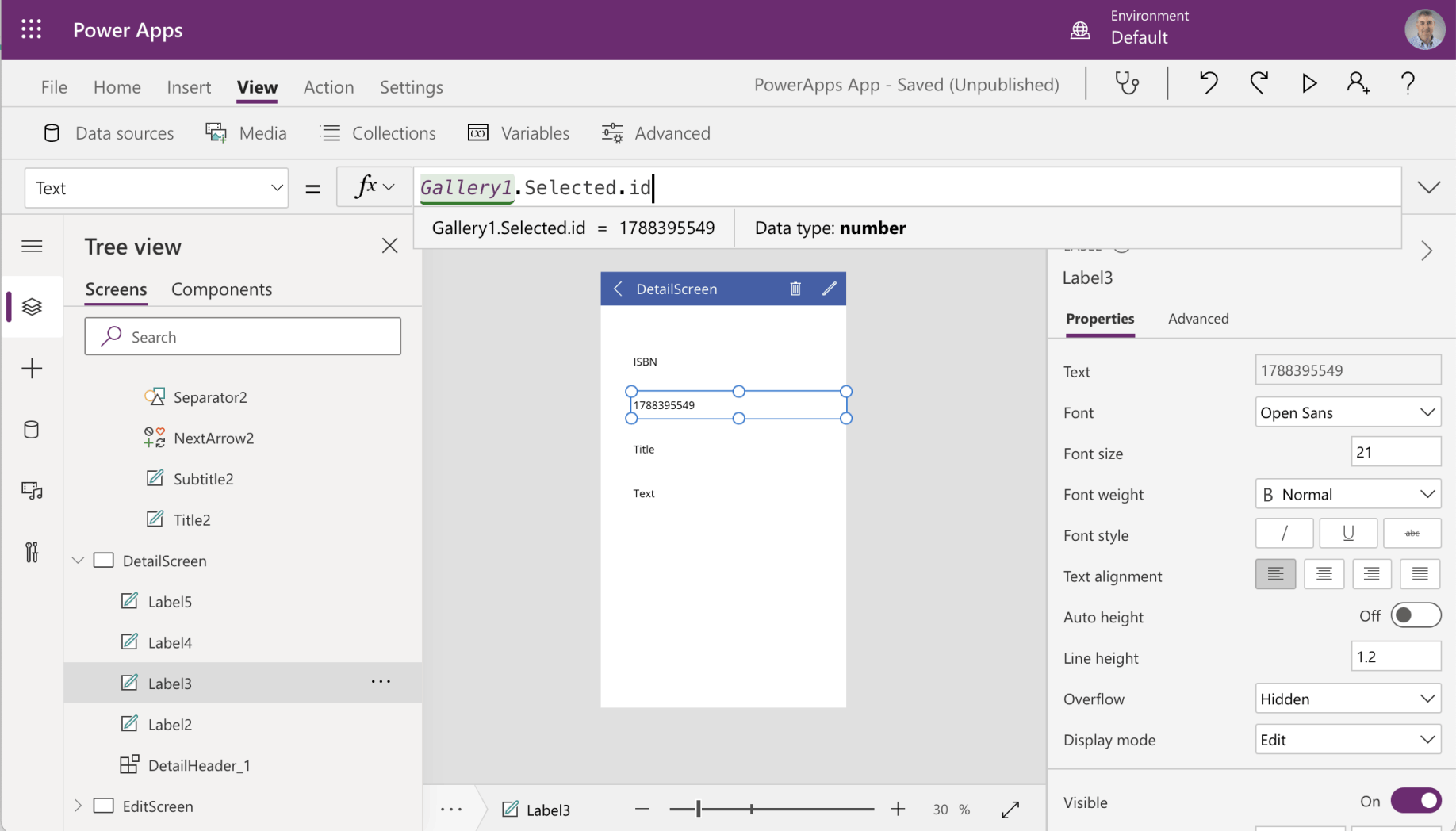
Gallery1.Selected.id
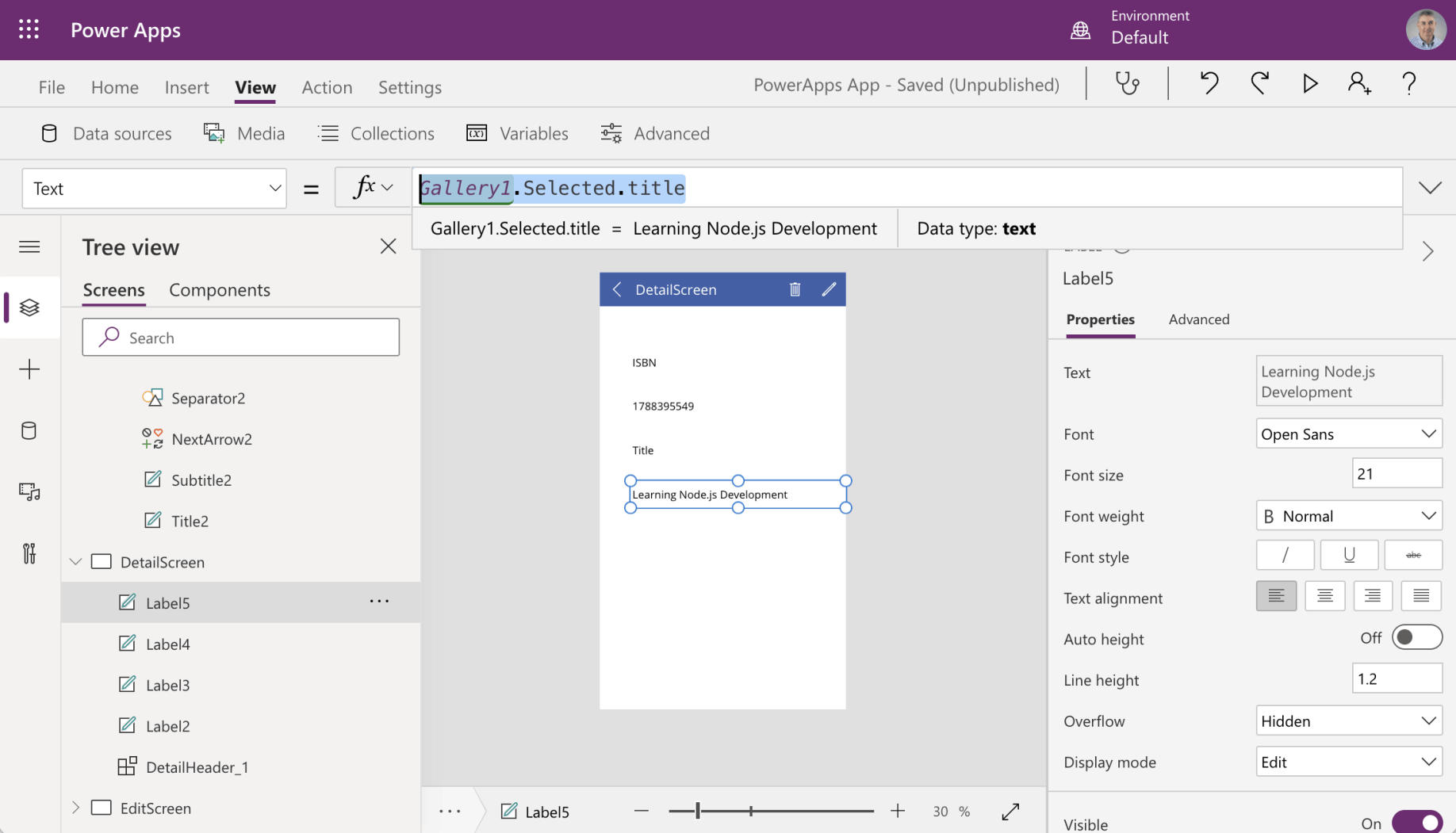
Gallery1.Selected.title
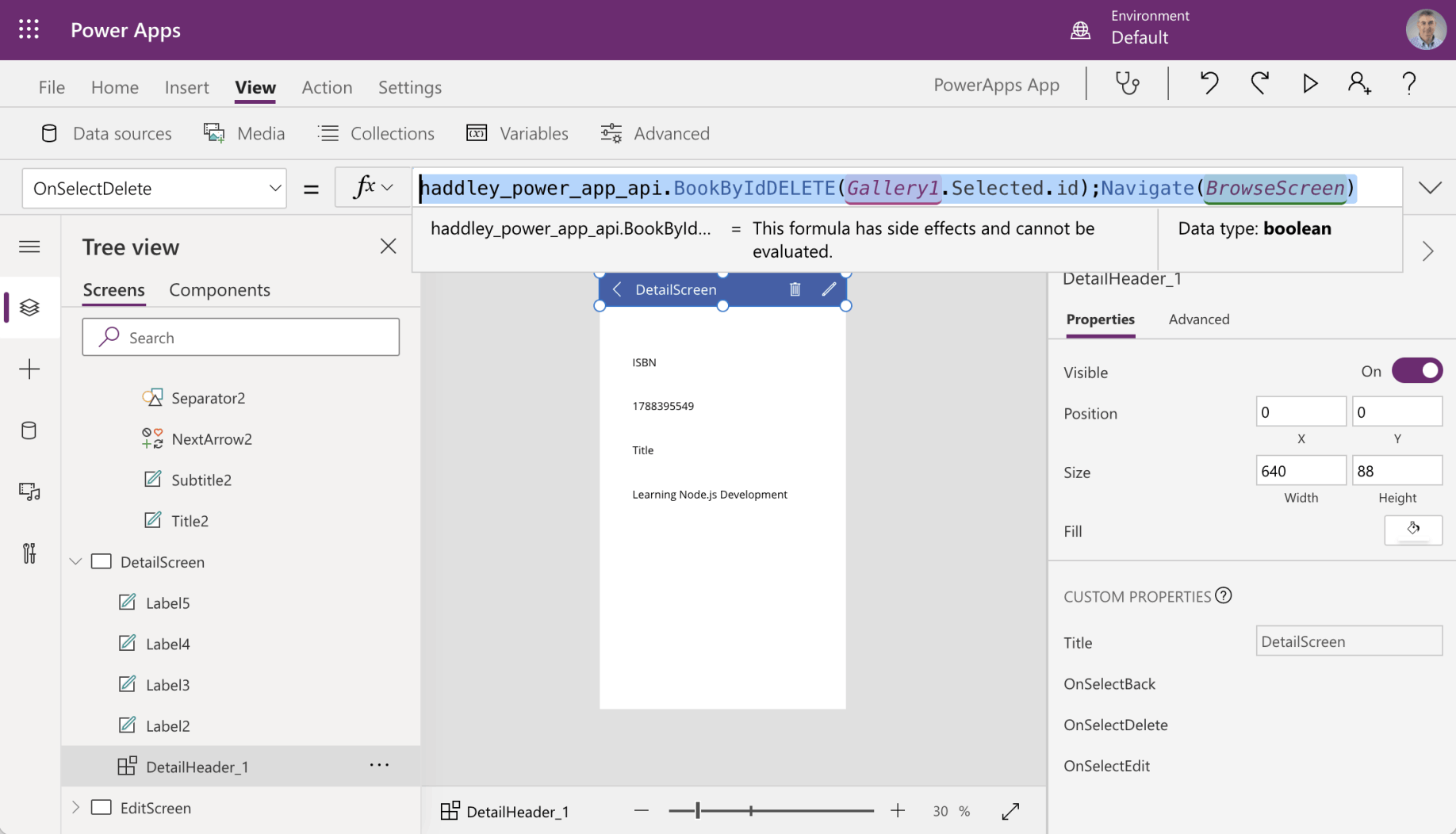
haddley_power_app_api.BookByIdDELETE(Gallery1.Selected.id);Navigate(BrowseScreen)
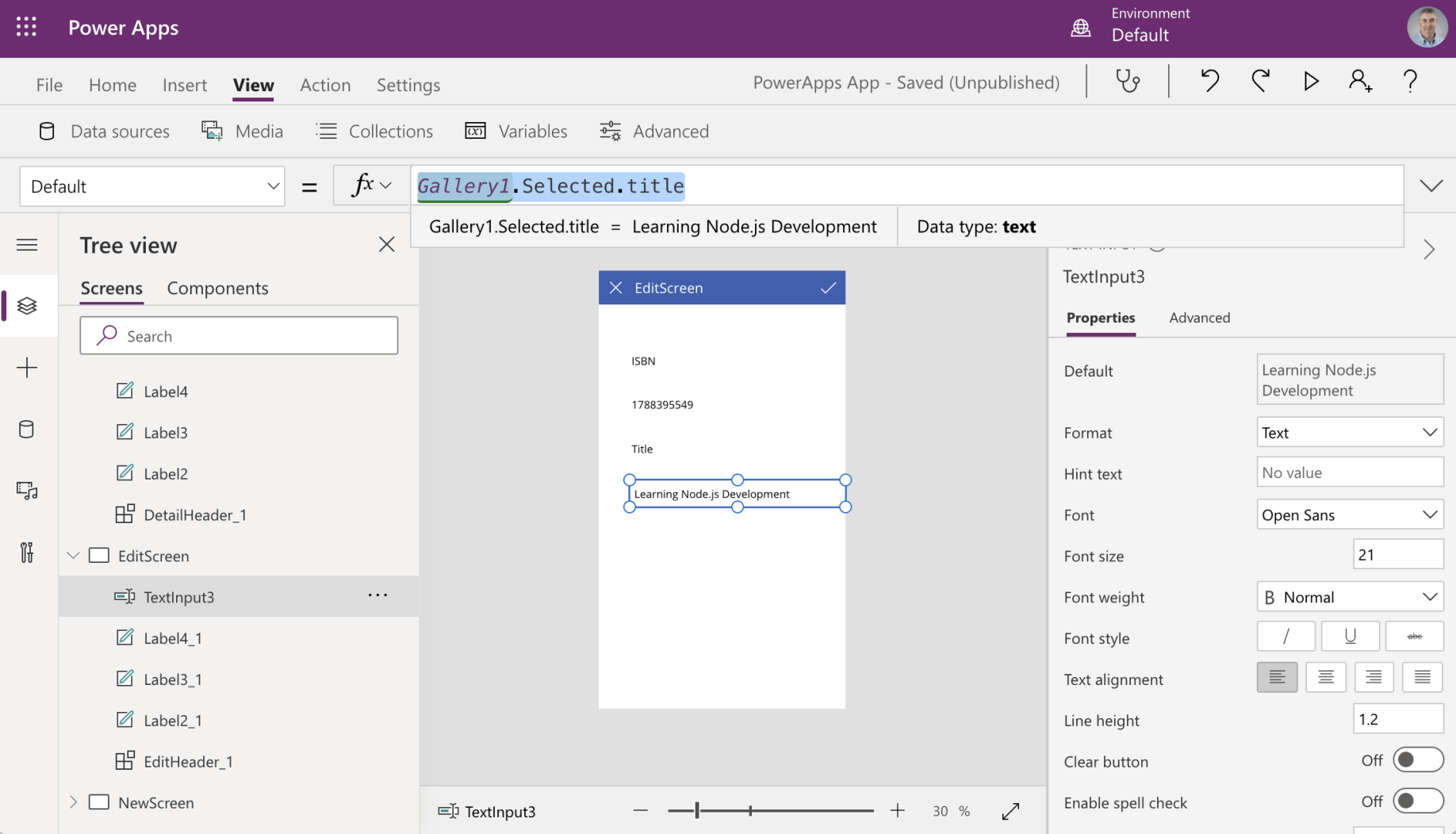
TextInput3 | Default = Gallery1.Selected.title
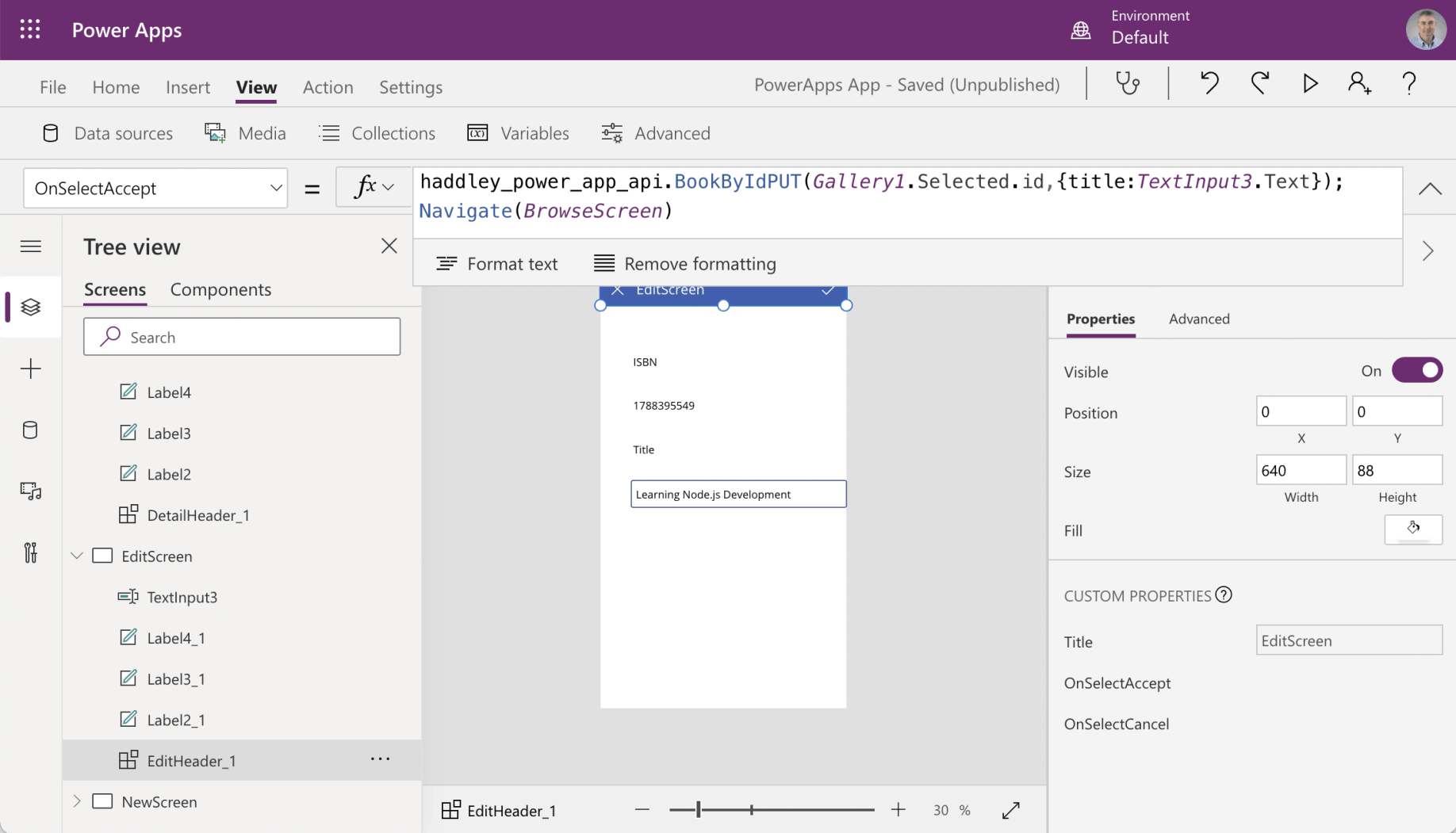
EditHeader_1 | OnSelectAccept = haddley_power_app_api.BookByIdPUT(Gallery1.Selected.id,{title:TextInput3.Text});Navigate(BrowseScreen)
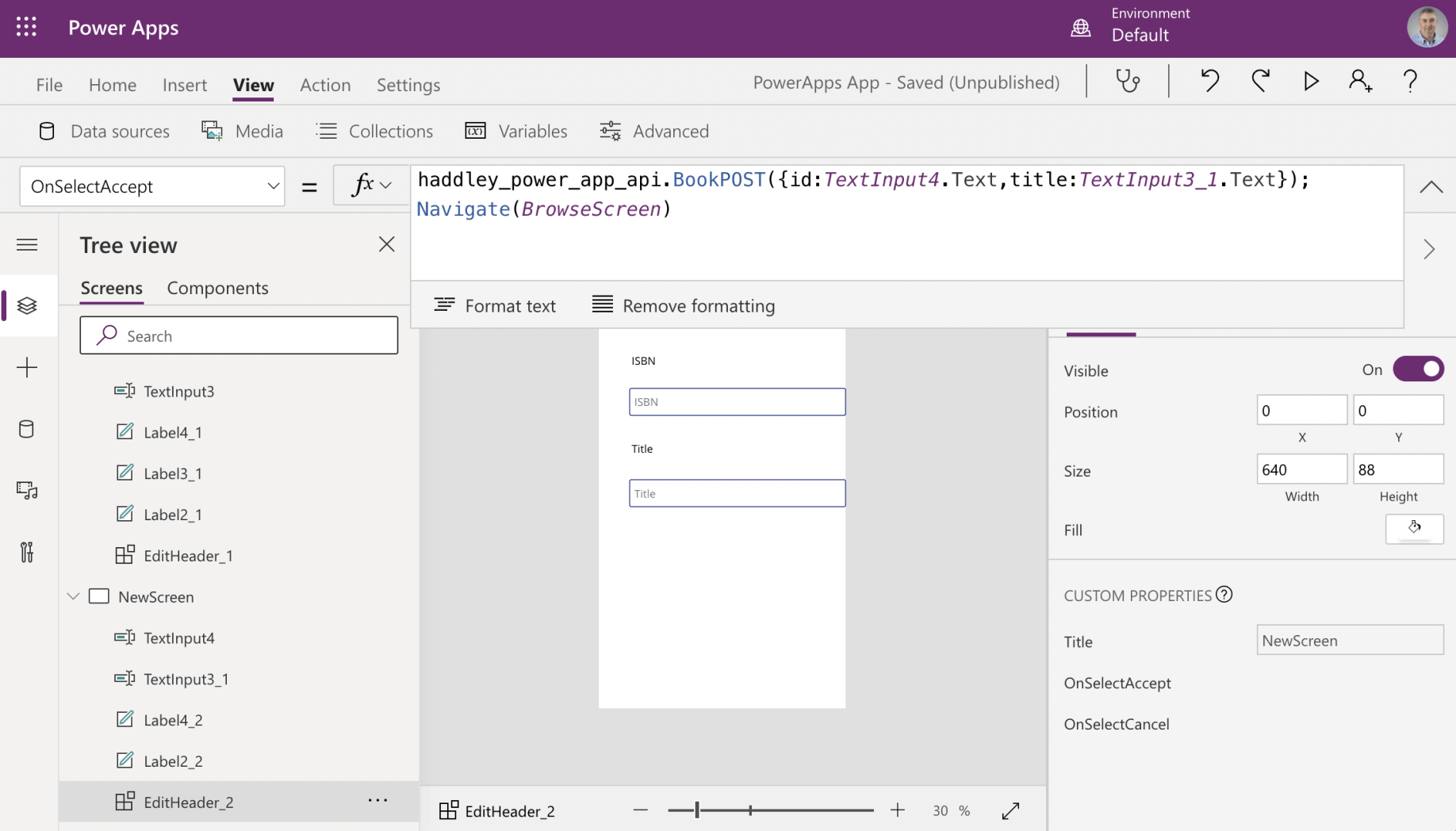
EditHeader_2 | OnSelectAccept = haddley_power_app_api.BookPOST({id:TextInput4.Text,title:TextInput3_1.Text});Navigate(BrowseScreen)
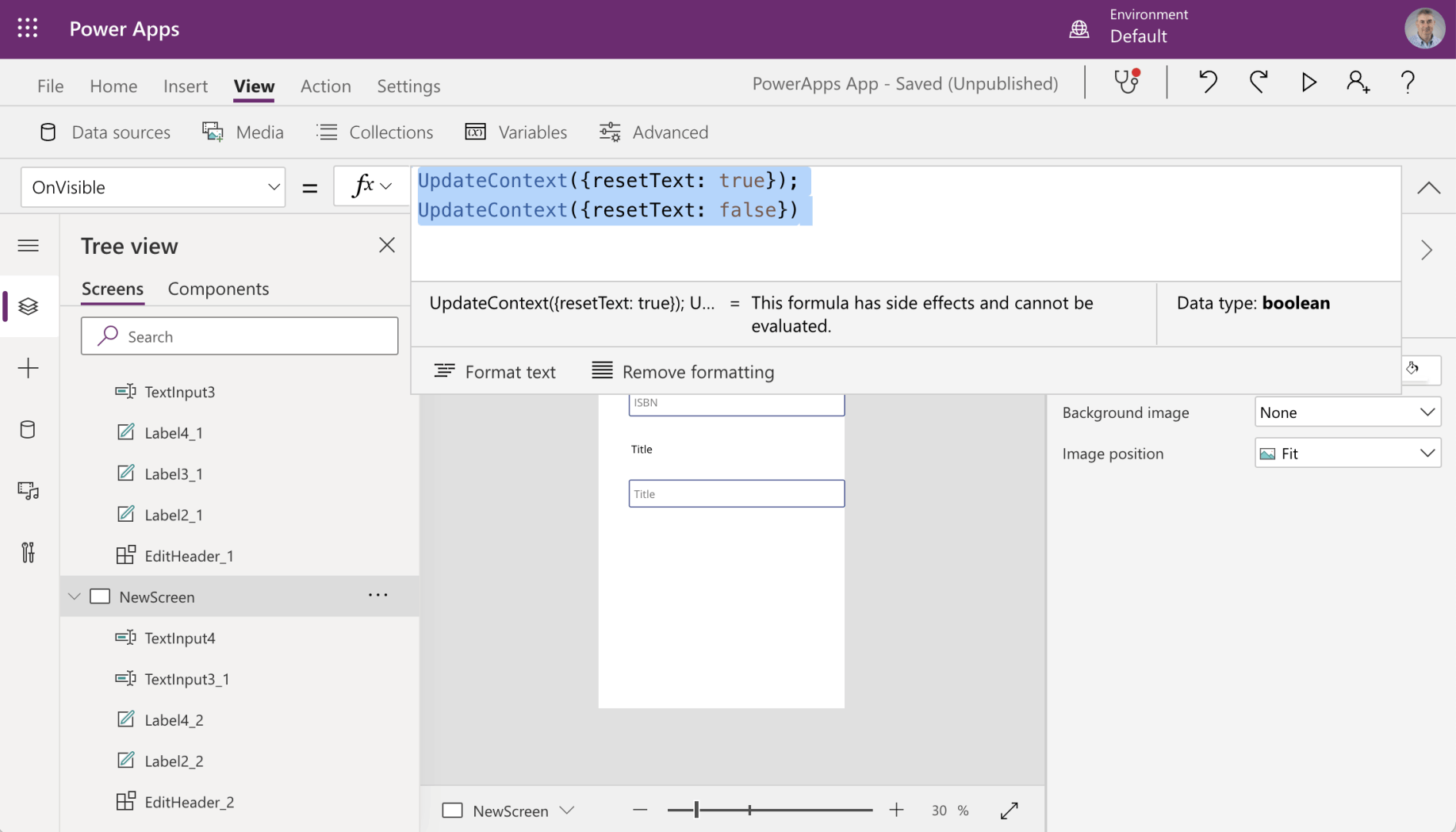
NewScreen | OnVisible = UpdateContext({resetText: true});UpdateContext({resetText: false})
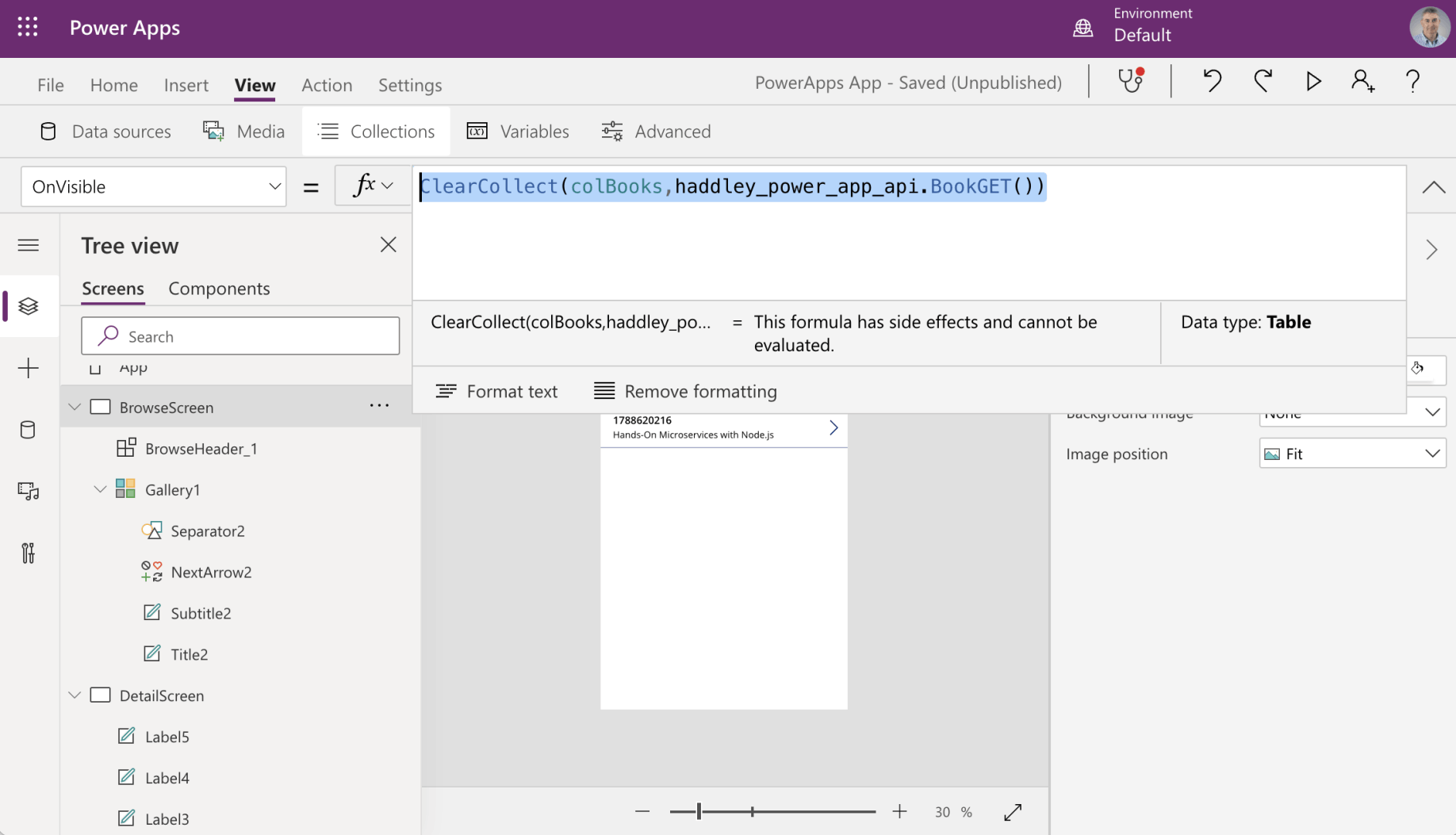
BrowseScreen | OnVisible = ClearCollect(colBooks,haddley_power_app_api.BookGET())
Summary
Here is a summary of the application screen and control settings
BrowseScreen | OnVisible = ClearCollect(colBooks,haddley_power_app_api.BookGET())
BrowseScreen | Gallery1 | Items = Sort(colBooks,title,If(varSortDescending,Descending,Ascending))
BrowseScreen | BrowseHeader_1
OnSelectRefresh = ClearCollect(colBooks,haddley_power_app_api.BookGET())
OnSelectNewItem = Navigate(NewScreen)
OnSelectSortUpDown = Set(varSortDescending,!varSortDescending)
DetailScreen | label5 | Text = Gallery1.Selected.title
DetailScreen | label3 | Text = Gallery1.Selected.id
DetailScreen | DetailHeader_1
OnSelectBack = Navigate(BrowseScreen)
OnSelectDelete = haddley_power_app_api.BookByIdDELETE(Gallery1.Selected.id);Navigate(BrowseScreen)
OnSelectEdit = Navigate(EditScreen)
EditScreen | TextInput3 | Default = Gallery1.Selected.title
EditScreen | EditHeader_1
OnSelectAccept = haddley_power_app_api.BookByIdPUT(Gallery1.Selected.id,{title:TextInput3.Text});Navigate(BrowseScreen)
OnSelectCancel = Navigate(BrowseScreen);
NewScreen | OnVisible = Reset(TextInput4);Reset(TextInput3_1);
UpdateContext({resetText: true});UpdateContext({resetText: false})
New Screen | OnVisible = UpdateContext({resettext: !resettext});UpdateContext({resettext: !resettext})
New Screen | TextInput4 | Default = ""
New Screen | TextInput4 | Reset = resettext
New Screen | TextInput3_1 | Default = ""
New Screen | TextInput3_1 | Reset = resettext
NewScreen | EditHeader_2
OnSelectAccept = haddley_power_app_api.BookPOST({id:TextInput4.Text,title:TextInput3_1.Text});Navigate(BrowseScreen)
OnSelectCancel = Navigate(BrowseScreen);
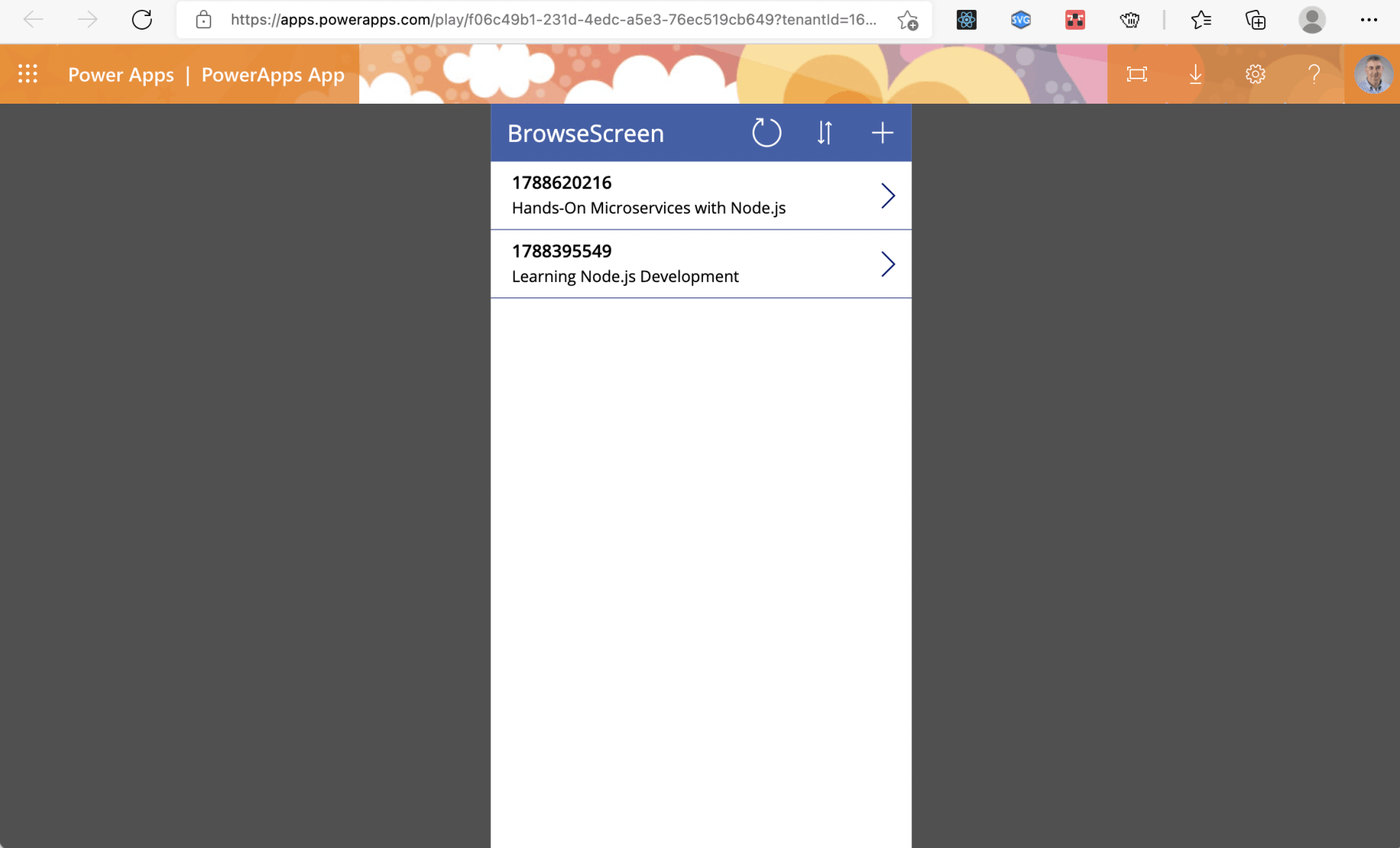
Two items returned by API
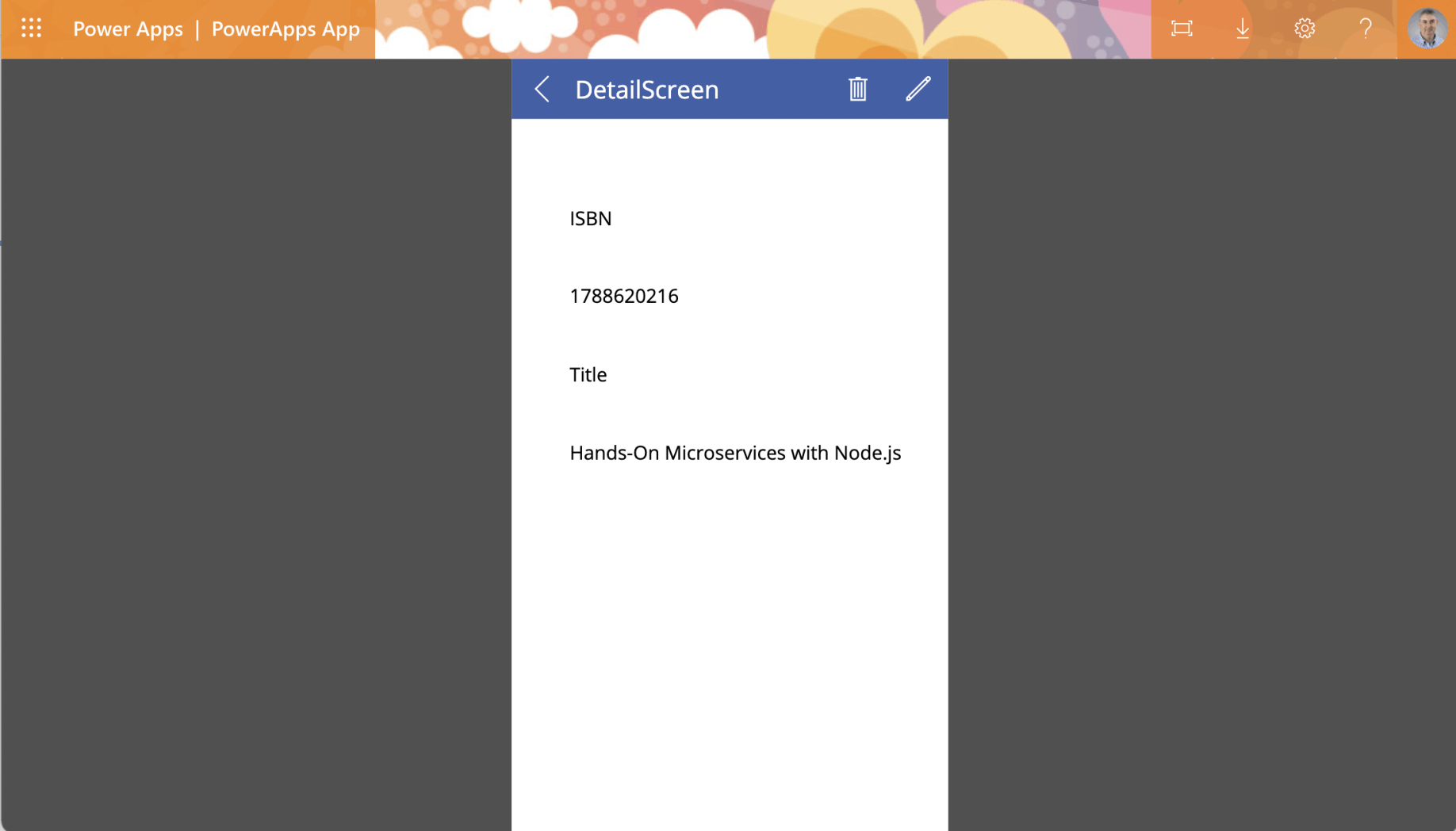
Details of the first item. I clicked the Delete button.
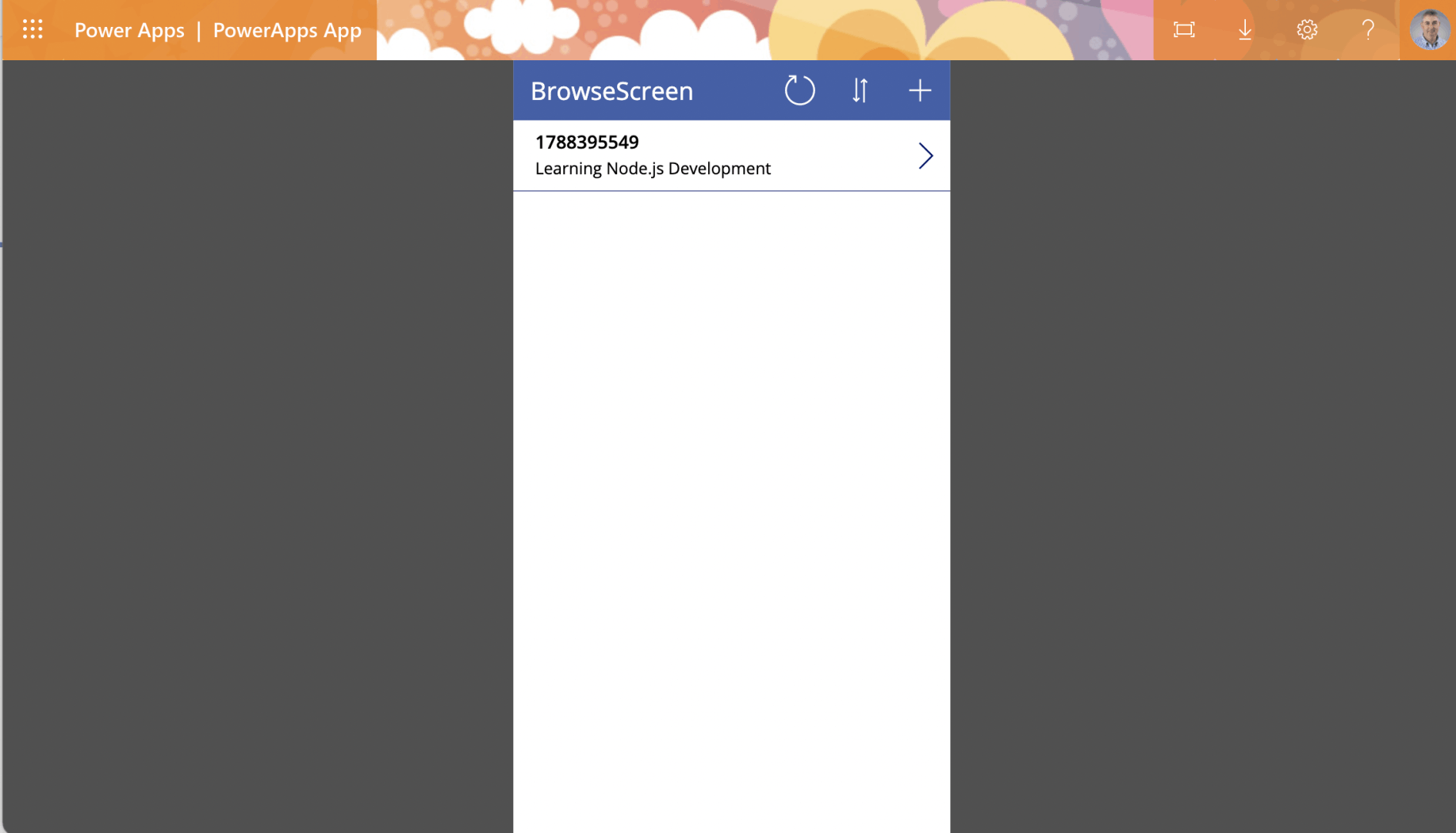
Only second item remains
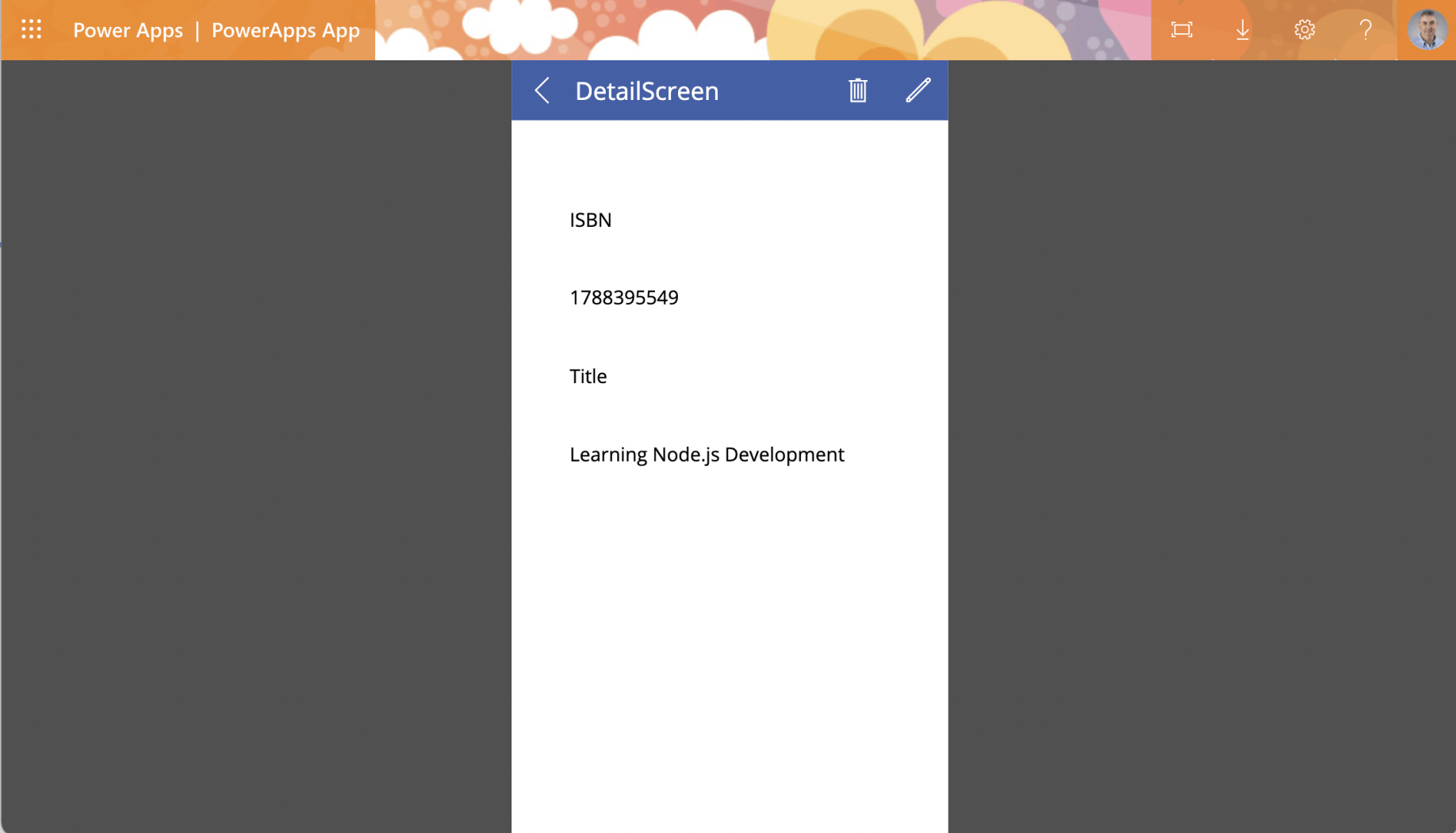
Details of second item
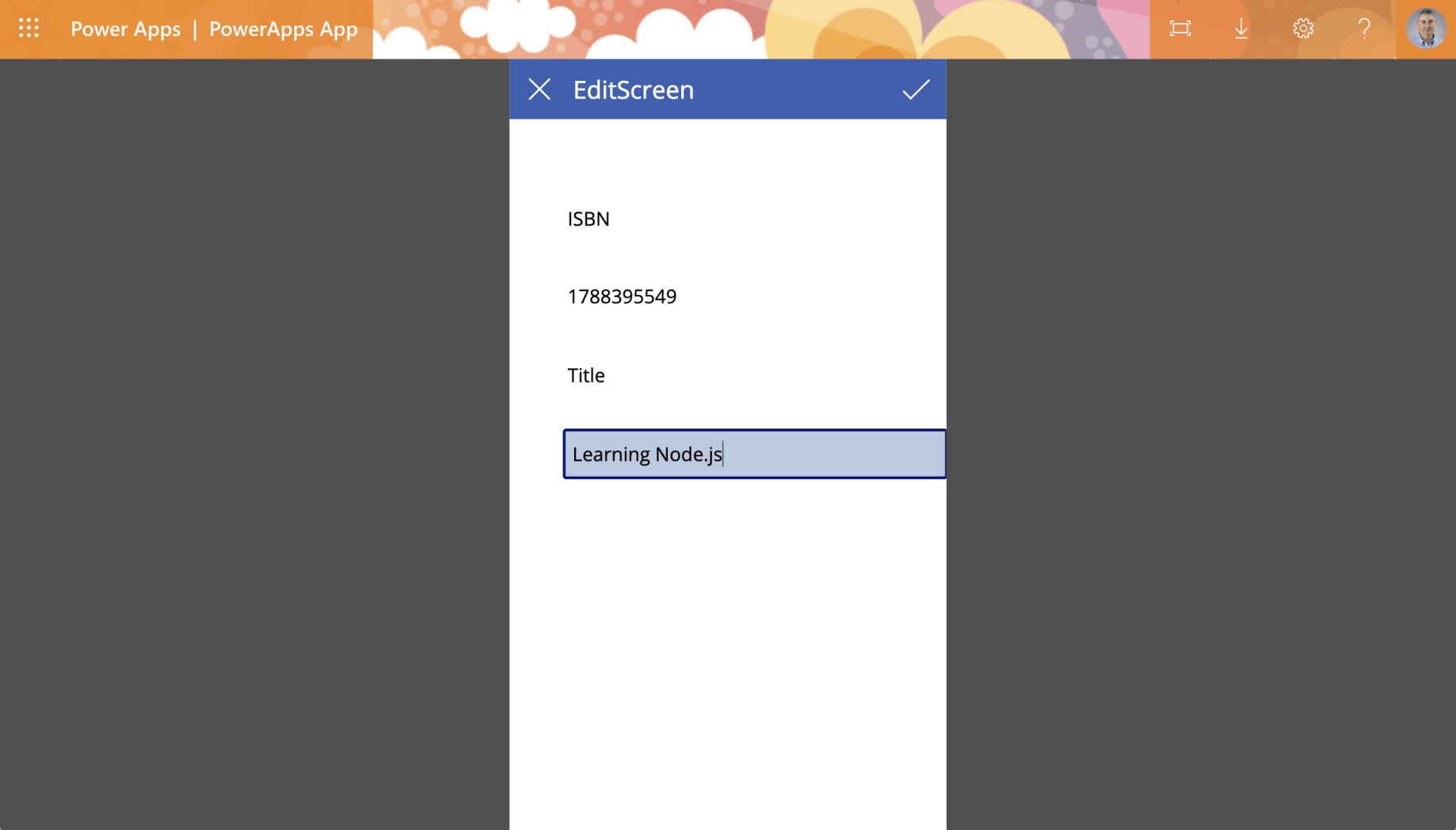
Editing second item's title
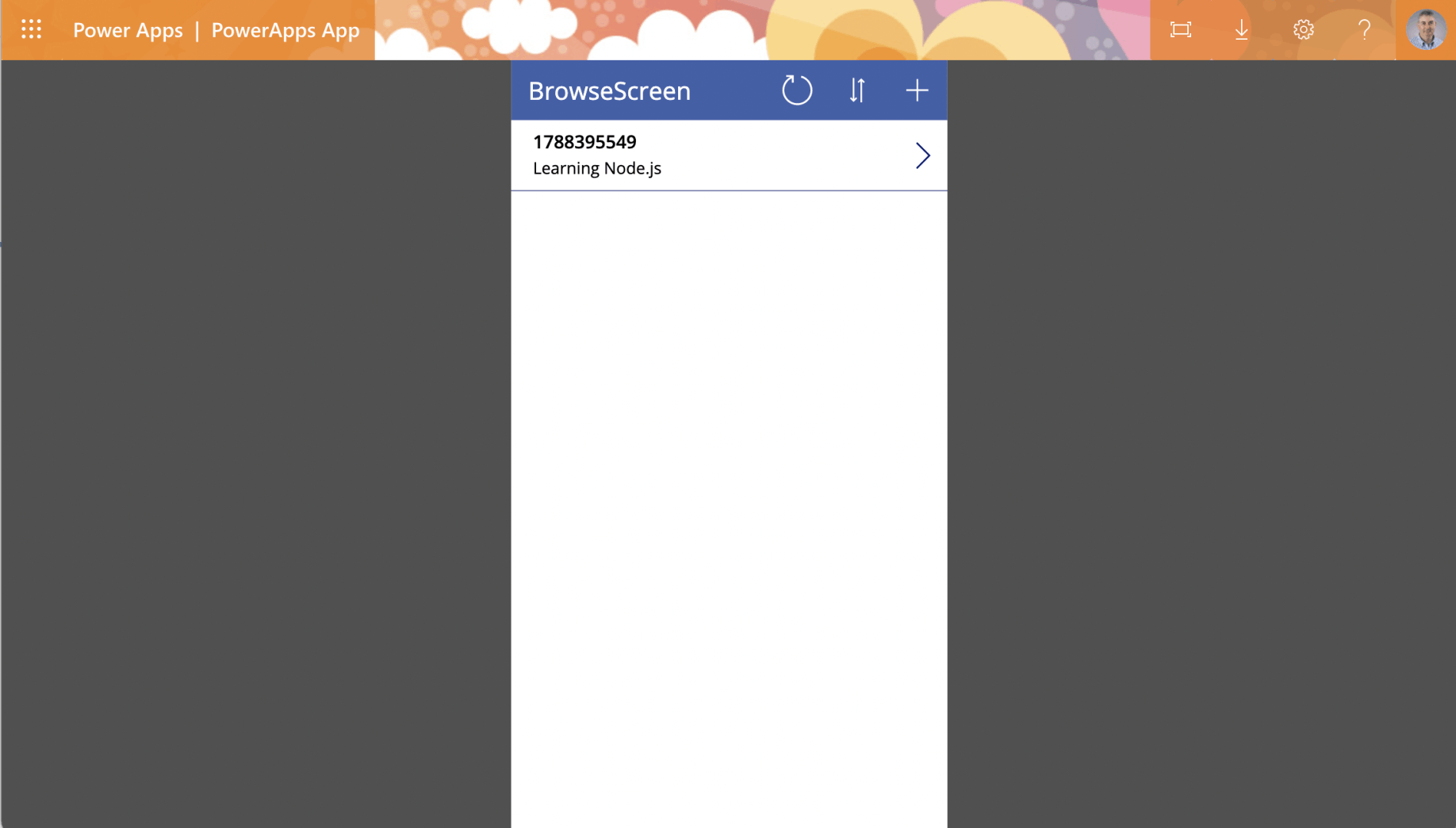
The second item's title updated
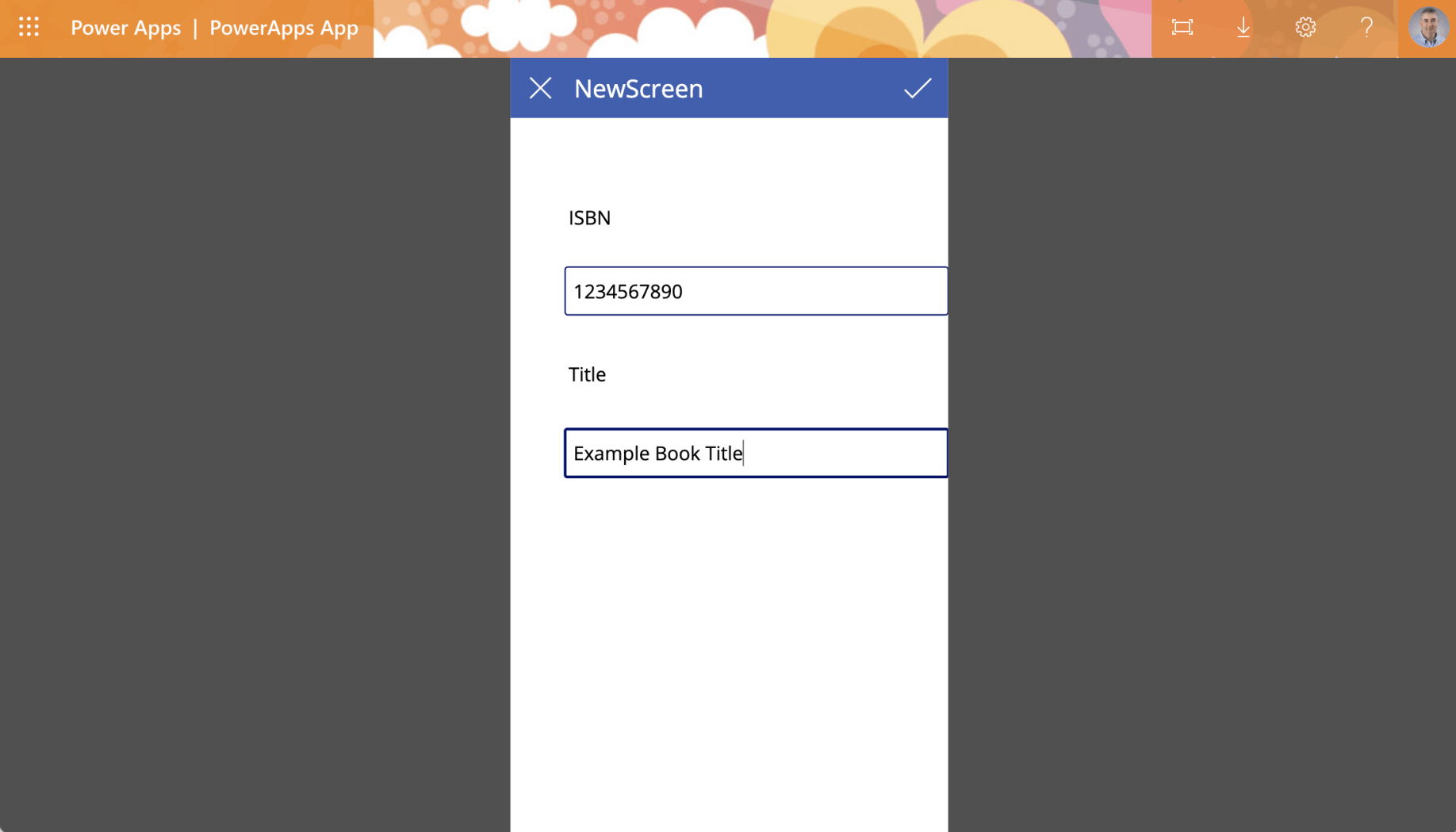
I added a new item
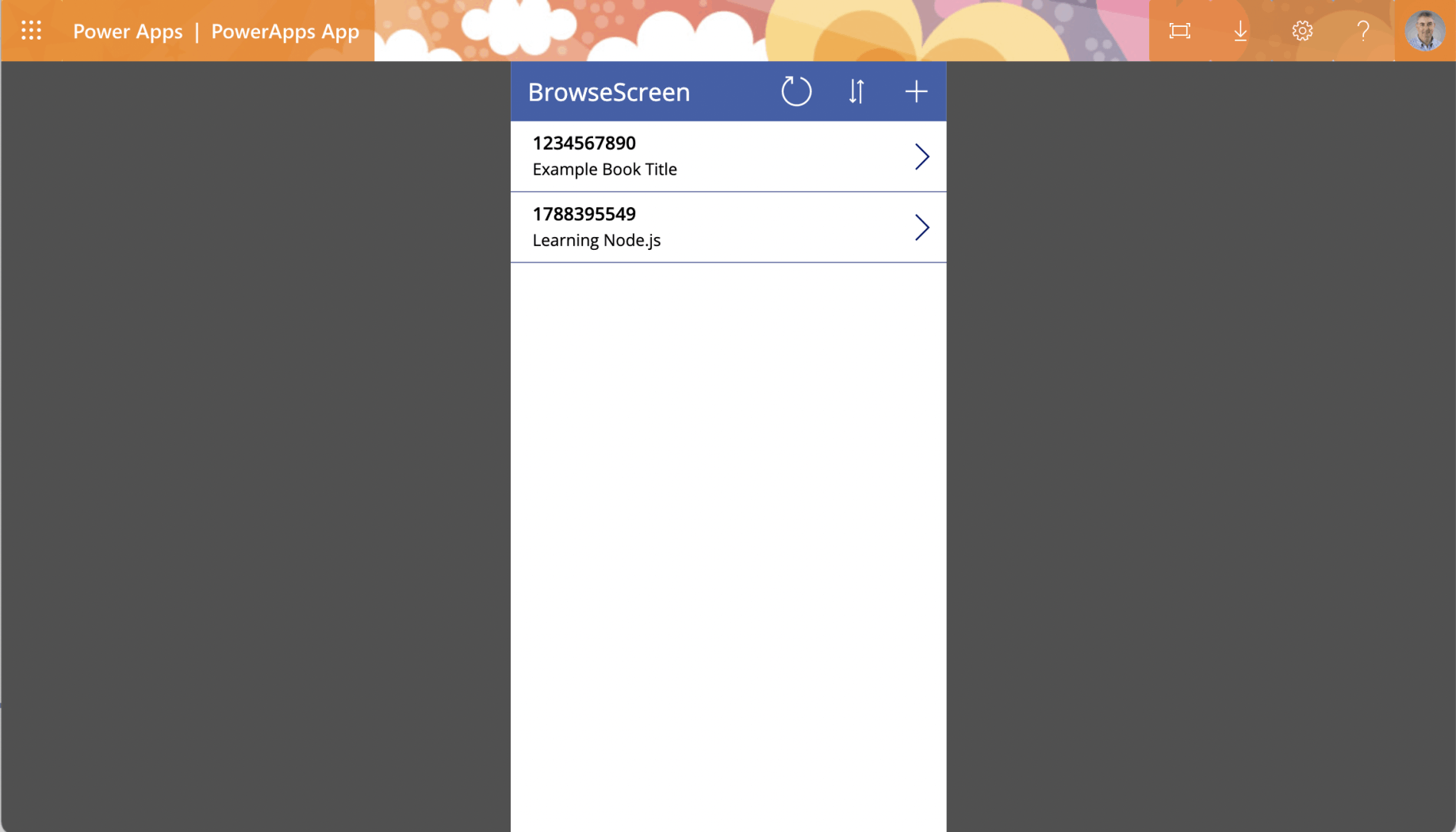
New item added
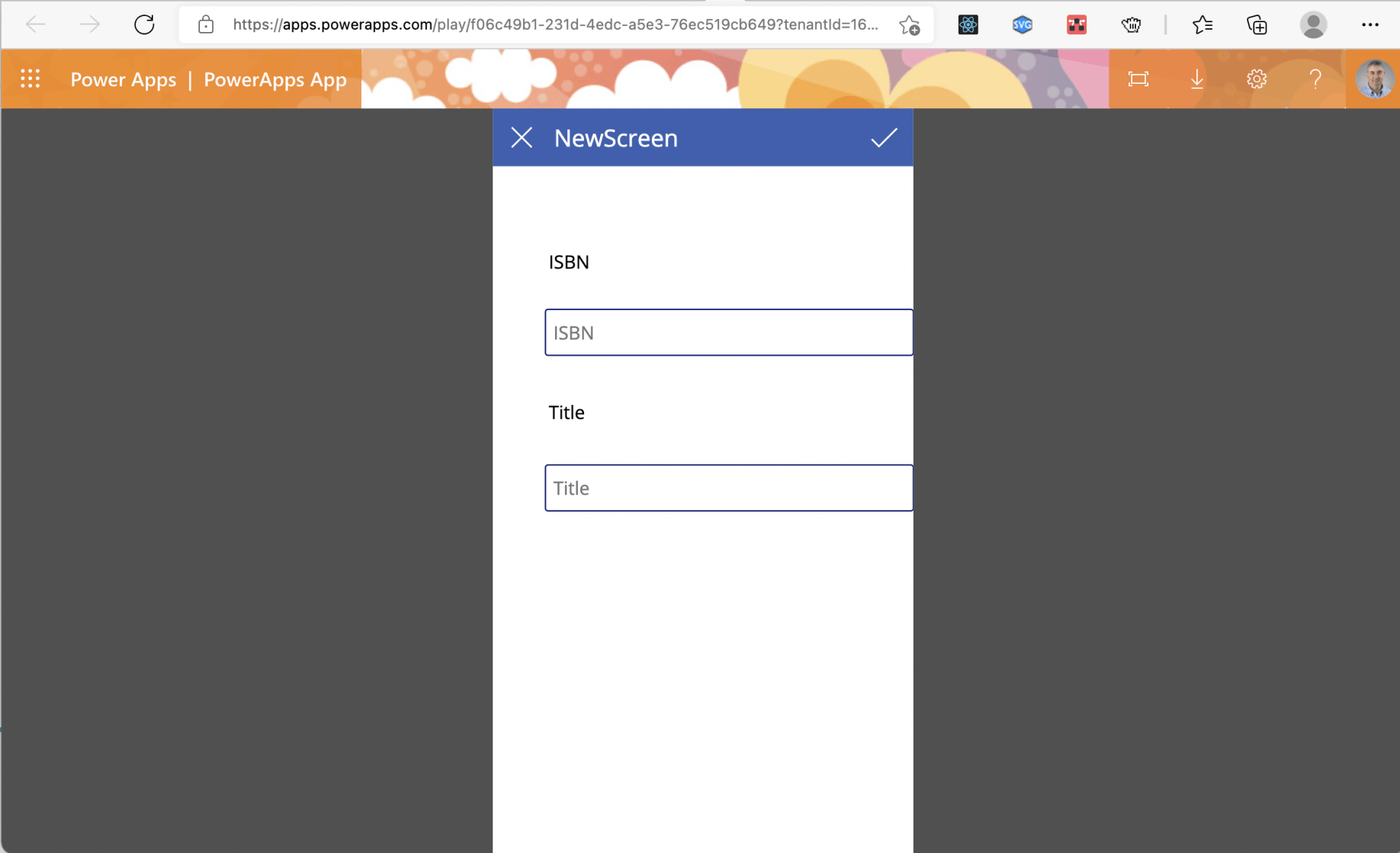
Text values reset