I used Python to output text and simple graphics to an OLED display connected to a Raspberry Pi.
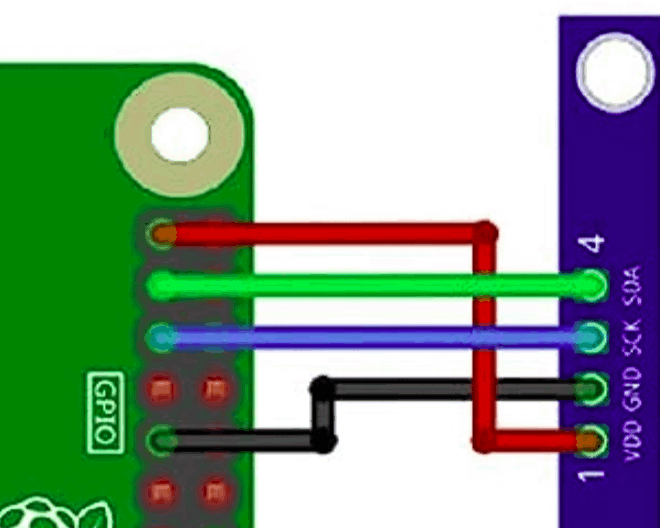
OLED wiring
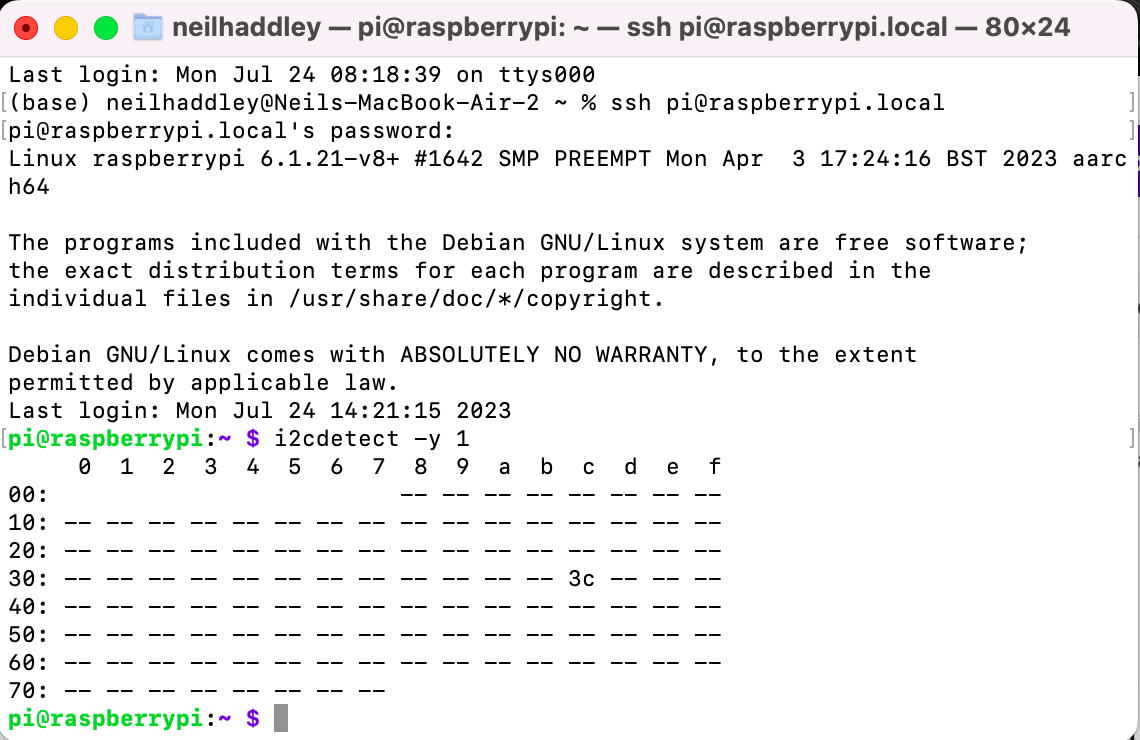
i2cdetect -y 1
Luma-OLED Driver
I installed the Luma-OLED driver by following these instructions:
https://luma-oled.readthedocs.io/en/latest/install.html
I installed the driver with this command
$ sudo -H pip3 install --upgrade luma.oled
I enabled I2C communications using the raspi-config application
$ sudo raspi-config
Interface Options | I2C | enable ARM I2C
i2c permissions
I followed the steps described by Alexander Rüedlinger to allow non-root users to access i2c devices (specifically the OLED display).
1) Create new user group called i2c:
$ sudo groupadd i2c
2) Change the group ownership of /dev/i2c-1 to i2c:
$ sudo chown :i2c /dev/i2c-1
3) Change the file permissions of the device /dev/i2c-1 so users of the i2c group can read and write to the device:
$ sudo chmod g+rw /dev/i2c-1
4) Add your user to the group i2c:
$ sudo usermod -aG i2c <username>
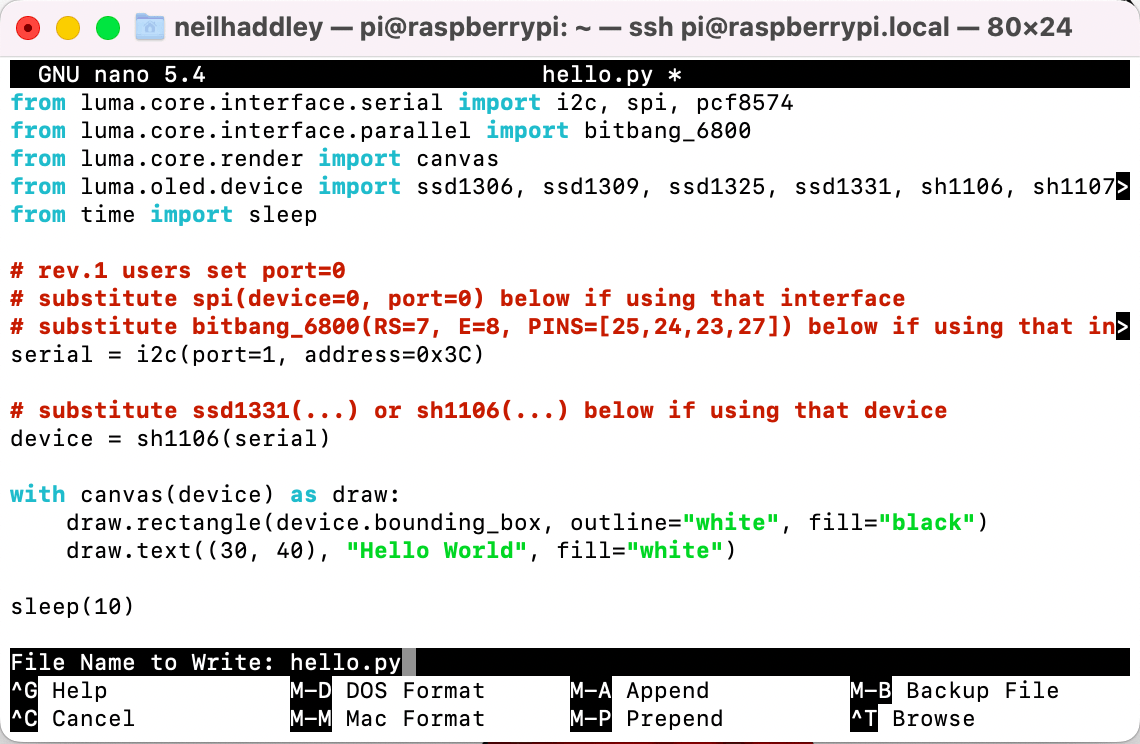
Python code
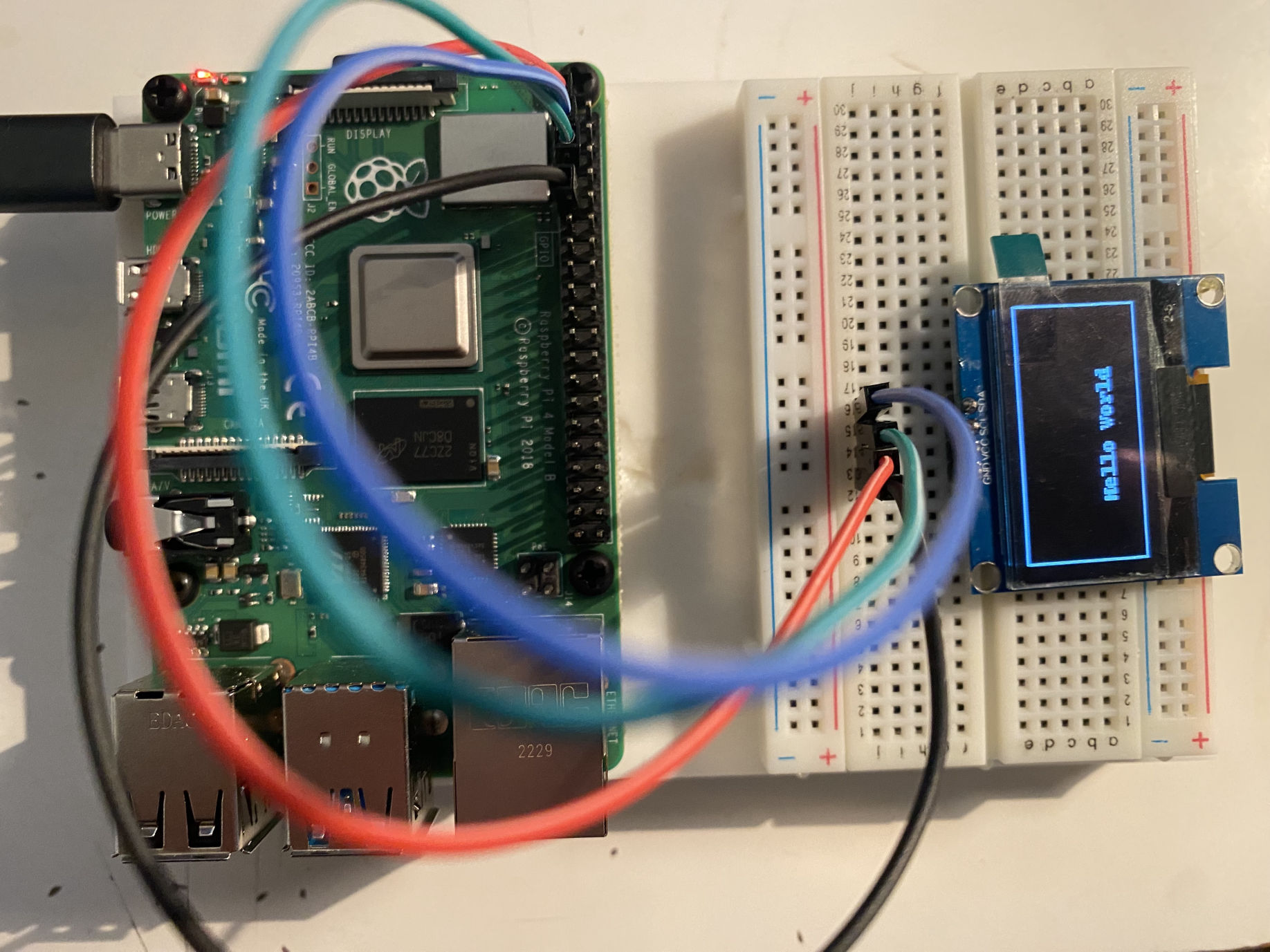
The hello.py code running on configured hardware
Displaying an image on the OLED display
I downloaded a stop sign image and updated the hello.py code to display the image on the OLED display.
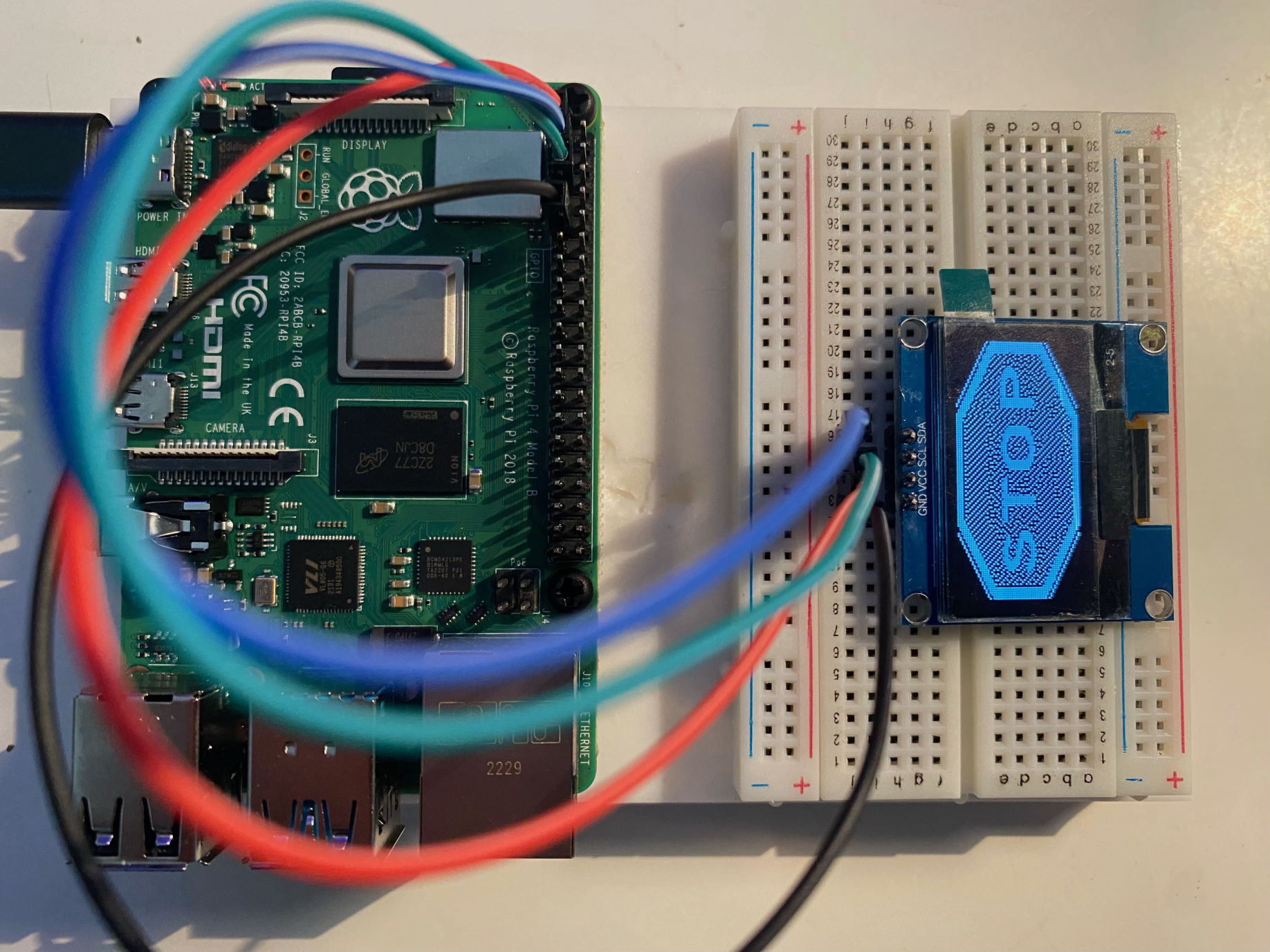
Stop sign
Using OpenCV and luma.oled to display video on the OLED display
I used the cv2 library (OpenCV) to read frames from a dog video I downloaded from:
https://pixabay.com/videos/puppy-dog-playful-beach-sand-play-4740/
I then updated the code to send images captured by the webcam to the OLED display.
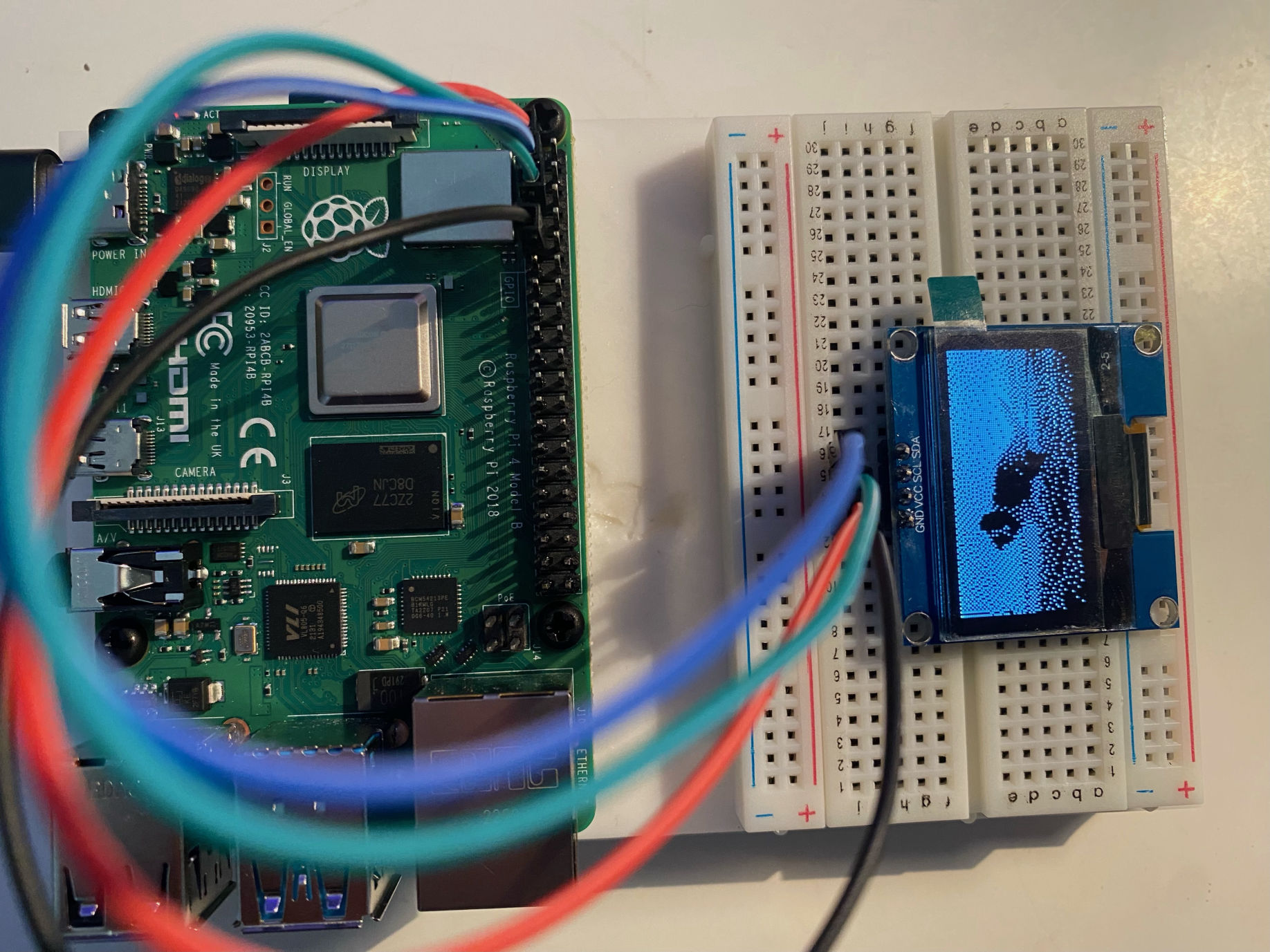
Dog video
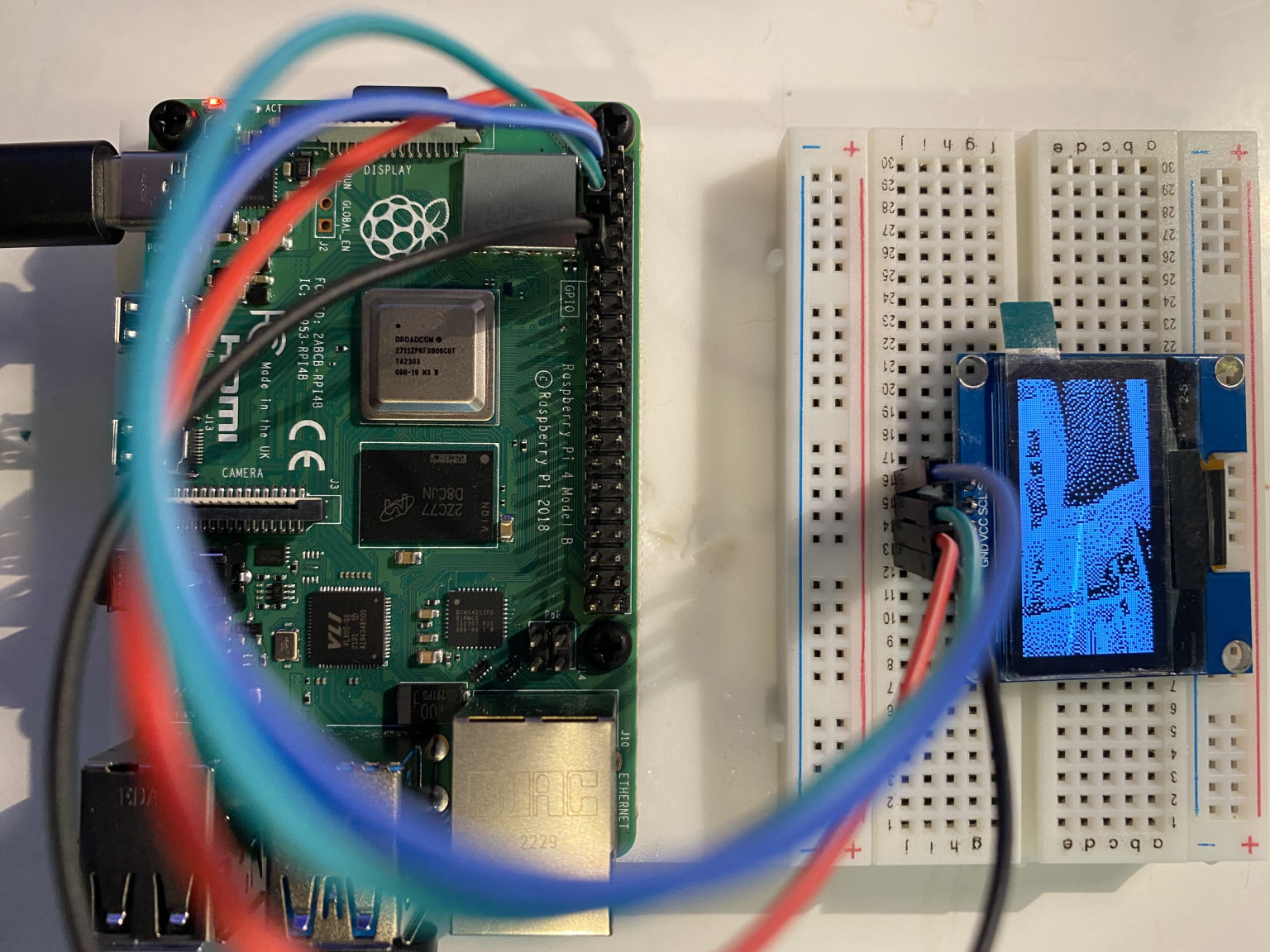
Webcam
hello.py
PYTHON
1from luma.core.interface.serial import i2c, spi, pcf8574
2from luma.core.interface.parallel import bitbang_6800
3from luma.core.render import canvas
4from luma.oled.device import ssd1306, ssd1309, ssd1325, ssd1331, sh1106, sh1107, ws0010
5from time import sleep
6
7# rev.1 users set port=0
8# substitute spi(device=0, port=0) below if using that interface
9# substitute bitbang_6800(RS=7, E=8, PINS=[25,24,23,27]) below if using that interface
10serial = i2c(port=1, address=0x3C)
11
12# substitute ssd1331(...) or sh1106(...) below if using that device
13device = sh1106(serial)
14
15with canvas(device) as draw:
16    draw.rectangle(device.bounding_box, outline="white", fill="black")
17    draw.text((30, 40), "Hello World", fill="white")
18
19sleep(10)
stop_sign_display.py
PYTHON
1from luma.core.interface.serial import i2c, spi, pcf8574
2from luma.core.interface.parallel import bitbang_6800
3from luma.core.render import canvas
4from luma.oled.device import ssd1306, ssd1309, ssd1325, ssd1331, sh1106, sh1107
5from time import sleep
6
7from PIL import Image
8
9serial = i2c(port=1, address=0x3C)
10device = sh1106(serial)
11
12width =  device.width
13height = device.height
14
15image = Image.open("stop.png")
16
17image_r = image.resize((width,height), Image.LANCZOS)
18# Image.BICUBIC is another option
19image_bw = image_r.convert("1")
20
21device.display(image_bw)
22
23sleep(10)
dog_display_window_and_oled.py
PYTHON
1from luma.core.interface.serial import i2c, spi, pcf8574
2from luma.core.interface.parallel import bitbang_6800
3from luma.core.render import canvas
4from luma.oled.device import ssd1306, ssd1309, ssd1325, ssd1331, sh1106, sh1107
5
6from time import sleep
7
8import cv2
9
10# OpenCV follows BGR color convention and PIL follows RGB color convention
11
12# Python Imaging Library
13from PIL import Image
14
15serial = i2c(port=1, address=0x3C)
16device = sh1106(serial)
17
18width =  device.width
19height = device.height
20
21cap = cv2.VideoCapture("dog.mp4")
22while True:
23    ret, frame = cap.read()
24    if not ret:
25        break
26    cv2.imshow("Img", frame)
27
28    color_coverted = cv2.cvtColor(frame, cv2.COLOR_BGR2RGB)
29    pil_image = Image.fromarray(color_coverted)
30    image_r = pil_image.resize((width,height), Image.LANCZOS)
31    # Image.BICUBIC is another option
32    image_bw = image_r.convert("1")
33
34    device.display(image_bw)
35
36    key = cv2.waitKey(1)
37    if key == 27:
38        break
39
40cap.release()
41cv2.destroyAllWindows()
webcam_display_window_and_oled.py
PYTHON
1...
2cap = cv2.VideoCapture(0)
3...