ShareGate (Part 1)
Neil Haddley • April 30, 2026
Installation and tenant connection
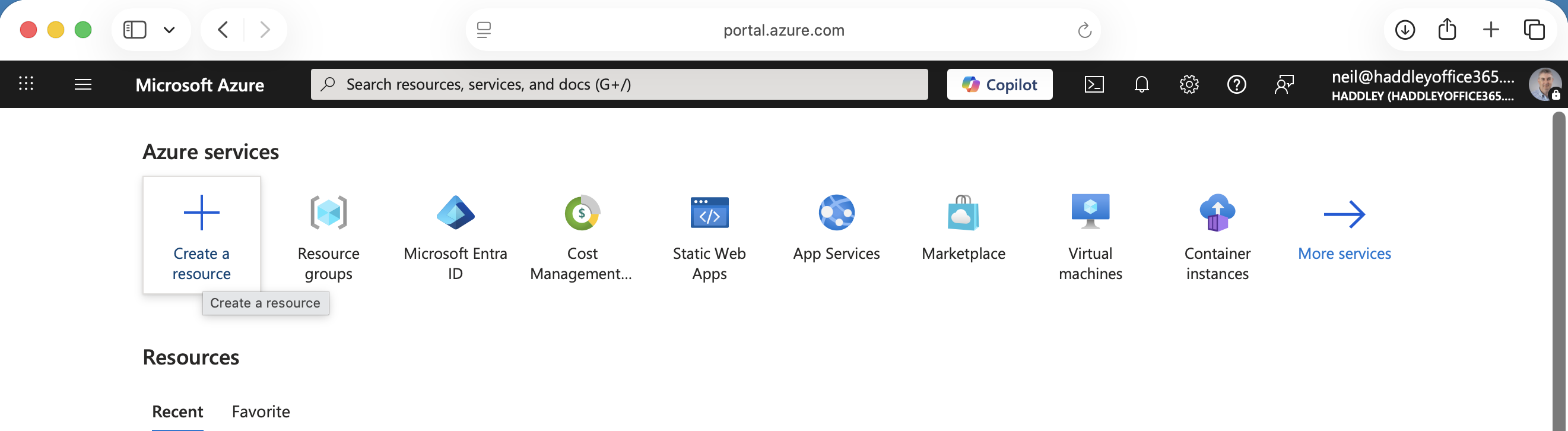
I opened the Azure portal and clicked Create a resource
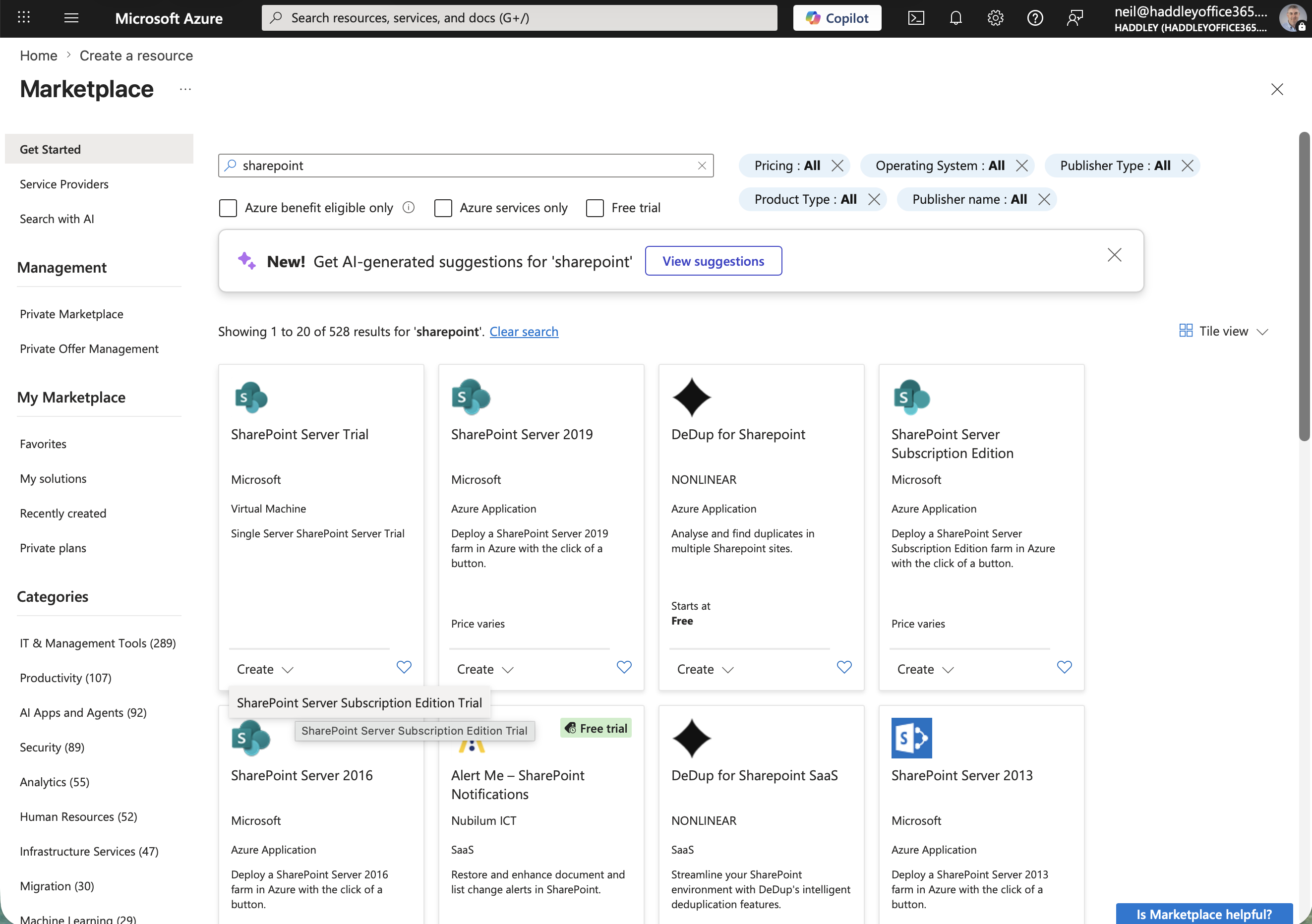
I searched for "sharepoint" in the Marketplace and found several SharePoint Server options
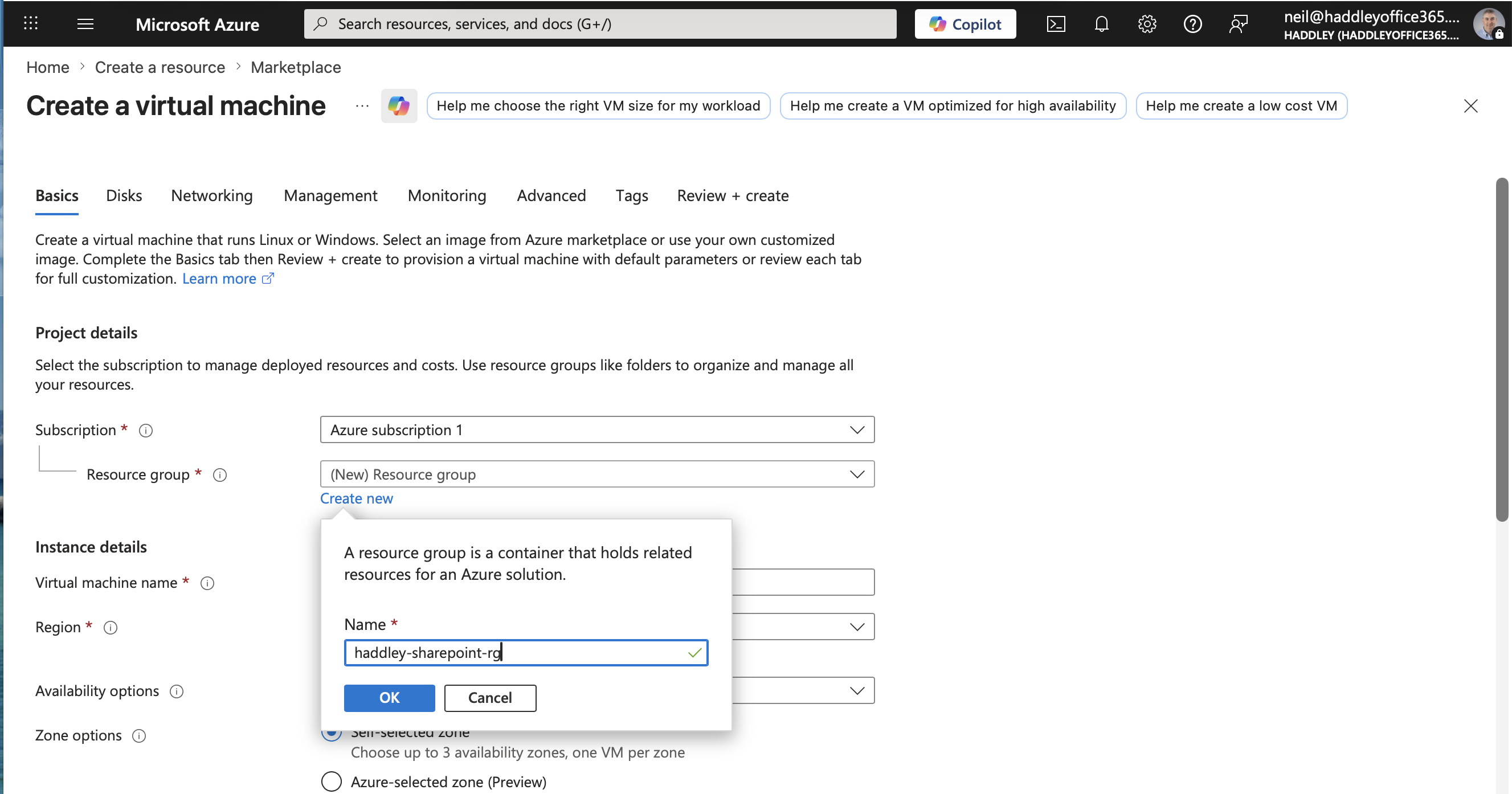
I started creating a virtual machine and entered a new resource group name "haddley-sharepoint-rg"
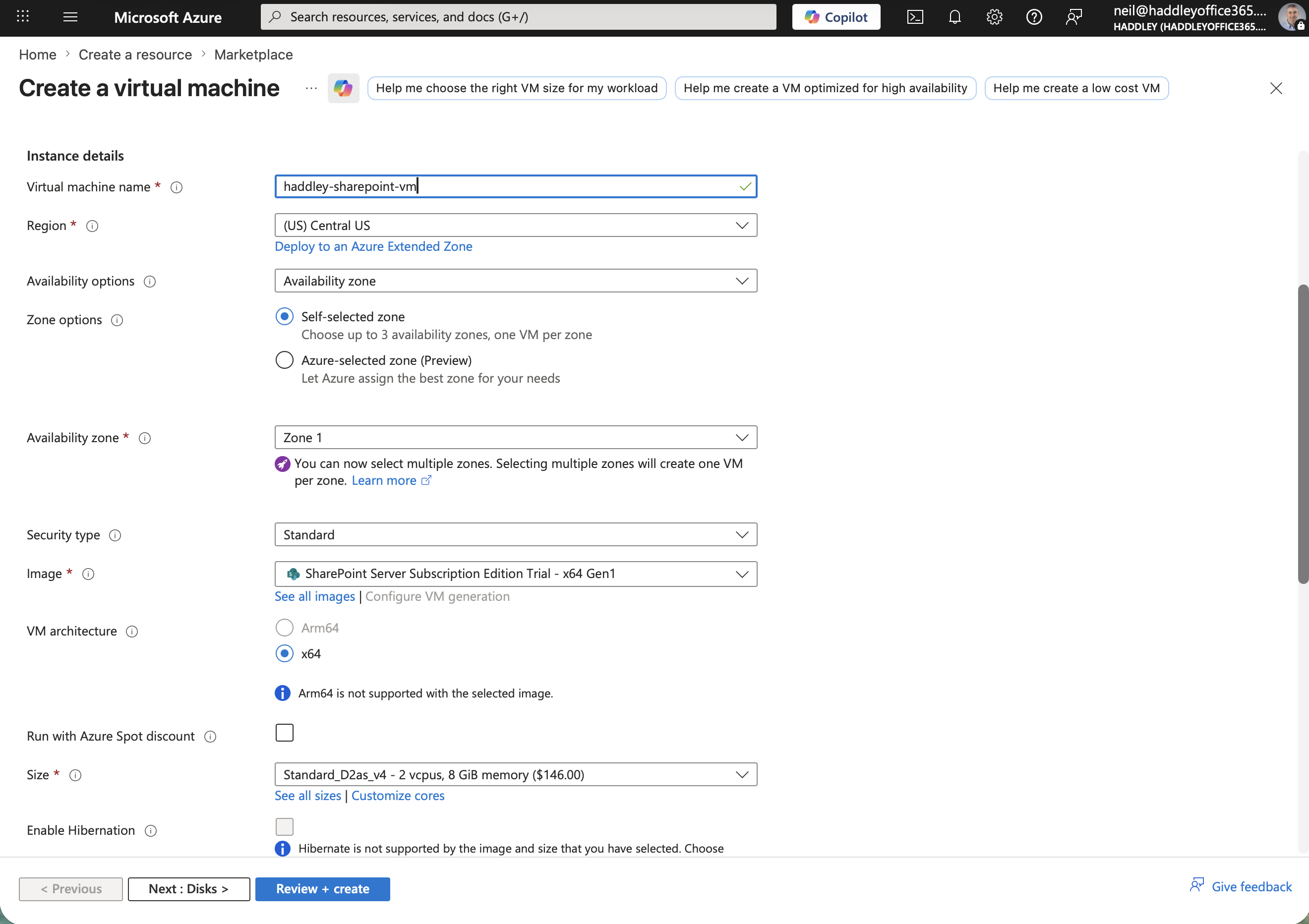
I named the VM "haddley-sharepoint-vm" and selected the SharePoint Server Subscription Edition Trial image
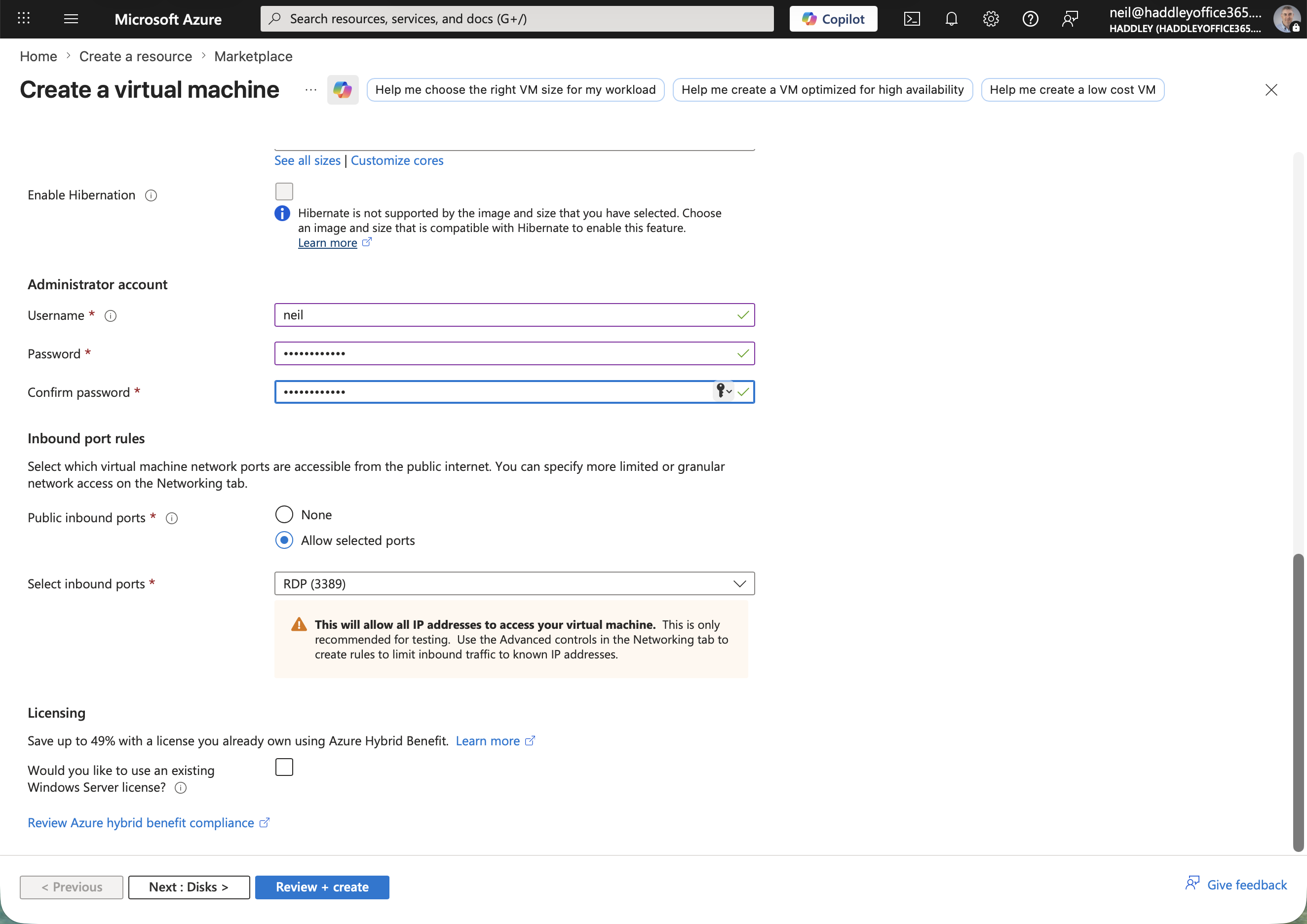
I set the administrator username to "neil", configured a password, and allowed RDP on port 3389
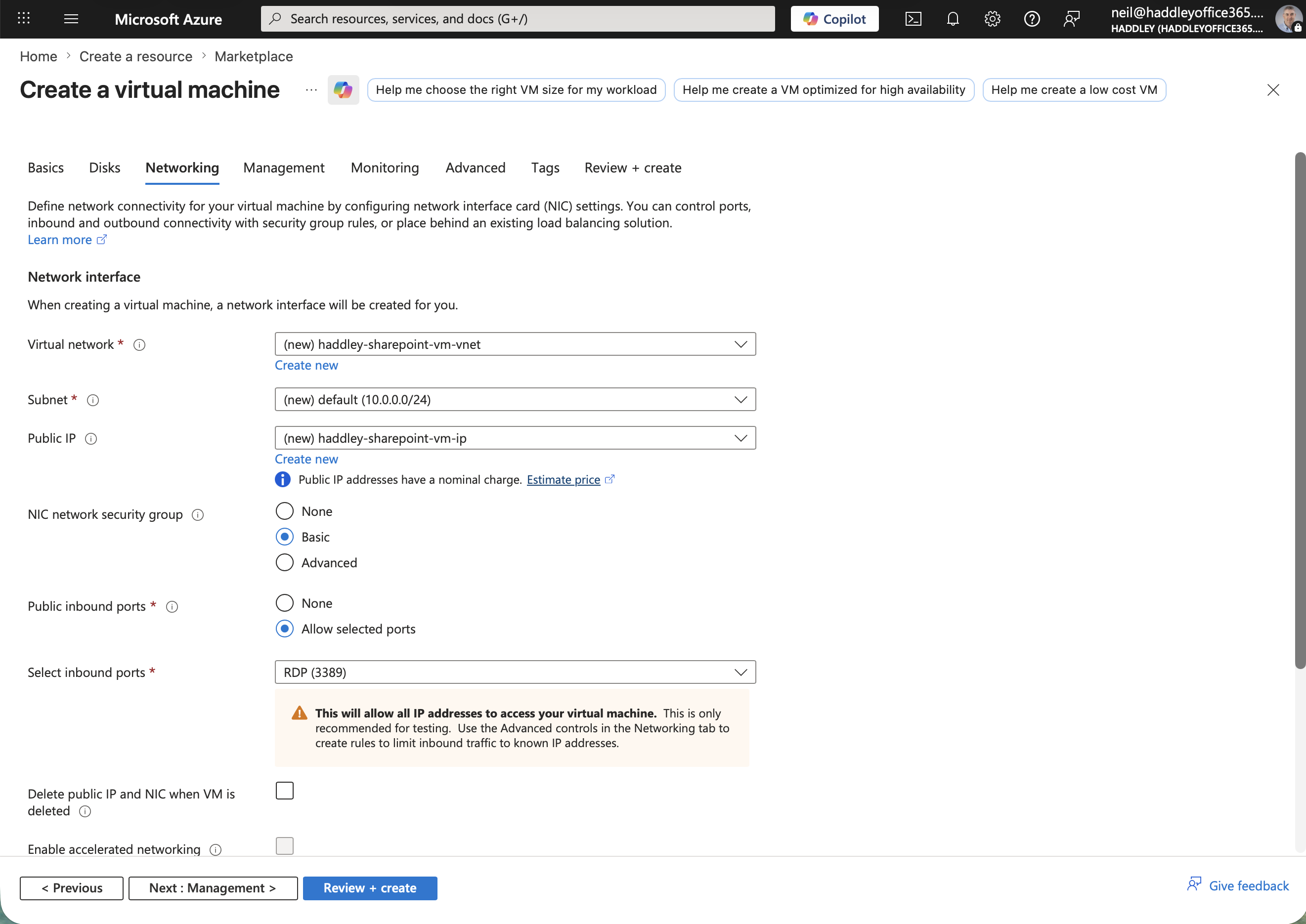
I reviewed the Networking tab and left the default virtual network and subnet settings
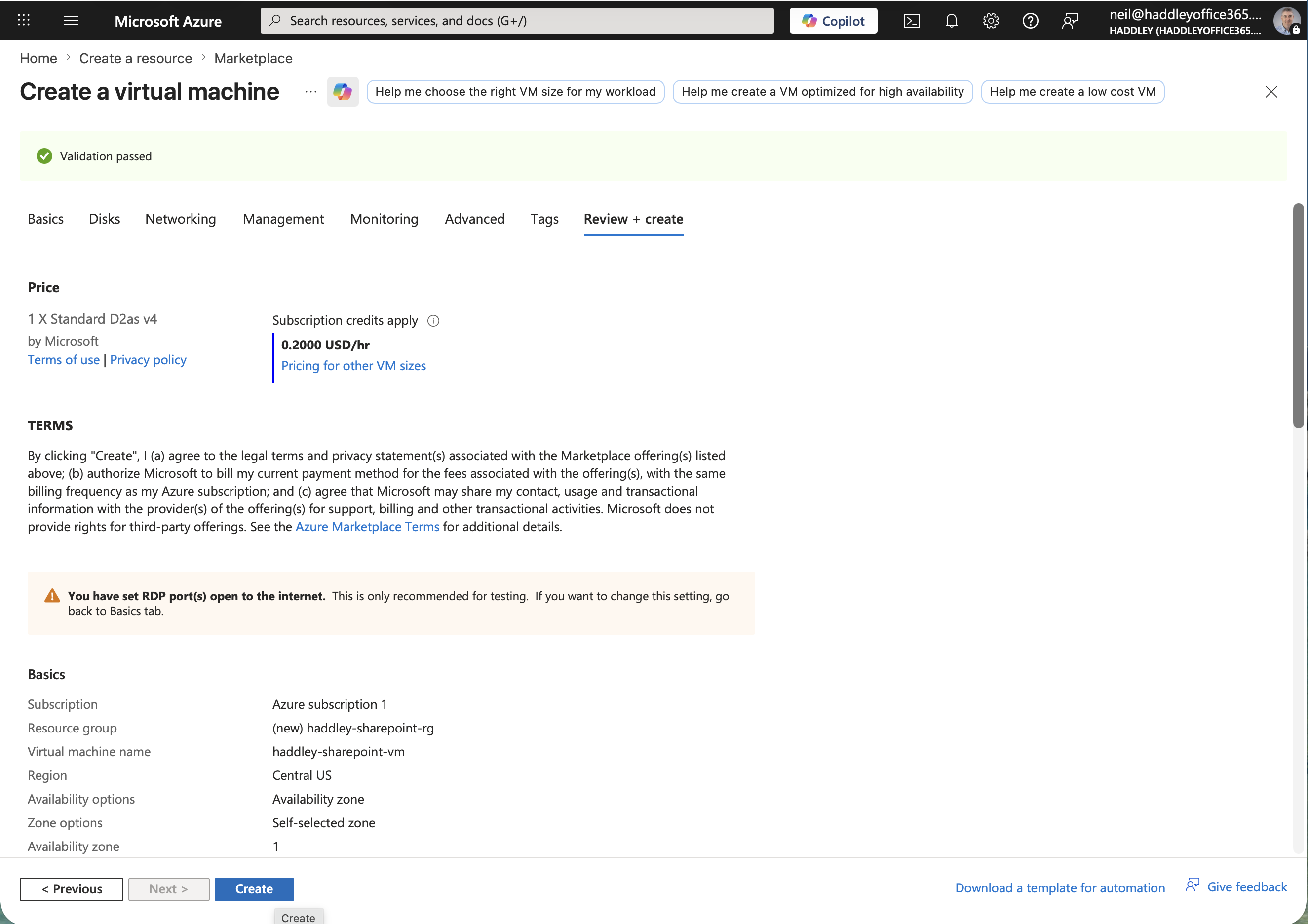
Validation passed — the VM would cost $0.2000 USD/hr, and I clicked Create
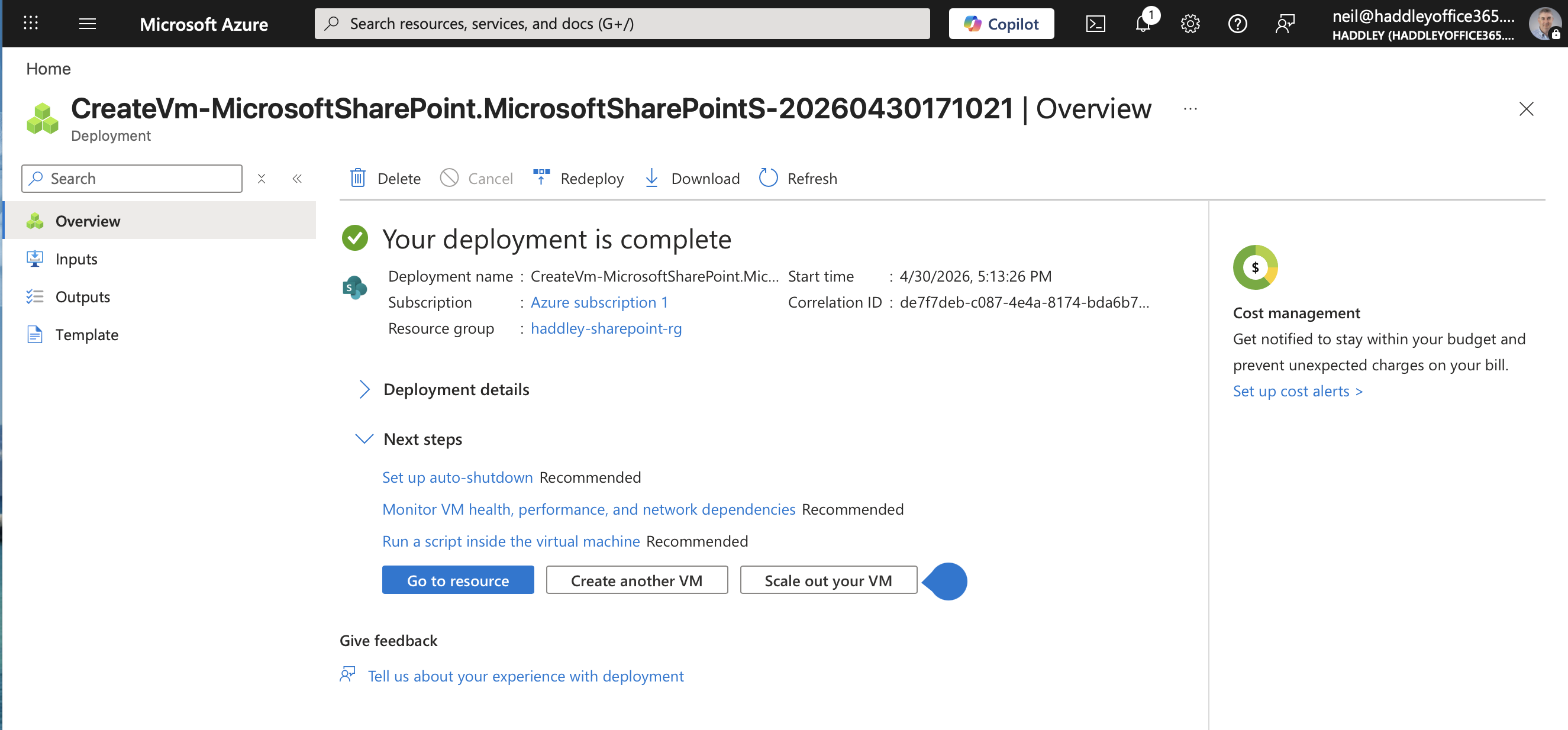
The deployment completed successfully
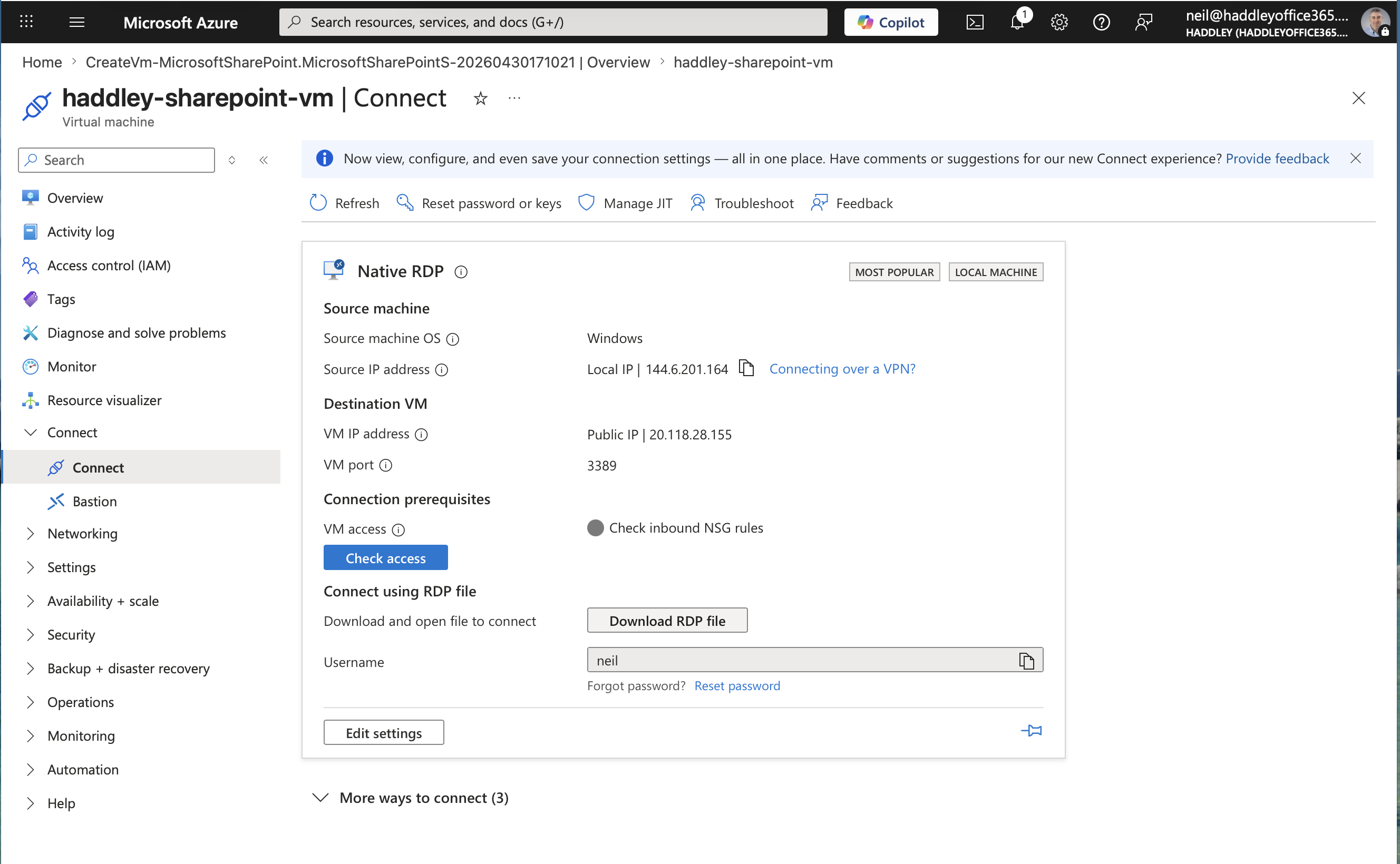
I navigated to Connect on the VM and downloaded the RDP file
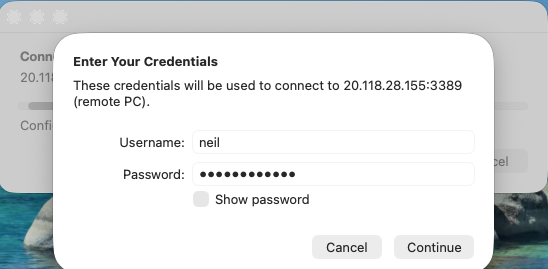
macOS prompted me to enter credentials to connect to the VM via RDP
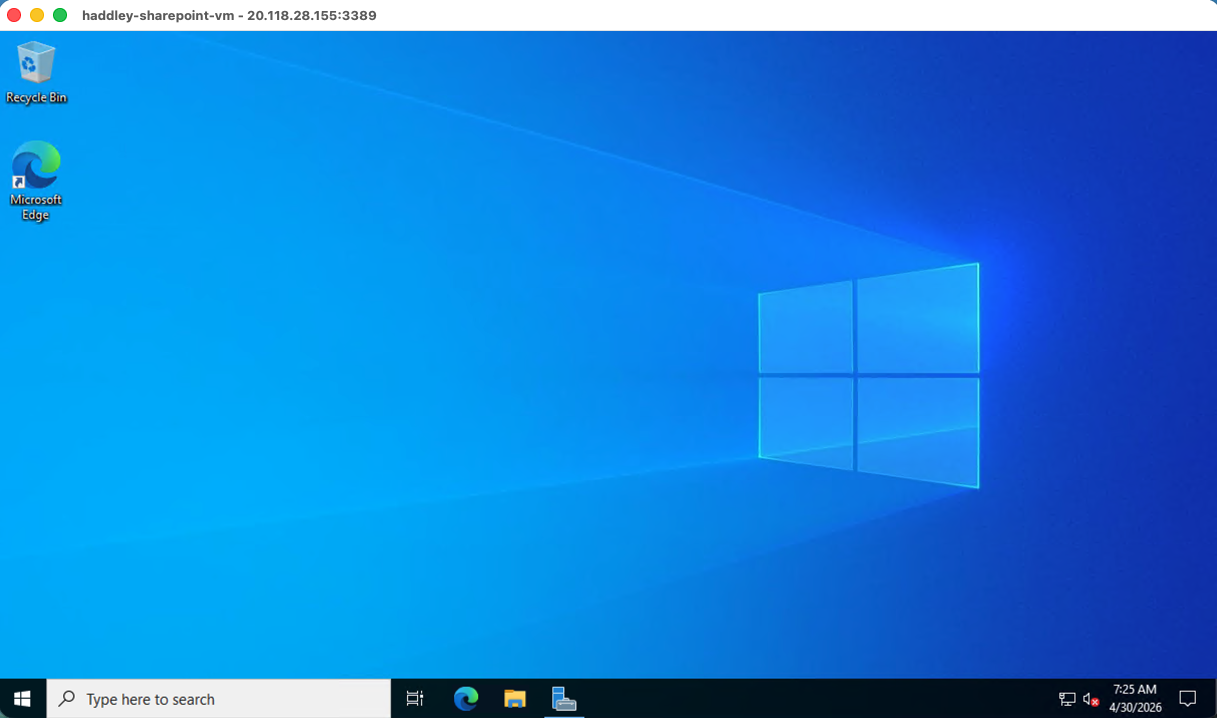
I was connected to the Windows Server desktop inside the VM
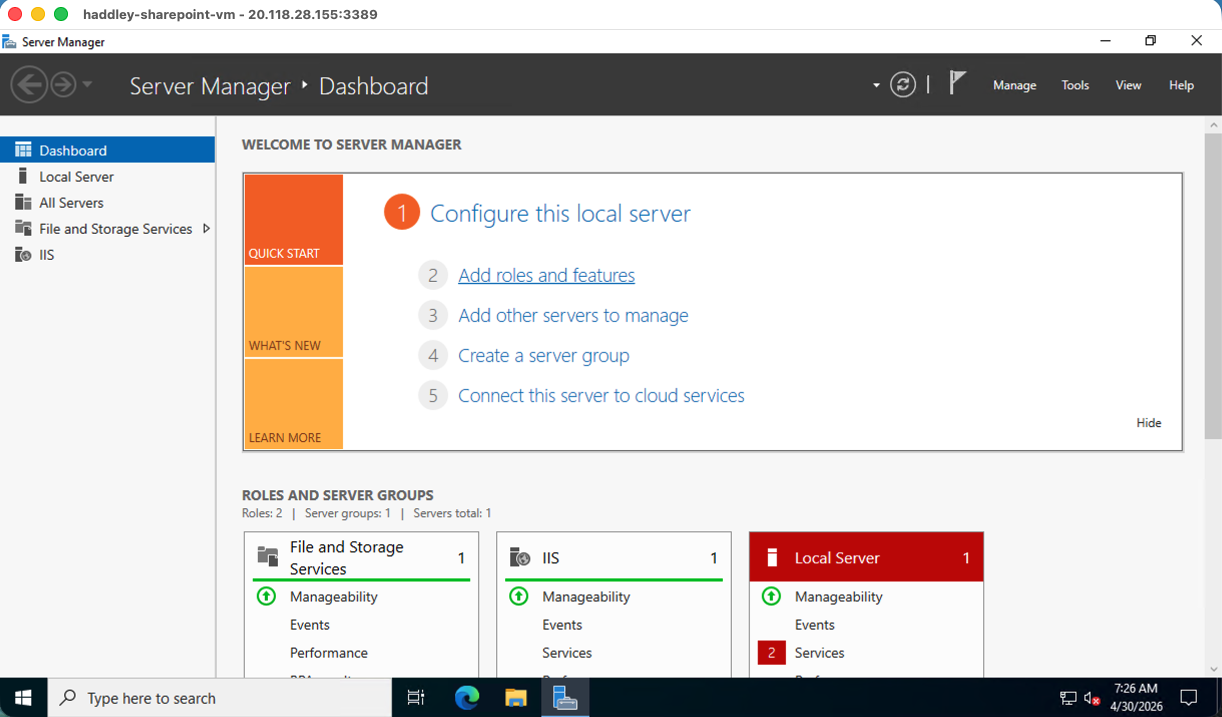
Server Manager Dashboard was open, ready for configuration
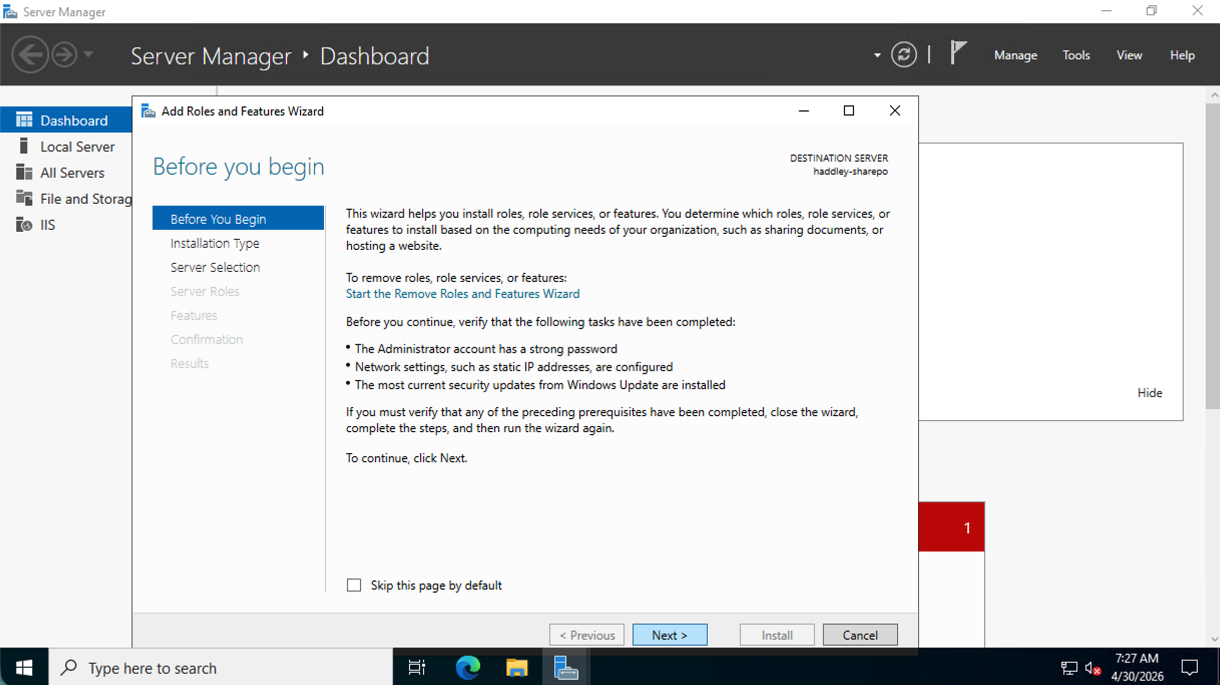
I opened the Add Roles and Features Wizard and clicked past the Before You Begin page
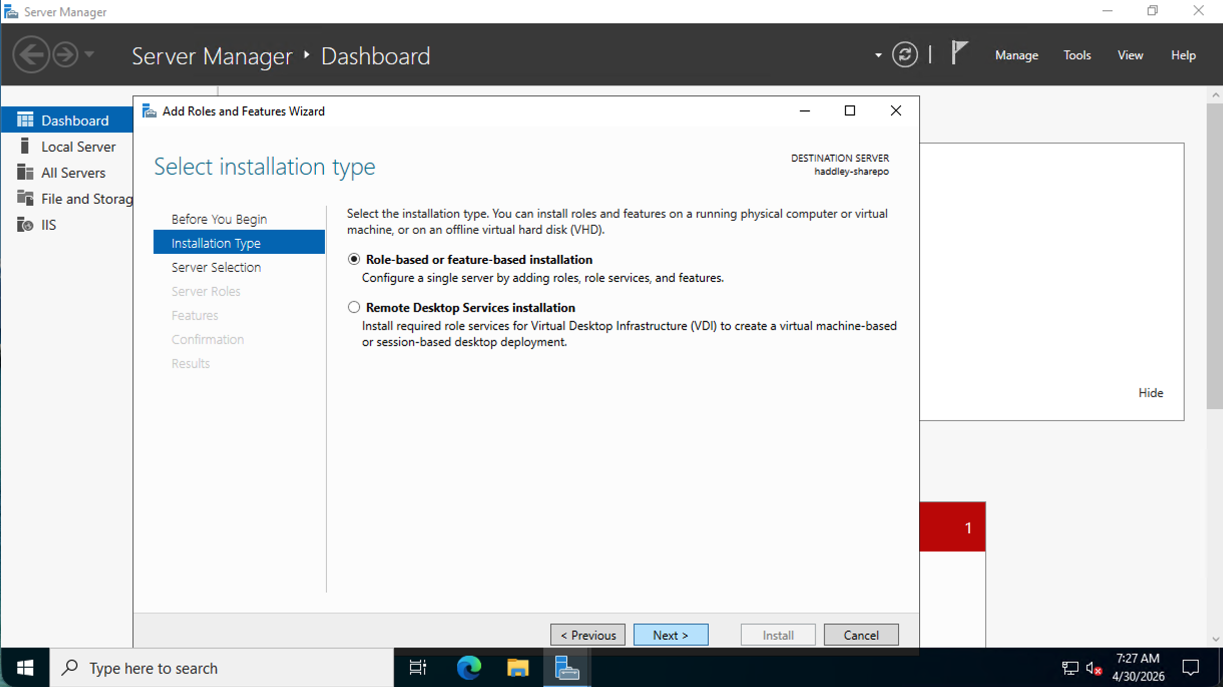
I selected Role-based or feature-based installation
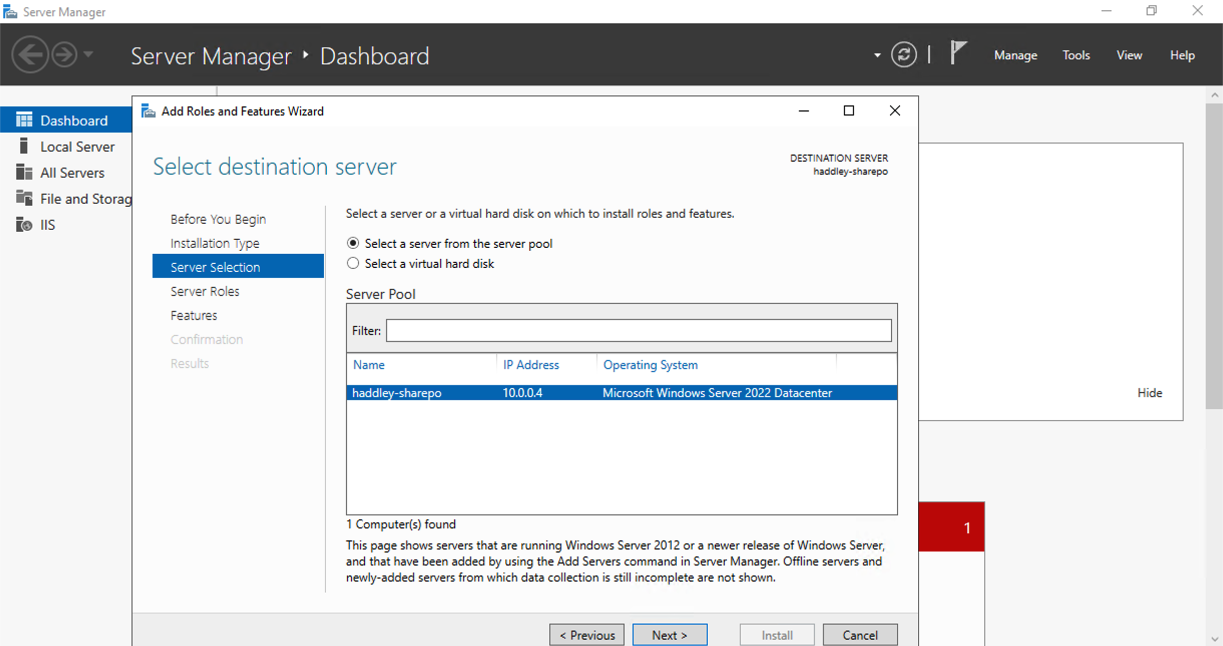
The wizard detected the haddley-sharepo server in the pool and I selected it
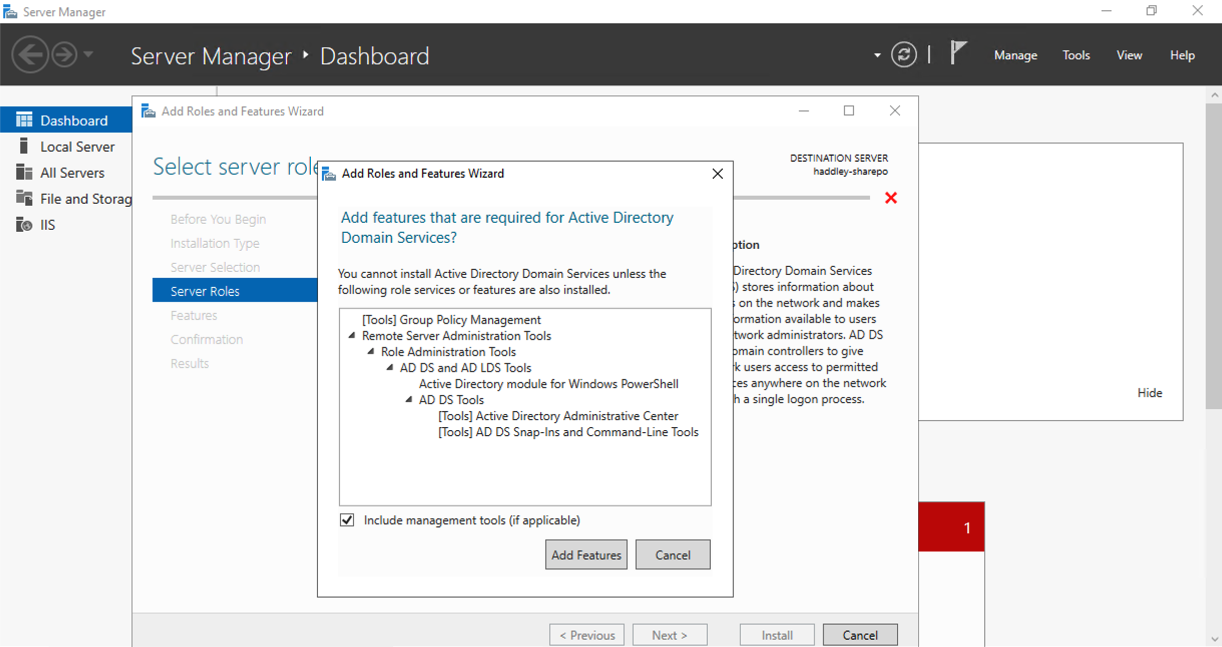
A prompt appeared asking me to add the features required for Active Directory Domain Services — I clicked Add Features
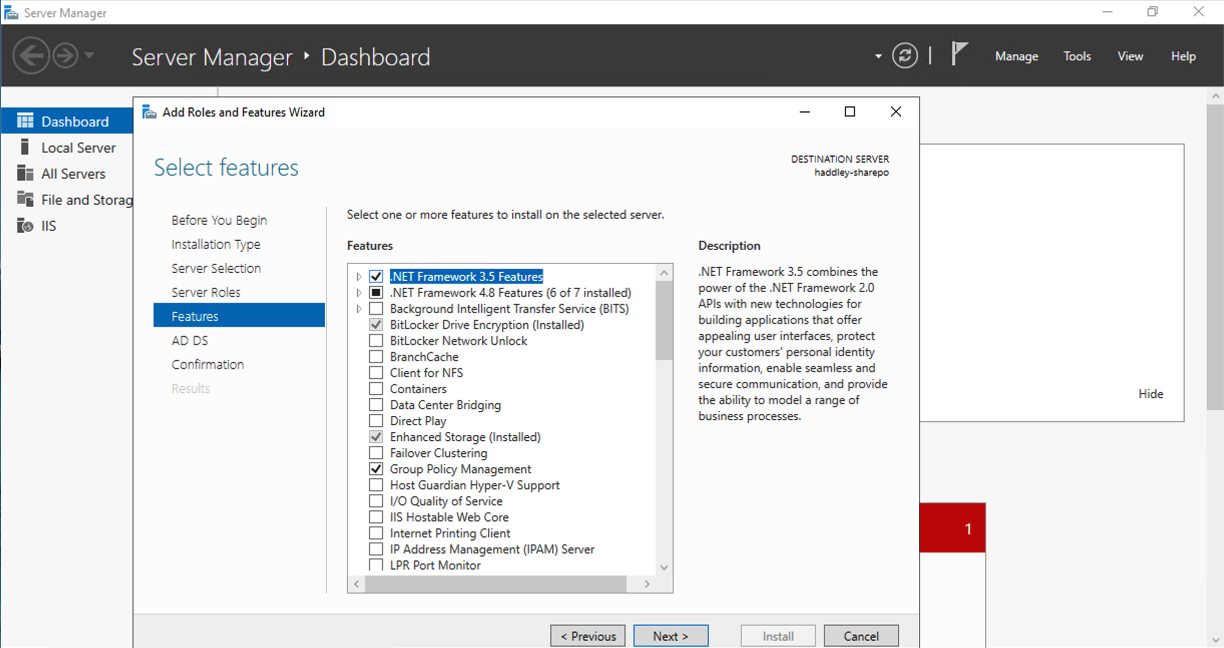
I reviewed the additional features to be installed alongside AD DS
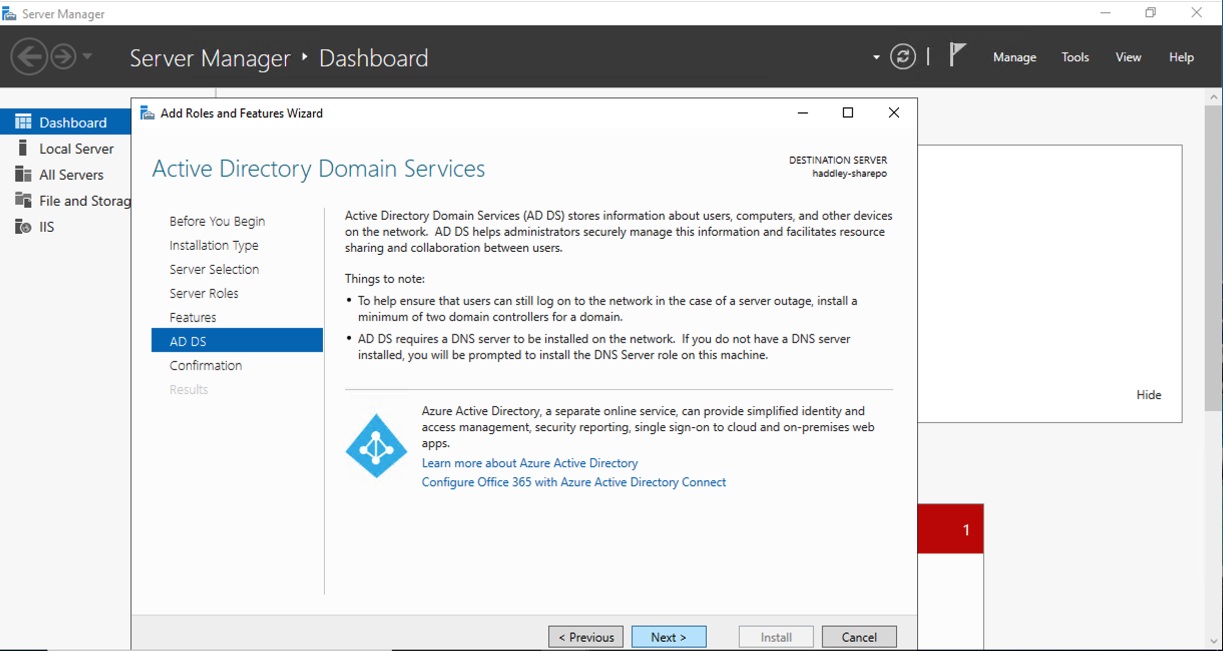
I read through the Active Directory Domain Services information page
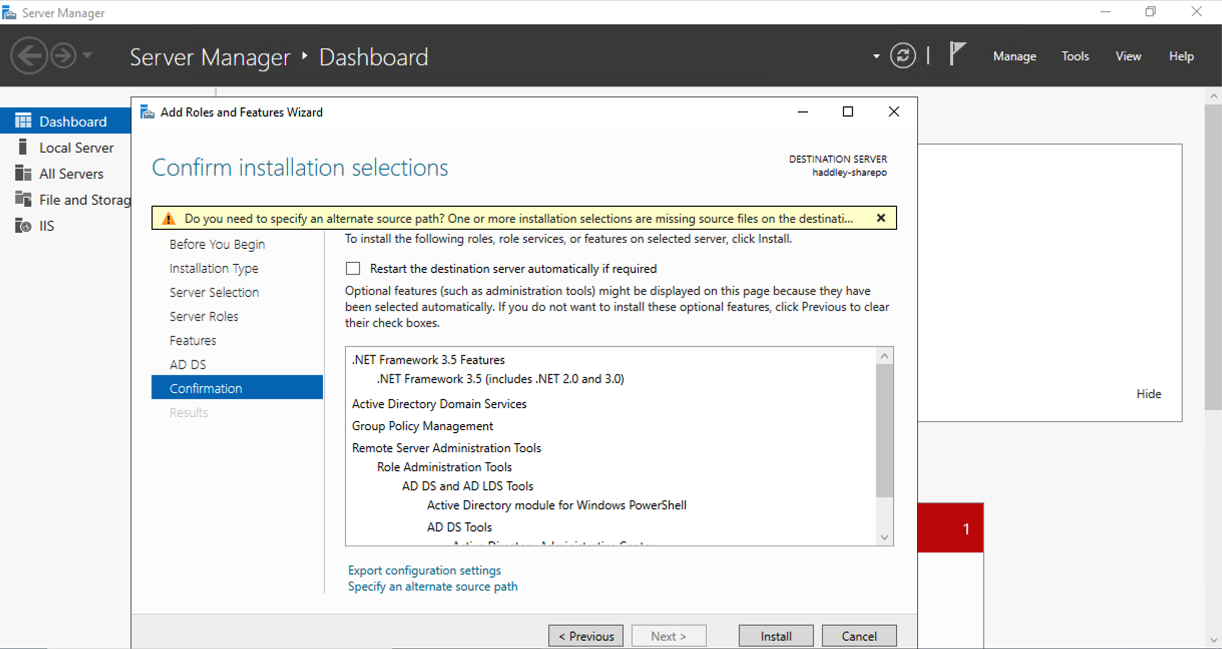
I confirmed the installation selections and clicked Install
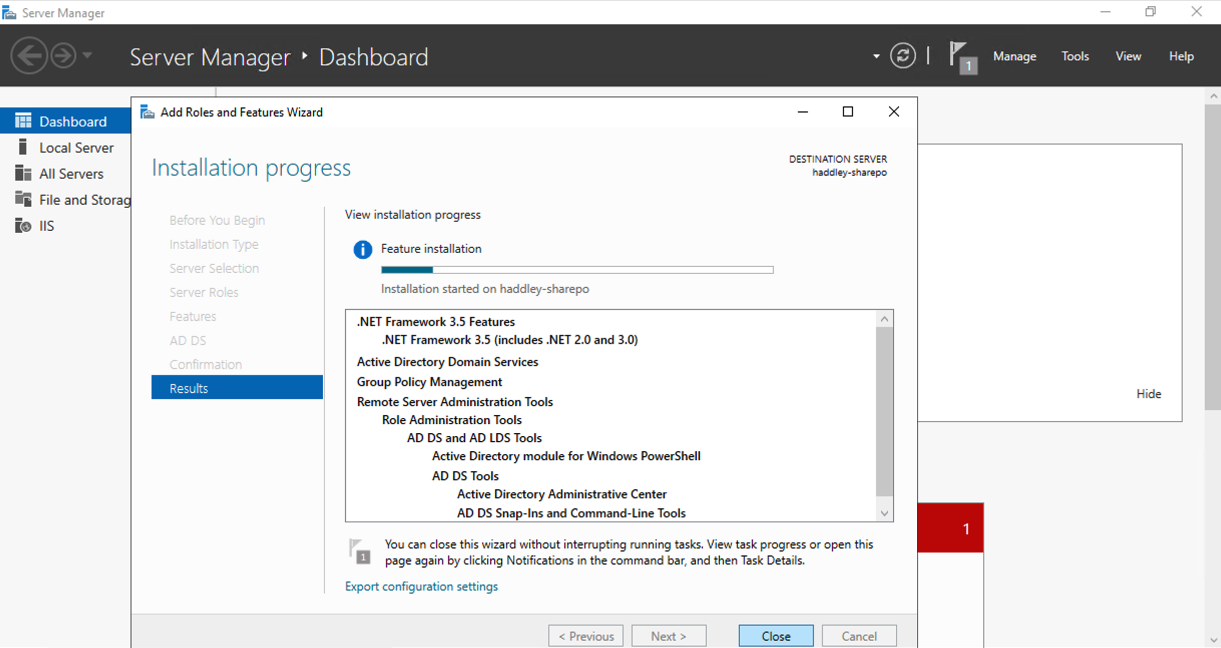
The installation progress screen showed AD DS and related features being installed
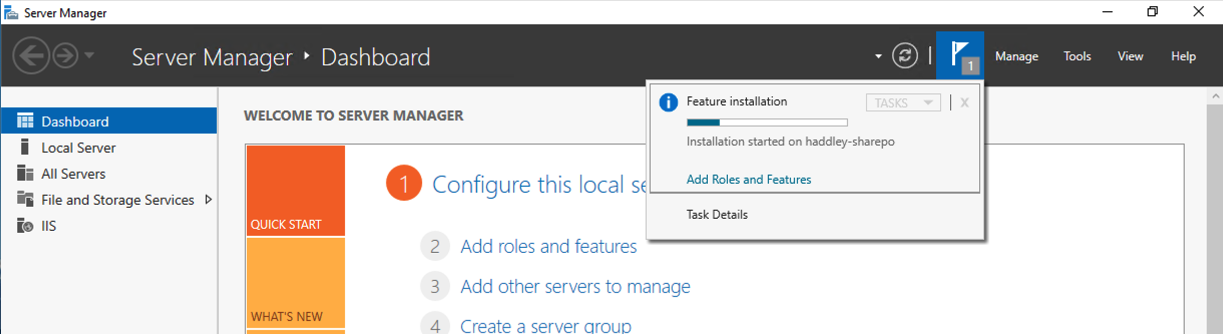
Server Manager showed feature installation in progress in the notifications area
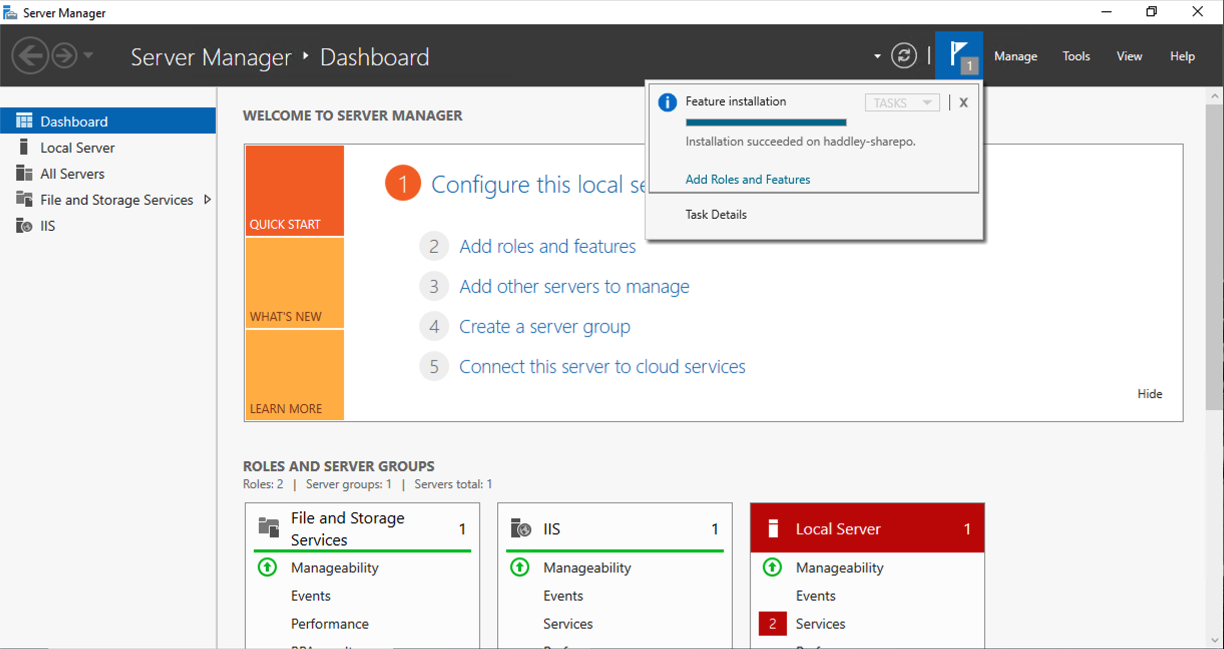
The feature installation succeeded on haddley-sharepo
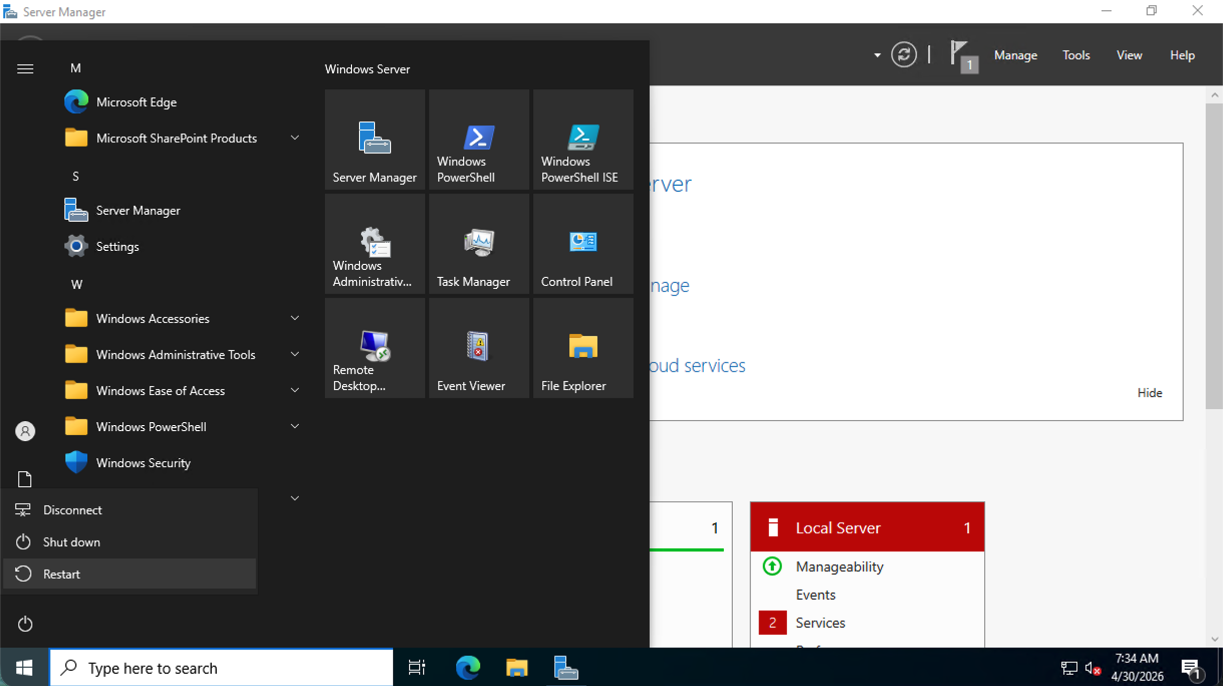
I opened the Start menu and saw the Microsoft SharePoint Products folder alongside the Windows Server tools
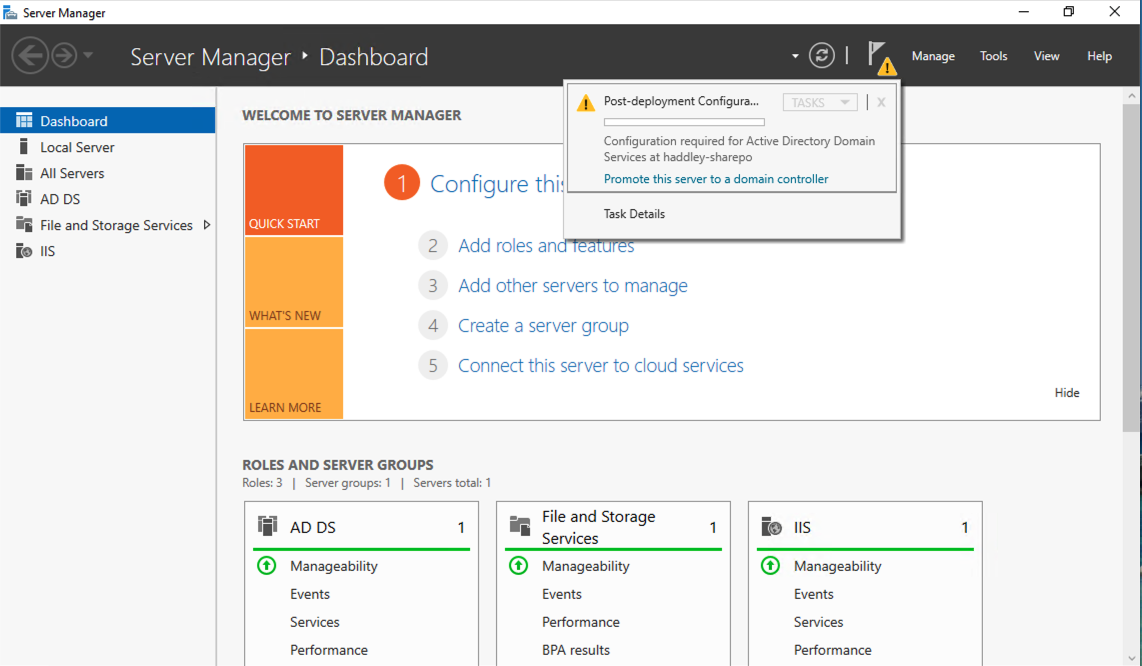
Server Manager showed a post-deployment notification prompting me to promote the server to a domain controller
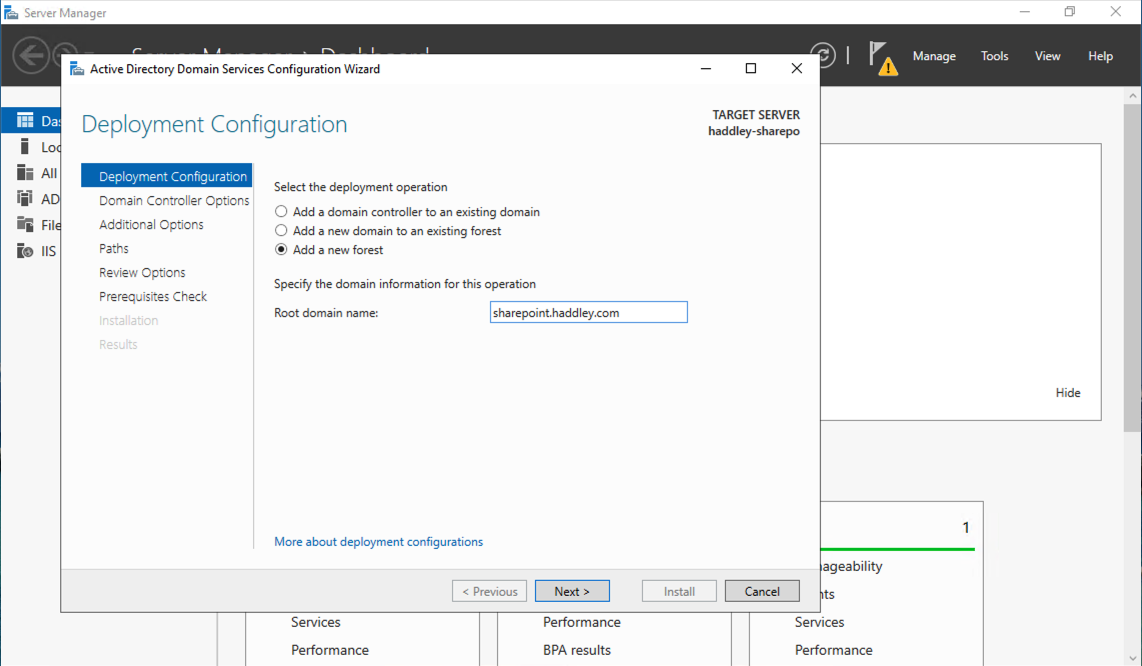
I opened the AD DS Configuration Wizard and added a new forest with the root domain name "sharepoint.haddley.com"
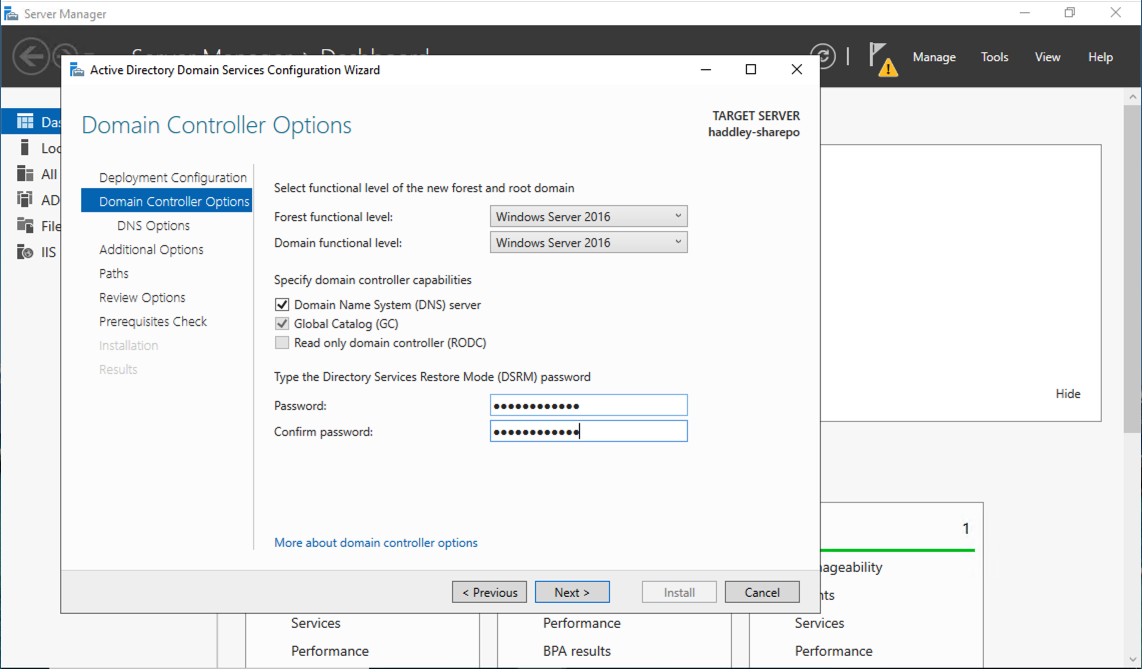
I set the forest and domain functional levels to Windows Server 2016 and entered the DSRM password
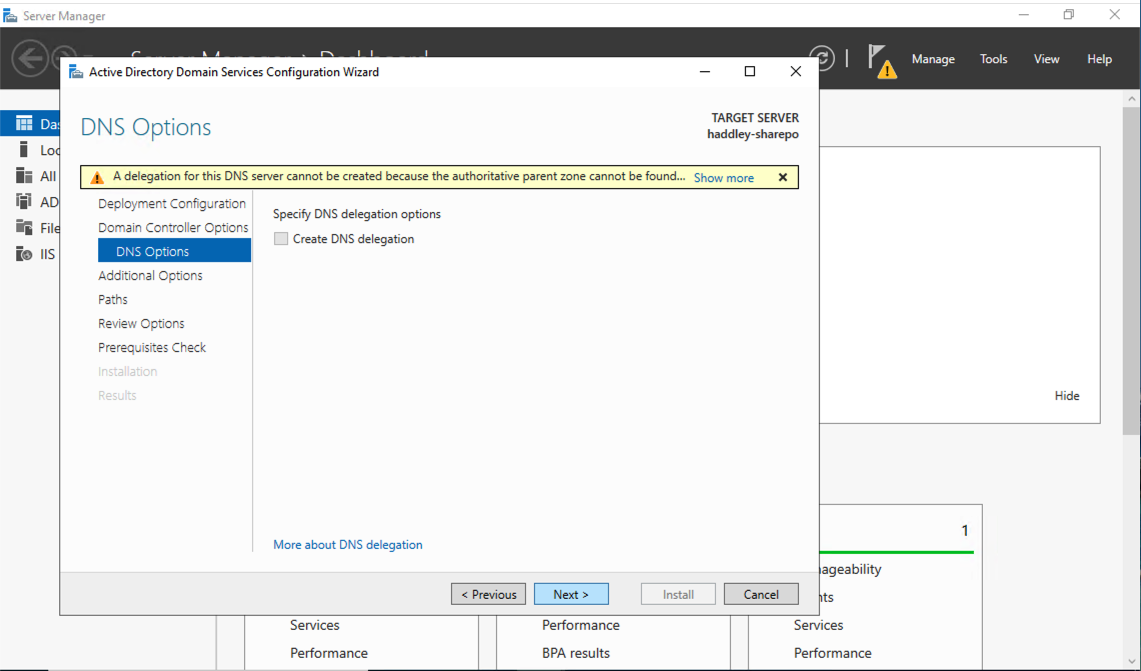
The DNS Options page showed a warning that a delegation could not be created, which I acknowledged
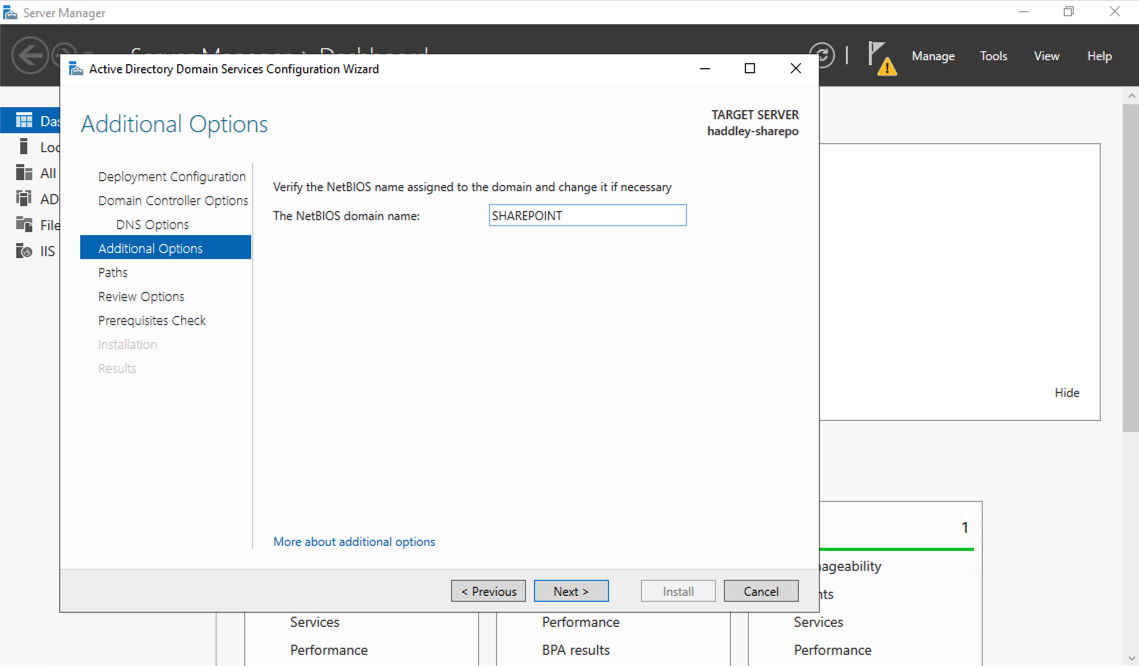
The NetBIOS domain name was automatically set to "SHAREPOINT"
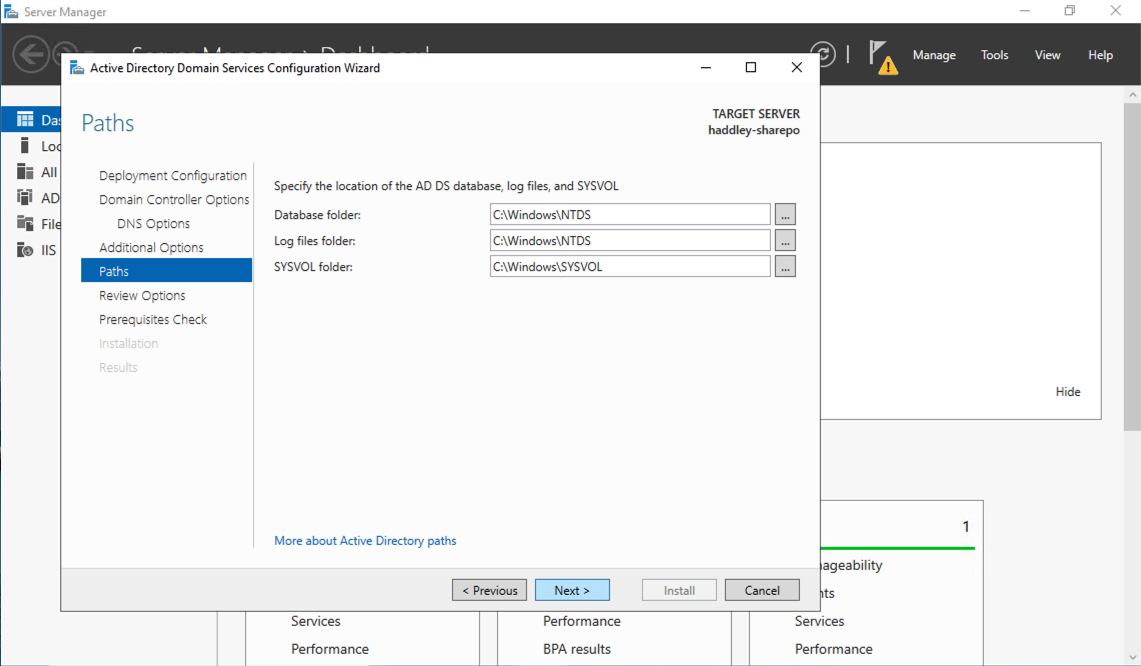
I left the default paths for the AD DS database, log files, and SYSVOL folder
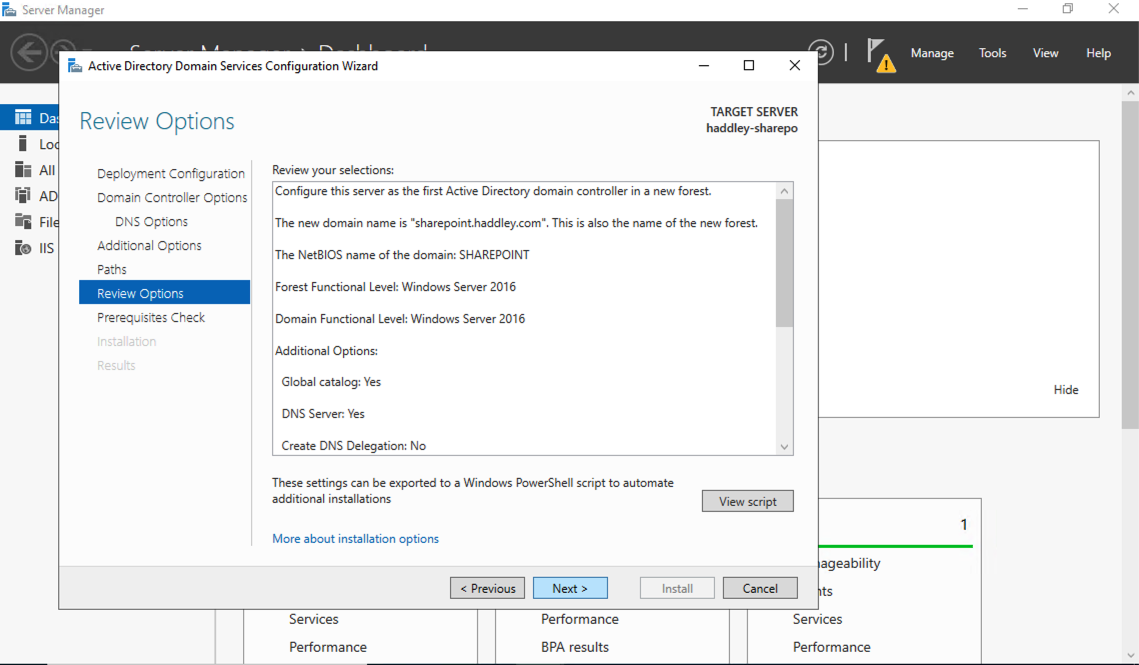
I reviewed all the AD DS configuration options before proceeding
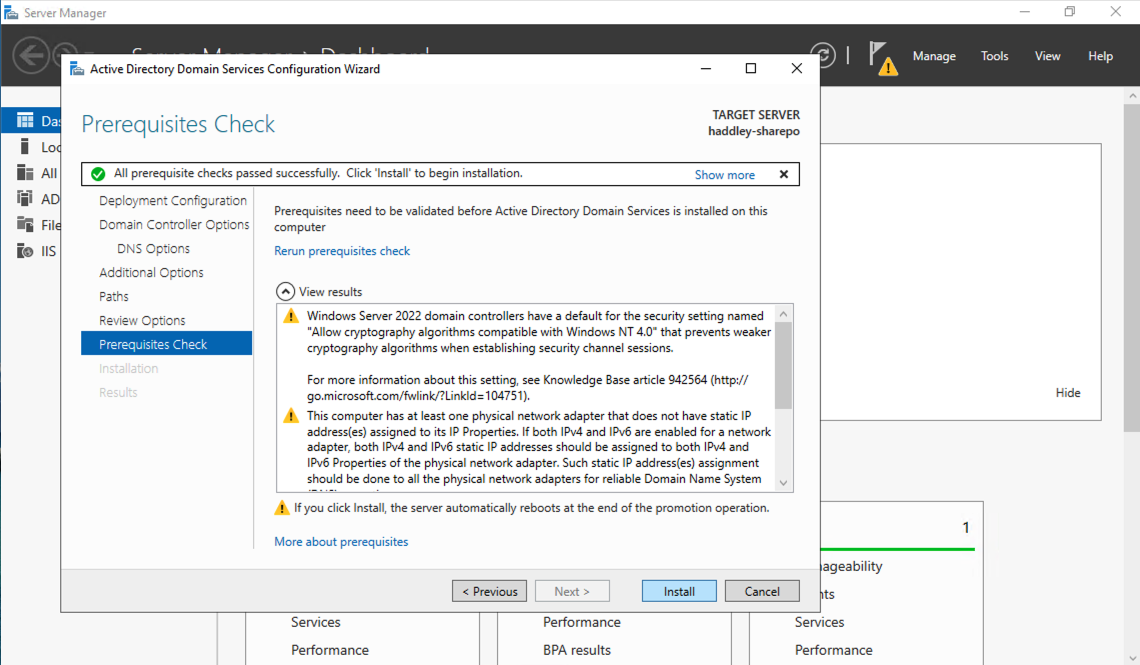
All prerequisite checks passed and I clicked Install
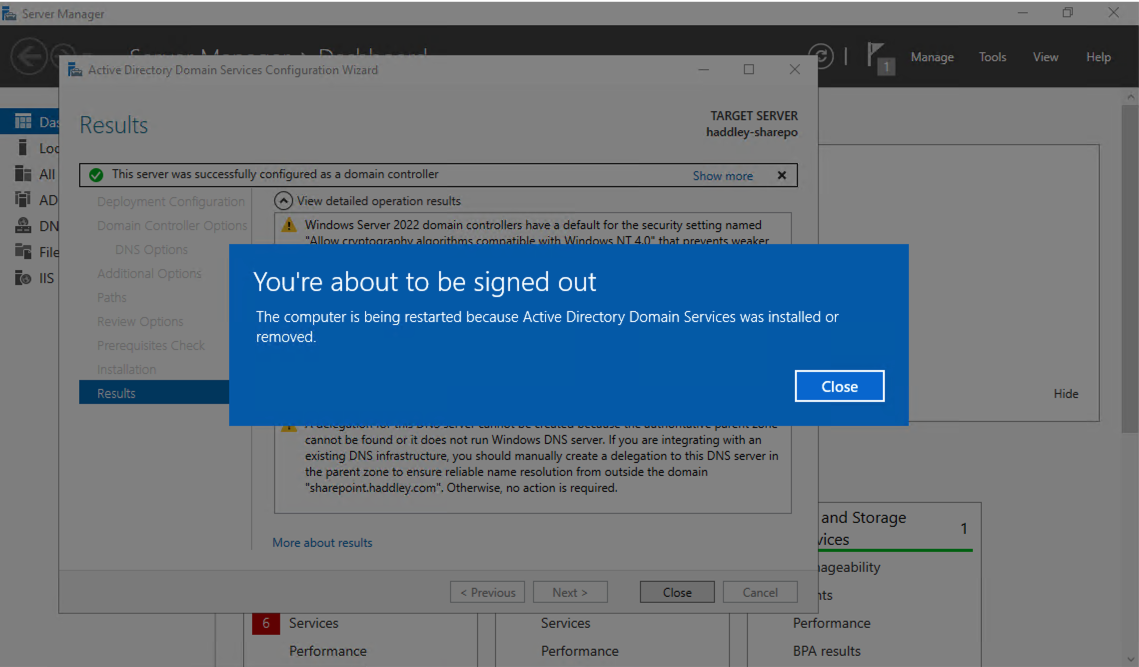
The server was successfully configured as a domain controller and I was signed out for a reboot
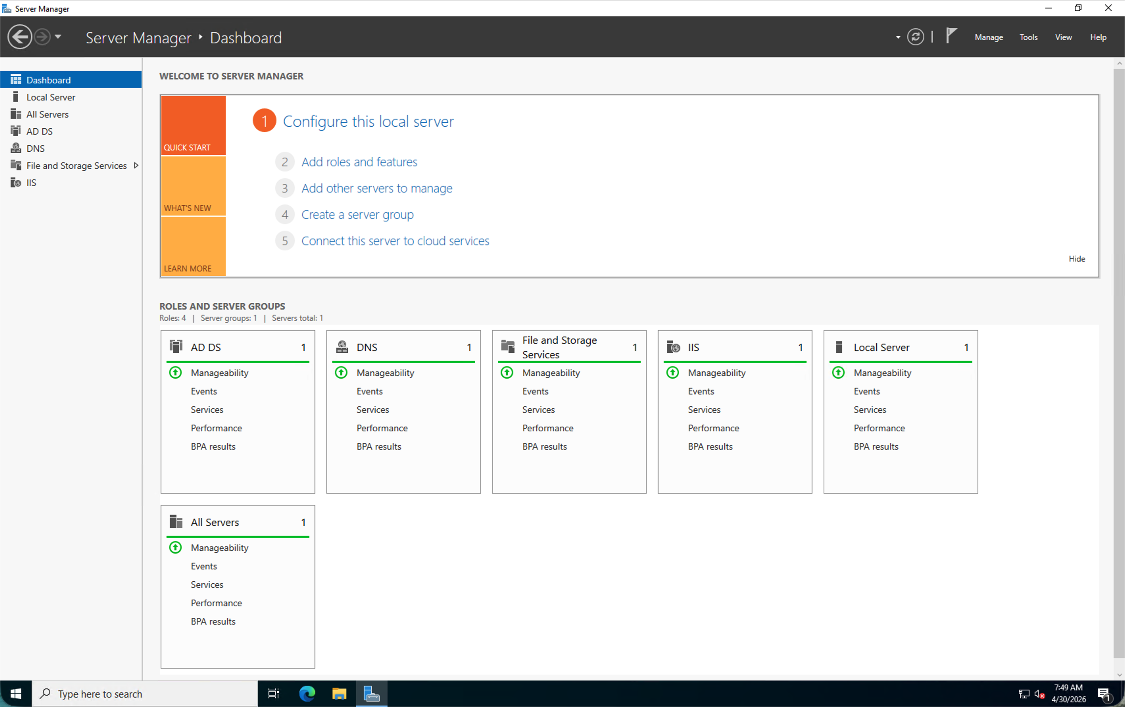
After the reboot, Server Manager showed the AD DS and DNS roles had been added successfully
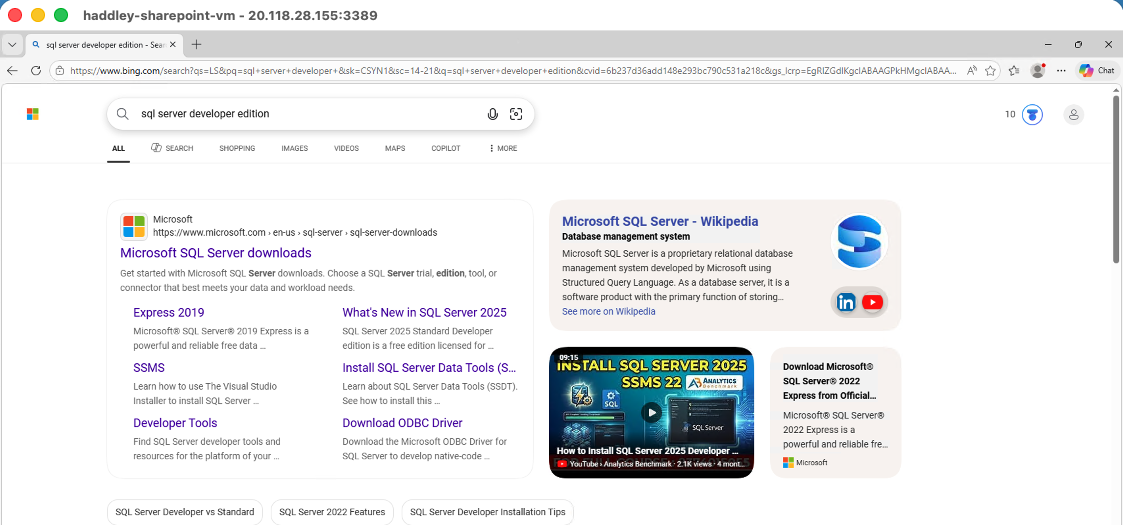
I searched for "sql server developer edition" in the browser inside the VM
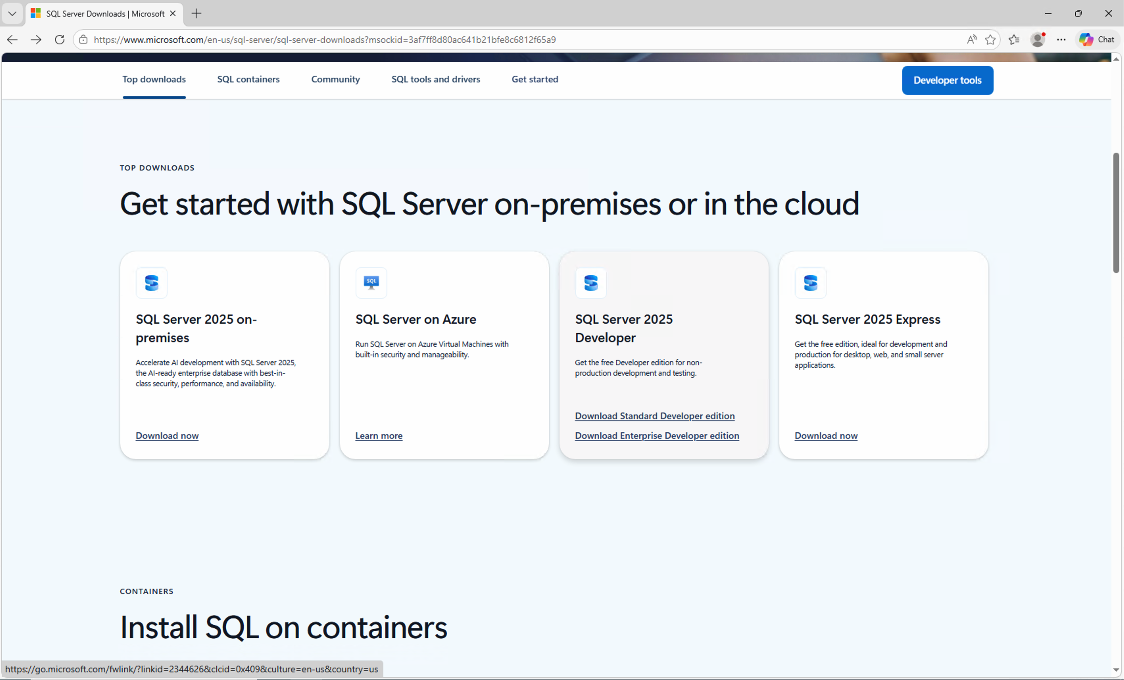
I navigated to the SQL Server downloads page on microsoft.com
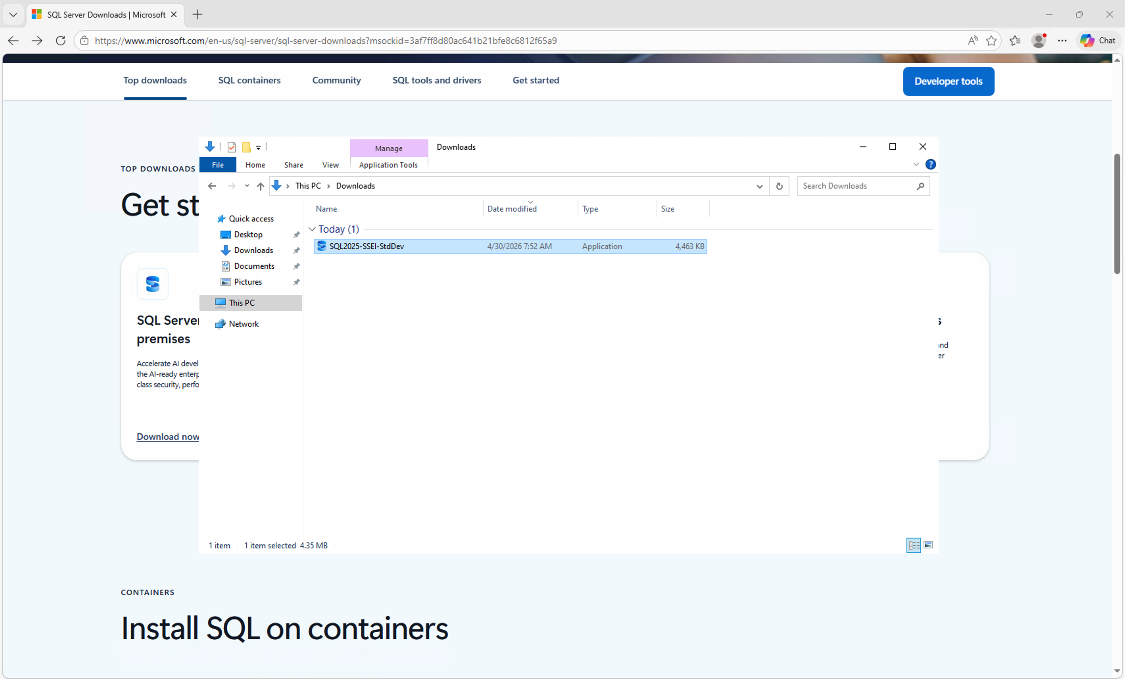
The SQL Server 2025 Standard Developer Edition installer downloaded to the Downloads folder
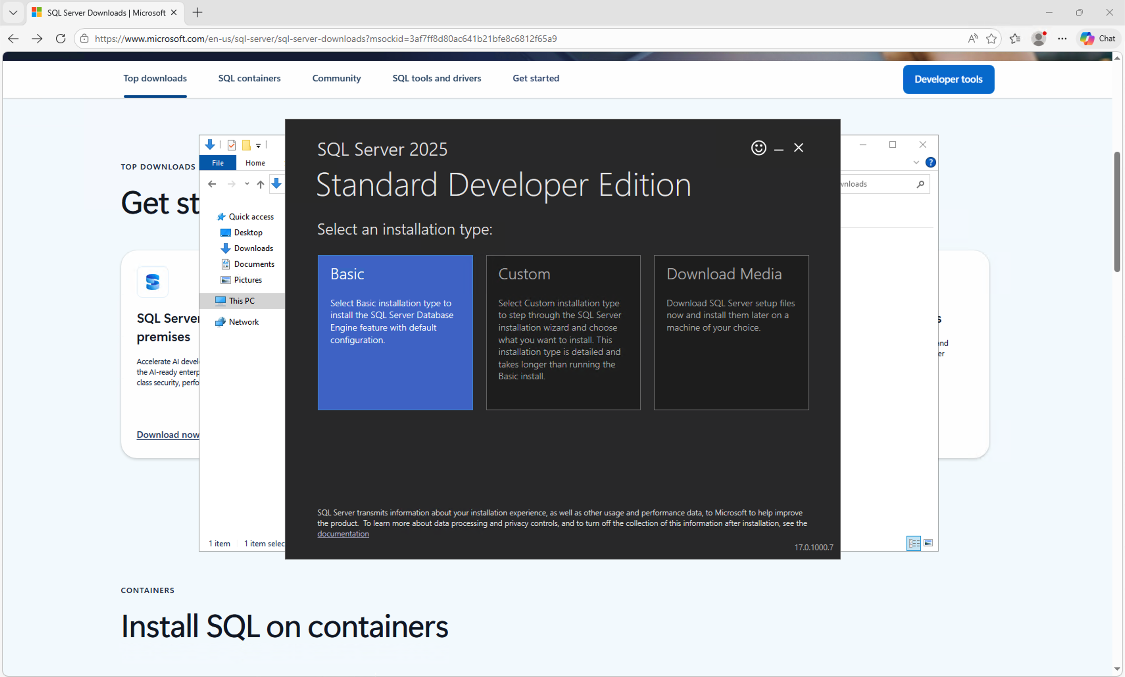
I ran the installer and selected the Basic installation type
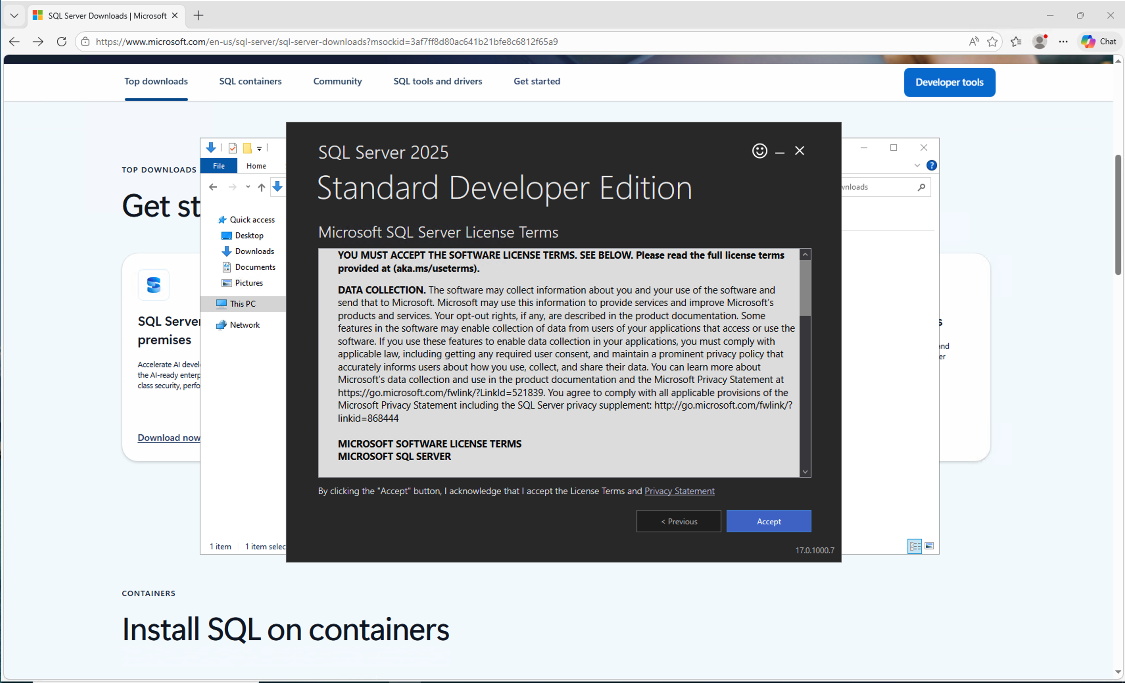
I accepted the Microsoft SQL Server licence terms
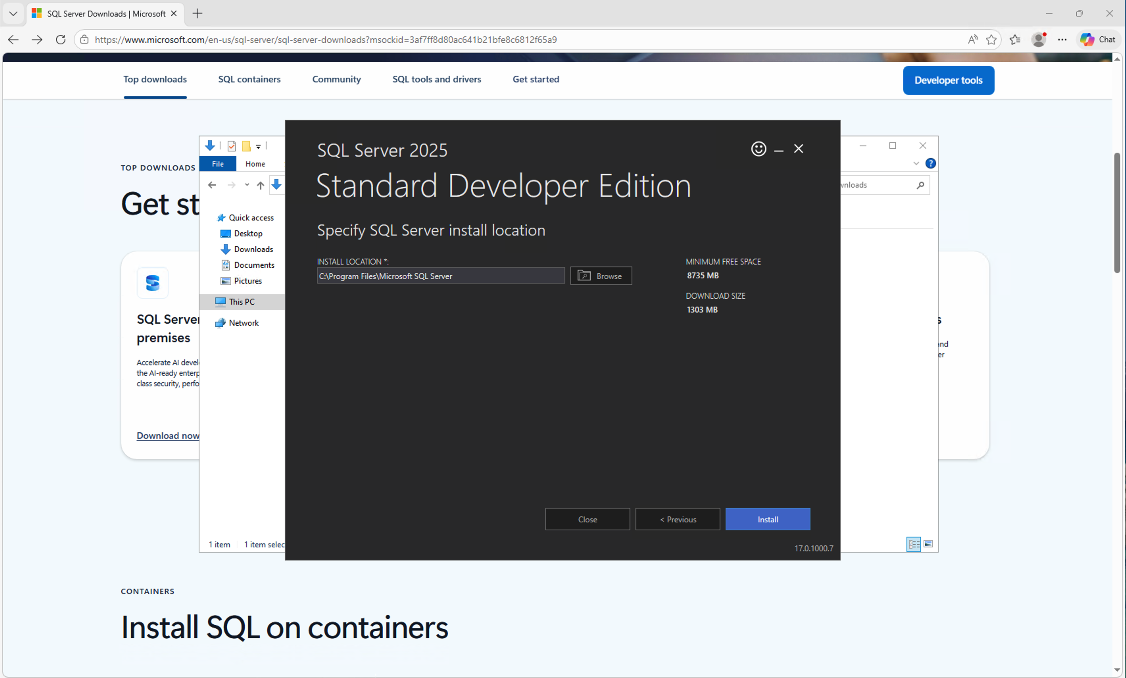
I left the default install location at C:\Program Files\Microsoft SQL Server
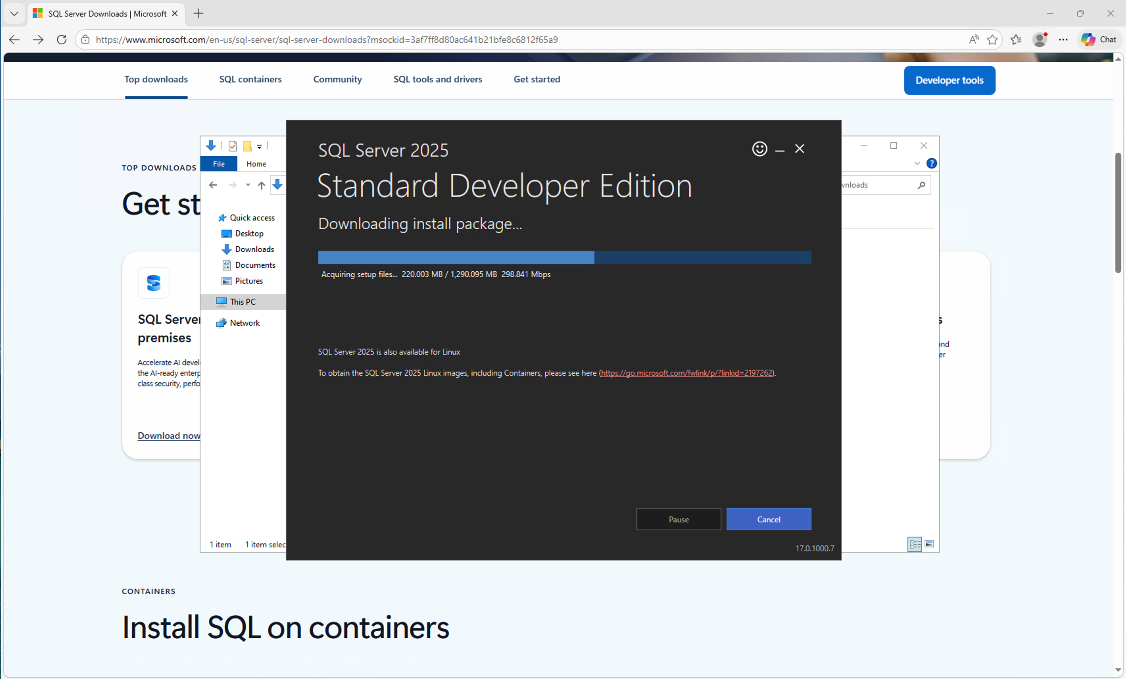
SQL Server 2025 was downloading the install package at around 290 Mbps
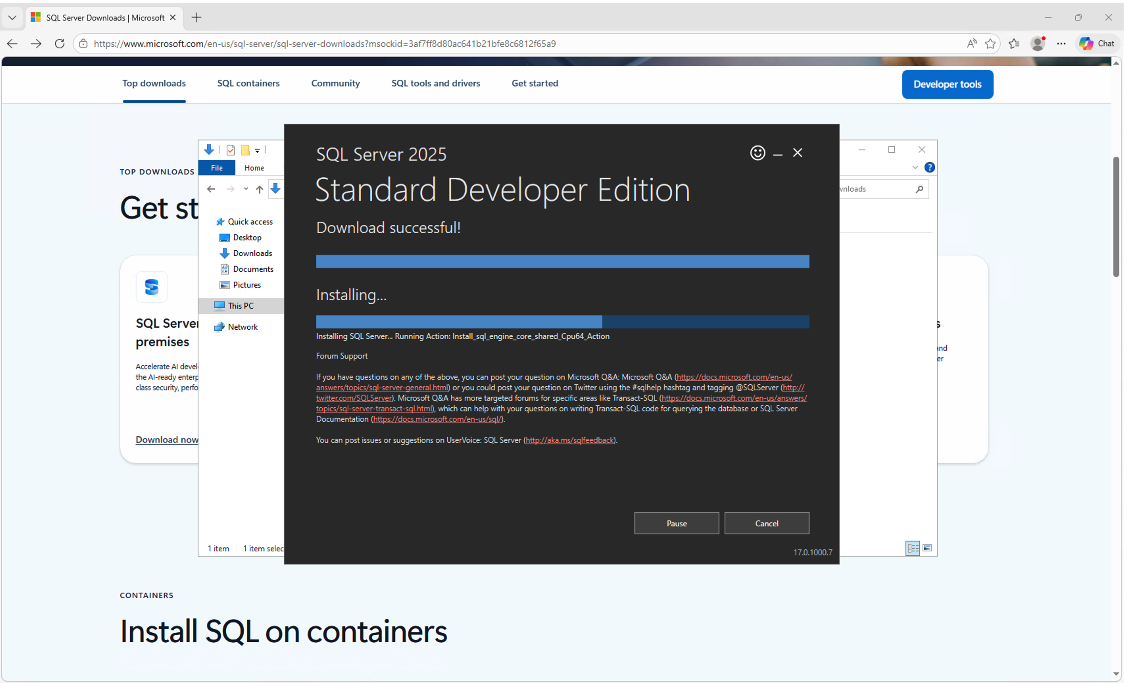
The installer was running the SQL Server engine installation
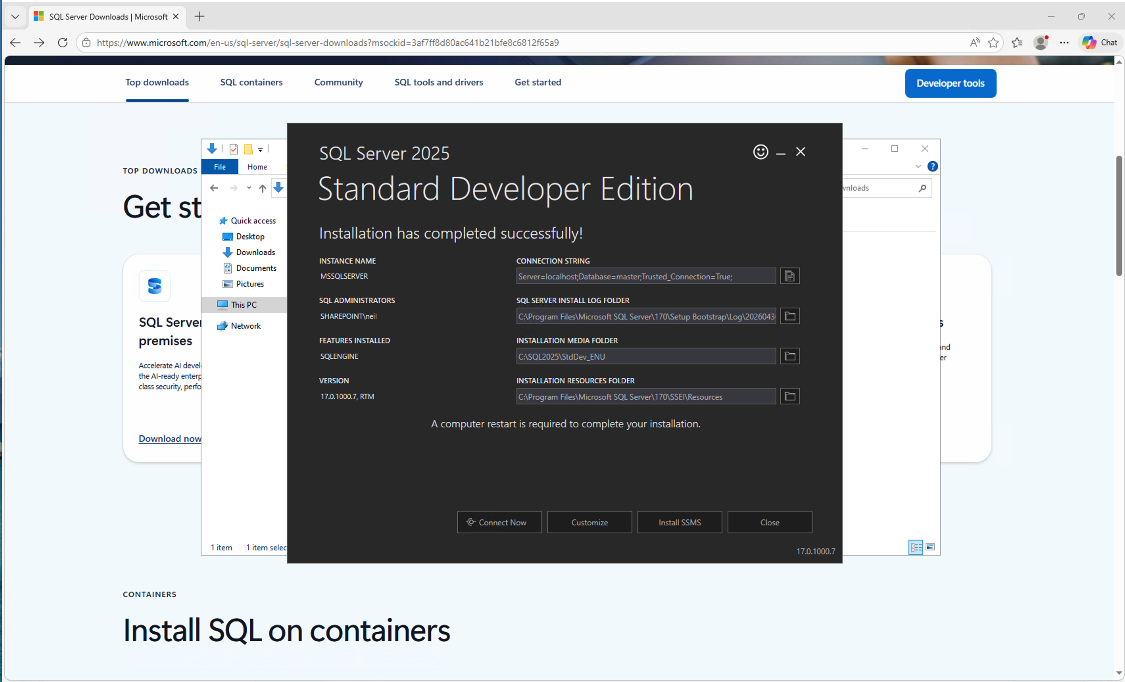
SQL Server 2025 installation completed successfully
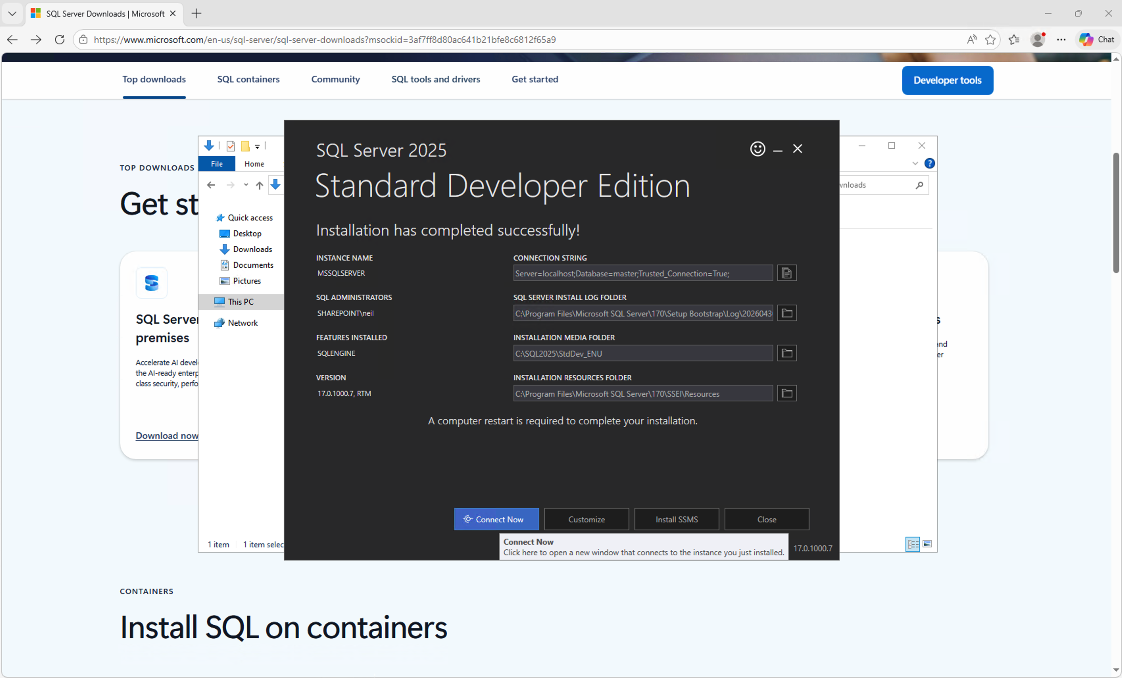
I clicked Connect Now to verify the installation via SQLCMD
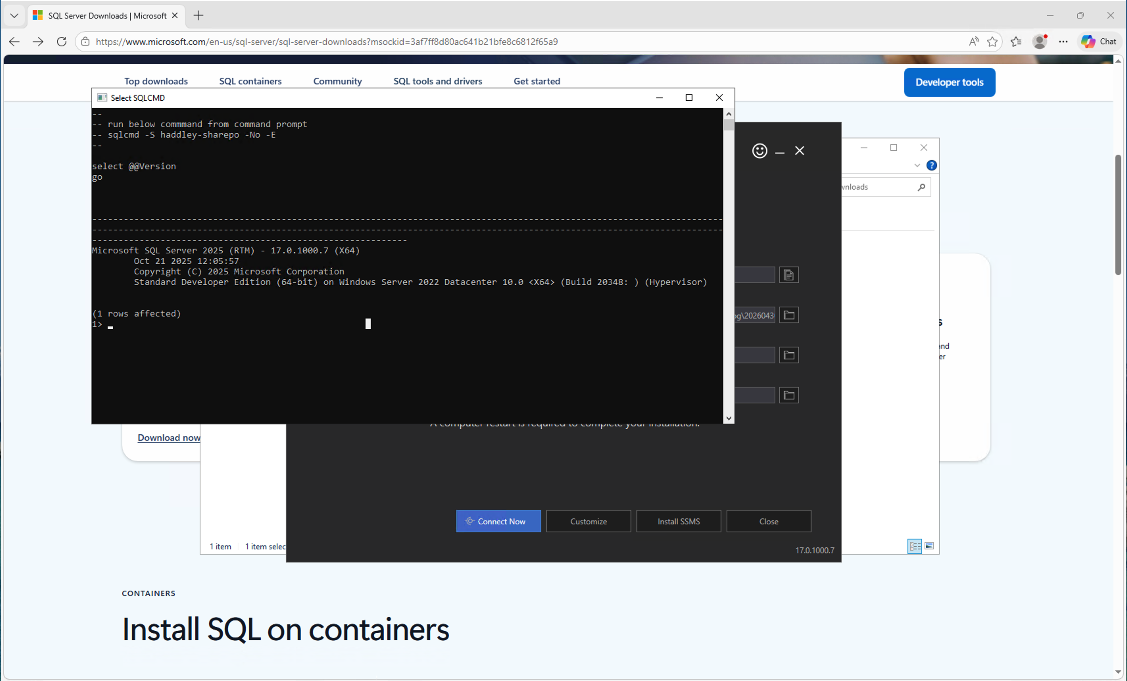
SQLCMD confirmed SQL Server 2025 RTM (17.0.1000.7) was running on the server
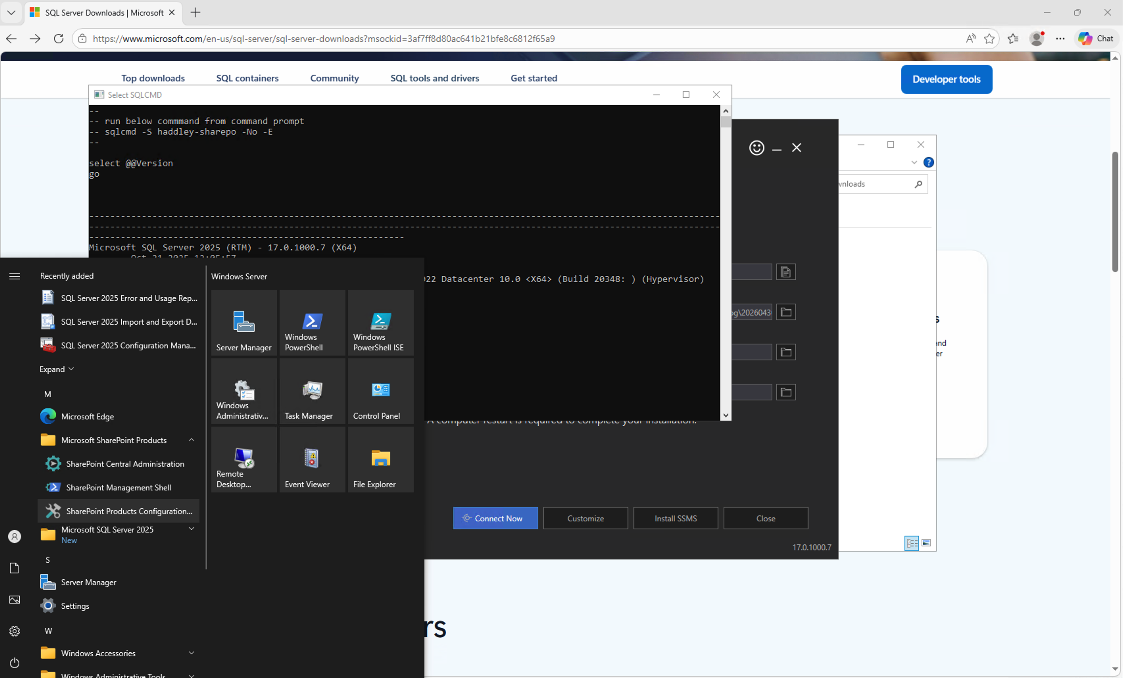
I opened the Start menu and found the SharePoint Products Configuration Wizard under Microsoft SharePoint Products
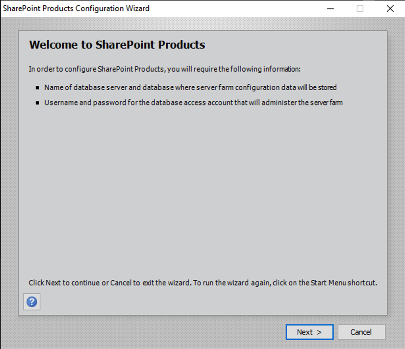
The SharePoint Products Configuration Wizard welcomed me and explained what it would need
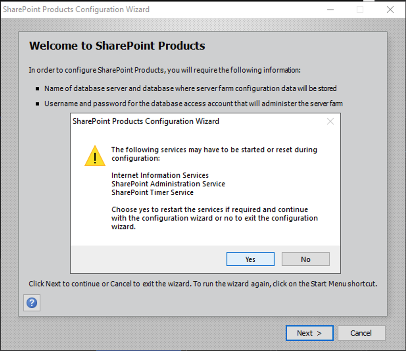
A warning appeared that IIS, SharePoint Administration Service, and SharePoint Timer Service may need to be restarted — I clicked Yes
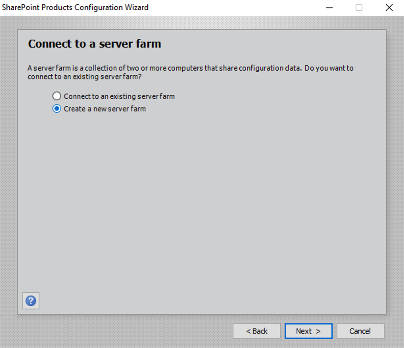
I chose to create a new server farm
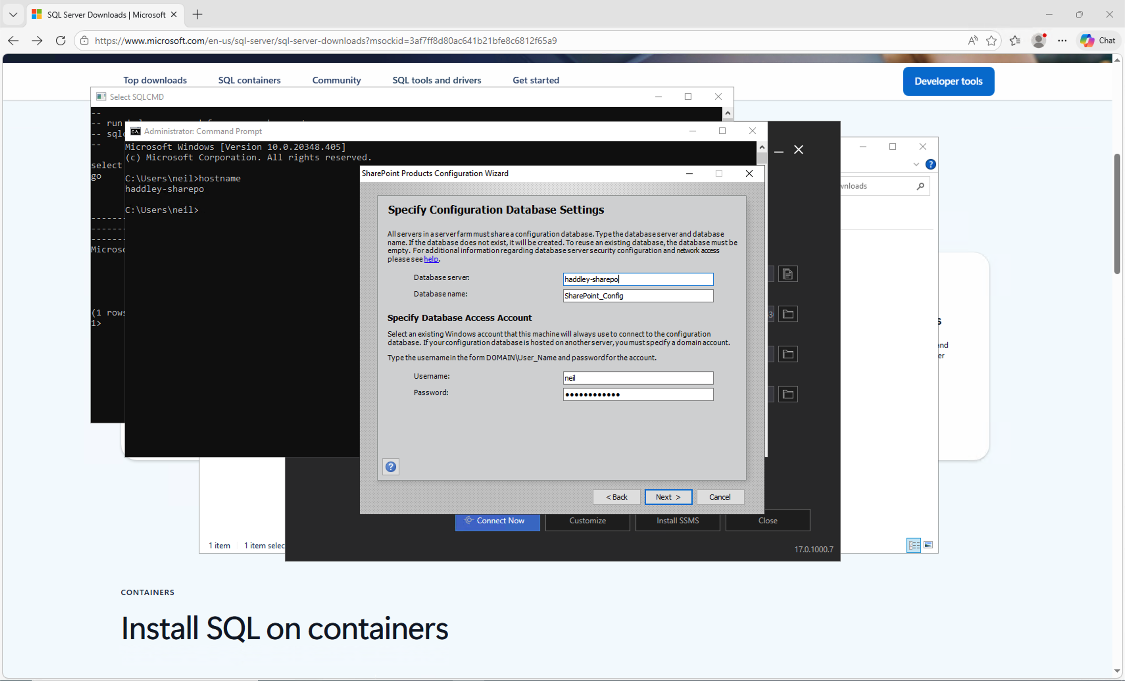
I specified the configuration database server as "haddley-sharepo" and set the database access account credentials
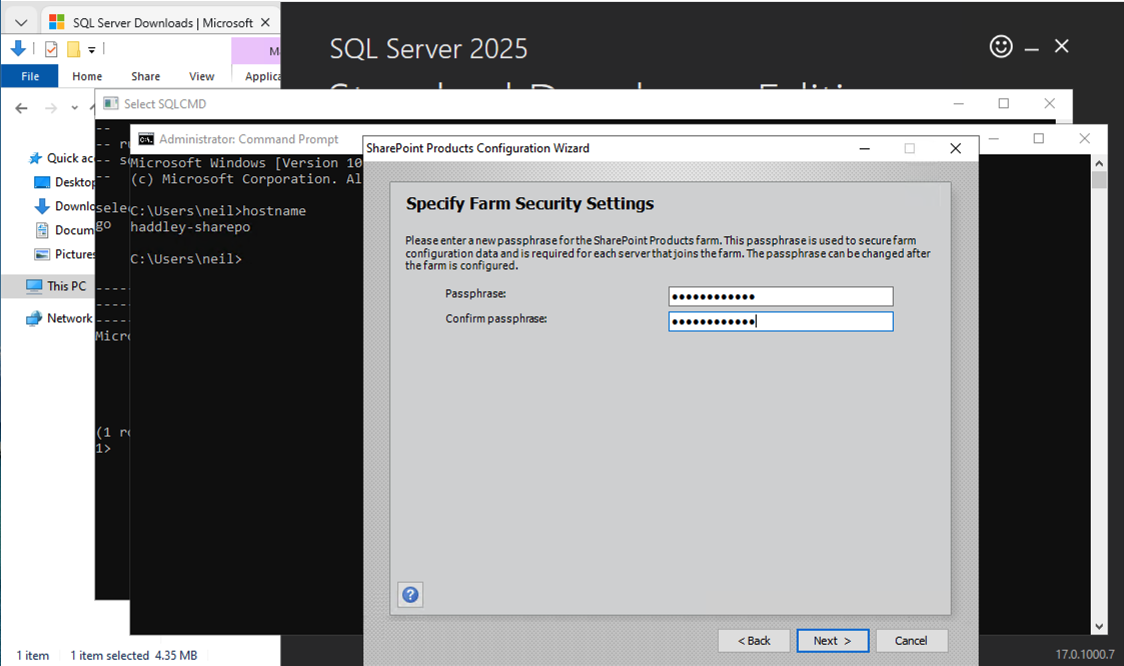
I entered and confirmed the farm security passphrase
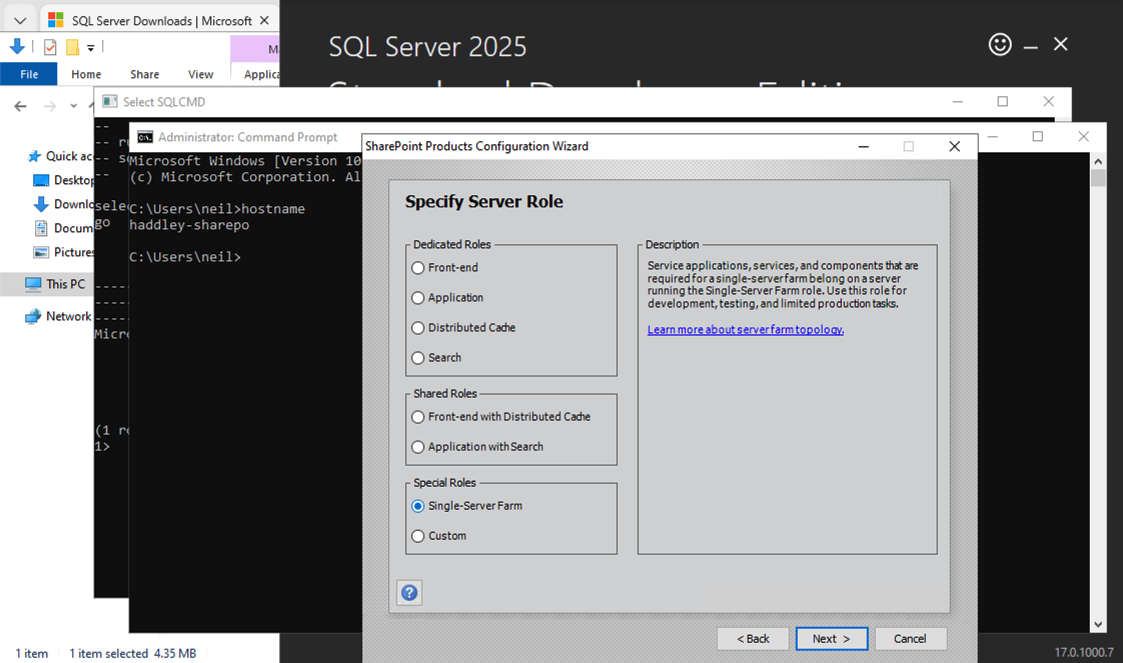
I selected Single-Server Farm as the server role
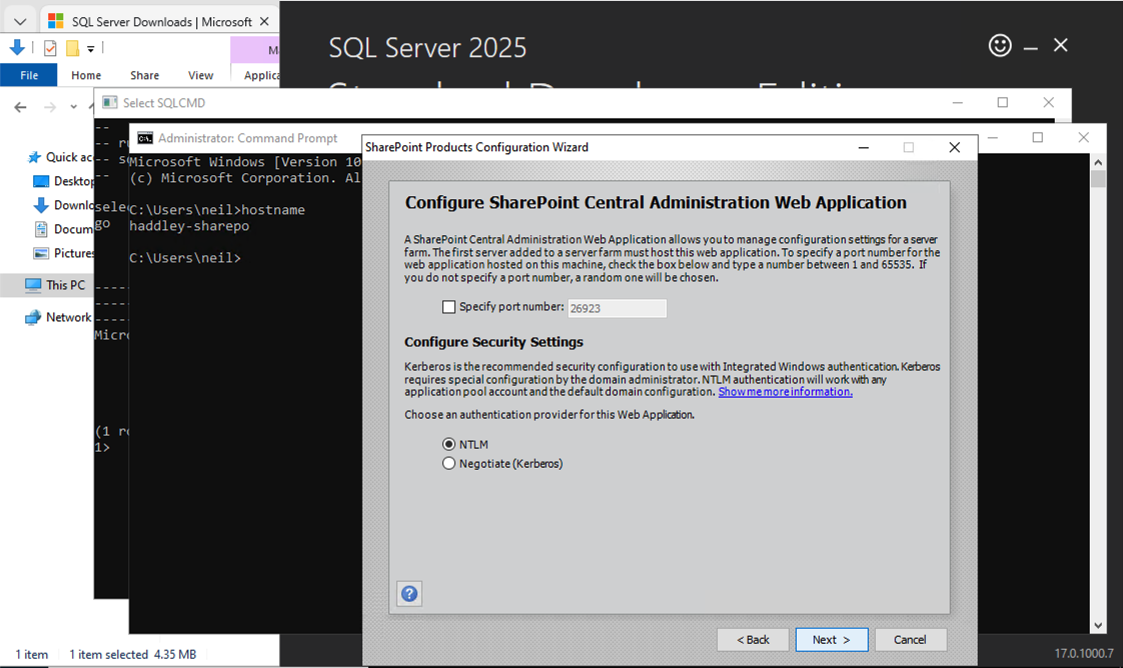
I configured the SharePoint Central Administration web application to use port 26923 with NTLM authentication
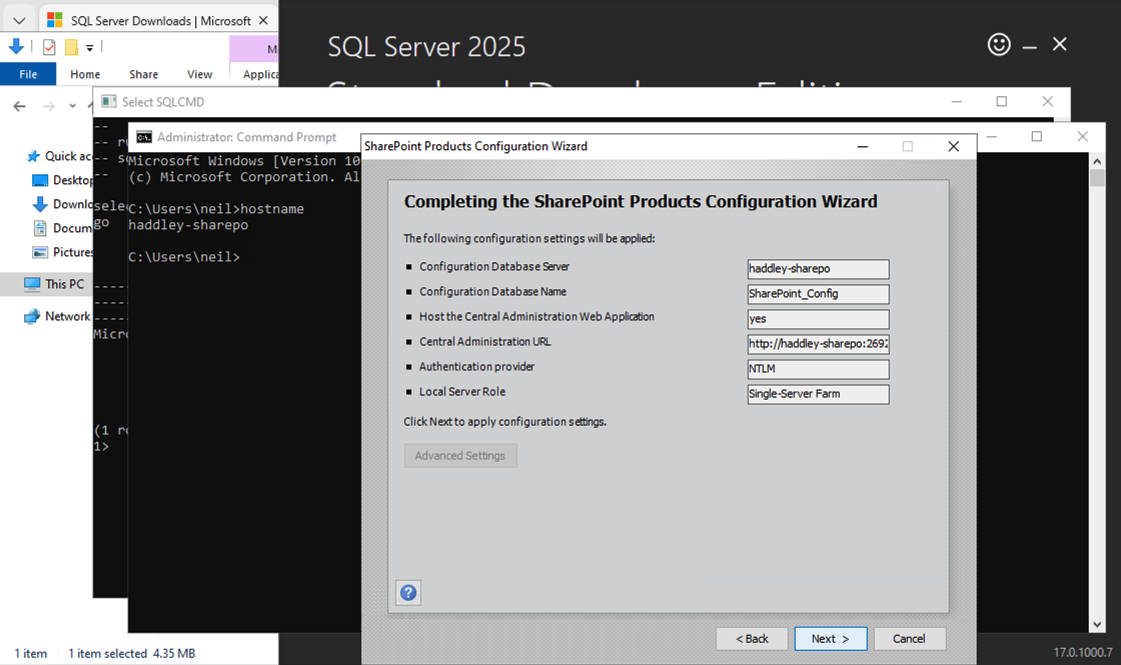
I reviewed the complete configuration summary and clicked Next to apply it
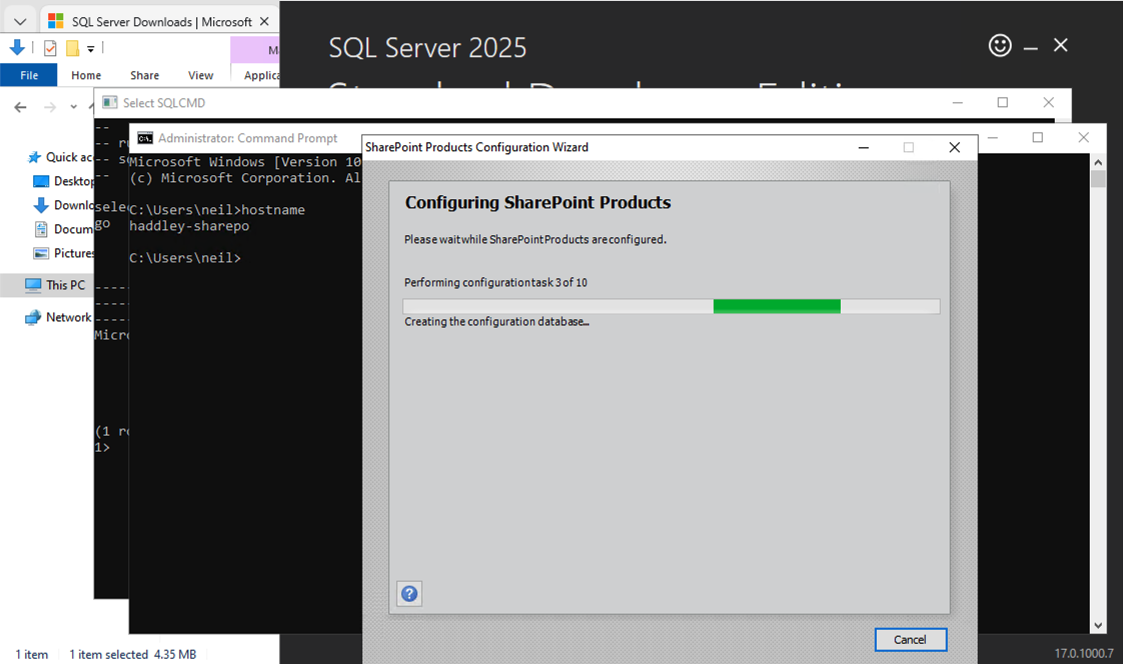
The wizard was configuring SharePoint Products, on task 3 of 10 — creating the configuration database
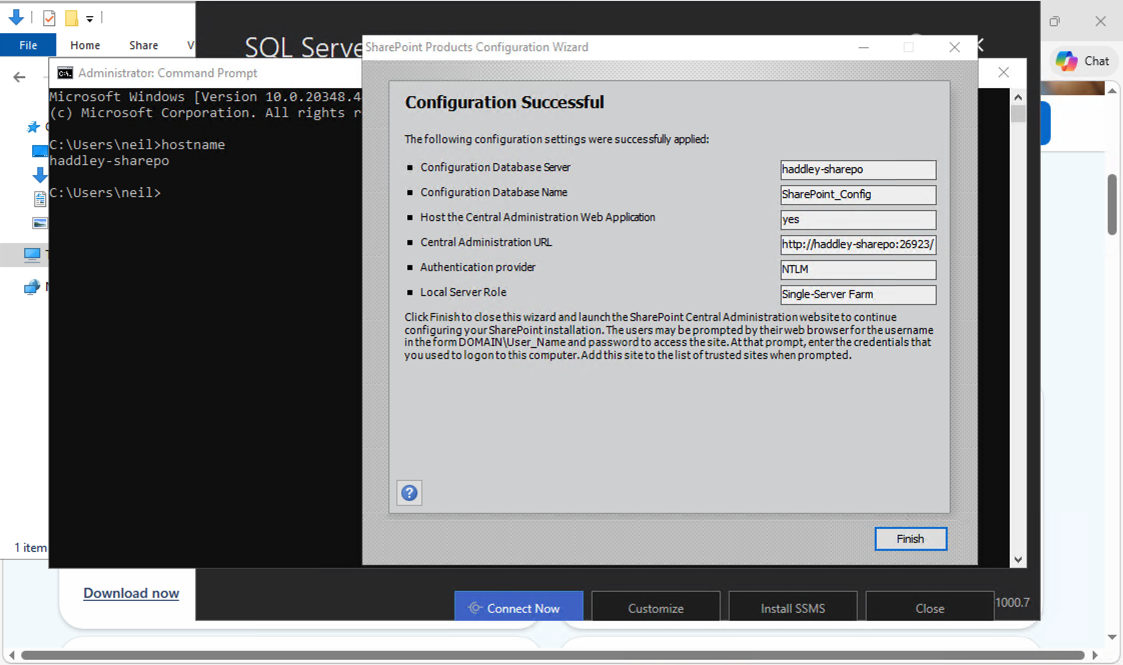
The SharePoint Products configuration completed successfully and I clicked Finish
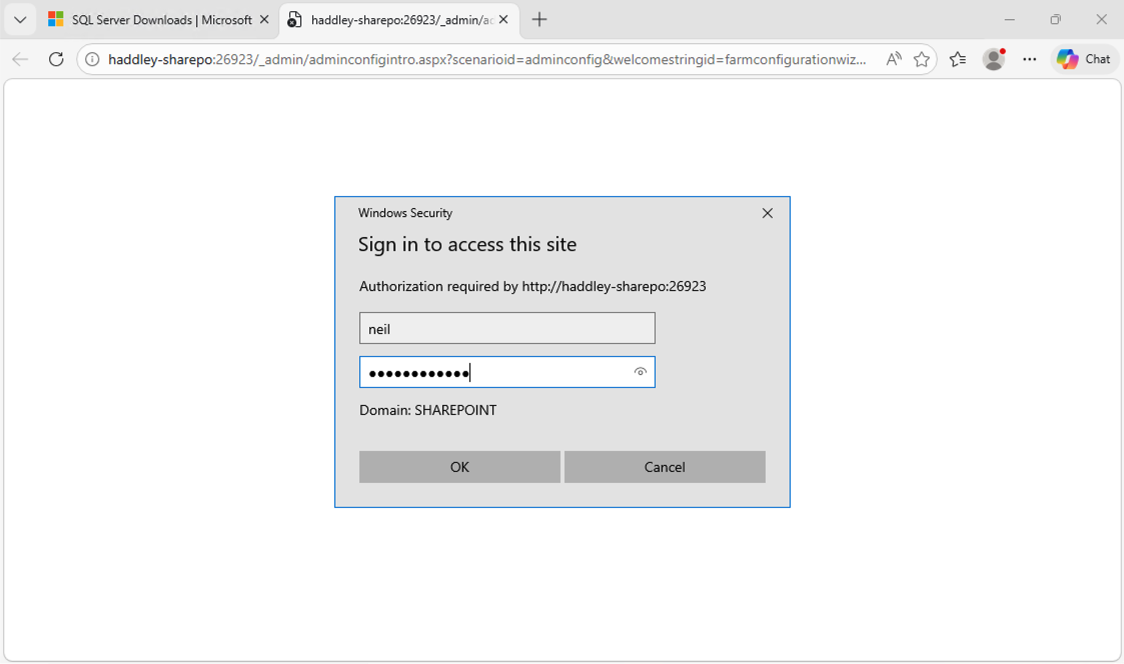
The browser prompted me to sign in to the SharePoint Central Administration site on the SHAREPOINT domain
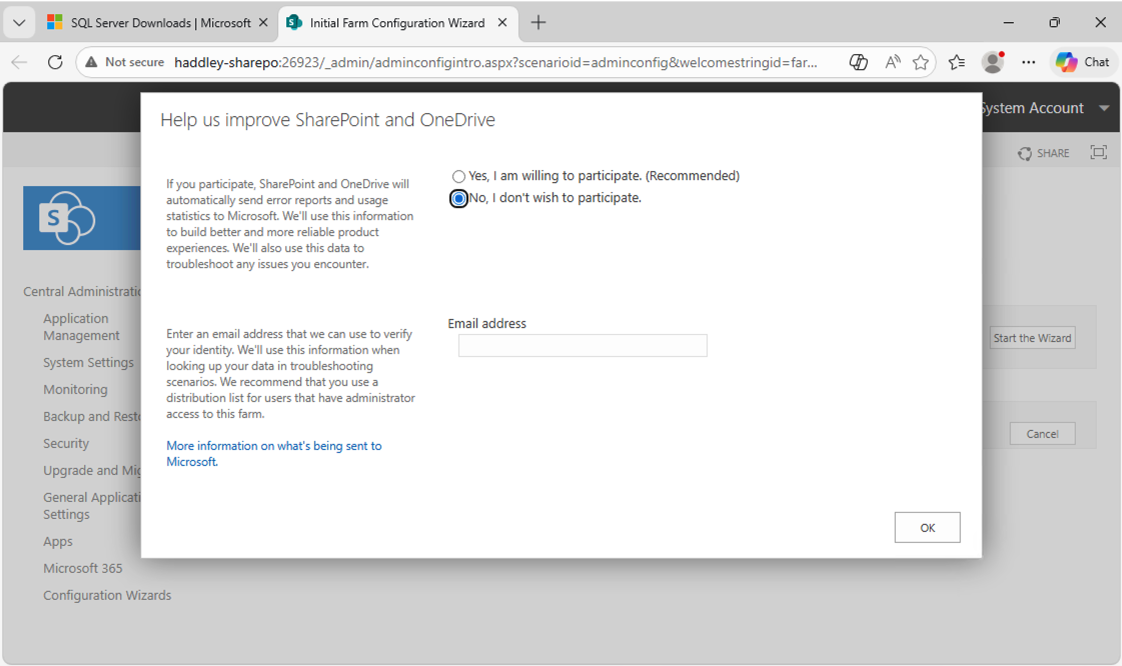
The Initial Farm Configuration Wizard asked about telemetry participation — I selected No
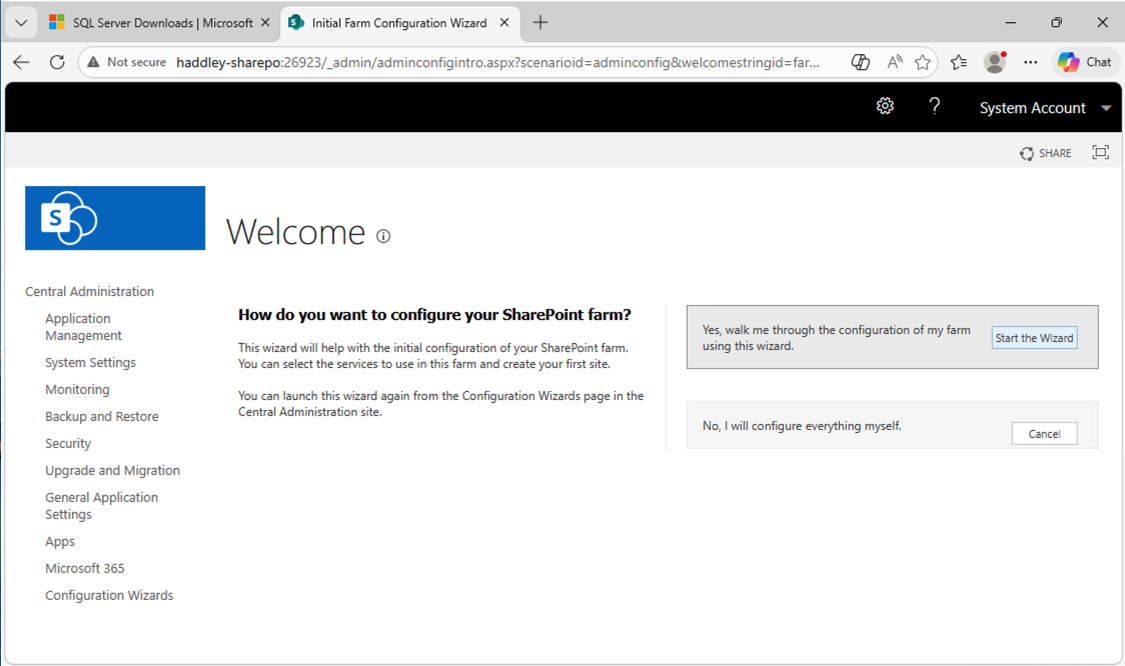
SharePoint Central Administration opened, asking how I wanted to configure the farm — I clicked Start the Wizard
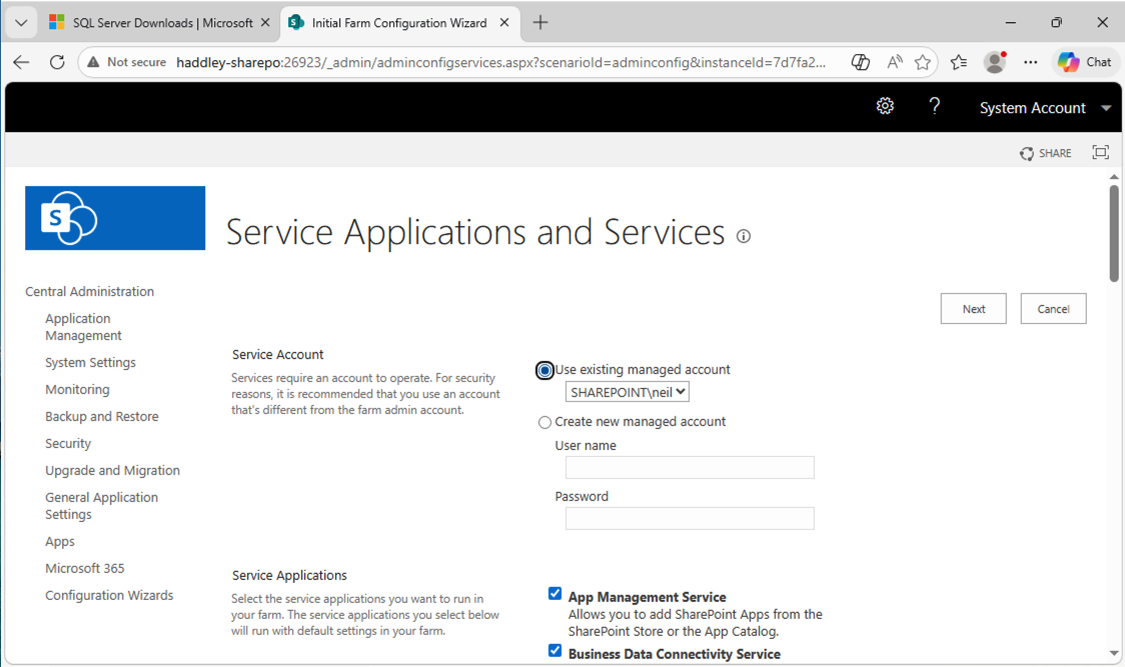
The Service Applications and Services page showed available services to configure for the farm
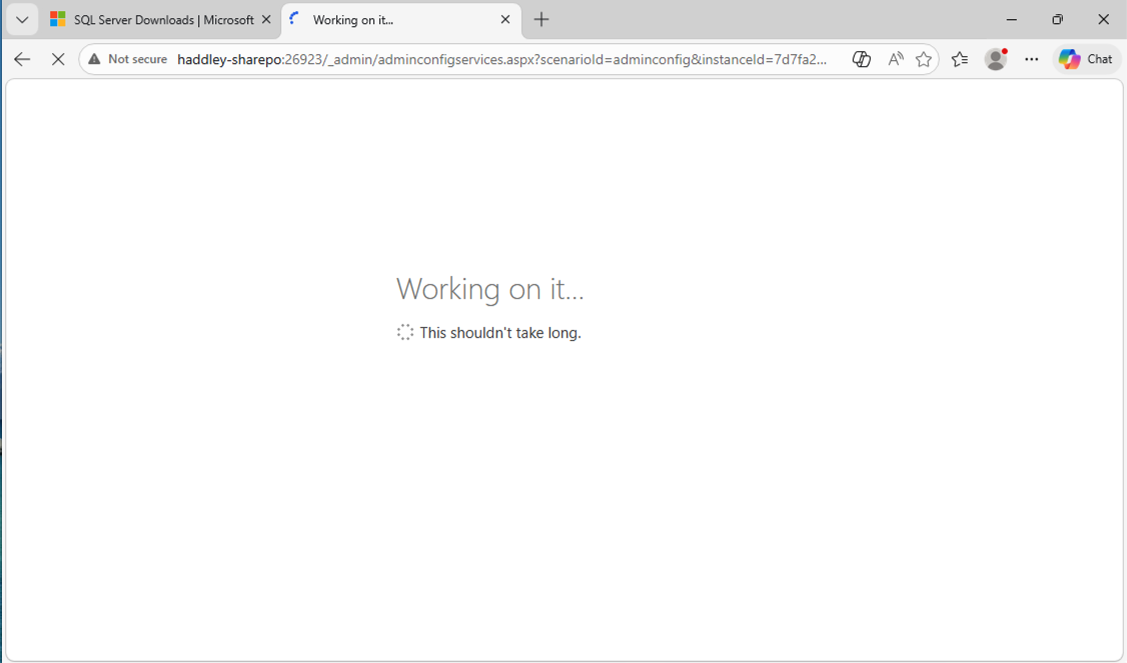
SharePoint displayed "Working on it..." while provisioning the service applications
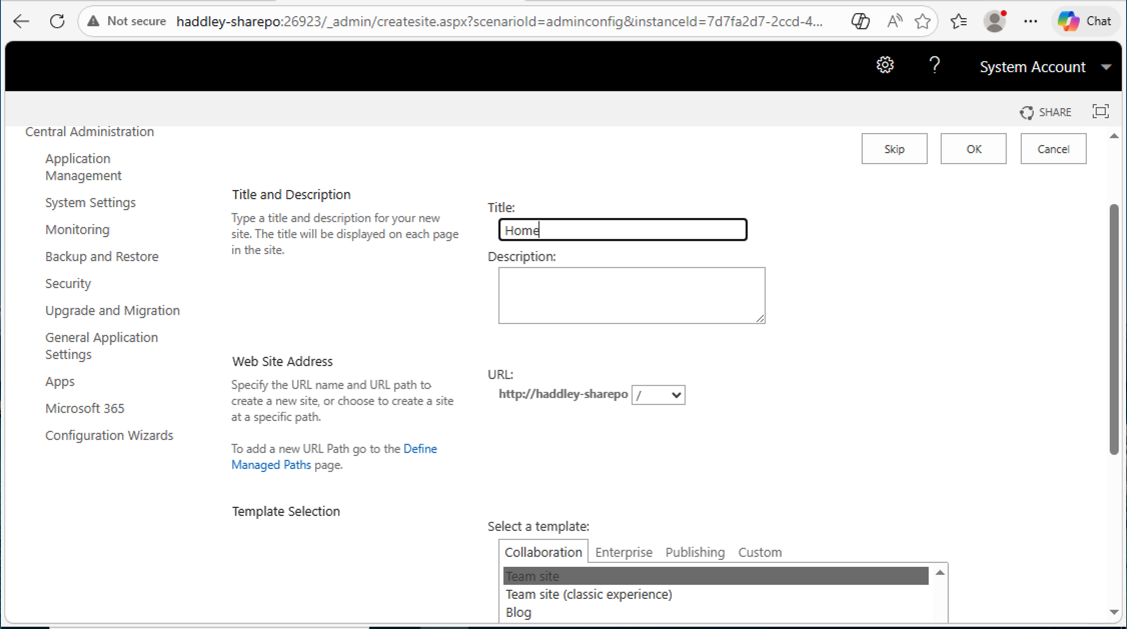
I configured the first site collection, entering the title "Home" and selecting the Team site template
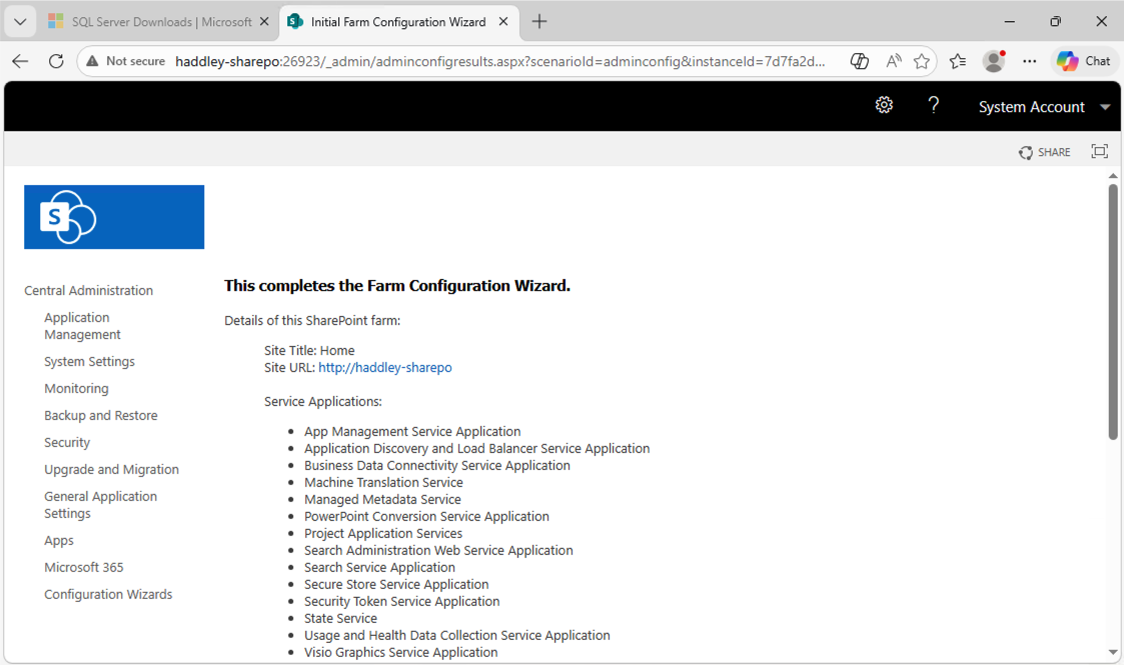
The Farm Configuration Wizard completed, listing all provisioned service applications and confirming the site URL
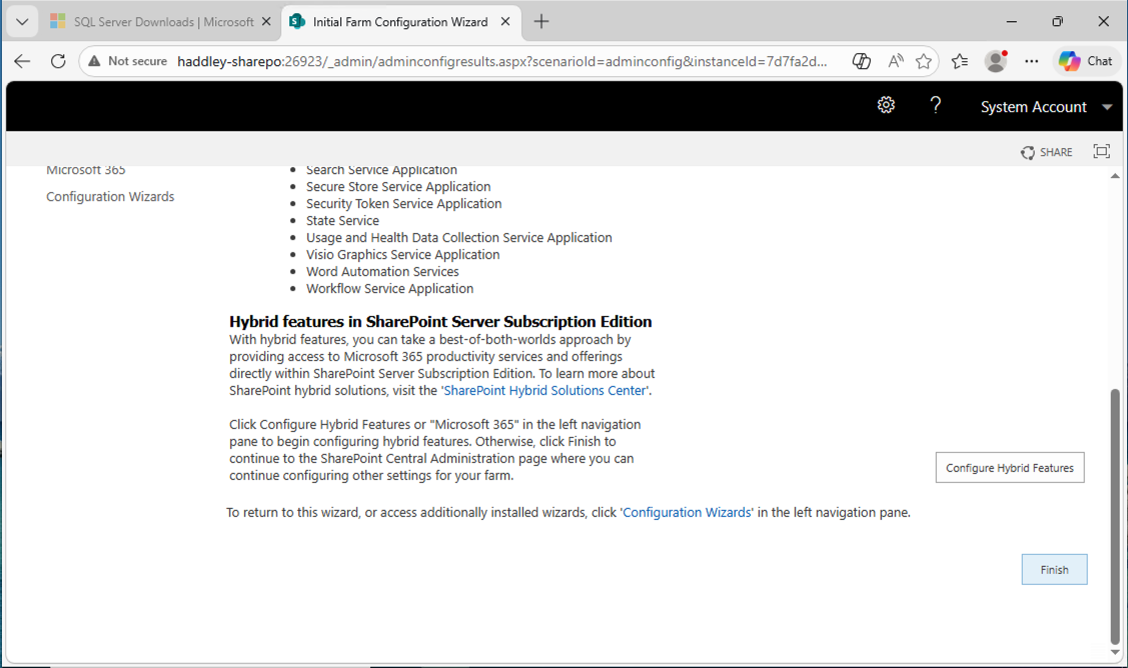
The wizard showed the Hybrid features section for SharePoint Server Subscription Edition — I clicked Finish
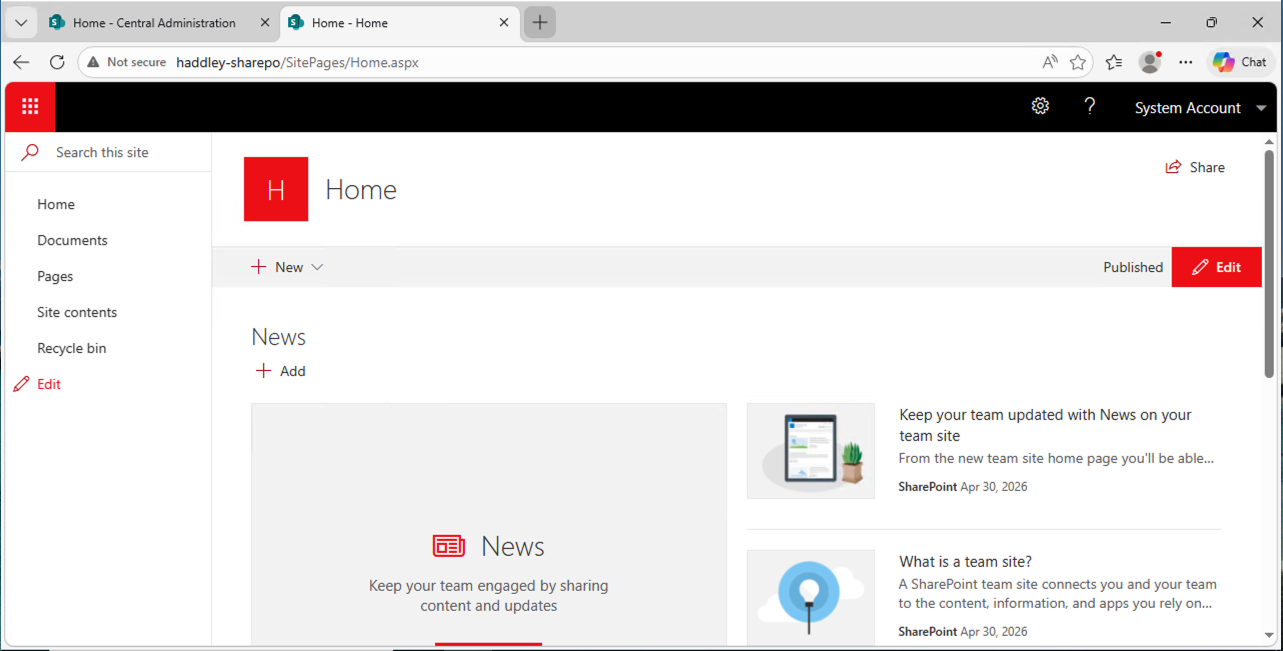
The on-premises SharePoint "Home" team site loaded successfully at haddley-sharepo
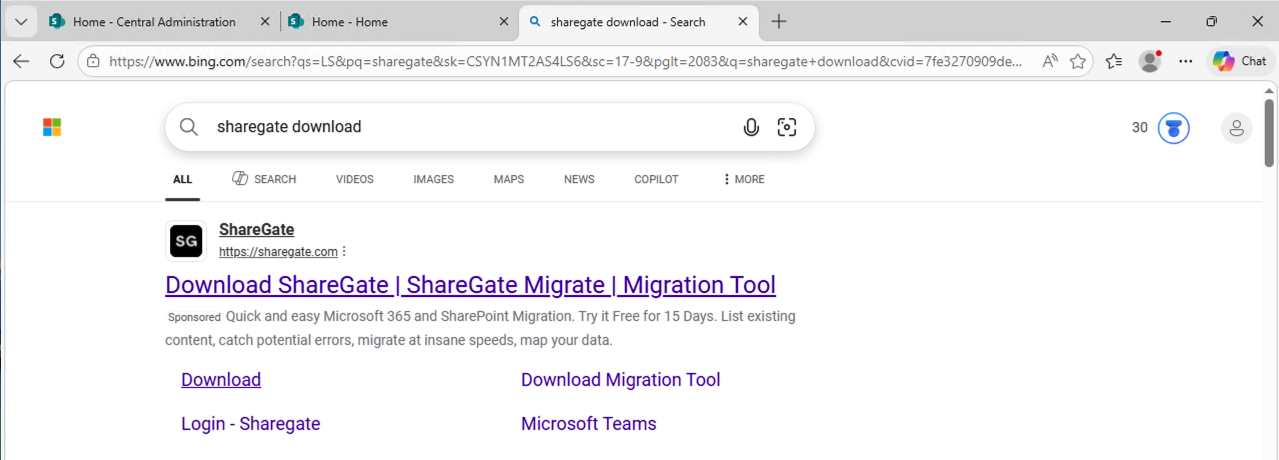
I searched for "sharegate download" in Bing inside the VM
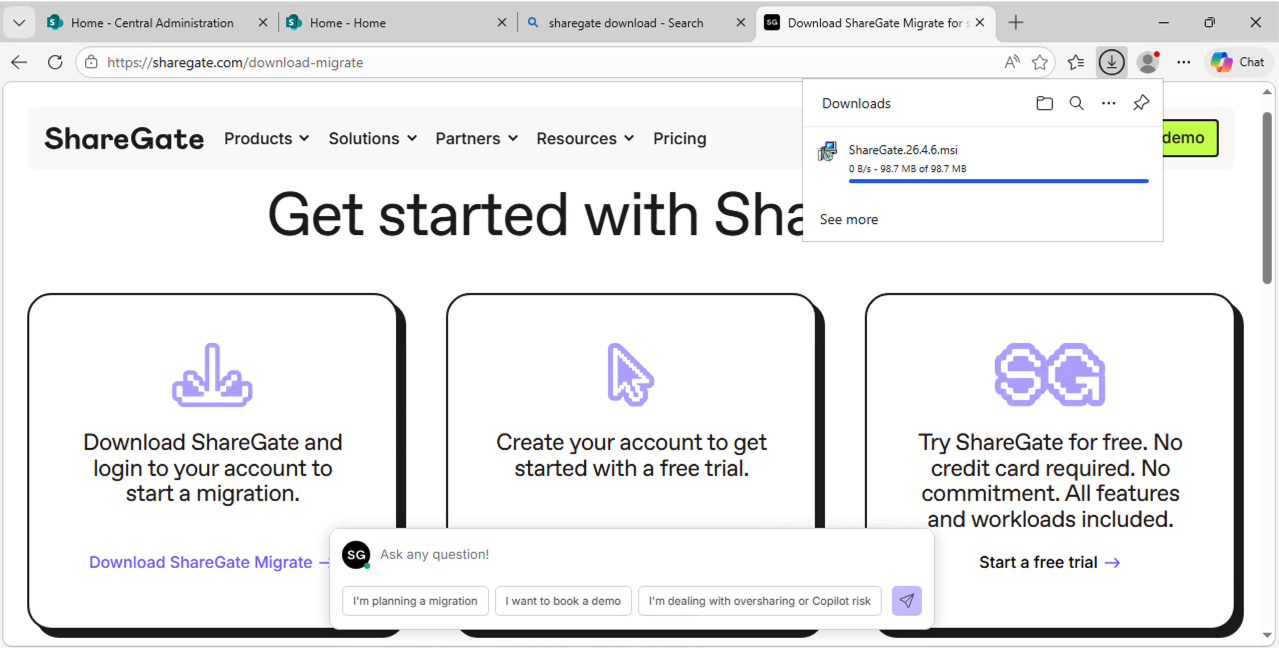
I navigated to the ShareGate download page and the ShareGate.26.4.6.msi installer started downloading
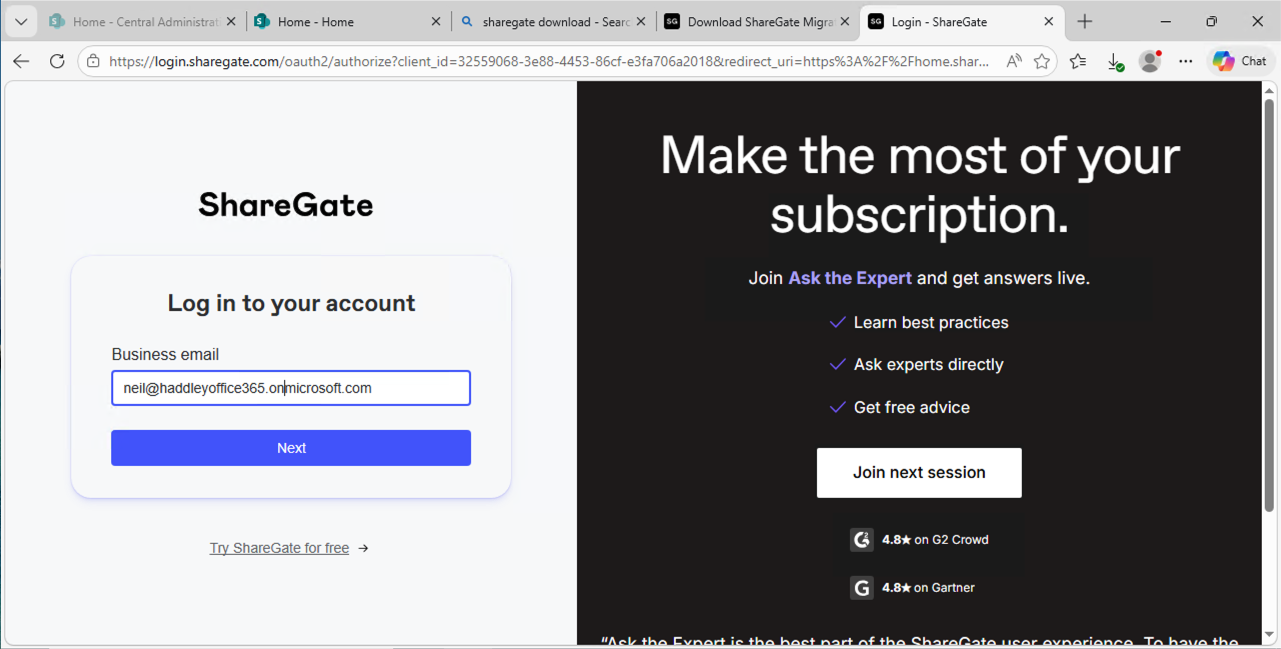
I logged into ShareGate with my Microsoft 365 account neil@haddleyoffice365.onmicrosoft.com
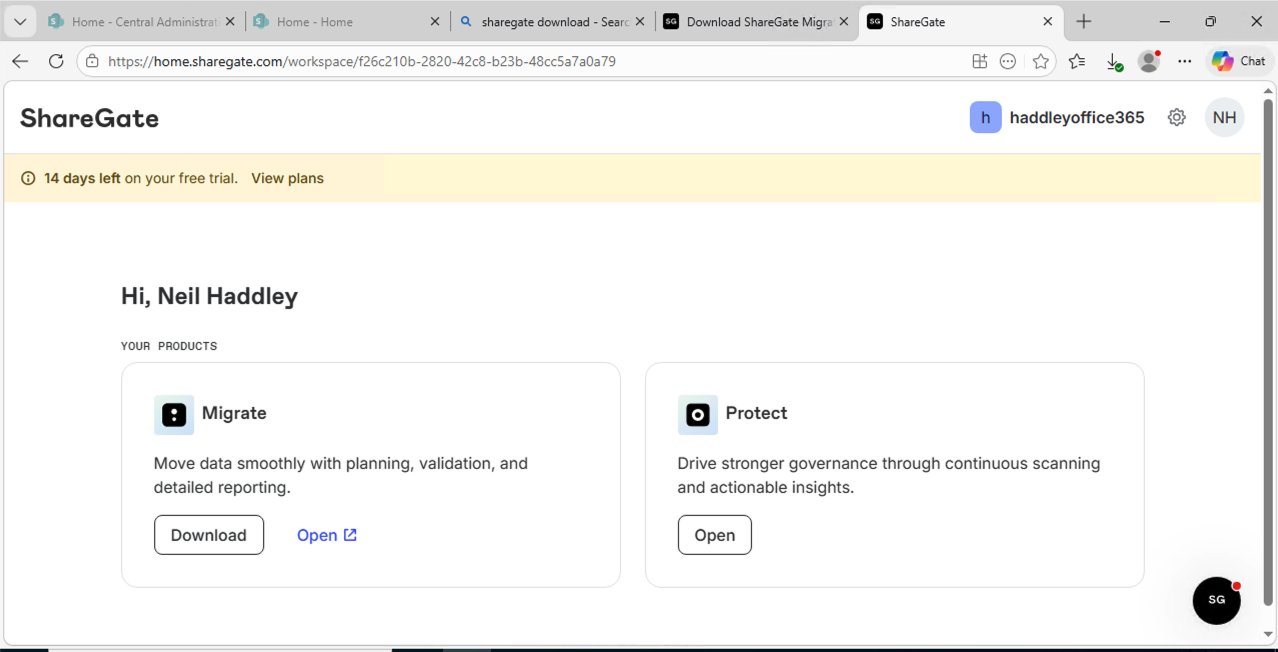
I was in the ShareGate workspace showing the Migrate and Protect products, with a 14-day free trial active
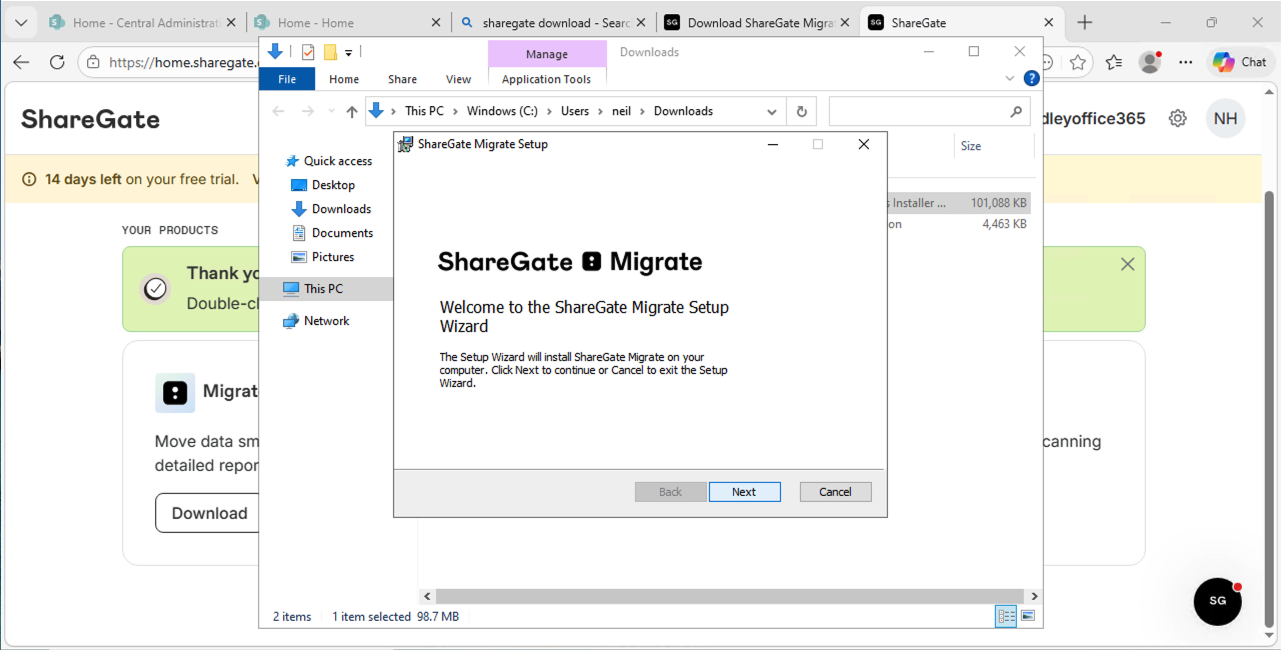
The ShareGate Migrate Setup Wizard welcomed me and I clicked Next to begin
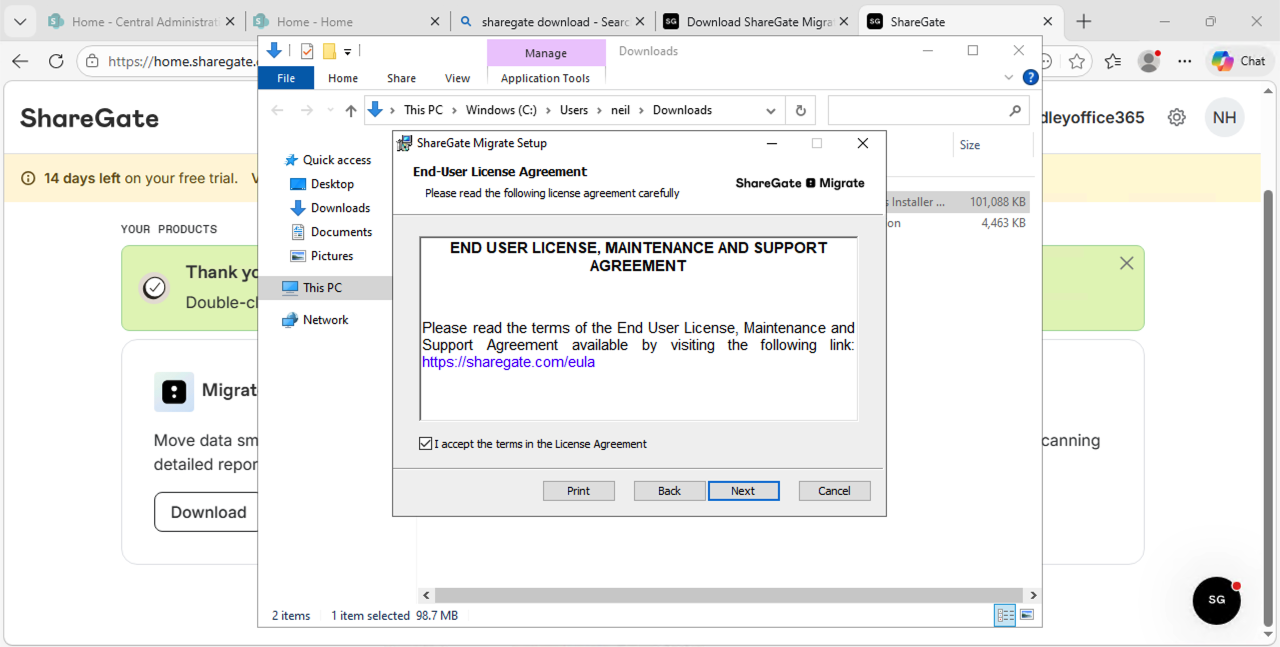
I accepted the ShareGate Migrate end user licence agreement
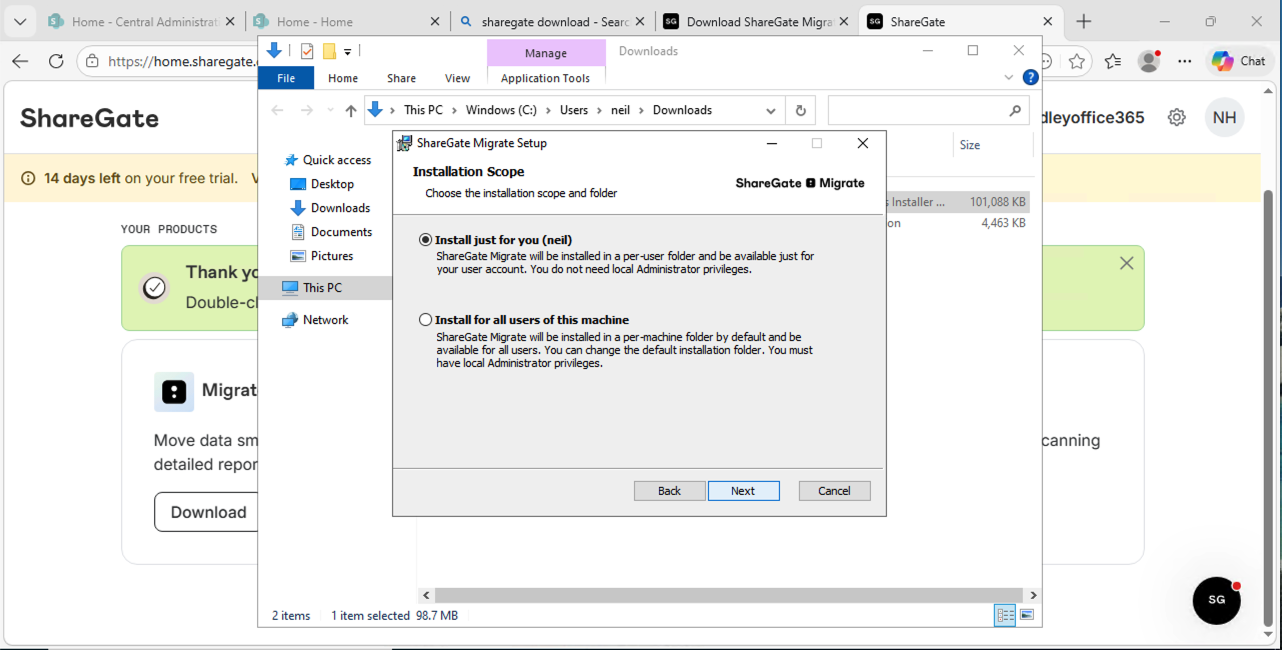
I selected to install ShareGate Migrate just for my user account
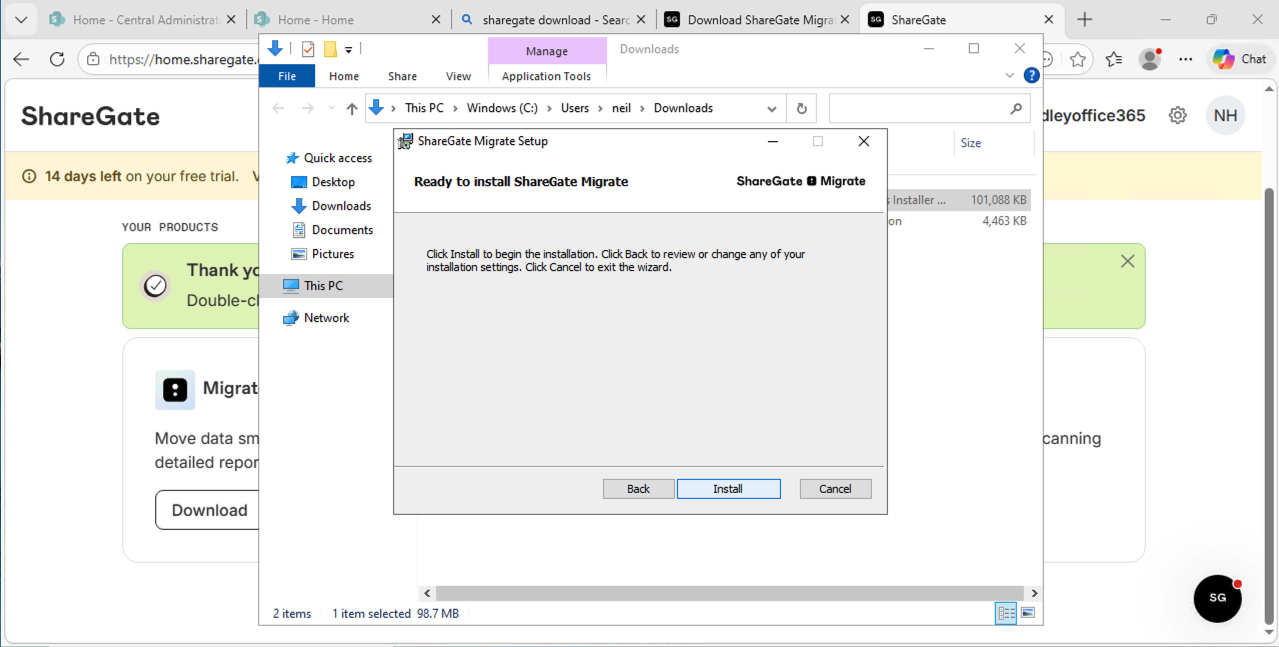
I clicked Install on the Ready to Install screen
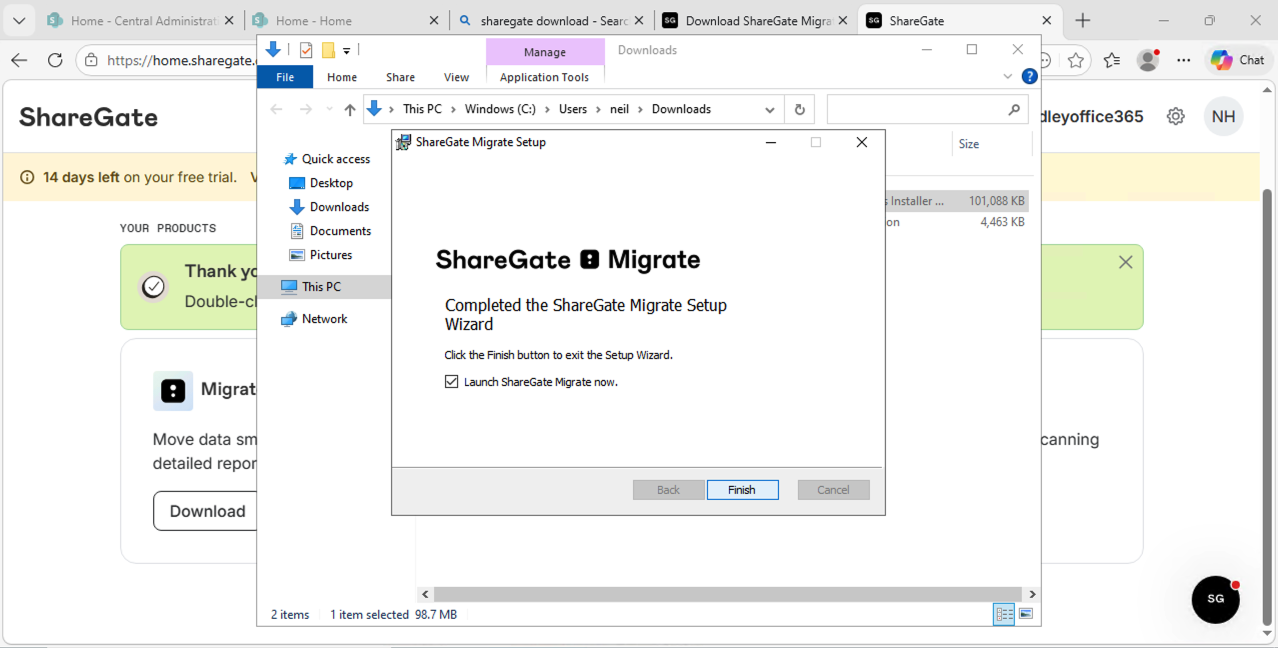
ShareGate Migrate setup completed successfully and I clicked Finish to launch it
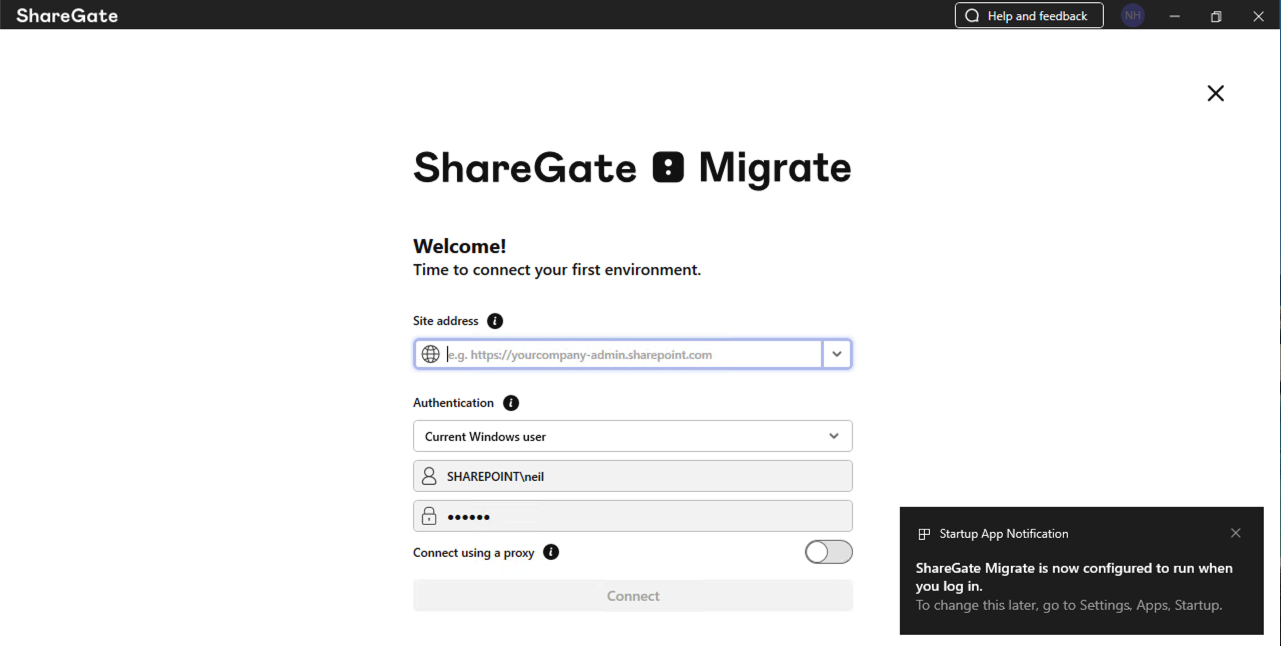
ShareGate Migrate opened and prompted me to connect my first environment — it detected my SHAREPOINT\neil credentials
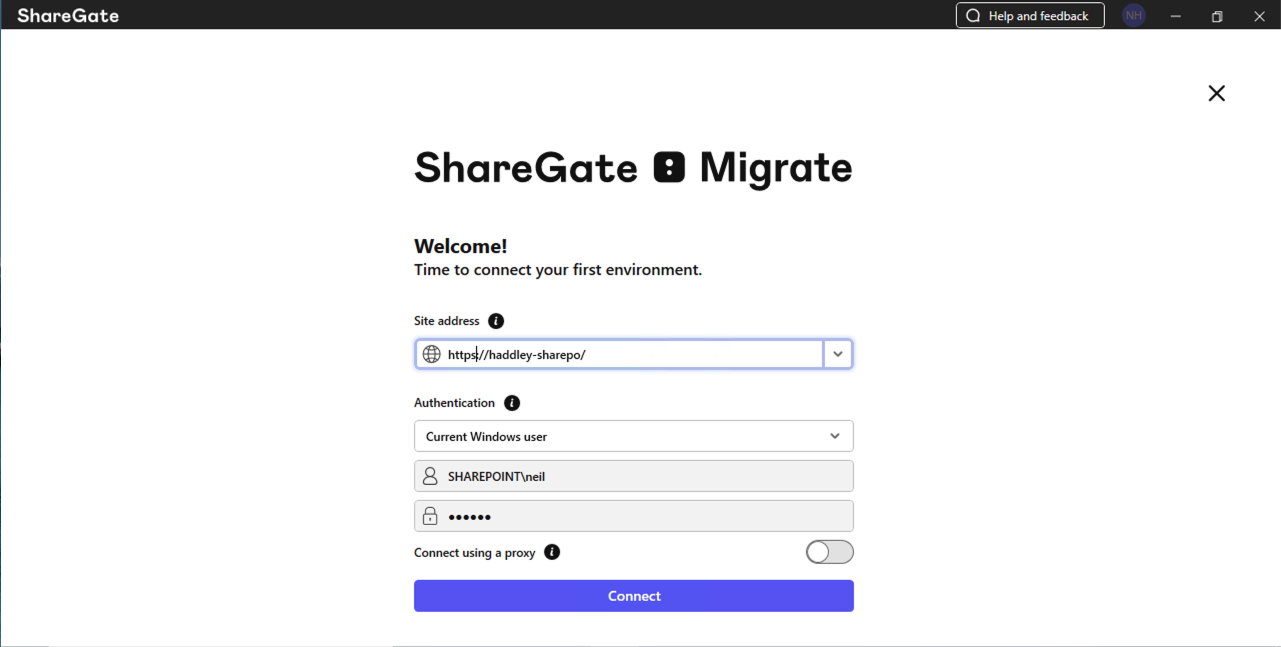
I entered the on-premises site address https://haddley-sharepo/ and clicked Connect
ShareGate Migrate showed "Connecting..." while establishing the connection
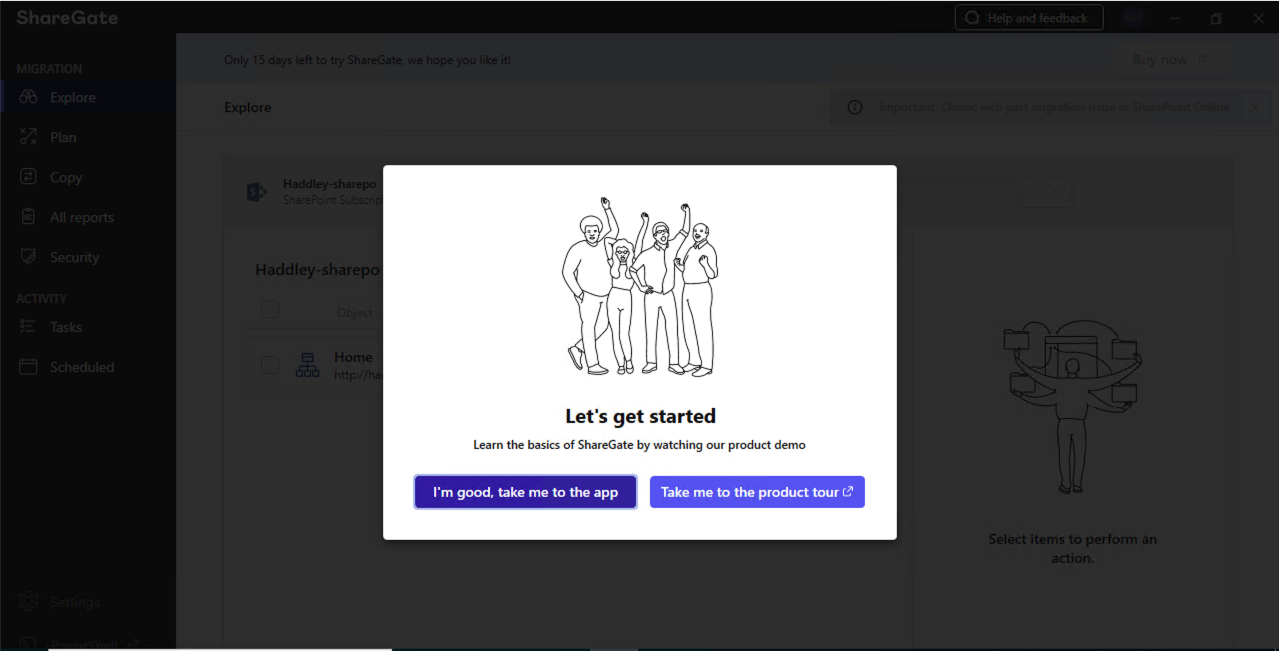
ShareGate loaded the on-premises site and showed a "Let's get started" welcome popup — I clicked "I'm good, take me to the app"
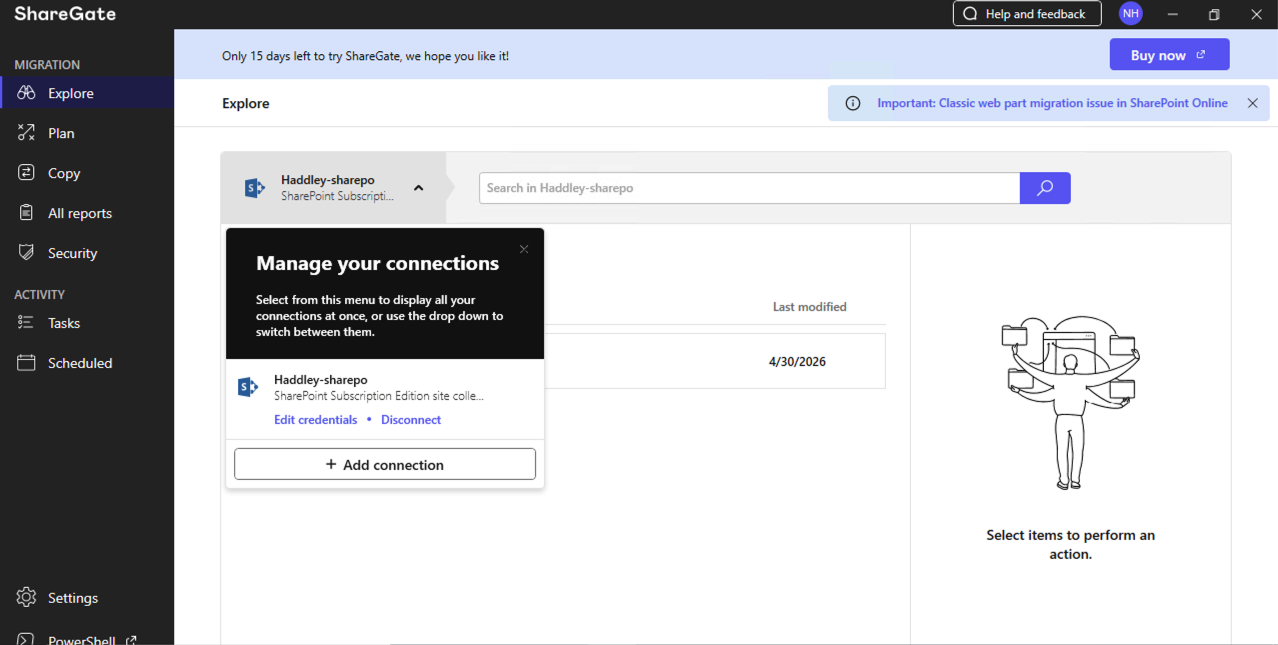
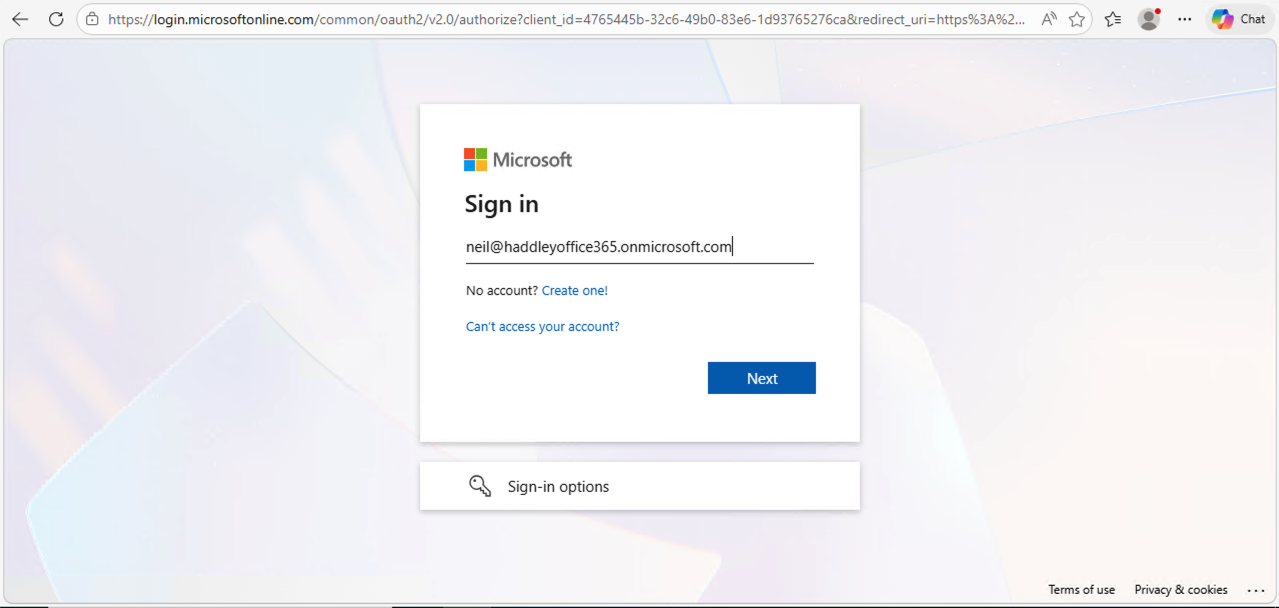
A Microsoft sign-in page appeared so I could add my Microsoft 365 account as the migration destination
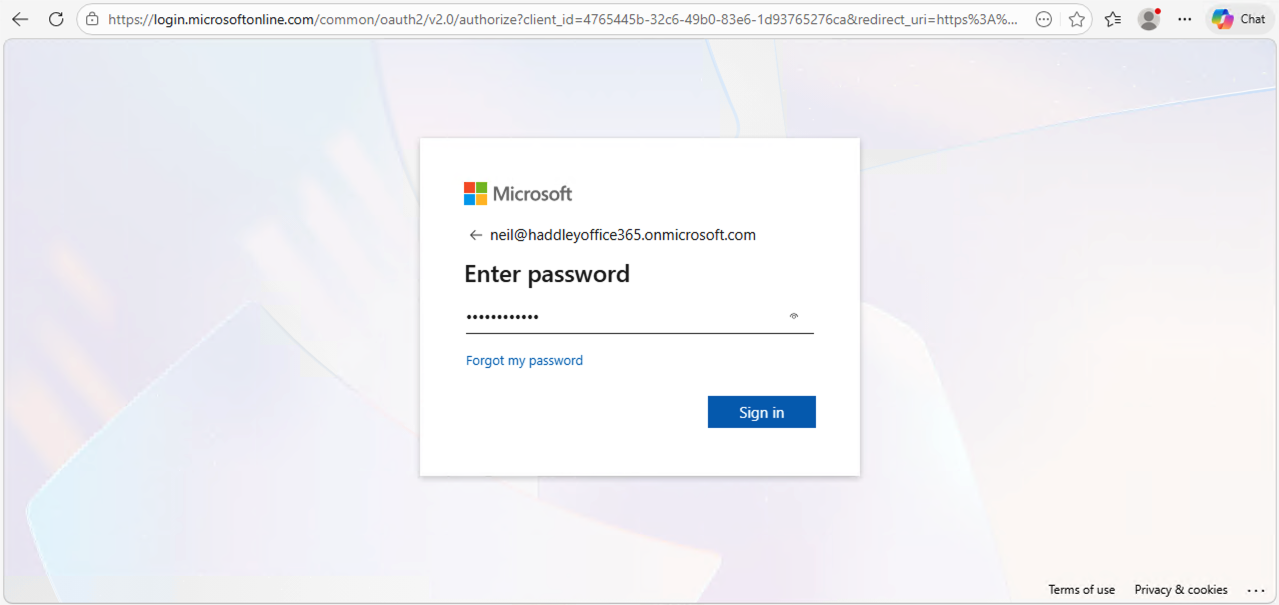
I entered my password for neil@haddleyoffice365.onmicrosoft.com
Microsoft asked "Stay signed in?" and I clicked Yes
Microsoft 365 Copilot opened in the browser after signing in to the tenant
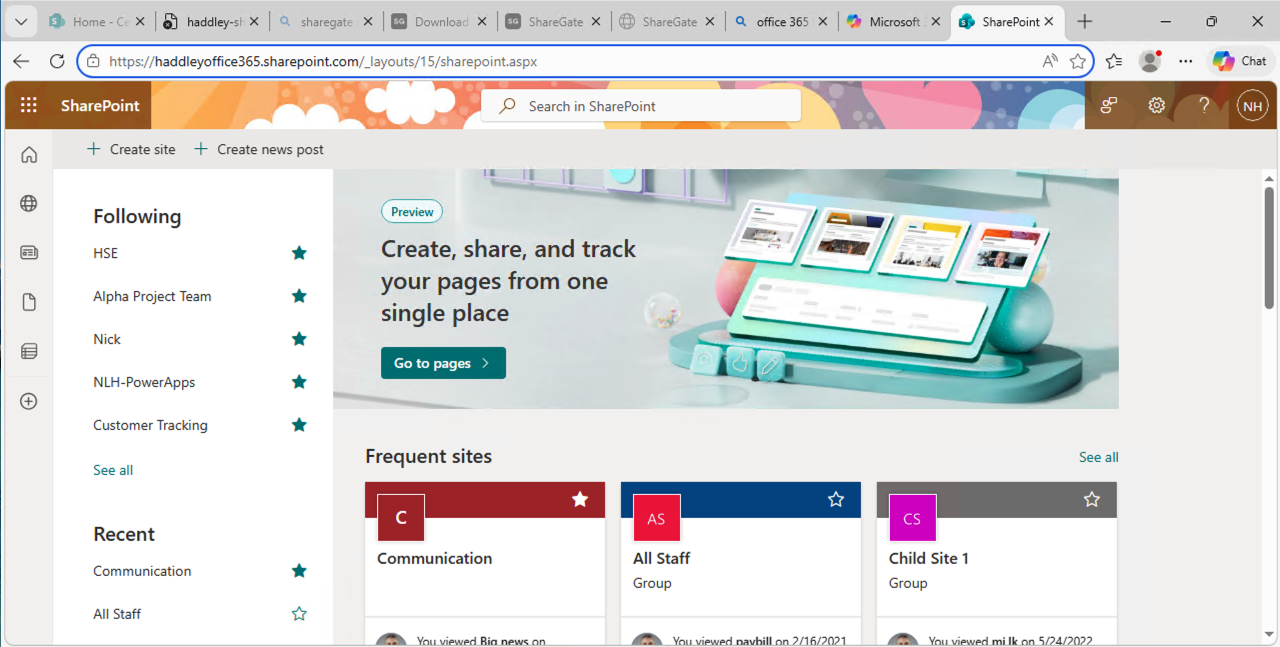
I confirmed the SharePoint Online sites were accessible from within the VM
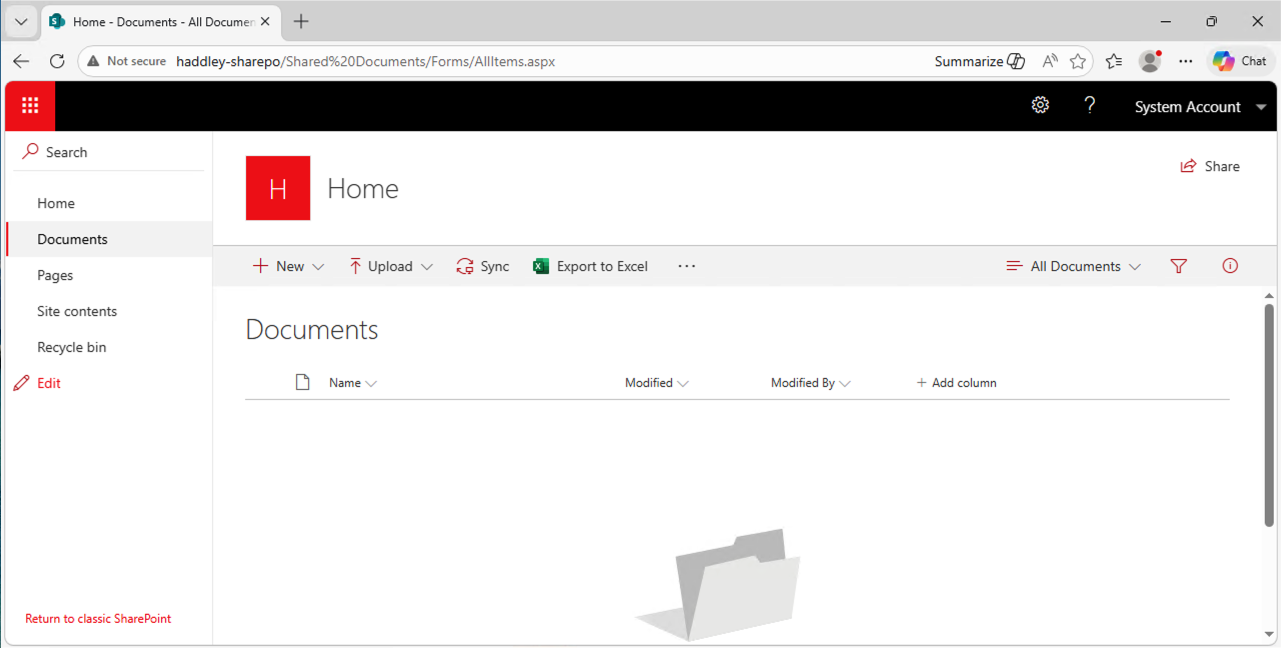
I navigated to the on-premises SharePoint Documents library — it was empty
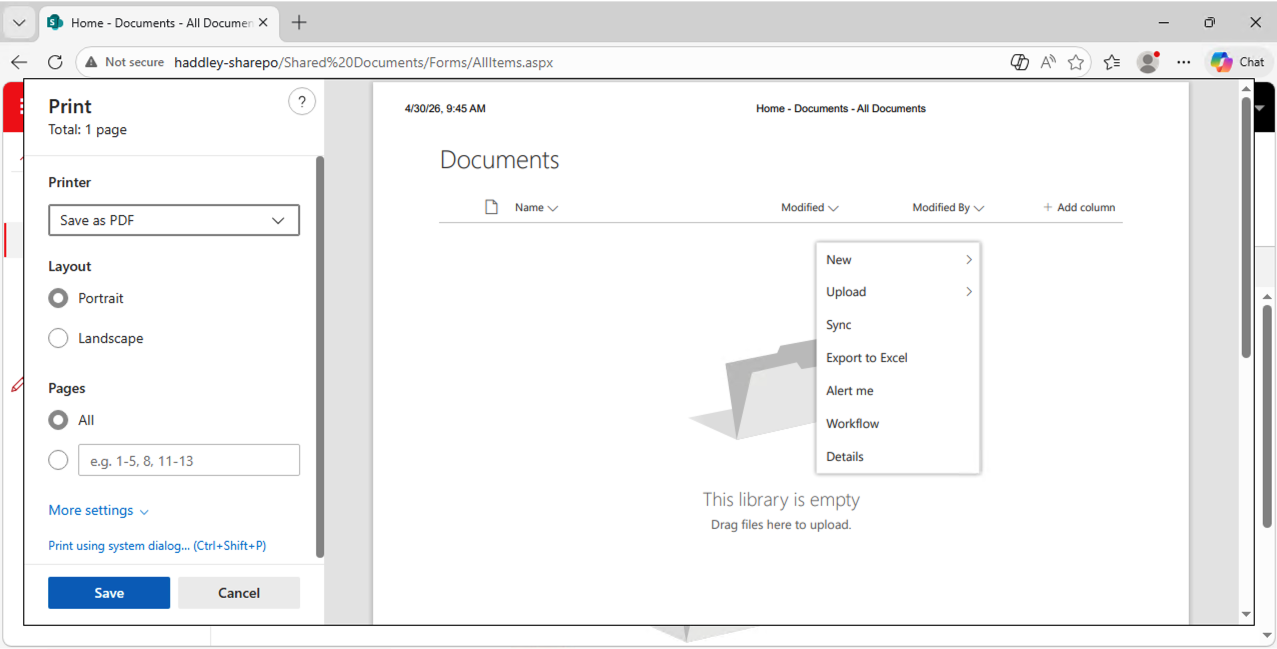
I used the browser print function to save the Documents list as a PDF to create a test file to migrate
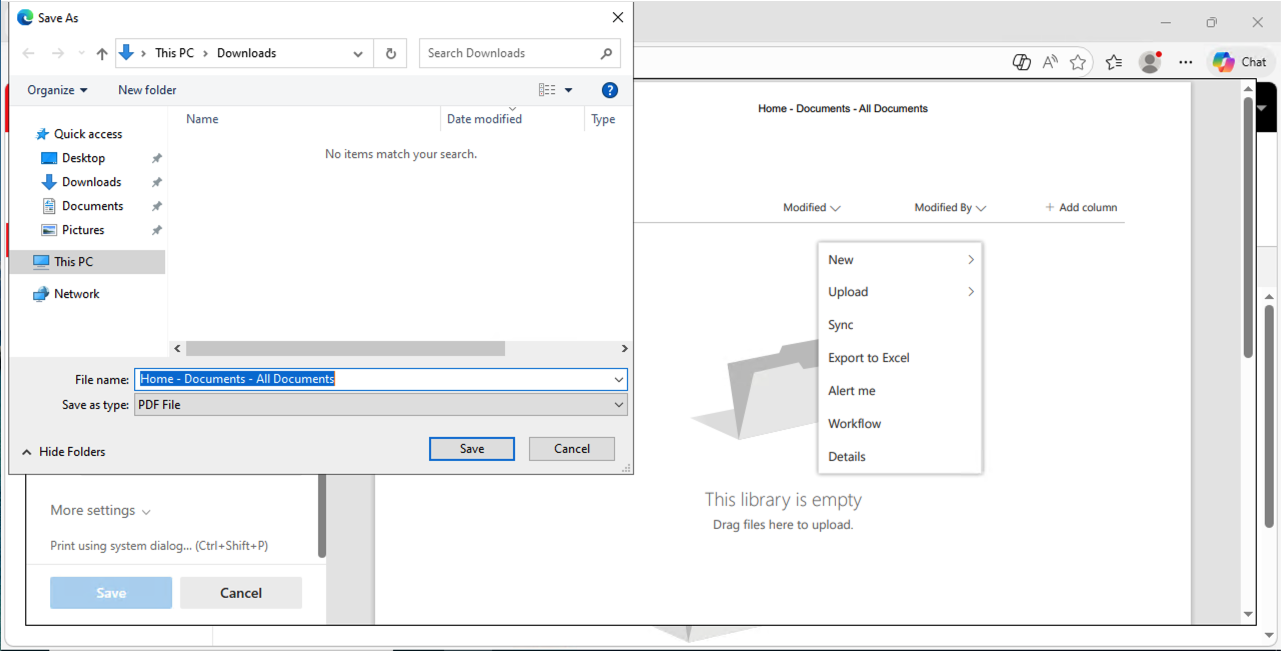
I saved the printed PDF as "Home - Documents - All Documents" to the Downloads folder
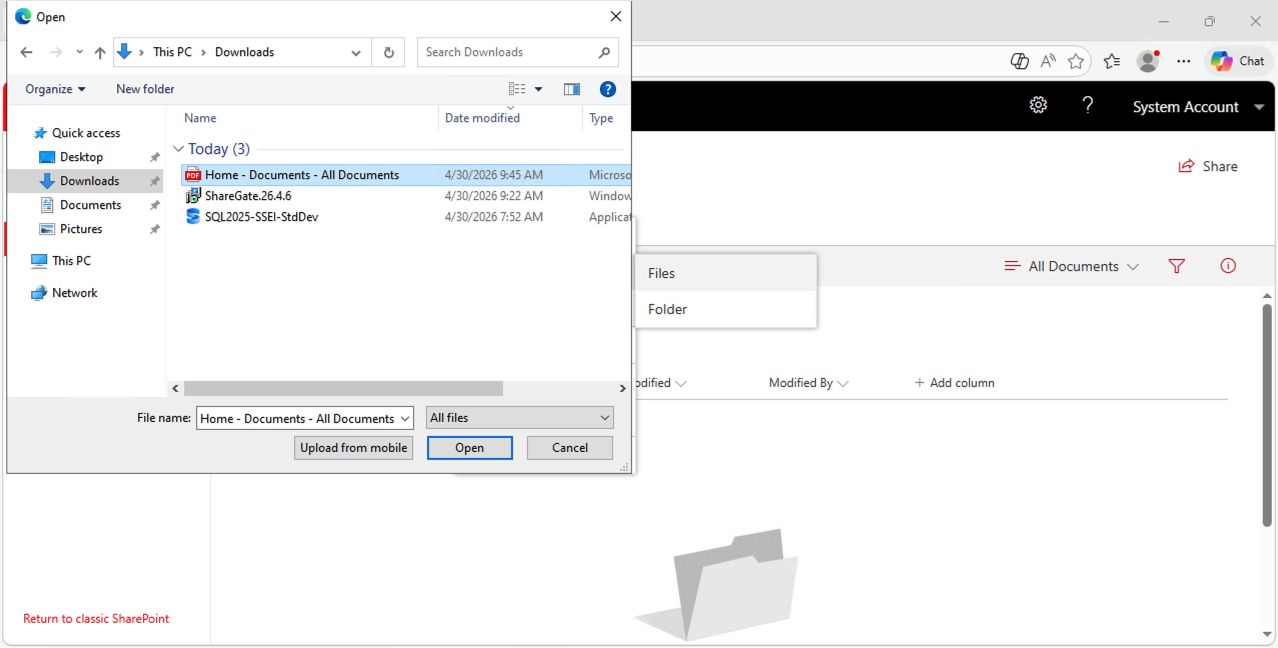
I uploaded the PDF to the on-premises SharePoint Documents library
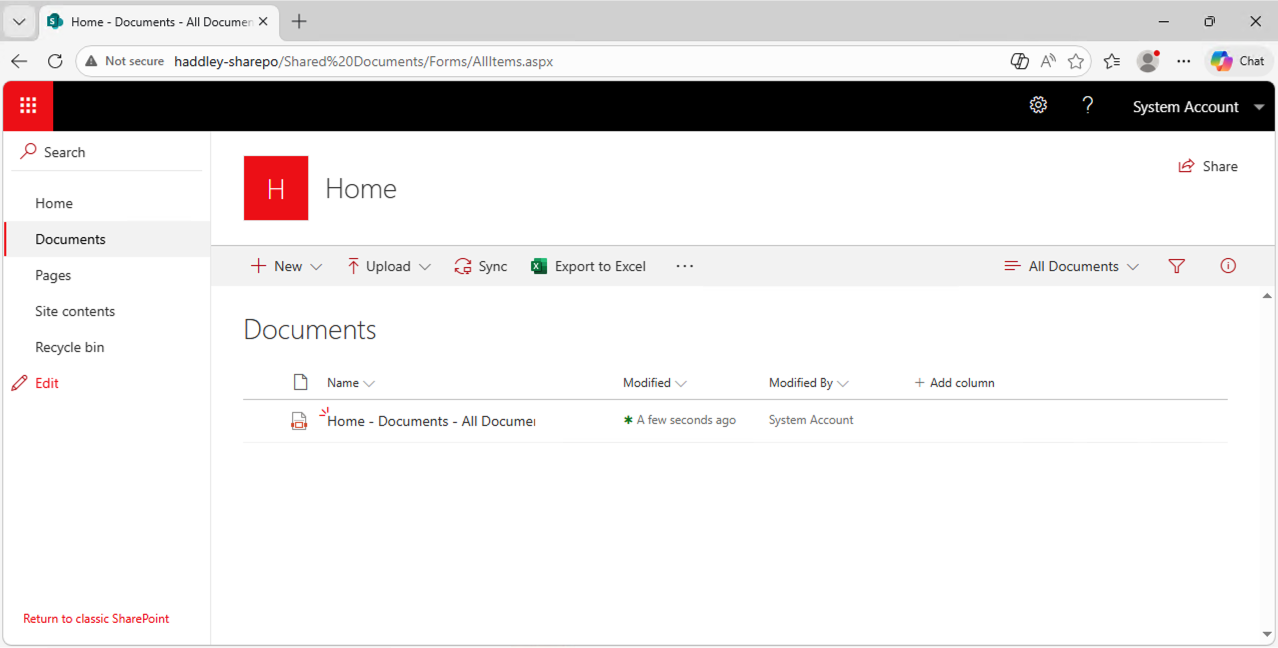
The PDF appeared in the on-premises Documents library
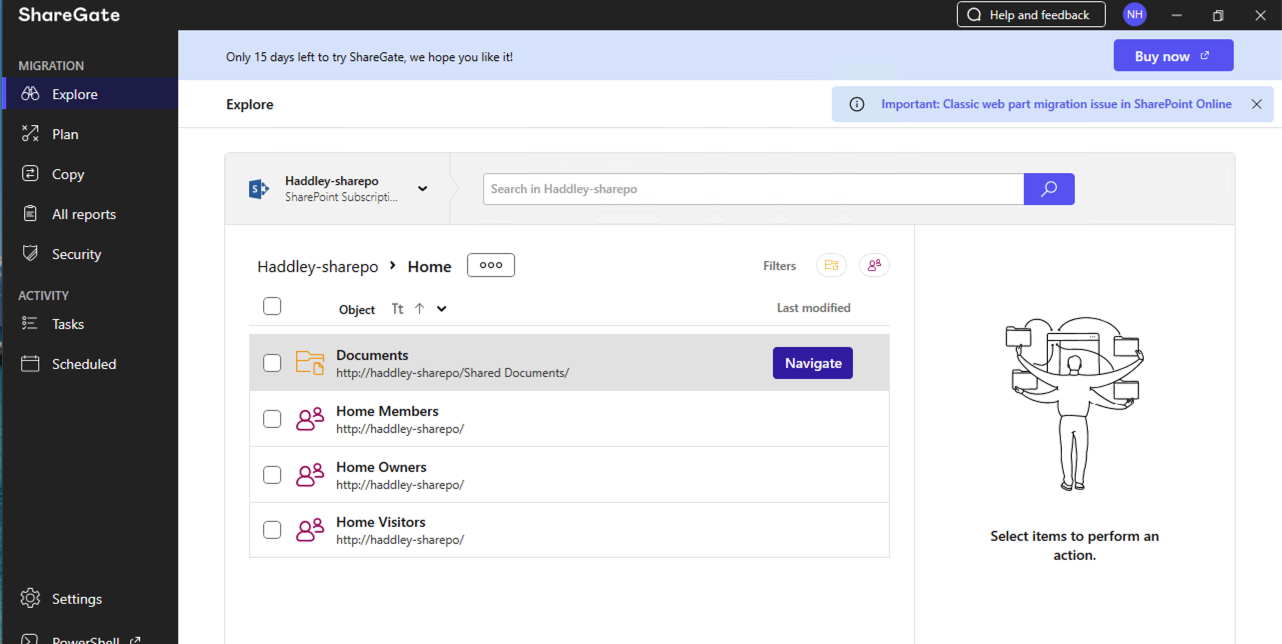
ShareGate Migrate Explore view showed the document visible in the Haddley-sharepo Documents folder
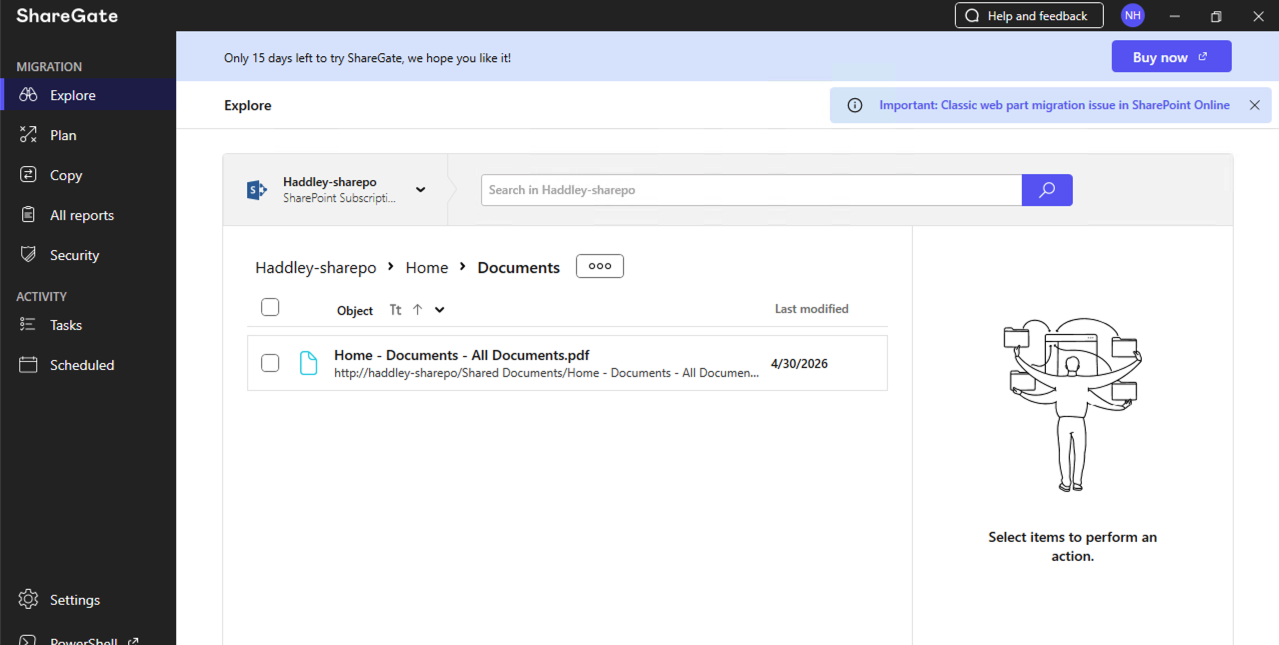
I selected the document in ShareGate and the action panel appeared on the right with migration and management options
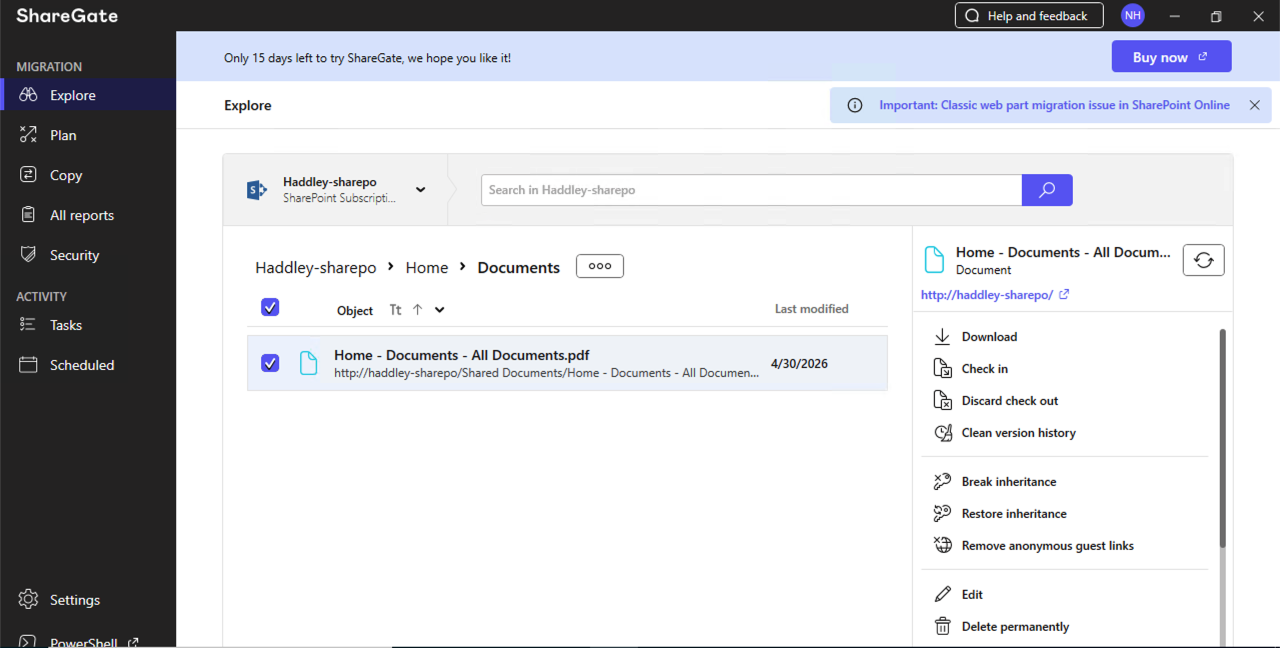
The action panel showed options including Download, Check in, Break inheritance, Edit, and Delete permanently
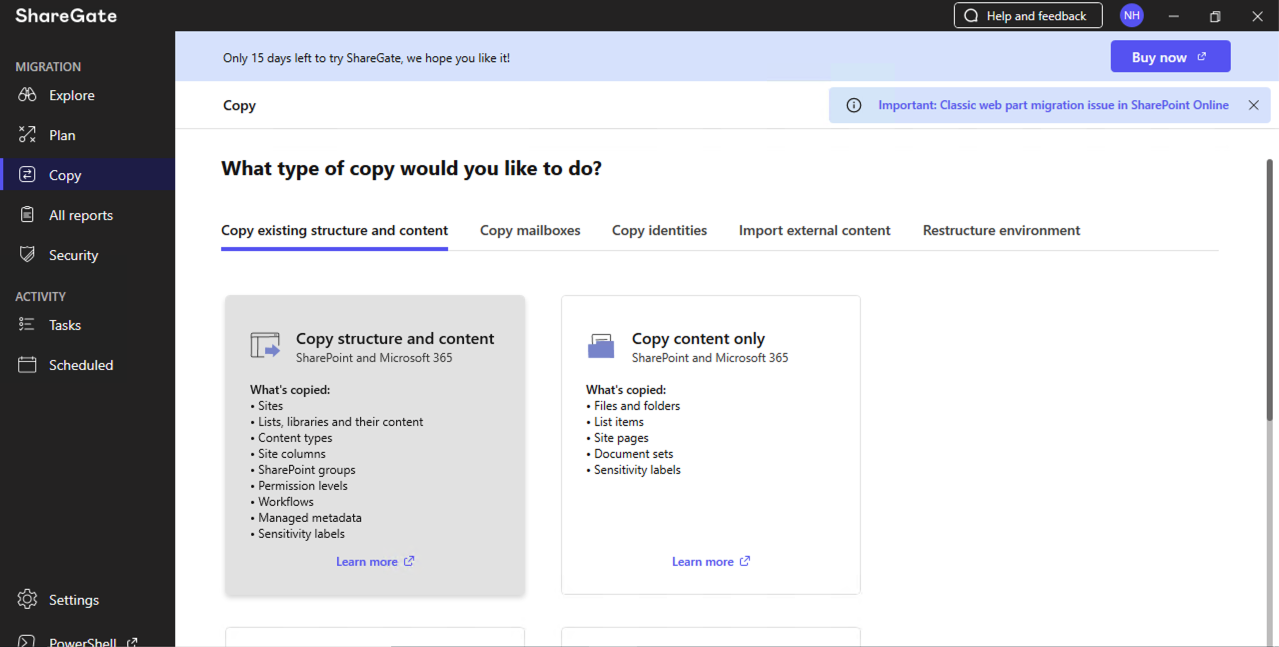
I opened the Copy section in ShareGate Migrate and selected "Copy existing structure and content" to begin the migration
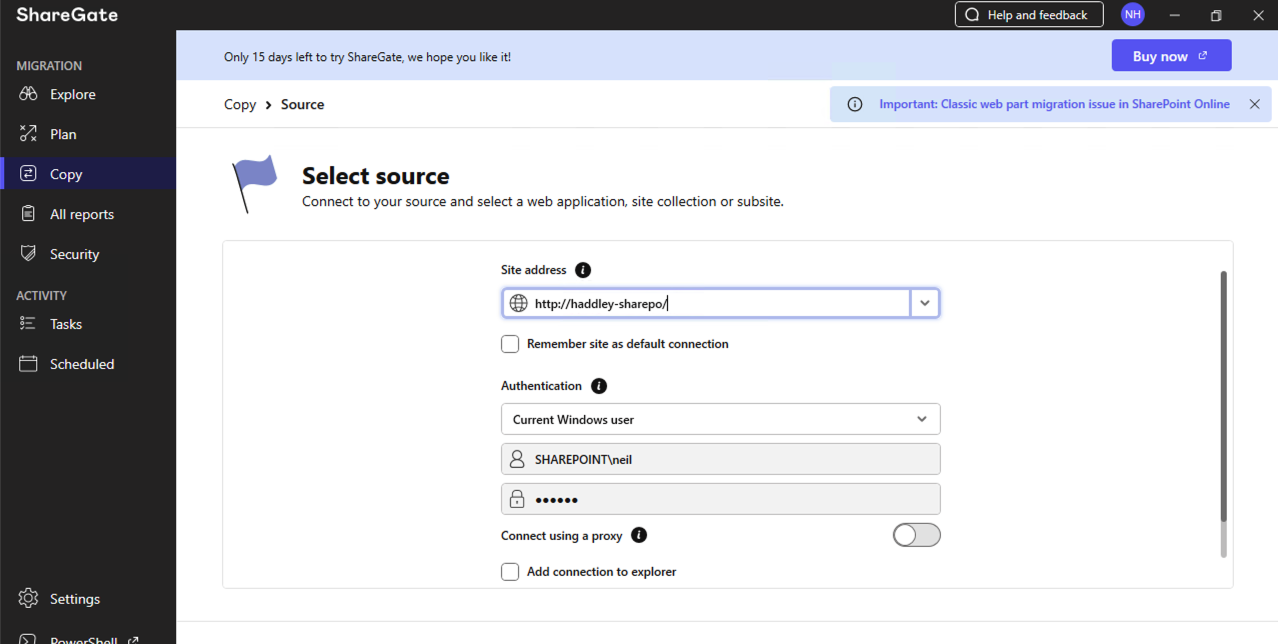
I entered http://haddley-sharepo/ as the source site address with my SHAREPOINT\\neil credentials
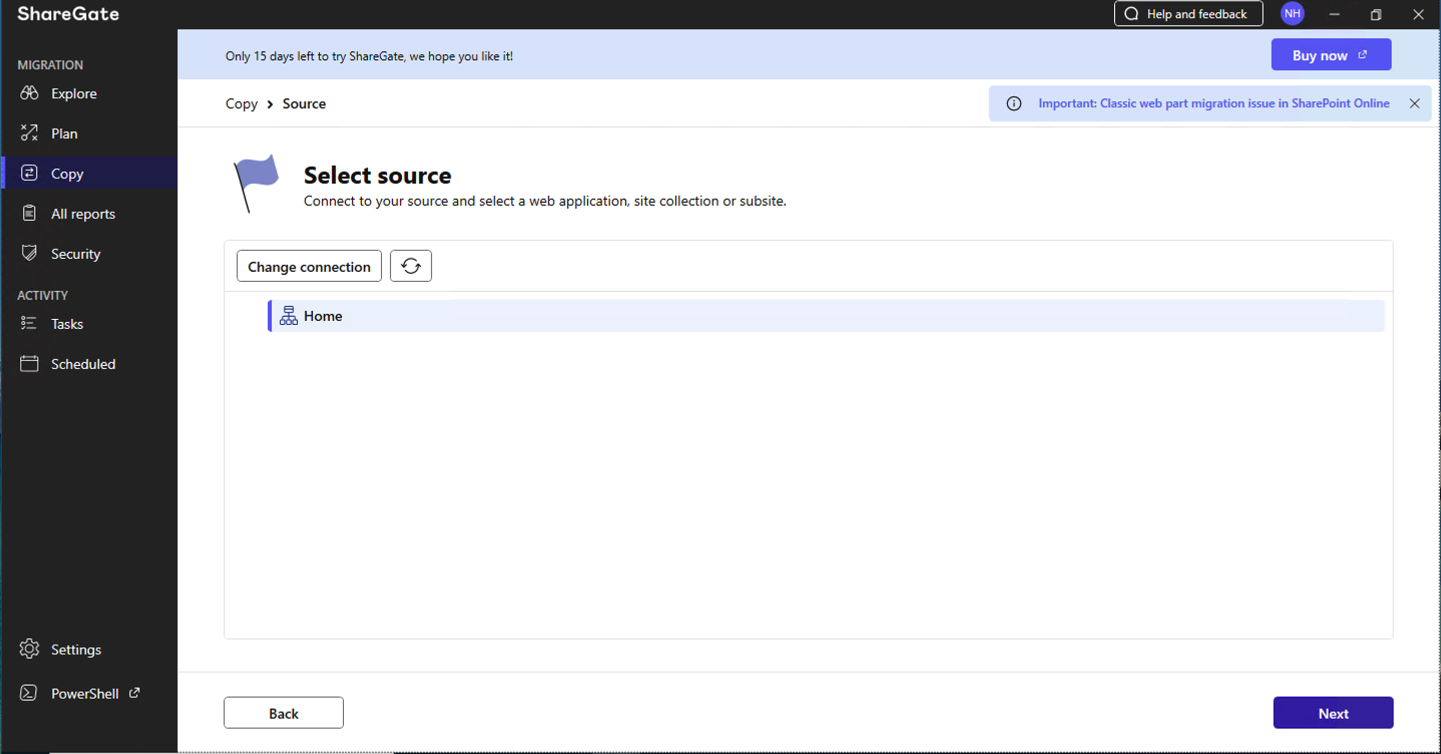
ShareGate connected to the on-premises site and listed the Home site collection as the source
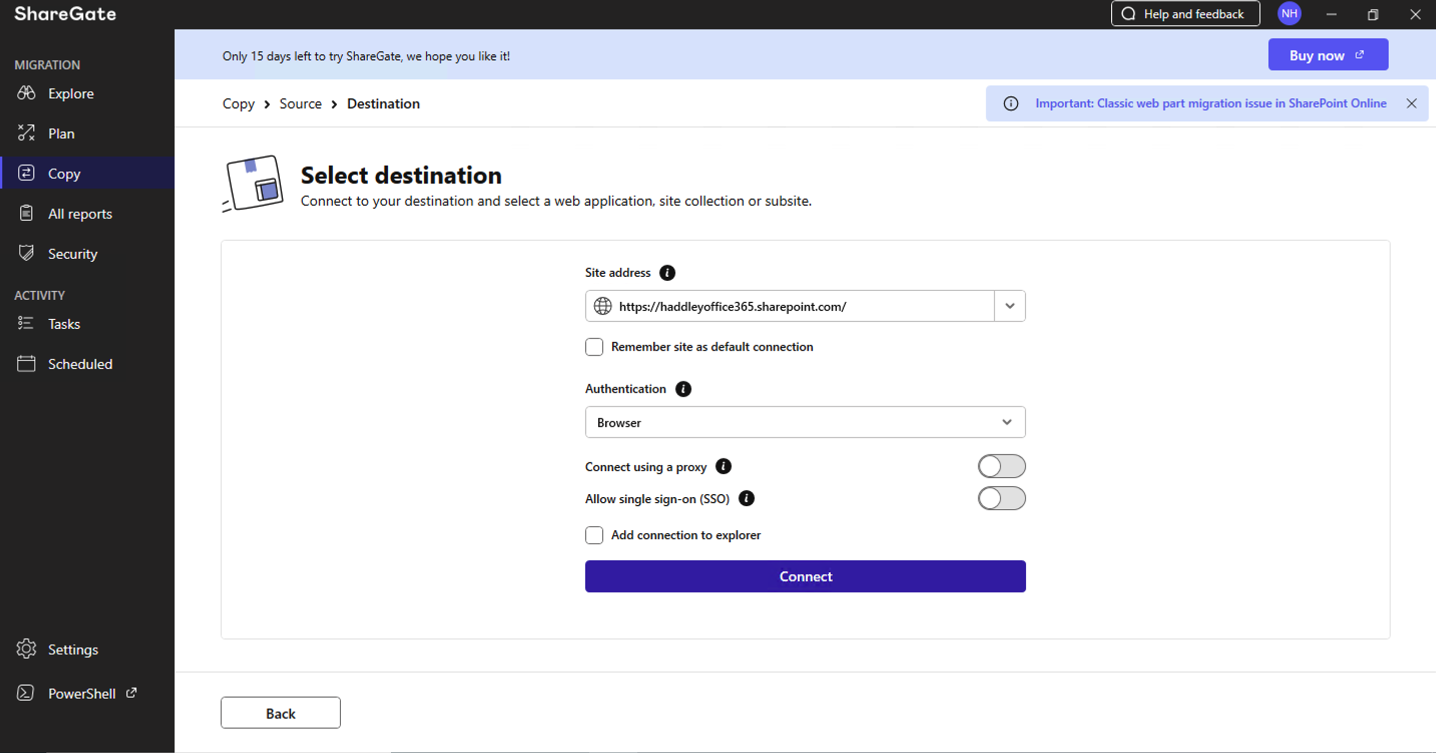
I entered https://haddleyoffice365.sharepoint.com/ as the destination and clicked Connect using Browser authentication
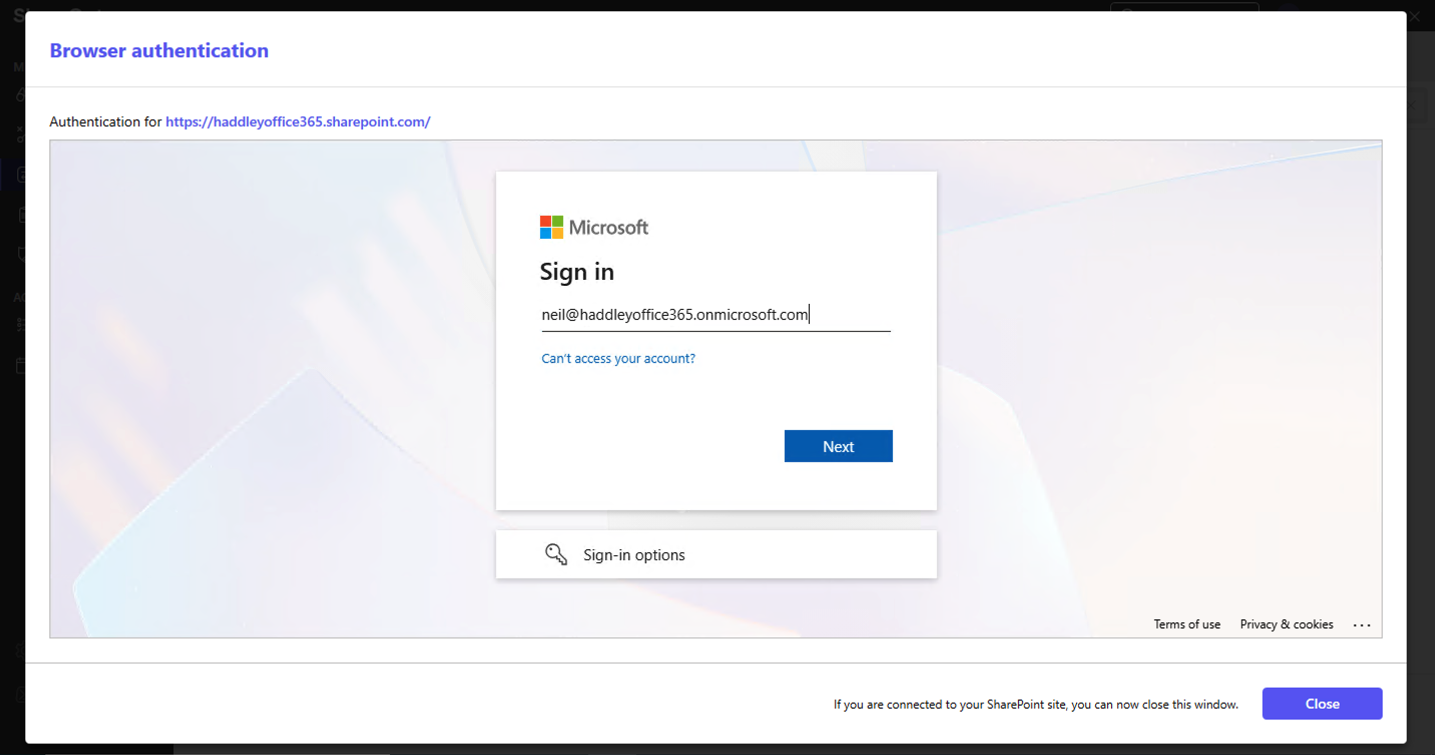
A browser authentication window opened asking me to sign in with neil@haddleyoffice365.onmicrosoft.com
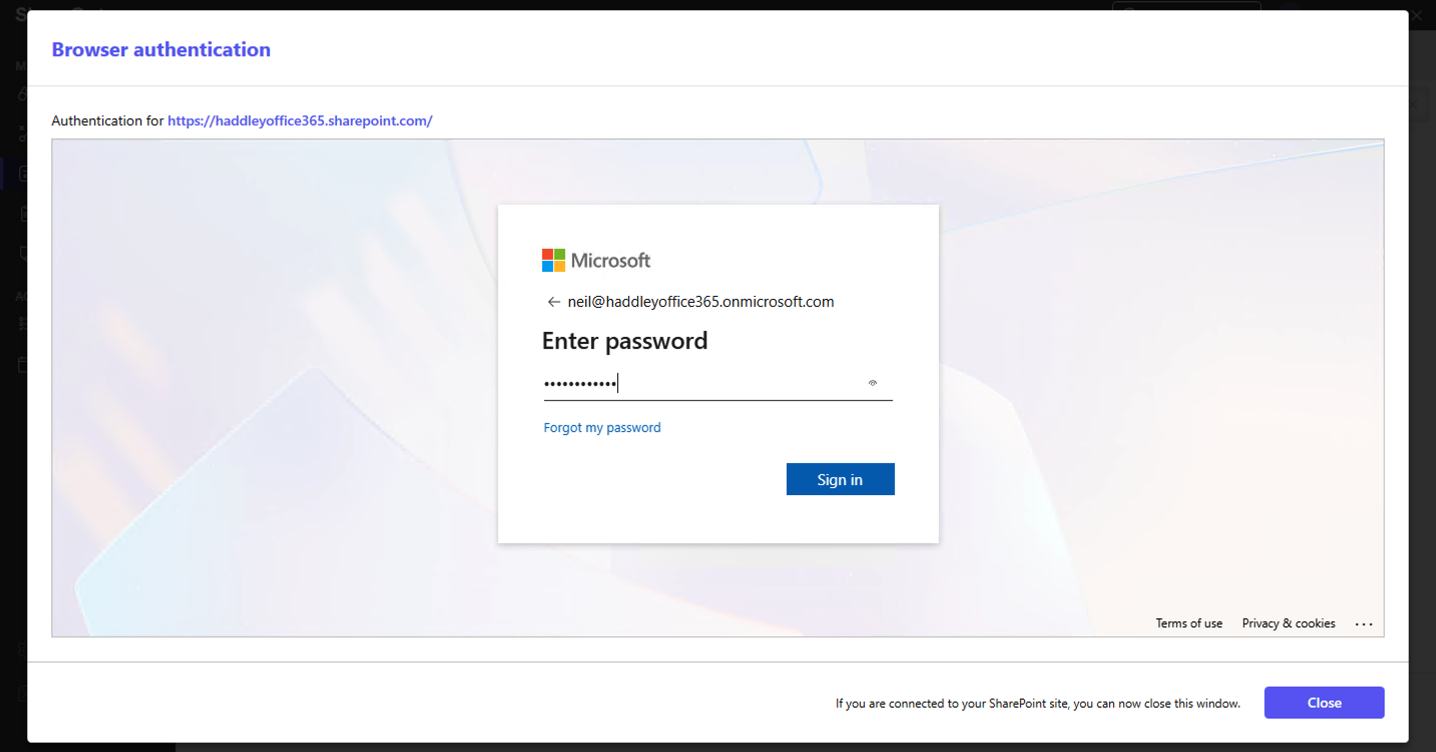
I entered my password for the Microsoft 365 destination tenant
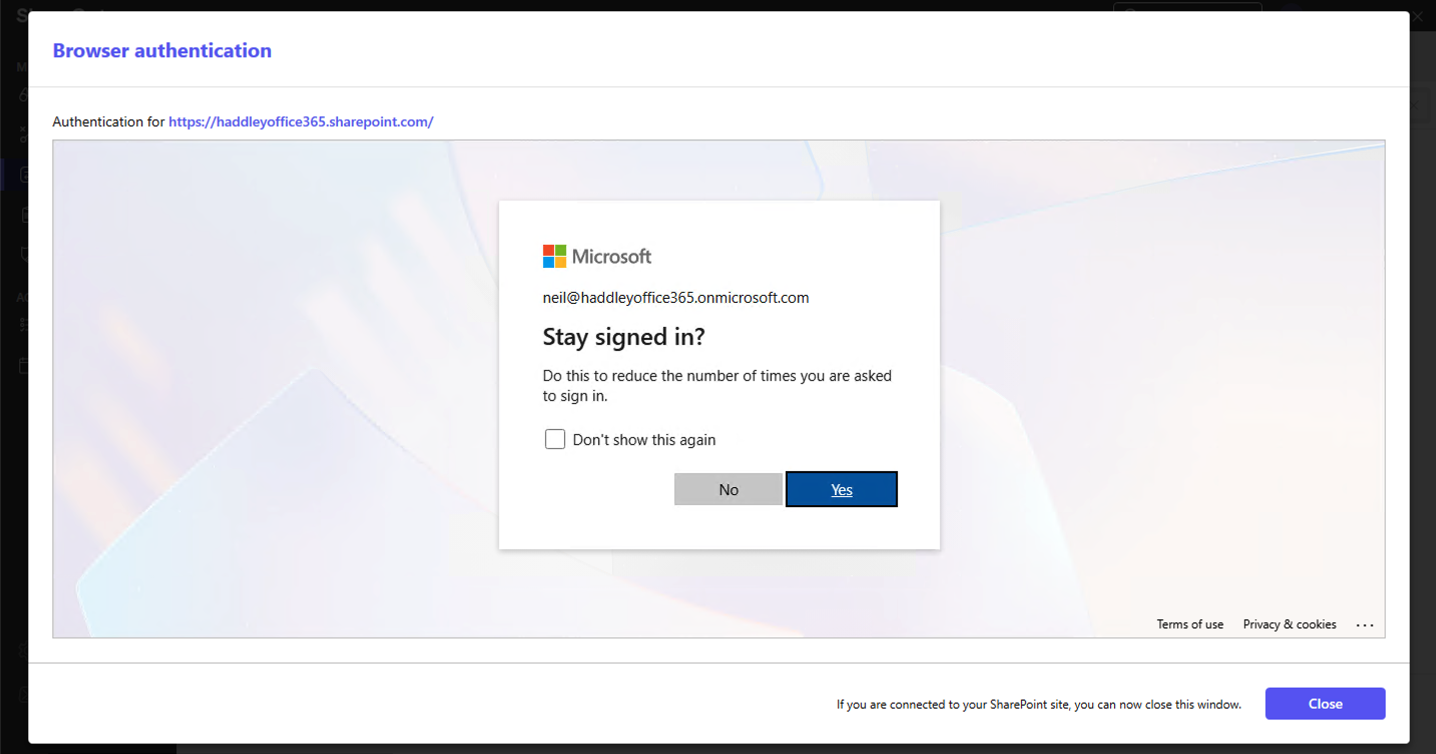
Microsoft asked "Stay signed in?" and I clicked Yes
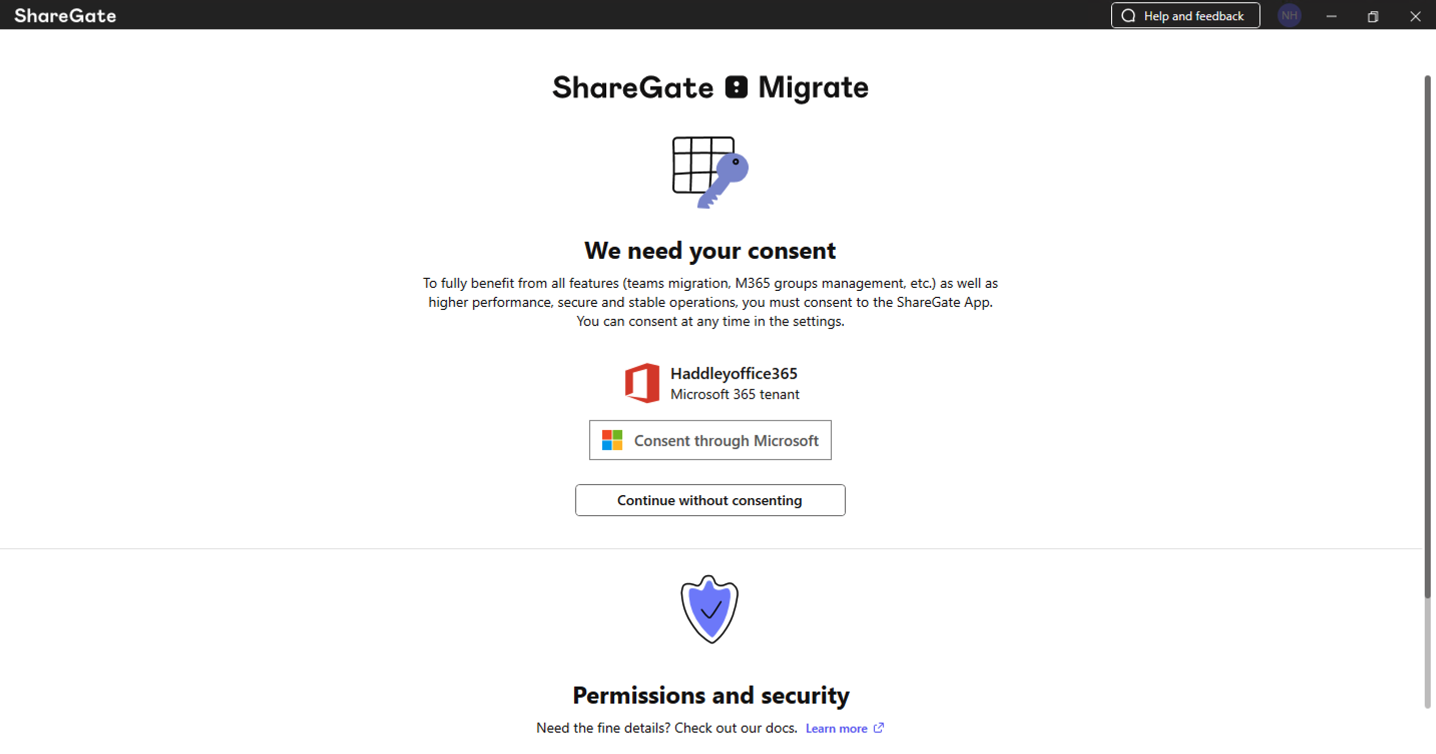
ShareGate asked for consent to access the Haddleyoffice365 Microsoft 365 tenant — I clicked "Consent through Microsoft"
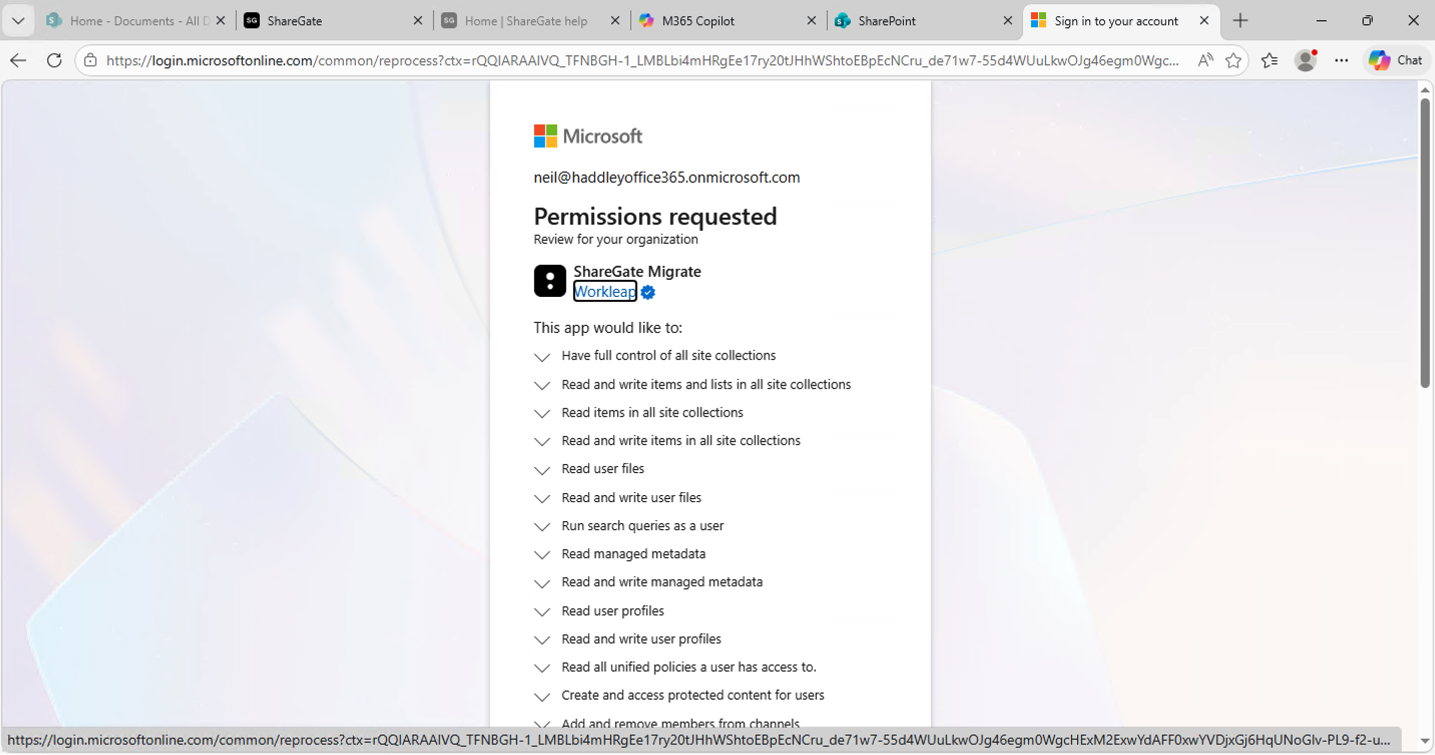
Microsoft showed the list of permissions requested by the ShareGate Migrate app for my organisation
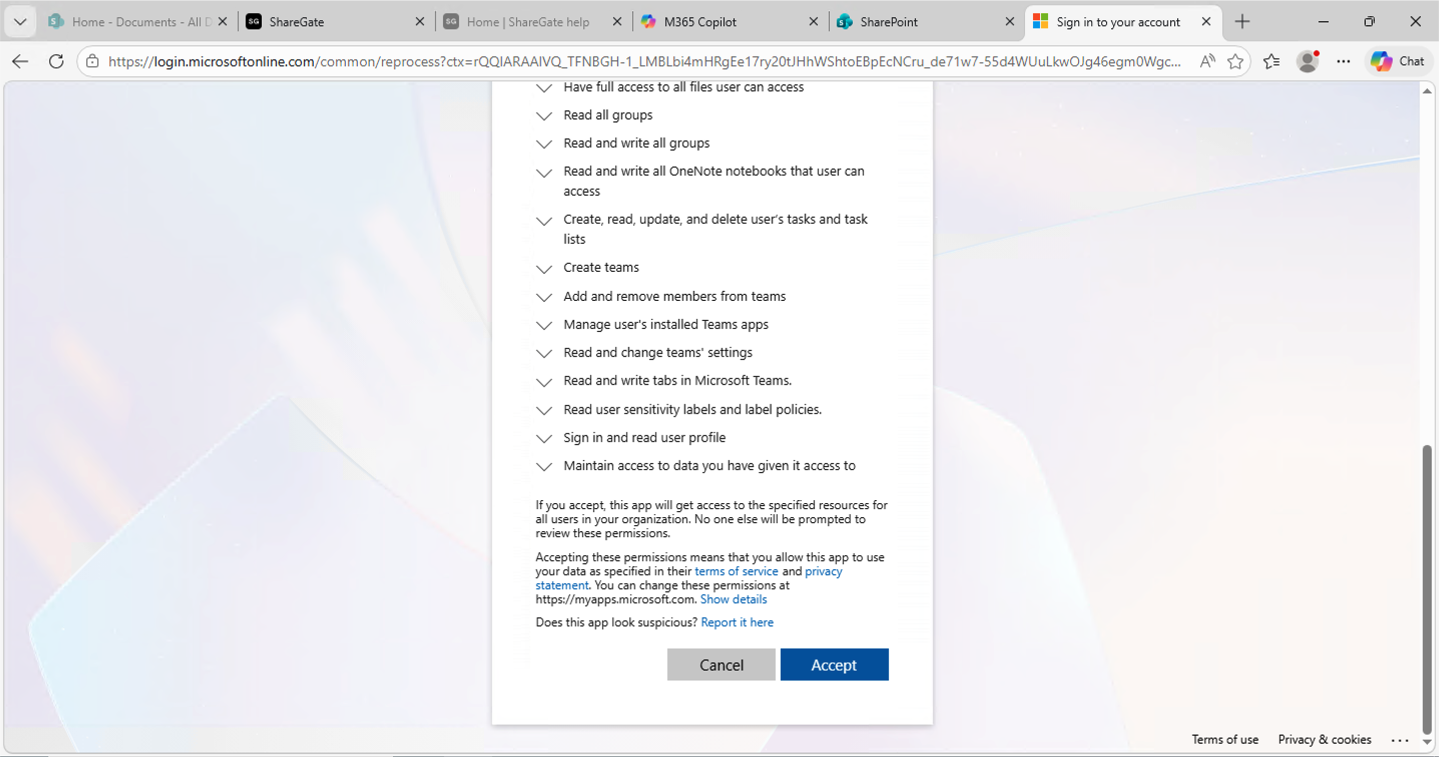
I reviewed the full permissions list and clicked Accept to grant the ShareGate app access
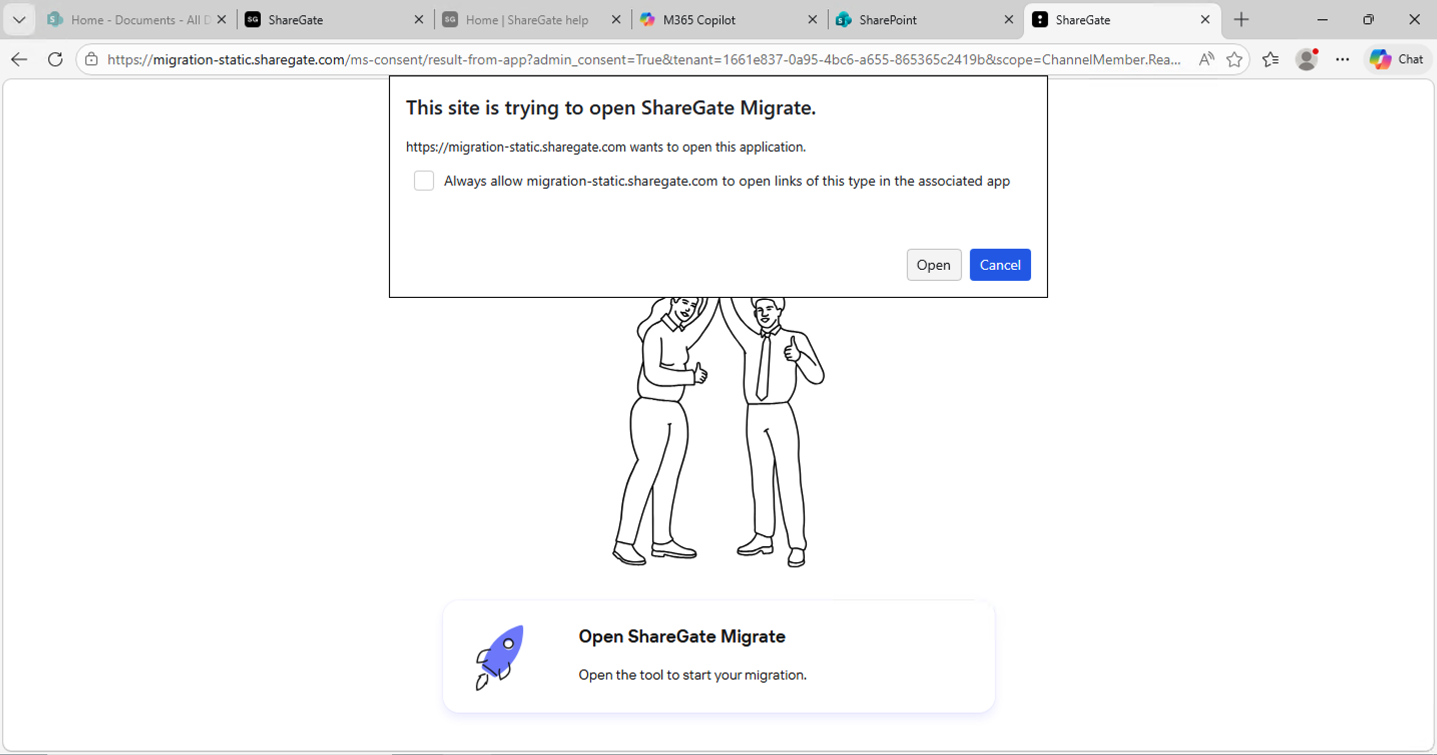
The browser prompted me to open ShareGate Migrate to complete the authentication callback — I clicked Open
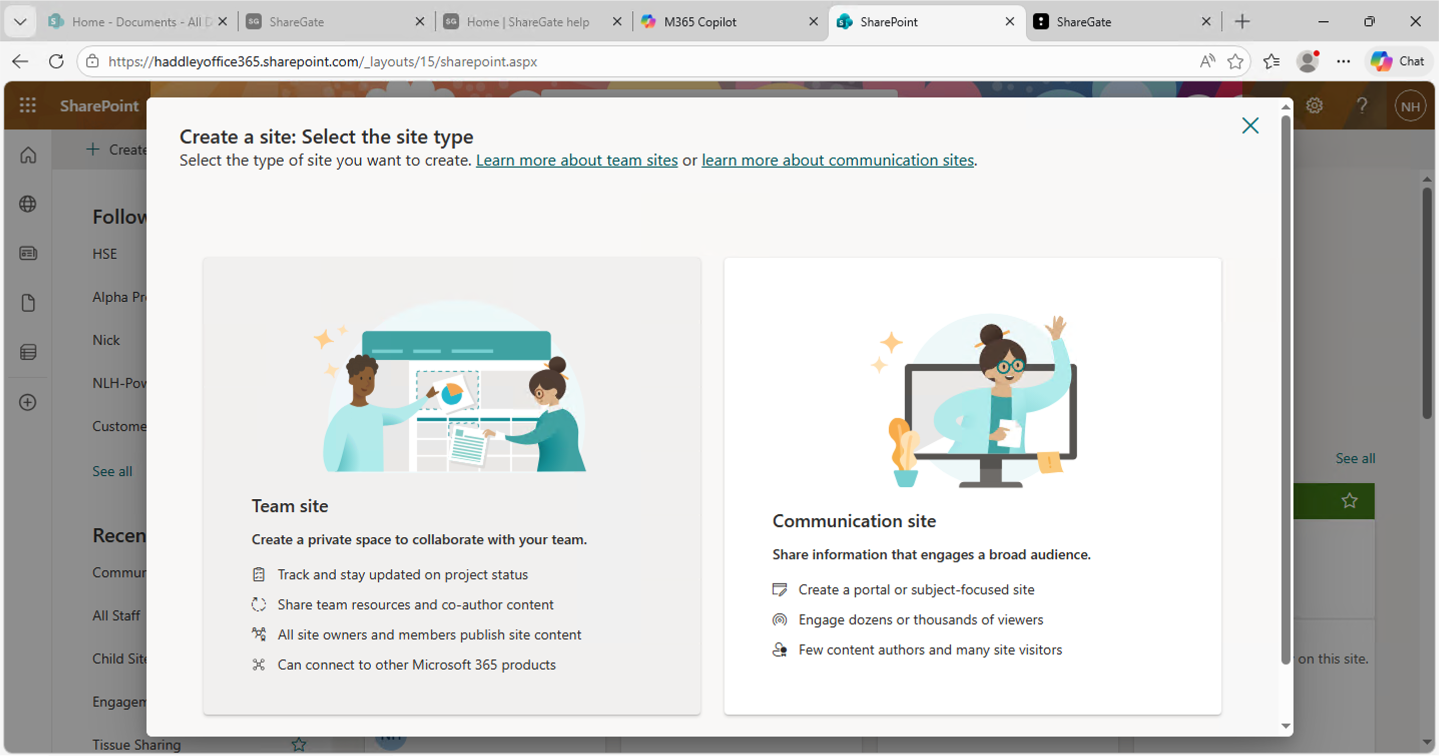
I opened SharePoint Online to create a destination site, choosing between Team site and Communication site
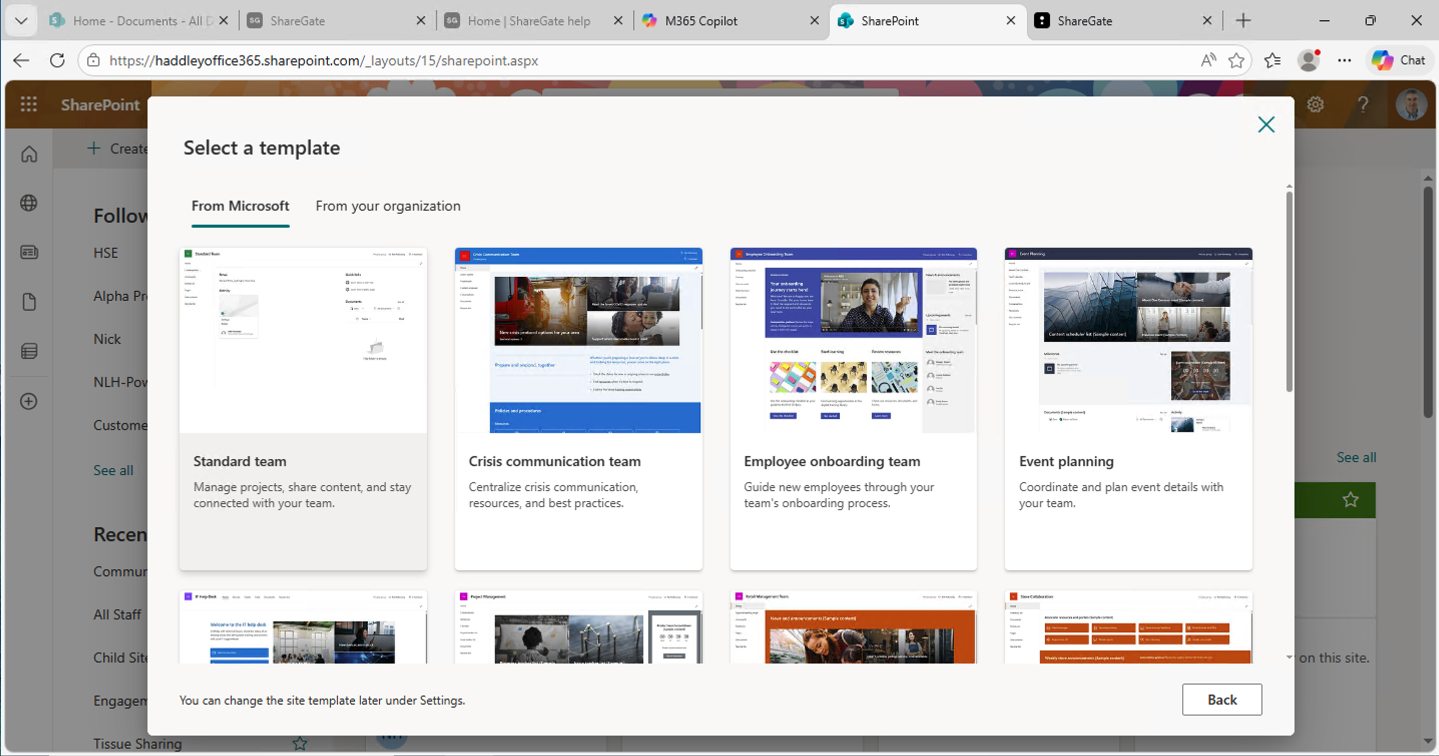
I chose the Standard team template for the new SharePoint Online site
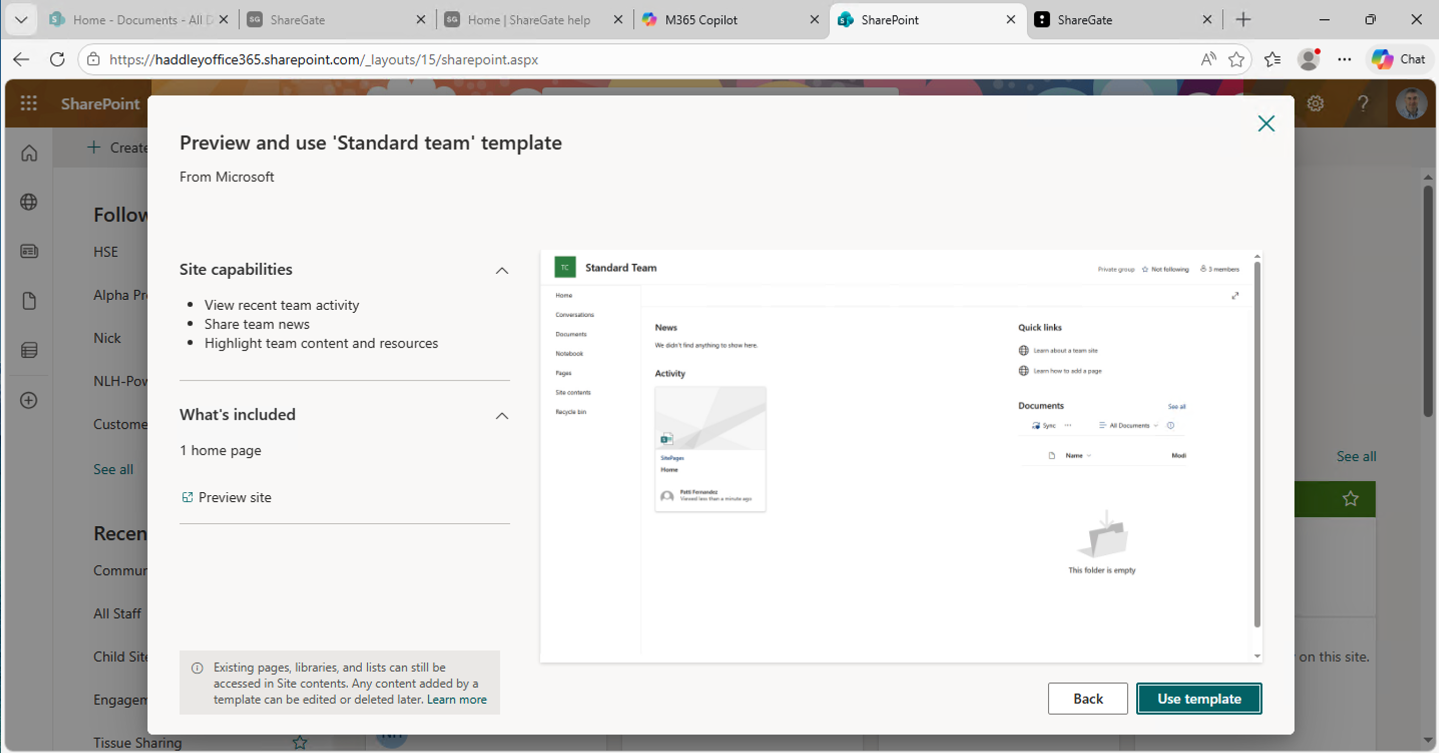
I previewed the Standard team template showing its site capabilities and what would be included
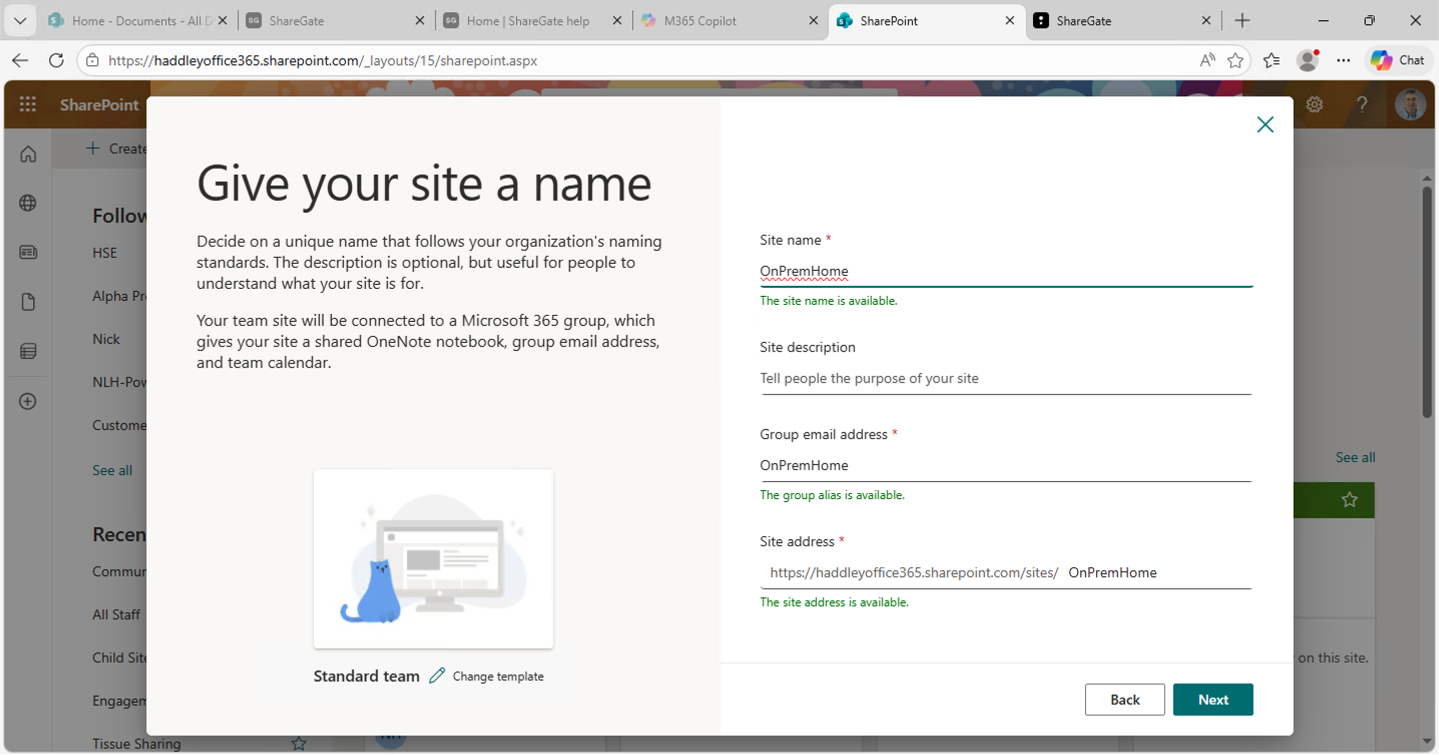
I named the new site "OnPremHome" and the site address was confirmed as available
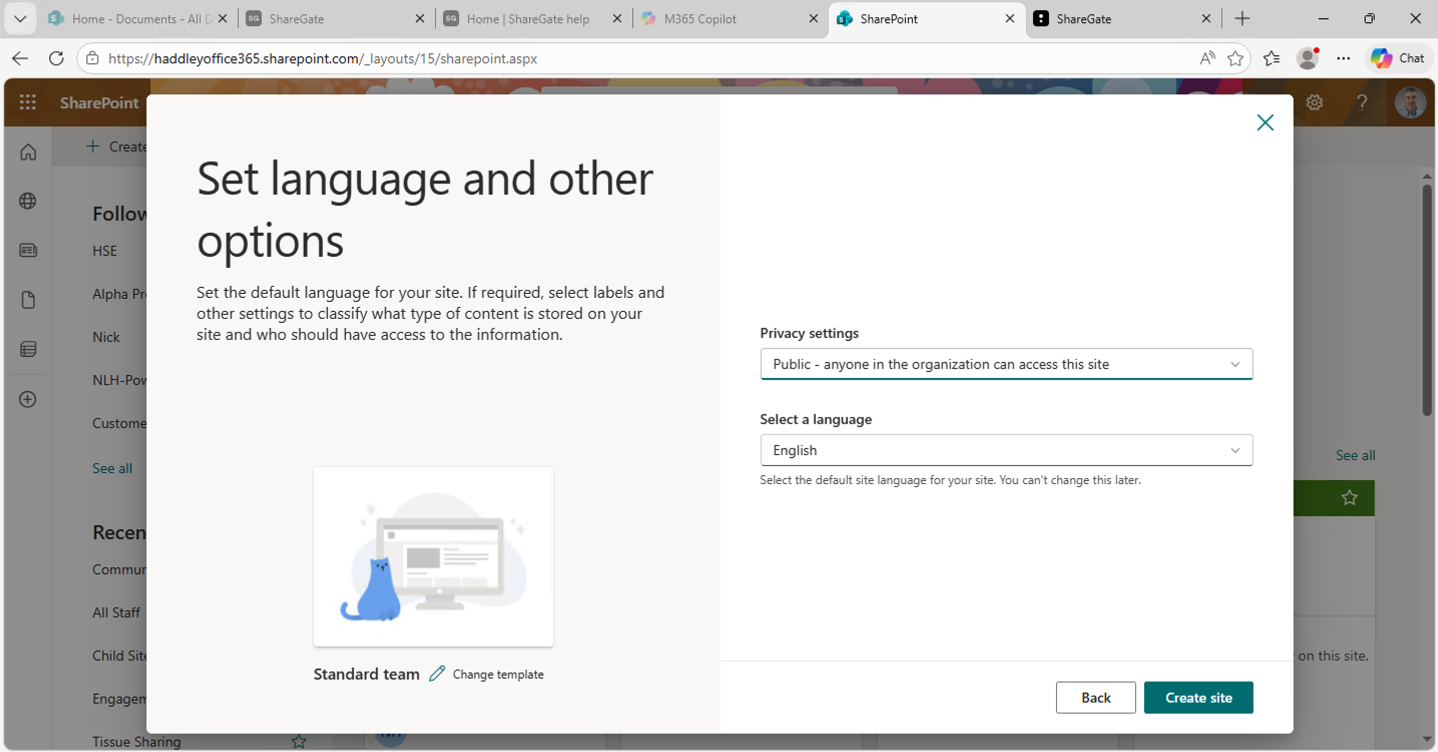
I set the site privacy to Public and left the language as English, then clicked Create site
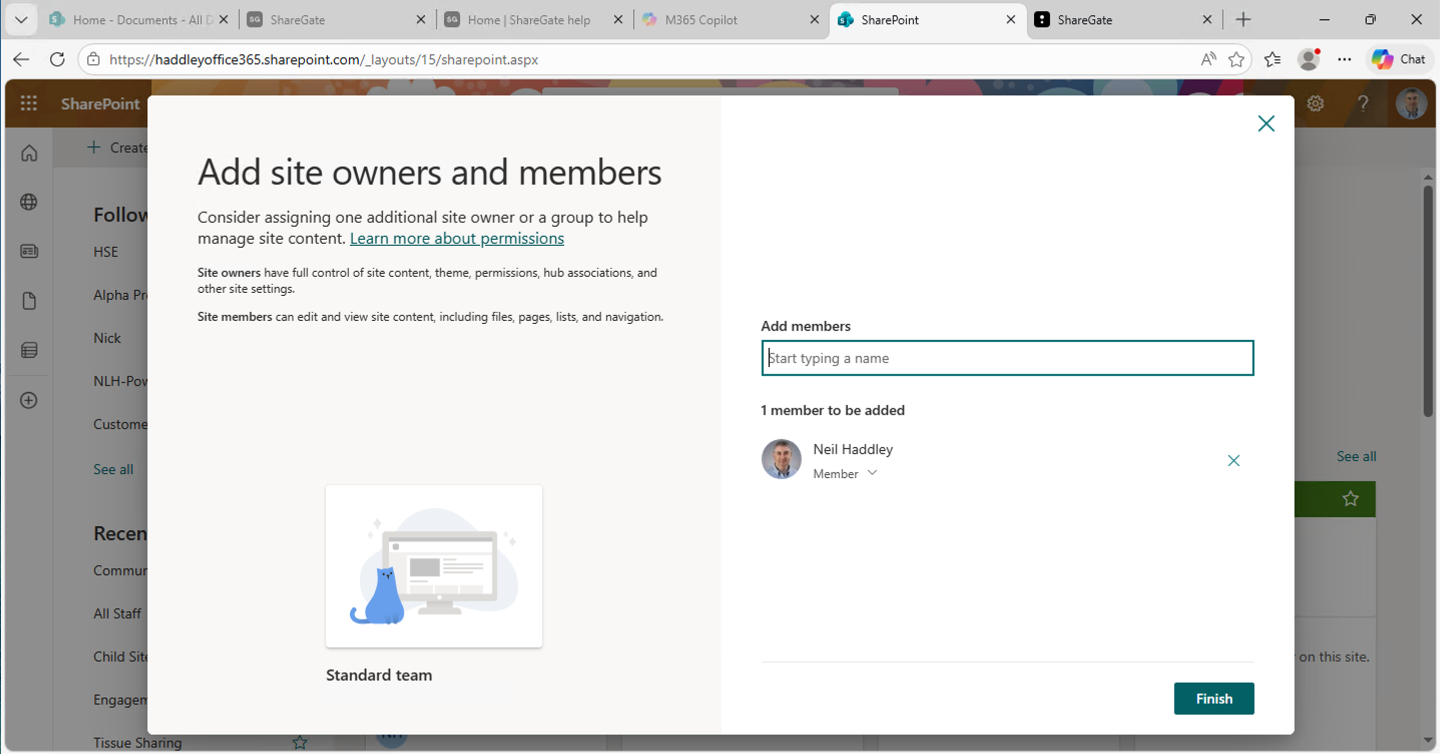
I confirmed Neil Haddley as a member and clicked Finish to provision the site
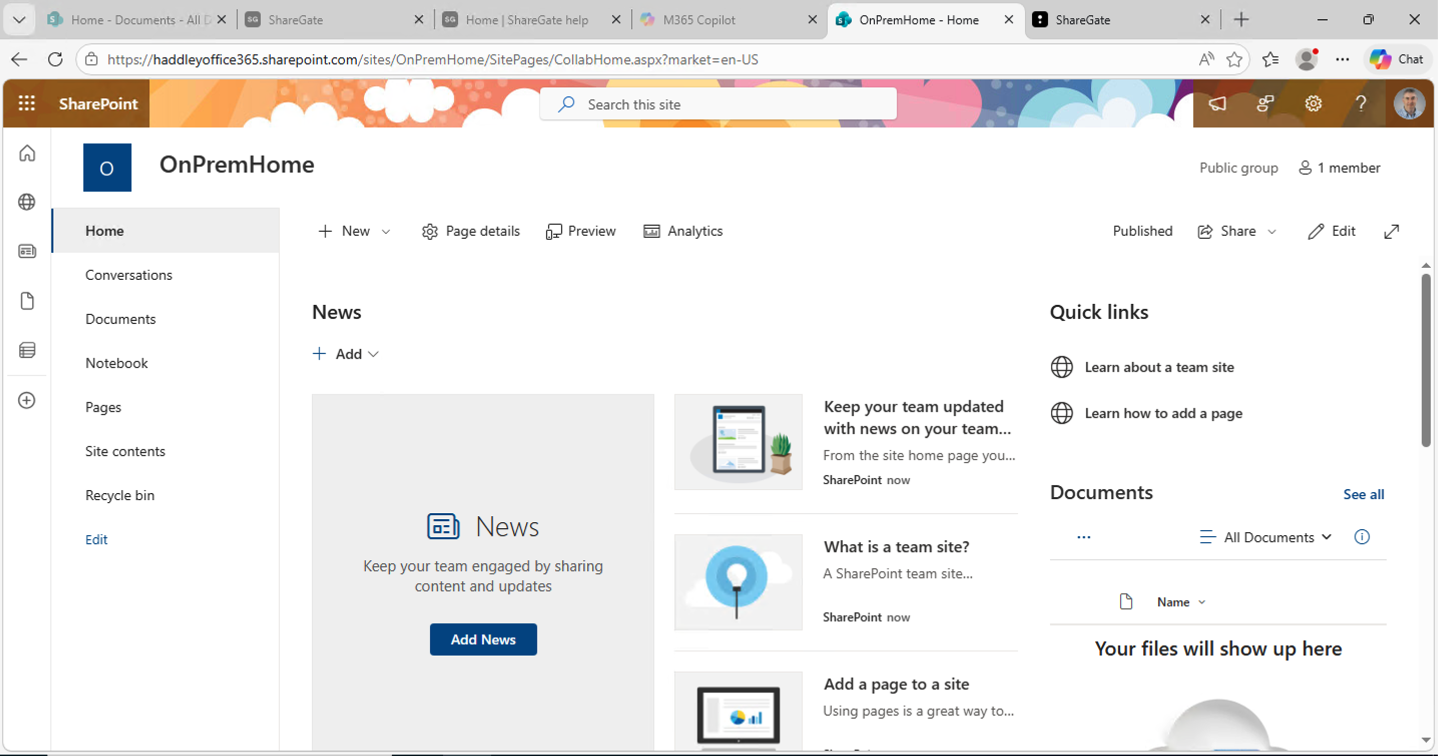
The new OnPremHome team site loaded successfully in SharePoint Online
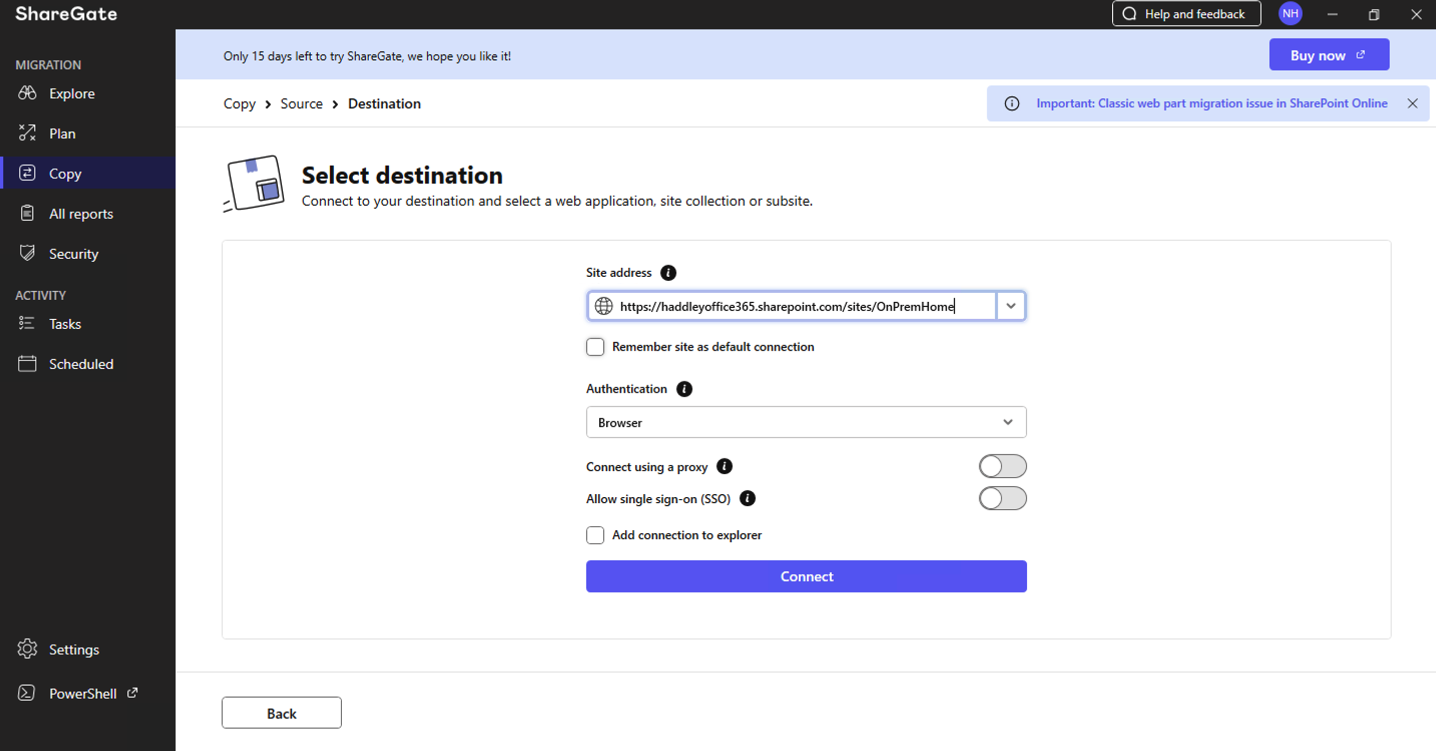
Back in ShareGate I entered the OnPremHome site URL as the migration destination and clicked Connect
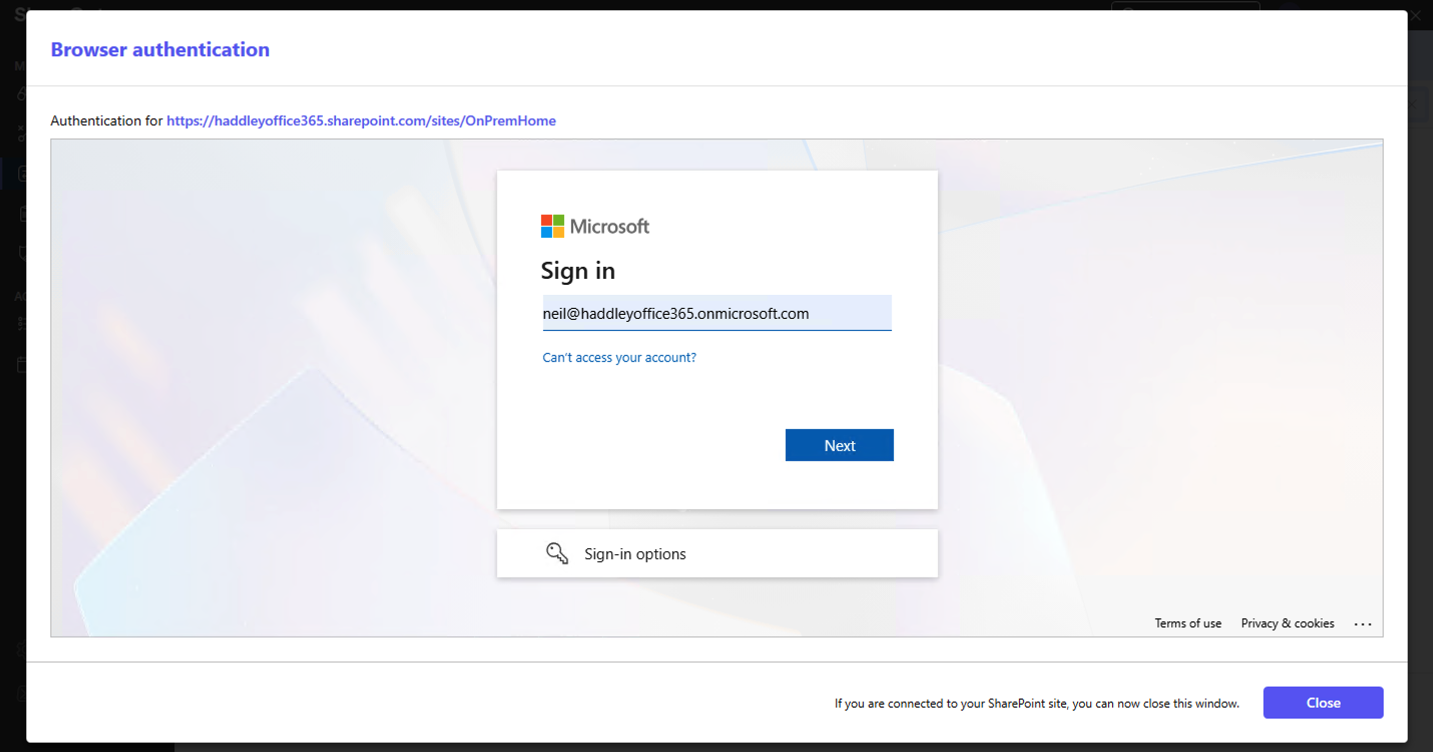
Browser authentication opened again to sign in to the OnPremHome destination site
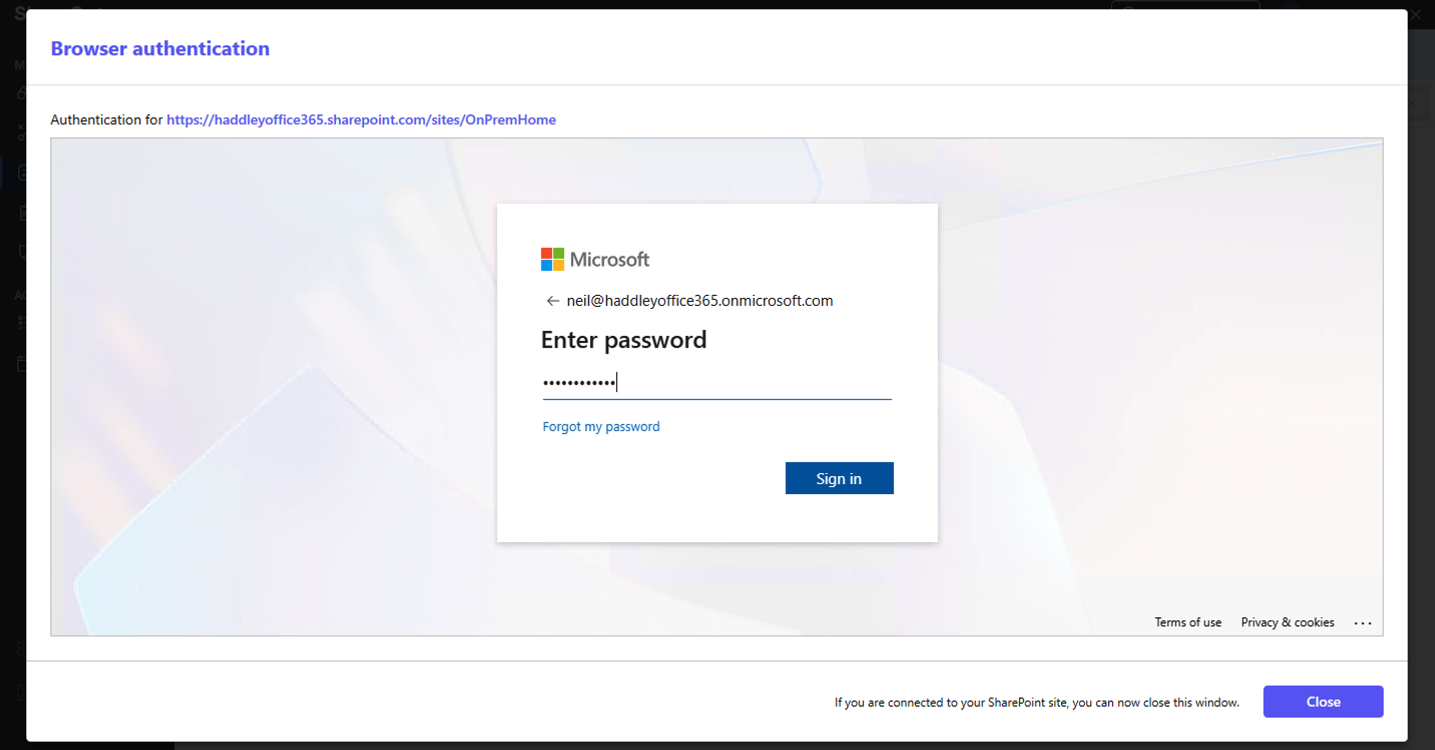
I entered my password to authenticate to the OnPremHome destination site
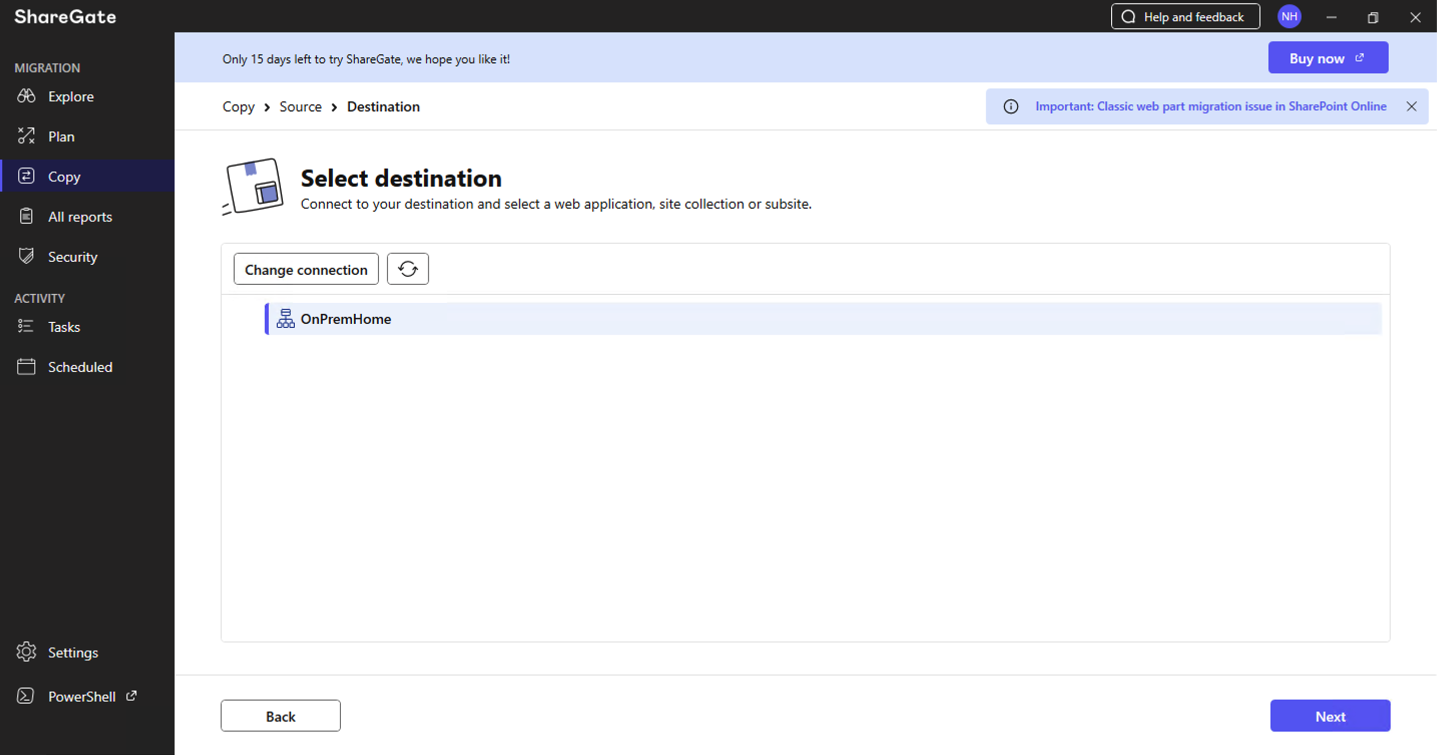
ShareGate confirmed the OnPremHome site was connected as the destination and I clicked Next
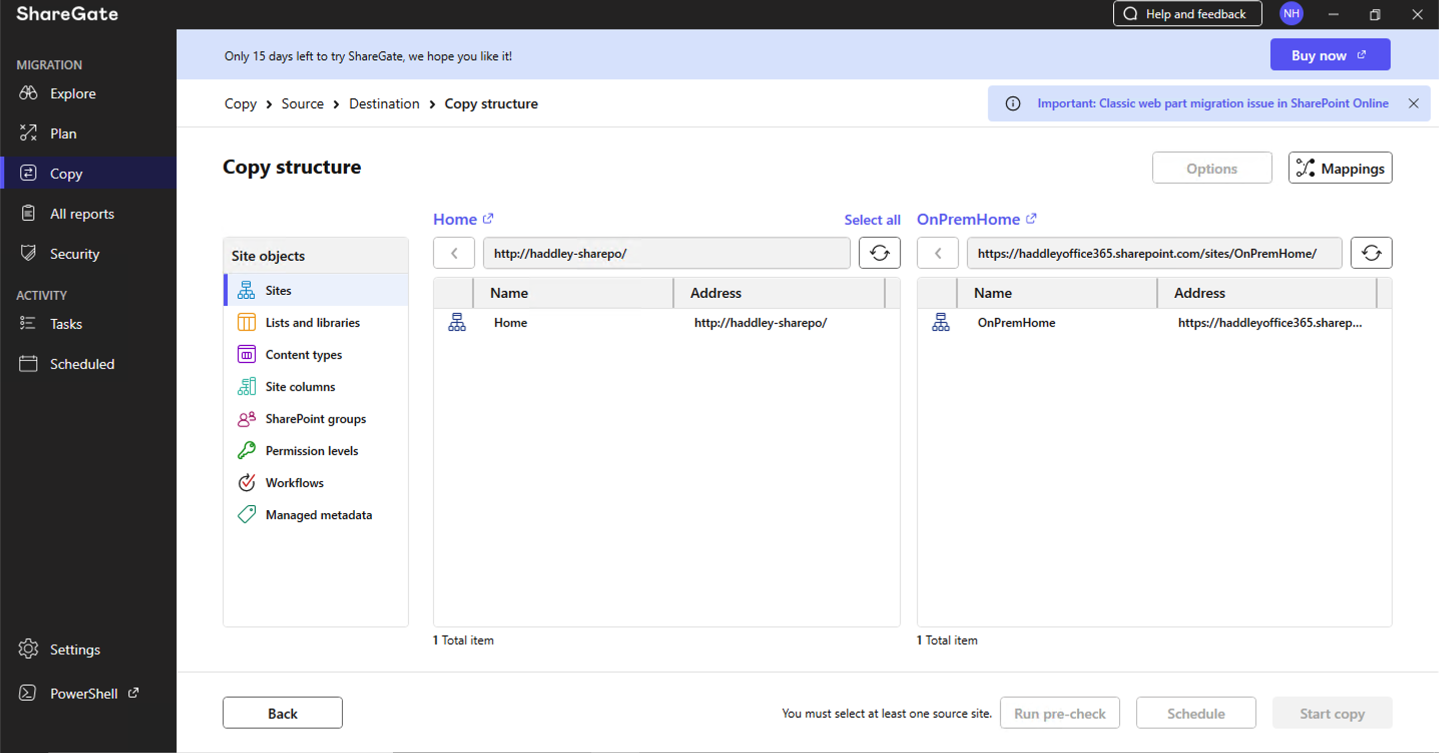
The Copy structure view showed the on-premises Home site on the left and OnPremHome on the right with matching lists and libraries
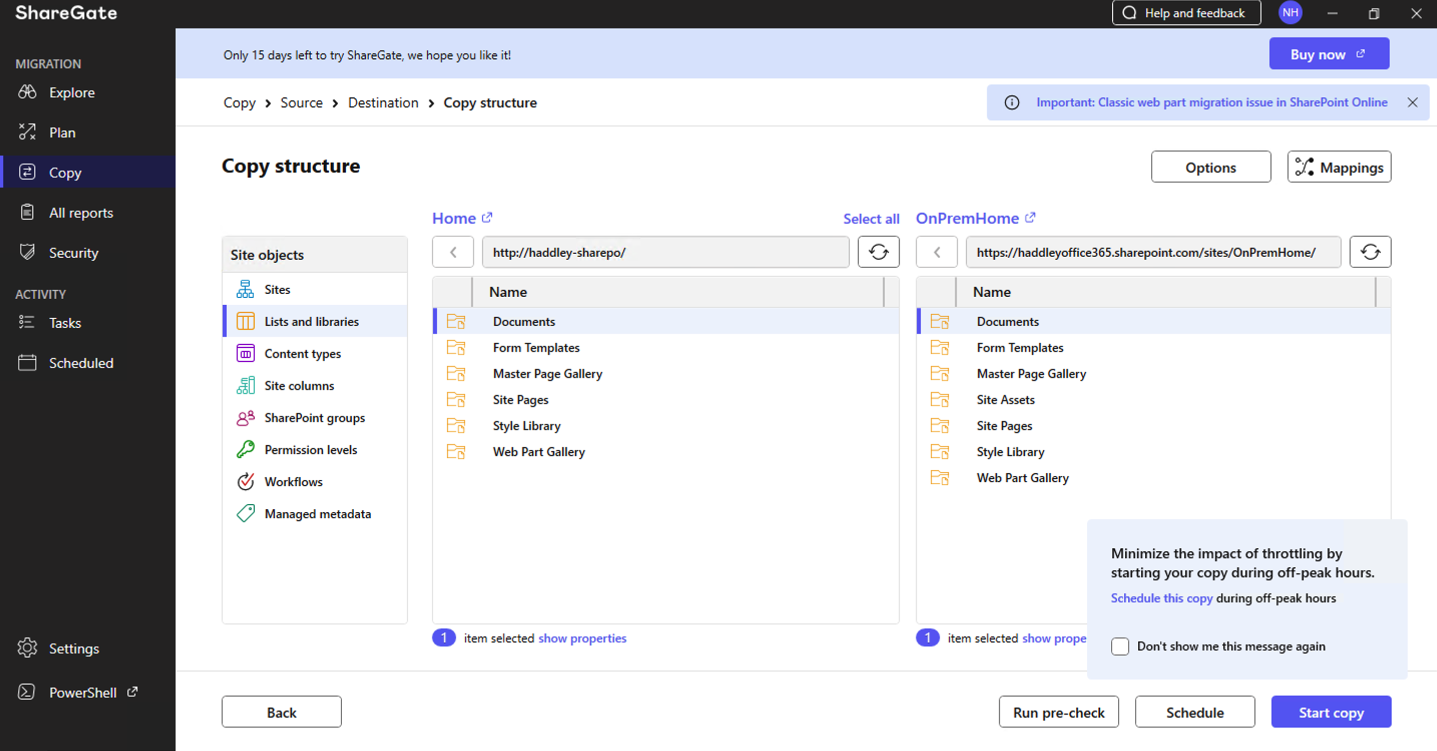
I selected the Documents library on both sides and clicked Start copy, dismissing the off-peak hours suggestion
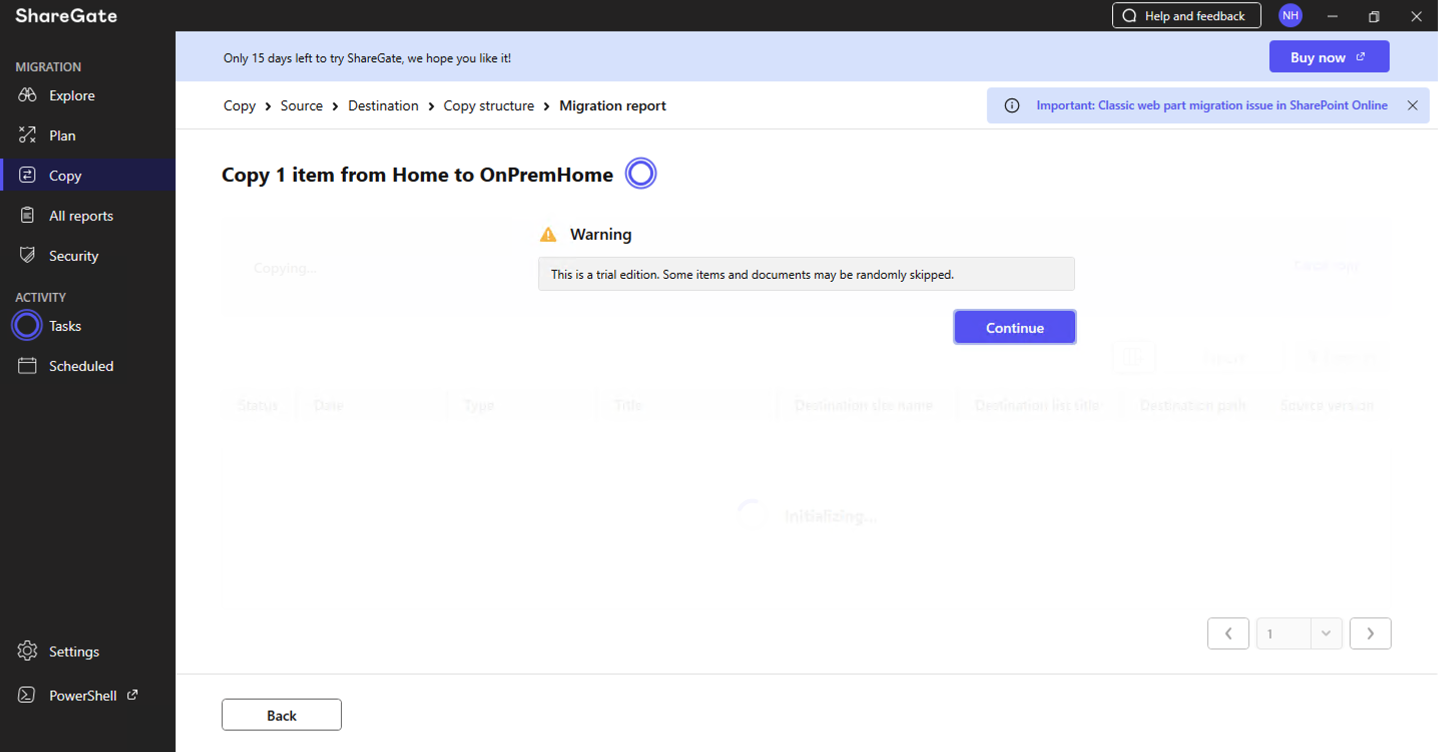
A warning appeared that this is a trial edition and some items may be randomly skipped — I clicked Continue
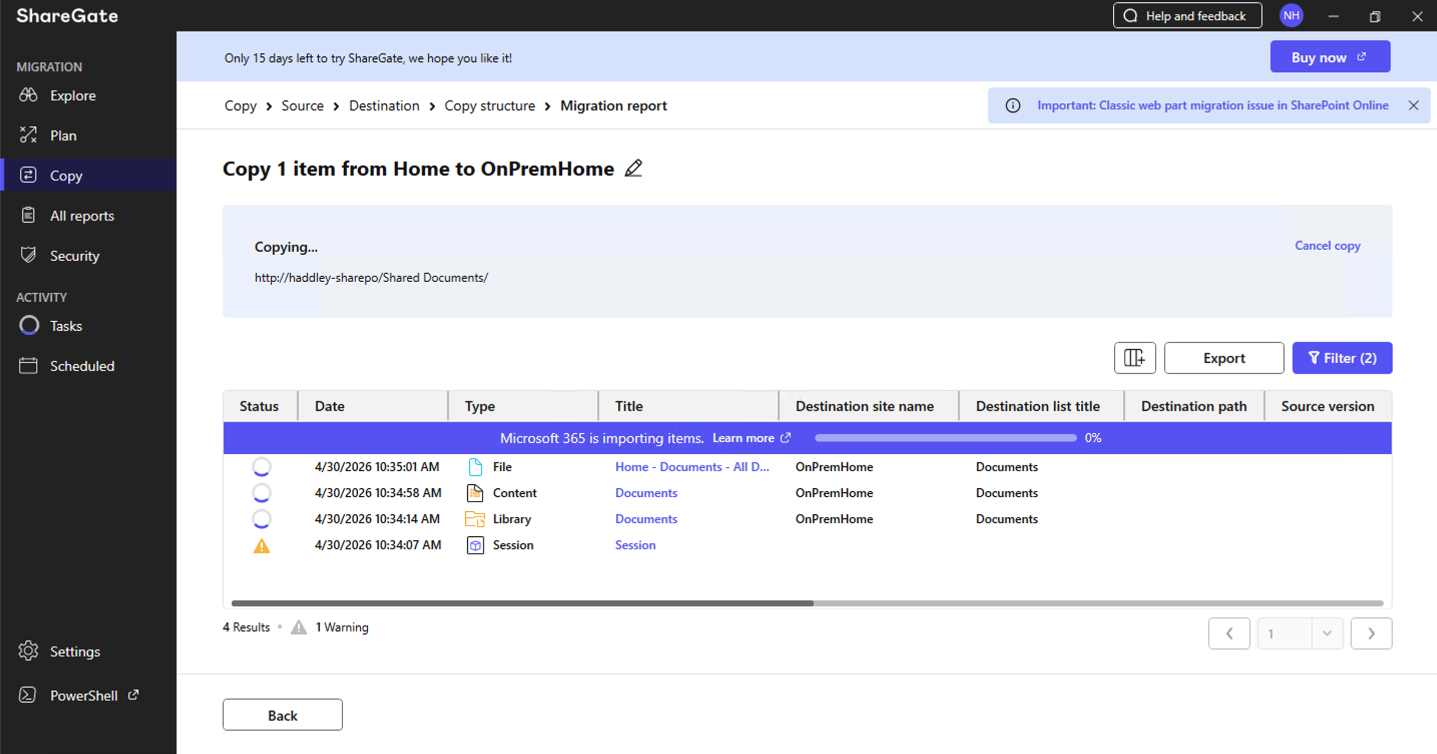
The migration report showed the copy in progress with 4 items queued including the file, content, library and session
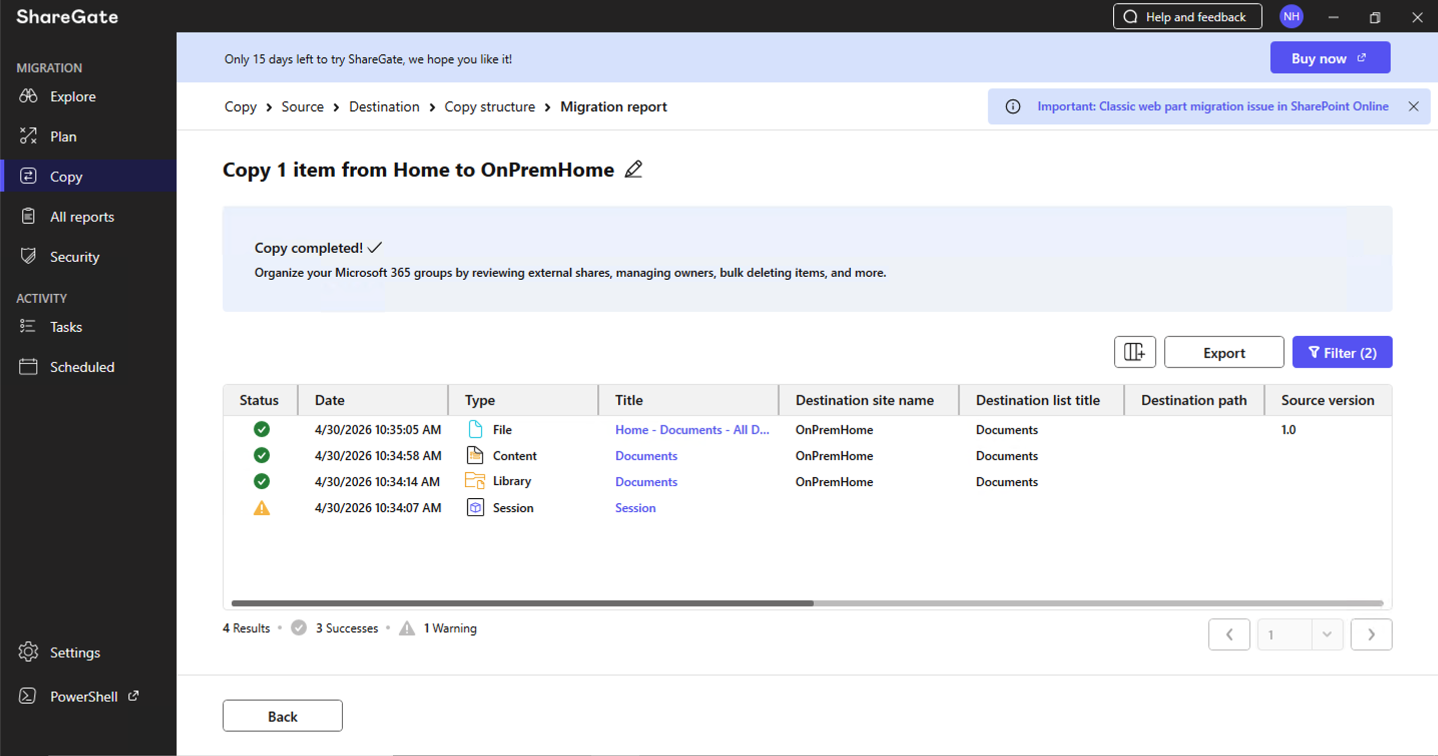
The migration report showed "Copy completed!" with 3 successes and 1 warning
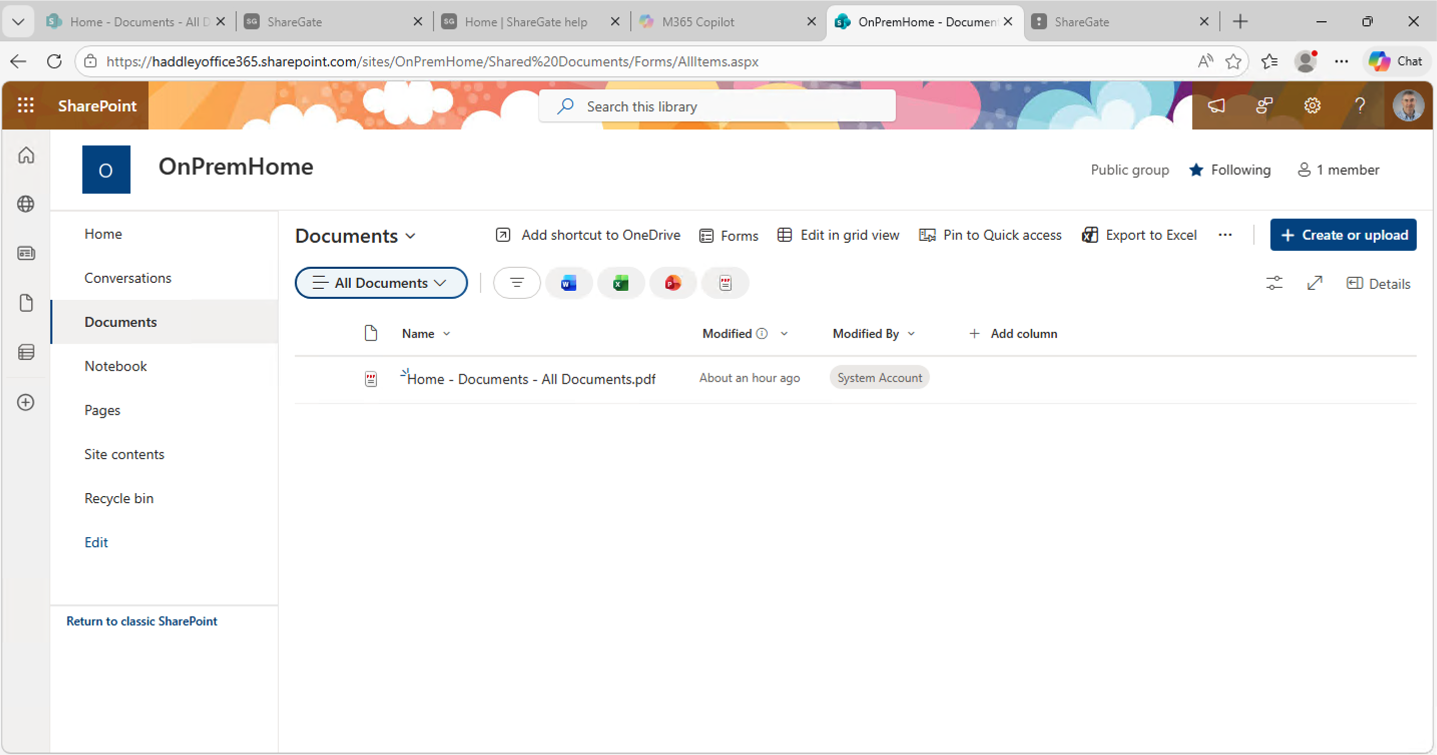
The OnPremHome Documents library in SharePoint Online showed the migrated PDF had arrived successfully