SharePoint (Part 1)
Neil Haddley • May 2, 2026
Device Request — customised SharePoint list form
I built a Device Request list in SharePoint Online to let IT staff submit requests for new equipment. The list uses a custom Power Apps form that locks the Status field so only an approver can change it, keeping the Pending/Approved/Rejected workflow clean. A Power Automate flow then fires on every new submission and emails a confirmation back to the requester automatically.
 Tap the image to open it full size
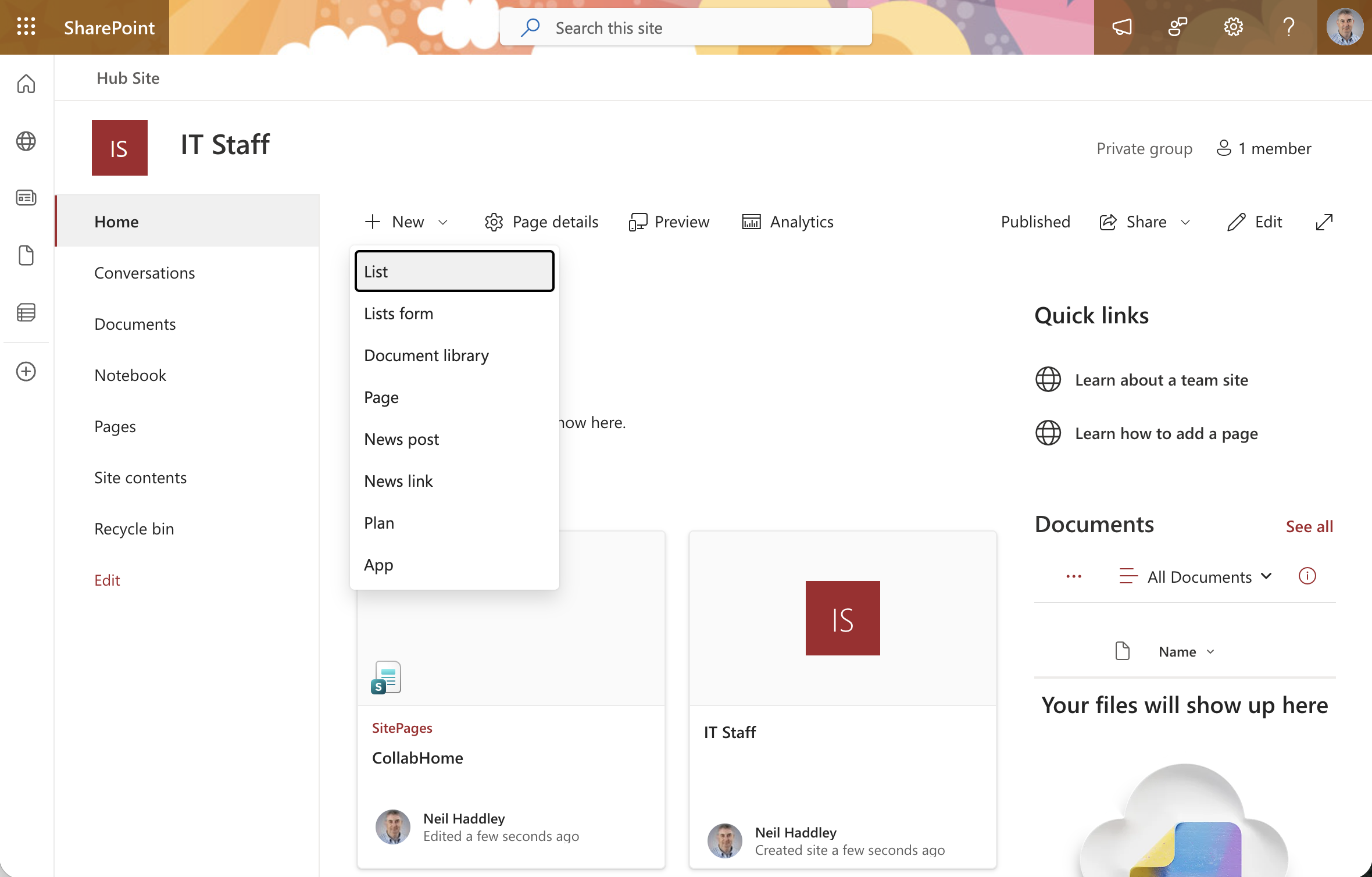
I opened the IT Staff SharePoint site and clicked New > List to create a new list
 Tap the image to open it full size
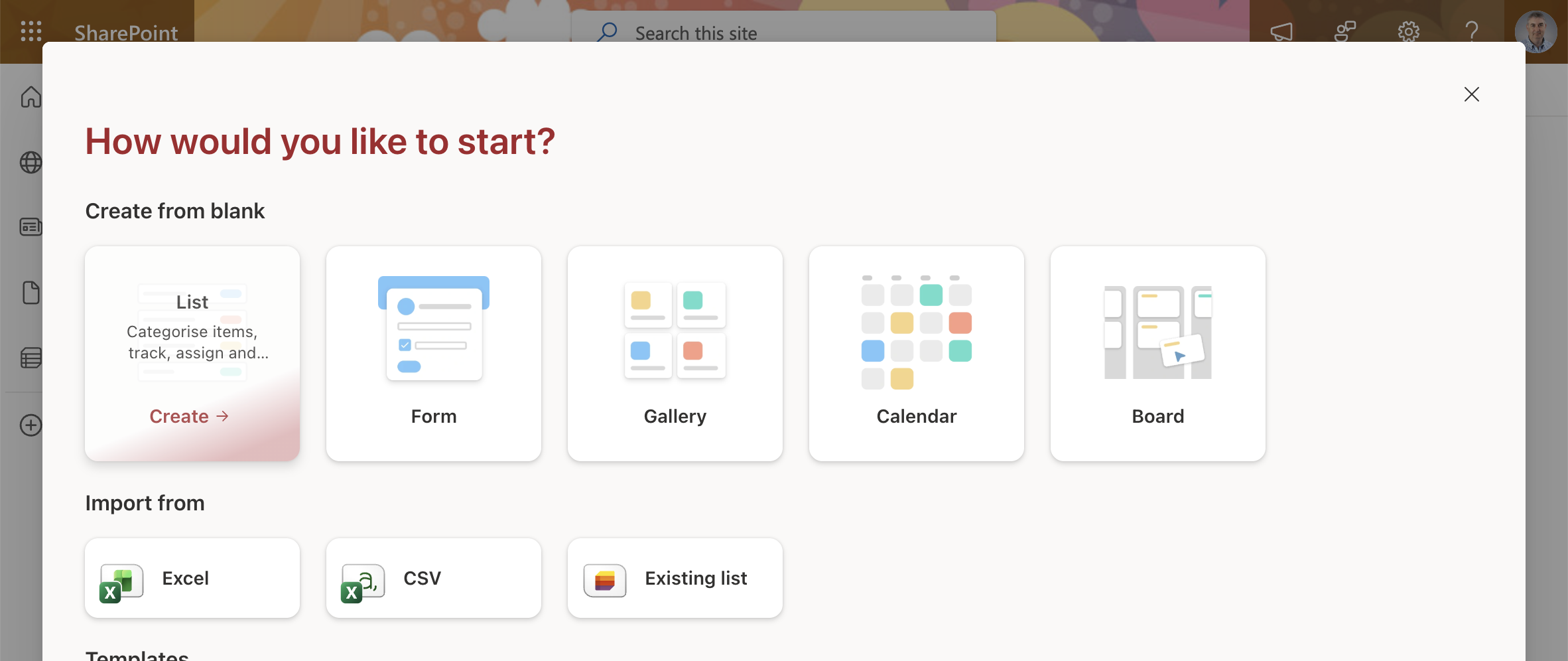
The "How would you like to start?" dialog appeared — I chose to create a blank List
 Tap the image to open it full size
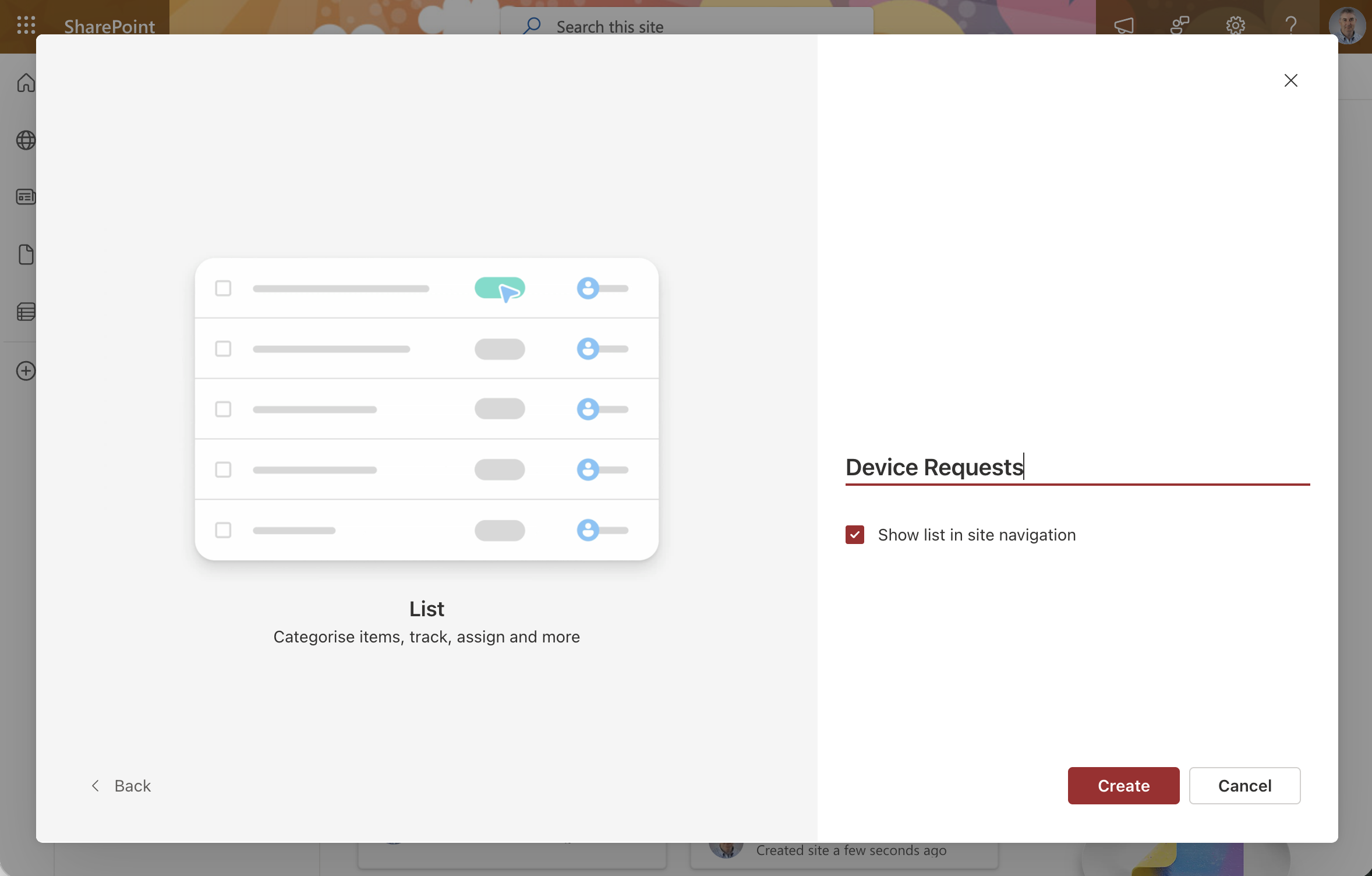
I named the new list "Device Requests" and clicked Create
 Tap the image to open it full size
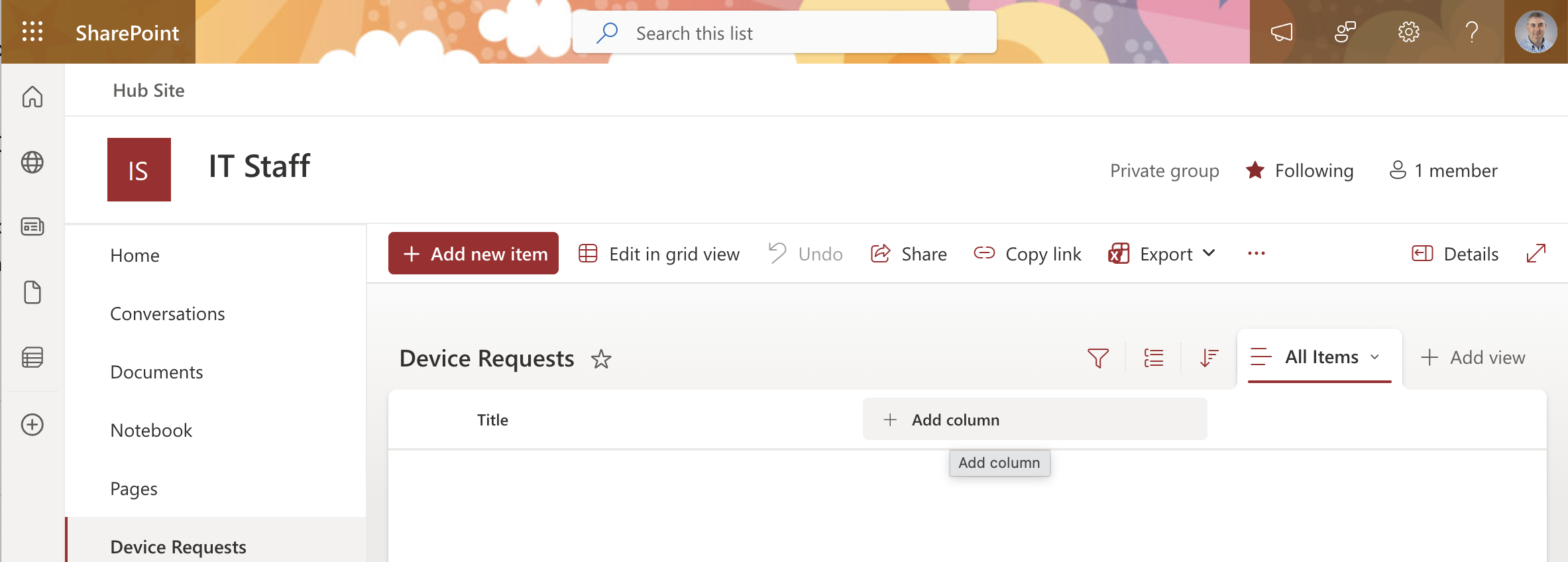
The empty Device Requests list was created with just a Title column
 Tap the image to open it full size
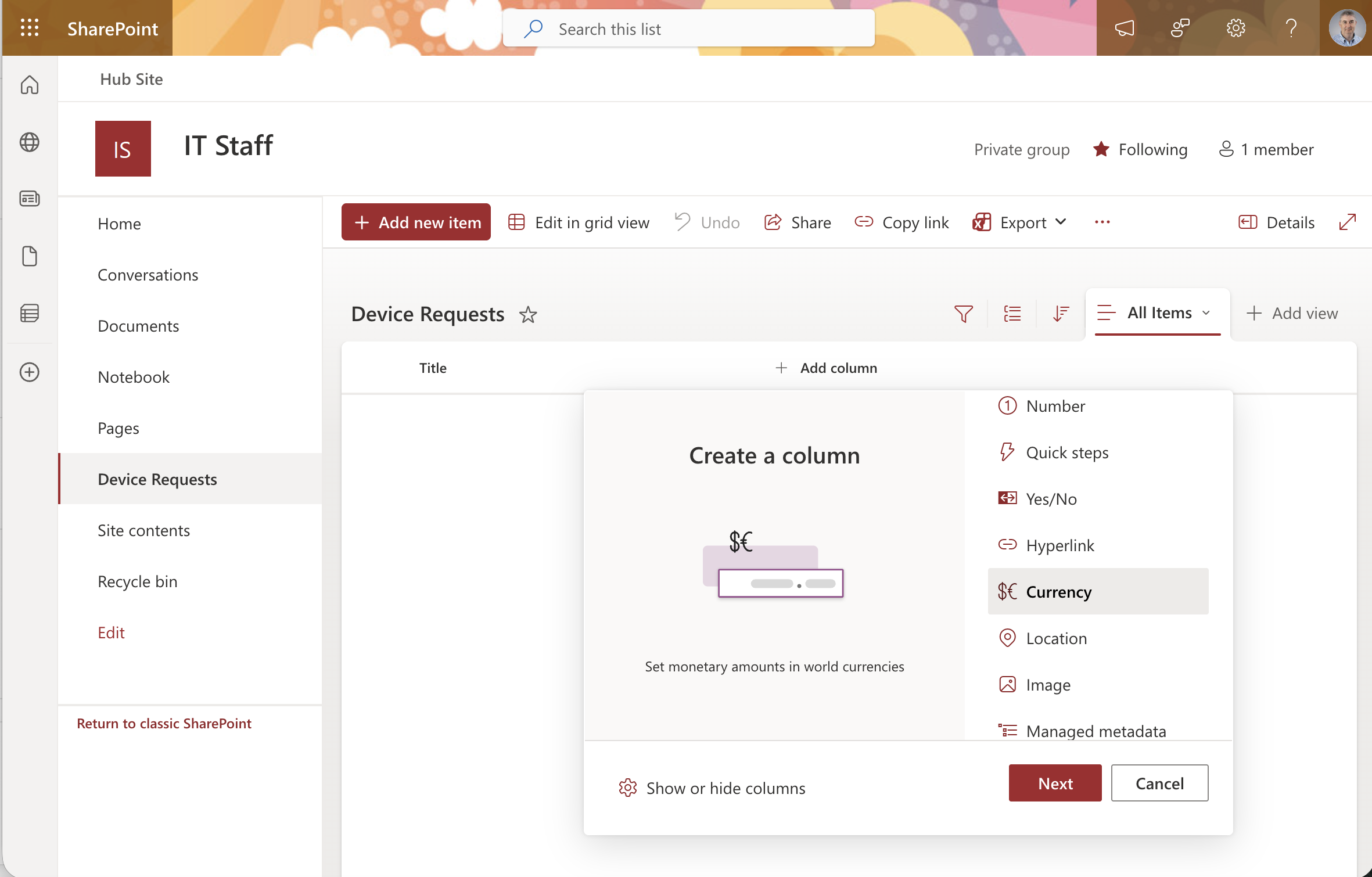
I clicked Add column and selected Currency as the column type
 Tap the image to open it full size
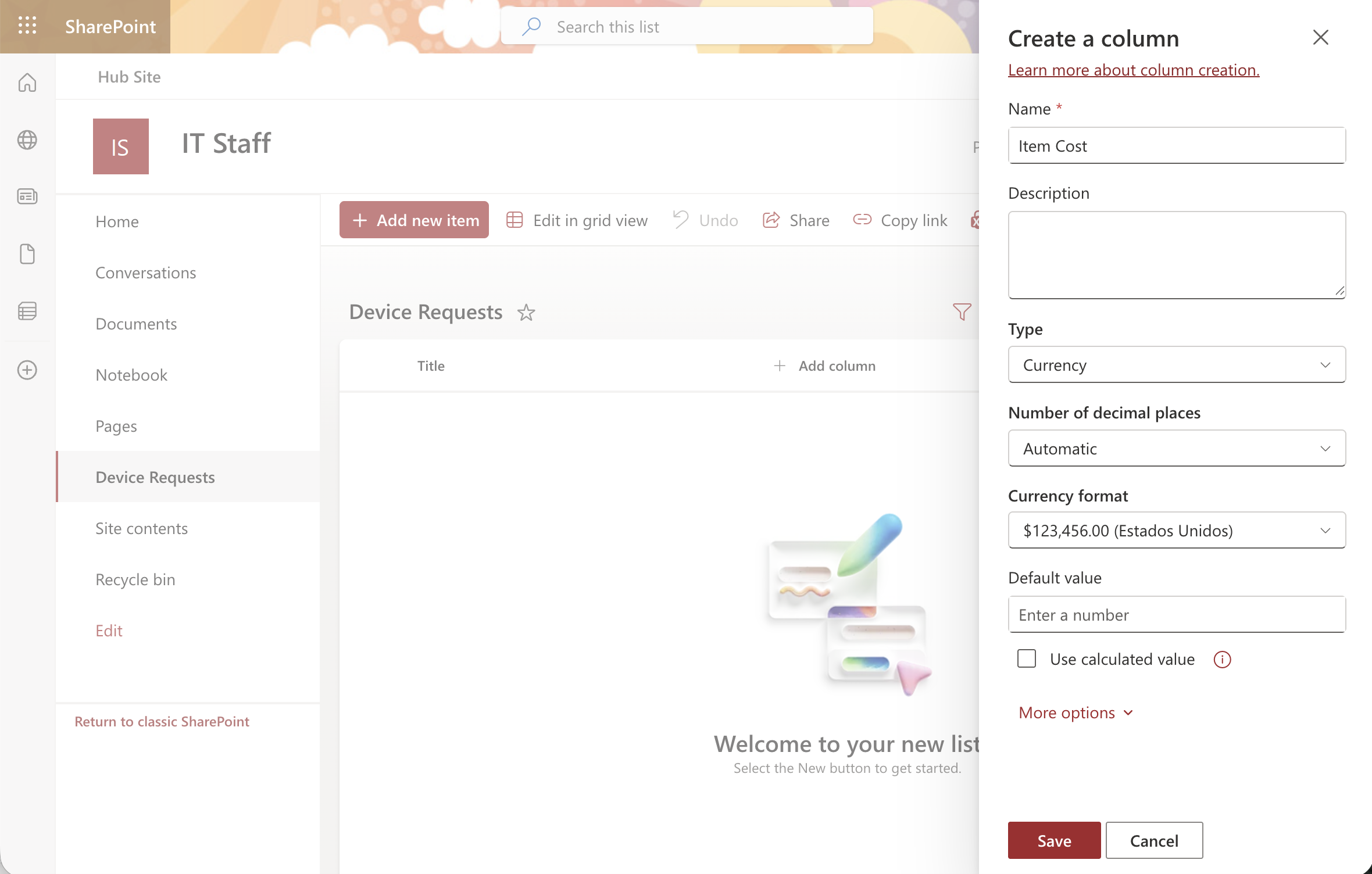
I created an "Item Cost" column with the Currency type and saved it
 Tap the image to open it full size
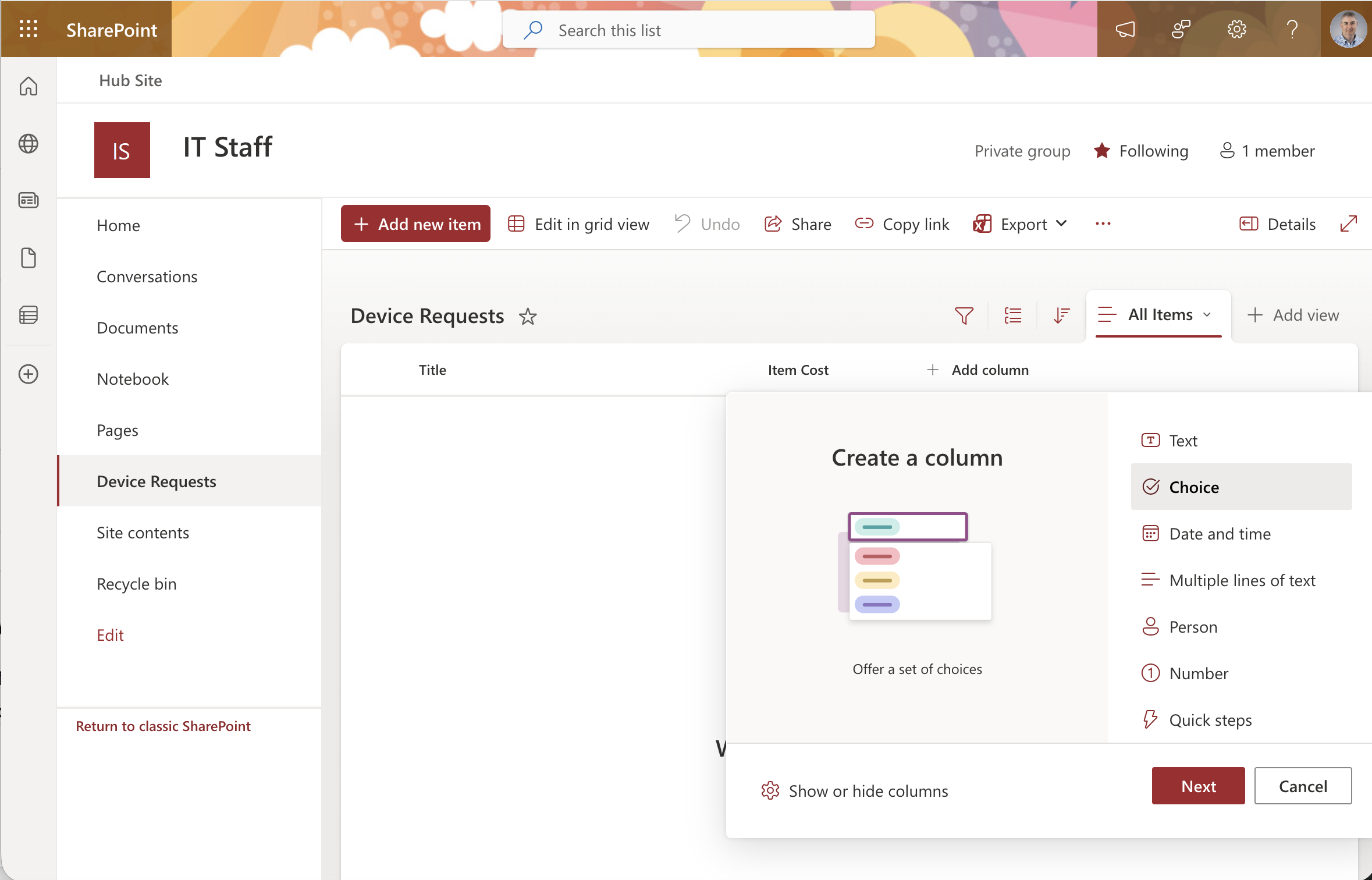
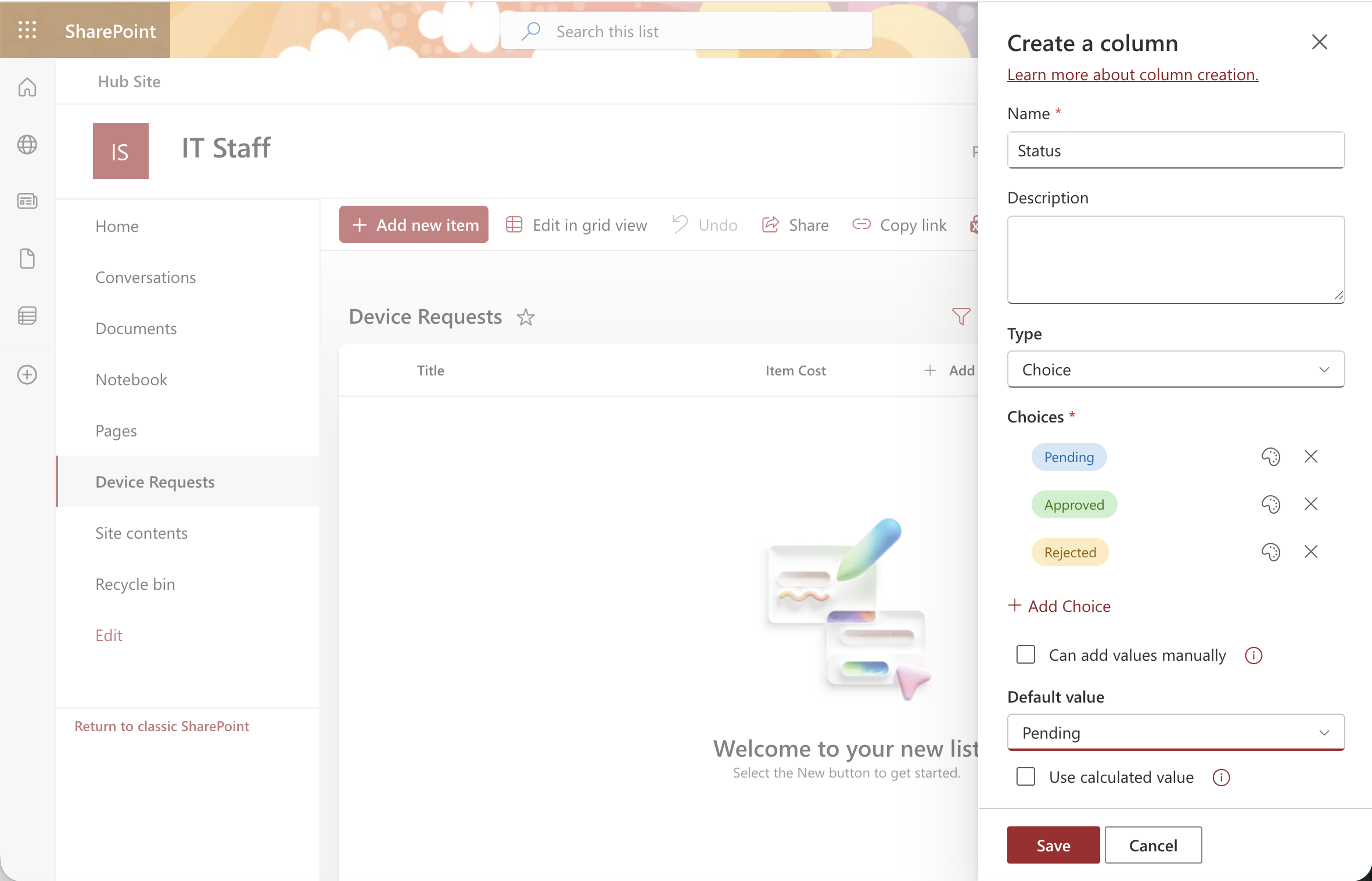
I created a "Status" column as a Choice type with options: Pending, Approved, and Rejected
 Tap the image to open it full size
I set Pending as the default value for the Status column and saved
 Tap the image to open it full size
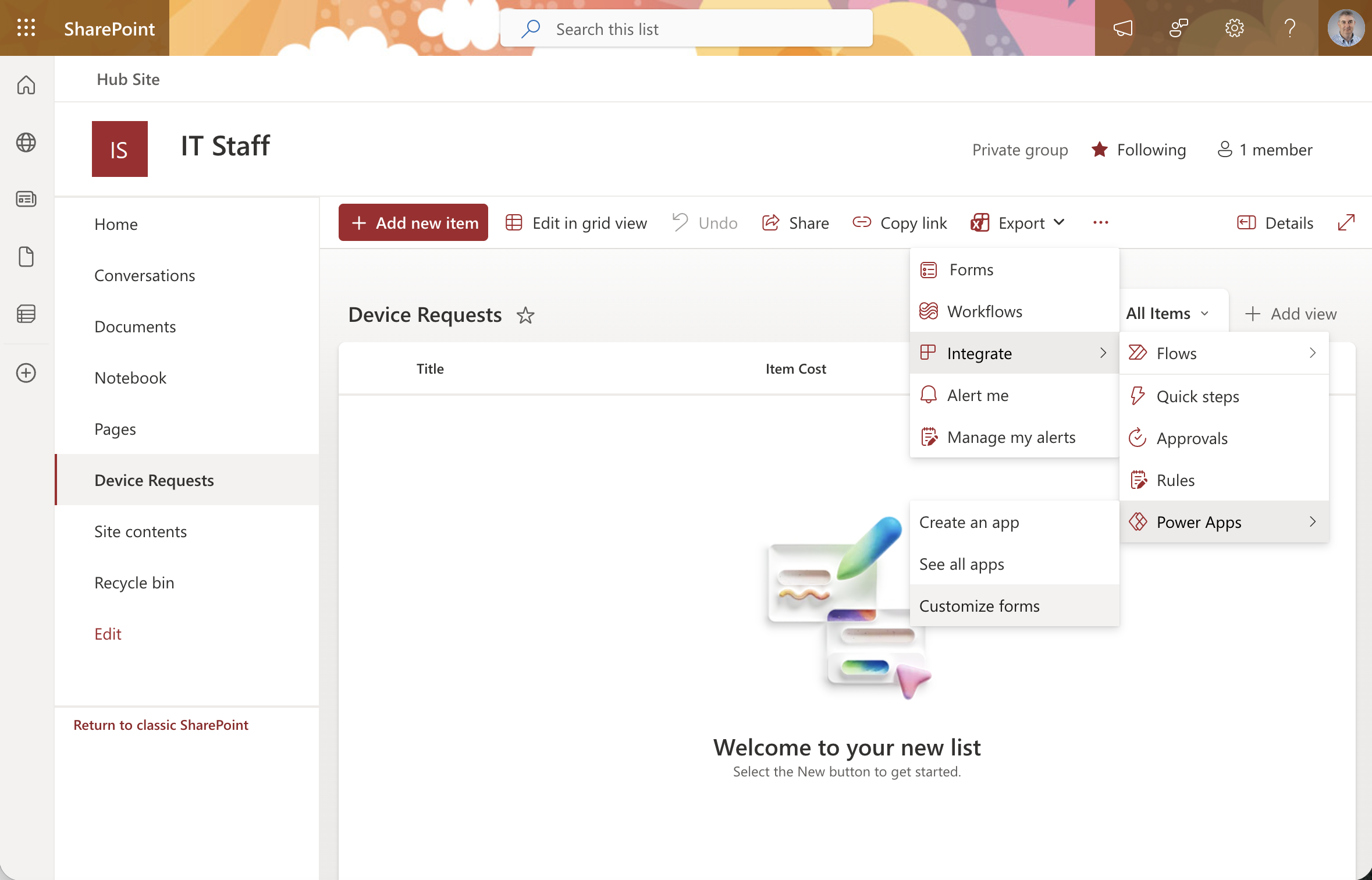
I opened the Integrate menu and selected Power Apps to customise the list form
 Tap the image to open it full size
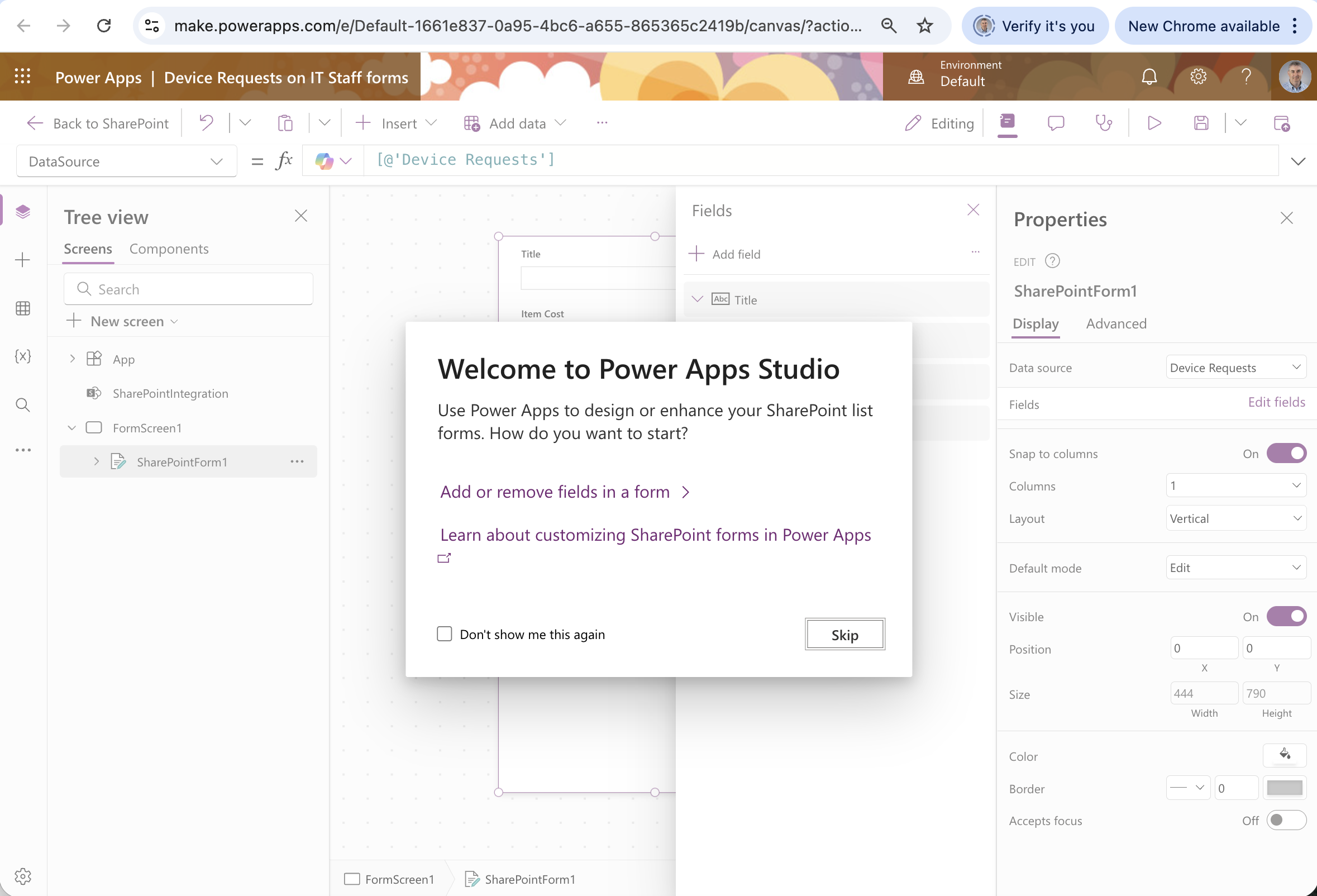
Power Apps Studio opened with the Device Requests form
 Tap the image to open it full size
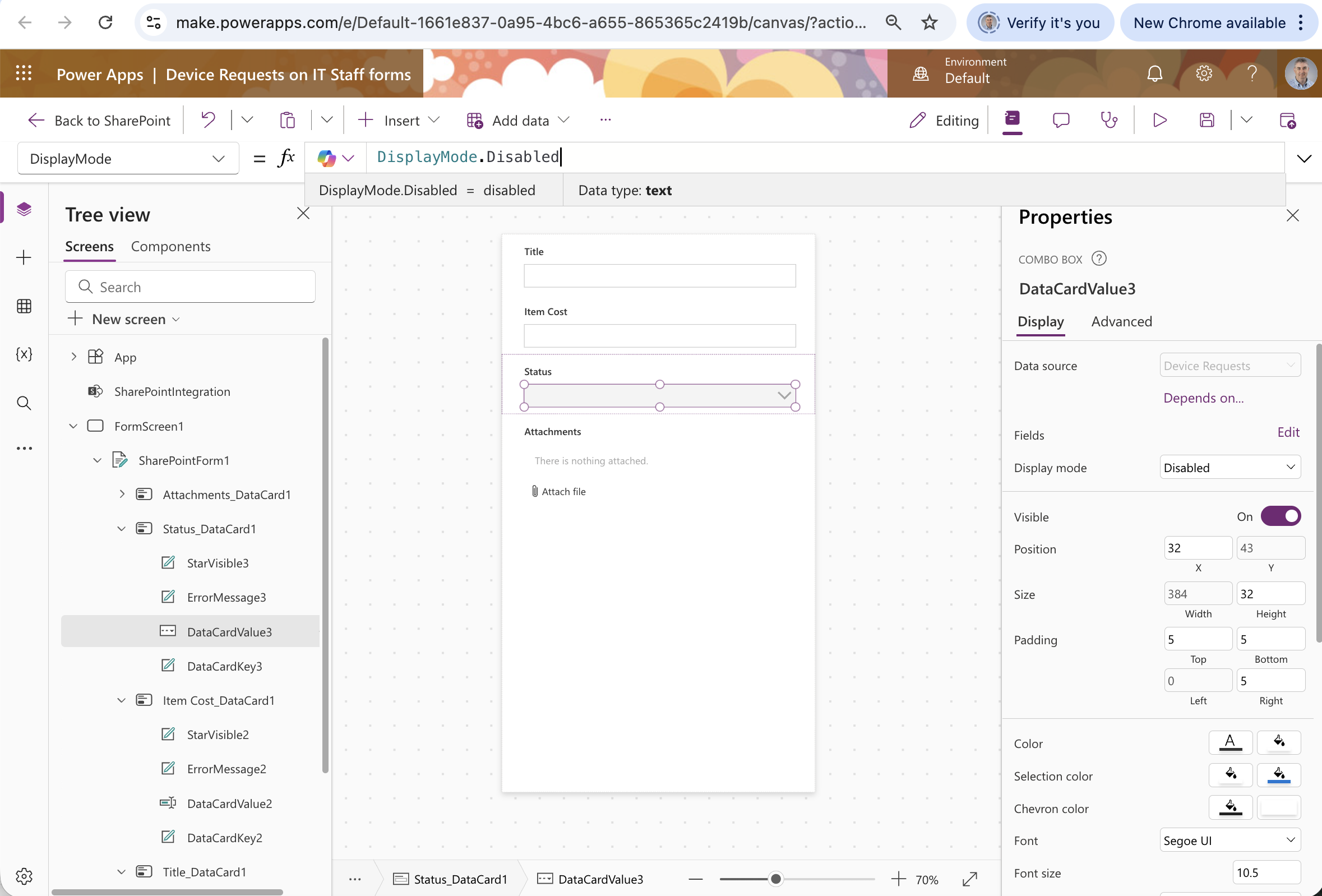
I selected the Status field and set its DisplayMode to Disabled so users cannot edit the status when submitting a request
 Tap the image to open it full size
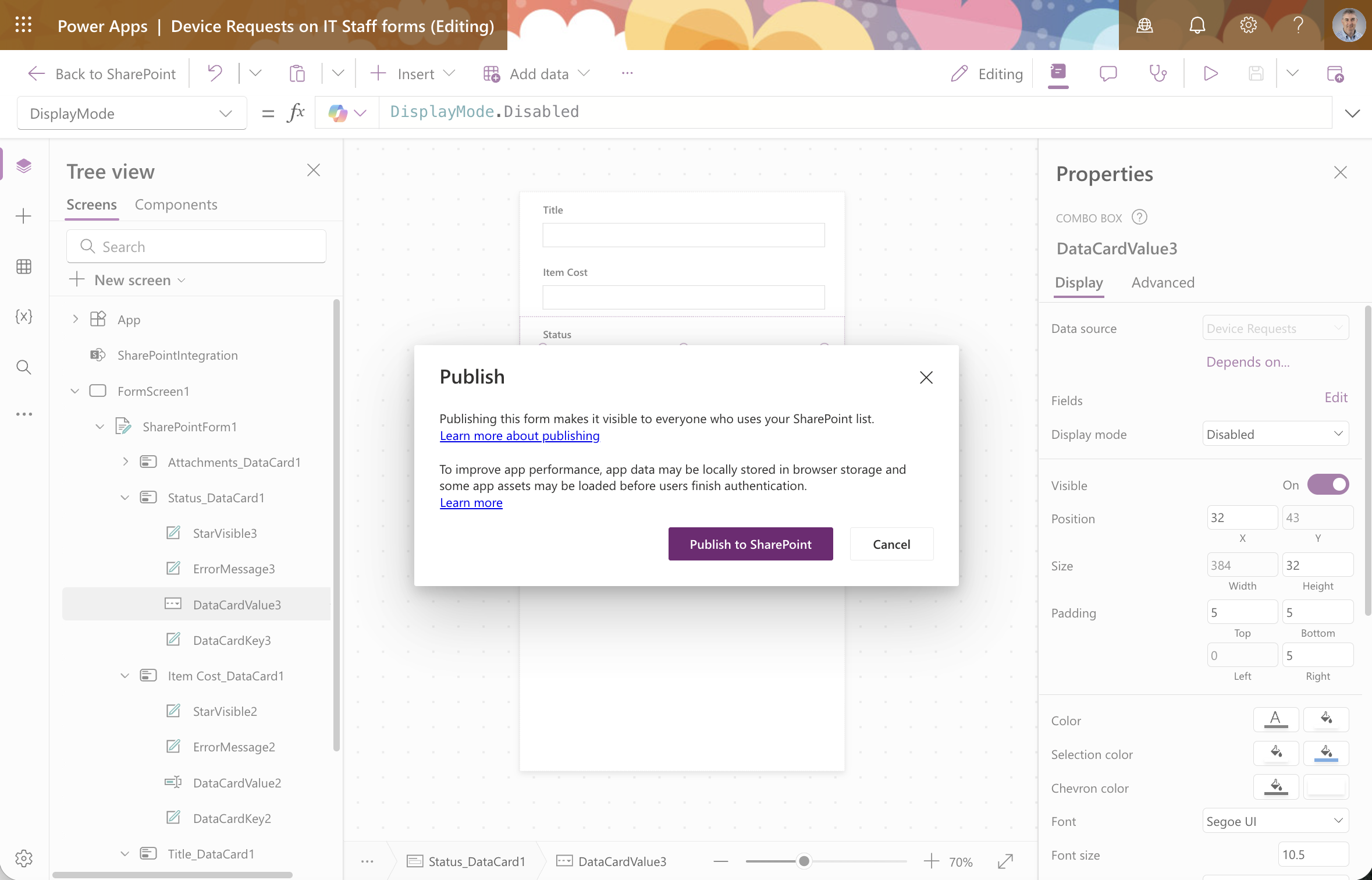
I published the customised form back to SharePoint
 Tap the image to open it full size
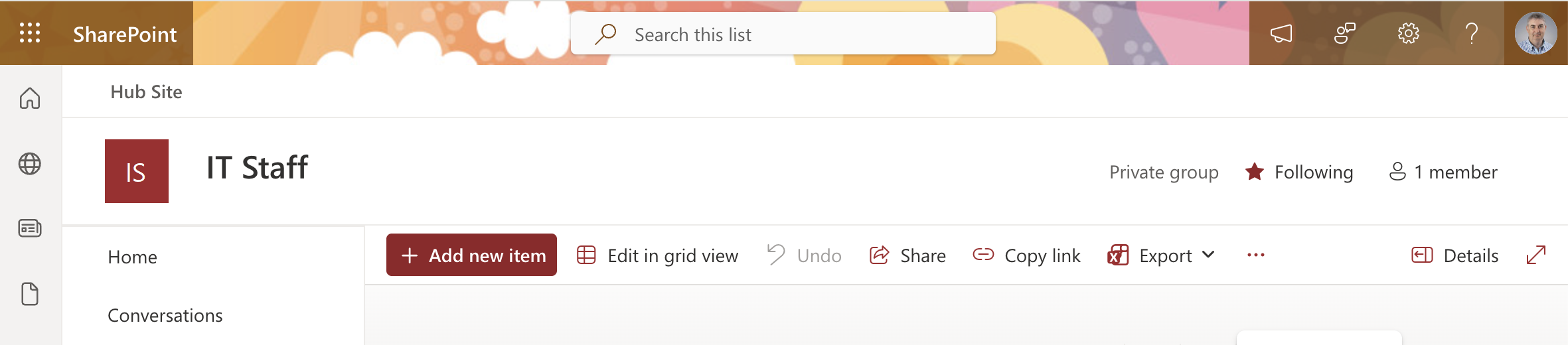
The Device Requests list was ready with the published form
 Tap the image to open it full size
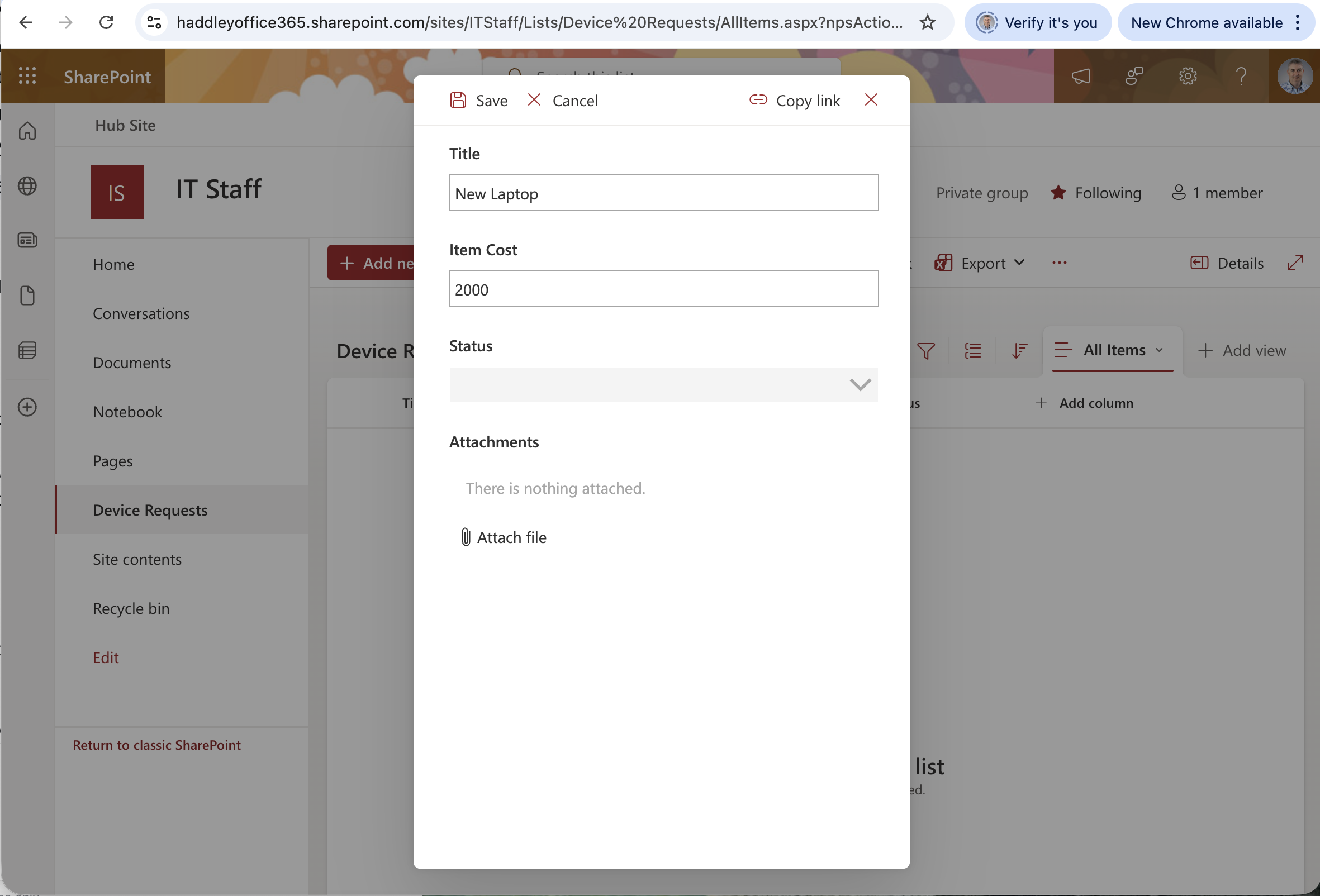
I clicked Add new item and the custom form opened — the Status field was greyed out as intended
 Tap the image to open it full size
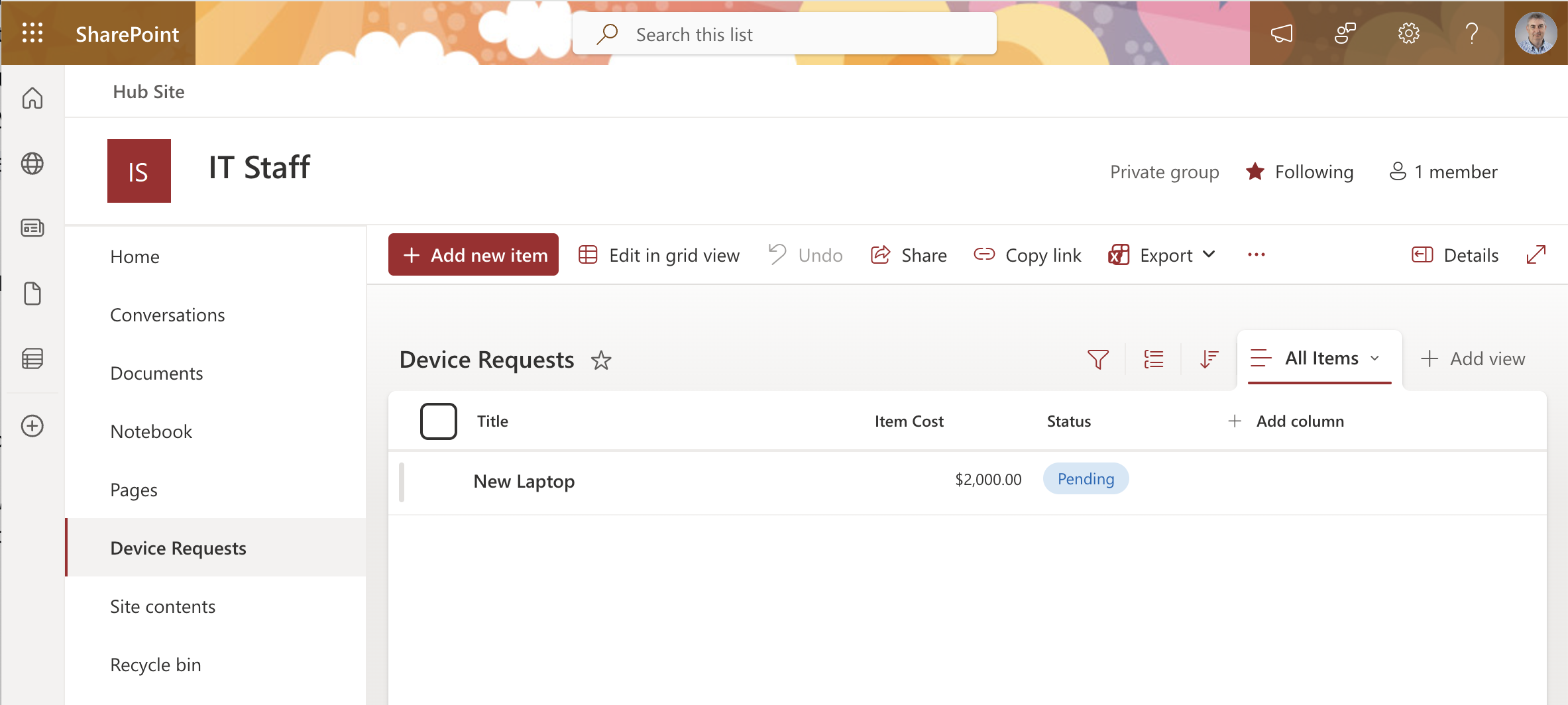
The "New Laptop" request appeared in the list with a cost of $2,000 and Status set to Pending
 Tap the image to open it full size
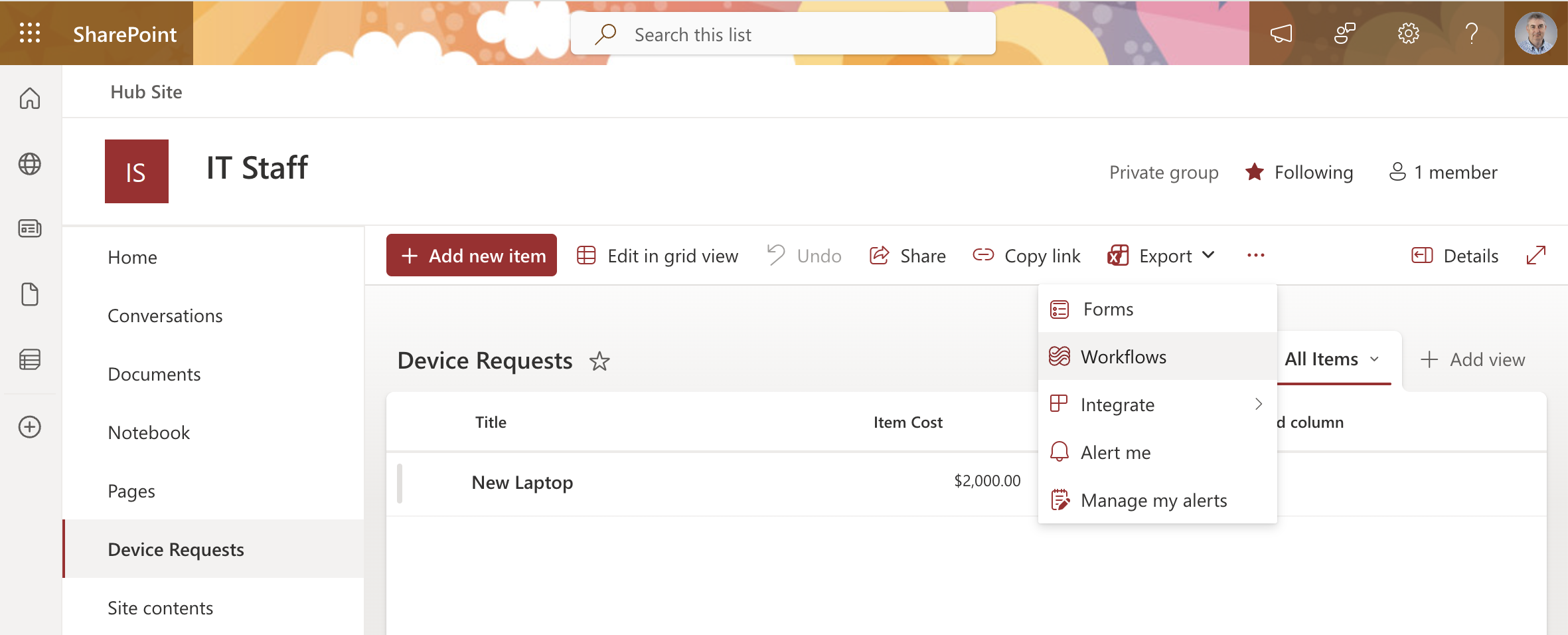
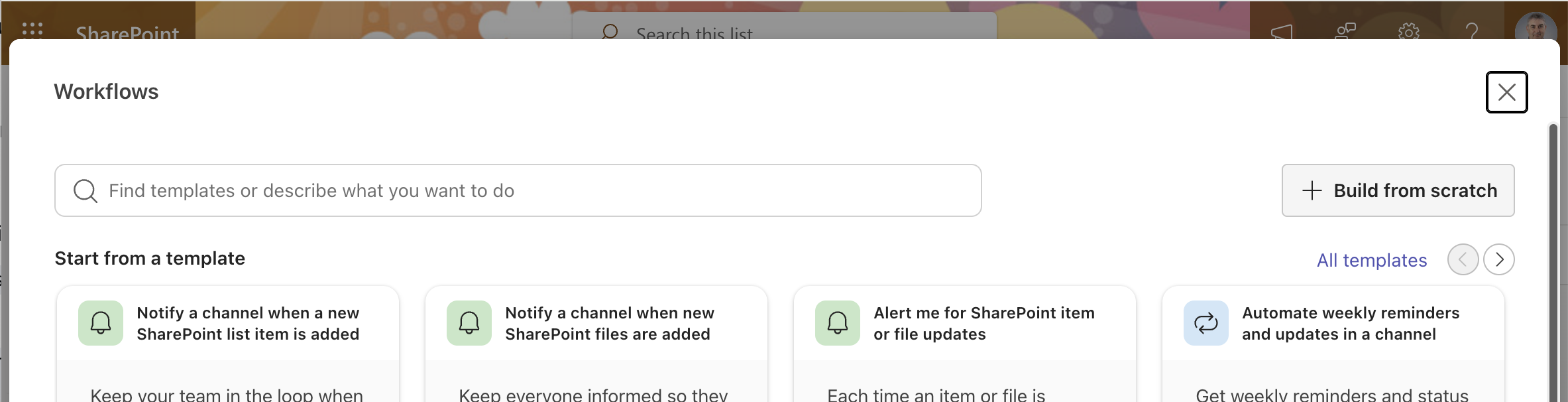
I opened the Integrate menu and selected Workflows to add a Power Automate flow
 Tap the image to open it full size
The Workflows panel opened showing available workflow templates
 Tap the image to open it full size
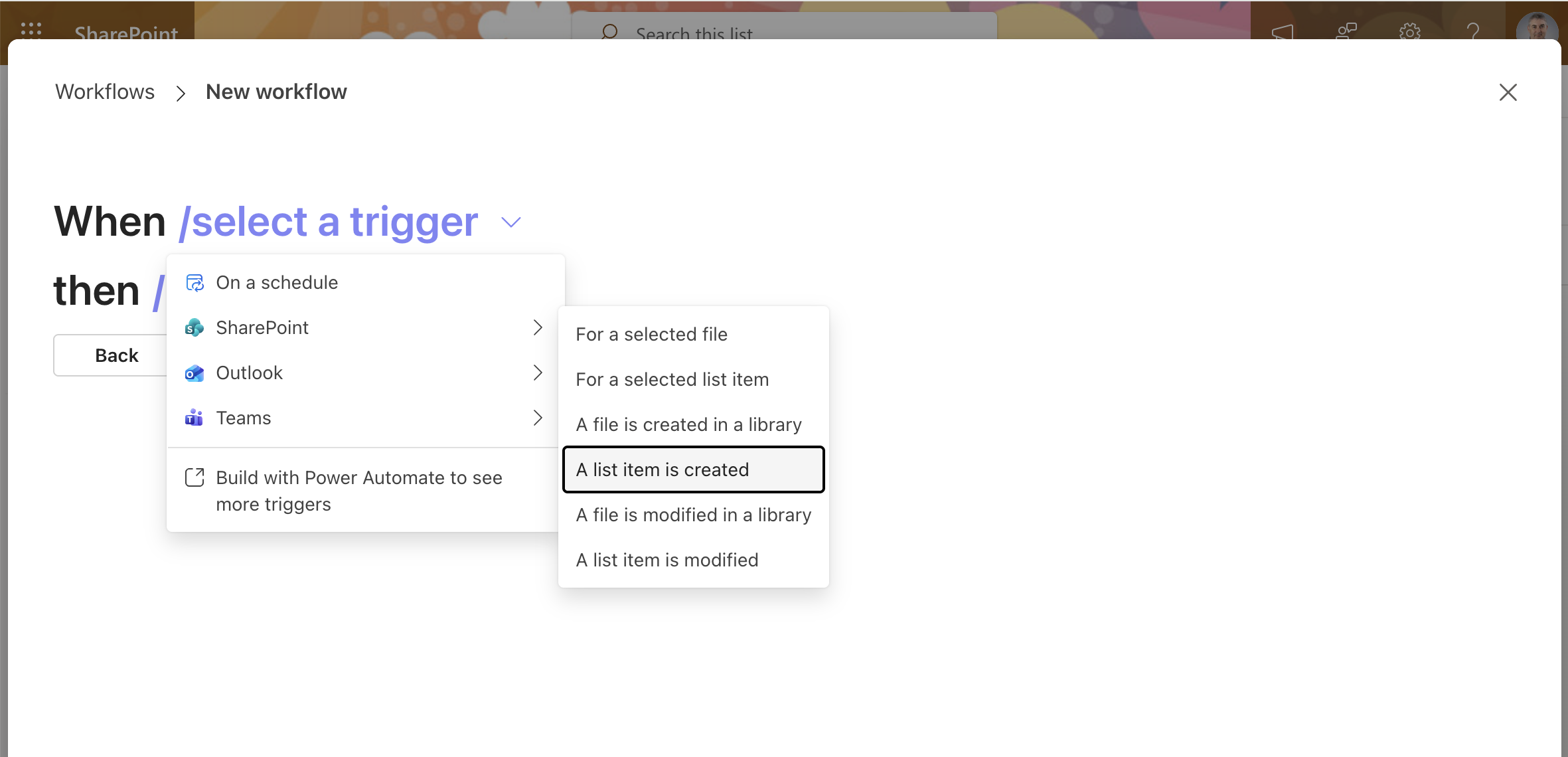
I created a new workflow and selected SharePoint > "A list item is created" as the trigger
 Tap the image to open it full size
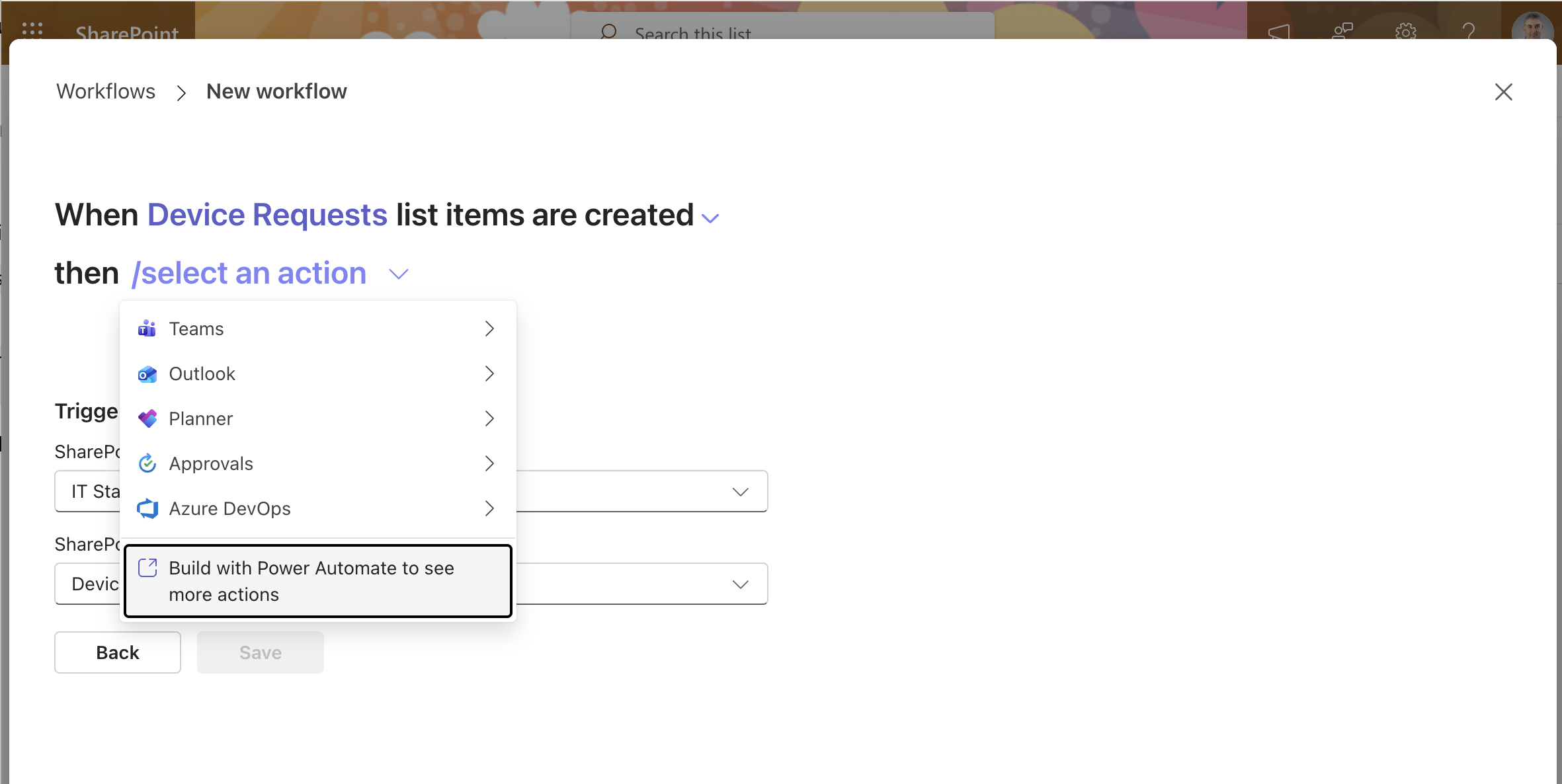
The trigger was set to fire when Device Requests items are created — I chose to build the action in Power Automate for more options
 Tap the image to open it full size
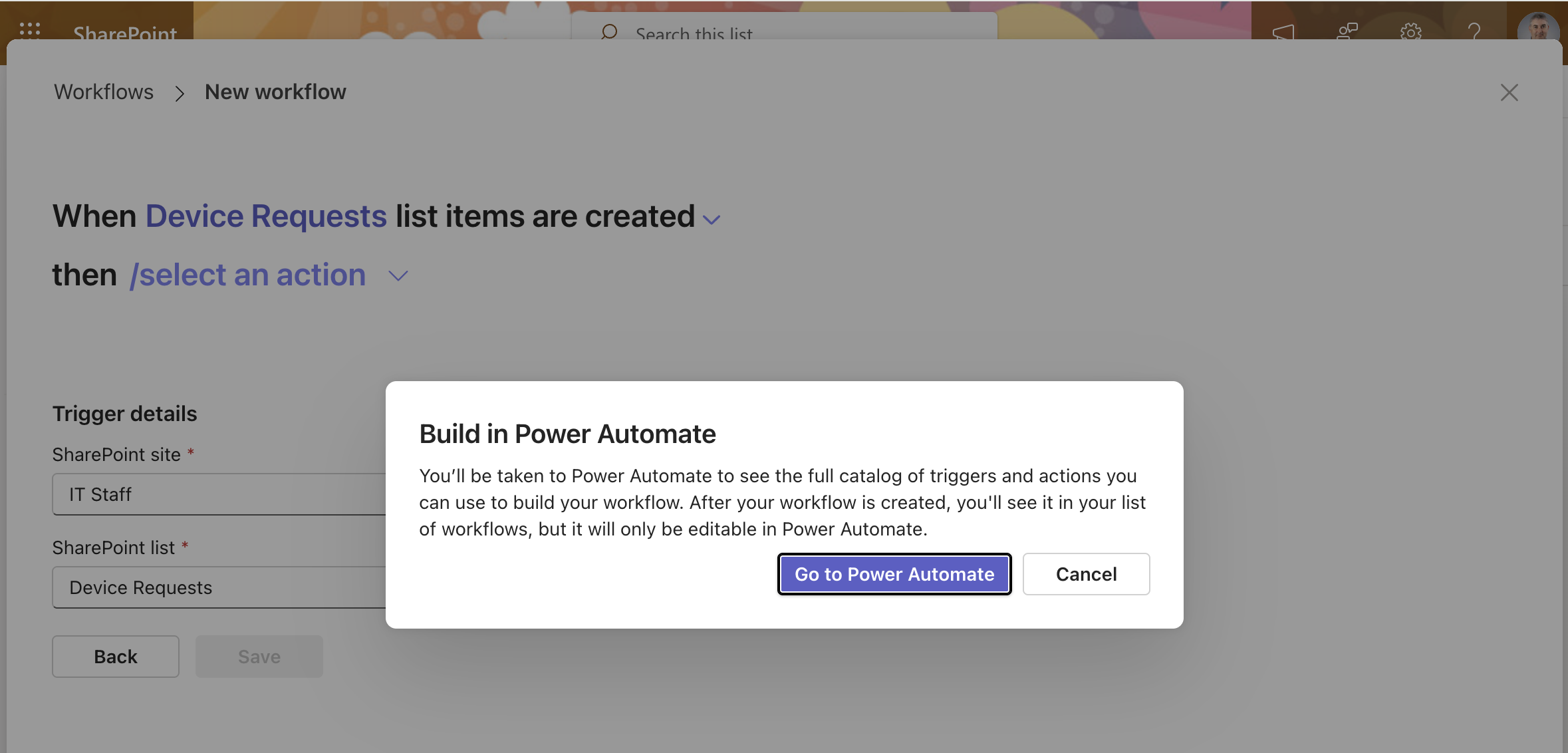
A dialog confirmed I'd be taken to Power Automate to build the full workflow
 Tap the image to open it full size
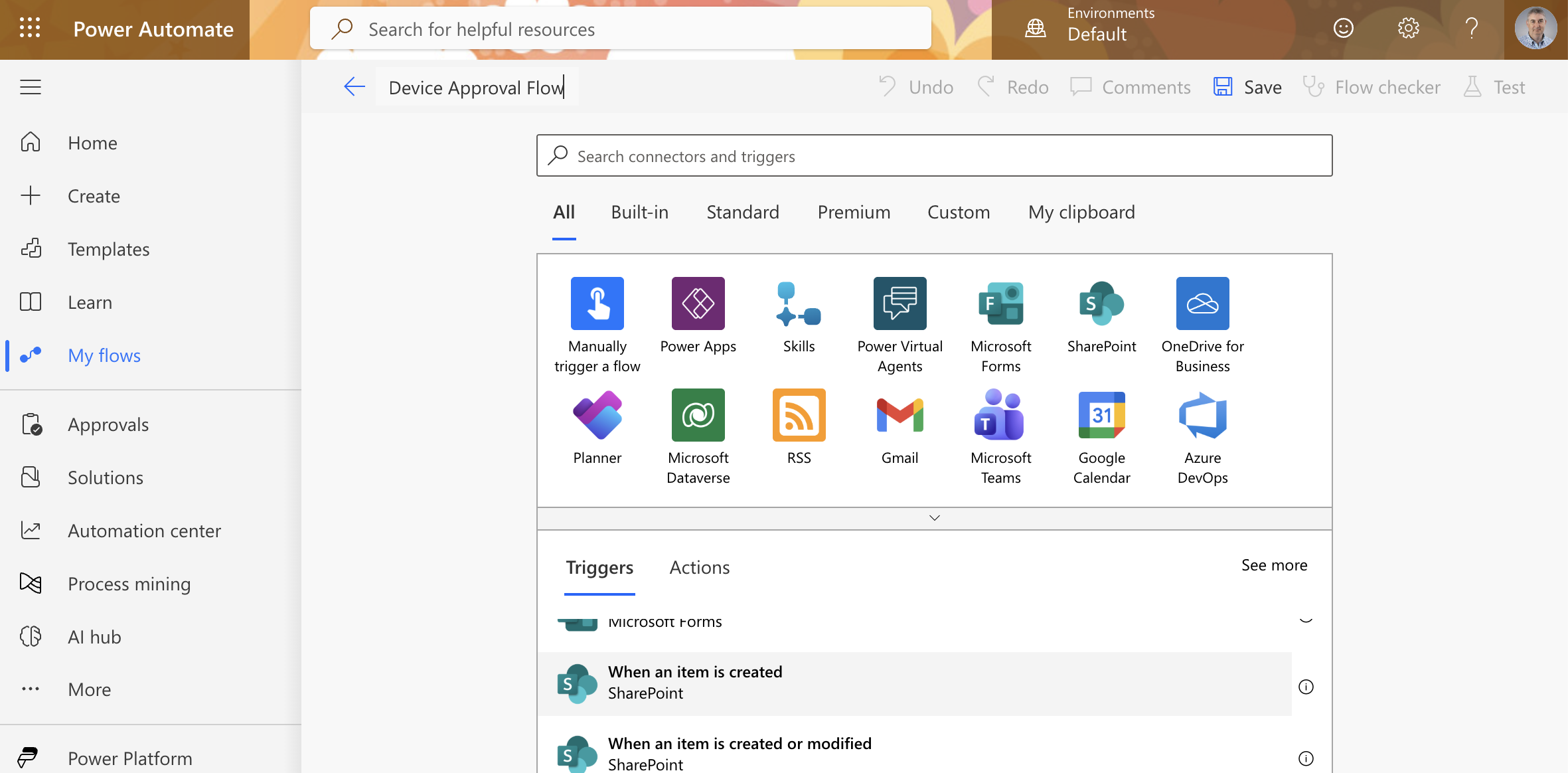
Power Automate opened with a new flow named "Device Approval Flow" and the SharePoint trigger connectors visible
 Tap the image to open it full size
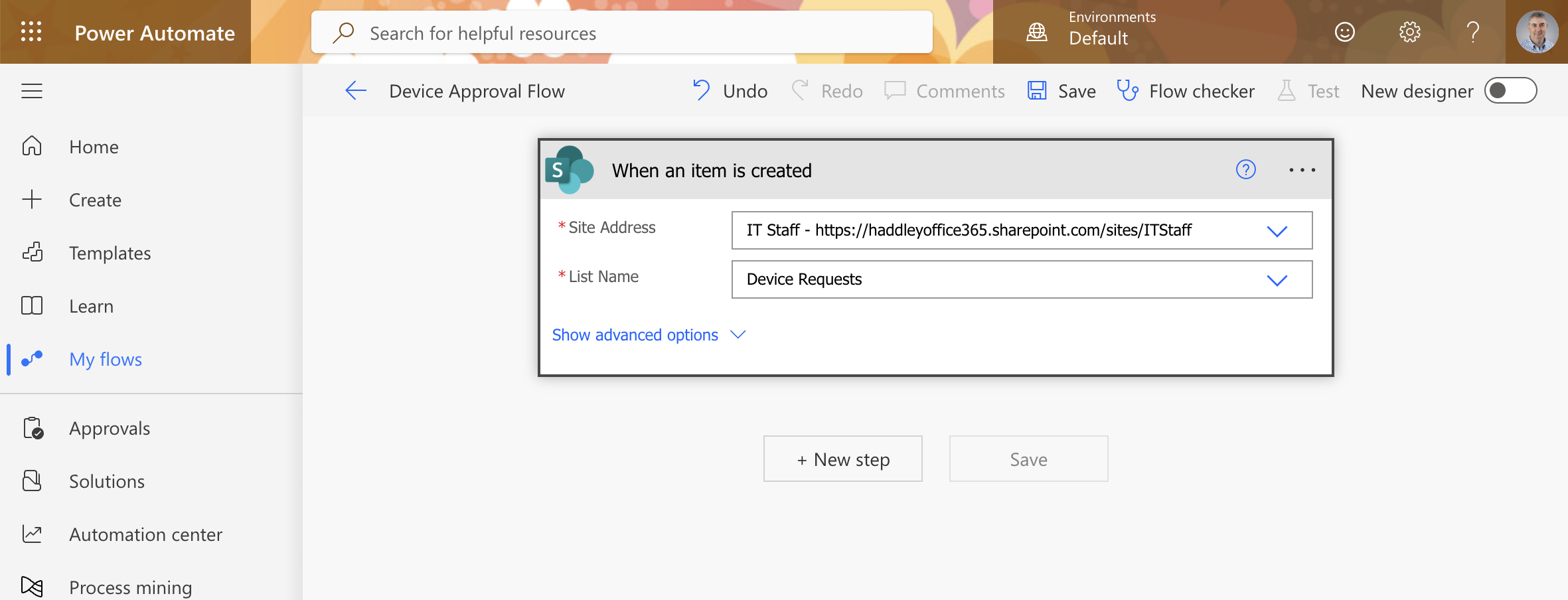
I configured the trigger with the IT Staff site and Device Requests list
 Tap the image to open it full size
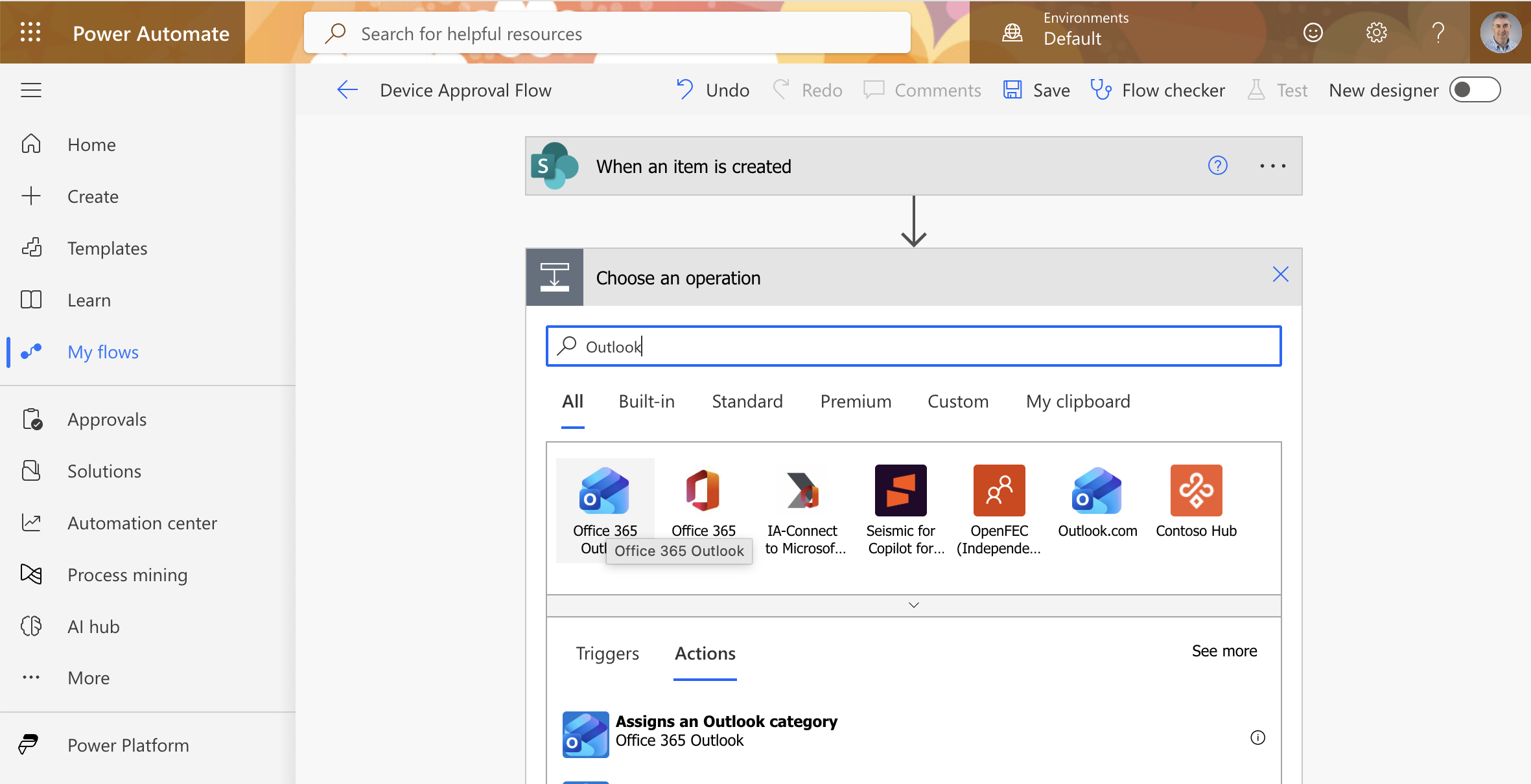
I added a new step and searched for Outlook to add an email action
 Tap the image to open it full size
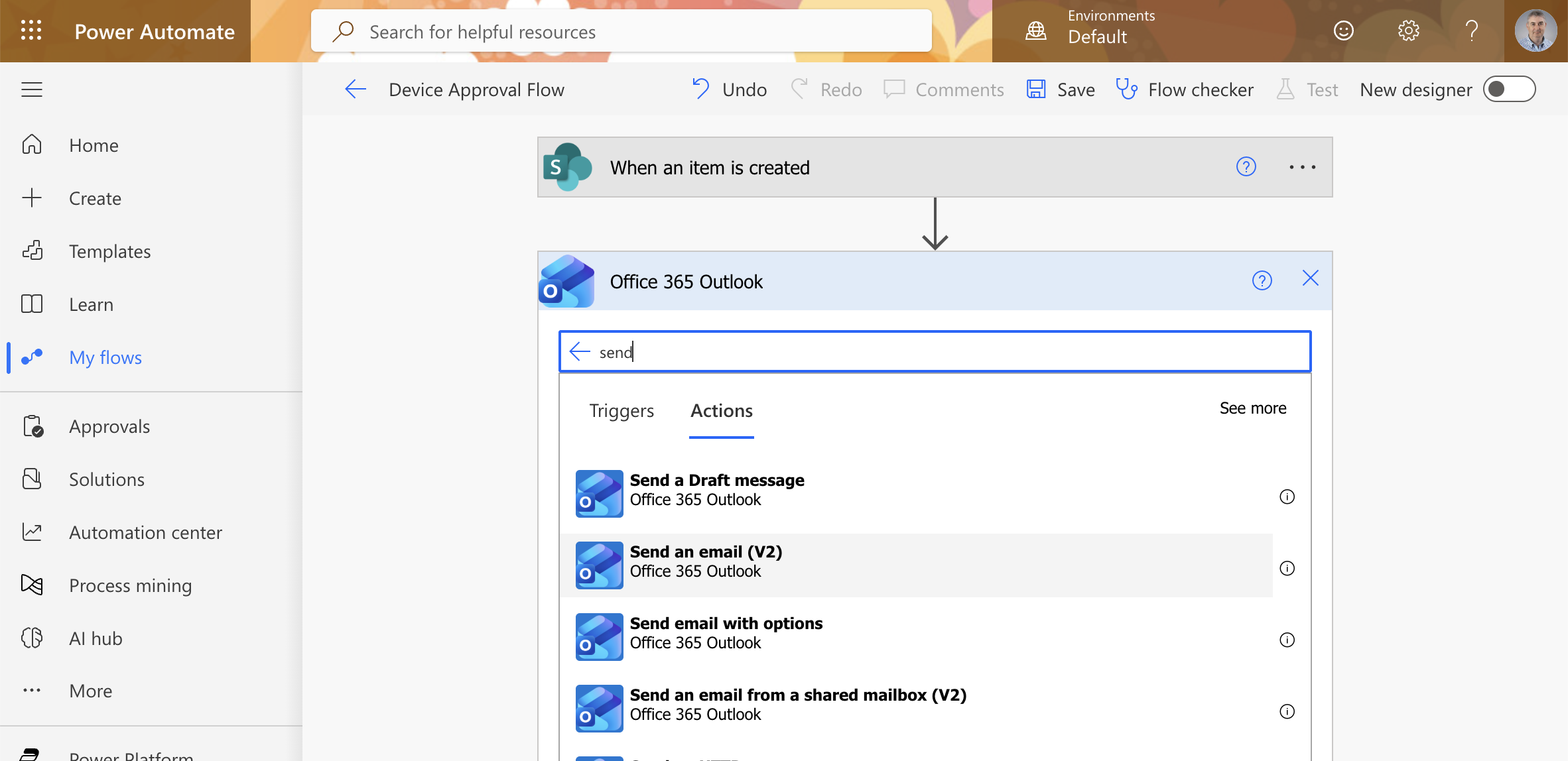
I searched for "send" within Office 365 Outlook and selected "Send an email (V2)"
 Tap the image to open it full size
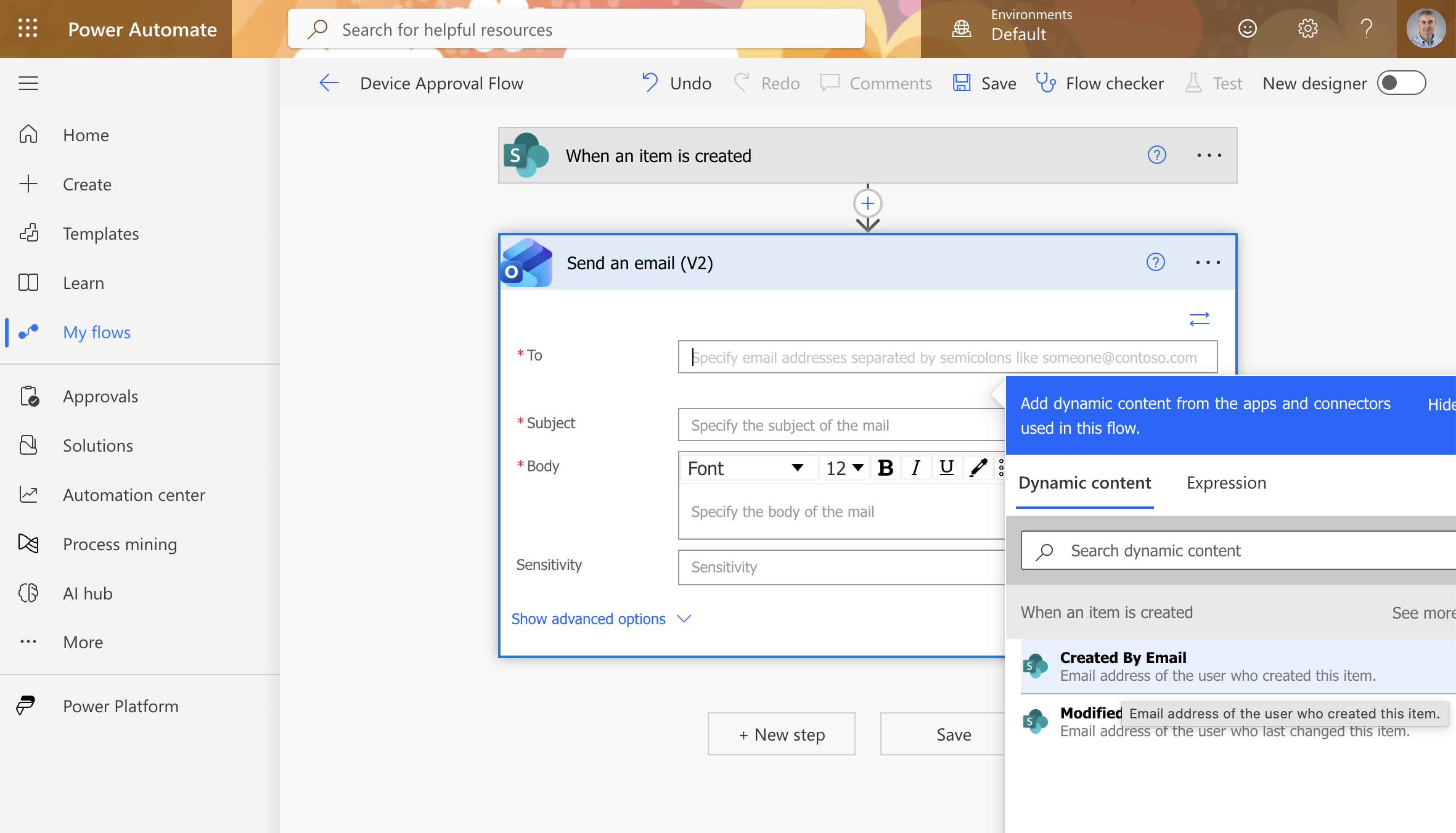
The Send an email action expanded with the Dynamic content panel open, showing "Created By Email" as the recipient
 Tap the image to open it full size
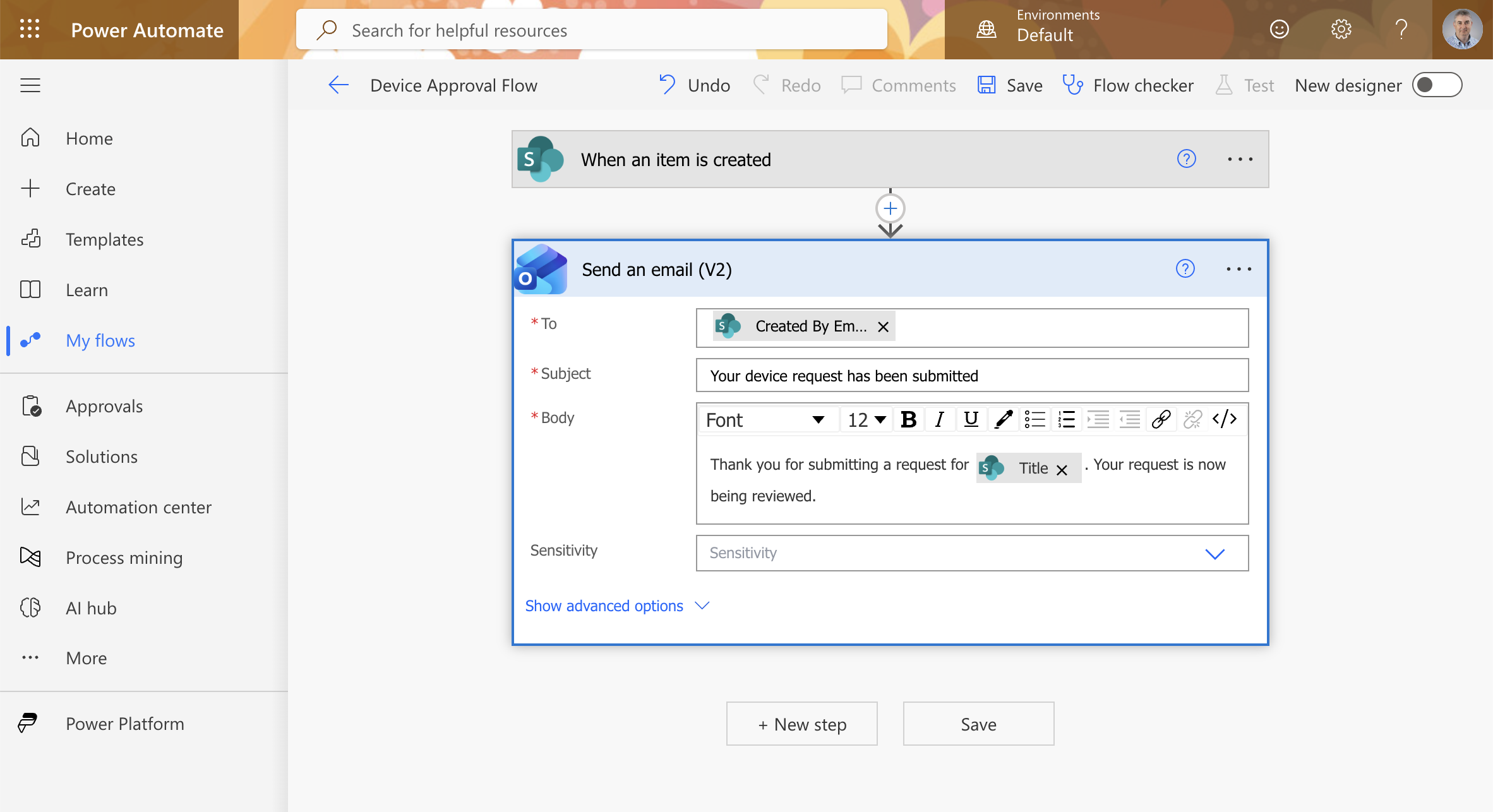
I completed the email action: To = Created By Email, Subject = "Your device request has been submitted", Body referencing the Title field
 Tap the image to open it full size
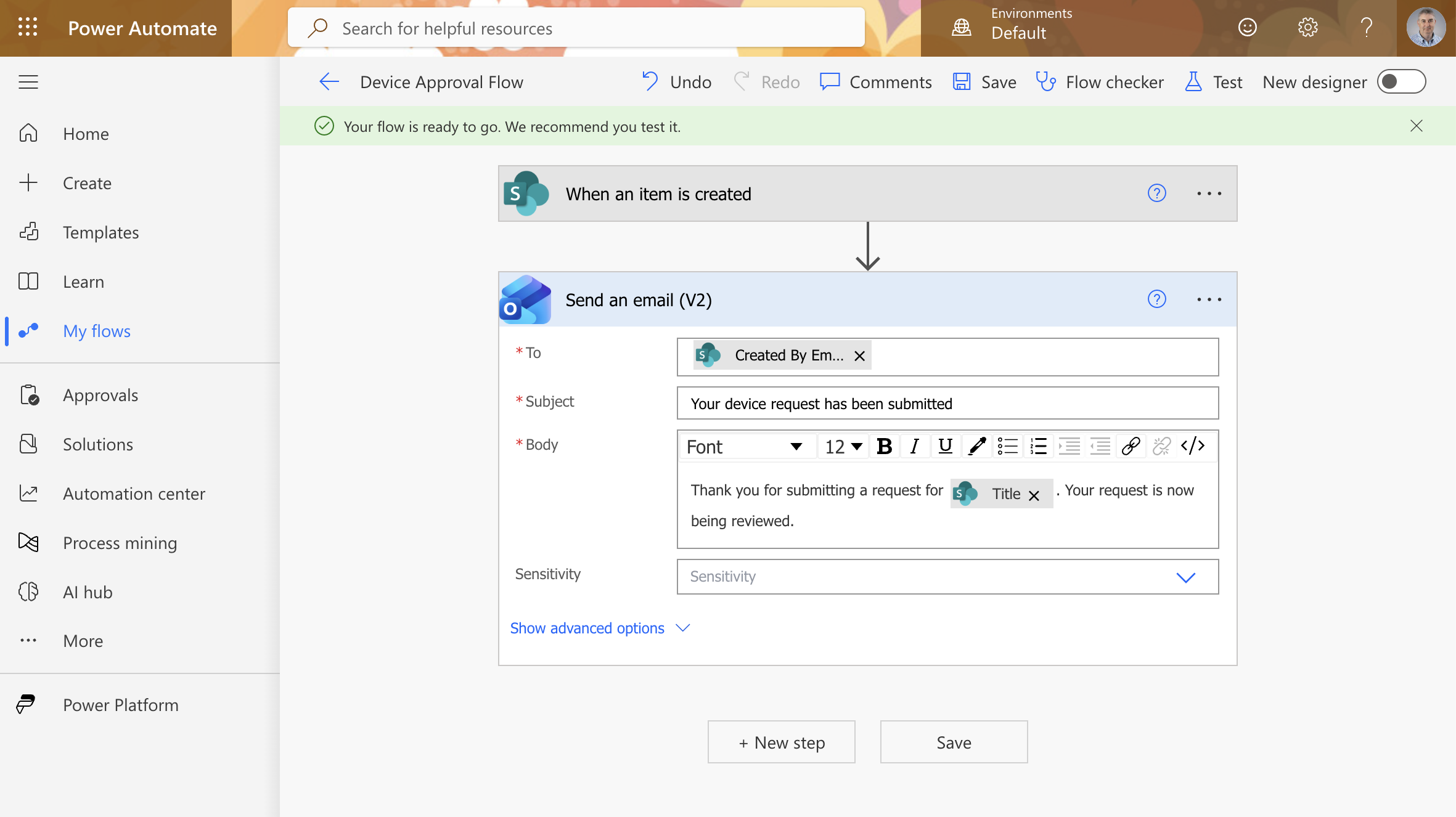
Power Automate confirmed the flow was saved and ready to test
 Tap the image to open it full size
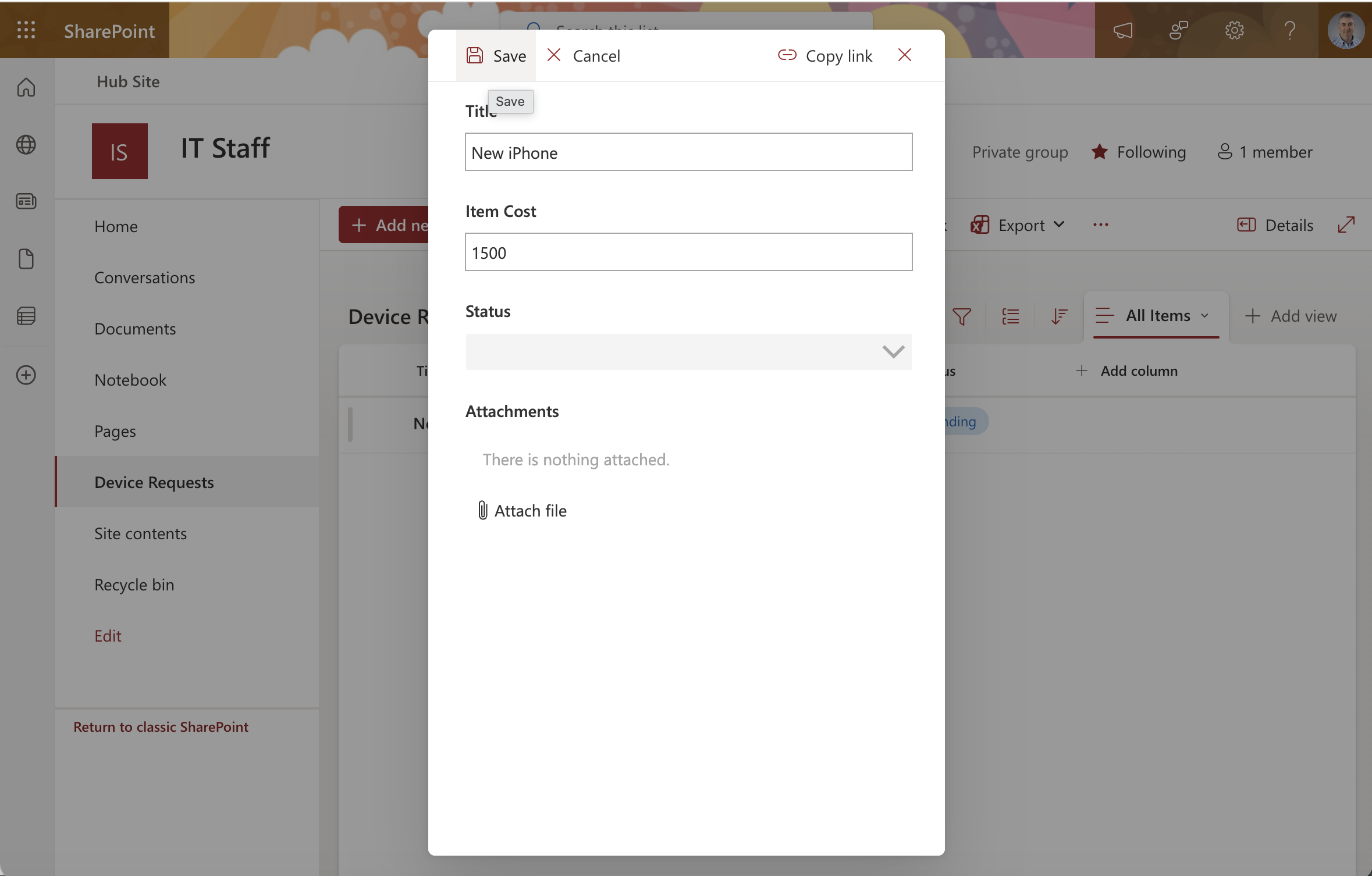
I returned to the list and submitted a new request for a "New iPhone" at $1,500
 Tap the image to open it full size
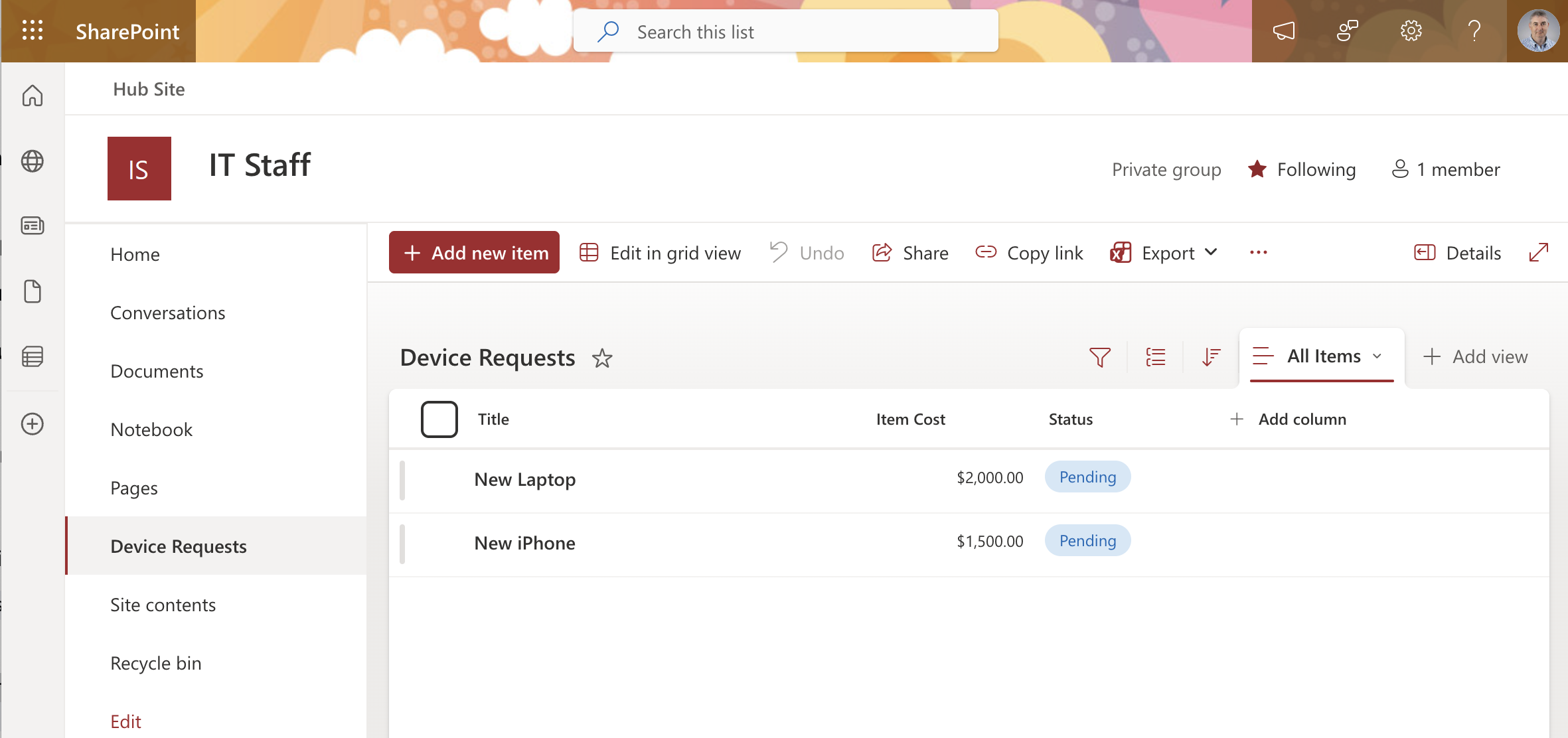
The list now showed both requests — New Laptop and New iPhone — each with Pending status
 Tap the image to open it full size
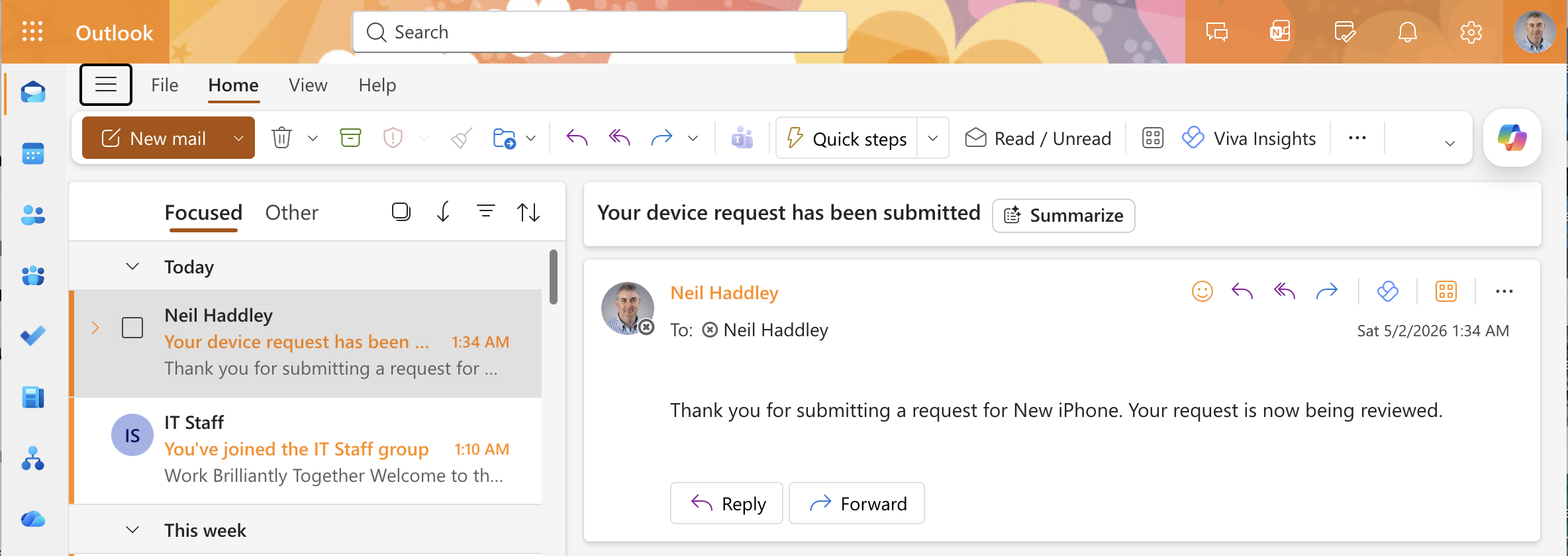
The Power Automate flow triggered automatically and sent a confirmation email: "Thank you for submitting a request for New iPhone. Your request is now being reviewed."
 Tap the image to open it full size
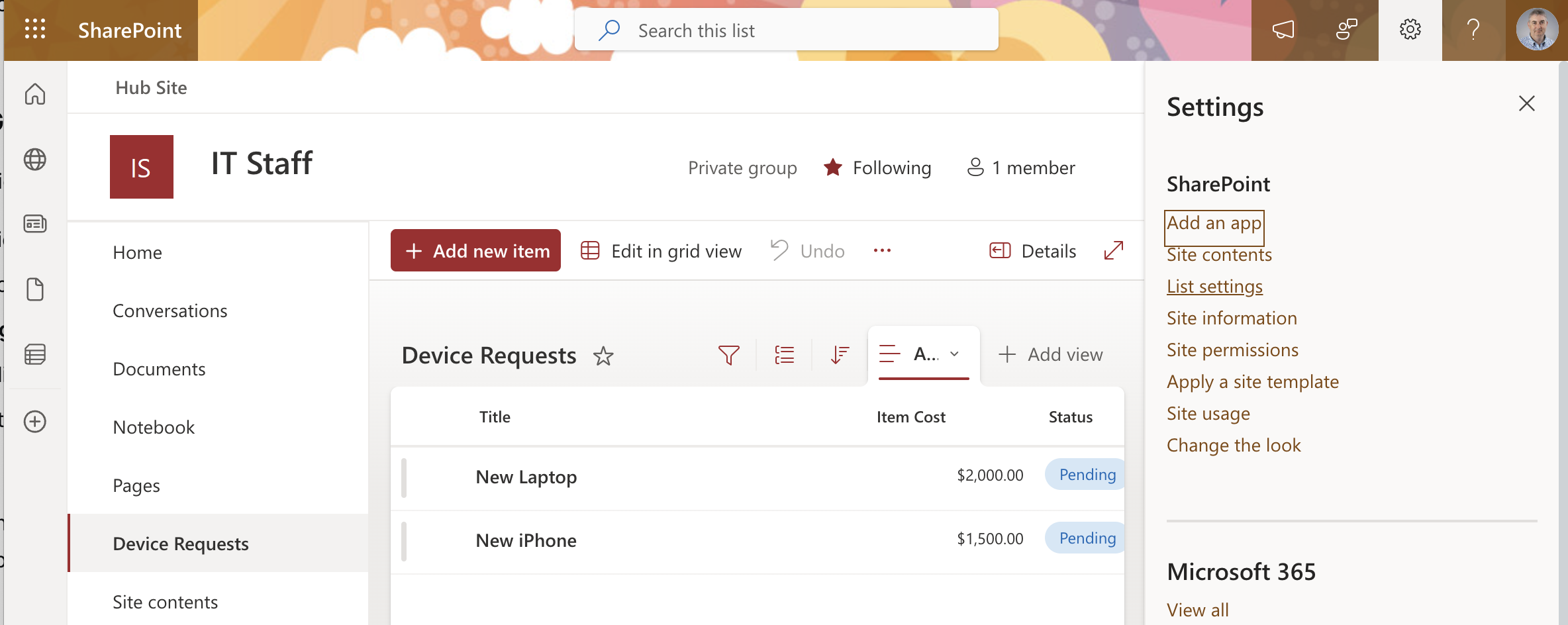
I noticed the Edit in grid view button was gone from the toolbar after publishing the Power Apps form, and the settings panel confirmed the list was now read-only
 Tap the image to open it full size
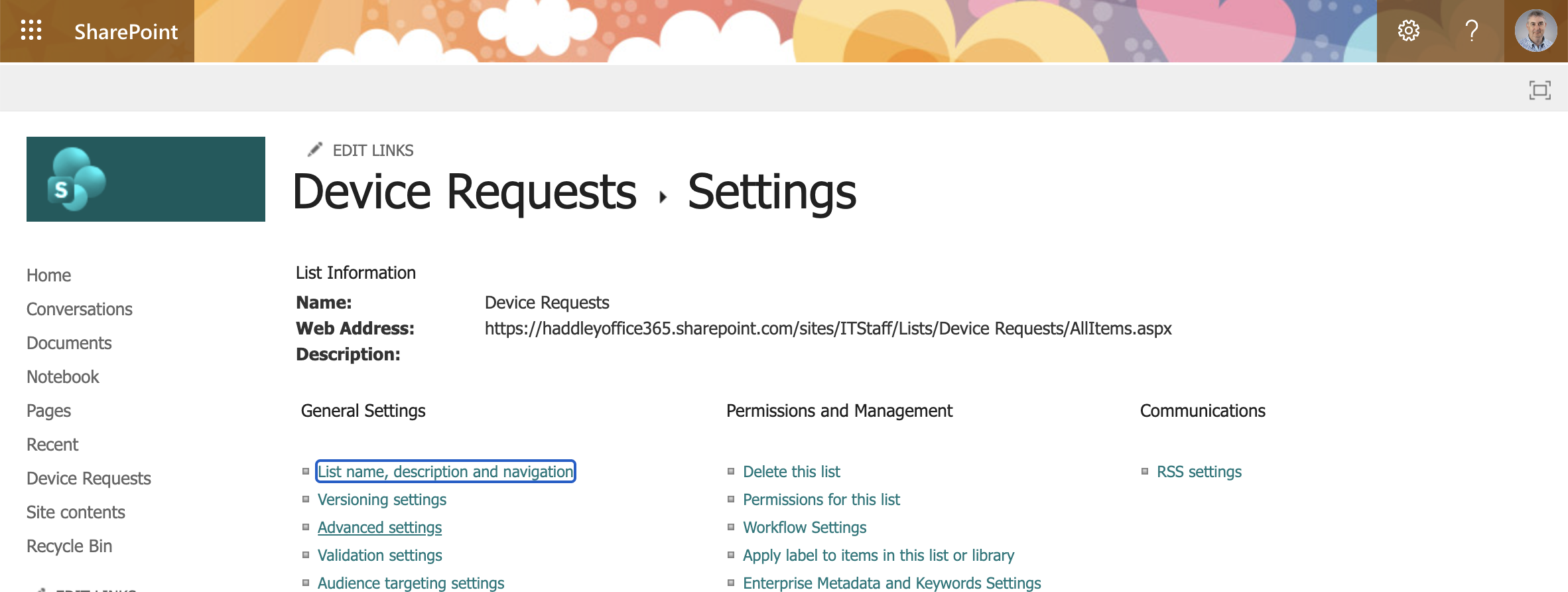
I opened the Device Requests Settings page to navigate to Advanced settings
 Tap the image to open it full size
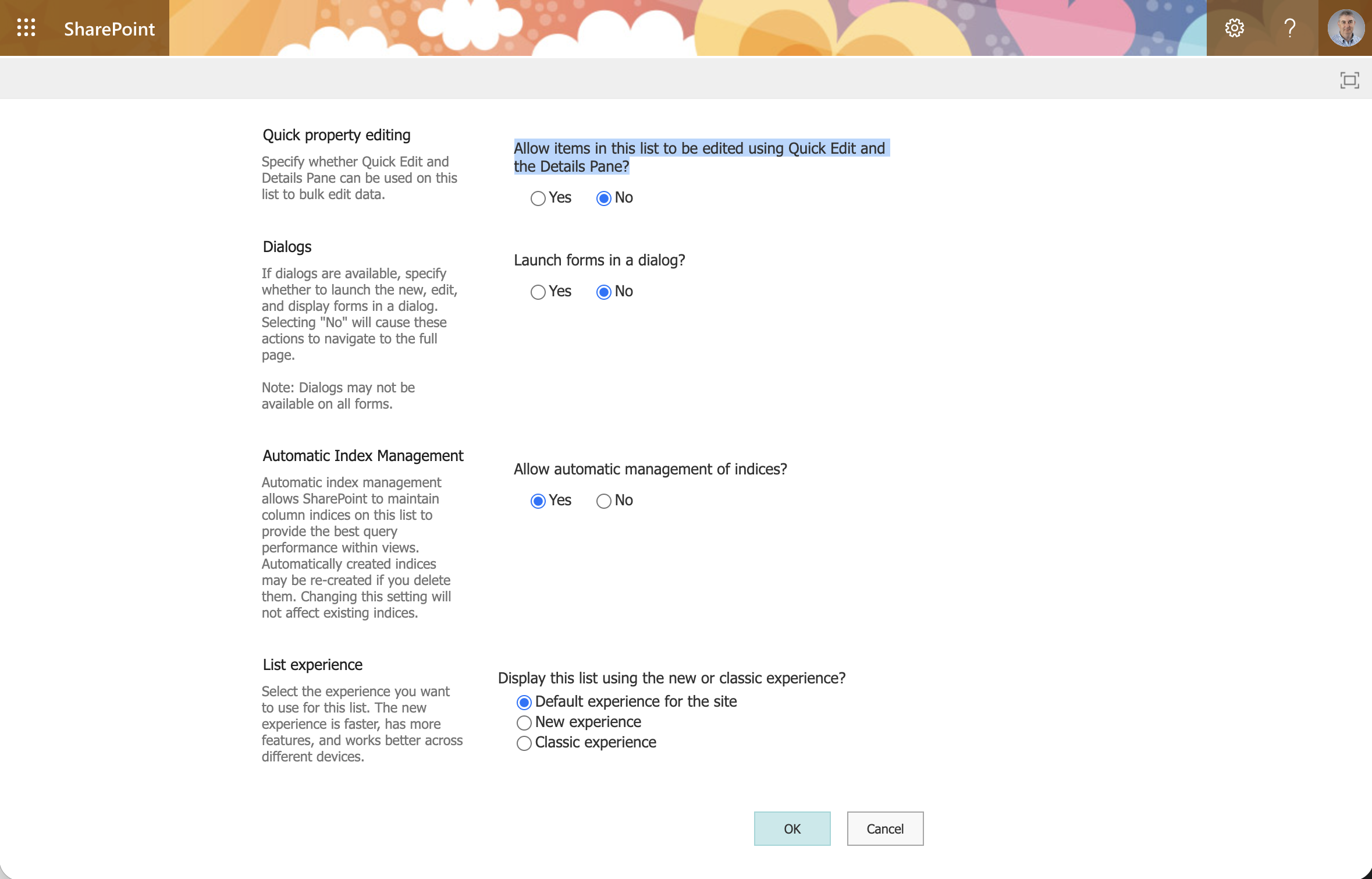
I set "Allow items in this list to be edited using Quick Edit and the Details Pane?" to No to disable inline grid editing and clicked OK to save
 Tap the image to open it full size
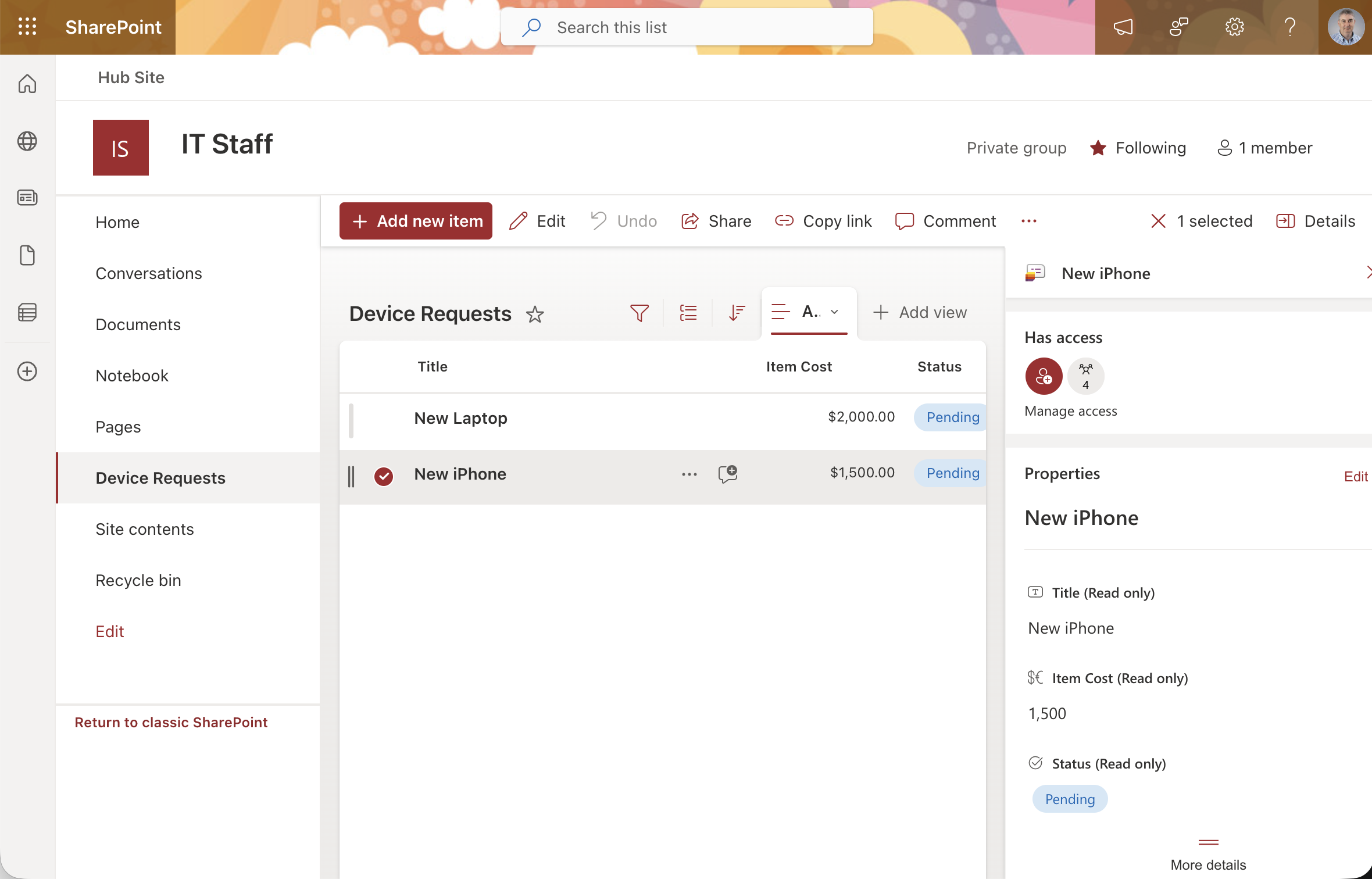
I selected the New iPhone item and the Details pane showed all fields as read only