Automatically Boot your Raspberry Pi 3 into Google Voice Assistant
I opened a Terminal on the Raspberry Pi Desktop.
I created the service file by typing:
BASH
1sudo nano /etc/systemd/system/assist.service
I copied this text to the assist.service file.
BASH
1[Unit]
2Description=Assist @ reboot
3
4[Service]
5Environment=XDG_RUNTIME_DIR=/run/user/1000
6#ExecStart=/home/pi/AIY-projects-python/src/examples/voice/main.py
7ExecStart=/home/pi/AIY-projects-python/src/examples/voice/assistant_library_with_local_commands_demo.py
8Restart=always
9User=pi
10StandardOutput=syslog
11StandardError=syslog
12SyslogIdentifier=assist
13
14[Install]
15WantedBy=multi-user.target
I pressed Control-X to exit, Y to save, and Enter to complete the save.
I enabled the service (for next boot) by typing in the terminal:
BASH
1sudo systemctl enable assist.service
I started the service manually by typing:
BASH
1sudo systemctl start assist.service
I checked the status of the service by typing:
BASH
1sudo systemctl status assist.service
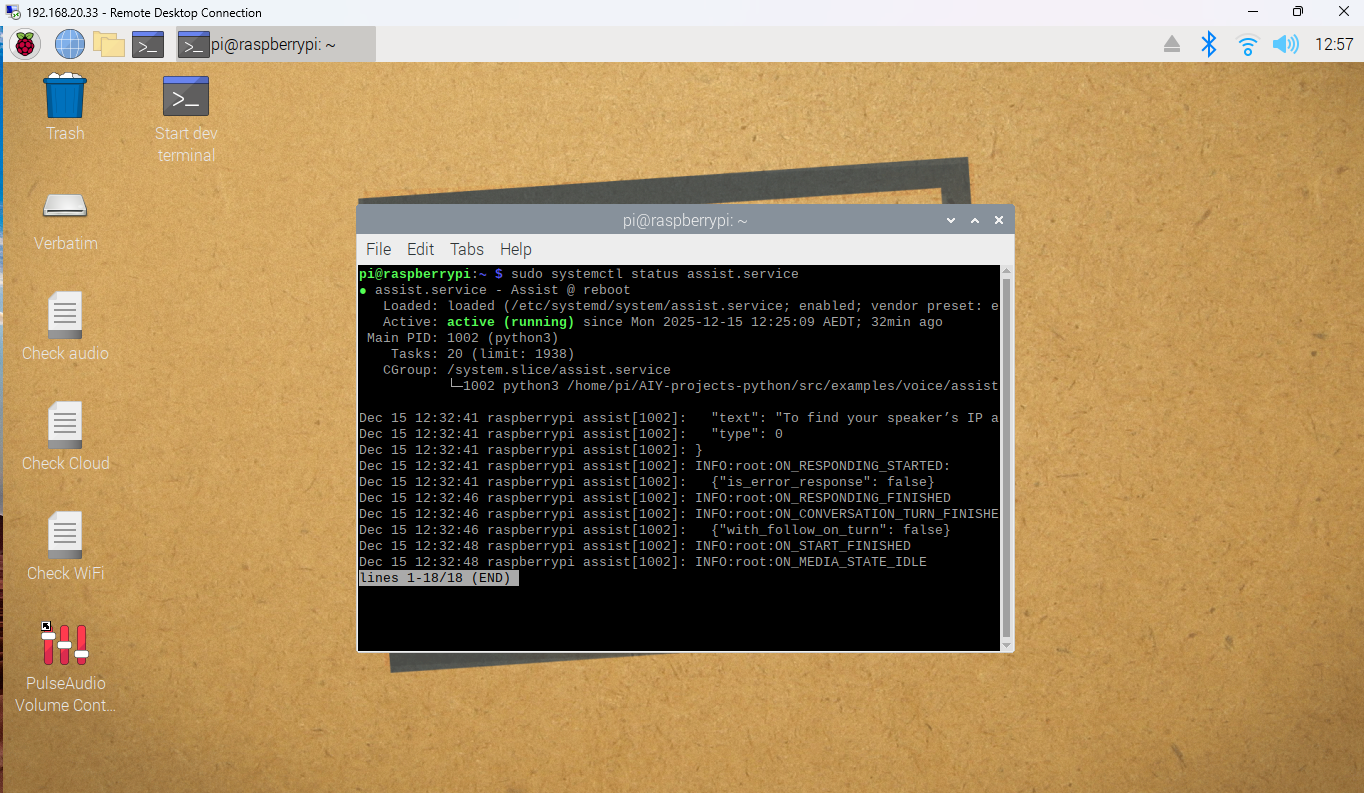
sudo systemctl status assist.service
I rebooted my Raspberry Pi