Business Central and DeepSeek Harness (Part 5)
Neil Haddley • November 18, 2026
Test an AI against a fresh copy of the practice company: copy a sandbox in the admin center, wait for it to become Active, then point the harness at the new name.
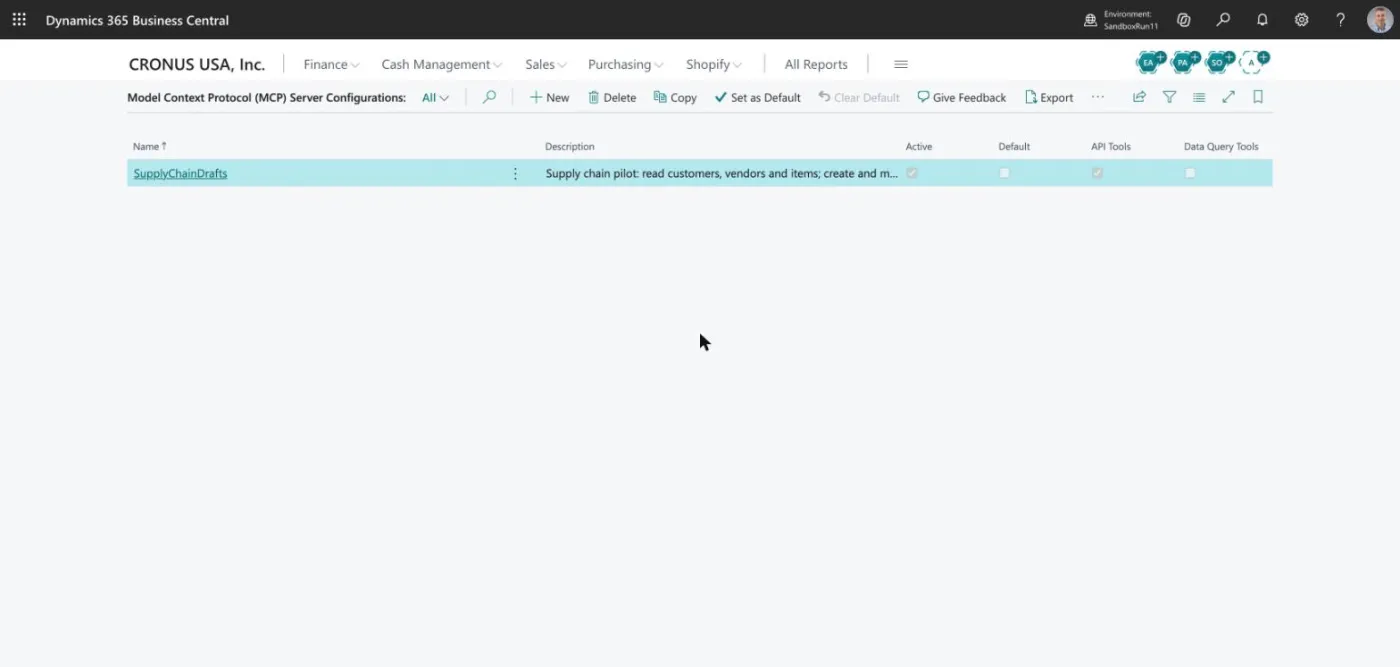
Every screenshot in this series comes from one sandbox, SandboxRun11. This post shows how I made it, because the AI makes real changes (drafts, and in Parts 6 and 7 a posted invoice). I want to run those tests on a copy that I can throw away.
The idea
Keep one sandbox clean, as the starting point. I call mine SandboxBaseline. For each test run, copy the baseline to a new sandbox, run the test, and delete the copy afterwards. Every run then starts from the same data.
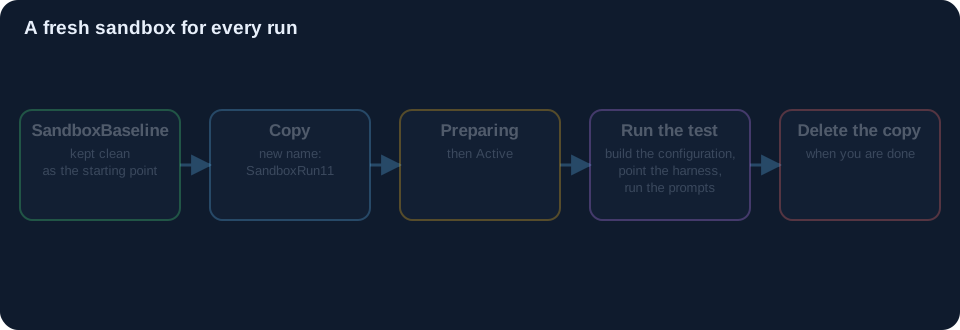 Scroll sideways, or tap the diagram to open it full size
Copy it
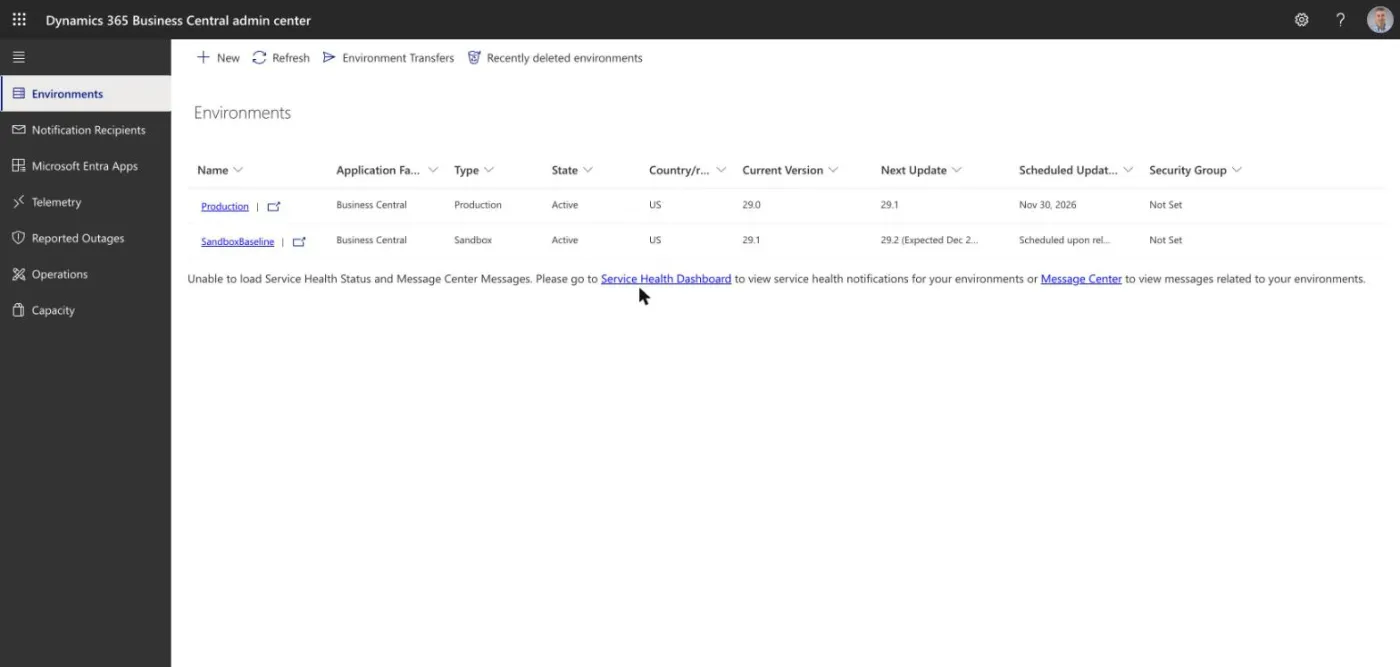
In the Business Central admin center, open Environments. Here is where I started:
Open SandboxBaseline:
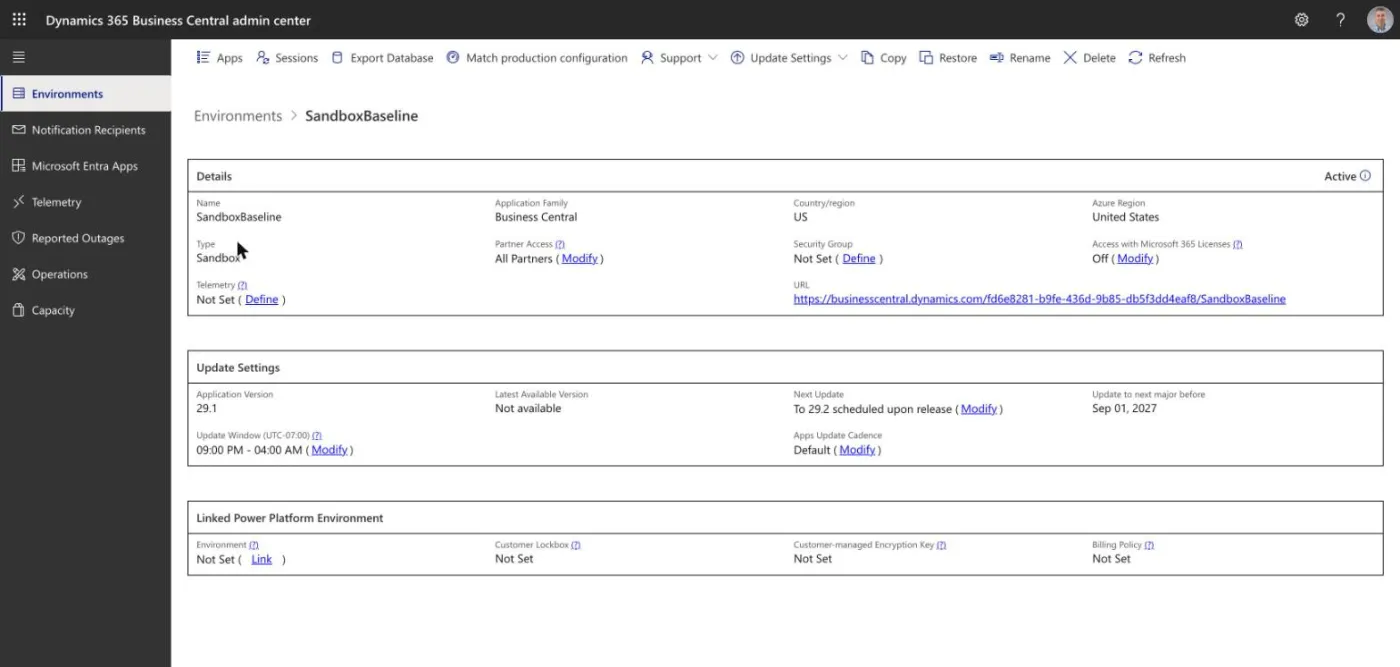
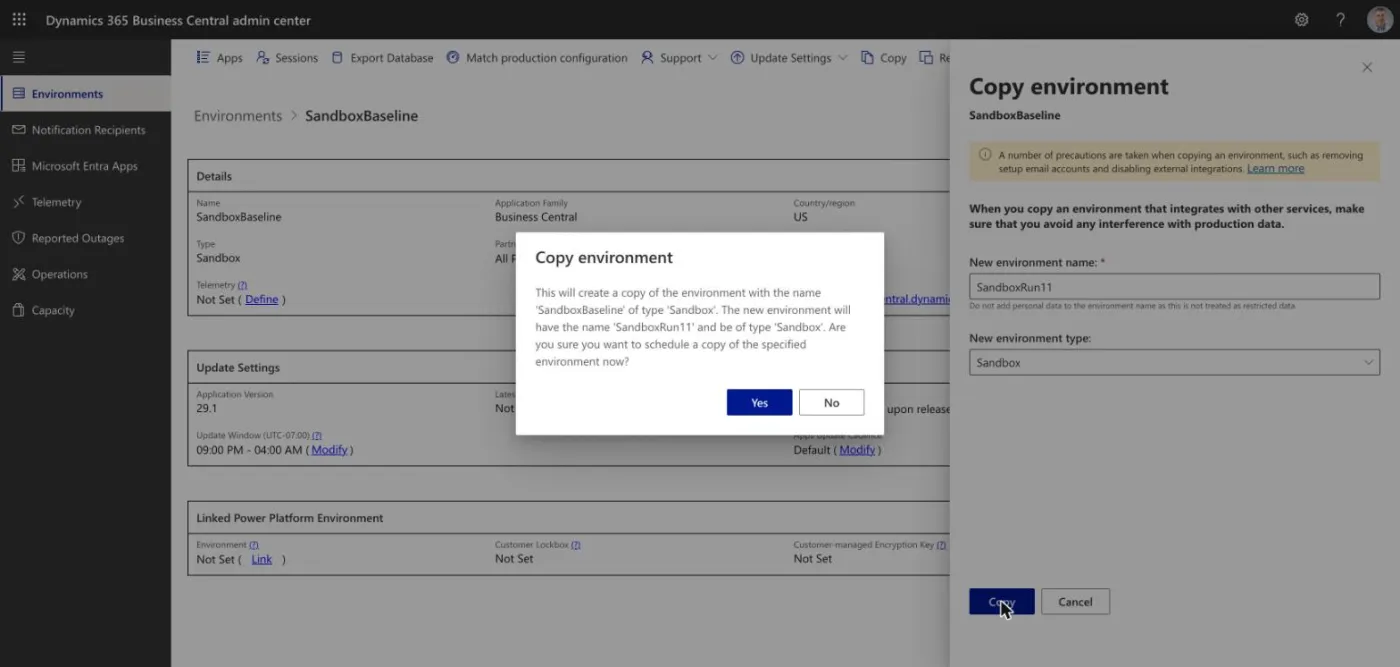
Choose Copy. Type the new name and keep the type as Sandbox:
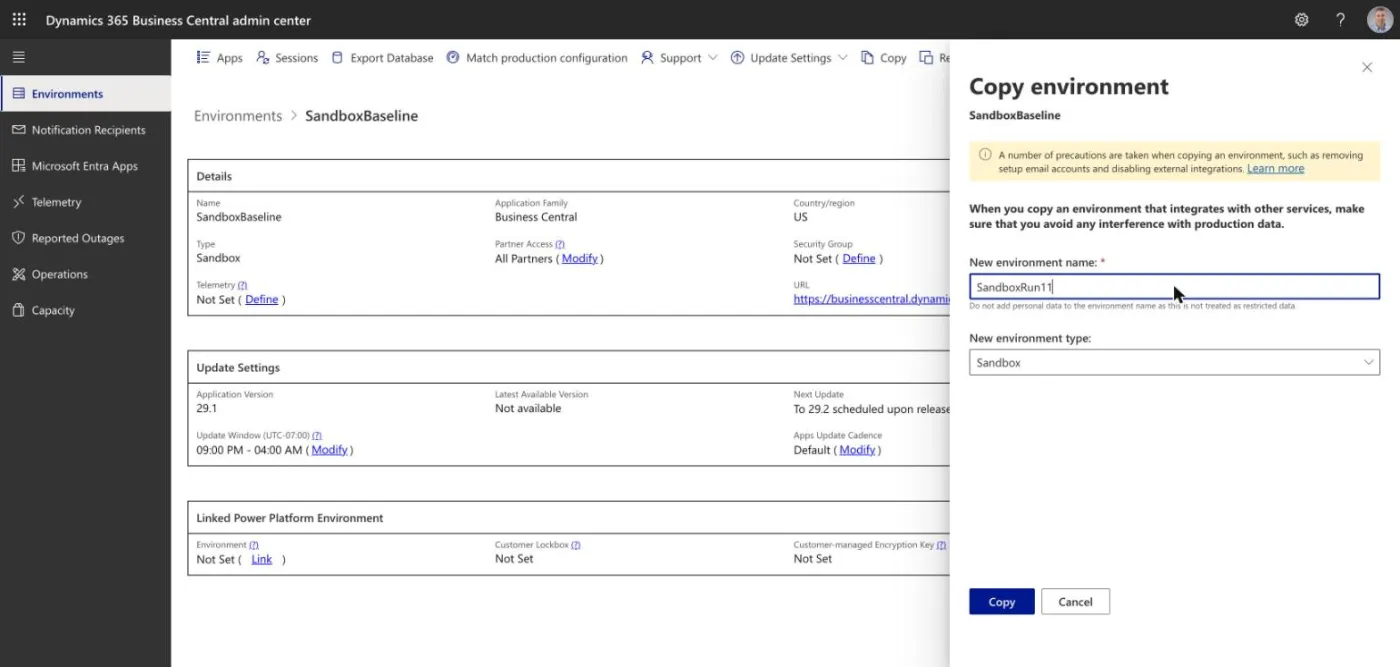
The admin center asks you to confirm:
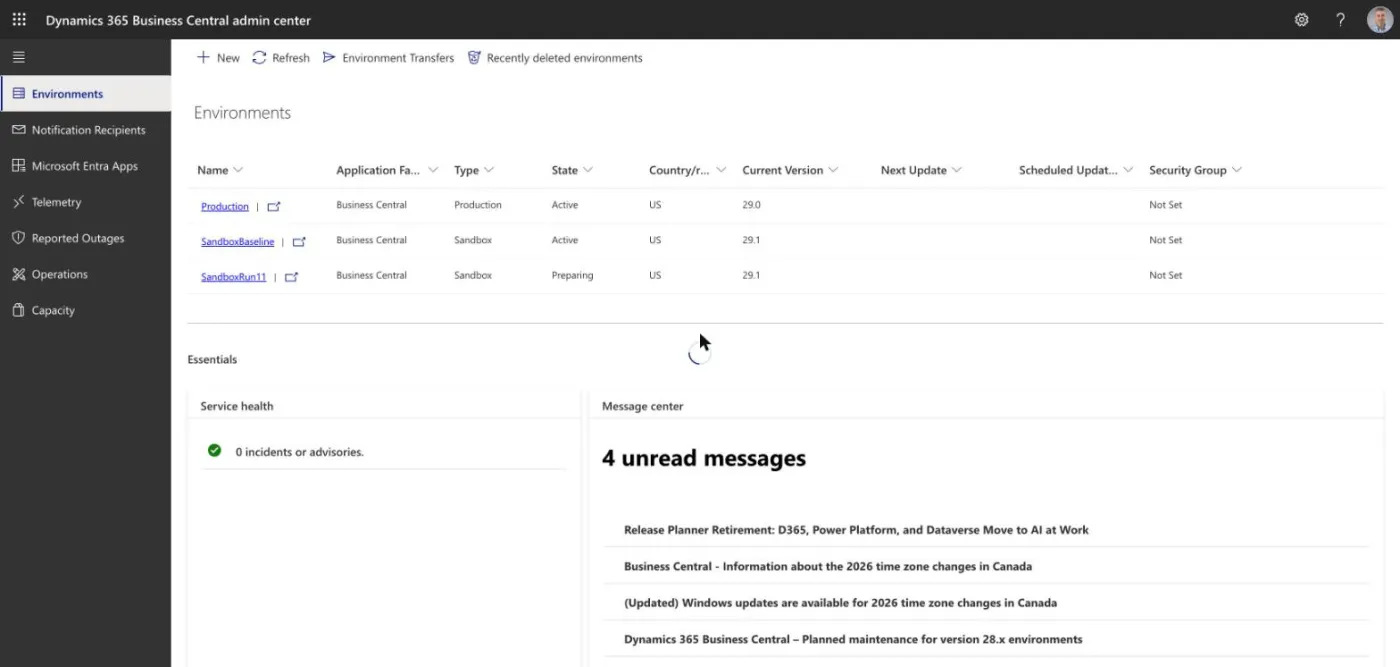
The new environment shows Preparing, and then Active when it is ready.
What to do after the copy
- Build the configuration in the new sandbox: Assistant (Part 1).
- Point the harness at the new name. In the profile from Part 2, change
EnvironmentName. - Point the posting add-on at it too (Part 6). It refuses to run if its environment does not match the one it is told to expect. It also needs your sign-in for that tenant.
- Reset the notes folder (Part 4) to its starting state, so each run begins with the same files.
- Restart the harness, so that it reads the profile.
- Run the prompts. Then delete the sandbox when you are done with it.
That is the whole of "testing with a fresh sandbox". It is a few minutes of admin, and it means that a surprise during a test cannot touch anything you care about.
Next: Part 6 is the part I care about most: a way for the AI to ask for a document to be posted, without being able to post it.