ShareGate (Part 2)
Neil Haddley • May 1, 2026
Migrating content types and site structure
In Part 1 I installed ShareGate and connected it to both my on-premises SharePoint 2019 environment and a SharePoint Online tenant. In this post I go further — first building out a custom content type on the source site to give the migration something meaningful to carry across, then running ShareGate's pre-migration reports to understand the current state of the environment, and finally using the Copy feature to migrate the full site structure from on-premises to SharePoint Online.
The goal was to prove that ShareGate faithfully migrates not just files but the underlying metadata model — content types, site columns, library configuration, and permissions — so that documents arrive in SharePoint Online with their structure intact and ready to use.
 Tap the image to open it full size
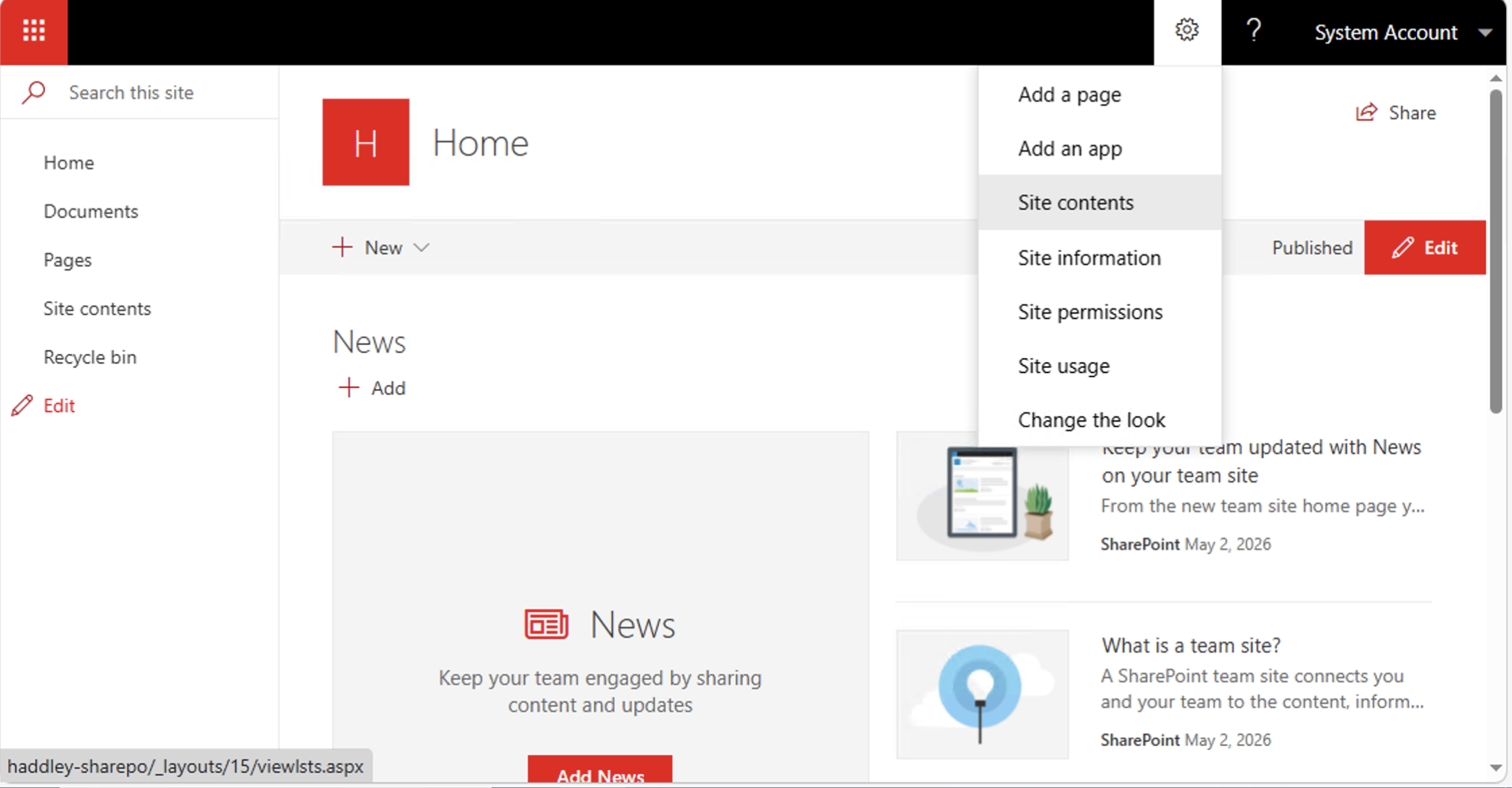
I opened the SharePoint 2019 site and navigated to Site contents from the Settings menu
 Tap the image to open it full size
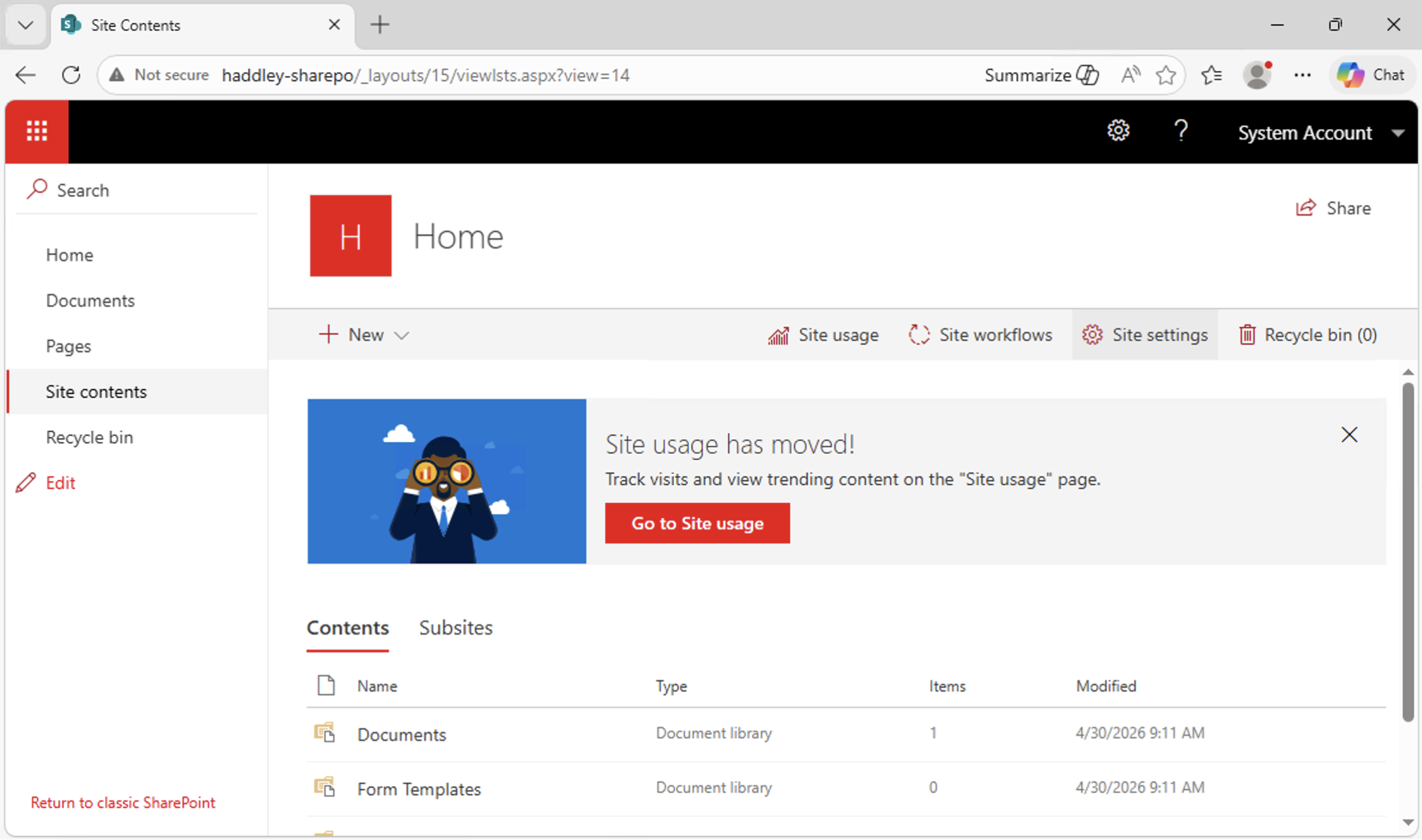
The Site Contents page showed the Documents and Form Templates libraries
 Tap the image to open it full size
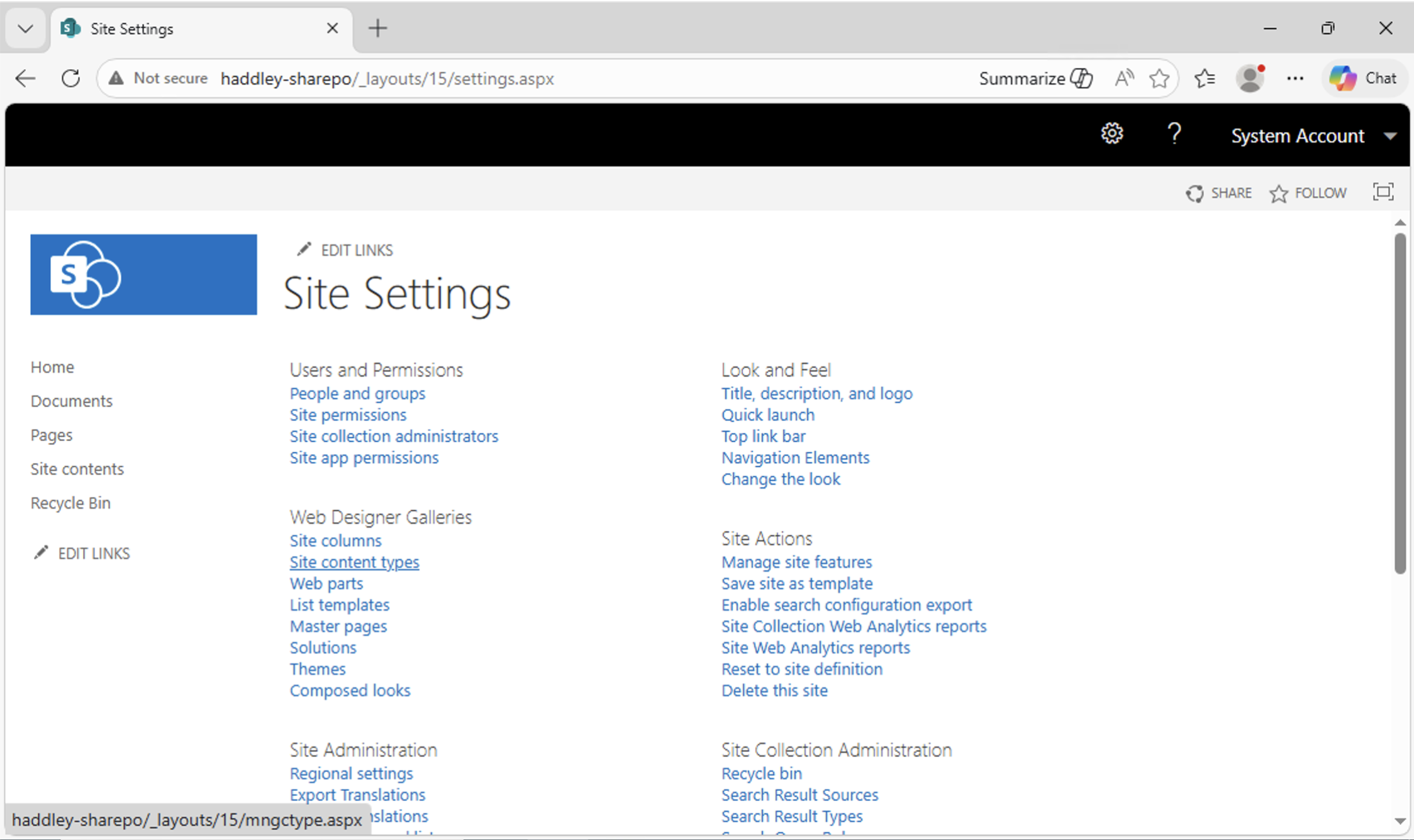
I opened Site Settings from the Settings gear
 Tap the image to open it full size
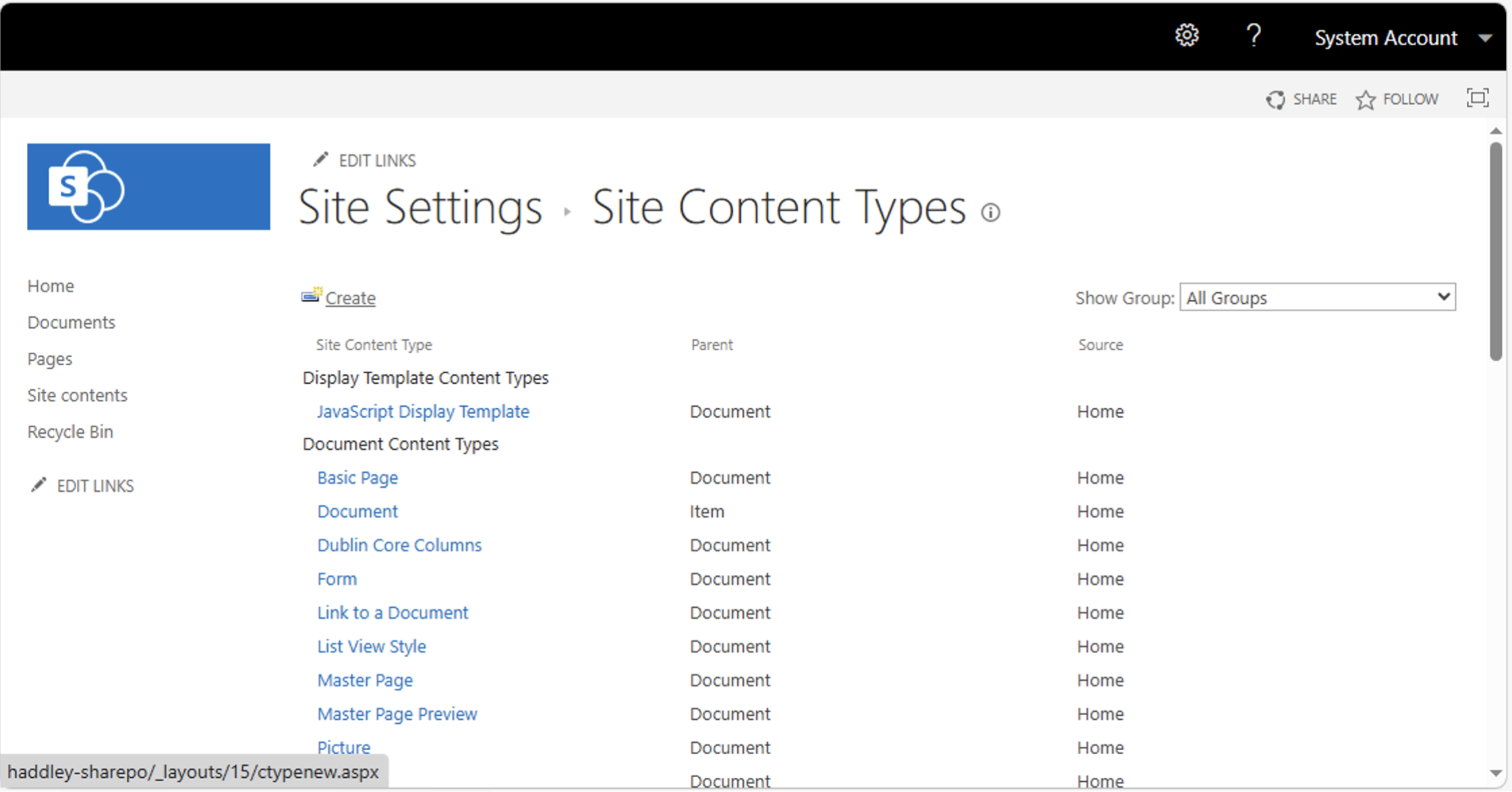
I navigated to Site Content Types to view and manage the existing content types
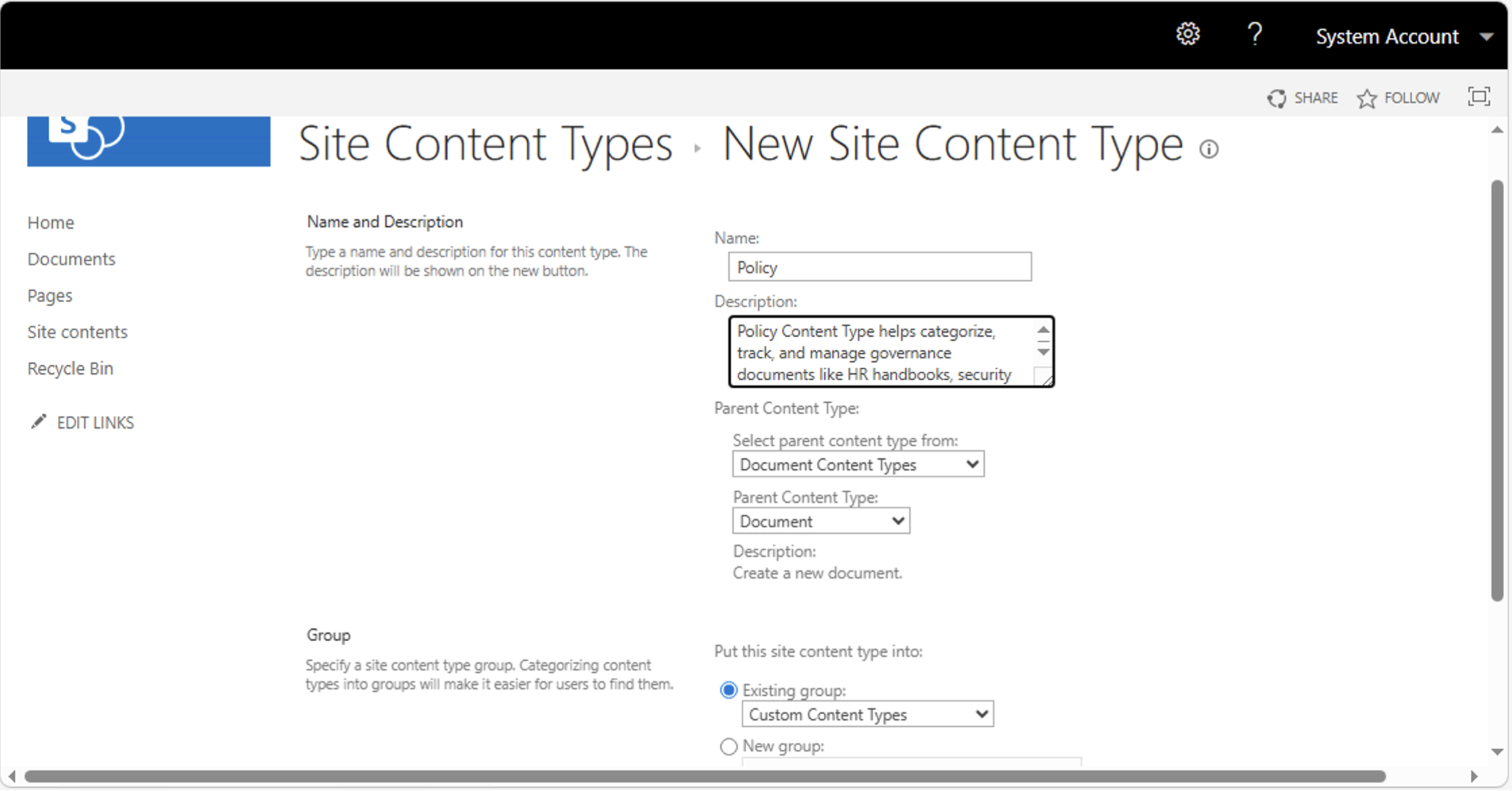 Tap the image to open it full size
I created a new site content type called "Policy" with a description, parented to Document
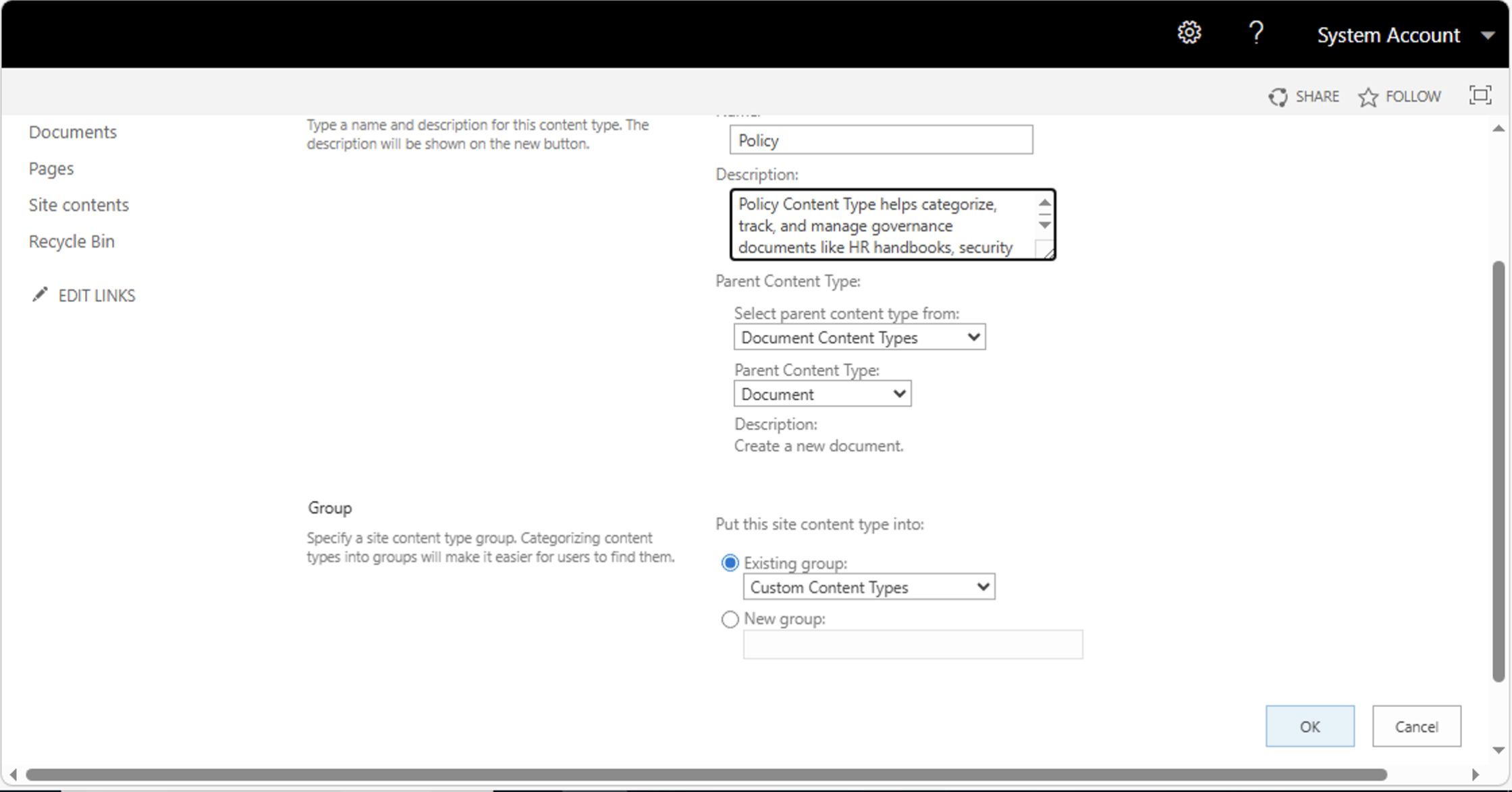 Tap the image to open it full size
I set the group to "Custom Content Types" and clicked OK to save
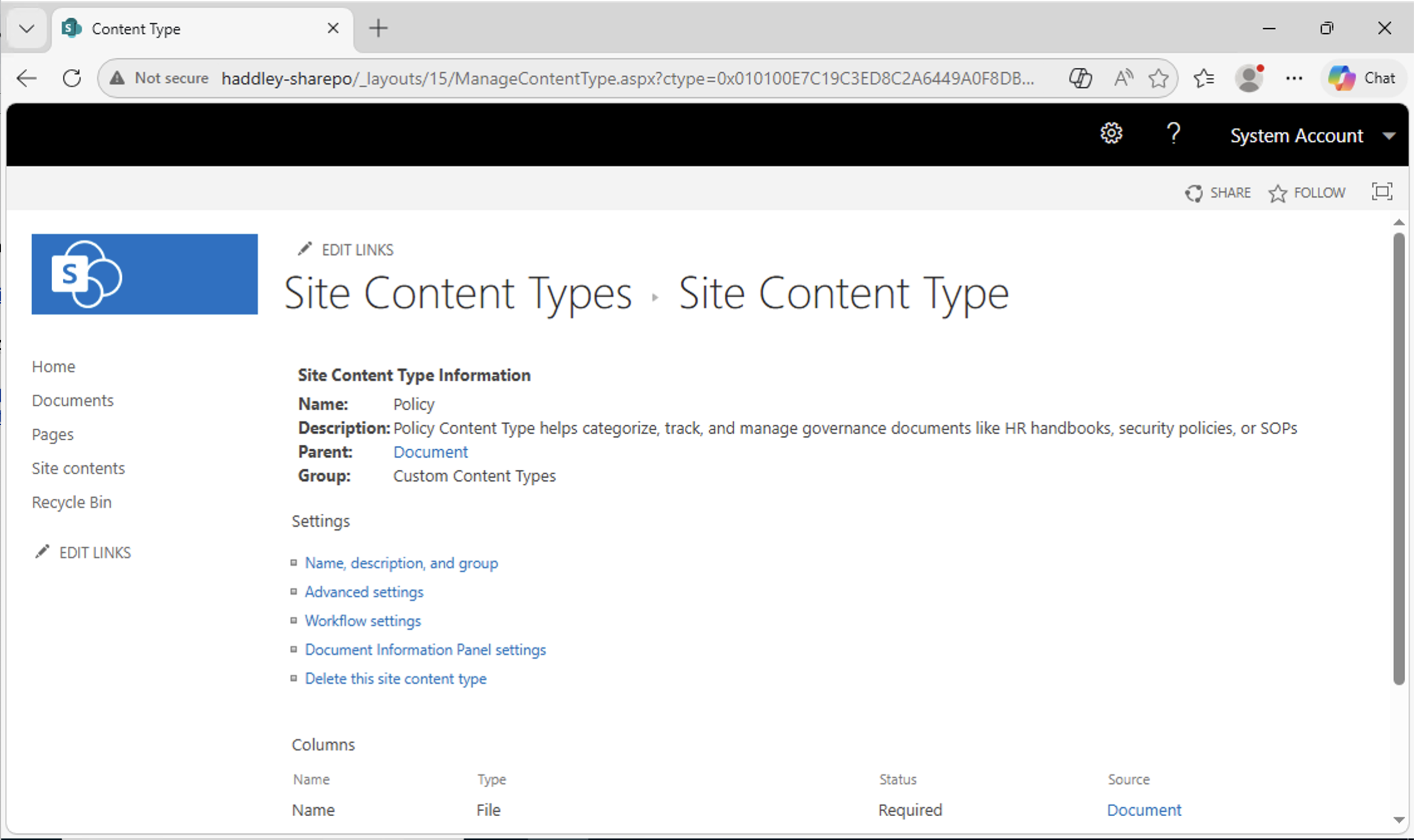 Tap the image to open it full size
The Policy content type was created with Name and Title columns inherited from Document
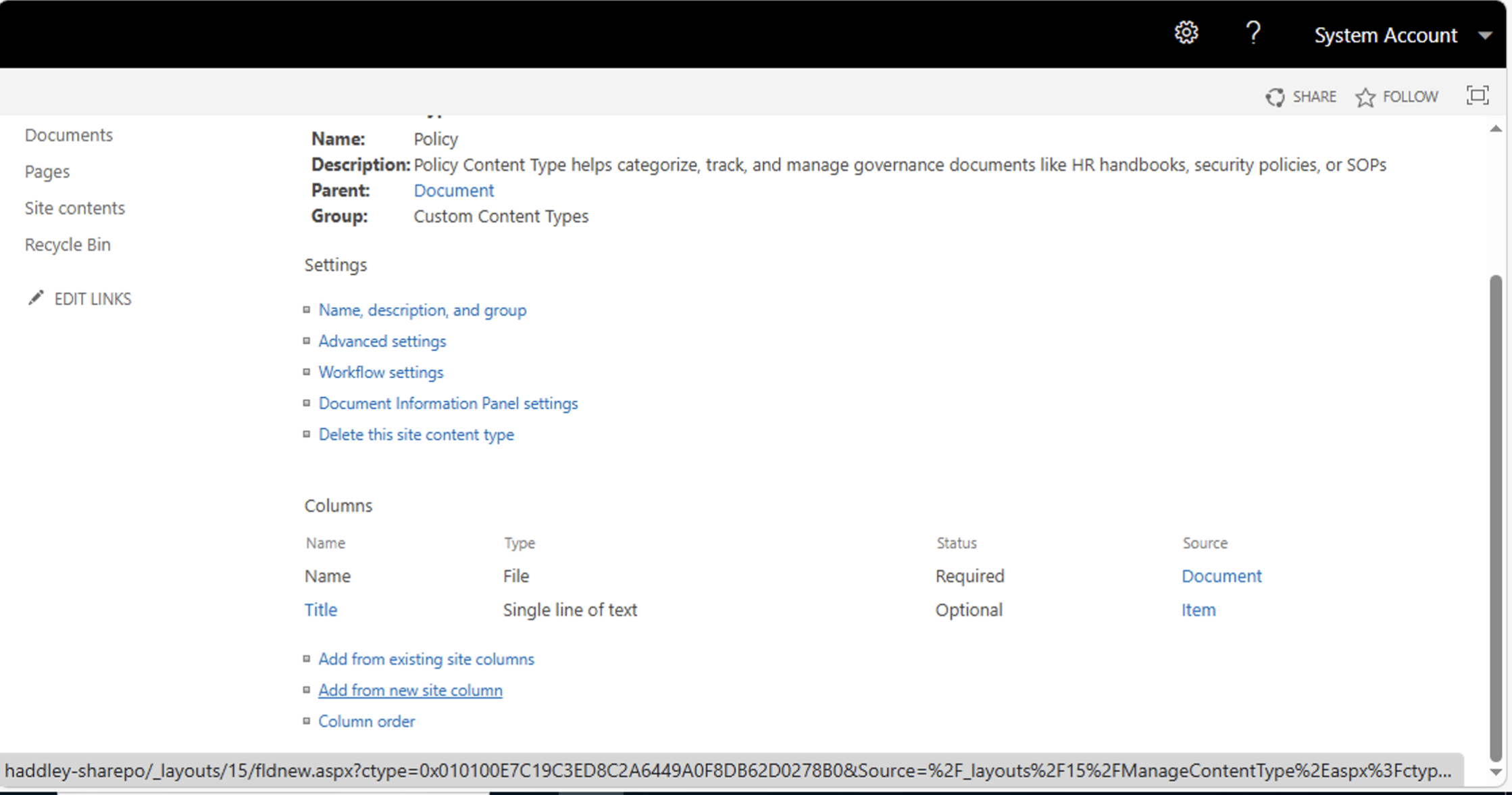 Tap the image to open it full size
I could see the Policy content type settings and its inherited columns
 Tap the image to open it full size
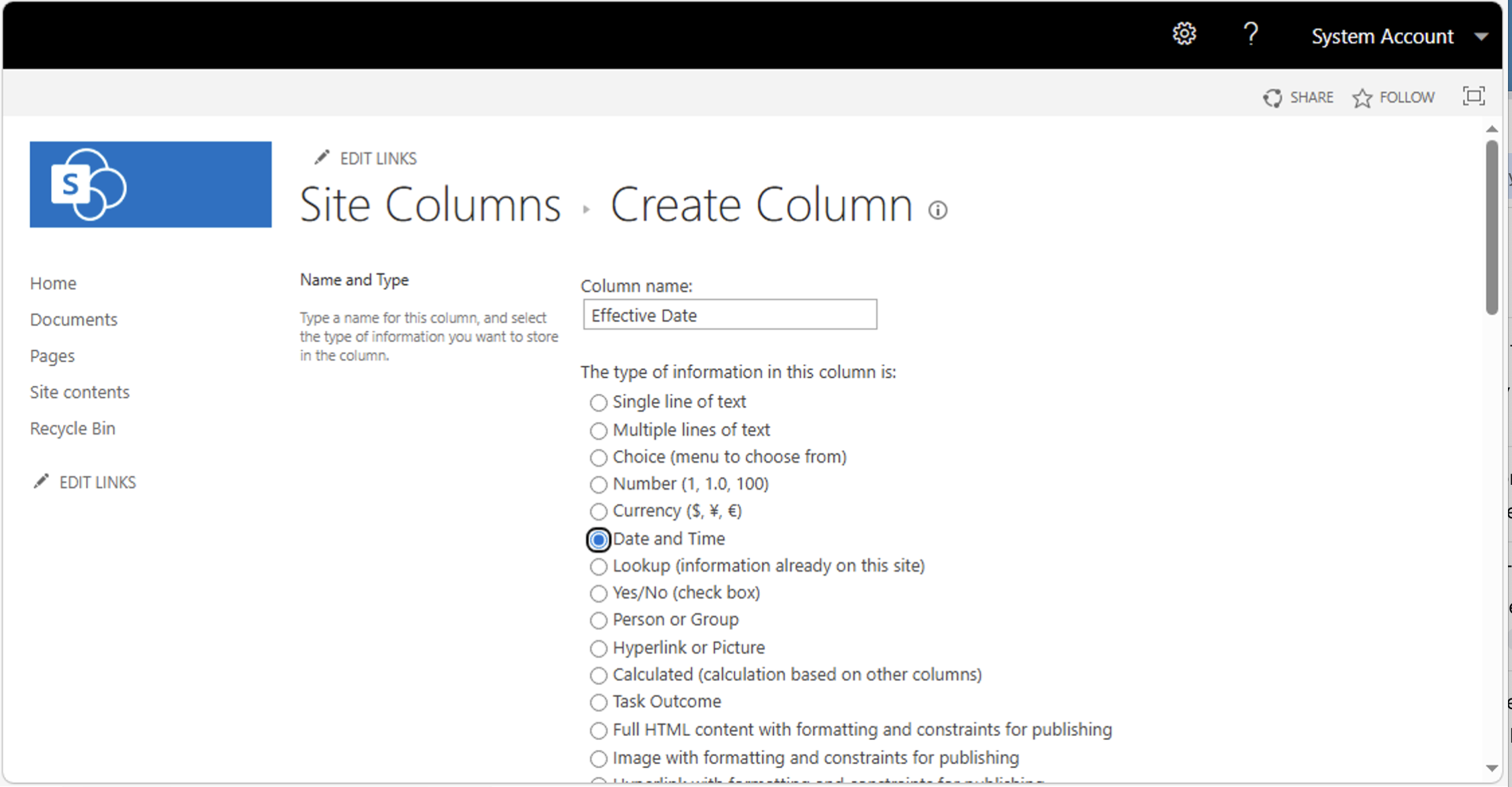
I created a new site column called "Effective Date" using the Date and Time type
 Tap the image to open it full size
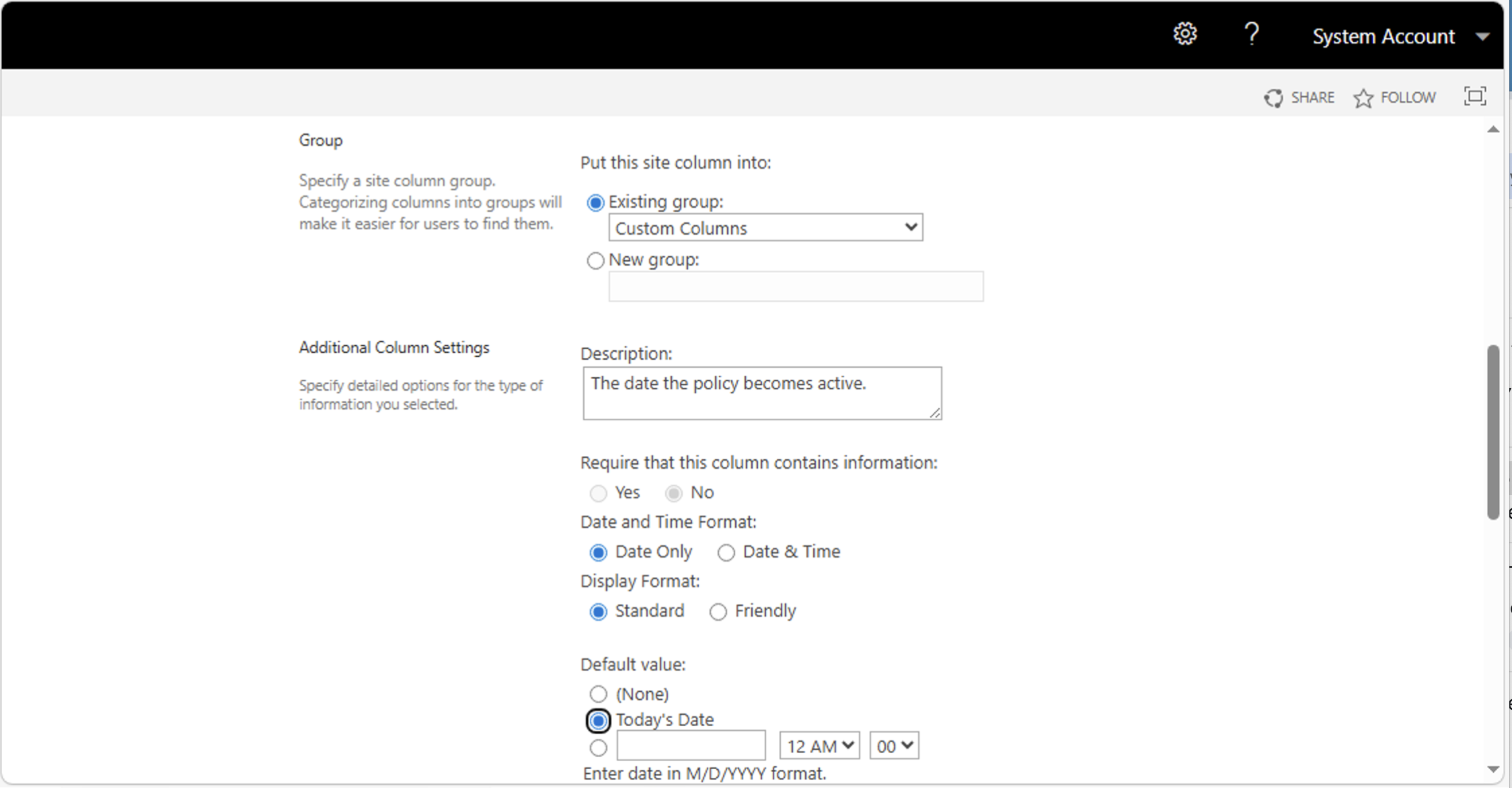
I configured the Effective Date column with a description, Date Only format, and Today's Date as the default value
 Tap the image to open it full size
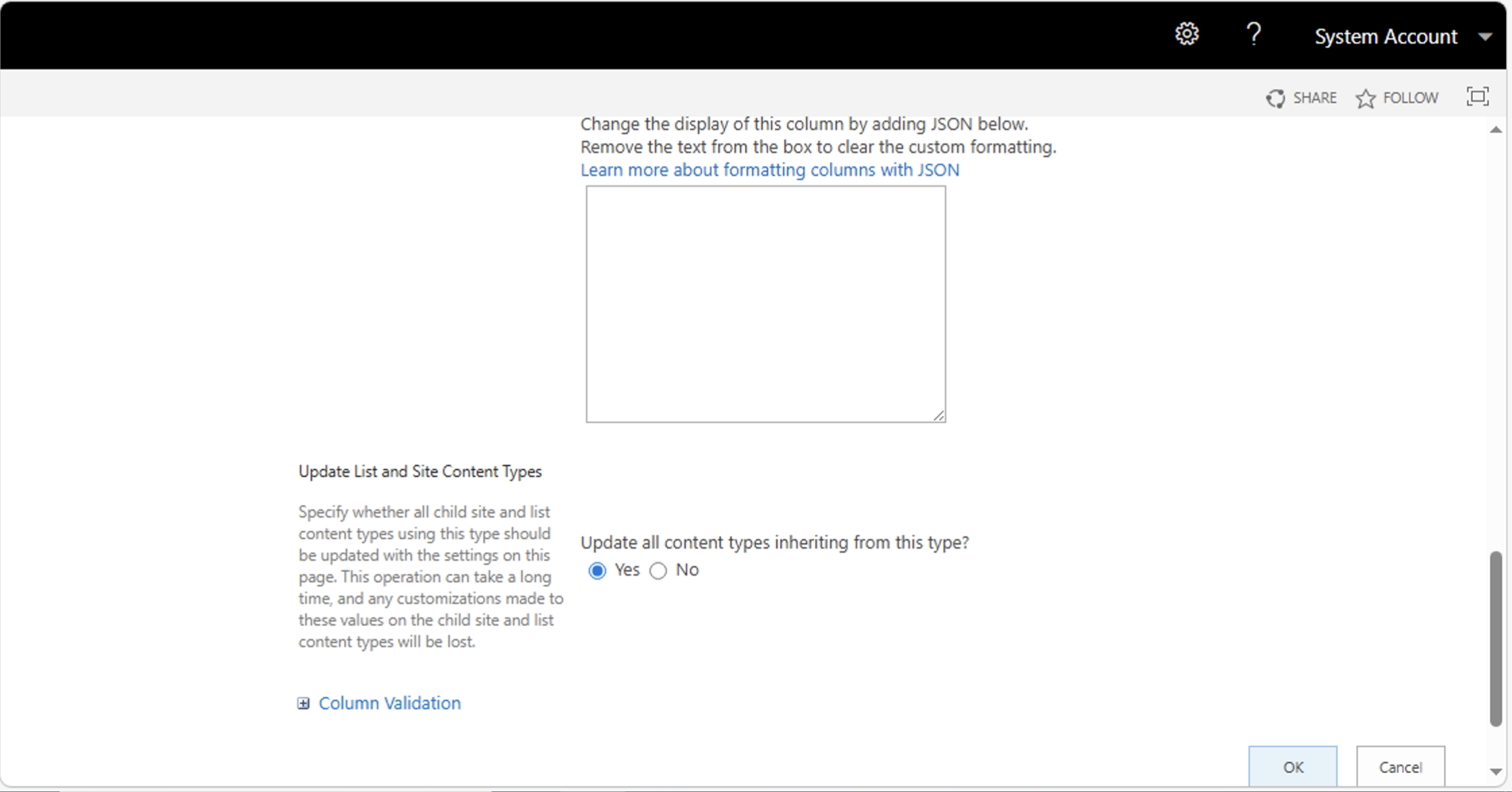
I set the column to update all inheriting content types and clicked OK
 Tap the image to open it full size
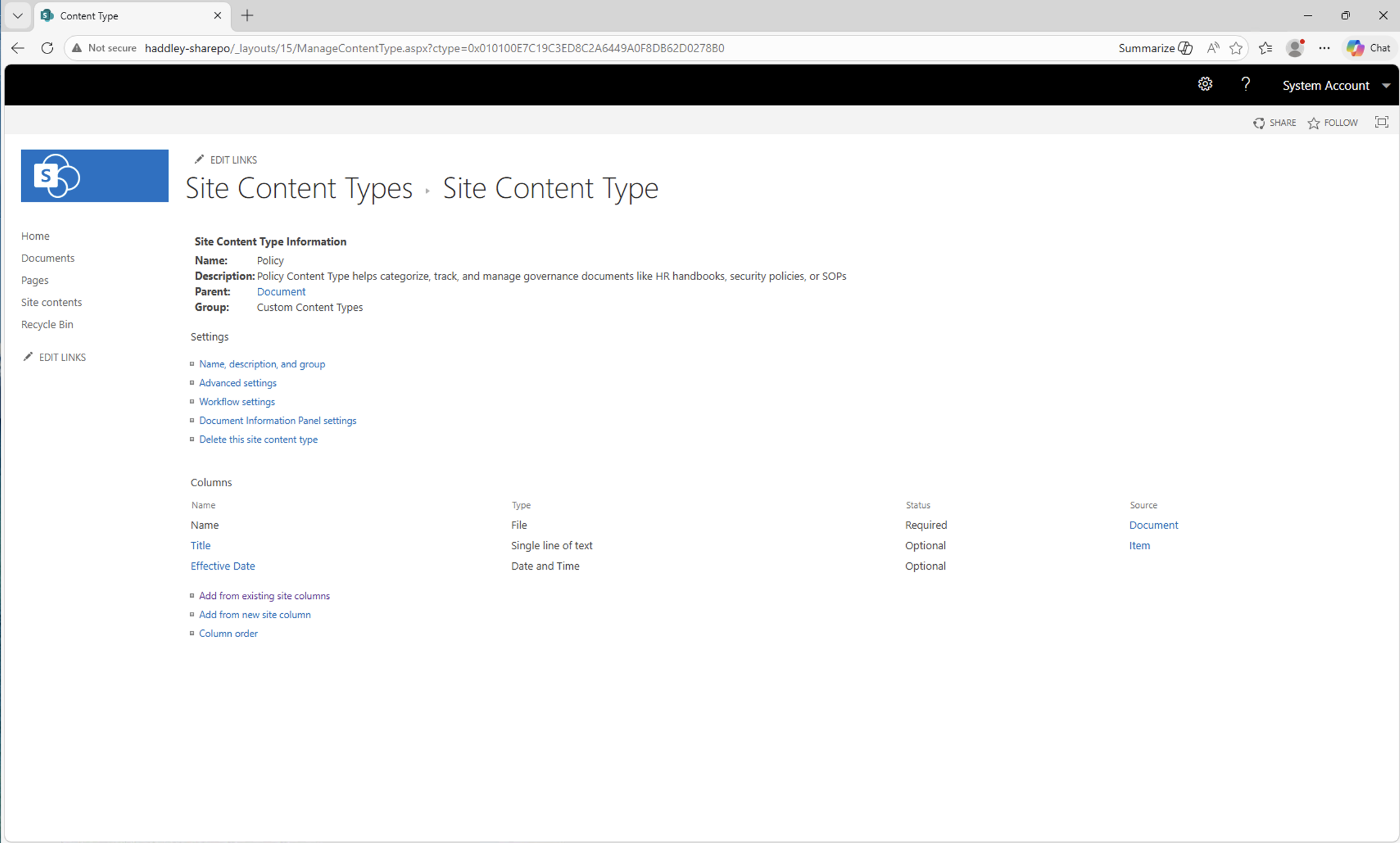
The Policy content type now showed three columns: Name, Title, and Effective Date
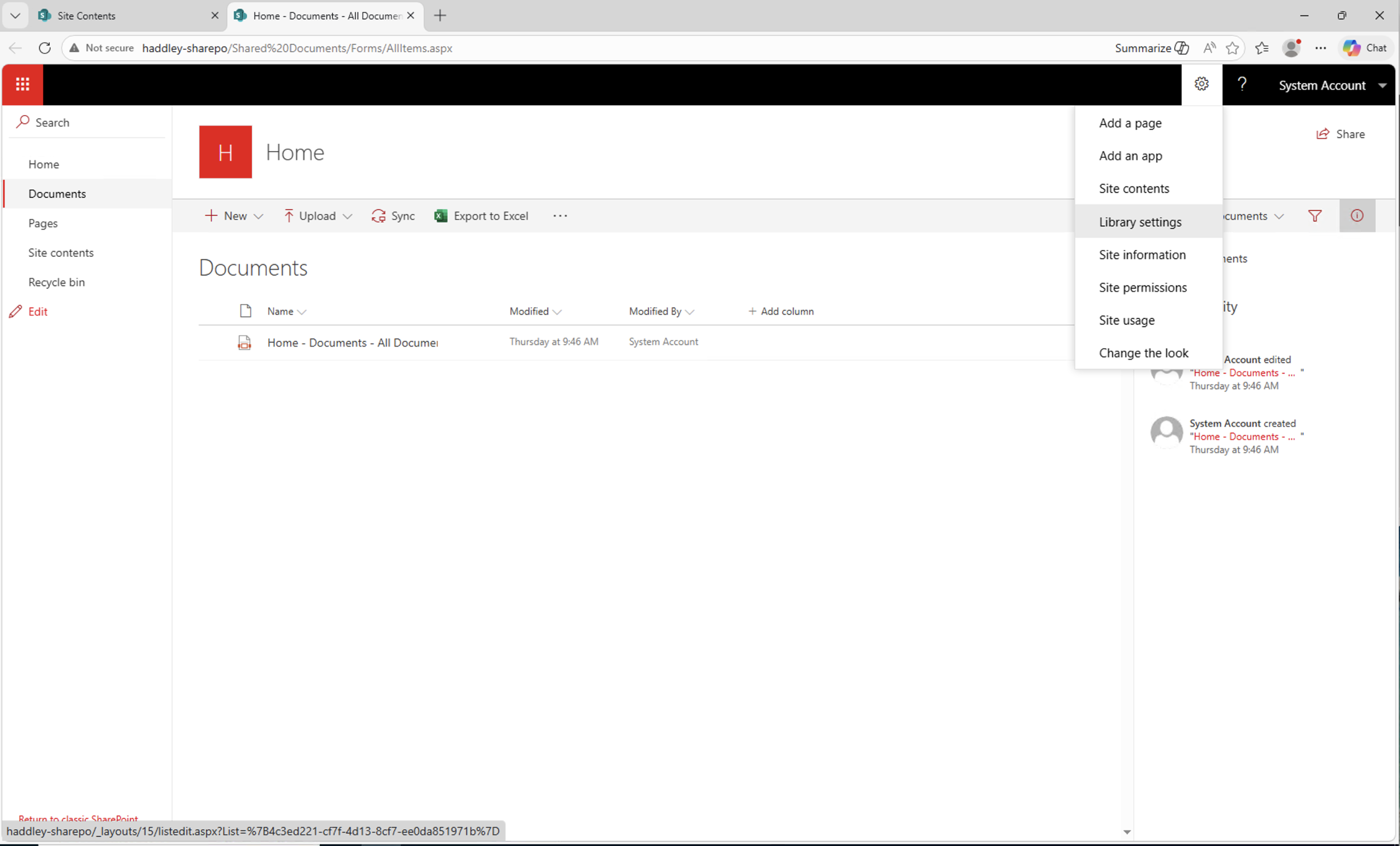 Tap the image to open it full size
I opened the Documents library and selected Library settings from the Settings menu
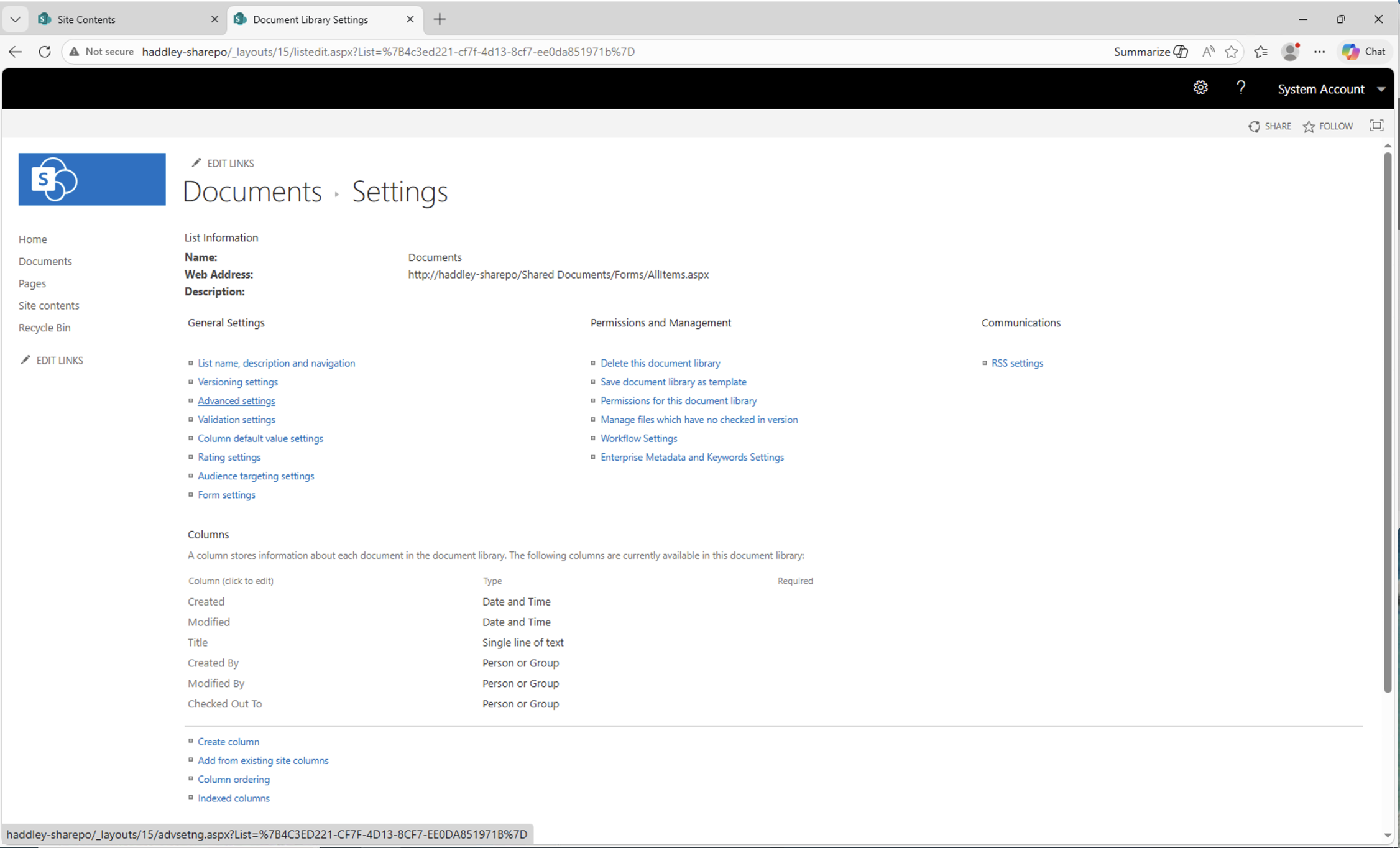 Tap the image to open it full size
The Documents library settings page opened
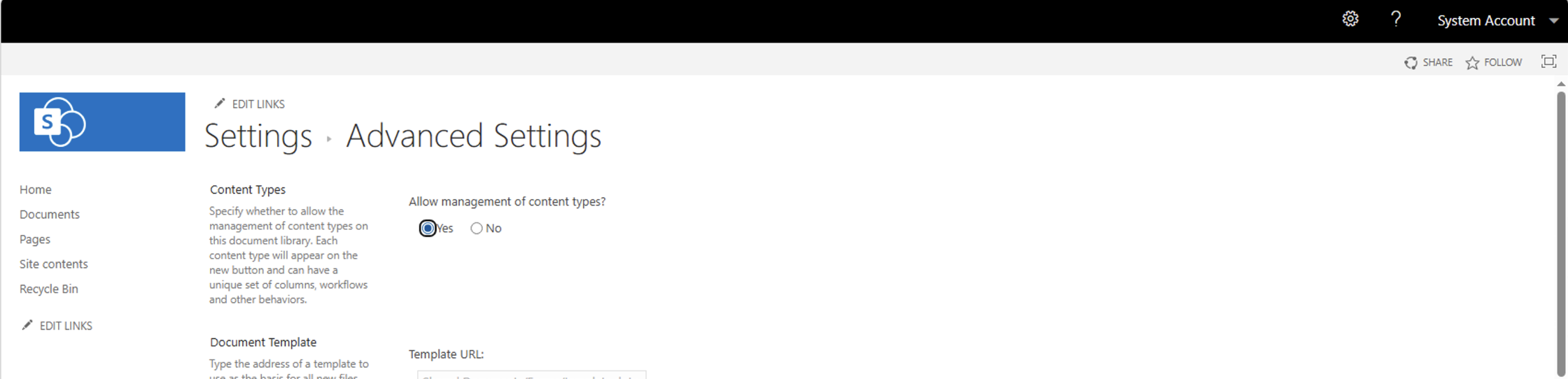 Tap the image to open it full size
I opened Advanced settings and enabled content type management for the library
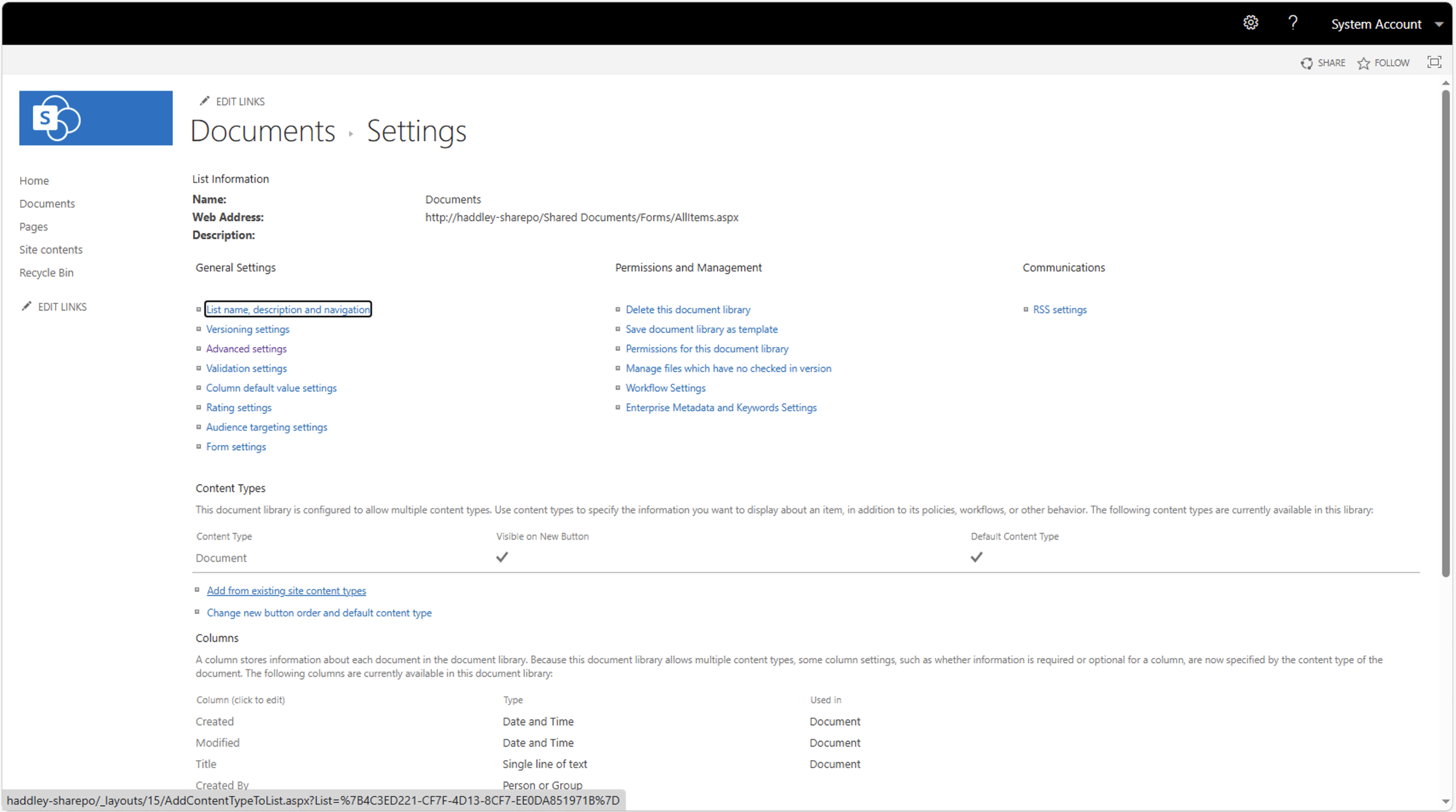 Tap the image to open it full size
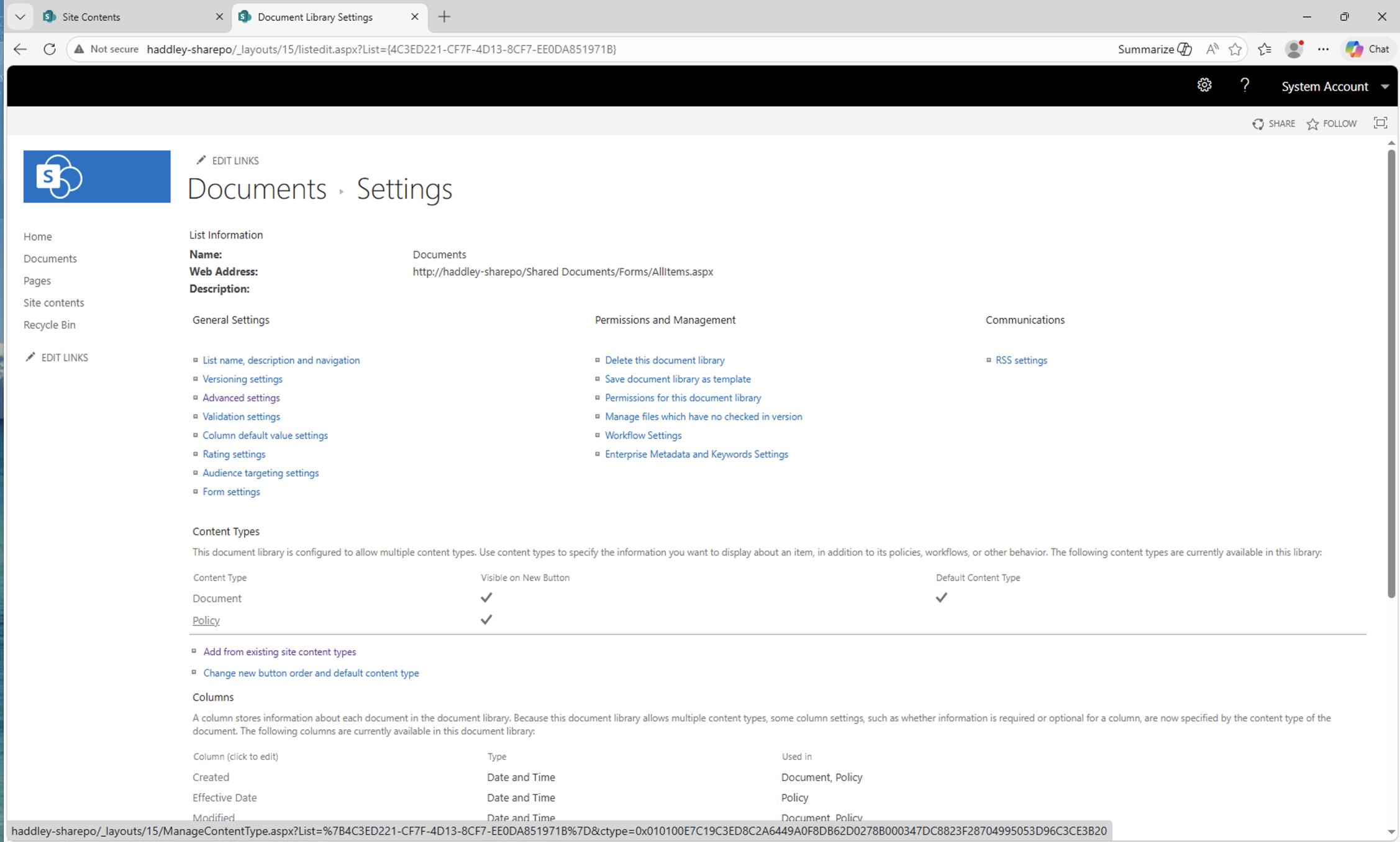
The Documents settings page now showed a Content Types section with an option to add more
 Tap the image to open it full size
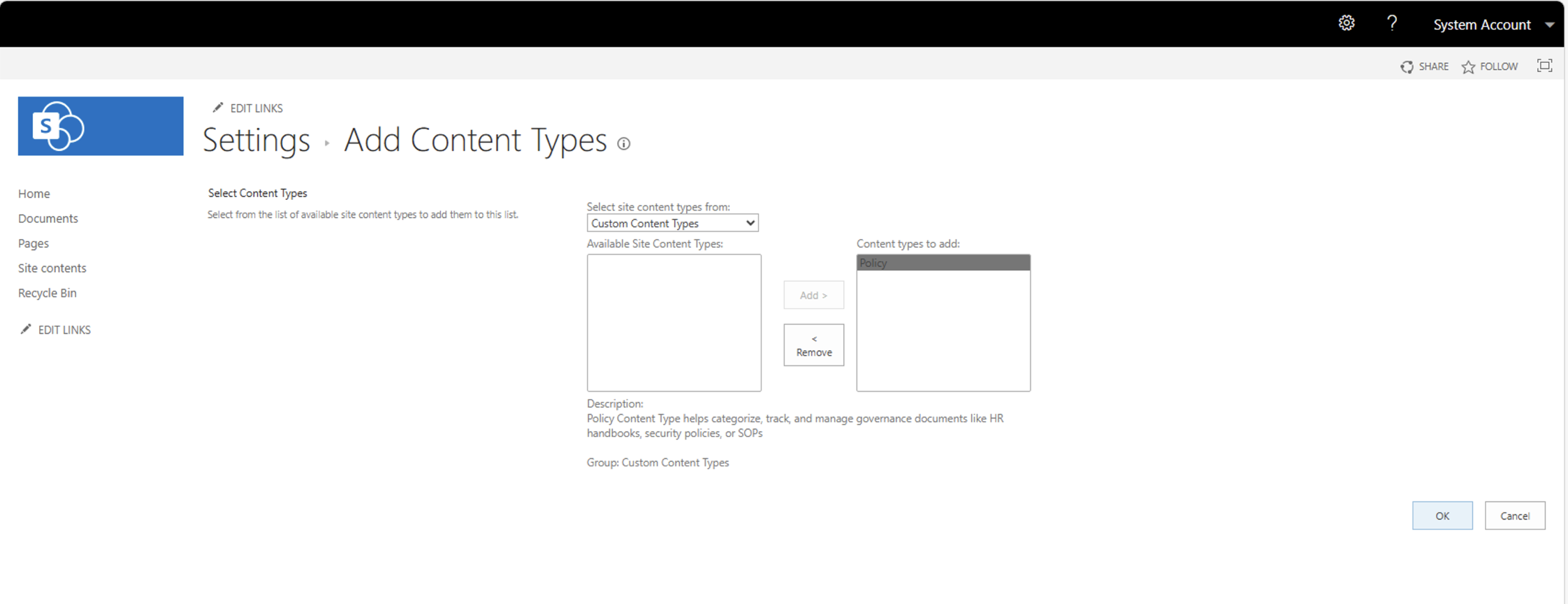
I added the Policy content type to the library
 Tap the image to open it full size
The Documents library now showed both Document and Policy content types available
 Tap the image to open it full size
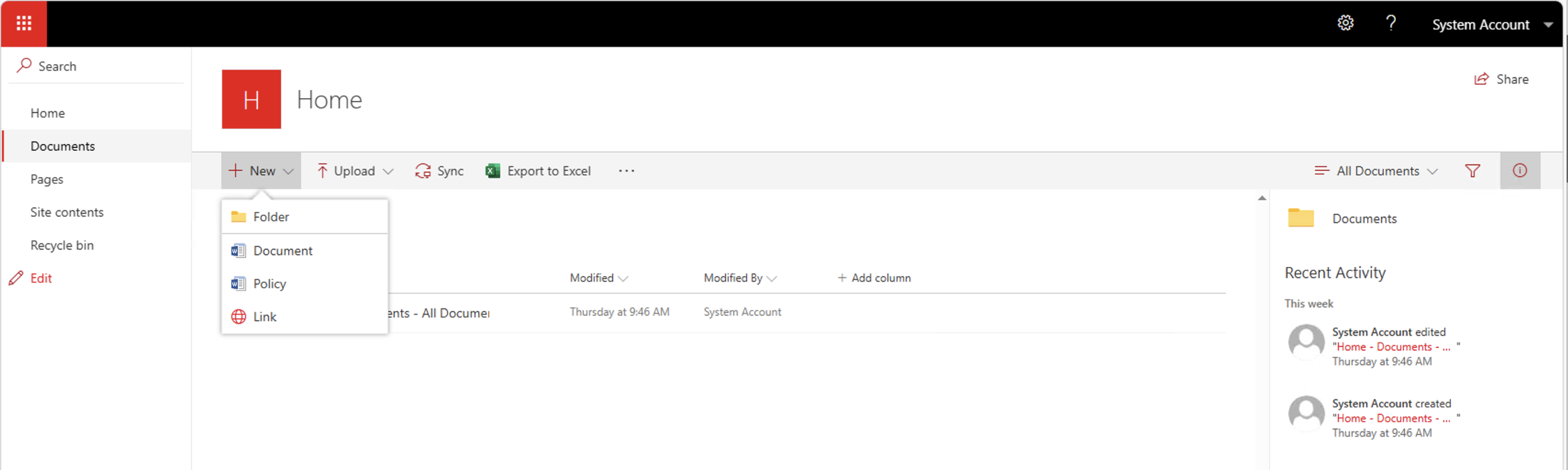
In the modern Documents library, the New button now offered Folder, Document, Policy, and Link options
 Tap the image to open it full size
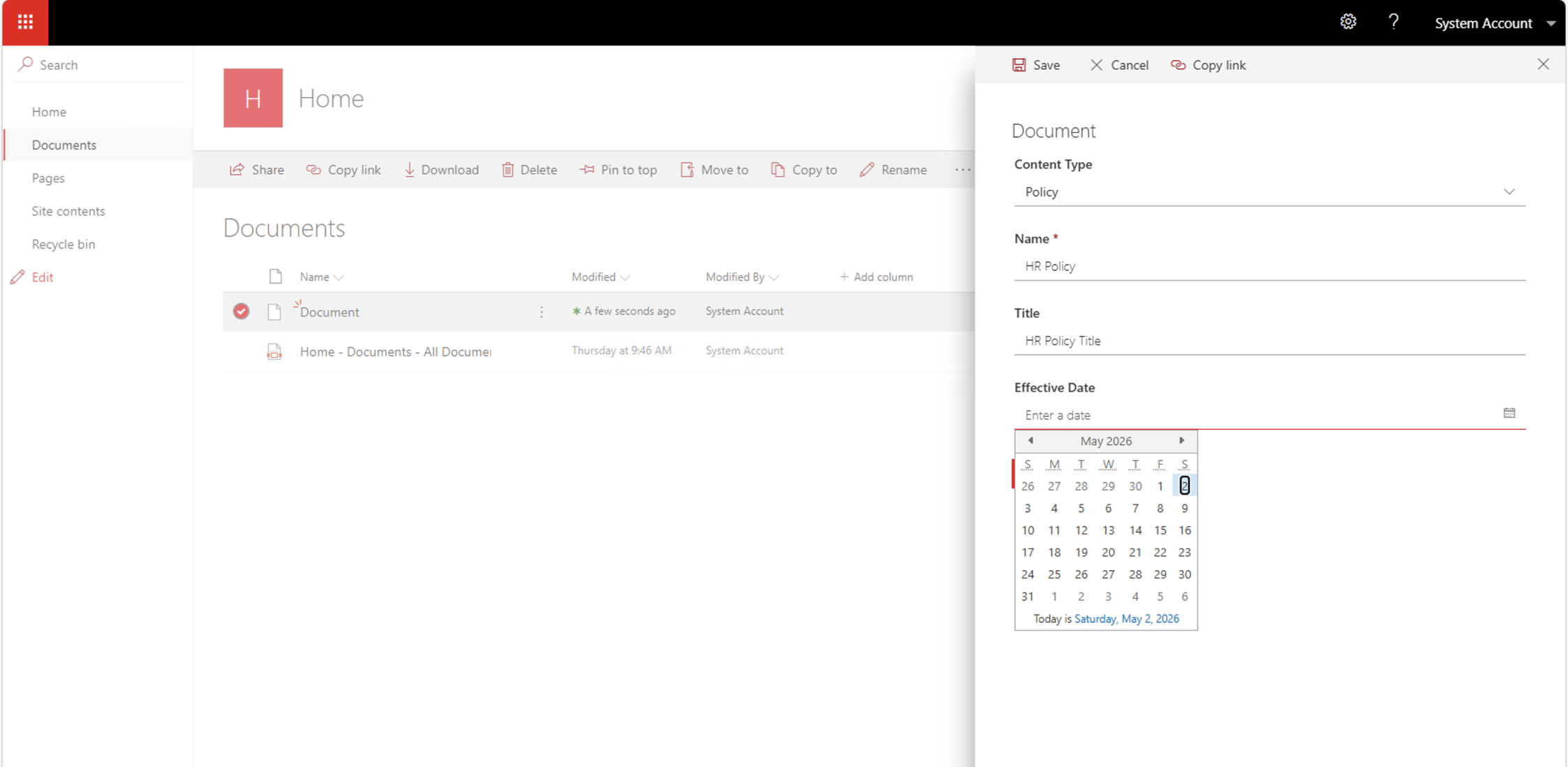
I created a new Policy document called "HR Policy" and filled in the Title and Effective Date fields
 Tap the image to open it full size
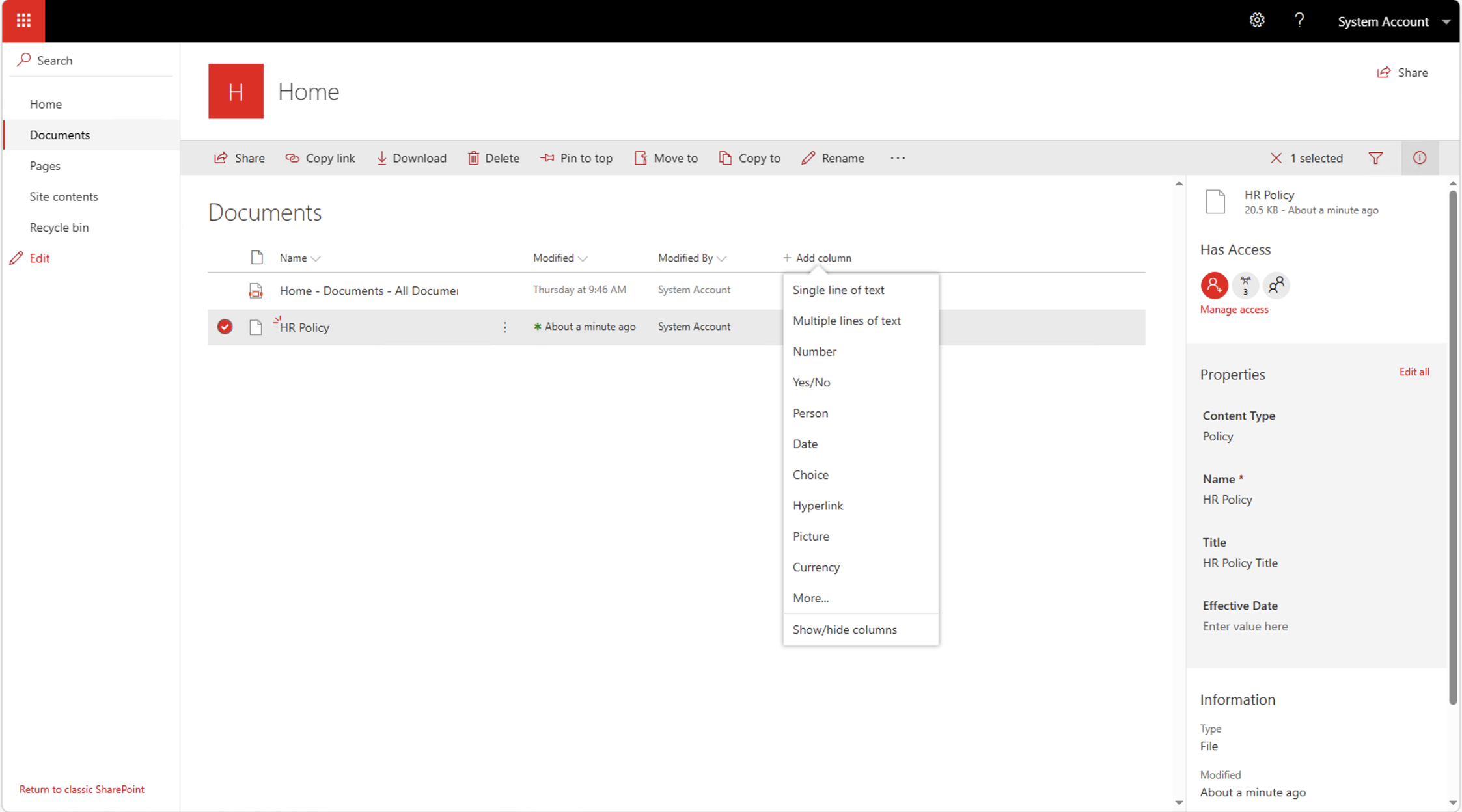
I selected the HR Policy document and used the Add column menu to add the Effective Date column to the view
 Tap the image to open it full size
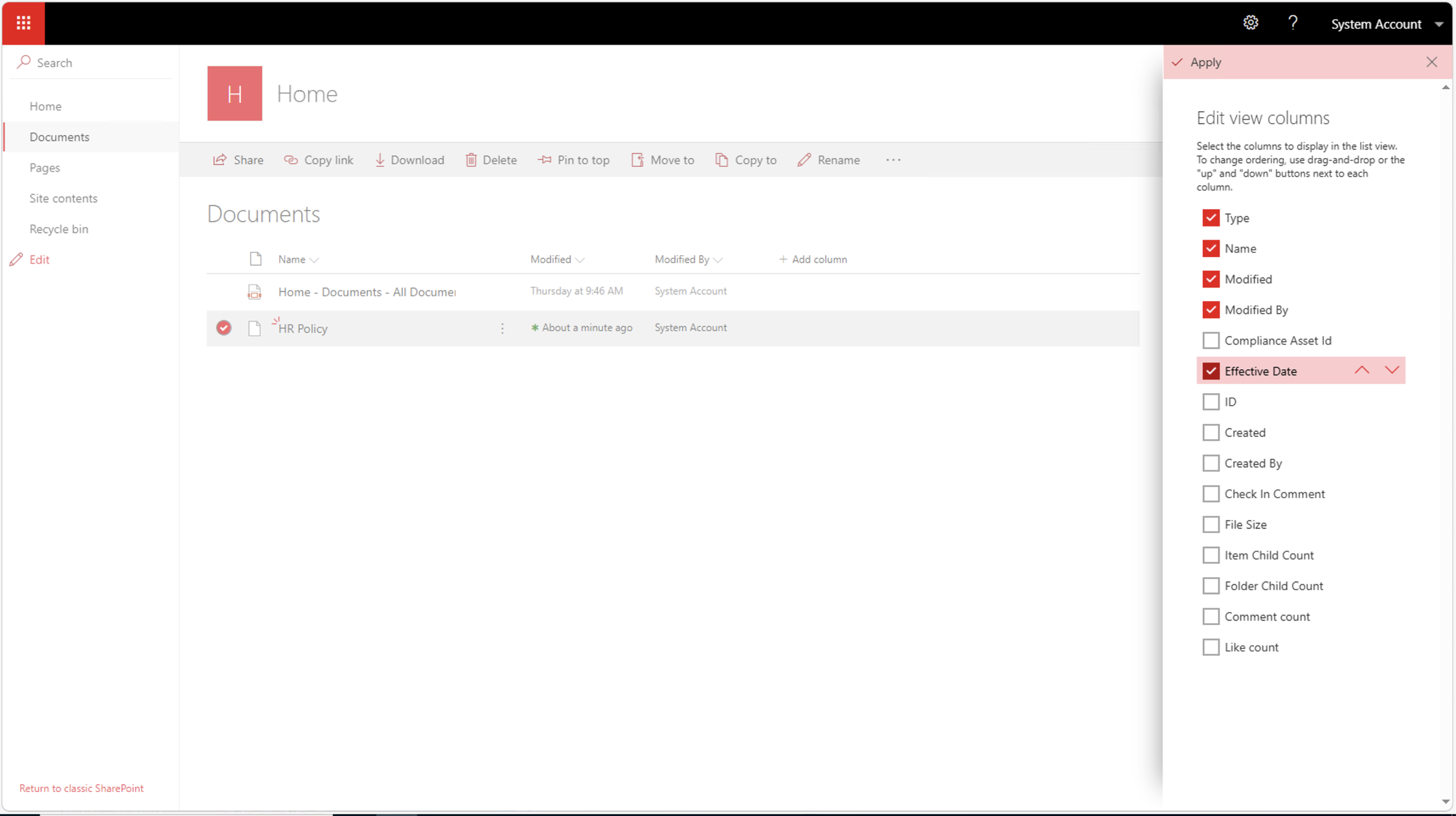
I used the Edit view columns panel to make the Effective Date column visible in the library view
 Tap the image to open it full size
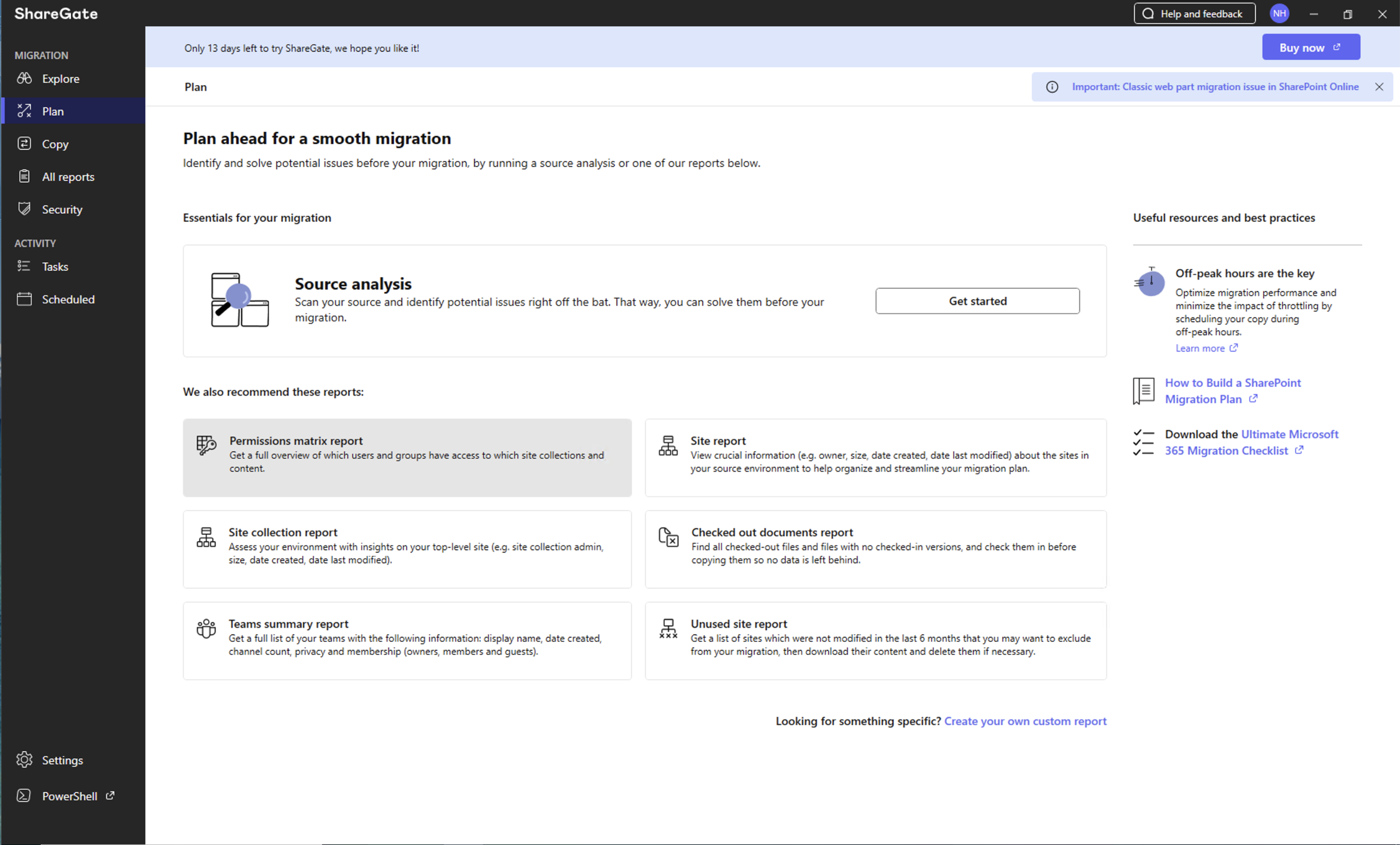
I opened ShareGate and navigated to the Plan section to run pre-migration reports
 Tap the image to open it full size
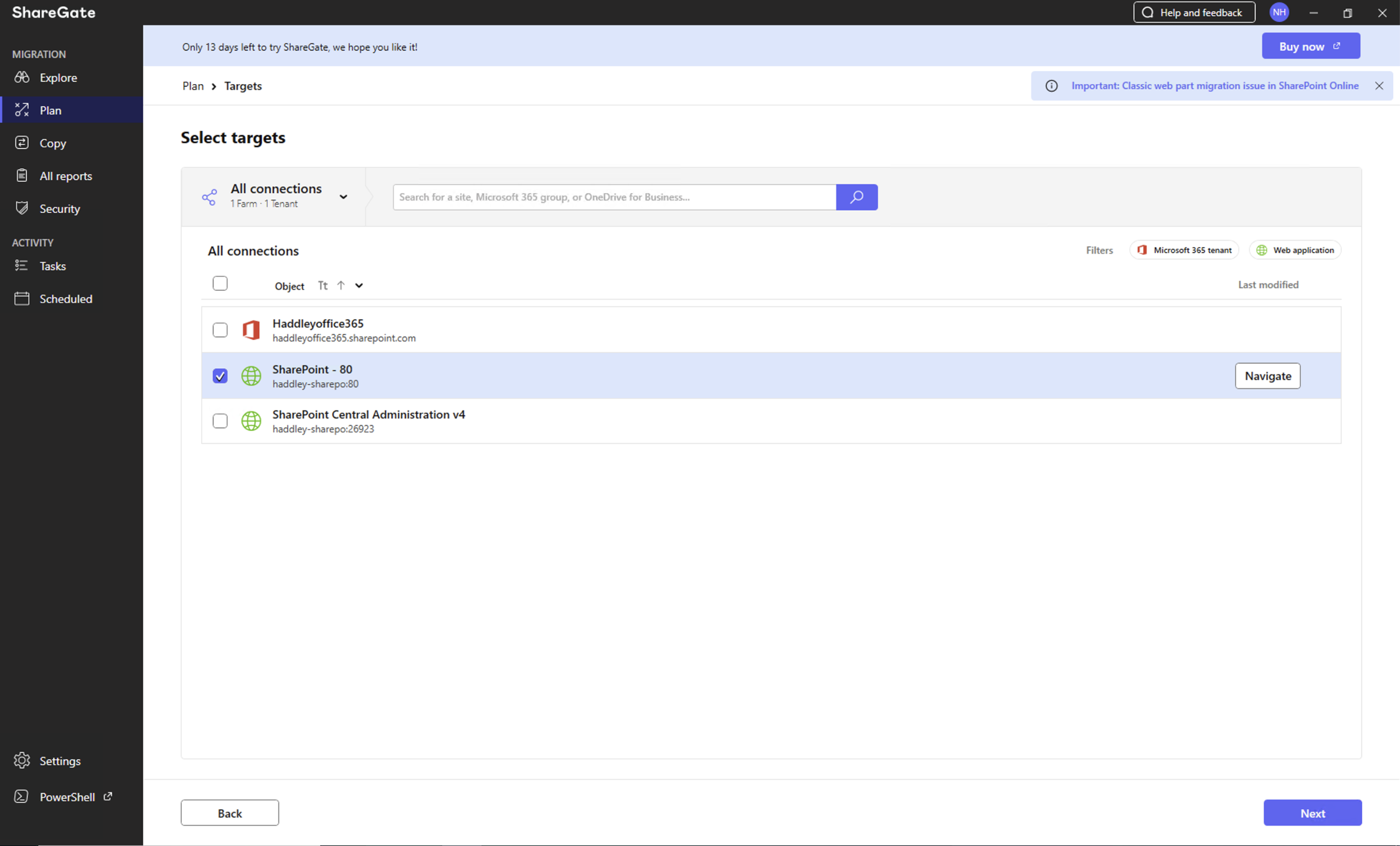
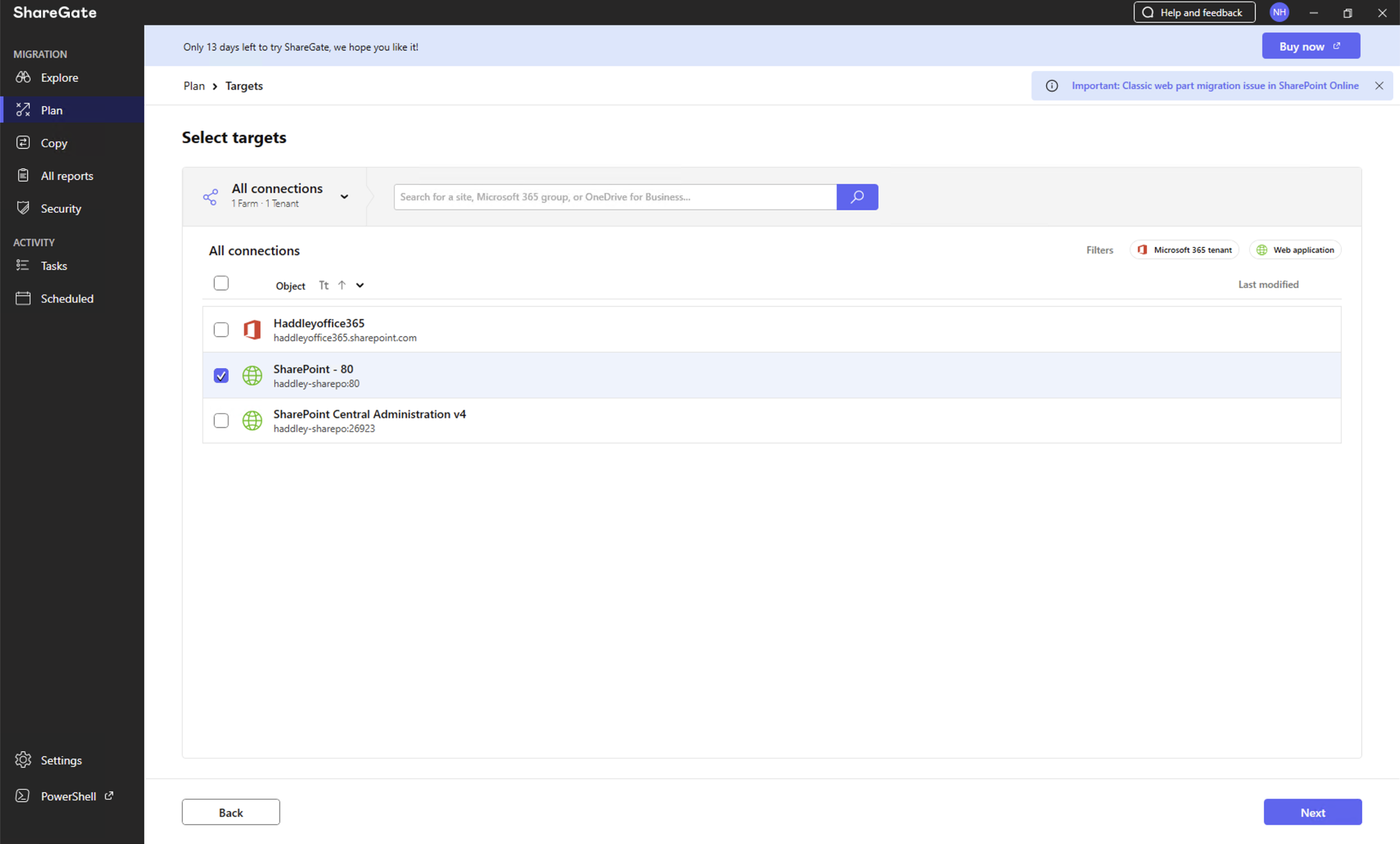
I selected SharePoint - 80 as the target for the permissions matrix report
 Tap the image to open it full size
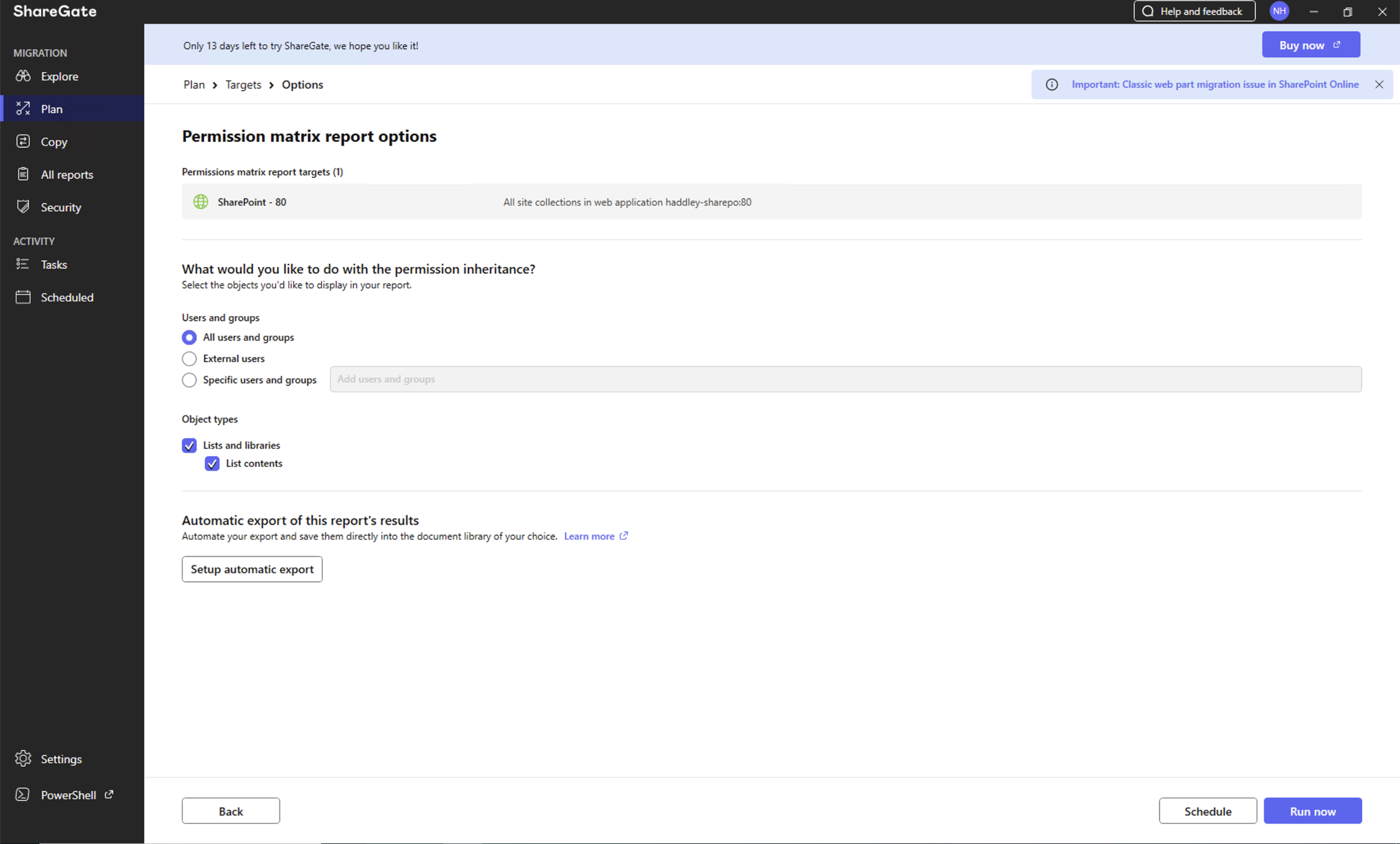
I configured the permissions matrix report options targeting all site collections in the web application
 Tap the image to open it full size
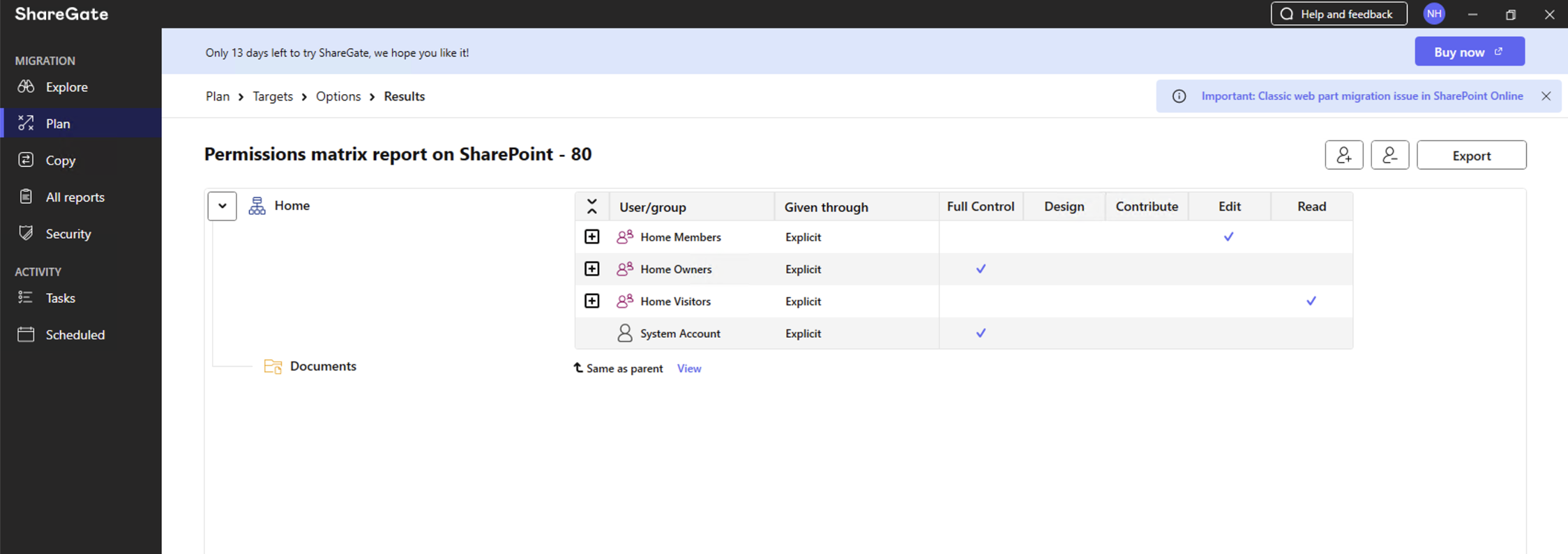
The permissions matrix report showed the Home site's permissions for all users and groups
 Tap the image to open it full size
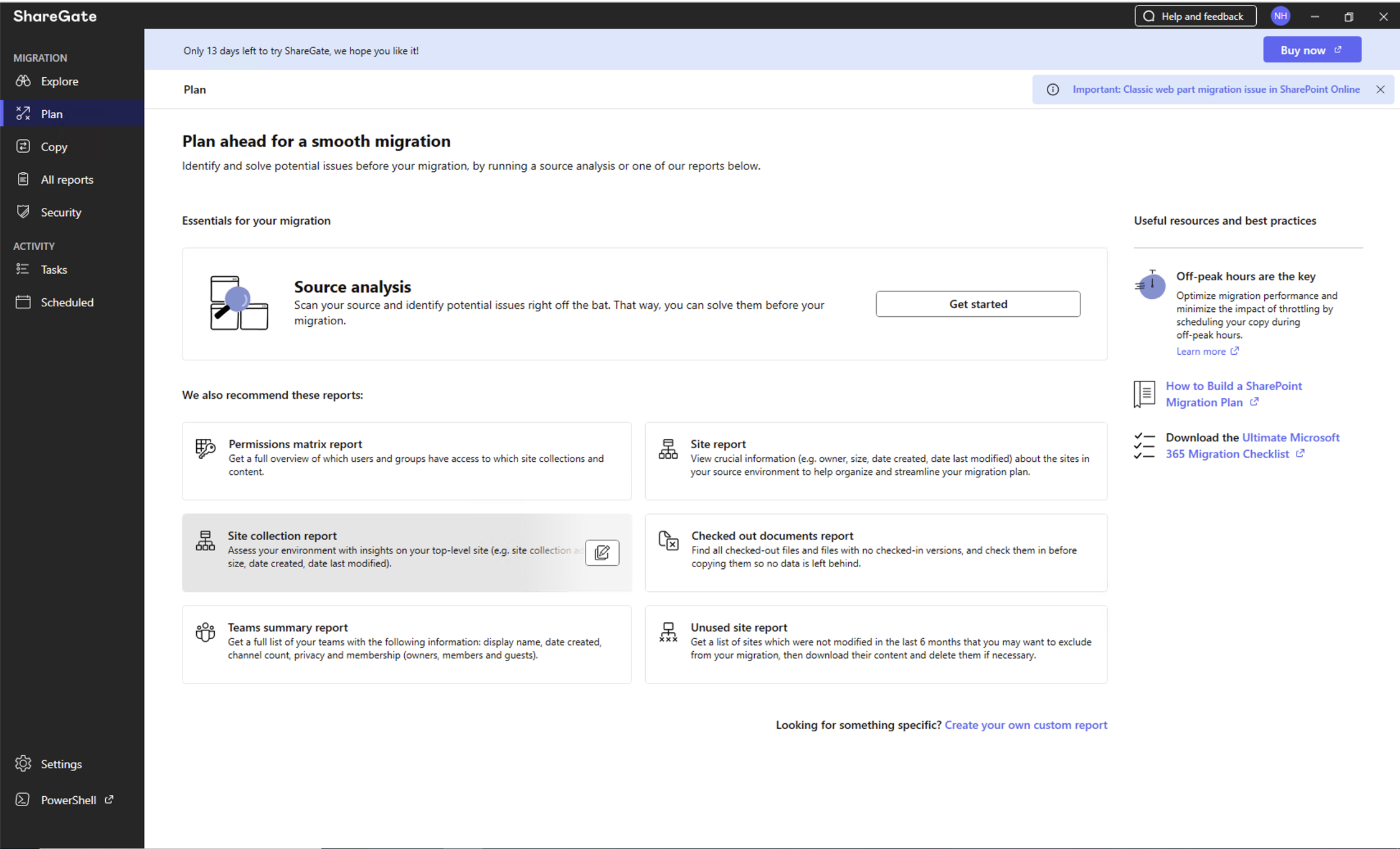
I returned to the ShareGate Plan screen to run the site collection report
 Tap the image to open it full size
I selected SharePoint - 80 as the target for the site collection report
 Tap the image to open it full size
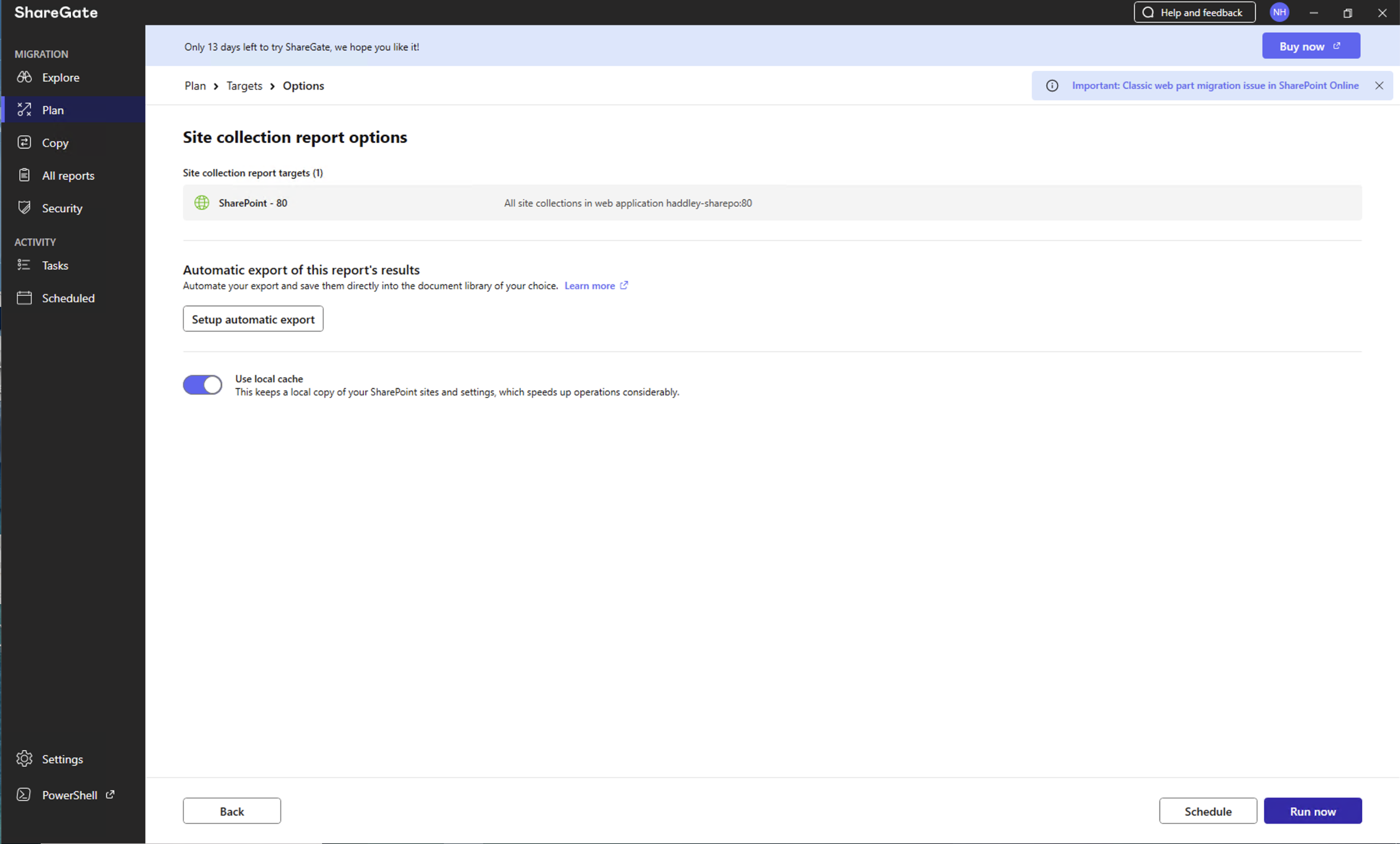
I configured the site collection report options targeting SharePoint - 80
 Tap the image to open it full size
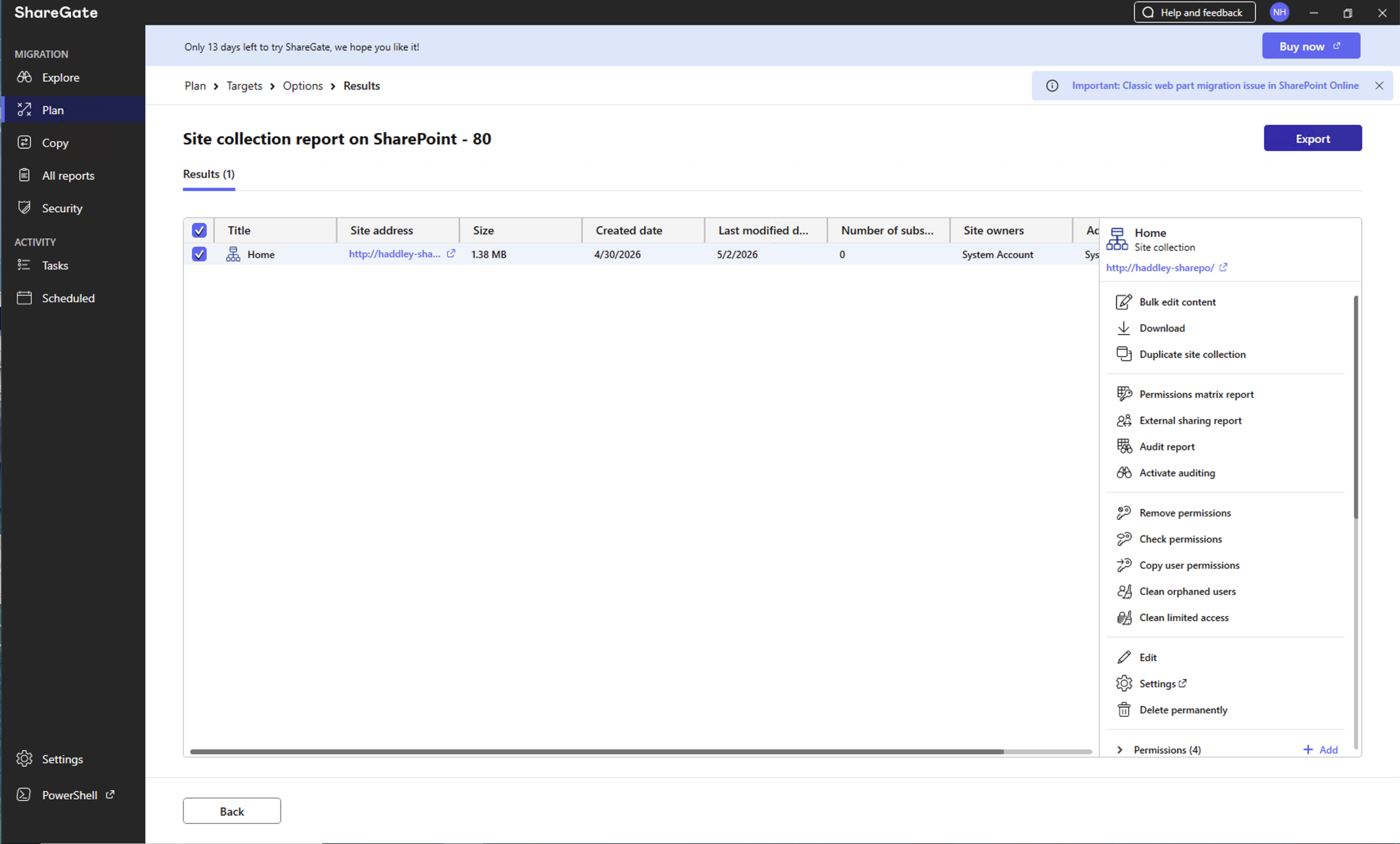
The site collection report showed the Home site with a context menu of available actions
 Tap the image to open it full size
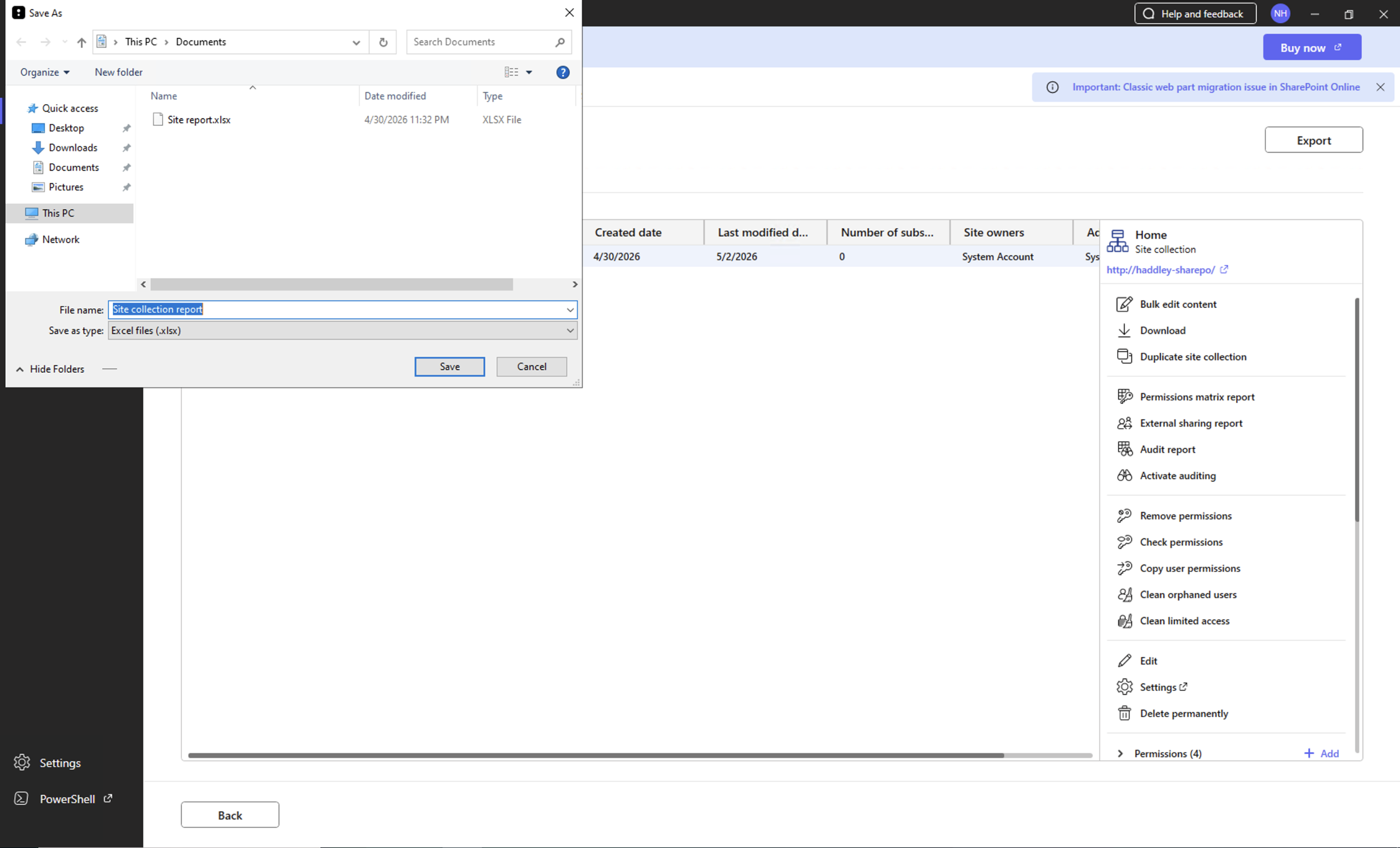
I exported the site collection report to an Excel file
 Tap the image to open it full size
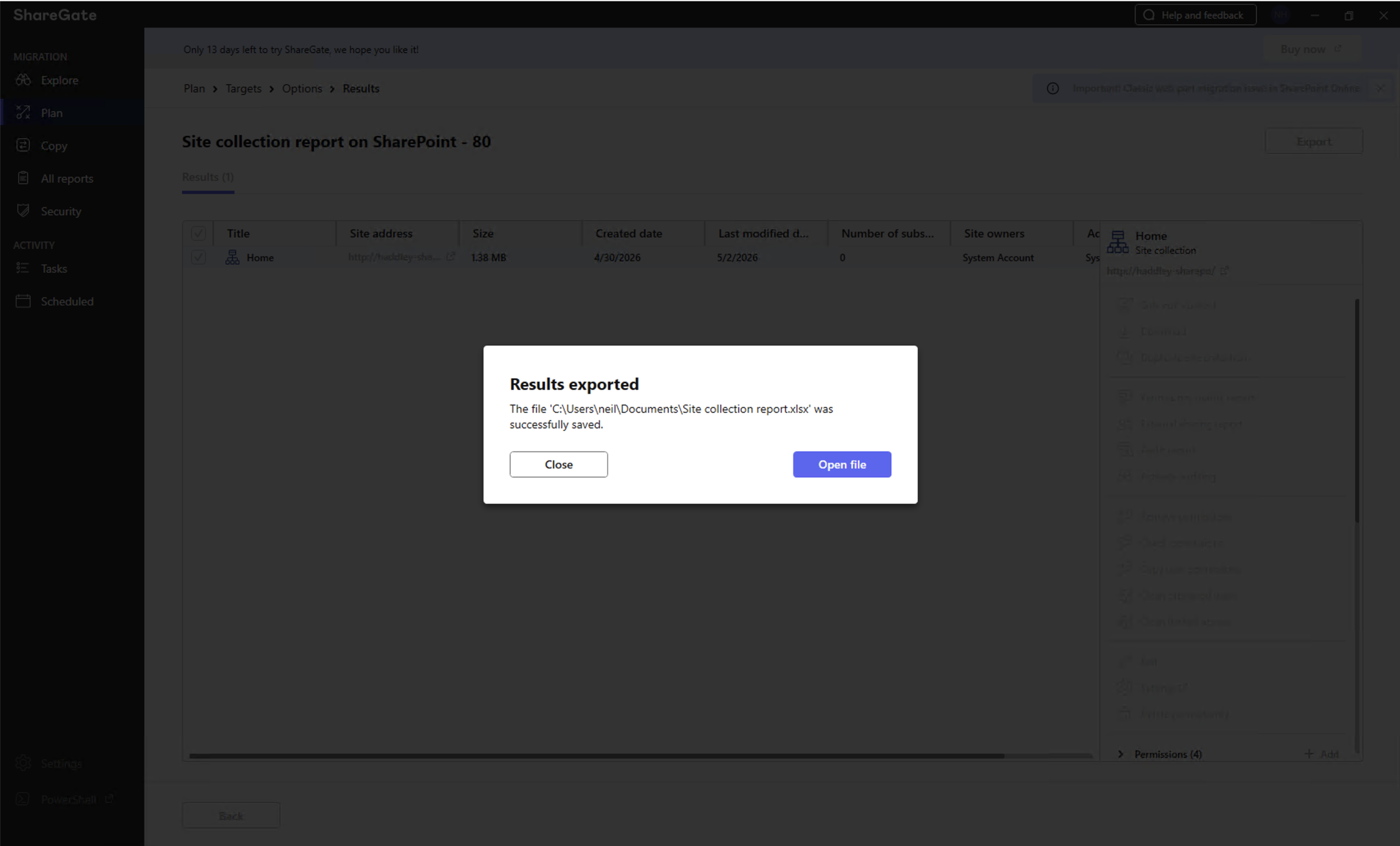
A confirmation dialog showed the report was successfully saved to Documents
 Tap the image to open it full size
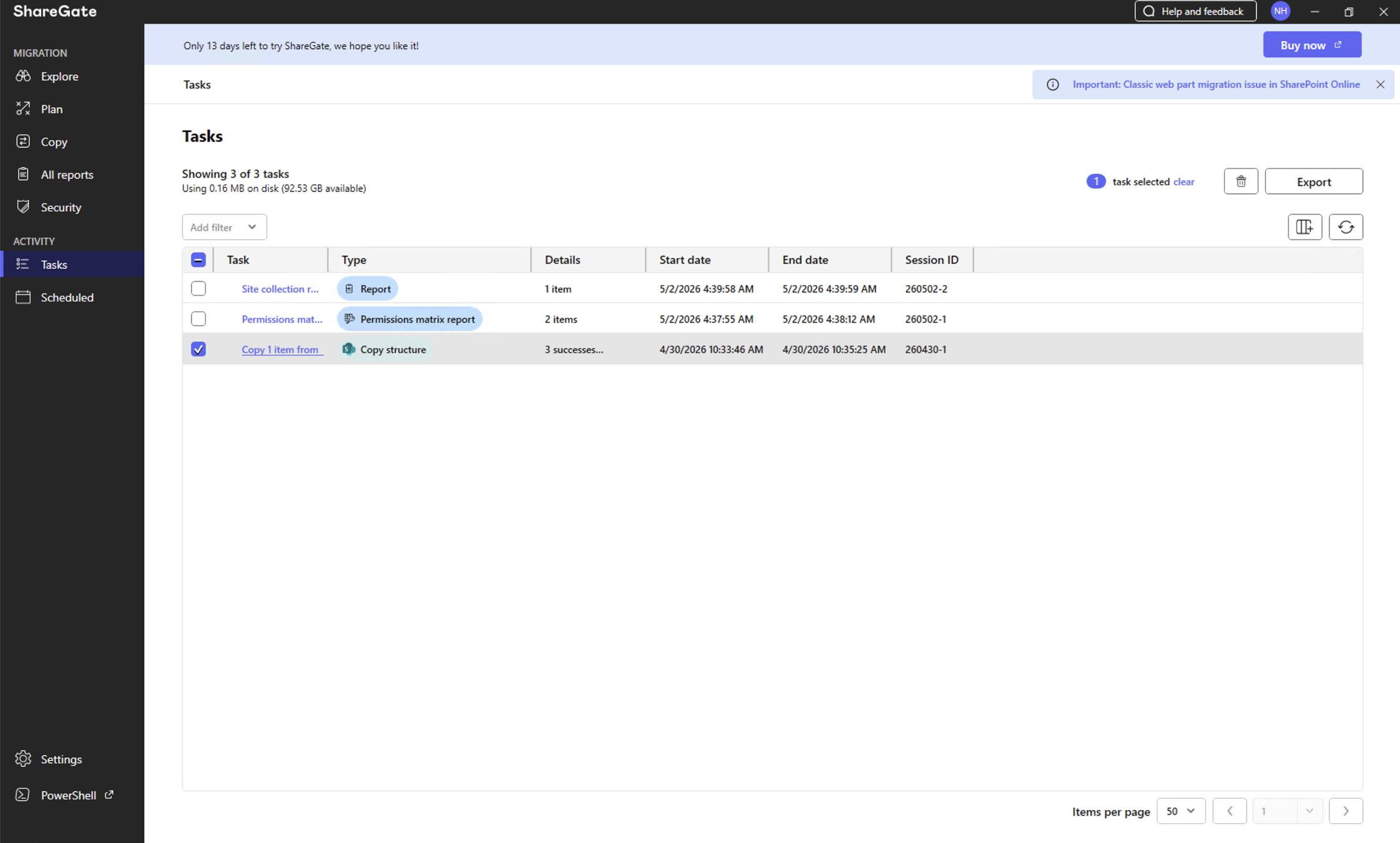
The ShareGate Tasks page showed the completed site collection and permissions reports alongside the previous copy task
 Tap the image to open it full size
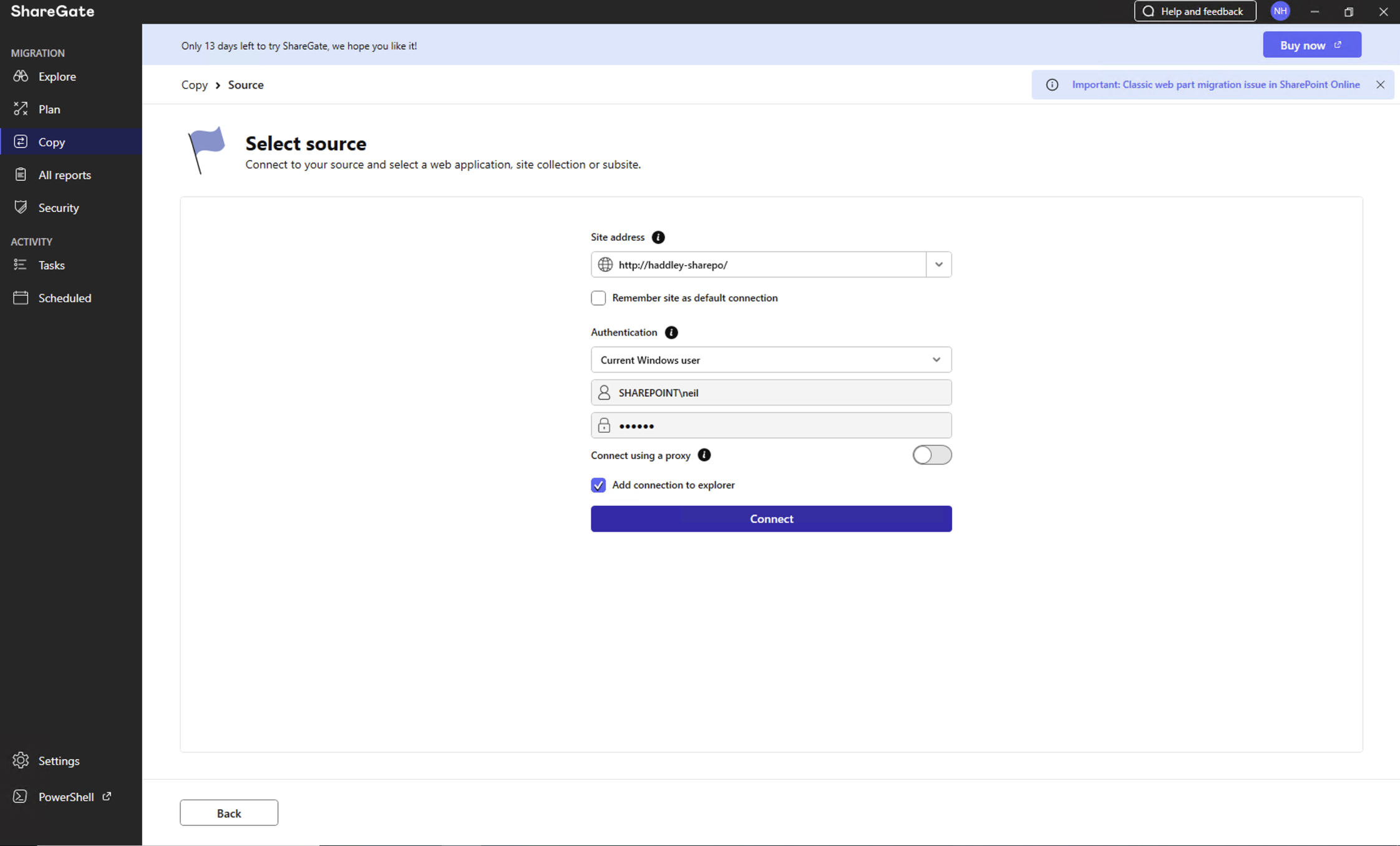
I switched to the Copy section and connected to the on-premises SharePoint source using Windows authentication
 Tap the image to open it full size
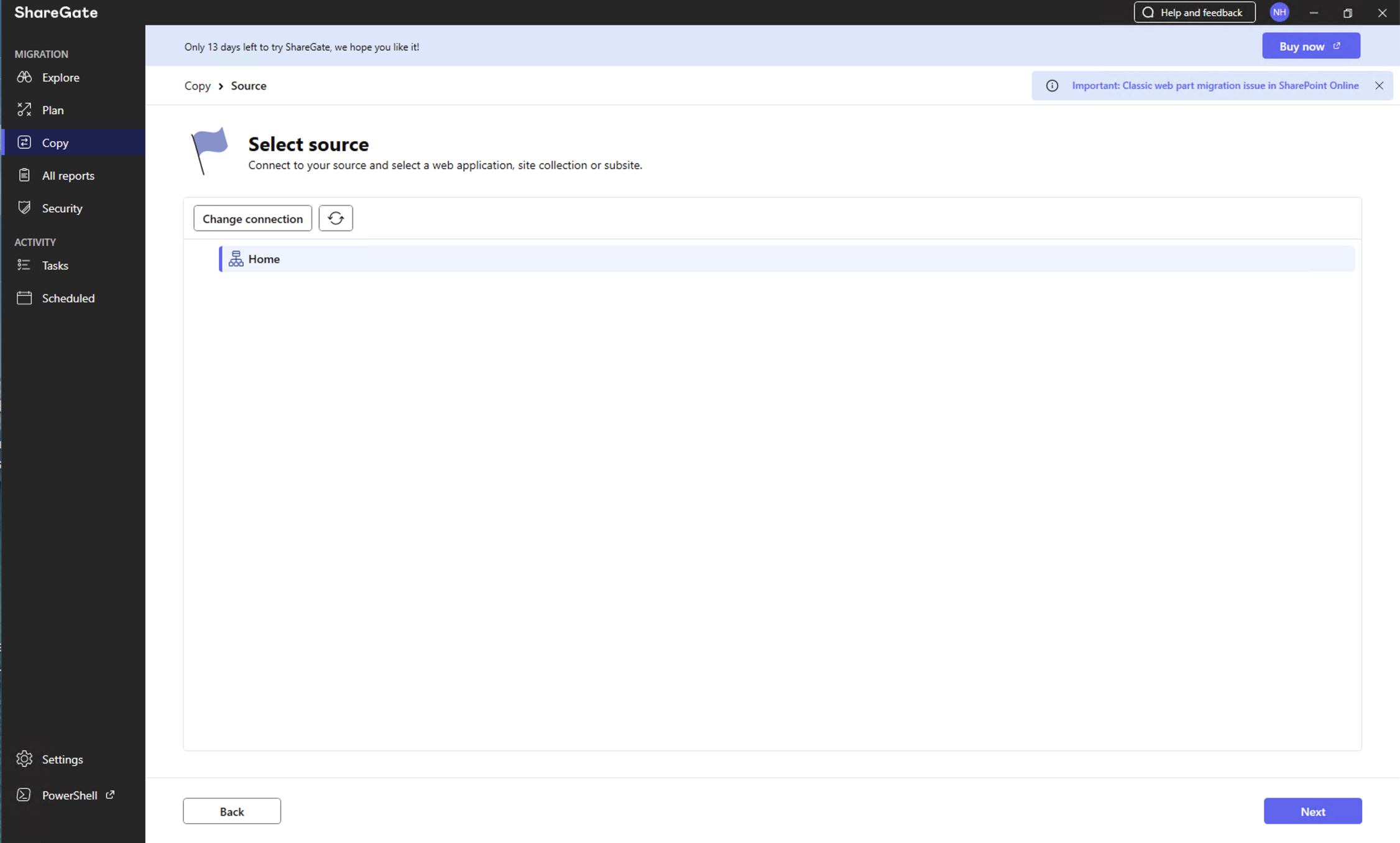
ShareGate connected to the source and showed the Home site collection available to migrate
 Tap the image to open it full size
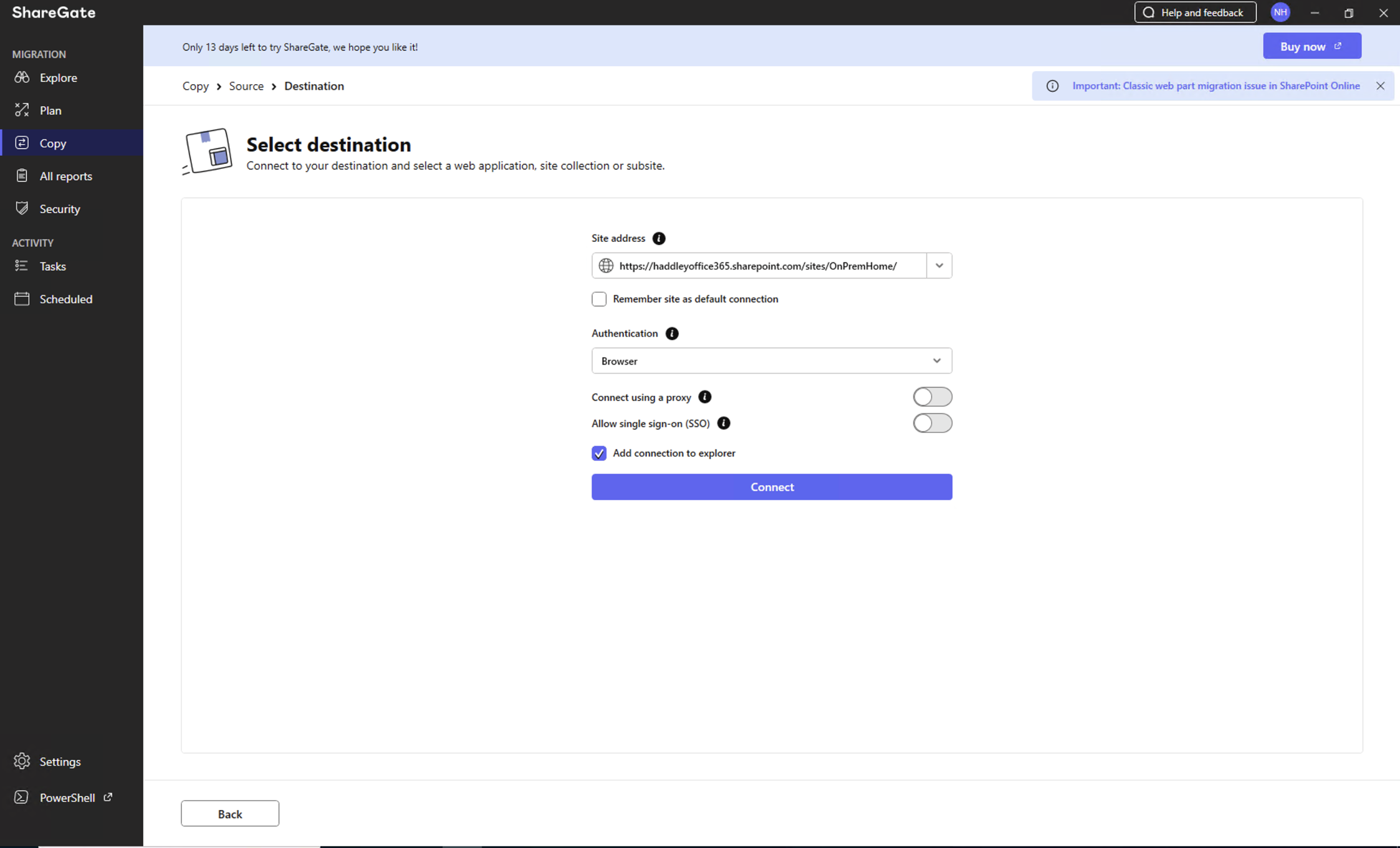
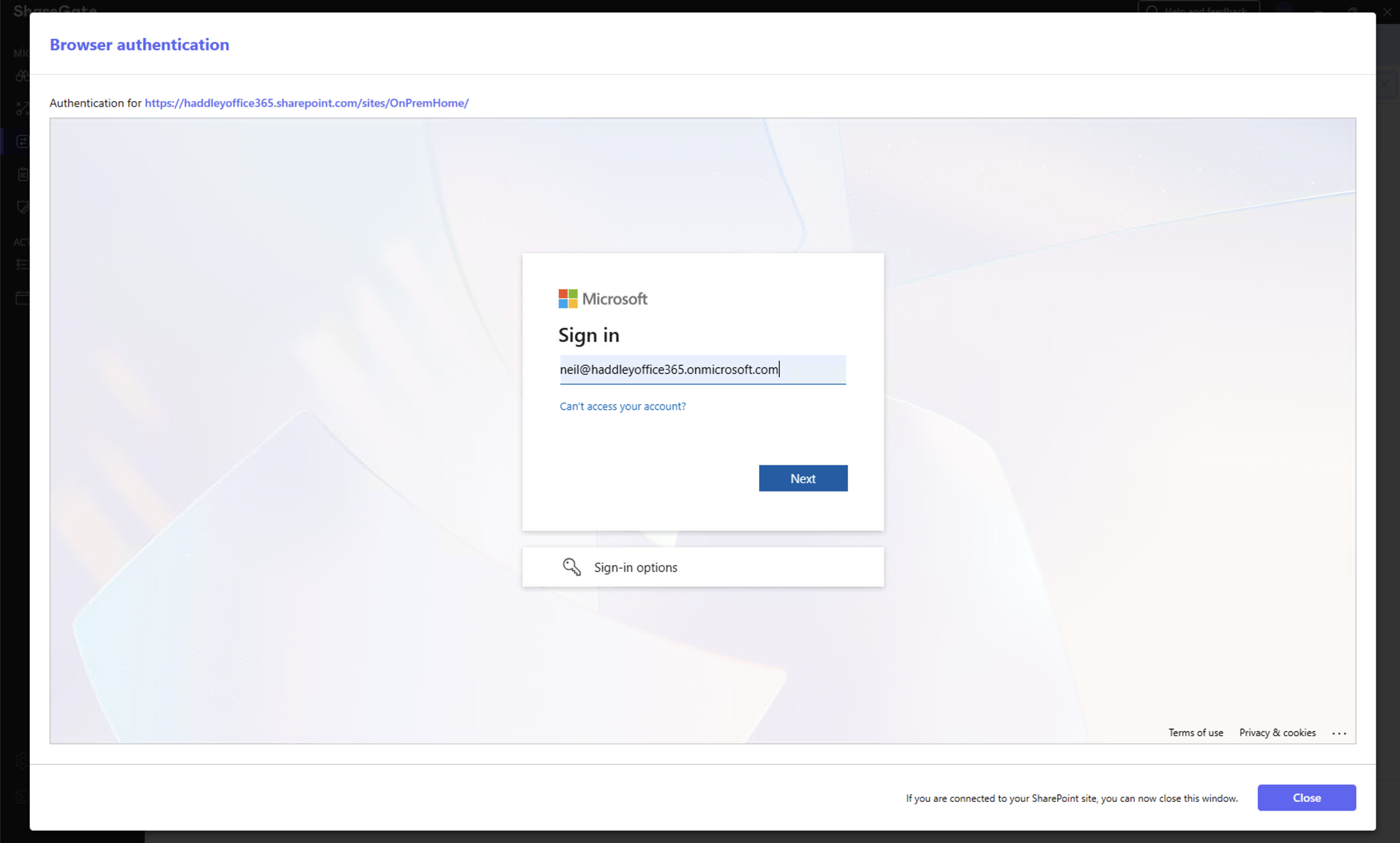
I entered the SharePoint Online destination URL and chose Browser authentication to connect
 Tap the image to open it full size
The Microsoft sign-in dialog appeared for browser authentication to SharePoint Online
 Tap the image to open it full size
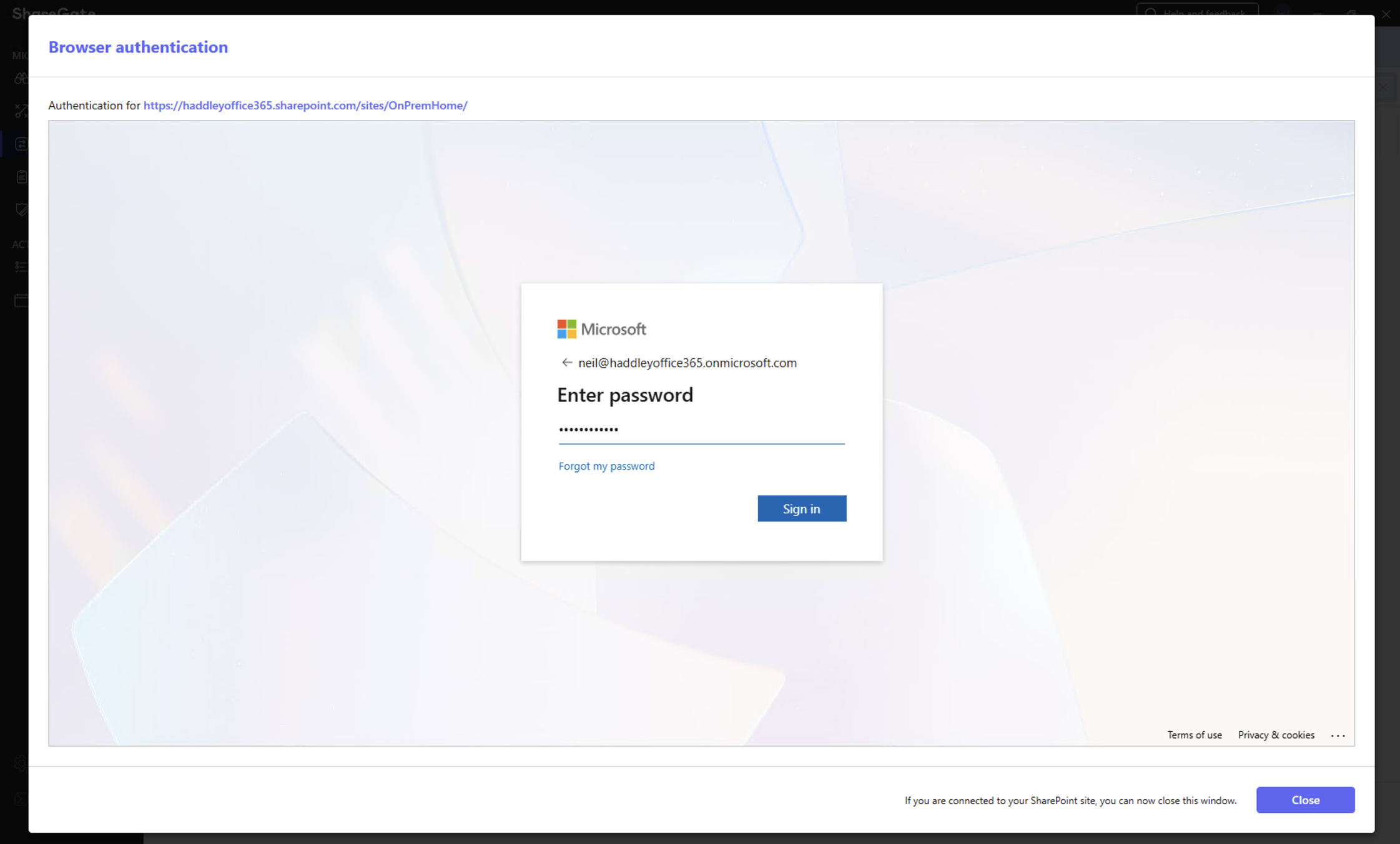
I entered my password to sign in to the SharePoint Online tenant
 Tap the image to open it full size
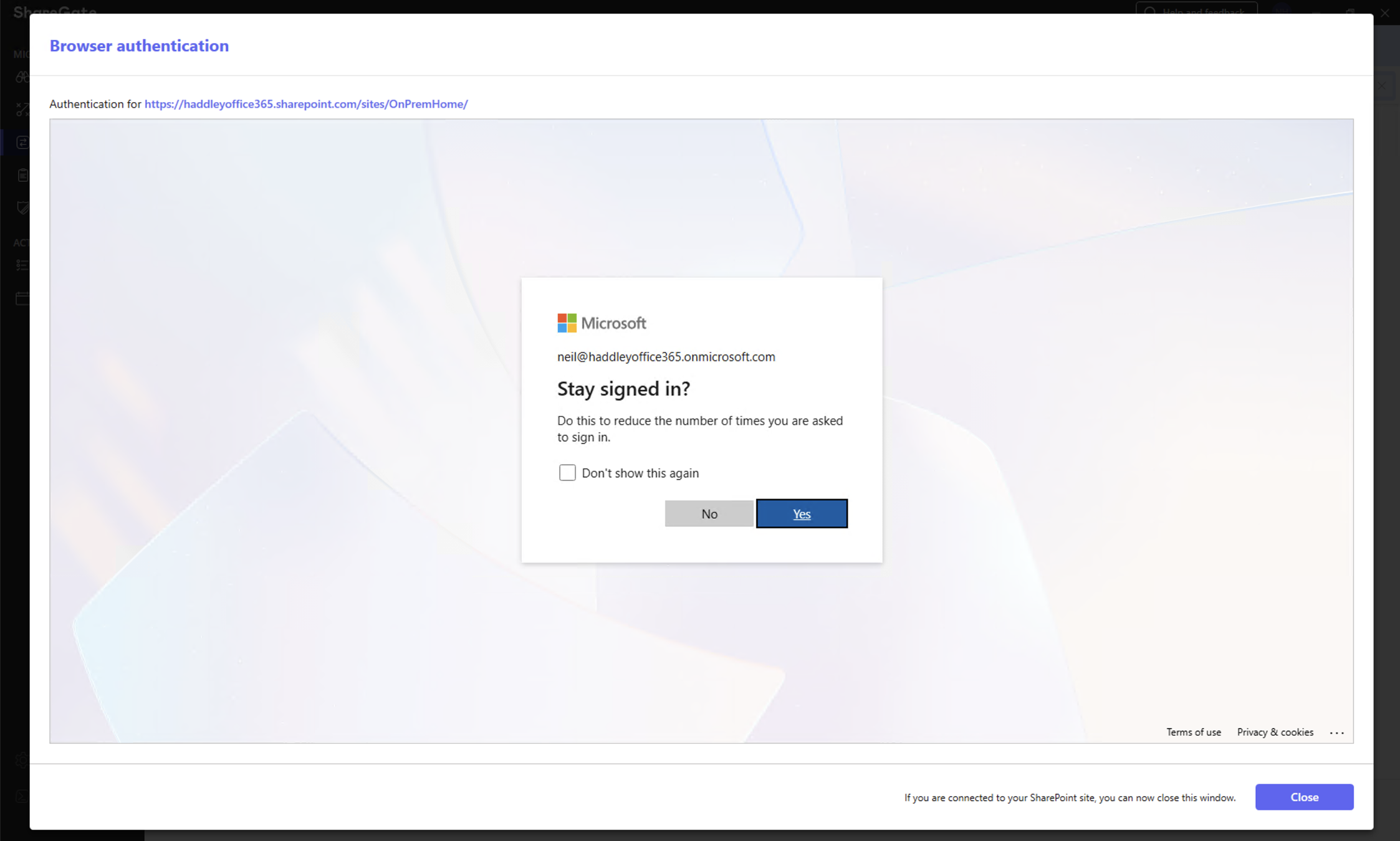
I was prompted to stay signed in and clicked Yes
 Tap the image to open it full size
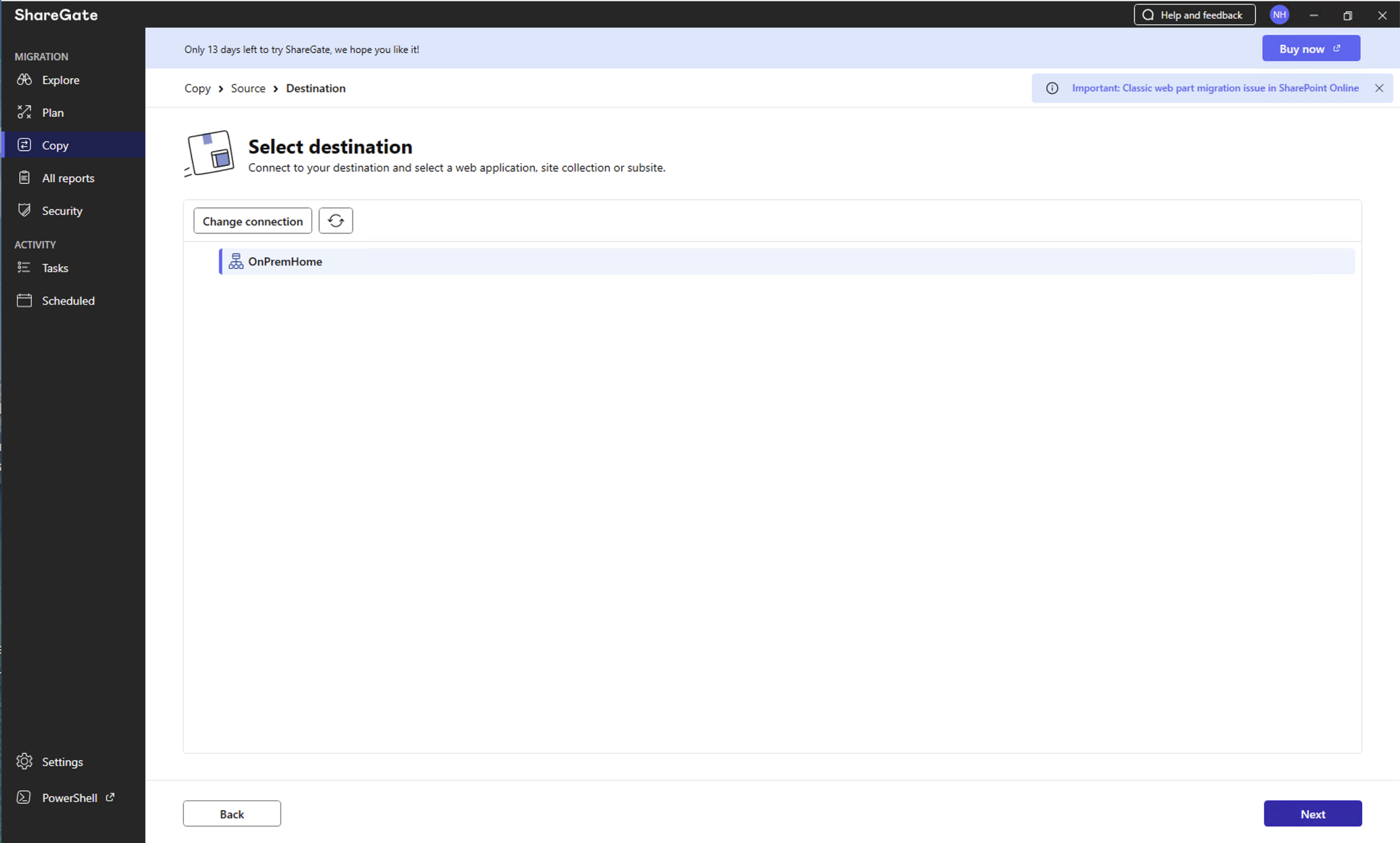
ShareGate connected to the destination and showed the OnPremHome site collection ready to receive the migration
 Tap the image to open it full size
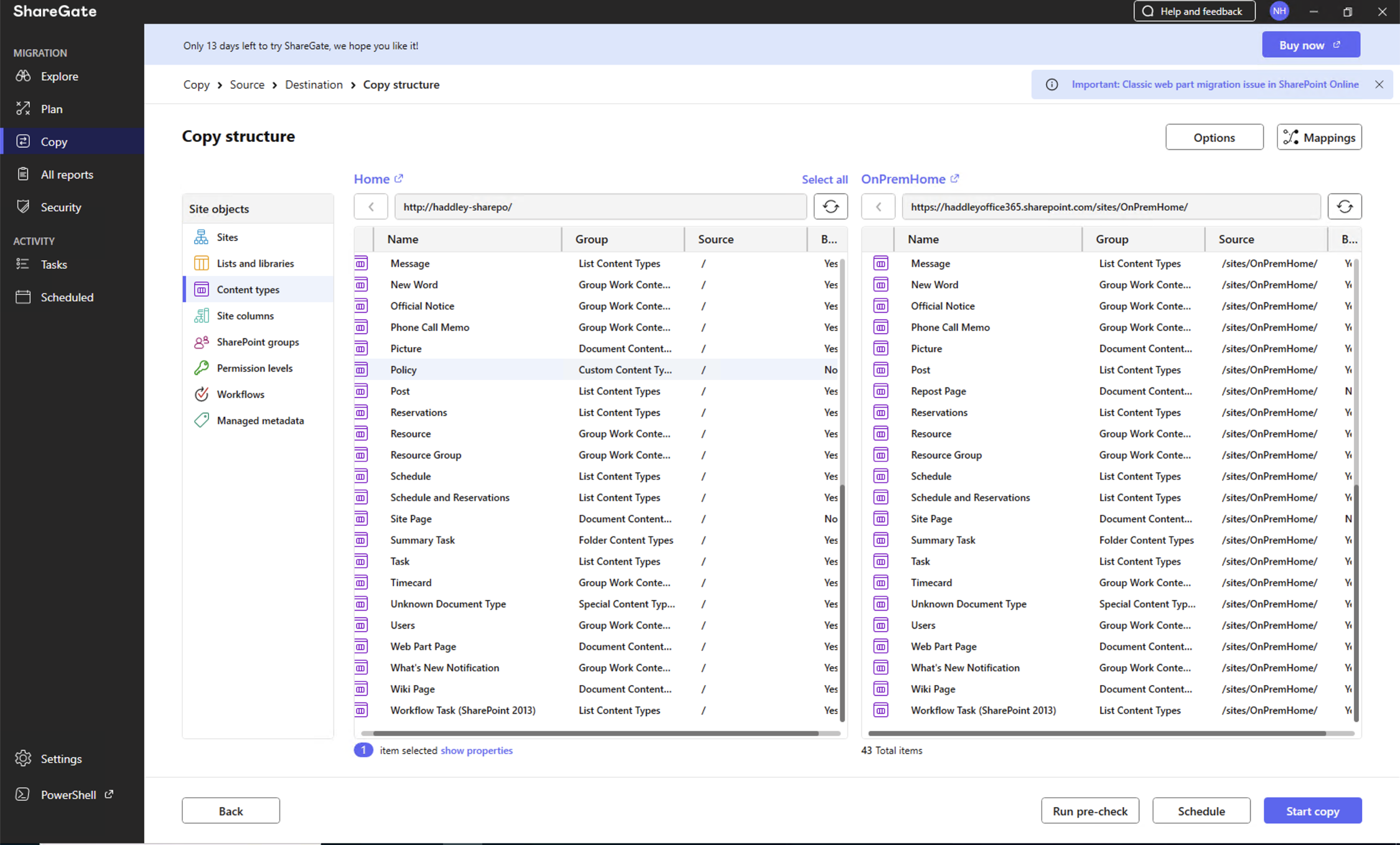
The Copy structure screen showed a side-by-side comparison of content types, lists, and libraries between source and destination
 Tap the image to open it full size
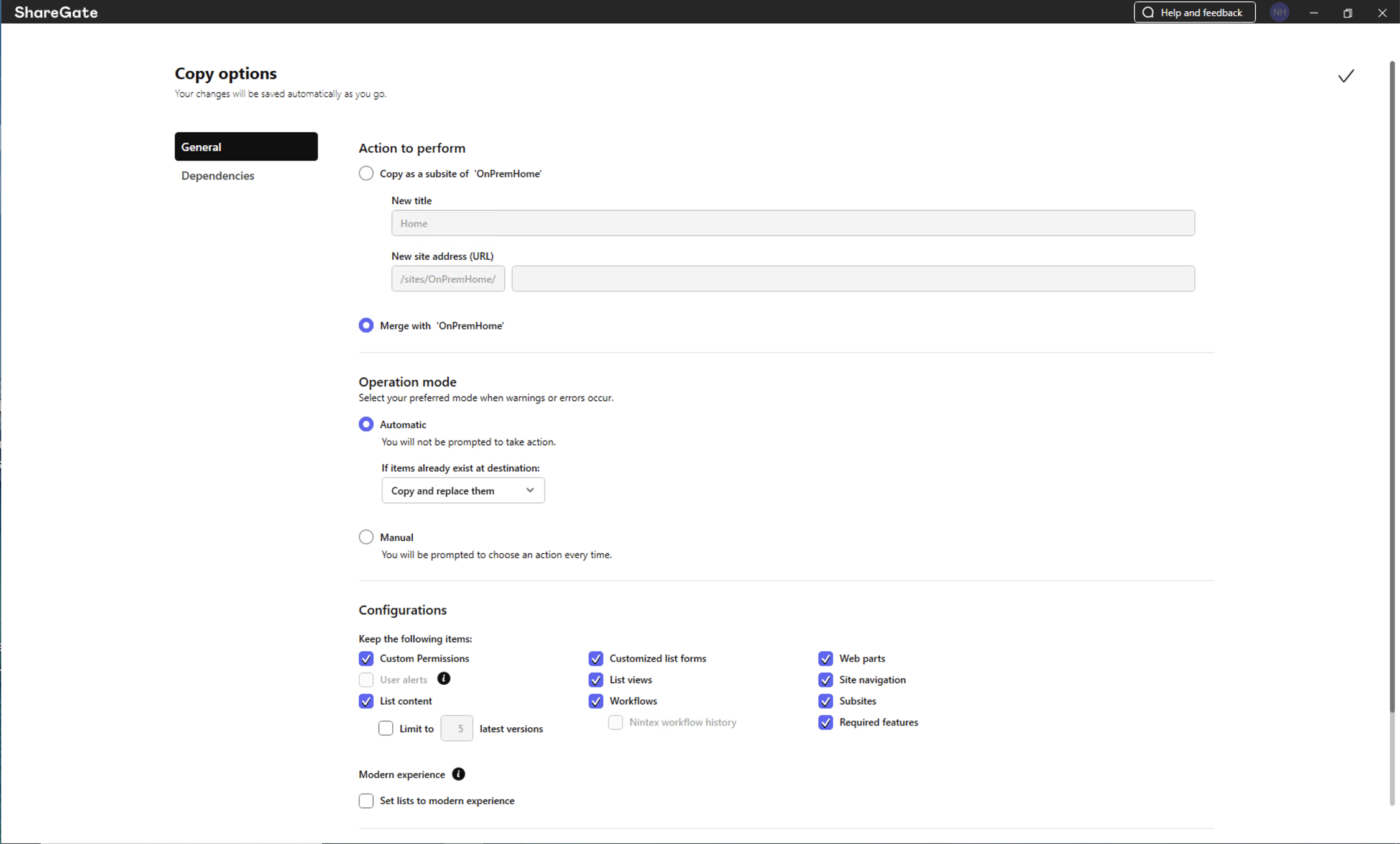
I configured the copy options to merge with OnPremHome in Automatic mode, keeping custom permissions, list content, workflows, and other settings
 Tap the image to open it full size
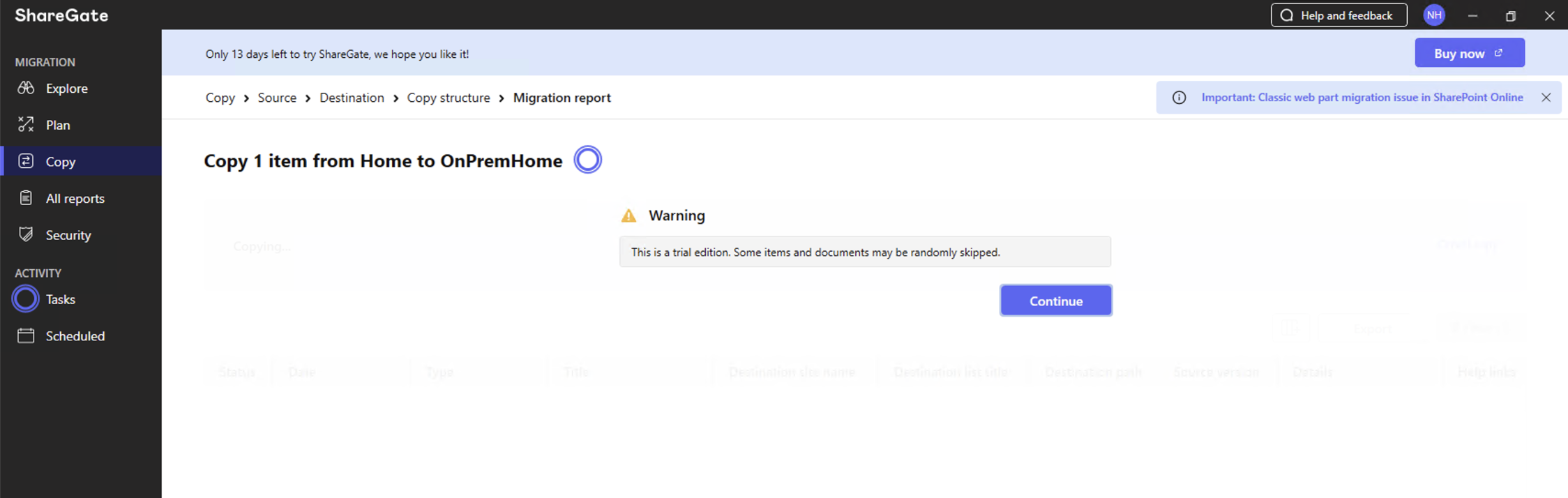
ShareGate showed a trial warning that some items may be randomly skipped before the migration started
 Tap the image to open it full size
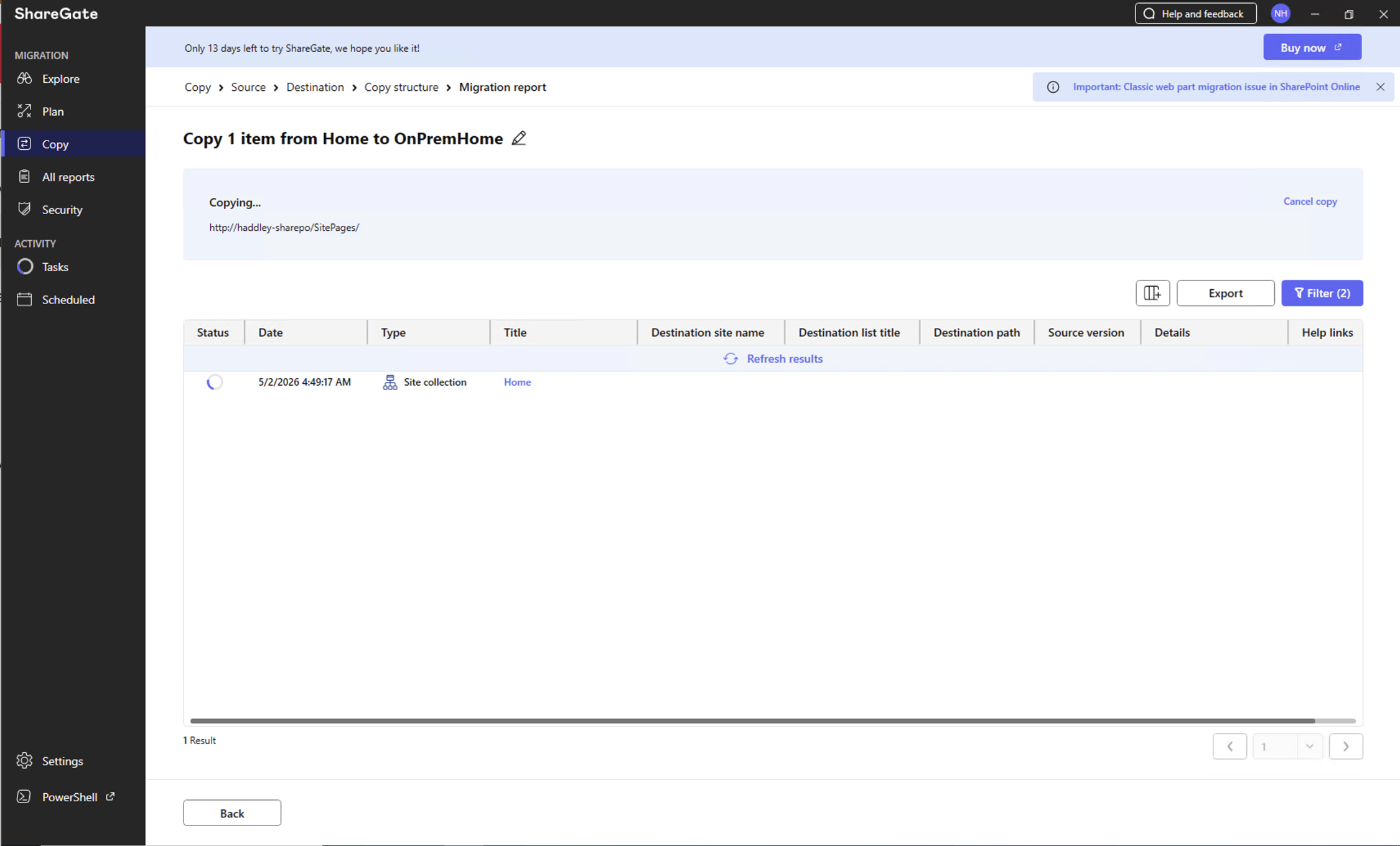
The migration was in progress, copying the site collection structure to OnPremHome
 Tap the image to open it full size
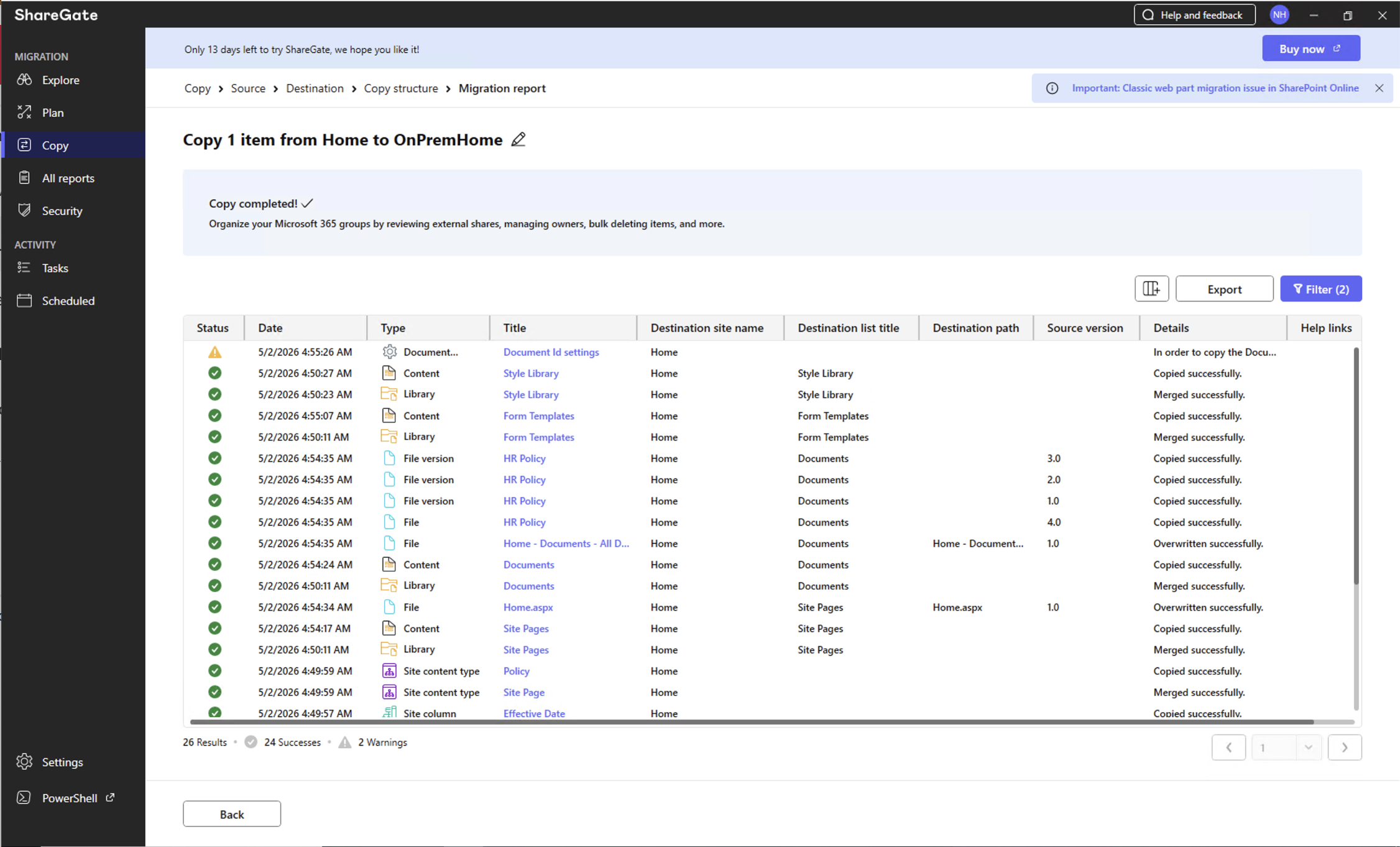
The migration report showed "Copy completed" with the full list of successfully migrated items
 Tap the image to open it full size
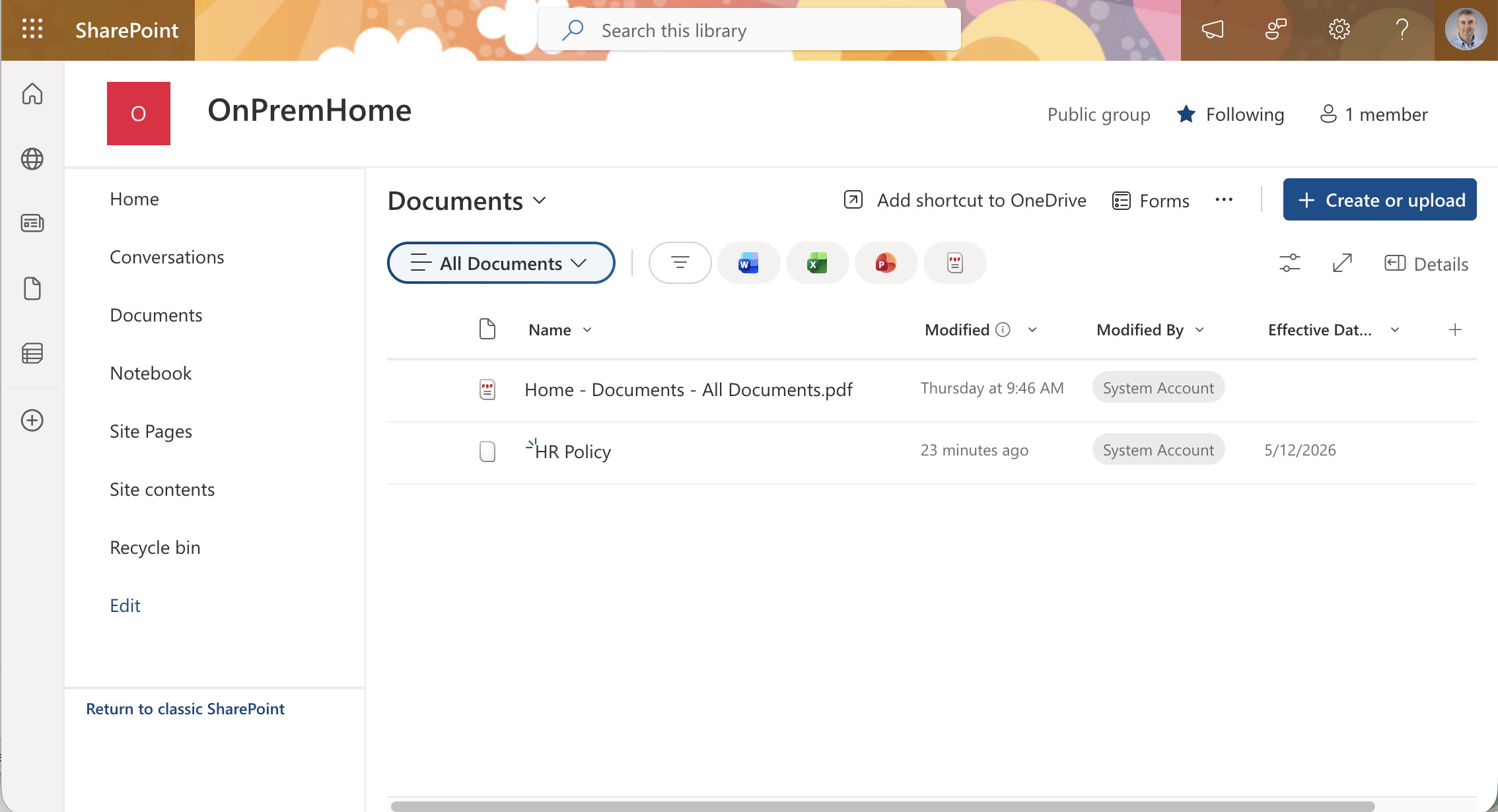
I opened the OnPremHome site in SharePoint Online and saw the migrated HR Policy document with the Effective Date column
 Tap the image to open it full size
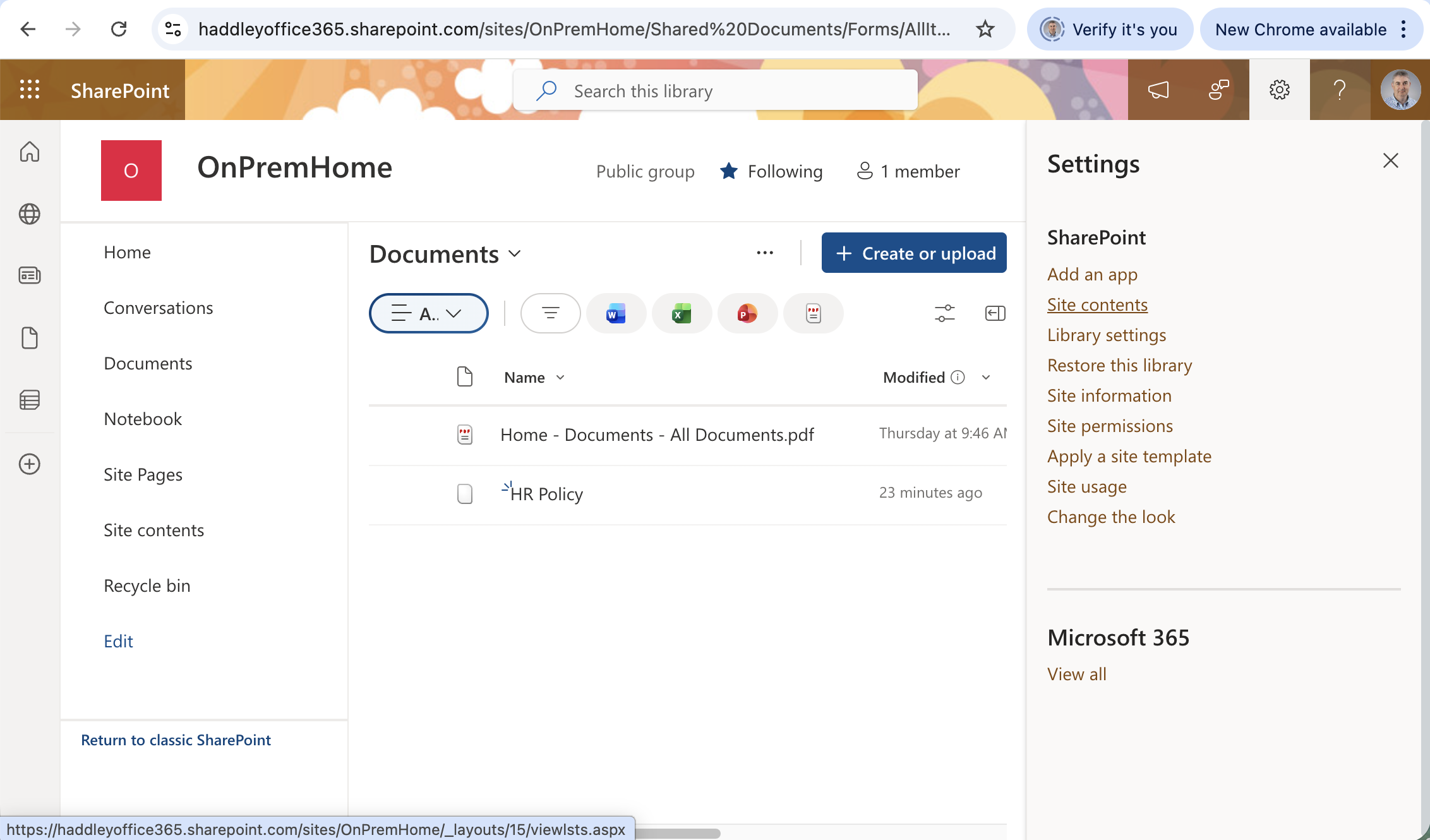
I opened the Settings panel on the OnPremHome Documents library in SharePoint Online
 Tap the image to open it full size
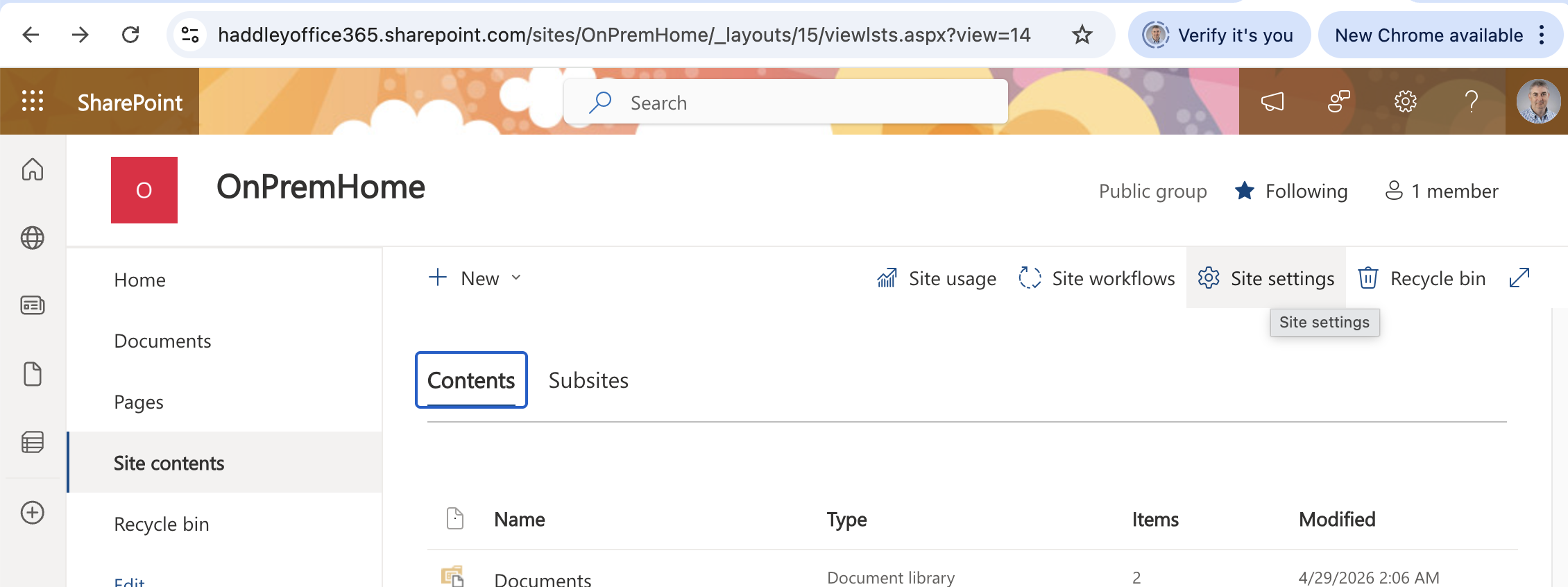
I navigated to Site contents on the OnPremHome site to verify the migrated structure
 Tap the image to open it full size
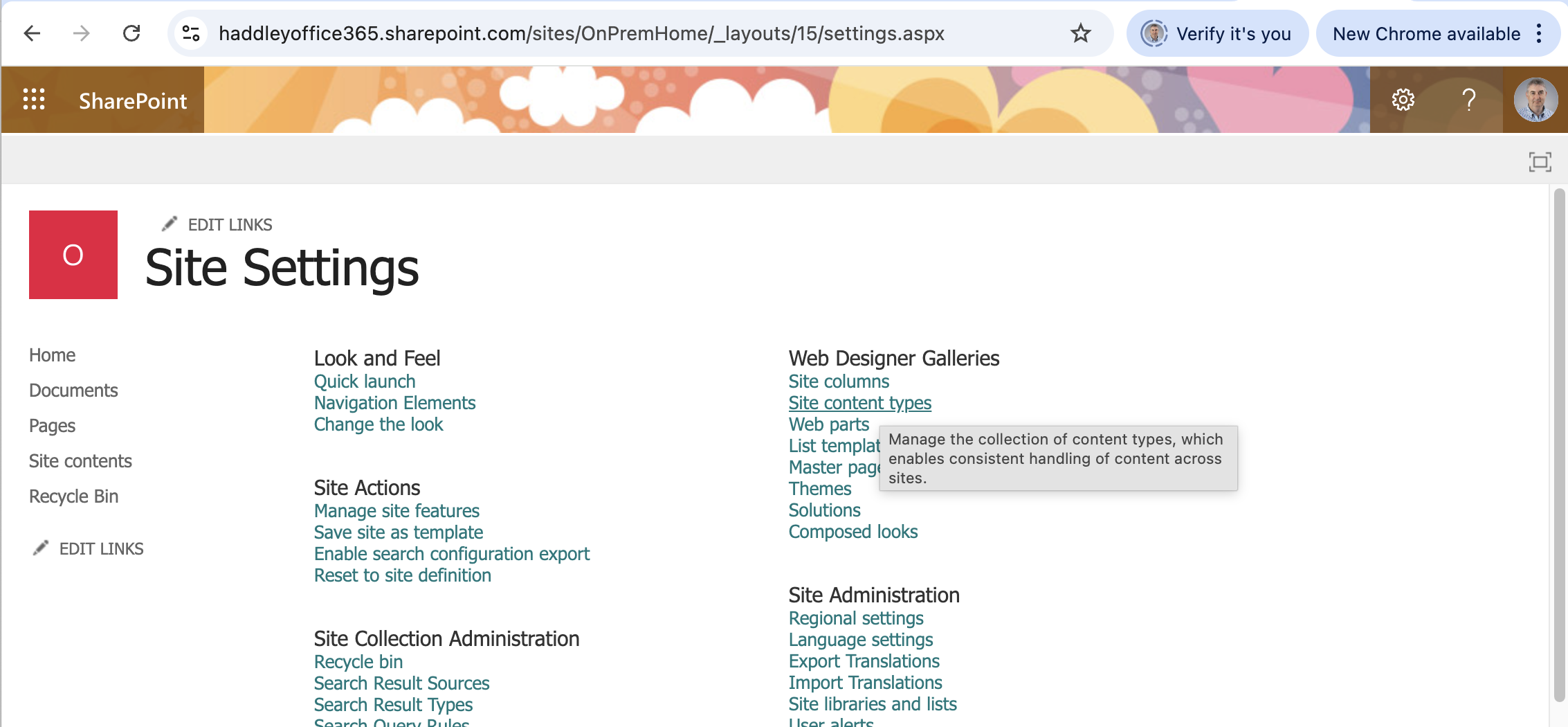
I opened Site Settings and hovered over "Site content types" to check the content type was migrated
 Tap the image to open it full size
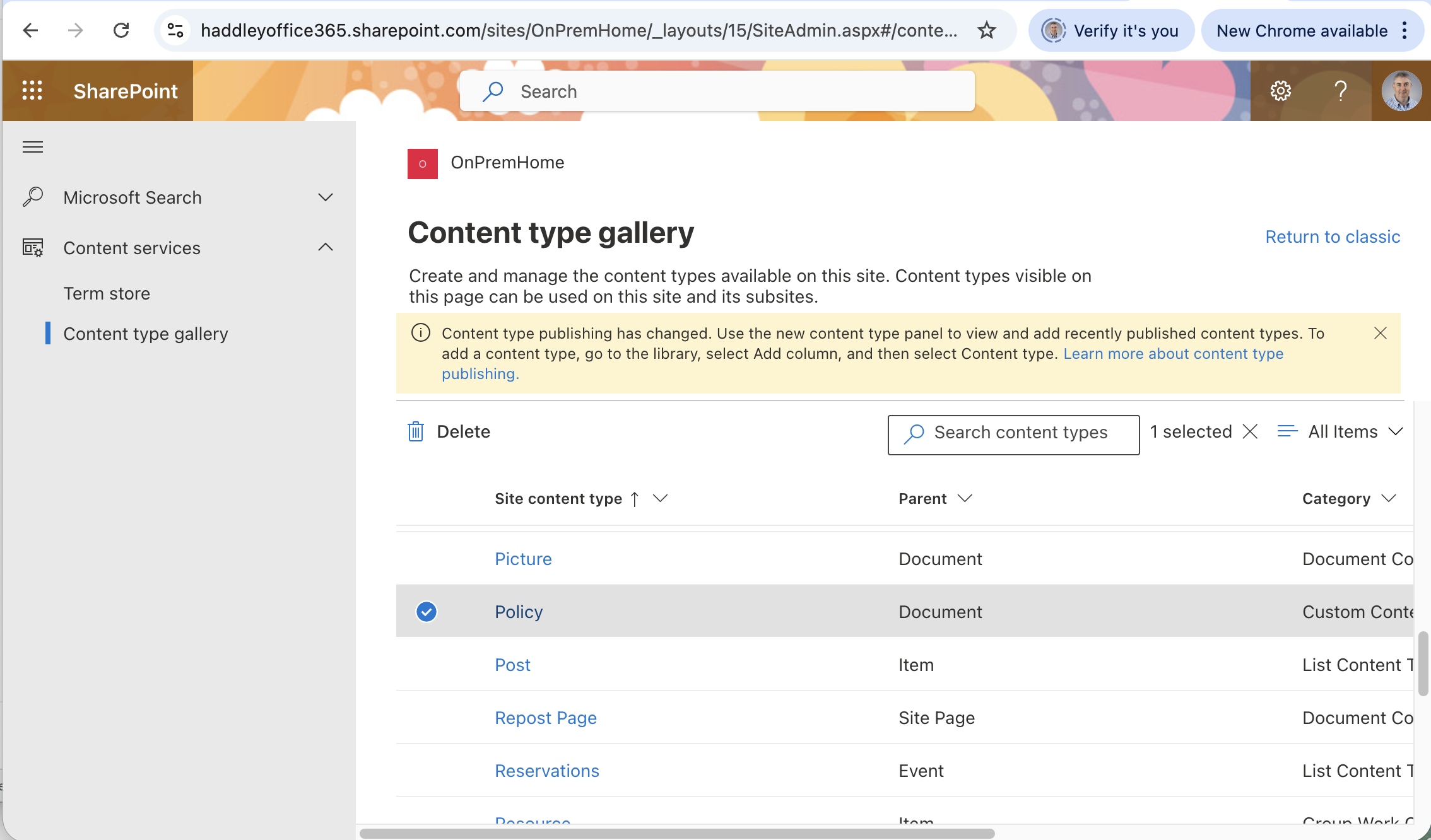
The Content type gallery confirmed the Policy content type had been successfully migrated to SharePoint Online
 Tap the image to open it full size
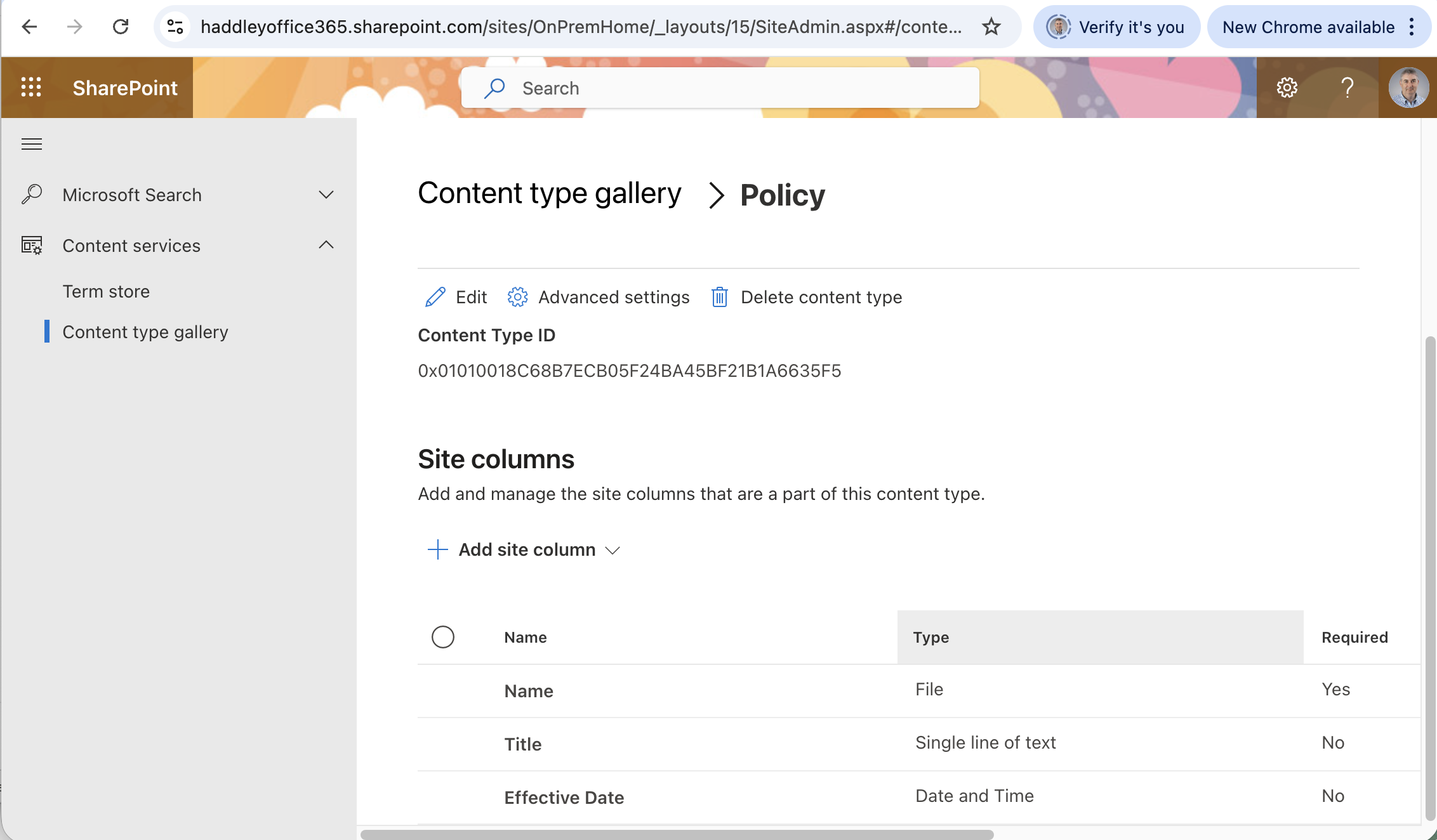
The Policy content type in SharePoint Online showed all three site columns: Name, Title, and Effective Date
 Tap the image to open it full size
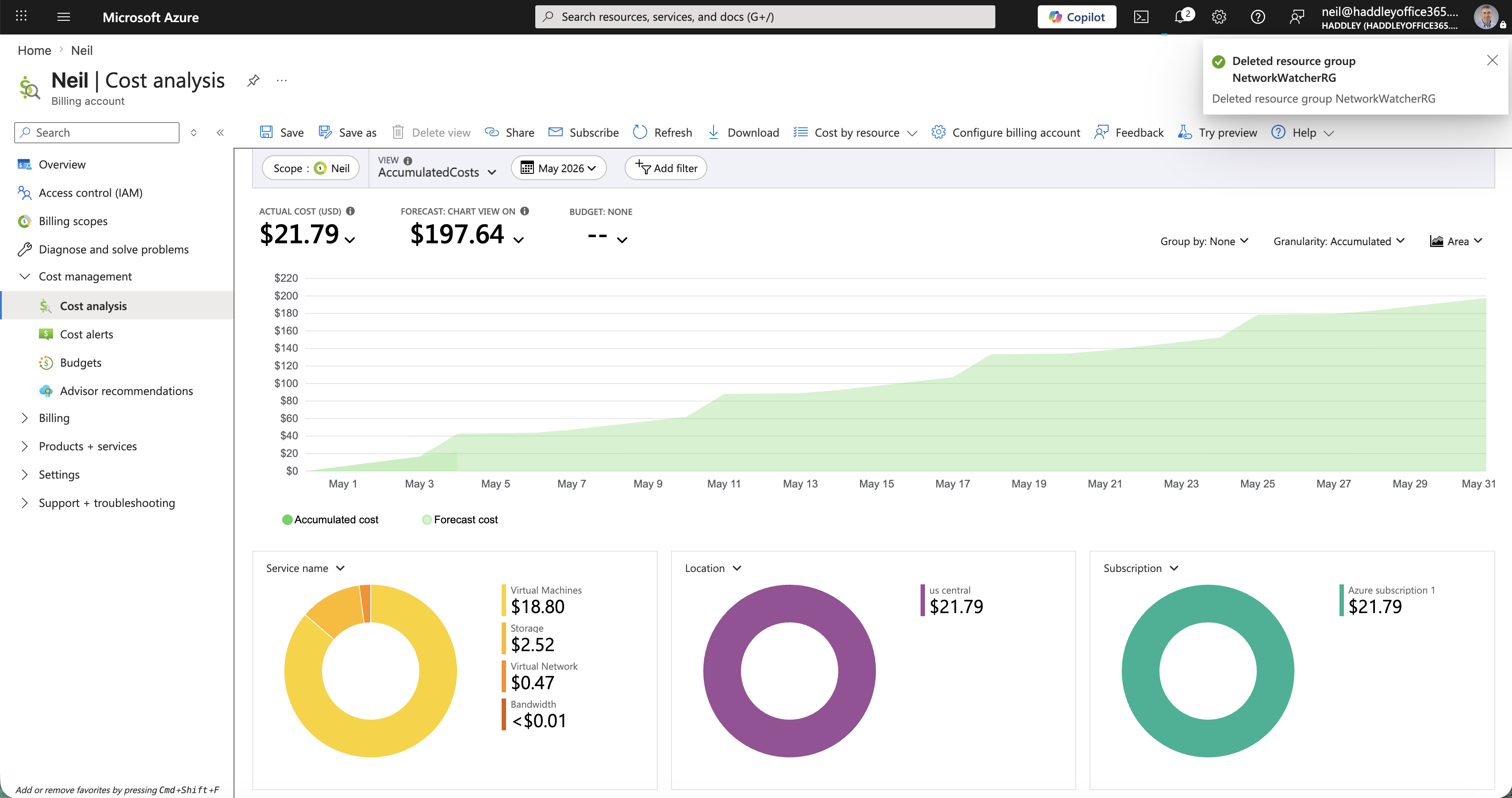
I reviewed Azure Cost Analysis dashboard with the SharePoint virtual machines accounting for the majority of the $21.79 accumulated cost