SharePoint (Part 2)
Neil Haddley • May 3, 2026
Device Request — embedded canvas app with an instant flow
In Part 1 I built a Device Request list in SharePoint and customised its built-in form with Power Apps. That approach is straightforward, but it ties everything to the SharePoint list — the flow only fires when a list item is written, every submission is visible in the list view, and the form can only do what a customised list form supports.
Here I took a different approach: a standalone canvas app calls a Power Automate instant flow directly from its Submit button, and the finished app is embedded in the SharePoint page as a web part. This gives a few advantages. The flow is triggered immediately by the app rather than waiting on a SharePoint list write, so there is no intermediate storage and no list view for users to stumble into. The canvas app is a proper Power Apps screen, so validation, layout, and conditional logic are all straightforward to add. And because the app is embedded via the Power Apps web part, it appears inline on any SharePoint page without users needing to navigate to a list at all.
 Tap the image to open it full size
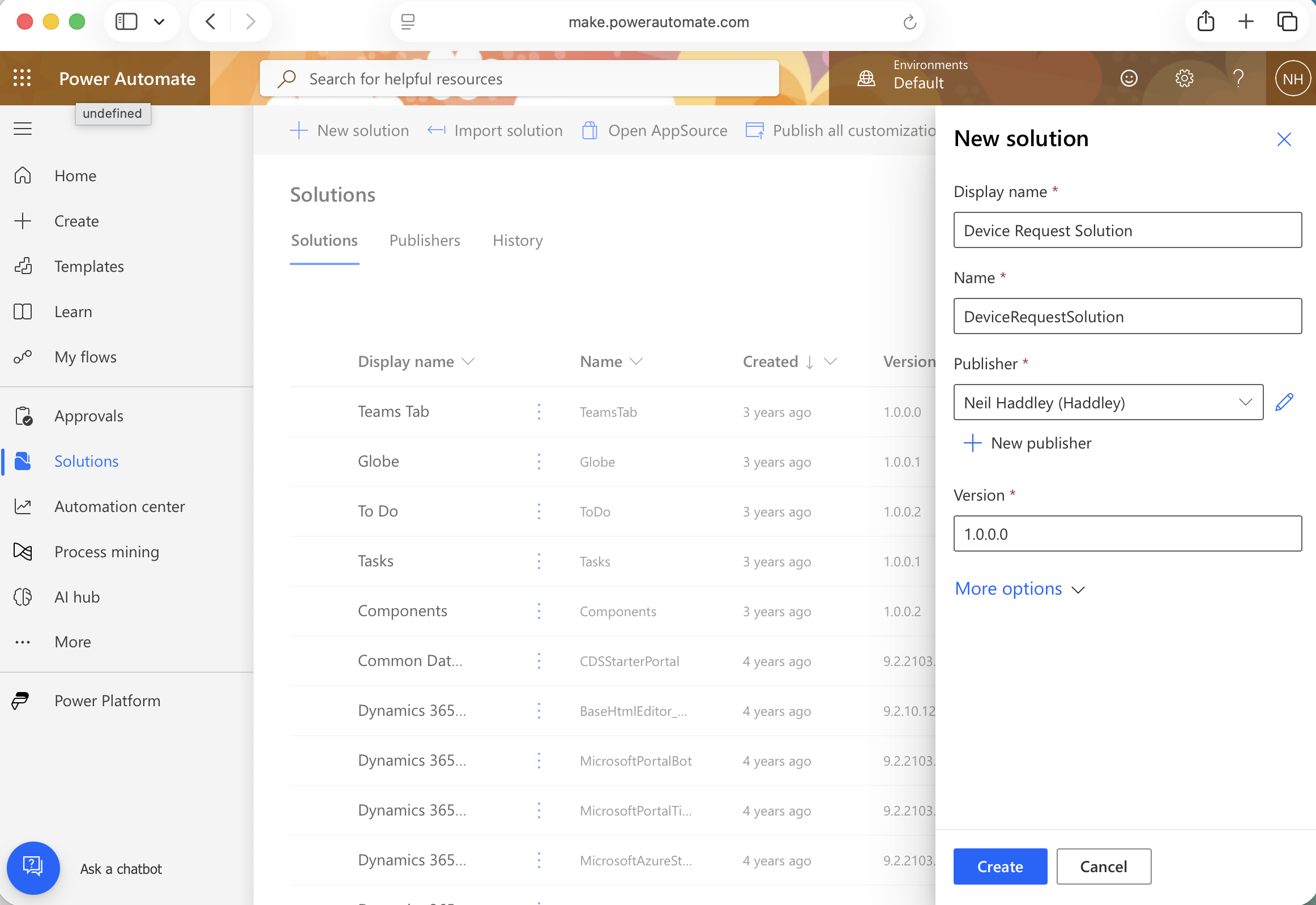
I created a new Power Automate solution called "Device Request Solution" to contain the flow and canvas app
 Tap the image to open it full size
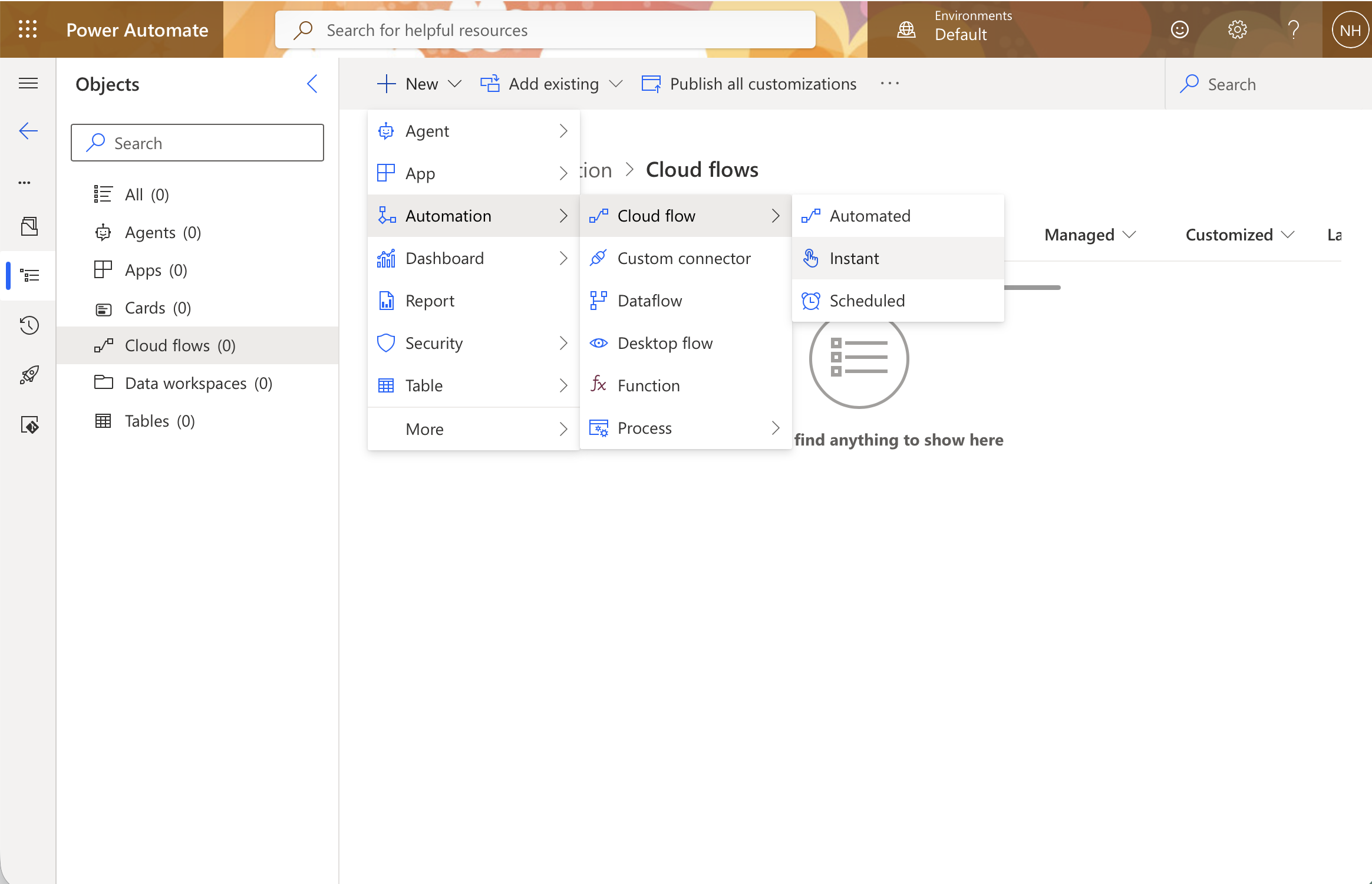
I clicked New > Automation > Cloud flow and selected Instant to create a new instant cloud flow
 Tap the image to open it full size
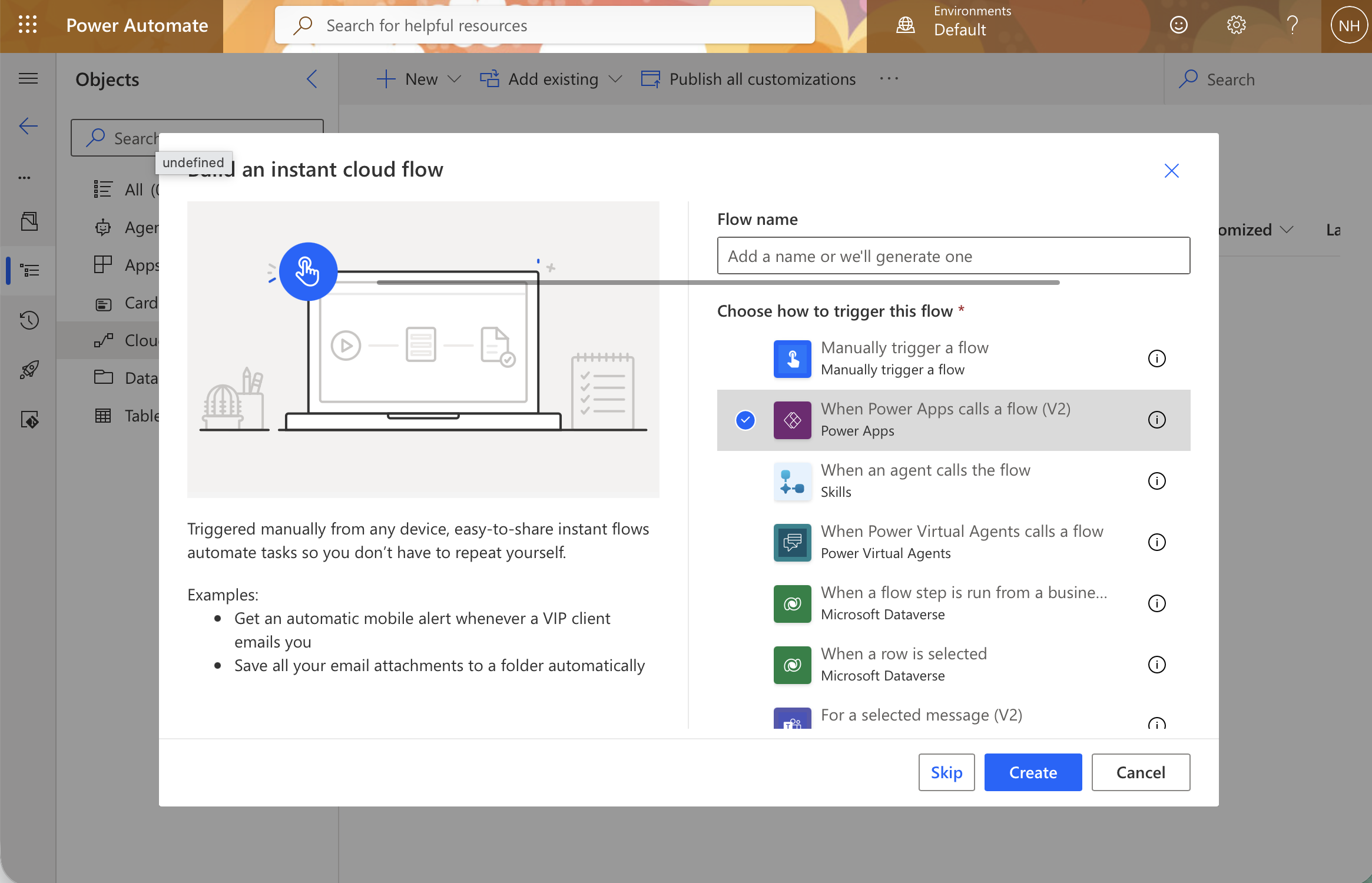
I named the flow "Submit Device Request" and chose "When Power Apps calls a flow (V2)" as the trigger
 Tap the image to open it full size
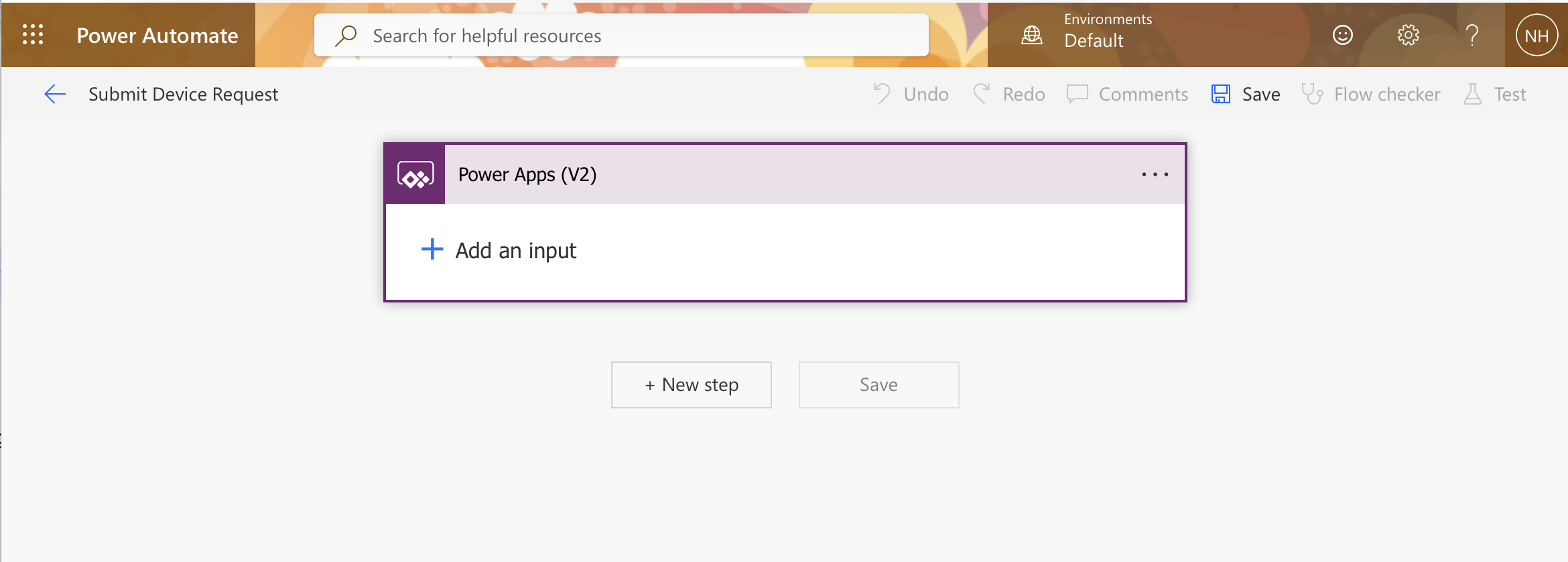
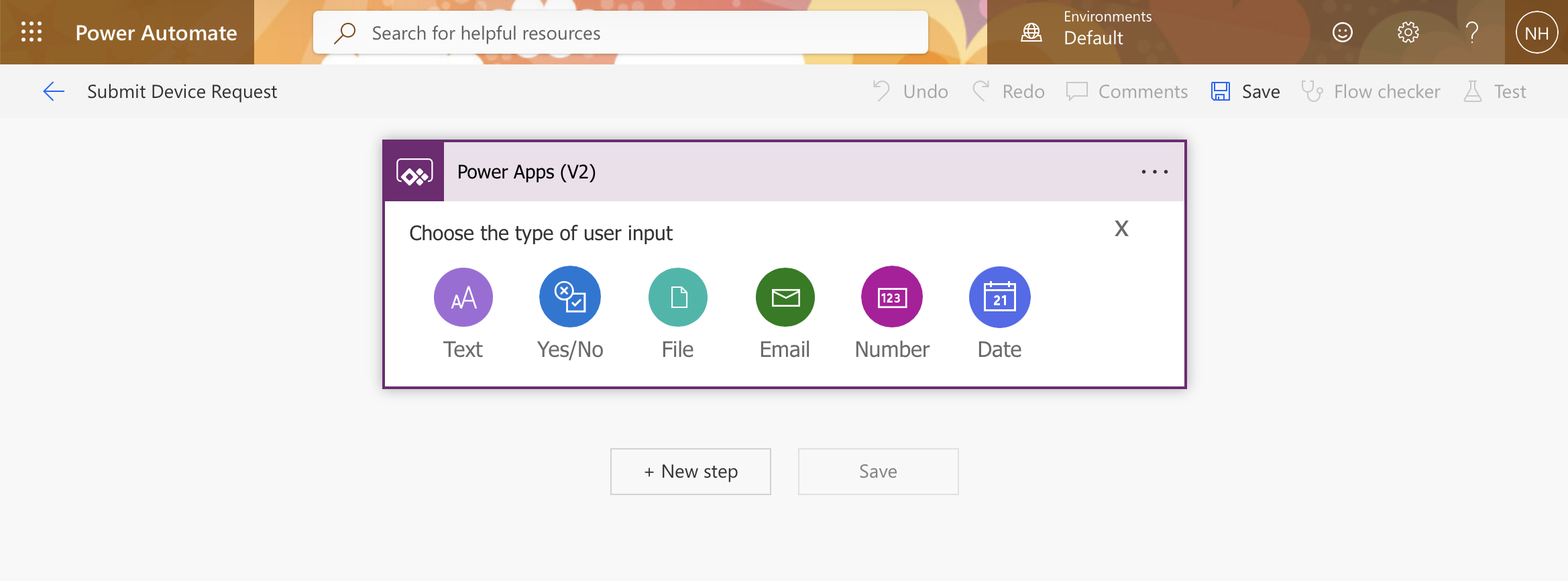
The flow opened with the Power Apps (V2) trigger — I clicked "Add an input" to define the data the canvas app would pass in
 Tap the image to open it full size
The input type picker appeared — I selected Text for the device description
 Tap the image to open it full size
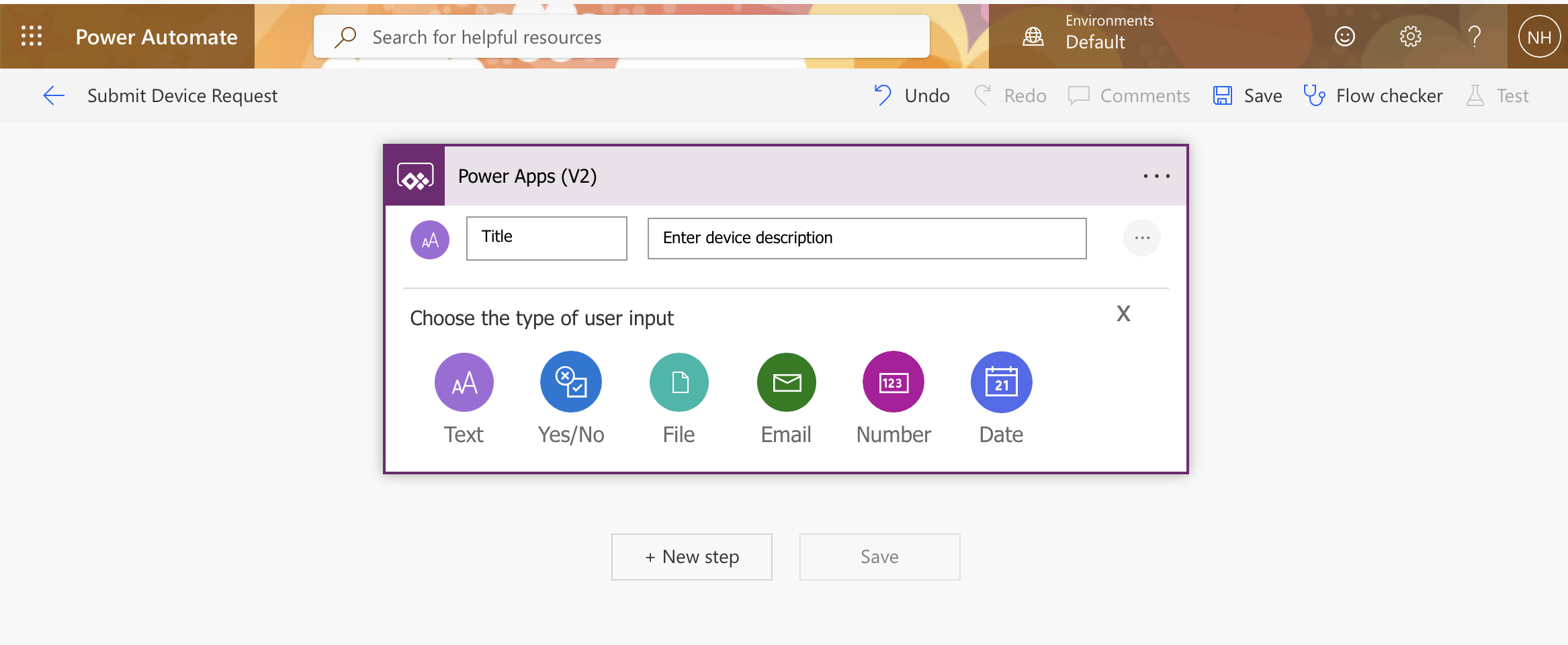
I named the first input "Title" with the placeholder "Enter device description", then clicked Add an input again to add a second field
 Tap the image to open it full size
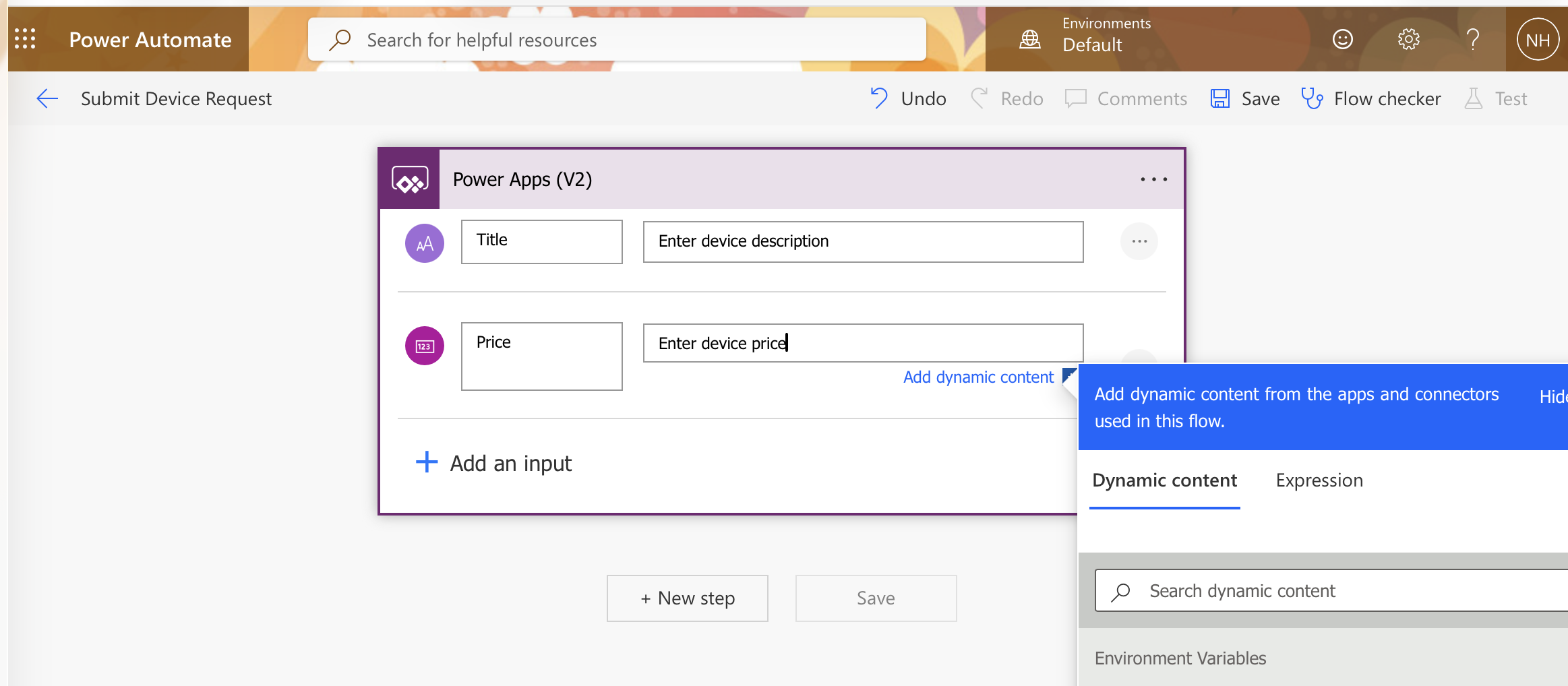
I added a second Number input named "Price" with the placeholder "Enter device price"
 Tap the image to open it full size
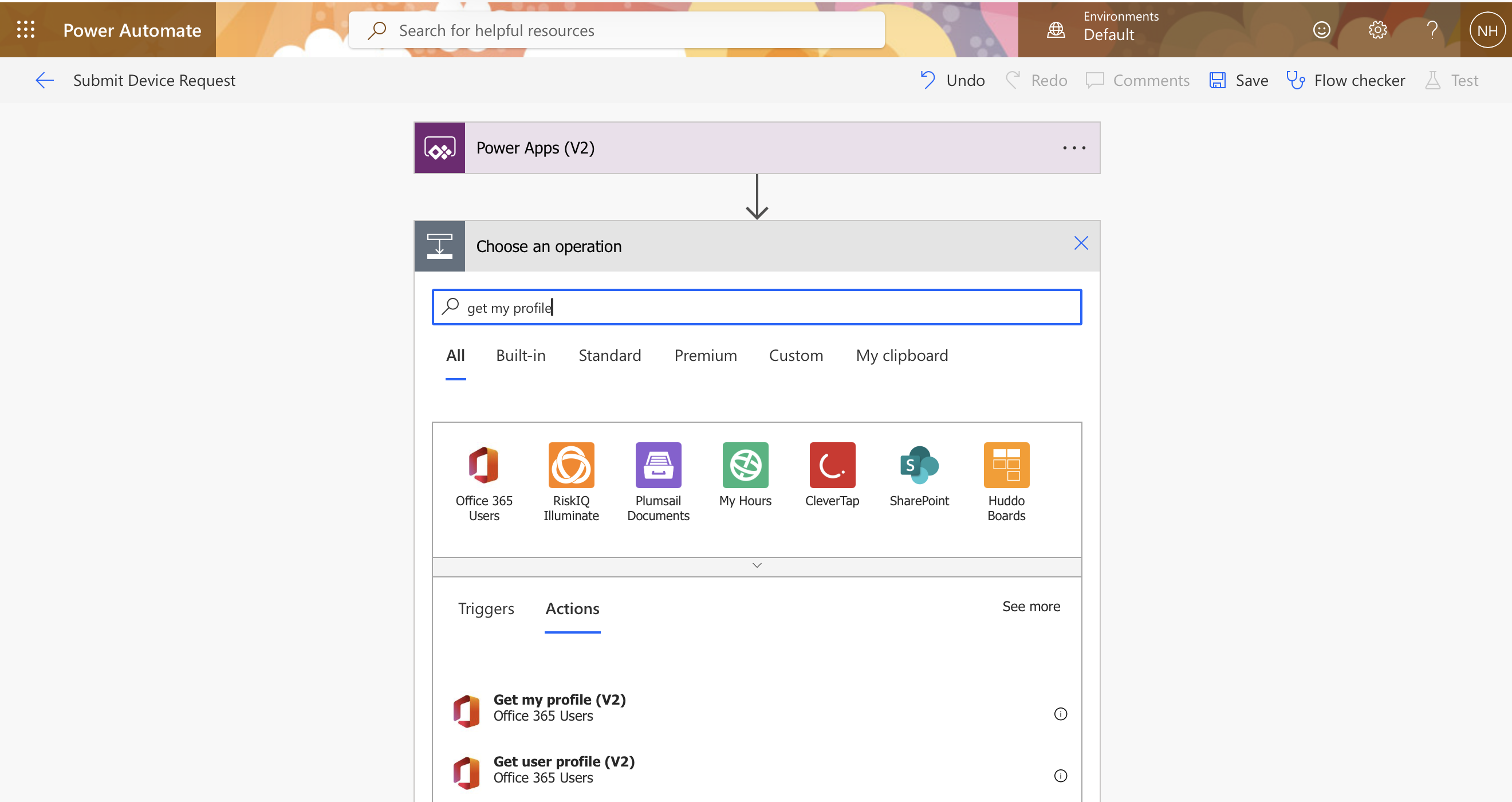
I added a new step, searched for "get my profile", and selected "Get my profile (V2)" from Office 365 Users to retrieve the submitter's details
 Tap the image to open it full size
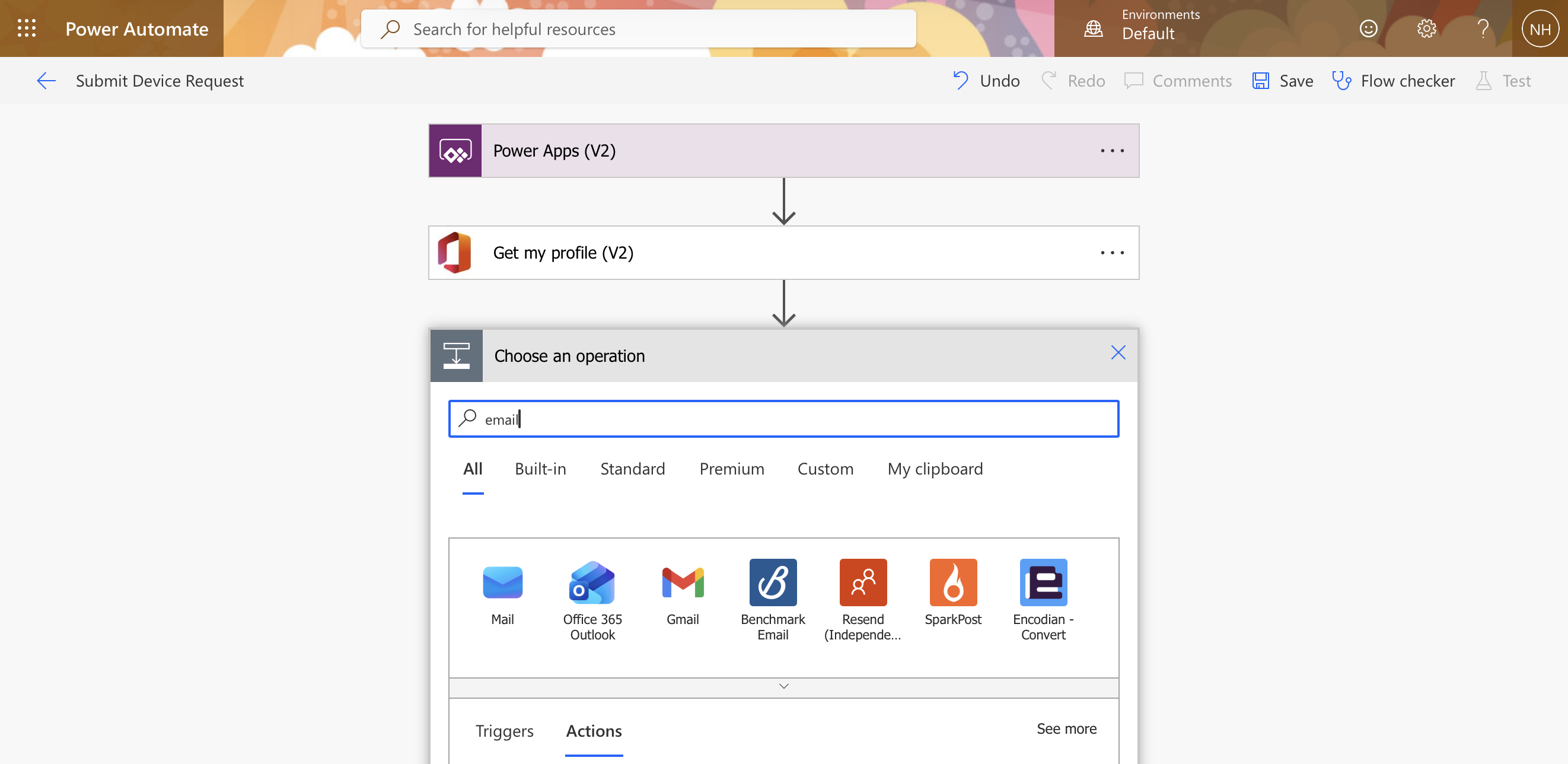
I added another step and searched for "email" to find the Office 365 Outlook connector
 Tap the image to open it full size
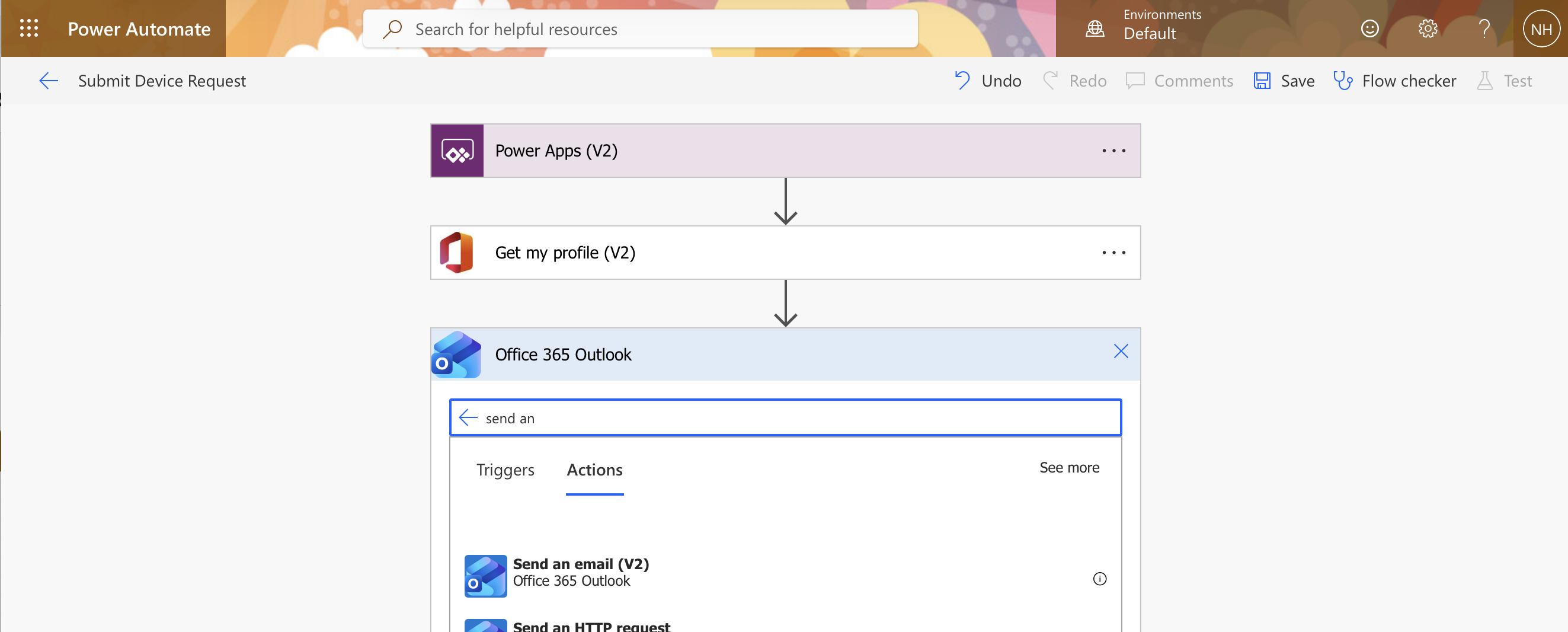
I searched for "send an" within Office 365 Outlook and selected "Send an email (V2)"
 Tap the image to open it full size
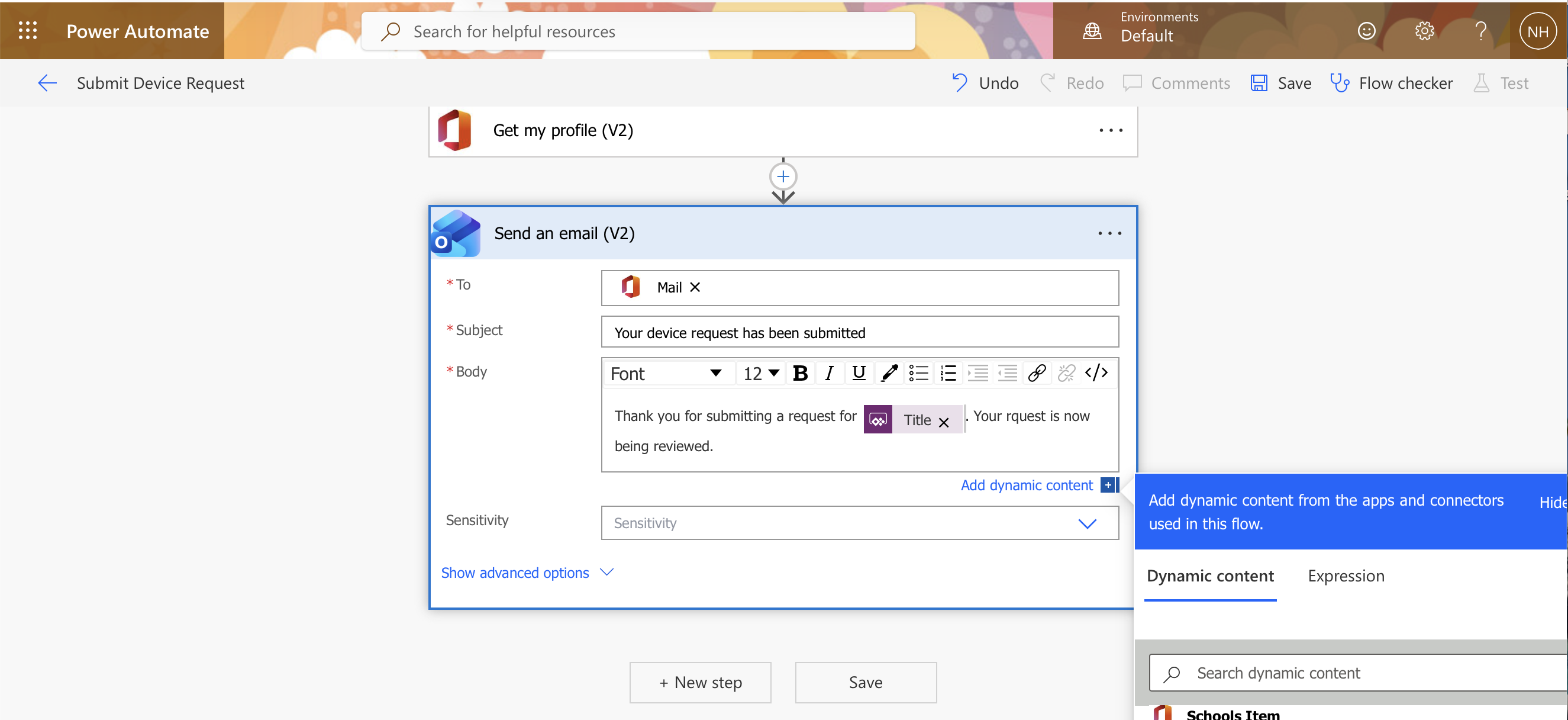
I configured the email action with the user's Mail address from Get my profile as the recipient, the subject "Your device request has been submitted", and the body referencing the Title input
 Tap the image to open it full size
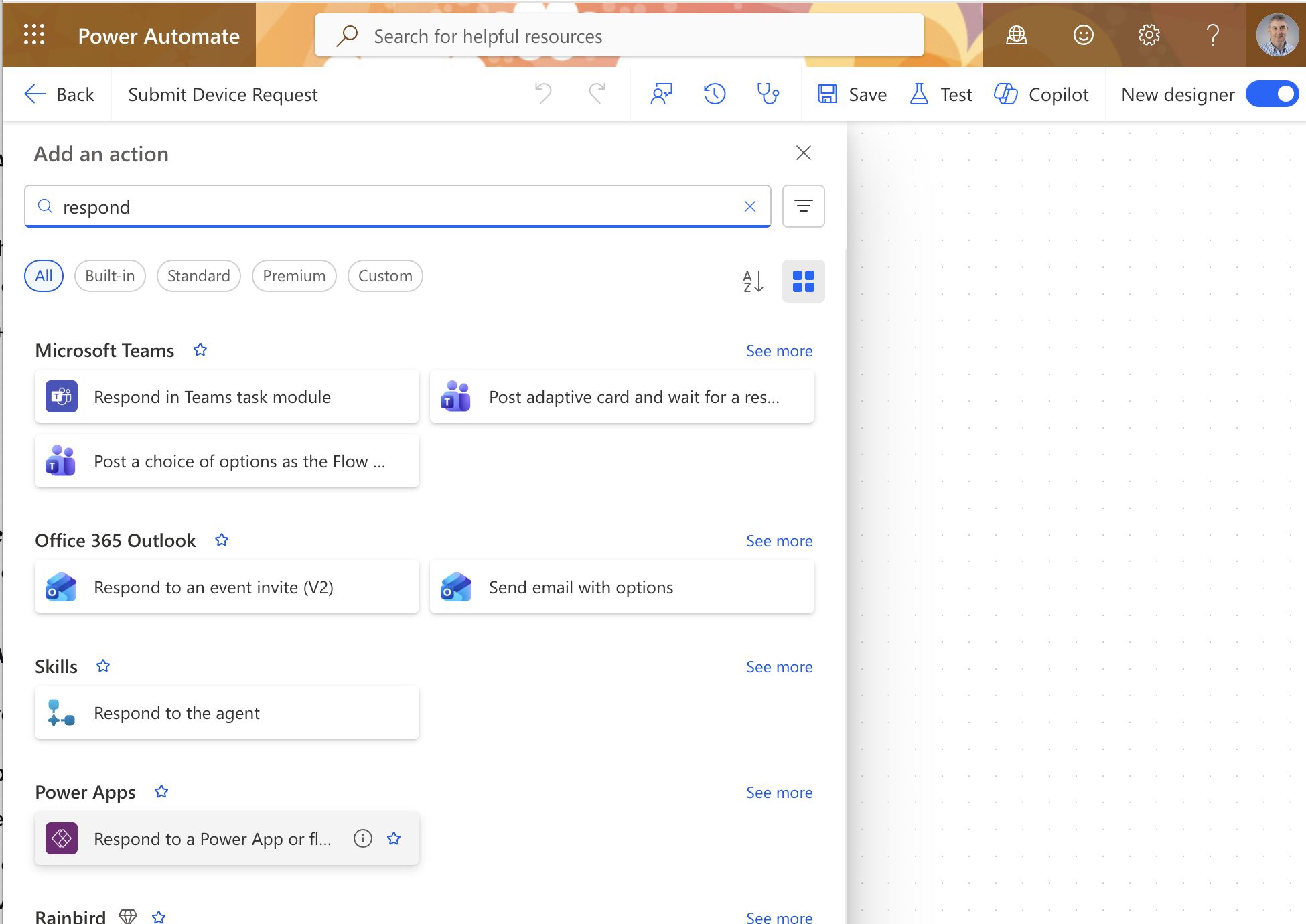
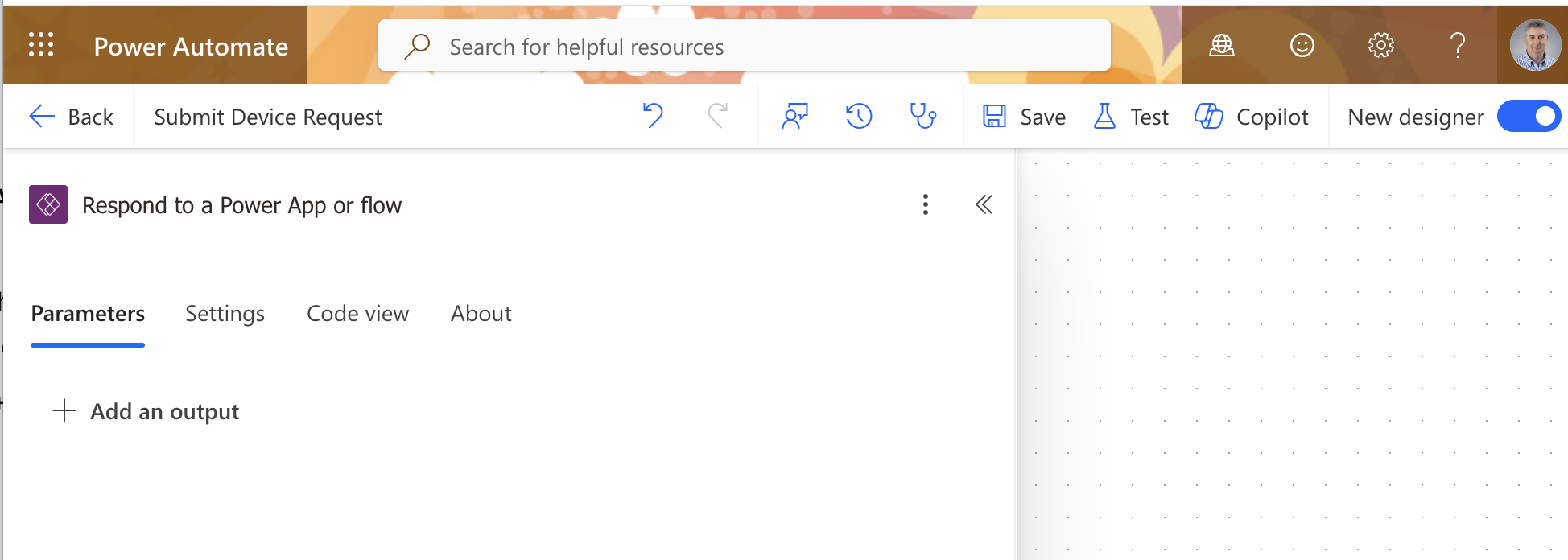
Back in the flow, I searched for "respond" and selected "Respond to a Power App or flow" so the flow could return a result to the canvas app
 Tap the image to open it full size
The "Respond to a Power App or flow" step was added as the last action in the flow
 Tap the image to open it full size
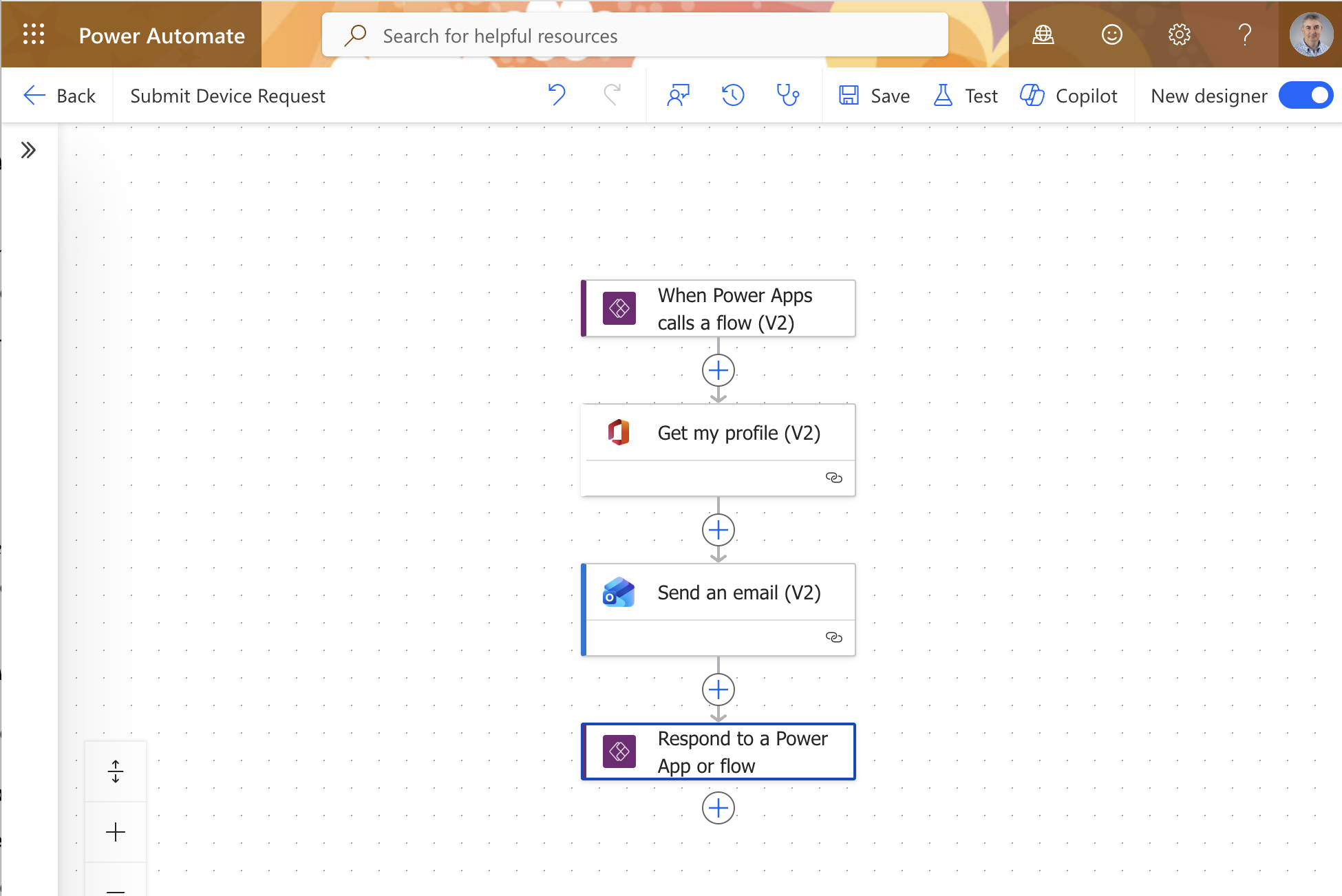
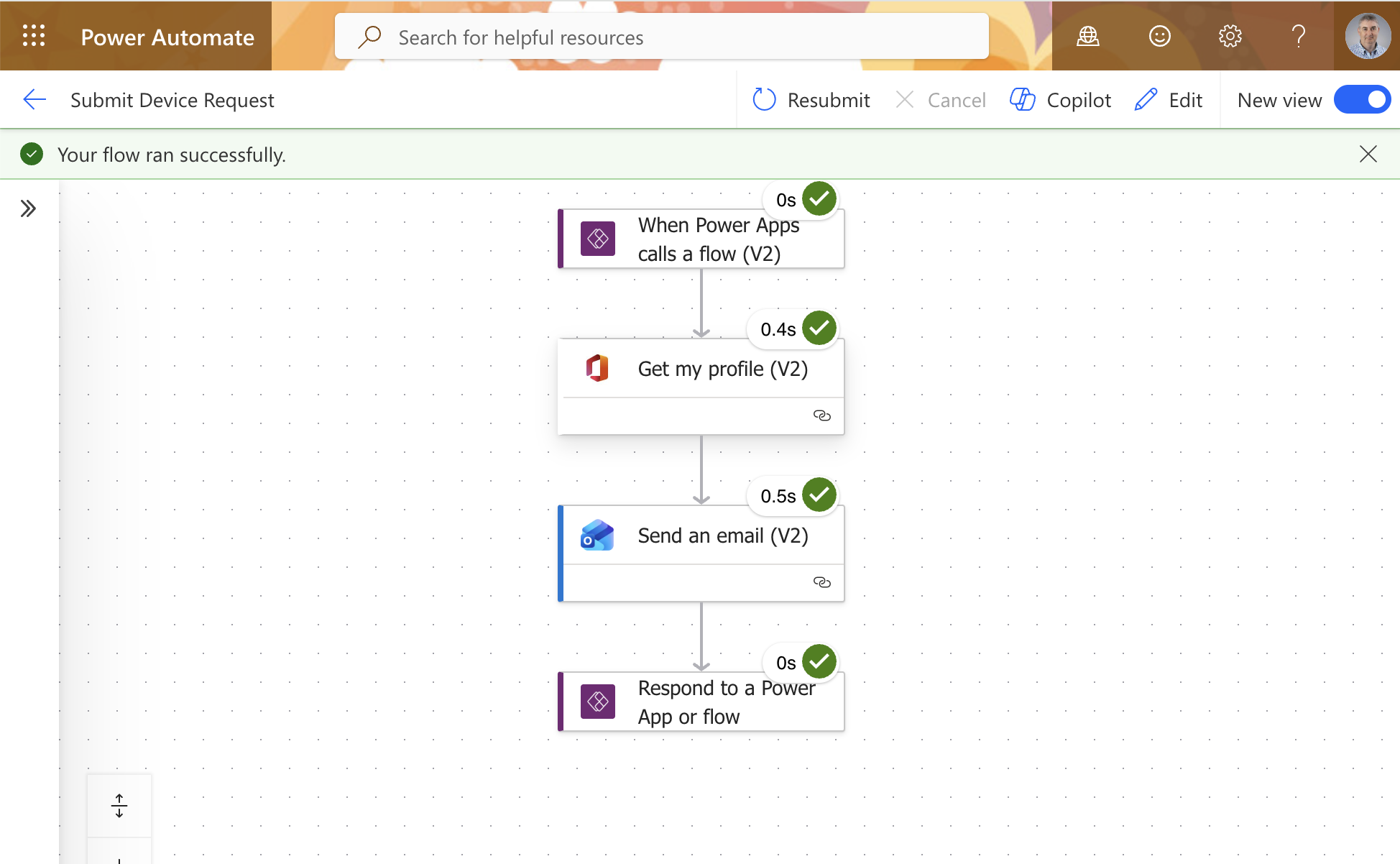
The completed flow showed all four steps connected: Power Apps trigger, Get my profile, Send an email, and Respond to Power App
 Tap the image to open it full size
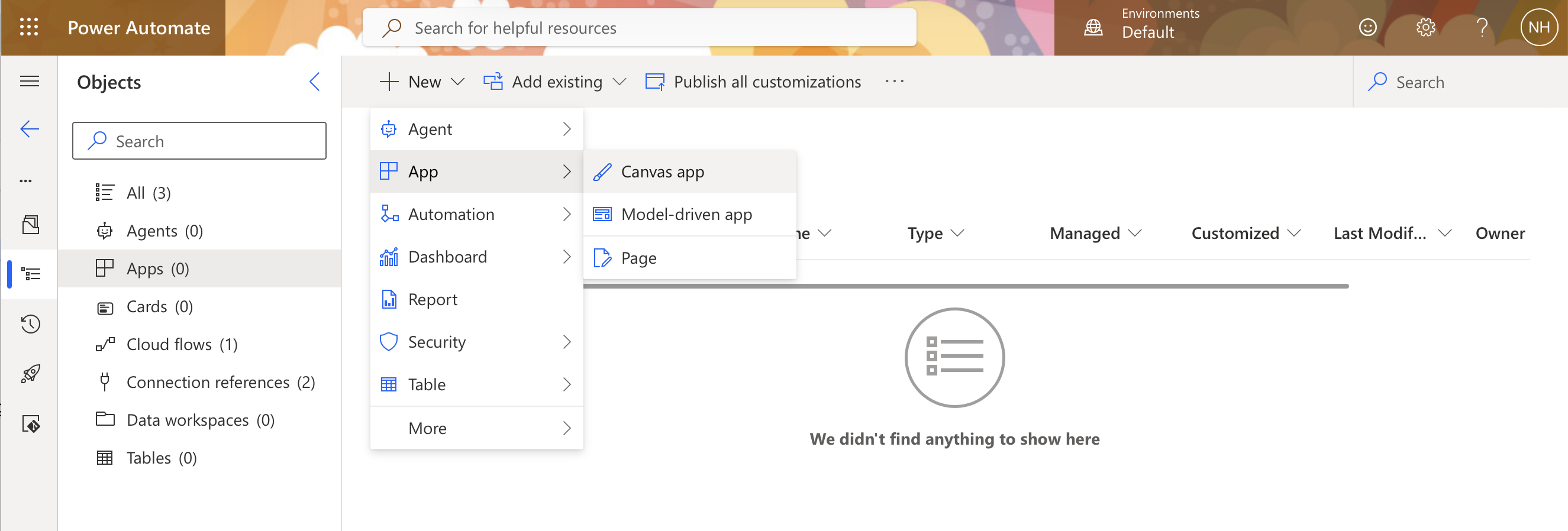
I returned to the solution and clicked New > App > Canvas app to build the submission form
 Tap the image to open it full size
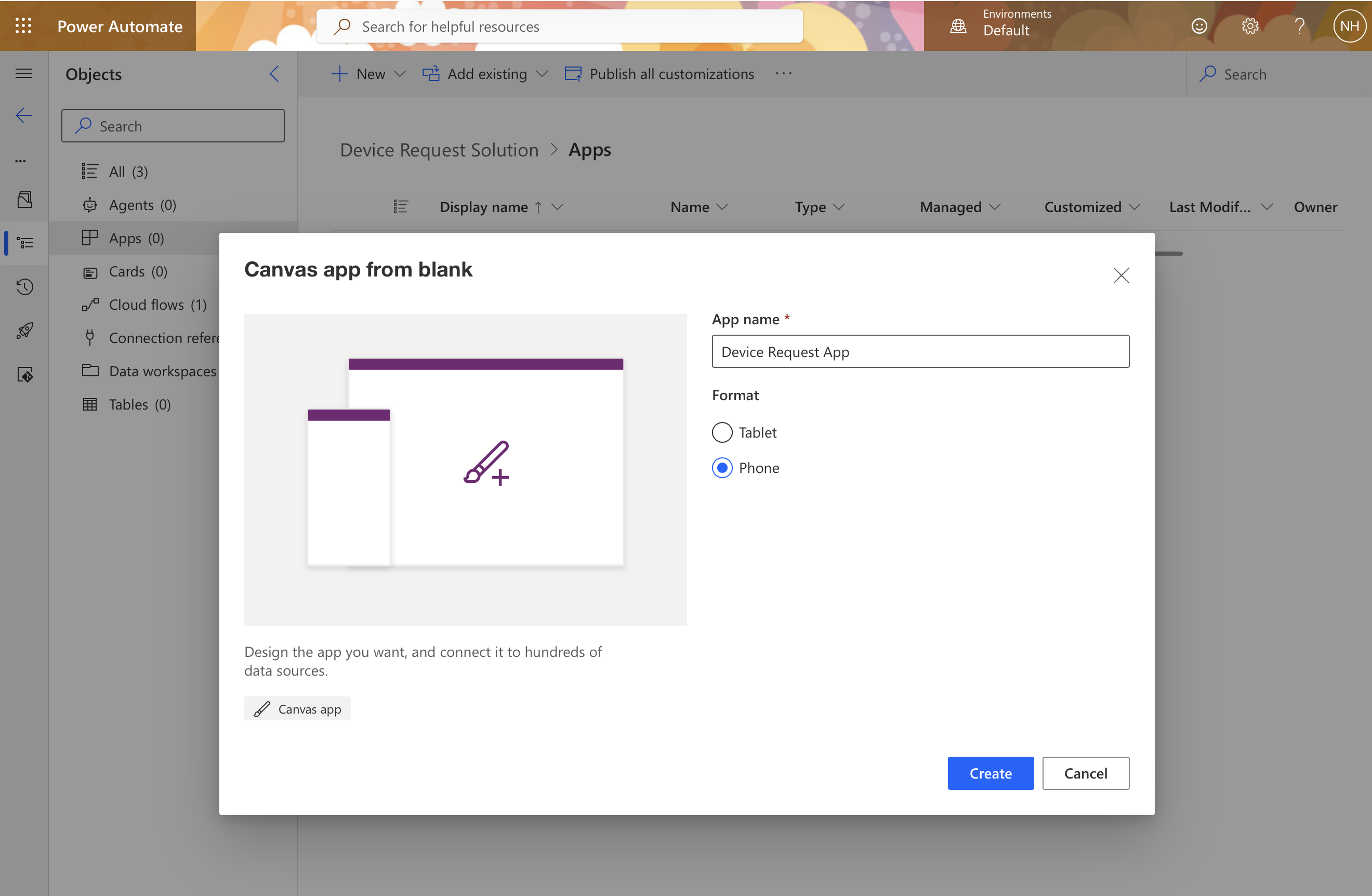
I named the canvas app "Device Request App", selected Phone format, and clicked Create
 Tap the image to open it full size
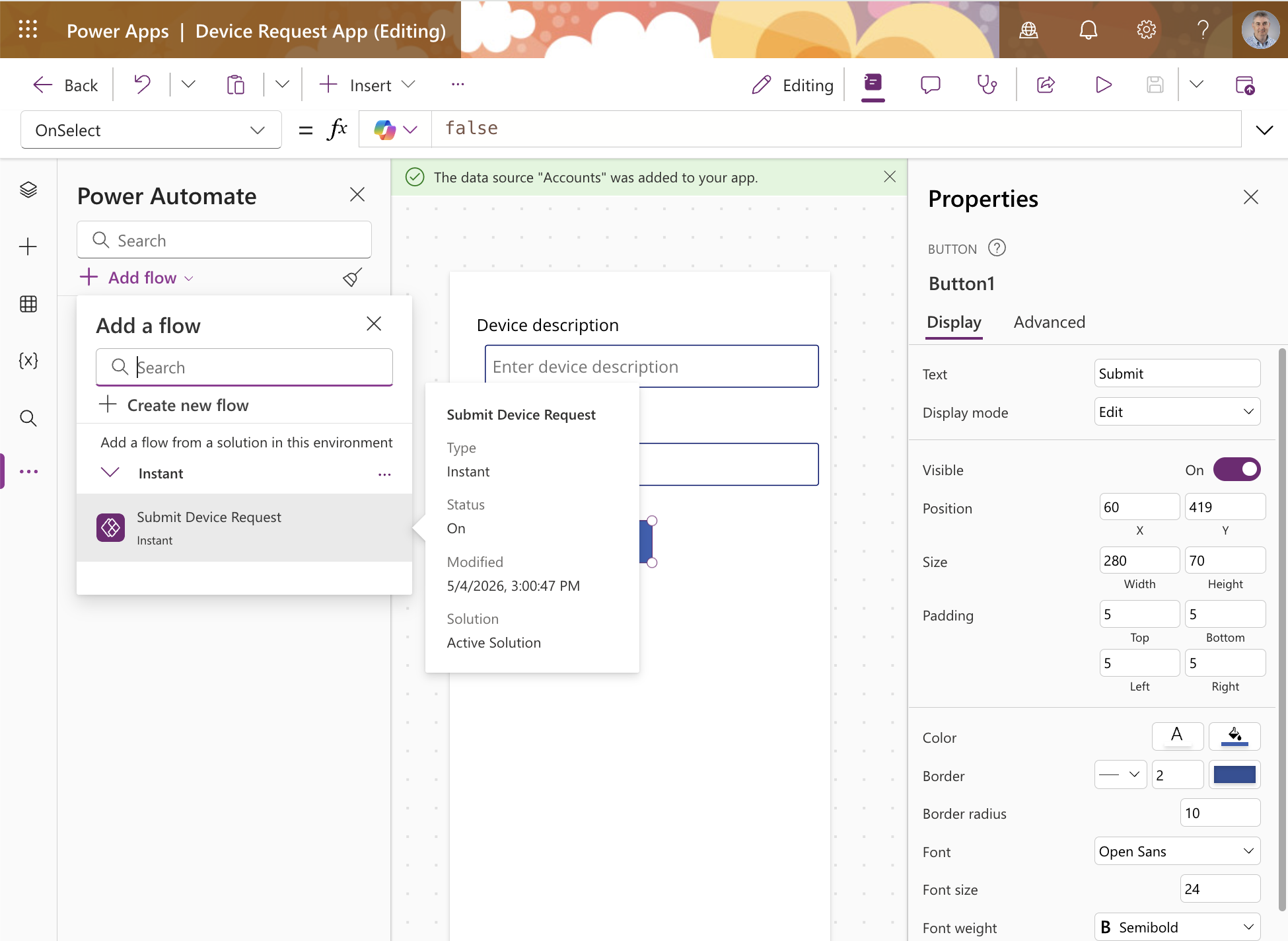
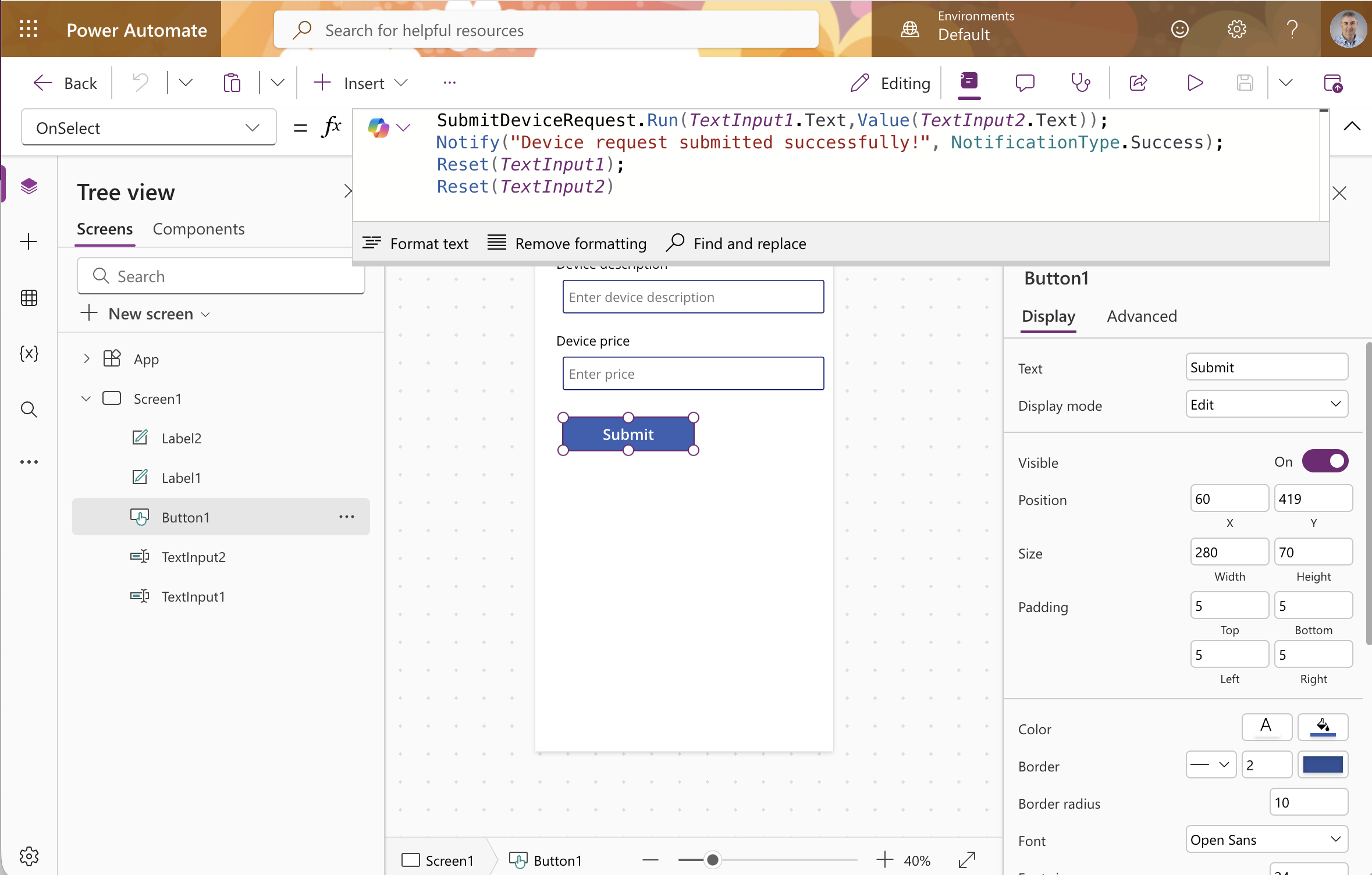
I selected the Submit button in Power Apps and entered the OnSelect formula to call the Submit Device Request flow, show a success notification, and reset the input fields
 Tap the image to open it full size
The Submit button's OnSelect formula called the flow with the Title and Price inputs, displayed the success notification, and reset both text fields
 Tap the image to open it full size
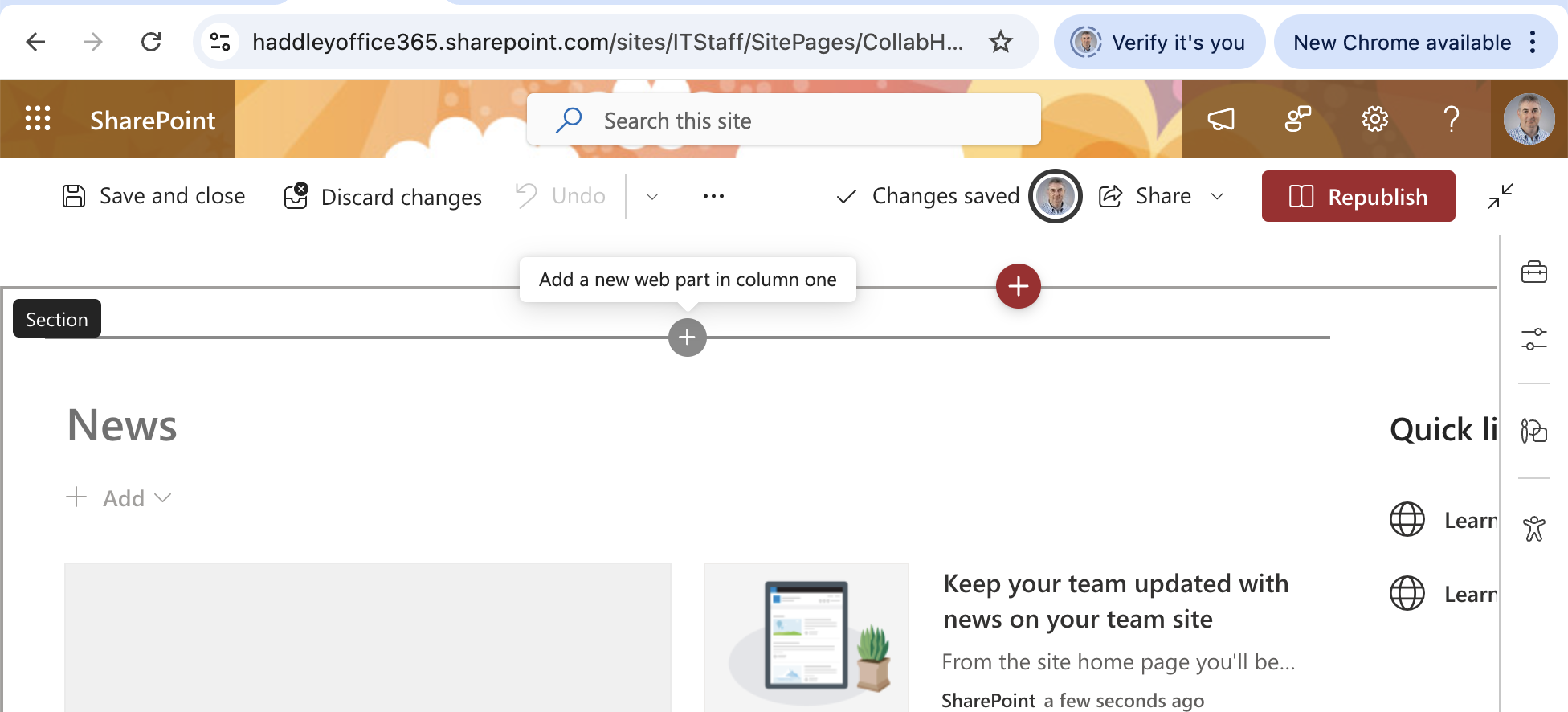
I opened the IT Staff SharePoint home page in edit mode and clicked the + button to add a new web part
 Tap the image to open it full size
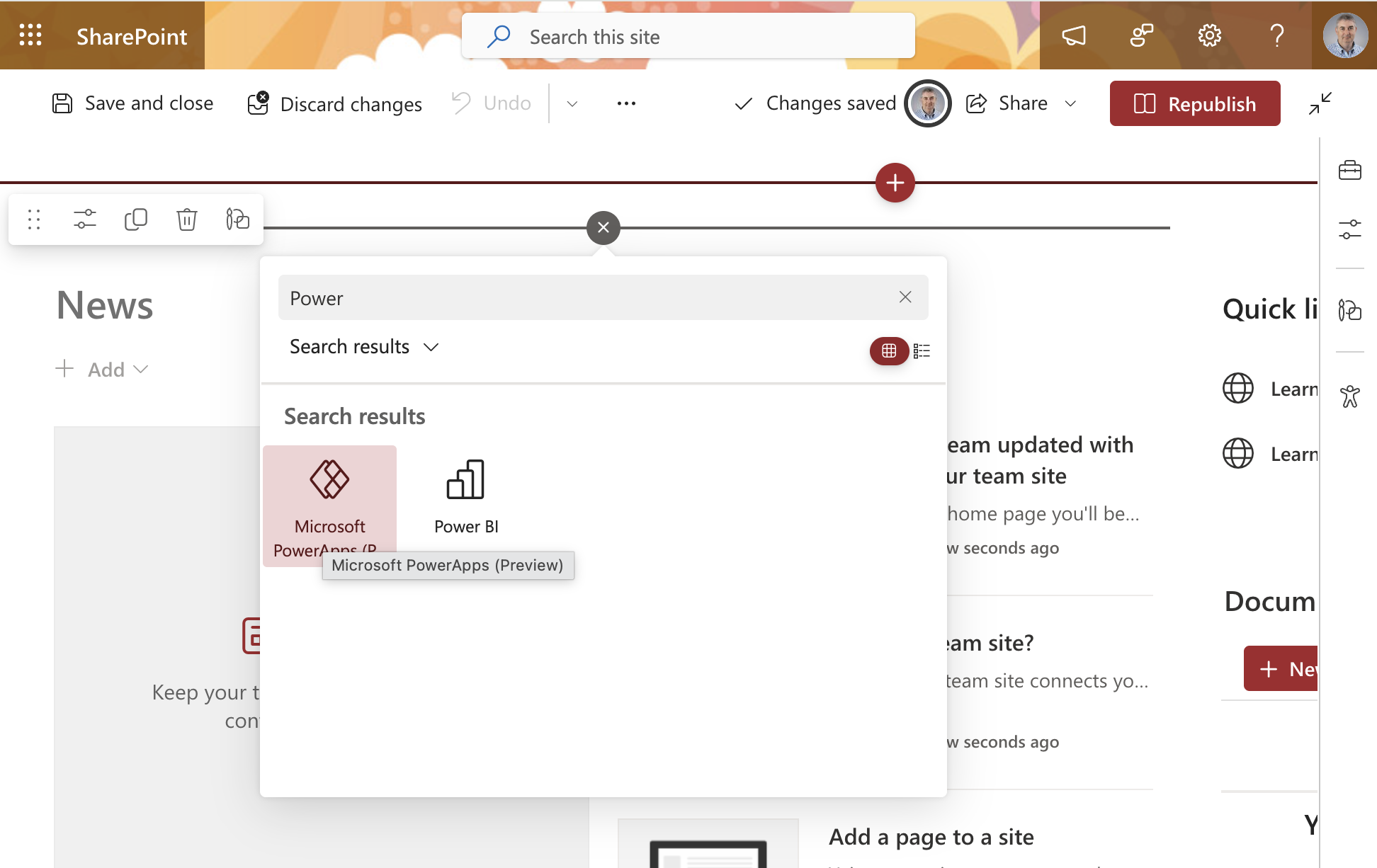
I searched for "Power" in the web part picker and selected Microsoft PowerApps (Preview)
 Tap the image to open it full size
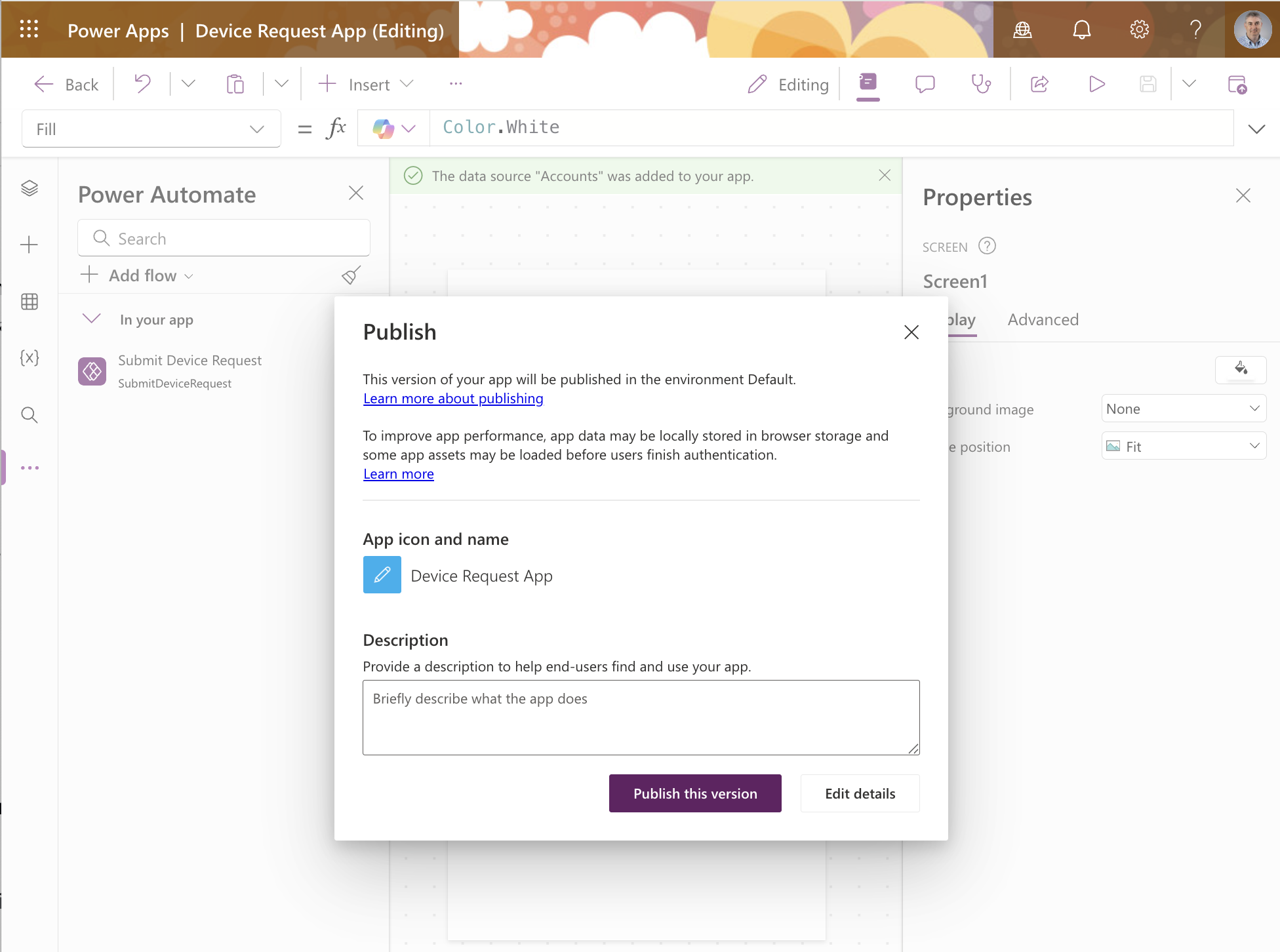
I published the Device Request App from Power Apps Studio so it could be embedded in SharePoint
 Tap the image to open it full size
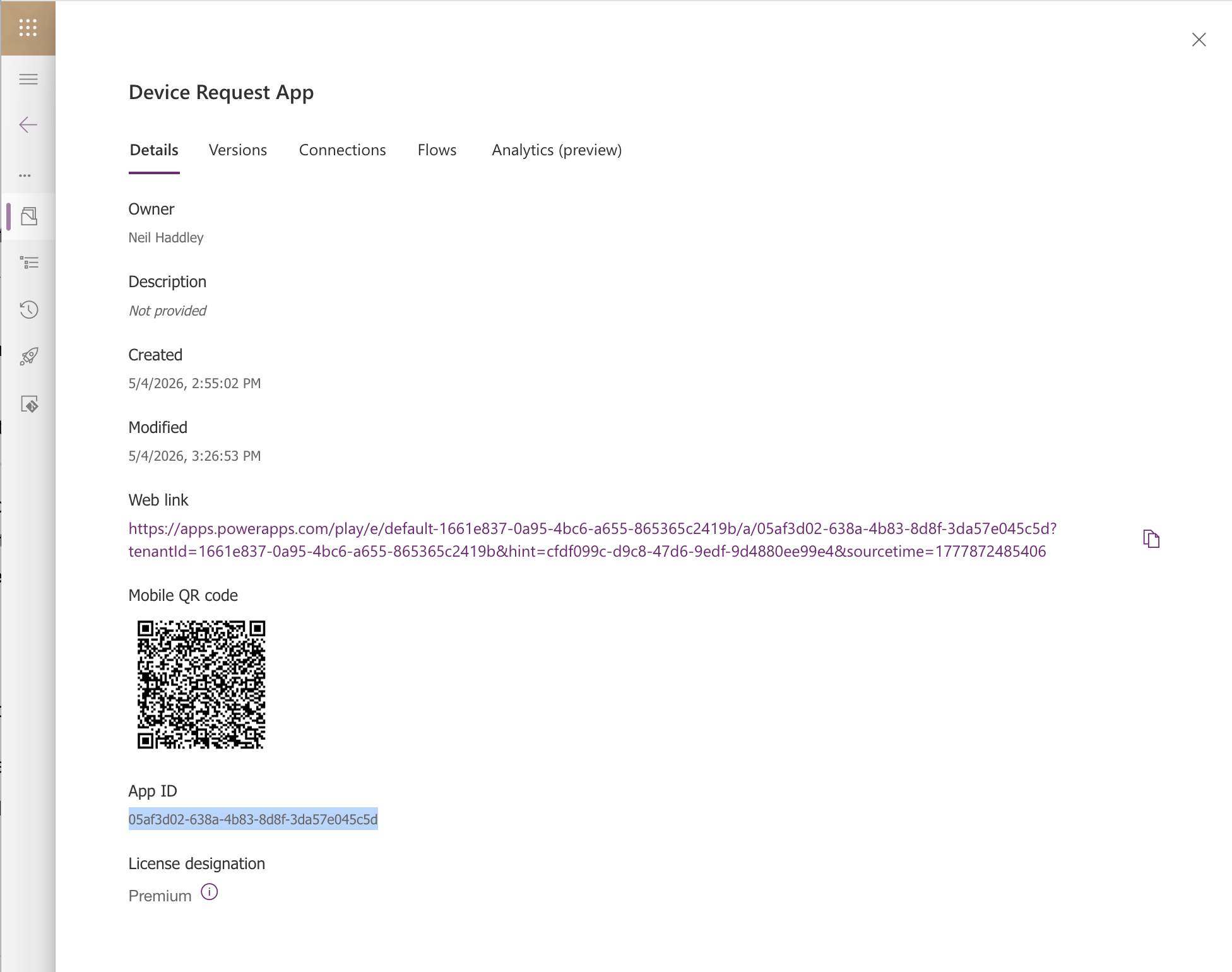
The app details page showed the web link and a mobile QR code for the Device Request App
 Tap the image to open it full size
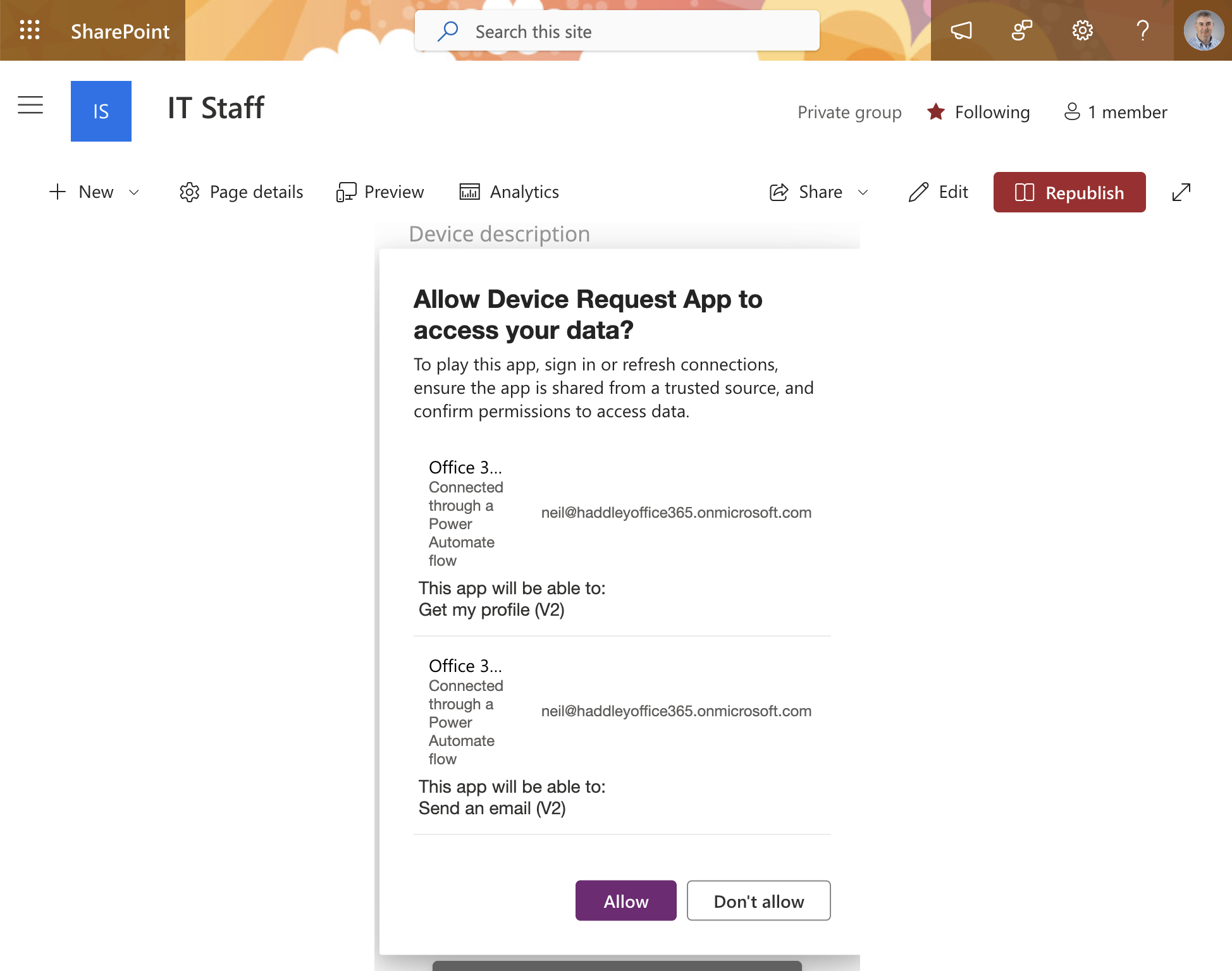
A permissions dialog appeared asking me to allow the Device Request App to access Office 365 data — I clicked Allow
 Tap the image to open it full size
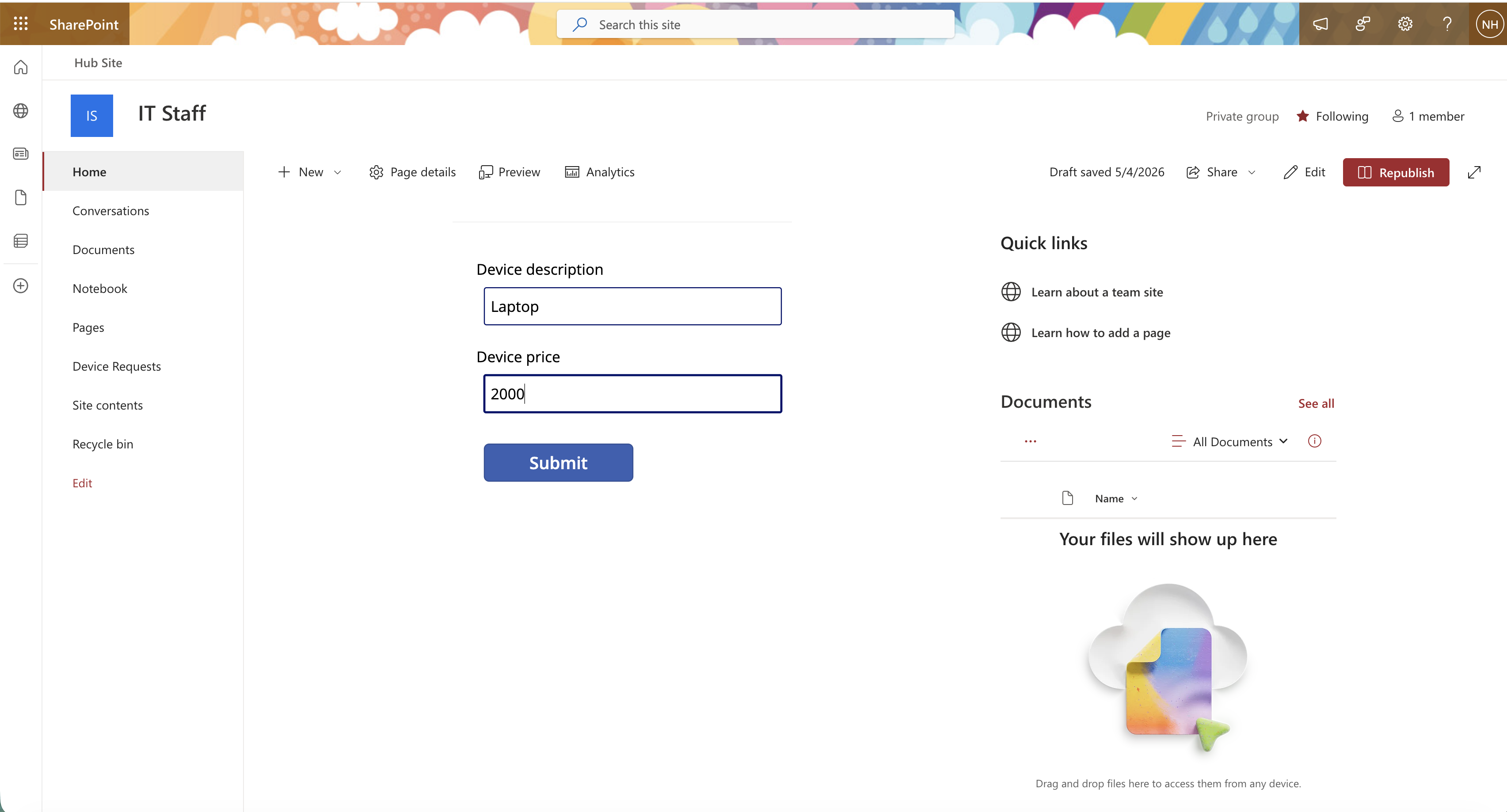
I entered "Laptop" and 2000 to test another submission from the SharePoint home page
 Tap the image to open it full size
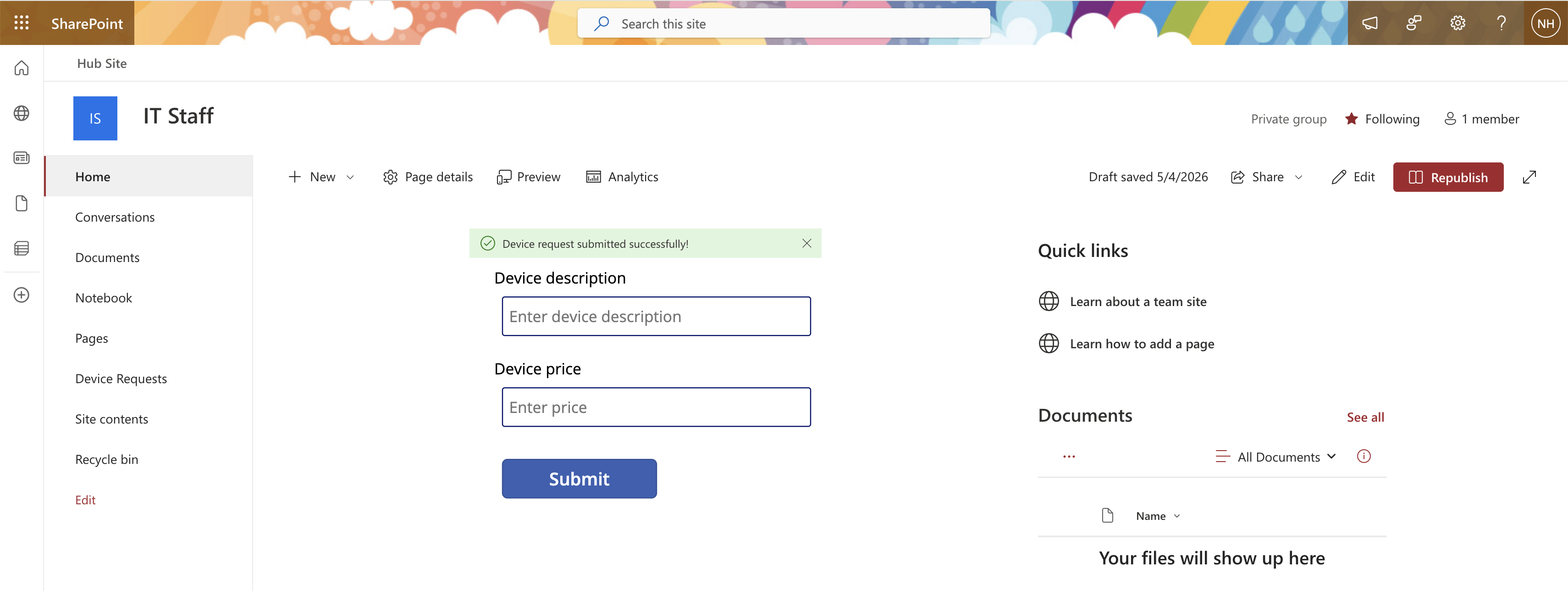
After clicking Submit, the form showed "Device request submitted successfully!" and the fields cleared automatically
 Tap the image to open it full size
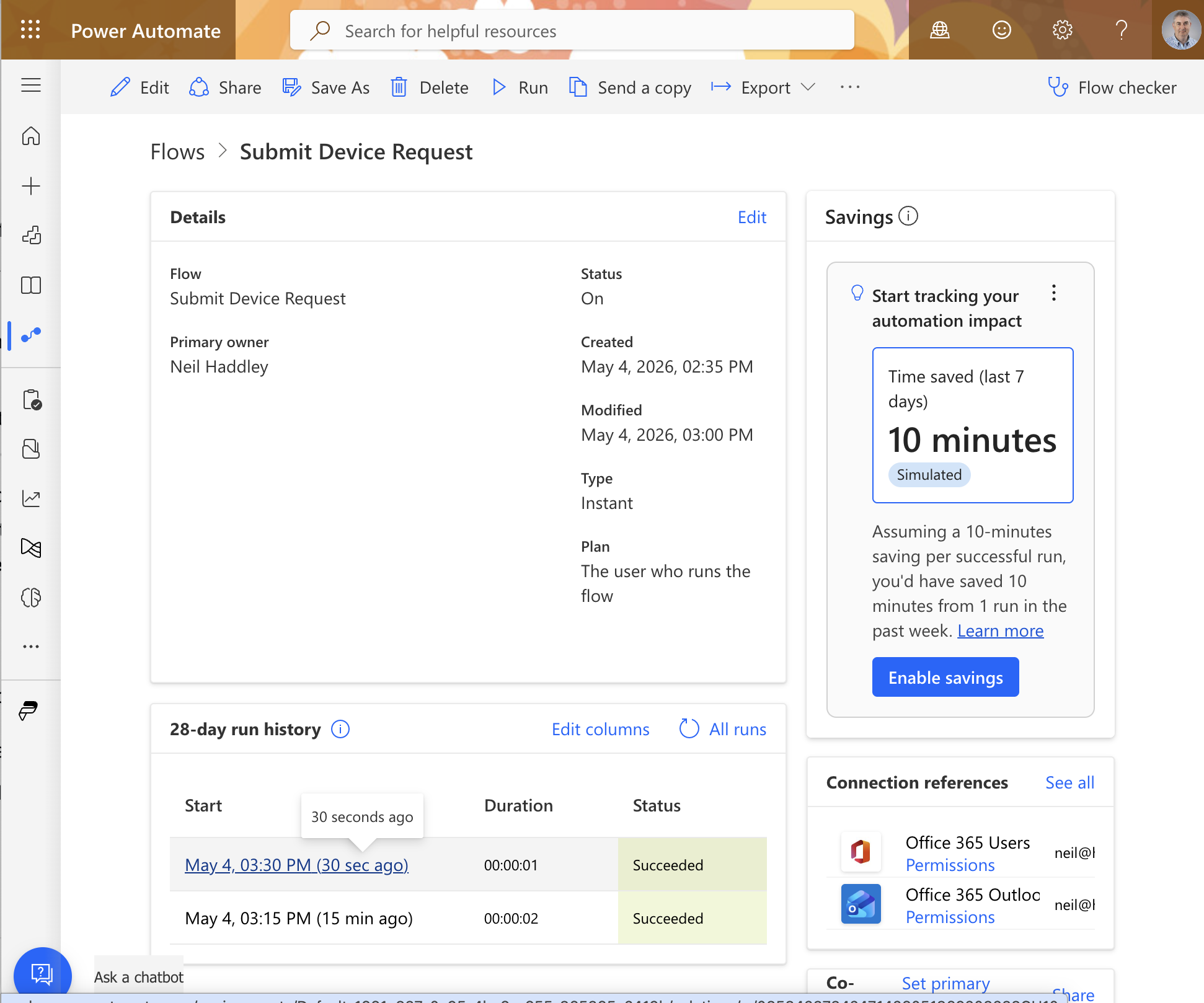
The Power Automate flow run history showed two successful runs of the Submit Device Request flow
 Tap the image to open it full size
Each step in the flow completed successfully — the run finished in under a second
 Tap the image to open it full size
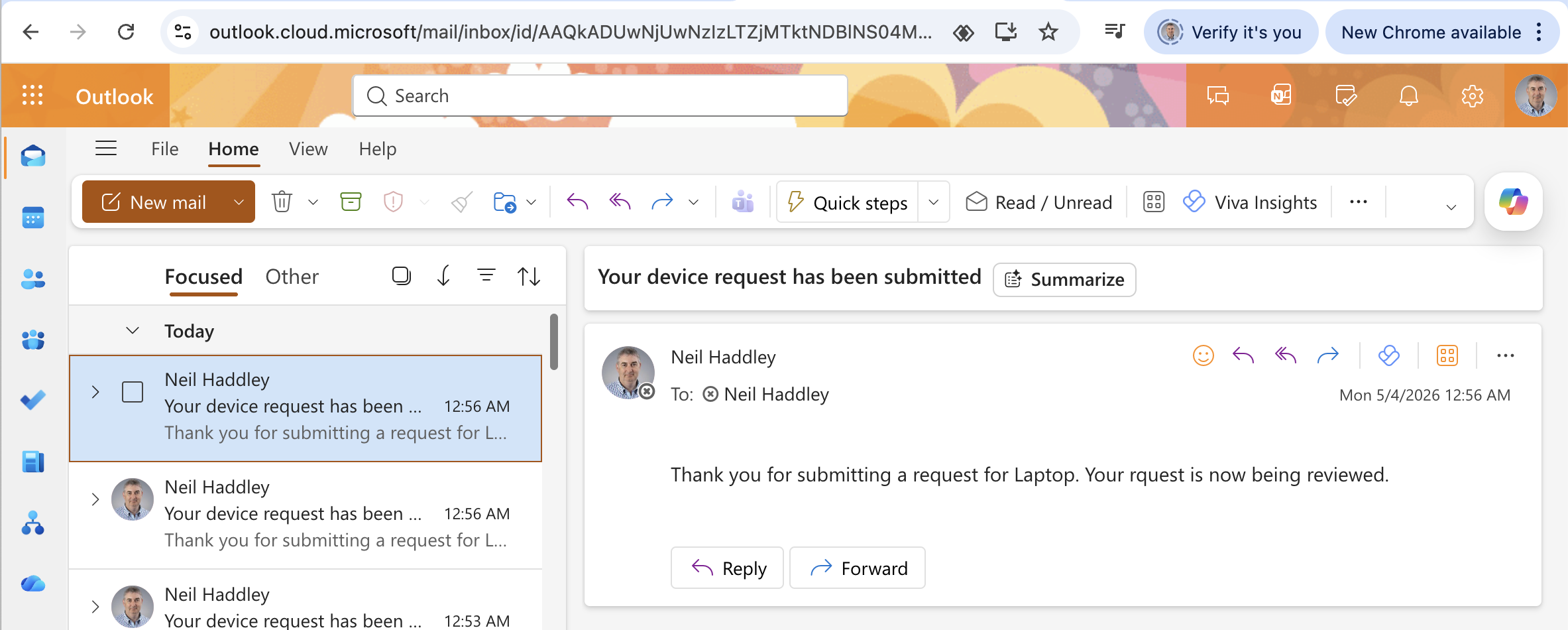
I checked Outlook and confirmed the second confirmation email had arrived — the flow sent the notification for both test submissions