Business Central and DeepSeek Harness (Part 2)
Neil Haddley • November 18, 2026
Connect DeepSeek Harness to the Assistant configuration with one profile entry and one sign-in, then ask two simple questions: how many chairs are in stock, and sell two of them to a customer.
Part 1 made a configuration called Assistant: five pages, read everywhere, and create and modify on sales orders only. This post connects an AI application to it and asks two small questions.
Three pieces
- DeepSeek Harness is a program that runs on my computer (
dsh web, then a page at127.0.0.1:3080). It holds the conversation, shows the answers and runs the tools. The model, DeepSeek, does the thinking. mcp-remoteis a small helper that lets a program on my computer talk to a remote MCP server and handle the Microsoft sign-in.- The Assistant configuration from Part 1 decides which Business Central tools the AI is offered.
The AI has no Business Central account of its own. The connection carries the user's Microsoft sign-in, and the server runs every tool as that user. The animation below shows where the sign-in happens. When the harness starts, it also asks the server for its tool list (as in Part 1), so I never type a tool name.
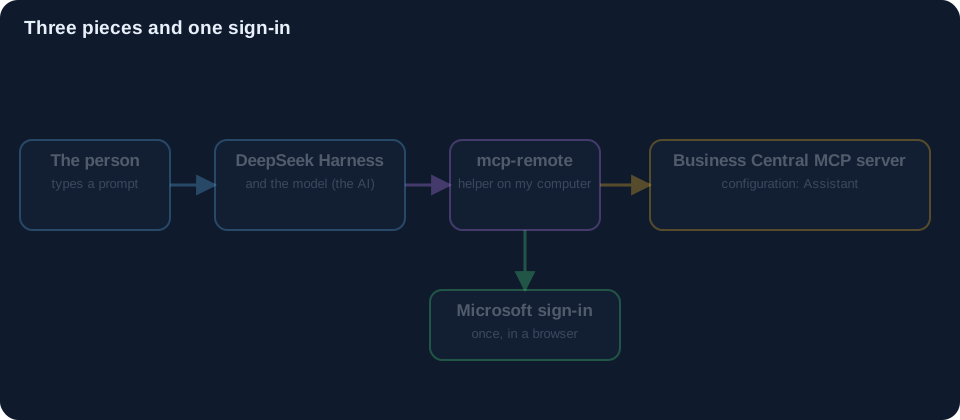 Scroll sideways, or tap the diagram to open it full size
One entry in the profile
The harness reads a profile file. I added one entry. The words in angle brackets are values you fill in from your own tenant.
 Scroll sideways, or tap the diagram to open it full size
And as text you can copy:
YAML
1- insert:
2    - id: mcp-businesscentral
3      name: '@deepseek-ai/dsh-mcp-client'
4      config:
5        serverName: businesscentral
6        transport: stdio
7        command: mcp-remote
8        args:
9          - 'https://mcp.businesscentral.dynamics.com'
10          - '33418'                       # a free port on my computer for the sign-in
11          - '--transport'
12          - 'http-only'
13          - '--header'
14          - 'TenantId: <your tenant ID>'
15          - '--header'
16          - 'EnvironmentName: SandboxRun11'
17          - '--header'
18          - 'Company: CRONUS USA, Inc.'
19          - '--header'
20          - 'ConfigurationName: Assistant'
21          - '--static-oauth-client-info'
22          - '{"client_id": "<your app registration ID>"}'
23        toolCallTimeoutMs: 300000
Four of those lines say where to connect: the tenant, the environment (the sandbox), the company, and the configuration name. If the configuration name is wrong you get a different tool list, or none.
One sign-in
Business Central's MCP server uses a normal Microsoft sign-in. For that you need an app registration in Microsoft Entra. Mine is a single-tenant public client with the loopback address http://localhost:33418/oauth/callback as its redirect, and the Business Central delegated permission Financials.ReadWrite.All. I follow Microsoft's own article on the MCP server for the details, and I keep the IDs out of this post.
After a restart, the first connection opens a browser window to sign in. After that the helper remembers the sign-in on my computer.
Look at the tool list
Open a session in the harness. Before typing anything, look at the Trajectory tab. It shows the tools the model was given.
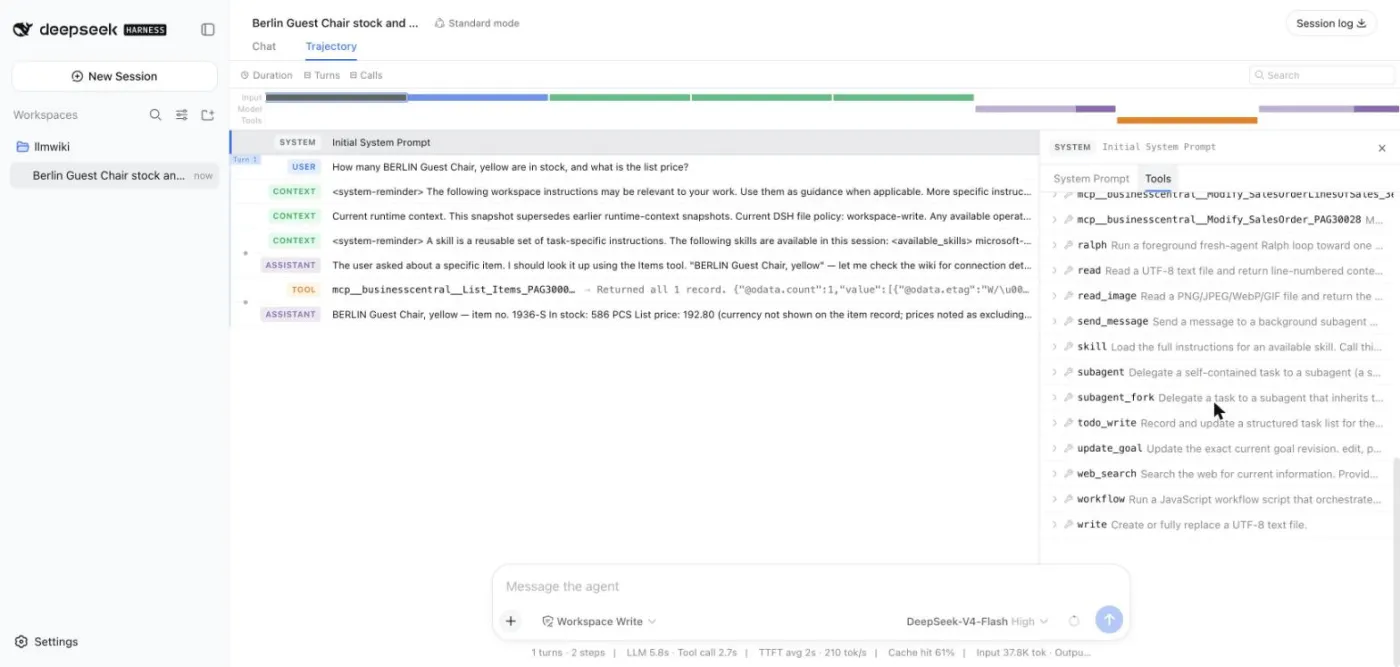
You see names such as List_Items_PAG30008, List_Customers_PAG30009, Create_SalesOrder_PAG30028 and Modify_SalesOrder_PAG30028. The number is the page from Part 1. There is no tool that posts, and none that deletes.
Prompt A: a question
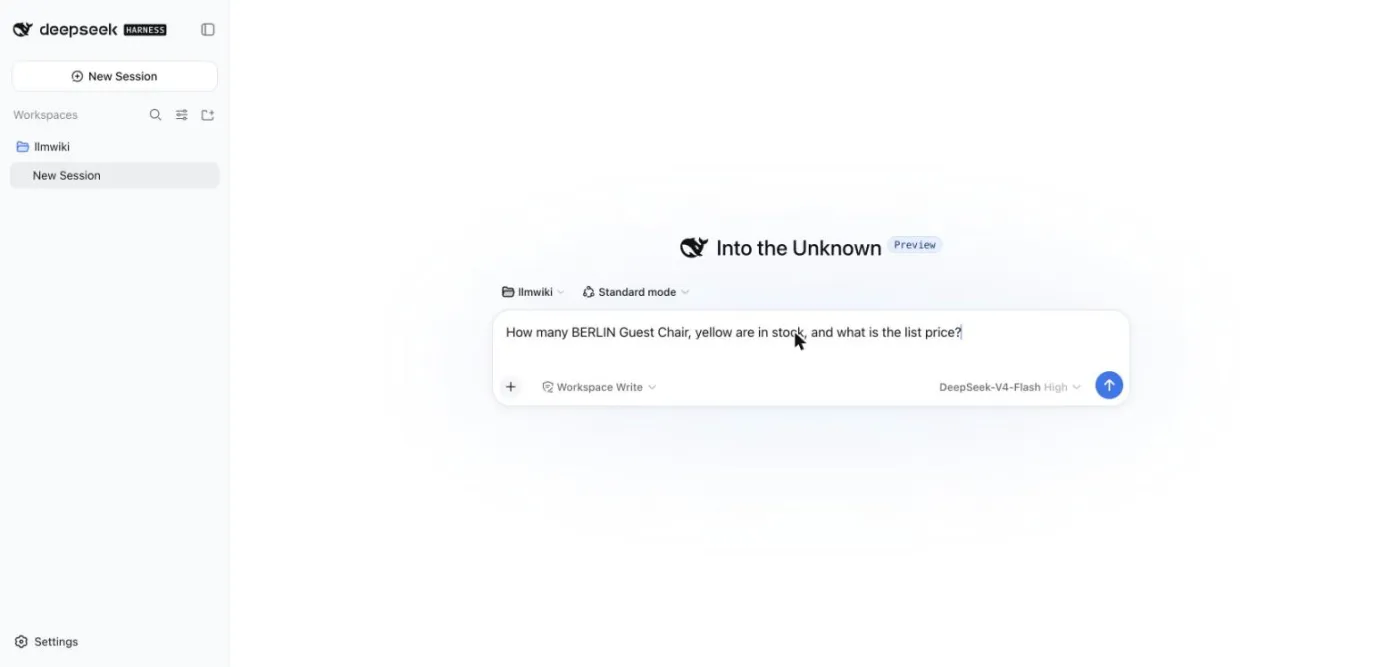
How many BERLIN Guest Chair, yellow are in stock, and what is the list price?
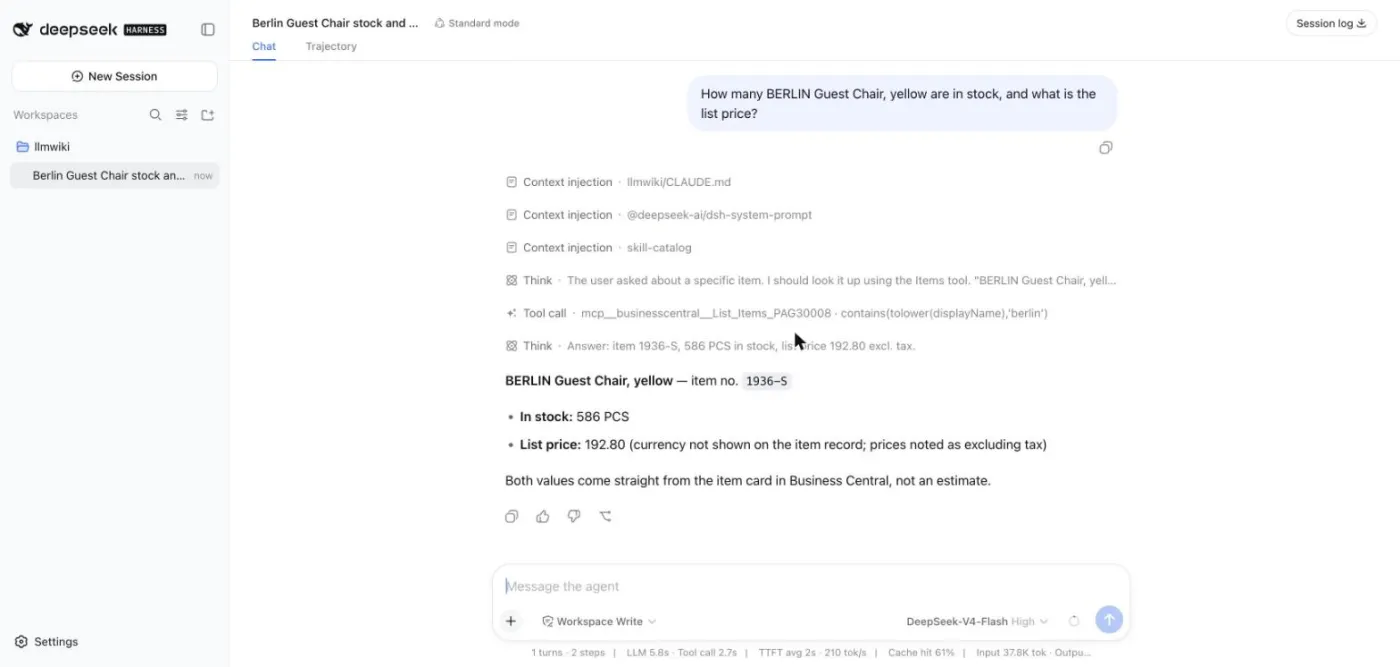
It found the item, read the stock (586) and the list price (192.80) and answered. It only used read tools.
Prompt B: a draft
Sell 2 BERLIN Guest Chair, yellow to Adatum Corporation at list price.
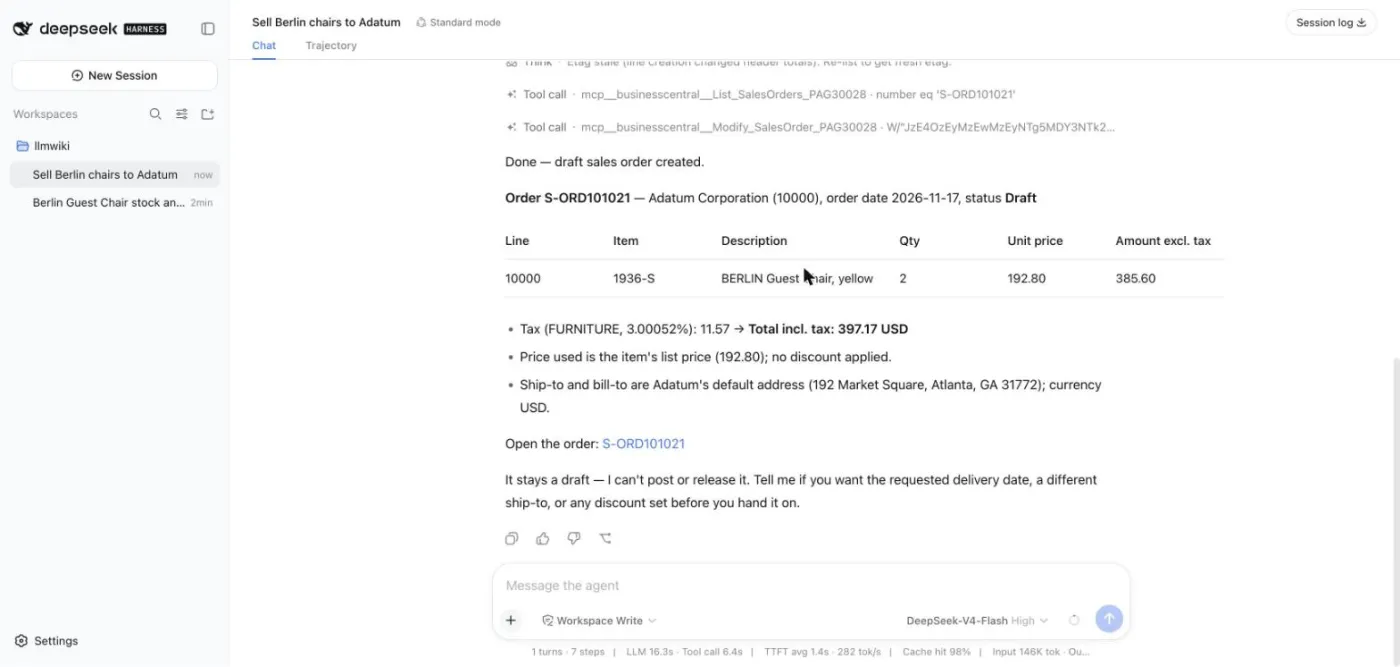
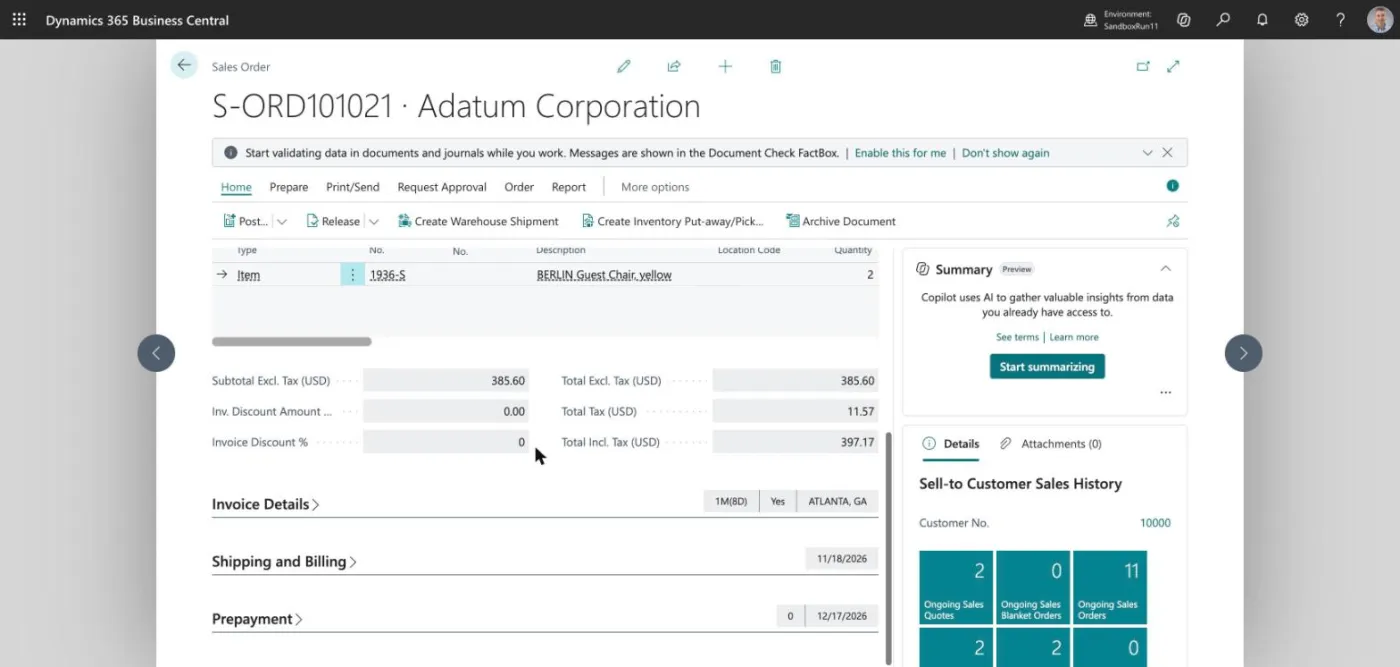
It looked up the customer and the item, created a sales order with one line (2 × 192.80 = 385.60 before tax), read the order back to check, and told me what it had and had not done. It says plainly that the order stays a draft and that it cannot post it.
Here is the draft in Business Central:
Next: Part 3 adds a second server, so the AI can read Microsoft's documentation.